display BMW 645CI COUPE 2004 E63 Workshop Manual
[x] Cancel search | Manufacturer: BMW, Model Year: 2004, Model line: 645CI COUPE, Model: BMW 645CI COUPE 2004 E63Pages: 216, PDF Size: 3.46 MB
Page 116 of 216
Destination entry
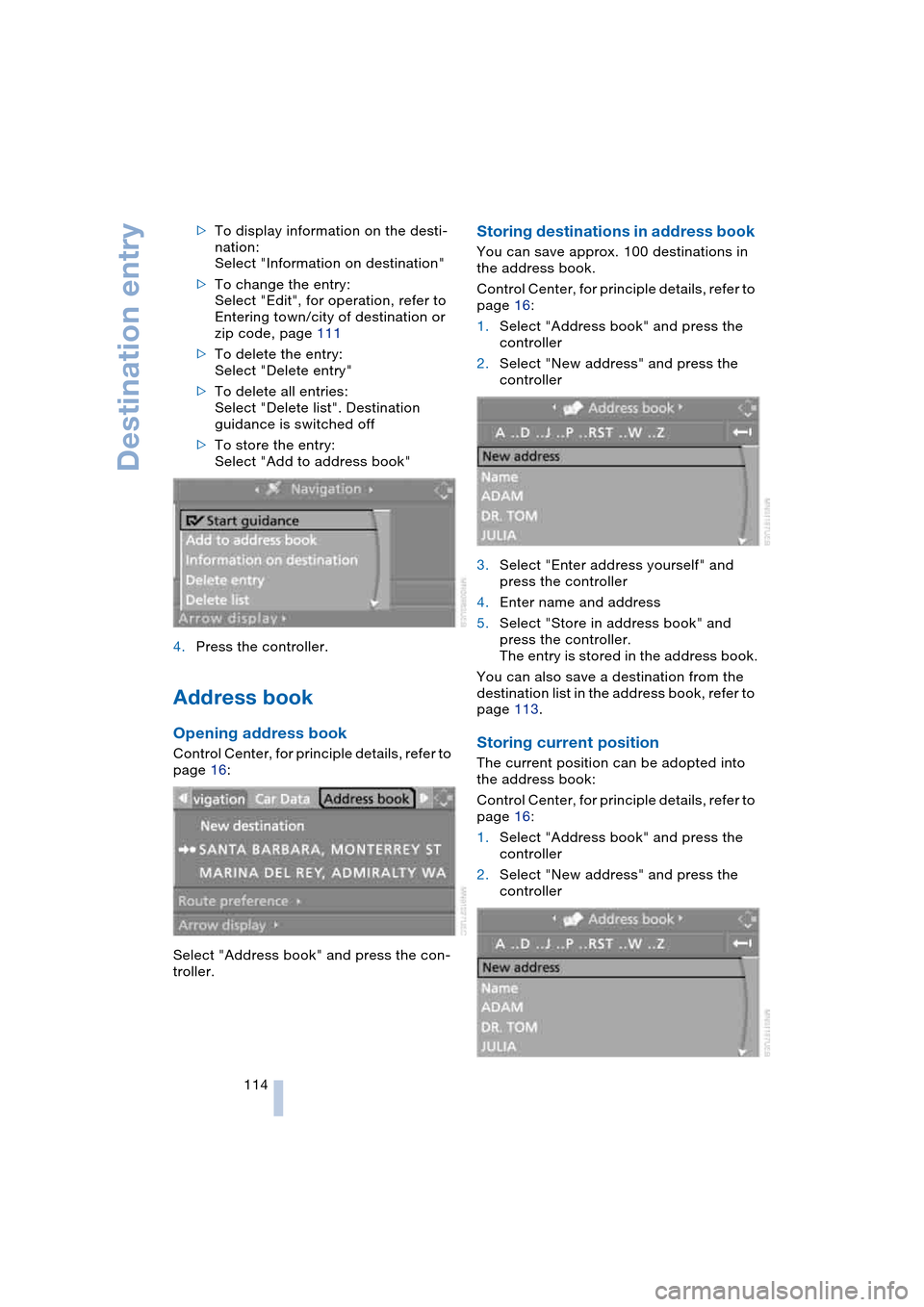
114 >To display information on the desti-
nation:
Select "Information on destination"
>To change the entry:
Select "Edit", for operation, refer to
Entering town/city of destination or
zip code, page 111
>To delete the entry:
Select "Delete entry"
>To delete all entries:
Select "Delete list". Destination
guidance is switched off
>To store the entry:
Select "Add to address book"
4.Press the controller.
Address book
Opening address book
Control Center, for principle details, refer to
page 16:
Select "Address book" and press the con-
troller.
Storing destinations in address book
You can save approx. 100 destinations in
the address book.
Control Center, for principle details, refer to
page 16:
1.Select "Address book" and press the
controller
2.Select "New address" and press the
controller
3.Select "Enter address yourself" and
press the controller
4.Enter name and address
5.Select "Store in address book" and
press the controller.
The entry is stored in the address book.
You can also save a destination from the
destination list in the address book, refer to
page 113.
Storing current position
The current position can be adopted into
the address book:
Control Center, for principle details, refer to
page 16:
1.Select "Address book" and press the
controller
2.Select "New address" and press the
controller
Page 117 of 216
Navigation
Driving tips
115Reference
At a glance
Controls
Communications
Entertainment
Mobility
3.Select "Apply location as address" and
press the controller.
The given name can be changed. For
operation, refer to Entering a destina-
tion manually, page 110
4.Select "Store in address book" and
press the controller.
You can also enter your current position in
the address book after leaving the sector
covered by the navigation DVD. In this
case, you must enter a name.
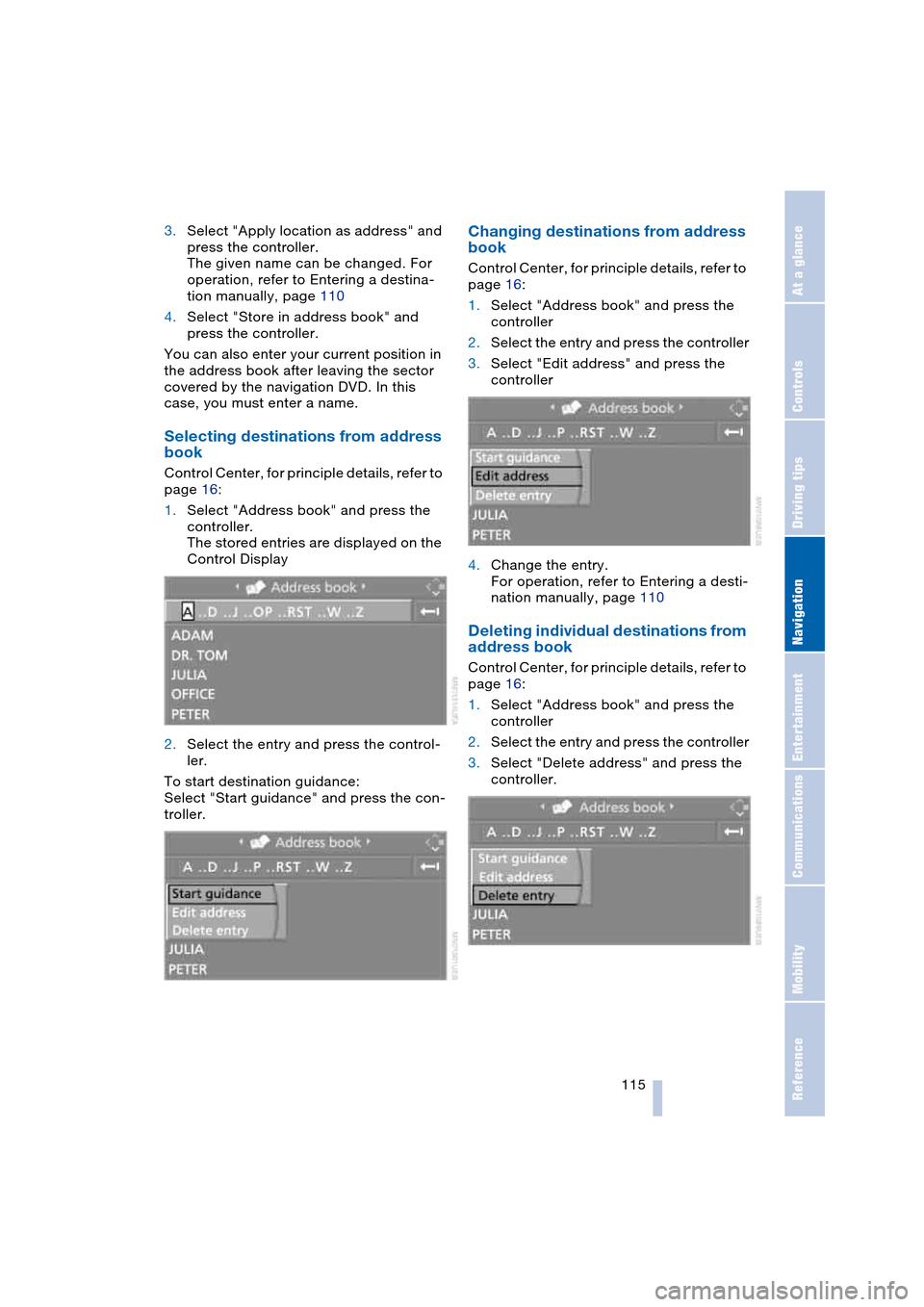
Selecting destinations from address
book
Control Center, for principle details, refer to
page 16:
1.Select "Address book" and press the
controller.
The stored entries are displayed on the
Control Display
2.Select the entry and press the control-
ler.
To start destination guidance:
Select "Start guidance" and press the con-
troller.
Changing destinations from address
book
Control Center, for principle details, refer to
page 16:
1.Select "Address book" and press the
controller
2.Select the entry and press the controller
3.Select "Edit address" and press the
controller
4.Change the entry.
For operation, refer to Entering a desti-
nation manually, page 110
Deleting individual destinations from
address book
Control Center, for principle details, refer to
page 16:
1.Select "Address book" and press the
controller
2.Select the entry and press the controller
3.Select "Delete address" and press the
controller.
Page 118 of 216
Destination entry
116
Deleting all destinations from
address book
Control Center, for principle details, refer to
page 16:
1.Open the start menu
2.Press the controller to open the menu
3.Select "Vehicle settings" and press the
controller
4.Select "Delete data" and press the con-
troller
5.Select "Delete address book" and press
the controller
6.Select "Yes" and press the controller.
Route selection
You can influence the calculated route by
choosing certain route criteria.
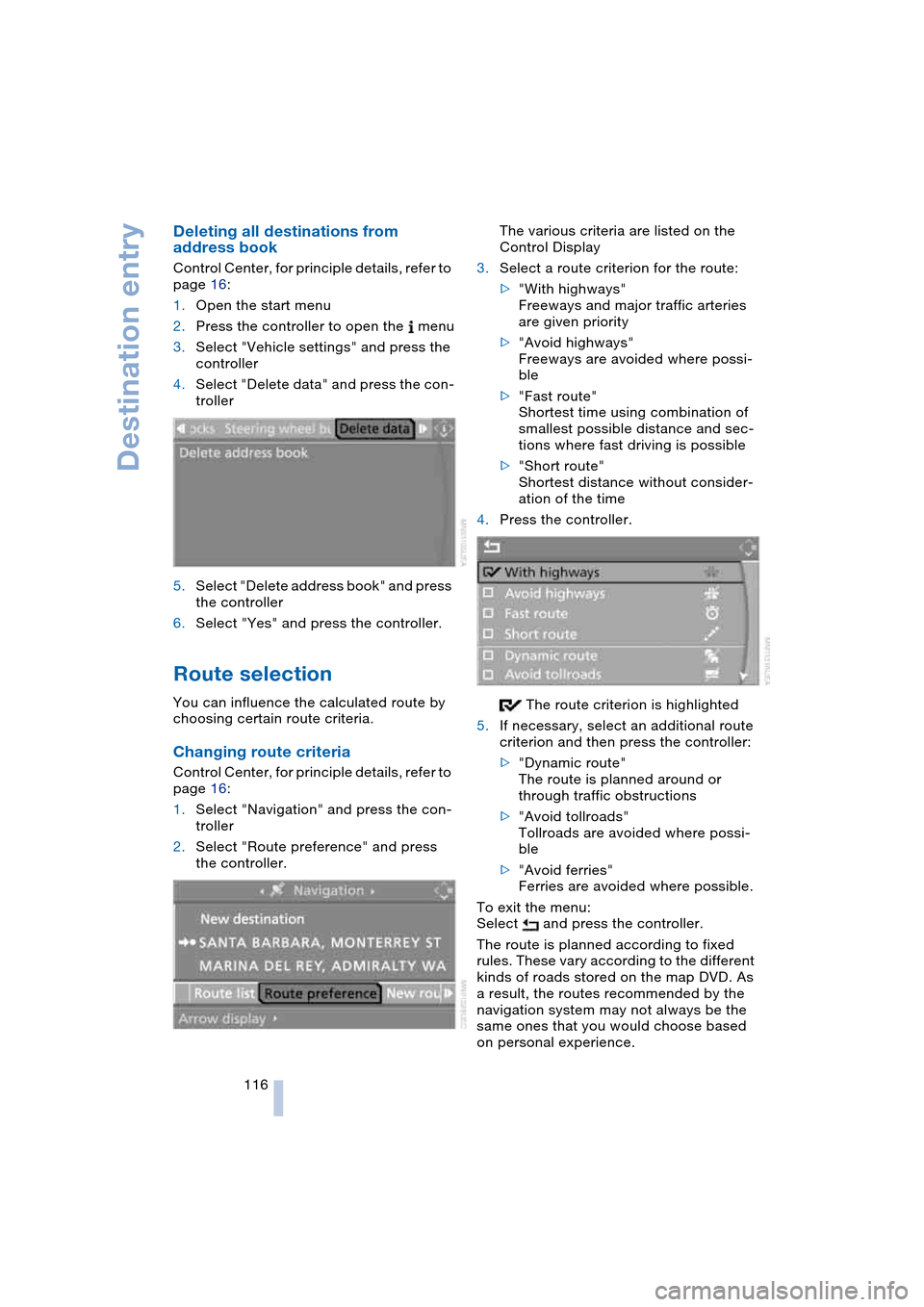
Changing route criteria
Control Center, for principle details, refer to
page 16:
1.Select "Navigation" and press the con-
troller
2.Select "Route preference" and press
the controller.The various criteria are listed on the
Control Display
3.Select a route criterion for the route:
>"With highways"
Freeways and major traffic arteries
are given priority
>"Avoid highways"
Freeways are avoided where possi-
ble
>"Fast route"
Shortest time using combination of
smallest possible distance and sec-
tions where fast driving is possible
>"Short route"
Shortest distance without consider-
ation of the time
4.Press the controller.
The route criterion is highlighted
5.If necessary, select an additional route
criterion and then press the controller:
>"Dynamic route"
The route is planned around or
through traffic obstructions
>"Avoid tollroads"
Tollroads are avoided where possi-
ble
>"Avoid ferries"
Ferries are avoided where possible.
To exit the menu:
Select and press the controller.
The route is planned according to fixed
rules. These vary according to the different
kinds of roads stored on the map DVD. As
a result, the routes recommended by the
navigation system may not always be the
same ones that you would choose based
on personal experience.
Page 120 of 216
Destination guidance
118
Destination guidance
Starting destination
guidance
Control Center, for principle details, refer to
page 16:
1.Select "Navigation" and press the con-
troller
2.Select the destination from the destina-
tion list and press the controller or enter
a new destination, refer to page 110
3.Select "Start guidance" and press the
controller.
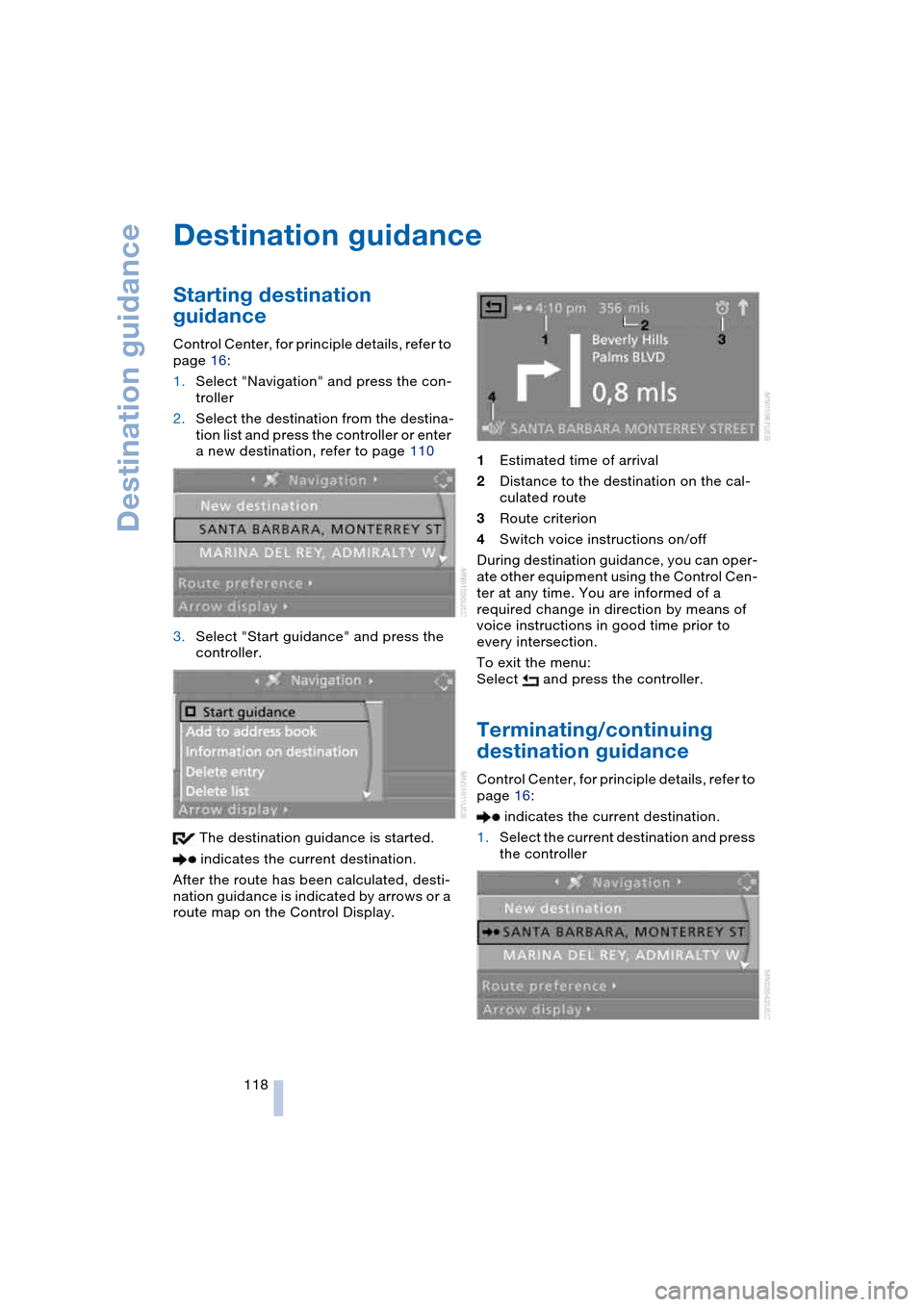
The destination guidance is started.
indicates the current destination.
After the route has been calculated, desti-
nation guidance is indicated by arrows or a
route map on the Control Display.1Estimated time of arrival
2Distance to the destination on the cal-
culated route
3Route criterion
4Switch voice instructions on/off
During destination guidance, you can oper-
ate other equipment using the Control Cen-
ter at any time. You are informed of a
required change in direction by means of
voice instructions in good time prior to
every intersection.
To exit the menu:
Select and press the controller.
Terminating/continuing
destination guidance
Control Center, for principle details, refer to
page 16:
indicates the current destination.
1.Select the current destination and press
the controller
Page 121 of 216
Navigation
Driving tips
119Reference
At a glance
Controls
Communications
Entertainment
Mobility
2.Select "Start guidance" and press the
controller.
The destination guidance is switched
off.
When you park the vehicle before reaching
the entered destination, upon restarting
you will see the question "Continue guid-
ance to dest.?".
To restart destination guidance:
Select "Yes" and press the controller.
Destination guidance
through voice instructions
Switching voice instructions on/off
Control Center, for principle details, refer to
page 16:
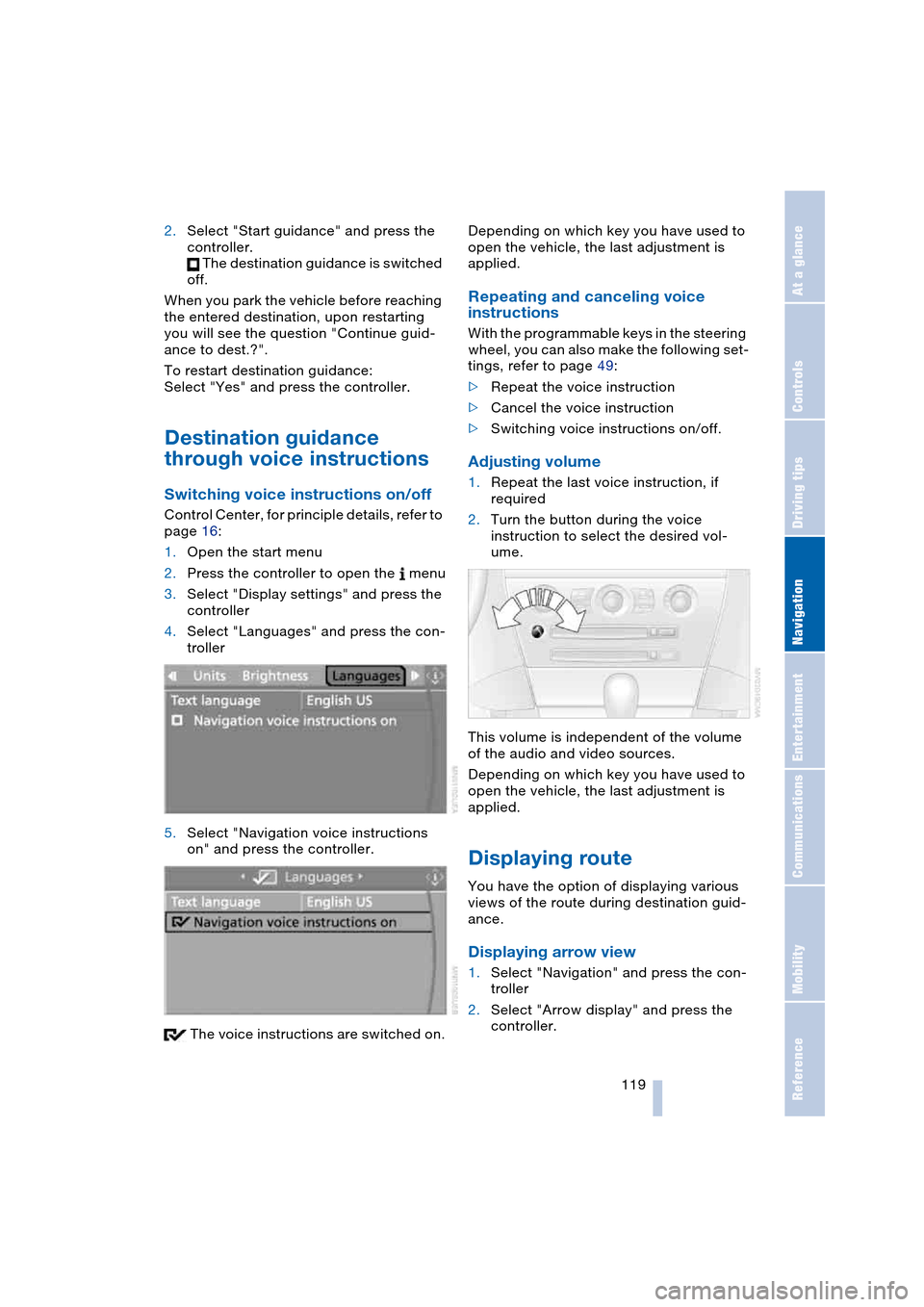
1.Open the start menu
2.Press the controller to open the menu
3.Select "Display settings" and press the
controller
4.Select "Languages" and press the con-
troller
5.Select "Navigation voice instructions
on" and press the controller.
The voice instructions are switched on.Depending on which key you have used to
open the vehicle, the last adjustment is
applied.
Repeating and canceling voice
instructions
With the programmable keys in the steering
wheel, you can also make the following set-
tings, refer to page 49:
>Repeat the voice instruction
>Cancel the voice instruction
>Switching voice instructions on/off.
Adjusting volume
1.Repeat the last voice instruction, if
required
2.Turn the button during the voice
instruction to select the desired vol-
ume.
This volume is independent of the volume
of the audio and video sources.
Depending on which key you have used to
open the vehicle, the last adjustment is
applied.
Displaying route
You have the option of displaying various
views of the route during destination guid-
ance.
Displaying arrow view
1.Select "Navigation" and press the con-
troller
2.Select "Arrow display" and press the
controller.
Page 122 of 216
Destination guidance
120
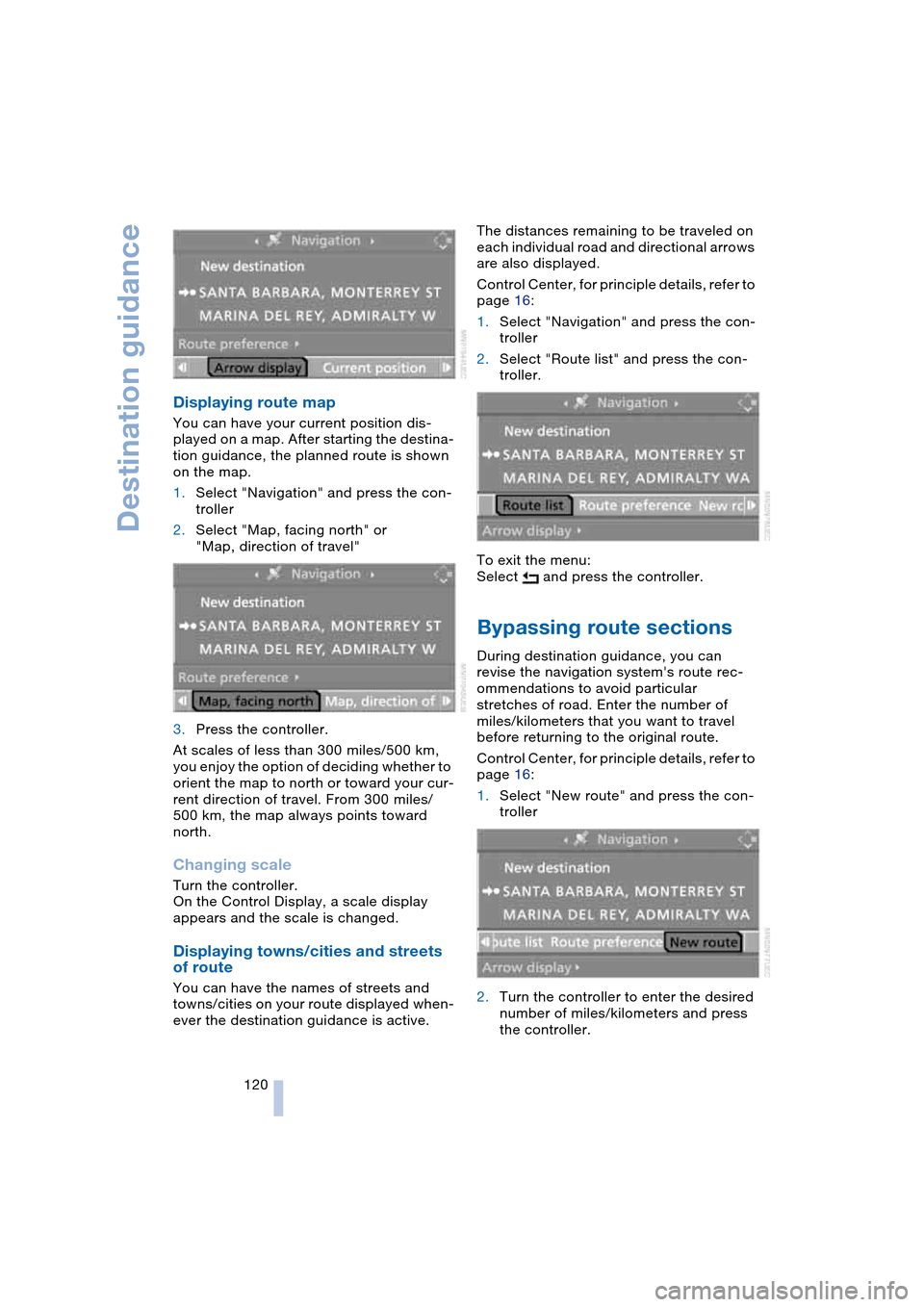
Displaying route map
You can have your current position dis-
played on a map. After starting the destina-
tion guidance, the planned route is shown
on the map.
1.Select "Navigation" and press the con-
troller
2.Select "Map, facing north" or
"Map, direction of travel"
3.Press the controller.
At scales of less than 300 miles/500 km,
you enjoy the option of deciding whether to
orient the map to north or toward your cur-
rent direction of travel. From 300 miles/
500 km, the map always points toward
north.
Changing scale
Turn the controller.
On the Control Display, a scale display
appears and the scale is changed.
Displaying towns/cities and streets
of route
You can have the names of streets and
towns/cities on your route displayed when-
ever the destination guidance is active.The distances remaining to be traveled on
each individual road and directional arrows
are also displayed.
Control Center, for principle details, refer to
page 16:
1.Select "Navigation" and press the con-
troller
2.Select "Route list" and press the con-
troller.
To exit the menu:
Select and press the controller.
Bypassing route sections
During destination guidance, you can
revise the navigation system's route rec-
ommendations to avoid particular
stretches of road. Enter the number of
miles/kilometers that you want to travel
before returning to the original route.
Control Center, for principle details, refer to
page 16:
1.Select "New route" and press the con-
troller
2.Turn the controller to enter the desired
number of miles/kilometers and press
the controller.
Page 124 of 216
What to do if …
122
What to do if …
What to do if …
>you request the current position of your
vehicle, but do not receive a precise
display?
The system is unable to receive enough
GPS signals at your current position
owing to obstructions, your current
position is not yet available on your nav-
igation DVD, or the system is in the pro-
cess of calculating your current posi-
tion. As a rule, reception is guaranteed
under a clear sky
>the destination guidance does not
apply a destination?
The data of the destination is not stored
on the navigation DVD that is loaded.
Select a destination that is as close as
possible to the original
>the destination guidance does not
apply an address without the street
name?
On the navigation DVD, no downtown
area can be determined for the city or
town entered. Enter any street, or a
destination such as the railway station
etc., then start the destination guidance>you want to enter a destination for the
destination guidance, but it is not pos-
sible to select the letters for your
desired entry?
The destination data is not recorded on
the navigation DVD that is loaded. In
this case, the system will not offer you
any letters to choose from. Select a
destination that is as close as possible
to the original
>the system stops furnishing directions
on which way to turn as you approach
intersections?
You are driving in an area that has not
yet been completely recorded on the
navigation DVD. Instead of an arrow
indicating a turn, you will see an arrow
which indicates the general direction of
your planned route. Or you have left the
recommended route and the system
requires a few seconds to calculate a
new recommended route
>the battery has been disconnected?
It will take approx. 10 minutes for the
system to resume operation.
Page 129 of 216
Navigation
Entertainment
Driving tips
127Reference
At a glance
Controls
Communications
Mobility
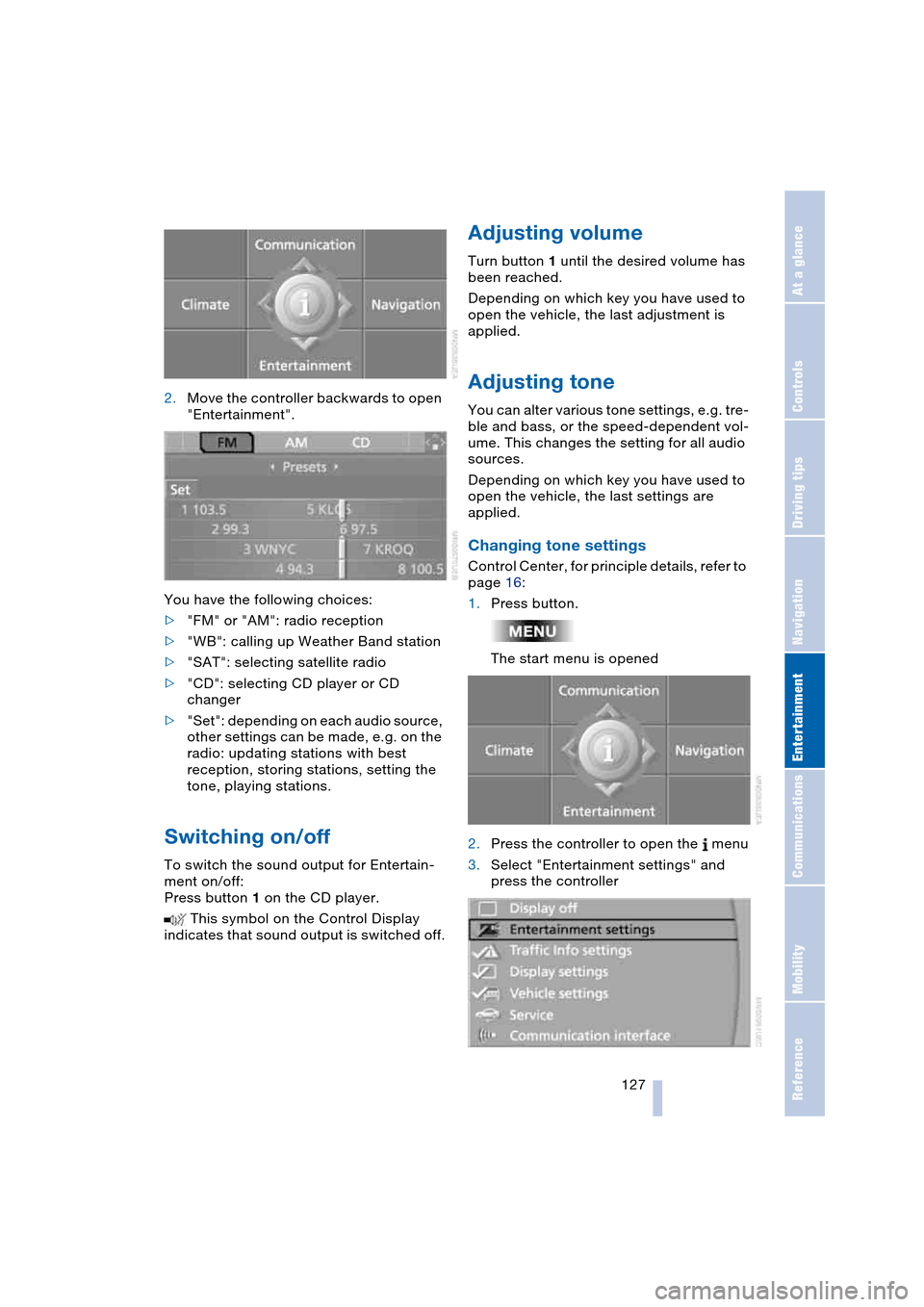
2.Move the controller backwards to open
"Entertainment".
You have the following choices:
>"FM" or "AM": radio reception
>"WB": calling up Weather Band station
>"SAT": selecting satellite radio
>"CD": selecting CD player or CD
changer
>"Set": depending on each audio source,
other settings can be made, e.g. on the
radio: updating stations with best
reception, storing stations, setting the
tone, playing stations.
Switching on/off
To switch the sound output for Entertain-
ment on/off:
Press button 1 on the CD player.
This symbol on the Control Display
indicates that sound output is switched off.
Adjusting volume
Turn button 1 until the desired volume has
been reached.
Depending on which key you have used to
open the vehicle, the last adjustment is
applied.
Adjusting tone
You can alter various tone settings, e.g. tre-
ble and bass, or the speed-dependent vol-
ume. This changes the setting for all audio
sources.
Depending on which key you have used to
open the vehicle, the last settings are
applied.
Changing tone settings
Control Center, for principle details, refer to
page 16:
1.Press button.
The start menu is opened
2.Press the controller to open the menu
3.Select "Entertainment settings" and
press the controller
Page 132 of 216
Radio
130
Radio
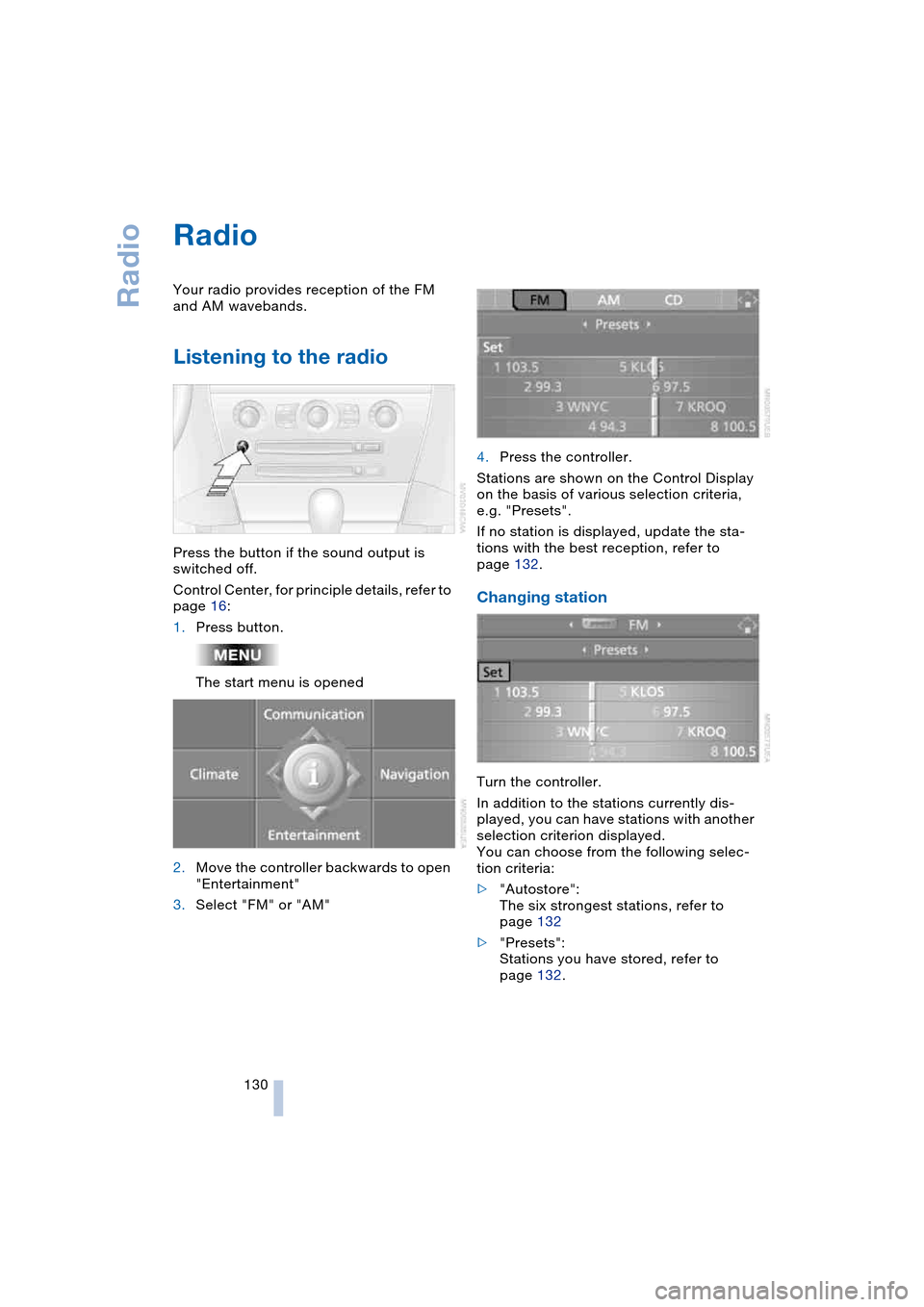
Your radio provides reception of the FM
and AM wavebands.
Listening to the radio
Press the button if the sound output is
switched off.
Control Center, for principle details, refer to
page 16:
1.Press button.
The start menu is opened
2.Move the controller backwards to open
"Entertainment"
3.Select "FM" or "AM"4.Press the controller.
Stations are shown on the Control Display
on the basis of various selection criteria,
e.g. "Presets".
If no station is displayed, update the sta-
tions with the best reception, refer to
page 132.
Changing station
Turn the controller.
In addition to the stations currently dis-
played, you can have stations with another
selection criterion displayed.
You can choose from the following selec-
tion criteria:
>"Autostore":
The six strongest stations, refer to
page 132
>"Presets":
Stations you have stored, refer to
page 132.
Page 133 of 216
Navigation
Entertainment
Driving tips
131Reference
At a glance
Controls
Communications
Mobility
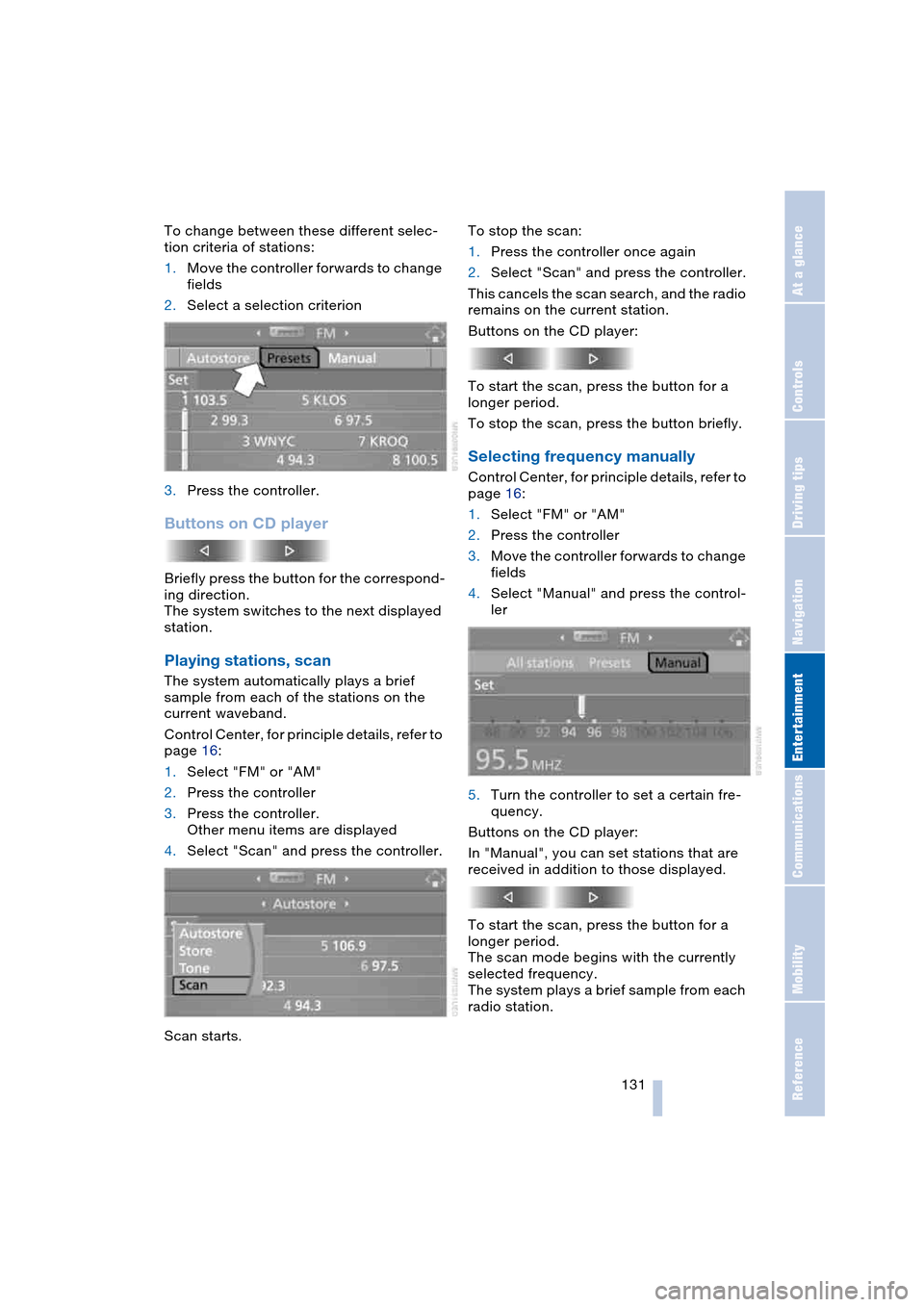
To change between these different selec-
tion criteria of stations:
1.Move the controller forwards to change
fields
2.Select a selection criterion
3.Press the controller.
Buttons on CD player
Briefly press the button for the correspond-
ing direction.
The system switches to the next displayed
station.
Playing stations, scan
The system automatically plays a brief
sample from each of the stations on the
current waveband.
Control Center, for principle details, refer to
page 16:
1.Select "FM" or "AM"
2.Press the controller
3.Press the controller.
Other menu items are displayed
4.Select "Scan" and press the controller.
Scan starts.To stop the scan:
1.Press the controller once again
2.Select "Scan" and press the controller.
This cancels the scan search, and the radio
remains on the current station.
Buttons on the CD player:
To start the scan, press the button for a
longer period.
To stop the scan, press the button briefly.
Selecting frequency manually
Control Center, for principle details, refer to
page 16:
1.Select "FM" or "AM"
2.Press the controller
3.Move the controller forwards to change
fields
4.Select "Manual" and press the control-
ler
5.Turn the controller to set a certain fre-
quency.
Buttons on the CD player:
In "Manual", you can set stations that are
received in addition to those displayed.
To start the scan, press the button for a
longer period.
The scan mode begins with the currently
selected frequency.
The system plays a brief sample from each
radio station.