display BMW 645CI COUPE 2004 E63 Repair Manual
[x] Cancel search | Manufacturer: BMW, Model Year: 2004, Model line: 645CI COUPE, Model: BMW 645CI COUPE 2004 E63Pages: 216, PDF Size: 3.46 MB
Page 134 of 216
Radio
132 To stop the scan at the desired frequency
or station:
Press button.
Updating stations with best
reception
If you are on a longer journey and leave the
transmission range of the stations originally
set, you can update the list of stations with
the best reception.
Control Center, for principle details, refer to
page 16:
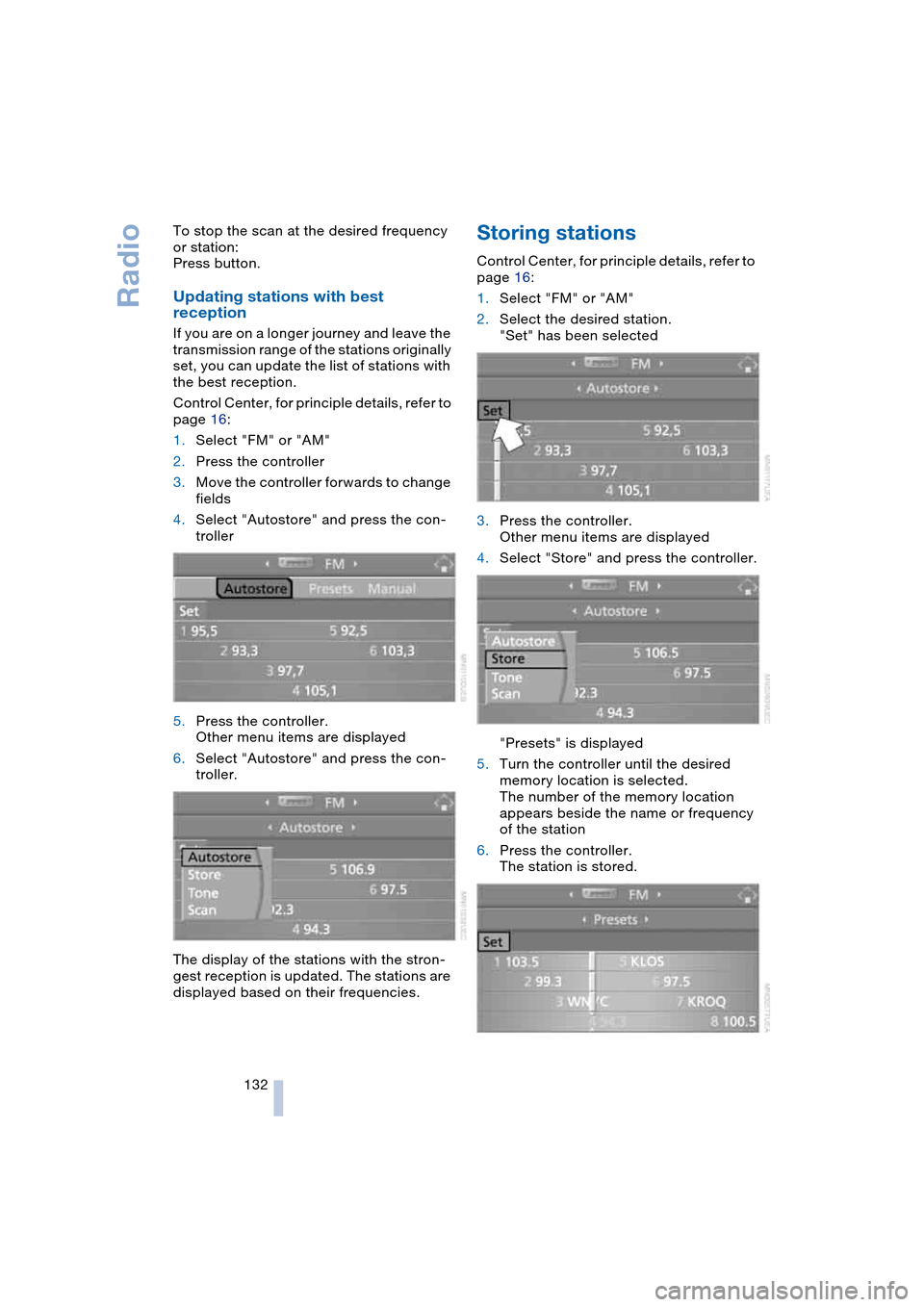
1.Select "FM" or "AM"
2.Press the controller
3.Move the controller forwards to change
fields
4.Select "Autostore" and press the con-
troller
5.Press the controller.
Other menu items are displayed
6.Select "Autostore" and press the con-
troller.
The display of the stations with the stron-
gest reception is updated. The stations are
displayed based on their frequencies.
Storing stations
Control Center, for principle details, refer to
page 16:
1.Select "FM" or "AM"
2.Select the desired station.
"Set" has been selected
3.Press the controller.
Other menu items are displayed
4.Select "Store" and press the controller.
"Presets" is displayed
5.Turn the controller until the desired
memory location is selected.
The number of the memory location
appears beside the name or frequency
of the station
6.Press the controller.
The station is stored.
Page 135 of 216
Navigation
Entertainment
Driving tips
133Reference
At a glance
Controls
Communications
Mobility
The stations of the last selection criterion
are displayed once again after a short time.
Depending on which key you have used to
open the vehicle, other stored stations are
displayed.
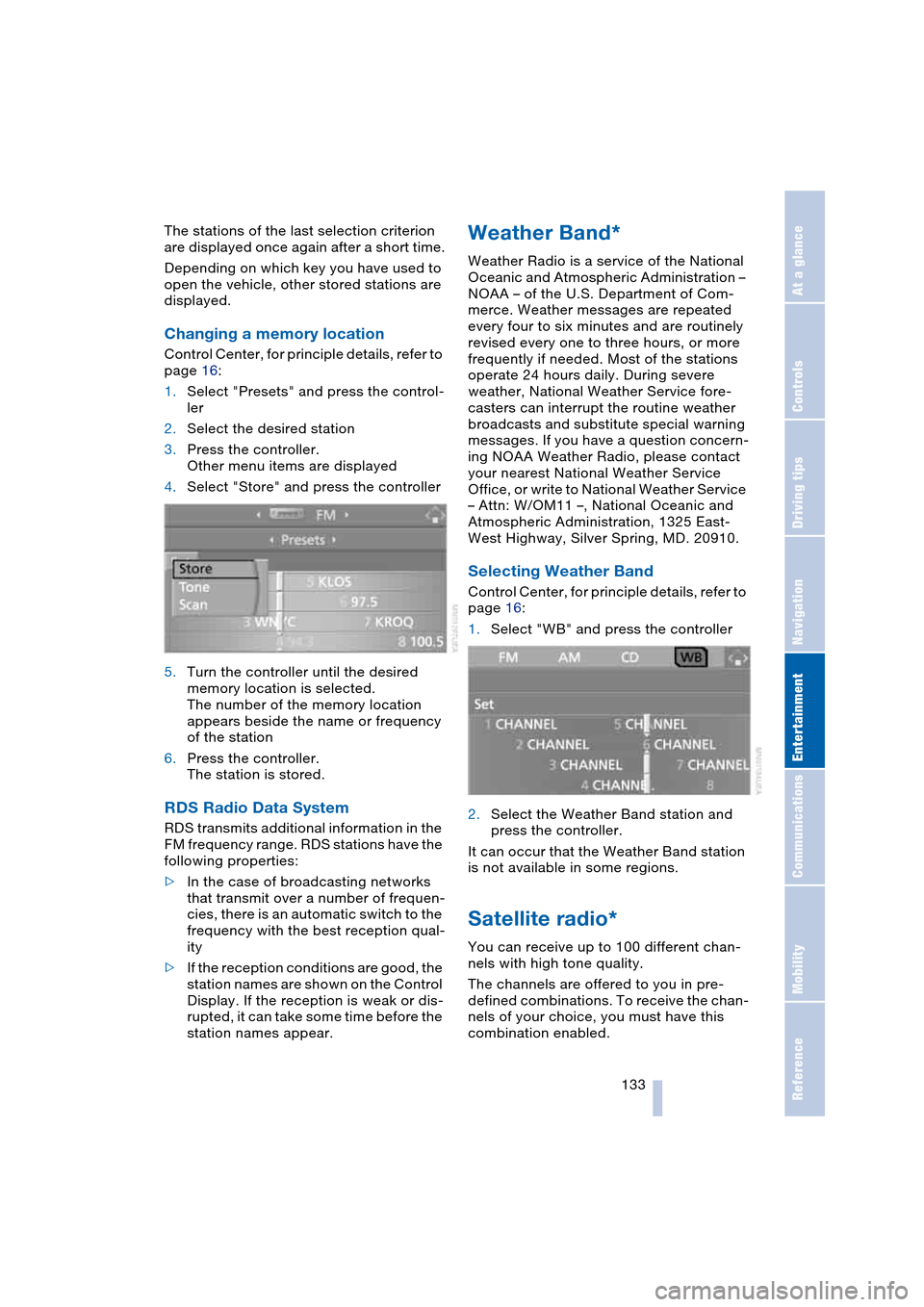
Changing a memory location
Control Center, for principle details, refer to
page 16:
1.Select "Presets" and press the control-
ler
2.Select the desired station
3.Press the controller.
Other menu items are displayed
4.Select "Store" and press the controller
5.Turn the controller until the desired
memory location is selected.
The number of the memory location
appears beside the name or frequency
of the station
6.Press the controller.
The station is stored.
RDS Radio Data System
RDS transmits additional information in the
FM frequency range. RDS stations have the
following properties:
>In the case of broadcasting networks
that transmit over a number of frequen-
cies, there is an automatic switch to the
frequency with the best reception qual-
ity
>If the reception conditions are good, the
station names are shown on the Control
Display. If the reception is weak or dis-
rupted, it can take some time before the
station names appear.
Weather Band*
Weather Radio is a service of the National
Oceanic and Atmospheric Administration –
NOAA – of the U.S. Department of Com-
merce. Weather messages are repeated
every four to six minutes and are routinely
revised every one to three hours, or more
frequently if needed. Most of the stations
operate 24 hours daily. During severe
weather, National Weather Service fore-
casters can interrupt the routine weather
broadcasts and substitute special warning
messages. If you have a question concern-
ing NOAA Weather Radio, please contact
your nearest National Weather Service
Office, or write to National Weather Service
– Attn: W/OM11 –, National Oceanic and
Atmospheric Administration, 1325 East-
West Highway, Silver Spring, MD. 20910.
Selecting Weather Band
Control Center, for principle details, refer to
page 16:
1.Select "WB" and press the controller
2.Select the Weather Band station and
press the controller.
It can occur that the Weather Band station
is not available in some regions.
Satellite radio*
You can receive up to 100 different chan-
nels with high tone quality.
The channels are offered to you in pre-
defined combinations. To receive the chan-
nels of your choice, you must have this
combination enabled.
Page 136 of 216
Radio
134 You may experience signal drops and
muting events related to this new
technology.<
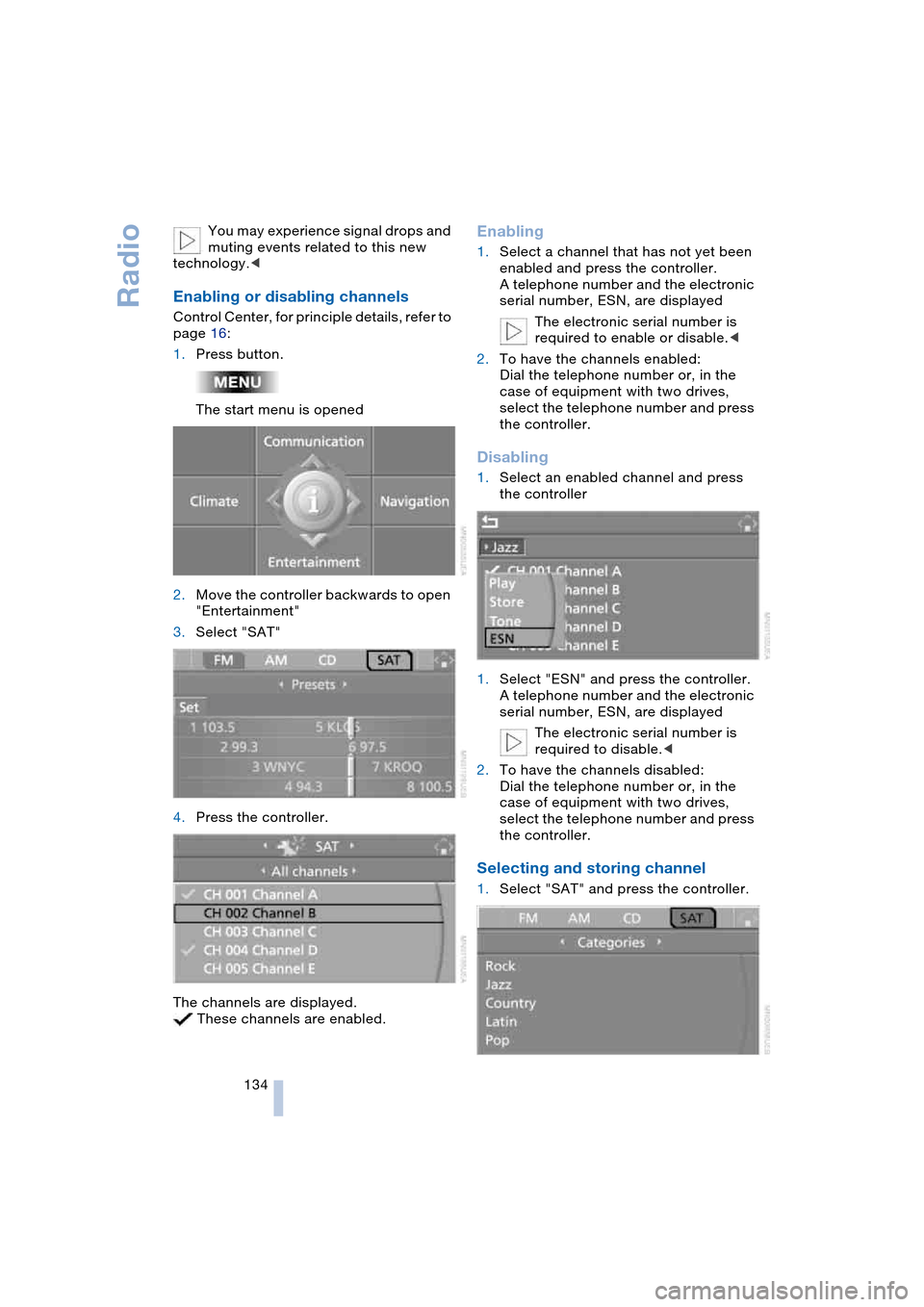
Enabling or disabling channels
Control Center, for principle details, refer to
page 16:
1.Press button.
The start menu is opened
2.Move the controller backwards to open
"Entertainment"
3.Select "SAT"
4.Press the controller.
The channels are displayed.
These channels are enabled.
Enabling
1.Select a channel that has not yet been
enabled and press the controller.
A telephone number and the electronic
serial number, ESN, are displayed
The electronic serial number is
required to enable or disable.<
2.To have the channels enabled:
Dial the telephone number or, in the
case of equipment with two drives,
select the telephone number and press
the controller.
Disabling
1.Select an enabled channel and press
the controller
1.Select "ESN" and press the controller.
A telephone number and the electronic
serial number, ESN, are displayed
The electronic serial number is
required to disable.<
2.To have the channels disabled:
Dial the telephone number or, in the
case of equipment with two drives,
select the telephone number and press
the controller.
Selecting and storing channel
1.Select "SAT" and press the controller.
Page 137 of 216
Navigation
Entertainment
Driving tips
135Reference
At a glance
Controls
Communications
Mobility
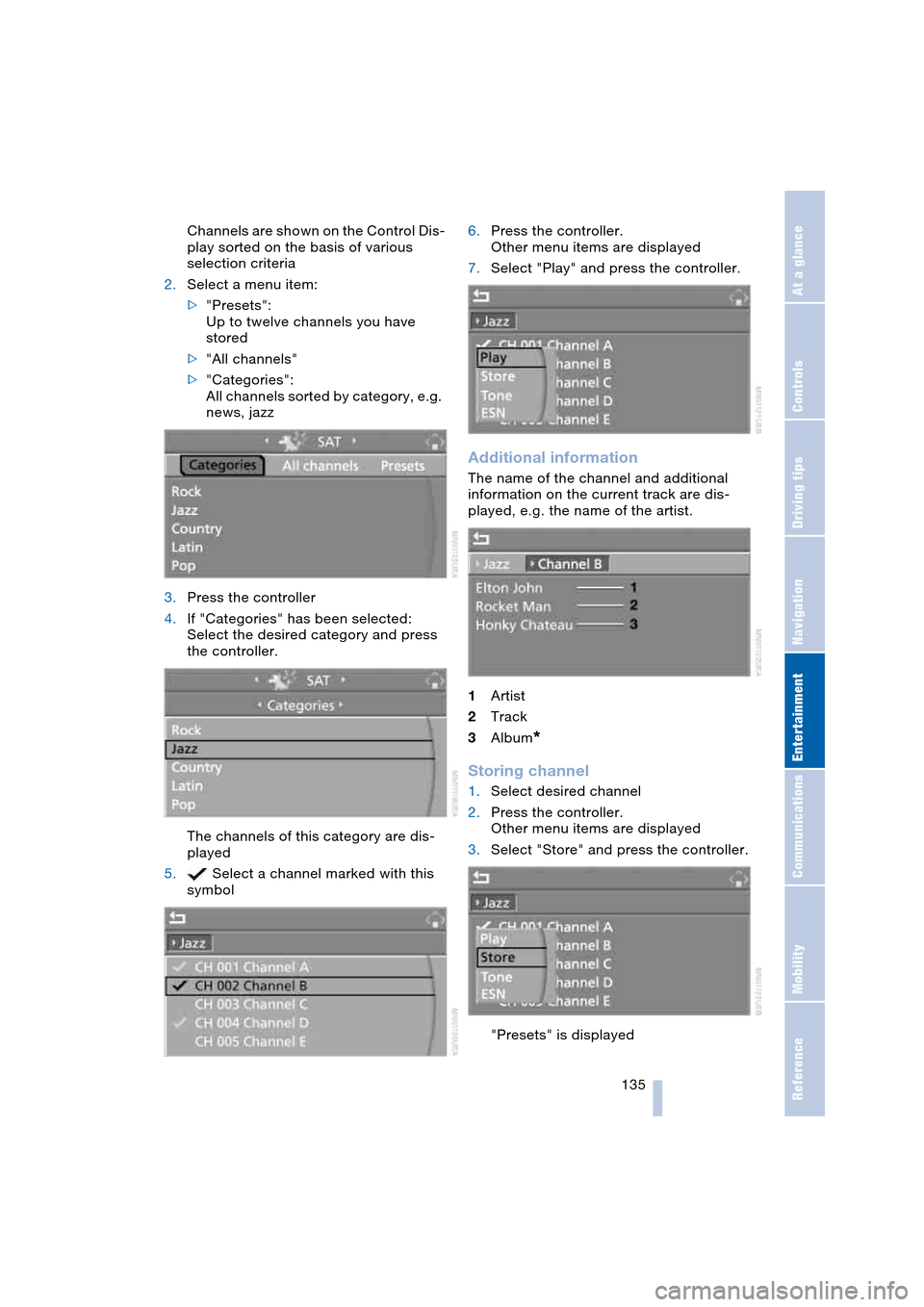
Channels are shown on the Control Dis-
play sorted on the basis of various
selection criteria
2.Select a menu item:
>"Presets":
Up to twelve channels you have
stored
>"All channels"
>"Categories":
All channels sorted by category, e.g.
news, jazz
3.Press the controller
4.If "Categories" has been selected:
Select the desired category and press
the controller.
The channels of this category are dis-
played
5. Select a channel marked with this
symbol6.Press the controller.
Other menu items are displayed
7.Select "Play" and press the controller.
Additional information
The name of the channel and additional
information on the current track are dis-
played, e.g. the name of the artist.
1Artist
2Track
3Album
*
Storing channel
1.Select desired channel
2.Press the controller.
Other menu items are displayed
3.Select "Store" and press the controller.
"Presets" is displayed
Page 138 of 216
Radio
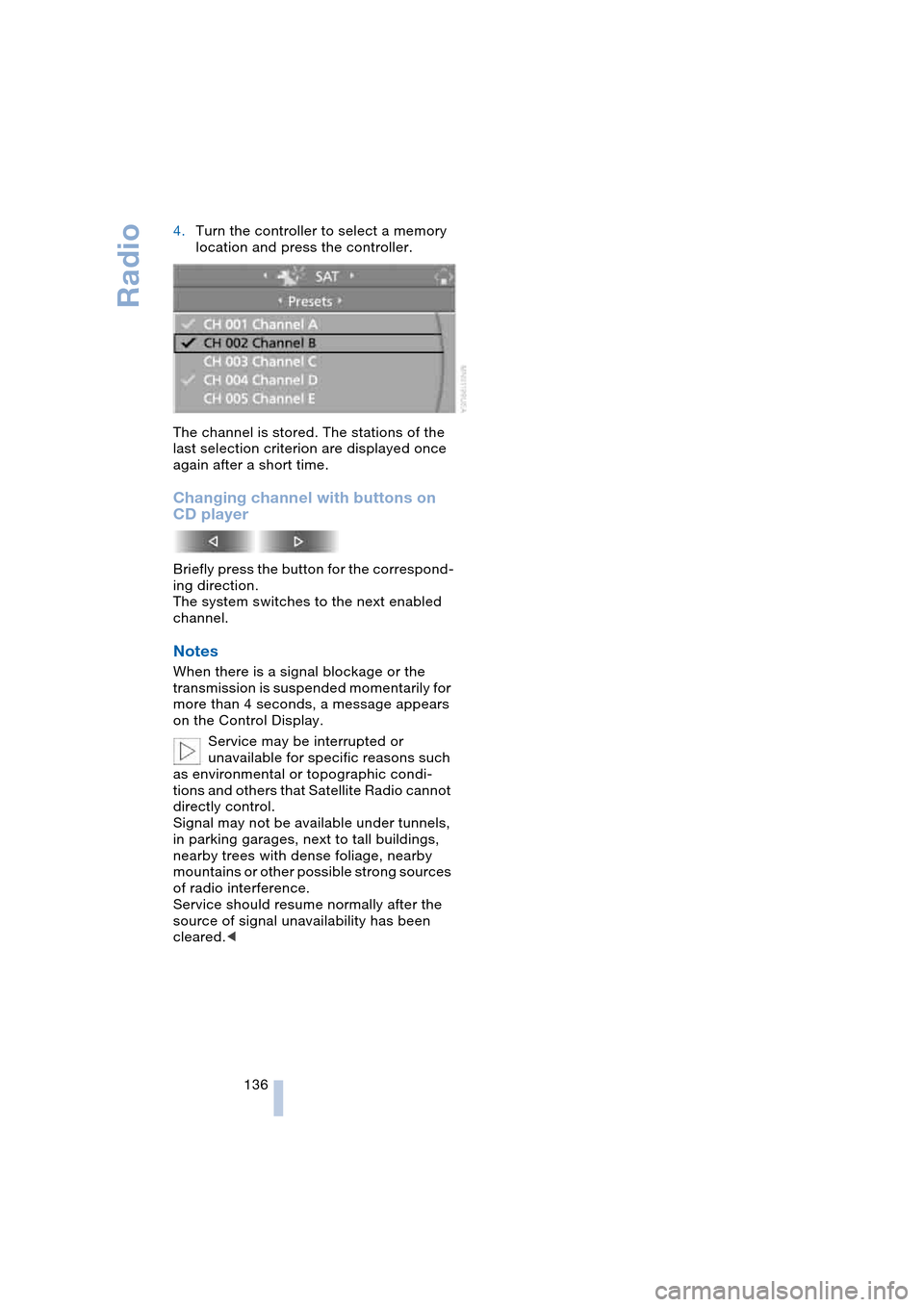
136 4.Turn the controller to select a memory
location and press the controller.
The channel is stored. The stations of the
last selection criterion are displayed once
again after a short time.
Changing channel with buttons on
CD player
Briefly press the button for the correspond-
ing direction.
The system switches to the next enabled
channel.
Notes
When there is a signal blockage or the
transmission is suspended momentarily for
more than 4 seconds, a message appears
on the Control Display.
Service may be interrupted or
unavailable for specific reasons such
as environmental or topographic condi-
tions and others that Satellite Radio cannot
directly control.
Signal may not be available under tunnels,
in parking garages, next to tall buildings,
nearby trees with dense foliage, nearby
mountains or other possible strong sources
of radio interference.
Service should resume normally after the
source of signal unavailability has been
cleared.<
Page 140 of 216
CD player and CD changer
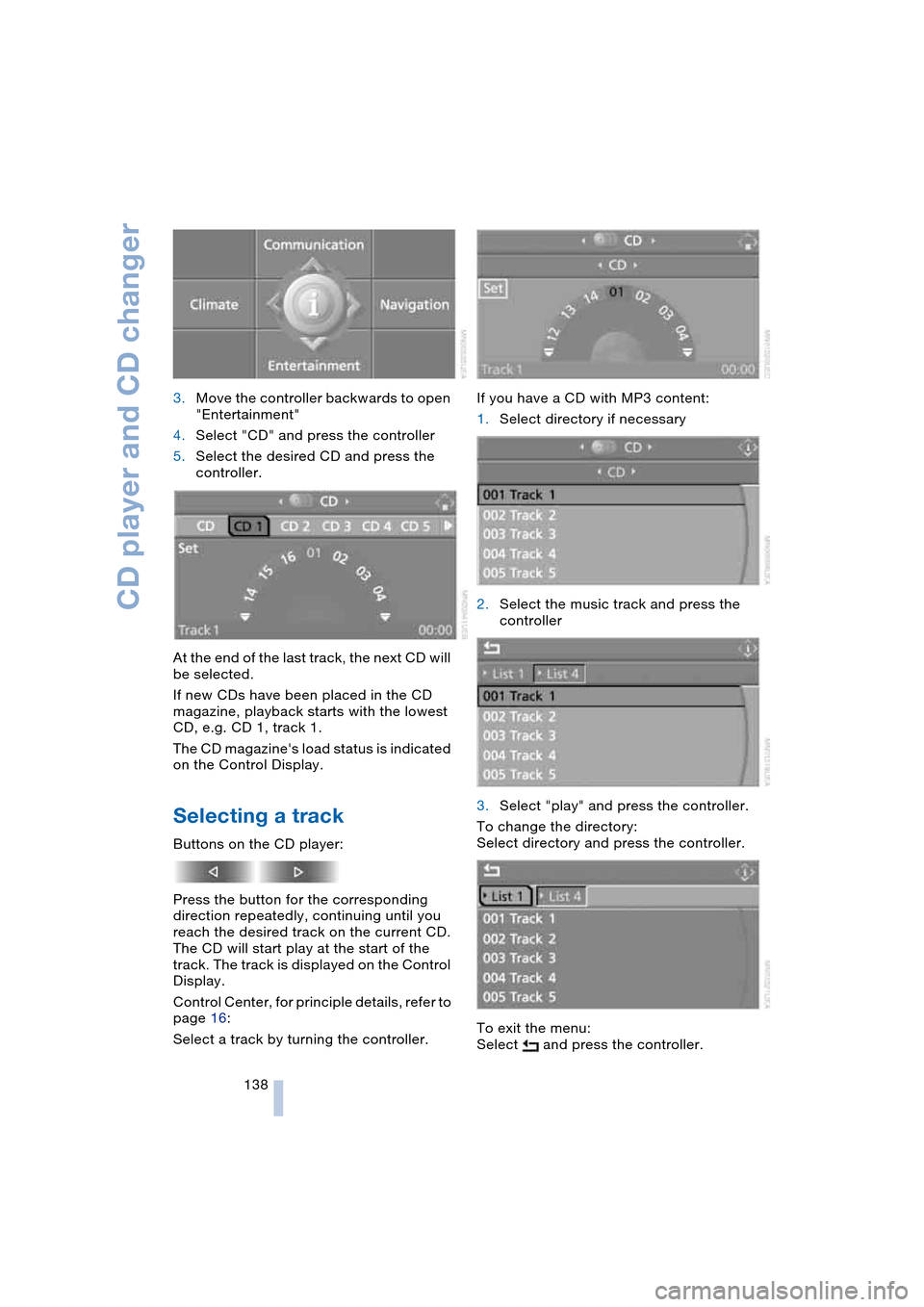
138 3.Move the controller backwards to open
"Entertainment"
4.Select "CD" and press the controller
5.Select the desired CD and press the
controller.
At the end of the last track, the next CD will
be selected.
If new CDs have been placed in the CD
magazine, playback starts with the lowest
CD, e.g. CD 1, track 1.
The CD magazine's load status is indicated
on the Control Display.
Selecting a track
Buttons on the CD player:
Press the button for the corresponding
direction repeatedly, continuing until you
reach the desired track on the current CD.
The CD will start play at the start of the
track. The track is displayed on the Control
Display.
Control Center, for principle details, refer to
page 16:
Select a track by turning the controller.If you have a CD with MP3 content:
1.Select directory if necessary
2.Select the music track and press the
controller
3.Select "play" and press the controller.
To change the directory:
Select directory and press the controller.
To exit the menu:
Select and press the controller.
Page 141 of 216
Navigation
Entertainment
Driving tips
139Reference
At a glance
Controls
Communications
Mobility
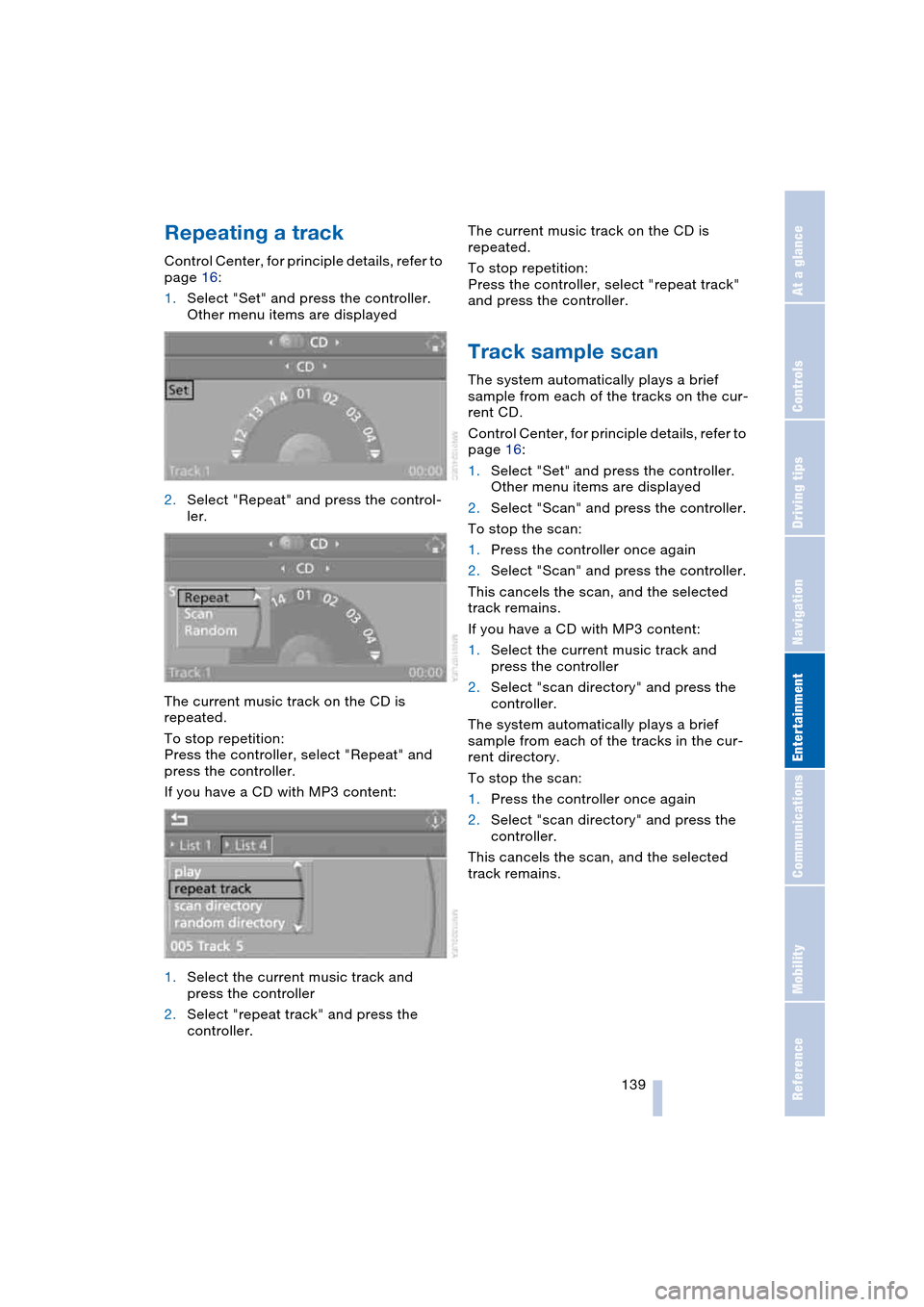
Repeating a track
Control Center, for principle details, refer to
page 16:
1.Select "Set" and press the controller.
Other menu items are displayed
2.Select "Repeat" and press the control-
ler.
The current music track on the CD is
repeated.
To stop repetition:
Press the controller, select "Repeat" and
press the controller.
If you have a CD with MP3 content:
1.Select the current music track and
press the controller
2.Select "repeat track" and press the
controller.The current music track on the CD is
repeated.
To stop repetition:
Press the controller, select "repeat track"
and press the controller.
Track sample scan
The system automatically plays a brief
sample from each of the tracks on the cur-
rent CD.
Control Center, for principle details, refer to
page 16:
1.Select "Set" and press the controller.
Other menu items are displayed
2.Select "Scan" and press the controller.
To stop the scan:
1.Press the controller once again
2.Select "Scan" and press the controller.
This cancels the scan, and the selected
track remains.
If you have a CD with MP3 content:
1.Select the current music track and
press the controller
2.Select "scan directory" and press the
controller.
The system automatically plays a brief
sample from each of the tracks in the cur-
rent directory.
To stop the scan:
1.Press the controller once again
2.Select "scan directory" and press the
controller.
This cancels the scan, and the selected
track remains.
Page 142 of 216
CD player and CD changer
140
Random play sequence
In this mode, the music tracks on the cur-
rent CD are played once in a random
sequence.
Control Center, for principle details, refer to
page 16:
1.Select "Set" and press the controller.
Other menu items are displayed
2.Select "Random" and press the control-
ler.
To stop the random mode:
Press the controller, select "Random" and
press the controller.
If you have a CD with MP3 content:
1.Select the current music track and
press the controller
2.Select "random directory" and press
the controller.
In this mode, the music tracks in the current
directory are played once in a random
sequence.
To stop the random mode:
Press the controller, select "random direc-
tory" and press the controller.
Fast forward/reverse
Buttons on the CD player:
Press and hold the button for the corre-
sponding direction.
The tracks can be heard, but the sound is
distorted.
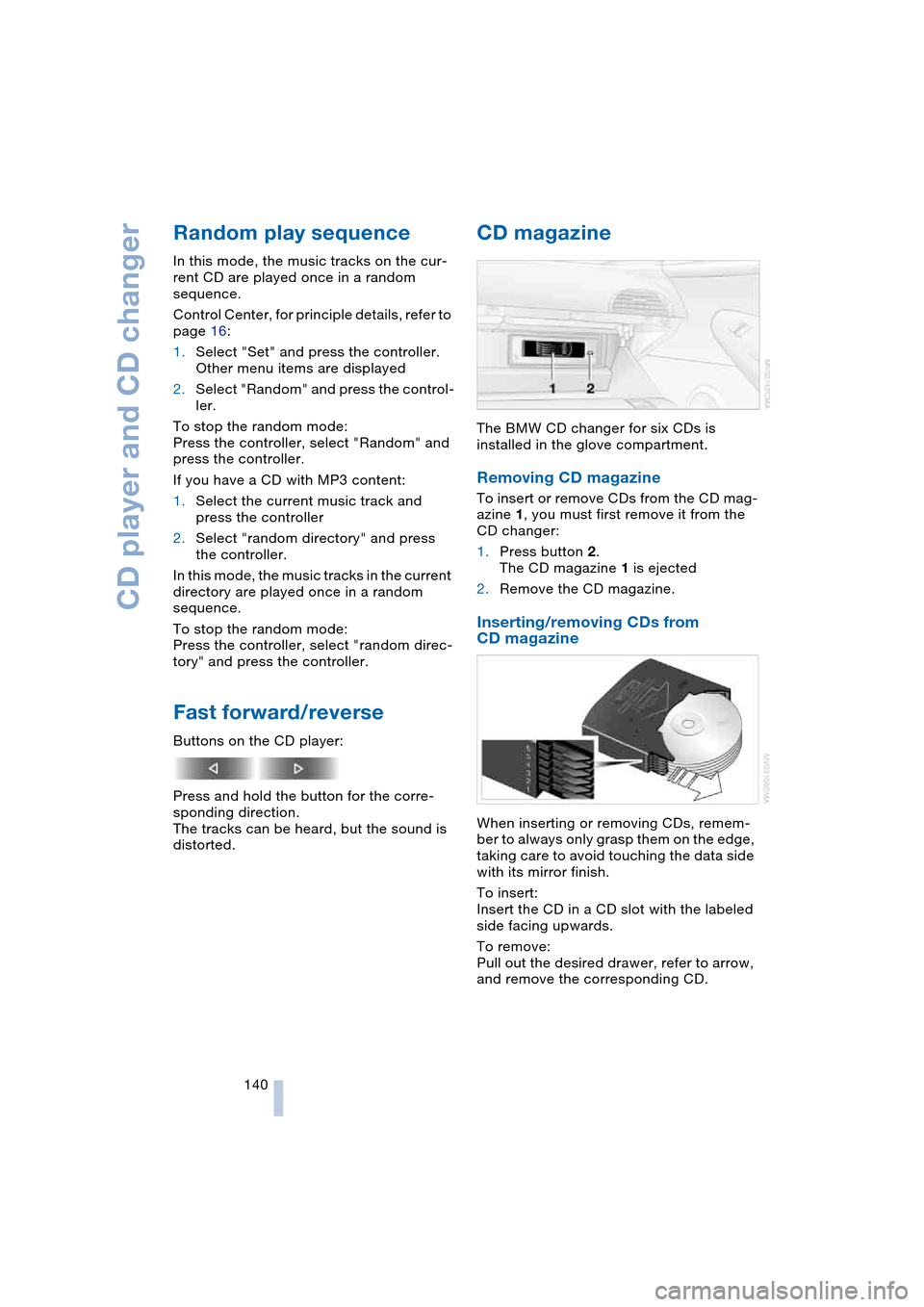
CD magazine
The BMW CD changer for six CDs is
installed in the glove compartment.
Removing CD magazine
To insert or remove CDs from the CD mag-
azine 1, you must first remove it from the
CD changer:
1.Press button 2.
The CD magazine 1 is ejected
2.Remove the CD magazine.
Inserting/removing CDs from
CD magazine
When inserting or removing CDs, remem-
ber to always only grasp them on the edge,
taking care to avoid touching the data side
with its mirror finish.
To insert:
Insert the CD in a CD slot with the labeled
side facing upwards.
To remove:
Pull out the desired drawer, refer to arrow,
and remove the corresponding CD.
Page 147 of 216
145
Entertainment
Reference
At a glance
Controls
Driving tips Communications
Navigation
Mobility
Batteries
Never attempt to dismantle your
BMW portable phone or its battery.
Use only approved battery types – the
wrong battery can destroy your portable
phone.
To avoid possible short circuits, after
removing a battery you should never allow
it to come into contact with metallic sur-
faces of any kind.<
Disposing of used batteries
Return used batteries to a recycling
collection point or to your BMW cen-
ter.<
Care instructions
You can find what you need to know about
caring for your portable phone in the Caring
for your vehicle brochure and in the sepa-
rate portable phone Owner's Manual.
Operating options
You can operate the BMW portable phone*
with:
>The steering wheel, refer to page 11
>The Control Center, refer to page 146
>Voice control, refer to page 151.
Telephoning with car phone:
BMW Assist calls
You can use the car phone via the hands-
free system for BMW Assist calls.
When the status information "Car Phone" is
displayed in "Communication", only BMW
Assist calls are possible.
Activating the
BMW portable phone*
Requirements for portable phones with
SIM card:
>Enter a Personal Identification Number,
PIN, if necessary
>Remove all keypad locks, refer to sepa-
rate Owner's Manual.
Before starting off, place the BMW portable
phone in the cradle. If a connection to
BMW Assist has been established, you
cannot use the BMW portable phone until
this connection has been terminated.
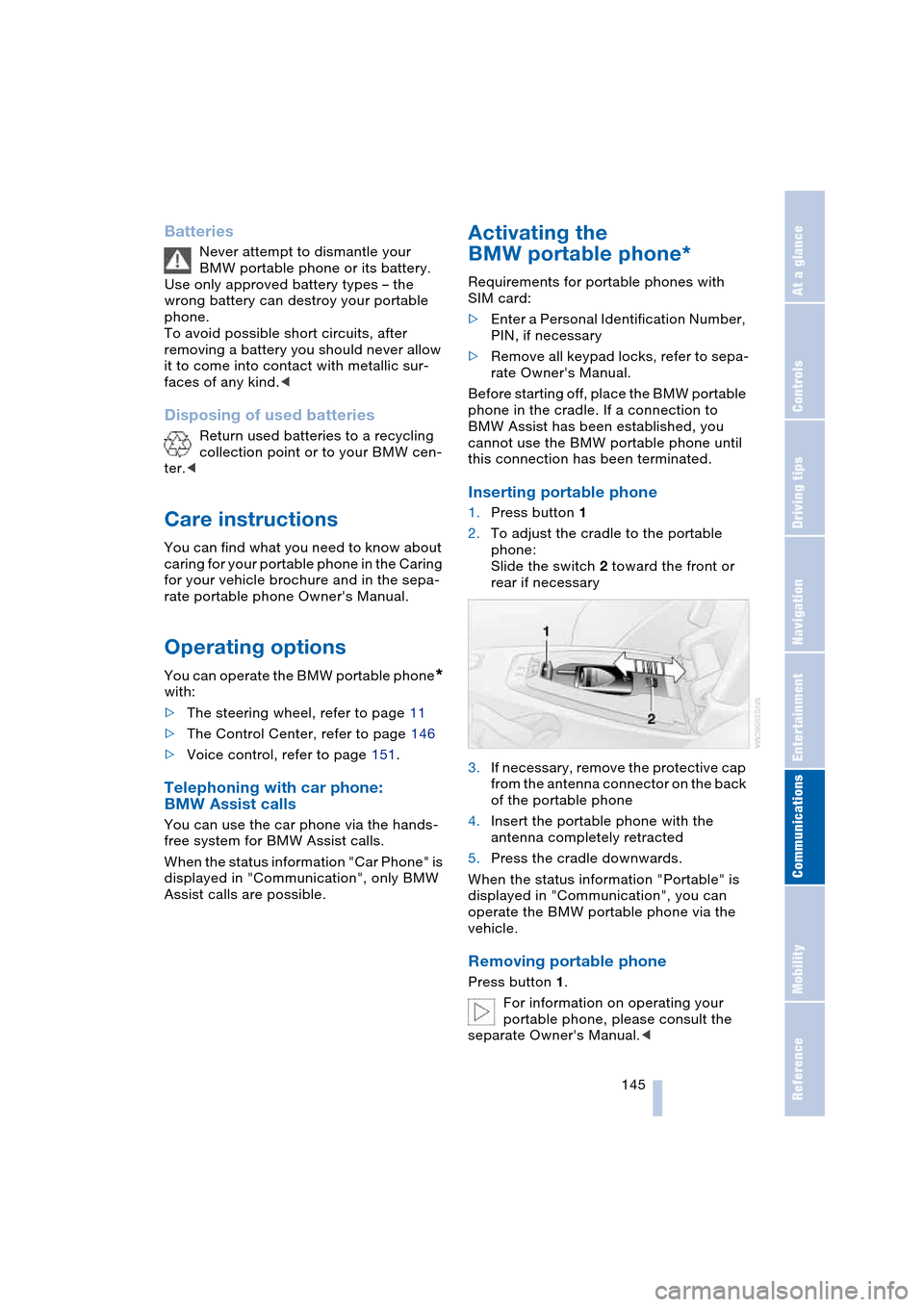
Inserting portable phone
1.Press button 1
2.To adjust the cradle to the portable
phone:
Slide the switch 2 toward the front or
rear if necessary
3.If necessary, remove the protective cap
from the antenna connector on the back
of the portable phone
4.Insert the portable phone with the
antenna completely retracted
5.Press the cradle downwards.
When the status information "Portable" is
displayed in "Communication", you can
operate the BMW portable phone via the
vehicle.
Removing portable phone
Press button 1.
For information on operating your
portable phone, please consult the
separate Owner's Manual.<
Page 148 of 216
Telephoning
146
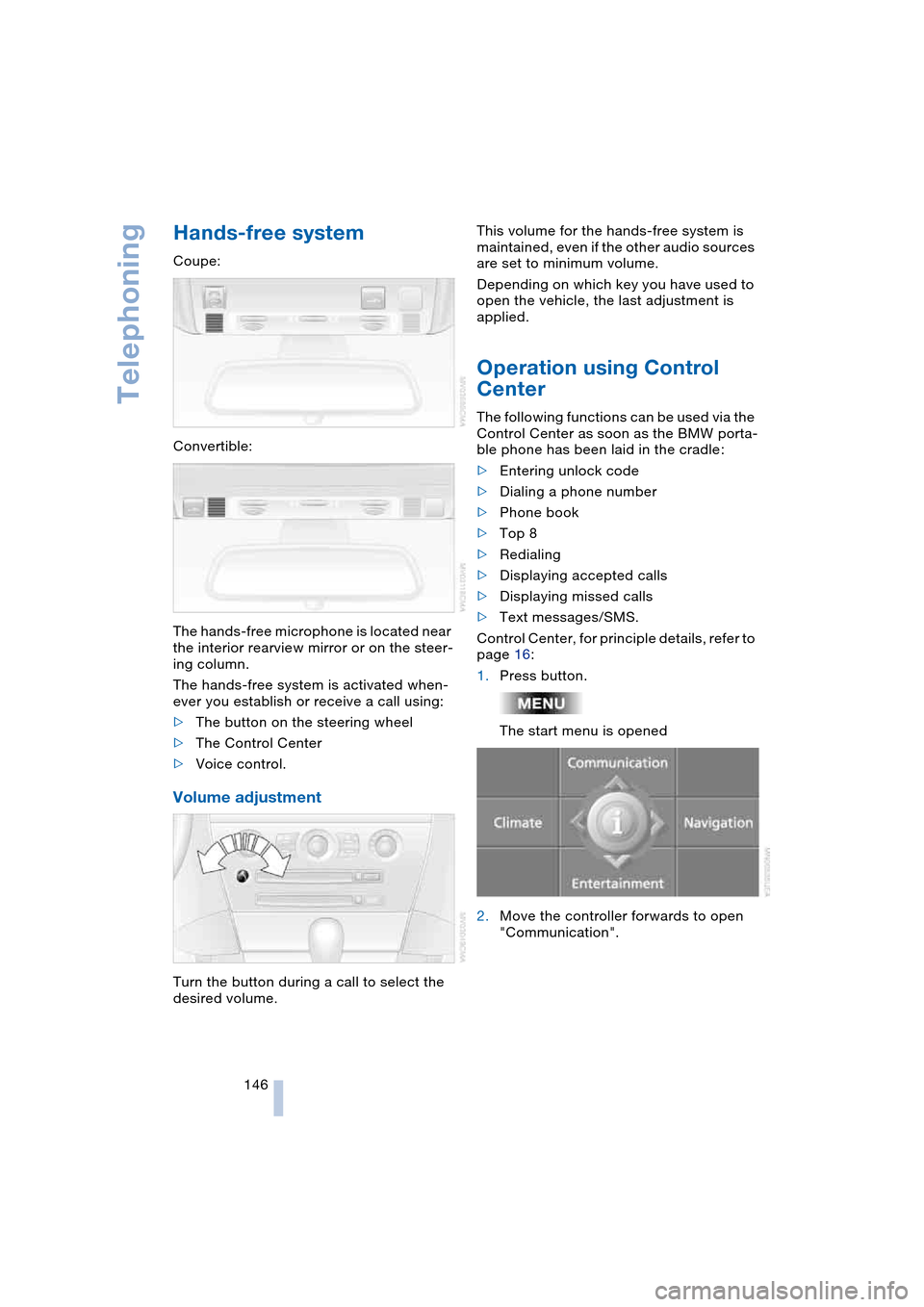
Hands-free system
Coupe:
Convertible:
The hands-free microphone is located near
the interior rearview mirror or on the steer-
ing column.
The hands-free system is activated when-
ever you establish or receive a call using:
>The button on the steering wheel
>The Control Center
>Voice control.
Volume adjustment
Turn the button during a call to select the
desired volume.This volume for the hands-free system is
maintained, even if the other audio sources
are set to minimum volume.
Depending on which key you have used to
open the vehicle, the last adjustment is
applied.
Operation using Control
Center
The following functions can be used via the
Control Center as soon as the BMW porta-
ble phone has been laid in the cradle:
>Entering unlock code
>Dialing a phone number
>Phone book
>Top 8
>Redialing
>Displaying accepted calls
>Displaying missed calls
>Text messages/SMS.
Control Center, for principle details, refer to
page 16:
1.Press button.
The start menu is opened
2.Move the controller forwards to open
"Communication".