display BMW 645CI COUPE 2004 E63 Manual PDF
[x] Cancel search | Manufacturer: BMW, Model Year: 2004, Model line: 645CI COUPE, Model: BMW 645CI COUPE 2004 E63Pages: 216, PDF Size: 3.46 MB
Page 149 of 216
147
Entertainment
Reference
At a glance
Controls
Driving tips Communications
Navigation
Mobility
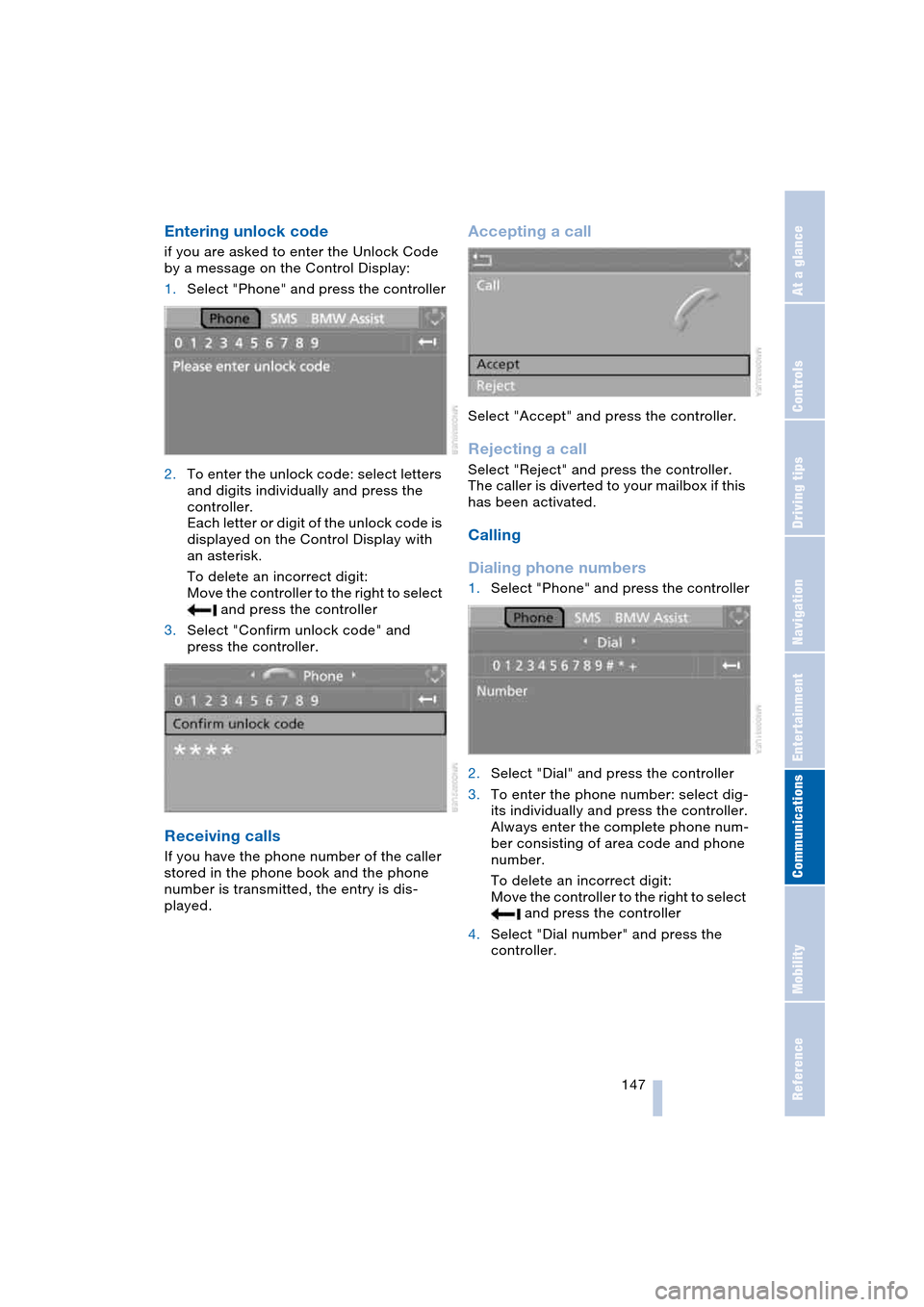
Entering unlock code
if you are asked to enter the Unlock Code
by a message on the Control Display:
1.Select "Phone" and press the controller
2.To enter the unlock code: select letters
and digits individually and press the
controller.
Each letter or digit of the unlock code is
displayed on the Control Display with
an asterisk.
To delete an incorrect digit:
Move the controller to the right to select
and press the controller
3.Select "Confirm unlock code" and
press the controller.
Receiving calls
If you have the phone number of the caller
stored in the phone book and the phone
number is transmitted, the entry is dis-
played.
Accepting a call
Select "Accept" and press the controller.
Rejecting a call
Select "Reject" and press the controller.
The caller is diverted to your mailbox if this
has been activated.
Calling
Dialing phone numbers
1.Select "Phone" and press the controller
2.Select "Dial" and press the controller
3.To enter the phone number: select dig-
its individually and press the controller.
Always enter the complete phone num-
ber consisting of area code and phone
number.
To delete an incorrect digit:
Move the controller to the right to select
and press the controller
4.Select "Dial number" and press the
controller.
Page 150 of 216
Telephoning
148
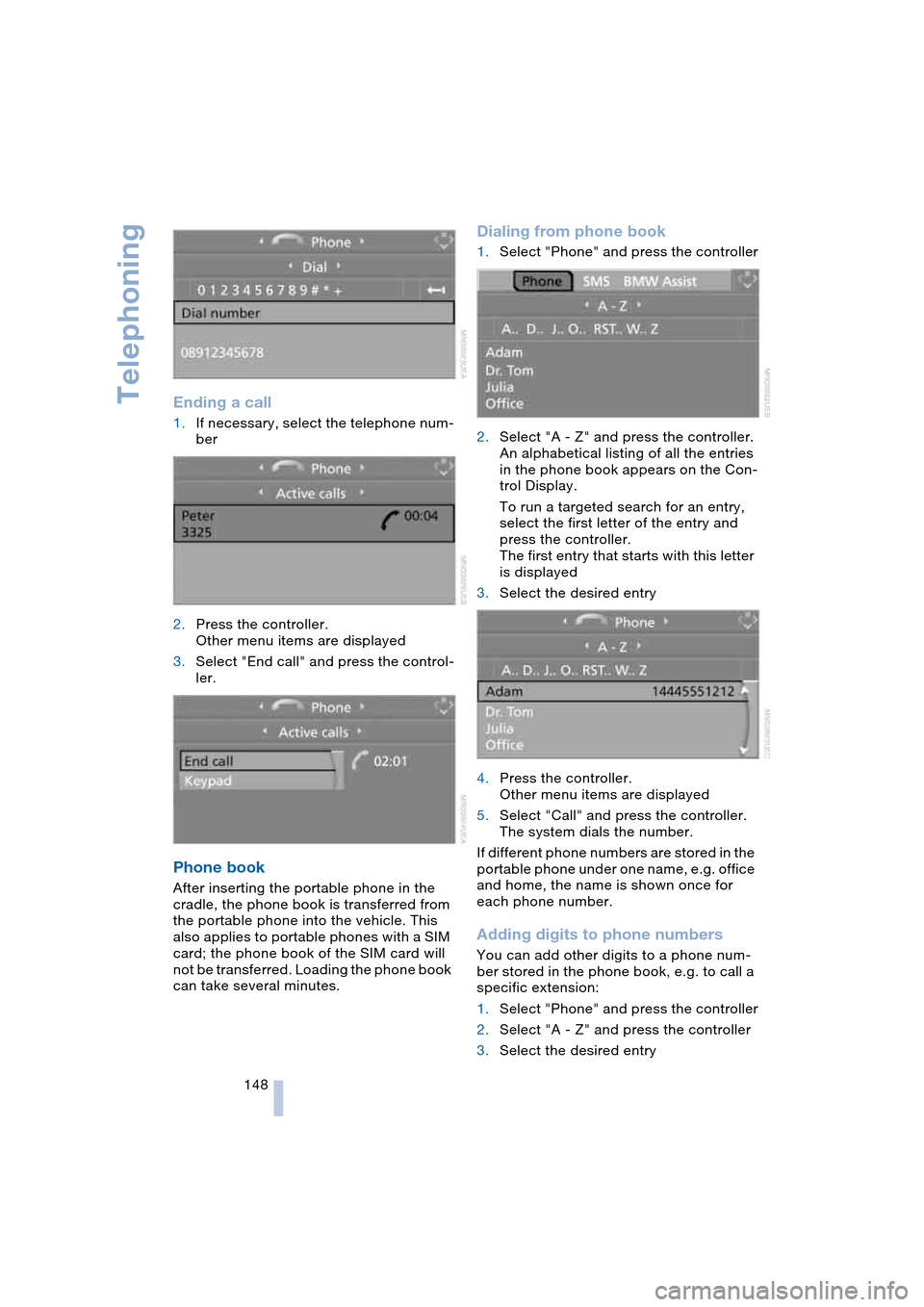
Ending a call
1.If necessary, select the telephone num-
ber
2.Press the controller.
Other menu items are displayed
3.Select "End call" and press the control-
ler.
Phone book
After inserting the portable phone in the
cradle, the phone book is transferred from
the portable phone into the vehicle. This
also applies to portable phones with a SIM
card; the phone book of the SIM card will
not be transferred. Loading the phone book
can take several minutes.
Dialing from phone book
1.Select "Phone" and press the controller
2.Select "A - Z" and press the controller.
An alphabetical listing of all the entries
in the phone book appears on the Con-
trol Display.
To run a targeted search for an entry,
select the first letter of the entry and
press the controller.
The first entry that starts with this letter
is displayed
3.Select the desired entry
4.Press the controller.
Other menu items are displayed
5.Select "Call" and press the controller.
The system dials the number.
If different phone numbers are stored in the
portable phone under one name, e.g. office
and home, the name is shown once for
each phone number.
Adding digits to phone numbers
You can add other digits to a phone num-
ber stored in the phone book, e.g. to call a
specific extension:
1.Select "Phone" and press the controller
2.Select "A - Z" and press the controller
3.Select the desired entry
Page 151 of 216
149
Entertainment
Reference
At a glance
Controls
Driving tips Communications
Navigation
Mobility
4.Press the controller.
Other menu items are displayed
5.Select "Add digits" and press the con-
troller
6.To supplement the phone number:
select digits individually and press the
controller
7.Select "Dial number" and press the
controller.
Lists
Your phone stores phone numbers you
have dialed and calls you missed. If the
caller is entered in the phone book, the
name of the caller is displayed instead of
the phone number.
You can select the desired subscriber from
the list and establish the connection.
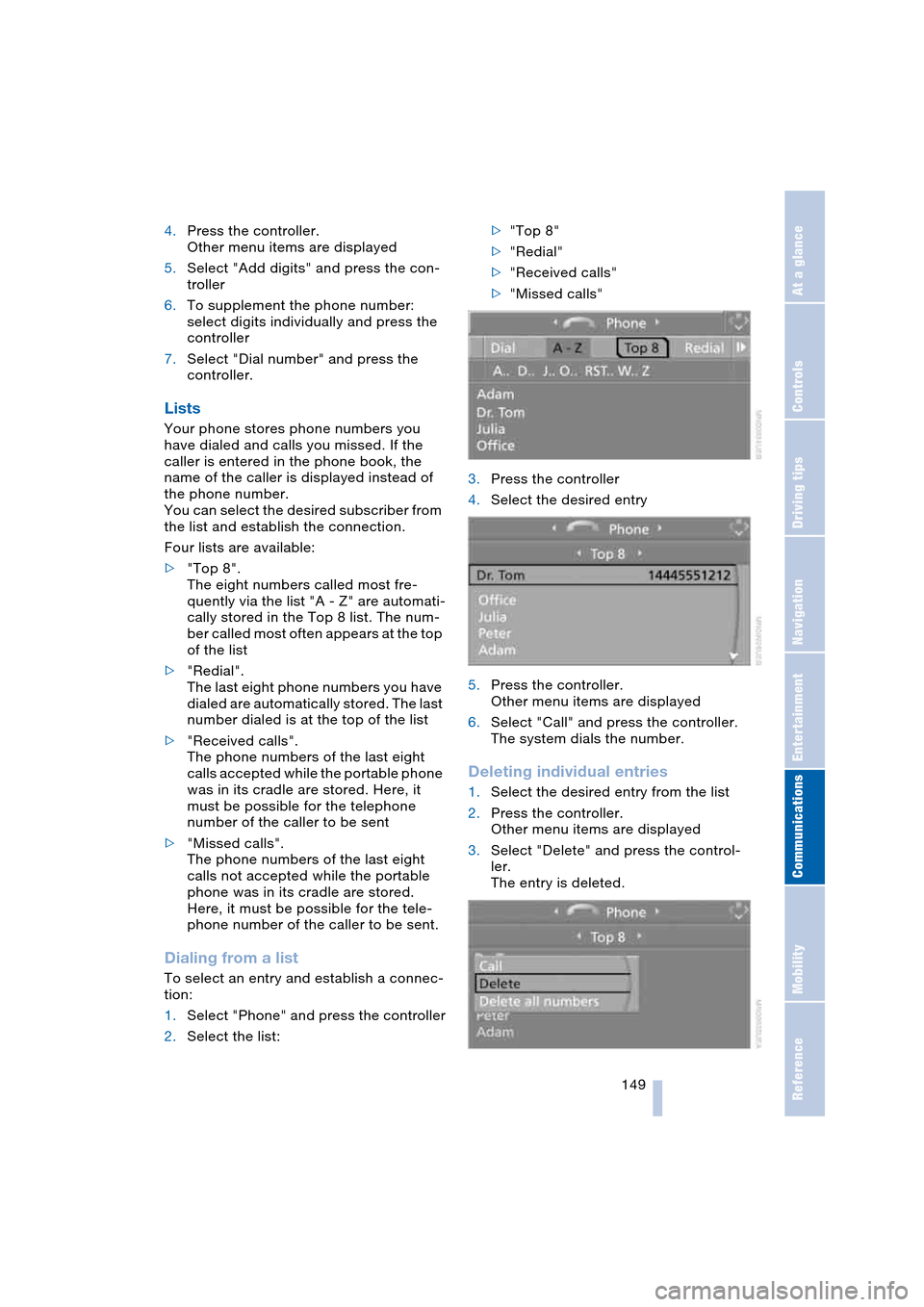
Four lists are available:
>"Top 8".
The eight numbers called most fre-
quently via the list "A - Z" are automati-
cally stored in the Top 8 list. The num-
ber called most often appears at the top
of the list
>"Redial".
The last eight phone numbers you have
dialed are automatically stored. The last
number dialed is at the top of the list
>"Received calls".
The phone numbers of the last eight
calls accepted while the portable phone
was in its cradle are stored. Here, it
must be possible for the telephone
number of the caller to be sent
>"Missed calls".
The phone numbers of the last eight
calls not accepted while the portable
phone was in its cradle are stored.
Here, it must be possible for the tele-
phone number of the caller to be sent.
Dialing from a list
To select an entry and establish a connec-
tion:
1.Select "Phone" and press the controller
2.Select the list:>"Top 8"
>"Redial"
>"Received calls"
>"Missed calls"
3.Press the controller
4.Select the desired entry
5.Press the controller.
Other menu items are displayed
6.Select "Call" and press the controller.
The system dials the number.
Deleting individual entries
1.Select the desired entry from the list
2.Press the controller.
Other menu items are displayed
3.Select "Delete" and press the control-
ler.
The entry is deleted.
Page 152 of 216
Telephoning
150
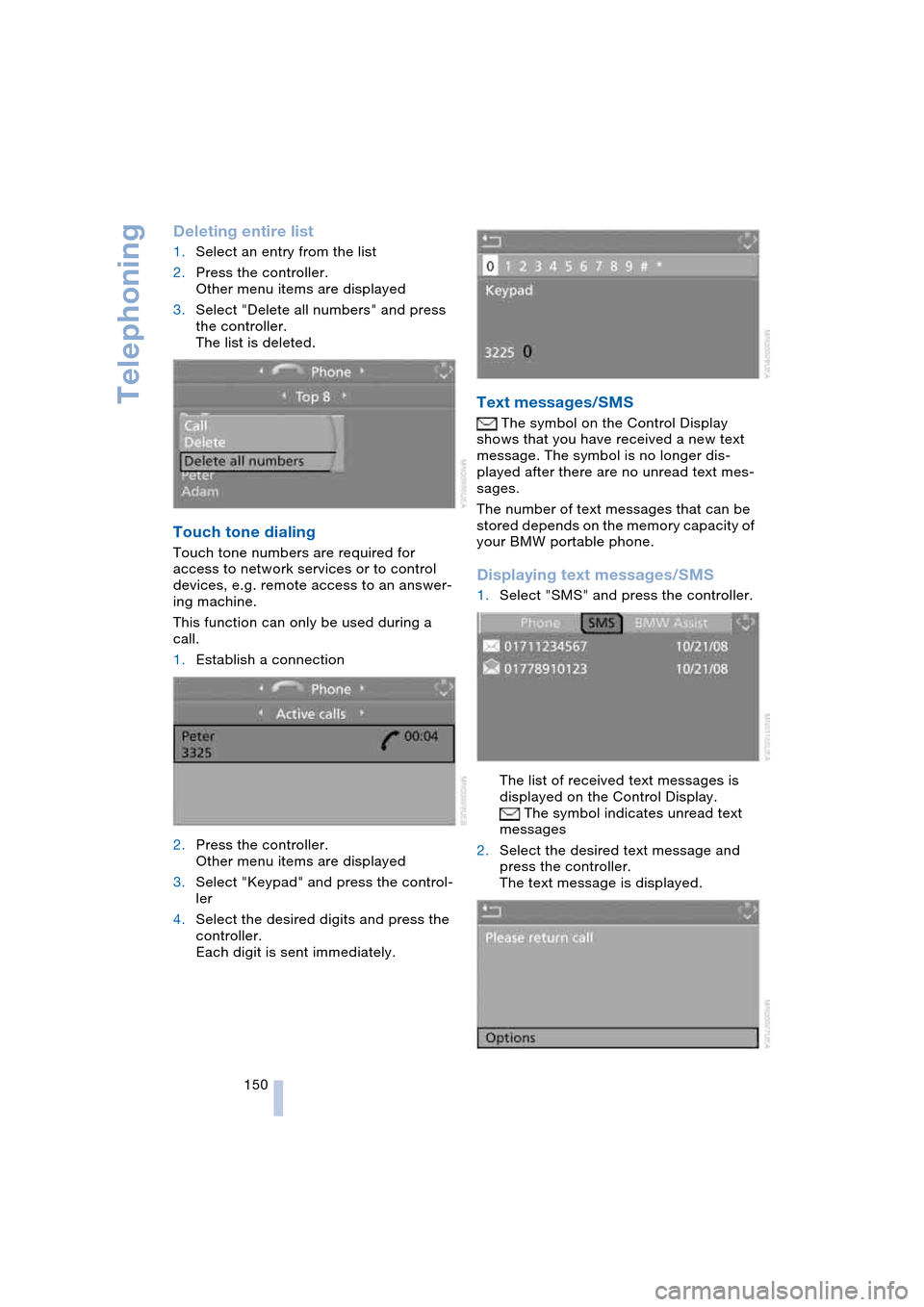
Deleting entire list
1.Select an entry from the list
2.Press the controller.
Other menu items are displayed
3.Select "Delete all numbers" and press
the controller.
The list is deleted.
Touch tone dialing
Touch tone numbers are required for
access to network services or to control
devices, e.g. remote access to an answer-
ing machine.
This function can only be used during a
call.
1.Establish a connection
2.Press the controller.
Other menu items are displayed
3.Select "Keypad" and press the control-
ler
4.Select the desired digits and press the
controller.
Each digit is sent immediately.
Text messages/SMS
The symbol on the Control Display
shows that you have received a new text
message. The symbol is no longer dis-
played after there are no unread text mes-
sages.
The number of text messages that can be
stored depends on the memory capacity of
your BMW portable phone.
Displaying text messages/SMS
1.Select "SMS" and press the controller.
The list of received text messages is
displayed on the Control Display.
The symbol indicates unread text
messages
2.Select the desired text message and
press the controller.
The text message is displayed.
Page 153 of 216
151
Entertainment
Reference
At a glance
Controls
Driving tips Communications
Navigation
Mobility
To close the text message:
Move the controller forwards to select
and press the controller.
Calling sender
1.Select the desired text message and
press the controller.
The text message is displayed
2.Select "Options" and press the control-
ler
3.Select "Call sender" and press the con-
troller.
The selected sender is called.
Deleting text messages/SMS
1.Select the desired text message and
press the controller.
The text message is displayed
2.Select "Options" and press the control-
ler
3.Select "Delete" and press the control-
ler.
The text message of the portable phone
is deleted.
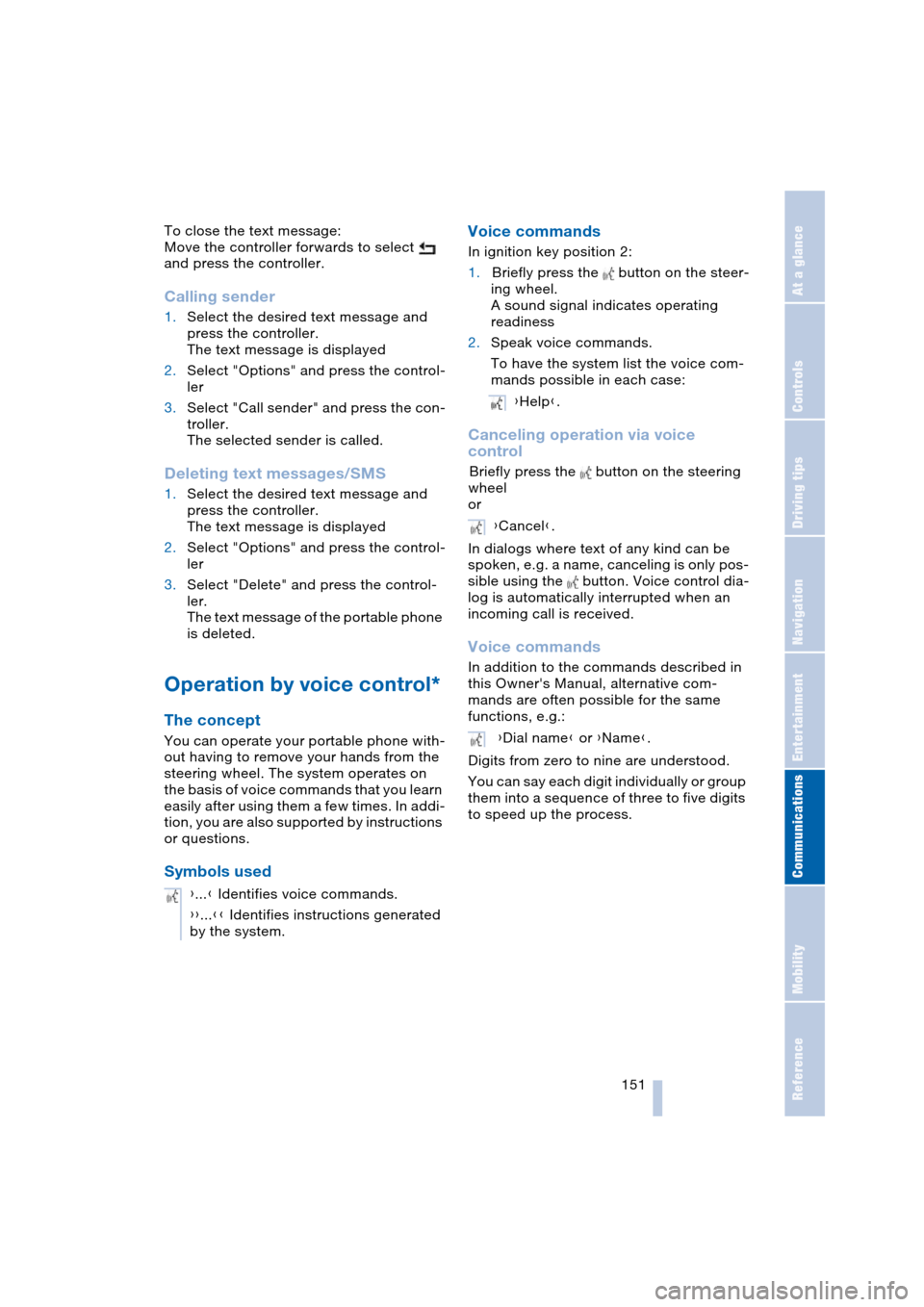
Operation by voice control*
The concept
You can operate your portable phone with-
out having to remove your hands from the
steering wheel. The system operates on
the basis of voice commands that you learn
easily after using them a few times. In addi-
tion, you are also supported by instructions
or questions.
Symbols usedVoice commands
In ignition key position 2:
1.Briefly press the button on the steer-
ing wheel.
A sound signal indicates operating
readiness
2.Speak voice commands.
To have the system list the voice com-
mands possible in each case:
Canceling operation via voice
control
Briefly press the button on the steering
wheel
or
In dialogs where text of any kind can be
spoken, e.g. a name, canceling is only pos-
sible using the button. Voice control dia-
log is automatically interrupted when an
incoming call is received.
Voice commands
In addition to the commands described in
this Owner's Manual, alternative com-
mands are often possible for the same
functions, e.g.:
Digits from zero to nine are understood.
You can say each digit individually or group
them into a sequence of three to five digits
to speed up the process.
{...} Identifies voice commands.
{{...}} Identifies instructions generated
by the system.
{Help}.
{Cancel}.
{Dial name} or {Name}.
Page 157 of 216
155
Entertainment
Reference
At a glance
Controls
Driving tips Communications
Navigation
Mobility
TeleService , BMW Assist
TeleService
TeleService supports you in communicat-
ing with your BMW center. The installed car
phone can be used to transmit data on the
service status of your vehicle or on legally
mandated inspections directly to your
BMW center. This is the same data that is
also stored for CBS Condition Based Ser-
vice in the ignition key. Your BMW center
can then contact you, and you can make an
appointment that suits you while you are
still on the road. Your advantage is that
your BMW center can prepare in advance
for the required maintenance work. The
functions of TeleService are country-spe-
cific: the data on the service status of your
vehicle or on legally mandated inspections
is transmitted on a country-specific basis
either automatically before they fall due or
simultaneously when you call your BMW
center. Your BMW center will be glad to
provide more detailed information.
BMW Assist
BMW Assist provides you – in addition to
TeleService – with other services, e.g. the
position data of your vehicle can be trans-
ferred to the BMW Assist emergency call
center if an emergency call is started.
Many functions of BMW Assist depend on
the individually agreed contract. The data
transmission, e.g. of CBS Condition Based
Service, is different in individual countries.
The subscriber agreement must be com-
pleted successfully before using the BMW
Assist services.
Requirements
The installed car phone is logged on to a
portable telephone network. This network
must be able to transmit the services.To transmit position data, the vehicle must
be able to determine the current position.
This is displayed on the Control Display. In
order to enable and update TeleService or
BMW Assist, a GPS signal must be present.
Enabling TeleService or BMW Assist
For you to be able to use the services of
TeleService or BMW Assist, these must be
enabled.
Leave the ignition key in position 1 during
the entire operation.
Control Center, for principle details, refer to
page 16:
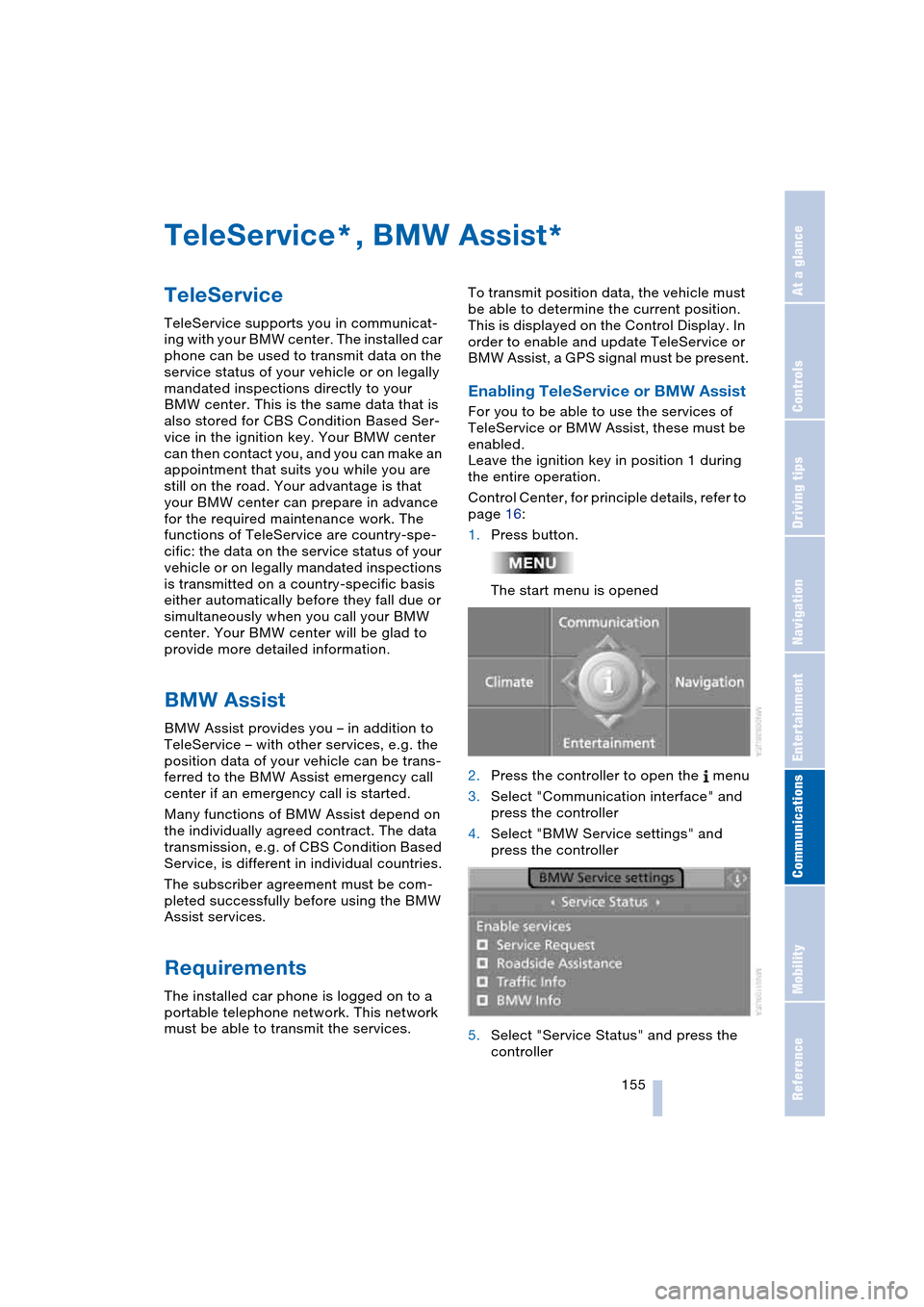
1.Press button.
The start menu is opened
2.Press the controller to open the menu
3.Select "Communication interface" and
press the controller
4.Select "BMW Service settings" and
press the controller
5.Select "Service Status" and press the
controller
**
Page 158 of 216
TeleService, BMW Assist
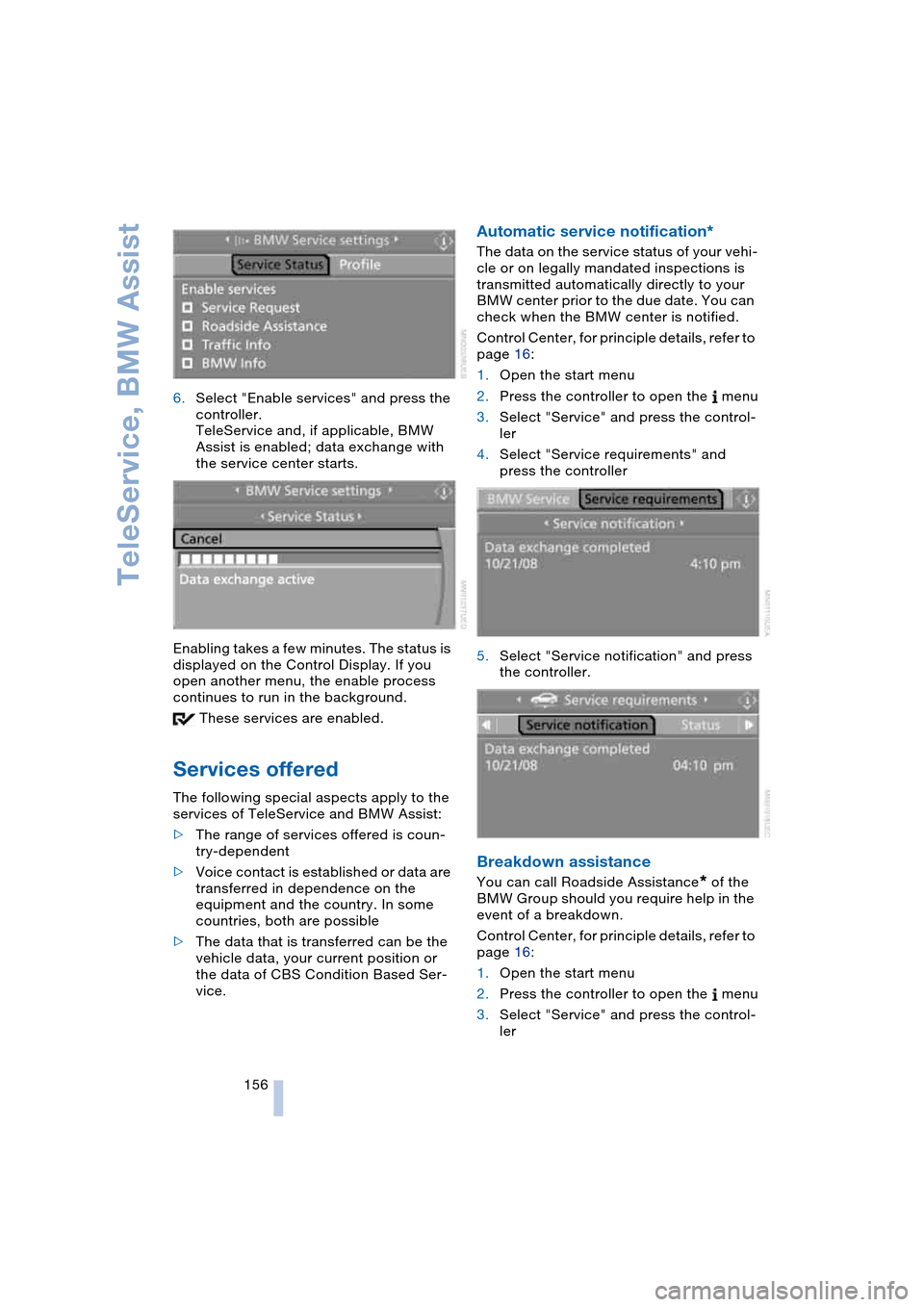
156 6.Select "Enable services" and press the
controller.
TeleService and, if applicable, BMW
Assist is enabled; data exchange with
the service center starts.
Enabling takes a few minutes. The status is
displayed on the Control Display. If you
open another menu, the enable process
continues to run in the background.
These services are enabled.
Services offered
The following special aspects apply to the
services of TeleService and BMW Assist:
>The range of services offered is coun-
try-dependent
>Voice contact is established or data are
transferred in dependence on the
equipment and the country. In some
countries, both are possible
>The data that is transferred can be the
vehicle data, your current position or
the data of CBS Condition Based Ser-
vice.
Automatic service notification*
The data on the service status of your vehi-
cle or on legally mandated inspections is
transmitted automatically directly to your
BMW center prior to the due date. You can
check when the BMW center is notified.
Control Center, for principle details, refer to
page 16:
1.Open the start menu
2.Press the controller to open the menu
3.Select "Service" and press the control-
ler
4.Select "Service requirements" and
press the controller
5.Select "Service notification" and press
the controller.
Breakdown assistance
You can call Roadside Assistance* of the
BMW Group should you require help in the
event of a breakdown.
Control Center, for principle details, refer to
page 16:
1.Open the start menu
2.Press the controller to open the menu
3.Select "Service" and press the control-
ler
Page 159 of 216
157
Entertainment
Reference
At a glance
Controls
Driving tips Communications
Navigation
Mobility
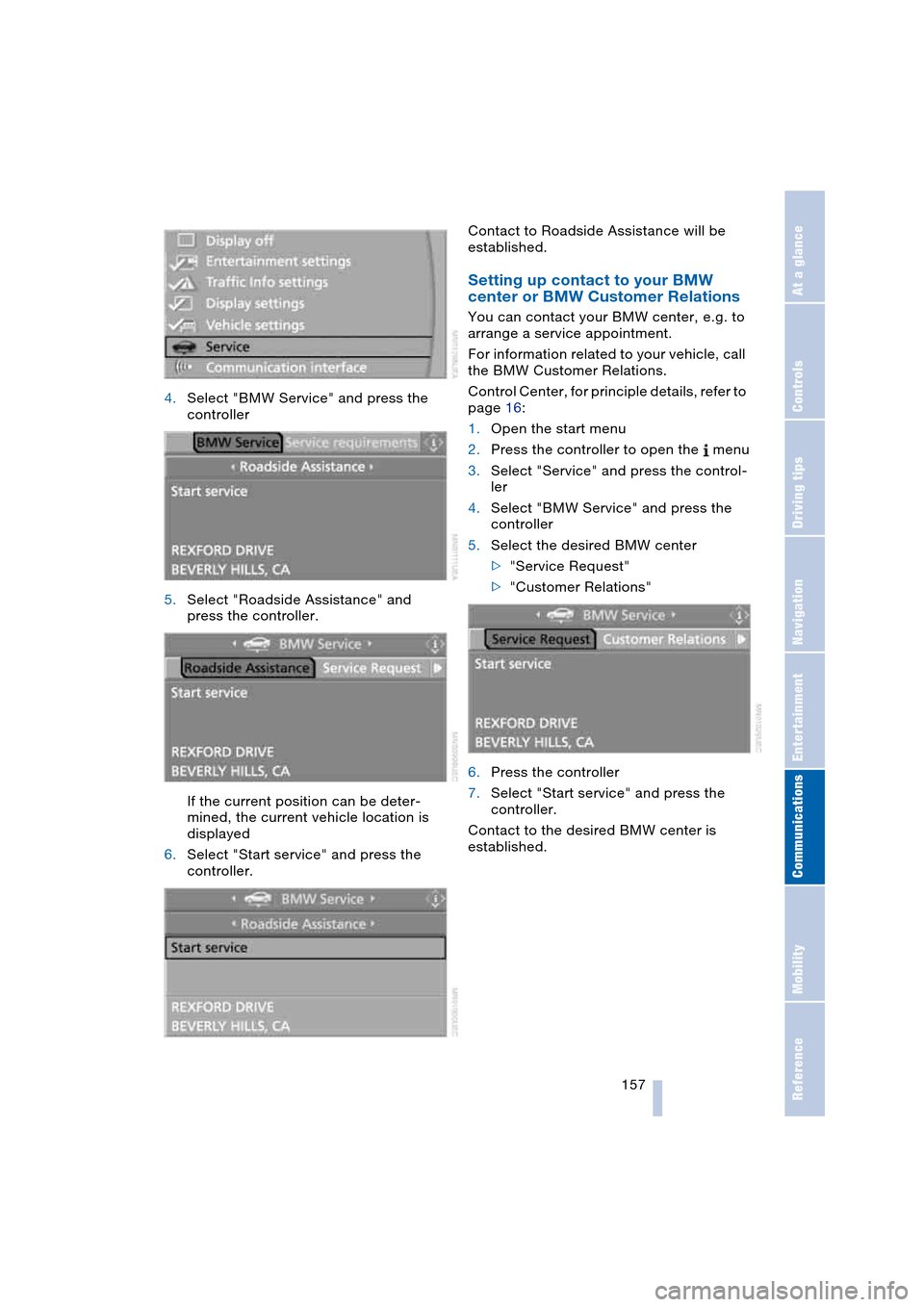
4.Select "BMW Service" and press the
controller
5.Select "Roadside Assistance" and
press the controller.
If the current position can be deter-
mined, the current vehicle location is
displayed
6.Select "Start service" and press the
controller.Contact to Roadside Assistance will be
established.
Setting up contact to your BMW
center or BMW Customer Relations
You can contact your BMW center, e.g. to
arrange a service appointment.
For information related to your vehicle, call
the BMW Customer Relations.
Control Center, for principle details, refer to
page 16:
1.Open the start menu
2.Press the controller to open the menu
3.Select "Service" and press the control-
ler
4.Select "BMW Service" and press the
controller
5.Select the desired BMW center
>"Service Request"
>"Customer Relations"
6.Press the controller
7.Select "Start service" and press the
controller.
Contact to the desired BMW center is
established.
Page 160 of 216
TeleService, BMW Assist
158
Adapting TeleService or
BMW Assist
Displaying and updating services
You will be informed about the changes in
the scope of TeleService or BMW Assist. In
this case, you should update the services.
Control Center, for principle details, refer to
page 16:
1.Open the start menu
2.Press the controller to open the menu
3.Select "Communication interface" and
press the controller
4.Select "BMW Service settings" and
press the controller
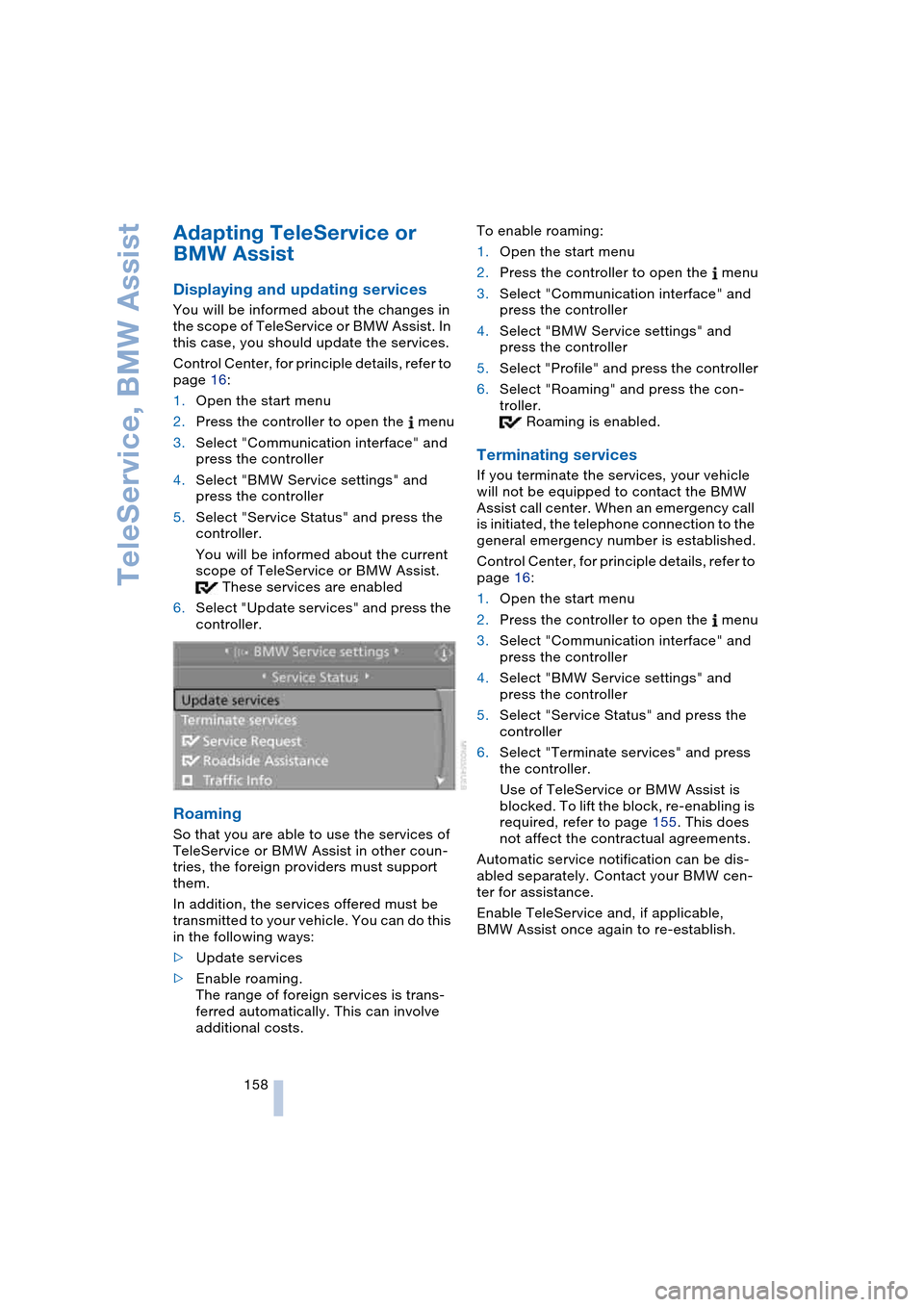
5.Select "Service Status" and press the
controller.
You will be informed about the current
scope of TeleService or BMW Assist.
These services are enabled
6.Select "Update services" and press the
controller.
Roaming
So that you are able to use the services of
TeleService or BMW Assist in other coun-
tries, the foreign providers must support
them.
In addition, the services offered must be
transmitted to your vehicle. You can do this
in the following ways:
>Update services
>Enable roaming.
The range of foreign services is trans-
ferred automatically. This can involve
additional costs.To enable roaming:
1.Open the start menu
2.Press the controller to open the menu
3.Select "Communication interface" and
press the controller
4.Select "BMW Service settings" and
press the controller
5.Select "Profile" and press the controller
6.Select "Roaming" and press the con-
troller.
Roaming is enabled.
Terminating services
If you terminate the services, your vehicle
will not be equipped to contact the BMW
Assist call center. When an emergency call
is initiated, the telephone connection to the
general emergency number is established.
Control Center, for principle details, refer to
page 16:
1.Open the start menu
2.Press the controller to open the menu
3.Select "Communication interface" and
press the controller
4.Select "BMW Service settings" and
press the controller
5.Select "Service Status" and press the
controller
6.Select "Terminate services" and press
the controller.
Use of TeleService or BMW Assist is
blocked. To lift the block, re-enabling is
required, refer to page 155. This does
not affect the contractual agreements.
Automatic service notification can be dis-
abled separately. Contact your BMW cen-
ter for assistance.
Enable TeleService and, if applicable,
BMW Assist once again to re-establish.
Page 161 of 216
159
Entertainment
Reference
At a glance
Controls
Driving tips Communications
Navigation
Mobility
Displaying vehicle data
When TeleService or BMW Assist is acti-
vated, the colored designation, the license
plate and the vehicle identification number
of your vehicle can be displayed.
Control Center, for principle details, refer to
page 16:
1.Open the start menu
2.Press the controller to open the menu
3.Select "Communication interface" and
press the controller
4.Select "BMW Service settings" and
press the controller
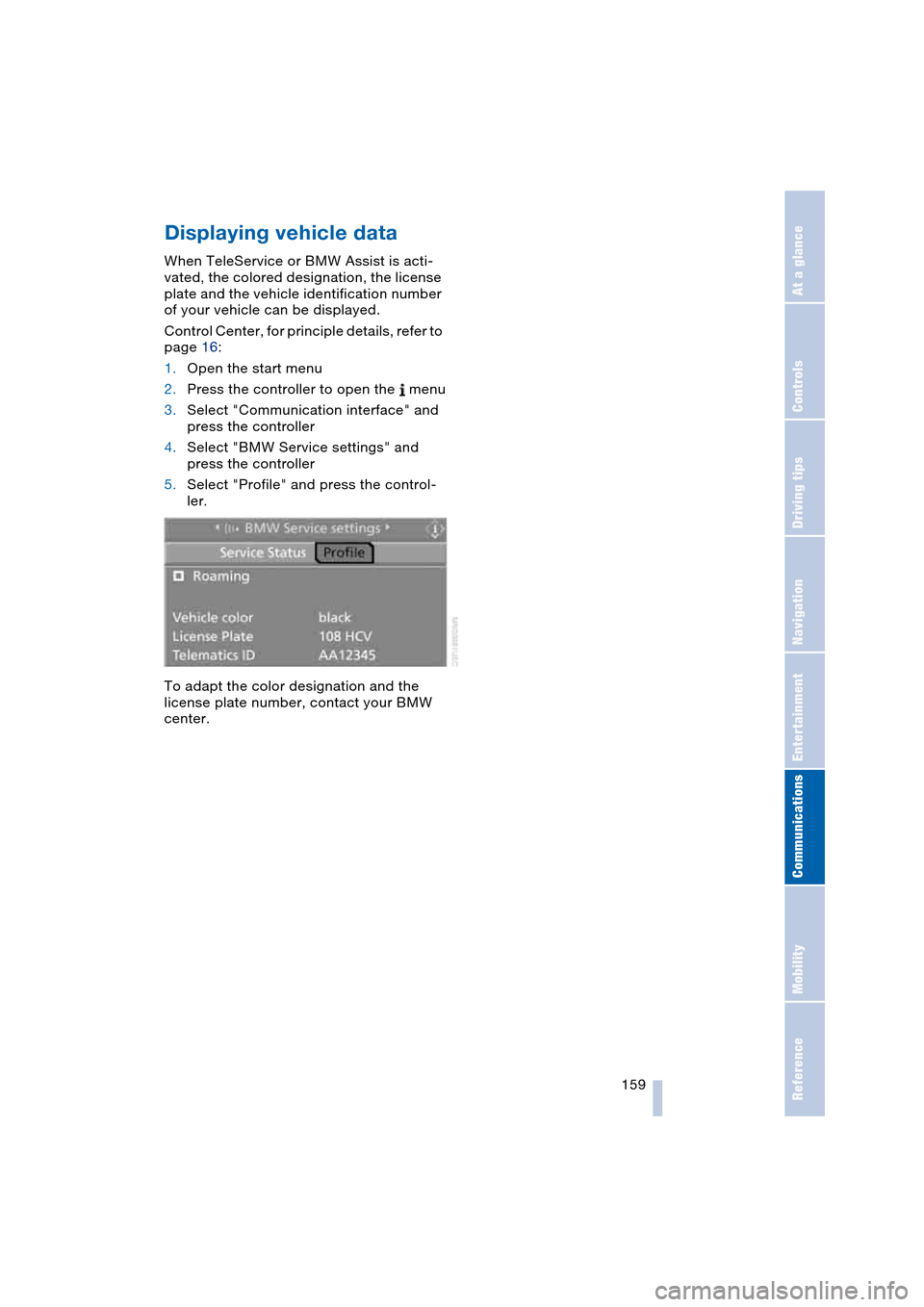
5.Select "Profile" and press the control-
ler.
To adapt the color designation and the
license plate number, contact your BMW
center.