radio controls BMW 650I CONVERTIBLE 2012 User Guide
[x] Cancel search | Manufacturer: BMW, Model Year: 2012, Model line: 650I CONVERTIBLE, Model: BMW 650I CONVERTIBLE 2012Pages: 282, PDF Size: 8.25 MB
Page 165 of 282
When surround is activated, multi-channel play‐
back is simulated when a stereo audio track is
played.
Volume
▷
"Speed volume": speed-dependent volume
control.
▷ "PDC": volume of the PDC signal* com‐
pared to the entertainment sound output.
▷ "Gong": volume of the signal, such as the
safety belt reminder, compared to the en‐
tertainment sound output.
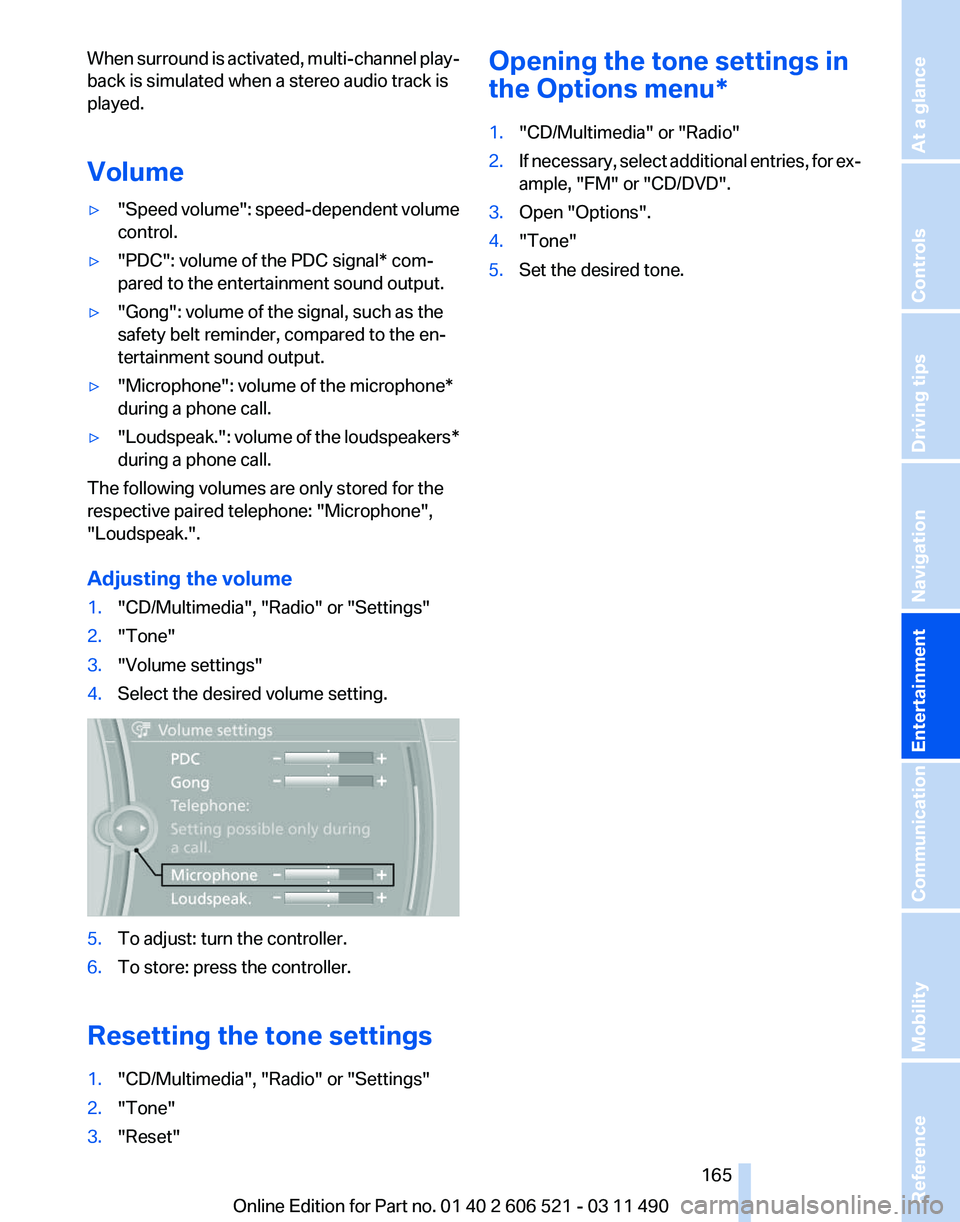
▷ "Microphone": volume of the microphone*
during a phone call.
▷ "Loudspeak.":
volume of the loudspeakers*
during a phone call.
The following volumes are only stored for the
respective paired telephone:
"Microphone",
"Loudspeak.".
Adjusting the volume
1. "CD/Multimedia", "Radio" or "Settings"
2. "Tone"
3. "Volume settings"
4. Select the desired volume setting. 5.
To adjust: turn the controller.
6. To store: press the controller.
Resetting the tone settings
1. "CD/Multimedia", "Radio" or "Settings"
2. "Tone"
3. "Reset" Opening the tone settings in
the Options menu
*
1. "CD/Multimedia" or "Radio"
2. If necessary, select additional entries, for ex‐
ample, "FM" or
"CD/DVD".
3. Open "Options".
4. "Tone"
5. Set the desired tone.
Seite 165
165Online Edition for Part no. 01 40 2 606 521 - 03 11 490
Reference Mobility Communication
Entertainment Navigation Driving tips Controls At a glance
Page 166 of 282
Radio
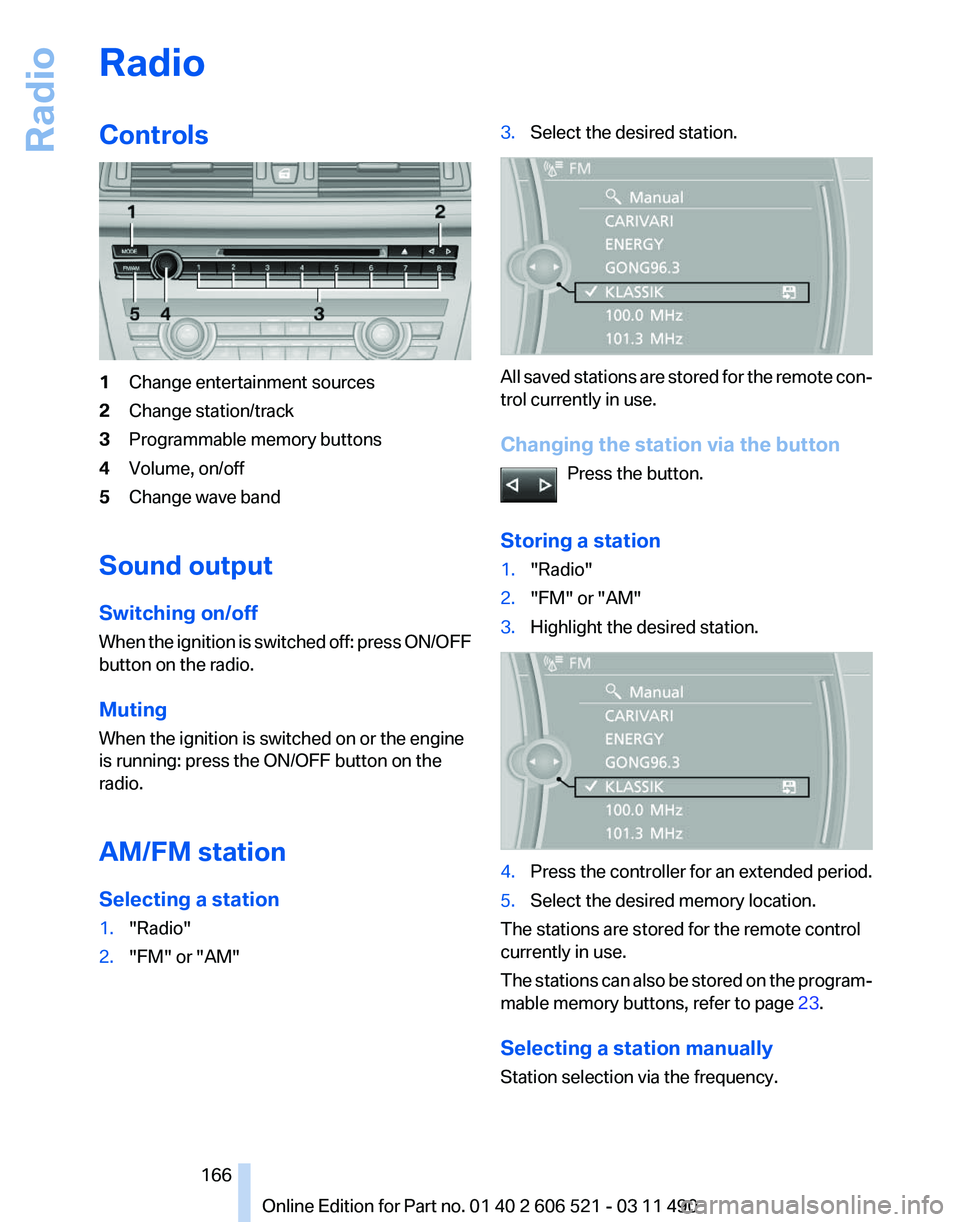
Controls
1
Change entertainment sources
2 Change station/track
3 Programmable memory buttons
4 Volume, on/off
5 Change wave band
Sound output
Switching on/off
When
the ignition is switched off: press ON/OFF
button on the radio.
Muting
When the ignition is switched on or the engine
is running: press the ON/OFF button on the
radio.
AM/FM station
Selecting a station
1. "Radio"
2. "FM" or "AM" 3.
Select the desired station. All saved stations are stored for the remote con‐
trol currently in use.
Changing the station via the button
Press the button.
Storing a station
1. "Radio"
2. "FM" or "AM"
3. Highlight the desired station. 4.
Press the controller for an extended period.
5. Select the desired memory location.
The stations are stored for the remote control
currently in use.
The
stations can also be stored on the program‐
mable memory buttons, refer to page 23.
Selecting a station manually
Station selection via the frequency. Seite 166
166 Online Edition for Part no. 01 40 2 606 521 - 03 11 490
Radio
Page 167 of 282
1.
"Radio"
2. "FM" or "AM"
3. "Manual"
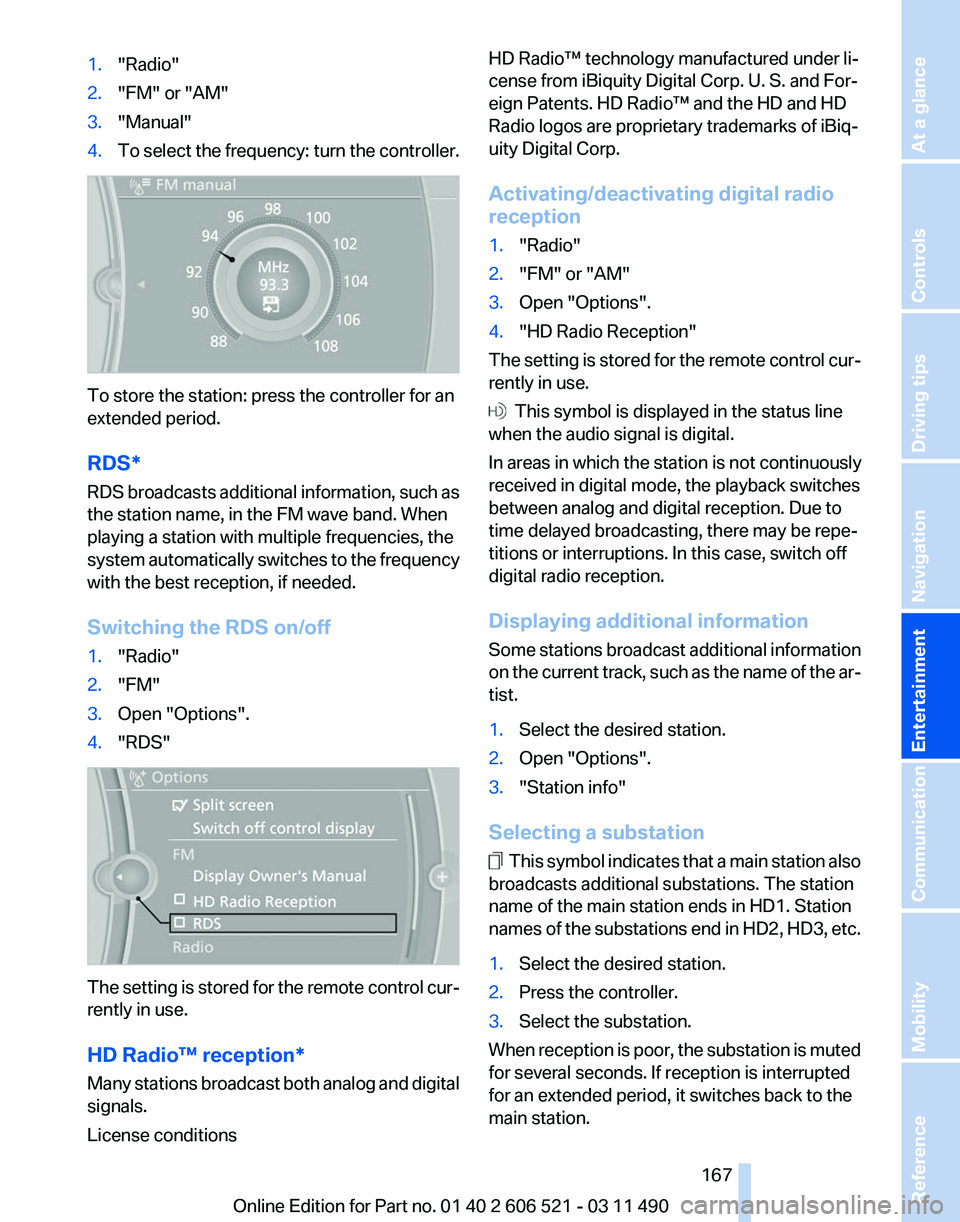
4. To select the frequency: turn the controller. To store the station: press the controller for an
extended period.
RDS*
RDS
broadcasts additional information, such as
the station name, in the FM wave band. When
playing a station with multiple frequencies, the
system automatically switches to the frequency
with the best reception, if needed.
Switching the RDS on/off
1. "Radio"
2. "FM"
3. Open "Options".
4. "RDS" The setting is stored for the remote control cur‐
rently in use.
HD Radio™ reception
*
Many stations broadcast both analog and digital
signals.
License conditions HD Radio™ technology manufactured under li‐
cense from iBiquity Digital Corp. U. S. and For‐
eign Patents. HD Radio™ and the HD and HD
Radio logos are proprietary trademarks of iBiq‐
uity Digital Corp.
Activating/deactivating digital radio
reception
1.
"Radio"
2. "FM" or "AM"
3. Open "Options".
4. "HD Radio Reception"
The setting is stored for the remote control cur‐
rently in use. This symbol is displayed in the status line
when the audio signal is digital.
In areas in which the station is not continuously
received in digital mode, the playback switches
between analog and digital reception. Due to
time delayed broadcasting, there may be repe‐
titions or interruptions. In this case, switch off
digital radio reception.
Displaying additional information
Some
stations broadcast additional information
on the current track, such as the name of the ar‐
tist.
1. Select the desired station.
2. Open "Options".
3. "Station info"
Selecting a substation This symbol indicates that a main station also
broadcasts additional substations. The station
name of the main station ends in HD1. Station
names
of the substations end in HD2, HD3, etc.
1. Select the desired station.
2. Press the controller.
3. Select the substation.
When reception is poor, the substation is muted
for several seconds. If reception is interrupted
for an extended period, it switches back to the
main station.
Seite 167
167Online Edition for Part no. 01 40 2 606 521 - 03 11 490
Reference Mobility Communication
Entertainment Navigation Driving tips Controls At a glance
Page 169 of 282
3.
Open "Options".
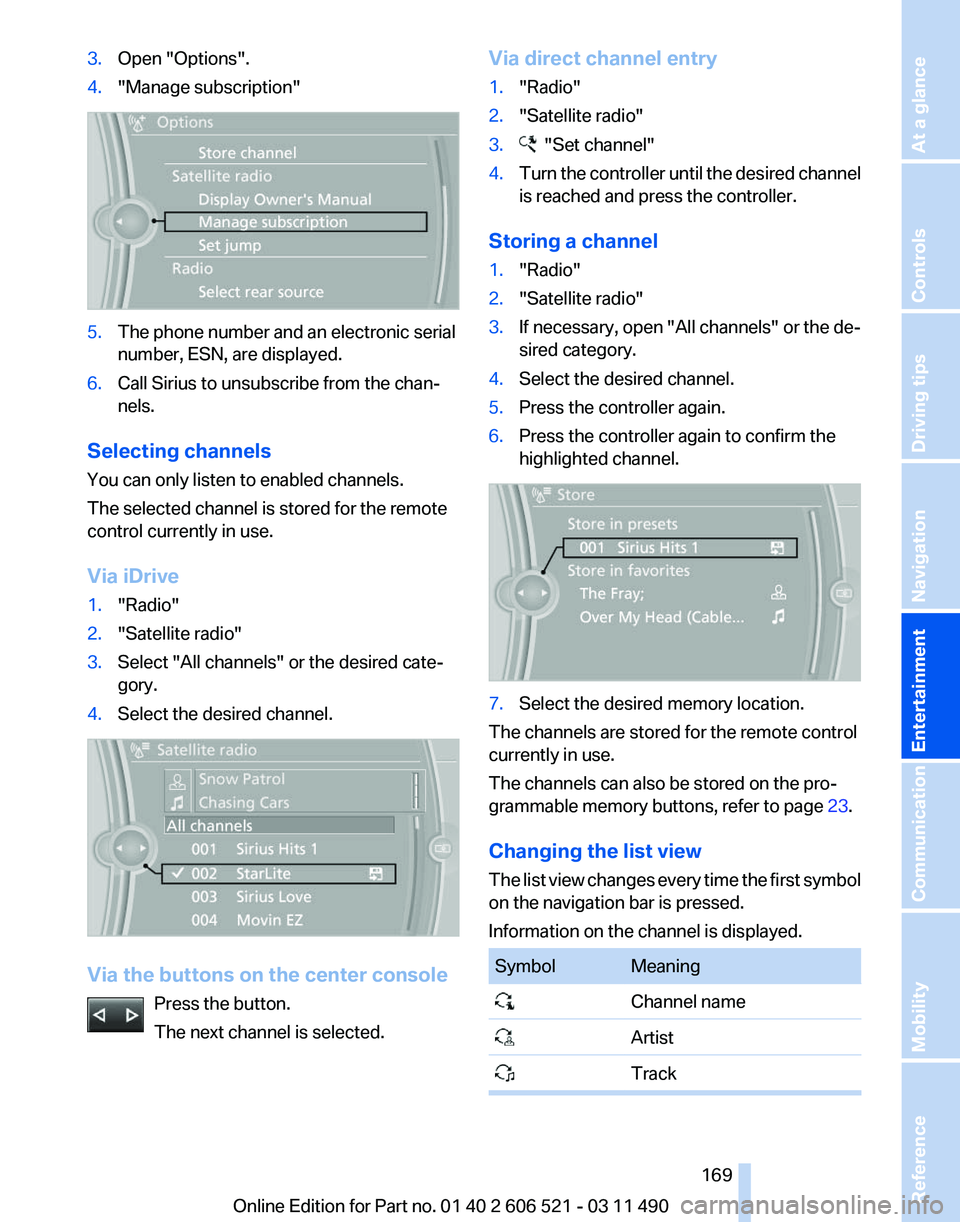
4. "Manage subscription" 5.
The phone number and an electronic serial
number, ESN, are displayed.
6. Call Sirius to unsubscribe from the chan‐
nels.
Selecting channels
You can only listen to enabled channels.
The selected channel is stored for the remote
control currently in use.
Via iDrive
1. "Radio"
2. "Satellite radio"
3. Select "All channels" or the desired cate‐
gory.
4. Select the desired channel. Via the buttons on the center console
Press the button.
The next channel is selected. Via direct channel entry
1.
"Radio"
2. "Satellite radio"
3. "Set channel"
4. Turn the controller until the desired channel
is reached and press the controller.
Storing a channel
1. "Radio"
2. "Satellite radio"
3. If necessary, open "All channels" or the de‐
sired category.
4. Select the desired channel.
5. Press the controller again.
6. Press the controller again to confirm the
highlighted channel. 7.
Select the desired memory location.
The channels are stored for the remote control
currently in use.
The channels can also be stored on the pro‐
grammable memory buttons, refer to page 23.
Changing the list view
The
list view changes every time the first symbol
on the navigation bar is pressed.
Information on the channel is displayed. Symbol Meaning
Channel name
Artist
Track Seite 169
169Online Edition for Part no. 01 40 2 606 521 - 03 11 490
Reference Mobility Communication
Entertainment Navigation Driving tips Controls At a glance
Page 171 of 282
Storing the league or team
Leagues
or teams can be added to the favorites
from a selection list.
1. "Radio"
2. "Satellite radio"
3. "Manage favorites"
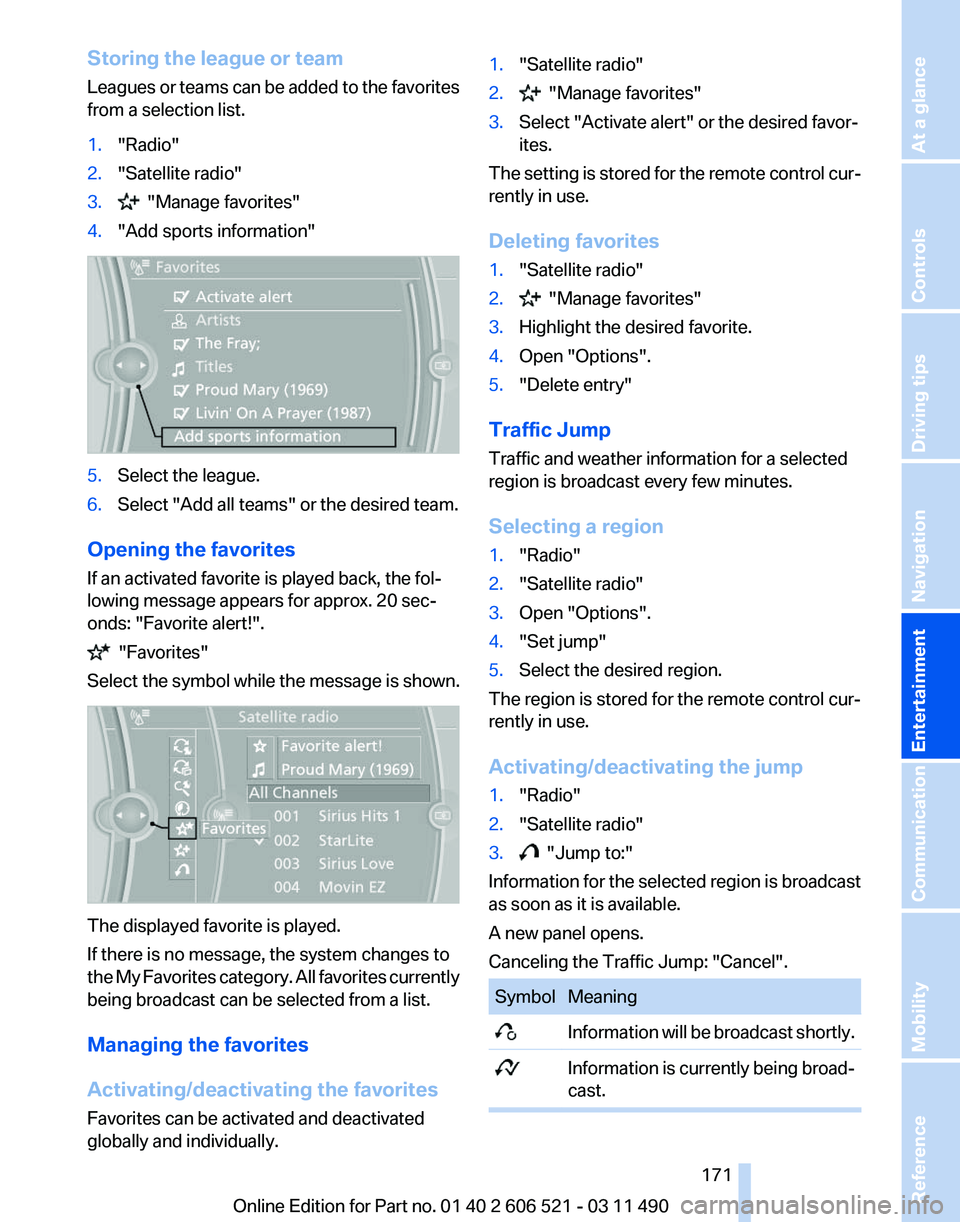
4. "Add sports information" 5.
Select the league.
6. Select "Add all teams" or the desired team.
Opening the favorites
If an activated favorite is played back, the fol‐
lowing message appears for approx. 20 sec‐
onds: "Favorite alert!". "Favorites"
Select the symbol while the message is shown. The displayed favorite is played.
If there is no message, the system changes to
the
My Favorites category. All favorites currently
being broadcast can be selected from a list.
Managing the favorites
Activating/deactivating the favorites
Favorites can be activated and deactivated
globally and individually. 1.
"Satellite radio"
2. "Manage favorites"
3. Select "Activate alert" or the desired favor‐
ites.
The setting is stored for the remote control cur‐
rently in use.
Deleting favorites
1. "Satellite radio"
2. "Manage favorites"
3. Highlight the desired favorite.
4. Open "Options".
5. "Delete entry"
Traffic Jump
Traffic and weather information for a selected
region is broadcast every few minutes.
Selecting a region
1. "Radio"
2. "Satellite radio"
3. Open "Options".
4. "Set jump"
5. Select the desired region.
The region is stored for the remote control cur‐
rently in use.
Activating/deactivating the jump
1. "Radio"
2. "Satellite radio"
3. "Jump to:"
Information for the selected region is broadcast
as soon as it is available.
A new panel opens.
Canceling the Traffic Jump: "Cancel". Symbol Meaning
Information will be broadcast shortly.
Information is currently being broad‐
cast. Seite 171
171Online Edition for Part no. 01 40 2 606 521 - 03 11 490
Reference Mobility Communication
Entertainment Navigation Driving tips Controls At a glance
Page 173 of 282
CD/multimedia
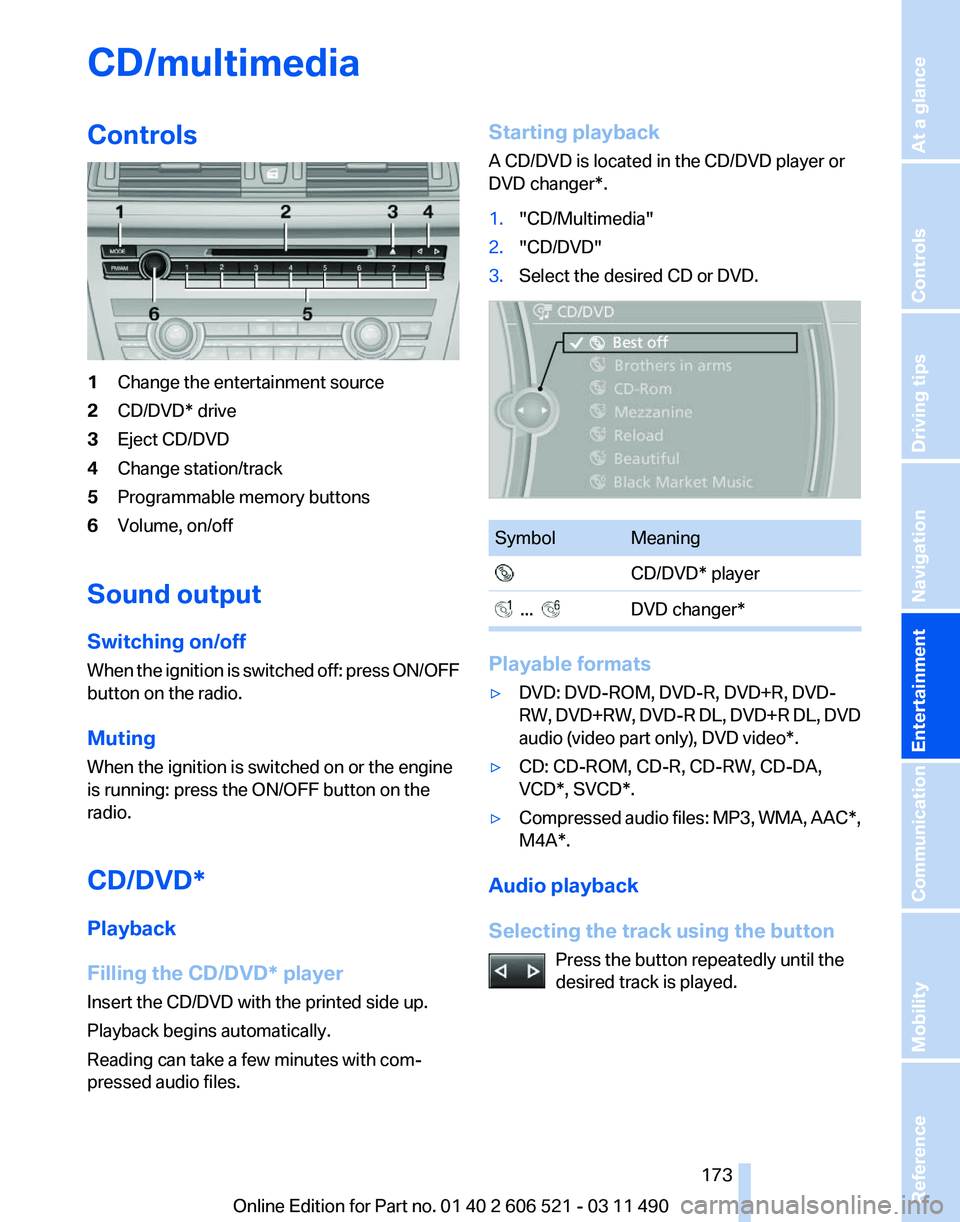
Controls
1
Change the entertainment source
2 CD/DVD* drive
3 Eject CD/DVD
4 Change station/track
5 Programmable memory buttons
6 Volume, on/off
Sound output
Switching on/off
When
the ignition is switched off: press ON/OFF
button on the radio.
Muting
When the ignition is switched on or the engine
is running: press the ON/OFF button on the
radio.
CD/DVD*
Playback
Filling the CD/DVD* player
Insert the CD/DVD with the printed side up.
Playback begins automatically.
Reading can take a few minutes with com‐
pressed audio files. Starting playback
A CD/DVD is located in the CD/DVD player or
DVD changer*.
1.
"CD/Multimedia"
2. "CD/DVD"
3. Select the desired CD or DVD. Symbol Meaning
CD/DVD* player ... DVD changer*
Playable formats
▷
DVD: DVD-ROM, DVD-R, DVD+R, DVD-
RW,
DVD+RW, DVD-R DL, DVD+R DL, DVD
audio (video part only), DVD video*.
▷ CD: CD-ROM, CD-R, CD-RW, CD-DA,
VCD*, SVCD*.
▷ Compressed audio files: MP3, WMA, AAC*,
M4A*.
Audio playback
Selecting the track using the button Press the button repeatedly until the
desired track is played. Seite 173
173Online Edition for Part no. 01 40 2 606 521 - 03 11 490
Reference Mobility Communication
Entertainment Navigation Driving tips Controls At a glance
Page 191 of 282
▷
Adjust the volume settings on the device.
Playback is disturbed when buttons are pressed
or by other messages on the device.
▷ Switch off the button tones and other signal
tones on the device.
Playback is interrupted by a telephone call or
traffic bulletin and is not resumed automatically.
▷ Switch the radio off and on again.
Playback is not possible if the mobile phone is
connected
both via Bluetooth Audio and via the
extended connectivity of the music player in the
mobile phone*.
▷ Disconnect one of the two connections; for
example, disconnect the audio connection,
refer to page 190, and restart playback.
If all points in this list have been checked and the
required function is still not available, please
contact the hotline or service center.
Software Update*
The vehicle supports various external devices
depending
on the current software version. With
a software update, the vehicle can support new
cell phones* or new external devices*.
The updating of the software is done via:
▷ USB*.
Updates and related current information is
available at www.bmw.com/update.
▷ TeleService*.
Existing
software can be updated directly via
the vehicle.
Displaying the current version
The currently installed software is displayed.
1. "Settings"
2. "Software update"
3. "Show current version"
SelectDesired version* to displayAdditional in‐
formation*.
Updating software via USB
*
The software may only be updated when the ve‐
hicle is stationary. 1.
Store the file for the software-update in the
main director of a USB flash drive.
2. Insert the USB flash drive into the USB in‐
terface of the USB audio interface in the
center armrest. An update via the USB in‐
terface
in the glove compartment is not pos‐
sible.
3. "Settings"
4. "Software update"
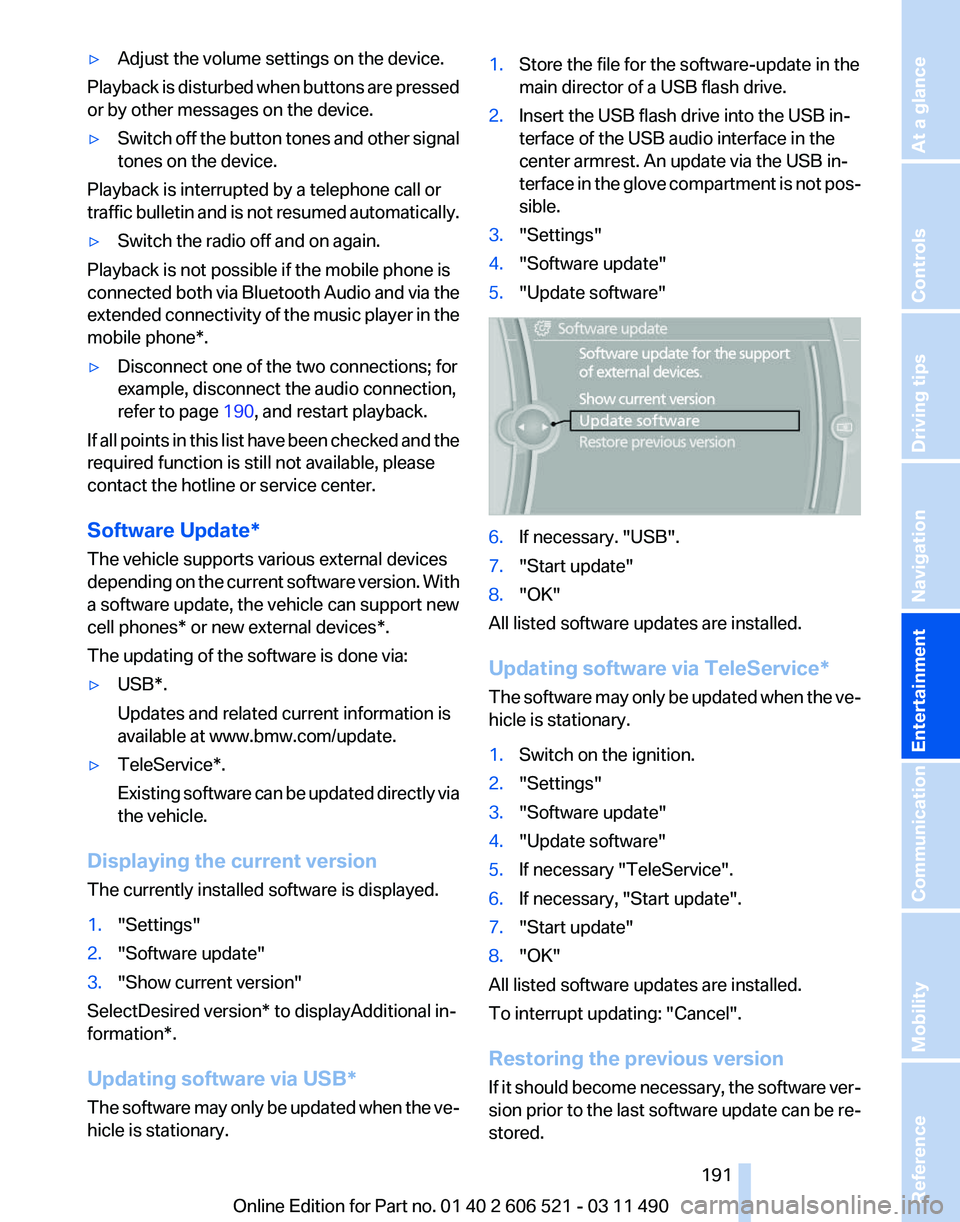
5. "Update software" 6.
If necessary. "USB".
7. "Start update"
8. "OK"
All listed software updates are installed.
Updating software via
TeleService*
The software may only be updated when the ve‐
hicle is stationary.
1. Switch on the ignition.
2. "Settings"
3. "Software update"
4. "Update software"
5. If necessary "TeleService".
6. If necessary, "Start update".
7. "Start update"
8. "OK"
All listed software updates are installed.
To interrupt updating:
"Cancel".
Restoring the previous version
If it should become necessary, the software ver‐
sion prior to the last software update can be re‐
stored.
Seite 191
191Online Edition for Part no. 01 40 2 606 521 - 03 11 490
Reference Mobility Communication
Entertainment Navigation Driving tips Controls At a glance
Page 247 of 282
Vehicle battery
Maintenance
The battery is maintenance-free, i.e., the elec‐
trolyte will last for the life of the battery.
Your
service center will be glad to advise you on
questions regarding the battery.
Battery replacement
Use approved vehicle batteries only.
Only use vehicle batteries that have been
approved for your vehicle by the manufacturer;
otherwise, the vehicle could be damaged and
systems or functions may not be fully availa‐
ble.◀
After a battery replacement, have the battery
registered on the vehicle by your service center
to ensure that all comfort functions are fully
available.
Charging the battery
In the vehicle, only charge the battery via the
terminals, refer to page 250, in the engine com‐
partment with the engine off.
Power failure
After a temporary power loss, some equipment
needs to be reinitialized.
Individual settings need to be reprogrammed:
▷ Seat, mirror, and steering wheel memory:
store the positions again.
▷ Time: update.
▷ Date: update.
▷ Radio station: save again.
▷ Navigation system: wait for the operability of
the navigation.
Disposing of old batteries Have old batteries disposed of by your
service center or bring them to a recy‐
cling center.
Maintain the battery in an upright position for
transport and storage. Secure the battery so
that it does not tip over during transport. Fuses
Notes
Replacing fuses
Never attempt to repair a blown fuse and
do
not replace a defective fuse with a substitute
of another color or amperage rating; this could
lead to a circuit overload, ultimately resulting in
a fire in the vehicle.◀
Plastic tweezers and information on the fuse
types and locations are stored in the fuse box in
the cargo area.
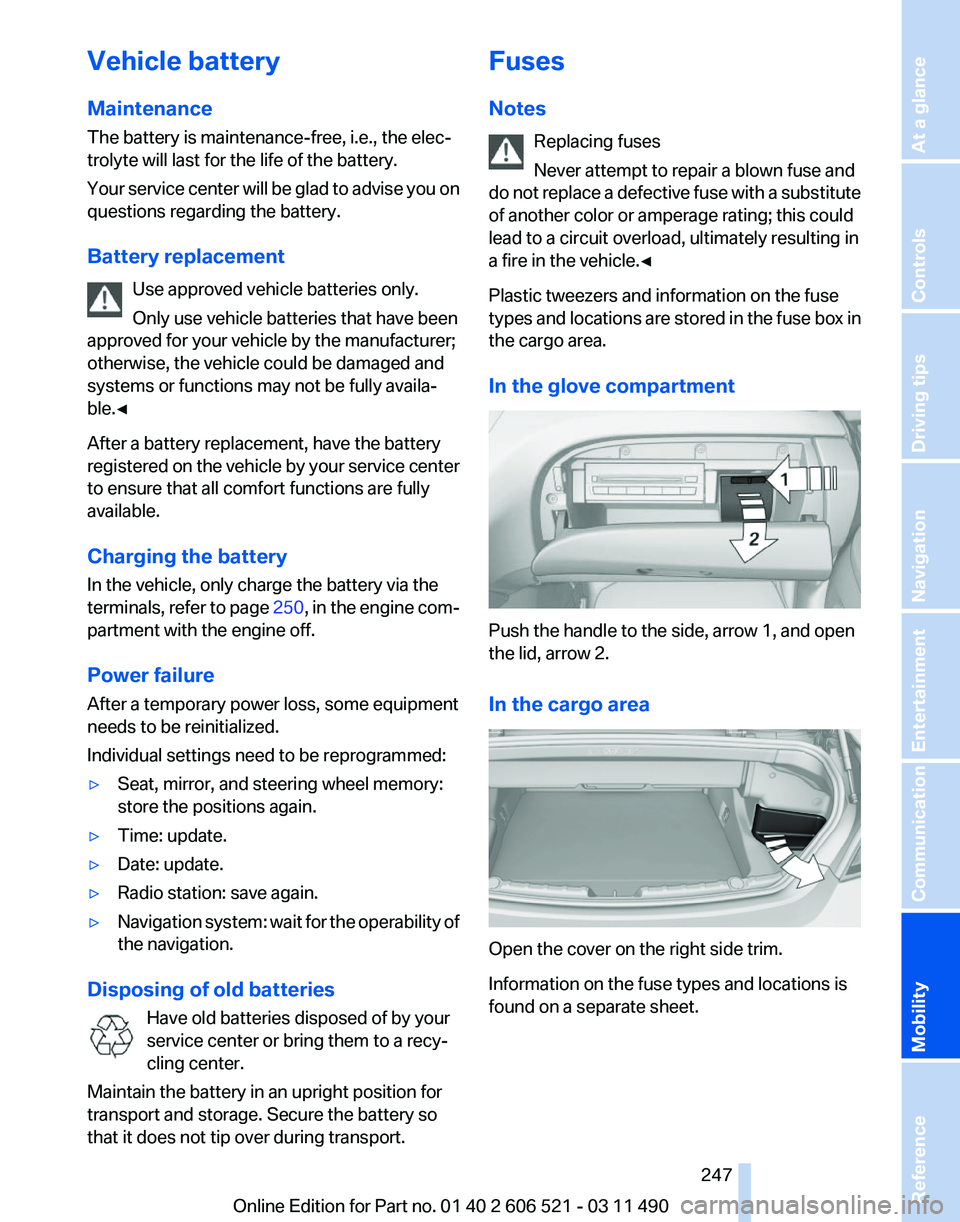
In the glove compartment Push the handle to the side, arrow 1, and open
the lid, arrow 2.
In the cargo area
Open the cover on the right side trim.
Information on the fuse types and locations is
found on a separate sheet. Seite 247
247Online Edition for Part no. 01 40 2 606 521 - 03 11 490
Reference
Mobility Communication Entertainment Navigation Driving tips Controls At a glance
Page 267 of 282
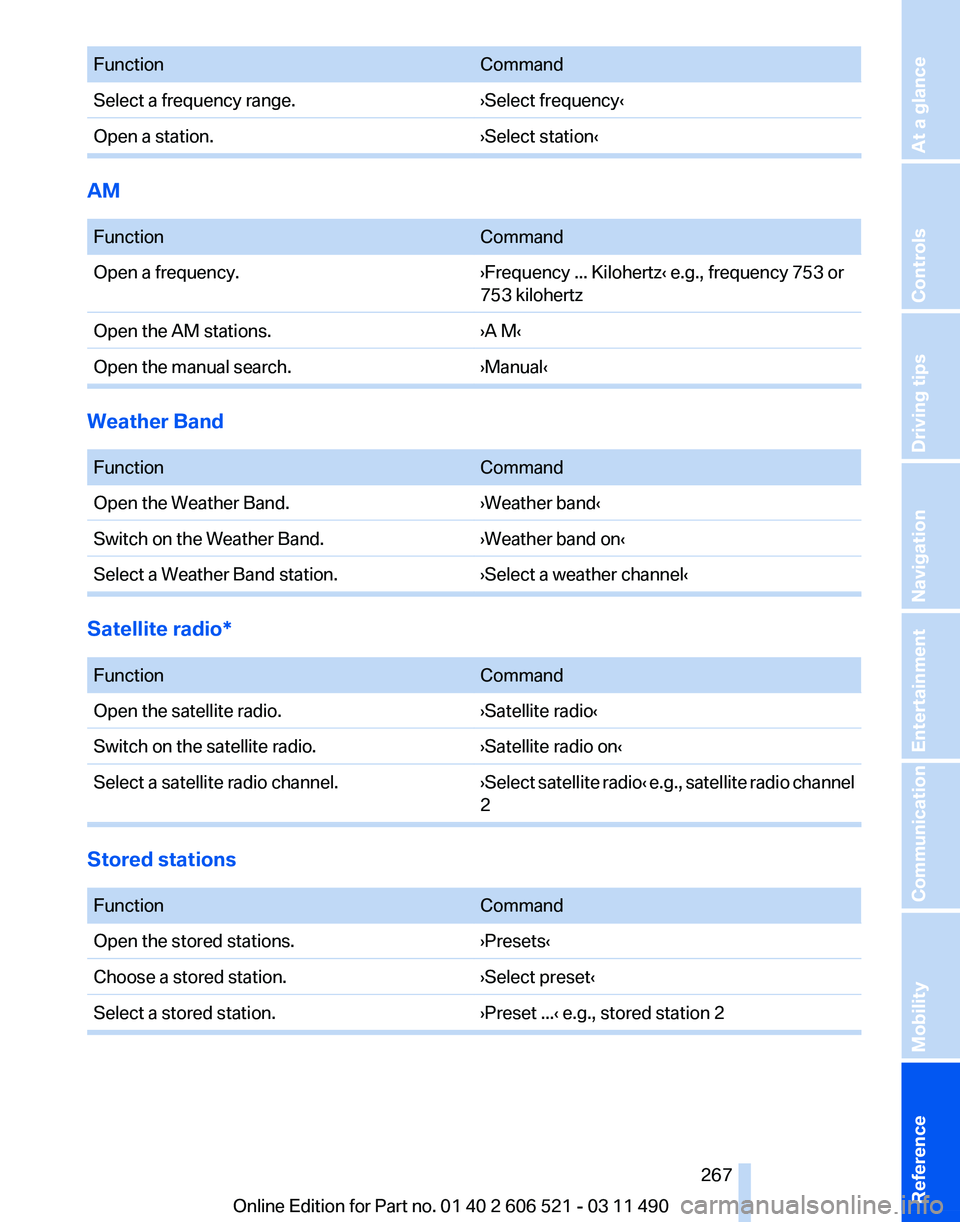
Function
Command
Select a frequency range. ›Select frequency‹
Open a station. ›Select station‹AM
Function
Command
Open a frequency. ›Frequency ... Kilohertz‹ e.g., frequency 753 or
753 kilohertz
Open the AM stations. ›A M‹
Open the manual search. ›Manual‹Weather Band
Function
Command
Open the Weather Band. ›Weather band‹
Switch on the Weather Band. ›Weather band on‹
Select a Weather Band station. ›Select a weather channel‹Satellite radio*
Function
Command
Open the satellite radio. ›Satellite radio‹
Switch on the satellite radio. ›Satellite radio on‹
Select a satellite radio channel. ›Select satellite radio‹ e.g., satellite radio channel
2Stored stations
Function
Command
Open the stored stations. ›Presets‹
Choose a stored station. ›Select preset‹
Select a stored station. ›Preset ...‹ e.g., stored station 2 Seite 267
267Online Edition for Part no. 01 40 2 606 521 - 03 11 490
Reference Mobility Communication Entertainment Navigation Driving tips Controls At a glance
Page 275 of 282
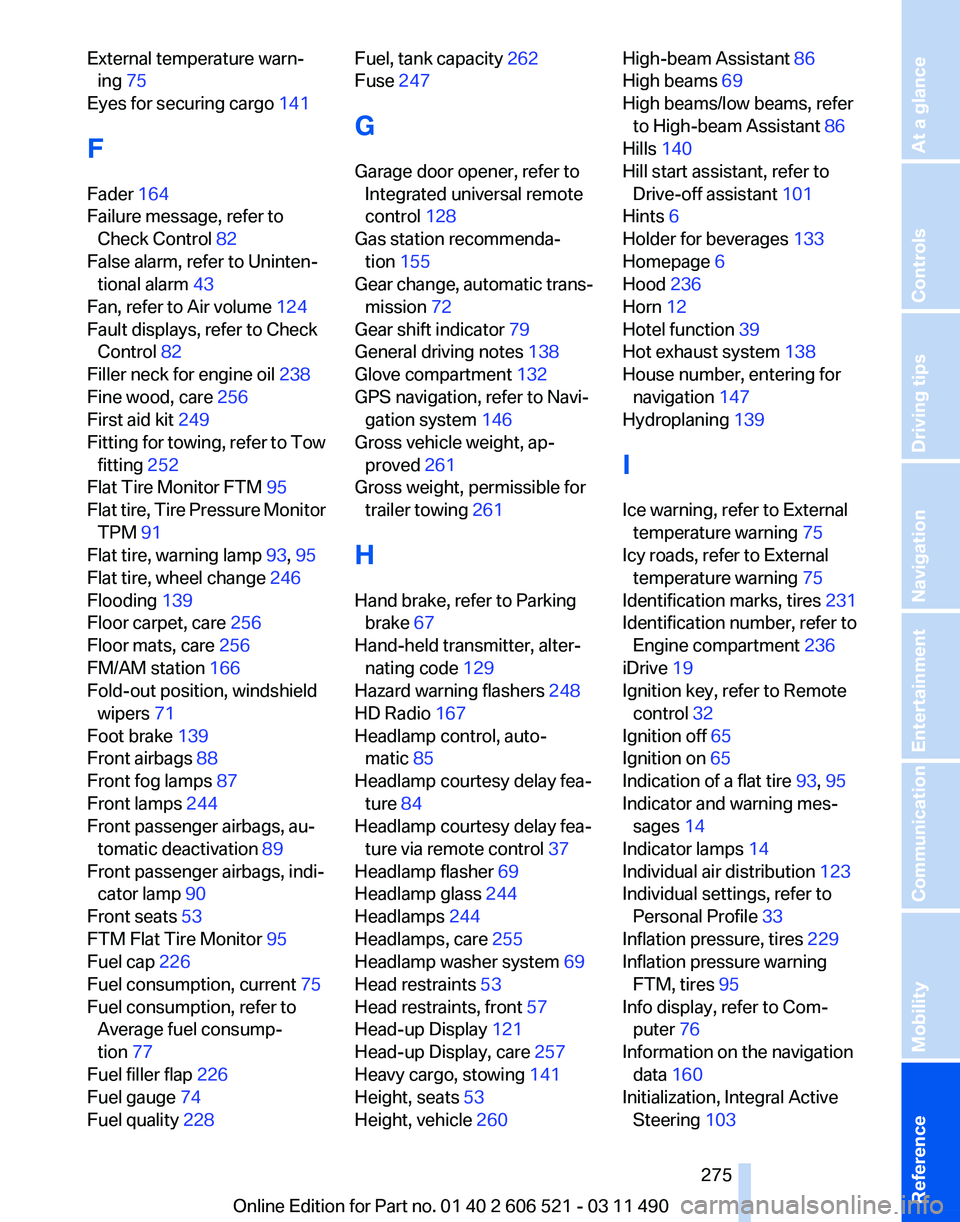
External temperature warn‐
ing 75
Eyes for securing cargo 141
F
Fader 164
Failure message, refer to Check Control 82
False alarm, refer to Uninten‐ tional alarm 43
Fan, refer to Air volume 124
Fault displays, refer to Check Control 82
Filler neck for engine oil 238
Fine wood, care 256
First aid kit 249
Fitting
for towing, refer to Tow
fitting 252
Flat Tire Monitor FTM 95
Flat tire, Tire Pressure Monitor TPM 91
Flat tire, warning lamp 93, 95
Flat tire, wheel change 246
Flooding 139
Floor carpet, care 256
Floor mats, care 256
FM/AM station 166
Fold-out position, windshield wipers 71
Foot brake 139
Front airbags 88
Front fog lamps 87
Front lamps 244
Front passenger airbags, au‐ tomatic deactivation 89
Front passenger airbags, indi‐ cator lamp 90
Front seats 53
FTM Flat Tire Monitor 95
Fuel cap 226
Fuel consumption, current 75
Fuel consumption, refer to Average fuel consump‐
tion 77
Fuel filler flap 226
Fuel gauge 74
Fuel quality 228 Fuel, tank capacity
262
Fuse 247
G
Garage door opener, refer to Integrated universal remote
control 128
Gas station recommenda‐ tion 155
Gear
change, automatic trans‐
mission 72
Gear shift indicator 79
General driving notes 138
Glove compartment 132
GPS navigation, refer to Navi‐ gation system 146
Gross vehicle weight, ap‐ proved 261
Gross weight, permissible for trailer towing 261
H
Hand brake, refer to Parking brake 67
Hand-held transmitter, alter‐ nating code 129
Hazard warning flashers 248
HD Radio 167
Headlamp control, auto‐ matic 85
Headlamp courtesy delay fea‐ ture 84
Headlamp courtesy delay fea‐ ture via remote control 37
Headlamp flasher 69
Headlamp glass 244
Headlamps 244
Headlamps, care 255
Headlamp washer system 69
Head restraints 53
Head restraints, front 57
Head-up Display 121
Head-up Display, care 257
Heavy cargo, stowing 141
Height, seats 53
Height, vehicle 260 High-beam Assistant
86
High beams 69
High beams/low beams, refer to High-beam Assistant 86
Hills 140
Hill start assistant, refer to Drive-off assistant 101
Hints 6
Holder for beverages 133
Homepage 6
Hood 236
Horn 12
Hotel function 39
Hot exhaust system 138
House number, entering for navigation 147
Hydroplaning 139
I
Ice warning, refer to External temperature warning 75
Icy roads, refer to External temperature warning 75
Identification marks, tires 231
Identification number, refer to Engine compartment 236
iDrive 19
Ignition key, refer to Remote control 32
Ignition off 65
Ignition on 65
Indication of a flat tire 93, 95
Indicator and warning mes‐ sages 14
Indicator lamps 14
Individual air distribution 123
Individual settings, refer to Personal Profile 33
Inflation pressure, tires 229
Inflation pressure warning FTM, tires 95
Info display, refer to Com‐ puter 76
Information on the navigation data 160
Initialization, Integral Active Steering 103
Seite 275
275Online Edition for Part no. 01 40 2 606 521 - 03 11 490
Reference Mobility Communication Entertainment Navigation Driving tips Controls At a glance