manual BMW 740LI 2011 F02 Owner's Manual
[x] Cancel search | Manufacturer: BMW, Model Year: 2011, Model line: 740LI, Model: BMW 740LI 2011 F02Pages: 299, PDF Size: 8.49 MB
Page 1 of 299

Owner's Manual for
Vehicle
The Ultimate Driving
Machine Contents
A-Z
Online Edition for Part no. 01 40 2 606 497 - 03 11 490
Page 3 of 299
740i
740Li 750i
750Li
760Li
750i xDrive
750Li xDrive Owner's Manual for Vehicle
Thank you for choosing a BMW.
The
more familiar you are with your vehicle, the better control you
will have on the road. We therefore strongly suggest:
Read this Owner's Manual before starting off in your new BMW.
Also use the Integrated Owner's Manual in your vehicle. It con‐
tains important information on vehicle operation that will help you
make full use of the technical features available in your BMW. The
manual also contains information designed to enhance operating
reliability and road safety, and to contribute to maintaining the
value of your BMW.
Any updates made after the editorial deadline for the printed or
integrated Owner's Manual are located in the appendix of the
printed quick reference for the vehicle.
Supplementary information can be found in the additional bro‐
chures in the onboard literature.
We wish you a safe and enjoyable drive.
BMW AG Online Edition for Part no. 01 40 2 606 497 - 03 11 490
Page 5 of 299
Contents
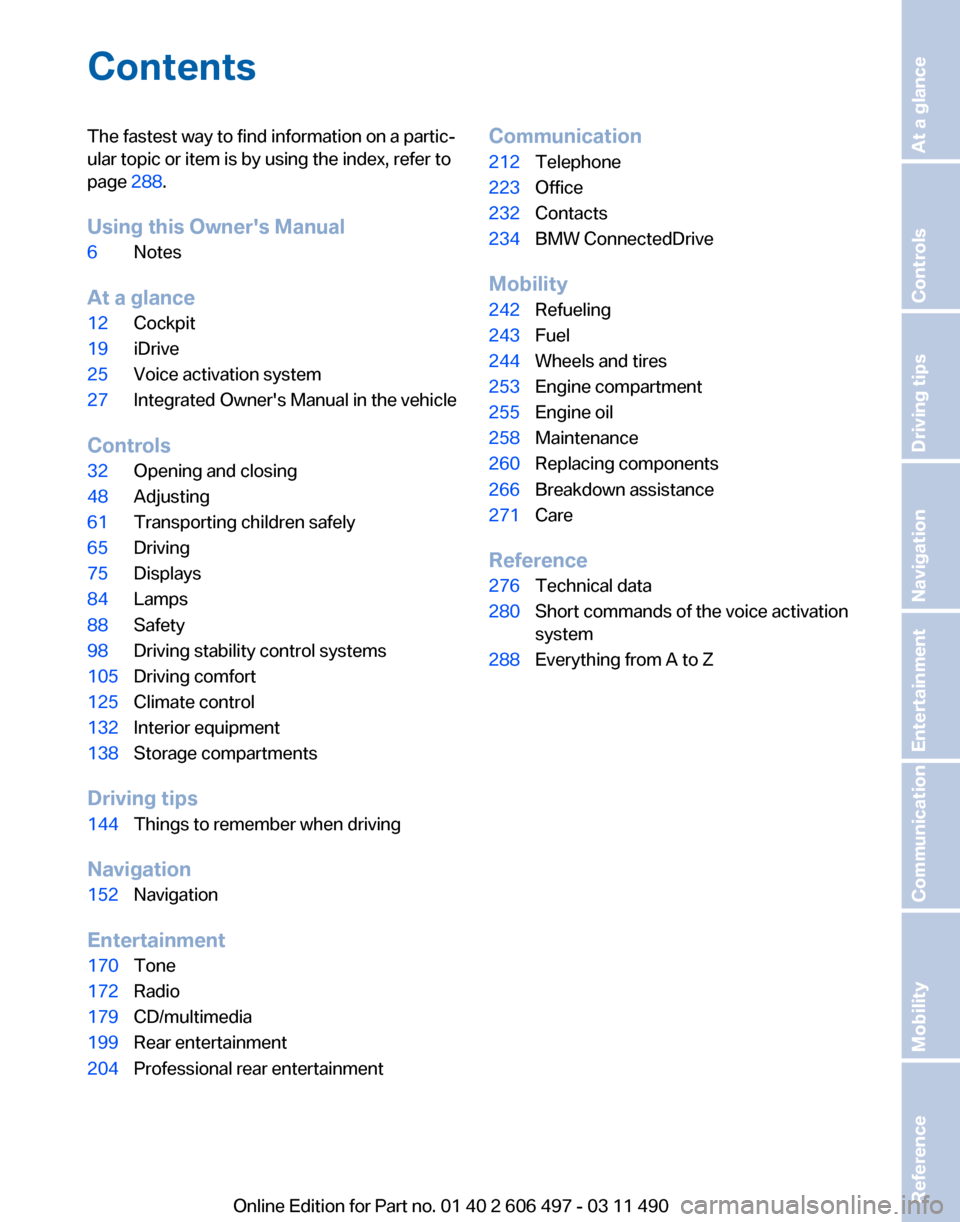
The fastest way to find information on a partic‐
ular topic or item is by using the index, refer to
page
288.
Using this Owner's Manual
6 Notes
At a glance
12 Cockpit
19 iDrive
25 Voice activation system
27 Integrated Owner's Manual in the vehicle
Controls
32 Opening and closing
48 Adjusting
61 Transporting children safely
65 Driving
75 Displays
84 Lamps
88 Safety
98 Driving stability control systems
105 Driving comfort
125 Climate control
132 Interior equipment
138 Storage compartments
Driving tips
144 Things to remember when driving
Navigation
152 Navigation
Entertainment
170 Tone
172 Radio
179 CD/multimedia
199 Rear entertainment
204 Professional rear entertainment Communication
212
Telephone
223 Office
232 Contacts
234 BMW ConnectedDrive
Mobility
242 Refueling
243 Fuel
244 Wheels and tires
253 Engine compartment
255 Engine oil
258 Maintenance
260 Replacing components
266 Breakdown assistance
271 Care
Reference
276 Technical data
280 Short commands of the voice activation
system
288 Everything from A to Z
Seite 5
Online Edition for Part no. 01 40 2 606 497 - 03 11 490 Reference Mobility Communication Entertainment Navigation Driving tips Controls At a glance
Page 6 of 299
Notes
Using this Owner's Manual
The fastest way to find information on a partic‐
ular topic is by using the index.
An initial overview of the vehicle is provided in
the first chapter.
Updates made after the editorial
deadline
Any
updates made after the editorial deadline for
the Owner's Manuals are located in the appen‐
dix of the printed quick reference for the vehicle.
Additional sources of information
Should you have any questions, your service
center will be glad to advise you at any time.
Information on BMW, e.g., on technology, is
available on the Internet: bmwusa.com.
Symbols Indicates precautions that must be followed
precisely
in order to avoid the possibility of per‐
sonal injury and serious damage to the vehicle.
◄ Marks the end of a specific item of informa‐
tion.
* Indicates special equipment, country-specific
equipment and optional accessories, as well as
equipment and functions not yet available at the
time of printing.
"..." Identifies Control Display texts used to se‐
lect individual functions.
›...‹ Verbal instructions to use with the voice ac‐
tivation system.
››...‹‹ Identifies the answers generated by the
voice activation system. Refers to measures that can be taken to help
protect the environment. Symbols on vehicle components Indicates that you should consult the rele‐
vant section of this Owner's Manual for infor‐
mation on a particular part or assembly.
Your individual vehicle
You
have decided in favor of a vehicle with indi‐
vidualized equipment and features.
This Owner's Manual describes the entire array
of options and equipment available for a specific
model.
As a result, the manual may contain accessories
and equipment that you may not have specified
for your own vehicle.
All options and special equipment are marked
with an asterisk *.
For options and equipment not described in this
Owner's Manual, please refer to the Supple‐
mentary Owner's Manuals.
On right-hand drive vehicles, some controls are
arranged differently than shown in the illustra‐
tions.
Status of the Owner's Manual
The manufacturer of your vehicle pursues a pol‐
icy of constant development that is conceived
to ensure that our vehicles continue to embody
the highest quality and safety standards. In rare
cases, therefore, the features described in this
Owner's Manual may differ from those in your
vehicle.
Updates made after the editorial
deadline
Any updates made after the editorial deadline for
the Owner's Manuals are located in the appen‐
dix of the printed quick reference for the vehicle.
Seite 6
6 Online Edition for Part no. 01 40 2 606 497 - 03 11 490Notes
Page 20 of 299
3.
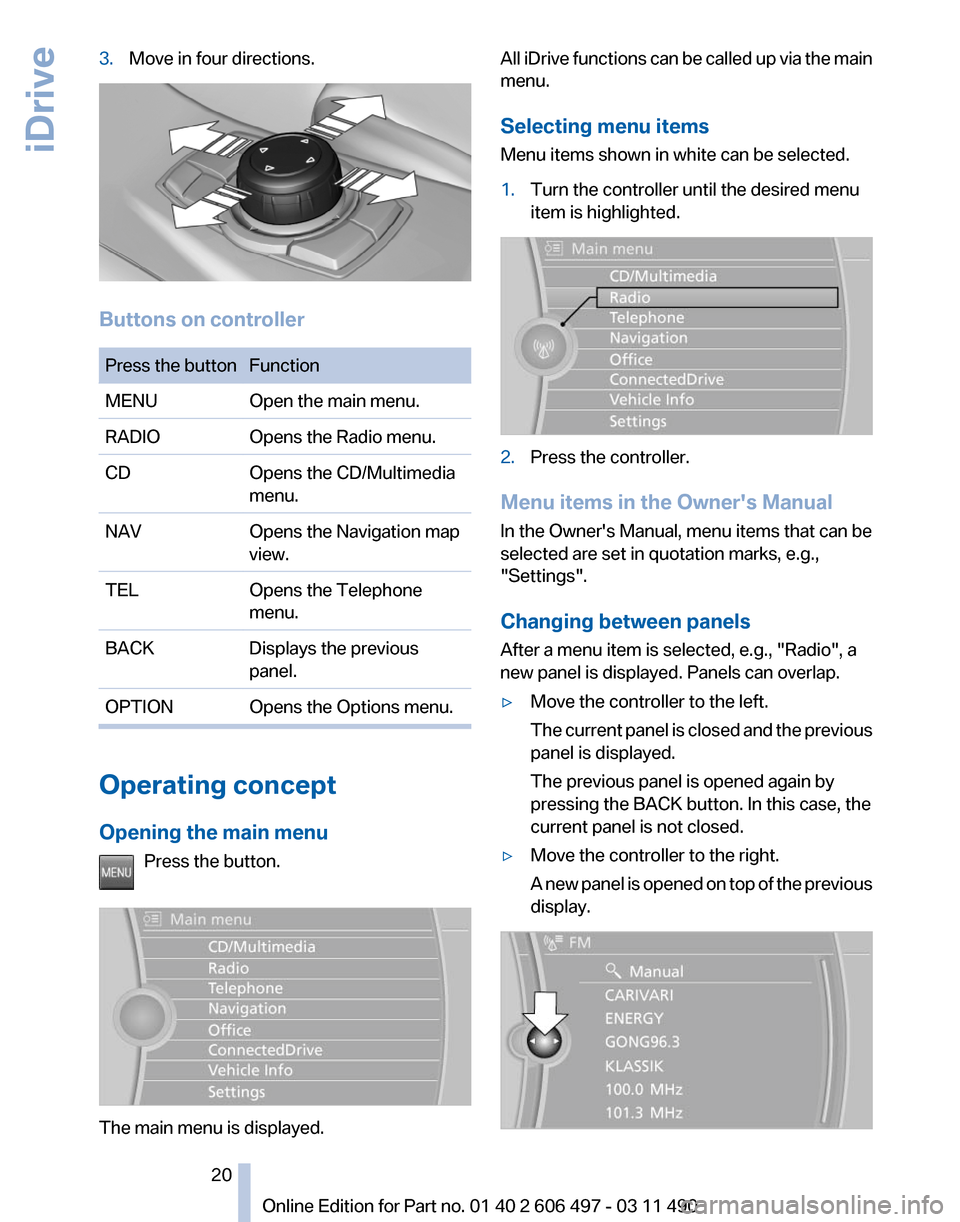
Move in four directions. Buttons on controller
Press the button Function
MENU
Open the main menu.
RADIO Opens the Radio menu.
CD Opens the CD/Multimedia
menu.
NAV Opens the Navigation map
view.
TEL Opens the Telephone
menu.
BACK Displays the previous
panel.
OPTION Opens the Options menu. Operating concept
Opening the main menu
Press the button. The main menu is displayed. All iDrive functions can be called up via the main
menu.
Selecting menu items
Menu items shown in white can be selected.
1.
Turn the controller until the desired menu
item is highlighted. 2.
Press the controller.
Menu items in the Owner's Manual
In the Owner's Manual, menu items that can be
selected are set in quotation marks, e.g.,
"Settings".
Changing between panels
After a menu item is selected, e.g.,
"Radio", a
new panel is displayed. Panels can overlap.
▷ Move the controller to the left.
The
current panel is closed and the previous
panel is displayed.
The previous panel is opened again by
pressing the BACK button. In this case, the
current panel is not closed.
▷ Move the controller to the right.
A
new panel is opened on top of the previous
display. Seite 20
20 Online Edition for Part no. 01 40 2 606 497 - 03 11 490
iDrive
Page 25 of 299
Voice activation system*
The concept
▷
The voice activation system can be used to
operate
functions by means of spoken com‐
mands.
▷ Most menu items on the Control Display can
be voiced as commands. The system
prompts you to make your entries.
▷ Functions that can only be used when the
vehicle
is stationary cannot be operated us‐
ing the voice activation system.
▷ The system uses a special microphone on
the driver's side.
▷ ›...‹ Verbal instructions in the Owner's
Manual
to use with the voice activation sys‐
tem.
Requirements
Via the Control Display, set a language that is
also supported by the voice activation system
so
that the spoken commands can be identified.
Set the language, refer to page 81.
Using voice activation
Activating the voice activation system
1. Press the button on the steering
wheel.
2. Wait for the signal.
3. Say the command.
The
command is displayed in the instrument
cluster. This symbol in the instrument cluster indi‐
cates that the voice activation system is active.
If no other commands are available, continue
operating the function via iDrive. Terminating the voice activation
system
Briefly press the button on the steering wheel
or ›Cancel‹.
Possible commands
Having possible commands read aloud
The commands available in each case depend
on the menu item selected on the Control Dis‐
play.
To have the available commands read out
loud: ›Voice commands‹
For
example, if the "Settings" menu is displayed,
the commands for the settings are read out loud.
Help dialog for the voice activation
system
Calling up help dialog: ›Help‹
Additional commands for the help dialog:
▷ ›Help with examples‹: information about the
current operating options and the most im‐
portant
commands for them are announced.
▷ ›Help with voice activation‹: information
about
the principle of operation for the voice
activation system is announced.
Executing functions using short
commands
Functions on the main menu can be performed
directly
by means of short commands, irrespec‐
tive of which menu item is currently selected,
e.g., ›Vehicle status‹.
List of short commands of the voice activation
system, refer to page 280.
Seite 25
25Online Edition for Part no. 01 40 2 606 497 - 03 11 490
Reference Mobility Communication Entertainment Navigation Driving tips Controls
At a glance
Page 27 of 299
Integrated Owner's Manual in the vehicle
The integrated Owner's Manual can be dis‐
played on the Control Display. The equipment
and functions that are in the vehicle are descri‐
bed therein.
Components of the
integrated Owner's Manual
The integrated Owner's Manual consists of
three parts, which offer various levels of infor‐
mation or access possibilities.
Quick Reference Guide
Located
in the Quick Reference is important in‐
formation for the operation of the vehicle, the
operation of basic vehicle functions or for what
to do in the event of a flat tire. This information
can also be displayed during driving.
Search by pictures
Information and descriptions based on illustra‐
tions can be searched via search by pictures.
This is helpful, for example, if the description of
an outfitting package that cannot be named is
needed.
Owner's Manual
Information and descriptions can be searched
by direct entry of a search term via the index.
Select components
1. Press the button.
2. Turn the controller: open "Vehicle Info".
3. Press the controller.
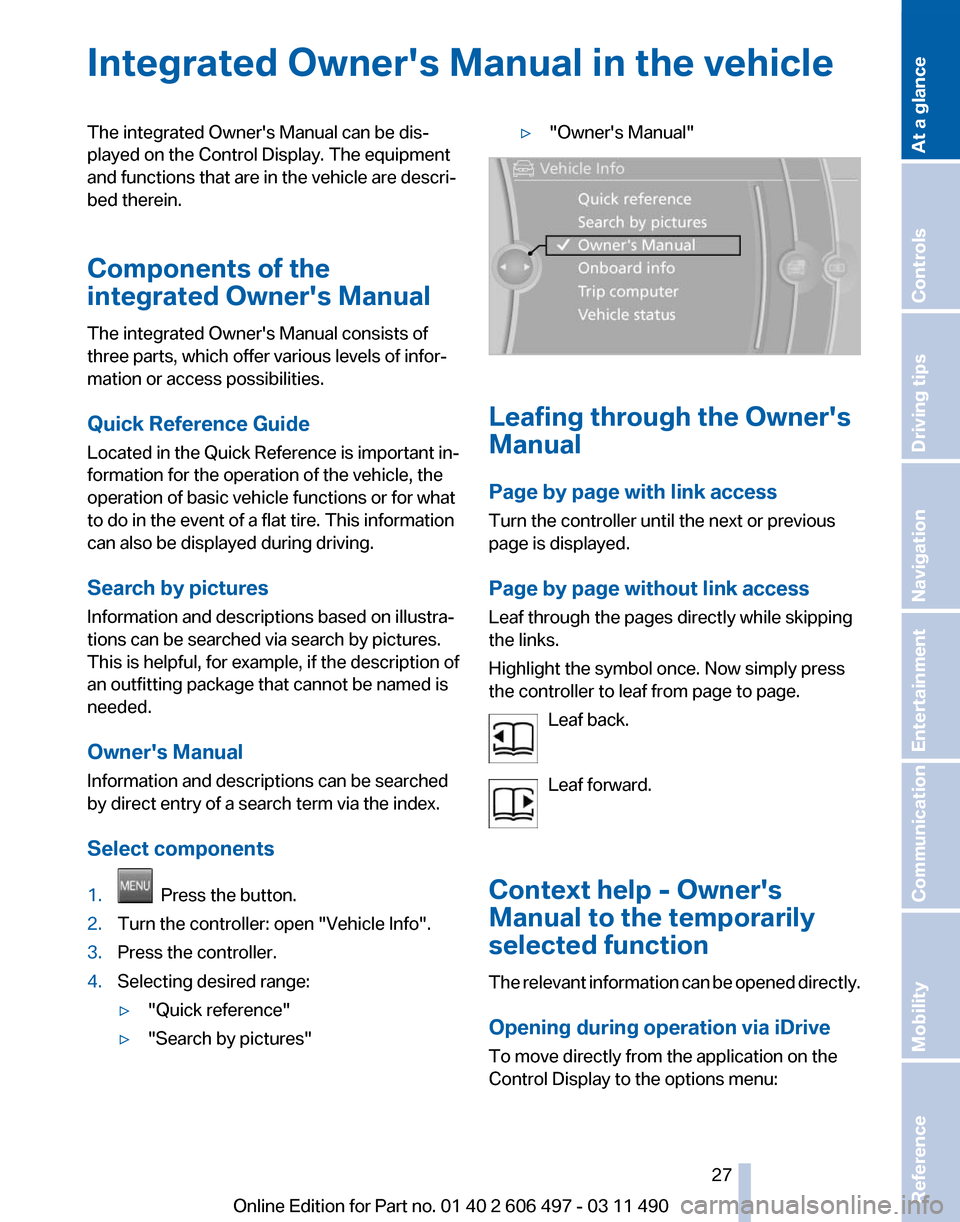
4. Selecting desired range:
▷"Quick reference"
▷ "Search by pictures" ▷
"Owner's Manual" Leafing through the Owner's
Manual
Page by page with link access
Turn the controller until the next or previous
page is displayed.
Page by page without link access
Leaf through the pages directly while skipping
the links.
Highlight the symbol once. Now simply press
the controller to leaf from page to page.
Leaf back.
Leaf forward.
Context help - Owner's
Manual to the temporarily
selected function
The
relevant information can be opened directly.
Opening during operation via iDrive
To move directly from the application on the
Control Display to the options menu: Seite 27
27Online Edition for Part no. 01 40 2 606 497 - 03 11 490
Reference Mobility Communication Entertainment Navigation Driving tips Controls
At a glance
Page 28 of 299
1. Press the button or move the controller
to the right repeatedly until the "Options"
menu is displayed.
2. "Display Owner's Manual"
Opening when a Check Control
message is displayed
Directly
from the Check Control message on the
Control Display:
"Display Owner's Manual"
Changing between a function and the
Owner's Manual
To change from a function, e.g., radio, to the
Owner's Manual on the Control Display and to
switch between the two displays:
1. Press the button or move the controller
to the right repeatedly until the
"Options"
menu is displayed.
2. "Display Owner's Manual"
3. Select the desired page in the Owner's
Manual.
4. Press
the button again to return to the
function displayed last.
5. Press the button to return to the page
of the Owner's Manual displayed last.
To switch back and forth repeatedly between
the function displayed last and the page of the
Owner's Manual displayed last, repeat steps 4
and 5. This opens a new panel every time.
Programmable memory
buttons
General information
The Owner's Manual can be stored on the pro‐
grammable memory buttons and called up di‐
rectly. Storing
1.
Select "Owner's Manual" via the iDrive.
2. Press the desired button for more
than 2 seconds.
Executing Press the button.
The Owner's Manual is displayed im‐
mediately. Seite 28
28 Online Edition for Part no. 01 40 2 606 497 - 03 11 490
Integrated Owner's Manual in the vehicle
Page 38 of 299
For US owners only
The transmitter and receiver units comply with
part 15 of the FCC/Federal Communication
Commission
regulations. Operation is governed
by the following:
FCC ID:
▷ LX8766S.
▷ LX8766E.
▷ LX8CAS.
▷ LX8CAS2.
▷ MYTCAS4.
Compliance statement:
This device complies with part 15 of the FCC
Rules. Operation is subject to the following two
conditions:
▷ This device may not cause harmful interfer‐
ence, and
▷ this device must accept any interference re‐
ceived, including interference that may
cause undesired operation.
Any unauthorized modifications or changes to
these devices could void the user's authority to
operate this equipment.
Using the door lock
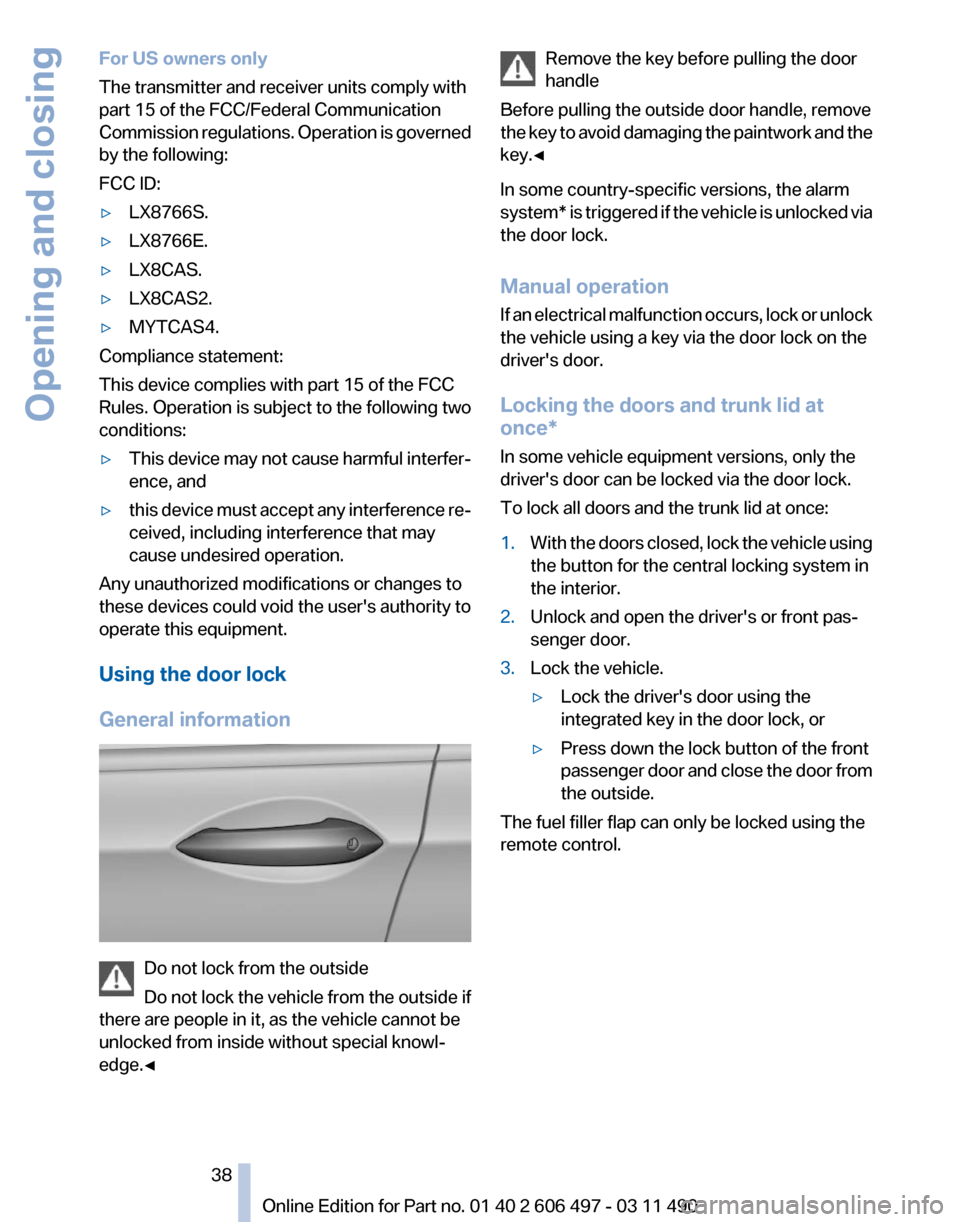
General information Do not lock from the outside
Do
not lock the vehicle from the outside if
there are people in it, as the vehicle cannot be
unlocked from inside without special knowl‐
edge.◀ Remove the key before pulling the door
handle
Before pulling the outside door handle, remove
the
key to avoid damaging the paintwork and the
key.◀
In some country-specific versions, the alarm
system* is triggered if the vehicle is unlocked via
the door lock.
Manual operation
If an electrical malfunction occurs, lock or unlock
the vehicle using a key via the door lock on the
driver's door.
Locking the doors and trunk lid at
once*
In some vehicle equipment versions, only the
driver's door can be locked via the door lock.
To lock all doors and the trunk lid at once:
1. With the doors closed, lock the vehicle using
the button for the central locking system in
the interior.
2. Unlock and open the driver's or front pas‐
senger door.
3. Lock the vehicle.
▷Lock the driver's door using the
integrated key in the door lock, or
▷ Press down the lock button of the front
passenger
door and close the door from
the outside.
The fuel filler flap can only be locked using the
remote control. Seite 38
38 Online Edition for Part no. 01 40 2 606 497 - 03 11 490
Opening and closing
Page 40 of 299
Opening from the inside
Push the button in the driver's footwell.
If the vehicle is stationary, the trunk lid opens if
it is not locked.
Manual release
All of the vehicle's keys fit the trunk lid lock, lo‐
cated in the license plate recess. Turn the key all the way to the left. The trunk lid
unlocks.
To avoid locking yourself out of the vehicle, do
not
place the key or remote control in the cargo
area.
The trunk lid is locked again as soon as it is
pushed closed.
If the trunk lid is opened via the lock with the
alarm system armed, the alarm is triggered.
Therefore, unlock the vehicle first.
If the alarm has been triggered accidentally:
switch off the alarm, refer to page 43.
Closing Recessed grips in the interior trim of the trunk
lid make it easier to pull down the lid. Danger of pinching
Make sure that the closing path of the
trunk
lid is clear; otherwise, injuries may result.◀ Do not place the remote control in the
cargo area
Take the remote control with you and do not
leave it in the cargo area; otherwise, the remote
control may be locked inside the vehicle when
the trunk lid is closed.◀
Automatic Soft Closing
To close it completely, push the trunk lid down
lightly.
It is closed automatically.
Locking the vehicle* Press the button on the inside of the trunk lid.
The vehicle is locked completely.
Automatic trunk lid operation*
Opening
The trunk lid opens fully.
▷
Press the button on the exterior of the trunk
lid. Seite 40
40 Online Edition for Part no. 01 40 2 606 497 - 03 11 490
Opening and closing