navigation BMW 745LI SEDAN 2002 User Guide
[x] Cancel search | Manufacturer: BMW, Model Year: 2002, Model line: 745LI SEDAN, Model: BMW 745LI SEDAN 2002Pages: 208, PDF Size: 6.33 MB
Page 23 of 208
Control Center
22
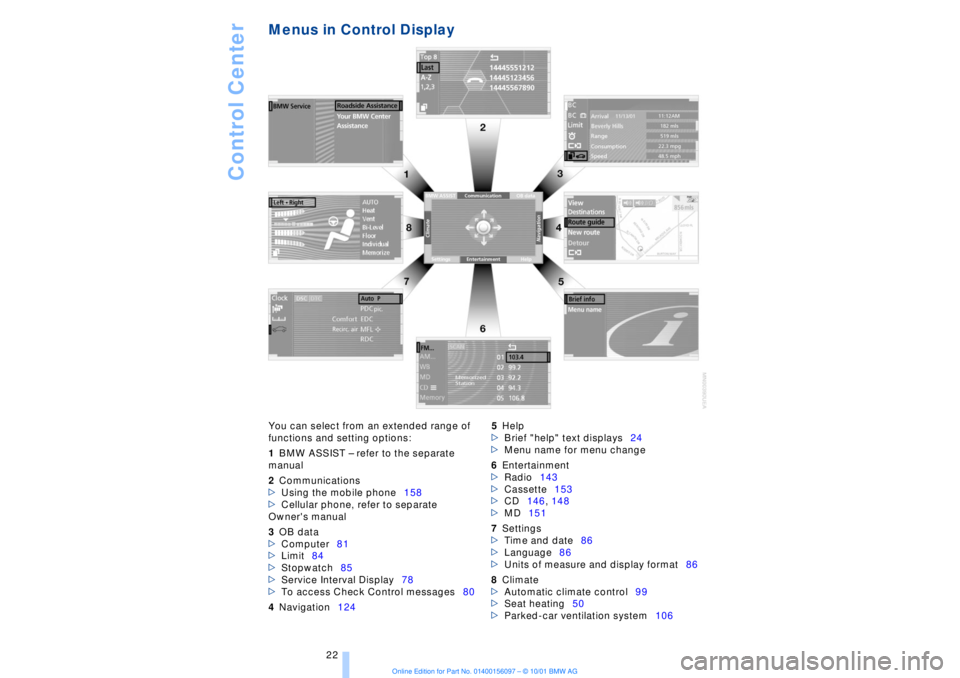
Menus in Control Display You can select from an extended range of
functions and setting options:
1BMW ASSIST Ð refer to the separate
manual
2Communications
>Using the mobile phone158
>Cellular phone, refer to separate
Owner's manual
3OB data
>Computer81
>Limit84
>Stopwatch85
>Service Interval Display78
>To access Check Control messages80
4Navigation1245Help
>Brief "help" text displays24
>Menu name for menu change
6Entertainment
>Radio143
>Cassette153
>CD146, 148
>MD151
7Settings
>Time and date86
>Language86
>Units of measure and display format86
8Climate
>Automatic climate control99
>Seat heating50
>Parked-car ventilation system106
Page 24 of 208
At a glanceControlsDriving tipsCommunicationsNavigationEntertainmentMobilityReference
23
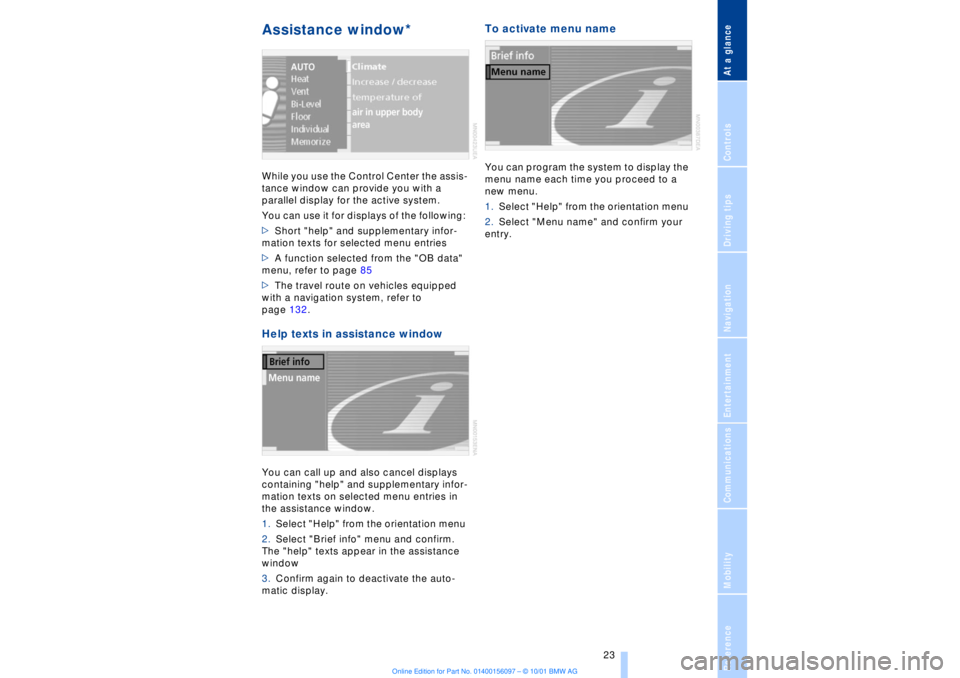
Assistance window* While you use the Control Center the assis-
tance window can provide you with a
parallel display for the active system.
You can use it for displays of the following:
>Short "help" and supplementary infor-
mation texts for selected menu entries
>A function selected from the "OB data"
menu, refer to page 85
>The travel route on vehicles equipped
with a navigation system, refer to
page 132.Help texts in assistance windowYou can call up and also cancel displays
containing "help" and supplementary infor-
mation texts on selected menu entries in
the assistance window.
1.Select "Help" from the orientation menu
2.Select "Brief info" menu and confirm.
The "help" texts appear in the assistance
window
3.Confirm again to deactivate the auto-
matic display.
To activate menu nameYou can program the system to display the
menu name each time you proceed to a
new menu.
1.Select "Help" from the orientation menu
2.Select "Menu name" and confirm your
entry.
Page 25 of 208
Control Center
24
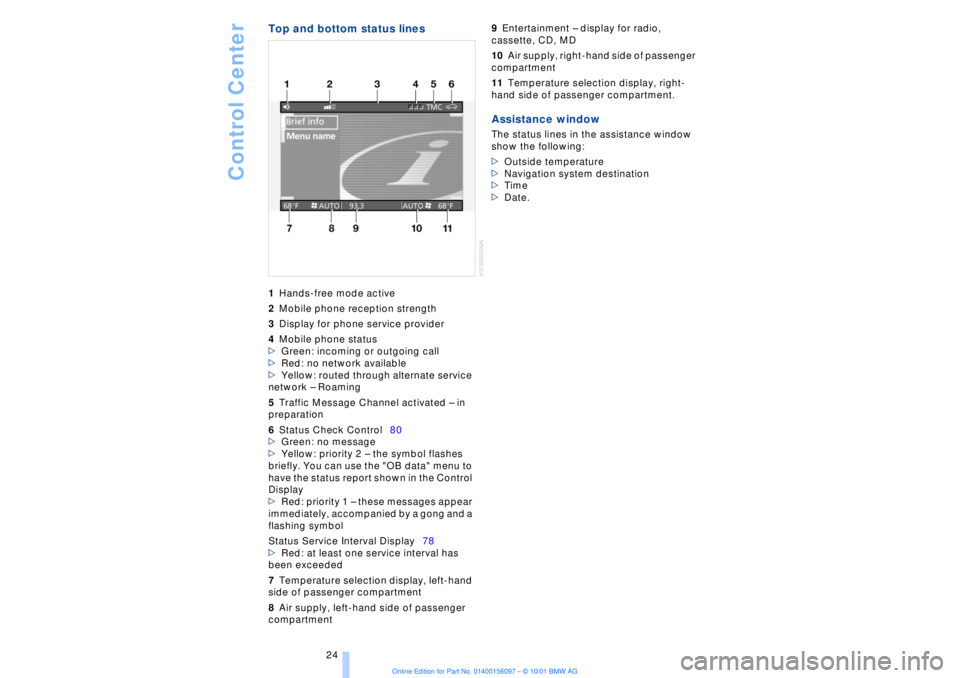
Top and bottom status lines1Hands-free mode active
2Mobile phone reception strength
3Display for phone service provider
4Mobile phone status
>Green: incoming or outgoing call
>Red: no network available
>Yellow: routed through alternate service
network Ð Roaming
5Traffic Message Channel activated Ð in
preparation
6Status Check Control80
>Green: no message
>Yellow: priority 2 Ð the symbol flashes
briefly. You can use the "OB data" menu to
have the status report shown in the Control
Display
>Red: priority 1 Ð these messages appear
immediately, accompanied by a gong and a
flashing symbol
Status Service Interval Display78
>Red: at least one service interval has
been exceeded
7Temperature selection display, left-hand
side of passenger compartment
8Air supply, left-hand side of passenger
compartment 9Entertainment Ð display for radio,
cassette, CD, MD
10Air supply, right-hand side of passenger
compartment
11Temperature selection display, right-
hand side of passenger compartment. Assistance windowThe status lines in the assistance window
show the following:
>Outside temperature
>Navigation system destination
>Time
>Date.
Page 26 of 208
At a glanceControlsDriving tipsCommunicationsNavigationEntertainmentMobilityReference
25
Voice commandVoice command system*The conceptThe voice command system allows you to
control operation of various vehicle
systems without ever removing your hands
from the steering wheel. The system oper-
ates on the basis of voice commands that
you will learn easily after using them a few
times. You issue your commands in the
form of instructions or in dialogs. The
dialog functions provide you with additional
support in the form of questions and infor-
mation.
The voice command system transforms
your commands and dialog answers into
control signals for the selected systems.
Please take the time to acquaint your-
self with how a particular system
operates before proceeding to control it
using the voice command system. At the
time of publication the voice command
system was available for use with the
English and German languages. Other
languages are currently in preparation.
When the voice command system is active
you can adjust the volume, refer to
page 141.
command system.<
>>...<< identifies commands used in the
voice command system. It is not necessary
to speak the words in parentheses.
>...< identifies the answers provided by the
voice command system.
Systems available for use with voice
command>Mobile phone, refer to page 158
>>Telephone (menu)<<
>Navigation system, refer to page 124
>>Navigation (menu)<< or
>>Navi (menu)<<>Radio, refer to page 140
>>Radio (menu)<<
>CD, refer to page 146
>>CD (menu)<<
>CD changer, refer to page 148
>>CD changer (menu)<<
>MiniDisc, refer to page 151
>>MiniDisc (menu)<<
>Cassette, refer to page 153
>>Tape (menu)<<
>Notebook, refer to page 28
>>Notepad (menu)<< or
>>Notebook (menu)<< or >>Note
recorder (menu)<<
Either the system that you are now control-
ling, or any current error messages will
appear in the Info Display, refer to page 14.
Voice commandsTo activate voice command systemActivate by briefly pressing the
button in the steering wheel.
A signal tone and "SVS" in the Info Display
indicate that the system is ready for use.
You automatically proceed to the orienta-
tion menu.
Except in dialogs, always press
the button again before issuing voice
commands.
During dialogs that include entry of text or
numbers, the information that the voice
command system has registered will
appear on the Info Display screen, refer to
page 14.To cancel voice command entryYou can terminate execution of a command
or dialog with >>Cancel<<, >>Exit<< or by
pressing the button in the steering
wheel.
Page 28 of 208
At a glanceControlsDriving tipsCommunicationsNavigationEntertainmentMobilityReference
27
Notices
Do not use the voice command
system to make emergency SOS
calls. Your voice and habitual tone could be
affected by stressful situations, as a result
of which the process of establishing the
telephone connection could be unneces-
sarily delayed. Instead, you should use the
emergency SOS button located adjacent to
the rearview mirror, refer to page 161.<
Environmental conditionsThe voice command system uses a special
microphone located on the front headliner
of your vehicle. Although the system is
designed to filter out ambient noise, you
can help ensure that your commands will
be understood by observing the following
instructions:
>Speak smoothly and clearly, at a normal
volume. Do not place any unusual stress on
individual syllables, and avoid pauses
>Do not speak while the voice command
system is talking
>Keep the doors, windows and sunroof
closed to prevent interference from
ambient noise
>Avoid other sources of noise in the
vehicle while speaking, and ask other
vehicle occupants to refrain from talking
while you are using the system.
>The hands-free microphone is aimed
toward the driver. This means that the
system may be unable to register the
voices of other vehicle occupants properly;
passengers should use the mobile phone
instead.
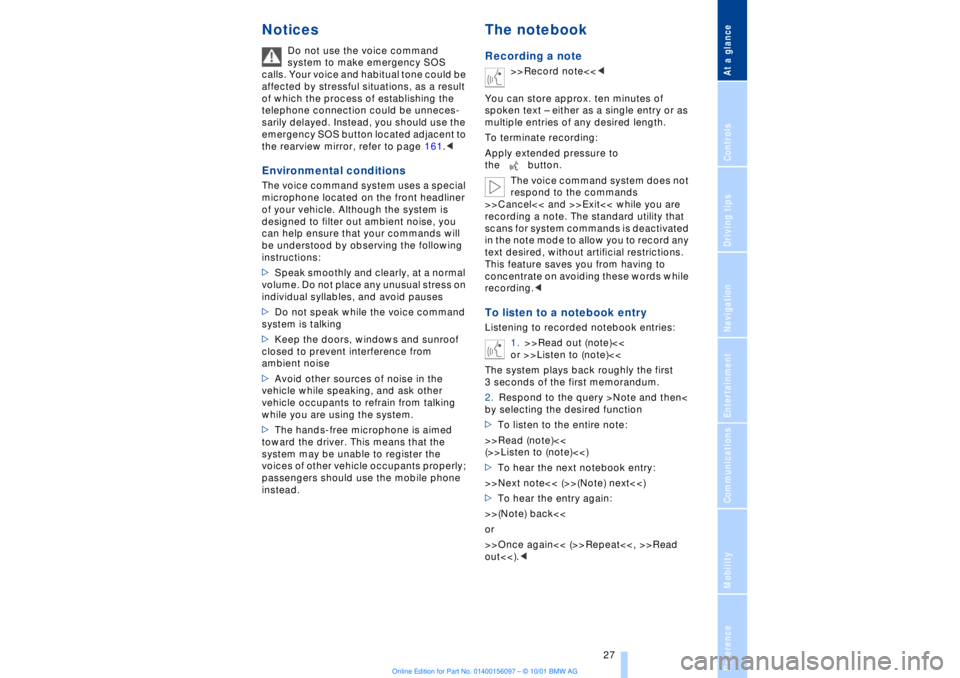
The notebookRecording a note
>>Record note<<<
You can store approx. ten minutes of
spoken text Ð either as a single entry or as
multiple entries of any desired length.
To terminate recording:
Apply extended pressure to
the button.
The voice command system does not
respond to the commands
>>Cancel<< and >>Exit<< while you are
recording a note. The standard utility that
scans for system commands is deactivated
in the note mode to allow you to record any
text desired, without artificial restrictions.
This feature saves you from having to
concentrate on avoiding these words while
recording.<
To listen to a notebook entryListening to recorded notebook entries:
1.>>Read out (note)<<
or >>Listen to (note)<<
The system plays back roughly the first
3 seconds of the first memorandum.
2.Respond to the query >Note and then<
by selecting the desired function
>To listen to the entire note:
>>Read (note)<<
(>>Listen to (note)<<)
>To hear the next notebook entry:
>>Next note<< (>>(Note) next<<)
>To hear the entry again:
>>(Note) back<<
or
>>Once again<< (>>Repeat<<, >>Read
out<<).<
Page 30 of 208
At a glanceControlsDriving tipsCommunicationsNavigationEntertainmentMobilityReference
29
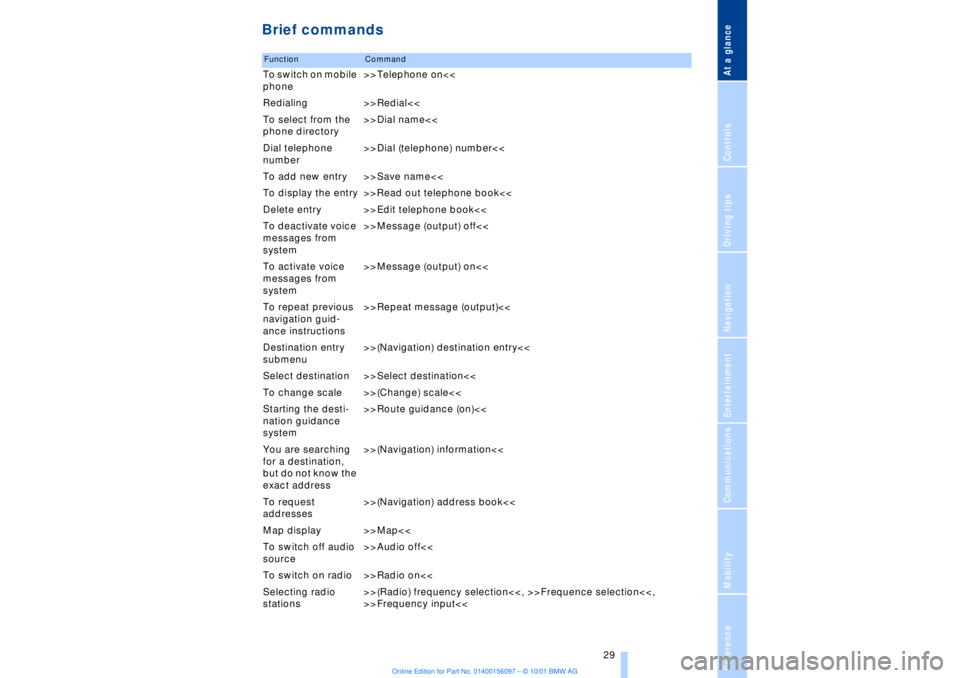
Brief commandsFunction
Command
To switch on mobile
phone>>Telephone on<<
Redialing >>Redial<<
To select from the
phone directory>>Dial name<<
Dial telephone
number>>Dial (telephone) number<<
To add new entry >>Save name<<
To display the entry >>Read out telephone book<<
Delete entry >>Edit telephone book<<
To deactivate voice
messages from
system>>Message (output) off<<
To activate voice
messages from
system>>Message (output) on<<
To repeat previous
navigation guid-
ance instructions>>Repeat message (output)<<
Destination entry
submenu>>(Navigation) destination entry<<
Select destination >>Select destination<<
To change scale >>(Change) scale<<
Starting the desti-
nation guidance
system>>Route guidance (on)<<
You are searching
for a destination,
but do not know the
exact address>>(Navigation) information<<
To request
addresses>>(Navigation) address book<<
Map display >>Map<<
To switch off audio
source>>Audio off<<
To switch on radio >>Radio on<<
Selecting radio
stations>>(Radio) frequency selection<<, >>Frequence selection<<,
>>Frequency input<<
Page 32 of 208
At a glanceControlsDriving tipsCommunicationsNavigationEntertainmentMobilityReference
31
Page 36 of 208
At a glanceControlsDriving tipsCommunicationsNavigationEntertainmentMobilityReference
35
Central locking system The concept The central locking system is ready for
operation whenever the driver's door is
closed. This simultaneously engages and
releases the locks on the following:
>Doors
>Luggage compartment lid
>Fuel filler door.
The central locking system can be oper-
ated
>from outside via the remote control as
well as via the driver's door lock
>from inside via the button for the central
locking system.
When the system is locked from inside, the
fuel filler door remains unlocked, refer to
page 37.
The anti-theft system is automatically
armed whenever you activate the central
locking system from outside the vehicle.
The alarm system is armed/deactivated at
the same time.
In the event of an accident, the central
locking system unlocks automatically (only
those doors which were not locked sepa-
rately with the safety lock buttons). Refer to
page 38. In addition, the hazard warning
flashers and interior lamps come on.Opening and closing Ð from
outside Using the remote control The remote control makes opening and
closing the doors of your vehicle very
convenient. Furthermore, it provides three
additional functions which you can only
execute via the remote control:
>Switching on interior lamps, refer to
page 36.
You can also use this function to locate
your vehicle in parking garages, etc. >Opening and closing the luggage
compartment lid, refer to pages 36, 39.
The luggage compartment lid opens,
regardless of whether it was previously
locked.
>Panic mode
In case of danger, you can trigger an alarm.
When you engage/release the vehicle's
locks, you simultaneously activate/deacti-
vate the anti-theft system, arm/disarm the
alarm system
and switch the interior lamps
on/off.
You can have various confirmation
signals programmed into the system
to verify that the vehicle has been locked
securely.<
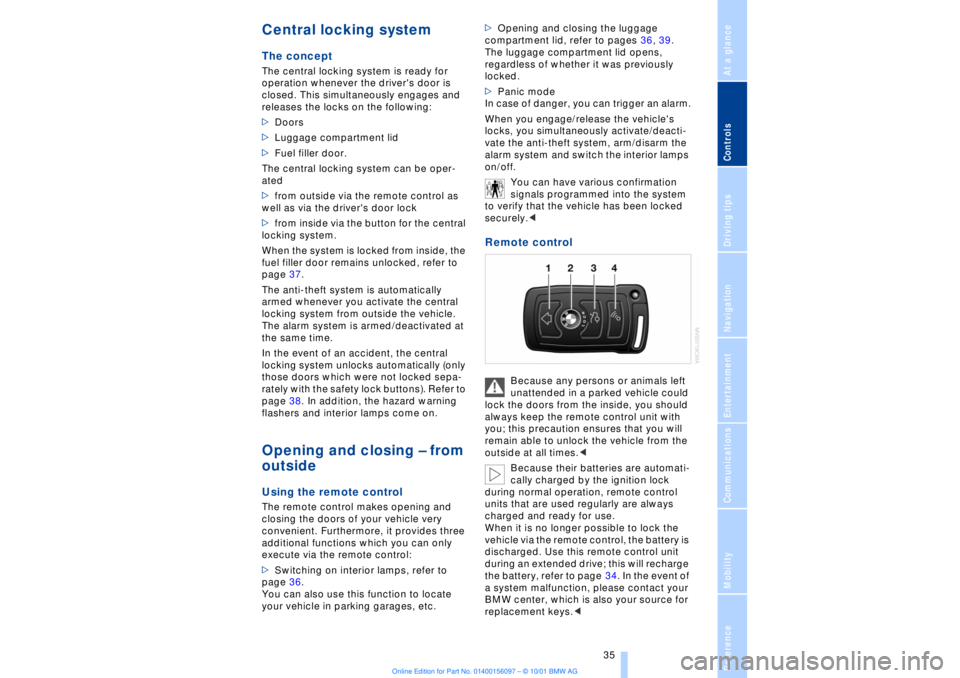
Remote control
Because any persons or animals left
unattended in a parked vehicle could
lock the doors from the inside, you should
always keep the remote control unit with
you; this precaution ensures that you will
remain able to unlock the vehicle from the
outside at all times.<
Because their batteries are automati-
cally charged by the ignition lock
during normal operation, remote control
units that are used regularly are always
charged and ready for use.
When it is no longer possible to lock the
vehicle via the remote control, the battery is
discharged. Use this remote control unit
during an extended drive; this will recharge
the battery, refer to page 34. In the event of
a system malfunction, please contact your
BMW center, which is also your source for
replacement keys.<
Page 38 of 208
At a glanceControlsDriving tipsCommunicationsNavigationEntertainmentMobilityReference
37
Compliance statement:
This device complies with part 15 of the
FCC Rules. Operation is subject to the
following two conditions:
>This device may not cause harmful inter-
ference, and
>this device must accept any interference
received, including interference that may
cause undesired operation.
Any unauthorized modifications or
changes to these devices could void
the user's authority to operate this equip-
ment.
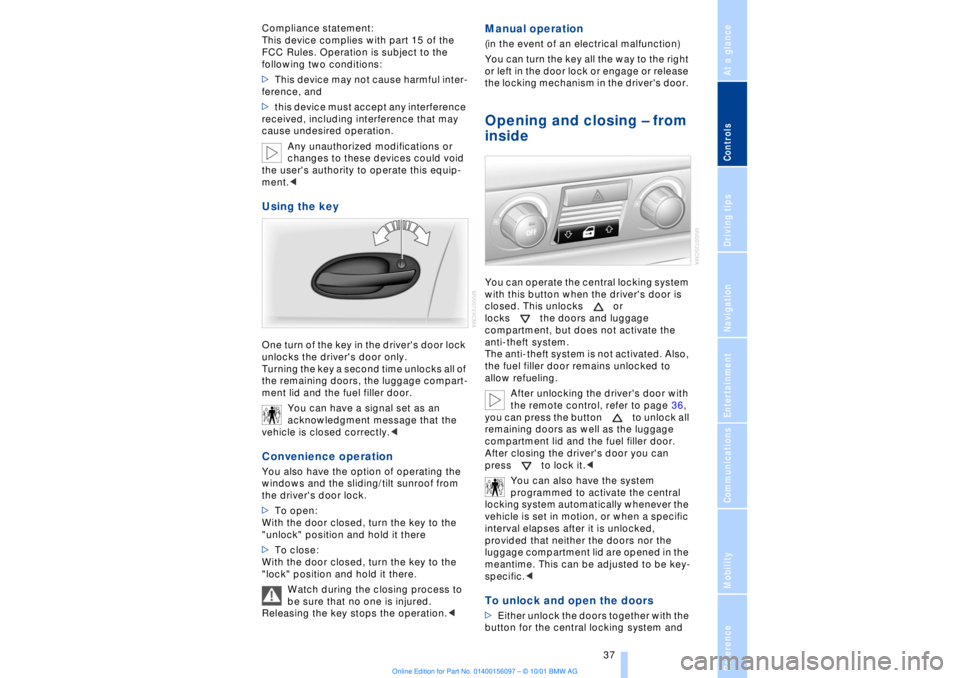
Turning the key a second time unlocks all of
the remaining doors, the luggage compart-
ment lid and the fuel filler door.
You can have a signal set as an
acknowledgment message that the
vehicle is closed correctly.< Convenience operation You also have the option of operating the
windows and the sliding/tilt sunroof from
the driver's door lock.
>To open:
With the door closed, turn the key to the
"unlock" position and hold it there
>To close:
With the door closed, turn the key to the
"lock" position and hold it there.
Watch during the closing process to
be sure that no one is injured.
Releasing the key stops the operation.<
Manual operation (in the event of an electrical malfunction)
You can turn the key all the way to the right
or left in the door lock or engage or release
the locking mechanism in the driver's door. Opening and closing Ð from
inside You can operate the central locking system
with this button when the driver's door is
closed. This unlocks or
locks the doors and luggage
compartment, but does not activate the
anti-theft system.
The anti-theft system is not activated. Also,
the fuel filler door remains unlocked to
allow refueling.
After unlocking the driver's door with
the remote control, refer to page 36,
you can press the button to unlock all
remaining doors as well as the luggage
compartment lid and the fuel filler door.
After closing the driver's door you can
press to lock it.<
You can also have the system
programmed to activate the central
locking system automatically whenever the
vehicle is set in motion, or when a specific
interval elapses after it is unlocked,
provided that neither the doors nor the
luggage compartment lid are opened in the
meantime. This can be adjusted to be key-
specific.< To unlock and open the doors >Either unlock the doors together with the
button for the central locking system and
Page 40 of 208
At a glanceControlsDriving tipsCommunicationsNavigationEntertainmentMobilityReference
39
>unlock the vehicle using the remote
control, refer to page 36, or
>insert the remote control all the way into
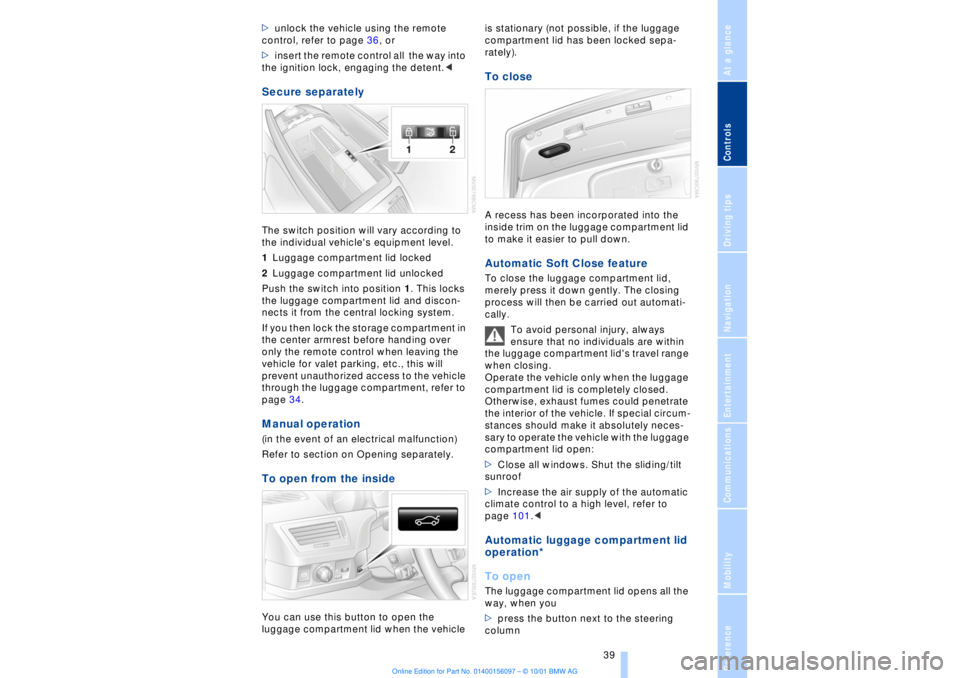
the ignition lock, engaging the detent.< Secure separately The switch position will vary according to
the individual vehicle's equipment level.
1Luggage compartment lid locked
2Luggage compartment lid unlocked
Push the switch into position 1. This locks
the luggage compartment lid and discon-
nects it from the central locking system.
If you then lock the storage compartment in
the center armrest before handing over
only the remote control when leaving the
vehicle for valet parking, etc., this will
prevent unauthorized access to the vehicle
through the luggage compartment, refer to
page 34. Manual operation (in the event of an electrical malfunction)
Refer to section on Opening separately.To open from the insideYou can use this button to open the
luggage compartment lid when the vehicle is stationary (not possible, if the luggage
compartment lid has been locked sepa-
rately).
To closeA recess has been incorporated into the
inside trim on the luggage compartment lid
to make it easier to pull down. Automatic Soft Close feature To close the luggage compartment lid,
merely press it down gently. The closing
process will then be carried out automati-
cally.
To avoid personal injury, always
ensure that no individuals are within
the luggage compartment lid's travel range
when closing.
Operate the vehicle only when the luggage
compartment lid is completely closed.
Otherwise, exhaust fumes could penetrate
the interior of the vehicle. If special circum-
stances should make it absolutely neces-
sary to operate the vehicle with the luggage
compartment lid open:
>Close all windows. Shut the sliding/tilt
sunroof
>Increase the air supply of the automatic
climate control to a high level, refer to
page 101.< Automatic luggage compartment lid
operation*
To openThe luggage compartment lid opens all the
way, when you
>press the button next to the steering
column