navigation BMW 745LI SEDAN 2002 Service Manual
[x] Cancel search | Manufacturer: BMW, Model Year: 2002, Model line: 745LI SEDAN, Model: BMW 745LI SEDAN 2002Pages: 208, PDF Size: 6.33 MB
Page 80 of 208
At a glanceControlsDriving tipsCommunicationsNavigationEntertainmentMobilityReference
79
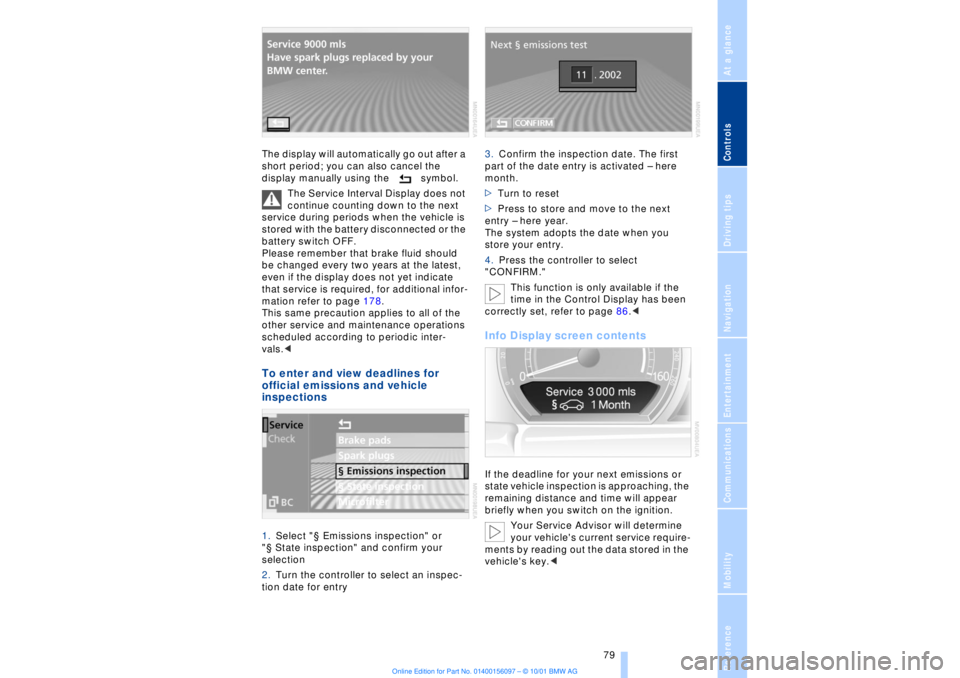
The display will automatically go out after a
short period; you can also cancel the
display manually using the symbol.
The Service Interval Display does not
continue counting down to the next
service during periods when the vehicle is
stored with the battery disconnected or the
battery switch OFF.
Please remember that brake fluid should
be changed every two years at the latest,
even if the display does not yet indicate
that service is required, for additional infor-
mation refer to page 178.
This same precaution applies to all of the
other service and maintenance operations
scheduled according to periodic inter-
vals.< To enter and view deadlines for
official emissions and vehicle
inspections 1.Select "¤ Emissions inspection" or
"¤ State inspection" and confirm your
selection
2.Turn the controller to select an inspec-
tion date for entry 3.Confirm the inspection date. The first
part of the date entry is activated Ð here
month.
>Turn to reset
>Press to store and move to the next
entry Ð here year.
The system adopts the date when you
store your entry.
4.Press the controller to select
"CONFIRM."
This function is only available if the
time in the Control Display has been
correctly set, refer to page 86.<
Info Display screen contents If the deadline for your next emissions or
state vehicle inspection is approaching, the
remaining distance and time will appear
briefly when you switch on the ignition.
Your Service Advisor will determine
your vehicle's current service require-
ments by reading out the data stored in the
vehicle's key.<
Page 82 of 208
At a glanceControlsDriving tipsCommunicationsNavigationEntertainmentMobilityReference
81
Select and confirm to cancel the
display.
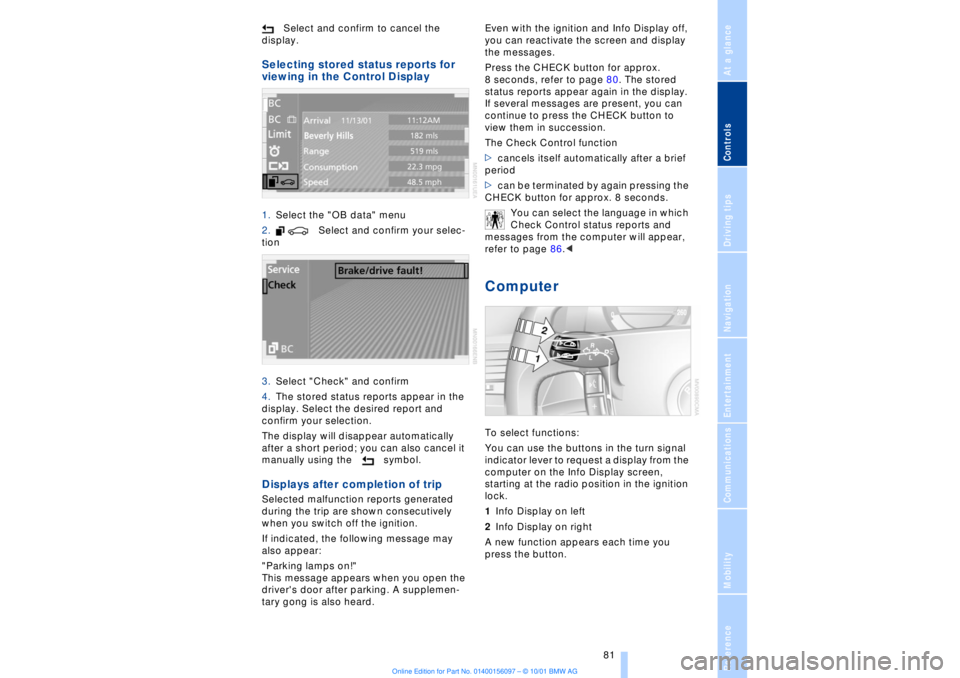
Selecting stored status reports for
viewing in the Control Display 1.Select the "OB data" menu
2. Select and confirm your selec-
tion
3.Select "Check" and confirm
4.The stored status reports appear in the
display. Select the desired report and
confirm your selection.
The display will disappear automatically
after a short period; you can also cancel it
manually using the symbol. Displays after completion of trip Selected malfunction reports generated
during the trip are shown consecutively
when you switch off the ignition.
If indicated, the following message may
also appear:
"Parking lamps on!"
This message appears when you open the
driver's door after parking. A supplemen-
tary gong is also heard. Even with the ignition and Info Display off,
you can reactivate the screen and display
the messages.
Press the CHECK button for approx.
8 seconds, refer to page 80. The stored
status reports appear again in the display.
If several messages are present, you can
continue to press the CHECK button to
view them in succession.
The Check Control function
>cancels itself automatically after a brief
period
>can be terminated by again pressing the
CHECK button for approx. 8 seconds.
You can select the language in which
Check Control status reports and
messages from the computer will appear,
refer to page 86.<
Computer To select functions:
You can use the buttons in the turn signal
indicator lever to request a display from the
computer on the Info Display screen,
starting at the radio position in the ignition
lock.
1Info Display on left
2Info Display on right
A new function appears each time you
press the button.
Page 84 of 208
At a glanceControlsDriving tipsCommunicationsNavigationEntertainmentMobilityReference
83
To avoid serious damage to the engine or
catalytic converter, always refuel as soon
as possible once your cruising range falls
to below 30 miles (50 kilometers).
When refueling you must add at least
approx. 1 1/3 gallons (5 litres) before the
computer will register the additional fuel. Distance to destination When you enter a destination in the naviga-
tion system or manually enter a distance in
the computer prior to departure, the
system can also display the distance
remaining to your destination, refer to
pages 126 and 84.
The system automatically adopts the
distance to your destination using the route
recommended by the navigation system.
When you enter a destination in the
navigation system, any manual
entries will be overwritten no later than
once 1640 feet (500 meters) of the calcu-
lated distance have elapsed.< Energy Control/
Current fuel consumption Shows your current fuel consumption rate
in mpg Ð in litres/100 km on Canadian vehi-
cles. This allows you to see whether your
current driving style is conducive to fuel
economy with minimum exhaust emis-
sions.
When the vehicle is stationary the display
goes to the maximum reading Ð zero on
Canadian models. Average fuel consumption The average fuel consumption is calculated
for the time during which the engine is
running.
You can use the Control Display to view
your fuel consumption rate over two
different distances, refer to Computer or
Trip computer.
Average speed Periods with the vehicle parked and the
engine off are not included in the calcula-
tions of average speed. Time of arrival A display of your estimated time of arrival is
available whenever you enter a destination
in the navigation system, refer to page 126,
or enter the distance manually in the
computer, refer to page 84, prior to depar-
ture.
This function is only available if the
time in the Control Display has been
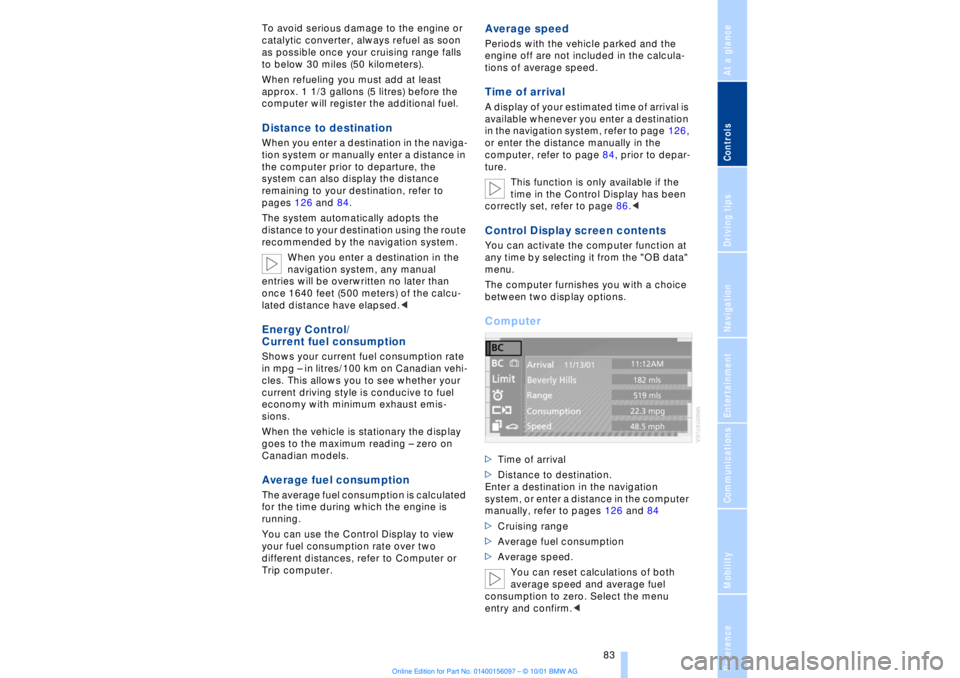
correctly set, refer to page 86.< Control Display screen contents You can activate the computer function at
any time by selecting it from the "OB data"
menu.
The computer furnishes you with a choice
between two display options.Computer >Time of arrival
>Distance to destination.
Enter a destination in the navigation
system, or enter a distance in the computer
manually, refer to pages 126 and 84
>Cruising range
>Average fuel consumption
>Average speed.
You can reset calculations of both
average speed and average fuel
consumption to zero. Select the menu
entry and confirm.<
Page 86 of 208
At a glanceControlsDriving tipsCommunicationsNavigationEntertainmentMobilityReference
85
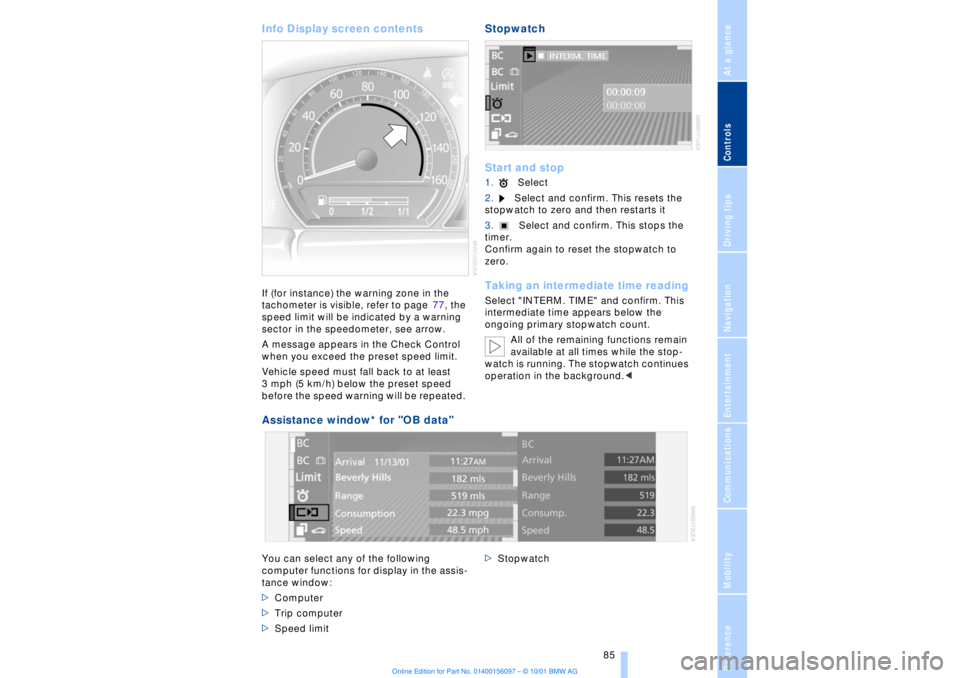
Info Display screen contents If (for instance) the warning zone in the
tachometer is visible, refer to page 77, the
speed limit will be indicated by a warning
sector in the speedometer, see arrow.
A message appears in the Check Control
when you exceed the preset speed limit.
Vehicle speed must fall back to at least
3 mph (5 km/h) below the preset speed
before the speed warning will be repeated.
Stopwatch
Start and stop1.Select
2.Select and confirm. This resets the
stopwatch to zero and then restarts it
3.Select and confirm. This stops the
timer.
Confirm again to reset the stopwatch to
zero. Taking an intermediate time readingSelect "INTERM. TIME" and confirm. This
intermediate time appears below the
ongoing primary stopwatch count.
All of the remaining functions remain
available at all times while the stop-
watch is running. The stopwatch continues
operation in the background.<
Assistance window* for "OB data"
You can select any of the following
computer functions for display in the assis-
tance window:
>Computer
>Trip computer
>Speed limit >Stopwatch
Page 87 of 208
Everything under control
86
To import display 1.Select and confirm the desired function
Ð here: computer
2.Select and confirm. The function
appears in the assistance window.
The symbol is highlighted if
the function shown in the assistance
window has been selected in the Control
Display.
You can also choose to view brief "Help"
texts explaining selected menu entries,
refer to page 24, or the travel route on vehi-
cles equipped with a GPS navigation
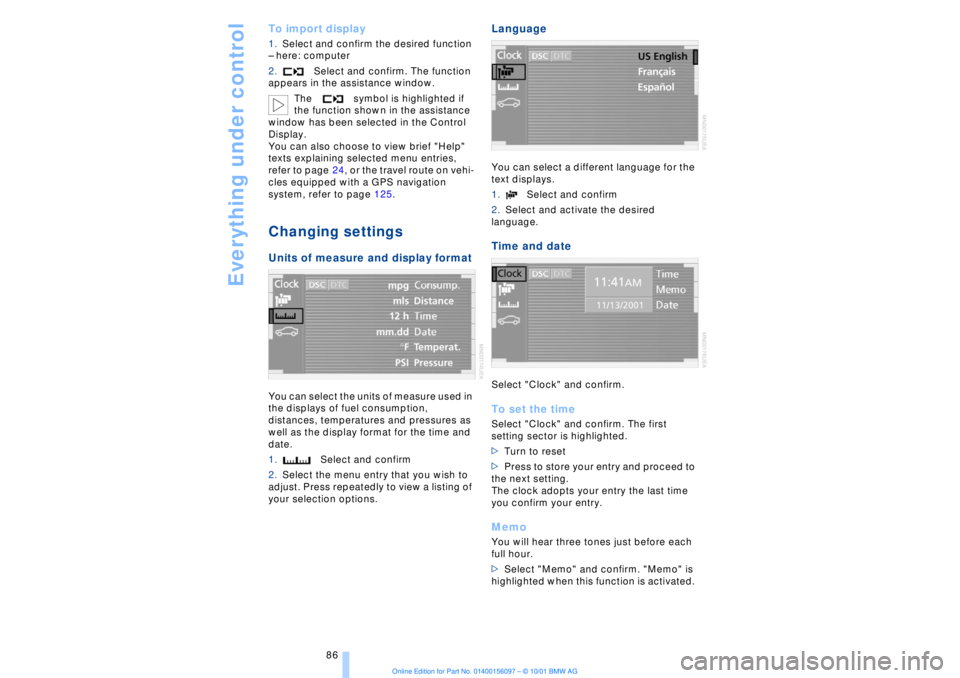
system, refer to page 125. Changing settings Units of measure and display format You can select the units of measure used in
the displays of fuel consumption,
distances, temperatures and pressures as
well as the display format for the time and
date.
1.Select and confirm
2.Select the menu entry that you wish to
adjust. Press repeatedly to view a listing of
your selection options.
Language You can select a different language for the
text displays.
1.Select and confirm
2.Select and activate the desired
language. Time and date Select "Clock" and confirm. To set the timeSelect "Clock" and confirm. The first
setting sector is highlighted.
>Turn to reset
>Press to store your entry and proceed to
the next setting.
The clock adopts your entry the last time
you confirm your entry. MemoYou will hear three tones just before each
full hour.
>Select "Memo" and confirm. "Memo" is
highlighted when this function is activated.
Page 88 of 208
At a glanceControlsDriving tipsCommunicationsNavigationEntertainmentMobilityReference
87
Setting the dateSelect "Date" and confirm. The first section
of the date display is highlighted Ð
here day.
>Turn to reset
>Press to store and highlight the next
entry Ð here month and year.
Your date is adopted by the system the last
time you store your entry.
Page 90 of 208
At a glanceControlsDriving tipsCommunicationsNavigationEntertainmentMobilityReference
89
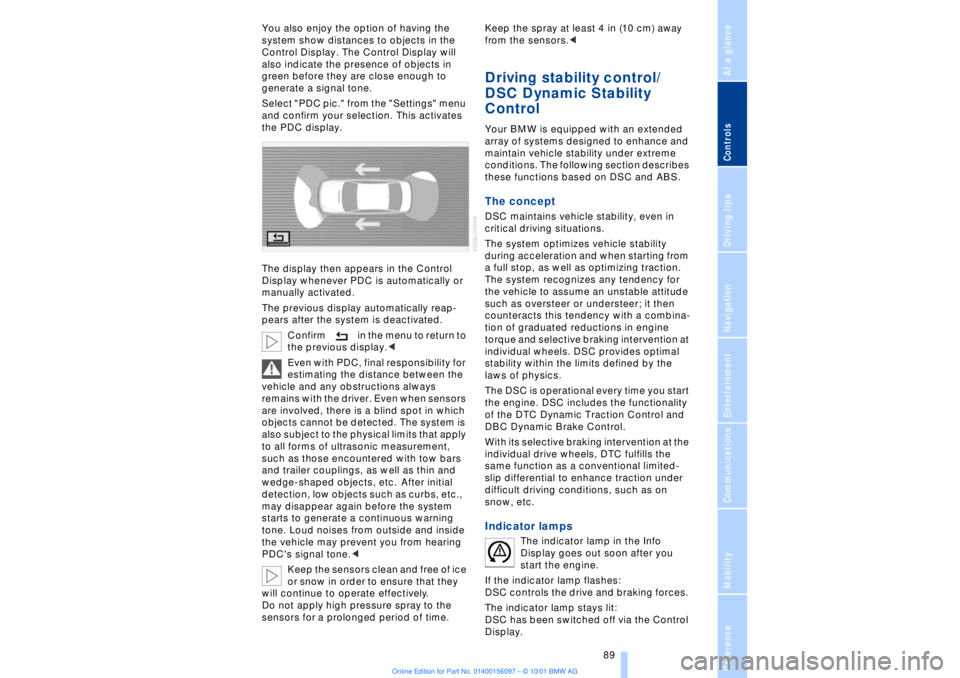
You also enjoy the option of having the
system show distances to objects in the
Control Display. The Control Display will
also indicate the presence of objects in
green before they are close enough to
generate a signal tone.
Select "PDC pic." from the "Settings" menu
and confirm your selection. This activates
the PDC display.
The display then appears in the Control
Display whenever PDC is automatically or
manually activated.
The previous display automatically reap-
pears after the system is deactivated.
Confirm in the menu to return to
the previous display.<
Even with PDC, final responsibility for
estimating the distance between the
vehicle and any obstructions always
remains with the driver. Even when sensors
are involved, there is a blind spot in which
objects cannot be detected. The system is
also subject to the physical limits that apply
to all forms of ultrasonic measurement,
such as those encountered with tow bars
and trailer couplings, as well as thin and
wedge-shaped objects, etc. After initial
detection, low objects such as curbs, etc.,
may disappear again before the system
starts to generate a continuous warning
tone. Loud noises from outside and inside
the vehicle may prevent you from hearing
PDC's signal tone.<
Keep the sensors clean and free of ice
or snow in order to ensure that they
will continue to operate effectively.
Do not apply high pressure spray to the
sensors for a prolonged period of time. Keep the spray at least 4 in (10 cm) away
from the sensors.<
Driving stability control/
DSC Dynamic Stability
Control Your BMW is equipped with an extended
array of systems designed to enhance and
maintain vehicle stability under extreme
conditions. The following section describes
these functions based on DSC and ABS. The concept DSC maintains vehicle stability, even in
critical driving situations.
The system optimizes vehicle stability
during acceleration and when starting from
a full stop, as well as optimizing traction.
The system recognizes any tendency for
the vehicle to assume an unstable attitude
such as oversteer or understeer; it then
counteracts this tendency with a combina-
tion of graduated reductions in engine
torque and selective braking intervention at
individual wheels. DSC provides optimal
stability within the limits defined by the
laws of physics.
The DSC is operational every time you start
the engine. DSC includes the functionality
of the DTC Dynamic Traction Control and
DBC Dynamic Brake Control.
With its selective braking intervention at the
individual drive wheels, DTC fulfills the
same function as a conventional limited-
slip differential to enhance traction under
difficult driving conditions, such as on
snow, etc. Indicator lamps
The indicator lamp in the Info
Display goes out soon after you
start the engine.
If the indicator lamp flashes:
DSC controls the drive and braking forces.
The indicator lamp stays lit:
DSC has been switched off via the Control
Display.
Page 92 of 208
At a glanceControlsDriving tipsCommunicationsNavigationEntertainmentMobilityReference
91
limited system response up to a speed of
approx. 45 mph (70 km/h). Intervention for
stability-enhancement is reduced. Do not
make any modiÞcations to the DSC system.
Never allow anyone other than authorized
professional technicians to carry out
service or repairs on the DSC system.< Dynamic Brake Control DBC
When you apply the brakes rapidly, this
system automatically produces the
maximum braking force boost and thus
helps to achieve the shortest possible
braking distance during "panic stops." This
system exploits all of the benefits provided
by ABS.
Do not reduce the pressure on the brake
pedal for the duration of the brake applica-
tion. When the brake pedal is released, the
DBC is deactivated.
In the event of a malfunction, the
warning lamp comes on with a
yellow lamp. Have the system
checked and repaired at your BMW center
as soon as possible.
Check Control messages, refer to page 80.
Please note the supplementary information
provided in the Control Display.
Warning lamp on Canadian models.Driving stability control/
ABS Antilock Brake System The concept ABS enhances active safety by preventing
the wheels from locking under braking.
ABS incorporates CBC and EBV. In case of malfunction
If the indicator lamp lights up in
yellow, this indicates that ABS has
been deactivated in response to a
system malfunction. Conventional braking
efficiency remains available without limita-
tions. Please have the system inspected at
your BMW center.
Cornering Brake Control CBC CBC is a technical advance based on ABS.
It provides further enhancements in vehicle
stability and steering response during lane
changes and cornering at high rates of
lateral acceleration. EBV Electronic brake-force
distribution EBV controls the brake system's applica-
tion pressure at the rear wheels to ensure
stable deceleration. In case of malfunction
If the brake system warning lamp
lights up in red, appearing together
with the yellow lamps for ABS and
DSC: the stability control is no
longer operational.
If all three lamps light up in yellow:
malfunction in the stability control
systems.
While you may continue, you should
remember to proceed cautiously and drive
defensively while avoiding full brake appli-
cations.
Please have the system checked at the
nearest BMW center.
Check Control status messages, refer to
page 80. Please note the supplementary
information provided in the Control Display.
Indicator and warning lamps on
Canadian models.
Dynamic Drive The concept Dynamic Drive minimizes body roll and
optimizes vehicle stability during cornering
and evasive maneuvers.
Page 94 of 208
At a glanceControlsDriving tipsCommunicationsNavigationEntertainmentMobilityReference
93
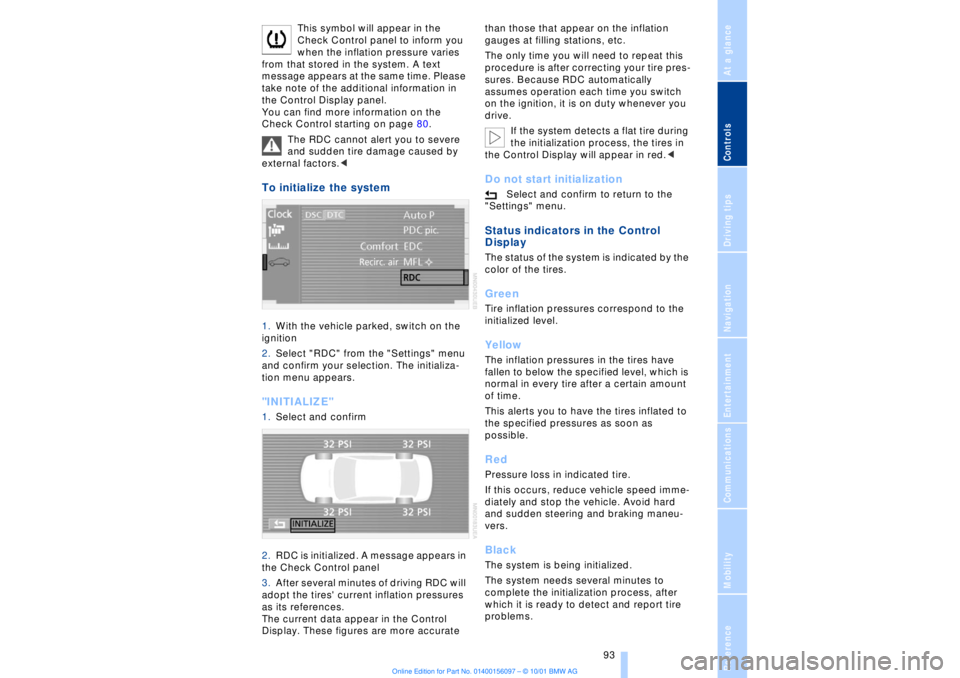
This symbol will appear in the
Check Control panel to inform you
when the inflation pressure varies
from that stored in the system. A text
message appears at the same time. Please
take note of the additional information in
the Control Display panel.
You can find more information on the
Check Control starting on page 80.
The RDC cannot alert you to severe
and sudden tire damage caused by
external factors.<
To initialize the system 1.With the vehicle parked, switch on the
ignition
2.Select "RDC" from the "Settings" menu
and confirm your selection. The initializa-
tion menu appears. "INITIALIZE" 1.Select and confirm
2.RDC is initialized. A message appears in
the Check Control panel
3.After several minutes of driving RDC will
adopt the tires' current inflation pressures
as its references.
The current data appear in the Control
Display. These figures are more accurate than those that appear on the inflation
gauges at filling stations, etc.
The only time you will need to repeat this
procedure is after correcting your tire pres-
sures. Because RDC automatically
assumes operation each time you switch
on the ignition, it is on duty whenever you
drive.
If the system detects a flat tire during
the initialization process, the tires in
the Control Display will appear in red.<
Do not start initialization
Select and confirm to return to the
"Settings" menu.
Status indicators in the Control
Display The status of the system is indicated by the
color of the tires. GreenTire inflation pressures correspond to the
initialized level.YellowThe inflation pressures in the tires have
fallen to below the specified level, which is
normal in every tire after a certain amount
of time.
This alerts you to have the tires inflated to
the specified pressures as soon as
possible. RedPressure loss in indicated tire.
If this occurs, reduce vehicle speed imme-
diately and stop the vehicle. Avoid hard
and sudden steering and braking maneu-
vers. BlackThe system is being initialized.
The system needs several minutes to
complete the initialization process, after
which it is ready to detect and report tire
problems.
Page 96 of 208
At a glanceControlsDriving tipsCommunicationsNavigationEntertainmentMobilityReference
95
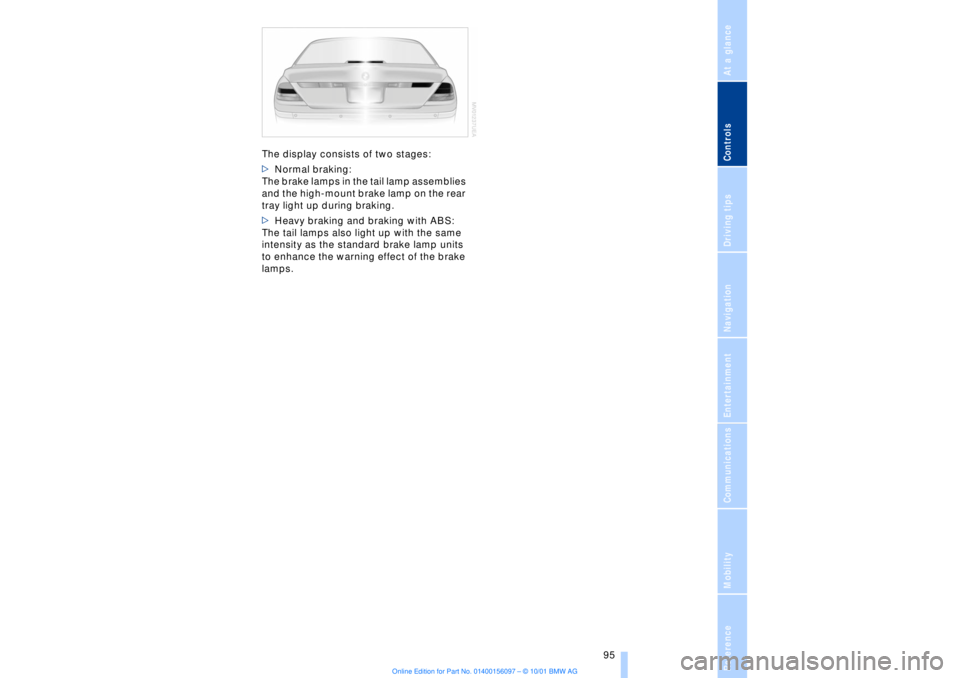
The display consists of two stages:
>Normal braking:
The brake lamps in the tail lamp assemblies
and the high-mount brake lamp on the rear
tray light up during braking.
>Heavy braking and braking with ABS:
The tail lamps also light up with the same
intensity as the standard brake lamp units
to enhance the warning effect of the brake
lamps.