buttons BMW 760i 2004 E65 Owner's Guide
[x] Cancel search | Manufacturer: BMW, Model Year: 2004, Model line: 760i, Model: BMW 760i 2004 E65Pages: 232, PDF Size: 5.27 MB
Page 163 of 232
Navigation
Entertainment
Driving tips
161Reference
At a glance
Controls
Communications
Mobility
If the CD magazine has been newly filled,
playback begins with the lowest CD, e.g.
CD 1, track 1.
Volume adjustment, refer to page 149.
Tone control, refer to page 149.
If you play self-recorded audio CDs,
faults, e.g. drop-outs, can occur, or
the CD is not played at all.<
Status displays
The CD magazine's load status is indicated
on the Control Display.
If the display fails to detect a CD that
you have loaded in the magazine,
check to ensure that the CD has been
inserted correctly and inspect it for signs
of defects.<
Selecting a track using the
Control Center
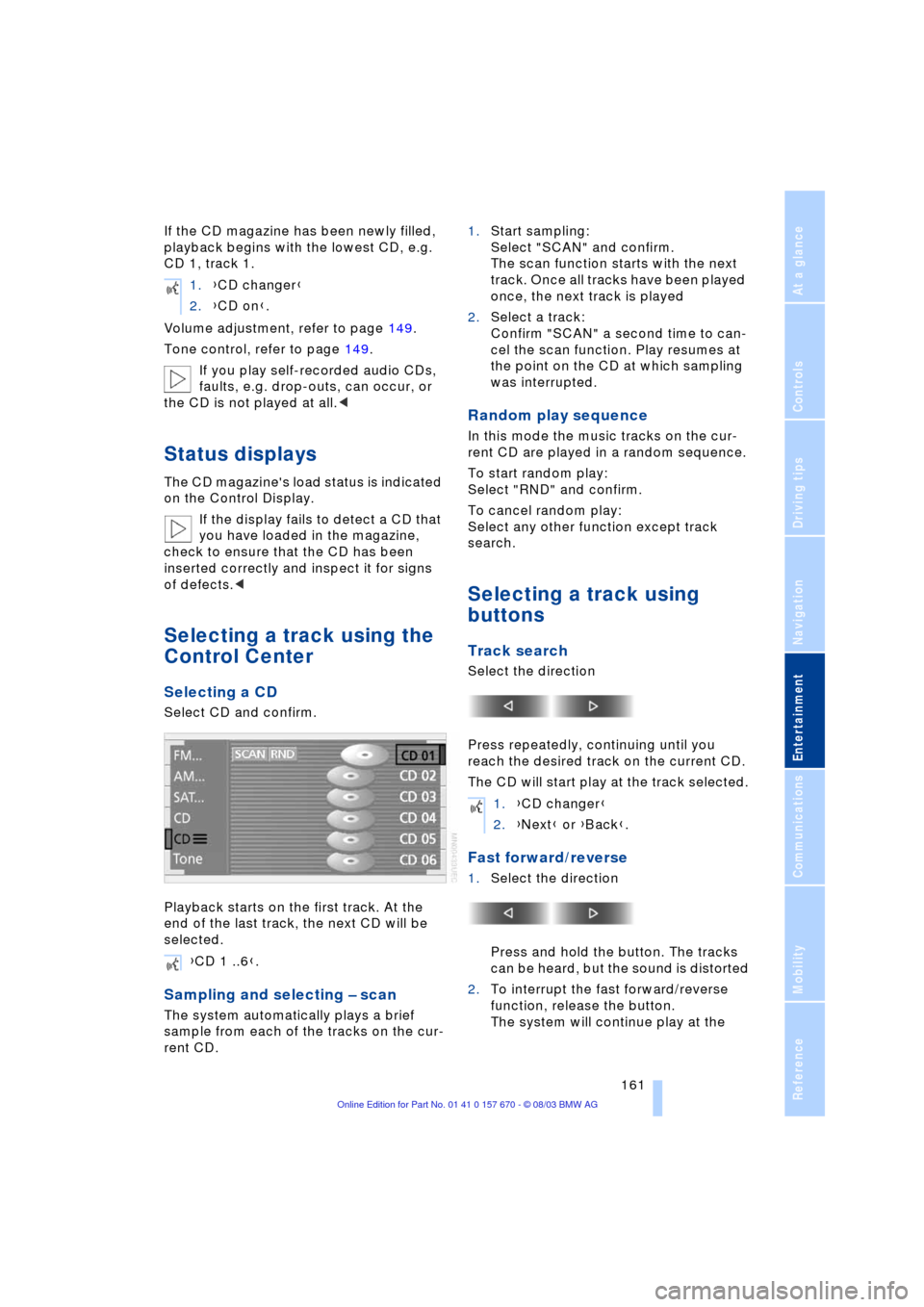
Selecting a CD
Select CD and confirm.
Playback starts on the first track. At the
end of the last track, the next CD will be
selected.
Sampling and selecting Ð scan
The system automatically plays a brief
sample from each of the tracks on the cur-
rent CD.1.Start sampling:
Select "SCAN" and confirm.
The scan function starts with the next
track. Once all tracks have been played
once, the next track is played
2.Select a track:
Confirm "SCAN" a second time to can-
cel the scan function. Play resumes at
the point on the CD at which sampling
was interrupted.
Random play sequence
In this mode the music tracks on the cur-
rent CD are played in a random sequence.
To start random play:
Select "RND" and confirm.
To cancel random play:
Select any other function except track
search.
Selecting a track using
buttons
Track search
Select the direction
Press repeatedly, continuing until you
reach the desired track on the current CD.
The CD will start play at the track selected.
Fast forward/reverse
1.Select the direction
Press and hold the button. The tracks
can be heard, but the sound is distorted
2.To interrupt the fast forward/reverse
function, release the button.
The system will continue play at the 1.{CD changer}
2.{CD on}.
{CD 1 ..6}.
1.{CD changer}
2.{Next} or {Back}.
Page 170 of 232
DVD changer
168 and confirm repeatedly, continuing until
you reach the desired chapter
or with buttons
Select the direction
Press repeatedly, continuing until you
reach the desired chapter on the current
DVD.
Playback begins at the chapter selected.
Adjusting the picture
1.During playback, press controller
2.Select and confirm
3.Adjust the picture, refer to page 164.
Freezing frame
1.Display DVD control, refer to page 166
2.At the desired position, select
and confirm.
The film is stopped
3.To restart the DVD:
Select or and confirm.
DVD playback is continued at the point
at which it was interrupted.
Selecting picture format
You can adjust the DVD format to your
screen.
The picture format is a DVD-specific func-
tion and is not offered by all DVDs.
1.Display DVD control, refer to page 166
2.Select and confirm
3.Select and confirm
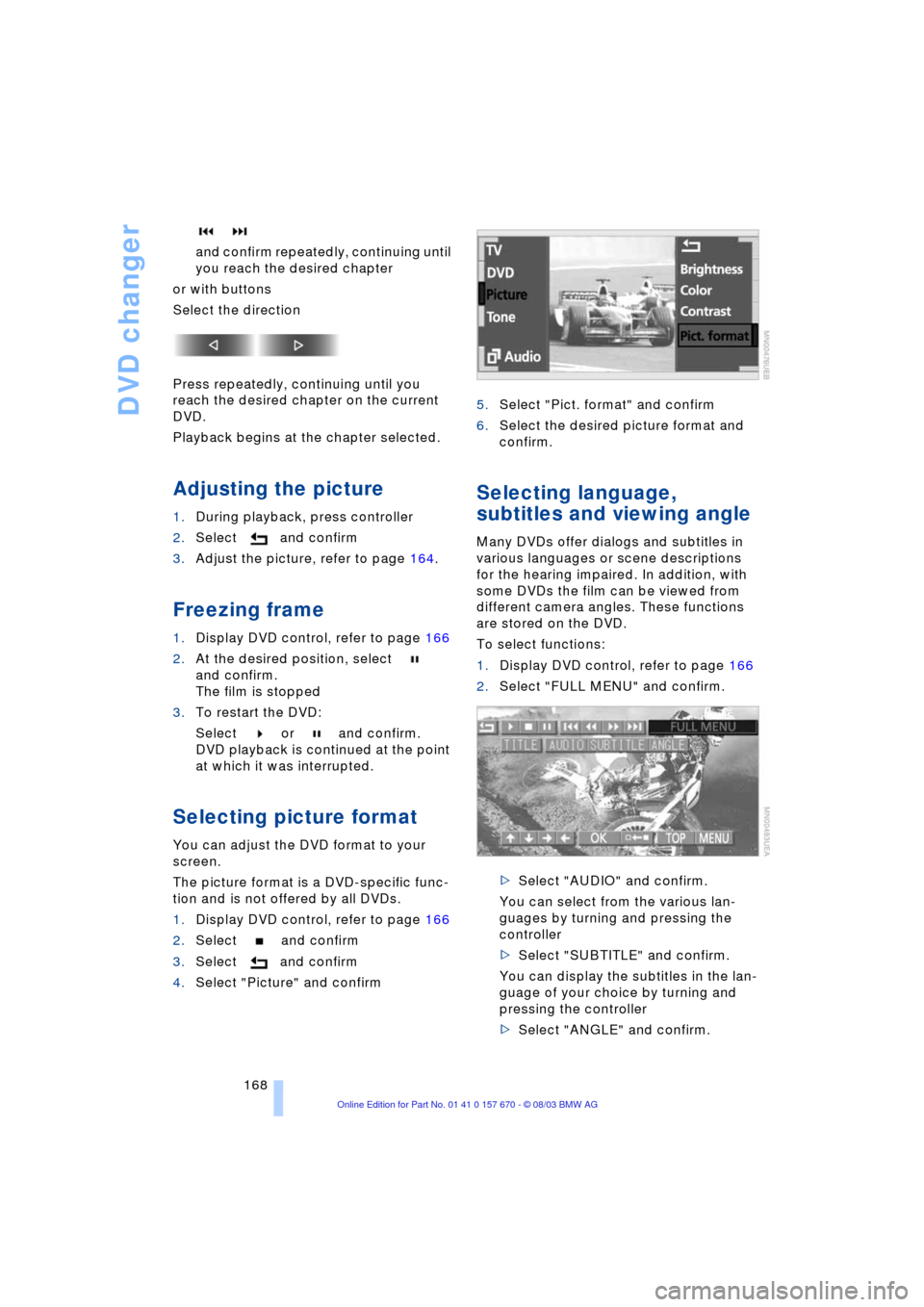
4.Select "Picture" and confirm5.Select "Pict. format" and confirm
6.Select the desired picture format and
confirm.
Selecting language,
subtitles and viewing angle
Many DVDs offer dialogs and subtitles in
various languages or scene descriptions
for the hearing impaired. In addition, with
some DVDs the film can be viewed from
different camera angles. These functions
are stored on the DVD.
To select functions:
1.Display DVD control, refer to page 166
2.Select "FULL MENU" and confirm.
>Select "AUDIO" and confirm.
You can select from the various lan-
guages by turning and pressing the
controller
>Select "SUBTITLE" and confirm.
You can display the subtitles in the lan-
guage of your choice by turning and
pressing the controller
>Select "ANGLE" and confirm.
Page 179 of 232
177
Entertainment
Reference
At a glance
Controls
Driving tips Communications
Navigation
Mobility
Hands-free system
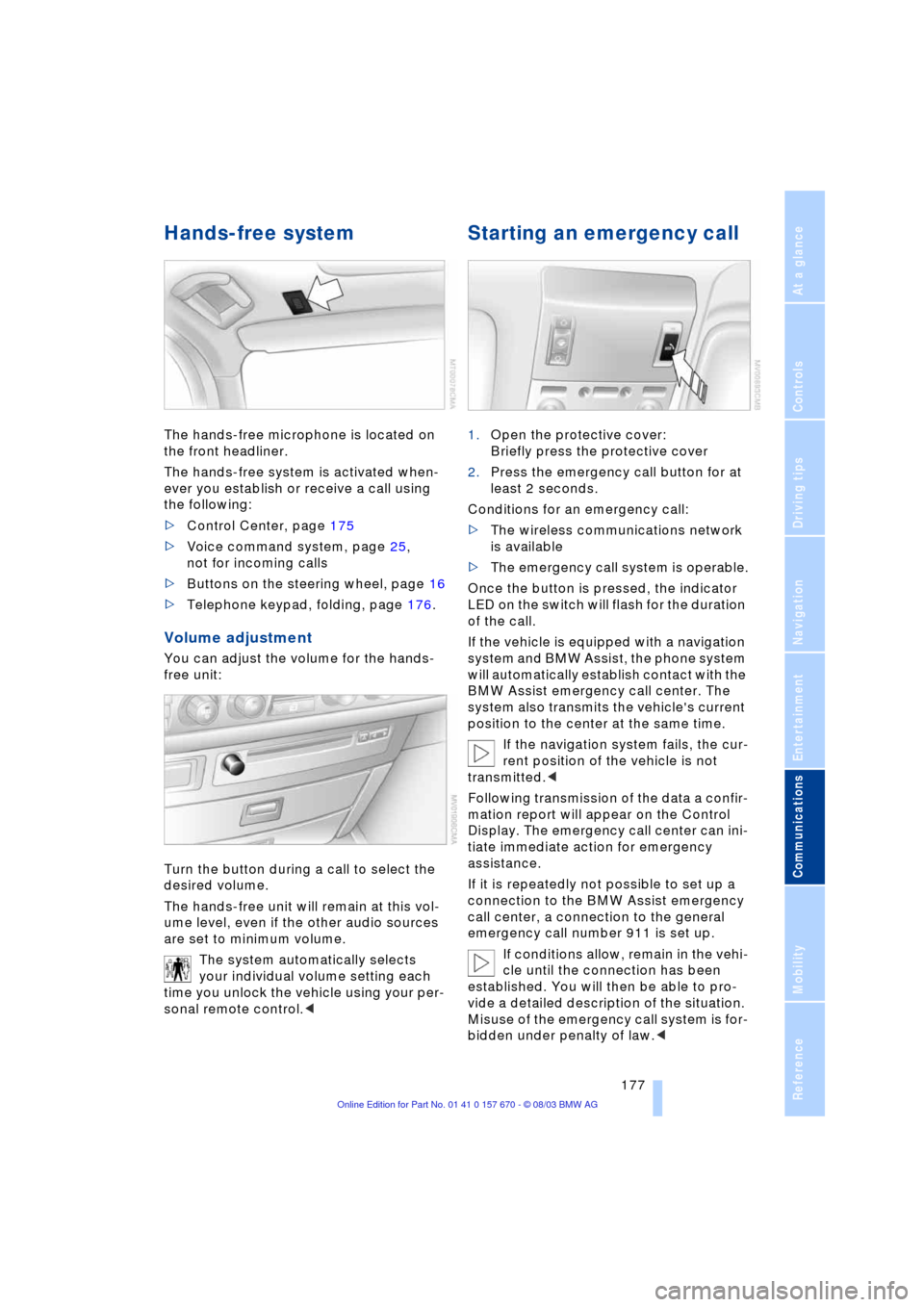
The hands-free microphone is located on
the front headliner.
The hands-free system is activated when-
ever you establish or receive a call using
the following:
>Control Center, page 175
>Voice command system, page 25,
not for incoming calls
>Buttons on the steering wheel, page 16
>Telephone keypad, folding, page 176.
Volume adjustment
You can adjust the volume for the hands-
free unit:
Turn the button during a call to select the
desired volume.
The hands-free unit will remain at this vol-
ume level, even if the other audio sources
are set to minimum volume.
The system automatically selects
your individual volume setting each
time you unlock the vehicle using your per-
sonal remote control.<
Starting an emergency call
1.Open the protective cover:
Briefly press the protective cover
2.Press the emergency call button for at
least 2 seconds.
Conditions for an emergency call:
>The wireless communications network
is available
>The emergency call system is operable.
Once the button is pressed, the indicator
LED on the switch will flash for the duration
of the call.
If the vehicle is equipped with a navigation
system and BMW Assist, the phone system
will automatically establish contact with the
BMW Assist emergency call center. The
system also transmits the vehicle's current
position to the center at the same time.
If the navigation system fails, the cur-
rent position of the vehicle is not
transmitted.<
Following transmission of the data a confir-
mation report will appear on the Control
Display. The emergency call center can ini-
tiate immediate action for emergency
assistance.
If it is repeatedly not possible to set up a
connection to the BMW Assist emergency
call center, a connection to the general
emergency call number 911 is set up.
If conditions allow, remain in the vehi-
cle until the connection has been
established. You will then be able to pro-
vide a detailed description of the situation.
Misuse of the emergency call system is for-
bidden under penalty of law.<
Page 180 of 232
Using the phone in your vehicle
178 Under certain conditions, an emergency
call is started automatically immediately
after a severe accident. The automatic
emergency call is not affected by the emer-
gency call button being pressed.
Telephoning with the car
phone*
Currently not available
If the BMW portable phone is not in the
cradle, you can telephone using the car
phone via the hands-free unit.
The telephone that can be used to set up
a connection is shown in the upper status
line on the Control Display.
The car phone must be enabled prior
to initial use. In this case, please con-
sult your BMW center.<
Calls can be set up or accepted using the
following equipment:
>Control Center, page 175
>Voice command system, page 25,
not for incoming calls
>Buttons on the steering wheel, page 16
>Telephone keypad, folding, page 176.
Commissioning the
BMW portable phone
Precondition for portable phones with SIM
card:
>You might have to enter a Personal
Identification Number, PIN
>Release all keypad guards, refer to
separate Owner's Manual.1.Fold back the cradle slightly
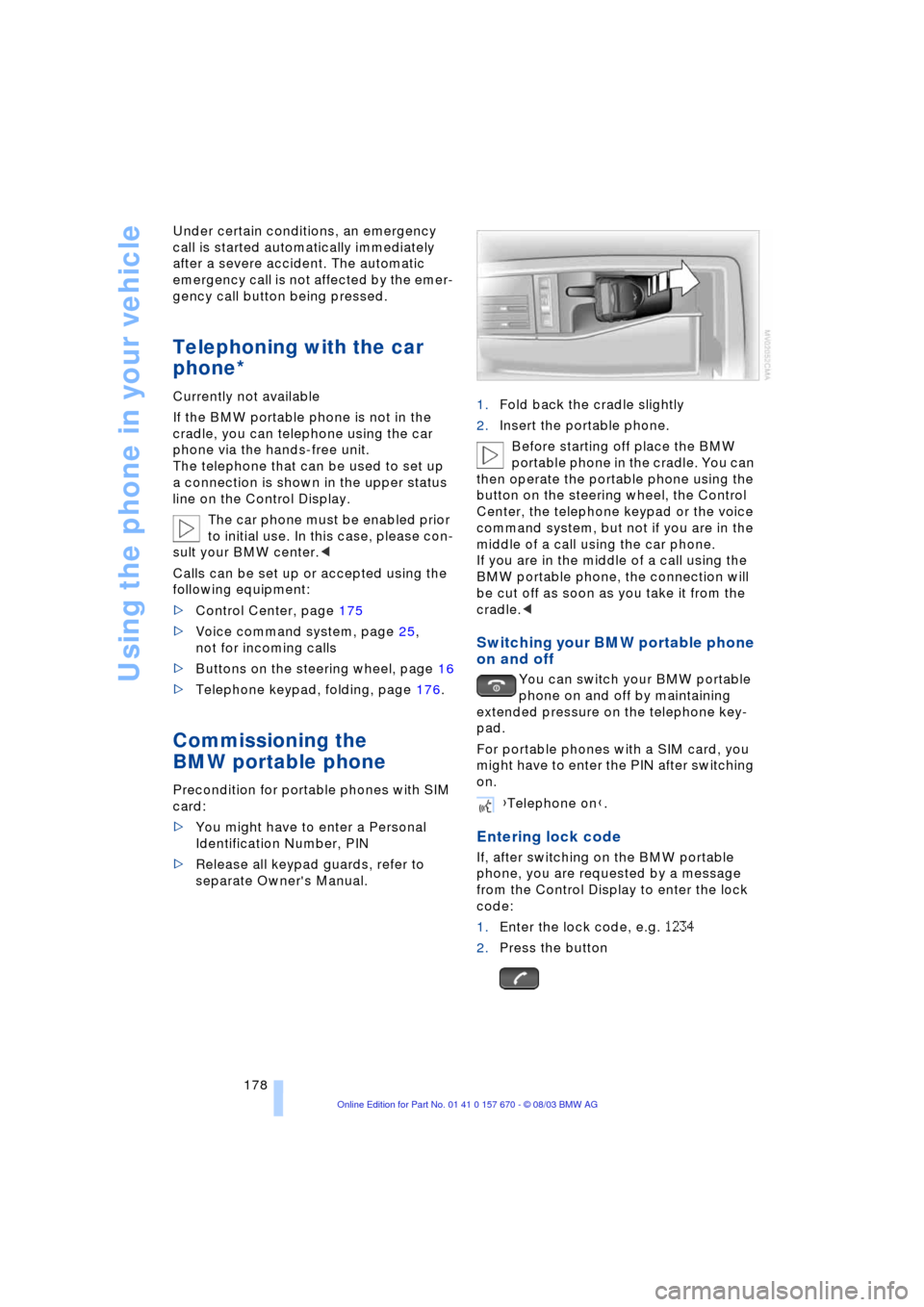
2.Insert the portable phone.
Before starting off place the BMW
portable phone in the cradle. You can
then operate the portable phone using the
button on the steering wheel, the Control
Center, the telephone keypad or the voice
command system, but not if you are in the
middle of a call using the car phone.
If you are in the middle of a call using the
BMW portable phone, the connection will
be cut off as soon as you take it from the
cradle.<
Switching your BMW portable phone
on and off
You can switch your BMW portable
phone on and off by maintaining
extended pressure on the telephone key-
pad.
For portable phones with a SIM card, you
might have to enter the PIN after switching
on.
Entering lock code
If, after switching on the BMW portable
phone, you are requested by a message
from the Control Display to enter the lock
code:
1.Enter the lock code, e.g. 1234
2.Press the button
{Telephone on}.
Page 219 of 232
Reference 217
At a glance
Controls
Driving tips
Communications
Navigation
Entertainment
Mobility
"AUTOSTOR" 163
"Autostore" for radio
mode 154
Average fuel
consumption 85
Average speed 85
"Avoid highway" 137
Avoiding unintentional
alarms 40
"Avoid route" 141
"Avoid sect." 140
"Avoid tolls" 137
"A-Z", telephone 179
B
Backrest adjustment 45, 46
Backrests, refer to
Seats 44
Backup lamps, replacing
bulbs 202
Balance 149
"Balance" for audio
mode 150
Bass 149
"Bass" for audio mode 150
Battery 205
Ð flat 207
Battery switch 205, 206
"BC", refer to Computer 86
Belts 49
Beverage holders 115
Blinds 112
"BMW Assist" 21, 182
BMW Assist 182
"BMW Services" 182
Brake Assistant, refer to
DBC Dynamic Brake
Control 93
Brake fluid 197
Brake force display 96
Brake hydraulic
systems 197
Brake lamps, replacing
bulbs 202
Brake pads 123
Brakes 123
Ð malfunctions 197
Breaking in the vehicle 122Break-in procedures 122
"Brief info" 22
"Brightness"
Ð for TV mode 164
Ð in the Control Center 89
Buttons on the steering
wheel 16
Ð automatic transmission
with Steptronic 66
C
California Proposition 65
Warning 199
Call
Ð ending 179
Calling 179
Ð from phone book 179
Ð from the redial list 180
Ð from the Top 8 list 180
Ð redialing 180
Can holder, refer to
Beverage holders 115
Capacities 215
"Car data" 18, 21
Care, refer to the Caring for
your vehicle brochure
Cargo, securing 125
Cargo area
Ð locking separately 37
Cargo loading 125
Caring for the vehicle finish,
refer to the Caring for
your vehicle brochure
Car phone 175, 178
Ð refer to separate Owner's
Manual
Car radio, refer to
Radio 148
Car wash 122
Ð refer to the Caring for your
vehicle brochure
CBC Cornering Brake
Control 91
CBS Condition Based
Service 198
"CD" 148, 158CD changer 160
Ð adjusting the tone 149
Ð controls 148
Ð fast forward 161
Ð random play 161
Ð reverse 161
Ð sampling 161
Ð Scan 161
Ð selecting CD 161
Ð selecting track 162
Ð skipping tracks 161
Ð switching on 160
Ð volume 149
CD player 158
Ð adjusting the tone 149
Ð controls 148
Ð fast forward 159
Ð random play 158
Ð reverse 159
Ð sampling 158
Ð Scan 158
Ð selecting tracks 158
Ð skipping tracks 158
Ð switching on 158
Ð volume 149
"Center" 107
Center armrest
Ð individual button
assignment 17
Center brake lamp, refer to
Brake lamps 202
Center console, refer to
Comfort features 14
Central locking system 33
Ð button 37
Ð Comfort Access 34
Ð keys 36
Ð remote control 33
"CHANGE" for
navigation 136
Changing a tire 203
Changing language 88
Changing settings on the
Control Display 88
Changing the display
format on the Control
Display 88
Changing units of measure
on the Control Display 88
Page 225 of 232
Reference 223
At a glance
Controls
Driving tips
Communications
Navigation
Entertainment
Mobility
Parking the vehicle 61
Parking with
Automatic Hold 63
Passenger-side mirror tilt
function 54
Pathway lighting 99
"PDC image" 91
PDC Park Distance
Control 90
Personal Calling 175
"Perspective" for
navigation 139
Phone book 179
Ð creating voice command
phone book 179
Ð deleting all entries 180
Ð dialing numbers 179
Ð dialing numbers using
voice command
system 180
Ð entering numbers in voice
command phone
book 179
Ð entry deletion 180
Ð updating voice command
phone book 179
Ð viewing entries 180
Phone number, refer to
Portable phone 179
"Pict. format" 168
"Picture" 148
Ð DVD changer 168
Ð TV 164
Please fasten safety belt
warning lamp 49
Pollen 108Portable phone
Ð adjusting volume 177
Ð battery 175
Ð calling 179
Ð call termination 179
Ð codes 178
Ð controlling with the
buttons on the steering
wheel 16
Ð hands-free system 177
Ð missed calls 181
Ð operating using the
Control Center 175
Ð redialing 180
Ð refer to separate portable
phone Owner's Manual
Ð selecting phone
numbers 179
Ð switching on/off 178
Ð Top 8 list 180
Power rating 212
Power socket 116
Power windows 41
Pressure, tires 188
Pressure monitoring,
tires 95
Programmable cruise
control 71
Programming settings,
refer to Vehicle Memory,
Key Memory 54
Puncture
Ð Flat Tire Monitor 95R
Radio
Ð adjusting the tone 149
Ð "AUTOSTORE" 154
Ð Autostore 154
Ð controls 148
Ð memory locations 153
Ð operating
temperatures 148
Ð sampling 153
Ð Scan 152
Ð selecting the
waveband 152
Ð station search 152
Ð station selection 154
Ð storing a station 154
Ð switching on 152
Ð volume 149
Ð Weather Band 155
Radio mode 60
Ð with Comfort Access 60
Rain sensor 70
Reading lamps 101
"Rear" 24
Rear air conditioner 108
Ð activation and
deactivation in Control
Center 109
Ð air supply 108
Ð cooling adjustment 108
Rear armrest, refer to Rear
center armrest 117
Rear center armrest 117
Rear cooler 113
Rear lamps, replacing
bulbs 202
Rear monitor, refer to
Control Center in rear 23
Rear screen 23
Rear seat heaters 50
Rear seats
Ð adjusting passenger seat
from the rear 46
Ð comfort seat
adjustments 46
Ð head restraint
adjustment 47
Rearview mirror 51
Page 226 of 232
Everything from A to Z
224 Rear window blind, refer to
Sun blinds 112
Rear window defroster 14
Rear window safety
switch 10, 42
"Recirc." 52
Reclining seat 44
Redialing with portable
phone 180
Redial list 180
Refueling 186
"Release" 24
Releasing the engine
hood 194
Remote control 32, 33
Ð Comfort Access 34
Ð malfunctions 35
Removing condensation
from windows 104
Replacement fuses 206
Replacement keys 33
Replacement tire 203
Replacing light bulbs 200
Replacing tires 192
Reserve warning 85
Reset 149
"RESET" for audio
mode 151
Residual heat 105
"Right"
Ð for automatic climate
control 106
Ð for seat heating 50
Right/left balance
adjustment in audio
mode 149
"RND"
Ð CD changer 161
Ð CD player 158
"Roadside Assistance" 182
Roller sun blinds for rear
side windows 112
Roof-mounted luggage
rack 125
"Route" 140Route
Ð display 139
Ð list 140
Ð map cancellation 140
Ð new 140
Ð selecting 137
"Route guid." 139, 141
Route map 140
"Route selec." 137
Route selection 137
Run-flat tires 192, 205
S
Safety belts 49
Safety belt tensioners, refer
to Safety belts 49
Safety lock buttons 37
Sampling scan
Ð CD 158
Ð radio 153
"Save"
Ð "Individual" 107
"Save dest." 135
"SCAN"
Ð CD changer 161
Ð CD player 158
Ð radio 153
Scan
Ð CD changer 161
Ð CD player 158
Ð radio 152
Scan sampling
Ð CD changer 161
Ð CD player 158
Ð radio 153
Screen, refer to Control
Display 15
Seat heating 49
Seat memory 53
Seats
Ð adjusting the seats 44
Ð sitting safely 44
"Seat temp." 50, 106
Seat ventilation, refer to
Active seat ventilation 50
SECAM during
TV mode 164Securing cargo, refer to
Cargo 125
Securing the load 118
Selecting a new route for
the navigation
system 140
Selecting distance with
active cruise control 76
Selecting new scale for
navigation system
display 140
Selecting stored radio
stations 154
Selecting the waveband on
the radio 152
Selection options with
navigation system 132
Selector lever, automatic
transmission 66
"Service" 81, 198
Ð "Emissions inspection" 82
Ð "Spark plugs" 81
Ð "State inspection" 82
Service and Warranty
Information Booklet for
US models 198
Service brakes 123
Service Interval
Display 81, 198
Service Requirement
Display, refer to Service
Interval Display 198
"SET", refer to Setting the
speed limit 86
"Set time" 109
Setting brightness of
Control Center 89
"Settings" 18, 21, 24
Setting the brightness 89
Setting the speed limit 86
Setting time and date 88
Shiftlock 67
Short commands for voice
command system 28
Shortest distance 137
"Shortest route" 137
"Short info" 18
Shoulder support 46