display BMW M3 2012 Owners Manual
[x] Cancel search | Manufacturer: BMW, Model Year: 2012, Model line: M3, Model: BMW M3 2012Pages: 314, PDF Size: 7.72 MB
Page 181 of 314
180
EntertainmentSatellite radio
Traffic Jump
Traffic and weather information for a selected
region are broadcast at intervals of a few min-
utes.
Selecting region
1."Radio"
2. "Satellite radio"
3. Open "Options".
4. "Set jump"
5. Select the desired region.
The region is stored for the remote control cur-
rently in use.
Activating/deactivating Jump
1. "Radio"
2. "Satellite radio"
3. "Jump to:"
As soon as information about the selected
region becomes available, it is broadcast.
A new panel appears in the display.
Cancel Traffic Jump: "Cancel".
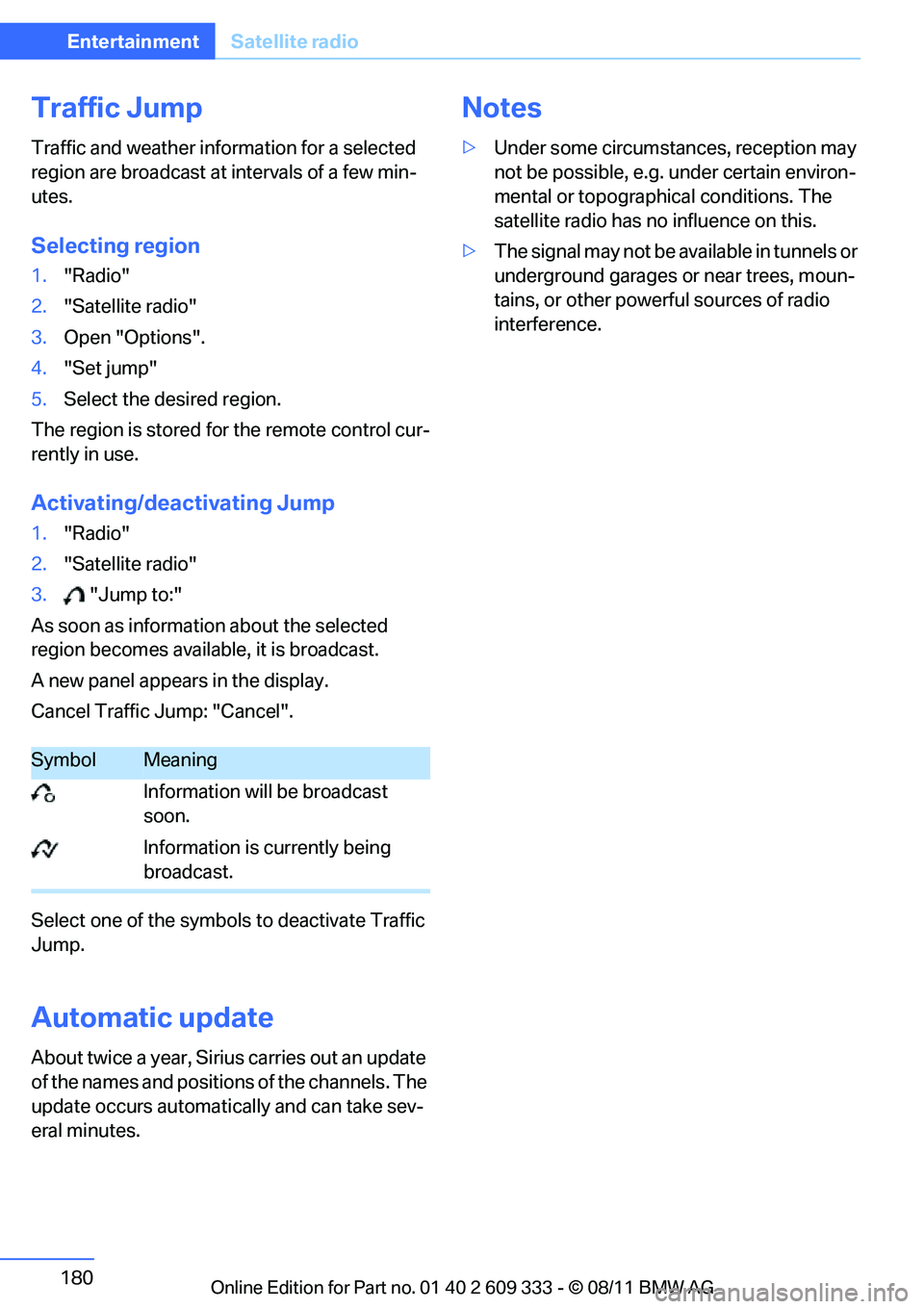
Select one of the symbol s to deactivate Traffic
Jump.
Automatic update
About twice a year, Sirius carries out an update
of the names and positions of the channels. The
update occurs automati cally and can take sev-
eral minutes.
Notes
> Under some circumstan ces, reception may
not be possible, e.g. under certain environ-
mental or topographical conditions. The
satellite radio has no influence on this.
> The signal may not be available in tunnels or
underground garages or near trees, moun-
tains, or other powerful sources of radio
interference.
SymbolMeaning
Information will be broadcast
soon.
Information is currently being
broadcast.
Online Edition for Part no. 01 40 2 609 333 - \251 08/11 BMW AG
Page 183 of 314
182
EntertainmentCD/DVD player and CD changer
Audio playback
Selecting the track using the button
Press the button for the appropriate
direction as often as necessary until the desired
track is reached.
Selecting a track using iDrive
Audio CDs
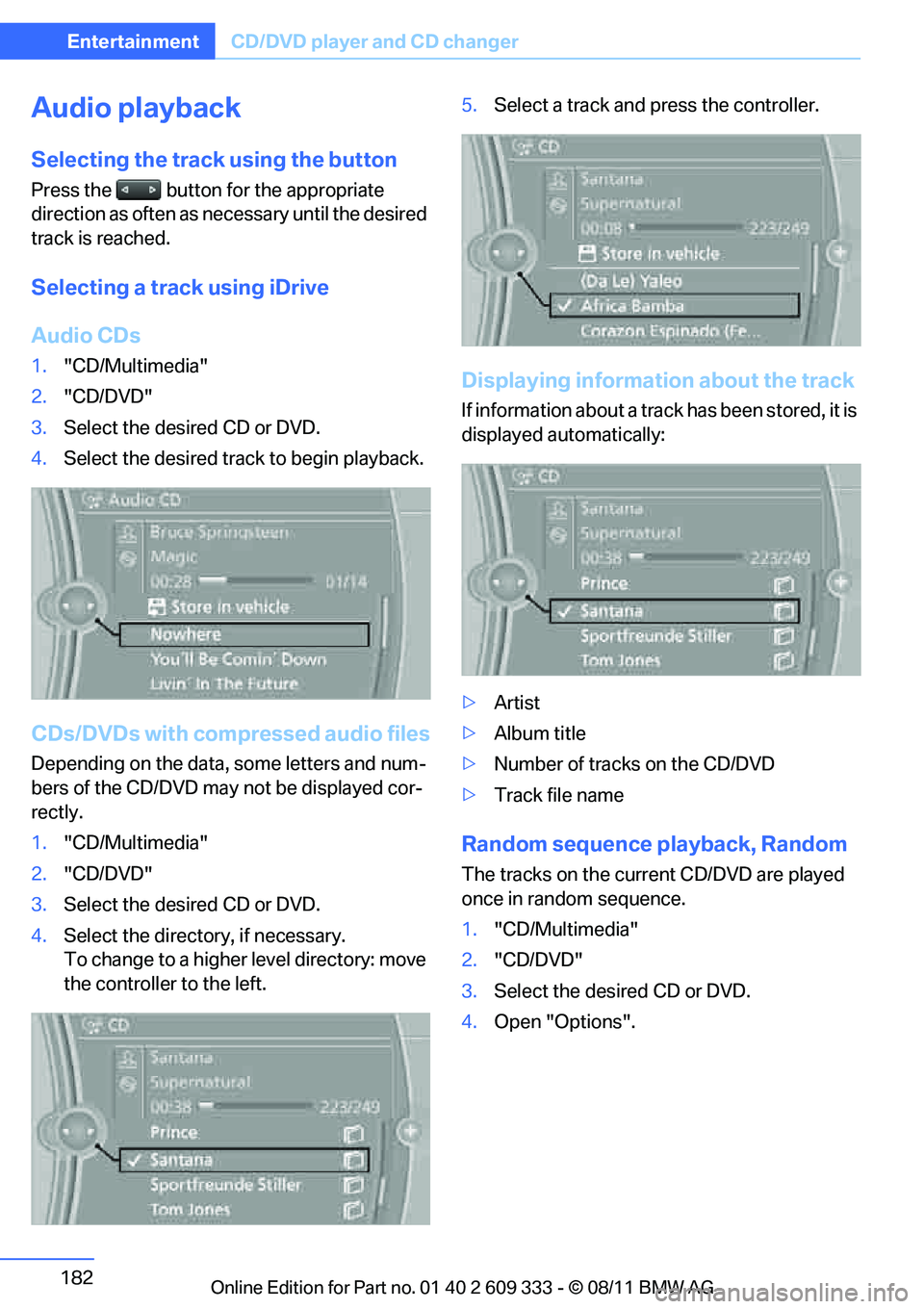
1."CD/Multimedia"
2. "CD/DVD"
3. Select the desired CD or DVD.
4. Select the desired trac k to begin playback.
CDs/DVDs with comp ressed audio files
Depending on the data, some letters and num-
bers of the CD/DVD may not be displayed cor-
rectly.
1. "CD/Multimedia"
2. "CD/DVD"
3. Select the desired CD or DVD.
4. Select the directory, if necessary.
To change to a higher level directory: move
the controller to the left. 5.
Select a track and press the controller.
Displaying information about the track
If information about a track has been stored, it is
displayed automatically:
>Artist
> Album title
> Number of tracks on the CD/DVD
> Track file name
Random sequence playback, Random
The tracks on the current CD/DVD are played
once in random sequence.
1."CD/Multimedia"
2. "CD/DVD"
3. Select the desired CD or DVD.
4. Open "Options".
Online Edition for Part no. 01 40 2 609 333 - \251 08/11 BMW AG
Page 185 of 314
184
EntertainmentCD/DVD player and CD changer
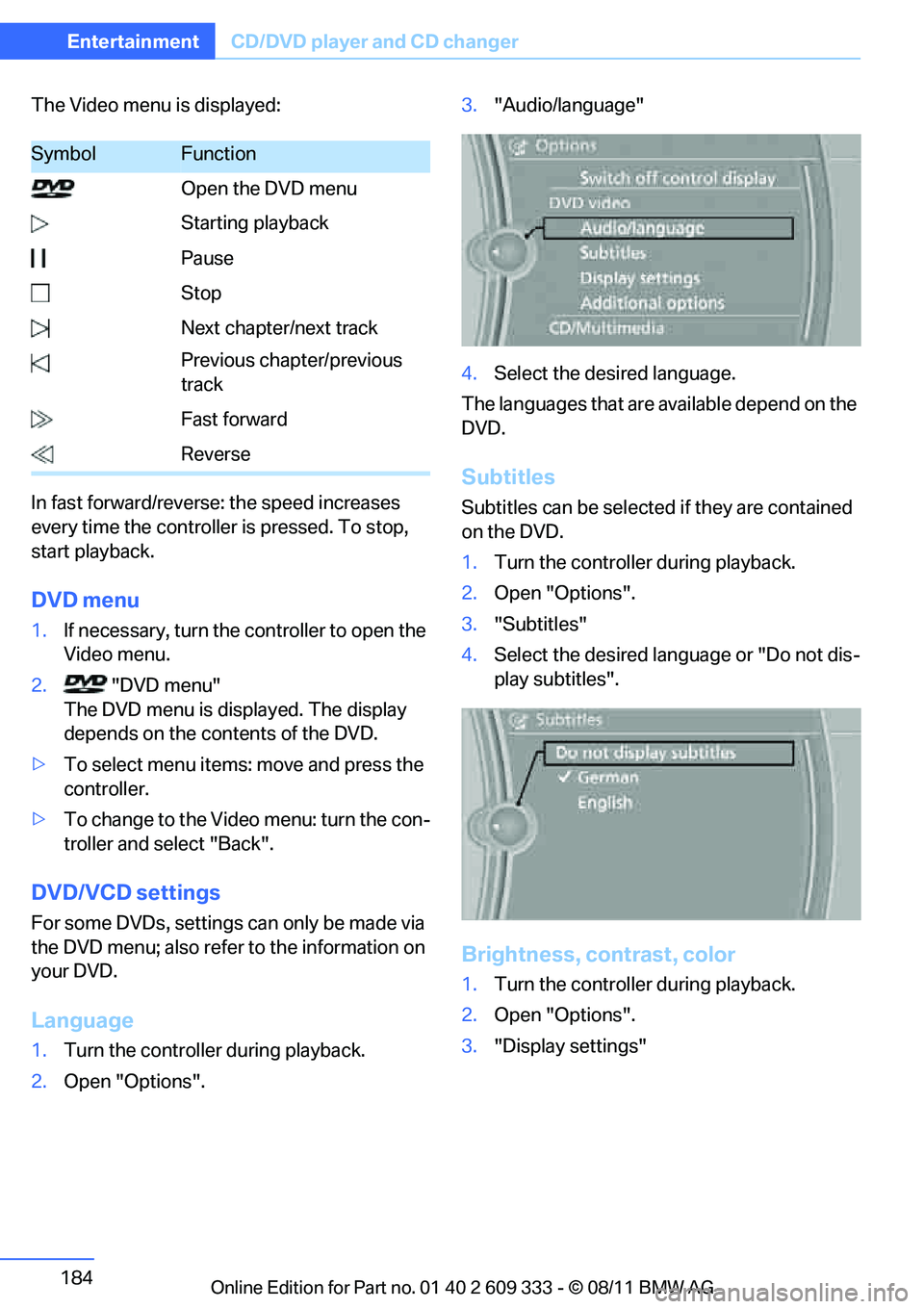
The Video menu is displayed:
In fast forward/reverse: the speed increases
every time the controller is pressed. To stop,
start playback.
DVD menu
1.If necessary, turn the controller to open the
Video menu.
2. "DVD menu"
The DVD menu is displayed. The display
depends on the contents of the DVD.
> To select menu items: move and press the
controller.
> To change to the Vide o menu: turn the con-
troller and select "Back".
DVD/VCD settings
For some DVDs, settings can only be made via
the DVD menu; also refer to the information on
your DVD.
Language
1. Turn the controller during playback.
2. Open "Options". 3.
"Audio/language"
4. Select the desired language.
The languages that are available depend on the
DVD.
Subtitles
Subtitles can be selected if they are contained
on the DVD.
1. Turn the controller during playback.
2. Open "Options".
3. "Subtitles"
4. Select the desired language or "Do not dis-
play subtitles".
Brightness, contrast, color
1.Turn the controller during playback.
2. Open "Options".
3. "Display settings"
SymbolFunction
Open the DVD menu
Starting playback
Pause
Stop
Next chapter/next track
Previous chapter/previous
track
Fast forward
Reverse
Online Edition for Part no. 01 40 2 609 333 - \251 08/11 BMW AG
Page 186 of 314
185
CD/DVD player and CD changer
Entertainment
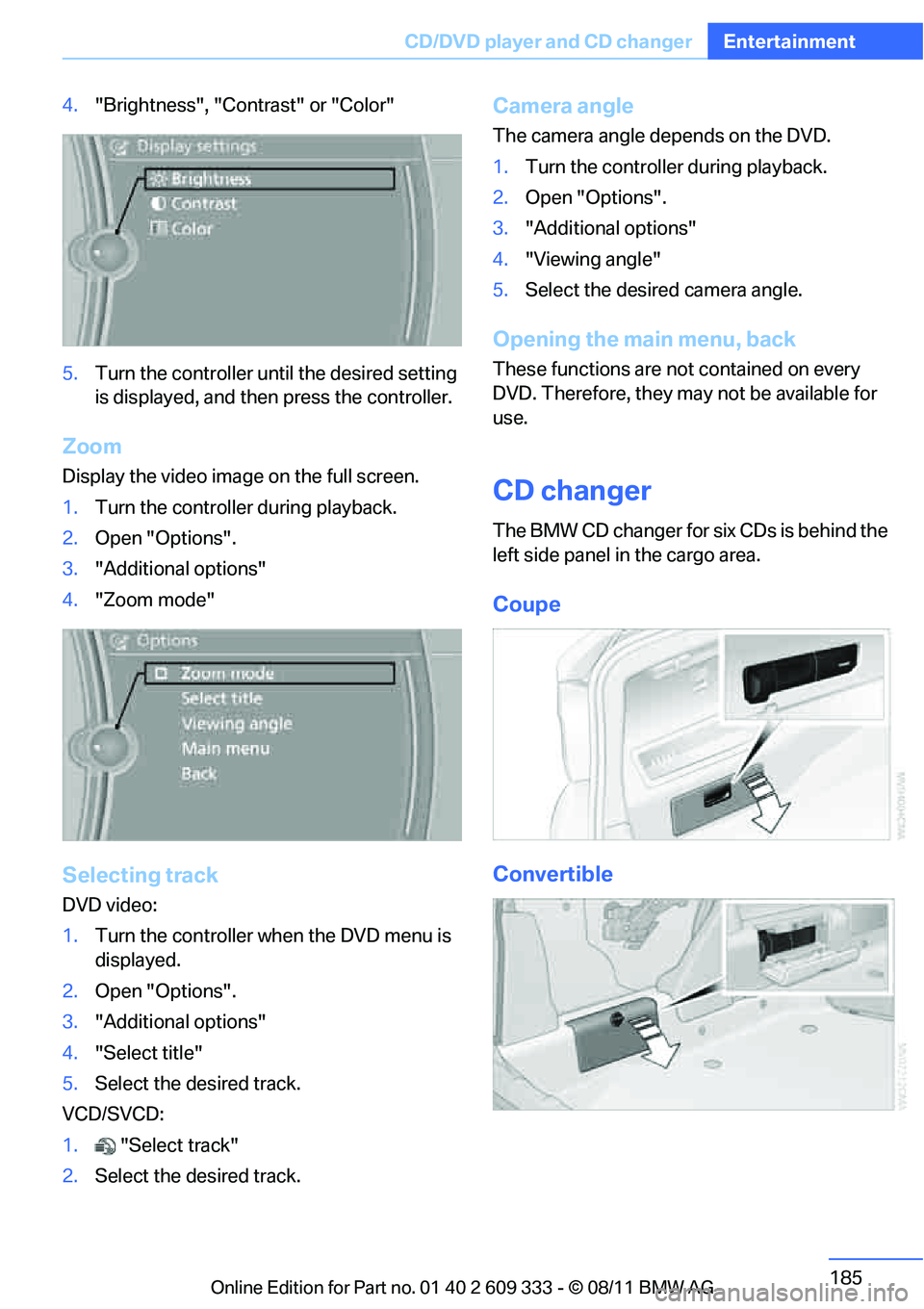
4.
"Brightness", "Contrast" or "Color"
5. Turn the controller until the desired setting
is displayed, and then press the controller.
Zoom
Display the video image on the full screen.
1.Turn the controller during playback.
2. Open "Options".
3. "Additional options"
4. "Zoom mode"
Selecting track
DVD video:
1.Turn the controller when the DVD menu is
displayed.
2. Open "Options".
3. "Additional options"
4. "Select title"
5. Select the desired track.
VCD/SVCD:
1. "Select track"
2. Select the desired track.
Camera angle
The camera angle depends on the DVD.
1.Turn the controller during playback.
2. Open "Options".
3. "Additional options"
4. "Viewing angle"
5. Select the desired camera angle.
Opening the main menu, back
These functions are not contained on every
DVD. Therefore, they may not be available for
use.
CD changer
The BMW CD changer for six CDs is behind the
left side panel in the cargo area.
Coupe
Convertible
Online Edition for Part no. 01 40 2 609 333 - \251 08/11 BMW AG
Page 189 of 314
188
EntertainmentMusic collection
Music collection
Vehicle equipment
In this chapter, all pr oduction, country, and
optional equipment that is offered in the model
range is described. Equipment is also described
that is not available because of, for example,
selected options or country version. This also
applies to safety related functions and systems.
Storing music
The music tracks from CDs, DVDs and USB
devices can be stored in the music collection in
the vehicle and played from there.
> Audio CD: tracks are converted into a com-
pressed audio format when they are stored.
If available, information on the album, such
as the artist, is stored as well.
> CD/DVD or USB device with compressed
audio files: the entire content of the CD/
DVD or the USB device is stored in the vehi-
cle as an album. After storing, the tracks and
directories can be dele ted individually. Files
are only stored in the WMA, MP3, M4A, and
AAC formats.
Tracks with DRM copy protection can be
stored in the vehicle but cannot be played
back.
Regularly back up the music data; other-
wise, it could be lost if there is a fault on
the hard disc.<
Music recognition technology and
related data are provided by
Gracenote®. Gracenote® is the industry stan-
dard in music recognition technology and
related content delivery. For more information,
please visit www.gracenote.com.
CD and music-related data from Gracenote,
Inc., copyright © 2000-2009 Gracenote.
Gracenote Software, copyright © 2000-2009
Gracenote. This product and service may prac- tice one or more of the
following U.S. Patents:
5.987.525, 6.061.680, 6.154.773, 6.161.132,
6.230.192, 6.230.207, 6.240.459 and
6.330.593 as well as other granted or pending
patents. Some services supplied under license
from Open Globe, Inc. for U.S. Patent:
6.304.523.
Gracenote and CDDB are registered trade-
marks of Gracenote. The Gracenote logo and
logotype, and the "Powered by Gracenote"
logo are trademarks of Gracenote.Storing files from CDs/DVDs
CDs/DVDs can only be stored from the CD/DVD
player.
1. Insert a CD/DVD into the CD/DVD player.
2. "CD/Multimedia"
3. "CD/DVD"
4. Select the symbol for the CD/DVD
player.
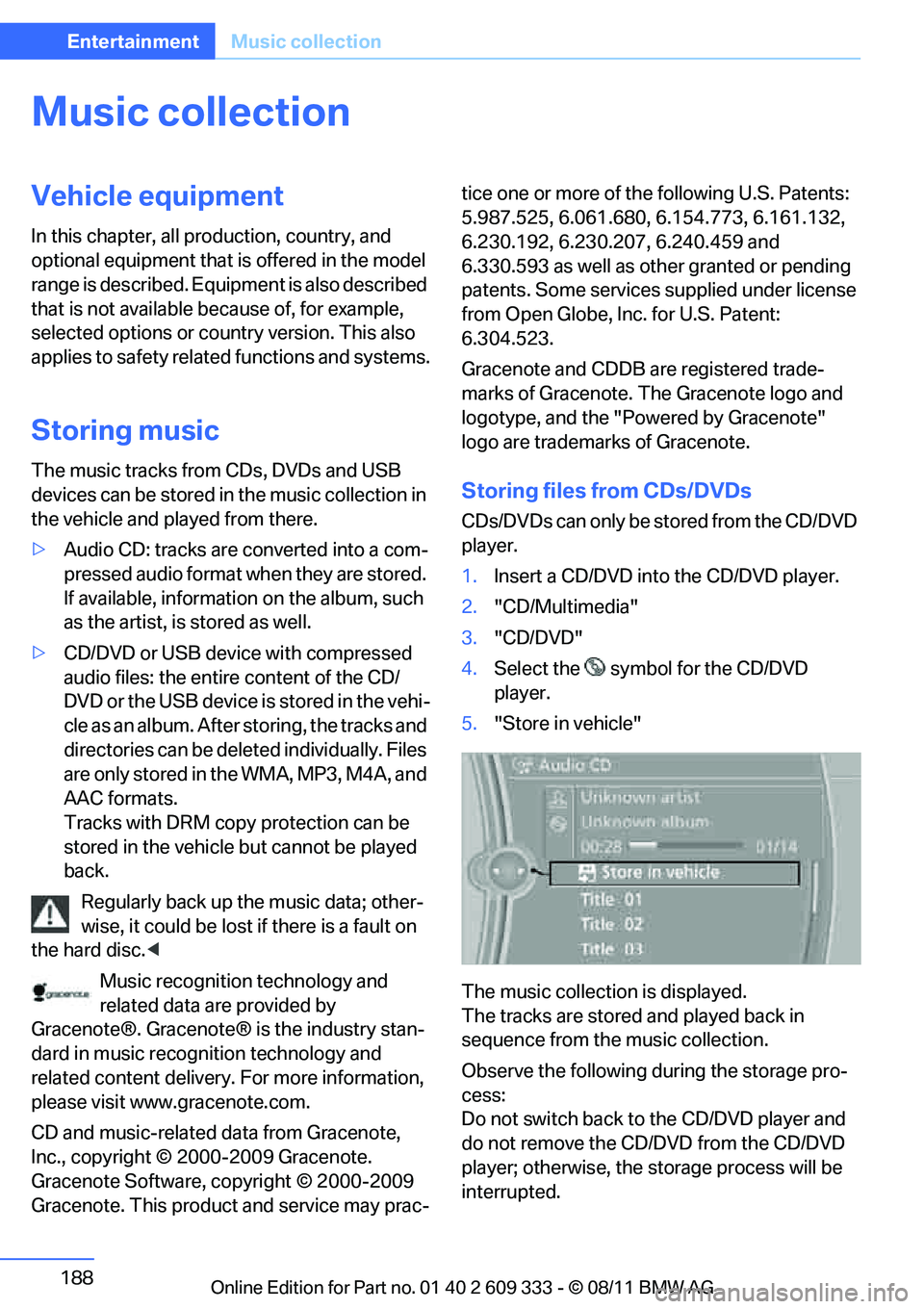
5. "Store in vehicle"
The music collection is displayed.
The tracks are stored and played back in
sequence from the music collection.
Observe the following during the storage pro-
cess:
Do not switch back to the CD/DVD player and
do not remove the CD/D VD from the CD/DVD
player; otherwise, the storage process will be
interrupted.
Online Edition for Part no. 01 40 2 609 333 - \251 08/11 BMW AG
Page 191 of 314
190
EntertainmentMusic collection
Playing music
Music search
All tracks for which additional information has
been stored can be accessed by the music
search. Tracks without additional information
can be called up via the corresponding album.
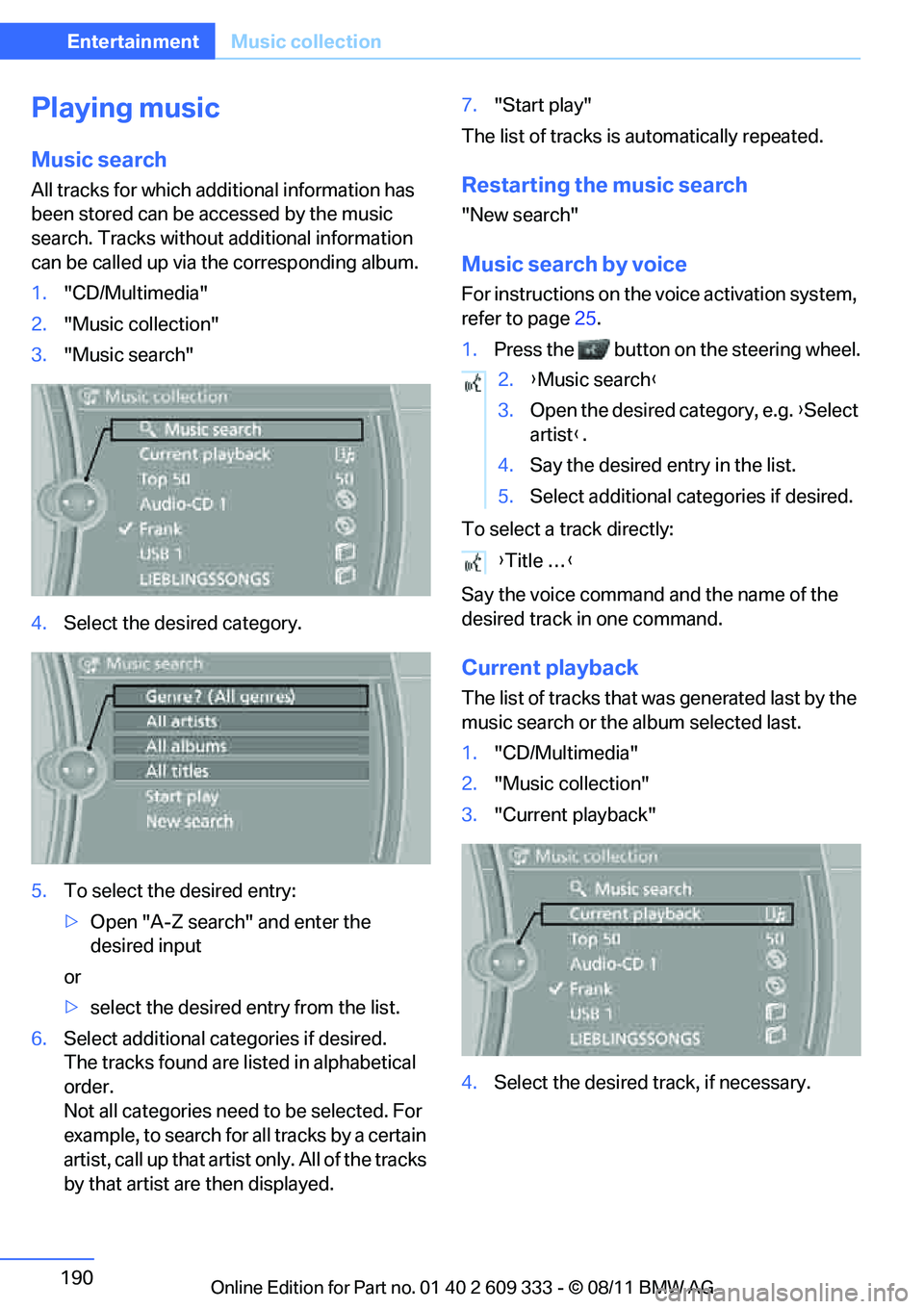
1. "CD/Multimedia"
2. "Music collection"
3. "Music search"
4. Select the desired category.
5. To select the desired entry:
>Open "A-Z search" and enter the
desired input
or
> select the desired entry from the list.
6. Select additional categories if desired.
The tracks found are listed in alphabetical
order.
Not all categories need to be selected. For
example, to search for all tracks by a certain
artist, call up that artist only. All of the tracks
by that artist are then displayed. 7.
"Start play"
The list of tracks is automatically repeated.Restarting the music search
"New search"
Music search by voice
For instructions on the voice activation system,
refer to page 25.
1. Press the button on the steering wheel.
To select a track directly:
Say the voice command and the name of the
desired track in one command.
Current playback
The list of tracks that wa s generated last by the
music search or the album selected last.
1. "CD/Multimedia"
2. "Music collection"
3. "Current playback"
4. Select the desired track, if necessary.
2.{Music search }
3. Open the desired category, e.g. { Select
artist }.
4. Say the desired entry in the list.
5. Select additional categories if desired.
{ Title … }
Online Edition for Part no. 01 40 2 609 333 - \251 08/11 BMW AG
Page 192 of 314
191
Music collection
Entertainment
Top 50
List of the 50 most frequently played tracks.
1.
"CD/Multimedia"
2. "Music collection"
3. "Top 50"
4. Select the desired track, if necessary.
Albums
All stored albums, listed in order of their storage
dates. Symbols indicate the format.
1. "CD/Multimedia"
2. "Music collection"
3. Select the desired album.
Depending on the album, the tracks or the
subdirectories of the album are displayed.
The first track is play ed automatically, if
possible.
4. To select tracks, ch ange directories if
needed. To go up one level in the directory,
move the controller to the left.
Random sequence playback, Random
All tracks of the select ion are played back in
random order.
1. "CD/Multimedia"
2. "Music collection"
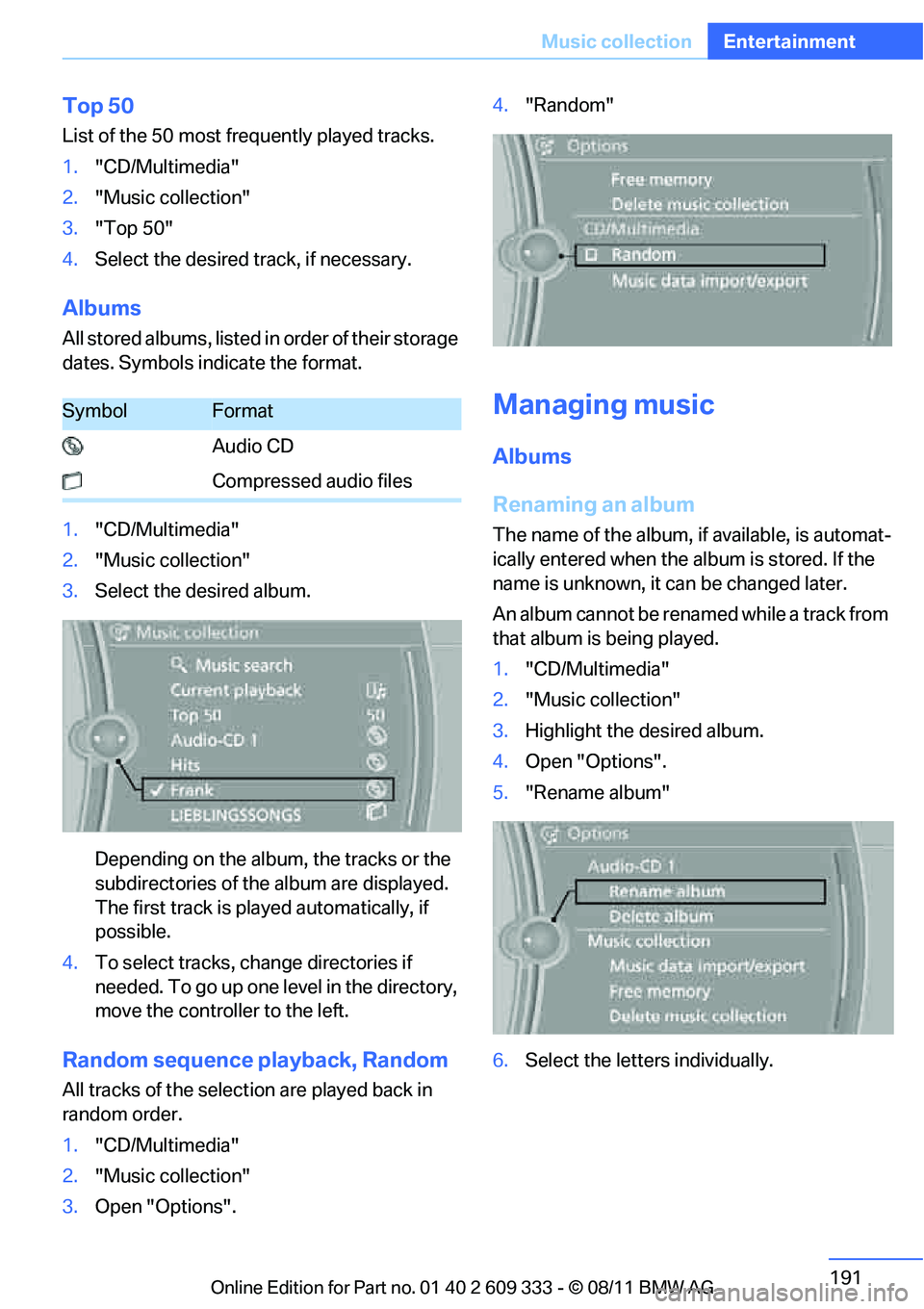
3. Open "Options". 4.
"Random"
Managing music
Albums
Renaming an album
The name of the album, if available, is automat-
ically entered when the album is stored. If the
name is unknown, it can be changed later.
An album cannot be renamed while a track from
that album is being played.
1. "CD/Multimedia"
2. "Music collection"
3. Highlight the desired album.
4. Open "Options".
5. "Rename album"
6. Select the letters individually.
SymbolFormat
Audio CD
Compressed audio files
Online Edition for Part no. 01 40 2 609 333 - \251 08/11 BMW AG
Page 193 of 314
192
EntertainmentMusic collection
Deleting an album
An album cannot be deleted while a track from it
is being played.
1."CD/Multimedia"
2. "Music collection"
3. Highlight the desired album.
4. Open "Options".
5. "Delete album"
Deleting a track and directory
A track cannot be delete d while it is being
played.
A directory cannot be dele ted while a track from
it is being played.
1. "CD/Multimedia"
2. "Music collection"
3. Highlight the directory or track.
4. Open "Options".
5. "Delete folder" or "Delete track"
Free memory capacity
Display the free memory capacity in the music
collection.
1. "CD/Multimedia"
2. "Music collection"
3. Open "Options".
4. "Free memory"
Music collection
Backing up the music collection
The entire music collection can be stored on a
USB medium. Make sure there is enough free
memory capacity on the USB device.
Depending on the number of tracks, backing up
the music collection may take several hours.
Therefore, it is best to perform the backup dur-
ing a long trip. 1.
Start the engine.
2. Connect the USB medium to the USB inter-
face in the glove compartment, refer to
page 126.
3. "CD/Multimedia"
4. "Music collection"
5. Open "Options".
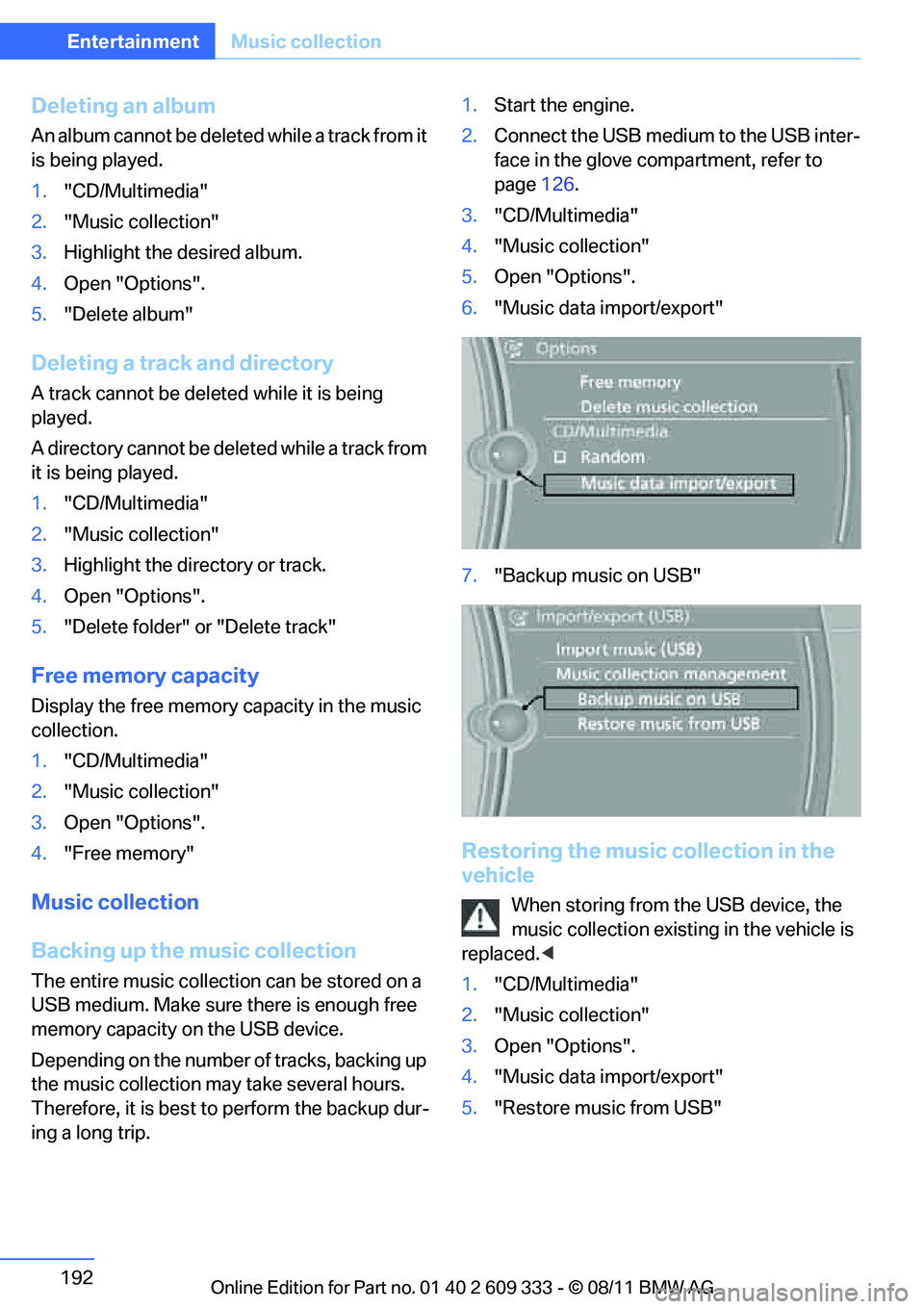
6. "Music data import/export"
7. "Backup music on USB"
Restoring the music collection in the
vehicle
When storing from the USB device, the
music collection existing in the vehicle is
replaced. <
1. "CD/Multimedia"
2. "Music collection"
3. Open "Options".
4. "Music data import/export"
5. "Restore music from USB"
Online Edition for Part no. 01 40 2 609 333 - \251 08/11 BMW AG
Page 197 of 314
196
EntertainmentExternal devices
During transmission, the tracks can be
accessed via the file directory.
Number of tracks
The data from up to four USB devices or for
approx. 36,000 tracks can be stored in the vehi-
cle. If a fifth device is connected or if more than
36,000 tracks are stored, th en the data of exist-
ing tracks may be deleted.
Copy protection
Music tracks with inte grated Digital Rights
Management (DRM) cannot be played.
Playback
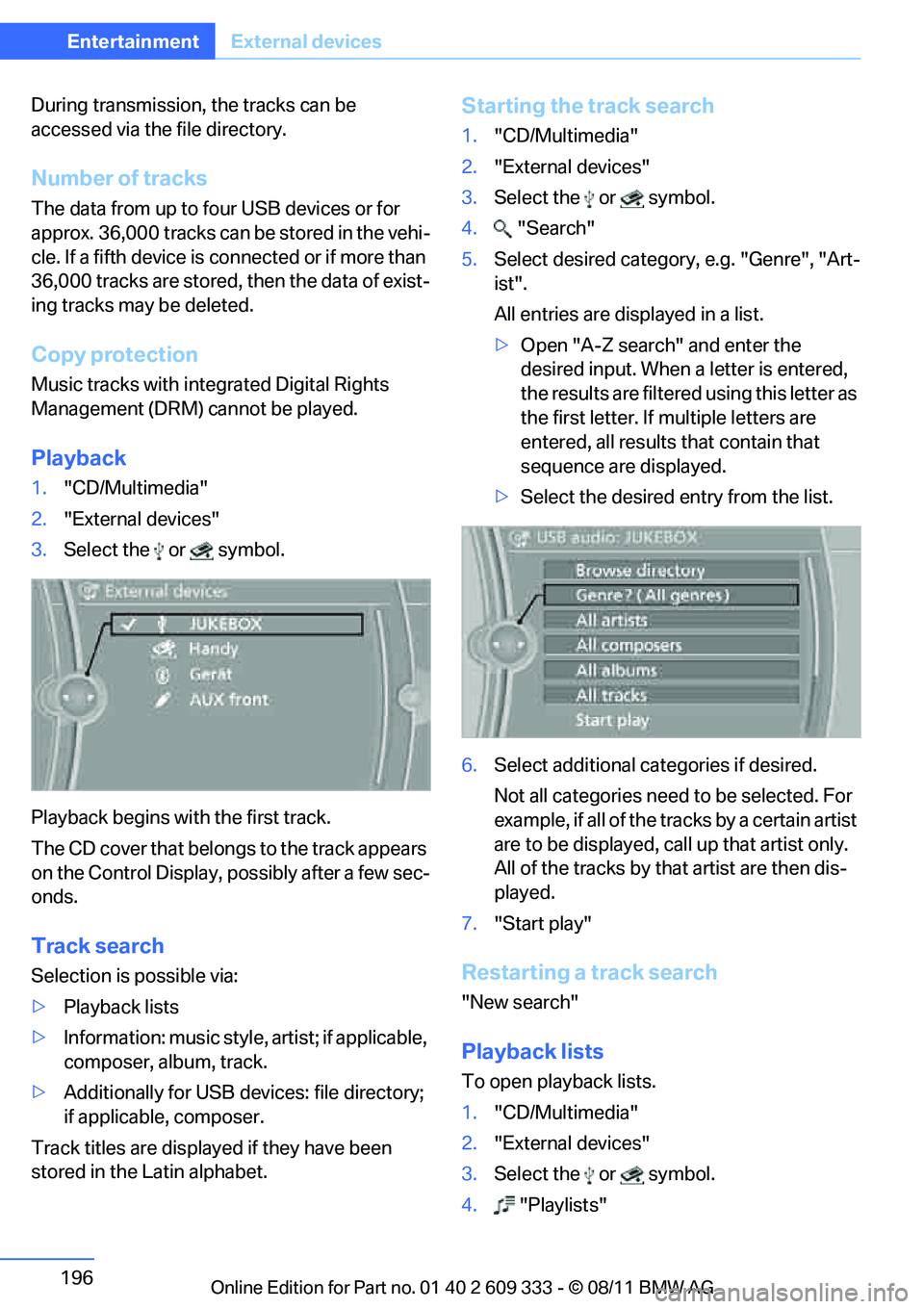
1. "CD/Multimedia"
2. "External devices"
3. Select the or symbol.
Playback begins with the first track.
The CD cover that belongs to the track appears
on the Control Display, possibly after a few sec-
onds.
Track search
Selection is possible via:
> Playback lists
> Information: music style, artist; if applicable,
composer, album, track.
> Additionally for USB devices: file directory;
if applicable, composer.
Track titles are displayed if they have been
stored in the Latin alphabet.
Starting the track search
1. "CD/Multimedia"
2. "External devices"
3. Select the or symbol.
4. "Search"
5. Select desired category , e.g. "Genre", "Art-
ist".
All entries are displayed in a list.
> Open "A-Z search" and enter the
desired input. When a letter is entered,
the results are filtered using this letter as
the first letter. If multiple letters are
entered, all results that contain that
sequence are displayed.
> Select the desired entry from the list.
6. Select additional categories if desired.
Not all categories need to be selected. For
example, if all of the tracks by a certain artist
are to be displayed, call up that artist only.
All of the tracks by that artist are then dis-
played.
7. "Start play"
Restarting a track search
"New search"
Playback lists
To open playback lists.
1."CD/Multimedia"
2. "External devices"
3. Select the or symbol.
4. "Playlists"
Online Edition for Part no. 01 40 2 609 333 - \251 08/11 BMW AG
Page 199 of 314
198
EntertainmentExternal devices
>Bluetooth® is a registered trademark of
Bluetooth® SIG, Inc.
> Sound is output over the vehicle speakers.
> The volume of the sound output depends
on the device. If necessary, change the vol-
ume setting on the device.
> Up to four external devices can be paired
with the vehicle.
Requirements
> Suitable device. For information, go to
www.bmwusa.com/bluetooth.
> Device operational.
> Ignition switched on.
> Bluetooth activated in vehicle, refer to
page 205, and in the device.
> Activating Bluetooth audio, refer to
page 205.
> Bluetooth presets in the device are
required, e.g. connection not confirmed or
visible, refer to Owner's Manual for the
device.
> A number with at least 4 and at most
16 digits has been established as the Blue-
tooth passkey. Only requ ired once for pair-
ing.
Pairing and connecting
Only pair the device when the vehicle is
stopped; otherwise, inattention may lead
to endangerment of passengers or other road
users. <
1. "CD/Multimedia"
2. "Bluetooth® (audio)"
3. "Bluetooth® audio" if applicable
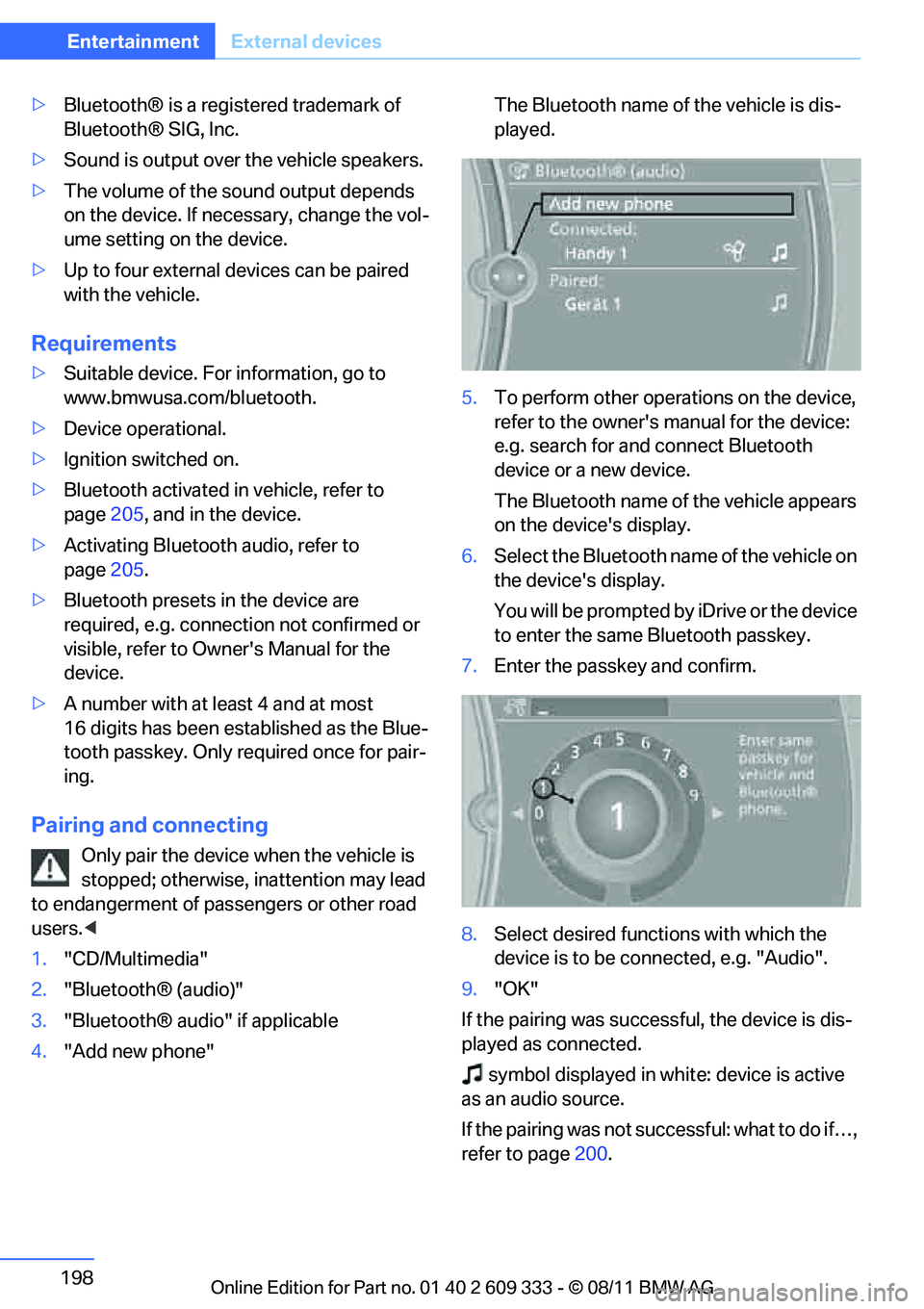
4. "Add new phone" The Bluetooth name of the vehicle is dis-
played.
5. To perform other operations on the device,
refer to the owner's manual for the device:
e.g. search for and connect Bluetooth
device or a new device.
The Bluetooth name of the vehicle appears
on the device's display.
6. Select the Bluetooth name of the vehicle on
the device's display.
You will be prompted by iDrive or the device
to enter the same Bluetooth passkey.
7. Enter the passkey and confirm.
8. Select desired functi ons with which the
device is to be connected, e.g. "Audio".
9. "OK"
If the pairing was successful, the device is dis-
played as connected. symbol displayed in whit e: device is active
as an audio source.
If the pairing was not succ essful: what to do if…,
refer to page 200.
Online Edition for Part no. 01 40 2 609 333 - \251 08/11 BMW AG