display BMW M3 2012 Owners Manual
[x] Cancel search | Manufacturer: BMW, Model Year: 2012, Model line: M3, Model: BMW M3 2012Pages: 314, PDF Size: 7.72 MB
Page 200 of 314
199
External devices
Entertainment
Connecting a particular device
A device that has already been paired can be
connected as an active audio source.
Connection is not possible
if a data exchange is
currently taking place via a mobile phone that is
connected via Bluetooth.
Prerequisite
If necessary, activate the audio connection of
the desired device from the list of paired
devices.
1. "CD/Multimedia"
2. "Bluetooth® (audio)"
3. "Bluetooth® audio" if applicable
4. Select the desired device from the list of
paired devices.
5. Open "Options".
6. "Configure phone"
7. Activate "Audio".
8. "OK"
Connecting a device
1."CD/Multimedia"
2. "Bluetooth® (audio)"
3. "Bluetooth® audio" if applicable
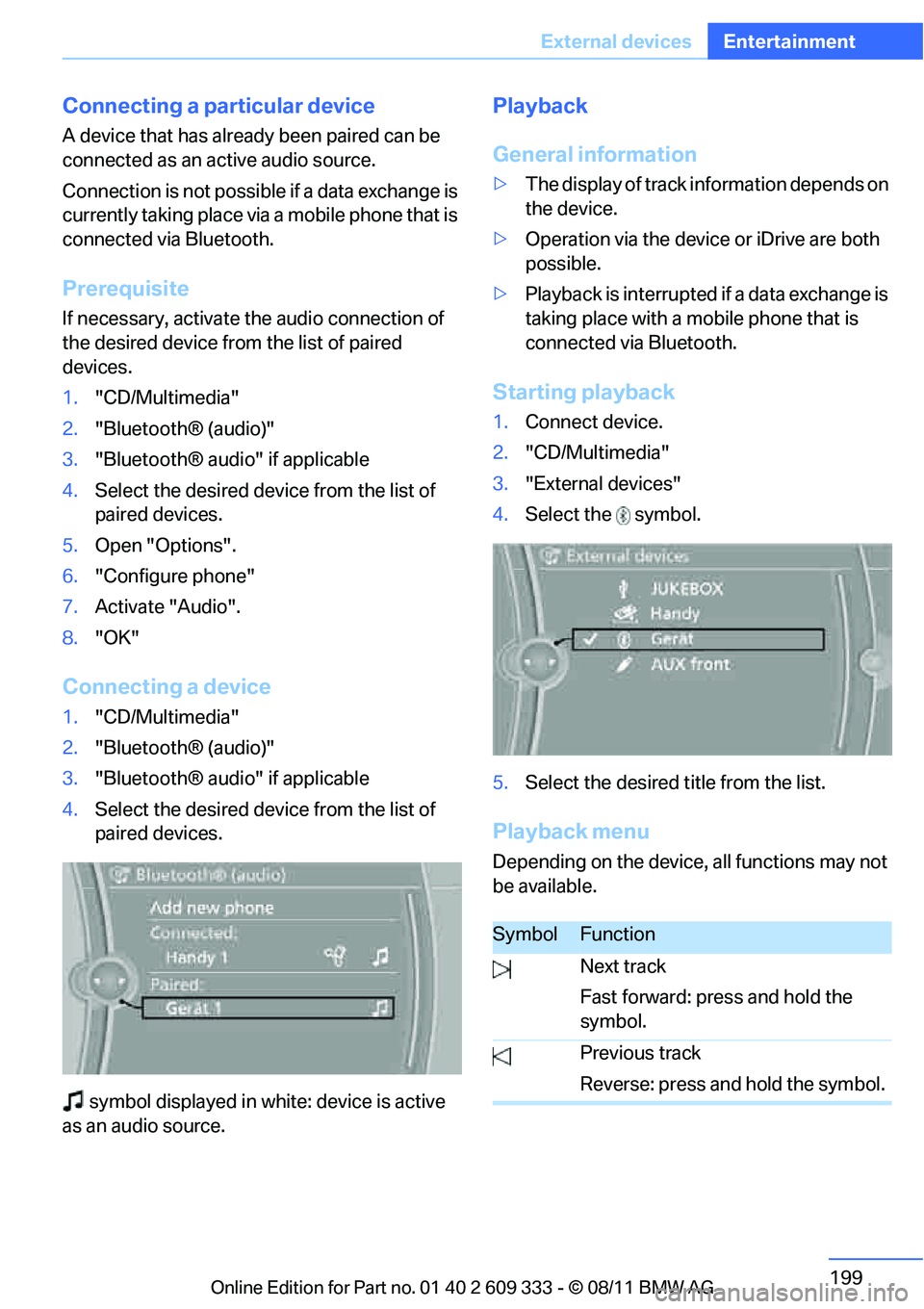
4. Select the desired device from the list of
paired devices.
symbol displayed in white: device is active
as an audio source.
Playback
General information
> The display of track information depends on
the device.
> Operation via the device or iDrive are both
possible.
> Playback is interrupted if a data exchange is
taking place with a mobile phone that is
connected via Bluetooth.
Starting playback
1.Connect device.
2. "CD/Multimedia"
3. "External devices"
4. Select the symbol.
5. Select the desired title from the list.
Playback menu
Depending on the device, all functions may not
be available.
SymbolFunction
Next track
Fast forward: press and hold the
symbol.
Previous track
Reverse: press and hold the symbol.
Online Edition for Part no. 01 40 2 609 333 - \251 08/11 BMW AG
Page 202 of 314
201
External devices
Entertainment
If you have gone through all items in the list and
still cannot activate the de
sired function, please
contact Customer Relations or your BMW cen-
ter.
Software update
The vehicle supports various external devices,
depending on the software it is currently using.
A software update can enable the vehicle to
support, for example, new mobile phones or
new external devices.
Software updates and associated, up-to-date
instructions are availa ble on the web page
www.bmwusa.com/update.
Displaying current version
The currently installed software is displayed.
1. "Settings"
2. "Software update"
3. "Show current version"
Select the desired version to display additional
information.
Updating software by USB
The software update ca n only be performed
when stopped.
1. Save the file for the so ftware update in the
main directory of a USB data storage
device.
2. Connect the USB data storage device to the
USB interface of the USB audio interface in
the center armrest. It is not possible to per-
form the update using the USB interface in
the glove compartment.
3. "Settings"
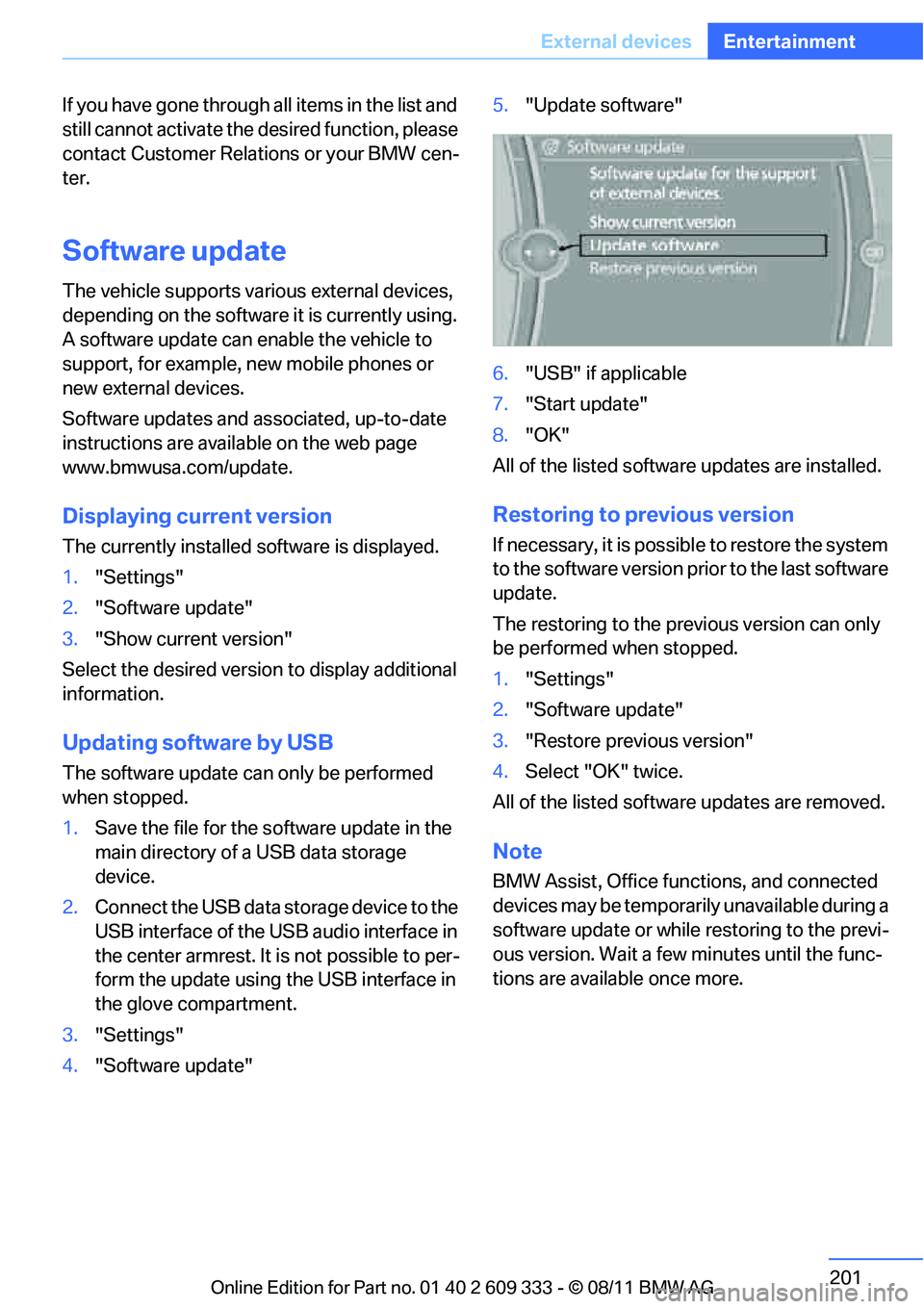
4. "Software update" 5.
"Update software"
6. "USB" if applicable
7. "Start update"
8. "OK"
All of the listed software updates are installed.
Restoring to previous version
If necessary, it is possible to restore the system
to the software version pr ior to the last software
update.
The restoring to the previous version can only
be performed when stopped.
1. "Settings"
2. "Software update"
3. "Restore previous version"
4. Select "OK" twice.
All of the listed softwa re updates are removed.
Note
BMW Assist, Office functions, and connected
devices may be temporarily unavailable during a
software update or while restoring to the previ-
ous version. Wait a few minutes until the func-
tions are available once more.
Online Edition for Part no. 01 40 2 609 333 - \251 08/11 BMW AG
Page 205 of 314
204
CommunicationsTe l e p h o n e
Telephone
Vehicle equipment
In this chapter, all production, country, and
optional equipment that is offered in the model
range is described. Equipment is also described
that is not available because of, for example,
selected options or country version. This also
applies to safety related functions and systems.
Overview
The concept
Mobile phones or other external devices, e.g.
audio players, can be connected to the vehicle
via Bluetooth.
Bluetooth® is a registered trademark of Blue-
tooth® SIG, Inc.
After being paired once, when the ignition is
switched on, these devices are automatically
detected as soon as they are present in the
vehicle and can be controlled via iDrive, by the
buttons on the steering wheel, and by voice.
Depending on whether they are functioning as a
telephone and/or as an audio source, external
devices can be used via the vehicle. The tele-
phone functions will be described below. Oper-
ation of audio functions, refer to page 197.
Up to four external devices can be paired.
It may be necessary for some functions to be
activated by the mobile phone provider or ser-
vice provider. Only make entries when traffic conditions
permit. Do not hold the mobile phone in
your hand while you are driving; use the hands-
free system instead. Otherwise, you may
endanger vehicle occupants and other road
users. <
Snap-in adapter
The snap-in adapter makes it possible:
>Accommodate the mobile phone.
> Recharge its battery.
> Connect it to an external antenna of the
vehicle.
This assures a better network connection
and constant sound quality.
Suitable mobile phones
For precise information about which mobile
phones and external devices with a Bluetooth
interface are supported by the mobile phone
preparation, go to www.bmwusa.com/
bluetooth.
Displaying vehicl e identification
number and software part number
Checking which mobile phones are supported
by the mobile phone pr eparation requires the
vehicle identification number and software part
number. The software ve rsion of the mobile
phone may also be required.
1. "Telephone"
2. Open "Options".
3. "Bluetooth® info"
4. "Display system information"
With a certain software version, these suitable
mobile phones support the vehicle functions
described below.
With other mobile phones or software versions,
malfunctions may occur.
A mobile phone that is connected to the vehicle
should not be operated via the mobile phone
keypad; otherwise, ma lfunctions may occur.
It is possible to perform a software update, refer
to page 201.
Online Edition for Part no. 01 40 2 609 333 - \251 08/11 BMW AG
Page 207 of 314
206
CommunicationsTe l e p h o n e
5.Select the desired additional function:
>"Additional telephone"
> "Office"
> "Bluetooth® audio"
If an additional function is deactivated, it cannot
be assigned to a phone.
Pairing and connecting a device
Only pair the device when the vehicle is
stopped; otherwise, inattention may lead
to endangerment of passengers or other road
users. <
1. "Telephone"
2. "Bluetooth® (phone)"
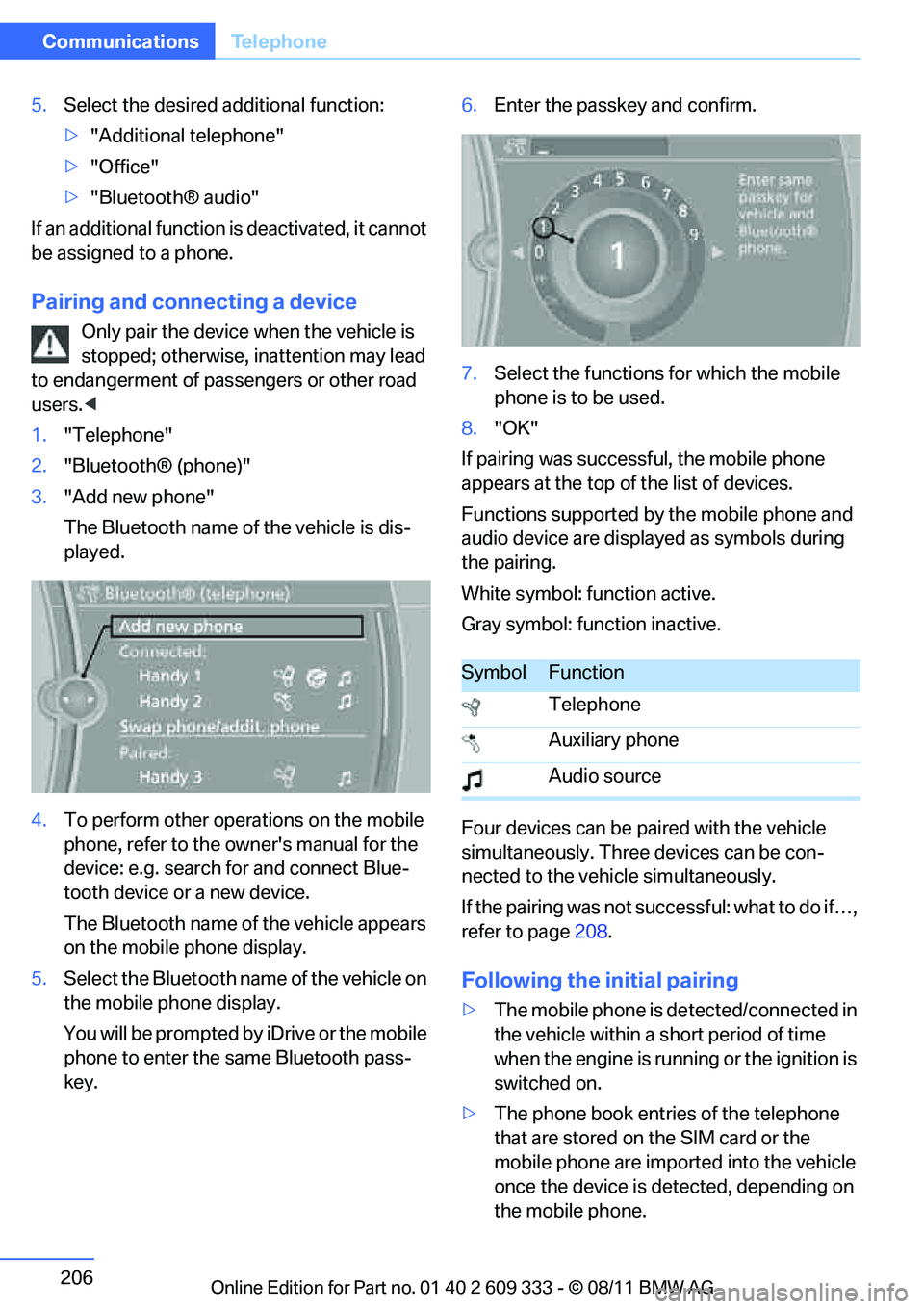
3. "Add new phone"
The Bluetooth name of the vehicle is dis-
played.
4. To perform other operations on the mobile
phone, refer to the owner's manual for the
device: e.g. search for and connect Blue-
tooth device or a new device.
The Bluetooth name of the vehicle appears
on the mobile phone display.
5. Select the Bluetooth name of the vehicle on
the mobile phone display.
You will be prompted by iDrive or the mobile
phone to enter the same Bluetooth pass-
key. 6.
Enter the passkey and confirm.
7. Select the functions for which the mobile
phone is to be used.
8. "OK"
If pairing was successful, the mobile phone
appears at the top of the list of devices.
Functions supported by the mobile phone and
audio device are displayed as symbols during
the pairing.
White symbol: function active.
Gray symbol: function inactive.
Four devices can be paired with the vehicle
simultaneously. Three devices can be con-
nected to the vehicle simultaneously.
If the pairing was not succ essful: what to do if…,
refer to page 208.
Following the initial pairing
>The mobile phone is de tected/connected in
the vehicle within a short period of time
when the engine is running or the ignition is
switched on.
> The phone book entries of the telephone
that are stored on the SIM card or the
mobile phone are imported into the vehicle
once the device is detected, depending on
the mobile phone.
SymbolFunction
Telephone
Auxiliary phone
Audio source
Online Edition for Part no. 01 40 2 609 333 - \251 08/11 BMW AG
Page 209 of 314
208
CommunicationsTe l e p h o n e
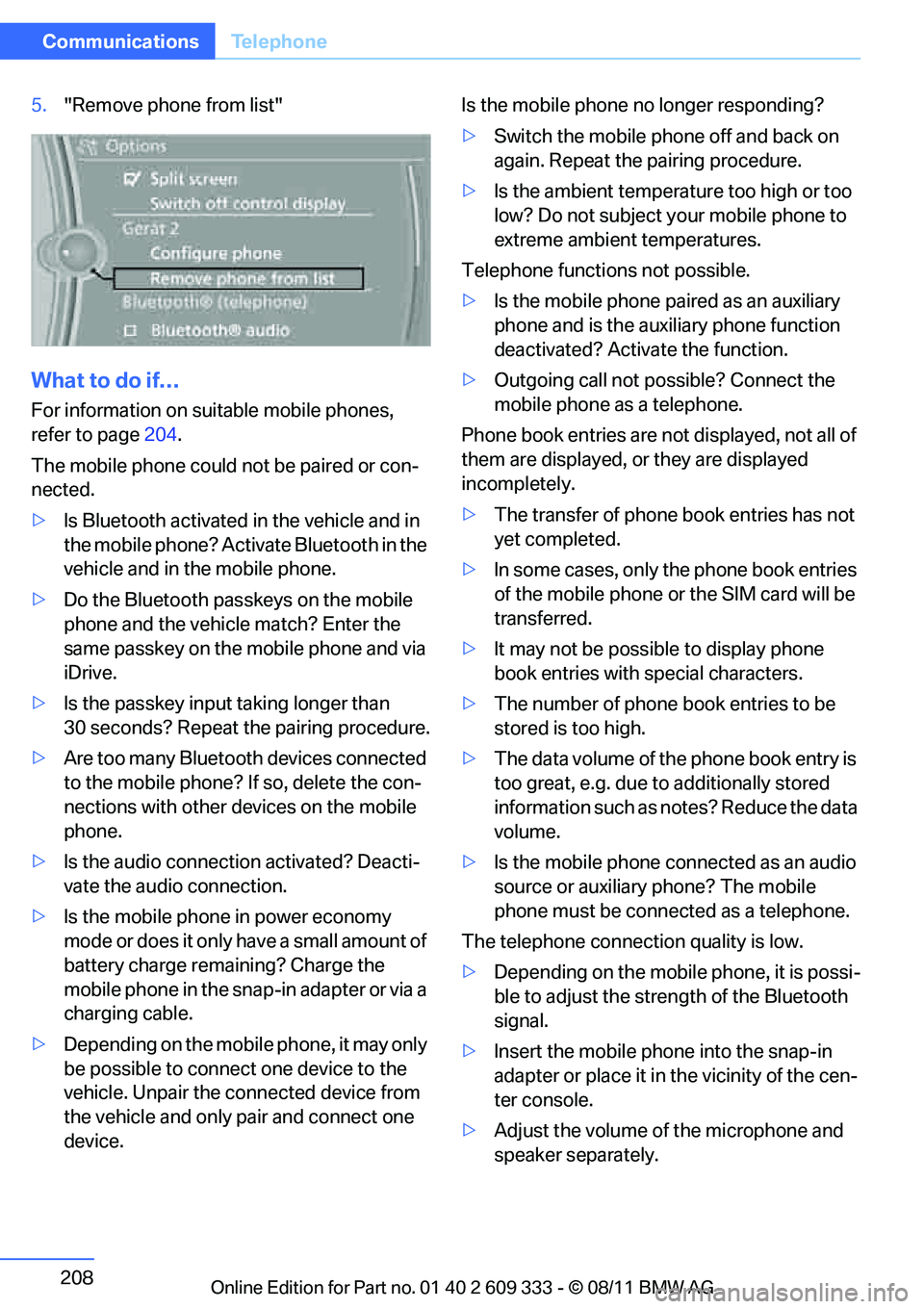
5."Remove phone from list"
What to do if…
For information on suitable mobile phones,
refer to page 204.
The mobile phone could not be paired or con-
nected.
> Is Bluetooth activated in the vehicle and in
the mobile phone? Acti vate Bluetooth in the
vehicle and in the mobile phone.
> Do the Bluetooth passkeys on the mobile
phone and the vehicl e match? Enter the
same passkey on the mobile phone and via
iDrive.
> Is the passkey input taking longer than
30 seconds? Repeat the pairing procedure.
> Are too many Bluetooth devices connected
to the mobile phone? If so, delete the con-
nections with other devices on the mobile
phone.
> Is the audio connection activated? Deacti-
vate the audio connection.
> Is the mobile phone in power economy
mode or does it only have a small amount of
battery charge rema ining? Charge the
mobile phone in the snap-in adapter or via a
charging cable.
> Depending on the mobile phone, it may only
be possible to connect one device to the
vehicle. Unpair the connected device from
the vehicle and only pair and connect one
device. Is the mobile phone no longer responding?
>
Switch the mobile phone off and back on
again. Repeat the pairing procedure.
> Is the ambient temperature too high or too
low? Do not subject yo ur mobile phone to
extreme ambient temperatures.
Telephone functions not possible.
> Is the mobile phone pa ired as an auxiliary
phone and is the aux iliary phone function
deactivated? Activa te the function.
> Outgoing call not po ssible? Connect the
mobile phone as a telephone.
Phone book entries are not displayed, not all of
them are displayed, or they are displayed
incompletely.
> The transfer of phone book entries has not
yet completed.
> In some cases, only the phone book entries
of the mobile phone or the SIM card will be
transferred.
> It may not be possible to display phone
book entries with special characters.
> The number of phone book entries to be
stored is too high.
> The data volume of th e phone book entry is
too great, e.g. due to additionally stored
information such as no tes? Reduce the data
volume.
> Is the mobile phone connected as an audio
source or auxiliary phone? The mobile
phone must be connected as a telephone.
The telephone connecti on quality is low.
> Depending on the mobile phone, it is possi-
ble to adjust the stre ngth of the Bluetooth
signal.
> Insert the mo
bile phone into the snap-in
adapter or place it in the vicinity of the cen-
ter console.
> Adjust the volume of the microphone and
speaker separately.
Online Edition for Part no. 01 40 2 609 333 - \251 08/11 BMW AG
Page 210 of 314
209
Te l e p h o n e
Communications
If you have gone through all items in the list and
still cannot activate the de
sired function, please
check the website www.bmw.com/bluetooth
for further notes or contact Customer Relations
or a BMW center.
Operation
Adjusting volume
Turn the knob until the desired volume is
reached. The setting is stored for the remote
control currently in use.
The vehicle automatically adjusts the volume of
the microphone on the mobile phone and the
volume of the person on the phone with you.
Depending on the mobile phone, it may be nec-
essary to adjust the volumes.
Adjustments are only possible during a call and
must be carried out separately for each phone.
When the telephone is unpaired, this deletes
the settings.
1. "Settings"
2. "Tone"
3. "Volume settings"
4. To select the desired setting:
"Microphone" or "Loudspeak."
5. To adjust: turn the controller.
6. To store: press the controller.
Incoming call
Receiving calls
If the number of the caller is stored in the phone
book and is transmitted by the network, then
the name and number of the contact are dis-
played; otherwise, only the number is dis-
played.
If a contact is assigned more than one phone
number, then only the name of the caller is dis-
played.
With calls to the auxiliary phone, only the num-
ber is displayed if it is transmitted by the net-
work.
An incoming call to the auxiliary phone is auto-
matically rejected if a ca ll with the phone is cur-
rently active.
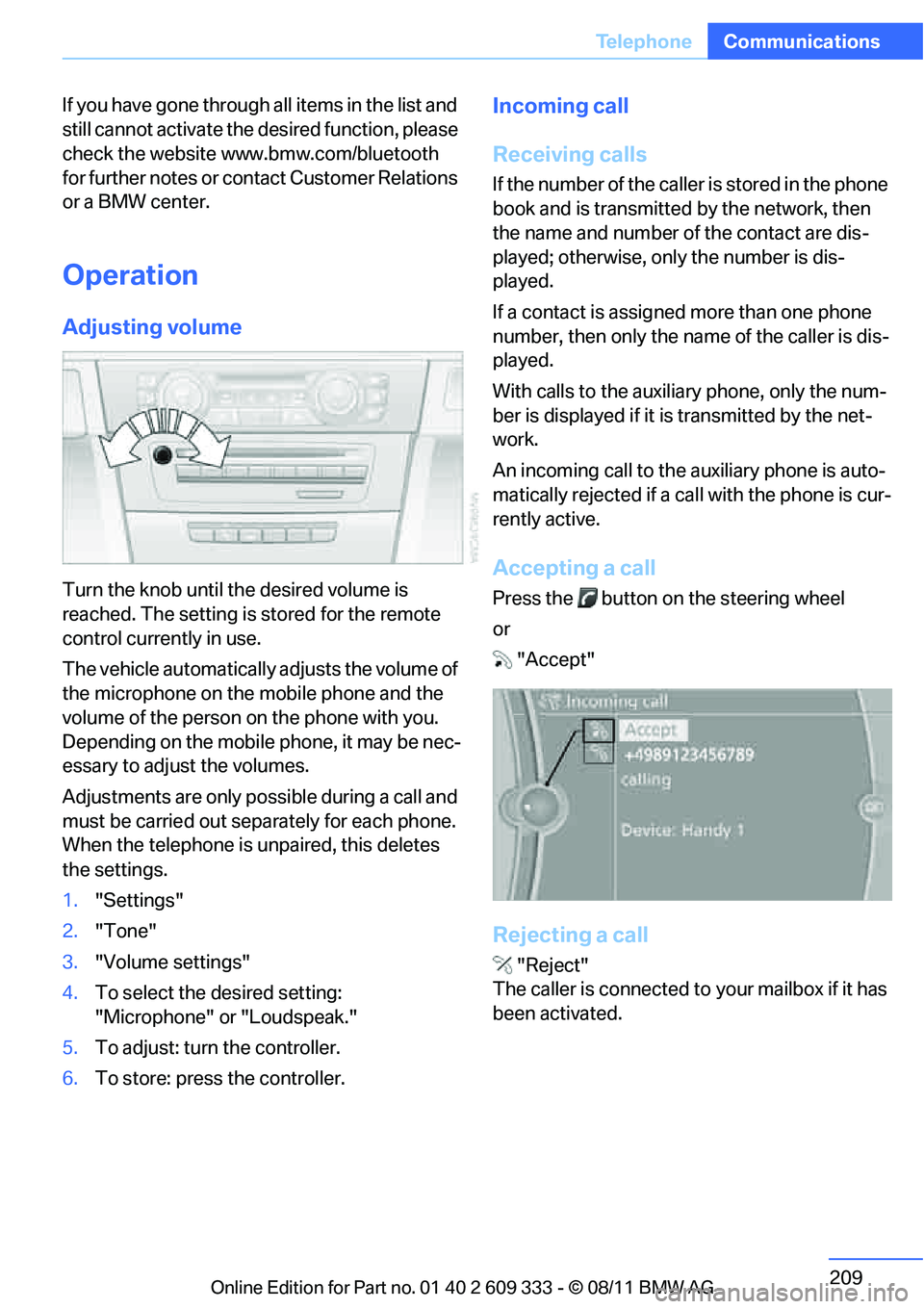
Accepting a call
Press the button on the steering wheel
or "Accept"
Rejecting a call
"Reject"
The caller is connected to your mailbox if it has
been activated.
Online Edition for Part no. 01 40 2 609 333 - \251 08/11 BMW AG
Page 213 of 314
212
CommunicationsTe l e p h o n e
Keypad dialing
Use keypad dialing to gain access to network
services or to control de vices, e.g. to remotely
access an answering machine. This requires
the DTMF code.
1. "Telephone"
2. Select contact from a list or "Dial number"
3. "Keypad dialing"
4. Enter a DTMF code.
Phone book
Displays
The phone book accesses the contacts of the
telephone and shows all contacts for which a
phone number is entered. The entries can be
selected to make a call.
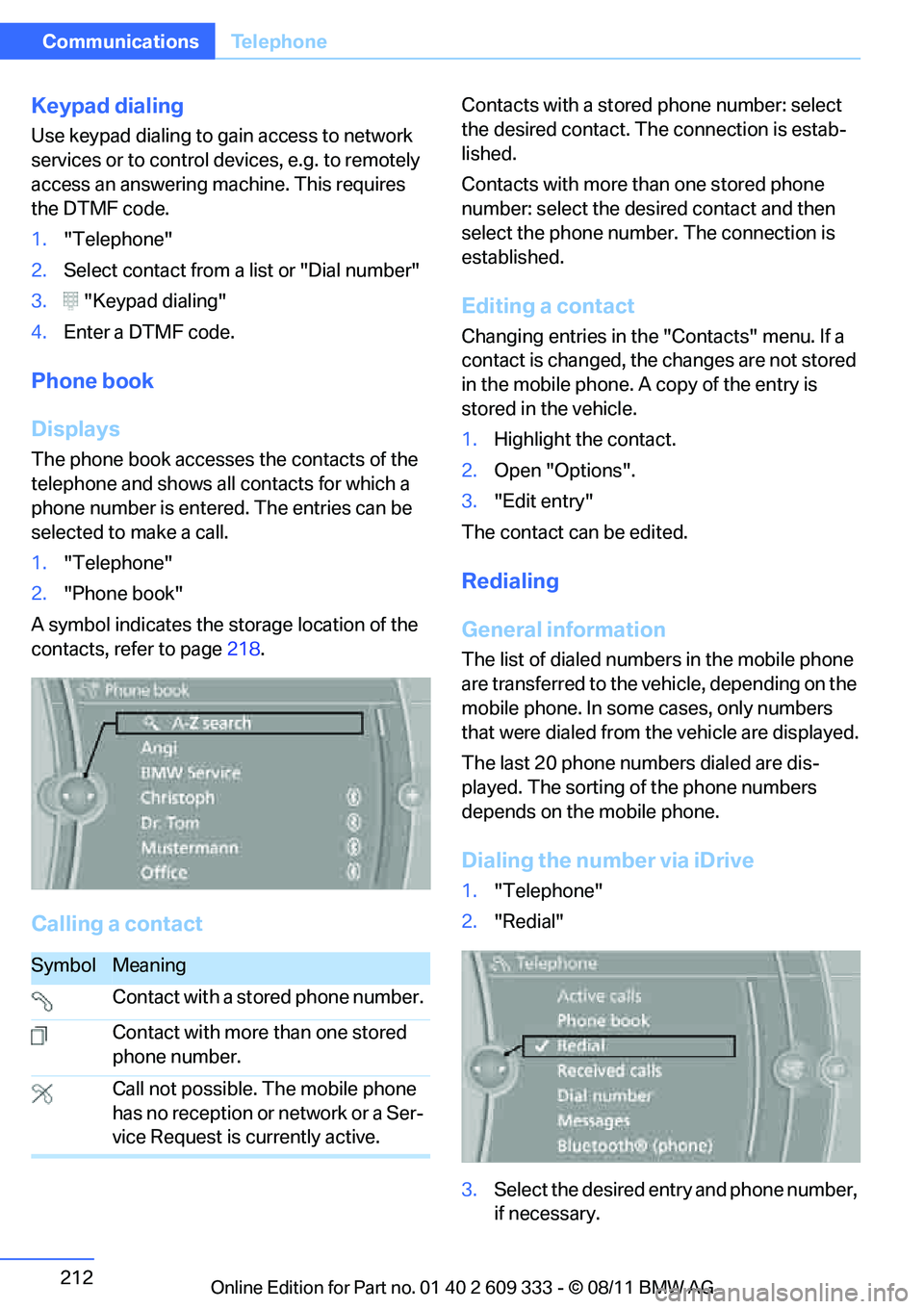
1. "Telephone"
2. "Phone book"
A symbol indicates the storage location of the
contacts, refer to page 218.
Calling a contact
Contacts with a stored phone number: select
the desired contact. Th e connection is estab-
lished.
Contacts with more than one stored phone
number: select the desired contact and then
select the phone number. The connection is
established.
Editing a contact
Changing entries in the "Contacts" menu. If a
contact is changed, the changes are not stored
in the mobile phone. A copy of the entry is
stored in the vehicle.
1. Highlight the contact.
2. Open "Options".
3. "Edit entry"
The contact can be edited.
Redialing
General information
The list of dialed number s in the mobile phone
are transferred to the vehicle, depending on the
mobile phone. In some cases, only numbers
that were dialed from the vehicle are displayed.
The last 20 phone numbers dialed are dis-
played. The sorting of the phone numbers
depends on the mobile phone.
Dialing the number via iDrive
1. "Telephone"
2. "Redial"
3. Select the desired entry and phone number,
if necessary.
SymbolMeaning
Contact with a stored phone number.
Contact with more than one stored
phone number.
Call not possible. The mobile phone
has no reception or network or a Ser-
vice Request is currently active.
Online Edition for Part no. 01 40 2 609 333 - \251 08/11 BMW AG
Page 214 of 314
213
Te l e p h o n e
Communications
The connection is established.
Deleting a single en
try or all entries
Deleting entries depends upon the mobile
phone.
1.Highlight the entry.
2. Open "Options".
3. "Delete entry" or "Delete list".
Saving an entry in the contacts
1.Highlight the entry.
2. Open "Options".
3. "Store as new contact" or "Add to existing
contact".
4. Select contact if necessary.
5. Select the type of number: "Home", "Busi-
ness", "Mobile" or "Other".
6. Complete the entr ies if necessary.
7. "Store contact"
Received calls
Displaying calls
The list of received calls in the mobile phone is
transferred into the vehicle, depending on the
mobile phone. In some cases, only calls that
were received in the vehicle are displayed.
The last 20 calls receiv ed are displayed. The
sorting and displaying of phone numbers
depends on the mobile phone.
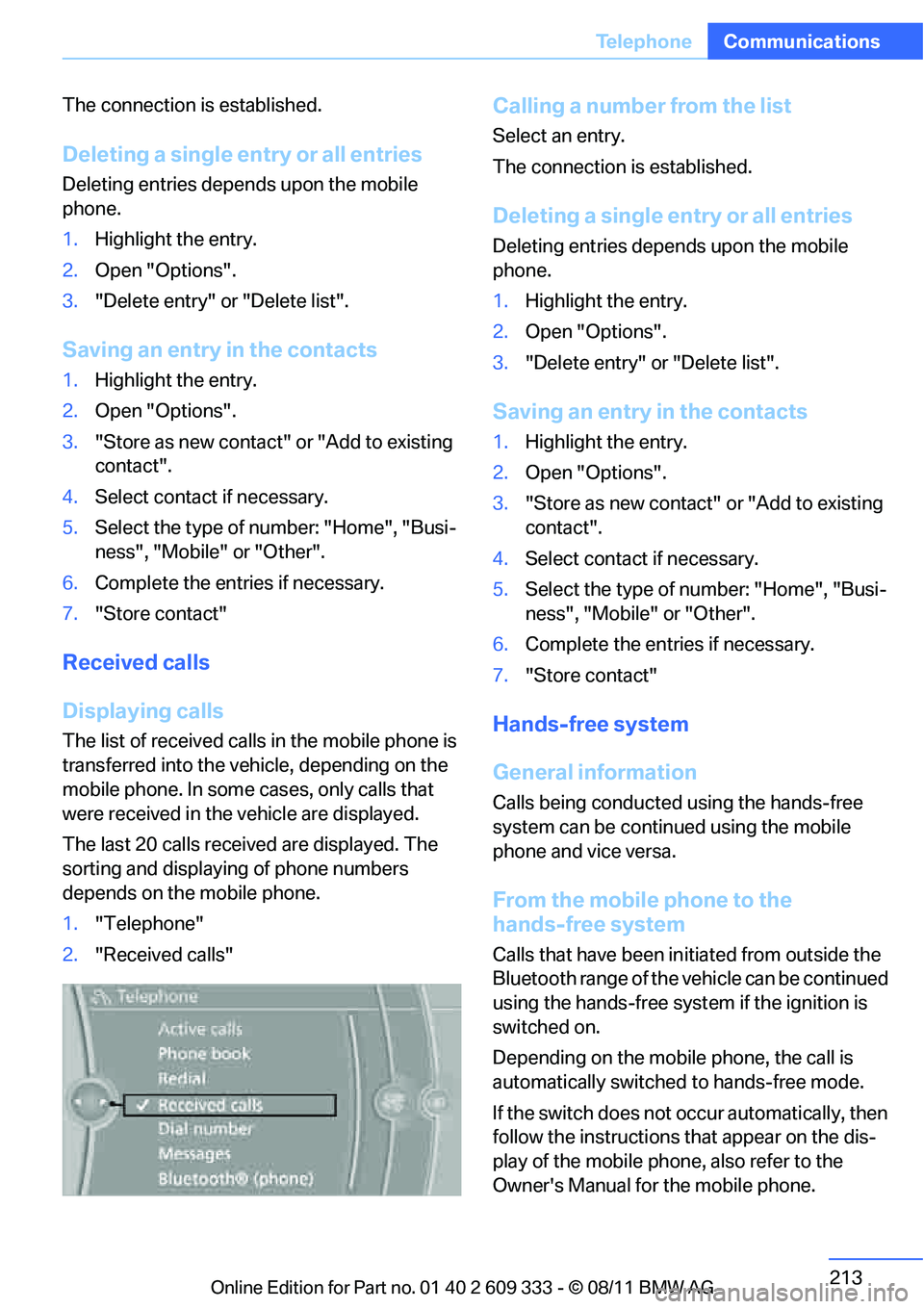
1. "Telephone"
2. "Received calls"
Calling a number from the list
Select an entry.
The connection is established.
Deleting a single en try or all entries
Deleting entries depends upon the mobile
phone.
1.Highlight the entry.
2. Open "Options".
3. "Delete entry" or "Delete list".
Saving an entry in the contacts
1.Highlight the entry.
2. Open "Options".
3. "Store as new contact" or "Add to existing
contact".
4. Select contact if necessary.
5. Select the type of number: "Home", "Busi-
ness", "Mobile" or "Other".
6. Complete the entr ies if necessary.
7. "Store contact"
Hands-free system
General information
Calls being conducted using the hands-free
system can be continued using the mobile
phone and vice versa.
From the mobile phone to the
hands-free system
Calls that have been in itiated from outside the
Bluetooth range of the vehicle can be continued
using the hands-free system if the ignition is
switched on.
Depending on the mobile phone, the call is
automatically switched to hands-free mode.
If the switch does not occur automatically, then
follow the instructions that appear on the dis-
play of the mobile phone, also refer to the
Owner's Manual for the mobile phone.
Online Edition for Part no. 01 40 2 609 333 - \251 08/11 BMW AG
Page 215 of 314
214
CommunicationsTe l e p h o n e
From hands-free system to mobile
phone
Calls being conducted using the hands-free
system can also be cont inued using the mobile
phone if so desired, depending on the mobile
phone.
At this point, follow the instructions that appear
on the display of the mobile phone, also refer to
the Owner's Manual for the mobile phone.
Operation by voice
With voice acti vation system:
Operation, refer to page 25.
Without voice activation system:
Depending upon the equipment, the mobile
phone can be voice-operated as described
below.
The list of short commands in the Owner's
Manual applies only to th is type of voice activa-
tion.
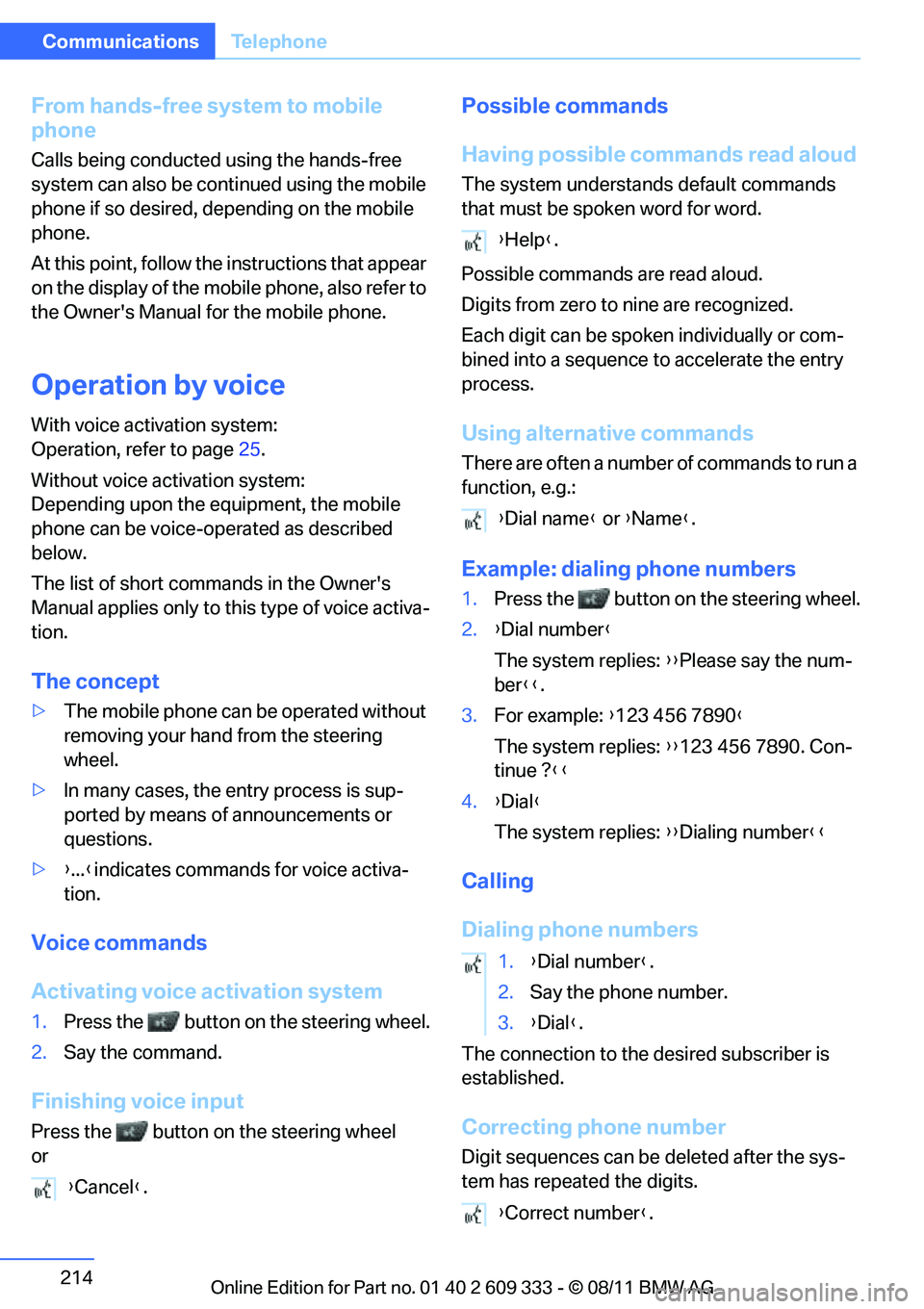
The concept
> The mobile phone can be operated without
removing your hand from the steering
wheel.
> In many cases, the entry process is sup-
ported by means of announcements or
questions.
> {...}indicates commands for voice activa-
tion.
Voice commands
Activating voice activation system
1. Press the button on the steering wheel.
2. Say the command.
Finishing voice input
Press the button on the steering wheel
or
Possible commands
Having possible commands read aloud
The system understands default commands
that must be spoken word for word.
Possible commands are read aloud.
Digits from zero to nine are recognized.
Each digit can be spoken individually or com-
bined into a sequence to accelerate the entry
process.
Using alternative commands
There are often a number of commands to run a
function, e.g.:
Example: dialing phone numbers
1. Press the button on the steering wheel.
2. {Dial number }
The system replies: {{Please say the num-
ber }}.
3. For example: {123 456 7890 }
The system replies: {{123 456 7890. Con-
tinue ? }}
4. {Dial }
The system replies: {{Dialing number }}
Calling
Dialing phone numbers
The connection to the desired subscriber is
established.
Correcting phone number
Digit sequences can be deleted after the sys-
tem has repeated the digits.
{ Cancel }.
{Help }.
{ Dial name } or {Name}.
1. {Dial number }.
2. Say the phone number.
3. {Dial }.
{ Correct number }.
Online Edition for Part no. 01 40 2 609 333 - \251 08/11 BMW AG
Page 216 of 314
215
Te l e p h o n e
Communications
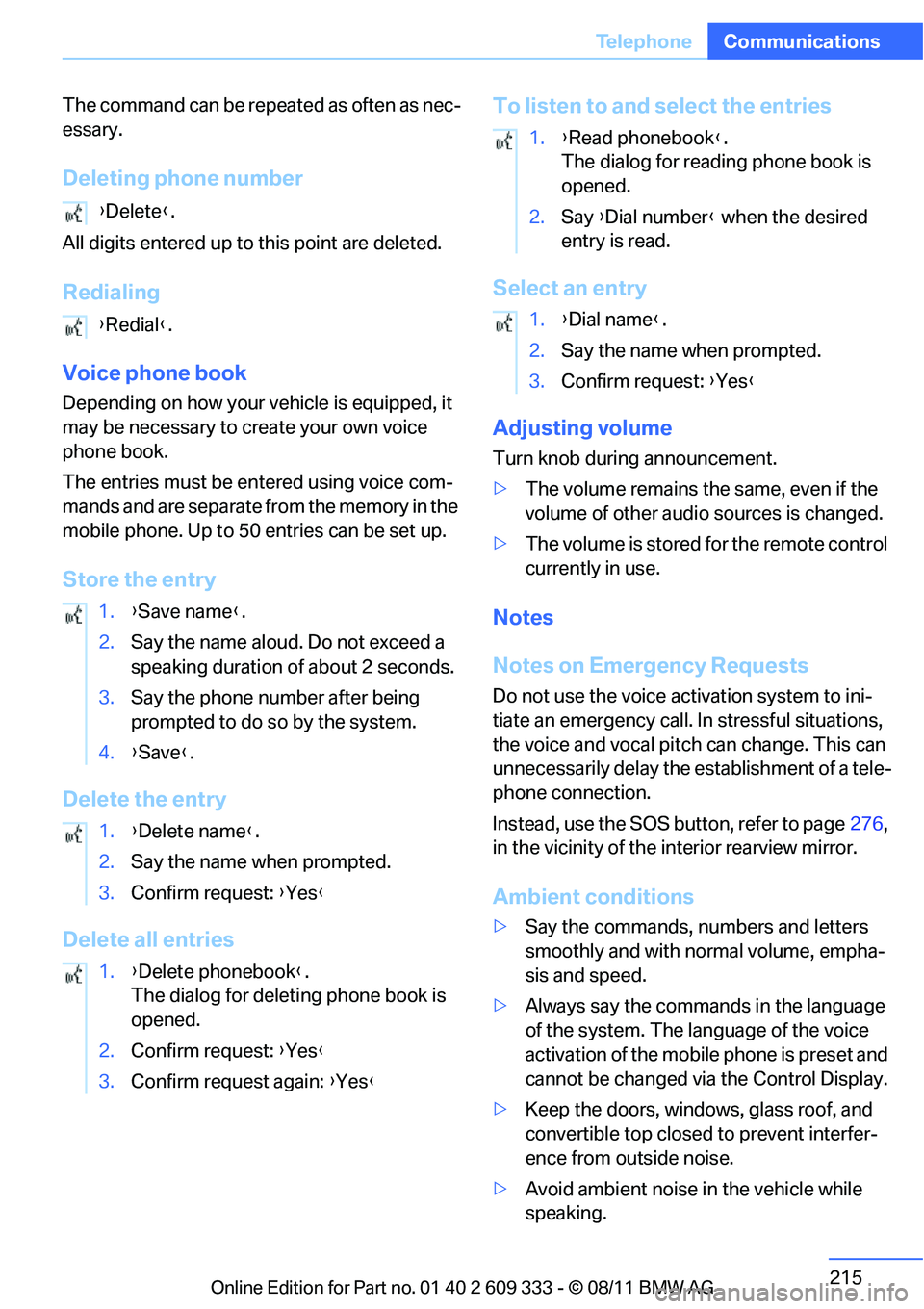
The command can be repeated as often as nec-
essary.
Deleting phone number
All digits entered up to
this point are deleted.
Redialing
Voice phone book
Depending on how your vehicle is equipped, it
may be necessary to cr eate your own voice
phone book.
The entries must be entered using voice com-
mands and are separate fr om the memory in the
mobile phone. Up to 50 entries can be set up.
Store the entry
Delete the entry
Delete all entries To listen to and select the entries
Select an entry
Adjusting volume
Turn knob during announcement.
>
The volume remains the same, even if the
volume of other audio sources is changed.
> The volume is stored for the remote control
currently in use.
Notes
Notes on Emergency Requests
Do not use the voice activation system to ini-
tiate an emergency call. In stressful situations,
the voice and vocal pitch can change. This can
unnecessarily delay the establishment of a tele-
phone connection.
Instead, use the SOS button, refer to page 276,
in the vicinity of the interior rearview mirror.
Ambient conditions
> Say the commands, numbers and letters
smoothly and with normal volume, empha-
sis and speed.
> Always say the commands in the language
of the system. The language of the voice
activation of the mobile phone is preset and
cannot be changed via the Control Display.
> Keep the doors, windows, glass roof, and
convertible top closed to prevent interfer-
ence from outside noise.
> Avoid ambient noise in the vehicle while
speaking.
{
Delete }.
{ Redial }.
1. {Save name }.
2. Say the name aloud. Do not exceed a
speaking duration of about 2 seconds.
3. Say the phone number after being
prompted to do so by the system.
4. {Save }.
1. {Delete name }.
2. Say the name when prompted.
3. Confirm request: {Yes }
1. {Delete phonebook }.
The dialog for deleting phone book is
opened.
2. Confirm request: {Yes }
3. Confirm request again: {Yes }
1. {Read phonebook }.
The dialog for reading phone book is
opened.
2. Say {Dial number } when the desired
entry is read.
1. {Dial name }.
2. Say the name when prompted.
3. Confirm request: {Yes }
Online Edition for Part no. 01 40 2 609 333 - \251 08/11 BMW AG