display BMW M3 CONVERTIBLE 2012 Workshop Manual
[x] Cancel search | Manufacturer: BMW, Model Year: 2012, Model line: M3 CONVERTIBLE, Model: BMW M3 CONVERTIBLE 2012Pages: 255, PDF Size: 6.32 MB
Page 145 of 255
144
EntertainmentBMW Professional radio
Resetting tone settings
The tone settings are reset to the middle val-
ues.
1. Press the button.
2. Press the button.
Time
When the ignition or radi o readiness is switched
off, you can display the time for a few seconds.
Displaying the time
Press the button.
Setting the time, date and time format
You can set the time, date, and time format,
refer to page 86.
Radio
Your radio is designed for receiving FM and AM
signals.
Listening to the radio
1.Switch on the radio, refer to page 142.
2. Press the button if necessary.
3. Press the button.
4. Press the corresponding button as
often as necessary until the desired wave-
length band is selected.
> AM: AM and AMA
> FM: FM1/FM2 and FMA
Selecting a station
The setting is stored fo r the remote control in
use.
Next station
Press the button.
The next available st ation is selected.
Selecting stations by changing the
frequency
1.Press the button.
2. Press the respective function button to
enter the desired frequency.
Or, by using the knob on the right:
1. Press the button.
2. Turn the knob on the right until the desired
frequency is reached.
Automatically updating strongest
stations
Radio stations are stored in order of their signal
strength in the memory levels FMA and AMA. If
the AUTOSTORE function is not used, then six
stations can be manually stored in each of the
memory levels FMA and AMA.
Press and hold the relevant button until
the following display appears.
"AUTOSTORE"
It may take several seconds before the stations
are stored and you can listen to one of them.
Sampling and selecting radio stations
Press the button. Samples are
played of all the stations in reception range.
To interrupt the function and select a station:
Press the button.
Storing and recalling stations
Memory presets
Your radio can store 30 stations:
> FM1, FM2: six stations each.
> AM: six stations each of your choice
Online Edition for Part no. 01 40 2 609 312 - \251 08/11 BMW AG
Page 146 of 255
145
BMW Professional radio
Entertainment
>
FMA/AMA: the six stations with the stron-
gest reception are automatically stored or
six stations can be manually stored.
Storing stations
1.
Press the corresponding button as
often as necessary un til the desired fre-
quency range is selected
2. Select station.
3.
… Press and hold the
desired button until the station starts to play
again after a brief interruption.
The memory level and the selected button
are shown on the display.
Recalling stored stations
1.
Press the corresponding button as
often as necessary un til the desired wave-
length band is selected.
2.
… Press the desired but-
ton.
Using the knob on the right:
Turn the knob on the ri ght until the desired sta-
tion is reached.
RDS – Radio Data System
RDS uses the FM waveband to broadcast addi-
tional information, for example the station
names or possibly text messages. When a sta-
tion has several frequenc ies, the radio will auto-
matically switch to the frequency with the best
reception quality.
Over RDS, some stations transmit the type of
the received program, PTY. At the option of the
station, this can be shown briefly on the display,
e.g., messages, NEWS. Using PTY, warnings
regarding catastrophies ca n also be displayed,
e.g., "ALARM". The warning is then played over
the speakers.
Switching RDS on/off
1.
Press the button.
2. Press the button.
When RDS is switched o ff, the PTY function is
also switched off.
Switching program type display on/off
1. Press the button.
2. Press the button.
HD Radio™ reception
Many radio stations transmit analog and digital
signals.
License conditions
HD Radio™ technology is manufactured under
U.S. and Foreign Patents licensed from iBiquity
Digital Corp. HD Radio™ and the HD and HD
Radio logos are proprietary trademarks of iBiq-
uity Digital Corp.
Activating/deactivating digital radio
reception
1. Press the button.
2. Press the button.
3. Press the button.
4. Press the button.
"HD": a station is received digitally.
"(HD)": a station is broadcasting digital signals;
digital radio reception is , however, switched off.
In areas in which the station is not continuously
received in digital mode, playback switches
between analog and digital reception. In this
case, switch off digital radio reception.
Online Edition for Part no. 01 40 2 609 312 - \251 08/11 BMW AG
Page 147 of 255
146
EntertainmentBMW Professional radio
Selecting programs from a digital
station
Some stations broadcast several programs. To
select one of these programs:
1. Press the button re peatedly until the
desired digital station is displayed.
If a station broadcasts several programs,
then, e.g., "HD1" is displayed.
2. Press the button.
3. Select the desired program.
Up to eight programs per station can be
selected, "HD1" to "HD8".
Displaying additional information
For digital stations, additional information about
the current track is displa yed, e.g., the name of
the artist.
Press the button.
The information is displayed.
Operation indicators
> "Acquiring": a search for digital stations is
being conducted.
> "No signal": there are no digital stations
within range.
Satellite radio
You can receive more than 100 different chan-
nels of high audio qua lity. The channels are
offered in fixed packages and have to be acti-
vated.
You may experience signal drops and
muting events related to this new tech-
nology. <
Activating or deactivating channels
1. Press the button.
2. Press the button. 3.
Press the button.
4. Select the desired category.
The channels are displayed. This symbol indicate s the current channel.
Activating
1.Turn the knob on the ri ght to select a chan-
nel that is not yet activated.
2. Press the knob on the right to confirm a
channel.
A phone number and the electronic serial
number, ESN, are displayed. When activat-
ing, the electronic serial number is required.
3. To activate the channels:
Dial the phone number.
Deactivating
1. Press the button.
2. Press the button.
3. Press the button for a longer
period.
A phone number and the electronic serial
number, ESN, are displayed. For deactivat-
ing, the electronic serial number is required.
4. To deactivate channels:
Dial the phone number.
Selecting and storing a channel
1. Press the button.
2. Press the button.
3. Press the button.
4. Select the desired category.
5. Select desired channel.
To display all the channels:
Press the button.
Online Edition for Part no. 01 40 2 609 312 - \251 08/11 BMW AG
Page 148 of 255
147
BMW Professional radio
Entertainment
To store a channel:
1.
Press the button.
2. Press the button as often as
necessary until the de sired memory level,
SAT 1 or SAT 2, is reached.
3.
... Press and hold the
desired button until the channel starts to
play again after a brief interruption.
Changing to the current channel
Press the button.
Additional information
The name of the channel and additional infor-
mation about the current track is displayed, e.g.,
the name of the artist.
1. Select the desired channel.
2. Press the button.
Changing channels using buttons
Press the button for the corresponding
direction. The next activated channel is
recalled.
Search function
1. Press and hold the button for the
corresponding direction. The activated
channels are shown, one after another, on
the display.
2. Release the button to select the displayed
channel.
Notes
When there is a signal blockage or the transmis-
sion is suspended mome ntarily for more than
4 seconds, a message appears on the Control
Display. Service may be interrupted or unavailable
for specific reasons such as environmen-
tal or topographic conditions and others that
Satellite Radio cannot directly control. Signals
may not be available under tunnels, in parking
garages, next to tall build ings, nearby trees with
dense foliage, nearby mo untains or other possi-
ble strong sources of radio interference. Ser-
vice should resume normally after the source of
signal unavailability has been cleared. <
CD player and CD changer
Starting the CD player
It may take a moment for the CD player to start.
1. Switch on the radio, refer to page 142.
2. Insert the CD with the printed side up into
the CD slot.
If there is already a CD in the CD slot:
1. Switch on the radio, if necessary.
2. Press the button.
3. Press the button.
Starting CD changer
It may take a moment for the CD changer to
start.
1. Switch on the radio, refer to page 142.
2. Fill the CD magazine and insert it, refer to
page 149.
3. Press the button.
4. Press the button.
Selecting a CD
Press the button for the desired CD number.
The corresponding CD nu mber will appear on
the display. At the end of the last track, the next
CD is selected and played.
Online Edition for Part no. 01 40 2 609 312 - \251 08/11 BMW AG
Page 149 of 255
148
EntertainmentBMW Professional radio
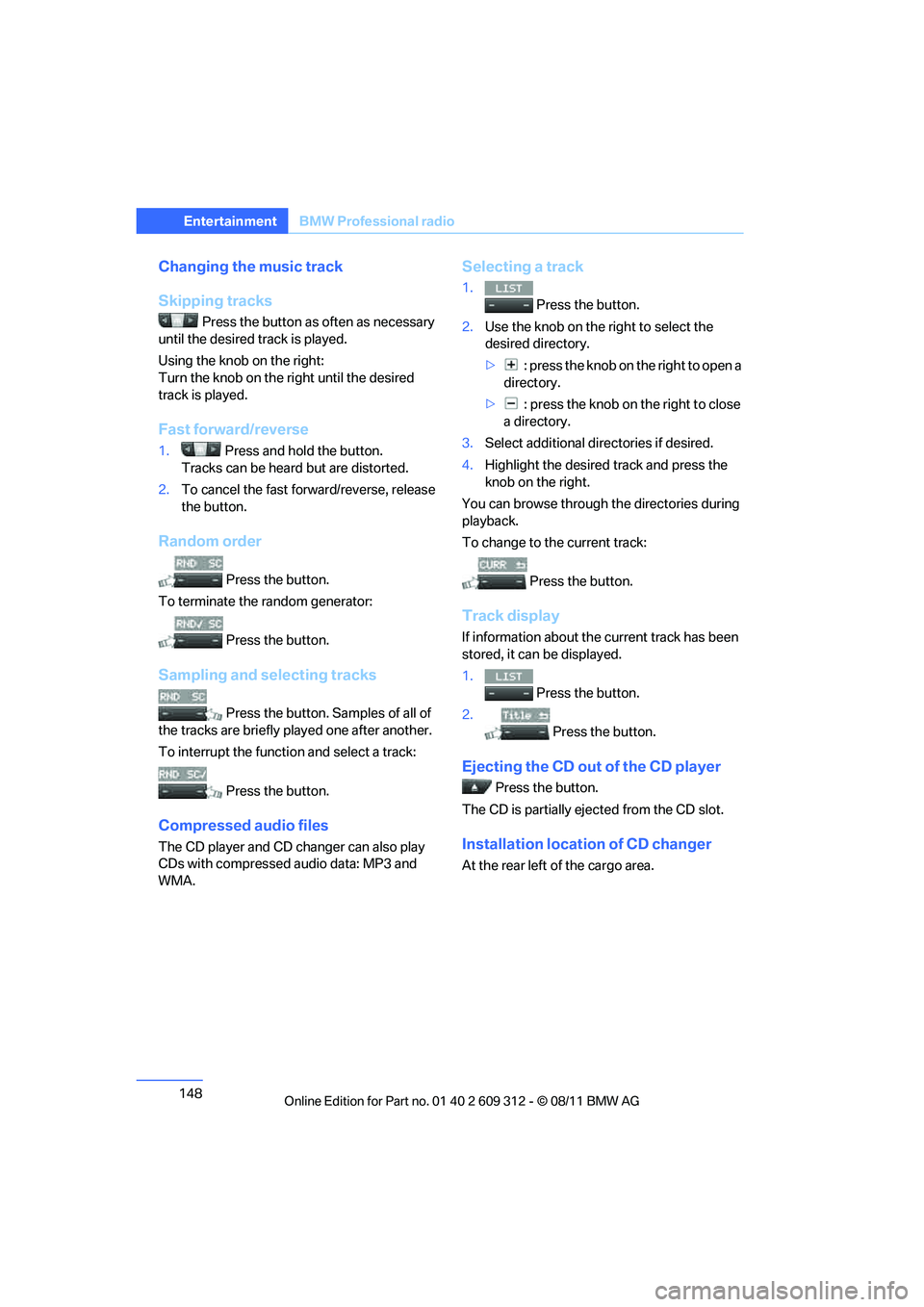
Changing the music track
Skipping tracks
Press the button as often as necessary
until the desired track is played.
Using the knob on the right:
Turn the knob on the right until the desired
track is played.
Fast forward/reverse
1. Press and hold the button.
Tracks can be heard but are distorted.
2. To cancel the fast forward/reverse, release
the button.
Random order
Press the button.
To terminate the random generator:
Press the button.
Sampling and selecting tracks
Press the button. Samples of all of
the tracks are briefly pl ayed one after another.
To interrupt the functi on and select a track:
Press the button.
Compressed audio files
The CD player and CD changer can also play
CDs with compressed audio data: MP3 and
WMA.
Selecting a track
1. Press the button.
2. Use the knob on the right to select the
desired directory.
> : press the knob on the right to open a
directory.
> : press the knob on the right to close
a directory.
3. Select additional di rectories if desired.
4. Highlight the desired track and press the
knob on the right.
You can browse through the directories during
playback.
To change to the current track:
Press the button.
Track display
If information about the current track has been
stored, it can be displayed.
1.
Press the button.
2. Press the button.
Ejecting the CD out of the CD player
Press the button.
The CD is partially ejec ted from the CD slot.
Installation location of CD changer
At the rear left of the cargo area.
Online Edition for Part no. 01 40 2 609 312 - \251 08/11 BMW AG
Page 154 of 255
153
BMW Professional radio
Entertainment
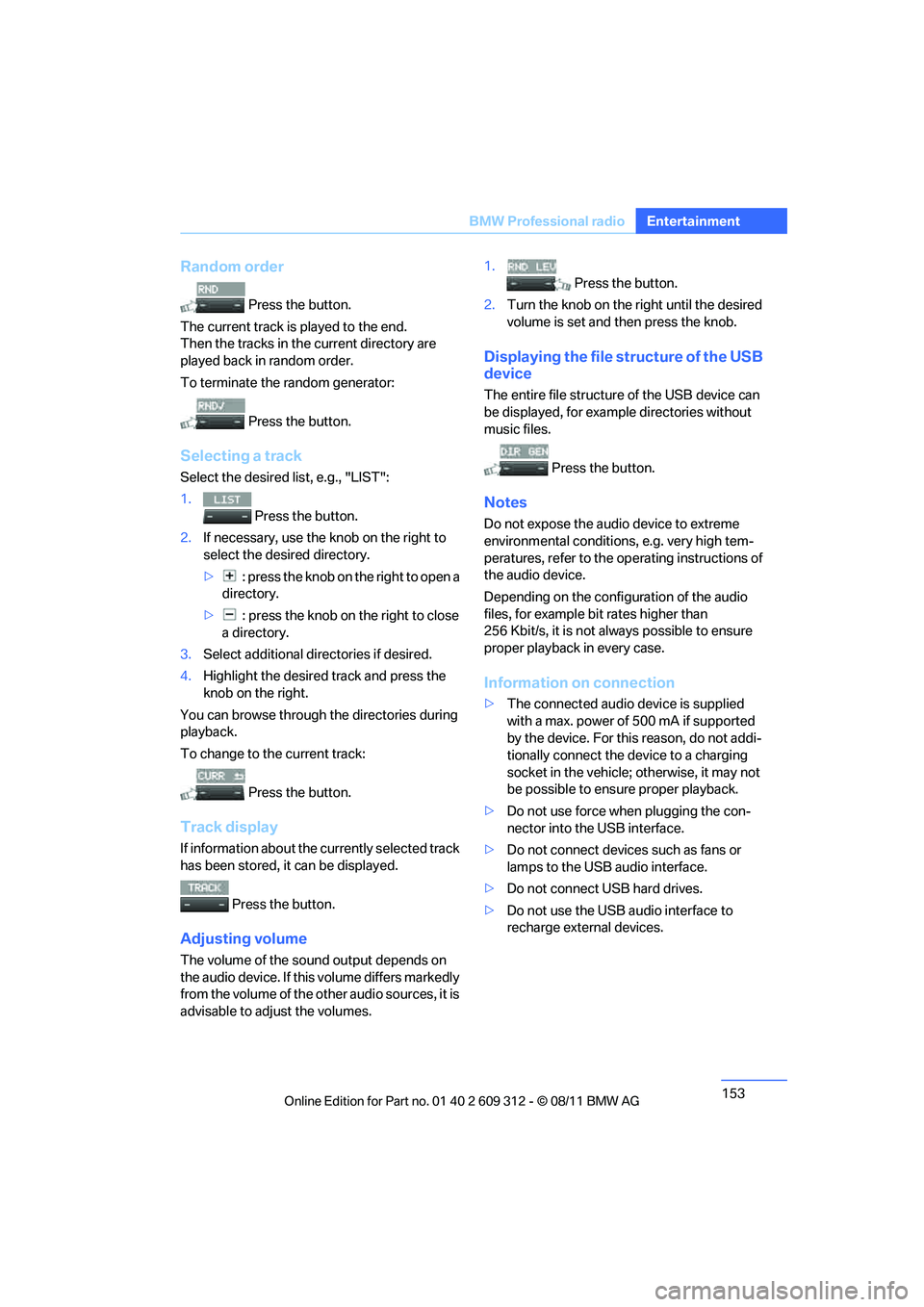
Random order
Press the button.
The current track is played to the end.
Then the tracks in the current directory are
played back in random order.
To terminate the random generator:
Press the button.
Selecting a track
Select the desired list, e.g., "LIST":
1. Press the button.
2. If necessary, use the knob on the right to
select the desired directory.
> : press the knob on the right to open a
directory.
> : press the knob on the right to close
a directory.
3. Select additional directories if desired.
4. Highlight the desired track and press the
knob on the right.
You can browse through the directories during
playback.
To change to th e current track:
Press the button.
Track display
If information about the currently selected track
has been stored, it can be displayed.
Press the button.
Adjusting volume
The volume of the sound output depends on
the audio device. If this volume differs markedly
from the volume of the ot her audio sources, it is
advisable to adjust the volumes. 1.
Press the button.
2. Turn the knob on the right until the desired
volume is set and then press the knob.
Displaying the file structure of the USB
device
The entire file structure of the USB device can
be displayed, for example directories without
music files.
Press the button.
Notes
Do not expose the audio device to extreme
environmental conditions , e.g. very high tem-
peratures, refer to the op erating instructions of
the audio device.
Depending on the config uration of the audio
files, for example bi t rates higher than
256 Kbit/s, it is not always possible to ensure
proper playback in every case.
Information on connection
> The connected audio device is supplied
with a max. power of 500 mA if supported
by the device. For this reason, do not addi-
tionally connect the de vice to a charging
socket in the vehicle; otherwise, it may not
be possible to ensure proper playback.
> Do not use force when plugging the con-
nector into the USB interface.
> Do not connect devices such as fans or
lamps to the USB audio interface.
> Do not connect USB hard drives.
> Do not use the USB audio interface to
recharge external devices.
Online Edition for Part no. 01 40 2 609 312 - \251 08/11 BMW AG
Page 157 of 255
156
CommunicationsTe l e p h o n e
Telephone
Vehicle equipment
In this chapter, all production, country, and
optional equipment that is offered in the model
range is described. Equipment is also described
that is not available because of, for example,
selected options or country version. This also
applies to safety related functions and systems.
Overview
Note
Your BMW is equipped with a full preparation
package mobile phone or hands-free system.
The concept
Mobile phones can be connected to the vehicle
through Bluetooth.
After a suitable mobile phone is paired with the
vehicle once, the mobile phone can be con-
trolled via the radio, the buttons on the steering
wheel, and by voice.
Bluetooth® is a registered trademark of Blue-
tooth® SIG, Inc.
Only make entries when traffic conditions
permit. Do not hold the mobile phone in
your hand while you are driving; use the hands-
free system instead. If you do not observe this
precaution, your being di stracted can endanger
vehicle occupants and other road users. <
Snap-in adapter
The snap-in adapter, refer to page165, makes
it possible to:
> Accommodate the mobile phone.
> Recharge its battery.
> Connect it to an exte rnal antenna of the
vehicle. This assures a better
network connection
and constant sound quality.
A mobile phone that is connected to the vehicle
should not be operated via the mobile phone
keypad; otherwise, ma lfunctions may occur.
Suitable mobile phones
For precise information about which mobile
phones with a Bluetooth interface are sup-
ported by the complete mobile phone prepara-
tion package, go to www.bmwusa.com/
bluetooth.
Notes
At high temperatures, the charging function of
the mobile phone may be limited and some
functions may no longer be carried out.
When using the mobile phone via the vehicle,
follow the instructions given in the owner's
manual for the mobile phone.
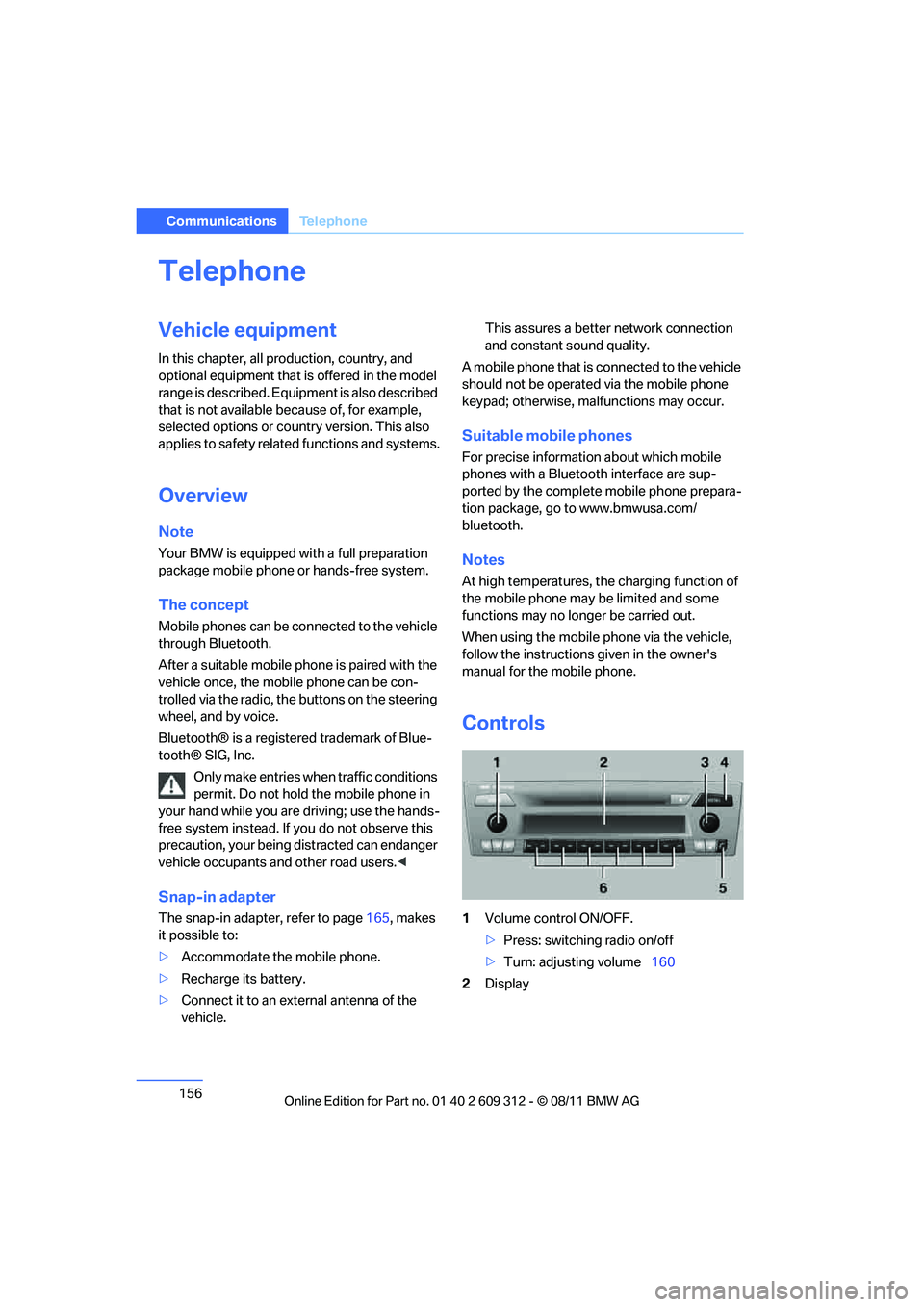
Controls
1 Volume control ON/OFF.
>Press: switching radio on/off
> Turn: adjusting volume 160
2 Display
Online Edition for Part no. 01 40 2 609 312 - \251 08/11 BMW AG
Page 158 of 255
157
Te l e p h o n e
Communications
3
Highlighting/selecting a menu item.
>Turn: highlighting the menu item in the
display or setting a value.
> Press: selecting a highlighted menu item
or storing a setting.
4 Open the main menu
5 Redialing, answering a call, starting to dial,
ending a call, and switching to the phone
menu.
6 Function buttons for selecting the menu
items situated directly above them on the
display.
Presentation in the Owner's Manual
"…" identifies radio displa y texts used to select
individual functions.
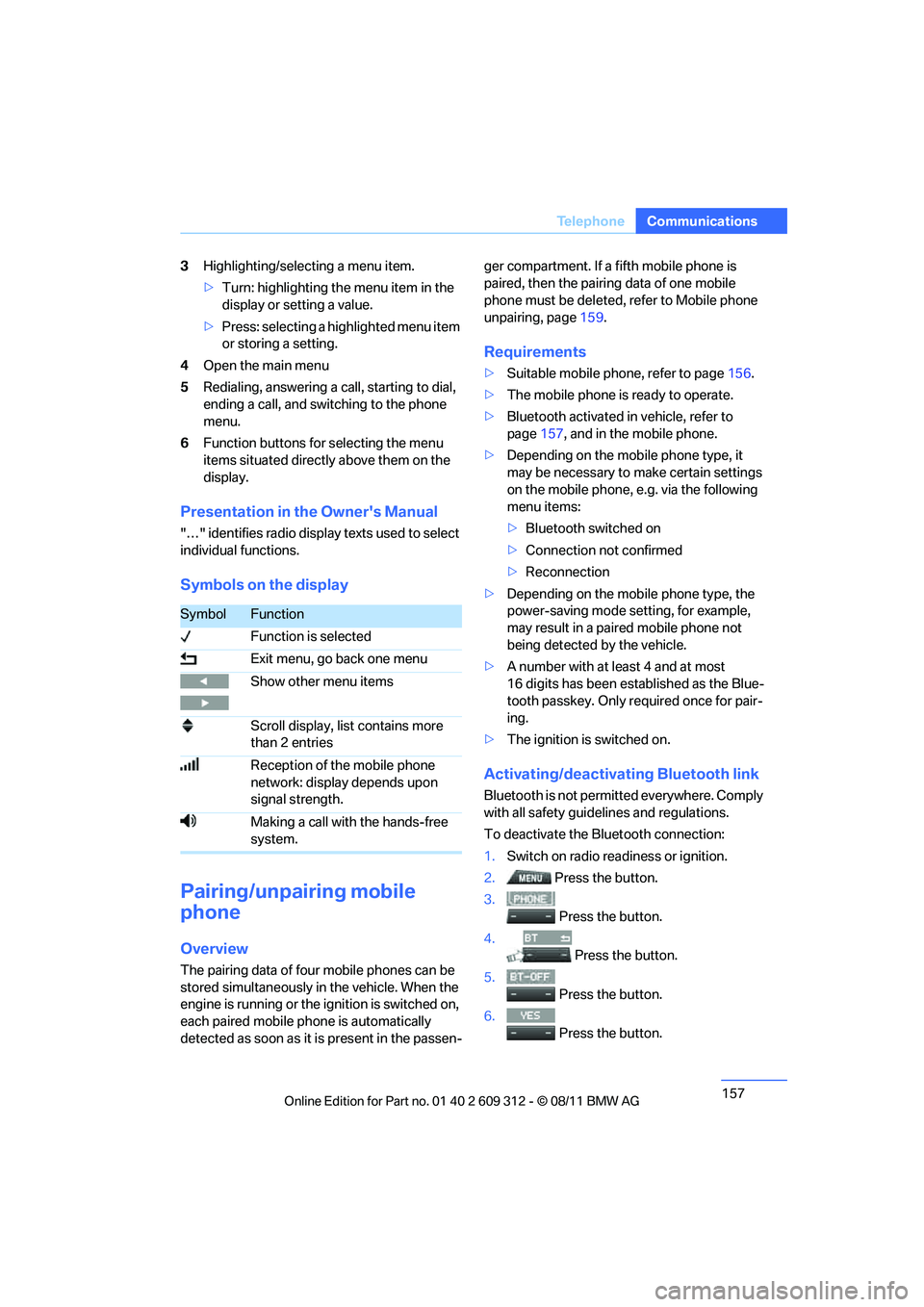
Symbols on the display
Pairing/unpairing mobile
phone
Overview
The pairing data of four mobile phones can be
stored simultaneously in the vehicle. When the
engine is running or the ignition is switched on,
each paired mobile ph one is automatically
detected as soon as it is present in the passen- ger compartment. If a fifth mobile phone is
paired, then the pairing data of one mobile
phone must be deleted, refer to Mobile phone
unpairing, page
159.
Requirements
>Suitable mobile phone, refer to page 156.
> The mobile phone is ready to operate.
> Bluetooth activated in vehicle, refer to
page 157, and in the mobile phone.
> Depending on the mobile phone type, it
may be necessary to make certain settings
on the mobile phone, e.g. via the following
menu items:
>Bluetooth switched on
> Connection not confirmed
> Reconnection
> Depending on the mobile phone type, the
power-saving mode setting, for example,
may result in a paired mobile phone not
being detected by the vehicle.
> A number with at least 4 and at most
16 digits has been established as the Blue-
tooth passkey. Only re quired once for pair-
ing.
> The ignition is switched on.
Activating/deactivating Bluetooth link
Bluetooth is not permi tted everywhere. Comply
with all safety guide lines and regulations.
To deactivate the Bluetooth connection:
1. Switch on radio readiness or ignition.
2. Press the button.
3.
Press the button.
4. Press the button.
5.
Press the button.
6.
Press the button.
SymbolFunction
Function is selected
Exit menu, go back one menu
Show other menu items
Scroll display, list contains more
than 2 entries
Reception of the mobile phone
network: display depends upon
signal strength.
Making a call with the hands-free
system.
Online Edition for Part no. 01 40 2 609 312 - \251 08/11 BMW AG
Page 159 of 255
158
CommunicationsTe l e p h o n e
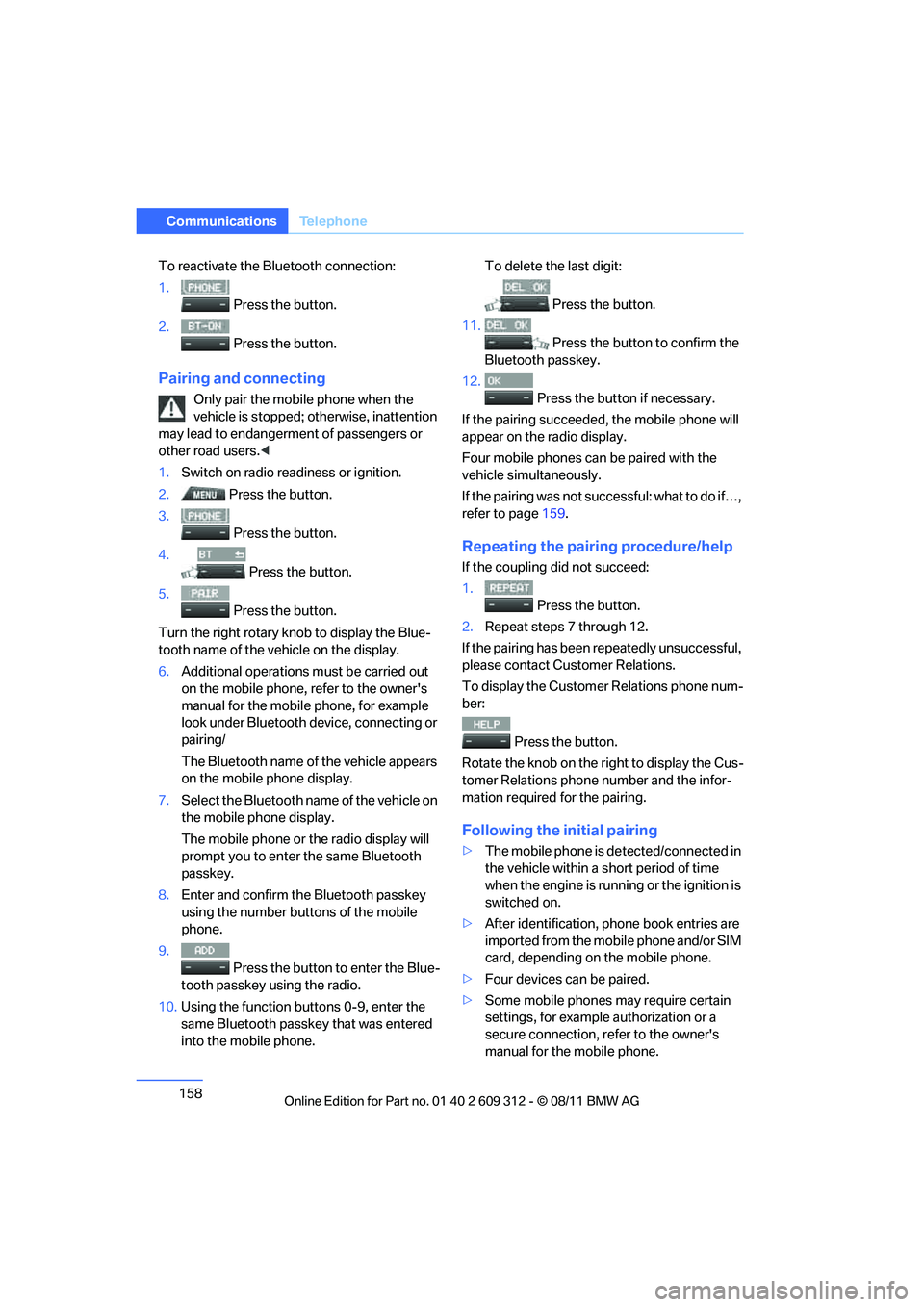
To reactivate the Bluetooth connection:
1.
Press the button.
2. Press the button.
Pairing and connecting
Only pair the mob ile phone when the
vehicle is stopped; otherwise, inattention
may lead to endangerment of passengers or
other road users. <
1. Switch on radio read iness or ignition.
2. Press the button.
3. Press the button.
4. Press the button.
5. Press the button.
Turn the right rotary kn ob to display the Blue-
tooth name of the vehicle on the display.
6. Additional operations must be carried out
on the mobile phone, refer to the owner's
manual for the mobile phone, for example
look under Bluetooth device, connecting or
pairing/
The Bluetooth name of the vehicle appears
on the mobile phone display.
7. Select the Bluetooth name of the vehicle on
the mobile phone display.
The mobile phone or the radio display will
prompt you to enter the same Bluetooth
passkey.
8. Enter and confirm the Bluetooth passkey
using the number buttons of the mobile
phone.
9. Press the button to enter the Blue-
tooth passkey using the radio.
10. Using the function buttons 0-9, enter the
same Bluetooth passkey that was entered
into the mobile phone. To delete the last digit:
Press the button.
11.
Press the button to confirm the
Bluetooth passkey.
12. Press the button if necessary.
If the pairing succeeded, the mobile phone will
appear on the radio display.
Four mobile phones ca n be paired with the
vehicle simultaneously.
If the pairing was not succ essful: what to do if…,
refer to page 159.
Repeating the pairing procedure/help
If the coupling did not succeed:
1.
Press the button.
2. Repeat steps 7 through 12.
If the pairing has been repeatedly unsuccessful,
please contact Customer Relations.
To display the Customer Relations phone num-
ber:
Press the button.
Rotate the knob on the right to display the Cus-
tomer Relations phone number and the infor-
mation required for the pairing.
Following the initial pairing
> The mobile phone is de tected/connected in
the vehicle within a short period of time
when the engine is running or the ignition is
switched on.
> After identification, phone book entries are
imported from the mobile phone and/or SIM
card, depending on the mobile phone.
> Four devices can be paired.
> Some mobile phones may require certain
settings, for example authorization or a
secure connection, refer to the owner's
manual for the mobile phone.
Online Edition for Part no. 01 40 2 609 312 - \251 08/11 BMW AG
Page 160 of 255
159
Te l e p h o n e
Communications
Connecting a particular mobile phone
If more than one mobile
phone is detected by
the vehicle, the mobile phone at the top of the
list is connected. It is possible that another
detected mobile phone is linked to the vehicle.
A different mobile phone can be connected by
selecting it.
The connected mobile phone is denoted with
the following symbol in the radio display:
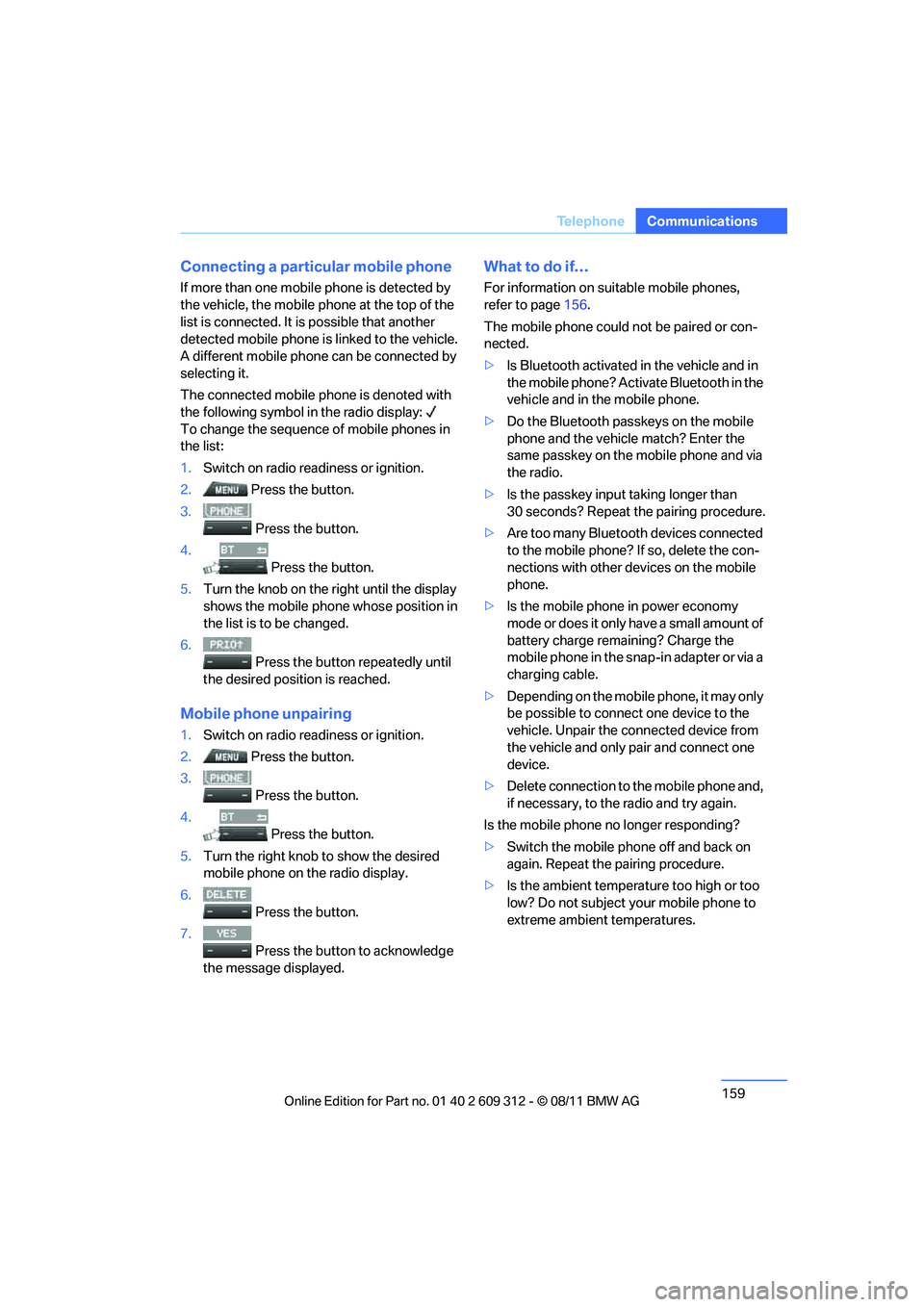
To change the sequence of mobile phones in
the list:
1. Switch on radio readiness or ignition.
2. Press the button.
3. Press the button.
4. Press the button.
5. Turn the knob on the right until the display
shows the mobile phone whose position in
the list is to be changed.
6. Press the button repeatedly until
the desired position is reached.
Mobile phon e unpairing
1.Switch on radio readiness or ignition.
2. Press the button.
3.
Press the button.
4. Press the button.
5. Turn the right knob to show the desired
mobile phone on the radio display.
6. Press the button.
7.
Press the button to acknowledge
the message displayed.
What to do if…
For information on suitable mobile phones,
refer to page 156.
The mobile phone could not be paired or con-
nected.
> Is Bluetooth activated in the vehicle and in
the mobile phone? Activate Bluetooth in the
vehicle and in the mobile phone.
> Do the Bluetooth passkeys on the mobile
phone and the vehicle match? Enter the
same passkey on the mobile phone and via
the radio.
> Is the passkey input taking longer than
30 seconds? Repeat the pairing procedure.
> Are too many Bluetooth devices connected
to the mobile phone? If so, delete the con-
nections with other de vices on the mobile
phone.
> Is the mobile phone in power economy
mode or does it only have a small amount of
battery charge remaining? Charge the
mobile phone in the snap-in adapter or via a
charging cable.
> Depending on the mobile phone, it may only
be possible to connect one device to the
vehicle. Unpair the connected device from
the vehicle and only pair and connect one
device.
> Delete connection to the mobile phone and,
if necessary, to the radio and try again.
Is the mobile phone no longer responding?
> Switch the mobile ph one off and back on
again. Repeat the pairing procedure.
> Is the ambient temperature too high or too
low? Do not subject yo ur mobile phone to
extreme ambient temperatures.
Online Edition for Part no. 01 40 2 609 312 - \251 08/11 BMW AG