radio controls BMW M3 COUPE 2009 E92 User Guide
[x] Cancel search | Manufacturer: BMW, Model Year: 2009, Model line: M3 COUPE, Model: BMW M3 COUPE 2009 E92Pages: 256, PDF Size: 12.03 MB
Page 49 of 256
Controls
47Reference
At a glance
Driving tips
Communications
Navigation
Entertainment
Mobility
Convenience mode
1.Unlock and open the driver's door or switch
on radio readiness, refer to page55.
2.Briefly press the desired memory button1
or 2.
The adjusting procedure is halted immediately
when you touch a seat adjustment switch or
one of the memory buttons.
Safety feature
1.Close the driver's door and switch the igni-
tion on or off, refer to page55.
2.Press the desired memory button1 or2
and keep it pressed until the adjustment
process has been completed.
If the button was pressed accidentally:
Press the button again; the LED goes out.
Call-up with the remote control
The driver's seat position last stored is stored
for the remote control currently in use.
You can select the occasion on which the seat is
reset to that position.
>Call-up when the vehicle is unlocked.
>Call-up when the driver's door is opened.
When this Personal Profile function is
used, first make sure that the footwell
behind the driver's seat is free of obstacles.
Failure to do so could cause injury to persons or
damage to objects as a result of a rearward
movement of the seat.<
The adjusting procedure is halted immediately
when you touch a seat adjustment switch or
one of the memory buttons.
Selecting automatic call-up
iDrive, for operating principle refer to page16.
1."Settings"
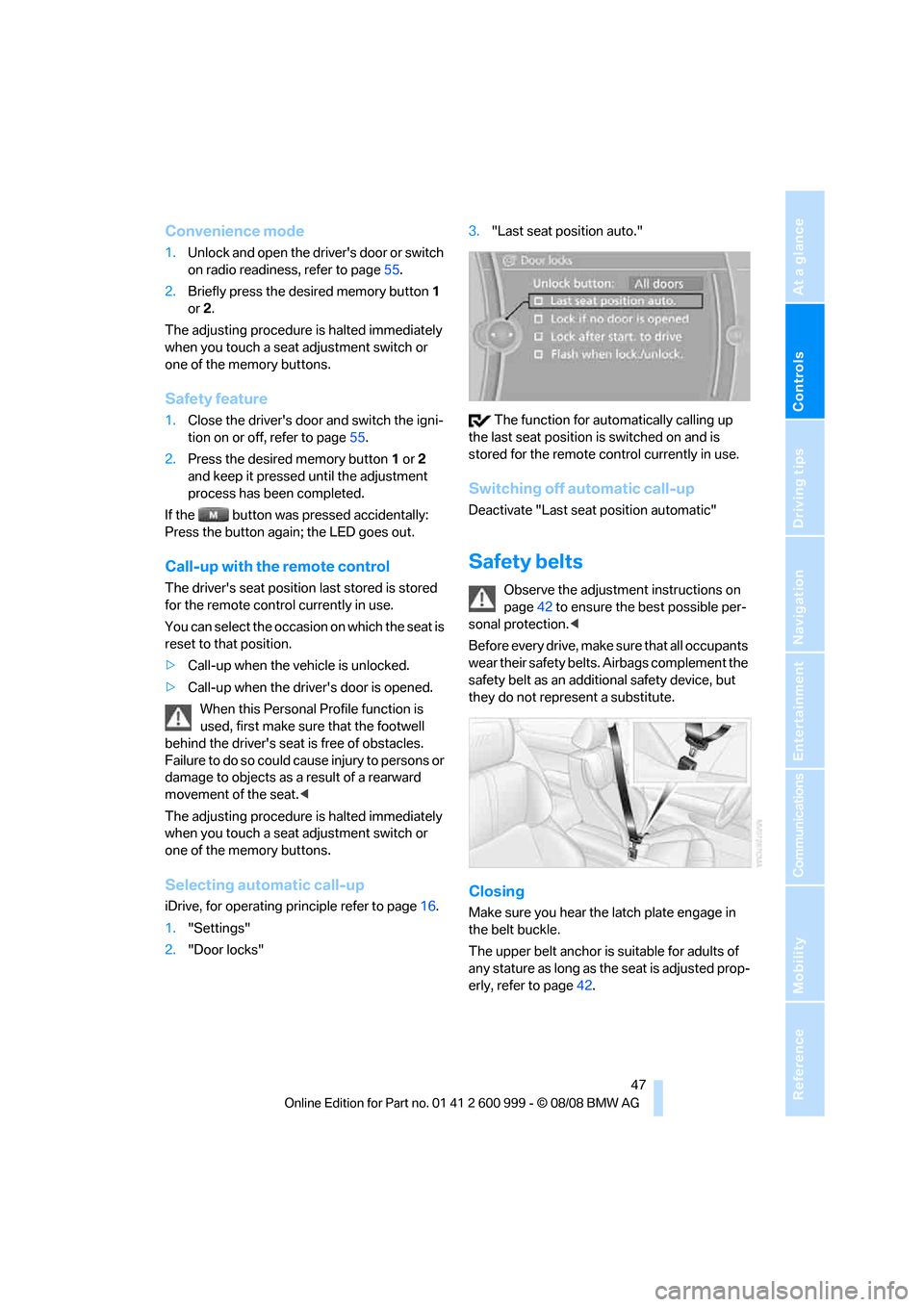
2."Door locks"3."Last seat position auto."
The function for automatically calling up
the last seat position is switched on and is
stored for the remote control currently in use.
Switching off automatic call-up
Deactivate "Last seat position automatic"
Safety belts
Observe the adjustment instructions on
page42 to ensure the best possible per-
sonal protection.<
Before every drive, make sure that all occupants
wear their safety belts. Airbags complement the
safety belt as an additional safety device, but
they do not represent a substitute.
Closing
Make sure you hear the latch plate engage in
the belt buckle.
The upper belt anchor is suitable for adults of
any stature as long as the seat is adjusted prop-
erly, refer to page42.
ba8_E9293M3_cic.book Seite 47 Dienstag, 19. August 2008 12:01 12
Page 57 of 256
Controls
55Reference
At a glance
Driving tips
Communications
Navigation
Entertainment
Mobility
Driving
Ignition lock
Insert the remote control into the
ignition lock
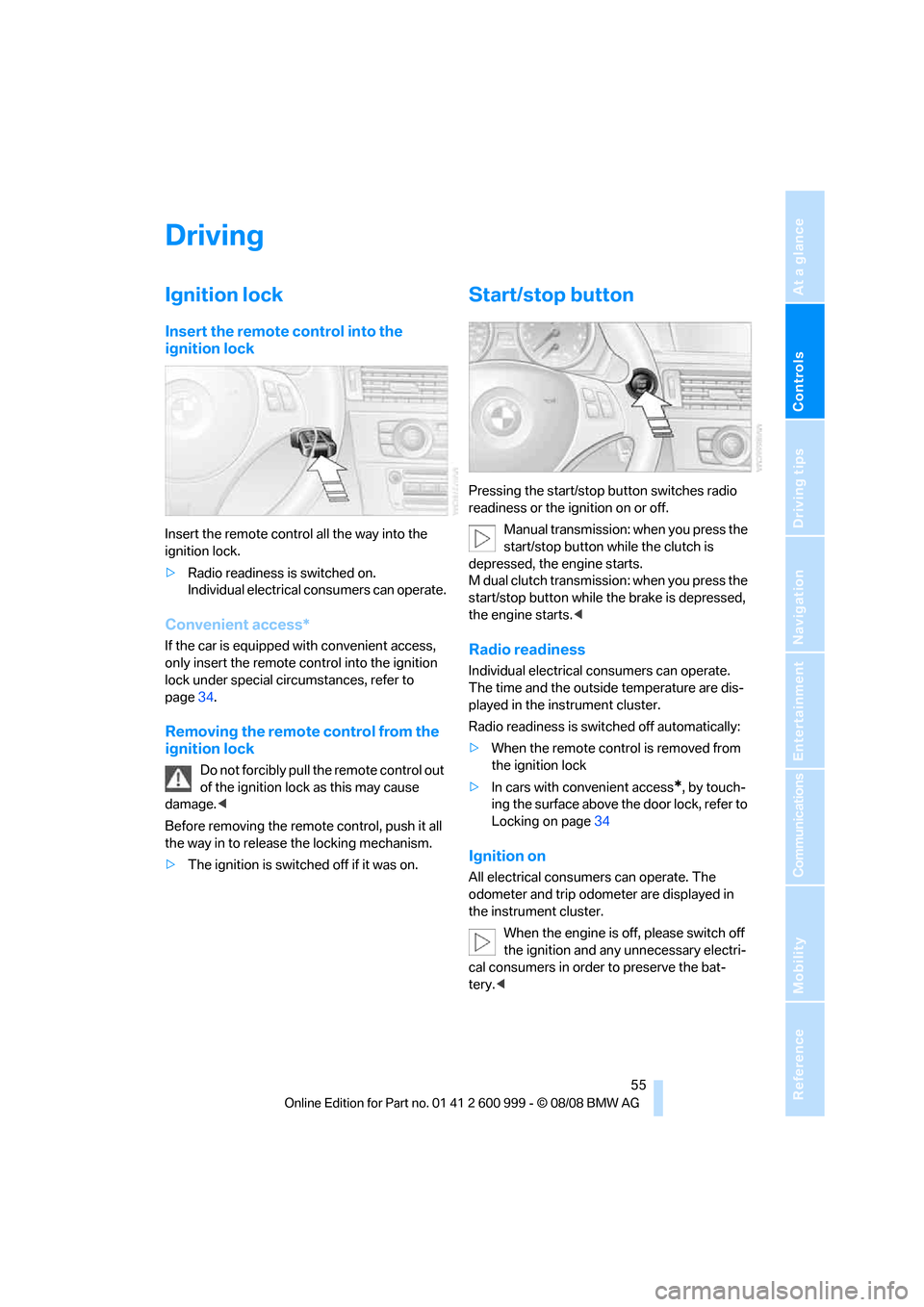
Insert the remote control all the way into the
ignition lock.
>Radio readiness is switched on.
Individual electrical consumers can operate.
Convenient access*
If the car is equipped with convenient access,
only insert the remote control into the ignition
lock under special circumstances, refer to
page34.
Removing the remote control from the
ignition lock
Do not forcibly pull the remote control out
of the ignition lock as this may cause
damage.<
Before removing the remote control, push it all
the way in to release the locking mechanism.
>The ignition is switched off if it was on.
Start/stop button
Pressing the start/stop button switches radio
readiness or the ignition on or off.
Manual transmission: when you press the
start/stop button while the clutch is
depressed, the engine starts.
M dual clutch transmission: when you press the
start/stop button while the brake is depressed,
the engine starts.<
Radio readiness
Individual electrical consumers can operate.
The time and the outside temperature are dis-
played in the instrument cluster.
Radio readiness is switched off automatically:
>When the remote control is removed from
the ignition lock
>In cars with convenient access
*, by touch-
ing the surface above the door lock, refer to
Locking on page34
Ignition on
All electrical consumers can operate. The
odometer and trip odometer are displayed in
the instrument cluster.
When the engine is off, please switch off
the ignition and any unnecessary electri-
cal consumers in order to preserve the bat-
tery.<
ba8_E9293M3_cic.book Seite 55 Dienstag, 19. August 2008 12:01 12
Page 87 of 256
Controls
85Reference
At a glance
Driving tips
Communications
Navigation
Entertainment
Mobility
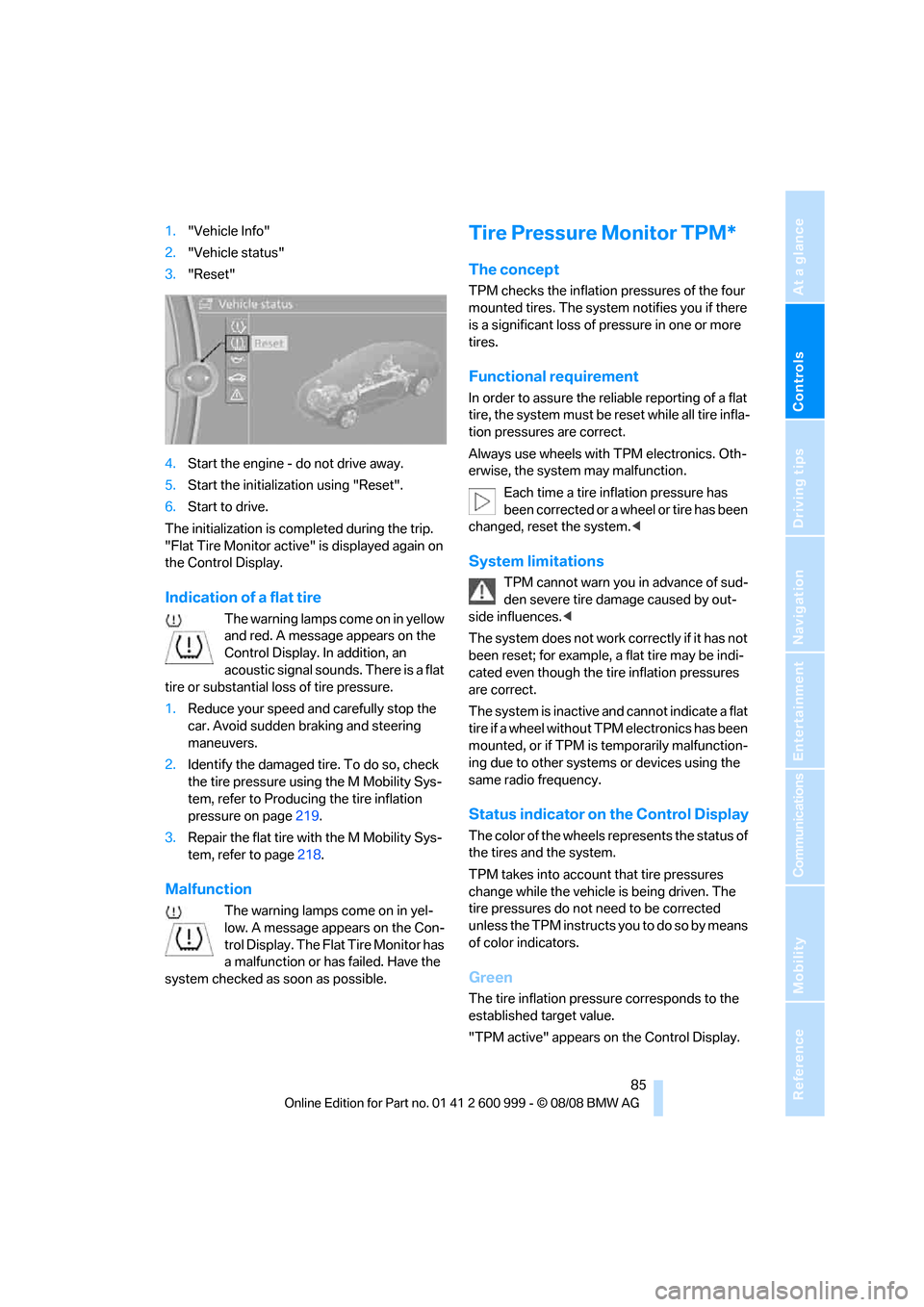
1."Vehicle Info"
2."Vehicle status"
3."Reset"
4.Start the engine - do not drive away.
5.Start the initialization using "Reset".
6.Start to drive.
The initialization is completed during the trip.
"Flat Tire Monitor active" is displayed again on
the Control Display.
Indication of a flat tire
The warning lamps come on in yellow
and red. A message appears on the
Control Display. In addition, an
acoustic signal sounds. There is a flat
tire or substantial loss of tire pressure.
1.Reduce your speed and carefully stop the
car. Avoid sudden braking and steering
maneuvers.
2.Identify the damaged tire. To do so, check
the tire pressure using the M Mobility Sys-
tem, refer to Producing the tire inflation
pressure on page219.
3.Repair the flat tire with the M Mobility Sys-
tem, refer to page218.
Malfunction
The warning lamps come on in yel-
low. A message appears on the Con-
t r o l D i s p l a y . T h e F l a t T i r e M o n i t o r h a s
a malfunction or has failed. Have the
system checked as soon as possible.
Tire Pressure Monitor TPM*
The concept
TPM checks the inflation pressures of the four
mounted tires. The system notifies you if there
is a significant loss of pressure in one or more
tires.
Functional requirement
In order to assure the reliable reporting of a flat
tire, the system must be reset while all tire infla-
tion pressures are correct.
Always use wheels with TPM electronics. Oth-
erwise, the system may malfunction.
Each time a tire inflation pressure has
been corrected or a wheel or tire has been
changed, reset the system.<
System limitations
TPM cannot warn you in advance of sud-
den severe tire damage caused by out-
side influences.<
The system does not work correctly if it has not
been reset; for example, a flat tire may be indi-
cated even though the tire inflation pressures
are correct.
The system is inactive and cannot indicate a flat
tire if a wheel without TPM electronics has been
mounted, or if TPM is temporarily malfunction-
ing due to other systems or devices using the
same radio frequency.
Status indicator on the Control Display
The color of the wheels represents the status of
the tires and the system.
TPM takes into account that tire pressures
change while the vehicle is being driven. The
tire pressures do not need to be corrected
unless the TPM instructs you to do so by means
of color indicators.
Green
The tire inflation pressure corresponds to the
established target value.
"TPM active" appears on the Control Display.
ba8_E9293M3_cic.book Seite 85 Dienstag, 19. August 2008 12:01 12
Page 89 of 256
Controls
87Reference
At a glance
Driving tips
Communications
Navigation
Entertainment
Mobility
1.Reduce your speed and carefully stop the
car. Avoid sudden braking and steering
maneuvers.
2.If all four wheels are shown in yellow, iden-
tify the damaged wheel on the vehicle.
3.Repair the flat tire with the M Mobility Sys-
tem, refer to page217.
Have the tire replaced by a BMW center or a
workshop that is informed in the handling of
TPM and that works according to BMW repair
procedures with correspondingly trained per-
sonnel.
Malfunction
The small warning lamp flashes in
yellow and then lights up continu-
ously; the larger warning lamp comes
on in yellow. On the Control Display,
the wheels are shown in gray and a message
appears. No punctures can be detected.
This type of message is shown in the following
situations:
>If there is a malfunction
Have the system checked.
>If a wheel without TPM electronics has
been mounted
>If TPM is temporarily malfunctioning due to
other systems or devices using the same
radio frequency.
Message for unsuccessful system
reset
The warning lamp lights up yellow. A
message appears on the Control Dis-
play. The system is not reset after a
tire has been changed, for example.
Check the tire inflation pressure and reset the
system, refer to page86.
Declaration according to NHTSA/
FMVSS 138
Tire Pressure Monitoring Systems
Each tire should be checked monthly when cold
and inflated to the inflation pressure recom-
mended by the vehicle manufacturer on the
vehicle placard or tire inflation pressure label. If your vehicle has tires of a different size than the
size indicated on the vehicle placard or tire infla-
tion pressure label, you should determine the
proper tire inflation pressure for those tires. As
an added safety feature, your vehicle has been
equipped with a tire pressure monitoring sys-
tem, TPMS, that illuminates a low tire pressure
telltale when one or more of your tires are signif-
icantly under-inflated. Accordingly, when the
low tire pressure telltale illuminates, you should
stop and check your tires as soon as possible,
and inflate them to the proper pressure. Driving
on a significantly underinflated tire causes the
tire to overheat and can lead to tire failure.
Underinflation also reduces fuel efficiency and
tire tread life, and may affect the vehicle’s han-
dling and stopping ability. Please note that the
TPMS is not a substitute for proper tire mainte-
nance, and it is the driver’s responsibility to
maintain correct tire pressure, even if underin-
flation has not reached the level at which the
TPMS low tire pressure telltale illuminates.
The TPMS malfunction indicator is combined
with the low tire pressure telltale. When the sys-
tem detects a malfunction, the telltale will flash
for approximately one minute and then remain
continuously lit. This sequence will continue
upon subsequent vehicle startups as long as
the malfunction exists. When the malfunction
indicator is illuminated, the system may not be
able to detect or signal low tire pressure as
intended. TPMS malfunctions may occur for a
variety of reasons, including the installation of
replacement or alternate tires or wheels on the
vehicle that prevent the TPMS from functioning
properly. Always check the TPMS malfunction
telltale after replacing one or more tires or
wheels on your vehicle to ensure that the
replacement or alternate tires and wheels allow
the TPMS to continue to function properly.
Servotronic
The concept
"Servotronic" varies the steering force required
to turn the wheels as a function of the speed at
which you are driving.
ba8_E9293M3_cic.book Seite 87 Dienstag, 19. August 2008 12:01 12
Page 103 of 256
Controls
101Reference
At a glance
Driving tips
Communications
Navigation
Entertainment
Mobility
Practical interior accessories
Integrated universal remote
control*
The concept
The integrated universal remote control can
replace as many as three hand-held transmit-
ters for various remote-controlled devices,
such as garage doors and gates or lighting sys-
tems. The integrated universal remote control
registers and stores signals from the original
hand-held transmitters.
The signal of an original hand-held transmitter
can be programmed on one of the three mem-
ory buttons1. After this, the programmed
memory button1 will operate the system in
question. The LED2 flashes to confirm trans-
mission of the signal.
Should you sell your vehicle one day, be sure to
delete the stored programs beforehand for your
safety, refer to page102.
To prevent possible damage or injury,
before programming or using the inte-
grated universal remote control, always inspect
the immediate area to make certain that no peo-
ple, animals or objects are within the pivoting or
travel range of the device being operated. Com-
ply also with the safety instructions supplied
with the original hand-held transmitter.<
Checking compatibility
If this symbol appears on the package
or in the instructions supplied with the
original hand-held transmitter, you can
assume that the radio remote control device will
be compatible with the integrated universal
remote control.
For additional information, please contact your
BMW center or call: 1-800-355-3515.
You can also obtain information on the Internet
at:
www.bmwusa.com or
www.homelink.com. HomeLink is a registered trademark of Johnson
Controls, Inc.<
Programming
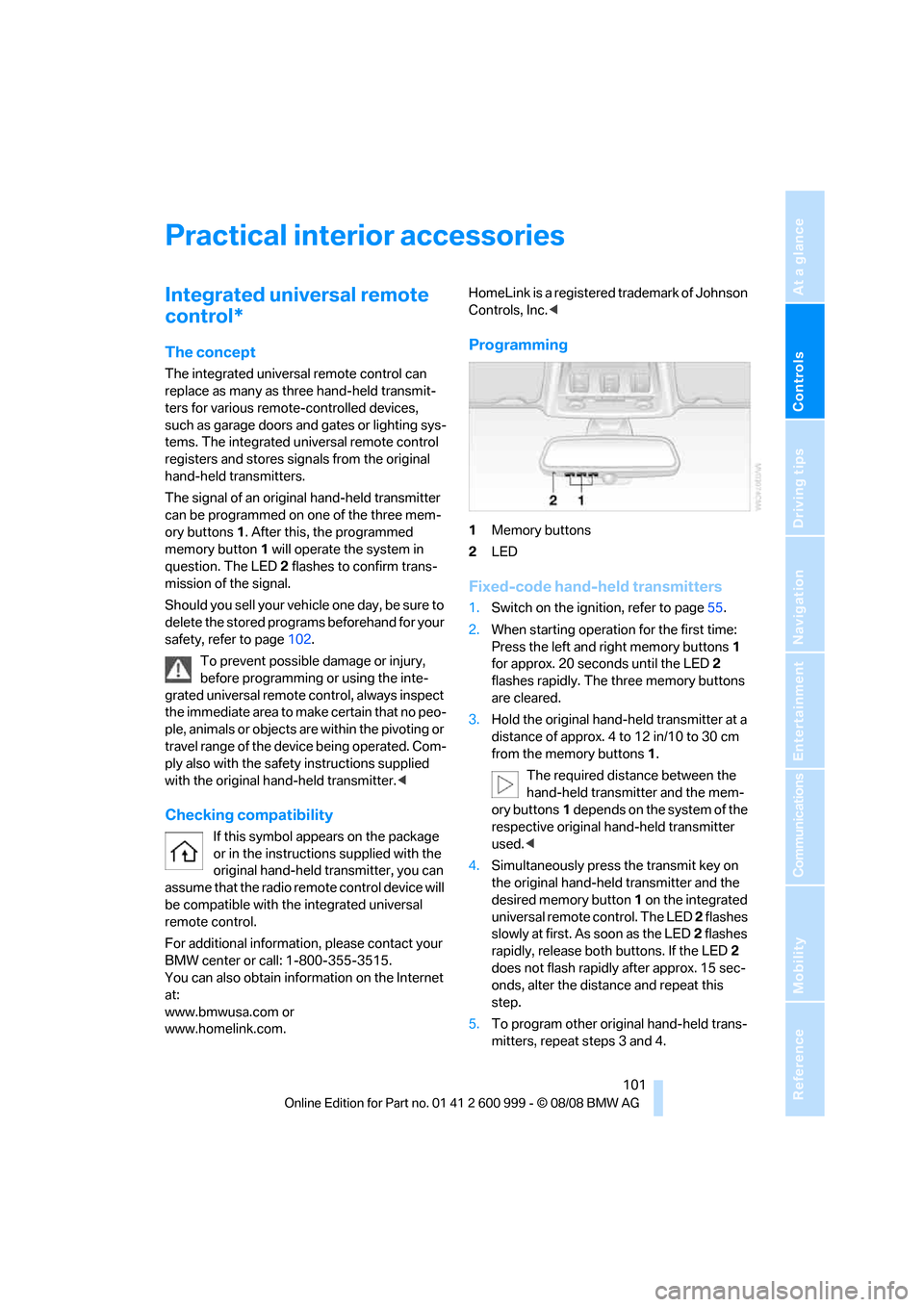
1Memory buttons
2LED
Fixed-code hand-held transmitters
1.Switch on the ignition, refer to page55.
2.When starting operation for the first time:
Press the left and right memory buttons1
for approx. 20 seconds until the LED2
flashes rapidly. The three memory buttons
are cleared.
3.Hold the original hand-held transmitter at a
distance of approx. 4 to 12 in/10 to 30 cm
from the memory buttons1.
The required distance between the
hand-held transmitter and the mem-
ory buttons1 depends on the system of the
respective original hand-held transmitter
used.<
4.Simultaneously press the transmit key on
the original hand-held transmitter and the
desired memory button 1 on the integrated
universal remote control. The LED 2 flashes
slowly at first. As soon as the LED2 flashes
rapidly, release both buttons. If the LED2
does not flash rapidly after approx. 15 sec-
onds, alter the distance and repeat this
step.
5.To program other original hand-held trans-
mitters, repeat steps 3 and 4.
ba8_E9293M3_cic.book Seite 101 Dienstag, 19. August 2008 12:01 12
Page 148 of 256
On/off and tone
146
On/off and tone
The following audio and video sources share
the same control elements and adjustments:
>Radio
>CD player
>CD changer
*
>Video
>External devices, e.g. MP3 player
Controls
The audio and video sources can be controlled
using the:
>Buttons near the CD player
>iDrive
>Buttons on the steering wheel, refer to
page10
>Programmable memory keys, refer to
page20
>Voice activation system
Buttons near the CD player
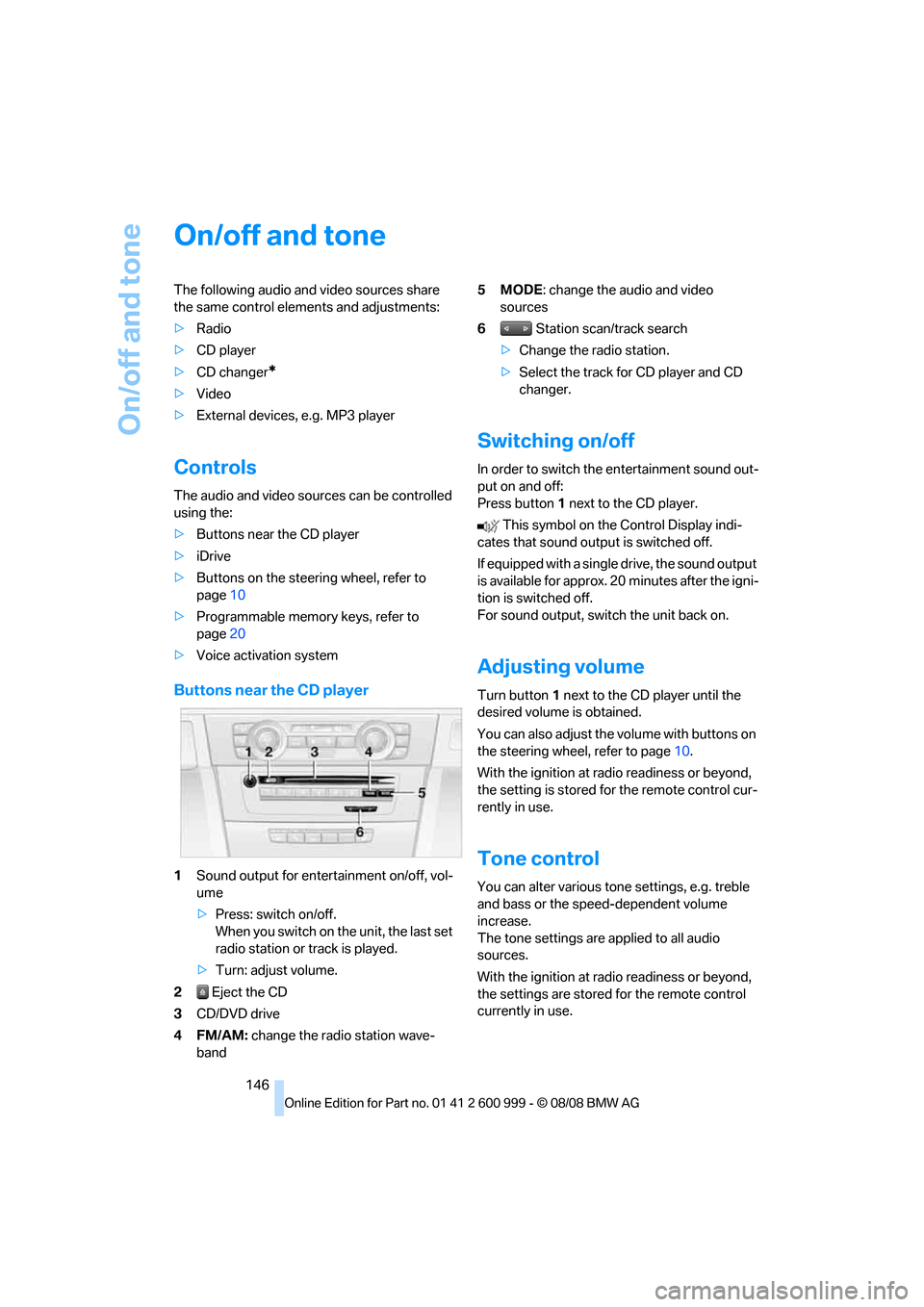
1Sound output for entertainment on/off, vol-
ume
>Press: switch on/off.
When you switch on the unit, the last set
radio station or track is played.
>Turn: adjust volume.
2 Eject the CD
3CD/DVD drive
4FM/AM: change the radio station wave-
band5MODE: change the audio and video
sources
6 Station scan/track search
>Change the radio station.
>Select the track for CD player and CD
changer.
Switching on/off
In order to switch the entertainment sound out-
put on and off:
Press button1 next to the CD player.
This symbol on the Control Display indi-
cates that sound output is switched off.
If equipped with a single drive, the sound output
is available for approx. 20 minutes after the igni-
tion is switched off.
For sound output, switch the unit back on.
Adjusting volume
Turn button1 next to the CD player until the
desired volume is obtained.
You can also adjust the volume with buttons on
the steering wheel, refer to page10.
With the ignition at radio readiness or beyond,
the setting is stored for the remote control cur-
rently in use.
Tone control
You can alter various tone settings, e.g. treble
and bass or the speed-dependent volume
increase.
The tone settings are applied to all audio
sources.
With the ignition at radio readiness or beyond,
the settings are stored for the remote control
currently in use.
ba8_E9293M3_cic.book Seite 146 Dienstag, 19. August 2008 12:01 12
Page 149 of 256
Navigation
Entertainment
Driving tips
147Reference
At a glance
Controls
Communications
Mobility
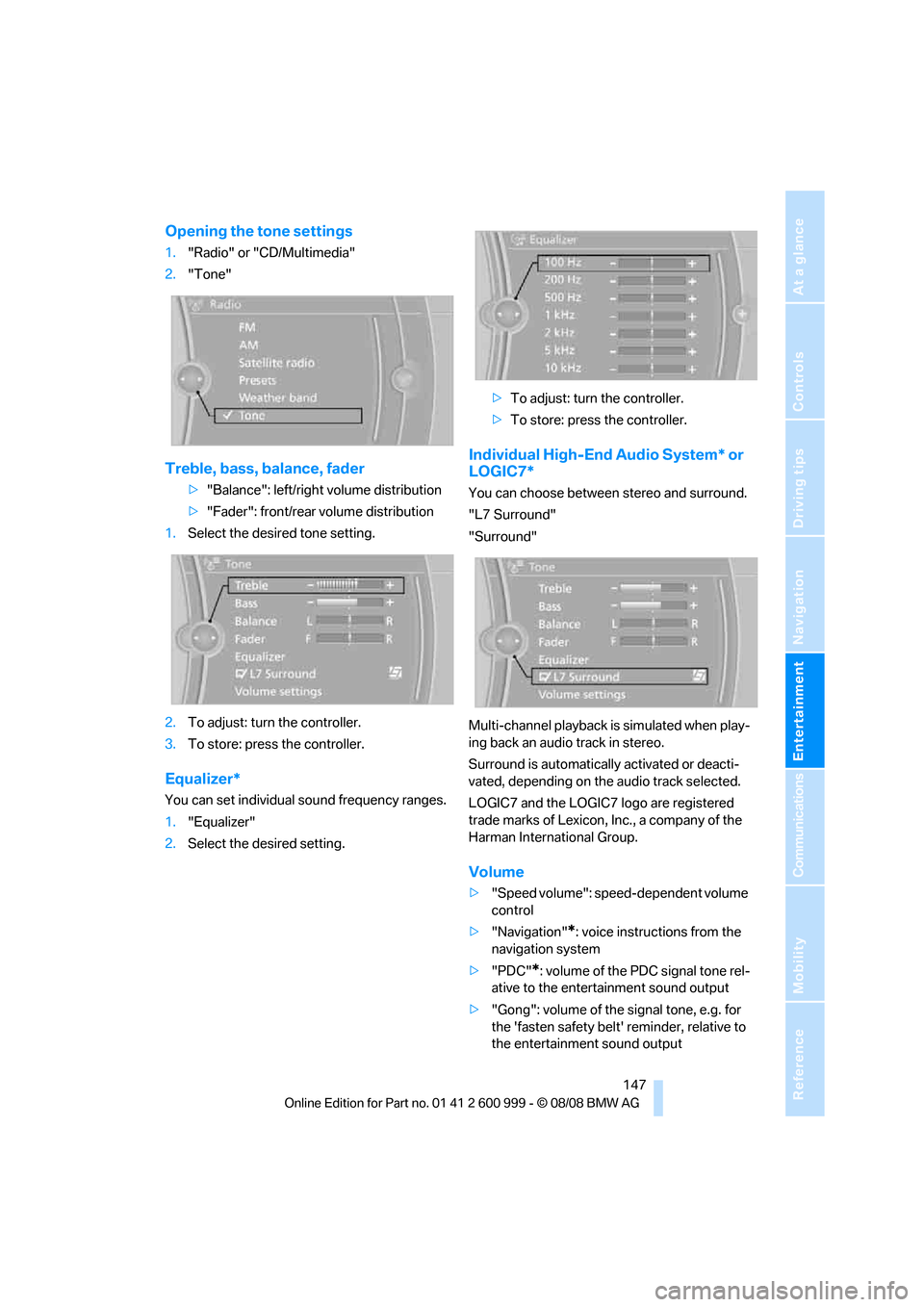
Opening the tone settings
1."Radio" or "CD/Multimedia"
2."Tone"
Treble, bass, balance, fader
>"Balance": left/right volume distribution
>"Fader": front/rear volume distribution
1.Select the desired tone setting.
2.To adjust: turn the controller.
3.To store: press the controller.
Equalizer*
You can set individual sound frequency ranges.
1."Equalizer"
2.Select the desired setting.>To adjust: turn the controller.
>To store: press the controller.
Individual High-End Audio System* or
LOGIC7*
You can choose between stereo and surround.
"L7 Surround"
"Surround"
Multi-channel playback is simulated when play-
ing back an audio track in stereo.
Surround is automatically activated or deacti-
vated, depending on the audio track selected.
LOGIC7 and the LOGIC7 logo are registered
trade marks of Lexicon, Inc., a company of the
Harman International Group.
Volume
>"Speed volume": speed-dependent volume
control
>"Navigation"
*: voice instructions from the
navigation system
>"PDC"
*: volume of the PDC signal tone rel-
ative to the entertainment sound output
>"Gong": volume of the signal tone, e.g. for
the 'fasten safety belt' reminder, relative to
the entertainment sound output
ba8_E9293M3_cic.book Seite 147 Dienstag, 19. August 2008 12:01 12
Page 151 of 256
Navigation
Entertainment
Driving tips
149Reference
At a glance
Controls
Communications
Mobility
Radio
Your radio provides reception of the FM and AM
wavebands.
Selecting a station
Press the button if the sound output is switched
off.
iDrive, for operating principle refer to page16.
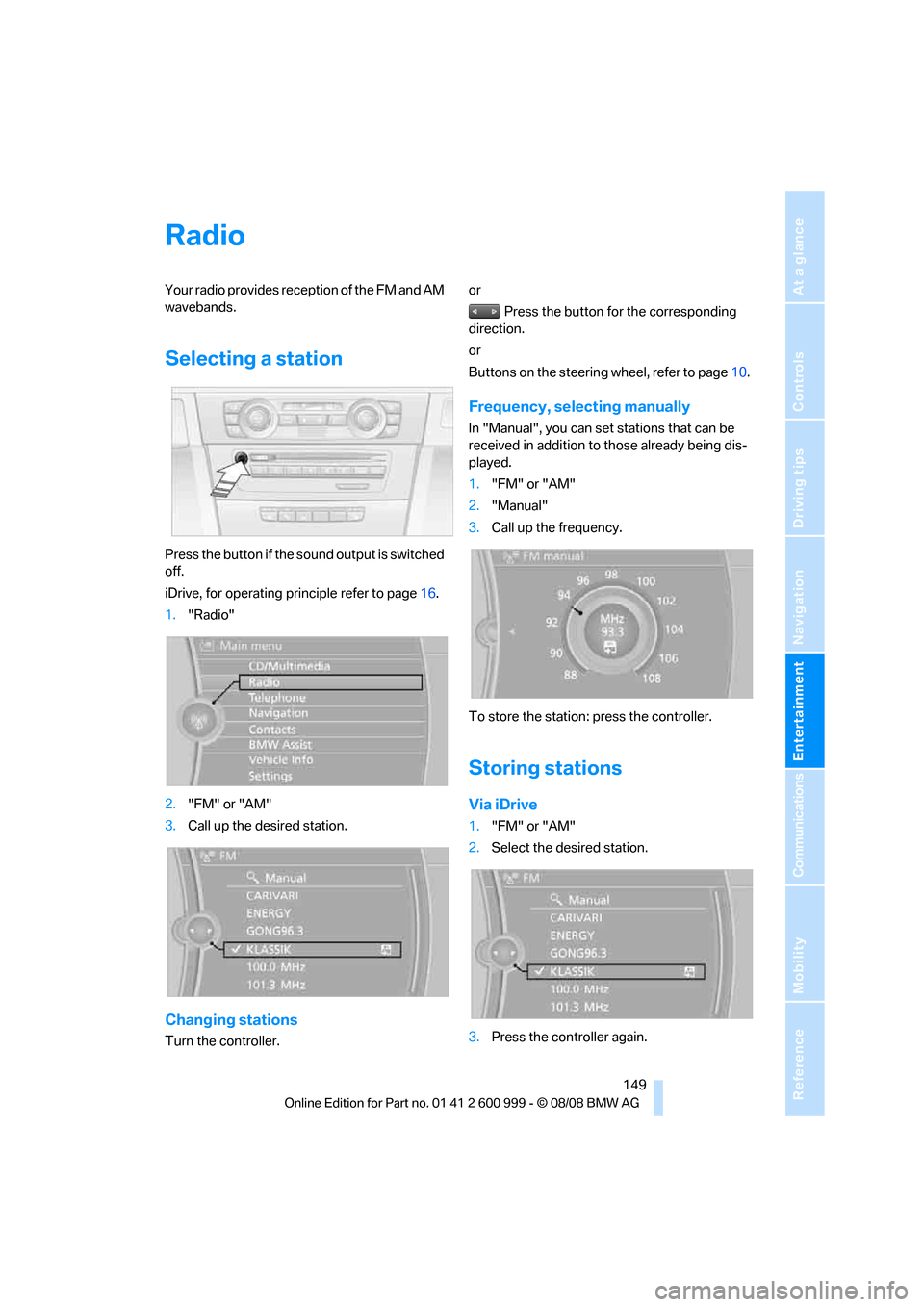
1."Radio"
2."FM" or "AM"
3.Call up the desired station.
Changing stations
Turn the controller.or
Press the button for the corresponding
direction.
or
Buttons on the steering wheel, refer to page10.
Frequency, selecting manually
In "Manual", you can set stations that can be
received in addition to those already being dis-
played.
1."FM" or "AM"
2."Manual"
3.Call up the frequency.
To store the station: press the controller.
Storing stations
Via iDrive
1."FM" or "AM"
2.Select the desired station.
3.Press the controller again.
ba8_E9293M3_cic.book Seite 149 Dienstag, 19. August 2008 12:01 12
Page 155 of 256
Navigation
Entertainment
Driving tips
153Reference
At a glance
Controls
Communications
Mobility
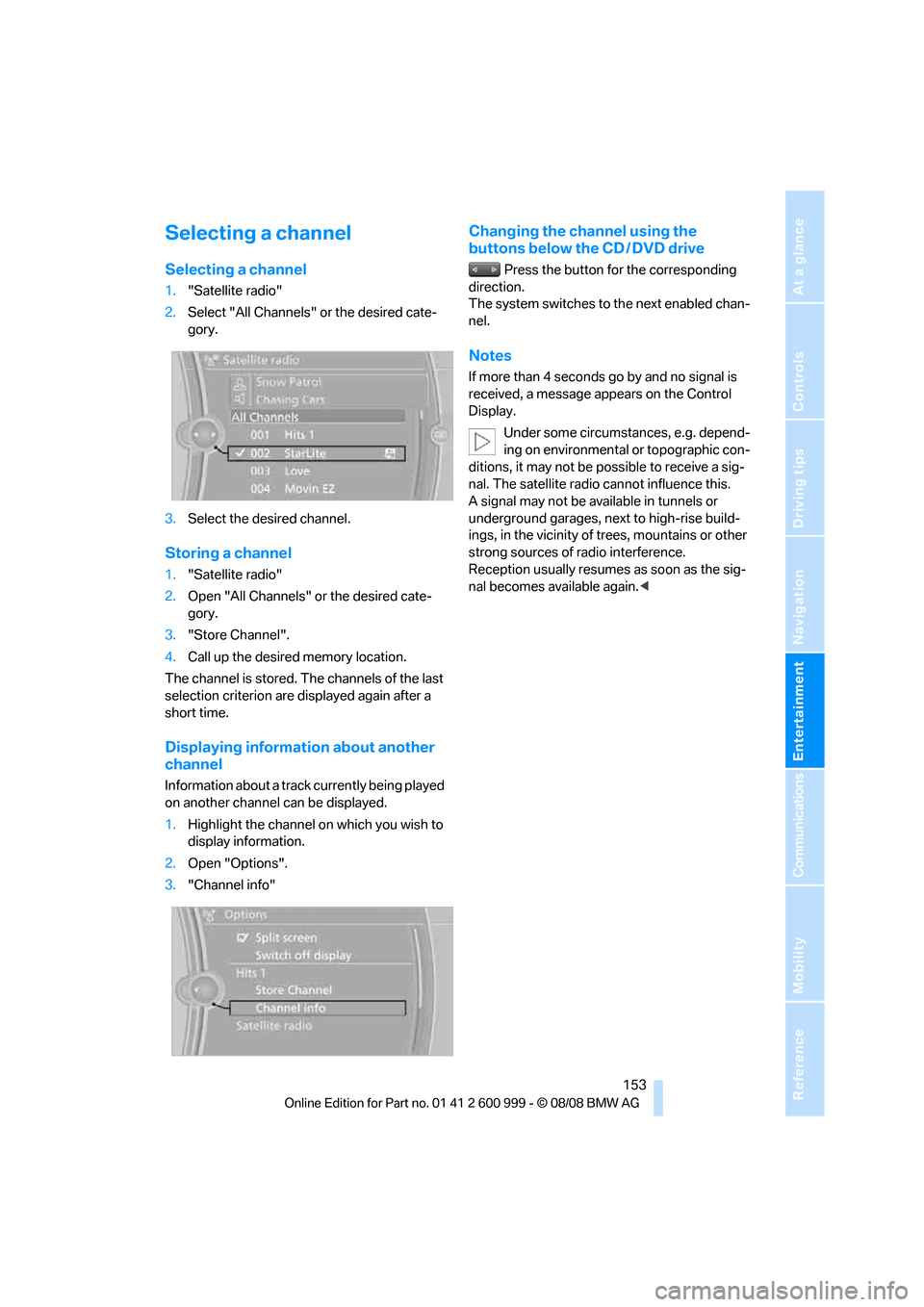
Selecting a channel
Selecting a channel
1."Satellite radio"
2.Select "All Channels" or the desired cate-
gory.
3.Select the desired channel.
Storing a channel
1."Satellite radio"
2.Open "All Channels" or the desired cate-
gory.
3."Store Channel".
4.Call up the desired memory location.
The channel is stored. The channels of the last
selection criterion are displayed again after a
short time.
Displaying information about another
channel
Information about a track currently being played
on another channel can be displayed.
1.Highlight the channel on which you wish to
display information.
2.Open "Options".
3."Channel info"
Changing the channel using the
buttons below the CD / DVD drive
Press the button for the corresponding
direction.
The system switches to the next enabled chan-
nel.
Notes
If more than 4 seconds go by and no signal is
received, a message appears on the Control
Display.
Under some circumstances, e.g. depend-
ing on environmental or topographic con-
ditions, it may not be possible to receive a sig-
nal. The satellite radio cannot influence this.
A signal may not be available in tunnels or
underground garages, next to high-rise build-
ings, in the vicinity of trees, mountains or other
strong sources of radio interference.
Reception usually resumes as soon as the sig-
nal becomes available again.<
ba8_E9293M3_cic.book Seite 153 Dienstag, 19. August 2008 12:01 12
Page 177 of 256
175
Entertainment
Reference
At a glance
Controls
Driving tips Communications
Navigation
Mobility
can be used in combination with the mobile
phone, e.g. a laptop.<
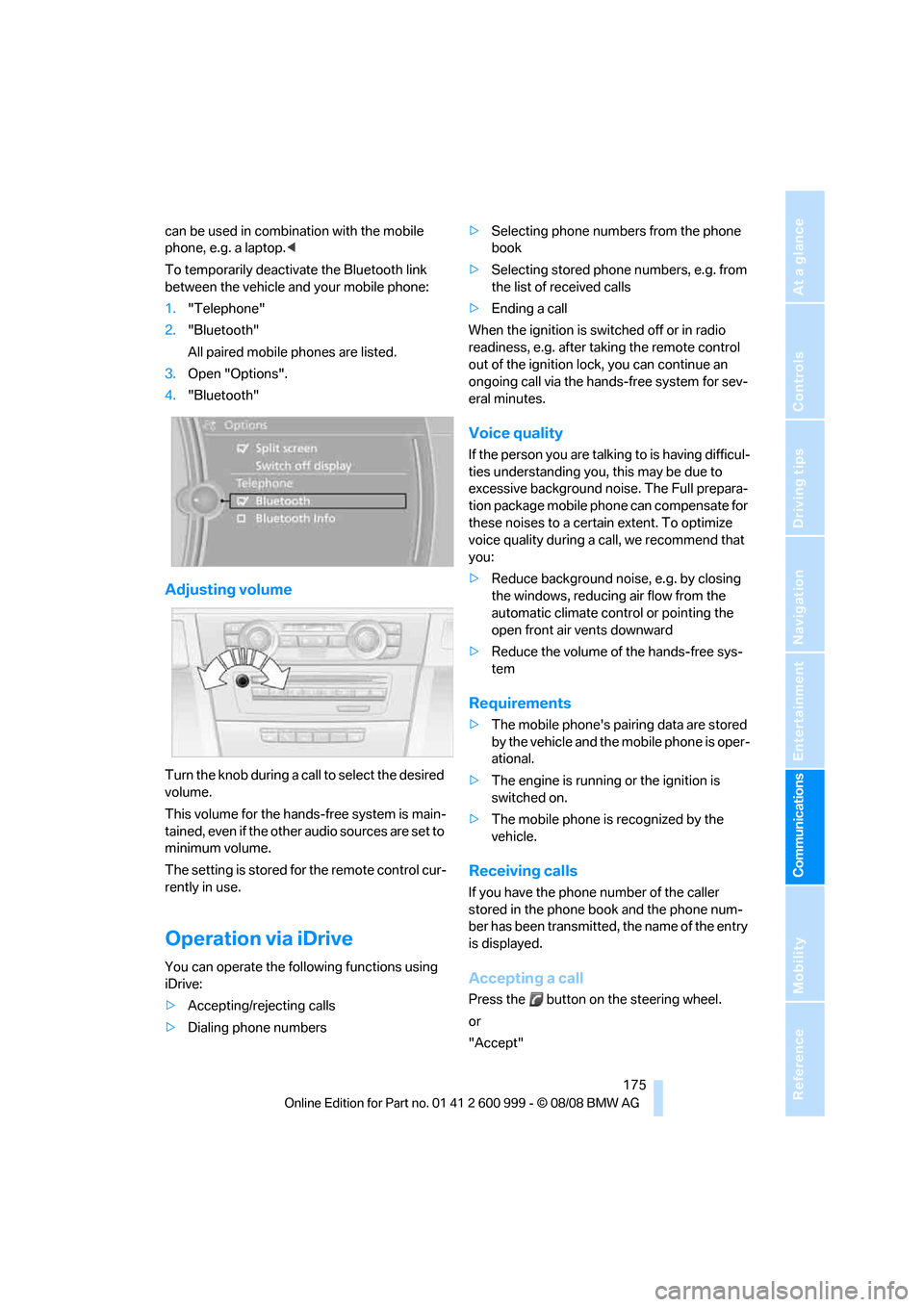
To temporarily deactivate the Bluetooth link
between the vehicle and your mobile phone:
1."Telephone"
2."Bluetooth"
All paired mobile phones are listed.
3.Open "Options".
4."Bluetooth"
Adjusting volume
Turn the knob during a call to select the desired
volume.
This volume for the hands-free system is main-
tained, even if the other audio sources are set to
minimum volume.
The setting is stored for the remote control cur-
rently in use.
Operation via iDrive
You can operate the following functions using
iDrive:
>Accepting/rejecting calls
>Dialing phone numbers>Selecting phone numbers from the phone
book
>Selecting stored phone numbers, e.g. from
the list of received calls
>Ending a call
When the ignition is switched off or in radio
readiness, e.g. after taking the remote control
out of the ignition lock, you can continue an
ongoing call via the hands-free system for sev-
eral minutes.
Voice quality
If the person you are talking to is having difficul-
ties understanding you, this may be due to
excessive background noise. The Full prepara-
tion package mobile phone can compensate for
these noises to a certain extent. To optimize
voice quality during a call, we recommend that
you:
>Reduce background noise, e.g. by closing
the windows, reducing air flow from the
automatic climate control or pointing the
open front air vents downward
>Reduce the volume of the hands-free sys-
tem
Requirements
>The mobile phone's pairing data are stored
by the vehicle and the mobile phone is oper-
ational.
>The engine is running or the ignition is
switched on.
>The mobile phone is recognized by the
vehicle.
Receiving calls
If you have the phone number of the caller
stored in the phone book and the phone num-
ber has been transmitted, the name of the entry
is displayed.
Accepting a call
Press the button on the steering wheel.
or
"Accept"
ba8_E9293M3_cic.book Seite 175 Dienstag, 19. August 2008 12:01 12