instrument cluster BMW M4 2016 User Guide
[x] Cancel search | Manufacturer: BMW, Model Year: 2016, Model line: M4, Model: BMW M4 2016Pages: 228, PDF Size: 4.88 MB
Page 79 of 228
DisplaysVehicle equipmentThis chapter describes all standard, national
and special equipment provided in the model
series. Equipment not available in the vehicle is
therefore also described, for example the se‐lected special equipment or national version.
This also applies to safety-relevant functions
and systems. Comply with the relevant na‐
tional regulations when using the correspond‐
ing functions and systems.
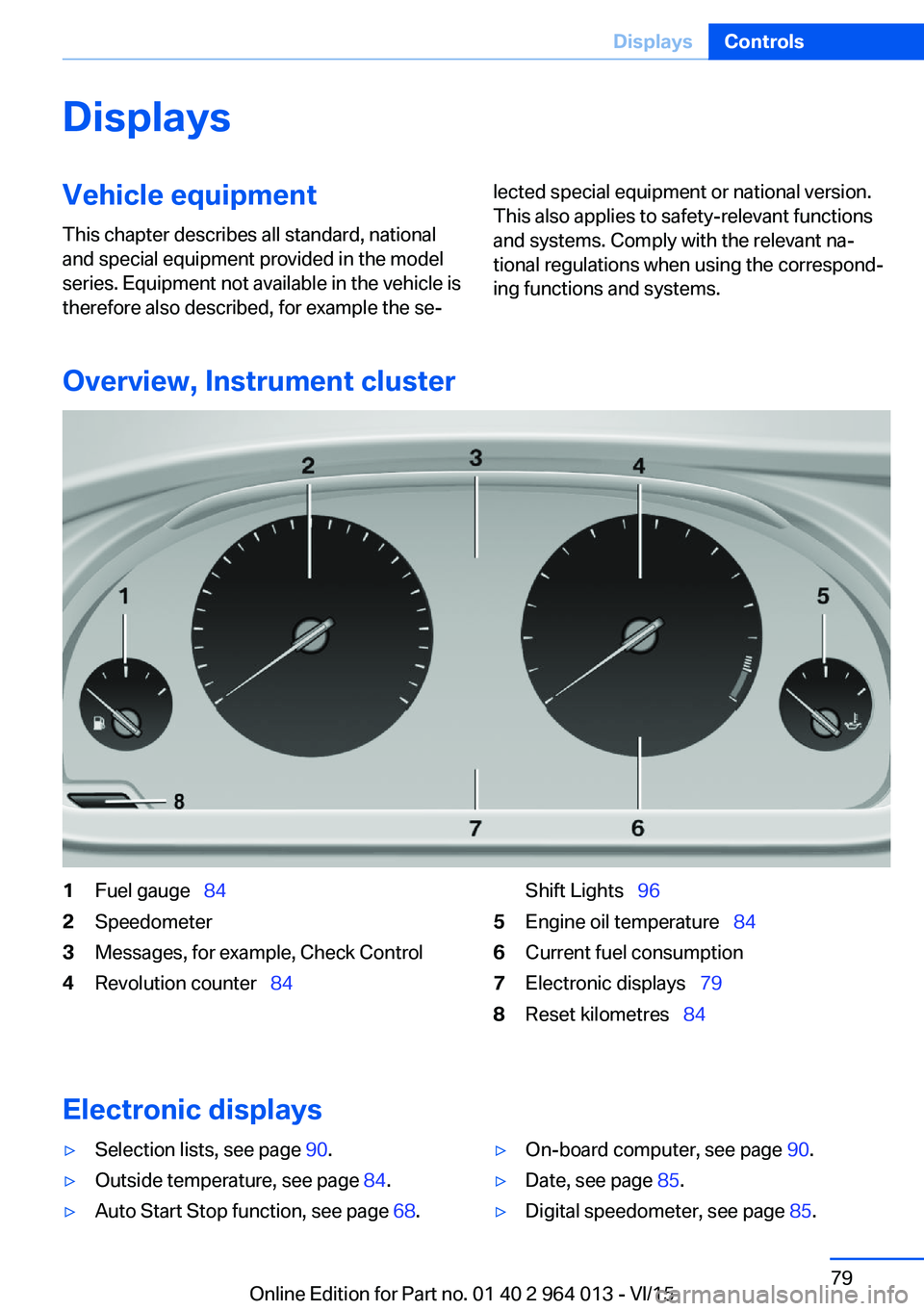
Overview, Instrument cluster
1Fuel gauge 842Speedometer3Messages, for example, Check Control4Revolution counter 84Shift Lights 965Engine oil temperature 846Current fuel consumption7Electronic displays 798Reset kilometres 84
Electronic displays
▷Selection lists, see page 90.▷Outside temperature, see page 84.▷Auto Start Stop function, see page 68.▷On-board computer, see page 90.▷Date, see page 85.▷Digital speedometer, see page 85.Seite 79DisplaysControls79
Online Edition for Part no. 01 40 2 964 013 - VI/15
Page 80 of 228
▷Energy recuperation, see page 86.▷Gear display with Drivelogic, see
page 85.▷Seat belt reminder for rear seats, see
page 53.▷Kilometres/trip odometer, see page 84.▷Messages, for example Check Control, see
page 80.▷Current fuel consumption, see page 86.▷Navigation display, see Owner's Handbook
for Navigation, Entertainment, Communi‐
cation.▷Range, see page 85.▷Service requirements, see page 87.▷Speed Limit Information, see page 88.▷System states of the driving dynamics, see
page 86.▷Time, see page 85.
Check control
Principle The check control monitors vehicle functionsand alerts you to any faults in the monitored
systems.
A check control message is displayed as a
combination of indicator or warning lights and
text messages in the instrument cluster and
the Head-Up Display.
If applicable, the text message shown in the
Control Display is accompanied by an addi‐
tional acoustic sound.
Indicator and warning lamps
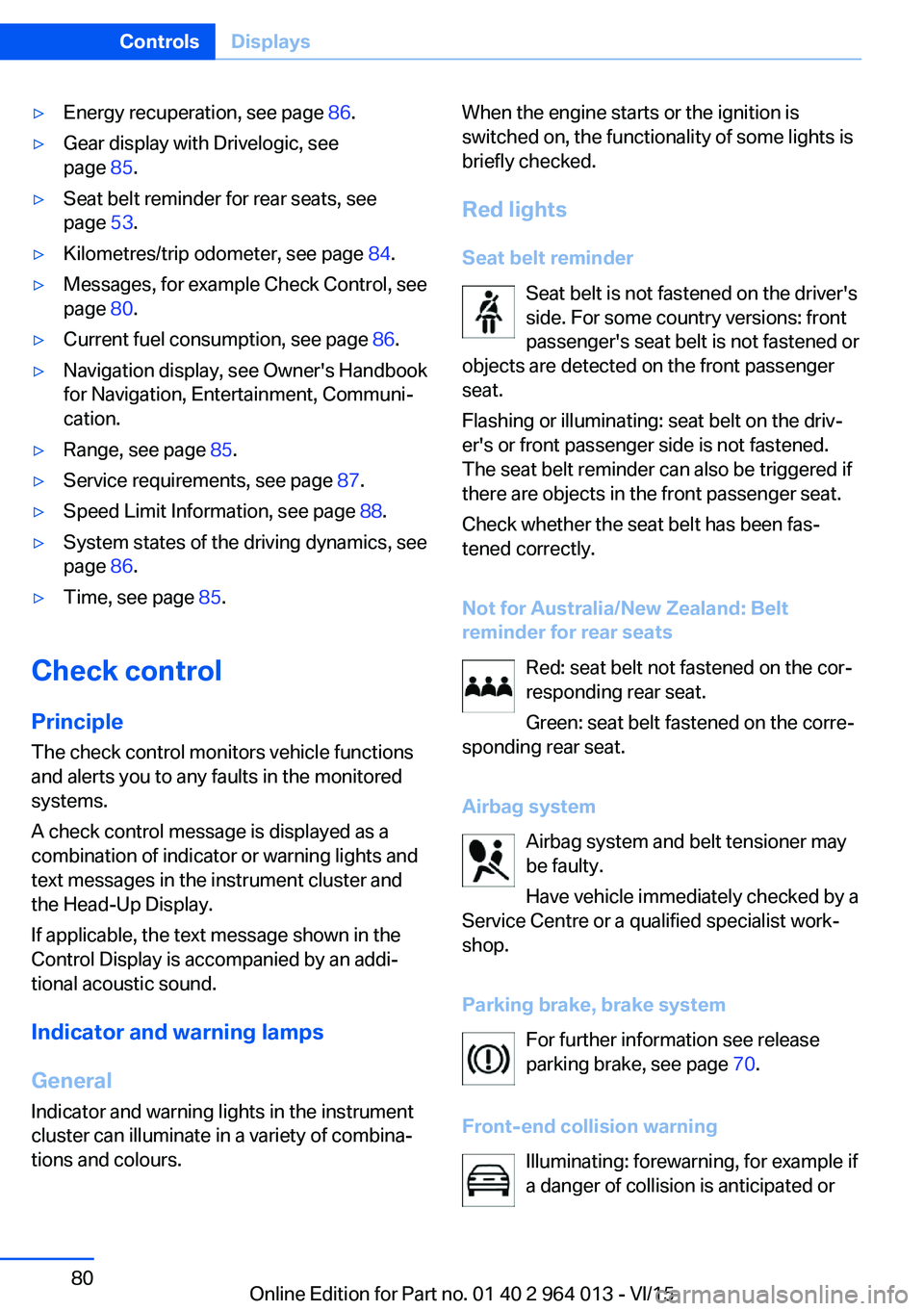
General Indicator and warning lights in the instrument
cluster can illuminate in a variety of combina‐
tions and colours.
When the engine starts or the ignition is
switched on, the functionality of some lights is
briefly checked.
Red lights
Seat belt reminder Seat belt is not fastened on the driver's
side. For some country versions: front
passenger's seat belt is not fastened or
objects are detected on the front passenger
seat.
Flashing or illuminating: seat belt on the driv‐
er's or front passenger side is not fastened.
The seat belt reminder can also be triggered if
there are objects in the front passenger seat.
Check whether the seat belt has been fas‐
tened correctly.
Not for Australia/New Zealand: Belt
reminder for rear seats
Red: seat belt not fastened on the cor‐
responding rear seat.
Green: seat belt fastened on the corre‐
sponding rear seat.
Airbag system Airbag system and belt tensioner may
be faulty.
Have vehicle immediately checked by a
Service Centre or a qualified specialist work‐
shop.
Parking brake, brake system For further information see release
parking brake, see page 70.
Front-end collision warning Illuminating: forewarning, for example if
a danger of collision is anticipated orSeite 80ControlsDisplays80
Online Edition for Part no. 01 40 2 964 013 - VI/15
Page 81 of 228
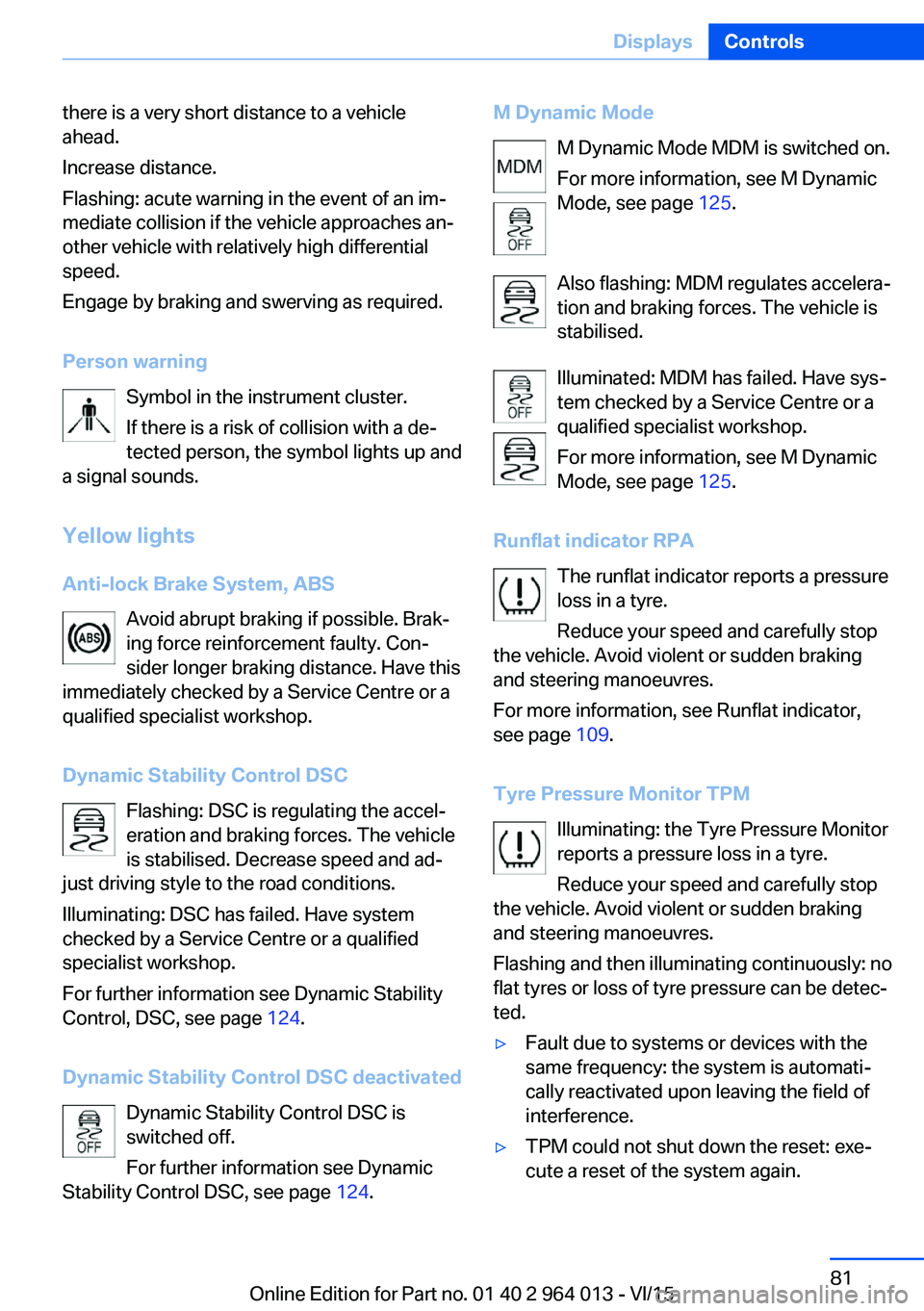
there is a very short distance to a vehicle
ahead.
Increase distance.
Flashing: acute warning in the event of an im‐
mediate collision if the vehicle approaches an‐
other vehicle with relatively high differential
speed.
Engage by braking and swerving as required.
Person warning Symbol in the instrument cluster.If there is a risk of collision with a de‐
tected person, the symbol lights up and
a signal sounds.
Yellow lights
Anti-lock Brake System, ABS Avoid abrupt braking if possible. Brak‐
ing force reinforcement faulty. Con‐
sider longer braking distance. Have this
immediately checked by a Service Centre or a
qualified specialist workshop.
Dynamic Stability Control DSC Flashing: DSC is regulating the accel‐
eration and braking forces. The vehicle
is stabilised. Decrease speed and ad‐
just driving style to the road conditions.
Illuminating: DSC has failed. Have system
checked by a Service Centre or a qualified
specialist workshop.
For further information see Dynamic Stability
Control, DSC, see page 124.
Dynamic Stability Control DSC deactivated Dynamic Stability Control DSC is
switched off.
For further information see Dynamic
Stability Control DSC, see page 124.M Dynamic Mode
M Dynamic Mode MDM is switched on.
For more information, see M Dynamic
Mode, see page 125.
Also flashing: MDM regulates accelera‐
tion and braking forces. The vehicle is
stabilised.
Illuminated: MDM has failed. Have sys‐
tem checked by a Service Centre or a
qualified specialist workshop.
For more information, see M Dynamic
Mode, see page 125.
Runflat indicator RPA The runflat indicator reports a pressure
loss in a tyre.
Reduce your speed and carefully stop
the vehicle. Avoid violent or sudden braking
and steering manoeuvres.
For more information, see Runflat indicator,
see page 109.
Tyre Pressure Monitor TPM Illuminating: the Tyre Pressure Monitor
reports a pressure loss in a tyre.
Reduce your speed and carefully stop
the vehicle. Avoid violent or sudden braking
and steering manoeuvres.
Flashing and then illuminating continuously: no
flat tyres or loss of tyre pressure can be detec‐
ted.▷Fault due to systems or devices with the
same frequency: the system is automati‐
cally reactivated upon leaving the field of
interference.▷TPM could not shut down the reset: exe‐
cute a reset of the system again.Seite 81DisplaysControls81
Online Edition for Part no. 01 40 2 964 013 - VI/15
Page 83 of 228
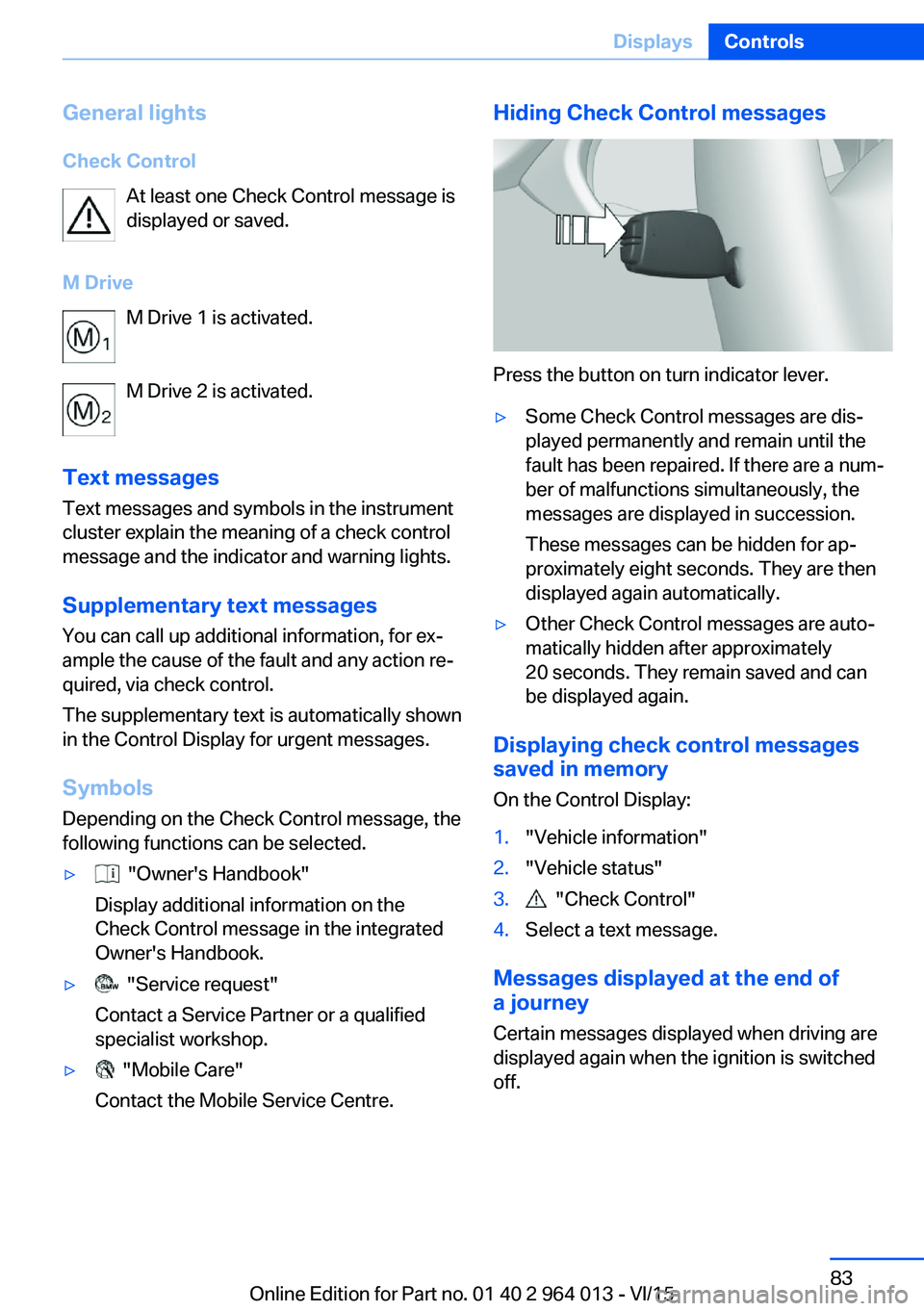
General lightsCheck Control At least one Check Control message is
displayed or saved.
M Drive M Drive 1 is activated.
M Drive 2 is activated.
Text messages Text messages and symbols in the instrument
cluster explain the meaning of a check control
message and the indicator and warning lights.
Supplementary text messages You can call up additional information, for ex‐
ample the cause of the fault and any action re‐
quired, via check control.
The supplementary text is automatically shown
in the Control Display for urgent messages.
Symbols Depending on the Check Control message, the
following functions can be selected.▷ "Owner's Handbook"
Display additional information on the
Check Control message in the integrated
Owner's Handbook.▷ "Service request"
Contact a Service Partner or a qualified
specialist workshop.▷ "Mobile Care"
Contact the Mobile Service Centre.Hiding Check Control messages
Press the button on turn indicator lever.
▷Some Check Control messages are dis‐
played permanently and remain until the
fault has been repaired. If there are a num‐
ber of malfunctions simultaneously, the
messages are displayed in succession.
These messages can be hidden for ap‐
proximately eight seconds. They are then
displayed again automatically.▷Other Check Control messages are auto‐
matically hidden after approximately
20 seconds. They remain saved and can
be displayed again.
Displaying check control messages saved in memory
On the Control Display:
1."Vehicle information"2."Vehicle status"3. "Check Control"4.Select a text message.
Messages displayed at the end of
a journey
Certain messages displayed when driving are
displayed again when the ignition is switched
off.
Seite 83DisplaysControls83
Online Edition for Part no. 01 40 2 964 013 - VI/15
Page 85 of 228
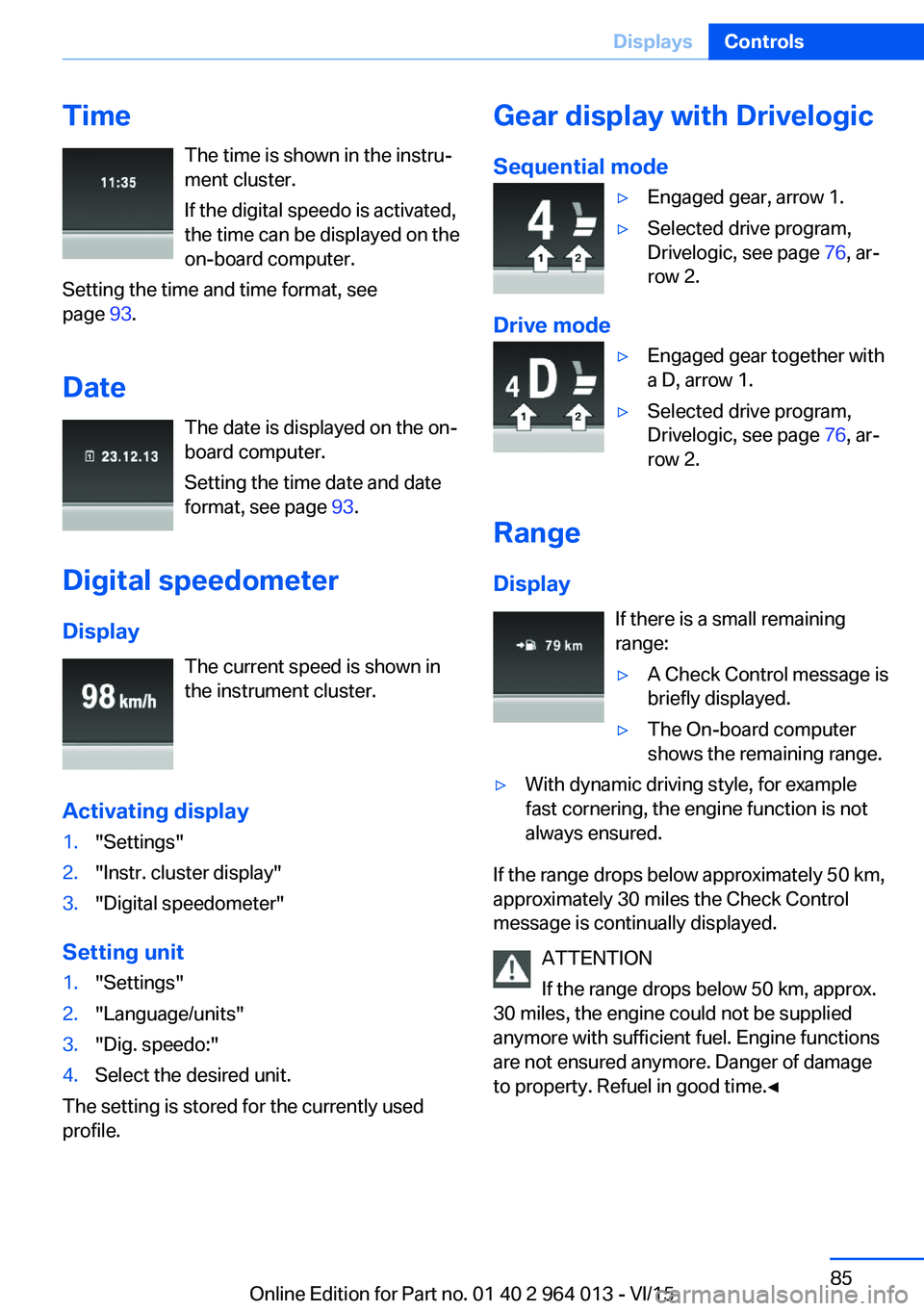
TimeThe time is shown in the instru‐
ment cluster.
If the digital speedo is activated,
the time can be displayed on the
on-board computer.
Setting the time and time format, see
page 93.
Date The date is displayed on the on-
board computer.
Setting the time date and date
format, see page 93.
Digital speedometer
Display The current speed is shown in
the instrument cluster.
Activating display1."Settings"2."Instr. cluster display"3."Digital speedometer"
Setting unit
1."Settings"2."Language/units"3."Dig. speedo:"4.Select the desired unit.
The setting is stored for the currently used
profile.
Gear display with Drivelogic
Sequential mode▷Engaged gear, arrow 1.▷Selected drive program,
Drivelogic, see page 76, ar‐
row 2.
Drive mode
▷Engaged gear together with
a D, arrow 1.▷Selected drive program,
Drivelogic, see page 76, ar‐
row 2.
Range
Display If there is a small remaining
range:
▷A Check Control message is
briefly displayed.▷The On-board computer
shows the remaining range.▷With dynamic driving style, for example
fast cornering, the engine function is not
always ensured.
If the range drops below approximately 50 km,
approximately 30 miles the Check Control
message is continually displayed.
ATTENTION
If the range drops below 50 km, approx.
30 miles, the engine could not be supplied
anymore with sufficient fuel. Engine functions
are not ensured anymore. Danger of damage
to property. Refuel in good time.◀
Seite 85DisplaysControls85
Online Edition for Part no. 01 40 2 964 013 - VI/15
Page 86 of 228
Current fuel consumption
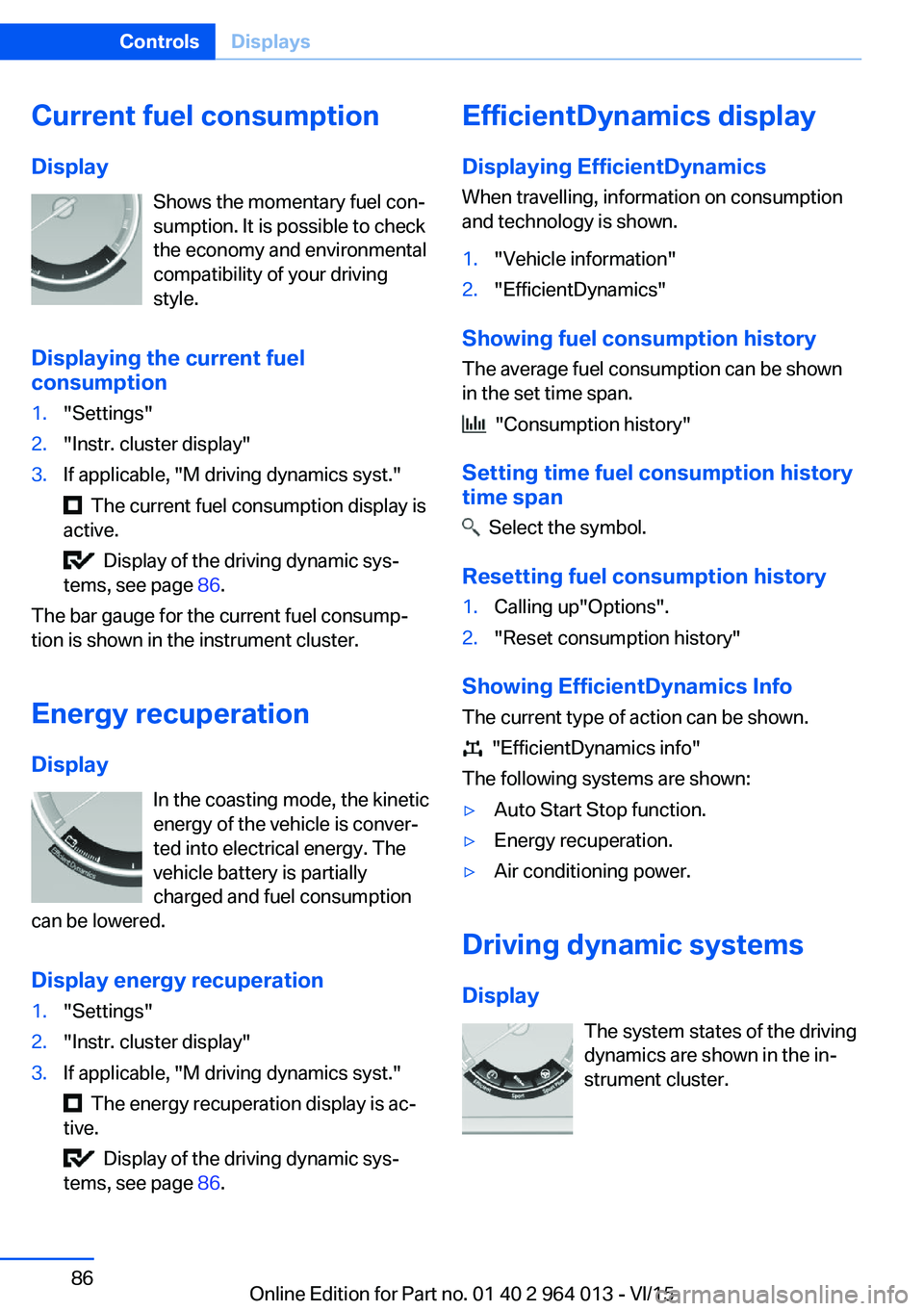
Display Shows the momentary fuel con‐
sumption. It is possible to check
the economy and environmental
compatibility of your driving
style.
Displaying the current fuel
consumption1."Settings"2."Instr. cluster display"3.If applicable, "M driving dynamics syst."
The current fuel consumption display is
active.
Display of the driving dynamic sys‐
tems, see page 86.
The bar gauge for the current fuel consump‐
tion is shown in the instrument cluster.
Energy recuperation
Display In the coasting mode, the kinetic
energy of the vehicle is conver‐
ted into electrical energy. The
vehicle battery is partially
charged and fuel consumption
can be lowered.
Display energy recuperation
1."Settings"2."Instr. cluster display"3.If applicable, "M driving dynamics syst."
The energy recuperation display is ac‐
tive.
Display of the driving dynamic sys‐
tems, see page 86.
EfficientDynamics display
Displaying EfficientDynamics When travelling, information on consumption
and technology is shown.1."Vehicle information"2."EfficientDynamics"
Showing fuel consumption history
The average fuel consumption can be shown
in the set time span.
"Consumption history"
Setting time fuel consumption history
time span
Select the symbol.
Resetting fuel consumption history
1.Calling up"Options".2."Reset consumption history"
Showing EfficientDynamics Info
The current type of action can be shown.
"EfficientDynamics info"
The following systems are shown:
▷Auto Start Stop function.▷Energy recuperation.▷Air conditioning power.
Driving dynamic systems
Display The system states of the driving
dynamics are shown in the in‐
strument cluster.
Seite 86ControlsDisplays86
Online Edition for Part no. 01 40 2 964 013 - VI/15
Page 87 of 228
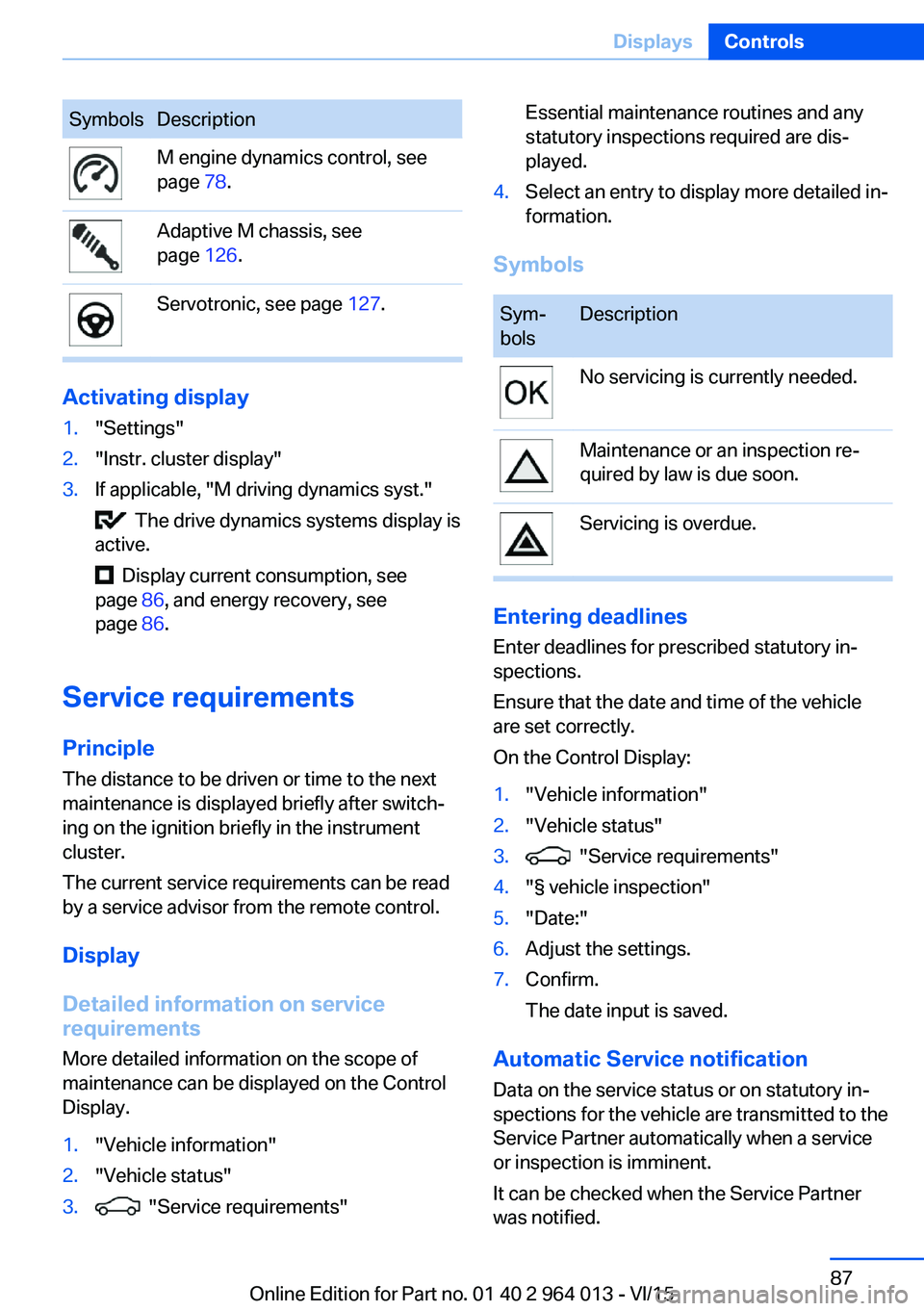
SymbolsDescriptionM engine dynamics control, see
page 78.Adaptive M chassis, see
page 126.Servotronic, see page 127.
Activating display
1."Settings"2."Instr. cluster display"3.If applicable, "M driving dynamics syst."
The drive dynamics systems display is
active.
Display current consumption, see
page 86, and energy recovery, see
page 86.
Service requirements
Principle The distance to be driven or time to the next
maintenance is displayed briefly after switch‐ ing on the ignition briefly in the instrument
cluster.
The current service requirements can be read
by a service advisor from the remote control.
Display
Detailed information on service
requirements
More detailed information on the scope of
maintenance can be displayed on the Control
Display.
1."Vehicle information"2."Vehicle status"3. "Service requirements"Essential maintenance routines and any
statutory inspections required are dis‐
played.4.Select an entry to display more detailed in‐
formation.
Symbols
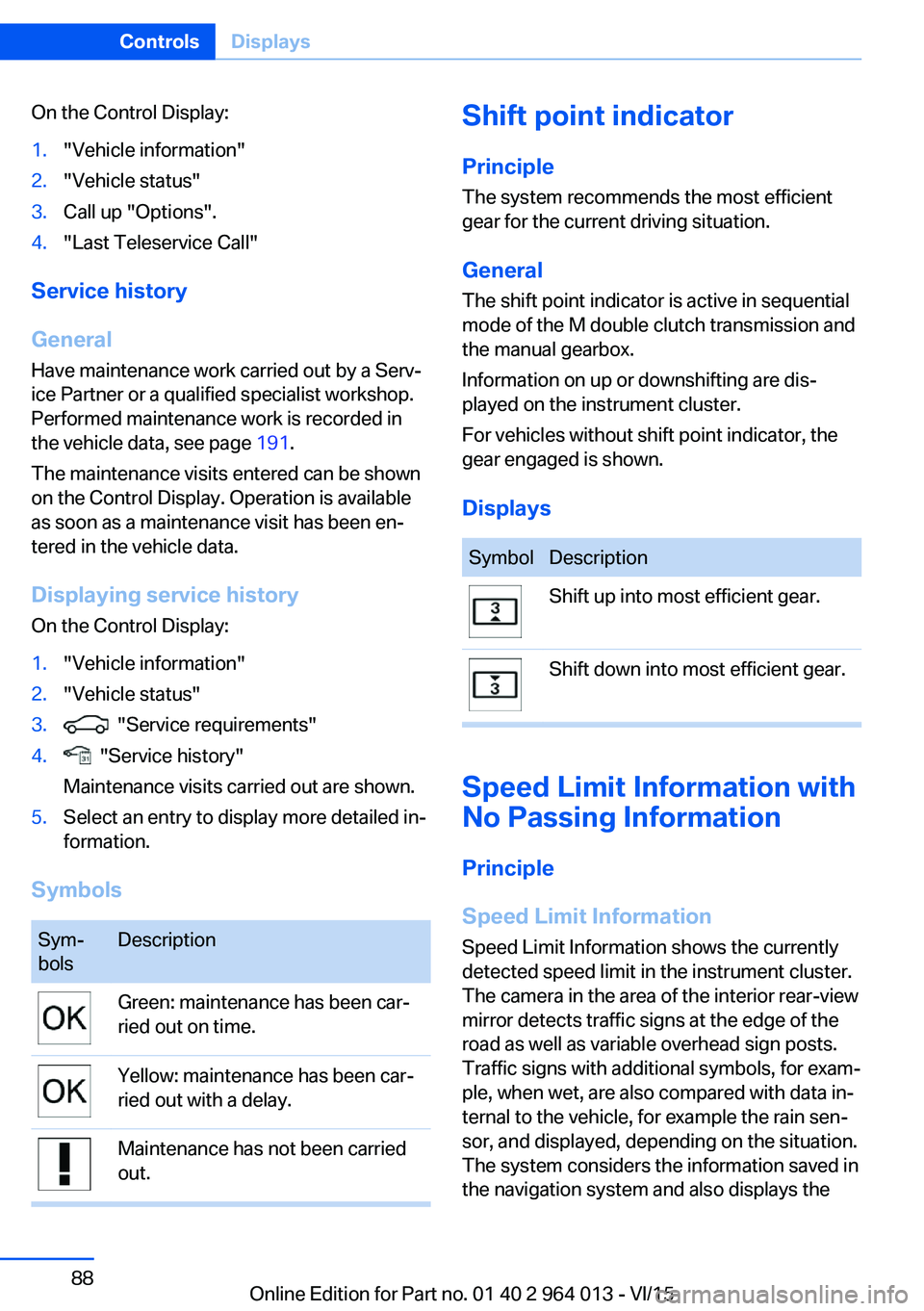
Sym‐
bolsDescriptionNo servicing is currently needed.Maintenance or an inspection re‐
quired by law is due soon.Servicing is overdue.
Entering deadlines
Enter deadlines for prescribed statutory in‐
spections.
Ensure that the date and time of the vehicle
are set correctly.
On the Control Display:
1."Vehicle information"2."Vehicle status"3. "Service requirements"4."§ vehicle inspection"5."Date:"6.Adjust the settings.7.Confirm.
The date input is saved.
Automatic Service notification Data on the service status or on statutory in‐
spections for the vehicle are transmitted to the
Service Partner automatically when a service
or inspection is imminent.
It can be checked when the Service Partner
was notified.
Seite 87DisplaysControls87
Online Edition for Part no. 01 40 2 964 013 - VI/15
Page 88 of 228
On the Control Display:1."Vehicle information"2."Vehicle status"3.Call up "Options".4."Last Teleservice Call"
Service history
General Have maintenance work carried out by a Serv‐
ice Partner or a qualified specialist workshop.
Performed maintenance work is recorded in
the vehicle data, see page 191.
The maintenance visits entered can be shown
on the Control Display. Operation is available
as soon as a maintenance visit has been en‐
tered in the vehicle data.
Displaying service history
On the Control Display:
1."Vehicle information"2."Vehicle status"3. "Service requirements"4. "Service history"
Maintenance visits carried out are shown.5.Select an entry to display more detailed in‐
formation.
Symbols
Sym‐
bolsDescriptionGreen: maintenance has been car‐
ried out on time.Yellow: maintenance has been car‐
ried out with a delay.Maintenance has not been carried
out.Shift point indicator
Principle The system recommends the most efficient
gear for the current driving situation.
General
The shift point indicator is active in sequential
mode of the M double clutch transmission and
the manual gearbox.
Information on up or downshifting are dis‐
played on the instrument cluster.
For vehicles without shift point indicator, the
gear engaged is shown.
DisplaysSymbolDescriptionShift up into most efficient gear.Shift down into most efficient gear.
Speed Limit Information with
No Passing Information
Principle
Speed Limit Information Speed Limit Information shows the currently
detected speed limit in the instrument cluster.
The camera in the area of the interior rear-view mirror detects traffic signs at the edge of the
road as well as variable overhead sign posts. Traffic signs with additional symbols, for exam‐
ple, when wet, are also compared with data in‐
ternal to the vehicle, for example the rain sen‐
sor, and displayed, depending on the situation.
The system considers the information saved in
the navigation system and also displays the
Seite 88ControlsDisplays88
Online Edition for Part no. 01 40 2 964 013 - VI/15
Page 89 of 228
speed limits present on unmarked sections of
road.
No Passing Information No Passing Information displays with corre‐
sponding symbols in the instrument cluster no
passing restrictions and their removal detected
by the camera. The system only considers no passing restrictions and lifting the restriction
made known by signage.
Nothing will be displayed in the following situa‐
tions:▷In countries in which no passing is primar‐
ily shown by road markings.▷On routes without signage.▷On railway crossings, lane markings or in
other situations which would not indicate
an unsigned no passing restriction.
Notes
WARNING
The system does not take your personal
responsibility from you when you are estimat‐
ing the visibility conditions and traffic situation.
Danger of accidents. Adapt driving style to the driving conditions. Observe the traffic situation
and intervene actively if the situation warrants
it.◀
Overview
Camera
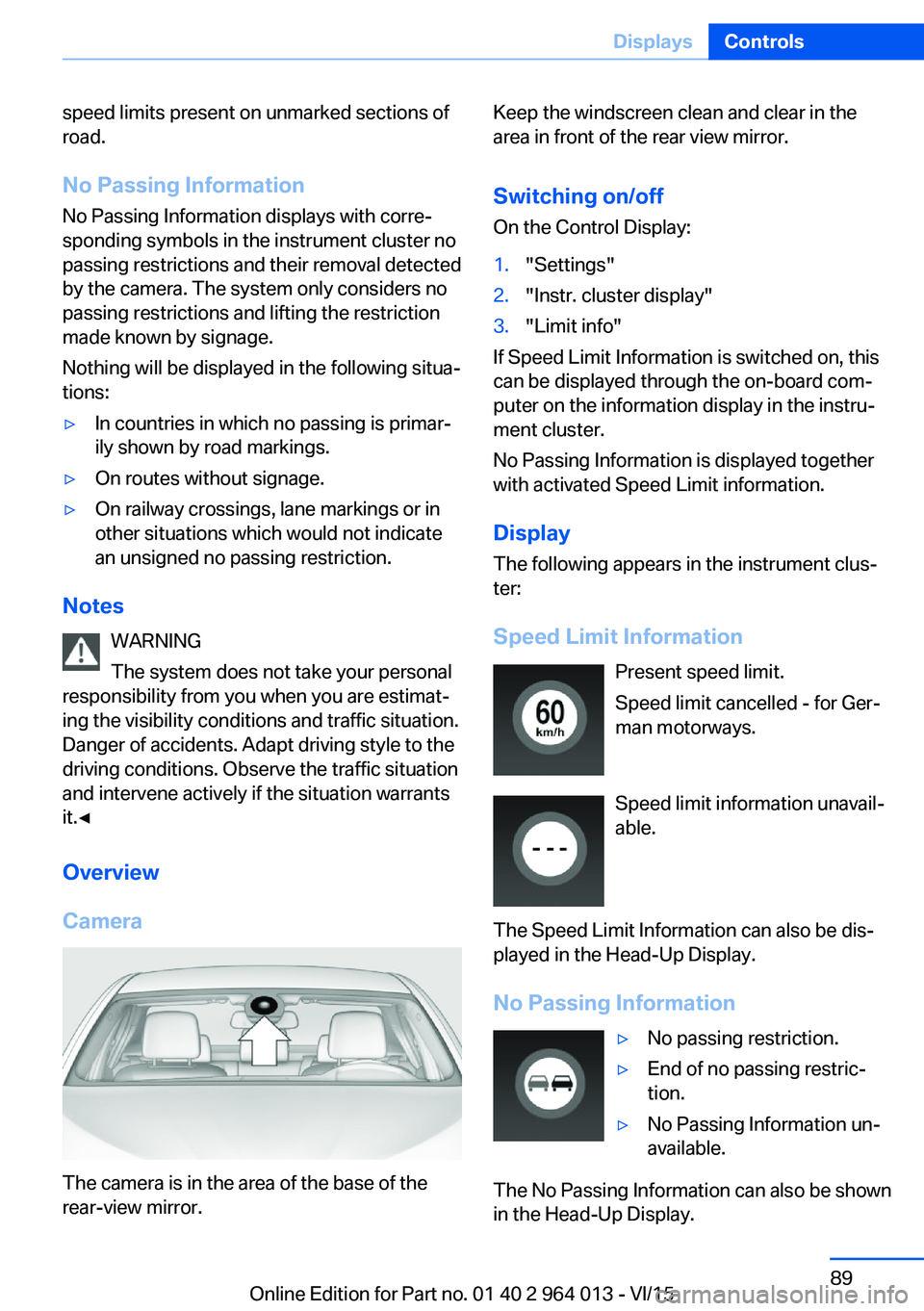
The camera is in the area of the base of the
rear-view mirror.
Keep the windscreen clean and clear in the
area in front of the rear view mirror.
Switching on/offOn the Control Display:1."Settings"2."Instr. cluster display"3."Limit info"
If Speed Limit Information is switched on, this
can be displayed through the on-board com‐
puter on the information display in the instru‐
ment cluster.
No Passing Information is displayed together
with activated Speed Limit information.
Display
The following appears in the instrument clus‐
ter:
Speed Limit Information Present speed limit.
Speed limit cancelled - for Ger‐
man motorways.
Speed limit information unavail‐
able.
The Speed Limit Information can also be dis‐
played in the Head-Up Display.
No Passing Information
▷No passing restriction.▷End of no passing restric‐
tion.▷No Passing Information un‐
available.
The No Passing Information can also be shown
in the Head-Up Display.
Seite 89DisplaysControls89
Online Edition for Part no. 01 40 2 964 013 - VI/15
Page 90 of 228
System limits
The function may be disabled or inaccurate
under certain conditions, for example:▷In thick fog and heavy rain or snow.▷If road signs are obscured by objects.▷If the vehicle is moving too close to the ve‐
hicle ahead.▷With bright oncoming light.▷When the windscreen in front of the rear-
view mirror is covered with condensation,
dirt, stickers, etc.▷Due to possible wrong detections of the
camera.▷If the speed limits saved in the navigation
system are wrong.▷In areas not covered by the navigation sys‐
tem.▷If there are deviations in relation to the nav‐
igation, for example due to changes in the
road routing.▷On overtaking buses or trucks with speed
stickers.▷If traffic signs do not correspond to the
standard.▷During the calibration process of the cam‐
era immediately after the vehicle is sup‐
plied.
Selection lists in the
instrument cluster
Principle Depending on equipment, the following can be
displayed or operated via the buttons and the
knurled wheel on the steering wheel and using
the displays in the instrument cluster and
Head-Up Display:
▷Current audio source.▷Repeat dialling for telephone.▷Activating the voice control system.Display
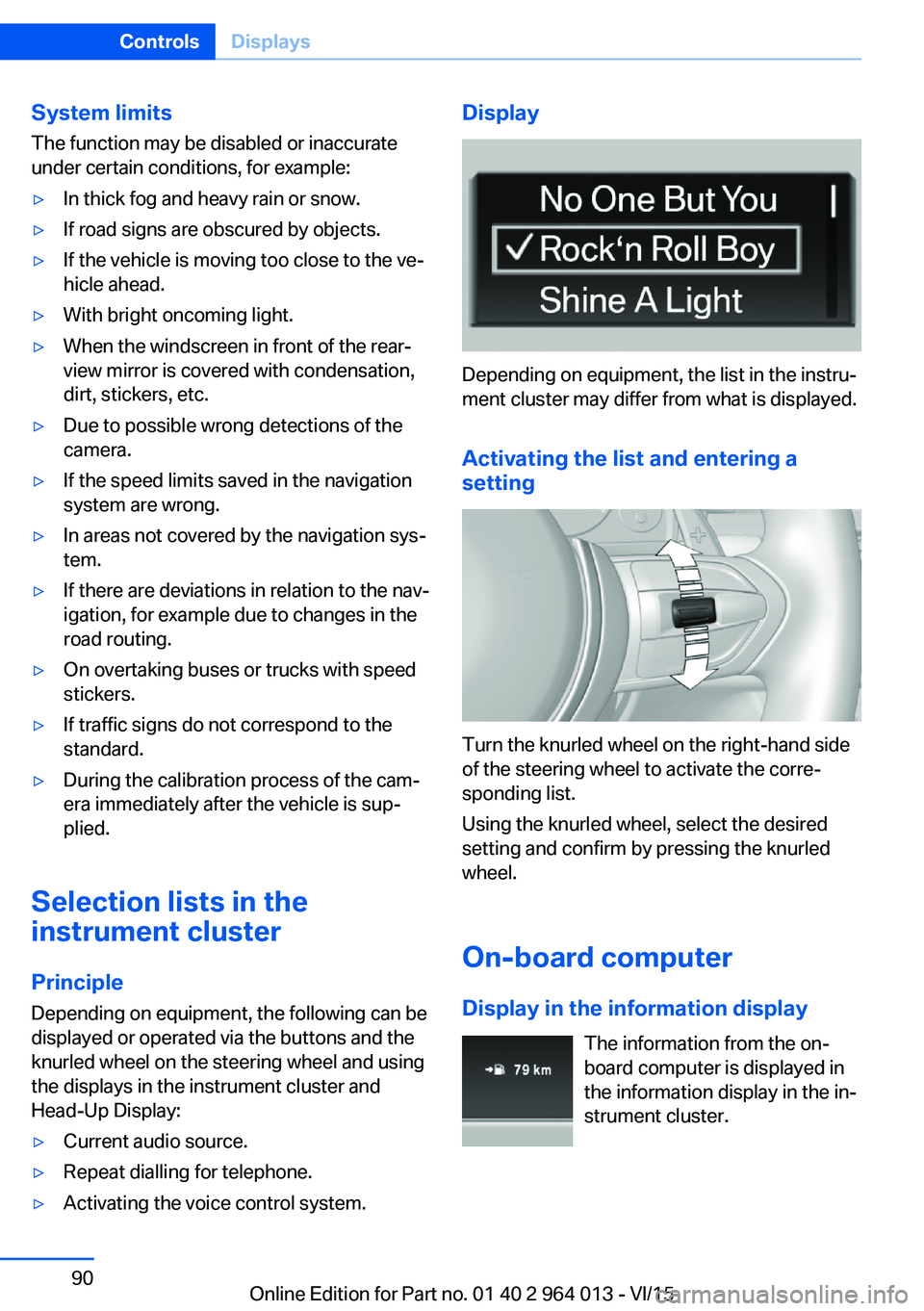
Depending on equipment, the list in the instru‐
ment cluster may differ from what is displayed.
Activating the list and entering a
setting
Turn the knurled wheel on the right-hand side
of the steering wheel to activate the corre‐
sponding list.
Using the knurled wheel, select the desired
setting and confirm by pressing the knurled
wheel.
On-board computer
Display in the information display The information from the on-
board computer is displayed in
the information display in the in‐
strument cluster.
Seite 90ControlsDisplays90
Online Edition for Part no. 01 40 2 964 013 - VI/15