position BMW X1 2014 E84 Owner's Guide
[x] Cancel search | Manufacturer: BMW, Model Year: 2014, Model line: X1, Model: BMW X1 2014 E84Pages: 297, PDF Size: 7 MB
Page 104 of 297
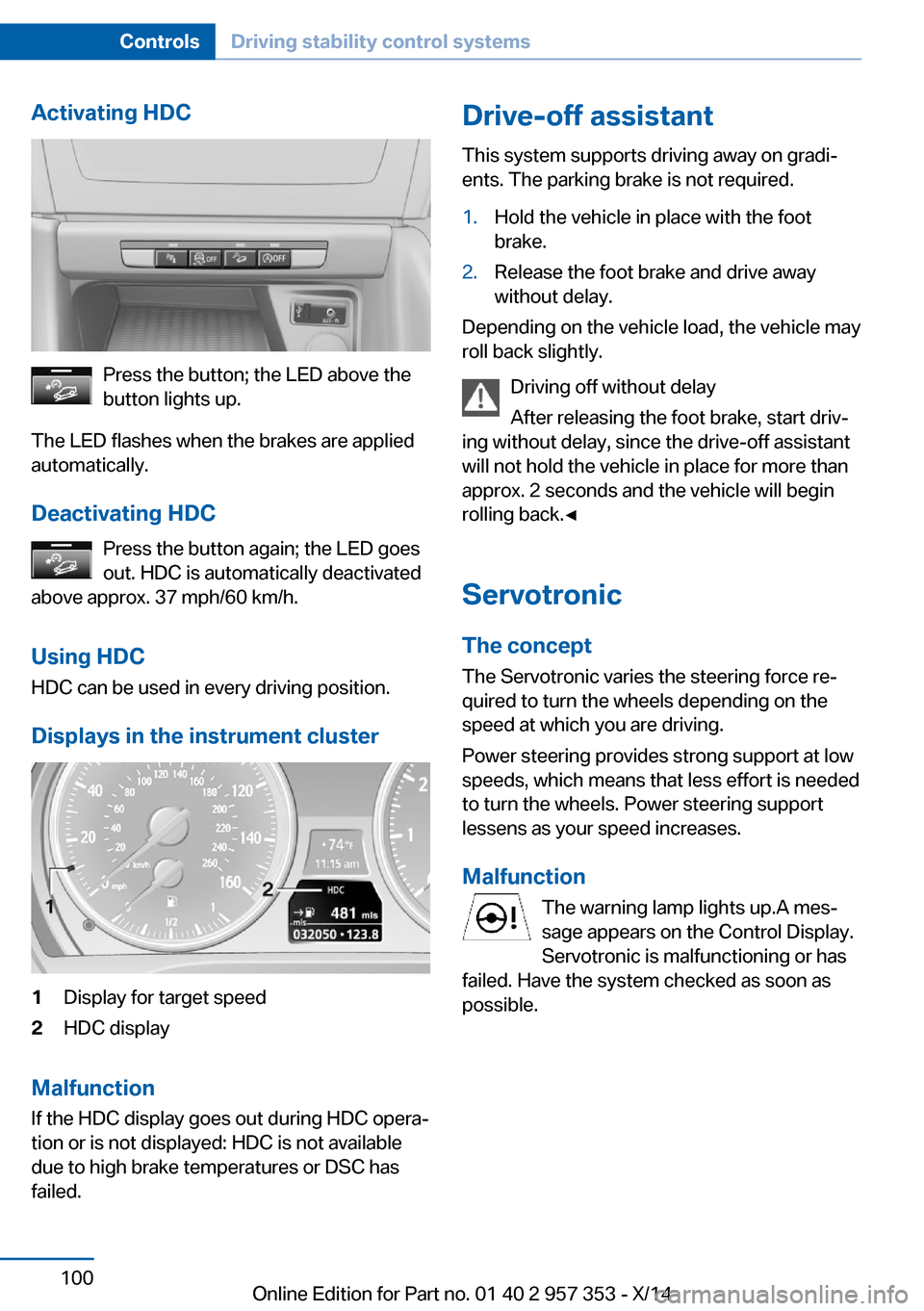
Activating HDC
Press the button; the LED above the
button lights up.
The LED flashes when the brakes are applied
automatically.
Deactivating HDC Press the button again; the LED goes
out. HDC is automatically deactivated
above approx. 37 mph/60 km/h.
Using HDC
HDC can be used in every driving position.
Displays in the instrument cluster
1Display for target speed2HDC display
Malfunction
If the HDC display goes out during HDC opera‐
tion or is not displayed: HDC is not available
due to high brake temperatures or DSC has
failed.
Drive-off assistant
This system supports driving away on gradi‐
ents. The parking brake is not required.1.Hold the vehicle in place with the foot
brake.2.Release the foot brake and drive away
without delay.
Depending on the vehicle load, the vehicle may
roll back slightly.
Driving off without delay
After releasing the foot brake, start driv‐
ing without delay, since the drive-off assistant
will not hold the vehicle in place for more than
approx. 2 seconds and the vehicle will begin
rolling back.◀
Servotronic The conceptThe Servotronic varies the steering force re‐
quired to turn the wheels depending on the
speed at which you are driving.
Power steering provides strong support at low
speeds, which means that less effort is needed
to turn the wheels. Power steering support
lessens as your speed increases.
Malfunction The warning lamp lights up.A mes‐
sage appears on the Control Display.
Servotronic is malfunctioning or has
failed. Have the system checked as soon as
possible.
Seite 100ControlsDriving stability control systems100
Online Edition for Part no. 01 40 2 957 353 - X/14
Page 106 of 297
The system stores and maintains the speed.
Accelerating using the lever Accelerating slightly:
Press the lever to the resistance point, arrow 1,
until the desired speed is reached.
Accelerating significantly:
Press the lever beyond the resistance point,
arrow 1, until the desired speed is reached.
The vehicle accelerates without pressure on
the accelerator pedal. The system stores and
maintains the speed.
Decreasing speed
Repeatedly pull the lever to the resistance
point or beyond, arrow 2, until the desired
speed is displayed.▷Each time the lever is pulled to the resist‐
ance point, the desired speed is decreased
by approx. 1 mph/1 km/h.▷Each time the lever is pulled beyond the
resistance point, the desired speed is re‐
duced by up to 5 mph/10 km/h until the
minimum speed of 20 mph/30 km/h is ach‐
ieved.
The system stores and maintains the speed.
Deactivating cruise control
Push the lever upwards or downwards, ar‐
row 3.
The displays in the speedometer go out.
In addition, the system is automatically deacti‐
vated when:
▷The brakes are applied.▷Selector lever position N is engaged or
transmission position D is disengaged.▷When DTC is activated or DSC is deacti‐
vated.▷When DSC or ABS is intervening.
Cruise control is not deactivated by depressing
the accelerator pedal. Once the accelerator
pedal is released, the stored speed is achieved
again and maintained.
Warning lamp The warning lamp comes on when
cruise control has been deactivated
as a result of DSC intervention, for
example. A message appears on the Control
Display.
Resuming a speed stored beforehand Press the button, arrow 4. The last stored
speed is resumed and maintained.
In the following cases, the stored speed value
is deleted and cannot be called up again:▷When driving stability control systems in‐
tervene.▷When selector lever position N is engaged
or transmission position D is disengaged.▷When the ignition is switched off.
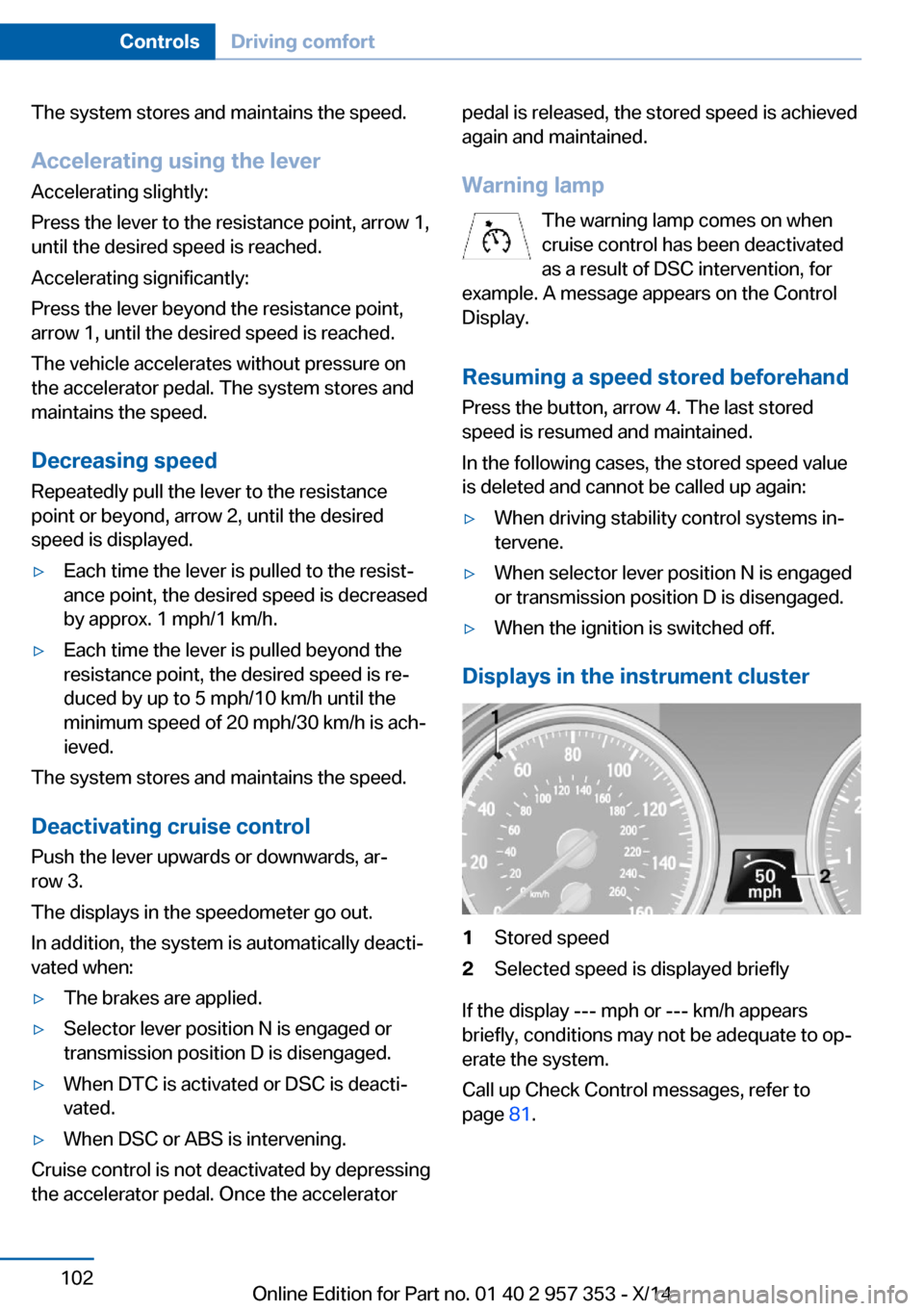
Displays in the instrument cluster
1Stored speed2Selected speed is displayed briefly
If the display --- mph or --- km/h appears
briefly, conditions may not be adequate to op‐
erate the system.
Call up Check Control messages, refer to
page 81.
Seite 102ControlsDriving comfort102
Online Edition for Part no. 01 40 2 957 353 - X/14
Page 108 of 297
Switching on automaticallyWith the engine running or the ignition
switched on, shift the selector lever into posi‐
tion R.
Switching off automatically when
driving forward
The system switches off when a certain dis‐
tance or speed is exceeded.
Switch on the system again if necessary.
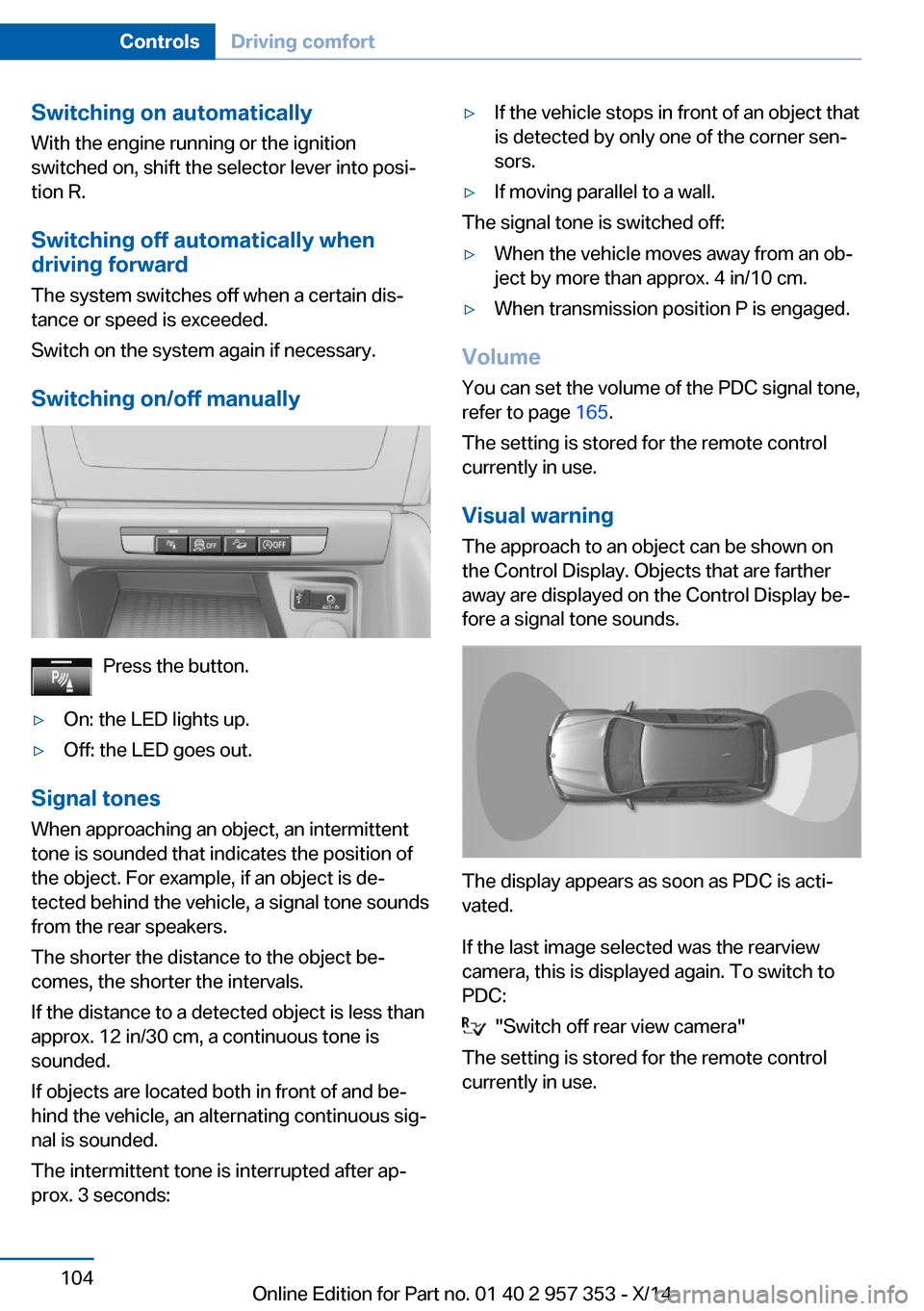
Switching on/off manually
Press the button.
▷On: the LED lights up.▷Off: the LED goes out.
Signal tonesWhen approaching an object, an intermittent
tone is sounded that indicates the position of
the object. For example, if an object is de‐
tected behind the vehicle, a signal tone sounds
from the rear speakers.
The shorter the distance to the object be‐
comes, the shorter the intervals.
If the distance to a detected object is less than
approx. 12 in/30 cm, a continuous tone is
sounded.
If objects are located both in front of and be‐
hind the vehicle, an alternating continuous sig‐
nal is sounded.
The intermittent tone is interrupted after ap‐
prox. 3 seconds:
▷If the vehicle stops in front of an object that
is detected by only one of the corner sen‐
sors.▷If moving parallel to a wall.
The signal tone is switched off:
▷When the vehicle moves away from an ob‐
ject by more than approx. 4 in/10 cm.▷When transmission position P is engaged.
Volume
You can set the volume of the PDC signal tone,
refer to page 165.
The setting is stored for the remote control
currently in use.
Visual warning
The approach to an object can be shown on
the Control Display. Objects that are farther
away are displayed on the Control Display be‐
fore a signal tone sounds.
The display appears as soon as PDC is acti‐
vated.
If the last image selected was the rearview
camera, this is displayed again. To switch to
PDC:
"Switch off rear view camera"
The setting is stored for the remote control
currently in use.
Seite 104ControlsDriving comfort104
Online Edition for Part no. 01 40 2 957 353 - X/14
Page 110 of 297
Assistance functions
Functional requirement▷Rear view camera is switched on.▷Tailgate is completely closed.
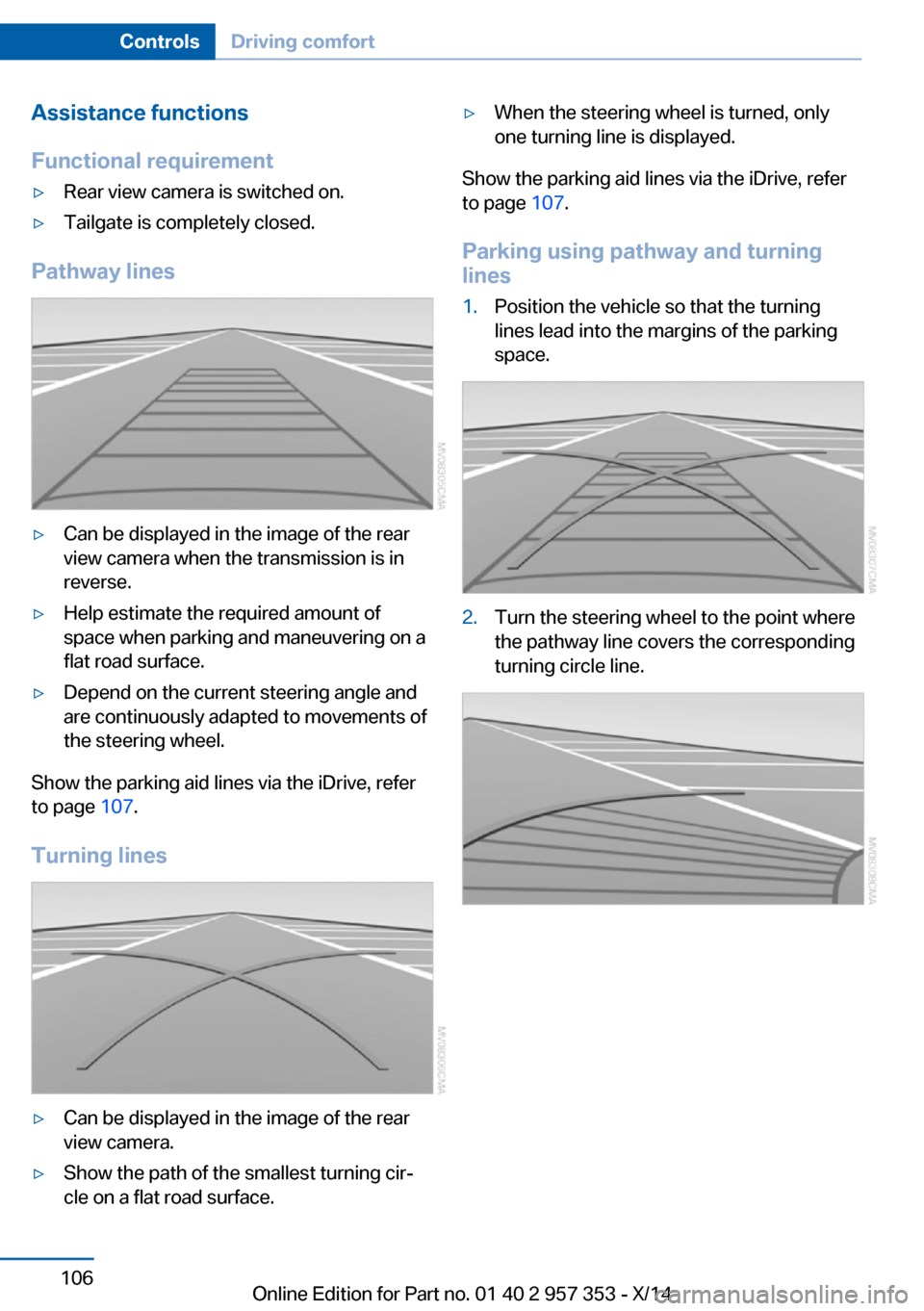
Pathway lines
▷Can be displayed in the image of the rear
view camera when the transmission is in
reverse.▷Help estimate the required amount of
space when parking and maneuvering on a
flat road surface.▷Depend on the current steering angle and
are continuously adapted to movements of
the steering wheel.
Show the parking aid lines via the iDrive, refer
to page 107.
Turning lines
▷Can be displayed in the image of the rear
view camera.▷Show the path of the smallest turning cir‐
cle on a flat road surface.▷When the steering wheel is turned, only
one turning line is displayed.
Show the parking aid lines via the iDrive, refer
to page 107.
Parking using pathway and turning
lines
1.Position the vehicle so that the turning
lines lead into the margins of the parking
space.2.Turn the steering wheel to the point where
the pathway line covers the corresponding
turning circle line.Seite 106ControlsDriving comfort106
Online Edition for Part no. 01 40 2 957 353 - X/14
Page 123 of 297
Enlarging the cargo area
General information
The cargo area can be enlarged by folding
down the rear seat backrests.
The rear seat backrest is divided at a ratio of
40-20-40.
The backrests can be adjusted to 10 different
positions between the comfort and transport
positions and they can be folded down.
In the comfort position, the backrests are tilted
back to the greatest possible angle and in the
transport position they are nearly vertical.
Before mounting a child restraint fixing system,
note the instructions, refer to page 52.
Danger of pinching
Before folding down the rear seat back‐
rests, ensure that path of movement of the
backrests is clear. Especially when the middle
section is folded down, ensure that no one is
located in or reaches into the path of move‐
ment of the rear seat backrests. Otherwise, in‐
juries or damage may result.◀
Observe the instructions concerning the
safety belt
Observe the instructions concerning the safety
belt, refer to page 46. Otherwise, personal pro‐
tection may be compromised.◀
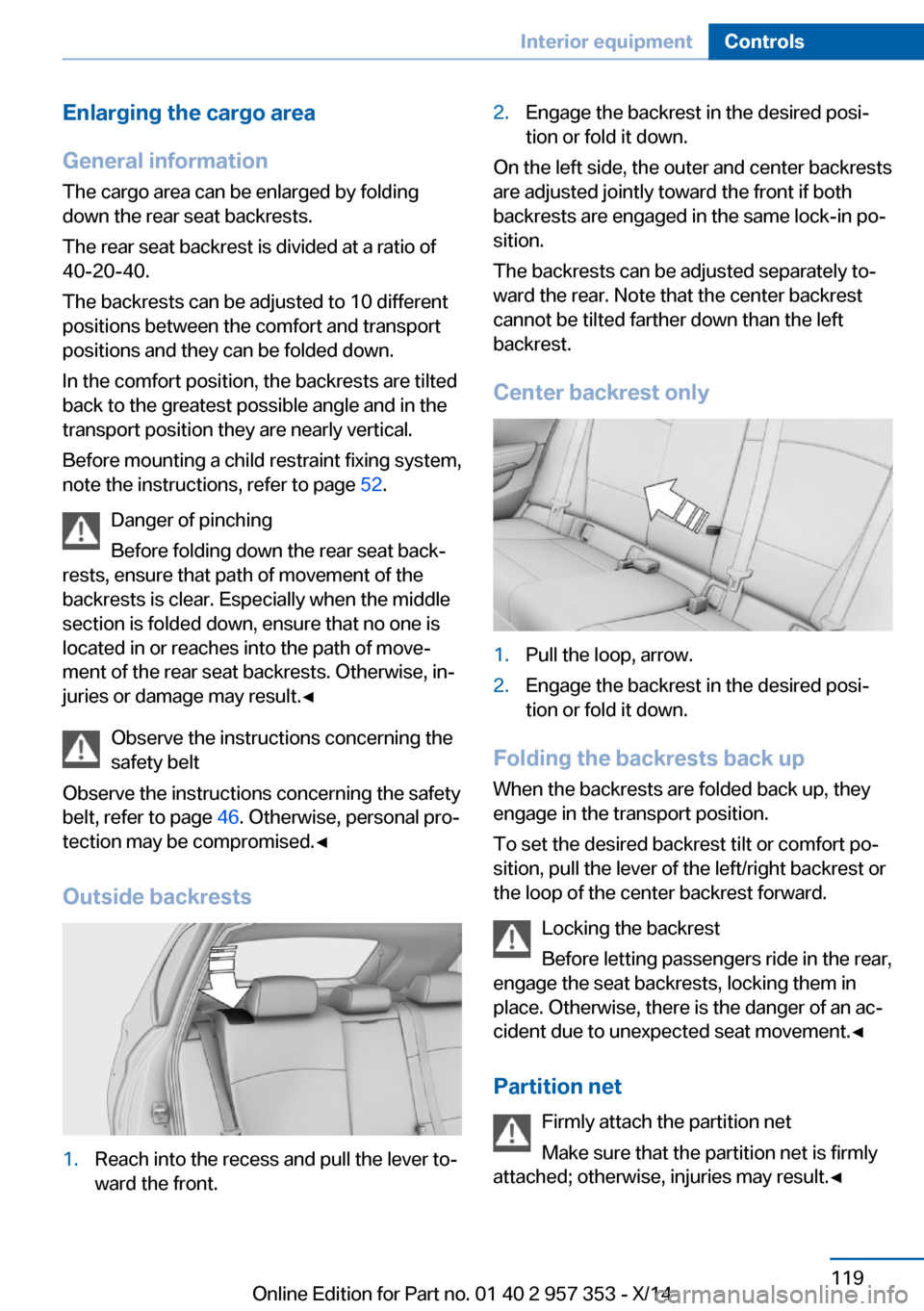
Outside backrests1.Reach into the recess and pull the lever to‐
ward the front.2.Engage the backrest in the desired posi‐
tion or fold it down.
On the left side, the outer and center backrests
are adjusted jointly toward the front if both
backrests are engaged in the same lock-in po‐
sition.
The backrests can be adjusted separately to‐
ward the rear. Note that the center backrest
cannot be tilted farther down than the left
backrest.
Center backrest only
1.Pull the loop, arrow.2.Engage the backrest in the desired posi‐
tion or fold it down.
Folding the backrests back up
When the backrests are folded back up, they
engage in the transport position.
To set the desired backrest tilt or comfort po‐
sition, pull the lever of the left/right backrest or
the loop of the center backrest forward.
Locking the backrest
Before letting passengers ride in the rear,
engage the seat backrests, locking them in
place. Otherwise, there is the danger of an ac‐
cident due to unexpected seat movement.◀
Partition net Firmly attach the partition net
Make sure that the partition net is firmly
attached; otherwise, injuries may result.◀
Seite 119Interior equipmentControls119
Online Edition for Part no. 01 40 2 957 353 - X/14
Page 146 of 297
Navigation systemVehicle equipmentThis chapter describes all series equipment as
well as country-specific and special equipment
offered for this model series. Therefore, it also
describes equipment that may not be found in
your vehicle, for instance due to the selected
special equipment or the country version. This
also applies to safety-related functions and
systems.
When using the features and systems descri‐
bed here, adhere to local regulations.
General information The navigation system can determine the pre‐
cise position of the vehicle, with the aid of sat‐
ellites and vehicle sensors, and can reliably
guide you to every entered destination.
Entries in stationary vehicle
Enter data only when the vehicle is sta‐
tionary, and always give priority to the applica‐
ble traffic regulations in the event of any con‐
tradiction between traffic and road conditions
and the instructions issued by the navigation
system. Failure to take to this precaution can
place you in violation of the law and put vehicle
occupants and other road users in danger.◀
Opening the navigation system1. Press the button on the controller.2."Navigation"
The navigation system can also be called
up directly using the button on the con‐
troller.
Navigation data
Information on navigation data1."Navigation"2.Open "Options".3."Navigation system version"
Information is displayed on the data ver‐
sion.
Updating the navigation data
General information
Navigation data are stored in the vehicle and
can be updated.
Current navigation data and the authorization
code are available from your service center.
▷Depending on the data volume, a data up‐
date may take several hours.▷Update during the trip to preserve battery.▷During the update, only the basic functions
of the navigation system are available.▷The status of the update can be viewed.▷After the updating process is complete, the
system restarts.▷Remove the medium with the navigation
data after the update.
Performing an update
1.Insert the navigation DVD into the DVD
player with the labeled side facing up.2.Follow the instructions on the Control Dis‐
play.3.Enter the authorization code of the naviga‐
tion DVD.4.Change the DVD if necessary.
After the trip is interrupted, follow the instruc‐
tions on the Control Display.
Seite 142NavigationNavigation system142
Online Edition for Part no. 01 40 2 957 353 - X/14
Page 150 of 297
6.Select the letters.7.Change to the list of street names.8.Highlight the street.9.Select the street.
Starting destination guidance after
entering the destination
1."Accept destination"2."Start guidance" or "Add as another
destination"
Add, refer to page 151, a destination as a
further destination.
Address book
Create contacts, refer to page 216.
Selecting a destination from the
address book
1."Navigation"2."Address book"
Contacts with addresses are displayed if
these addresses have been checked as
destinations in the contacts.
If the contacts with addresses from the
mobile phone are not displayed, they first
need to be checked as destinations, refer
to page 217.3.Select a contact in the list or, if desired,
with "A-Z search".4."Business address" or "Home address"Storing the destination in the address
book
After entering the destination, store the desti‐
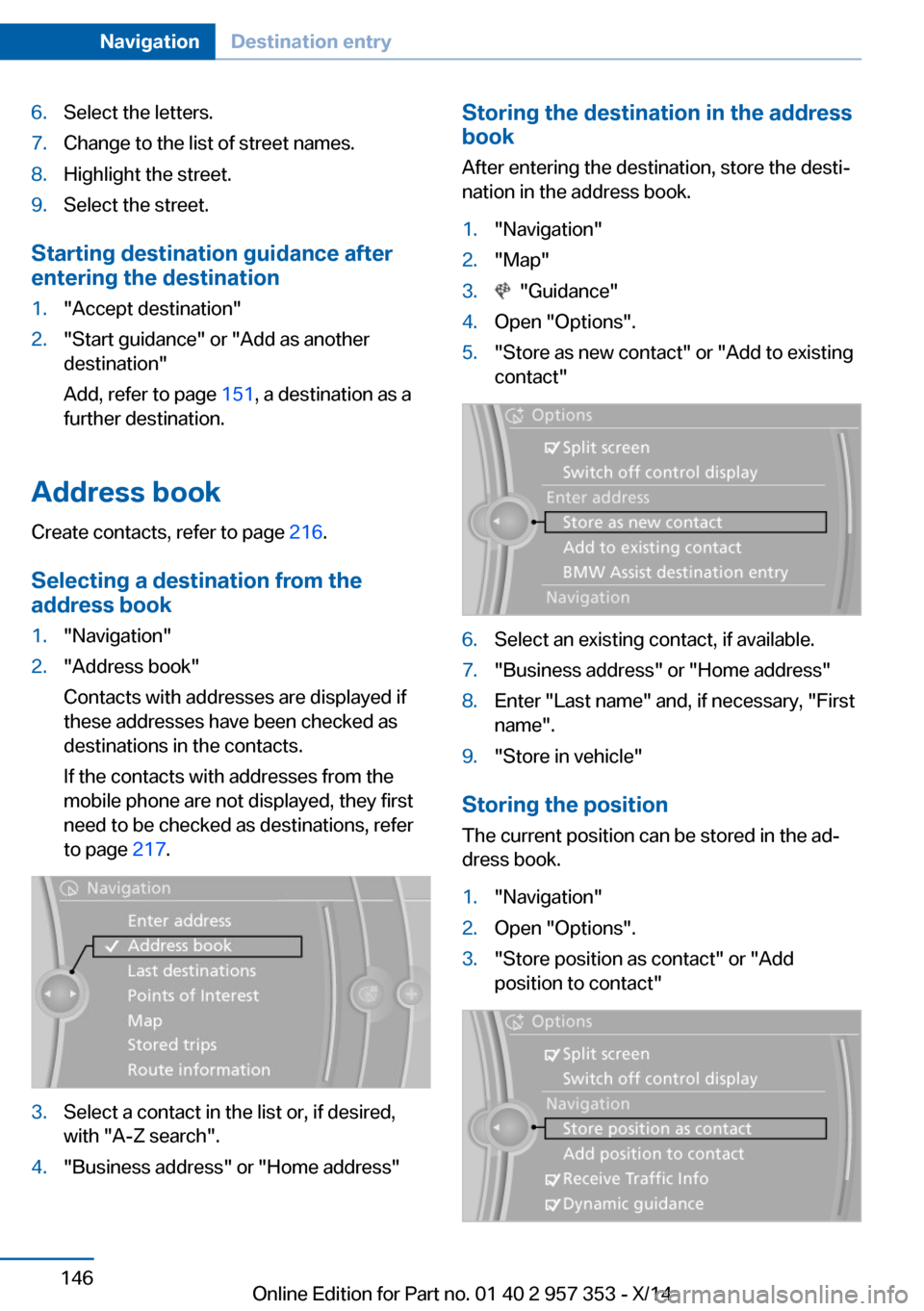
nation in the address book.1."Navigation"2."Map"3. "Guidance"4.Open "Options".5."Store as new contact" or "Add to existing
contact"6.Select an existing contact, if available.7."Business address" or "Home address"8.Enter "Last name" and, if necessary, "First
name".9."Store in vehicle"
Storing the position
The current position can be stored in the ad‐
dress book.
1."Navigation"2.Open "Options".3."Store position as contact" or "Add
position to contact"Seite 146NavigationDestination entry146
Online Edition for Part no. 01 40 2 957 353 - X/14
Page 153 of 297
In the splitscreen, special destinations of the
selected category are displayed in the map
view as symbols. The display depends on the
scale of the map and the category.
Destination entry via the Concierge
service
A connection is established to the Concierge
service, refer to page 219.1."Navigation"2."Enter address"3.Open "Options".4."BMW Assist dest. entry"
Displaying special destinations in the
map
To display symbols of the special destinations
in the map view:
1."Navigation"2."Map"3.Open "Options".4."Display Points of Interest"5.Select the setting.
Destination entry by map
Selecting the destination
1."Navigation"2."Map"
The current position of the vehicle is dis‐
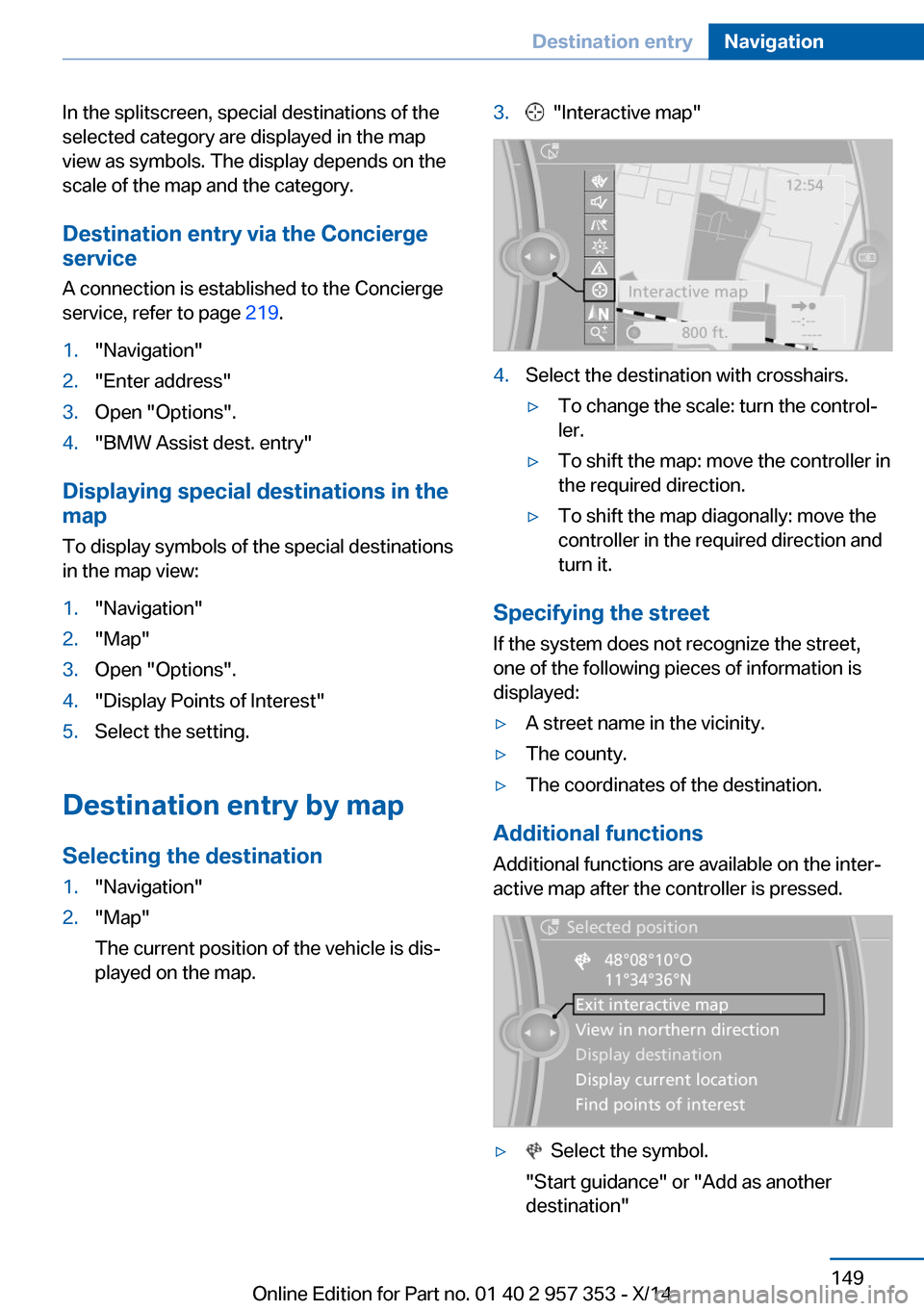
played on the map.3. "Interactive map"4.Select the destination with crosshairs.▷To change the scale: turn the control‐
ler.▷To shift the map: move the controller in
the required direction.▷To shift the map diagonally: move the
controller in the required direction and
turn it.
Specifying the street
If the system does not recognize the street,
one of the following pieces of information is
displayed:
▷A street name in the vicinity.▷The county.▷The coordinates of the destination.
Additional functions
Additional functions are available on the inter‐
active map after the controller is pressed.
▷ Select the symbol.
"Start guidance" or "Add as another destination"Seite 149Destination entryNavigation149
Online Edition for Part no. 01 40 2 957 353 - X/14
Page 156 of 297
Storing a tripUp to 30 trips can be stored in the trip list. If
necessary, delete existing trips to be able to
store new trips.1.Open "Options".2."Store trip"3.Enter a name for the trip.4."OK"
Selecting a stored trip
1."Navigation"2."Stored trips"3.Select a stored trip.4."Start guidance"
Changing the trip direction
Intermediate destinations are displayed in re‐
verse order in the list.
1."Map"2. "Guidance"3.Open "Options".4."Reverse order of trip dest."
Intermediate destination options
1."Map"2. "Guidance"3."Display all trip destinations"4.Select an intermediate destination.▷"Edit destination"▷"Reposition dest. in the trip": move an
intermediate destination to another po‐
sition in the list.▷"Delete dest. in the trip"▷"Go to next dest. in the trip"
Some options are not available for certain trips.
Deleting a stored trip
1."Navigation"2."Stored trips"3.Highlight the desired trip.4.Open "Options".5."Delete all trips" or "Delete trip"
Opening the last trip
1."Navigation"2."Stored trips"3."Last trip"4."Start guidance"Seite 152NavigationDestination entry152
Online Edition for Part no. 01 40 2 957 353 - X/14
Page 159 of 297
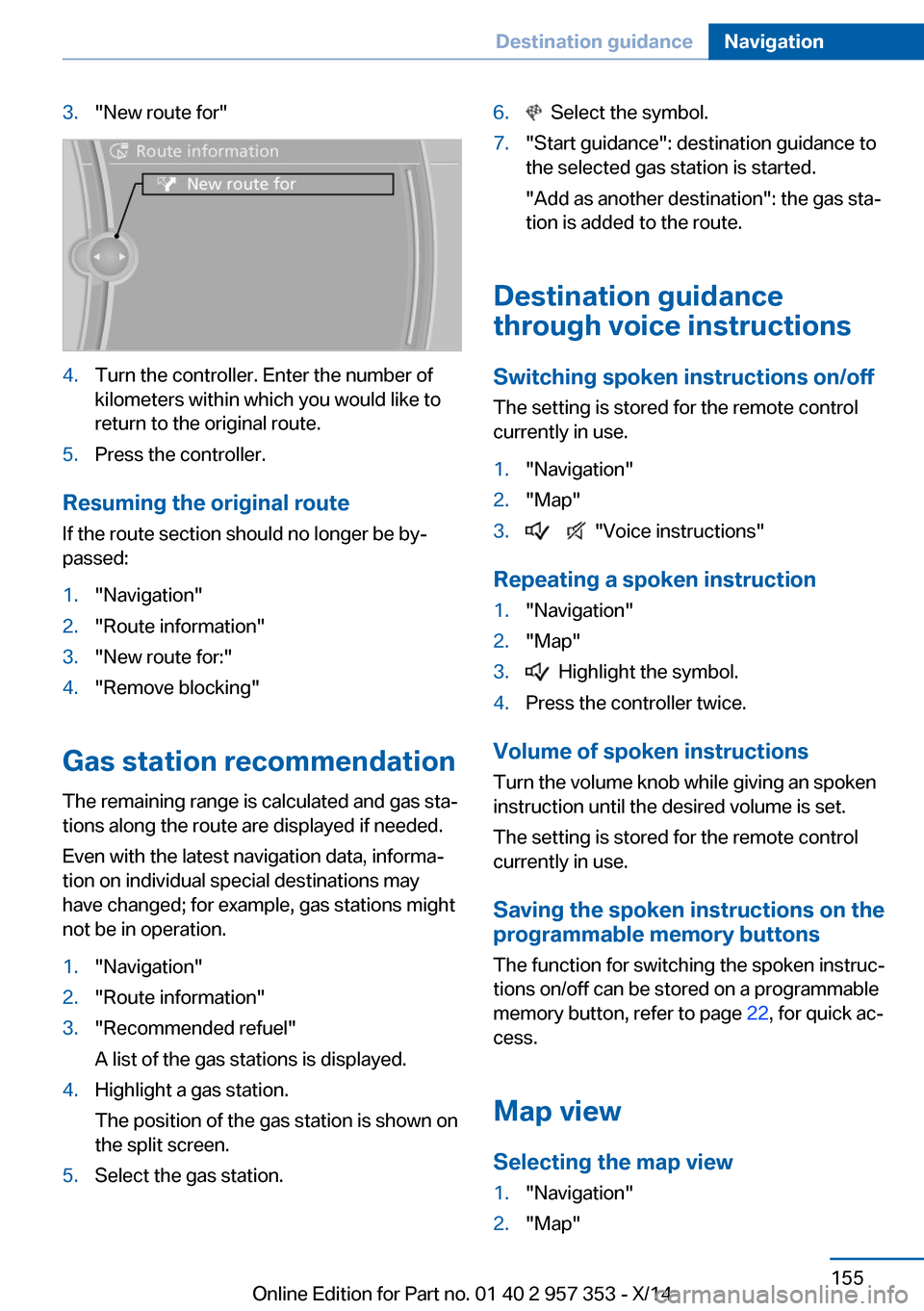
3."New route for"4.Turn the controller. Enter the number of
kilometers within which you would like to
return to the original route.5.Press the controller.
Resuming the original route
If the route section should no longer be by‐
passed:
1."Navigation"2."Route information"3."New route for:"4."Remove blocking"
Gas station recommendation
The remaining range is calculated and gas sta‐
tions along the route are displayed if needed.
Even with the latest navigation data, informa‐
tion on individual special destinations may
have changed; for example, gas stations might
not be in operation.
1."Navigation"2."Route information"3."Recommended refuel"
A list of the gas stations is displayed.4.Highlight a gas station.
The position of the gas station is shown on
the split screen.5.Select the gas station.6. Select the symbol.7."Start guidance": destination guidance to
the selected gas station is started.
"Add as another destination": the gas sta‐
tion is added to the route.
Destination guidance
through voice instructions
Switching spoken instructions on/off The setting is stored for the remote control
currently in use.
1."Navigation"2."Map"3. "Voice instructions"
Repeating a spoken instruction
1."Navigation"2."Map"3. Highlight the symbol.4.Press the controller twice.
Volume of spoken instructions
Turn the volume knob while giving an spoken
instruction until the desired volume is set.
The setting is stored for the remote control
currently in use.
Saving the spoken instructions on the
programmable memory buttons
The function for switching the spoken instruc‐
tions on/off can be stored on a programmable
memory button, refer to page 22, for quick ac‐
cess.
Map view
Selecting the map view
1."Navigation"2."Map"Seite 155Destination guidanceNavigation155
Online Edition for Part no. 01 40 2 957 353 - X/14