position BMW X1 2014 E84 Service Manual
[x] Cancel search | Manufacturer: BMW, Model Year: 2014, Model line: X1, Model: BMW X1 2014 E84Pages: 297, PDF Size: 7 MB
Page 161 of 297
Automatically scaled map scaleIn the map view facing north, turn the control‐
ler in any direction until the AUTO scale is dis‐
played. The entire route between the current
location and the destination is displayed on the
map.
Settings for the map view
The settings are stored for the remote control
currently in use.1."Navigation"2."Map"3.Open "Options".4."Settings"5.To set the map view:▷"Day/night mode"
Select and create the necessary settings
depending on the light conditions.
"Traffic conditions/gray map" active: the
setting is disregarded.▷"Satellite images"
Depending on availability and resolution,
satellite images are displayed at scales of
approx. 1 mile to 600 miles/2 km to
1,000 km.▷"Perspective view in 3D"
Prominent areas that are contained in the
navigation data are displayed on the map in
3D.▷"Traffic conditions/gray map"
The map is optimized for displaying traffic
bulletins, refer to page 158.
Symbols for the special destinations are no
longer displayed.
Map view for splitscreen
The map view can be selected for the split
screen independently from the main screen:
1.Open "Options".2."Split screen"3.Move the controller to the right repeatedly
until the split screen is selected.4.Select "Split screen content" or the scale.5.Select the map view.▷"Arrow display"▷"Map facing north"▷"Map direction of travel"▷"Map view with perspective"▷"Position"▷"Exit ramp view": selected blind drive‐
ways are displayed three dimension‐
ally.▷"Traffic conditions/gray map"6.To change the scale: select the split
screen and turn the controller.
Traffic bulletins
At a glance
▷Display the traffic bulletins from radio sta‐
tions that broadcast the TI Traffic Informa‐
tion of a traffic information service. Infor‐
mation on traffic obstructions and hazards
is updated continuously.
Certain BMW models equipped with navi‐
gation have the capability to display real-
time traffic information. If your system has
this capability the following additional
terms and conditions apply:
An End-User shall no longer have the right
to use the Traffic Data in the event that the
End-User is in material breach of the terms
and conditions contained herein.
A. Total Traffic Network, a division of Clear
Channel Broadcasting, Inc. (“Total Traffic
Network”) holds the rights to the traffic in‐
cident data and RDS-TMC network
through which it is delivered. You may not
modify, copy, scan or use any other
method to reproduce, duplicate, republish,
transmit or distribute in any way any por‐Seite 157Destination guidanceNavigation157
Online Edition for Part no. 01 40 2 957 353 - X/14
Page 162 of 297
tion of traffic incident data. You agree to in‐
demnify, defend and hold harmless BMW
of North America, LLC. (“BMW NA”) and
Total Traffic Network, Inrix, Inc (and their
affiliates) against any and all claims, dam‐
ages, costs or other expenses that arise di‐
rectly or indirectly out of (a) your unauthor‐
ized use of the traffic incident data or the
RDS-TMC network, (b) your violation of
this directive and/or (c) any unauthorized or
unlawful activities by you in connection
herewith.
B. Total Traffic Network traffic data is infor‐
mational only. User assumes all risk of use.
Total Traffic Network, BMW NA, and their
suppliers make no representations about
content, traffic and road conditions, route
usability, or speed.
C. The licensed material is provided to li‐
censee “as is,” and “where is”. Total Traf‐
fic Network, including, but not limited to,
any and all third party providers of any of
the licensed material, expressly disclaims,
to the fullest extent permitted by law, all
warranties or representations with respect
to the licensed material (including, without
limitation, that the licensed material will be
error-free, will operate without interruption
or that the traffic data will be accurate), ex‐
press, implied or statutory, including, with‐
out limitation, the implied warranties of
merchantability, non-infringement fitness
for a particular purpose, or those arising
from a course of dealing or usage of trade.
D. Neither Total Traffic Network, Inrix, Inc.
or BMW NA will be liable to you for any in‐
direct, special, consequential, exemplary,
or incidental damages (including, without
limitation, lost revenues, anticipated reve‐
nues, or profits relating to the same) arising
from any claim relating directly or indirectly
to use of the traffic data, and even if Total
Traffic Network, Inrix, Inc., or BMW NA are
aware of the possibility of such damages.
These limitations apply to all claims, in‐
cluding, without limitation, claims in con‐tract and tort (such as negligence, product
liability and strict liability). Some states do
not allow the exclusion or limitation of inci‐
dental or consequential damages, so those
particular limitations may not apply to you.▷The traffic bulletins are indicated on the
map by symbols.▷The traffic bulletins for the surrounding
area are stored in a list.
The symbol in the function bar of the
map view turns red if there are traffic bulle‐
tins that affect the calculated route.
Switching the reception on/off
1."Navigation"2.Open "Options".3."Receive Traffic Info"
Opening the list of traffic bulletins
1."Navigation"2."Map"3. "Traffic Info"
First, traffic bulletins for the calculated
route are displayed.
The traffic bulletins are sorted by their dis‐
tance from the current position of the vehi‐
cle.4.Select a traffic bulletin.
"More information": display additional
information.
5.Scroll to the next or previous traffic bulletin
if required.
Traffic bulletins on the map
"Traffic conditions/gray map" active:
The Control Display changes to a black and
white display. This enables a better view of the
traffic bulletins. The day/night mode is disre‐
Seite 158NavigationDestination guidance158
Online Edition for Part no. 01 40 2 957 353 - X/14
Page 165 of 297
What to do if...Vehicle equipmentThis chapter describes all series equipment as
well as country-specific and special equipment
offered for this model series. Therefore, it also
describes equipment that may not be found in
your vehicle, for instance due to the selected
special equipment or the country version. This
also applies to safety-related functions and
systems.
When using the features and systems descri‐
bed here, adhere to local regulations.
What to do if...▷The current transmission position cannot
be displayed?
The vehicle is located in an unrecognized
region, is in a poor reception area, or the
system is currently determining the posi‐
tion. Reception is usually best when you
have an unobstructed view of the sky.▷The destination without street information
is not used for route guidance?
When city has been input, no downtown
can be determined. Input any street in the
selected city and start destination guid‐
ance.▷The destination is not used for route guid‐
ance?
The destination data are not contained in
the navigation data. Select a destination
that is as close as possible to the original.▷Letters for destination input cannot be se‐
lected?
The stored data do not contain the data of
the destination. Select a goal that is as
close as possible to the original.▷Is the map displayed in shades of gray?
"Traffic conditions/gray map" active:The Control Display changes to a black
and white display. This enables a better
view of the traffic bulletins.▷Spoken instructions are no longer output
during route guidance in front of intersec‐
tions?
The area has not yet been fully recorded,
or you have left the recommended route
and the system requires a few seconds to
calculate a new route suggestion.Seite 161What to do if...Navigation161
Online Edition for Part no. 01 40 2 957 353 - X/14
Page 174 of 297
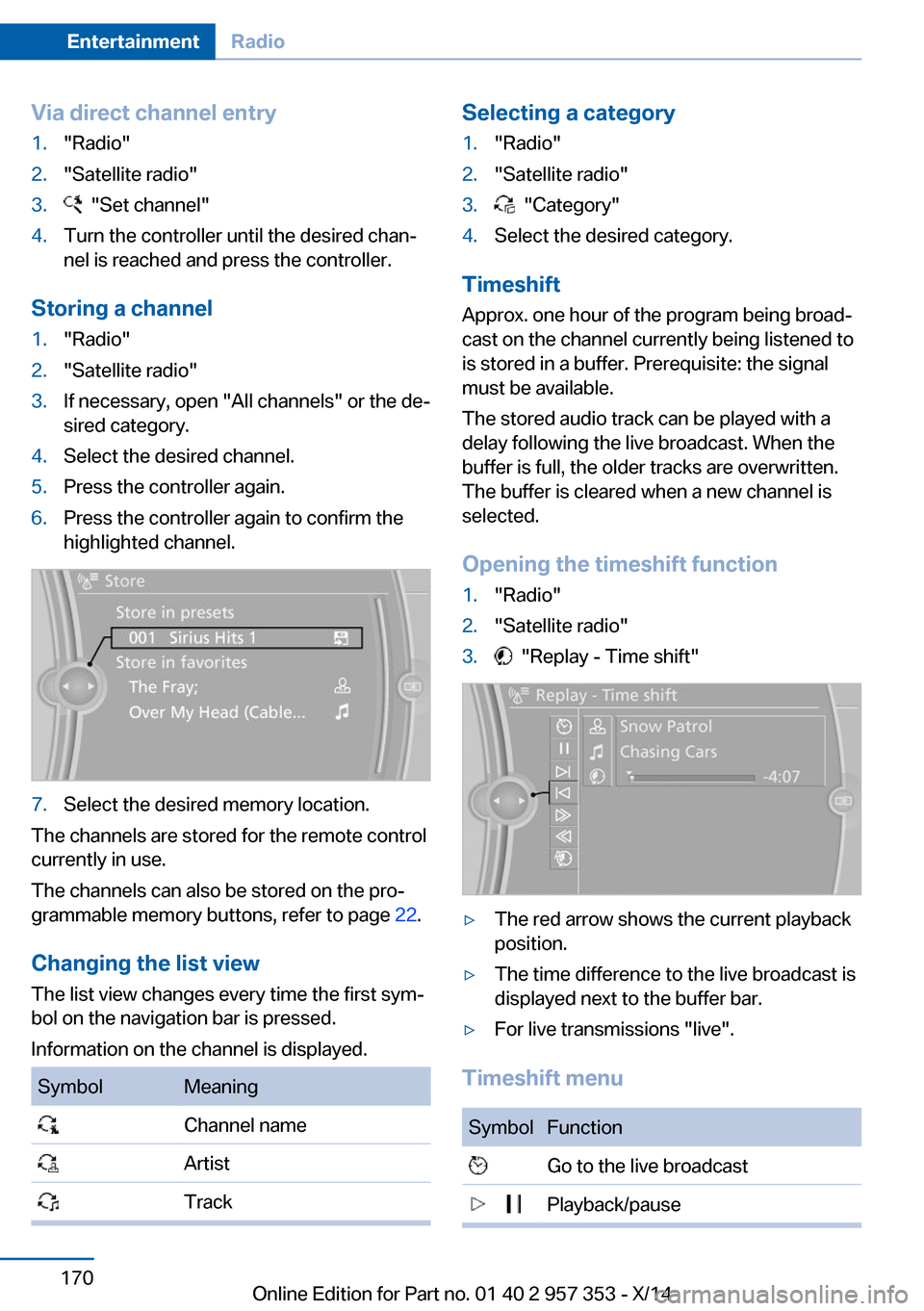
Via direct channel entry1."Radio"2."Satellite radio"3. "Set channel"4.Turn the controller until the desired chan‐
nel is reached and press the controller.
Storing a channel
1."Radio"2."Satellite radio"3.If necessary, open "All channels" or the de‐
sired category.4.Select the desired channel.5.Press the controller again.6.Press the controller again to confirm the
highlighted channel.7.Select the desired memory location.
The channels are stored for the remote control
currently in use.
The channels can also be stored on the pro‐
grammable memory buttons, refer to page 22.
Changing the list view
The list view changes every time the first sym‐
bol on the navigation bar is pressed.
Information on the channel is displayed.
SymbolMeaning Channel name Artist TrackSelecting a category1."Radio"2."Satellite radio"3. "Category"4.Select the desired category.
Timeshift
Approx. one hour of the program being broad‐
cast on the channel currently being listened to
is stored in a buffer. Prerequisite: the signal
must be available.
The stored audio track can be played with a
delay following the live broadcast. When the
buffer is full, the older tracks are overwritten.
The buffer is cleared when a new channel is
selected.
Opening the timeshift function
1."Radio"2."Satellite radio"3. "Replay - Time shift"▷The red arrow shows the current playback
position.▷The time difference to the live broadcast is
displayed next to the buffer bar.▷For live transmissions "live".
Timeshift menu
SymbolFunction Go to the live broadcast Playback/pauseSeite 170EntertainmentRadio170
Online Edition for Part no. 01 40 2 957 353 - X/14
Page 176 of 297
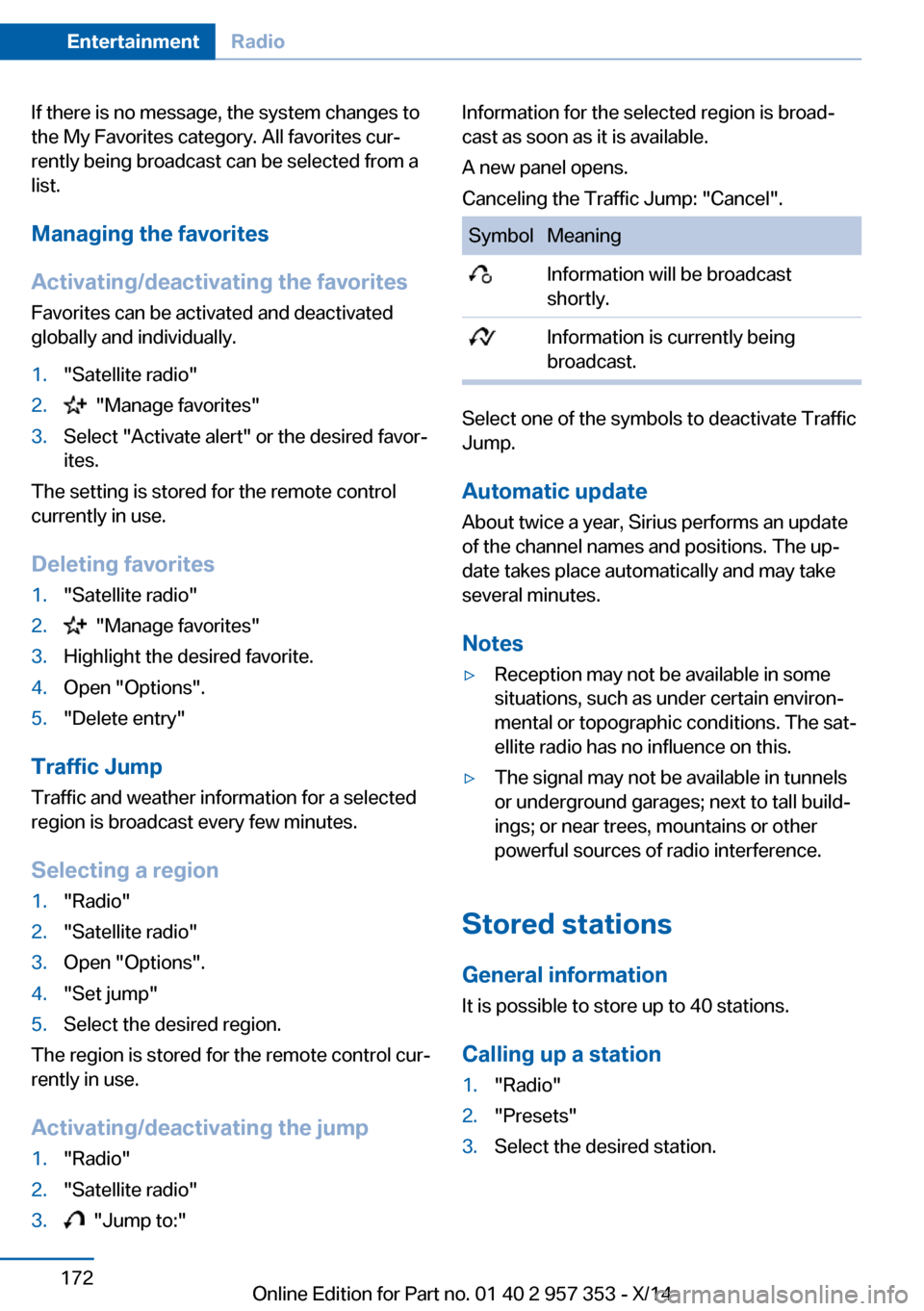
If there is no message, the system changes to
the My Favorites category. All favorites cur‐
rently being broadcast can be selected from a
list.
Managing the favorites
Activating/deactivating the favorites
Favorites can be activated and deactivated
globally and individually.1."Satellite radio"2. "Manage favorites"3.Select "Activate alert" or the desired favor‐
ites.
The setting is stored for the remote control
currently in use.
Deleting favorites
1."Satellite radio"2. "Manage favorites"3.Highlight the desired favorite.4.Open "Options".5."Delete entry"
Traffic Jump Traffic and weather information for a selected
region is broadcast every few minutes.
Selecting a region
1."Radio"2."Satellite radio"3.Open "Options".4."Set jump"5.Select the desired region.
The region is stored for the remote control cur‐
rently in use.
Activating/deactivating the jump
1."Radio"2."Satellite radio"3. "Jump to:"Information for the selected region is broad‐
cast as soon as it is available.
A new panel opens.
Canceling the Traffic Jump: "Cancel".SymbolMeaning Information will be broadcast
shortly. Information is currently being
broadcast.
Select one of the symbols to deactivate Traffic
Jump.
Automatic update
About twice a year, Sirius performs an update
of the channel names and positions. The up‐
date takes place automatically and may take
several minutes.
Notes
▷Reception may not be available in some
situations, such as under certain environ‐
mental or topographic conditions. The sat‐
ellite radio has no influence on this.▷The signal may not be available in tunnels
or underground garages; next to tall build‐
ings; or near trees, mountains or other
powerful sources of radio interference.
Stored stations
General information It is possible to store up to 40 stations.
Calling up a station
1."Radio"2."Presets"3.Select the desired station.Seite 172EntertainmentRadio172
Online Edition for Part no. 01 40 2 957 353 - X/14
Page 180 of 297
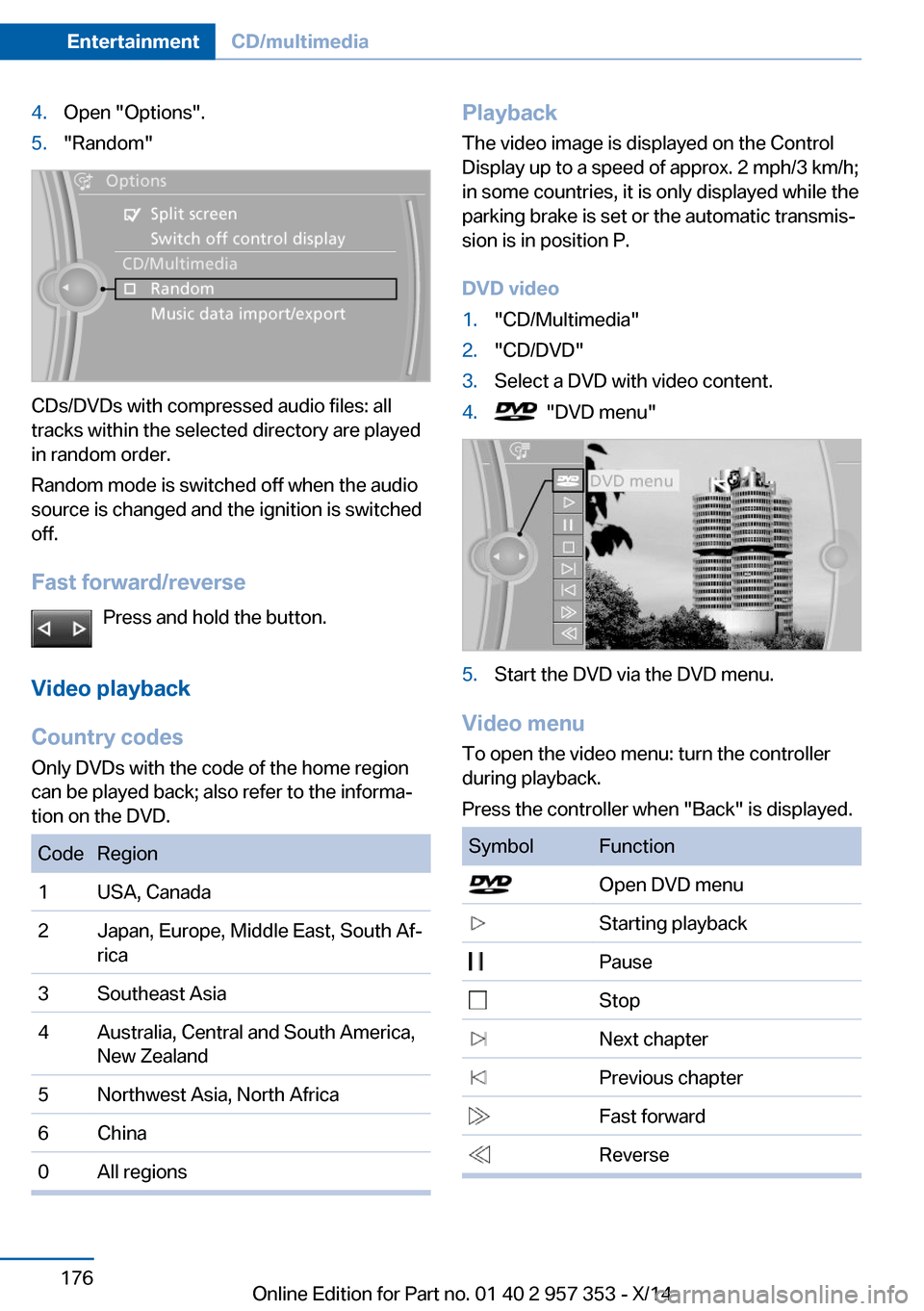
4.Open "Options".5."Random"
CDs/DVDs with compressed audio files: all
tracks within the selected directory are played
in random order.
Random mode is switched off when the audio
source is changed and the ignition is switched
off.
Fast forward/reverse Press and hold the button.
Video playback
Country codes
Only DVDs with the code of the home region
can be played back; also refer to the informa‐
tion on the DVD.
CodeRegion1USA, Canada2Japan, Europe, Middle East, South Af‐
rica3Southeast Asia4Australia, Central and South America,
New Zealand5Northwest Asia, North Africa6China0All regionsPlayback
The video image is displayed on the Control
Display up to a speed of approx. 2 mph/3 km/h;
in some countries, it is only displayed while the
parking brake is set or the automatic transmis‐
sion is in position P.
DVD video1."CD/Multimedia"2."CD/DVD"3.Select a DVD with video content.4. "DVD menu"5.Start the DVD via the DVD menu.
Video menu
To open the video menu: turn the controller
during playback.
Press the controller when "Back" is displayed.
SymbolFunction Open DVD menu Starting playback Pause Stop Next chapter Previous chapter Fast forward ReverseSeite 176EntertainmentCD/multimedia176
Online Edition for Part no. 01 40 2 957 353 - X/14
Page 209 of 297
Snap-in adapter
General information More information on compatible snap-in
adapters that support the functions of the mo‐
bile phone is available at the service center.
Notes At high temperatures, the charging function of
the mobile phone may be limited and functions
may not be executed.
When using the mobile phone via the vehicle,
note the operating instructions of the mobile
phone.
Installation position
In the center armrest.
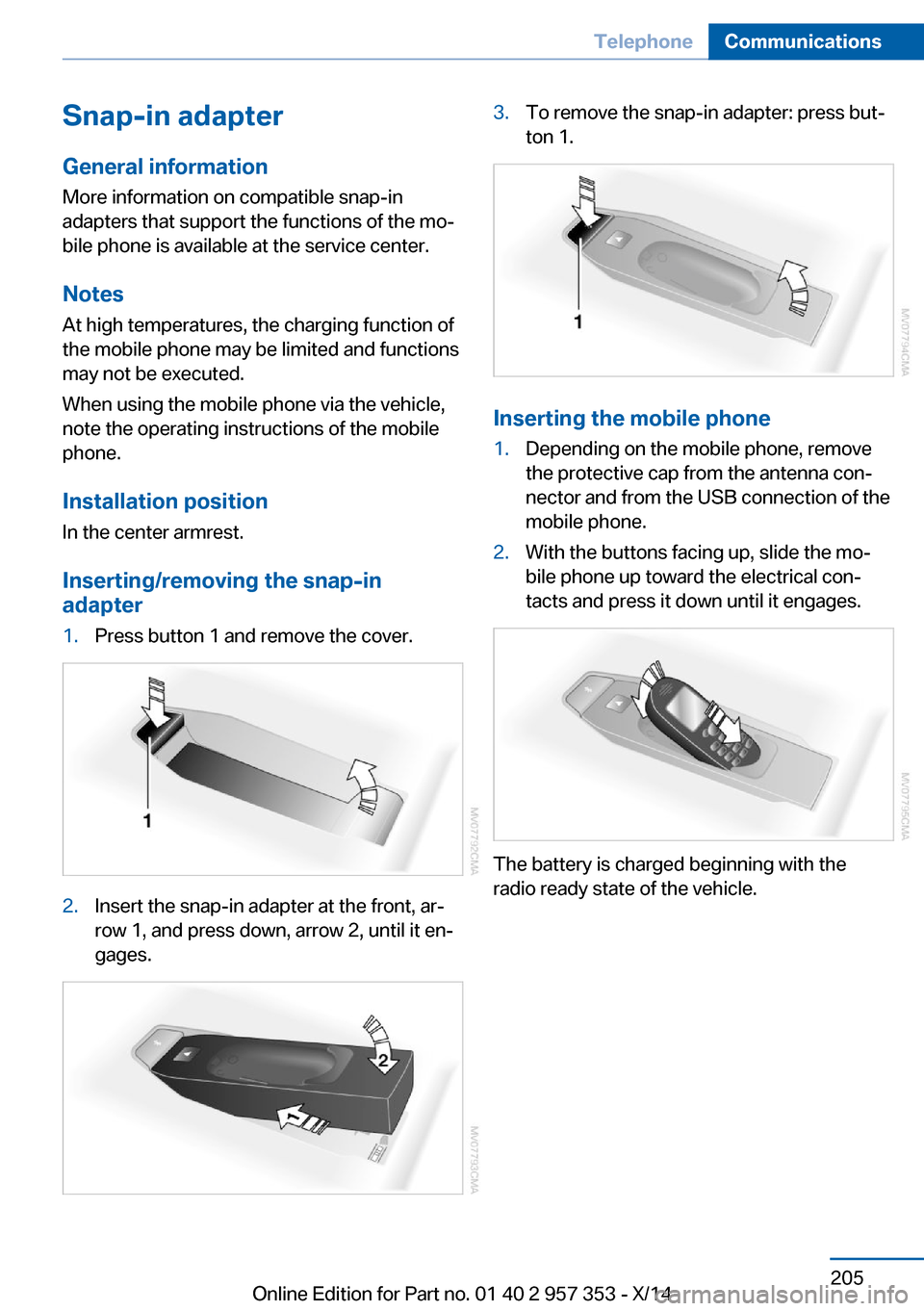
Inserting/removing the snap-in
adapter1.Press button 1 and remove the cover.2.Insert the snap-in adapter at the front, ar‐
row 1, and press down, arrow 2, until it en‐
gages.3.To remove the snap-in adapter: press but‐
ton 1.
Inserting the mobile phone
1.Depending on the mobile phone, remove
the protective cap from the antenna con‐
nector and from the USB connection of the
mobile phone.2.With the buttons facing up, slide the mo‐
bile phone up toward the electrical con‐
tacts and press it down until it engages.
The battery is charged beginning with the
radio ready state of the vehicle.
Seite 205TelephoneCommunications205
Online Edition for Part no. 01 40 2 957 353 - X/14
Page 226 of 297
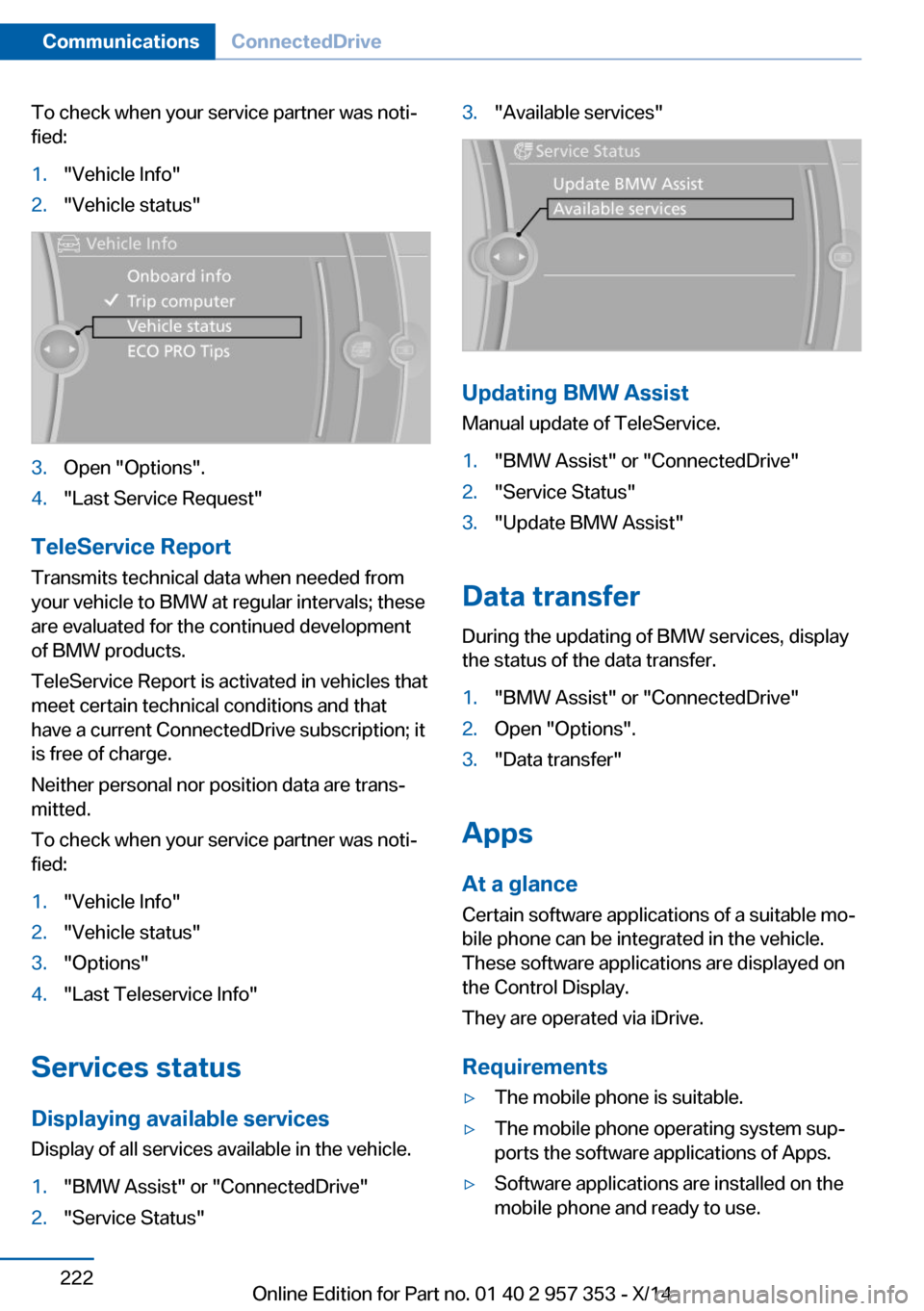
To check when your service partner was noti‐
fied:1."Vehicle Info"2."Vehicle status"3.Open "Options".4."Last Service Request"
TeleService Report
Transmits technical data when needed from
your vehicle to BMW at regular intervals; these
are evaluated for the continued development
of BMW products.
TeleService Report is activated in vehicles that
meet certain technical conditions and that
have a current ConnectedDrive subscription; it
is free of charge.
Neither personal nor position data are trans‐
mitted.
To check when your service partner was noti‐
fied:
1."Vehicle Info"2."Vehicle status"3."Options"4."Last Teleservice Info"
Services status
Displaying available services Display of all services available in the vehicle.
1."BMW Assist" or "ConnectedDrive"2."Service Status"3."Available services"
Updating BMW Assist
Manual update of TeleService.
1."BMW Assist" or "ConnectedDrive"2."Service Status"3."Update BMW Assist"
Data transfer
During the updating of BMW services, display
the status of the data transfer.
1."BMW Assist" or "ConnectedDrive"2.Open "Options".3."Data transfer"
Apps
At a glance Certain software applications of a suitable mo‐
bile phone can be integrated in the vehicle.
These software applications are displayed on
the Control Display.
They are operated via iDrive.
Requirements
▷The mobile phone is suitable.▷The mobile phone operating system sup‐
ports the software applications of Apps.▷Software applications are installed on the
mobile phone and ready to use.Seite 222CommunicationsConnectedDrive222
Online Edition for Part no. 01 40 2 957 353 - X/14
Page 257 of 297
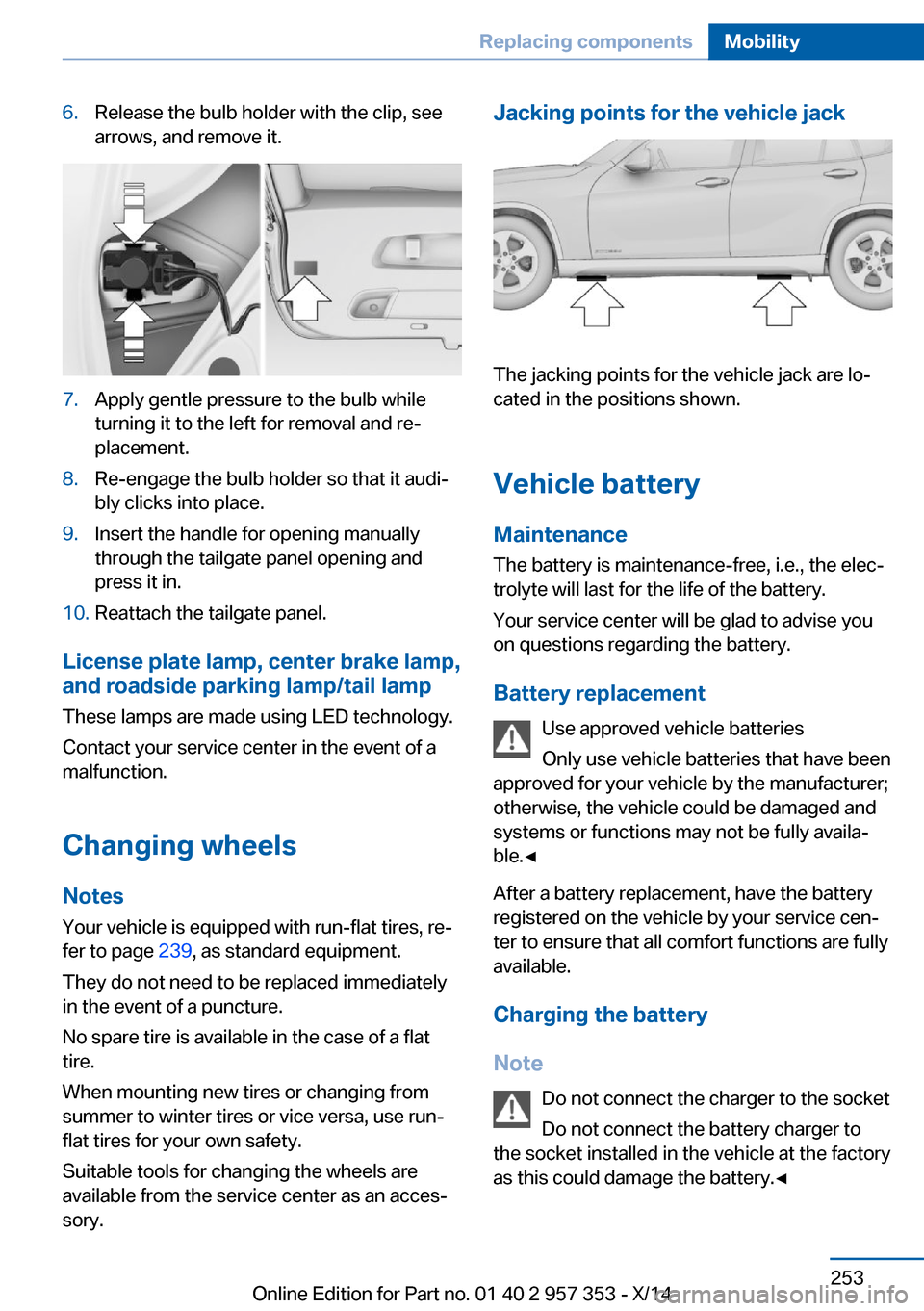
6.Release the bulb holder with the clip, see
arrows, and remove it.7.Apply gentle pressure to the bulb while
turning it to the left for removal and re‐
placement.8.Re-engage the bulb holder so that it audi‐
bly clicks into place.9.Insert the handle for opening manually
through the tailgate panel opening and
press it in.10.Reattach the tailgate panel.
License plate lamp, center brake lamp, and roadside parking lamp/tail lamp
These lamps are made using LED technology.
Contact your service center in the event of a
malfunction.
Changing wheels
Notes
Your vehicle is equipped with run-flat tires, re‐
fer to page 239, as standard equipment.
They do not need to be replaced immediately
in the event of a puncture.
No spare tire is available in the case of a flat
tire.
When mounting new tires or changing from
summer to winter tires or vice versa, use run-
flat tires for your own safety.
Suitable tools for changing the wheels are
available from the service center as an acces‐
sory.
Jacking points for the vehicle jack
The jacking points for the vehicle jack are lo‐
cated in the positions shown.
Vehicle battery
Maintenance
The battery is maintenance-free, i.e., the elec‐ trolyte will last for the life of the battery.
Your service center will be glad to advise you
on questions regarding the battery.
Battery replacement Use approved vehicle batteries
Only use vehicle batteries that have been
approved for your vehicle by the manufacturer;
otherwise, the vehicle could be damaged and
systems or functions may not be fully availa‐
ble.◀
After a battery replacement, have the battery
registered on the vehicle by your service cen‐
ter to ensure that all comfort functions are fully
available.
Charging the battery
Note Do not connect the charger to the socket
Do not connect the battery charger to
the socket installed in the vehicle at the factory
as this could damage the battery.◀
Seite 253Replacing componentsMobility253
Online Edition for Part no. 01 40 2 957 353 - X/14
Page 258 of 297
General information
Ensure that the battery is sufficiently charged
to achieve the full battery life.
It may be necessary to charge the battery in
the following cases:▷When the vehicle is frequently used to
drive short distances.▷When the vehicle has not been driven for
more than one month.
Starting aid terminals
Only charge using the starting aid terminals,
refer to page 257, in the engine compartment
while the engine is switched off.
Power failure
After a temporary power loss, some equipment
needs to be reinitialized.
Individual settings need to be reprogrammed:
▷Seat and mirror memory: store the posi‐
tions again, refer to page 48.▷Time: update, refer to page 75.▷Date: update, refer to page 76.▷Radio station: save again, refer to
page 166.▷Navigation system: wait for the navigation
system to be operational.▷Panoramic glass sunroof: it may only be
possible to tilt the roof. Have the system
initialized by the service center.▷Digital compass: recalibrate, refer to
page 115.▷xDrive: the system automatically initializes
as you drive. During this time, indicator
lamps light up. If the lamps do not disap‐
pear during the current trip, have the sys‐
tem checked.
Disposing of old batteries
Have old batteries disposed of by your
service center or bring them to a recy‐
cling center.
Maintain the battery in an upright position for
transport and storage. Secure the battery so
that it does not tip over during transport.
Fuses Replacing fuses
Never attempt to repair a blown fuse and
do not replace a defective fuse with a substi‐
tute of another color or amperage rating; this
could lead to a circuit overload, ultimately re‐
sulting in a fire in the vehicle.◀
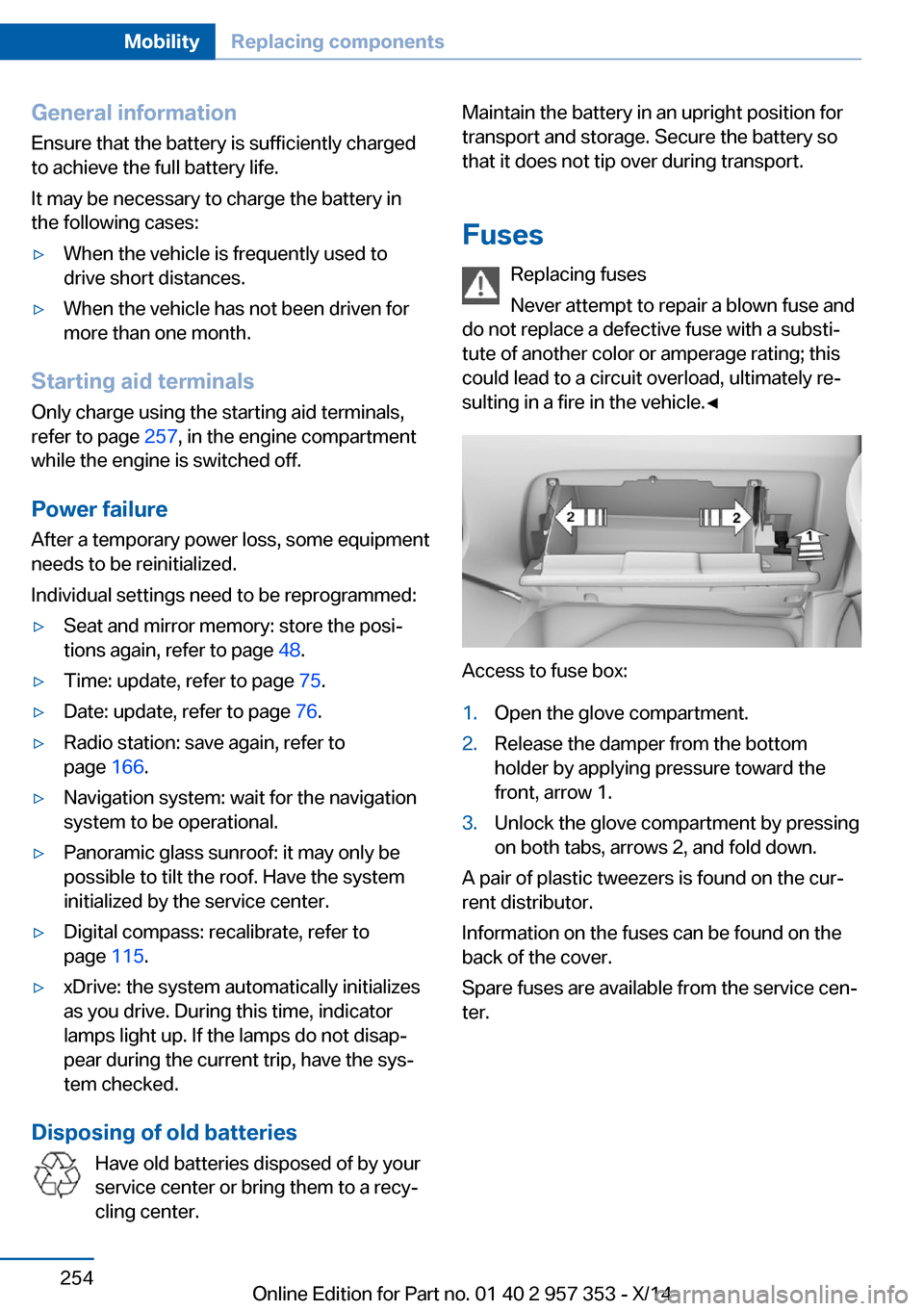
Access to fuse box:
1.Open the glove compartment.2.Release the damper from the bottom
holder by applying pressure toward the
front, arrow 1.3.Unlock the glove compartment by pressing
on both tabs, arrows 2, and fold down.
A pair of plastic tweezers is found on the cur‐
rent distributor.
Information on the fuses can be found on the
back of the cover.
Spare fuses are available from the service cen‐
ter.
Seite 254MobilityReplacing components254
Online Edition for Part no. 01 40 2 957 353 - X/14