Eco BMW X1 2014 E84 Repair Manual
[x] Cancel search | Manufacturer: BMW, Model Year: 2014, Model line: X1, Model: BMW X1 2014 E84Pages: 297, PDF Size: 7 MB
Page 172 of 297
Activating/deactivating digital radioreception1."Radio"2."FM" or "AM"3.Open "Options".4."HD Radio Reception"
The setting is stored for the remote control
currently in use.
This symbol is displayed in the status line
when the audio signal is digital.
When tuning to a station with a digital signal, it
may take several seconds for the station to be
played back in digital quality.
Note on HD stations whose station name ends
in ...HD or with ...HD1:
In areas in which the station is not continu‐
ously received in digital mode, the playback
switches between analog and digital reception.
In this case, switch off digital radio reception.
Note on HD multicast stations whose station
name ends in ...HD2, ...HD3, ...:
In areas in which the station is not continu‐
ously received in digital mode, the audible sig‐
nal may be interrupted for several seconds.
This is reception related.
Displaying additional information
Some stations broadcast additional informa‐
tion on the current track, such as the name of
the artist.
1.Select the desired station.2.Open "Options".3."Station info"
Selecting a substation
This symbol indicates that a main station
also broadcasts additional substations. The
station name of the main station ends in HD1.
Station names of the substations end in HD2,
HD3, etc.
1.Select the desired station.2.Press the controller.3.Select the substation.
When reception is poor, the substation is
muted.
Satellite radio General information The channels are offered in predefined pack‐
ages. The packages must be enabled by tele‐
phone.
Navigation bar overview
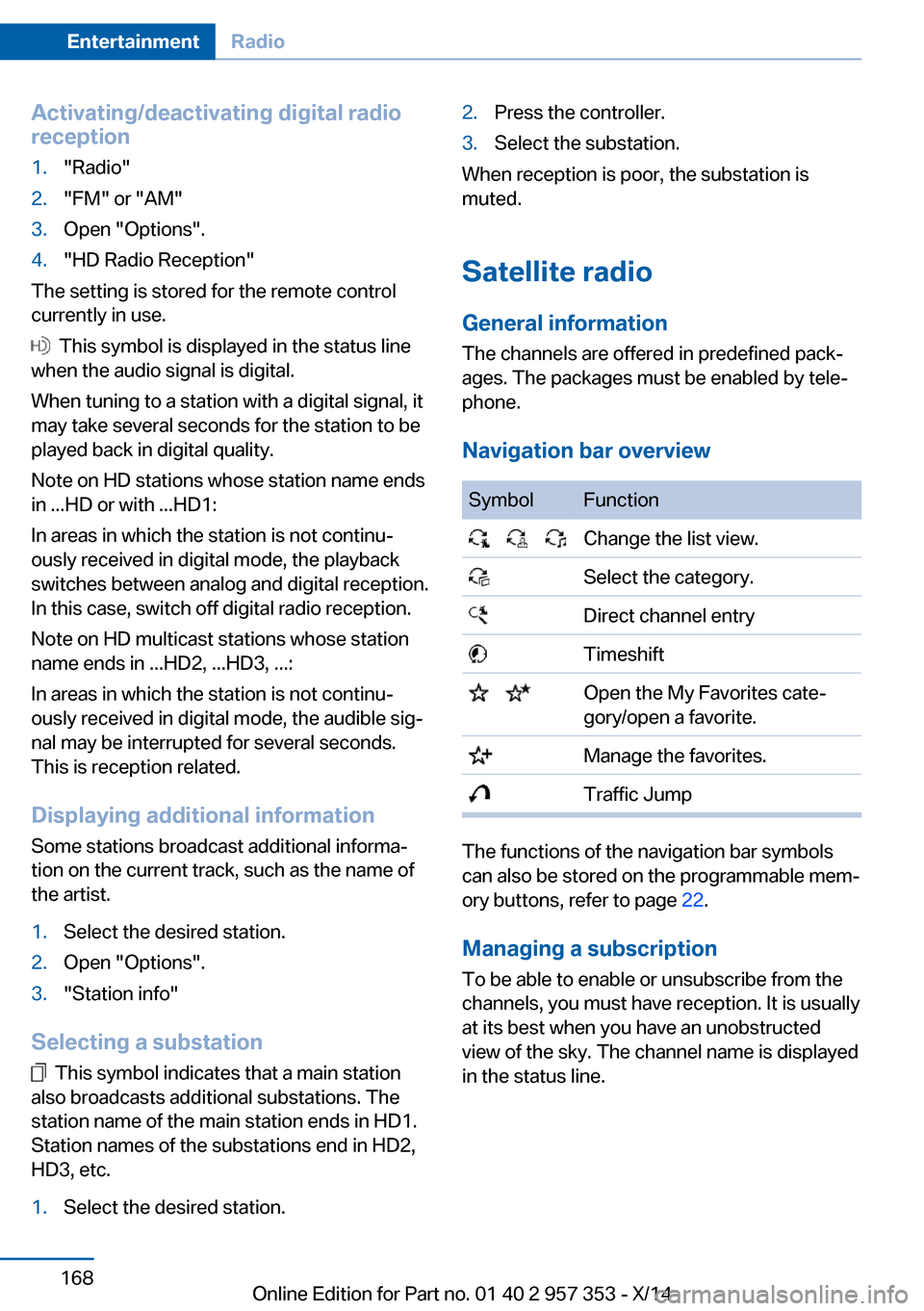
SymbolFunction Change the list view. Select the category. Direct channel entry Timeshift Open the My Favorites cate‐
gory/open a favorite. Manage the favorites. Traffic Jump
The functions of the navigation bar symbols
can also be stored on the programmable mem‐
ory buttons, refer to page 22.
Managing a subscription
To be able to enable or unsubscribe from the
channels, you must have reception. It is usually
at its best when you have an unobstructed
view of the sky. The channel name is displayed
in the status line.
Seite 168EntertainmentRadio168
Online Edition for Part no. 01 40 2 957 353 - X/14
Page 182 of 297
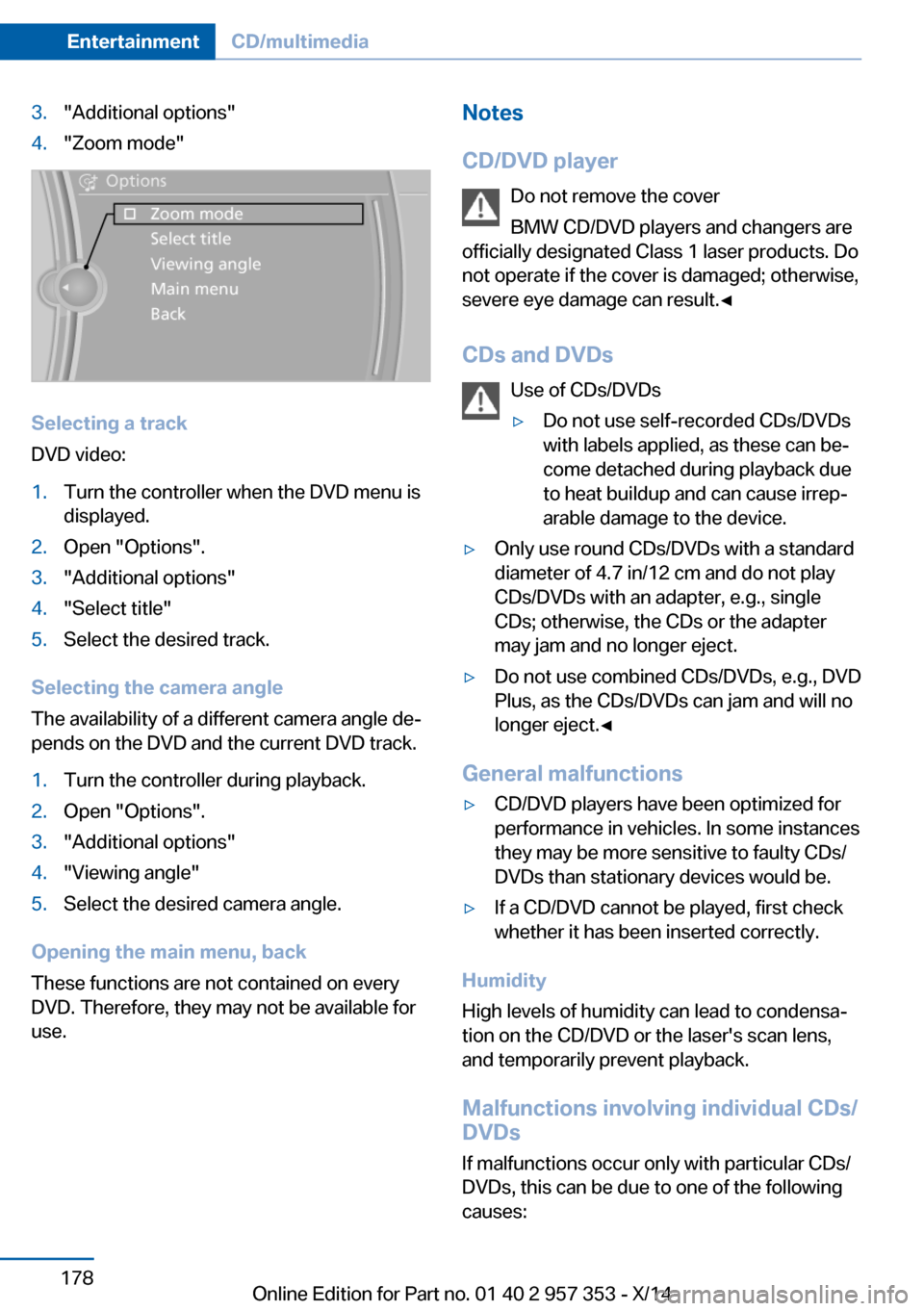
3."Additional options"4."Zoom mode"
Selecting a track
DVD video:
1.Turn the controller when the DVD menu is
displayed.2.Open "Options".3."Additional options"4."Select title"5.Select the desired track.
Selecting the camera angle
The availability of a different camera angle de‐
pends on the DVD and the current DVD track.
1.Turn the controller during playback.2.Open "Options".3."Additional options"4."Viewing angle"5.Select the desired camera angle.
Opening the main menu, back
These functions are not contained on every
DVD. Therefore, they may not be available for
use.
Notes
CD/DVD player Do not remove the cover
BMW CD/DVD players and changers are
officially designated Class 1 laser products. Do
not operate if the cover is damaged; otherwise,
severe eye damage can result.◀
CDs and DVDs Use of CDs/DVDs▷Do not use self-recorded CDs/DVDs
with labels applied, as these can be‐
come detached during playback due
to heat buildup and can cause irrep‐
arable damage to the device.▷Only use round CDs/DVDs with a standard
diameter of 4.7 in/12 cm and do not play
CDs/DVDs with an adapter, e.g., single
CDs; otherwise, the CDs or the adapter
may jam and no longer eject.▷Do not use combined CDs/DVDs, e.g., DVD
Plus, as the CDs/DVDs can jam and will no
longer eject.◀
General malfunctions
▷CD/DVD players have been optimized for
performance in vehicles. In some instances
they may be more sensitive to faulty CDs/
DVDs than stationary devices would be.▷If a CD/DVD cannot be played, first check
whether it has been inserted correctly.
Humidity
High levels of humidity can lead to condensa‐
tion on the CD/DVD or the laser's scan lens,
and temporarily prevent playback.
Malfunctions involving individual CDs/
DVDs
If malfunctions occur only with particular CDs/
DVDs, this can be due to one of the following
causes:
Seite 178EntertainmentCD/multimedia178
Online Edition for Part no. 01 40 2 957 353 - X/14
Page 183 of 297
Self-recorded CDs/DVDs▷Possible reasons for malfunctions with
self-recorded CDs/DVDs are inconsistent
data creation or recording processes, or
poor quality or old age of the blank CD/
DVD.▷Only label CDs/DVDs on the upper side
with a pen intended for this purpose.
Damage
▷Avoid fingerprints, dust, scratches and
moisture.▷Store CDs/DVDs in a sleeve.▷Do not subject CDs/DVDs to temperatures
over 122 ℉/50 ℃, high humidity or direct
sunlight.
CDs/DVDs with copy protection
CDs/DVDs are often provided with a copy pro‐
tection feature by the manufacturer. This can
mean that some CDs/DVDs cannot be played
or can only be played to a limited extent.
MACROVISION This product contains copyrighted technology
that is based on multiple registered US patents
and the intellectual property of the Macrovision
Corporation and other manufacturers. The use
of this copy protection must be approved by
Macrovision. Media protected by this product -
unless otherwise agreed with Macrovision - may only be used for private purposes. Copy‐
ing of this technology is prohibited.
DTS Digital Surround™
Manufactured under license under
U.S. Patent Numbers: 5,451,942; 5,956,674;
5,974,380; 5,978,762; 6,487,535 & and other
patents granted and registered in the USA and
worldwide. DTS and the logo are registered
trademarks & DTS Digital Surround and the
DTS logos are trademarks of DTS Inc. © DTS,
Inc. All rights reserved.
Music collection
Storing music
General information Music tracks from CDs/DVDs and USB devices
can be stored in the music collection on a hard
disc in the vehicle and played from there.▷Audio CD: tracks are converted into a com‐
pressed audio format. If available, informa‐
tion on the album, such as the artist, is
stored as well.▷CD/DVD or USB device with compressed
audio files: the entire content of the
CD/DVD or the USB device is stored in the
vehicle as an album. The WMA, MP3, M4A,
and AAC formats are stored. Individual
tracks and directories can be deleted later,
Deleting a track and directory, refer to
page 183.
Tracks with DRM copy protection can be
stored but cannot be played back.
Backing up music data
Regularly back up the music data; other‐
wise, it could be lost if there is a fault on the
hard disc.◀
Music recognition technology and re‐
lated data are provided by
Gracenote®. Gracenote is the industry stand‐
ard in music recognition technology and re‐
lated content delivery. For more information,
please visit www.gracenote.com.
CD and music-related data from Gracenote,
Inc., copyright © 2000, Gracenote up to now. Gracenote-Software Copyright 2000,
Gracenote up to now. This product and service
may practice one or more of the following U.S.
Patents: #5,987,525; #6,061,680;
#6,154,773, #6,161,132, #6,230,192,
#6,230,207, #6,240,459, #6,330,593, and
other patents issued or pending. Some serv‐
ices supplied under license from Open Globe,
Inc. for U.S. Patent: #6,304,523.
Seite 179CD/multimediaEntertainment179
Online Edition for Part no. 01 40 2 957 353 - X/14
Page 185 of 297
via the USB audio interface in the center
armrest.▷File systems: standard file systems for
USB devices are supported. The FAT 32
format is recommended.1.Connect the USB device to the USB inter‐
face in the glove compartment, refer to
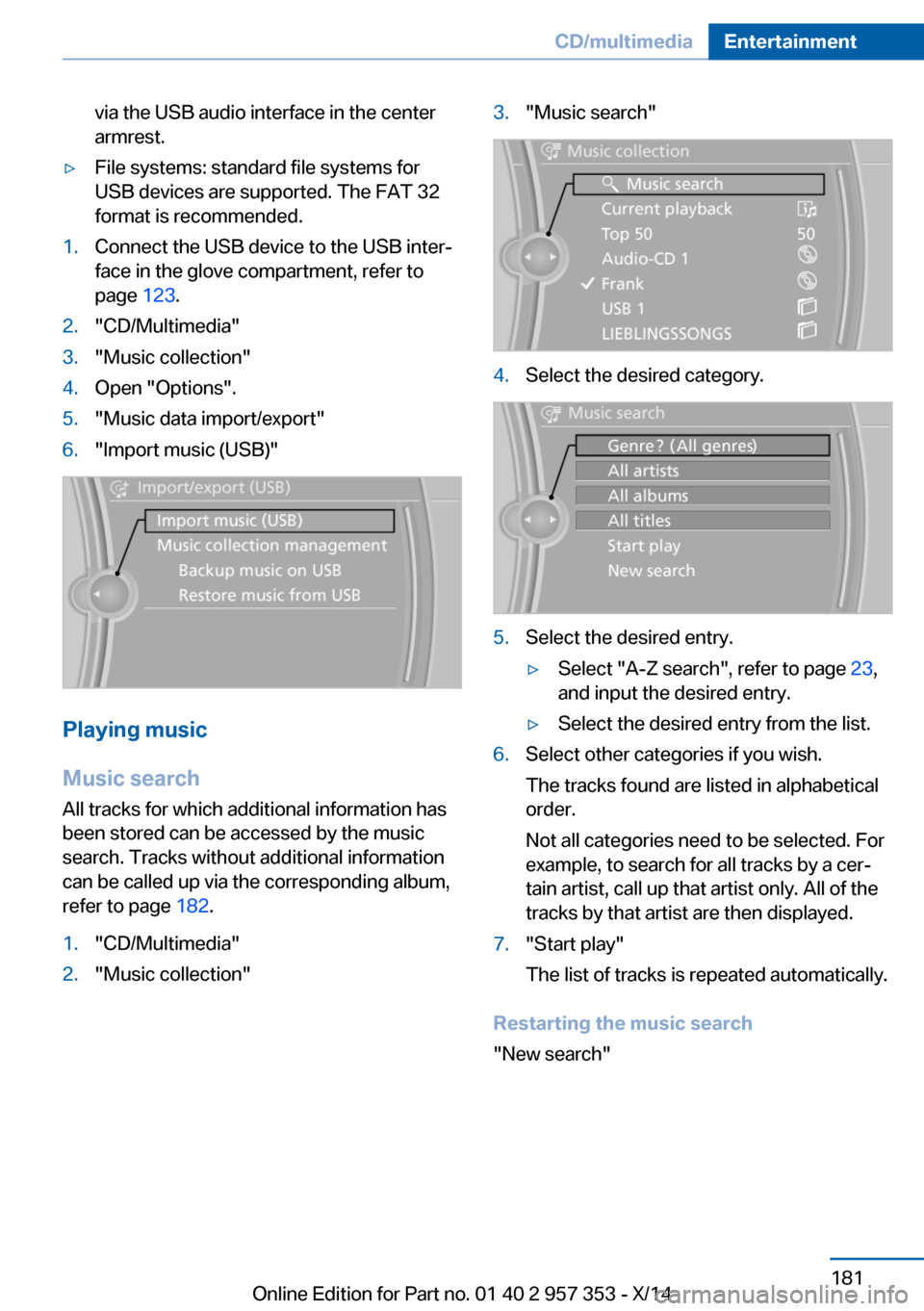
page 123.2."CD/Multimedia"3."Music collection"4.Open "Options".5."Music data import/export"6."Import music (USB)"
Playing music
Music search
All tracks for which additional information has been stored can be accessed by the music
search. Tracks without additional information
can be called up via the corresponding album,
refer to page 182.
1."CD/Multimedia"2."Music collection"3."Music search"4.Select the desired category.5.Select the desired entry.▷Select "A-Z search", refer to page 23,
and input the desired entry.▷Select the desired entry from the list.6.Select other categories if you wish.
The tracks found are listed in alphabetical
order.
Not all categories need to be selected. For
example, to search for all tracks by a cer‐
tain artist, call up that artist only. All of the
tracks by that artist are then displayed.7."Start play"
The list of tracks is repeated automatically.
Restarting the music search
"New search"
Seite 181CD/multimediaEntertainment181
Online Edition for Part no. 01 40 2 957 353 - X/14
Page 188 of 297
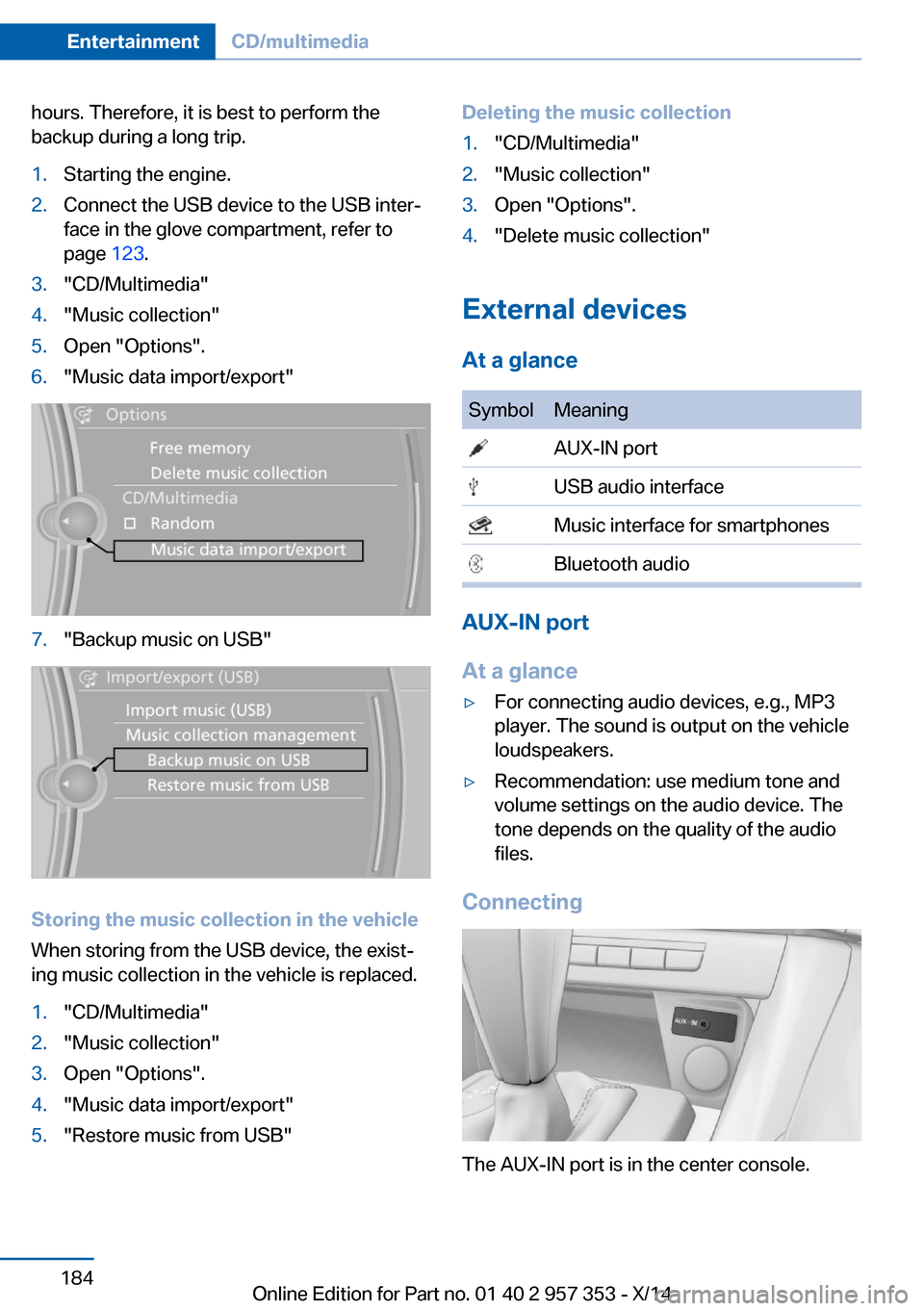
hours. Therefore, it is best to perform the
backup during a long trip.1.Starting the engine.2.Connect the USB device to the USB inter‐
face in the glove compartment, refer to
page 123.3."CD/Multimedia"4."Music collection"5.Open "Options".6."Music data import/export"7."Backup music on USB"
Storing the music collection in the vehicle
When storing from the USB device, the exist‐
ing music collection in the vehicle is replaced.
1."CD/Multimedia"2."Music collection"3.Open "Options".4."Music data import/export"5."Restore music from USB"Deleting the music collection1."CD/Multimedia"2."Music collection"3.Open "Options".4."Delete music collection"
External devices
At a glance
SymbolMeaning AUX-IN port USB audio interface Music interface for smartphones Bluetooth audio
AUX-IN port
At a glance
▷For connecting audio devices, e.g., MP3
player. The sound is output on the vehicle
loudspeakers.▷Recommendation: use medium tone and
volume settings on the audio device. The
tone depends on the quality of the audio
files.
Connecting
The AUX-IN port is in the center console.
Seite 184EntertainmentCD/multimedia184
Online Edition for Part no. 01 40 2 957 353 - X/14
Page 189 of 297
Connect the headphone connector or line-out
connector of the device to the AUX-IN port.
Playback1.Connect the audio device, switch it on and
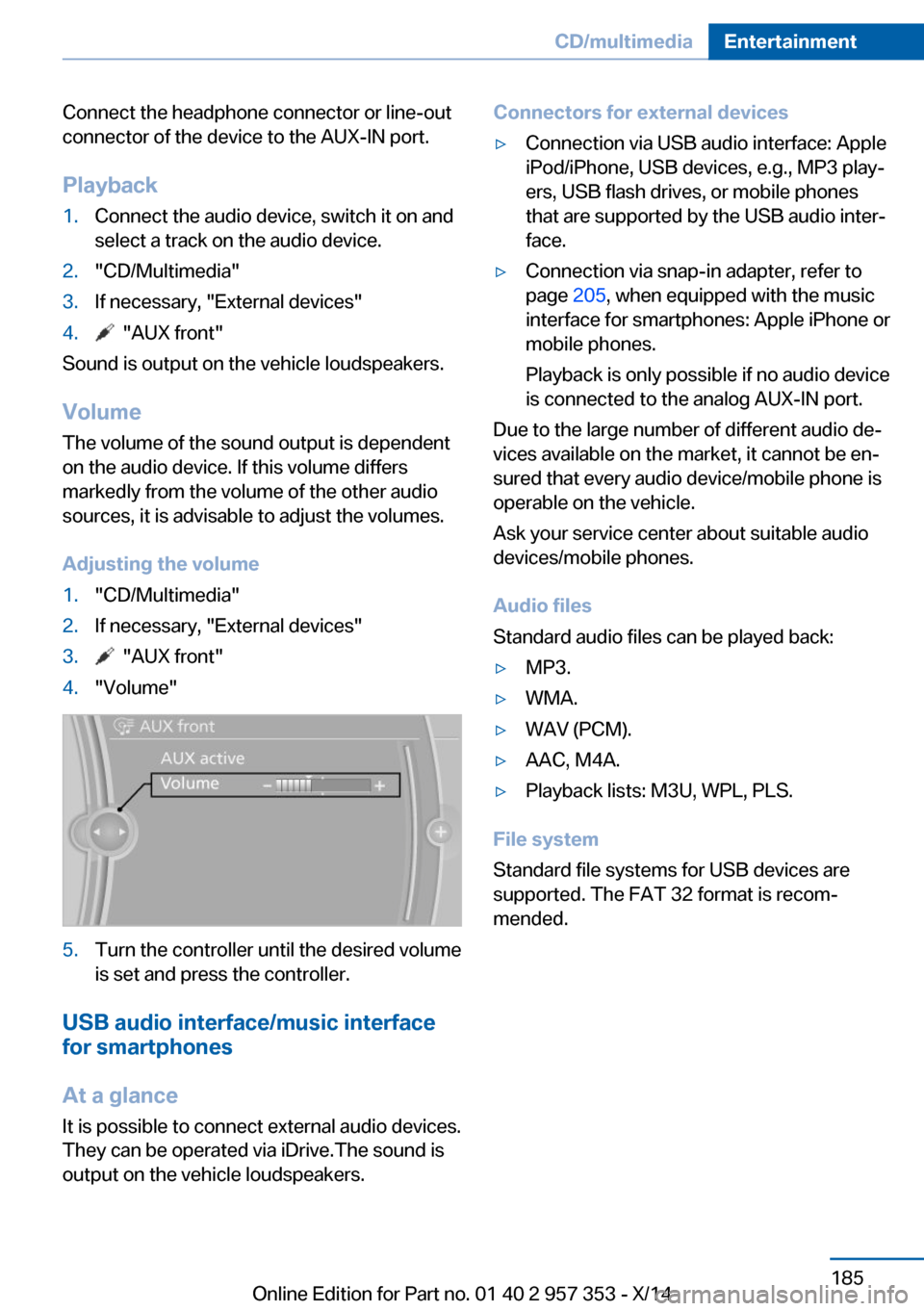
select a track on the audio device.2."CD/Multimedia"3.If necessary, "External devices"4. "AUX front"
Sound is output on the vehicle loudspeakers.
Volume
The volume of the sound output is dependent
on the audio device. If this volume differs
markedly from the volume of the other audio
sources, it is advisable to adjust the volumes.
Adjusting the volume
1."CD/Multimedia"2.If necessary, "External devices"3. "AUX front"4."Volume"5.Turn the controller until the desired volume
is set and press the controller.
USB audio interface/music interface
for smartphones
At a glance
It is possible to connect external audio devices.
They can be operated via iDrive.The sound is
output on the vehicle loudspeakers.
Connectors for external devices▷Connection via USB audio interface: Apple
iPod/iPhone, USB devices, e.g., MP3 play‐
ers, USB flash drives, or mobile phones
that are supported by the USB audio inter‐
face.▷Connection via snap-in adapter, refer to
page 205, when equipped with the music
interface for smartphones: Apple iPhone or
mobile phones.
Playback is only possible if no audio device
is connected to the analog AUX-IN port.
Due to the large number of different audio de‐
vices available on the market, it cannot be en‐
sured that every audio device/mobile phone is
operable on the vehicle.
Ask your service center about suitable audio
devices/mobile phones.
Audio files
Standard audio files can be played back:
▷MP3.▷WMA.▷WAV (PCM).▷AAC, M4A.▷Playback lists: M3U, WPL, PLS.
File system
Standard file systems for USB devices are
supported. The FAT 32 format is recom‐
mended.
Seite 185CD/multimediaEntertainment185
Online Edition for Part no. 01 40 2 957 353 - X/14
Page 192 of 297
Use of a mobile phone as an audio source,
refer to page 198.▷Bluetooth® is a registered trademark of
Bluetooth® SIG, Inc.▷The sound is output on the vehicle loud‐
speakers.▷The volume of the sound output is de‐
pendent on the device. If necessary, adjust
the volume on the device.▷Up to four external devices can be paired
with the vehicle.
Requirements
▷The device is suitable. Information at
www.bmwusa.com/bluetooth.▷The device is ready for operation.▷The ignition is switched on.▷Bluetooth is activated on the vehicle, refer
to page 197, and on the device.▷Bluetooth presettings must be made on
the device, such as for a connection with‐
out confirmation or visibility; refer to the
device operating instructions.▷A number with at least four and a maximum
of 16 digits is defined as the Bluetooth
passkey. It is only required once for pairing.
Pairing and connecting
Pairing a device
To avoid becoming distracted and pos‐
ing an unnecessary hazard both to your own
vehicle's occupants and to other road users,
only pair the device while the vehicle is station‐
ary.◀
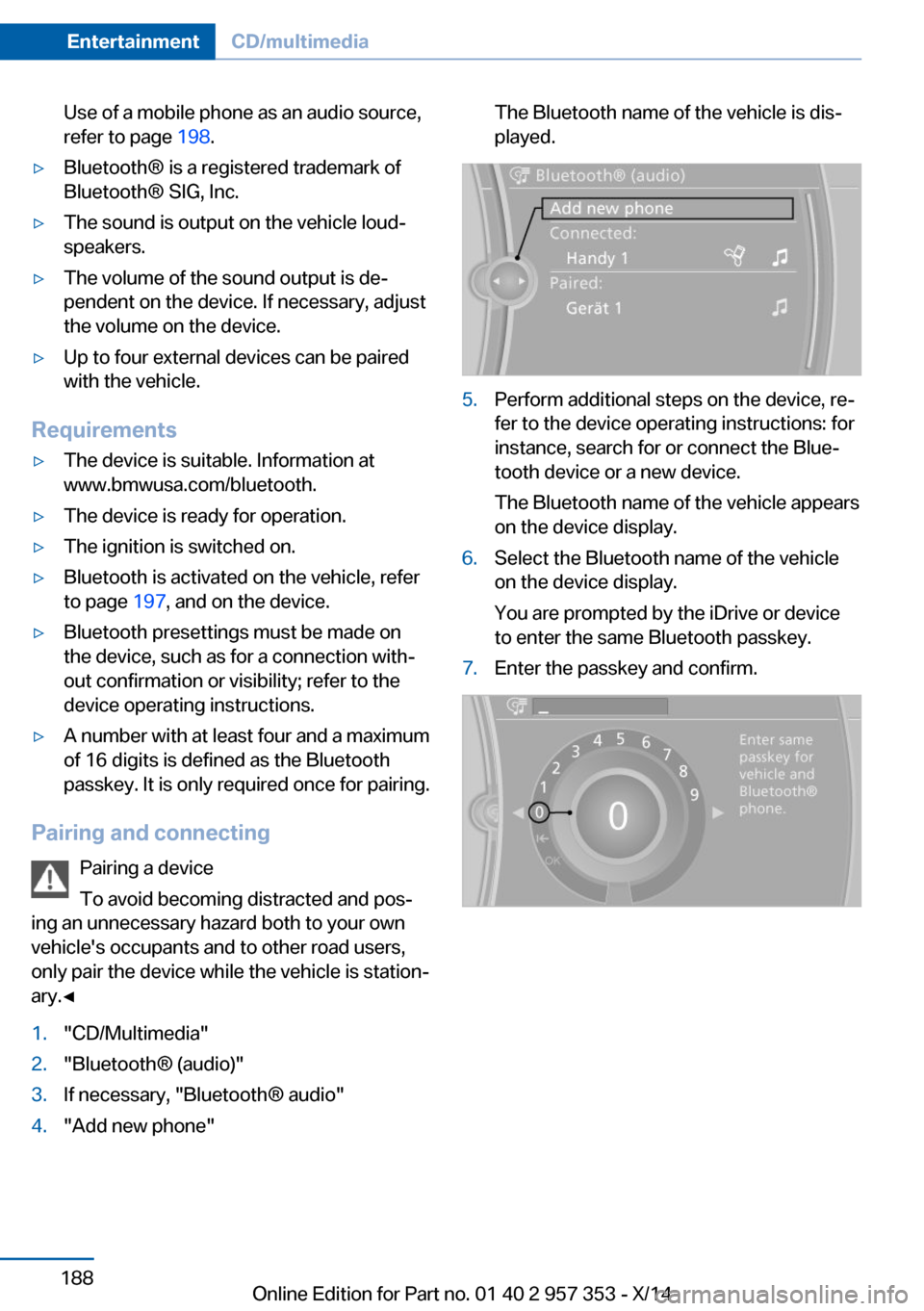
1."CD/Multimedia"2."Bluetooth® (audio)"3.If necessary, "Bluetooth® audio"4."Add new phone"The Bluetooth name of the vehicle is dis‐
played.5.Perform additional steps on the device, re‐
fer to the device operating instructions: for
instance, search for or connect the Blue‐
tooth device or a new device.
The Bluetooth name of the vehicle appears
on the device display.6.Select the Bluetooth name of the vehicle
on the device display.
You are prompted by the iDrive or device
to enter the same Bluetooth passkey.7.Enter the passkey and confirm.Seite 188EntertainmentCD/multimedia188
Online Edition for Part no. 01 40 2 957 353 - X/14
Page 194 of 297
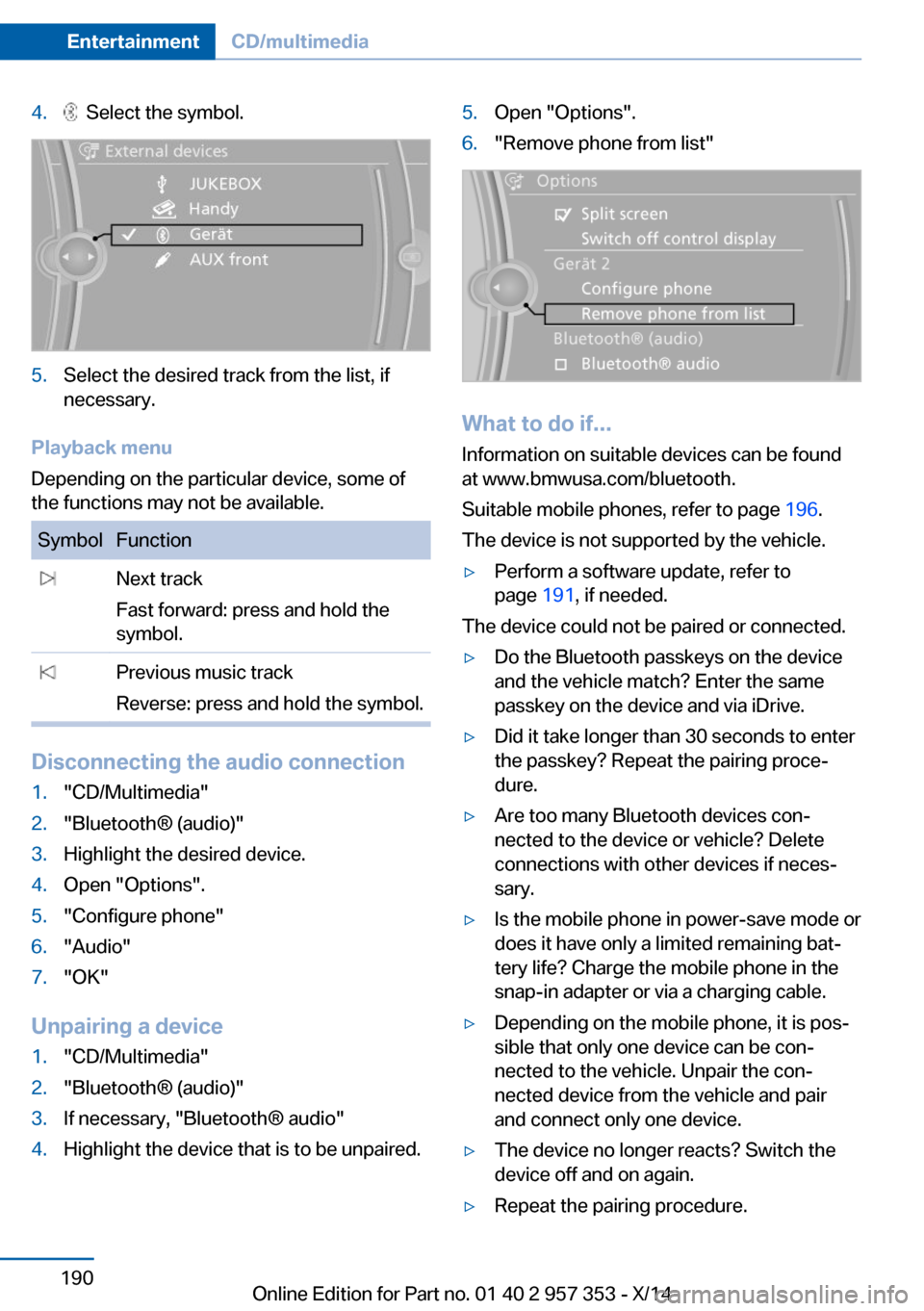
4. Select the symbol.5.Select the desired track from the list, if
necessary.
Playback menu
Depending on the particular device, some of
the functions may not be available.
SymbolFunction Next track
Fast forward: press and hold the
symbol. Previous music track
Reverse: press and hold the symbol.
Disconnecting the audio connection
1."CD/Multimedia"2."Bluetooth® (audio)"3.Highlight the desired device.4.Open "Options".5."Configure phone"6."Audio"7."OK"
Unpairing a device
1."CD/Multimedia"2."Bluetooth® (audio)"3.If necessary, "Bluetooth® audio"4.Highlight the device that is to be unpaired.5.Open "Options".6."Remove phone from list"
What to do if...
Information on suitable devices can be found
at www.bmwusa.com/bluetooth.
Suitable mobile phones, refer to page 196.
The device is not supported by the vehicle.
▷Perform a software update, refer to
page 191, if needed.
The device could not be paired or connected.
▷Do the Bluetooth passkeys on the device
and the vehicle match? Enter the same
passkey on the device and via iDrive.▷Did it take longer than 30 seconds to enter
the passkey? Repeat the pairing proce‐
dure.▷Are too many Bluetooth devices con‐
nected to the device or vehicle? Delete
connections with other devices if neces‐
sary.▷Is the mobile phone in power-save mode or
does it have only a limited remaining bat‐
tery life? Charge the mobile phone in the
snap-in adapter or via a charging cable.▷Depending on the mobile phone, it is pos‐
sible that only one device can be con‐
nected to the vehicle. Unpair the con‐
nected device from the vehicle and pair
and connect only one device.▷The device no longer reacts? Switch the
device off and on again.▷Repeat the pairing procedure.Seite 190EntertainmentCD/multimedia190
Online Edition for Part no. 01 40 2 957 353 - X/14
Page 196 of 297
NoteWhile the software is being updated or a previ‐
ous version is being restored, BMW Assist, Of‐
fice functions, and the connected devices are
temporarily unavailable. Wait several minutes
for the functions to become available again.Seite 192EntertainmentCD/multimedia192
Online Edition for Part no. 01 40 2 957 353 - X/14
Page 200 of 297
TelephoneVehicle equipmentThis chapter describes all series equipment as
well as country-specific and special equipment
offered for this model series. Therefore, it also
describes equipment that may not be found in
your vehicle, for instance due to the selected
special equipment or the country version. This
also applies to safety-related functions and
systems.
When using the features and systems descri‐
bed here, adhere to local regulations.
At a glance The conceptMobile phones or other external devices such
as audio players can be connected to the vehi‐
cle via Bluetooth.
Bluetooth® is a registered trademark of Blue‐
tooth® SIG, Inc.
After these devices are paired once, they are
recognized automatically when the ignition is
switched on as soon as they are in the vehicle
and can then be operated via iDrive, the but‐
tons on the steering wheel, and via voice acti‐
vation.
Depending on their functionality, external devi‐
ces can be used via the vehicle as a telephone
or as an audio source. The telephone functions
are described in the following. Operating the
audio functions, refer to page 187.
Up to four external devices can be paired.
Certain functions may need to be enabled by
the mobile phone provider or service provider.
Using the mobile phone while driving
Make entries only when traffic and road
conditions allow. Do not hold the mobile phone
in your hand while you are driving; use the
hands-free system instead. If you do not ob‐serve this precaution, you can endanger the
vehicle occupants and other road users.◀
Snap-in adapter The snap-in adapter is used to:▷Hold the mobile phone.▷Recharge the battery.▷Connect the mobile phone to an outside
antenna of the vehicle.
This provides for better network reception
and consistent sound quality.
Approved mobile phones
Details on which mobile phones and external
devices with a Bluetooth interface are sup‐
ported by the mobile phone preparation pack‐
age can be obtained at www.bmwusa.com/
bluetooth.
Displaying the vehicle identification
number and software part number
The vehicle identification number and software part number are needed to determine which
mobile phones are supported by the mobile
phone preparation package. The software ver‐
sion of the mobile phone may also be required.
1."Telephone"2.Open "Options".3."Bluetooth® info"4."Display system information"
These approved mobile phones with a certain
software version, support the vehicle functions
described below.
Malfunctions may occur with other mobile
phones or software versions.
Do not operate a mobile phone that is con‐
nected to the vehicle on the mobile phone key‐
pad, as this may lead to a malfunction.
Seite 196CommunicationsTelephone196
Online Edition for Part no. 01 40 2 957 353 - X/14