buttons BMW X1 SDRIVE28I 2013 Owners Manual
[x] Cancel search | Manufacturer: BMW, Model Year: 2013, Model line: X1 SDRIVE28I, Model: BMW X1 SDRIVE28I 2013Pages: 291, PDF Size: 6.58 MB
Page 11 of 291
At a glance
These overviews of buttons, switches and
displays are intended to familiarize you with your
vehicle. You will also become quickly acquainted with the available control concepts and options.Online Edition for Part no. 01 40 2 914 595 - VI/12
Page 13 of 291
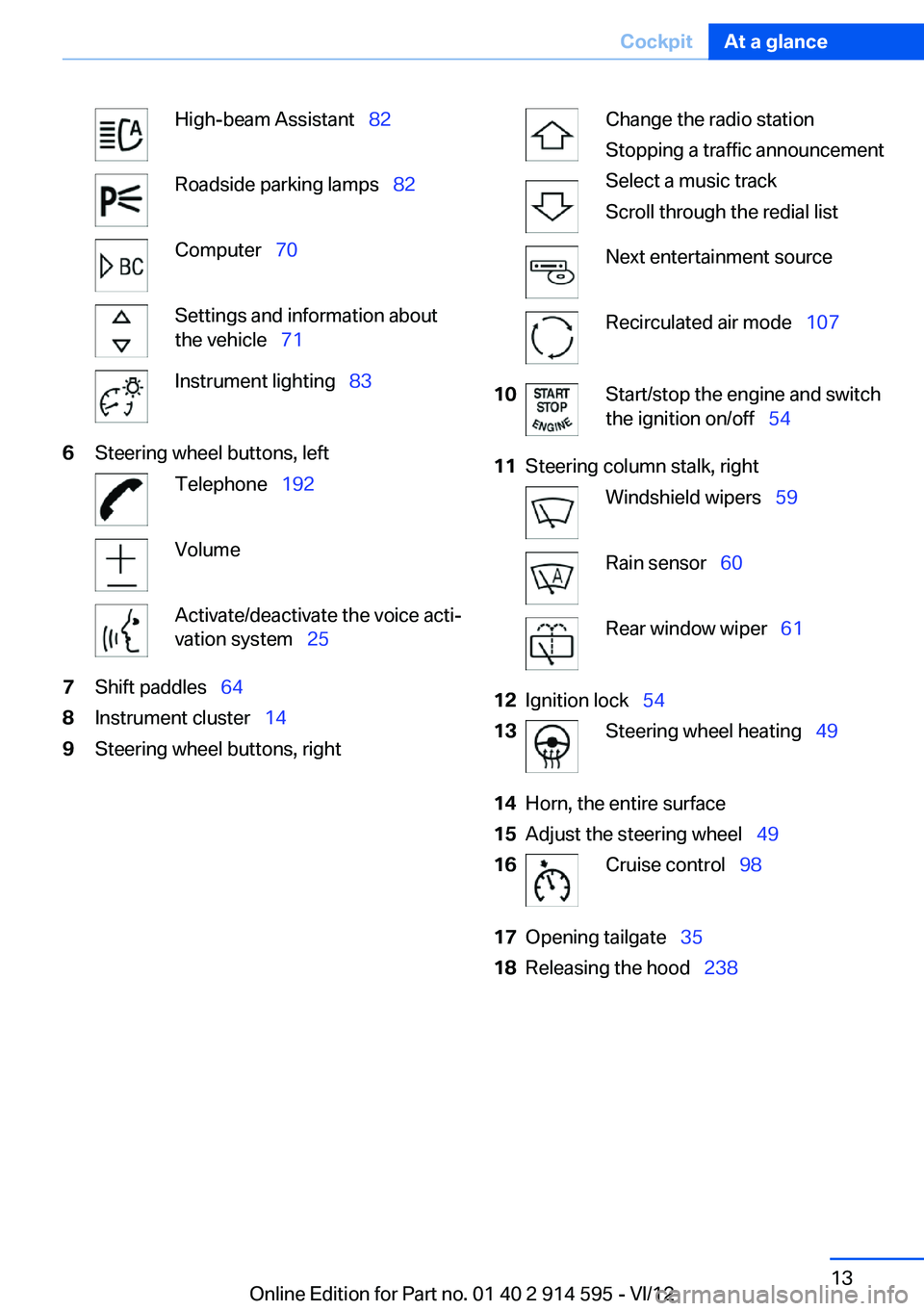
High-beam Assistant 82Roadside parking lamps 82Computer 70Settings and information about
the vehicle 71Instrument lighting 836Steering wheel buttons, leftTelephone 192VolumeActivate/deactivate the voice acti‐
vation system 257Shift paddles 648Instrument cluster 149Steering wheel buttons, rightChange the radio station
Stopping a traffic announcement
Select a music track
Scroll through the redial listNext entertainment sourceRecirculated air mode 10710Start/stop the engine and switch
the ignition on/off 5411Steering column stalk, rightWindshield wipers 59Rain sensor 60Rear window wiper 6112Ignition lock 5413Steering wheel heating 4914Horn, the entire surface15Adjust the steering wheel 4916Cruise control 9817Opening tailgate 3518Releasing the hood 238Seite 13CockpitAt a glance13
Online Edition for Part no. 01 40 2 914 595 - VI/12
Page 16 of 291
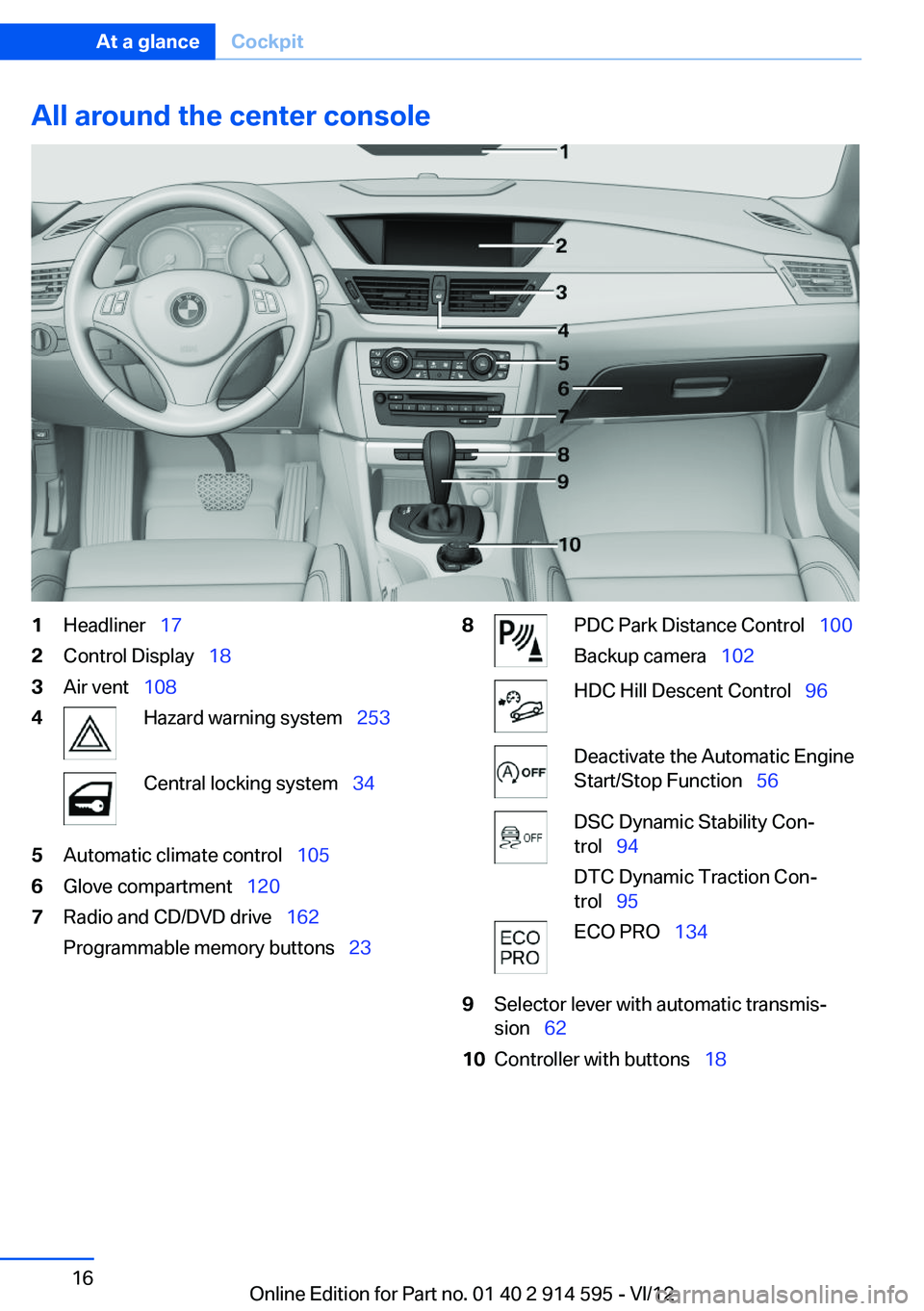
All around the center console1Headliner 172Control Display 183Air vent 1084Hazard warning system 253Central locking system 345Automatic climate control 1056Glove compartment 1207Radio and CD/DVD drive 162
Programmable memory buttons 238PDC Park Distance Control 100
Backup camera 102HDC Hill Descent Control 96Deactivate the Automatic Engine
Start/Stop Function 56DSC Dynamic Stability Con‐
trol 94
DTC Dynamic Traction Con‐
trol 95ECO PRO 1349Selector lever with automatic transmis‐
sion 6210Controller with buttons 18Seite 16At a glanceCockpit16
Online Edition for Part no. 01 40 2 914 595 - VI/12
Page 18 of 291
iDriveVehicle equipment
This chapter describes all series equipment as
well as country-specific and special equipment
offered for this model series.Therefore, it also
describes equipment that may not be found in
your vehicle, for instance due to the selected
special equipment or the country version. This
also applies to safety-related functions and sys‐
tems.
The concept
The iDrive combines the functions of a multitude
of switches. Thus, these functions can be oper‐
ated from a central location.
Using the iDrive during a trip
To avoid becoming distracted and posing
an unnecessary hazard to your vehicle's occu‐
pants and to other road users, never attempt to
use the controls or enter information unless traf‐
fic and road conditions allow this.◀
Controls at a glance
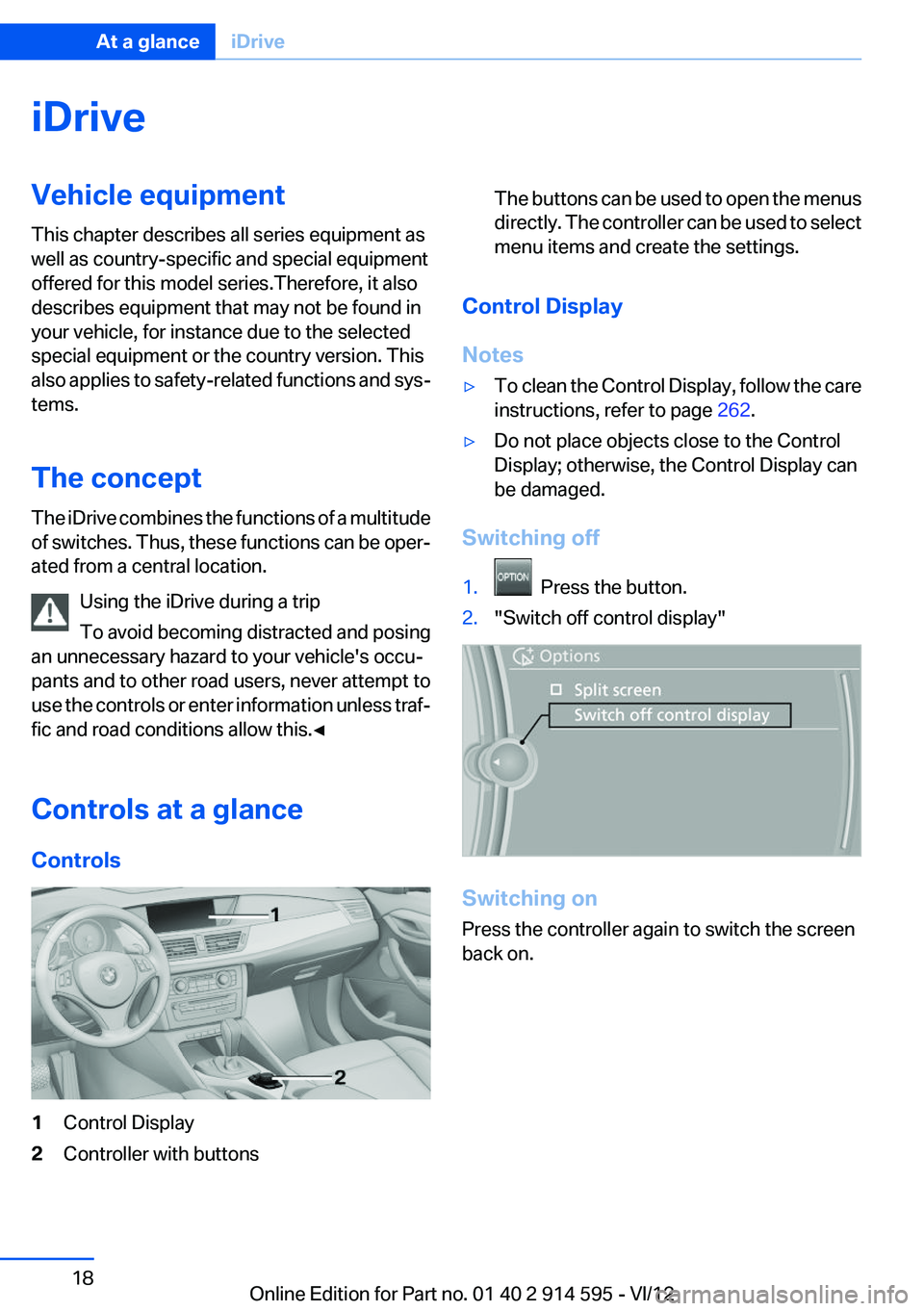
Controls1Control Display2Controller with buttonsThe buttons can be used to open the menus
directly. The controller can be used to select
menu items and create the settings.
Control Display
Notes
▷To clean the Control Display, follow the care
instructions, refer to page 262.▷Do not place objects close to the Control
Display; otherwise, the Control Display can
be damaged.
Switching off
1. Press the button.2."Switch off control display"
Switching on
Press the controller again to switch the screen
back on.
Seite 18At a glanceiDrive18
Online Edition for Part no. 01 40 2 914 595 - VI/12
Page 19 of 291
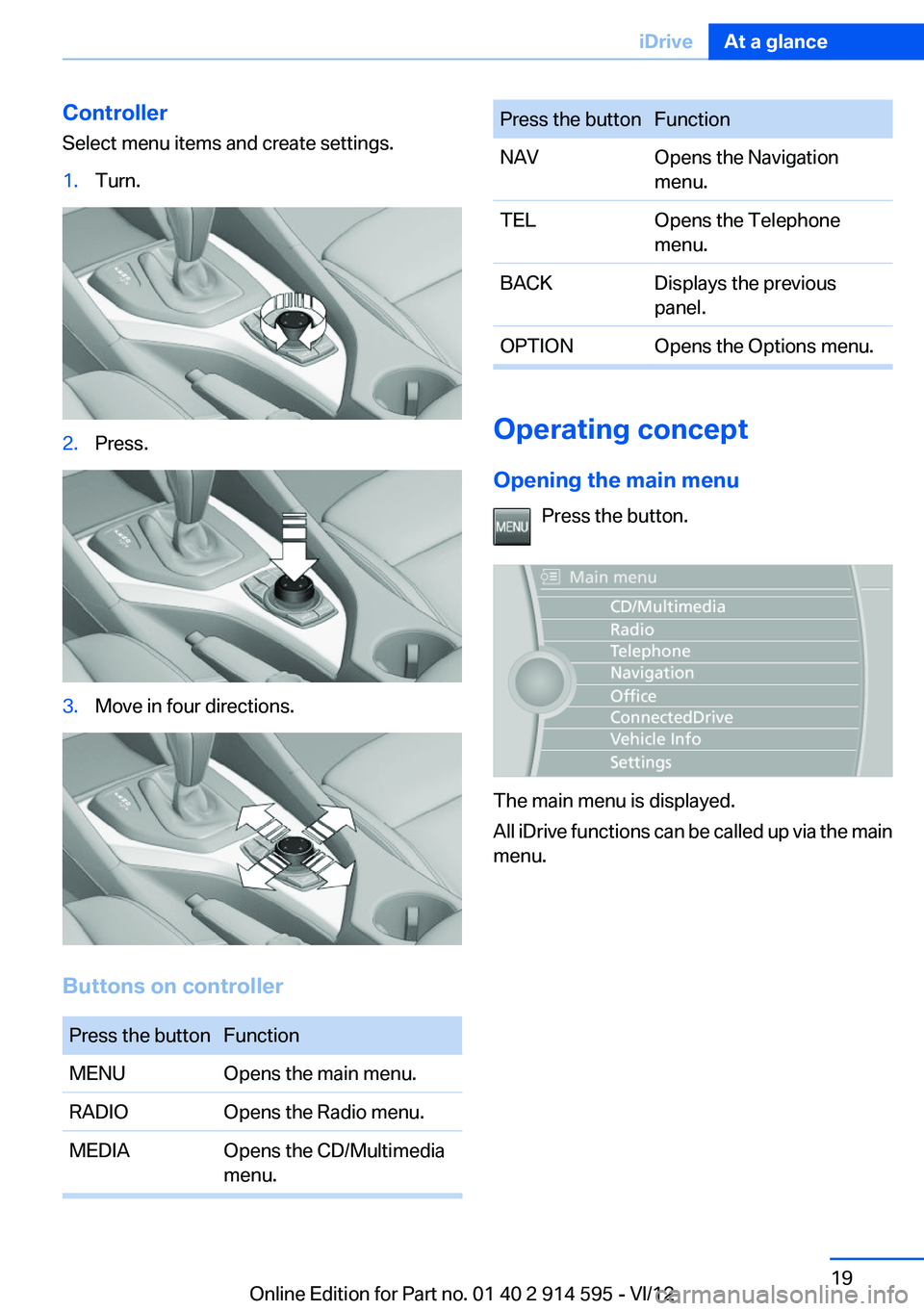
Controller
Select menu items and create settings.1.Turn.2.Press.3.Move in four directions.
Buttons on controller
Press the buttonFunctionMENUOpens the main menu.RADIOOpens the Radio menu.MEDIAOpens the CD/Multimedia
menu.Press the buttonFunctionNAVOpens the Navigation
menu.TELOpens the Telephone
menu.BACKDisplays the previous
panel.OPTIONOpens the Options menu.
Operating concept
Opening the main menu Press the button.
The main menu is displayed.
All iDrive functions can be called up via the main
menu.
Seite 19iDriveAt a glance19
Online Edition for Part no. 01 40 2 914 595 - VI/12
Page 23 of 291
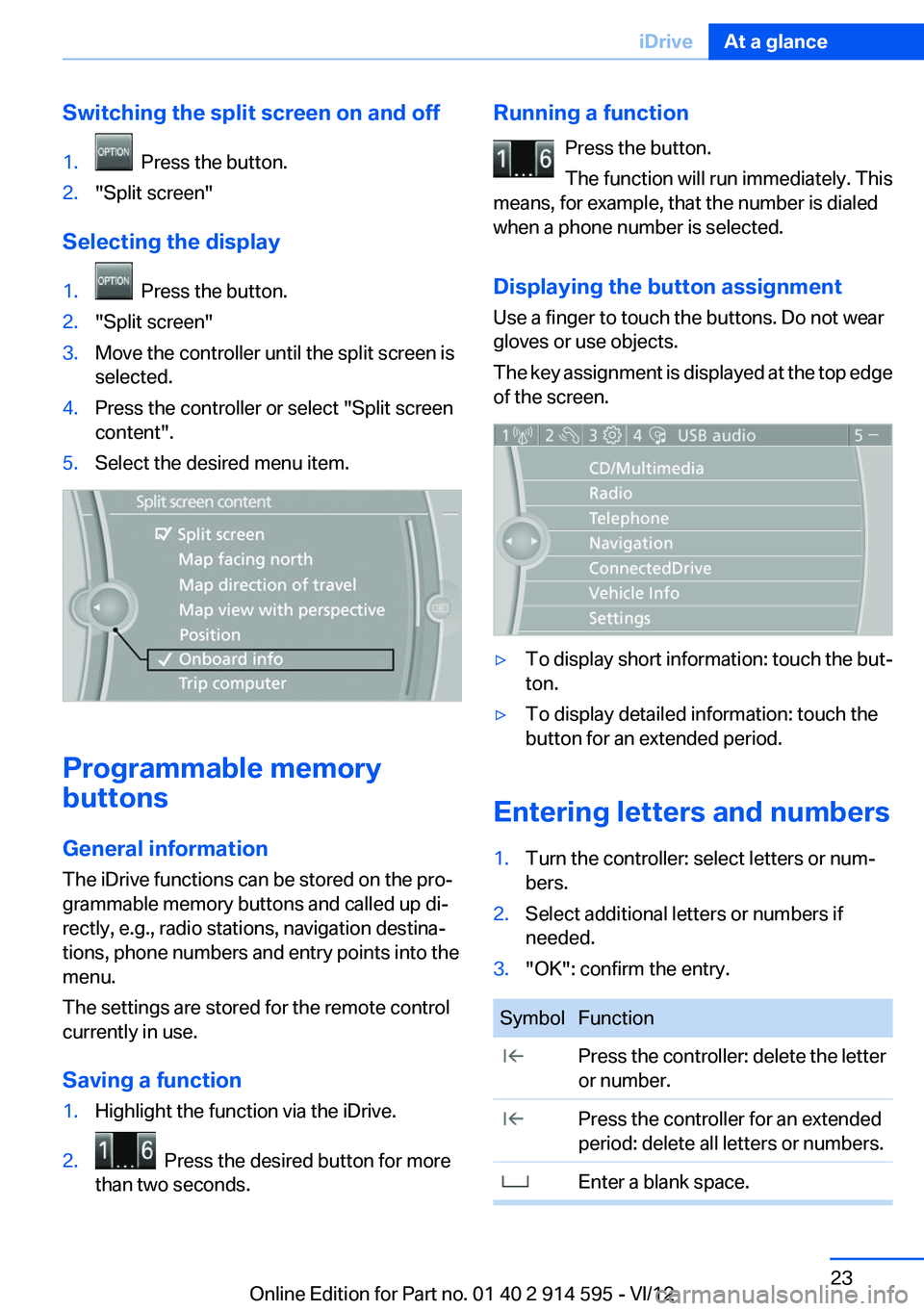
Switching the split screen on and off1. Press the button.2."Split screen"
Selecting the display
1. Press the button.2."Split screen"3.Move the controller until the split screen is
selected.4.Press the controller or select "Split screen
content".5.Select the desired menu item.
Programmable memory
buttons
General information
The iDrive functions can be stored on the pro‐
grammable memory buttons and called up di‐
rectly, e.g., radio stations, navigation destina‐
tions, phone numbers and entry points into the
menu.
The settings are stored for the remote control
currently in use.
Saving a function
1.Highlight the function via the iDrive.2. Press the desired button for more
than two seconds.Running a function
Press the button.
The function will run immediately. This
means, for example, that the number is dialed
when a phone number is selected.
Displaying the button assignment
Use a finger to touch the buttons. Do not wear
gloves or use objects.
The key assignment is displayed at the top edge
of the screen.▷To display short information: touch the but‐
ton.▷To display detailed information: touch the
button for an extended period.
Entering letters and numbers
1.Turn the controller: select letters or num‐
bers.2.Select additional letters or numbers if
needed.3."OK": confirm the entry.SymbolFunction Press the controller: delete the letter
or number. Press the controller for an extended
period: delete all letters or numbers. Enter a blank space.Seite 23iDriveAt a glance23
Online Edition for Part no. 01 40 2 914 595 - VI/12
Page 30 of 291
Opening and closingVehicle equipment
This chapter describes all series equipment as
well as country-specific and special equipment
offered for this model series.Therefore, it also
describes equipment that may not be found in
your vehicle, for instance due to the selected
special equipment or the country version. This
also applies to safety-related functions and sys‐
tems.
Remote control/key
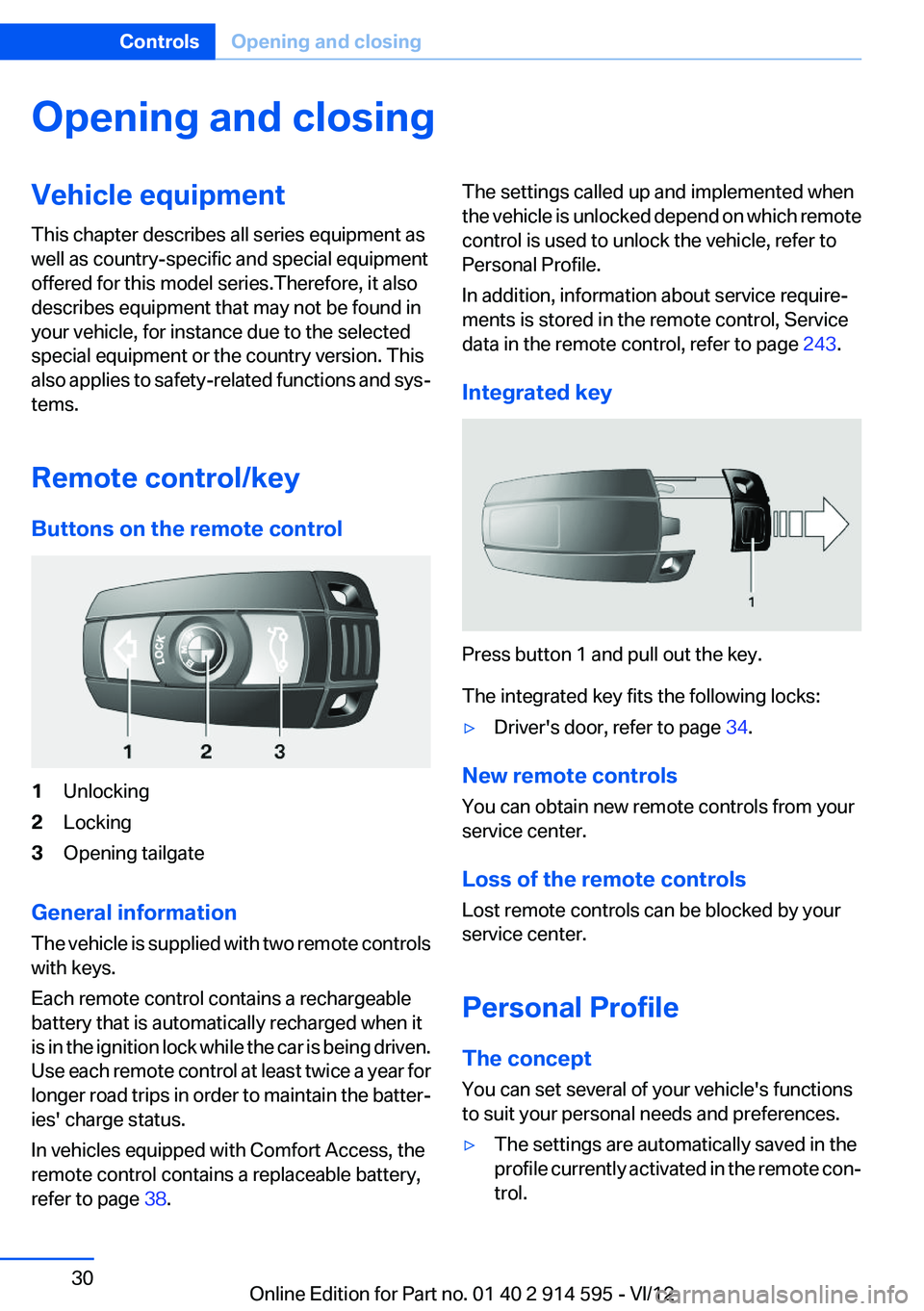
Buttons on the remote control1Unlocking2Locking3Opening tailgate
General information
The vehicle is supplied with two remote controls
with keys.
Each remote control contains a rechargeable
battery that is automatically recharged when it
is in the ignition lock while the car is being driven.
Use each remote control at least twice a year for
longer road trips in order to maintain the batter‐
ies' charge status.
In vehicles equipped with Comfort Access, the
remote control contains a replaceable battery,
refer to page 38.
The settings called up and implemented when
the vehicle is unlocked depend on which remote
control is used to unlock the vehicle, refer to
Personal Profile.
In addition, information about service require‐
ments is stored in the remote control, Service
data in the remote control, refer to page 243.
Integrated key
Press button 1 and pull out the key.
The integrated key fits the following locks:
▷Driver's door, refer to page 34.
New remote controls
You can obtain new remote controls from your
service center.
Loss of the remote controls
Lost remote controls can be blocked by your
service center.
Personal Profile
The concept
You can set several of your vehicle's functions
to suit your personal needs and preferences.
▷The settings are automatically saved in the
profile currently activated in the remote con‐
trol.Seite 30ControlsOpening and closing30
Online Edition for Part no. 01 40 2 914 595 - VI/12
Page 37 of 291
Functional requirement▷To lock the vehicle, the remote control must
be located outside of the vehicle.▷The next unlocking and locking cycle is not
possible until after approx. 2 seconds.▷The engine can only be started if the remote
control is inside the vehicle.
Comparison with ordinary remote
control
The functions can be controlled by pressing the
buttons or via Comfort Access.
Unlocking
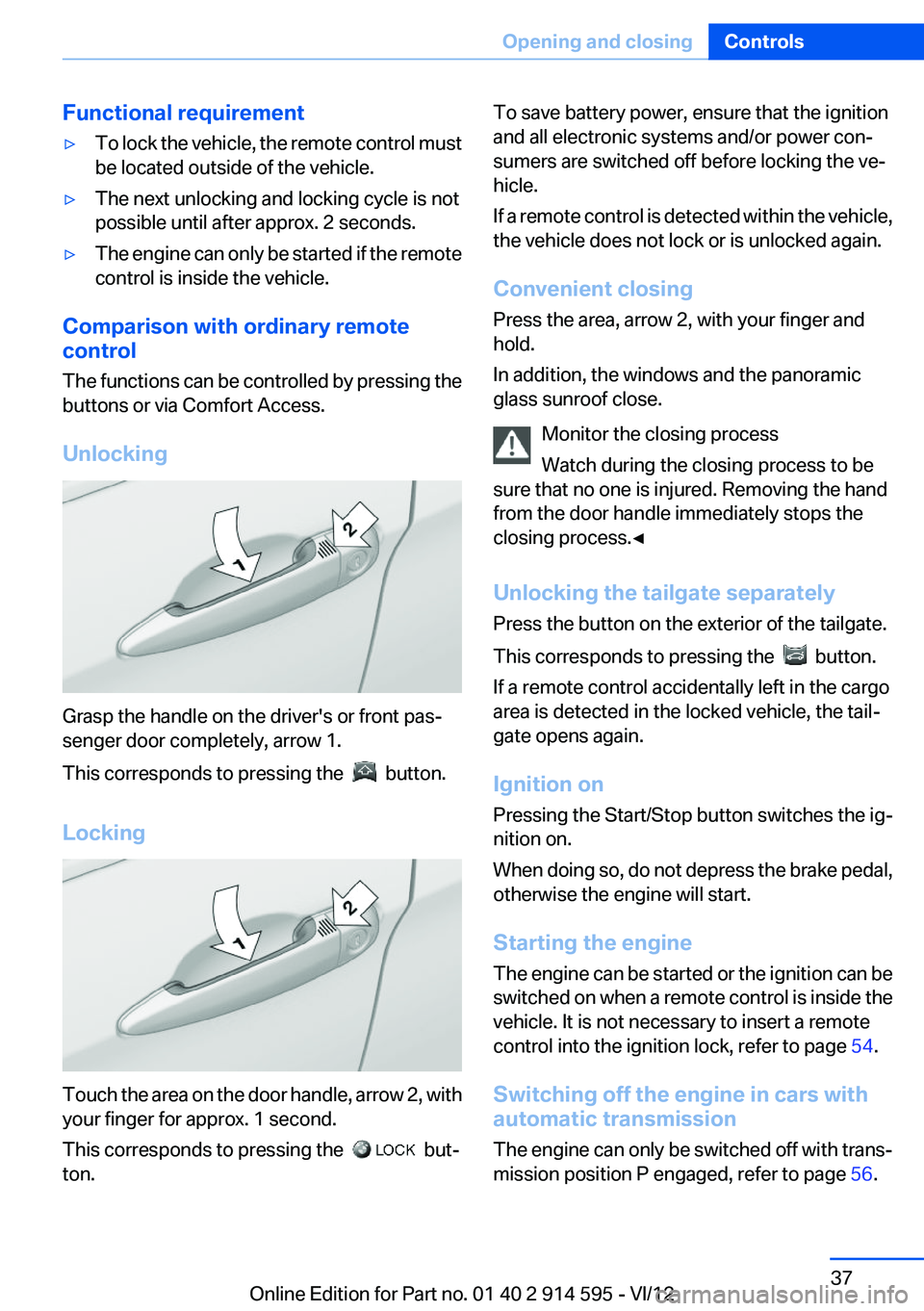
Grasp the handle on the driver's or front pas‐
senger door completely, arrow 1.
This corresponds to pressing the
button.
Locking
Touch the area on the door handle, arrow 2, with
your finger for approx. 1 second.
This corresponds to pressing the
but‐
ton.
To save battery power, ensure that the ignition
and all electronic systems and/or power con‐
sumers are switched off before locking the ve‐
hicle.
If a remote control is detected within the vehicle,
the vehicle does not lock or is unlocked again.
Convenient closing
Press the area, arrow 2, with your finger and
hold.
In addition, the windows and the panoramic
glass sunroof close.
Monitor the closing process
Watch during the closing process to be
sure that no one is injured. Removing the hand
from the door handle immediately stops the
closing process.◀
Unlocking the tailgate separately
Press the button on the exterior of the tailgate.
This corresponds to pressing the
button.
If a remote control accidentally left in the cargo
area is detected in the locked vehicle, the tail‐
gate opens again.
Ignition on
Pressing the Start/Stop button switches the ig‐
nition on.
When doing so, do not depress the brake pedal,
otherwise the engine will start.
Starting the engine
The engine can be started or the ignition can be
switched on when a remote control is inside the
vehicle. It is not necessary to insert a remote
control into the ignition lock, refer to page 54.
Switching off the engine in cars with
automatic transmission
The engine can only be switched off with trans‐
mission position P engaged, refer to page 56.
Seite 37Opening and closingControls37
Online Edition for Part no. 01 40 2 914 595 - VI/12
Page 38 of 291
To switch the engine off with transmission po‐
sition N engaged, insert the remote control in
the ignition lock.
Malfunction
The Comfort Access functions can be disturbed
by local radio waves, such as by a mobile phone
in the immediate vicinity of the remote control or
when a mobile phone is being charged in the
vehicle.
If this occurs, open or close the vehicle using the
buttons on the remote control or use the
integrated key in the door lock.
To start the engine afterward, insert the remote
control into the ignition switch.
Warning lamps The warning lamp in the instrument
cluster lights up when you attempt to
start the engine: the engine cannot be
started.
The remote control is not in the vehicle or has a
malfunction. Take the remote control with you
inside the vehicle or have it checked. If neces‐
sary, insert another remote control into the ig‐
nition switch.
The warning lamp in the instrument
cluster lights up while the engine is
running: the remote control is no lon‐
ger inside the vehicle.
After switching off the engine, the engine can
only be started again within approx. 10 seconds
if no door has been opened.
The indicator lamp in the instrument
cluster comes on and a message ap‐
pears on the Control Display: replace
the remote control battery.Replacing the battery
The remote control for Comfort Access con‐
tains a battery that will need to be replaced from
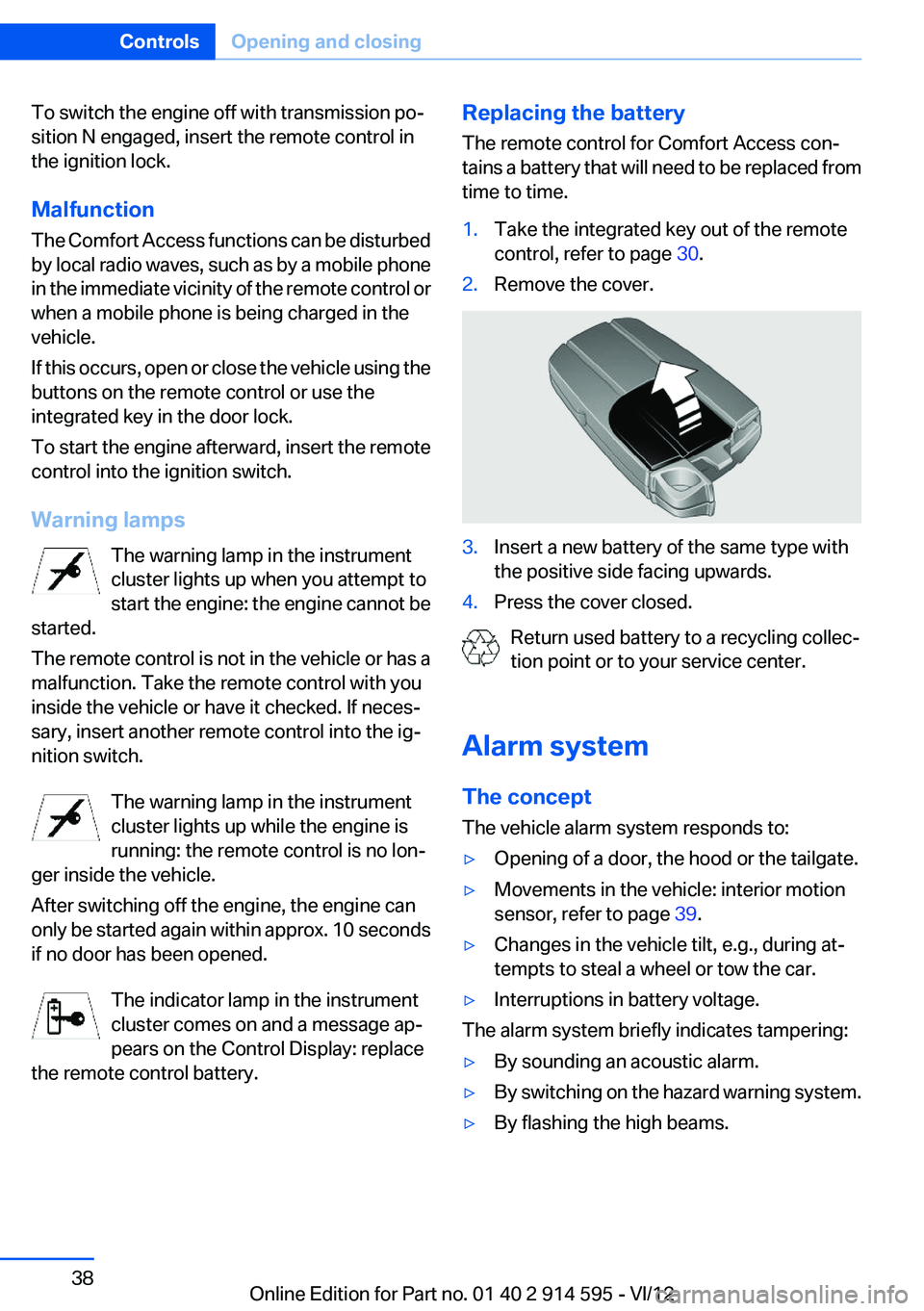
time to time.1.Take the integrated key out of the remote
control, refer to page 30.2.Remove the cover.3.Insert a new battery of the same type with
the positive side facing upwards.4.Press the cover closed.
Return used battery to a recycling collec‐
tion point or to your service center.
Alarm system
The concept
The vehicle alarm system responds to:
▷Opening of a door, the hood or the tailgate.▷Movements in the vehicle: interior motion
sensor, refer to page 39.▷Changes in the vehicle tilt, e.g., during at‐
tempts to steal a wheel or tow the car.▷Interruptions in battery voltage.
The alarm system briefly indicates tampering:
▷By sounding an acoustic alarm.▷By switching on the hazard warning system.▷By flashing the high beams.Seite 38ControlsOpening and closing38
Online Edition for Part no. 01 40 2 914 595 - VI/12
Page 47 of 291
Rear
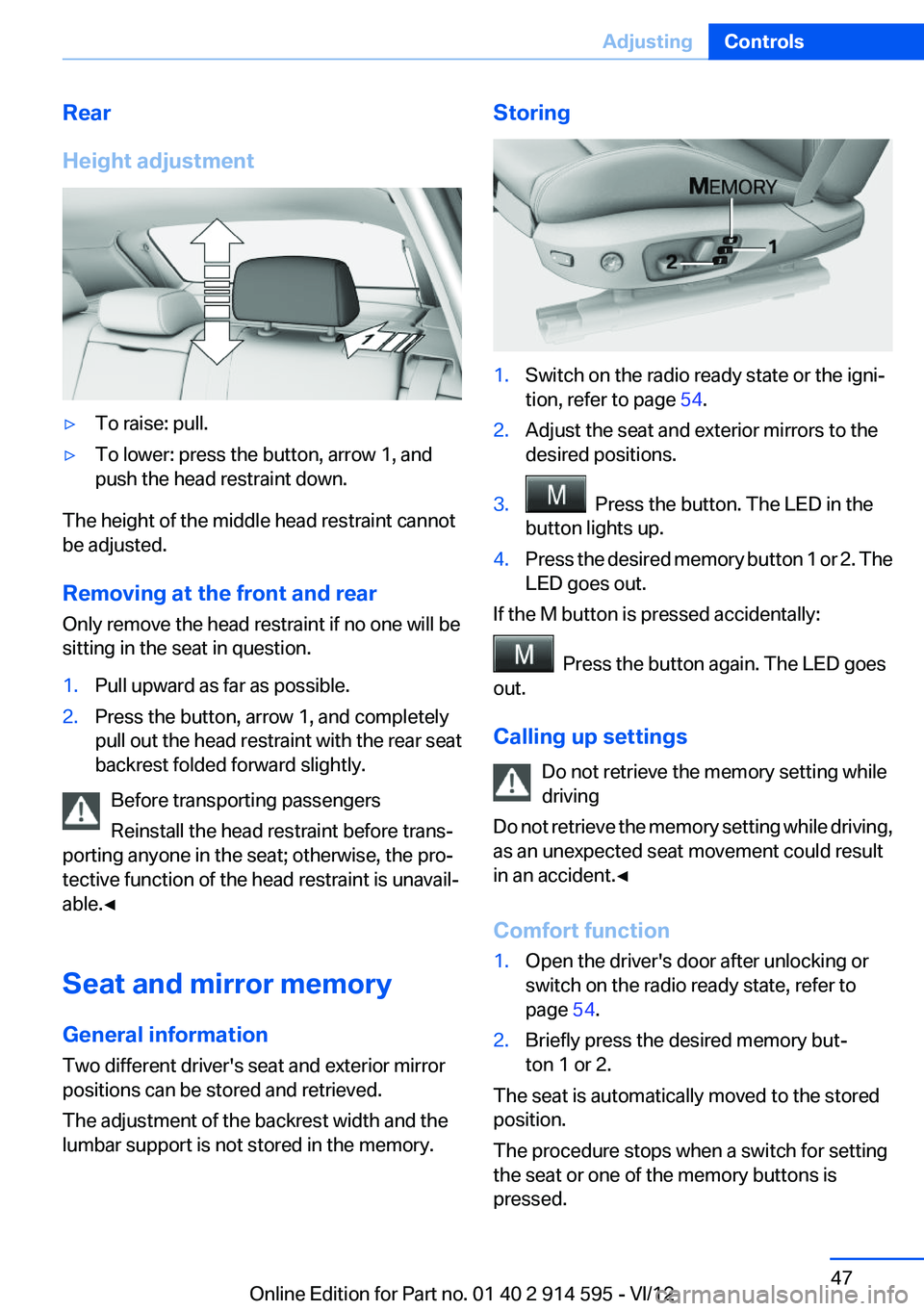
Height adjustment▷To raise: pull.▷To lower: press the button, arrow 1, and
push the head restraint down.
The height of the middle head restraint cannot
be adjusted.
Removing at the front and rear
Only remove the head restraint if no one will be
sitting in the seat in question.
1.Pull upward as far as possible.2.Press the button, arrow 1, and completely
pull out the head restraint with the rear seat
backrest folded forward slightly.
Before transporting passengers
Reinstall the head restraint before trans‐
porting anyone in the seat; otherwise, the pro‐
tective function of the head restraint is unavail‐
able.◀
Seat and mirror memory
General information
Two different driver's seat and exterior mirror
positions can be stored and retrieved.
The adjustment of the backrest width and the
lumbar support is not stored in the memory.
Storing1.Switch on the radio ready state or the igni‐
tion, refer to page 54.2.Adjust the seat and exterior mirrors to the
desired positions.3. Press the button. The LED in the
button lights up.4.Press the desired memory button 1 or 2. The
LED goes out.
If the M button is pressed accidentally:
Press the button again. The LED goes
out.
Calling up settings Do not retrieve the memory setting while
driving
Do not retrieve the memory setting while driving,
as an unexpected seat movement could result
in an accident.◀
Comfort function
1.Open the driver's door after unlocking or
switch on the radio ready state, refer to
page 54.2.Briefly press the desired memory but‐
ton 1 or 2.
The seat is automatically moved to the stored
position.
The procedure stops when a switch for setting
the seat or one of the memory buttons is
pressed.
Seite 47AdjustingControls47
Online Edition for Part no. 01 40 2 914 595 - VI/12