display BMW X3 2012 Workshop Manual
[x] Cancel search | Manufacturer: BMW, Model Year: 2012, Model line: X3, Model: BMW X3 2012Pages: 278, PDF Size: 10.15 MB
Page 108 of 278
If the image is distorted, check the basic set‐
tings.
Switching on/off1."Settings"2."Head-up display"3."Head-up display"
Switch the Head-up Display ON/OFF as re‐
quired.
Display
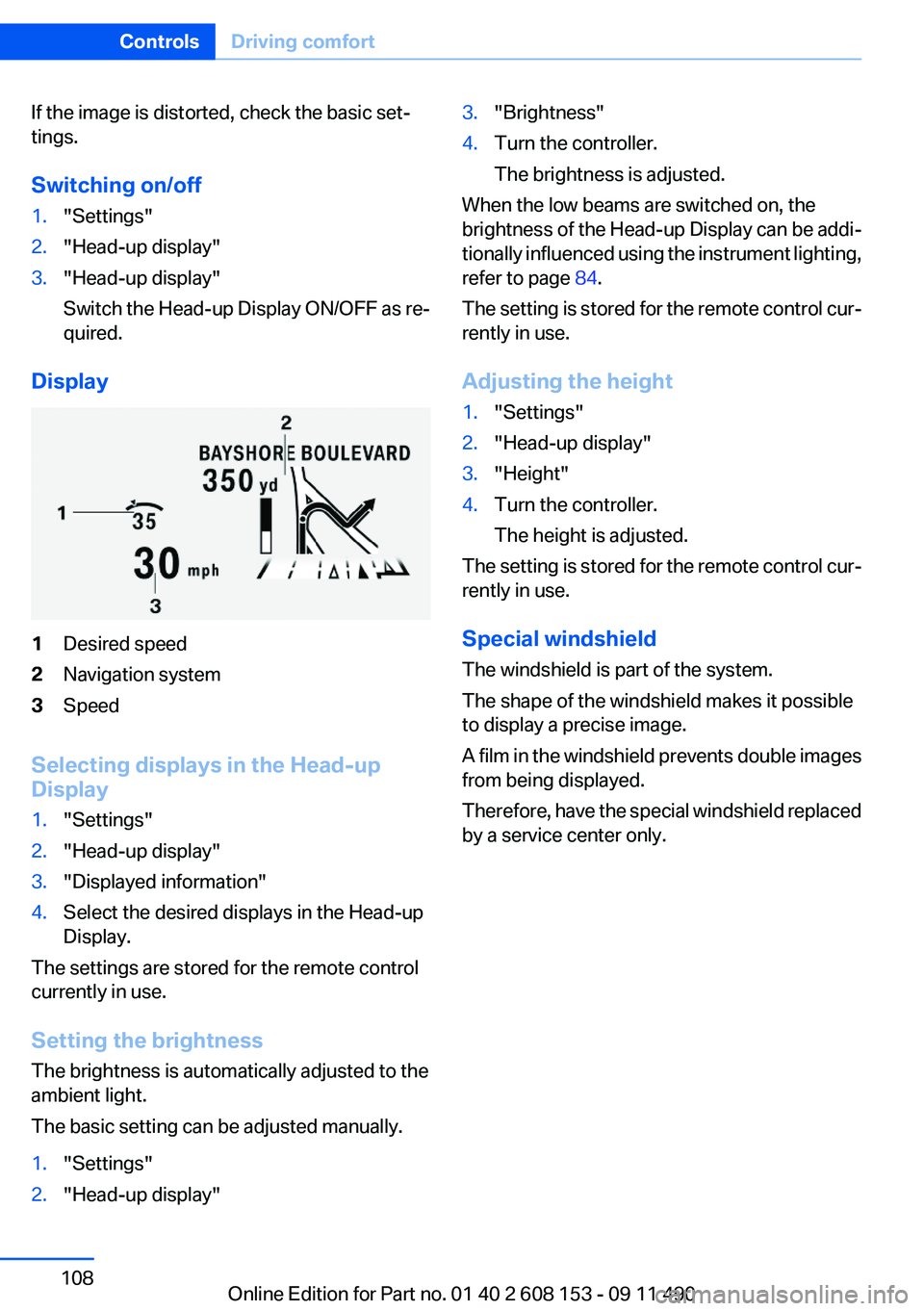
1Desired speed2Navigation system3Speed
Selecting displays in the Head-up
Display
1."Settings"2."Head-up display"3."Displayed information"4.Select the desired displays in the Head-up
Display.
The settings are stored for the remote control
currently in use.
Setting the brightness
The brightness is automatically adjusted to the
ambient light.
The basic setting can be adjusted manually.
1."Settings"2."Head-up display"3."Brightness"4.Turn the controller.
The brightness is adjusted.
When the low beams are switched on, the
brightness of the Head-up Display can be addi‐
tionally influenced using the instrument lighting,
refer to page 84.
The setting is stored for the remote control cur‐
rently in use.
Adjusting the height
1."Settings"2."Head-up display"3."Height"4.Turn the controller.
The height is adjusted.
The setting is stored for the remote control cur‐
rently in use.
Special windshield
The windshield is part of the system.
The shape of the windshield makes it possible
to display a precise image.
A film in the windshield prevents double images
from being displayed.
Therefore, have the special windshield replaced
by a service center only.
Seite 108ControlsDriving comfort108
Online Edition for Part no. 01 40 2 608 153 - 09 11 490
Page 111 of 278
The cooling function is switched on automati‐
cally with the AUTO program.
When using the automatic climate control, con‐
densation water, refer to page 130, develops
that exits underneath the vehicle.
Rear window defroster Press the button.
The rear window defroster switches off
automatically after a certain period of time.
Switching the system on/off
Switching off
Turn the rotary switch for the air volume, refer to
page 110, to 0. The blower and automatic cli‐
mate control are switched off entirely.Switching on
Set any air volume.
The AUTO program can also be switched on di‐
rectly via the AUTO button.
Microfilter
The microfilter removes dust and pollen from
the incoming air.
This filter should be replaced during scheduled
maintenance, refer to page 234, of your vehicle.
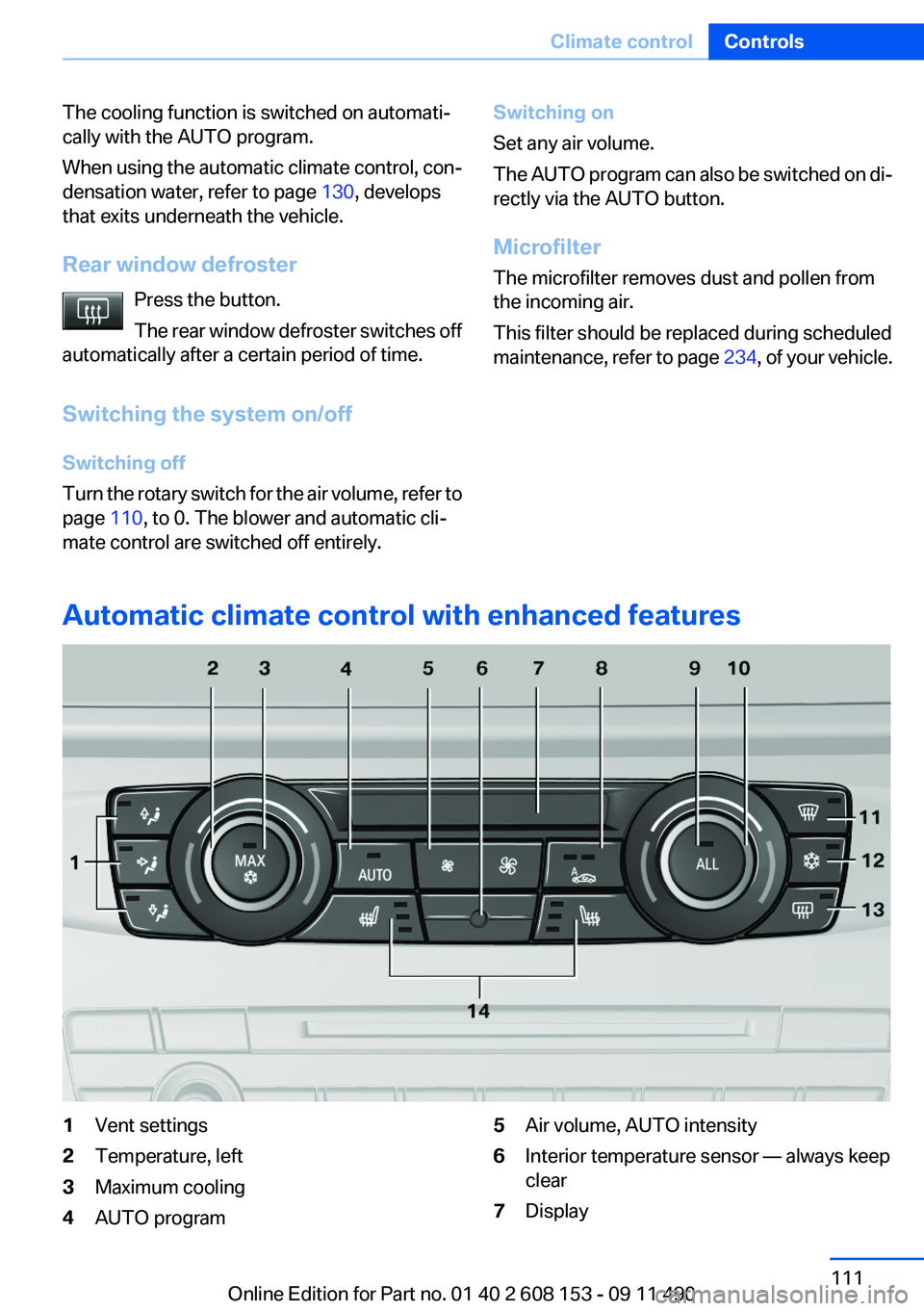
Automatic climate control with enhanced features
1Vent settings2Temperature, left3Maximum cooling4AUTO program5Air volume, AUTO intensity6Interior temperature sensor — always keep
clear7DisplaySeite 111Climate controlControls111
Online Edition for Part no. 01 40 2 608 153 - 09 11 490
Page 113 of 278
The selected intensity is shown on the display
of the automatic climate control.
Air volume, manual
To be able to manually adjust the air volume,
switch off the AUTO program first.
Press the left or right side of the button:
decrease or increase air volume.
The selected air volume is shown on the display
of the automatic climate control.
The air volume of the automatic climate control
may be reduced automatically to save battery
power.
Automatic recirculated-air control/
recirculated-air mode
You can respond to unpleasant odors or pollu‐
tants in the immediate environment by tempo‐
rarily suspending the supply of outside air. The
system then recirculates the air currently within
the vehicle.
Press the button repeatedly to select
an operating mode:▷LEDs off: outside air flows in continuously.▷Left LED on, automatic recirculated-air con‐
trol: a sensor detects pollutants in the out‐
side air and controls the shutoff automati‐
cally.▷Right LED on, recirculated-air mode: the
supply of outside air into the vehicle is per‐
manently blocked.
If the windows are fogged over, switch off the
recirculated-air mode and press the AUTO but‐
ton to utilize the condensation sensor. Make
sure that air can flow onto the windshield.
Continuous recirculated-air mode
The recirculated-air mode should not be
used for an extended period of time, as the air
quality inside the vehicle deteriorates steadily. ◀
ALL program
Press the button.
The current setting or later settings of
the temperature on the driver's side are trans‐
ferred to the front passenger side.
The program is switched off if the settings on
the front passenger side are changed.
Defrosting windows and removing
condensation
Press the button.
Ice and condensation are quickly re‐
moved from the windshield and the front side
windows.
The air volume can be adjusted when the pro‐
gram is active.
If the windows are fogged over, additionally
switch on the cooling function or press the
AUTO button to utilize the condensation sensor.
Cooling function
The passenger compartment can only be
cooled with the engine running.
Press the button.
The air is cooled and dehumidified and
– depending on the temperature setting –
warmed again.
Depending on the weather, the windshield may
fog up briefly when the engine is started.
The cooling function is switched on automati‐
cally with the AUTO program.
When using the automatic climate control, con‐
densation water, refer to page 130, develops
that exits underneath the vehicle.
Rear window defroster Press the button.
The rear window defroster switches off
automatically after a certain period of time.Seite 113Climate controlControls113
Online Edition for Part no. 01 40 2 608 153 - 09 11 490
Page 120 of 278
folded down. Otherwise, injury or damage may
result.◀
Locking the backrest
Before carrying persons in the rear, en‐
gage and thereby lock the backrests, or the re‐
straining effect of the safety belts during an ac‐
cident may be limited.◀
Ensure that the lock is securely engaged
When folding back the backrest, be sure
that it locks in place securely. The red warning
field in the control display disappears. If it is not
properly engaged, transported cargo could en‐
ter the passenger compartment during braking
or evasive maneuvers and endanger the vehicle
occupants.◀
Using the middle safety belt
If the middle safety belt in the rear is used,
the larger section of the backrest must be
locked. Otherwise, the safety belt will not have
a restraining effect.◀
Folding down side
The right side can be folded down separately.
The left side can be folded down in combination
with the middle section.
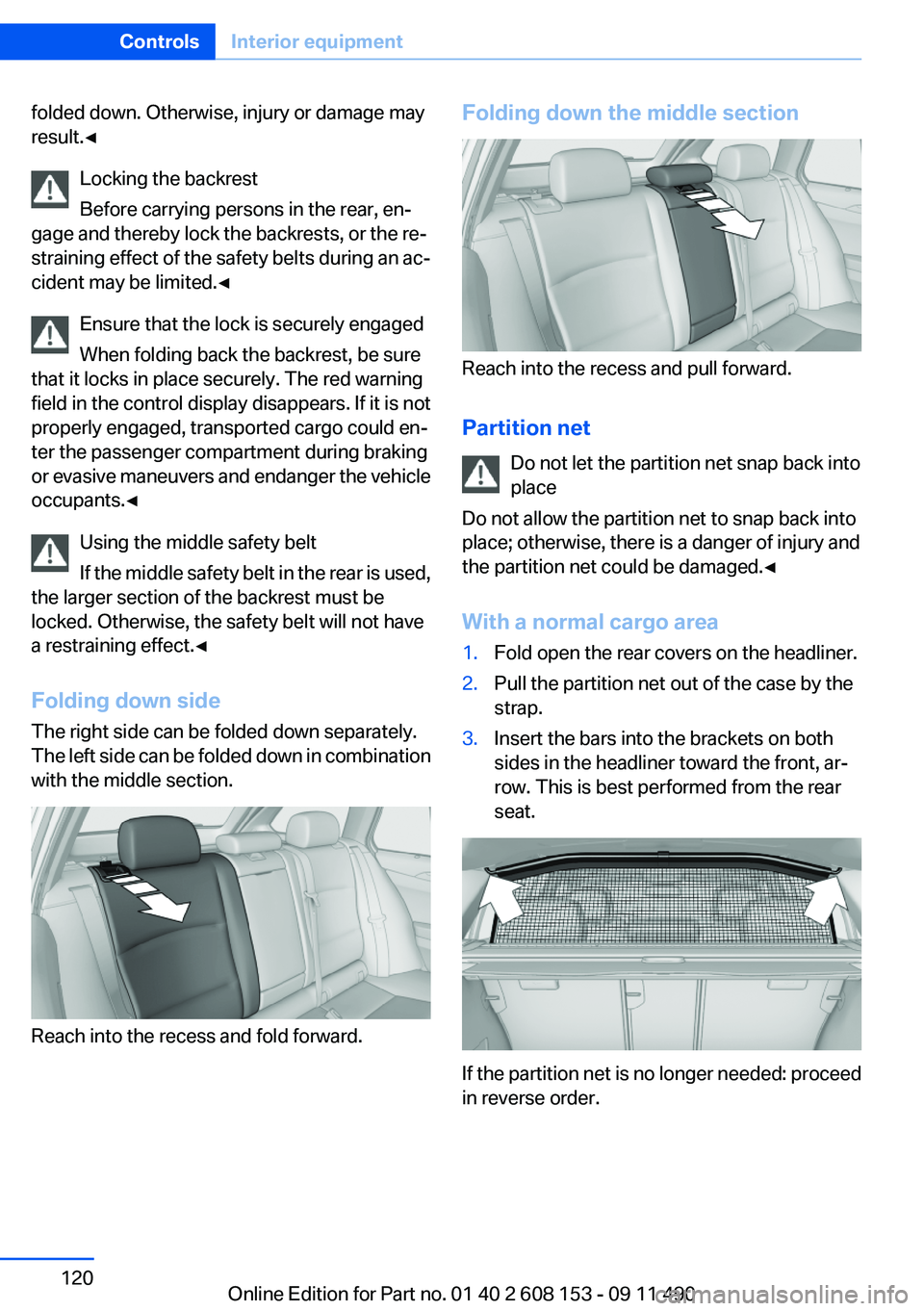
Reach into the recess and fold forward.
Folding down the middle section
Reach into the recess and pull forward.
Partition net Do not let the partition net snap back into
place
Do not allow the partition net to snap back into
place; otherwise, there is a danger of injury and
the partition net could be damaged.◀
With a normal cargo area
1.Fold open the rear covers on the headliner.2.Pull the partition net out of the case by the
strap.3.Insert the bars into the brackets on both
sides in the headliner toward the front, ar‐
row. This is best performed from the rear
seat.
If the partition net is no longer needed: proceed
in reverse order.
Seite 120ControlsInterior equipment120
Online Edition for Part no. 01 40 2 608 153 - 09 11 490
Page 138 of 278
NavigationVehicle equipment
All standard, country-specific and optional
equipment that is offered in the model series is
described in this chapter. Therefore, equipment
is also described that is not available in a vehicle,
e. g., because of the selected optional equip‐
ment or country variant. This also applies for
safety-related functions and systems.
Navigation system
General information
The navigation system can determine the pre‐
cise position of the vehicle, with the aid of sat‐
ellites and vehicle sensors, and can reliably
guide you to every entered destination.
Navigation data are stored in the vehicle and can
be updated.
Entries in stationary vehicle
Enter data only when the vehicle is sta‐
tionary, and always give priority to the applicable
traffic regulations in the event of any contradic‐
tion between traffic and road conditions and the
instructions issued by the navigation system.
Failure to take to this precaution can place you
in violation of the law and put vehicle occupants
and other road users in danger.◀
Starting navigation system1. Press the button on the controller.2."Navigation"
The navigation system can also be ac‐
cessed directly with the button on the con‐
troller.
Destination input
Manual destination entry
General information
The system supports you in entering street
names and house numbers by automatically
completing the entry and providing entry com‐
parisons, refer to page 21.
Stored town/city and street names can be called
up quickly.▷If the existing entries should not be changed,
the entries for the state/province and town/
city can be skipped.▷Destination guidance is started to the town/
city center if no street is entered.
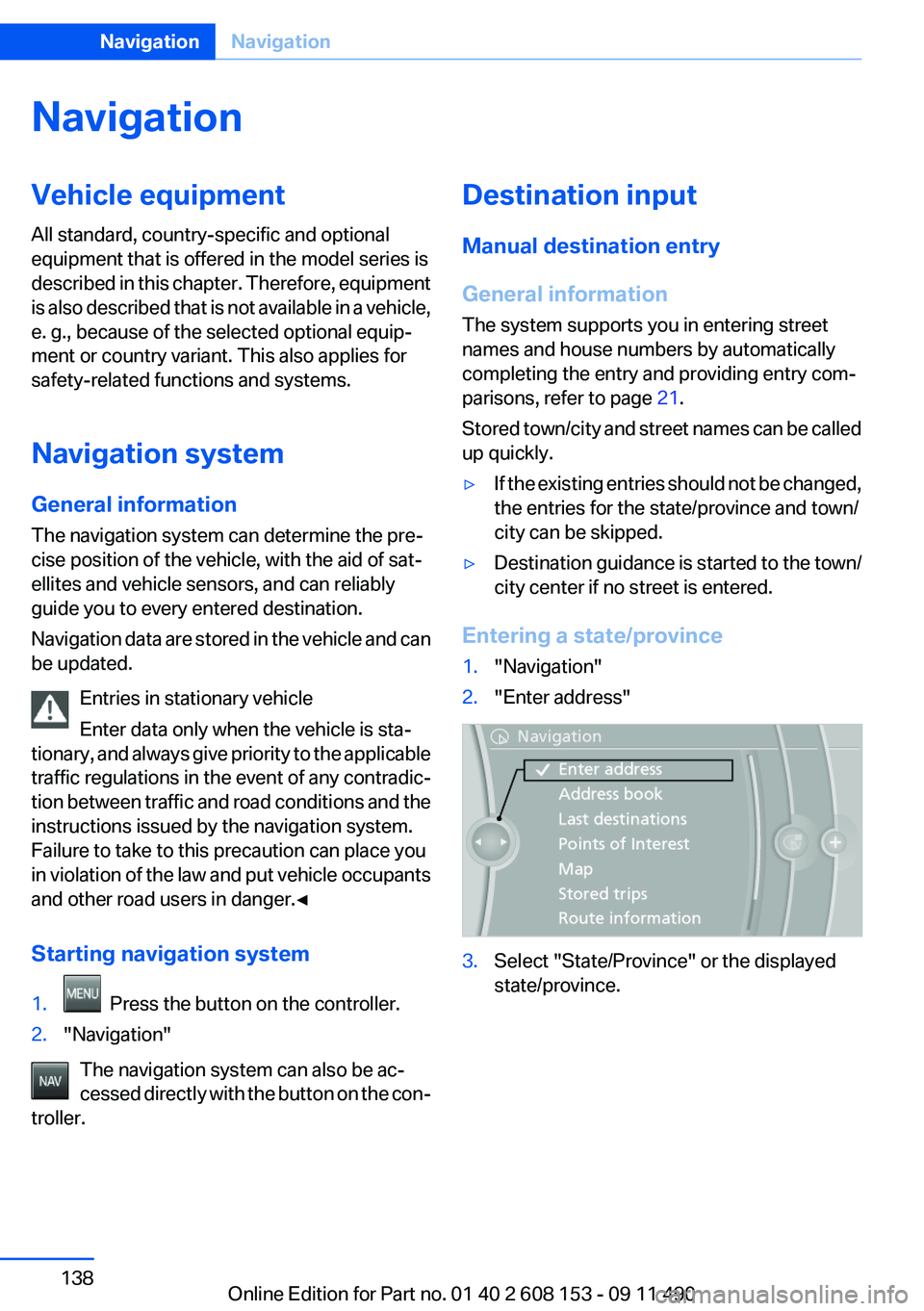
Entering a state/province
1."Navigation"2."Enter address"3.Select "State/Province" or the displayed
state/province.Seite 138NavigationNavigation138
Online Edition for Part no. 01 40 2 608 153 - 09 11 490
Page 139 of 278
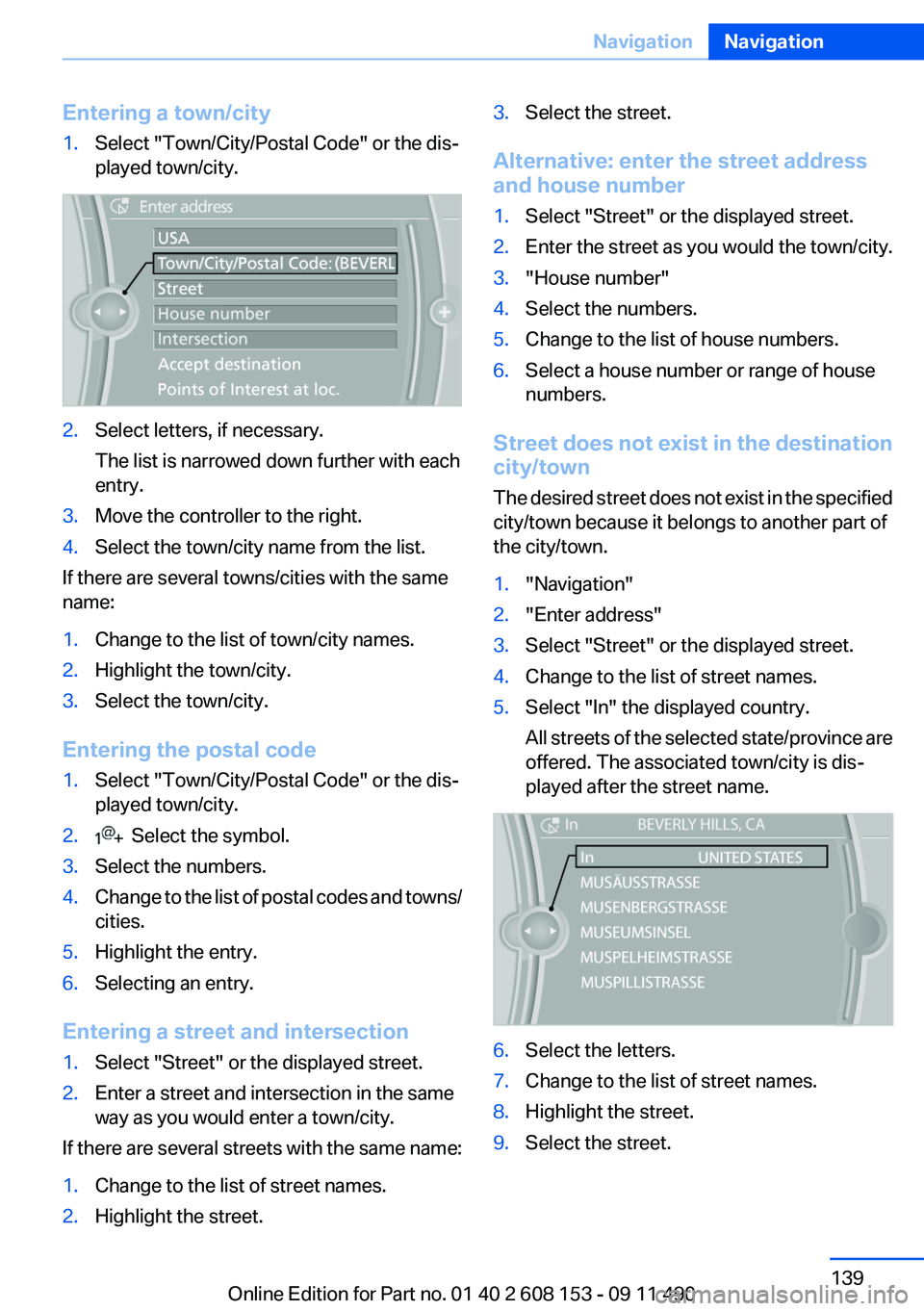
Entering a town/city1.Select "Town/City/Postal Code" or the dis‐
played town/city.2.Select letters, if necessary.
The list is narrowed down further with each
entry.3.Move the controller to the right.4.Select the town/city name from the list.
If there are several towns/cities with the same
name:
1.Change to the list of town/city names.2.Highlight the town/city.3.Select the town/city.
Entering the postal code
1.Select "Town/City/Postal Code" or the dis‐
played town/city.2. Select the symbol.3.Select the numbers.4.Change to the list of postal codes and towns/
cities.5.Highlight the entry.6.Selecting an entry.
Entering a street and intersection
1.Select "Street" or the displayed street.2.Enter a street and intersection in the same
way as you would enter a town/city.
If there are several streets with the same name:
1.Change to the list of street names.2.Highlight the street.3.Select the street.
Alternative: enter the street address
and house number
1.Select "Street" or the displayed street.2.Enter the street as you would the town/city.3."House number"4.Select the numbers.5.Change to the list of house numbers.6.Select a house number or range of house
numbers.
Street does not exist in the destination
city/town
The desired street does not exist in the specified
city/town because it belongs to another part of
the city/town.
1."Navigation"2."Enter address"3.Select "Street" or the displayed street.4.Change to the list of street names.5.Select "In" the displayed country.
All streets of the selected state/province are
offered. The associated town/city is dis‐
played after the street name.6.Select the letters.7.Change to the list of street names.8.Highlight the street.9.Select the street.Seite 139NavigationNavigation139
Online Edition for Part no. 01 40 2 608 153 - 09 11 490
Page 140 of 278
Starting destination guidance after
entering the destination1."Accept destination"2."Start guidance" or "Add as another
destination"
Add a destination as a further destination,
refer to page 145.
Address book
Selecting a destination from the
address book
1."Navigation"2."Address book"
Contacts with addresses are displayed if
these have been checked as destinations.
If the mobile phone does not display the
contacts with addresses, they must first be
Destination checked, refer to page 200.3.Select a contact in the list or, if desired, with
"A-Z search".4."Business address" or "Home address"
Storing the destination in the address
book
After entering the destination, store the desti‐
nation in the address book.
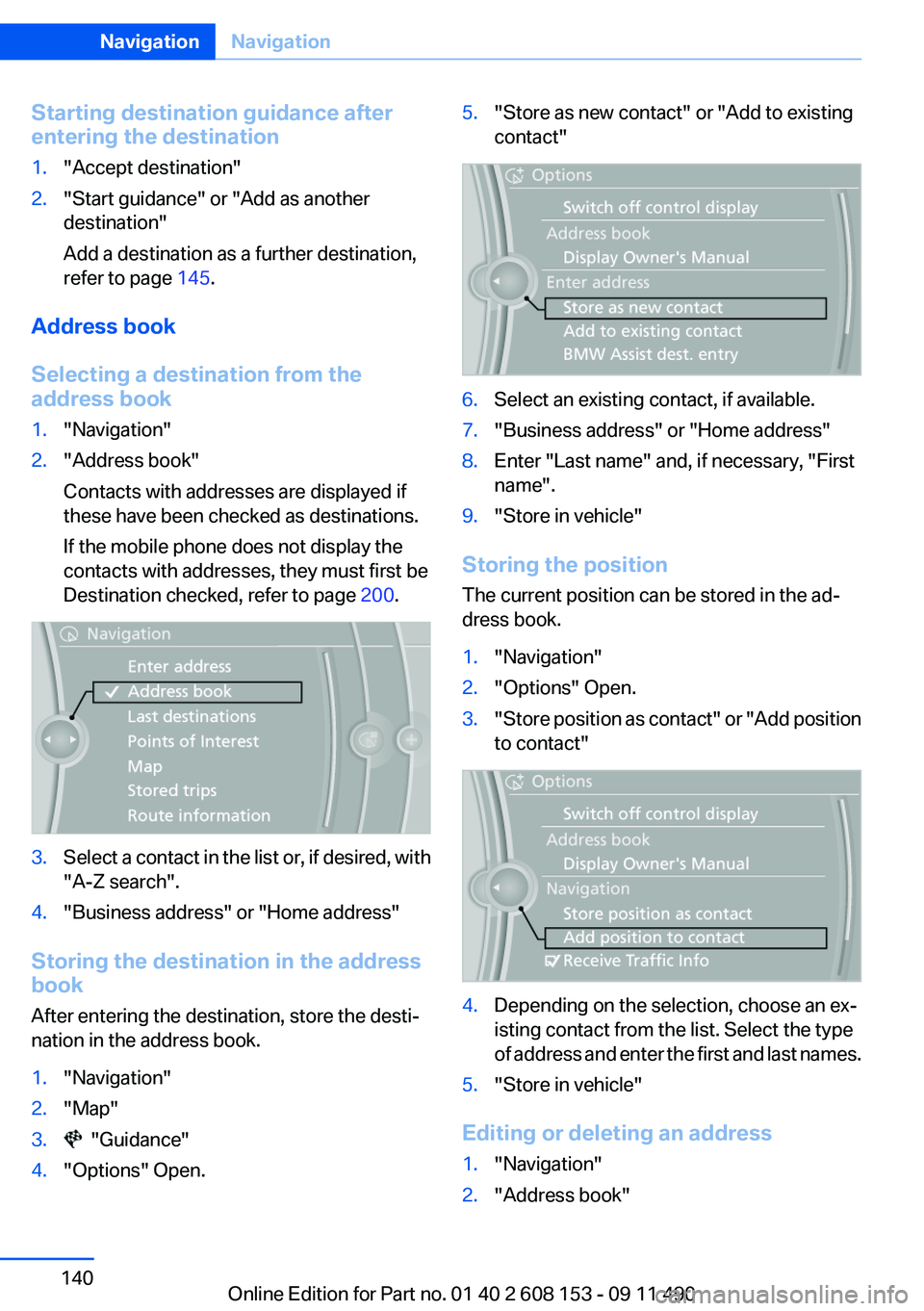
1."Navigation"2."Map"3. "Guidance"4."Options" Open.5."Store as new contact" or "Add to existing
contact"6.Select an existing contact, if available.7."Business address" or "Home address"8.Enter "Last name" and, if necessary, "First
name".9."Store in vehicle"
Storing the position
The current position can be stored in the ad‐
dress book.
1."Navigation"2."Options" Open.3." Store position as contact" or "Add position
to contact"4.Depending on the selection, choose an ex‐
isting contact from the list. Select the type
of address and enter the first and last names.5."Store in vehicle"
Editing or deleting an address
1."Navigation"2."Address book"Seite 140NavigationNavigation140
Online Edition for Part no. 01 40 2 608 153 - 09 11 490
Page 142 of 278
A-Z search1."A-Z search"2."Town/City"
Select or enter the town/city.3."Category"4.Select the category.5."Category details"
For some special destinations, multiple cat‐
egory details can be selected. Move the
controller to the left to leave the category
details.6."Keyword"7.Enter the keyword.
A list of the special destinations is displayed.8.Select a special destination.
Details are displayed.
If multiple details are stored, you can leaf
through the pages.
If a phone number is available, a connection
can be established if necessary.9. Select the symbol.
"Start guidance" or "Add as another
destination"
Add a destination as a further destination,
refer to page 145.
"Start search": if a search term is not entered,
the search is repeated with the previous search
term.
Category search
1."Category search"2."Town/City"
Select or enter the town/city.3."Category"4.Select the category.5."Category details"
For some special destinations, multiple cat‐
egory details can be selected. Move thecontroller to the left to leave the category
details.6."Start search"
A list of the special destinations is displayed.7.Select a special destination.
Details are displayed.
If multiple details are stored, you can leaf
through the pages.
If a phone number is available, a connection
can be established if necessary.8. Select the symbol.
"Start guidance" or "Add as another
destination"
Add a destination as a further destination,
refer to page 145.
Display of special destinations
List of special destinations: special destinations
are organized by distance and are displayed with
a directional arrow to the special destination.
on the split screen, special destinations of the
selected category are displayed in the map view
as symbols. The display depends on the scale
of the map and the category.
Destination entry via BMW Assist
A connection is established to the Concierge
service, refer to page 210.
1."Navigation"2."Enter address"3."Options" Open.4."BMW Assist dest. entry"
Displaying special destinations in the
map
To display symbols of the special destinations
in the map view:
1."Navigation"2."Map"3."Options" Open.Seite 142NavigationNavigation142
Online Edition for Part no. 01 40 2 608 153 - 09 11 490
Page 143 of 278
4."Display Points of Interest"5.Select the setting.
Destination entry by map
Selecting the destination
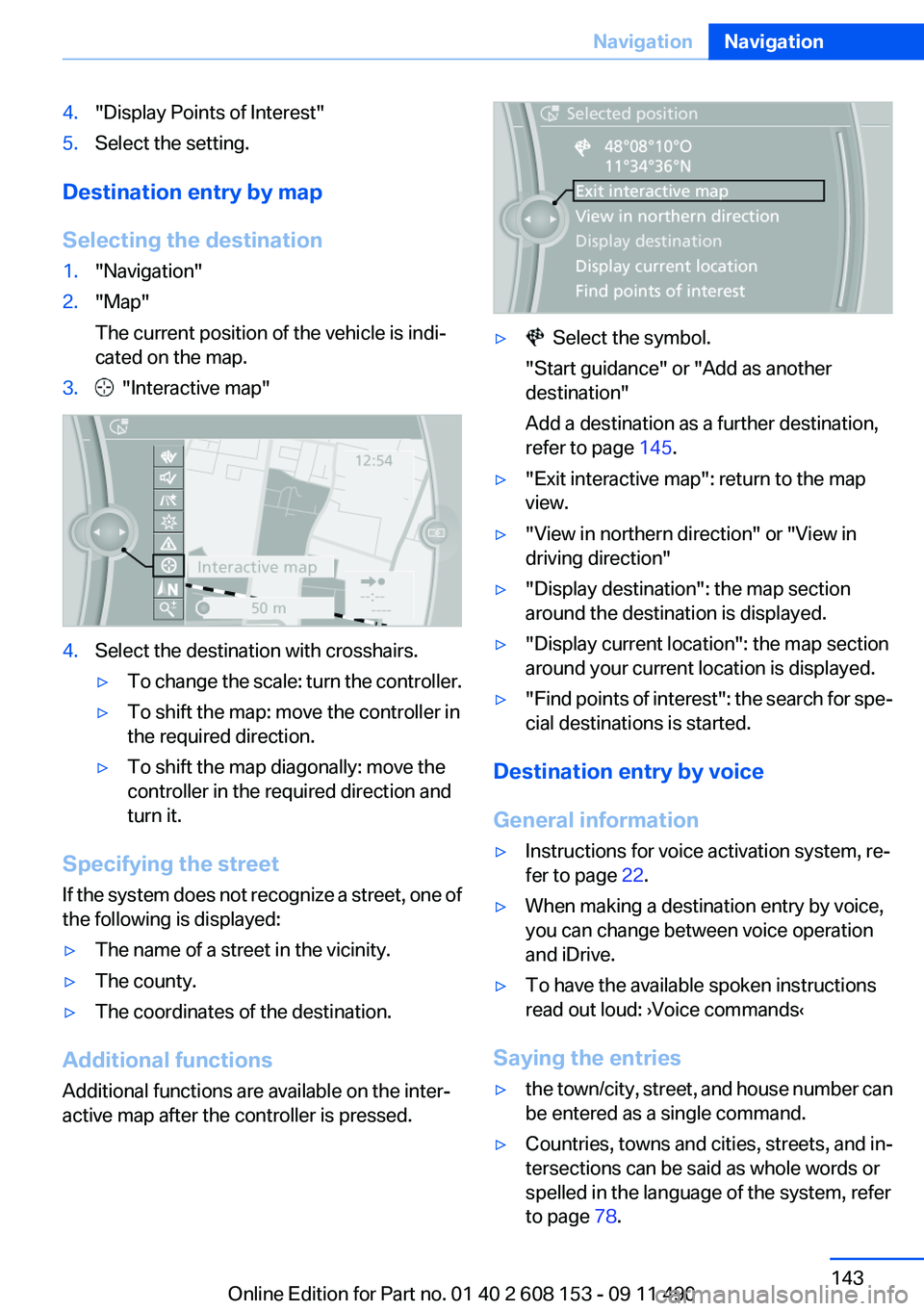
1."Navigation"2."Map"
The current position of the vehicle is indi‐
cated on the map.3. "Interactive map"4.Select the destination with crosshairs.▷To change the scale: turn the controller.▷To shift the map: move the controller in
the required direction.▷To shift the map diagonally: move the
controller in the required direction and
turn it.
Specifying the street
If the system does not recognize a street, one of
the following is displayed:
▷The name of a street in the vicinity.▷The county.▷The coordinates of the destination.
Additional functions
Additional functions are available on the inter‐
active map after the controller is pressed.
▷ Select the symbol.
"Start guidance" or "Add as another
destination"
Add a destination as a further destination,
refer to page 145.▷"Exit interactive map": return to the map
view.▷"View in northern direction" or "View in
driving direction"▷"Display destination": the map section
around the destination is displayed.▷"Display current location": the map section
around your current location is displayed.▷" Find points of interest": the search for spe‐
cial destinations is started.
Destination entry by voice
General information
▷Instructions for voice activation system, re‐
fer to page 22.▷When making a destination entry by voice,
you can change between voice operation
and iDrive.▷To have the available spoken instructions
read out loud: ›Voice commands‹
Saying the entries
▷the town/city, street, and house number can
be entered as a single command.▷Countries, towns and cities, streets, and in‐
tersections can be said as whole words or
spelled in the language of the system, refer
to page 78.Seite 143NavigationNavigation143
Online Edition for Part no. 01 40 2 608 153 - 09 11 490
Page 144 of 278
Example: to enter a town/city in a US state
as a whole word, the language of the system
must be English.▷Spell the entry if the spoken language and
the language of the system differ.▷Say the letters smoothly, and avoid exag‐
gerating the pronunciation and inserting
lengthy pauses between the letters.▷The options available for entering data de‐
pend on the navigation data and the country
and language settings.
entering an address using a command
1. Press the button on the steering
wheel.2.›Enter address‹3.Wait for a request from the system.4.Say the address in the suggested order.5.Continue making the entry as prompted by
the system.
If necessary, individually name the separate
components of the address, e.g., the town/city.
Entering a town/city separately
The name of the town/city can be said as a
word or spelled out.
With the destination entry menu displayed:
1. Press the button on the steering
wheel.2.›City‹ or ›Spell city‹.3.Wait for the system to prompt you for the
town/city.4.Say the name of the town/city, or say at least
the first three letters.
Depending on the entry, up to 20 towns/cit‐
ies may be suggested.5.Select the town/city.▷To select a recommended town/
city: ›Yes‹▷To select a different town/city: ›New
entry‹▷Select an entry: ›Entry ...‹ e.g., entry 2▷To spell an entry: ›Spell city‹6.Continue making the entry as prompted by
the system.
If there are several towns/cities with the same
name:
Towns/cities of the same name are grouped in a
list and displayed as one location followed by an
ellipsis.
1.Select an entry: ›Yes‹ or ›Entry ...‹ e.g., En‐
try 2.2.Select the desired town/city.
Entering a street or intersection
separately
Enter a street and intersection in the same way
as you would enter a town/city.
Entering a house number separately
Depending on the data in the navigation system,
house numbers up to number 2,000 can be en‐
tered.
1.›House number‹2.Say the house number.
Say each digit separately.3.Continue making the entry as prompted by
the system.
Planning a trip with intermediate
destinations
New trip
A trip can be planned with several intermediate
destinations.
1."Navigation"2."Map"3.Move the controller to the left if necessary.4. "Guidance"Seite 144NavigationNavigation144
Online Edition for Part no. 01 40 2 608 153 - 09 11 490