Compartment BMW X5 2009 E70 User Guide
[x] Cancel search | Manufacturer: BMW, Model Year: 2009, Model line: X5, Model: BMW X5 2009 E70Pages: 317, PDF Size: 9.56 MB
Page 129 of 317
Controls
127Reference
At a glance
Driving tips
Communications
Navigation
Entertainment
Mobility
Center armrest front
A storage compartment is located under the
armrest between the front seats and, depend-
ing on the vehicle's equipment, also a cover for
the mobile phone bracket or the snap-in
adapter. Also refer to page 220.
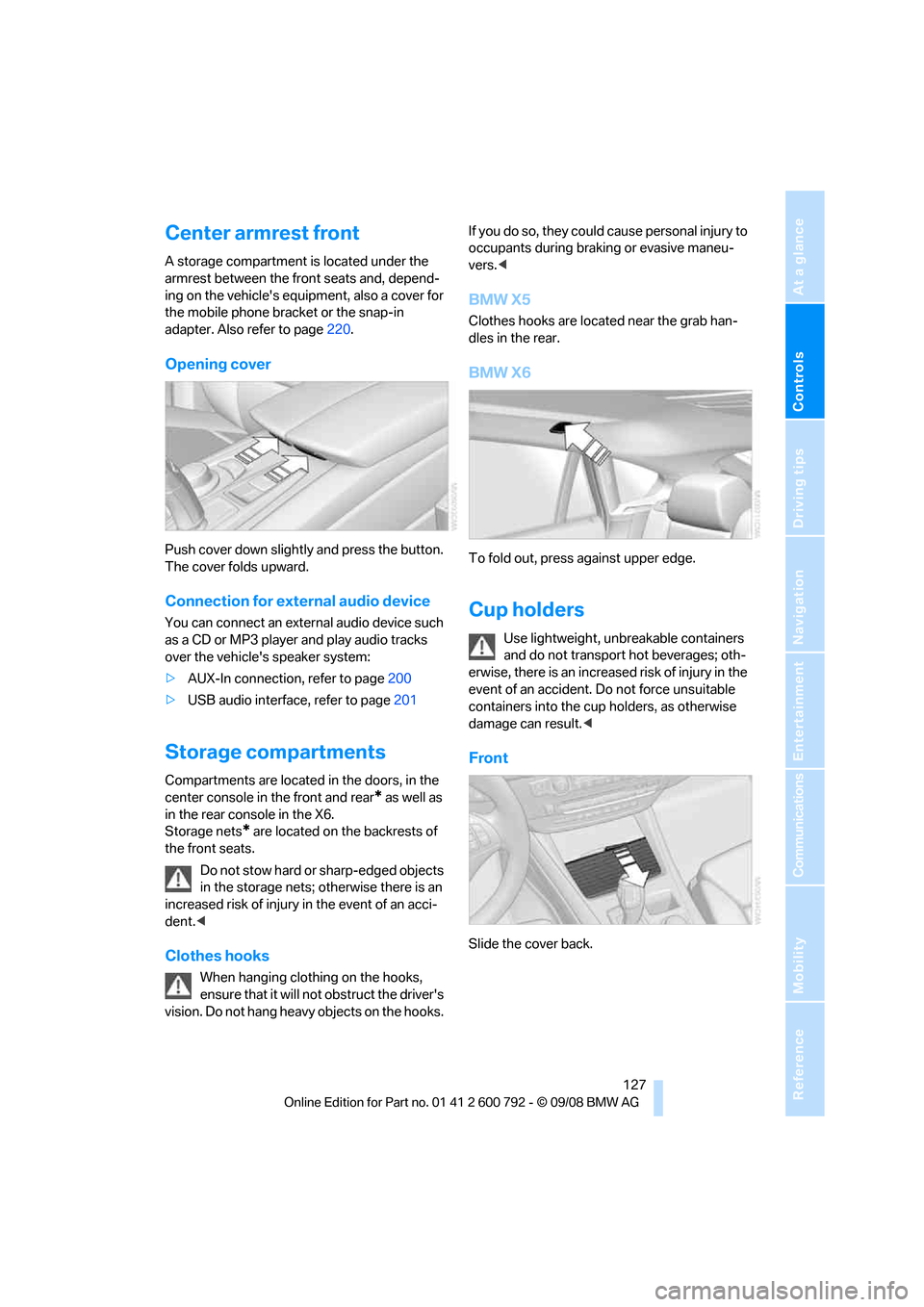
Opening cover
Push cover down slightly and press the button.
The cover folds upward.
Connection for external audio device
You can connect an external audio device such
as a CD or MP3 player and play audio tracks
over the vehicle's speaker system:
>AUX-In connection, refer to page 200
> USB audio interface, refer to page 201
Storage compartments
Compartments are located in the doors, in the
center console in the front and rear
* as well as
in the rear console in the X6.
Storage nets
* are located on the backrests of
the front seats.
Do not stow hard or sharp-edged objects
in the storage nets; otherwise there is an
increased risk of injury in the event of an acci-
dent. <
Clothes hooks
When hanging clothing on the hooks,
ensure that it will not obstruct the driver's
vision. Do not hang heavy objects on the hooks. If you do so, they could cause personal injury to
occupants during brak
ing or evasive maneu-
vers. <
BMW X5
Clothes hooks are located near the grab han-
dles in the rear.
BMW X6
To fold out, press against upper edge.
Cup holders
Use lightweight, unbreakable containers
and do not transport hot beverages; oth-
erwise, there is an increased risk of injury in the
event of an accident. Do not force unsuitable
containers into the cup holders, as otherwise
damage can result. <
Front
Slide the cover back.
Page 132 of 317
Practical interior accessories
130
In rear center console
Depending on your vehicle's equipment pack-
age, the socket in the rear is covered with a cap
or equipped with a lighter. Refer to Cigarette
lighter, front, page 129.
Access to socket:
Remove cap or lighter.
In storage compartment under center
armrest
Access to socket*:
Pull off the cover.
BMW X6: in rear console
Slide the cover back.
Access to socket:
Pull off the cover.
Rear center armrest
BMW X6 and BMW X5 with 3rd row
seats*
Pull on the loop and fold down the center arm-
rest.
BMW X5 without 3rd row seats*
Unlock the center armrest with the button in the
lower section of the opening and fold down.
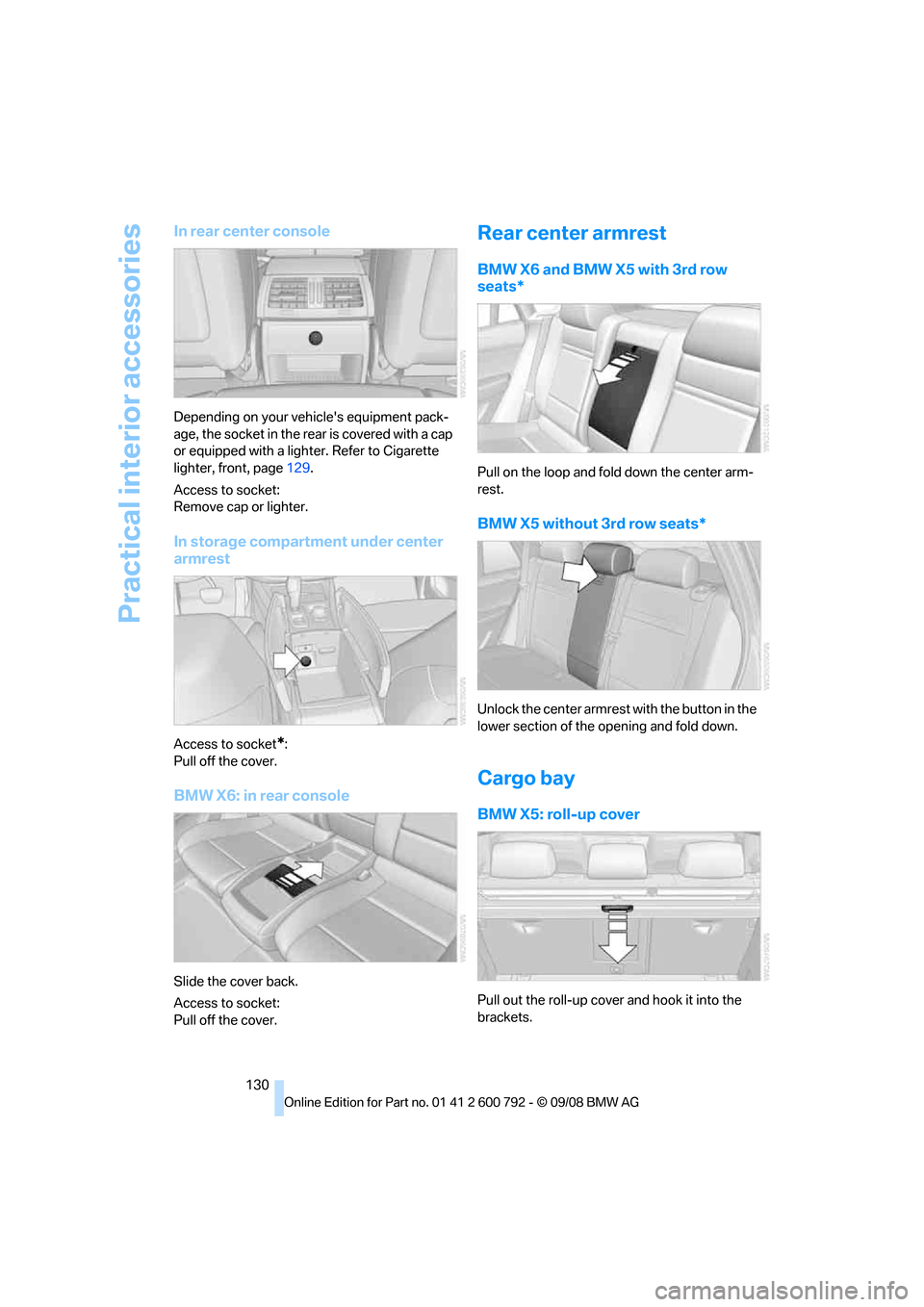
Cargo bay
BMW X5: roll-up cover
Pull out the roll-up cover and hook it into the
brackets.
Page 134 of 317
Practical interior accessories
132
Installing
When installing, proceed in the opposite order
of removal.
1.Set the cargo bay cove r into place on the
left and right sides.
2. Lift the back of the co ver slightly and slide
forward until it snaps into the two side
brackets.
Expanding cargo bay
The rear seat backrest is divided. You can fold
down both sides separate ly in order to expand
the cargo bay.
BMW X6: before folding the rear seat
backrest forward or using the ski bag,
remove beverage containers from the cup
holder and close the cup holder. <
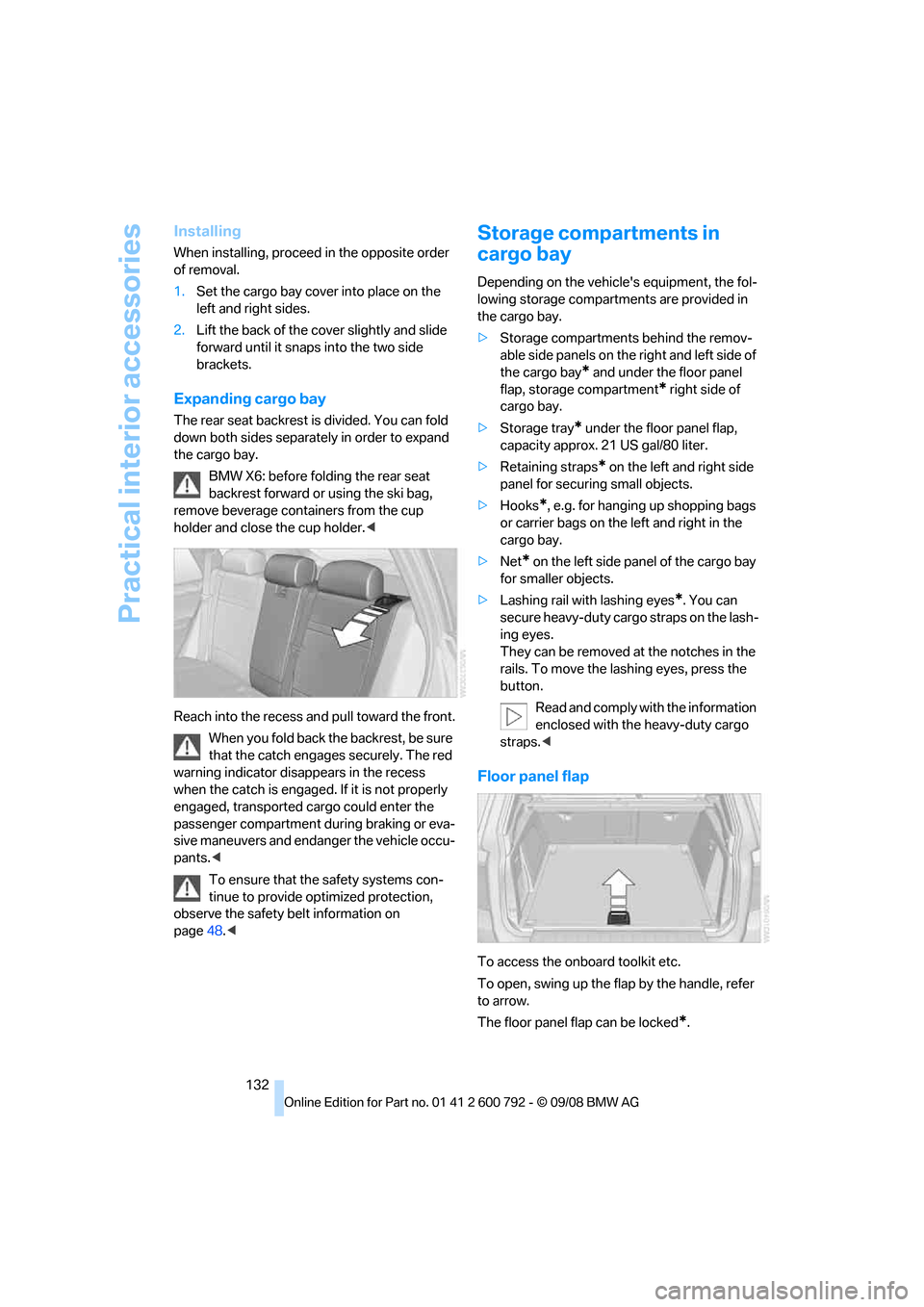
Reach into the recess an d pull toward the front.
When you fold back the backrest, be sure
that the catch engages securely. The red
warning indicator disappears in the recess
when the catch is engaged. If it is not properly
engaged, transported cargo could enter the
passenger compartment during braking or eva-
sive maneuvers and endanger the vehicle occu-
pants. <
To ensure that the safety systems con-
tinue to provide optimized protection,
observe the safety belt information on
page 48.<
Storage compartments in
cargo bay
Depending on the vehicle's equipment, the fol-
lowing storage compartments are provided in
the cargo bay.
> Storage compartments behind the remov-
able side panels on the right and left side of
the cargo bay
* and under the floor panel
flap, storage compartment
* right side of
cargo bay.
> Storage tray
* under the floor panel flap,
capacity approx. 21 US gal/80 liter.
> Retaining straps
* on the left and right side
panel for securing small objects.
> Hooks
*, e.g. for hanging up shopping bags
or carrier bags on the left and right in the
cargo bay.
> Net
* on the left side pa nel of the cargo bay
for smaller objects.
> Lashing rail with lashing eyes
*. You can
secure heavy-duty cargo straps on the lash-
ing eyes.
They can be removed at the notches in the
rails. To move the lashing eyes, press the
button.
Read and comply with the information
enclosed with the heavy-duty cargo
straps. <
Floor panel flap
To access the onboard toolkit etc.
To open, swing up the flap by the handle, refer
to arrow.
The floor panel flap can be locked
*.
Page 145 of 317
Driving tips
143Reference
At a glance
Controls
Communications
Navigation
Entertainment
Mobility
Securing cargo
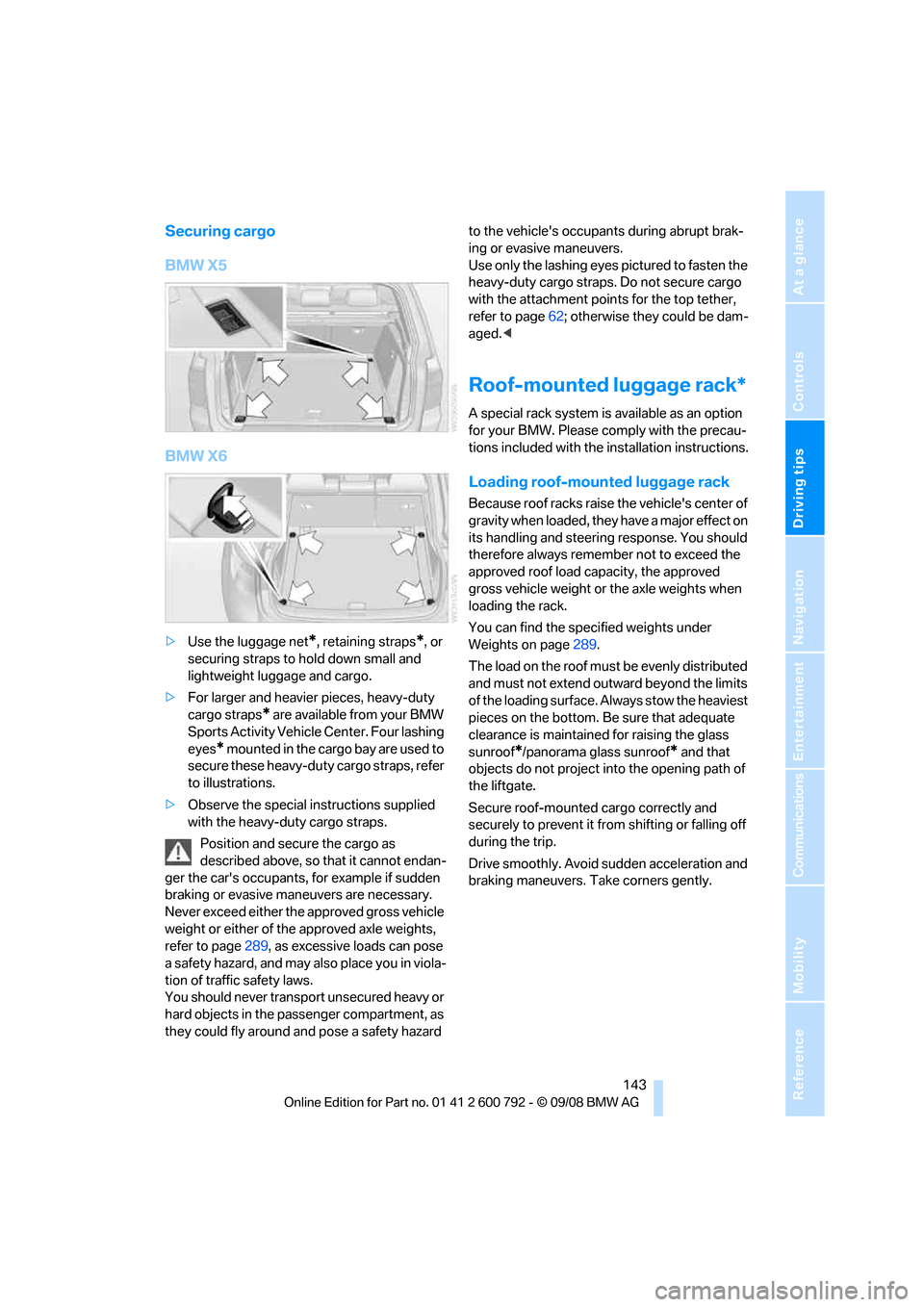
BMW X5
BMW X6
>Use the luggage net*, retaining straps*, or
securing straps to hold down small and
lightweight luggage and cargo.
> For larger and heavier pieces, heavy-duty
cargo straps
* are available from your BMW
Sports Activity Vehicl e Center. Four lashing
eyes
* mounted in the cargo bay are used to
secure these heavy-duty cargo straps, refer
to illustrations.
> Observe the special instructions supplied
with the heavy-duty cargo straps.
Position and secure the cargo as
described above, so that it cannot endan-
ger the car's occupants, for example if sudden
braking or evasive maneuvers are necessary.
Never exceed either the approved gross vehicle
weight or either of the approved axle weights,
refer to page 289, as excessive loads can pose
a safety hazard, and may also place you in viola-
tion of traffic safety laws.
You should never transport unsecured heavy or
hard objects in the passenger compartment, as
they could fly around and pose a safety hazard to the vehicle's occupants during abrupt brak-
ing or evasive maneuvers.
Use only the lashing eyes pictured to fasten the
heavy-duty cargo straps. Do not secure cargo
with the attachment points for the top tether,
refer to page
62; otherwise they could be dam-
aged. <
Roof-mounted luggage rack*
A special rack system is available as an option
for your BMW. Please co mply with the precau-
tions included with the installation instructions.
Loading roof-mounted luggage rack
Because roof racks raise the vehicle's center of
gravity when loaded, they have a major effect on
its handling and steering response. You should
therefore always remember not to exceed the
approved roof load capacity, the approved
gross vehicle weight or the axle weights when
loading the rack.
You can find the specified weights under
Weights on page 289.
The load on the roof must be evenly distributed
and must not extend outward beyond the limits
of the loading surface. Always stow the heaviest
pieces on the bottom. Be sure that adequate
clearance is maintained for raising the glass
sunroof
*/panorama glass sunroof* and that
objects do not project into the opening path of
the liftgate.
Secure roof-mounted cargo correctly and
securely to prevent it fr om shifting or falling off
during the trip.
Drive smoothly. Avoid su dden acceleration and
braking maneuvers. Take corners gently.
Page 190 of 317
CD player and CD changer
188
4.
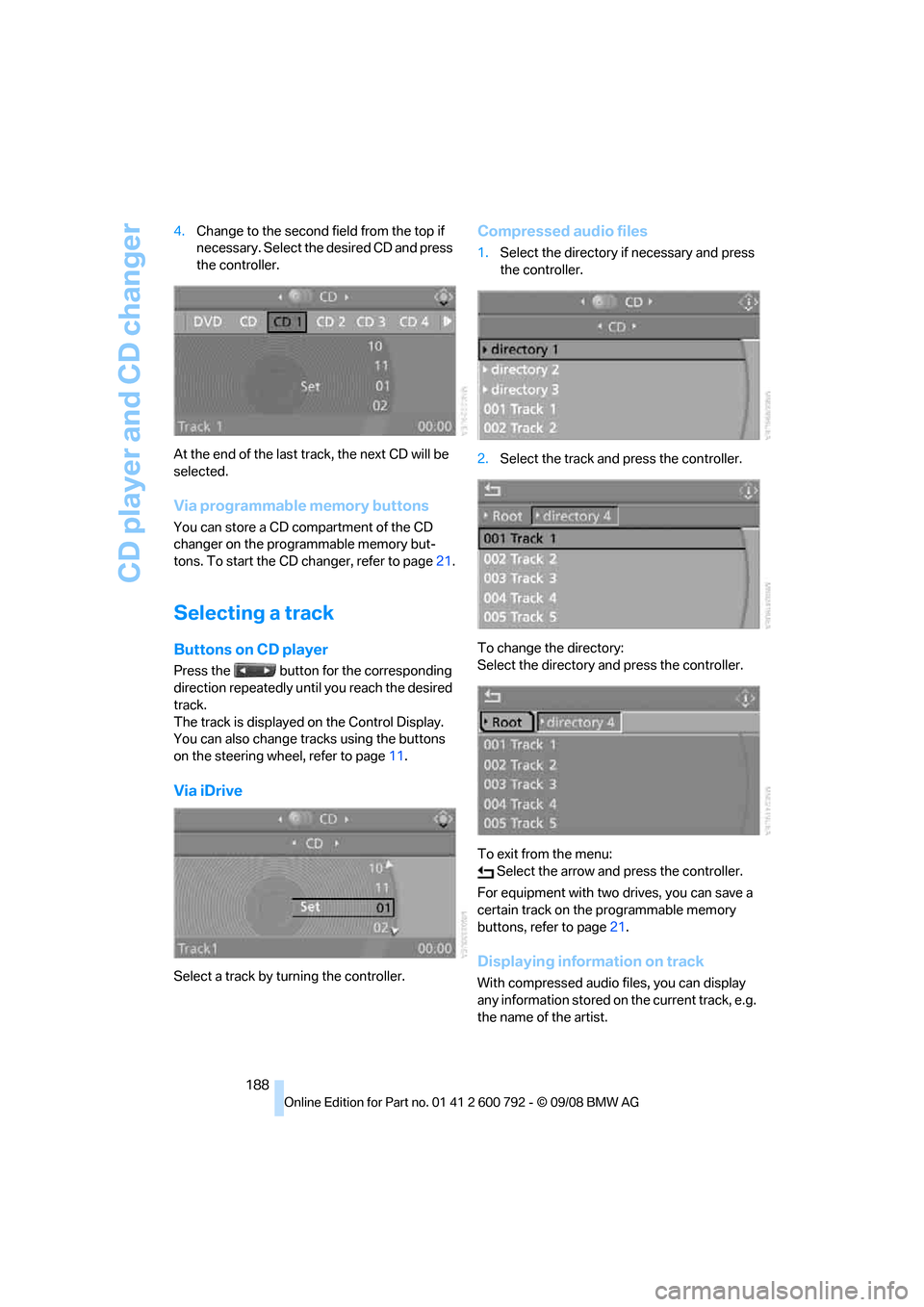
Change to the second field from the top if
necessary. Select the desired CD and press
the controller.
At the end of the last tr ack, the next CD will be
selected.
Via programmable memory buttons
You can store a CD compartment of the CD
changer on the programmable memory but-
tons. To start the CD changer, refer to page 21.
Selecting a track
Buttons on CD player
Press the button for the corresponding
direction repeatedly until you reach the desired
track.
The track is displayed on the Control Display.
You can also change tracks using the buttons
on the steering wheel, refer to page 11.
Via iDrive
Select a track by turning the controller.
Compressed audio files
1.Select the directory if necessary and press
the controller.
2. Select the track and press the controller.
To change the directory:
Select the directory and press the controller.
To exit from the menu: Select the arrow and press the controller.
For equipment with two drives, you can save a
certain track on the programmable memory
buttons, refer to page 21.
Displaying information on track
With compressed audio files, you can display
any information stored on the current track, e.g.
the name of the artist.
Page 193 of 317
Navigation
Entertainment
Driving tips
191Reference
At a glance
Controls
Communications
Mobility
CD changer
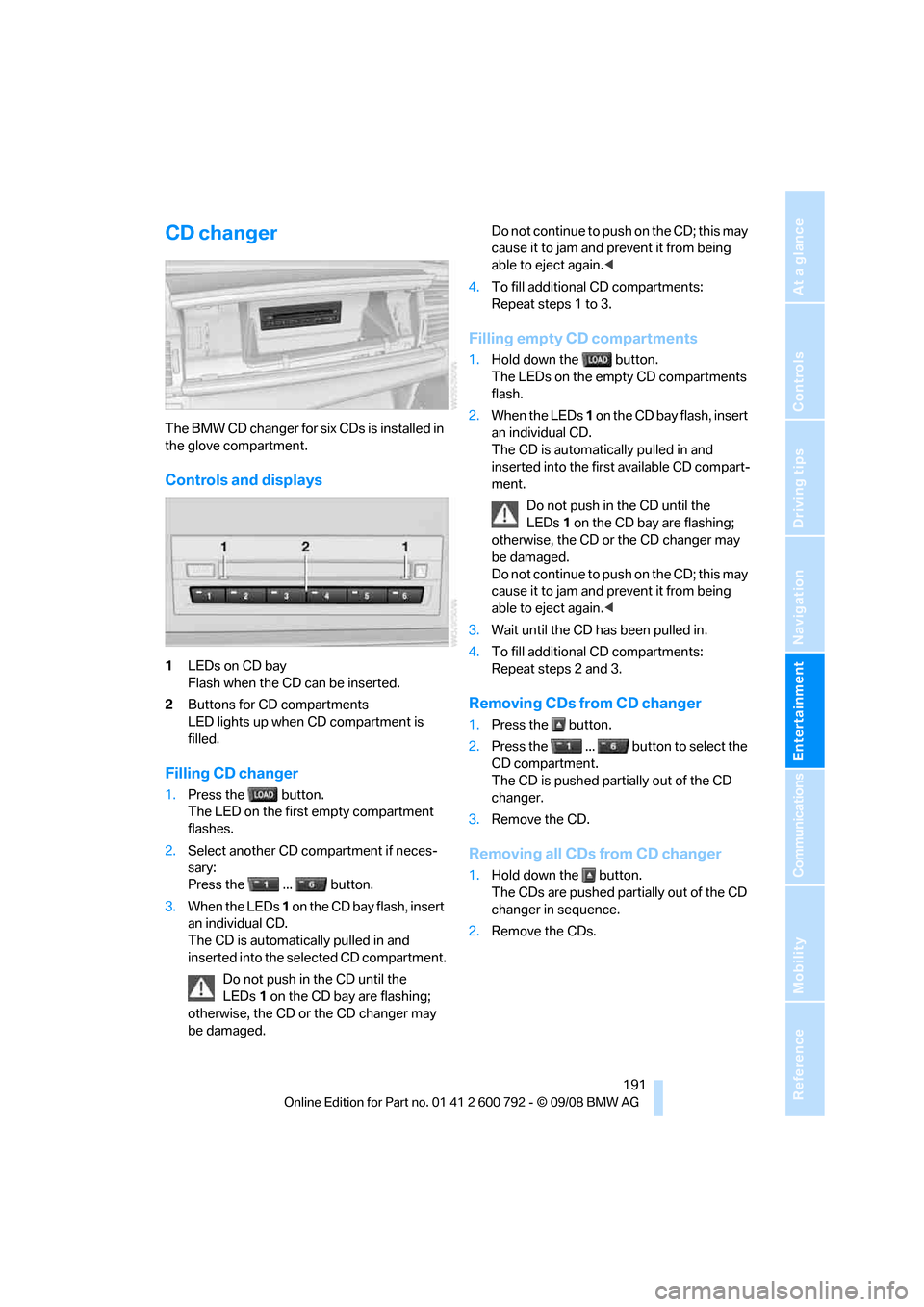
The BMW CD changer for six CDs is installed in
the glove compartment.
Controls and displays
1LEDs on CD bay
Flash when the CD can be inserted.
2 Buttons for CD compartments
LED lights up when CD compartment is
filled.
Filling CD changer
1.Press the button.
The LED on the first empty compartment
flashes.
2. Select another CD compartment if neces-
sary:
Press the ... button.
3. When the LEDs 1 o n t h e C D b a y f l a s h , i n s e r t
an individual CD.
The CD is automatica lly pulled in and
inserted into the selected CD compartment.
Do not push in the CD until the
LEDs 1 on the CD bay are flashing;
otherwise, the CD or the CD changer may
be damaged. Do not continue to push on the CD; this may
cause it to jam and prevent it from being
able to eject again.
<
4. To fill additional CD compartments:
Repeat steps 1 to 3.
Filling empty CD compartments
1.Hold down the button.
The LEDs on the empty CD compartments
flash.
2. When the LEDs 1 o n t h e C D b a y f l a s h , i n s e r t
an individual CD.
The CD is automati cally pulled in and
inserted into the first available CD compart-
ment.
Do not push in the CD until the
LEDs 1 on the CD bay are flashing;
otherwise, the CD or the CD changer may
be damaged.
Do not continue to push on the CD; this may
cause it to jam and prevent it from being
able to eject again. <
3. Wait until the CD has been pulled in.
4. To fill additional CD compartments:
Repeat steps 2 and 3.
Removing CDs from CD changer
1.Press the button.
2. Press the ... button to select the
CD compartment.
The CD is pushed partially out of the CD
changer.
3. Remove the CD.
Removing all CDs from CD changer
1.Hold down the button.
The CDs are pushed partially out of the CD
changer in sequence.
2. Remove the CDs.
Page 195 of 317
Navigation
Entertainment
Driving tips
193Reference
At a glance
Controls
Communications
Mobility
DVD changer
Installation position
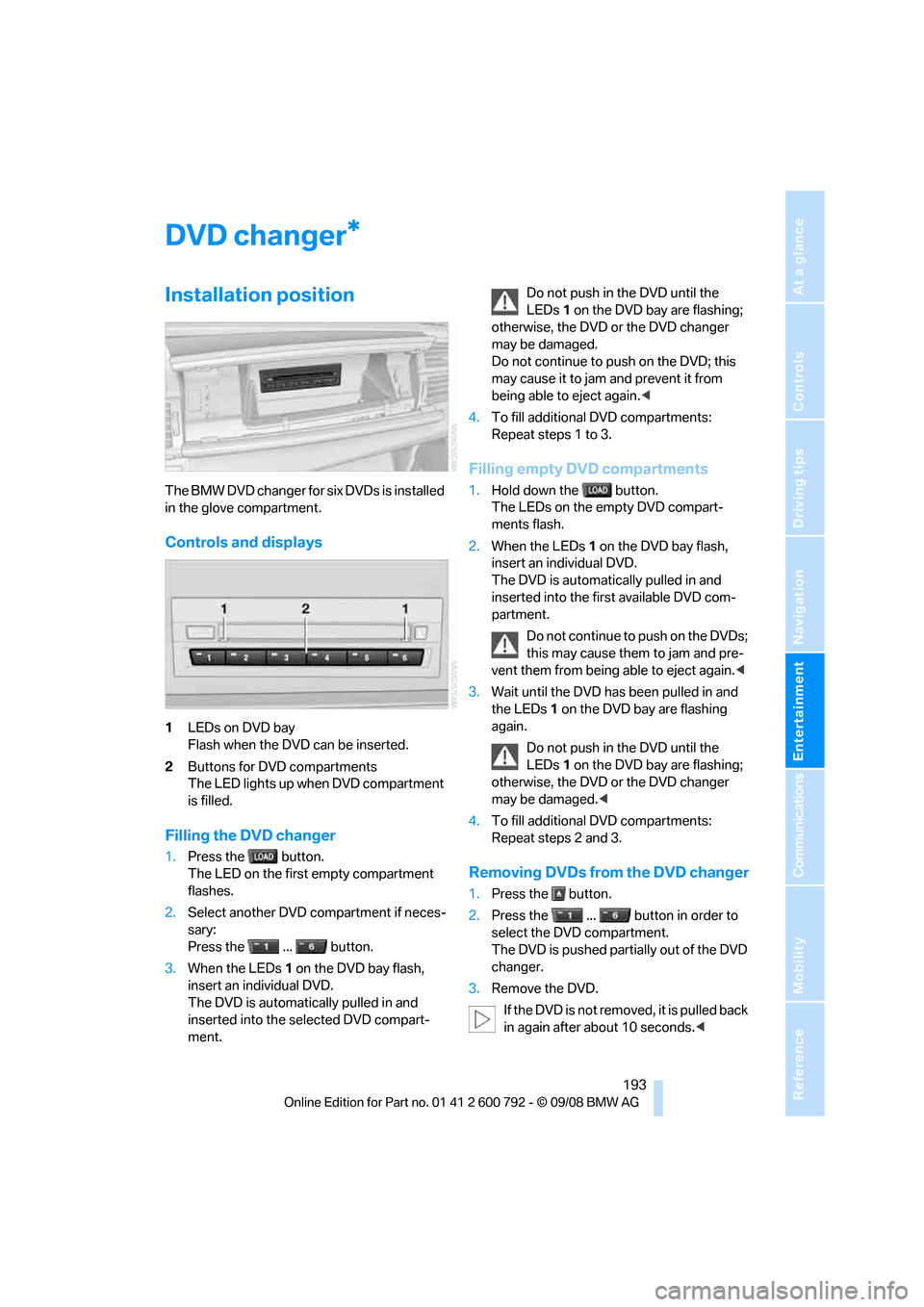
The BMW DVD changer for six DVDs is installed
in the glove compartment.
Controls and displays
1LEDs on DVD bay
Flash when the DVD can be inserted.
2 Buttons for DVD compartments
The LED lights up when DVD compartment
is filled.
Filling the DVD changer
1.Press the button.
The LED on the first empty compartment
flashes.
2. Select another DVD compartment if neces-
sary:
Press the ... button.
3. When the LEDs 1 on the DVD bay flash,
insert an individual DVD.
The DVD is automatically pulled in and
inserted into the selected DVD compart-
ment. Do not push in the DVD until the
LEDs
1 on the DVD bay are flashing;
otherwise, the DVD or the DVD changer
may be damaged.
Do not continue to push on the DVD; this
may cause it to jam and prevent it from
being able to eject again. <
4. To fill additional DVD compartments:
Repeat steps 1 to 3.
Filling empty DVD compartments
1.Hold down the button.
The LEDs on the empty DVD compart-
ments flash.
2. When the LEDs 1 on the DVD bay flash,
insert an individual DVD.
The DVD is automatically pulled in and
inserted into the first available DVD com-
partment.
Do not continue to push on the DVDs;
this may cause them to jam and pre-
vent them from being able to eject again. <
3. Wait until the DVD has been pulled in and
the LEDs 1 on the DVD bay are flashing
again.
Do not push in the DVD until the
LEDs 1 on the DVD bay are flashing;
otherwise, the DVD or the DVD changer
may be damaged. <
4. To fill additional DVD compartments:
Repeat steps 2 and 3.
Removing DVDs from the DVD changer
1.Press the button.
2. Press the ... button in order to
select the DVD compartment.
The DVD is pushed partially out of the DVD
changer.
3. Remove the DVD.
If the DVD is not removed, it is pulled back
in again after about 10 seconds. <
*
Page 196 of 317
DVD changer
194
Removing all DVDs from DVD changer
1.Hold down the button.
The DVDs are pushed partially out of the
DVD changer in sequence.
2. Remove the DVDs individually.
Malfunctions
If all of the LEDs on the DVD changer flash rap-
idly, then a malfunction is occurring. In this
case, proceed as follows.
1. Press the button or button.
The DVD last inserted is ejected.
2. Remove the DVD.
The DVD changer tests the DVD compartments
and the rapid flashing of the LEDs stops. The
DVD changer is once more operational.
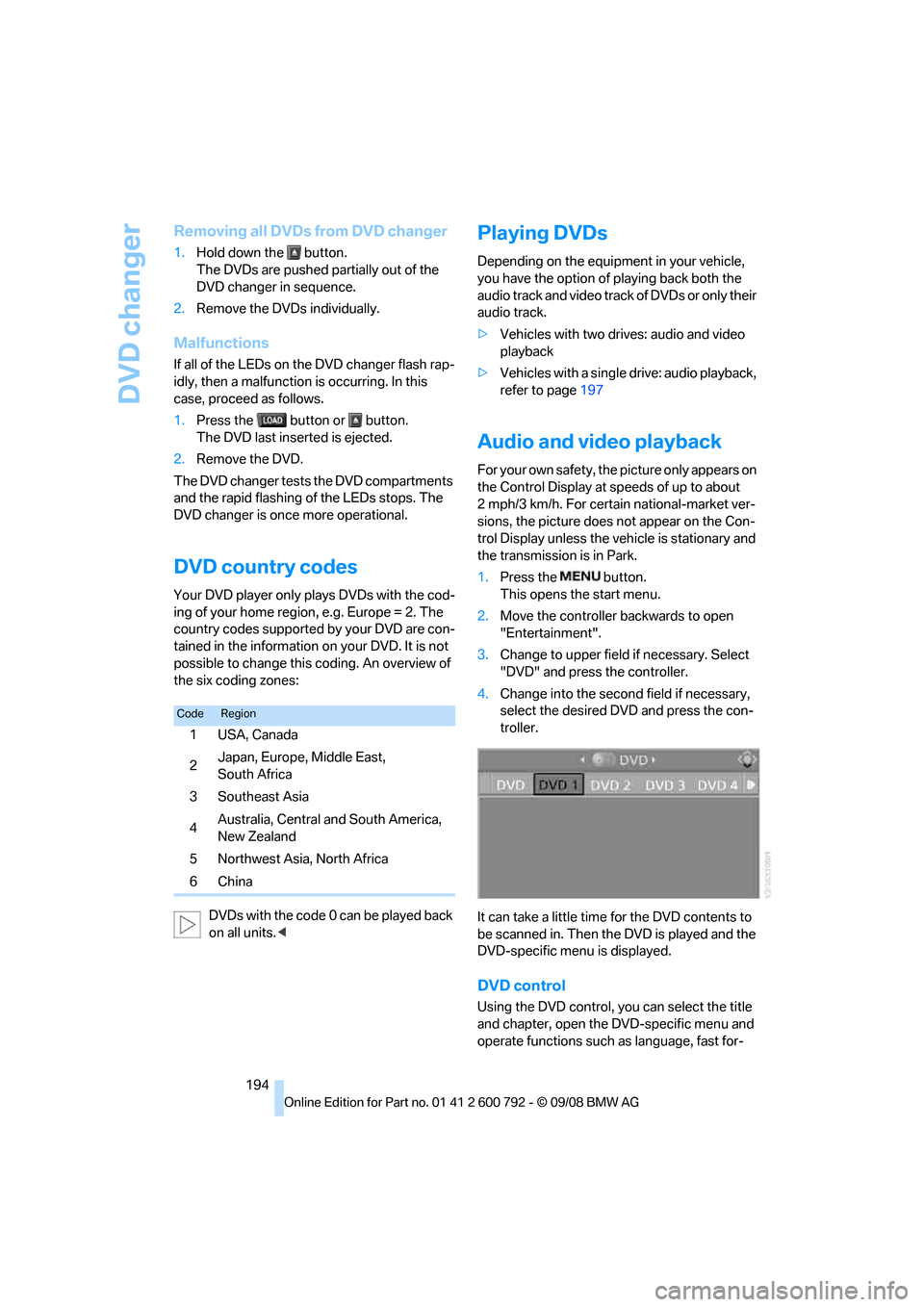
DVD country codes
Your DVD player only plays DVDs with the cod-
ing of your home regi on, e.g. Europe = 2. The
country codes supported by your DVD are con-
tained in the information on your DVD. It is not
possible to change this coding. An overview of
the six coding zones:
DVDs with the code 0 can be played back
on all units. <
Playing DVDs
Depending on the equipment in your vehicle,
you have the option of playing back both the
audio track and video track of DVDs or only their
audio track.
>Vehicles with two drives: audio and video
playback
> Vehicles with a single drive: audio playback,
refer to page 197
Audio and video playback
For your own safety, the picture only appears on
the Control Display at sp eeds of up to about
2 mph/3 km/h. For certain national-market ver-
sions, the picture does not appear on the Con-
trol Display unless the ve hicle is stationary and
the transmission is in Park.
1. Press the button.
This opens the start menu.
2. Move the controller backwards to open
"Entertainment".
3. Change to upper field if necessary. Select
"DVD" and press the controller.
4. Change into the second field if necessary,
select the desired DVD and press the con-
troller.
It can take a little time for the DVD contents to
be scanned in. Then the DVD is played and the
DVD-specific menu is displayed.
DVD control
Using the DVD control, yo u can select the title
and chapter, open the DVD-specific menu and
operate functions such as language, fast for-
CodeRegion
1USA, Canada
2Japan, Europe, Middle East,
South Africa
3Southeast Asia
4 Australia, Central and South America,
New Zealand
5 Northwest Asia, North Africa
6China
Page 208 of 317
DVD system in rear
206
>
Press the button:
Activating menu item.
Changing batteries
1.Press the detent and remove the cover.
2. Change the batteries. Th e type and installa-
tion position are marked on the bottom of
the battery compartment.
3. Close the cover.
Return used batteries to a recycling col-
lection point or to your BMW Sports
Activity Vehicle Center. <
Sound output via speakers
In addition to the headphones, you can also play
the sound via the vehicle speakers.
As soon as a plug is inserted in the AUX-In con-
nection in the center console, the sound output
of the DVD system via the vehicle speakers is
interrupted.
iDrive, for operating principle refer to page16.
1. Press the button.
This opens the start menu.
2. Move the controller backwards to open
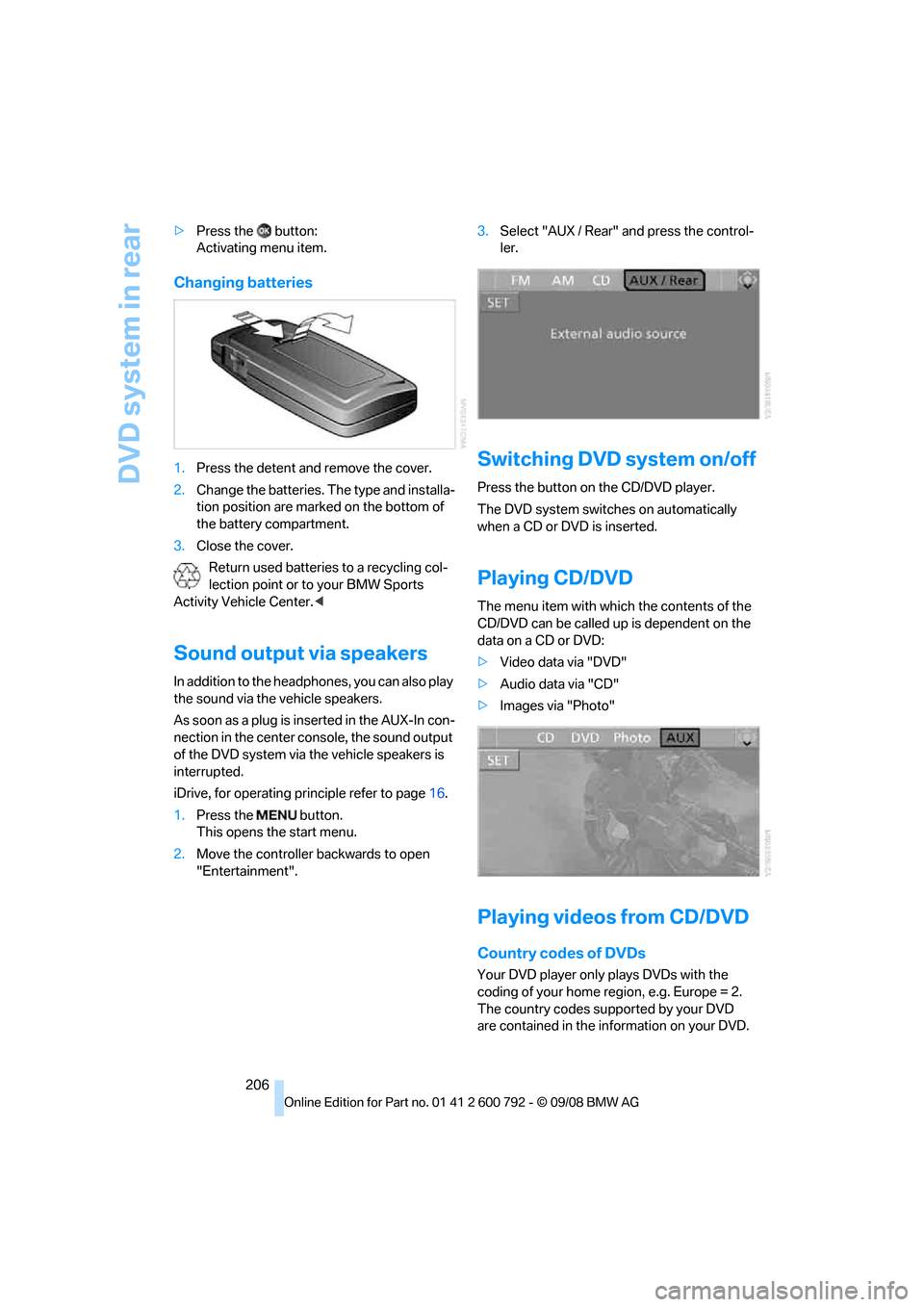
"Entertainment". 3.
Select "AUX / Rear" and press the control-
ler.
Switching DVD system on/off
Press the button on the CD/DVD player.
The DVD system switches on automatically
when a CD or DVD is inserted.
Playing CD/DVD
The menu item with which the contents of the
CD/DVD can be called up is dependent on the
data on a CD or DVD:
> Video data via "DVD"
> Audio data via "CD"
> Images via "Photo"
Playing videos from CD/DVD
Country codes of DVDs
Your DVD player only plays DVDs with the
coding of your home region, e.g. Europe = 2.
The country codes supported by your DVD
are contained in the information on your DVD.
Page 233 of 317
231
Entertainment
Reference
At a glance
Controls
Driving tips
Communications
Navigation
Mobility
For mobile phones that do not automatically
switch over to the handsfree mode:
> Depending on the mobile phone model
used, the conversation can be continued via
the hands-free system if necessary. Act
according to what is shown on the mobile
phone display, refer to the operating
instructions of your mobile phone.
> Press the button above the storage
compartment.
From handsfree sy stem to mobile
phone
When you telephone via the handsfree system,
you can also continue the call via the mobile
phone if necessary, depending on the mobile
phone model. Act accord ing to what is shown
on the mobile phone display, refer to the oper-
ating instructions of your mobile phone.
As an alternative, you can deactivate the Blue-
tooth link.
Depending on your mob ile phone model, poor
reception of the wireless communications net-
work can result in the system changing from the
hands-free system to the mobile phone.
Operation by voice*
The concept
You can operate your mobile phone without
having to remove your hands from the steering
wheel. When making your entries, you will be
supported by announceme nts or questions in
many cases.
The same prerequisites as for operation via
iDrive apply, refer to page 226.
Symbols in Owner's Manual Voice commands
Activating system
1.
Briefly press the button on the steering
wheel.
An acoustic signal indicates that you can
say commands.
2. Say the command.
Ending/canceling operation by voice
Press the button on the steering wheel
or
In dialogs where text is spoken, e.g. a name
rather than a command, canceling is only possi-
ble using the button on the steering wheel.
Having possible co mmands read aloud
The system understands default commands
that must be spoken word for word.
You can have the possi ble commands spoken
by the system at any point:
Using alternative commands
There are often a number of commands to run a
function, e.g.:
The system recognizes digits from zero to nine.
You can say each digit individually or group
them into a sequence to accelerate the input.
{ ...} Say the specified commands word for
word.
{{ ...}} Indicates responses of the system.
{Cancel }.
{ Help }
{ Dial name } or {Name }.