phone BMW X5 2009 E70 Owner's Guide
[x] Cancel search | Manufacturer: BMW, Model Year: 2009, Model line: X5, Model: BMW X5 2009 E70Pages: 317, PDF Size: 9.56 MB
Page 207 of 317
Navigation
Entertainment
Driving tips
205Reference
At a glance
Controls
Communications
Mobility
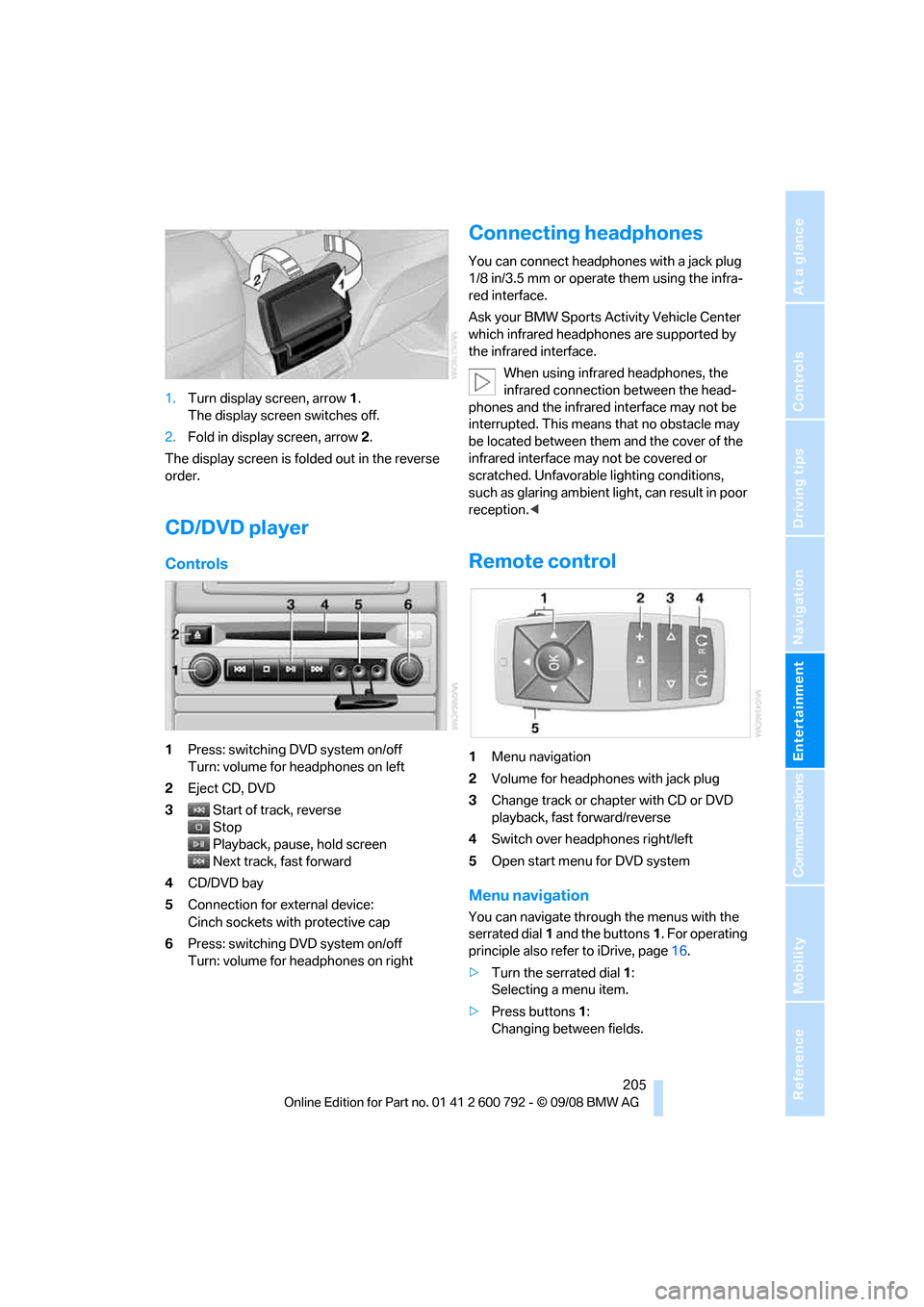
1.Turn display screen, arrow 1.
The display screen switches off.
2. Fold in display screen, arrow 2.
The display screen is folded out in the reverse
order.
CD/DVD player
Controls
1 Press: switching DVD system on/off
Turn: volume for he adphones on left
2 Eject CD, DVD
3 Start of track, reverse
Stop
Playback, pause, hold screen
Next track, fast forward
4 CD/DVD bay
5 Connection for external device:
Cinch sockets with protective cap
6 Press: switching DVD system on/off
Turn: volume for he adphones on right
Connecting headphones
You can connect headphones with a jack plug
1/8 in/3.5 mm or operate them using the infra-
red interface.
Ask your BMW Sports Activity Vehicle Center
which infrared headphones are supported by
the infrared interface.
When using infrared headphones, the
infrared connection between the head-
phones and the infrared interface may not be
interrupted. This means that no obstacle may
be located between them and the cover of the
infrared interface may not be covered or
scratched. Unfavorable lighting conditions,
such as glaring ambient lig ht, can result in poor
reception. <
Remote control
1Menu navigation
2 Volume for headphones with jack plug
3 Change track or chapter with CD or DVD
playback, fast forward/reverse
4 Switch over headphones right/left
5 Open start menu for DVD system
Menu navigation
You can navigate throug h the menus with the
serrated dial 1 and the buttons 1. For operating
principle also refer to iDrive, page 16.
> Turn the serrated dial 1:
Selecting a menu item.
> Press buttons 1:
Changing between fields.
Page 208 of 317
DVD system in rear
206
>
Press the button:
Activating menu item.
Changing batteries
1.Press the detent and remove the cover.
2. Change the batteries. Th e type and installa-
tion position are marked on the bottom of
the battery compartment.
3. Close the cover.
Return used batteries to a recycling col-
lection point or to your BMW Sports
Activity Vehicle Center. <
Sound output via speakers
In addition to the headphones, you can also play
the sound via the vehicle speakers.
As soon as a plug is inserted in the AUX-In con-
nection in the center console, the sound output
of the DVD system via the vehicle speakers is
interrupted.
iDrive, for operating principle refer to page16.
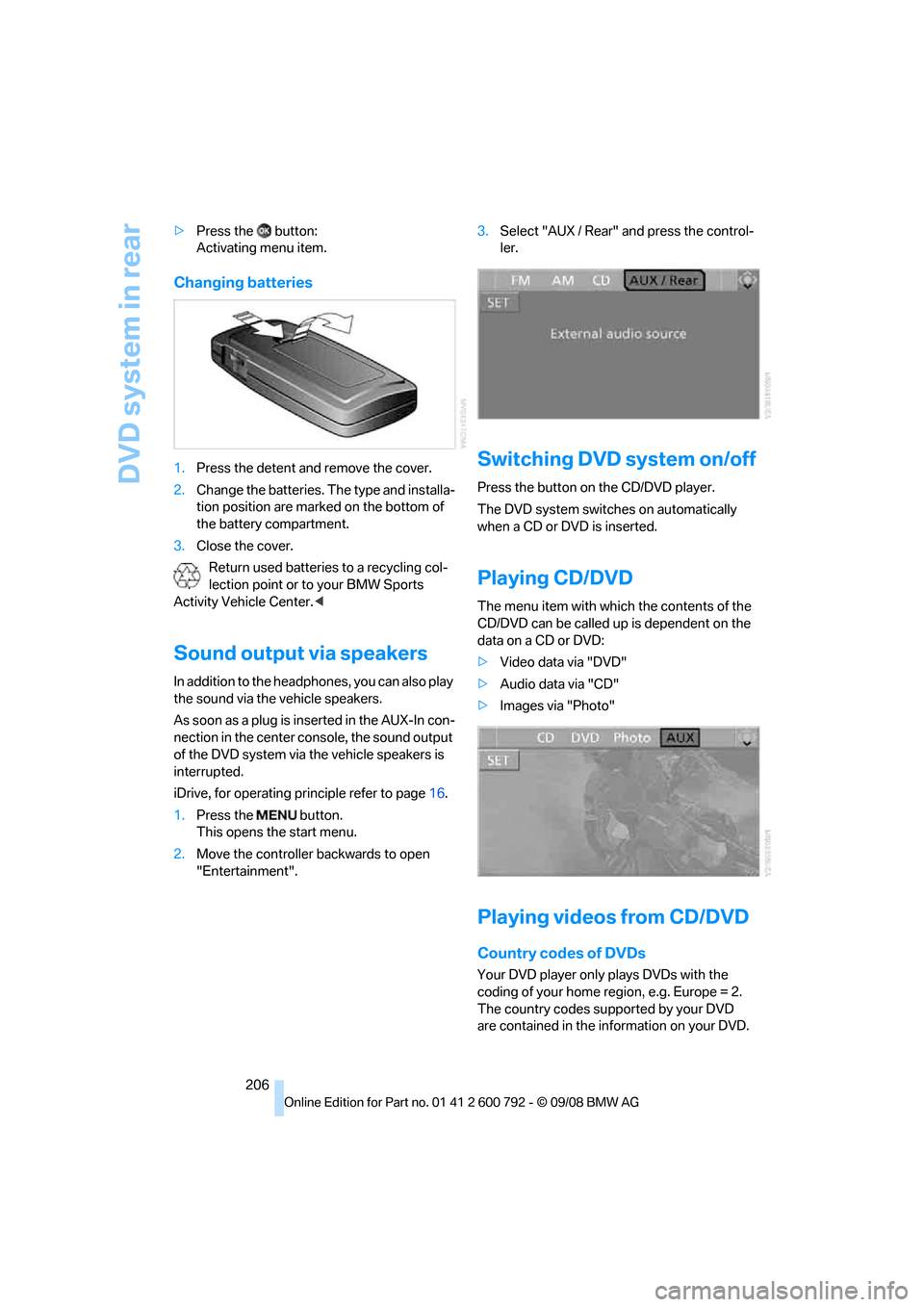
1. Press the button.
This opens the start menu.
2. Move the controller backwards to open
"Entertainment". 3.
Select "AUX / Rear" and press the control-
ler.
Switching DVD system on/off
Press the button on the CD/DVD player.
The DVD system switches on automatically
when a CD or DVD is inserted.
Playing CD/DVD
The menu item with which the contents of the
CD/DVD can be called up is dependent on the
data on a CD or DVD:
> Video data via "DVD"
> Audio data via "CD"
> Images via "Photo"
Playing videos from CD/DVD
Country codes of DVDs
Your DVD player only plays DVDs with the
coding of your home region, e.g. Europe = 2.
The country codes supported by your DVD
are contained in the information on your DVD.
Page 211 of 317
Navigation
Entertainment
Driving tips
209Reference
At a glance
Controls
Communications
Mobility
>"Tone":
>"Treble / Bass" and "Balance":
Separately adjustable for the left and
right-hand headphones and the infrared
headphones.
> "Reset":
The settings are reset to the default
value.
> "DVD format":
>"Standard"
> "Zoom": full-screen playback
> "Language":
Language or sound track of DVD playback.
The language advances one setting each
time the menu item is selected.
> "Subtitles":
Language of subtitles
"00 n/a": no subtitles.
> "Title":
Selection of a single track of the DVD.
> "Angle of view":
Camera angle
Notes or symbols that appear during the
playback of a film generally point out differ-
ent camera angles. These are usually only
briefly available.
> "Menu":
Call up the DVD-specific menu.
> "Return":
Exit menu or:
Press the buttons on the remote con-
trol.
Many DVDs offer dialogs and subtitles in vari-
ous languages or scene descriptions for the
hearing impaired. These functions are stored
on the DVD. With some DVDs, it is only possible to
select language, subtit les, camera angle,
or title by using the DVD-specific menu.
Refer to the information on your DVD for possi-
ble selections.
Entries marked in gray in the menus cannot be
selected.
For example, it is possible to select from several
possible plots or display information on the film.
1. Press the button on the remote con-
trol during playback.
2. Select "Menu".
3. Press the button.
On some DVDs, selecting "Menu"
and "Title" gives you the option of
choosing from additional menus. <
To make a selection:
1. Use the buttons on the remote control to
select the desired func tion in the DVD-spe-
cific menu.
2. Press the button.
You can also select language, subtitles,
camera angle, or title in the DVD-specific
menu.
Observe the information on your DVD. <
Compressed video files
Playback
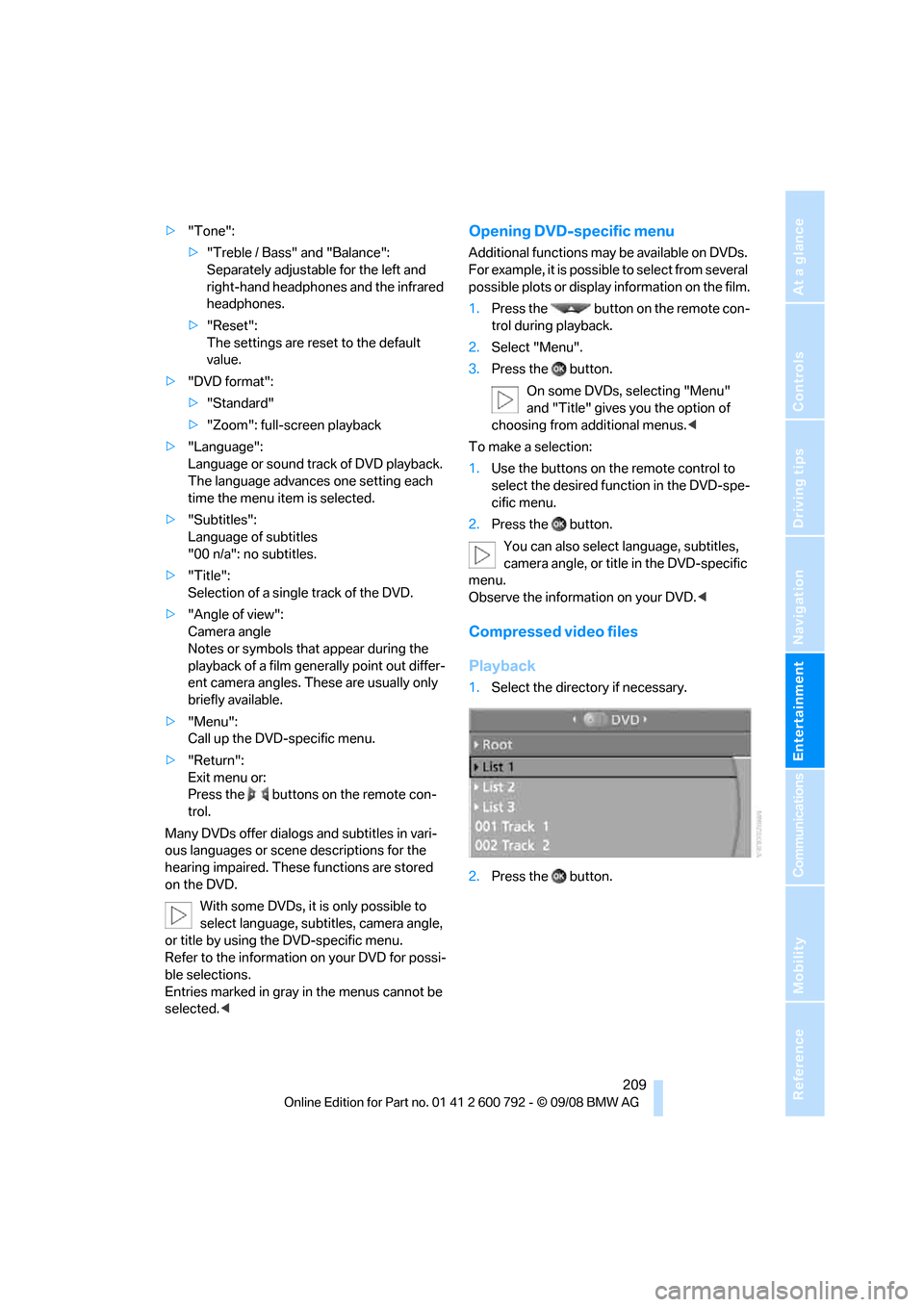
1.Select the direct ory if necessary.
2. Press the button.
Page 213 of 317
Navigation
Entertainment
Driving tips
211Reference
At a glance
Controls
Communications
Mobility
Selecting a track
Buttons on CD/DVD player
Press the button for the corresponding
direction repeatedly until you reach the desired
track.
Playback begins at the start of the track.
Via the remote control
Press the button for the corresponding
direction repeatedly or turn the serrated dial
until you reach the desired track.
Playback begins at the start of the track.
Settings and playback functions for
audio CDs/DVDs
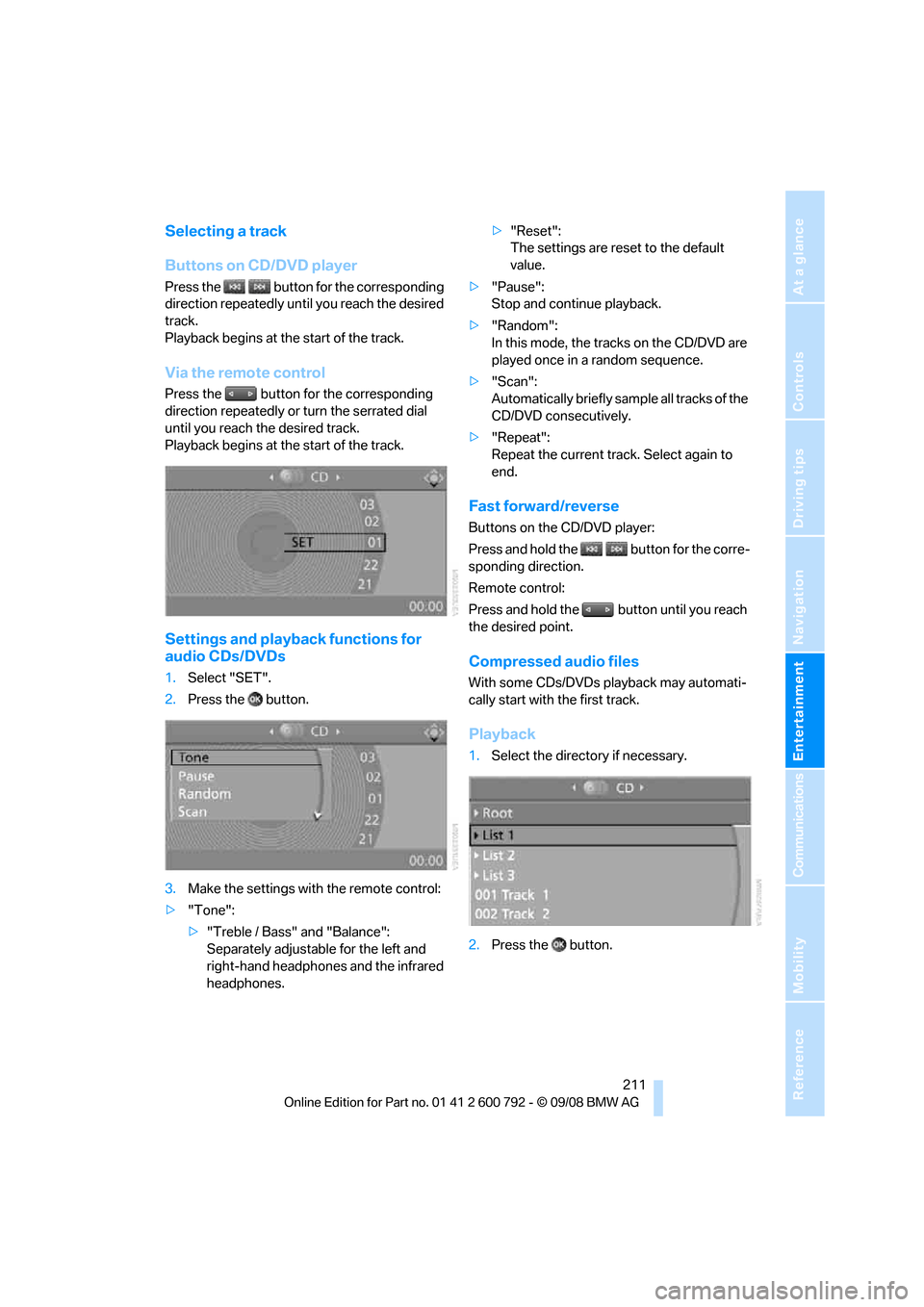
1. Select "SET".
2. Press the button.
3. Make the settings with the remote control:
> "Tone":
>"Treble / Bass" and "Balance":
Separately adjustable for the left and
right-hand headphones and the infrared
headphones. >
"Reset":
The settings are reset to the default
value.
> "Pause":
Stop and continue playback.
> "Random":
In this mode, the trac ks on the CD/DVD are
played once in a random sequence.
> "Scan":
Automatically briefly samp le all tracks of the
CD/DVD consecutively.
> "Repeat":
Repeat the current track. Select again to
end.
Fast forward/reverse
Buttons on the CD/DVD player:
Press and hold the button for the corre-
sponding direction.
Remote control:
Press and hold the button until you reach
the desired point.
Compressed audio files
With some CDs/DVDs playback may automati-
cally start with the first track.
Playback
1.Select the direct ory if necessary.
2. Press the button.
Page 214 of 317
DVD system in rear
212
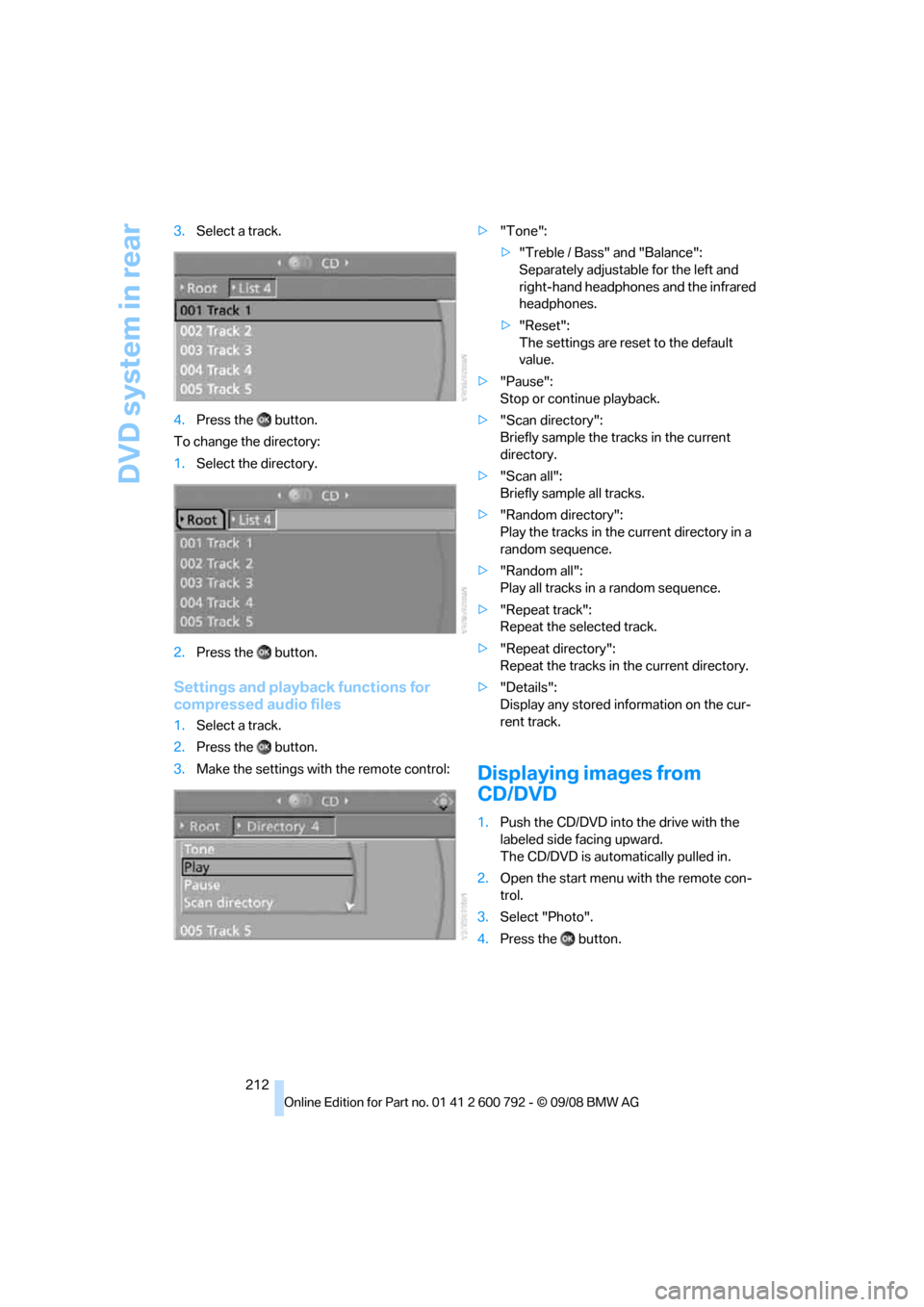
3.
Select a track.
4. Press the button.
To change the directory:
1. Select the directory.
2. Press the button.
Settings and playback functions for
compressed audio files
1.Select a track.
2. Press the button.
3. Make the settings with the remote control: >
"Tone":
>"Treble / Bass" and "Balance":
Separately adjustable for the left and
right-hand headphones and the infrared
headphones.
> "Reset":
The settings are reset to the default
value.
> "Pause":
Stop or continue playback.
> "Scan directory":
Briefly sample the tracks in the current
directory.
> "Scan all":
Briefly sample all tracks.
> "Random directory":
Play the tracks in the current directory in a
random sequence.
> "Random all":
Play all tracks in a random sequence.
> "Repeat track":
Repeat the selected track.
> "Repeat directory":
Repeat the tracks in the current directory.
> "Details":
Display any stored information on the cur-
rent track.
Displaying images from
CD/DVD
1.Push the CD/DVD into the drive with the
labeled side facing upward.
The CD/DVD is auto matically pulled in.
2. Open the start menu with the remote con-
trol.
3. Select "Photo".
4. Press the button.
Page 218 of 317
DVD system in rear
216
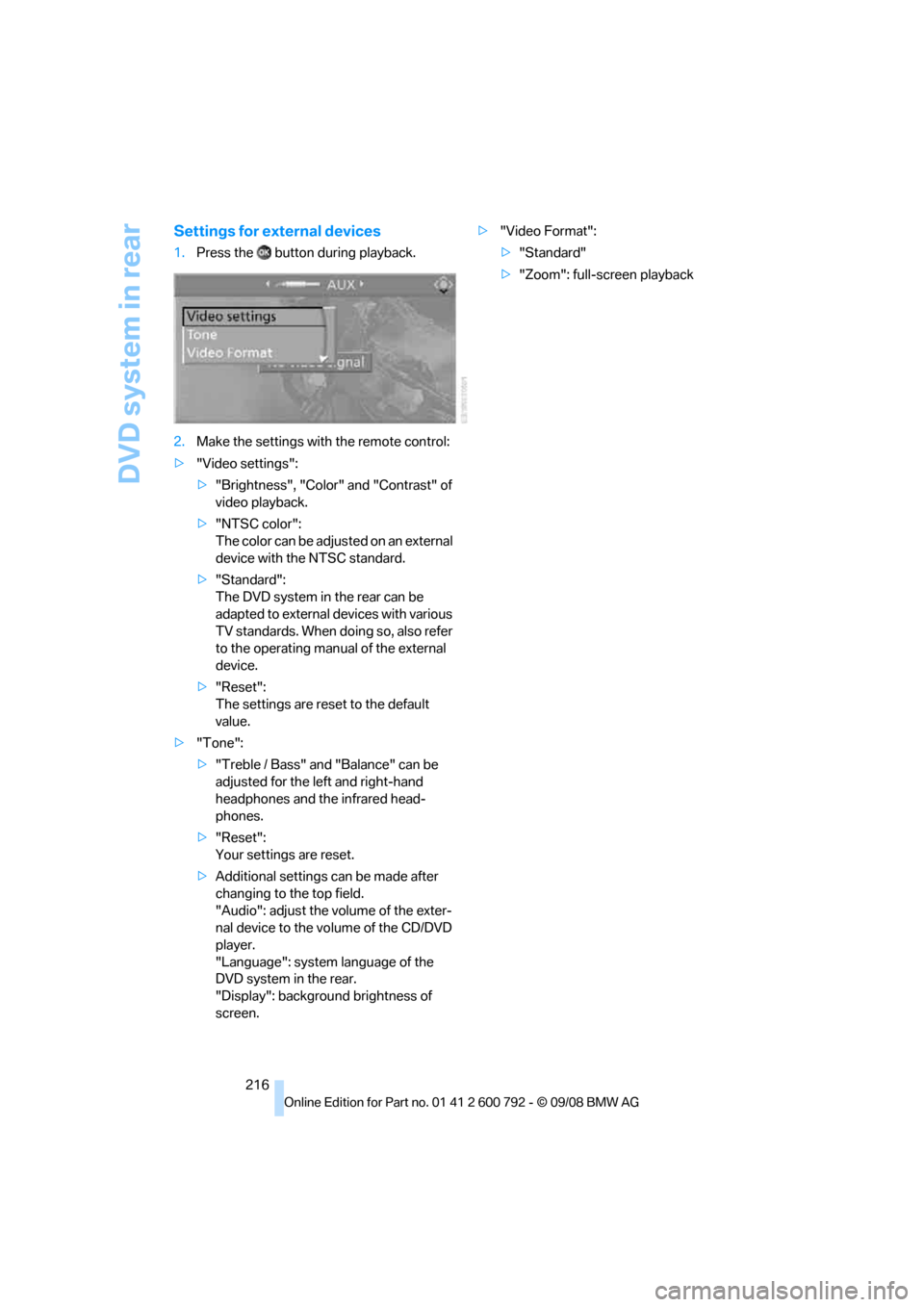
Settings for external devices
1.Press the button during playback.
2. Make the settings with the remote control:
> "Video settings":
>"Brightness", "Color" and "Contrast" of
video playback.
> "NTSC color":
The color can be adjusted on an external
device with the NTSC standard.
> "Standard":
The DVD system in the rear can be
adapted to external devices with various
TV standards. When doing so, also refer
to the operating manual of the external
device.
> "Reset":
The settings are reset to the default
value.
> "Tone":
>"Treble / Bass" and "Balance" can be
adjusted for the left and right-hand
headphones and the infrared head-
phones.
> "Reset":
Your settings are reset.
> Additional settings can be made after
changing to the top field.
"Audio": adjust the volume of the exter-
nal device to the vo lume of the CD/DVD
player.
"Language": system language of the
DVD system in the rear.
"Display": backgrou nd brightness of
screen. >
"Video Format":
>"Standard"
> "Zoom": full-screen playback
Page 221 of 317
Communications
This chapter summarizes how to operate your
mobile phone using iDrive or voice control and
how to use BMW Assist or BMW TeleServices.
Communications
Page 222 of 317
Telephoning
220
Telephoning
The concept
Your BMW is equipped with a full mobile phone
preparation package. After pairing a suitable
mobile phone in the vehicle once, you can oper-
ate the mobile phone via iDrive, with the buttons
on the steering wheel and by voice.
Once a mobile phone has been paired in your
vehicle, it is automatically recognized as soon
as it is inside the vehicl e while the engine is run-
ning or the ignition is switched on. The pairing
data of up to four mobile phones can be stored
simultaneously. If seve ral mobile phones are
detected simultaneously, the respective last
mobile phone paired can be operated via the
vehicle.
Using a phone in your vehicle
Using snap-in adapter*
The so-called snap-in adapter, a mobile phone
cradle, enables the batte ry to be charged and
the mobile phone to be connected to the exter-
nal antenna of your vehicle. This ensures
improved network reception and a consistent
voice reproduction qu ality. Ask your BMW
Sports Activity Vehicle Center which mobile
phones snap-in adapters are offered for.
For your safety
A car phone makes life more convenient in
many ways, and can even save lives in an emer-
gency. While you should consult your mobile
phone's separate operating instructions for a
detailed description of safety precautions and
information, we request that you direct your
particular attention to the following:
Only make entries when the traffic situa-
tion allows you to do so. Do not hold the
mobile phone in your hand while you are driving;
use the hands-free system instead. If you do
not observe this precau tion, your being dis- tracted can endanger vehicle occupants and
other road users.
<
Suitable mobile phones
Ask your BMW Sports Activity Vehicle Center
which mobile phones wi th Bluetooth interface
are supported by the mo bile phone preparation
package and which mobile phones are compat-
ible with the snap-in adapter. By virtue of their
particular software ve rsions, these mobile
phones support the functions described in this
Owner's Manual. Malfunctions can occur with
other mobile phones.
Care instructions
You can find everything you need to know on
this topic by consulting the separate operating
instructions for the mobile phone.
Operating options
You can operate the mobile phone* using:
> Buttons on steering wheel, refer to page11
> iDrive, refer to page 226
> Voice commands, refer to page 231
> Programmable memory buttons, refer to
page 21
Avoid operating a mobile phone detected by
the vehicle with the keypad of the mobile
phone, otherwise malf unctions can occur.
Placing phone calls with BMW Assist
system*: BMW Assist calls
You can use the BMW Assist system via the
hands-free unit for BMW Assist calls.
When the status information "Communication"
or "BMW Assist" is displayed in "BMW Ser-
vice", only BMW Assi st calls are possible.
*
Page 223 of 317
221
Entertainment
Reference
At a glance
Controls
Driving tips
Communications
Navigation
Mobility
It may not be possible to establish a telephone
connection using the mobile phone while a con-
nection is being estab lished to BMW Assist or
while a call to BMW Assist is already in
progress. If this happens, you must log off the
mobile phone from the vehicle if you wish to
place a call with the mobile phone.
Commissioning
Pairing mobile phone in vehicle
The following prerequisites must be met:
> Suitable mobile phone: the mobile phone is
supported by the full mobile phone prepara-
tion package. Information on this subject is
also provided on the Internet at:
www.bmw.com
> The mobile phone is ready to operate.
> The Bluetooth link on th e vehicle, refer to
page 225, and on the mobile phone is
active.
> Depending on the mobile phone, it may be
necessary to adjust the presets of the
mobile phone, e.g. via the following menu
items:
>Bluetooth activated
> Connection not with confirmation
> Reconnect
> Depending on the mobile phone model, the
setting energy saving mode can, for exam-
ple, result in vehicle failing to detect the
paired mobile phone.
> For pairing, specify any desired number as
the Bluetooth passkey, e.g. 1. This Blue-
tooth passkey is no longer required follow-
ing successful pairing.
> The ignition is switched on.
Only pair the mobile phone with the vehi-
cle stationary, otherwise the passengers
and other road users can be endangered due to
a lack of attentiveness on the part of the
driver. <
Switching on ignition
1.Insert the remote control as far as possible
into the ignition lock.
2. Switch on the ignition by pressing the Start/
Stop button without depressing the brake
pedal.
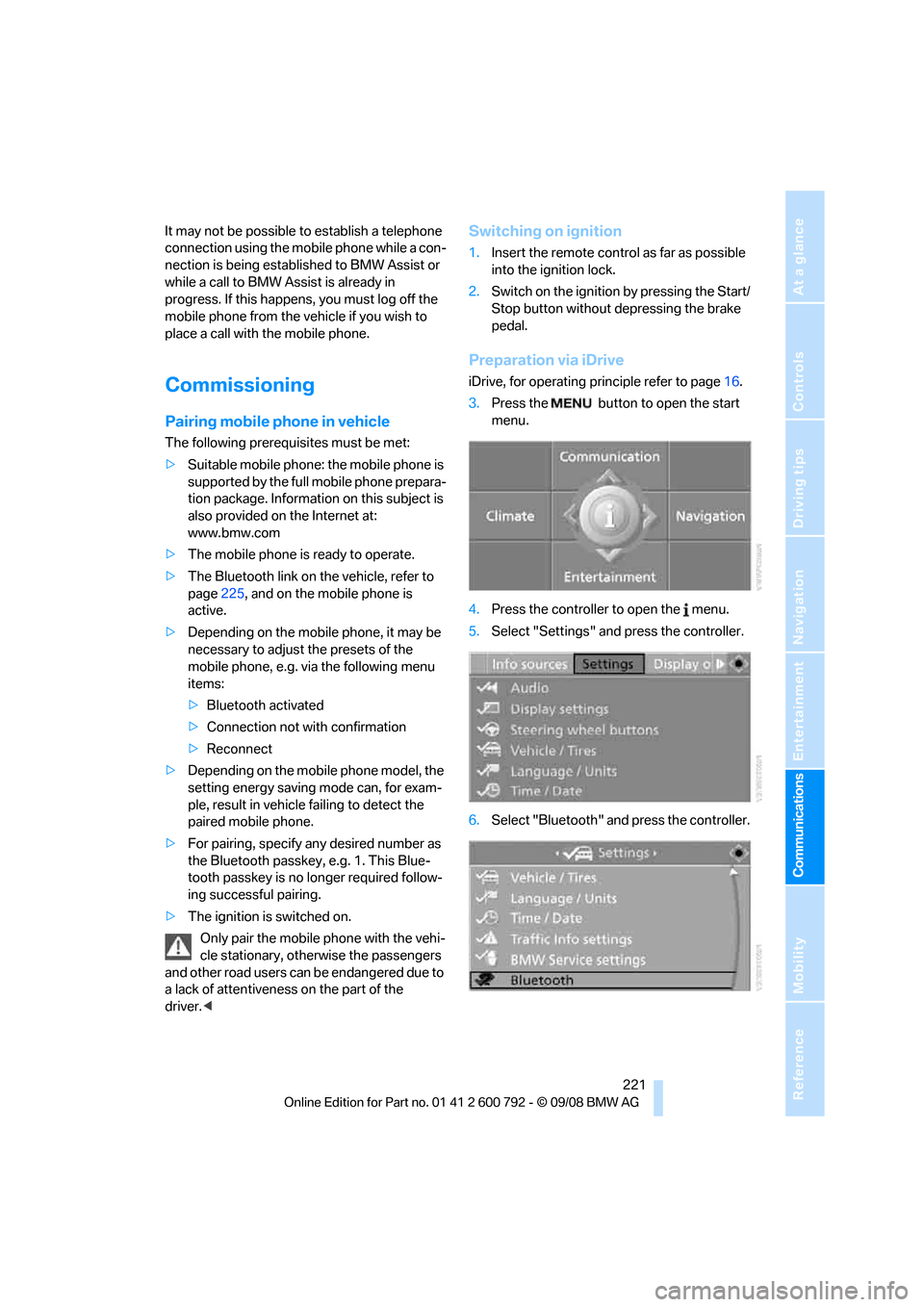
Preparation via iDrive
iDrive, for operating pr inciple refer to page16.
3. Press the button to open the start
menu.
4. Press the controller to open the menu.
5. Select "Settings" and press the controller.
6. Select "Bluetooth" an d press the controller.
Page 224 of 317
Telephoning
222
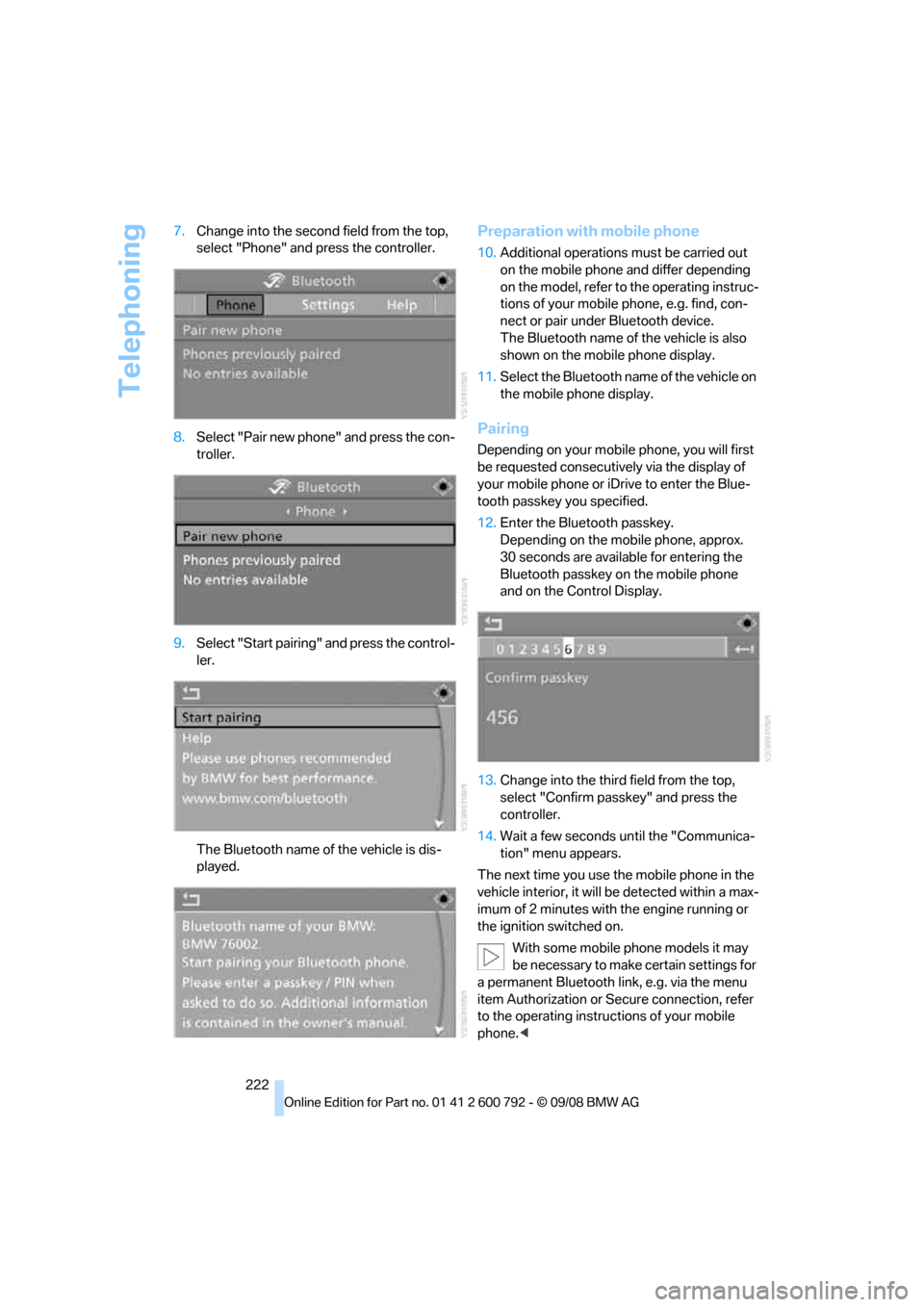
7.
Change into the second field from the top,
select "Phone" and press the controller.
8. Select "Pair new phone" and press the con-
troller.
9. Select "Start pairing" and press the control-
ler.
The Bluetooth name of the vehicle is dis-
played.
Preparation with mobile phone
10. Additional operations must be carried out
on the mobile phone and differ depending
on the model, refer to the operating instruc-
tions of your mobile phone, e.g. find, con-
nect or pair under Bluetooth device.
The Bluetooth name of the vehicle is also
shown on the mobile phone display.
11. Select the Bluetooth name of the vehicle on
the mobile phone display.
Pairing
Depending on your mobile phone, you will first
be requested consecutively via the display of
your mobile phone or iD rive to enter the Blue-
tooth passkey you specified.
12. Enter the Bluetooth passkey.
Depending on the mobile phone, approx.
30 seconds are available for entering the
Bluetooth passkey on the mobile phone
and on the Control Display.
13. Change into the third field from the top,
select "Confirm passkey" and press the
controller.
14. Wait a few seconds until the "Communica-
tion" menu appears.
The next time you use the mobile phone in the
vehicle interior, it will be detected within a max-
imum of 2 minutes with the engine running or
the ignition switched on.
With some mobile phone models it may
be necessary to make certain settings for
a permanent Bluetooth link, e.g. via the menu
item Authorization or Secure connection, refer
to the operating instructions of your mobile
phone. <