phone BMW X5 2009 E70 User Guide
[x] Cancel search | Manufacturer: BMW, Model Year: 2009, Model line: X5, Model: BMW X5 2009 E70Pages: 317, PDF Size: 9.56 MB
Page 31 of 317
Controls
29Reference
At a glance
Driving tips
Communications
Navigation
Entertainment
Mobility
>Language on Control Display, refer to
page 90
> 12h/24h clock format, refer to page 89
> Date format, refer to page 89
> Lighting settings:
>Triple turn signal activation, refer to
page 73
> Welcome lamps, refer to page 110
> Pathway lighting, refer to page 111
> Daytime driving lamps
*, refer to
page 111
> PDC Park Distance Control
*: optical warn-
ing, refer to page 92
> Rear view camera
*:
> Selecting functions, refer to page 93
> Type of display, refer to page 95
> Head-Up Display
*: selection, brightness
and position of display, refer to page 107
> Automatic climate control: AUTO program
and intensity, cooling function, and auto-
matic recirculated air control/recirculated
air mode, temperature, air distribution, tem-
perature in the upper body region, refer to
text starting on page 115
> Programmable memory buttons: selecting
stored functions, refer to page 21
> Positions of driver's seat, outside mirrors,
and steering wheel
*, refer to page 50
> Adaptive Drive
*: selected chassis and sus-
pension tuning, refer to page 99
> Audio sources: volume and tone settings,
refer to page 175
> Radio:
>Display of stored stations, refer to
page 178
> Switching RDS Radio Data System on/
off
*, refer to page 181
> Phone: volume setting, refer to
pages 226,232
Central locking system
The concept
The central locking system functions when the
driver's door is closed.
The system simultaneously engages and
releases the locks on the following:
> Doors
> Liftgate
> Fuel filler door
Operating from outside
>via the remote control
> via the door lock
> with comfort access
* via the door handles
The interior lamps and the courtesy lamps
* are
also switched on and off with the remote con-
trol. The alarm system
is armed/disarmed at the
same time.
You can find more detailed information on the
alarm system
on page 38.
Operating from inside
Via the button for centra l locking, refer to
page 32. The fuel filler door is not locked.
In an accident of sufficient severity, the central
locking system automati cally unlocks the vehi-
cle. In addition, the hazard warning flashers and
interior lamps come on.
Opening and closing:
Using remote control
Persons or animals left unattended in a
parked vehicle can lock the doors from
the inside. Always take along the remote control
when leaving the vehicle so that the vehicle can
then be opened from the outside. <
Page 61 of 317
Controls
59Reference
At a glance
Driving tips
Communications
Navigation
Entertainment
Mobility
Steering wheel heating*
Press the button.
When the steering wheel heater is switched on,
the LED in the button lights up.
Programmable buttons on steering
wheel
You can program the buttons individually.
The setting is stored for the remote control cur-
rently in use.
iDrive, for operating principle refer to page16.
1. Press the button.
This opens the start menu.
2. Press the controller to open the menu.
3. Select "Settings" and press the controller. 4.
Select "Steering wheel buttons" and press
the controller.
A list of different functions appears:
>"Navigation voice instructions"
Voice instructions for the navigation
system
*
>"Air recirculation on / off"
Permanently shutting off outside air,
refer to AUC Automatic recirculated-air
control
* on page 117
> "Mute on / off"
Mutes the audio sources
> "Monitor on / off"
Switches the Control Display on/off
> "Telephone list"
*
Display/hide phone book or last list of
stored phone numbers
> "Next entertainment source"
Changes audio source
5. Select the desired function and press the
controller.
6. Select the button if ne cessary and press the
controller.
You can operate the selected function using the
corresponding button.
Page 107 of 317
Controls
105Reference
At a glance
Driving tips
Communications
Navigation
Entertainment
Mobility
Brake force display*
BMW X5
On the left: normal braking.
On the right: heavy braking.
BMW X6
On the left: normal braking.
On the right: heavy braking.
Airbags
The following airbags are located under the
marked covers:
1Front airbags
2 Head-level airbags in front and rear
3 Side airbags in backrests
Protective action
To ensure that the safety systems con-
tinue to provide optimized protection,
observe the adjustment instructions on
page 48.<
The front airbags help protect the driver and
front passenger by re sponding to frontal
impacts in which safety belts alone cannot pro-
vide adequate restraint. When needed, the
head and side airbags help provide protection in
the event of side impact. The relevant side air-
bag supports the side upper body area. The
head air bag supports the head. The airbags are deliberately not triggered in
every impact situation, e.g. less severe acci-
dents or rear-end collisions.
Do not apply adhesive materials to the
cover panels of the airbags, cover them or
modify them in any other way.
Keep the instrument cluster and window in the
region of the passenger seat free of foreign
materials, i.e. do not co ver them with adhesive
film or covers and do not attach mounts, e.g. for
a navigation device or mobile phone to them.
Do not install cosmetic covers, seat cushions,
or other items on the fr ont seats that are not
especially approved for seats with integrated
side airbags. Do not hang articles of clothing
such as jackets over the backrests.
Do not attempt to remove the airbag restraint
system from the vehicle. Do not modify or
tamper with either the wiring or the individual
components in the airbag system. This includes
Page 129 of 317
Controls
127Reference
At a glance
Driving tips
Communications
Navigation
Entertainment
Mobility
Center armrest front
A storage compartment is located under the
armrest between the front seats and, depend-
ing on the vehicle's equipment, also a cover for
the mobile phone bracket or the snap-in
adapter. Also refer to page 220.
Opening cover
Push cover down slightly and press the button.
The cover folds upward.
Connection for external audio device
You can connect an external audio device such
as a CD or MP3 player and play audio tracks
over the vehicle's speaker system:
>AUX-In connection, refer to page 200
> USB audio interface, refer to page 201
Storage compartments
Compartments are located in the doors, in the
center console in the front and rear
* as well as
in the rear console in the X6.
Storage nets
* are located on the backrests of
the front seats.
Do not stow hard or sharp-edged objects
in the storage nets; otherwise there is an
increased risk of injury in the event of an acci-
dent. <
Clothes hooks
When hanging clothing on the hooks,
ensure that it will not obstruct the driver's
vision. Do not hang heavy objects on the hooks. If you do so, they could cause personal injury to
occupants during brak
ing or evasive maneu-
vers. <
BMW X5
Clothes hooks are located near the grab han-
dles in the rear.
BMW X6
To fold out, press against upper edge.
Cup holders
Use lightweight, unbreakable containers
and do not transport hot beverages; oth-
erwise, there is an increased risk of injury in the
event of an accident. Do not force unsuitable
containers into the cup holders, as otherwise
damage can result. <
Front
Slide the cover back.
Page 158 of 317
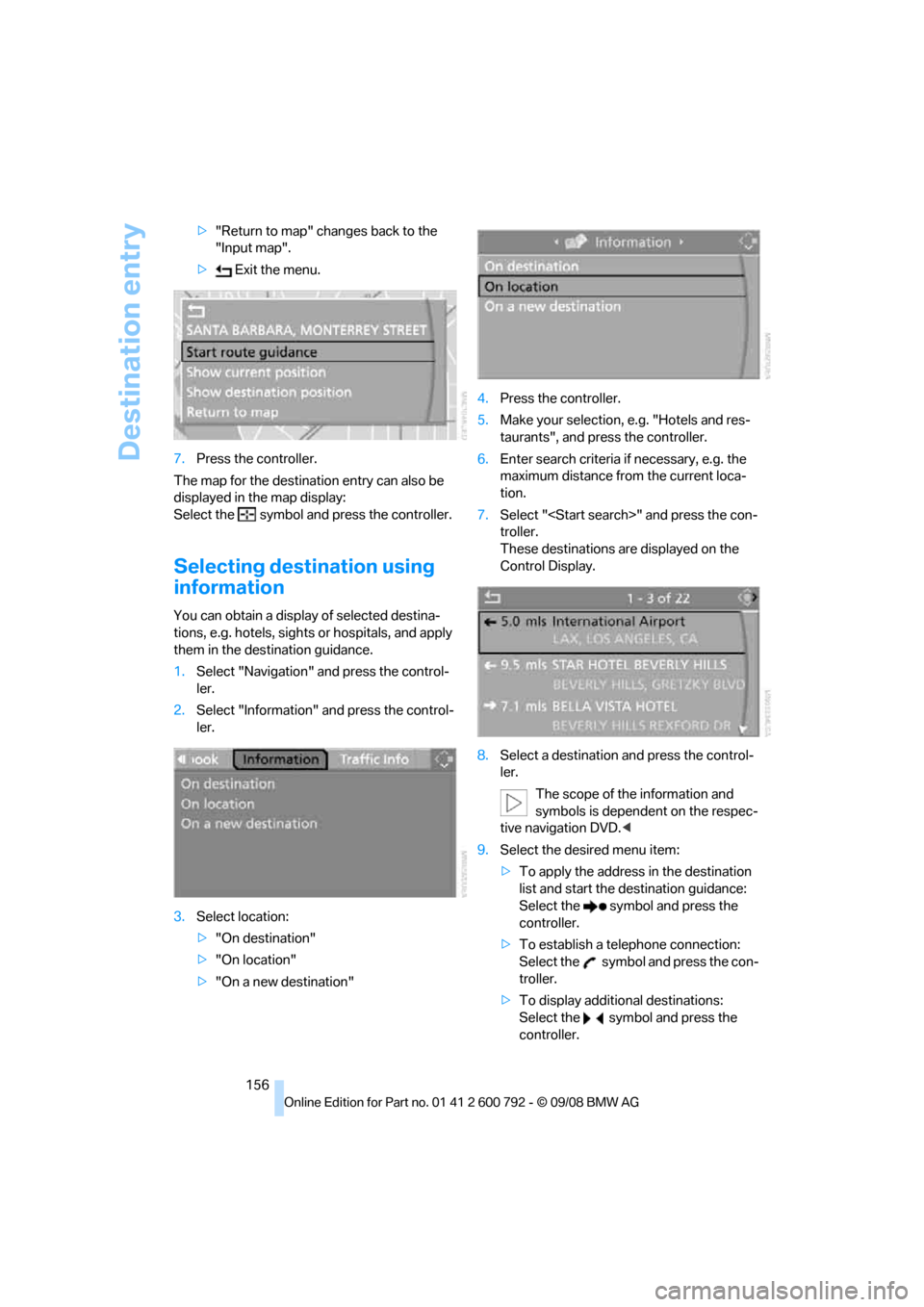
Destination entry
156
>
"Return to map" changes back to the
"Input map".
> Exit the menu.
7. Press the controller.
The map for the destination entry can also be
displayed in the map display:
Select the symbol and press the controller.
Selecting destination using
information
You can obtain a displa y of selected destina-
tions, e.g. hotels, sights or hospitals, and apply
them in the destination guidance.
1. Select "Navigation" and press the control-
ler.
2. Select "Information" and press the control-
ler.
3. Select location:
>"On destination"
> "On location"
> "On a new destination" 4.
Press the controller.
5. Make your selection, e.g. "Hotels and res-
taurants", and press the controller.
6. Enter search criteria if necessary, e.g. the
maximum distance from the current loca-
tion.
7. Select "
troller.
These destinations are displayed on the
Control Display.
8. Select a destination and press the control-
ler.
The scope of the information and
symbols is dependent on the respec-
tive navigation DVD. <
9. Select the desired menu item:
>To apply the address in the destination
list and start the destination guidance:
Select the symbol and press the
controller.
> To establish a telephone connection:
Select the symbol and press the con-
troller.
> To display additional destinations:
Select the symbol and press the
controller.
Page 186 of 317
Satellite radio
184
Satellite radio
You can receive over 100 different channels
with high sound quality.
The channels are offered to you in predefined
packages. To receive the channels of your
choice, you must have this package enabled.
With this new techno logy the signal may
fail, causing interruptions in reception. <
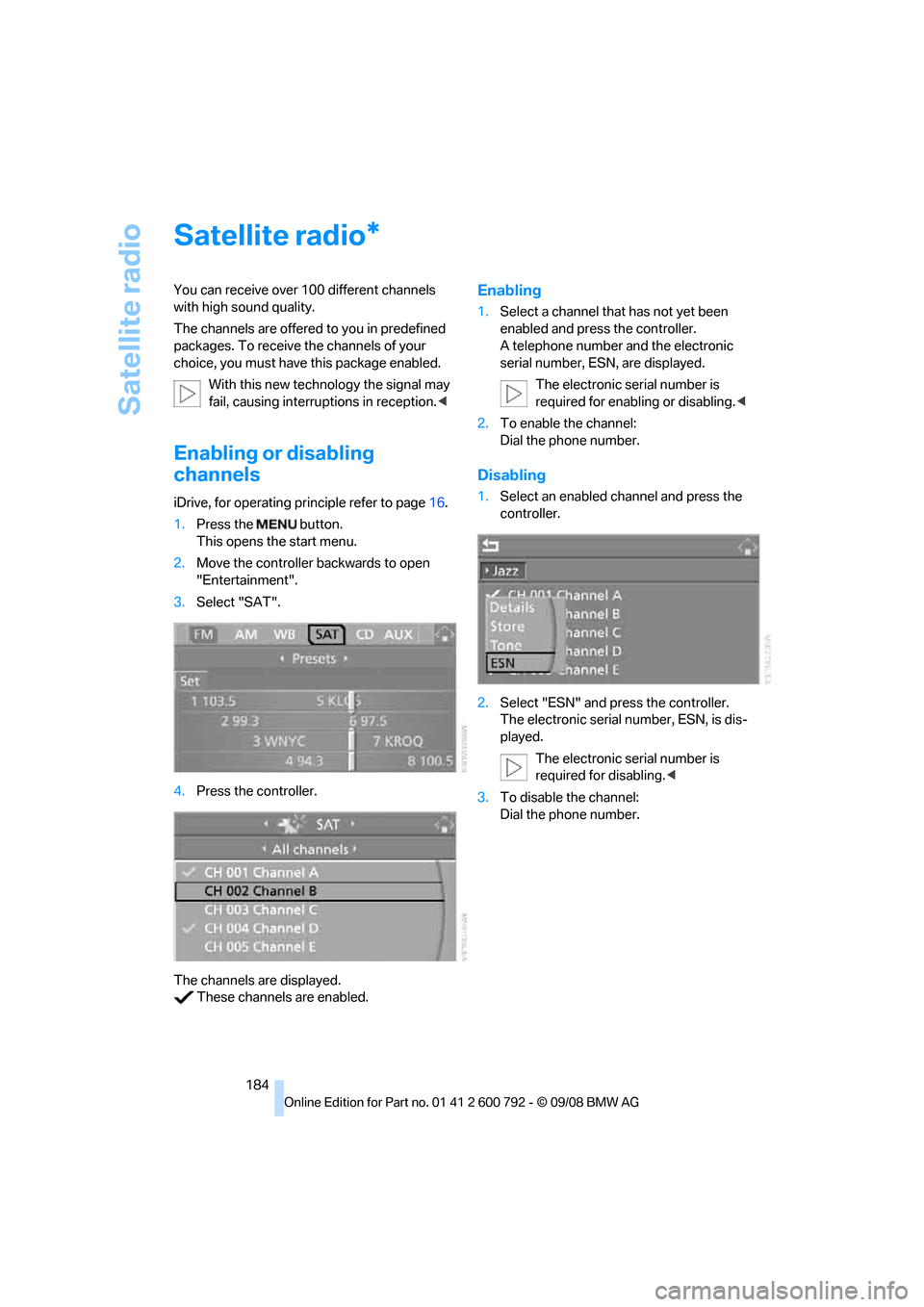
Enabling or disabling
channels
iDrive, for operating principle refer to page16.
1. Press the button.
This opens the start menu.
2. Move the controller backwards to open
"Entertainment".
3. Select "SAT".
4. Press the controller.
The channels are displayed. These channels are enabled.
Enabling
1. Select a channel that has not yet been
enabled and press the controller.
A telephone number and the electronic
serial number, ESN, are displayed.
The electronic serial number is
required for enabling or disabling. <
2. To enable the channel:
Dial the phone number.
Disabling
1.Select an enabled channel and press the
controller.
2. Select "ESN" and press the controller.
The electronic serial number, ESN, is dis-
played.
The electronic serial number is
required for disabling. <
3. To disable the channel:
Dial the phone number.
*
Page 202 of 317
AUX-In connection
200
AUX-In connection
You can connect an external audio device, e.g.
an MP3 player, and play the sound via the vehi-
cle speakers. The sound can be adjusted via
iDrive.
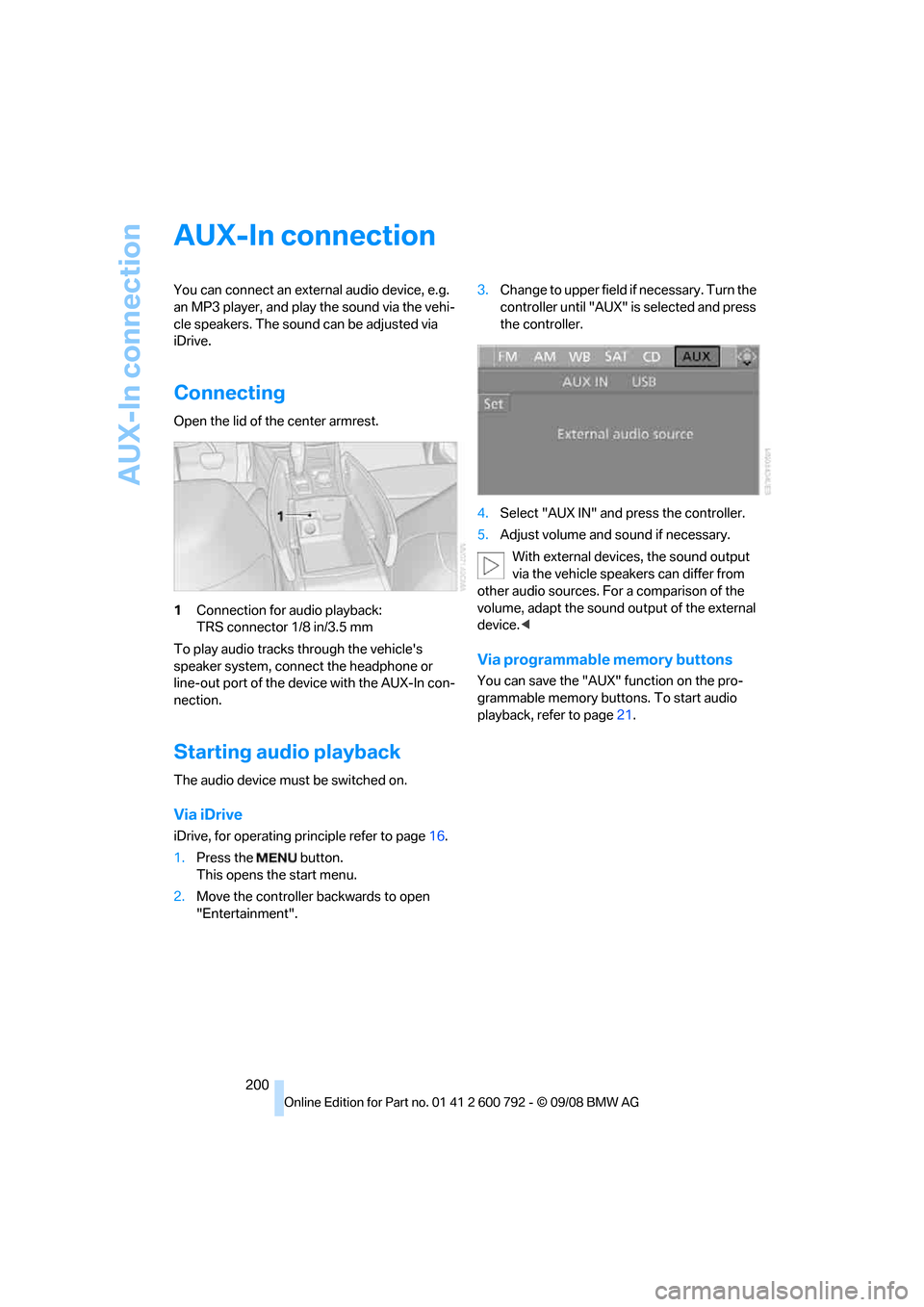
Connecting
Open the lid of the center armrest.
1Connection for audio playback:
TRS connector 1/8 in/3.5 mm
To play audio tracks through the vehicle's
speaker system, connect the headphone or
line-out port of the devi ce with the AUX-In con-
nection.
Starting audio playback
The audio device must be switched on.
Via iDrive
iDrive, for operating pr inciple refer to page16.
1. Press the button.
This opens the start menu.
2. Move the controller backwards to open
"Entertainment". 3.
Change to upper field if necessary. Turn the
controller until "AUX" is selected and press
the controller.
4. Select "AUX IN" and press the controller.
5. Adjust volume and sound if necessary.
With external device s, the sound output
via the vehicle speakers can differ from
other audio sources. For a comparison of the
volume, adapt the sound output of the external
device. <
Via programmable memory buttons
You can save the "AUX" function on the pro-
grammable memory buttons. To start audio
playback, refer to page 21.
Page 203 of 317
Navigation
Entertainment
Driving tips
201Reference
At a glance
Controls
Communications
Mobility
USB audio interface
You can connect an external audio device or
USB device to the USB audio interface.
> MP3 player
> USB memory stick
> iPod/iPhone
> Suitable mobile phone:
You can operate these devices via iDrive, if they
are supported by the USB audio interface.
If equipped with an addi tional connection of the
music player in the mobile phone, connect the
phone by means of the snap-in adapter
*, refer
to page 233. The phone can then be used for
the hands-free system and audio playback. The
audio playback is only po ssible if no device is
connected to the USB audio interface.
The common audio files, e.g. MP3, WMA, WAV
(PCM) and AAC, as well as playback lists in the
M3U format can be played back.
Due to the large number of audio devices avail-
able on the market, operation via the vehicle
cannot be ensured for every audio device.
Ask your BMW Sports Activity Vehicle Center,
which audio devices, mo bile phones, or USB
devices are suitable.
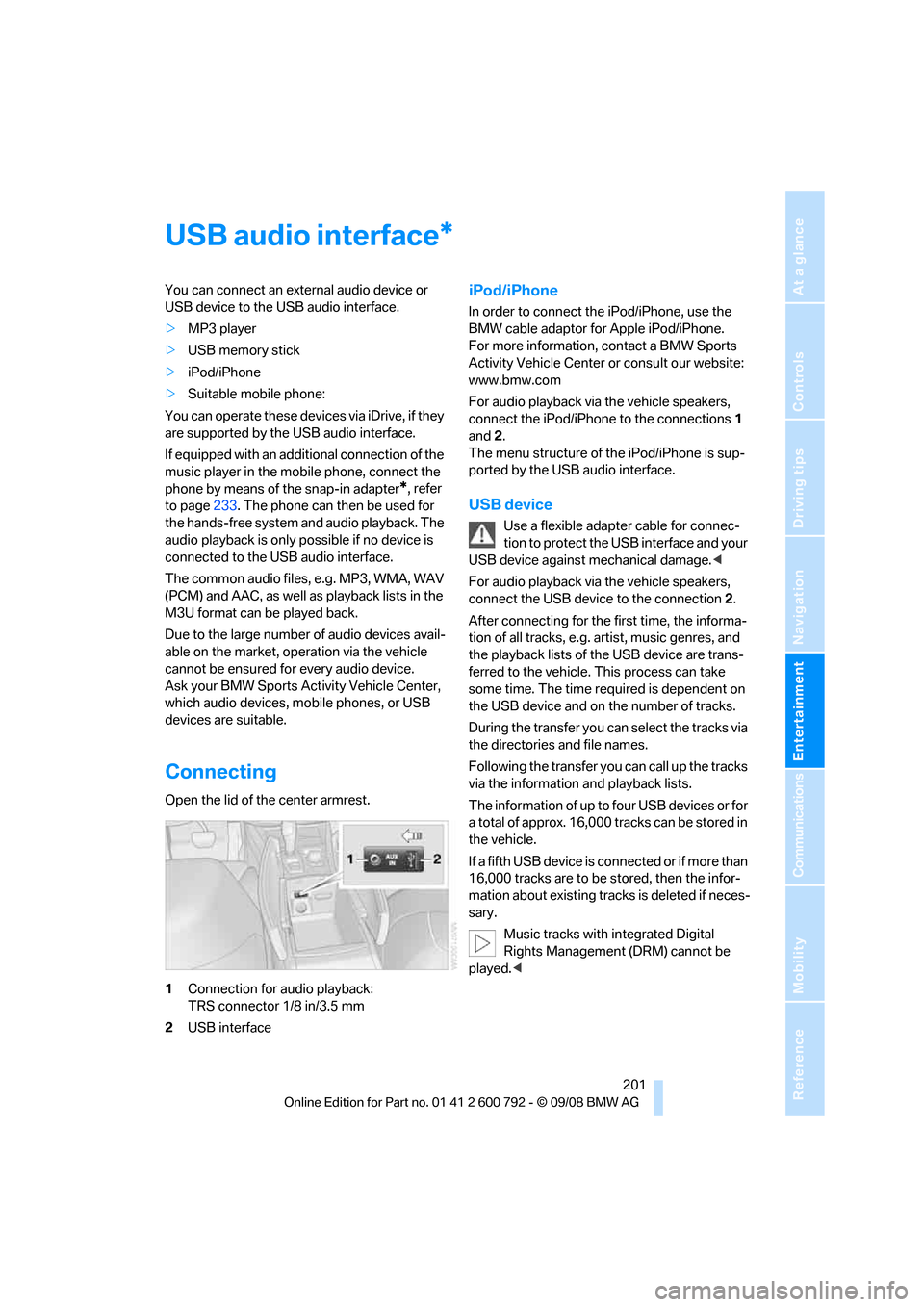
Connecting
Open the lid of the center armrest.
1 Connection for audio playback:
TRS connector 1/8 in/3.5 mm
2 USB interface
iPod/iPhone
In order to connect th e iPod/iPhone, use the
BMW cable adaptor for Apple iPod/iPhone.
For more information, contact a BMW Sports
Activity Vehicle Center or consult our website:
www.bmw.com
For audio playback via the vehicle speakers,
connect the iPod/iPhone to the connections 1
and 2.
The menu structure of the iPod/iPhone is sup-
ported by the USB audio interface.
USB device
Use a flexible adapter cable for connec-
tion to protect the USB interface and your
USB device against mechanical damage.<
For audio playback via the vehicle speakers,
connect the USB device to the connection 2.
After connecting for the first time, the informa-
tion of all tracks, e.g. artist, music genres, and
the playback lists of the USB device are trans-
ferred to the vehicle. This process can take
some time. The time required is dependent on
the USB device and on the number of tracks.
During the transfer you can select the tracks via
the directories and file names.
Following the transfer you can call up the tracks
via the information and playback lists.
The information of up to four USB devices or for
a total of approx. 16,000 tracks can be stored in
the vehicle.
I f a f i f t h U S B d e v i c e i s c o n n e c t e d o r i f m o r e t h a n
16,000 tracks are to be stored, then the infor-
mation about existing trac ks is deleted if neces-
sary.
Music tracks with integrated Digital
Rights Management (DRM) cannot be
played. <
*
Page 204 of 317
USB audio interface
202
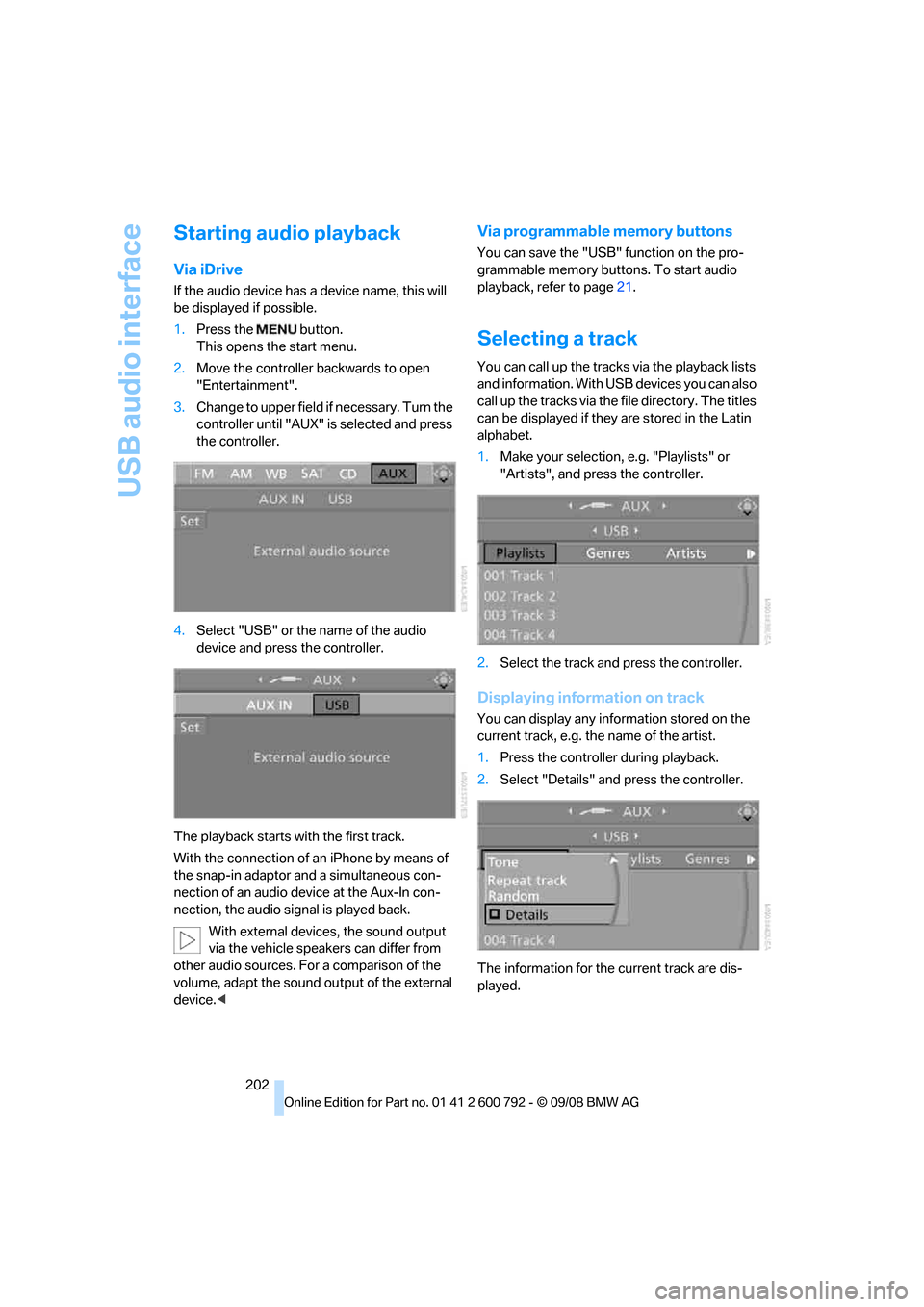
Starting audio playback
Via iDrive
If the audio device has a device name, this will
be displayed if possible.
1. Press the button.
This opens the start menu.
2. Move the controller backwards to open
"Entertainment".
3. Change to upper field if necessary. Turn the
controller until "AUX" is selected and press
the controller.
4. Select "USB" or the name of the audio
device and press the controller.
The playback starts with the first track.
With the connection of an iPhone by means of
the snap-in adaptor and a simultaneous con-
nection of an audio device at the Aux-In con-
nection, the audio signal is played back. With external devices, the sound output
via the vehicle speakers can differ from
other audio sources. For a comparison of the
volume, adapt the sound ou tput of the external
device. <
Via programmable memory buttons
You can save the "USB" function on the pro-
grammable memory buttons. To start audio
playback, refer to page 21.
Selecting a track
You can call up the tracks via the playback lists
and information. With USB devices you can also
call up the tracks via the file directory. The titles
can be displayed if they are stored in the Latin
alphabet.
1. Make your selection, e.g. "Playlists" or
"Artists", and press the controller.
2. Select the track and press the controller.
Displaying information on track
You can display any information stored on the
current track, e.g. the name of the artist.
1.Press the controller during playback.
2. Select "Details" and press the controller.
The information for the current track are dis-
played.
Page 206 of 317
DVD system in rear
204
DVD system in rear
With the DVD system in the rear you can play
CDs and DVDs with audio, video and image
data. External audio and video devices can also
be connected and played via the DVD system in
the rear.
Tone output is possible both via headphones
and via the vehicle speakers.
You can operate the DVD system in the rear
with the buttons on the CD/DVD player or with
the remote control.
Some functions can only be operated
with the remote control. <
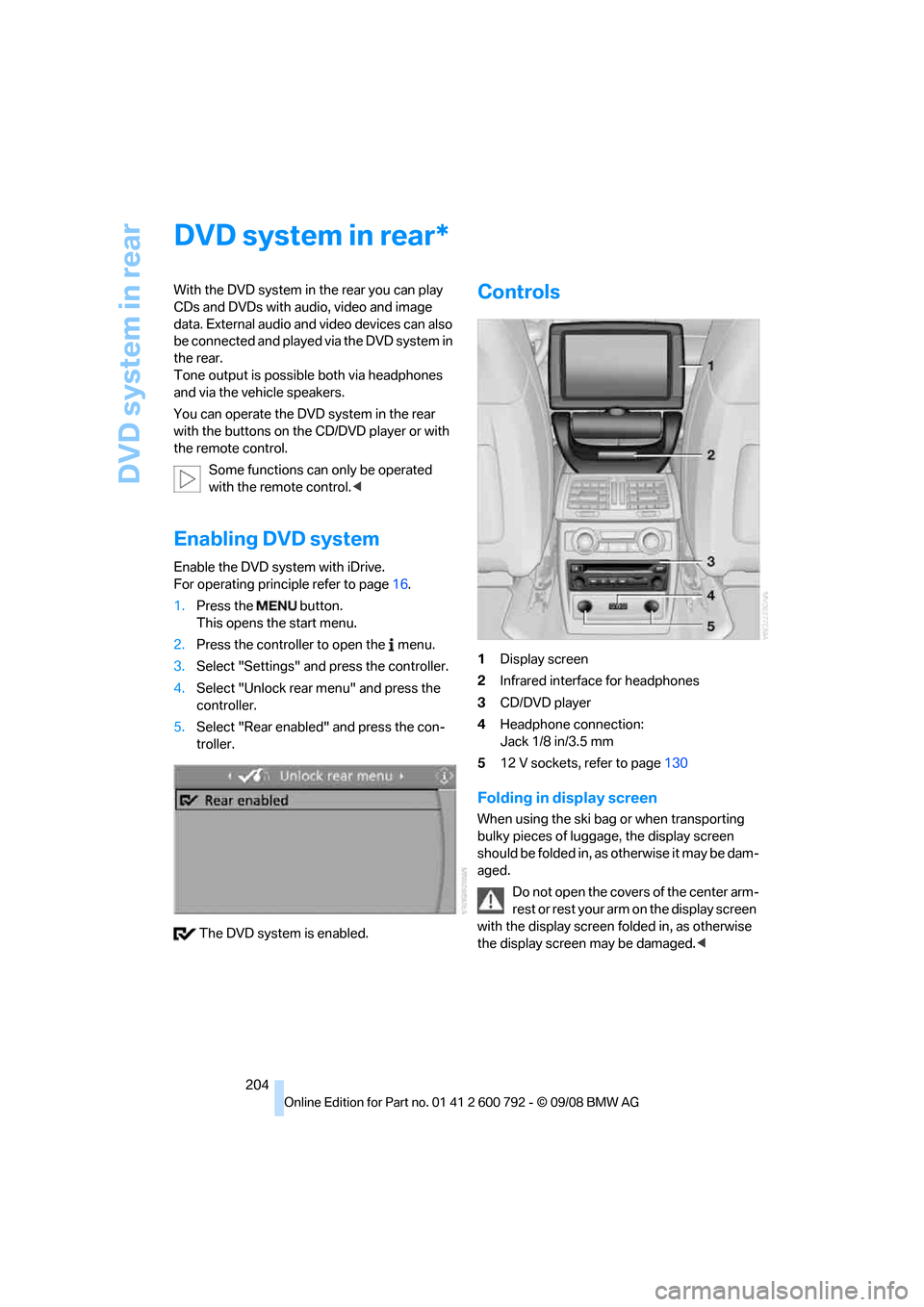
Enabling DVD system
Enable the DVD system with iDrive.
For operating principle refer to page 16.
1. Press the button.
This opens the start menu.
2. Press the controller to open the menu.
3. Select "Settings" and press the controller.
4. Select "Unlock rear menu" and press the
controller.
5. Select "Rear enabled" and press the con-
troller.
The DVD system is enabled.
Controls
1 Display screen
2 Infrared interface for headphones
3 CD/DVD player
4 Headphone connection:
Jack 1/8 in/3.5 mm
5 12 V sockets, refer to page 130
Folding in display screen
When using the ski bag or when transporting
bulky pieces of luggage, the display screen
should be folded in, as otherwise it may be dam-
aged.
Do not open the covers of the center arm-
rest or rest your arm on the display screen
with the display screen folded in, as otherwise
the display screen may be damaged. <
*