Repeat BMW X5 XDRIVE 35D 2009 E70 Owner's Guide
[x] Cancel search | Manufacturer: BMW, Model Year: 2009, Model line: X5 XDRIVE 35D, Model: BMW X5 XDRIVE 35D 2009 E70Pages: 317, PDF Size: 9.56 MB
Page 191 of 317

Navigation
Entertainment
Driving tips
189Reference
At a glance
Controls
Communications
Mobility
1.Press the controller.
2. Select "Details" and press the controller.
The information for the current track are dis-
played.
The setting is stored for the remote control cur-
rently in use.
Sampling tracks, scan
The system automatically plays a brief sample
from each of the trac ks on the current CD.
1. Select "Set" and press the controller.
Other menu items are displayed.
2. Select "Scan" and press the controller. To end sampling:
1.
Press the controller.
2. Select "Scan" and press the controller.
This cancels sampling of the tracks, and the
player remains on the current track.
Compressed audio files
1. Select the current track and press the con-
troller.
2. Select the desired menu item:
>To sample all tracks of the current direc-
tory, select "Scan directory" and press
the controller.
> To sample all tracks of the CD, select
"Scan all" and press the controller.
To end sampling:
1. Press the controller.
2. Select "Scan directory" or "Scan all" and
press the controller.
This cancels sampling, and the player remains
on the current track.
Repeating a track
1. Select "Set" and press the controller.
Other menu items are displayed.
Page 192 of 317
CD player and CD changer
190
2.
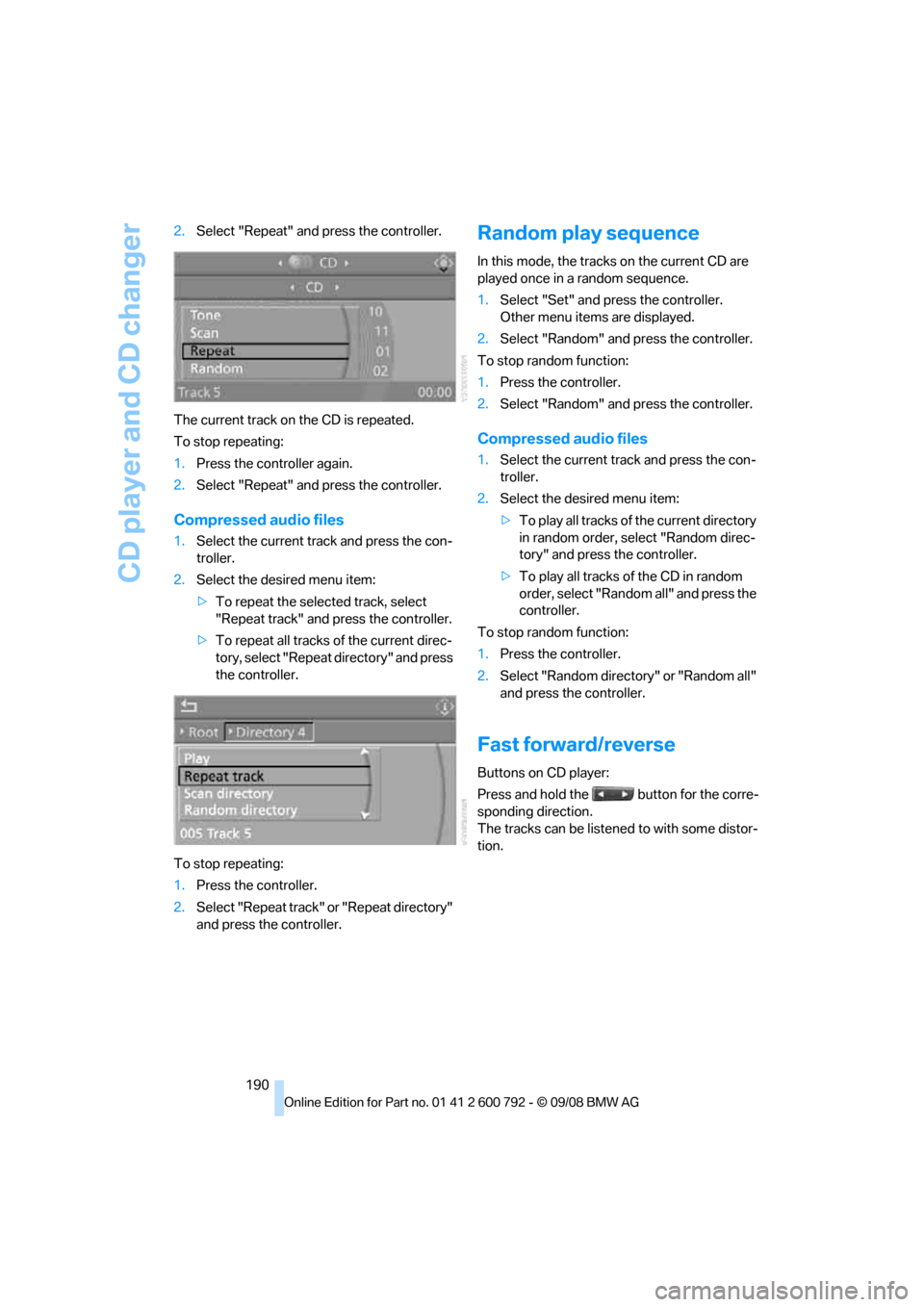
Select "Repeat" and press the controller.
The current track on the CD is repeated.
To stop repeating:
1. Press the controller again.
2. Select "Repeat" and press the controller.
Compressed audio files
1.Select the current track and press the con-
troller.
2. Select the desired menu item:
>To repeat the selected track, select
"Repeat track" and press the controller.
> To repeat all tracks of the current direc-
tory, select "Repeat directory" and press
the controller.
To stop repeating:
1. Press the controller.
2. Select "Repeat track" or "Repeat directory"
and press the controller.
Random play sequence
In this mode, the tracks on the current CD are
played once in a random sequence.
1.Select "Set" and press the controller.
Other menu items are displayed.
2. Select "Random" and press the controller.
To stop random function:
1. Press the controller.
2. Select "Random" and press the controller.
Compressed audio files
1.Select the current track and press the con-
troller.
2. Select the desired menu item:
>To play all tracks of the current directory
in random order, select "Random direc-
tory" and press the controller.
> To play all tracks of the CD in random
order, select "Random all" and press the
controller.
To stop random function:
1. Press the controller.
2. Select "Random directory" or "Random all"
and press the controller.
Fast forward/reverse
Buttons on CD player:
Press and hold the button for the corre-
sponding direction.
The tracks can be listene d to with some distor-
tion.
Page 193 of 317
Navigation
Entertainment
Driving tips
191Reference
At a glance
Controls
Communications
Mobility
CD changer
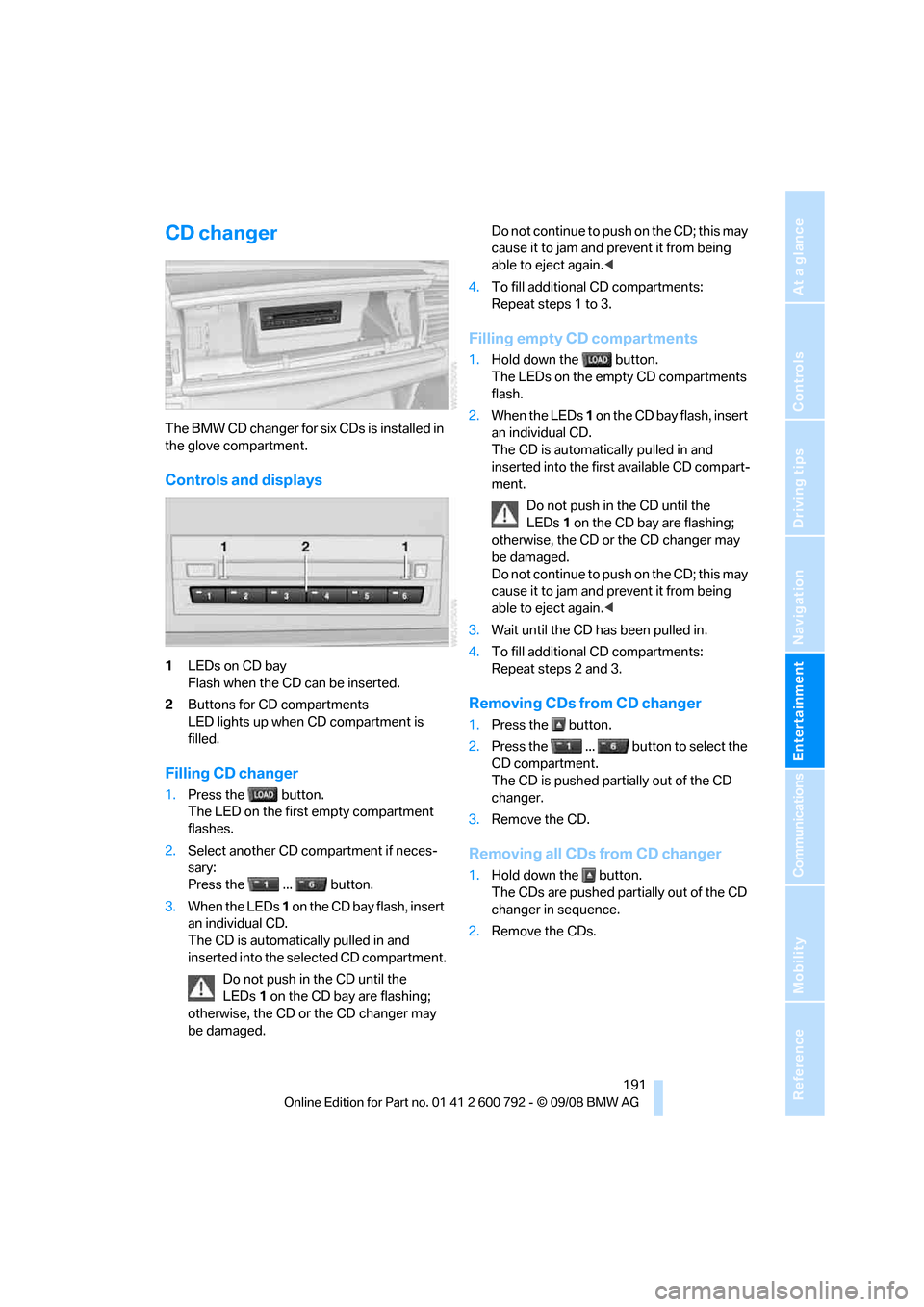
The BMW CD changer for six CDs is installed in
the glove compartment.
Controls and displays
1LEDs on CD bay
Flash when the CD can be inserted.
2 Buttons for CD compartments
LED lights up when CD compartment is
filled.
Filling CD changer
1.Press the button.
The LED on the first empty compartment
flashes.
2. Select another CD compartment if neces-
sary:
Press the ... button.
3. When the LEDs 1 o n t h e C D b a y f l a s h , i n s e r t
an individual CD.
The CD is automatica lly pulled in and
inserted into the selected CD compartment.
Do not push in the CD until the
LEDs 1 on the CD bay are flashing;
otherwise, the CD or the CD changer may
be damaged. Do not continue to push on the CD; this may
cause it to jam and prevent it from being
able to eject again.
<
4. To fill additional CD compartments:
Repeat steps 1 to 3.
Filling empty CD compartments
1.Hold down the button.
The LEDs on the empty CD compartments
flash.
2. When the LEDs 1 o n t h e C D b a y f l a s h , i n s e r t
an individual CD.
The CD is automati cally pulled in and
inserted into the first available CD compart-
ment.
Do not push in the CD until the
LEDs 1 on the CD bay are flashing;
otherwise, the CD or the CD changer may
be damaged.
Do not continue to push on the CD; this may
cause it to jam and prevent it from being
able to eject again. <
3. Wait until the CD has been pulled in.
4. To fill additional CD compartments:
Repeat steps 2 and 3.
Removing CDs from CD changer
1.Press the button.
2. Press the ... button to select the
CD compartment.
The CD is pushed partially out of the CD
changer.
3. Remove the CD.
Removing all CDs from CD changer
1.Hold down the button.
The CDs are pushed partially out of the CD
changer in sequence.
2. Remove the CDs.
Page 195 of 317
Navigation
Entertainment
Driving tips
193Reference
At a glance
Controls
Communications
Mobility
DVD changer
Installation position
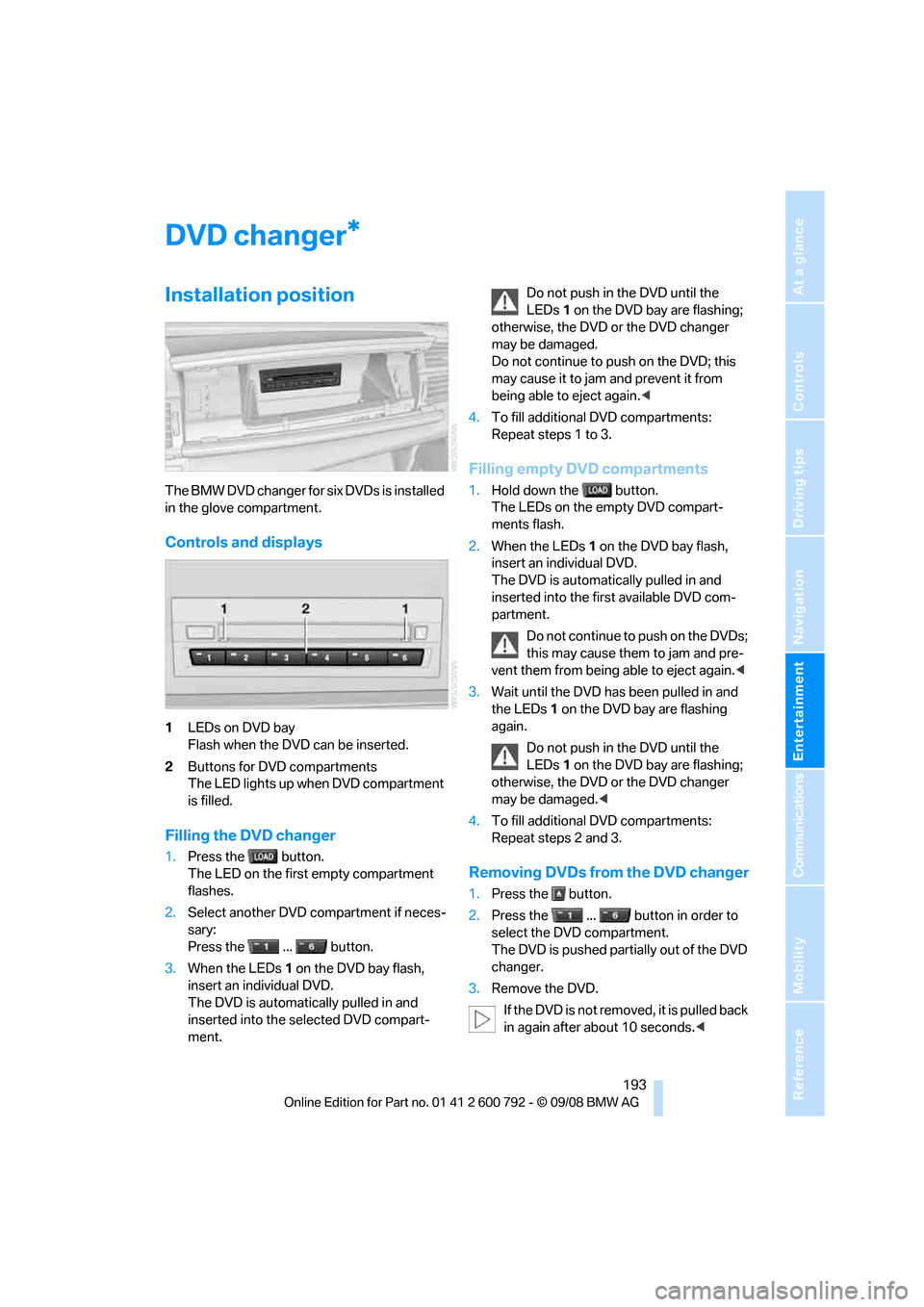
The BMW DVD changer for six DVDs is installed
in the glove compartment.
Controls and displays
1LEDs on DVD bay
Flash when the DVD can be inserted.
2 Buttons for DVD compartments
The LED lights up when DVD compartment
is filled.
Filling the DVD changer
1.Press the button.
The LED on the first empty compartment
flashes.
2. Select another DVD compartment if neces-
sary:
Press the ... button.
3. When the LEDs 1 on the DVD bay flash,
insert an individual DVD.
The DVD is automatically pulled in and
inserted into the selected DVD compart-
ment. Do not push in the DVD until the
LEDs
1 on the DVD bay are flashing;
otherwise, the DVD or the DVD changer
may be damaged.
Do not continue to push on the DVD; this
may cause it to jam and prevent it from
being able to eject again. <
4. To fill additional DVD compartments:
Repeat steps 1 to 3.
Filling empty DVD compartments
1.Hold down the button.
The LEDs on the empty DVD compart-
ments flash.
2. When the LEDs 1 on the DVD bay flash,
insert an individual DVD.
The DVD is automatically pulled in and
inserted into the first available DVD com-
partment.
Do not continue to push on the DVDs;
this may cause them to jam and pre-
vent them from being able to eject again. <
3. Wait until the DVD has been pulled in and
the LEDs 1 on the DVD bay are flashing
again.
Do not push in the DVD until the
LEDs 1 on the DVD bay are flashing;
otherwise, the DVD or the DVD changer
may be damaged. <
4. To fill additional DVD compartments:
Repeat steps 2 and 3.
Removing DVDs from the DVD changer
1.Press the button.
2. Press the ... button in order to
select the DVD compartment.
The DVD is pushed partially out of the DVD
changer.
3. Remove the DVD.
If the DVD is not removed, it is pulled back
in again after about 10 seconds. <
*
Page 197 of 317
Navigation
Entertainment
Driving tips
195Reference
At a glance
Controls
Communications
Mobility
ward and reverse, or freeze frame.
A DVD can briefly deactivate functions of the
DVD control, under certain circumstances even
while the entire DVD is being played. It is not
possible to operate the DVD control under
these circumstances. In this case, try to make
the selection using the DVD-specific menu.
During playback:
1. Press the controller.
2. Select "DVD control bar" if needed and
press the controller.
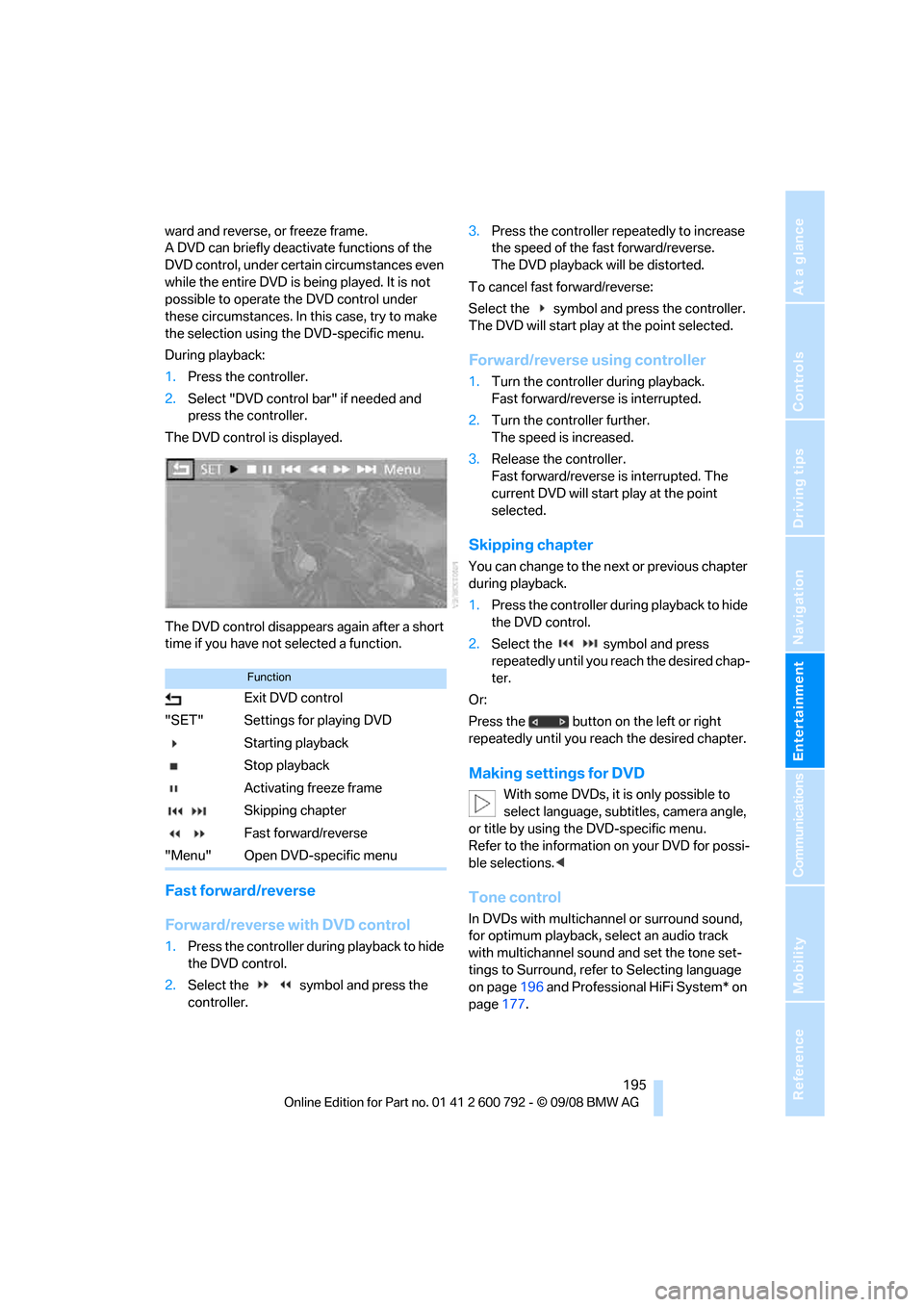
The DVD control is displayed.
The DVD control disappears again after a short
time if you have not selected a function.
Fast forward/reverse
Forward/reverse with DVD control
1.Press the controller during playback to hide
the DVD control.
2. Select the symbol and press the
controller. 3.
Press the controller repe atedly to increase
the speed of the fast forward/reverse.
The DVD playback will be distorted.
To cancel fast forward/reverse:
Select the symbol and press the controller.
The DVD will start play at the point selected.
Forward/reverse using controller
1. Turn the controller during playback.
Fast forward/reverse is interrupted.
2. Turn the controller further.
The speed is increased.
3. Release the controller.
Fast forward/reverse is interrupted. The
current DVD will start play at the point
selected.
Skipping chapter
You can change to the ne xt or previous chapter
during playback.
1. Press the controller during playback to hide
the DVD control.
2. Select the symbol and press
repeatedly until you reach the desired chap-
ter.
Or:
Press the button on the left or right
repeatedly until you reach the desired chapter.
Making settings for DVD
With some DVDs, it is only possible to
select language, subtit les, camera angle,
or title by using the DVD-specific menu.
Refer to the information on your DVD for possi-
ble selections. <
Tone control
In DVDs with multichanne l or surround sound,
for optimum playback, select an audio track
with multichannel sound and set the tone set-
tings to Surround, refer to Selecting language
on page 196 and Professional HiFi System* on
page 177.
Function
Exit DVD control
"SET" Settings for playing DVD
Starting playback
Stop playback
Activating freeze frame
Skipping chapter
Fast forward/reverse
"Menu" Open DVD-specific menu
Page 205 of 317
Navigation
Entertainment
Driving tips
203Reference
At a glance
Controls
Communications
Mobility
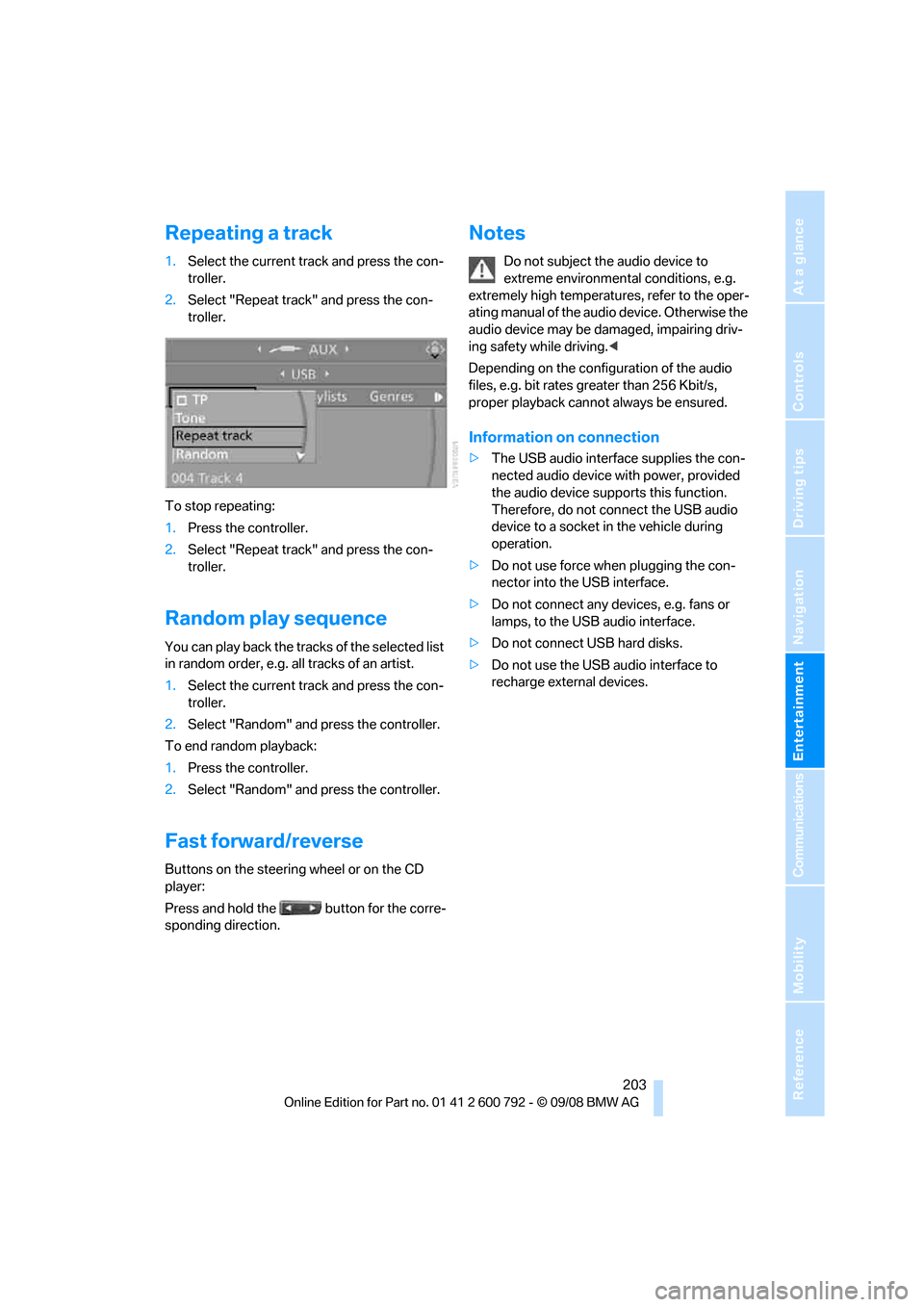
Repeating a track
1.Select the current track and press the con-
troller.
2. Select "Repeat track" and press the con-
troller.
To stop repeating:
1. Press the controller.
2. Select "Repeat track" and press the con-
troller.
Random play sequence
You can play back the trac ks of the selected list
in random order, e.g. a ll tracks of an artist.
1. Select the current track and press the con-
troller.
2. Select "Random" and press the controller.
To end random playback:
1. Press the controller.
2. Select "Random" and press the controller.
Fast forward/reverse
Buttons on the steering wheel or on the CD
player:
Press and hold the button for the corre-
sponding direction.
Notes
Do not subject the audio device to
extreme environmental conditions, e.g.
extremely high temperatures, refer to the oper-
ating manual of the audio device. Otherwise the
audio device may be damaged, impairing driv-
ing safety while driving. <
Depending on the configuration of the audio
files, e.g. bit rates greater than 256 Kbit/s,
proper playback cannot always be ensured.
Information on connection
> The USB audio interface supplies the con-
nected audio device with power, provided
the audio device suppo rts this function.
Therefore, do not connect the USB audio
device to a socket in the vehicle during
operation.
> Do not use force when plugging the con-
nector into the USB interface.
> Do not connect any devices, e.g. fans or
lamps, to the USB audio interface.
> Do not connect USB hard disks.
> Do not use the USB audio interface to
recharge external devices.
Page 210 of 317
DVD system in rear
208
3.
Press the button.
4. Press the button several times to
increase the fast forward/reverse speed.
The DVD playback will be distorted.
To cancel fast forward/reverse:
1. Select the symbol.
2. Press the button.
Or:
Press the button on the CD/DVD player.
The DVD will start play at the point selected.
Forward/reverse with remote control
Press and hold the button until you reach
the desired point.
Or:
1. During playback, turn the serrated dial.
Fast forward/reverse is interrupted.
2. Continue to turn the serrated dial.
The speed is increased.
3. Press the button on the CD/DVD player.
Fast forward/reverse is interrupted.
The DVD will start play at the point selected.
Skipping chapter
You can change to the next or previous chapter
during playback.
1. Press the button on the remote con-
trol during playback.
2. Select the symbol.
3. Press the button repeatedly, continuing
until you reach the desired chapter.
Or:
Press the button on the left or right on the
remote control repeated ly until you reach the
desired chapter.
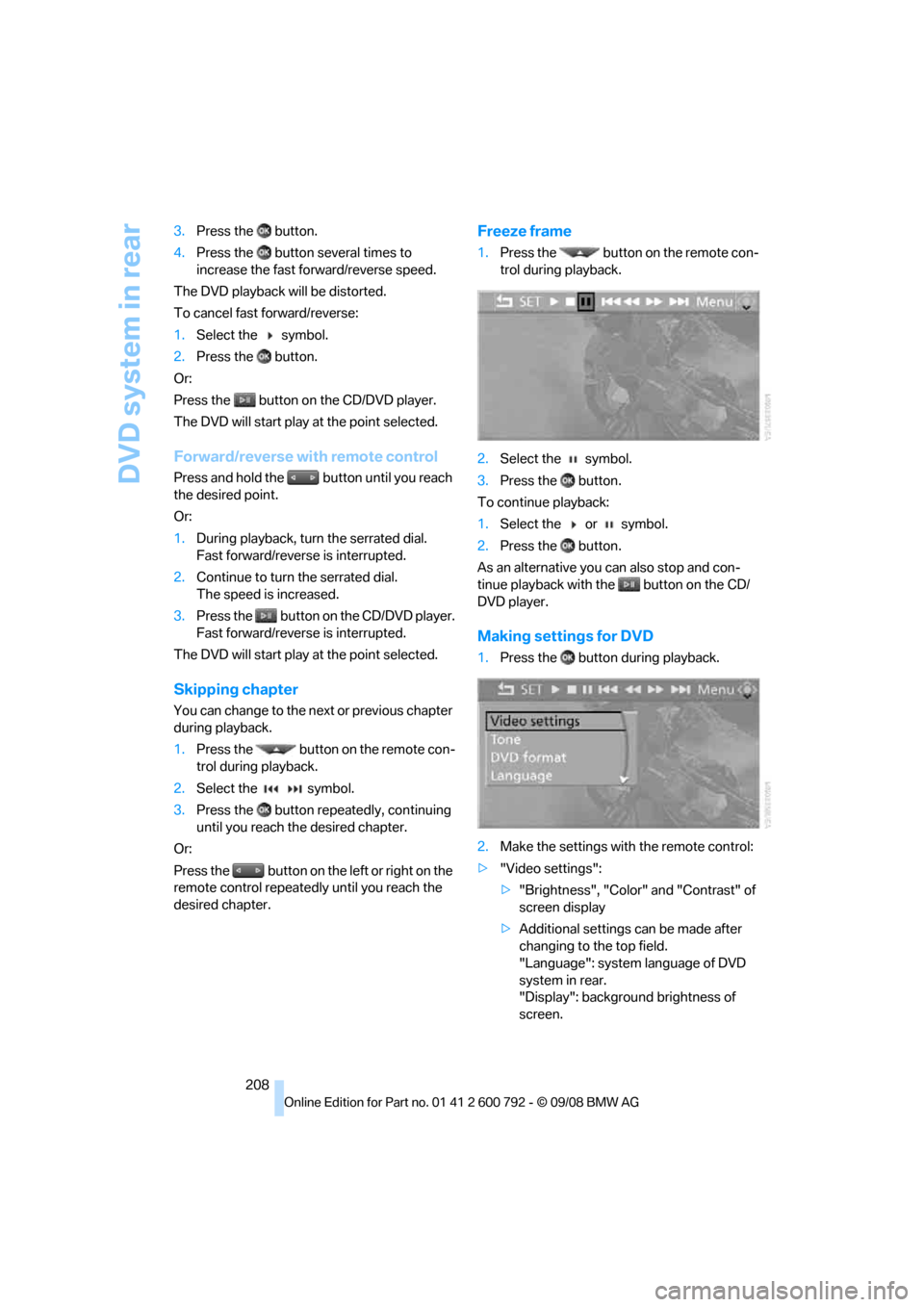
Freeze frame
1. Press the button on the remote con-
trol during playback.
2. Select the symbol.
3. Press the button.
To continue playback:
1. Select the or symbol.
2. Press the button.
As an alternative you can also stop and con-
tinue playback with the button on the CD/
DVD player.
Making settings for DVD
1. Press the button during playback.
2. Make the settings with the remote control:
> "Video settings":
>"Brightness", "Color" and "Contrast" of
screen display
> Additional settings can be made after
changing to the top field.
"Language": system language of DVD
system in rear.
"Display": backgrou nd brightness of
screen.
Page 212 of 317
DVD system in rear
210
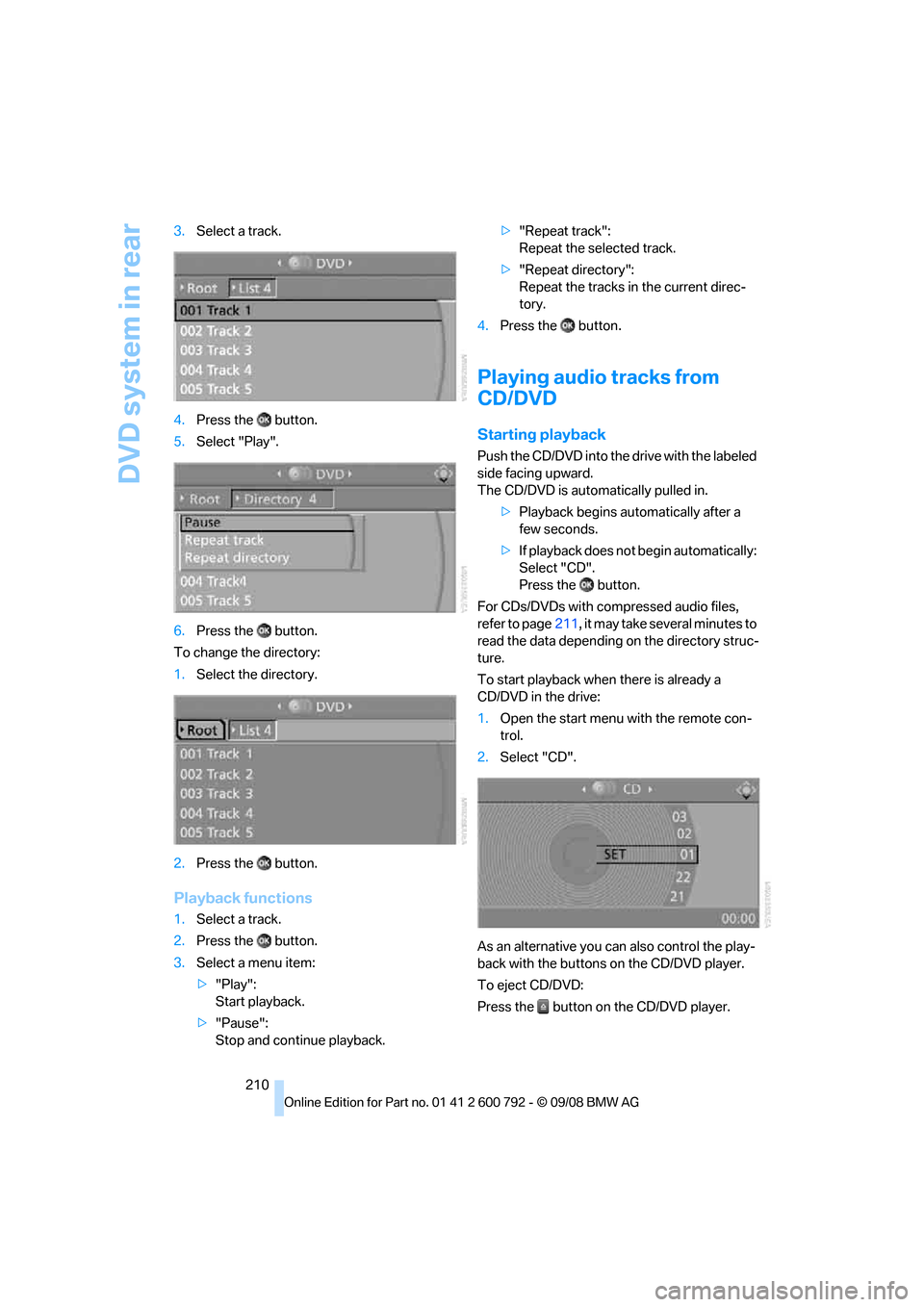
3.
Select a track.
4. Press the button.
5. Select "Play".
6. Press the button.
To change the directory:
1. Select the directory.
2. Press the button.
Playback functions
1.Select a track.
2. Press the button.
3. Select a menu item:
>"Play":
Start playback.
> "Pause":
Stop and continue playback. >
"Repeat track":
Repeat the selected track.
> "Repeat directory":
Repeat the tracks in the current direc-
tory.
4. Press the button.
Playing audio tracks from
CD/DVD
Starting playback
Push the CD/DVD into th e drive with the labeled
side facing upward.
The CD/DVD is auto matically pulled in.
> Playback begins au tomatically after a
few seconds.
> If playback does not begin automatically:
Select "CD".
Press the button.
For CDs/DVDs with compressed audio files,
refer to page 211, it may take several minutes to
read the data depending on the directory struc-
ture.
To start playback when there is already a
CD/DVD in the drive:
1. Open the start menu with the remote con-
trol.
2. Select "CD".
As an alternative you can also control the play-
back with the buttons on the CD/DVD player.
To eject CD/DVD:
Press the button on the CD/DVD player.
Page 213 of 317
Navigation
Entertainment
Driving tips
211Reference
At a glance
Controls
Communications
Mobility
Selecting a track
Buttons on CD/DVD player
Press the button for the corresponding
direction repeatedly until you reach the desired
track.
Playback begins at the start of the track.
Via the remote control
Press the button for the corresponding
direction repeatedly or turn the serrated dial
until you reach the desired track.
Playback begins at the start of the track.
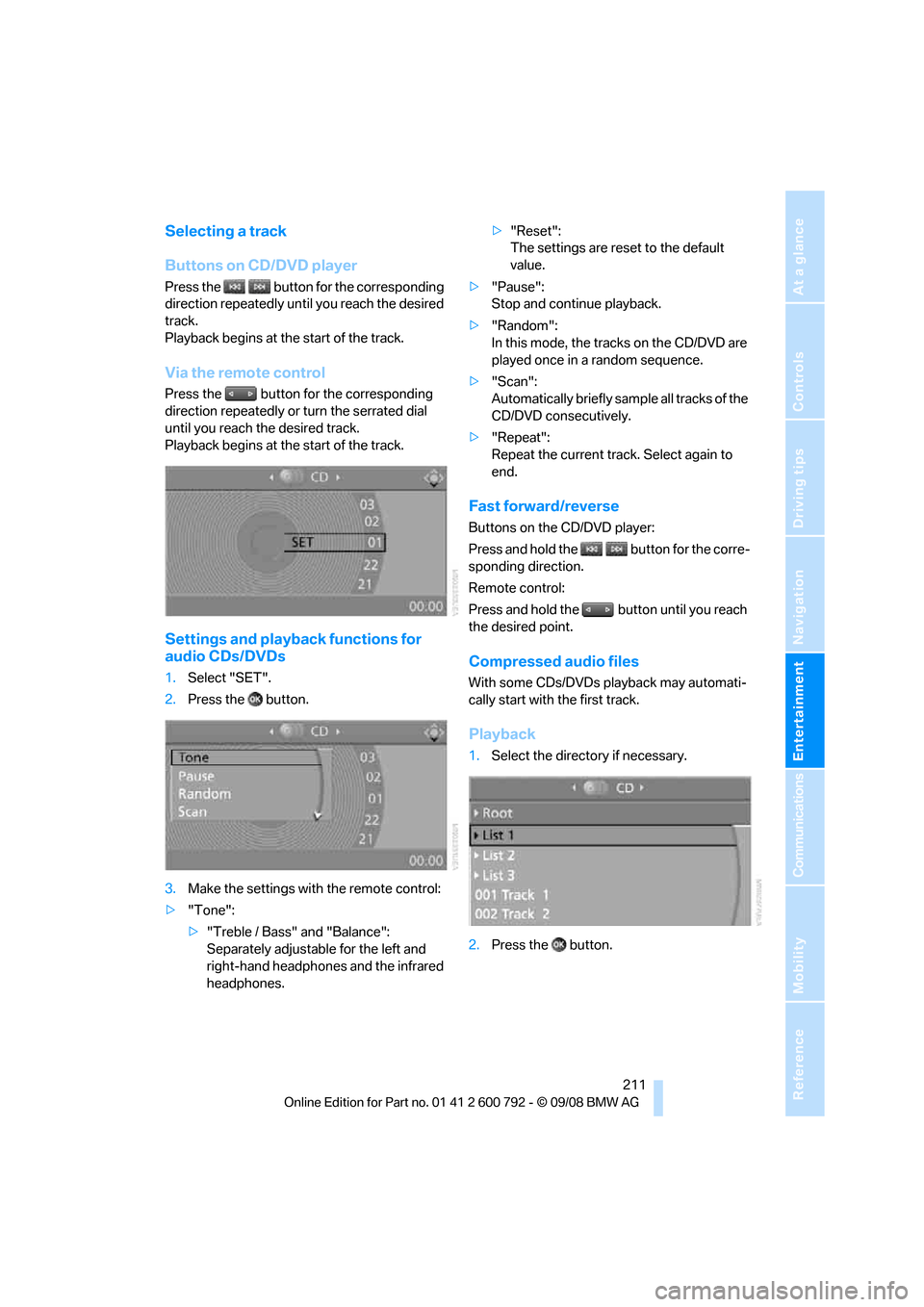
Settings and playback functions for
audio CDs/DVDs
1. Select "SET".
2. Press the button.
3. Make the settings with the remote control:
> "Tone":
>"Treble / Bass" and "Balance":
Separately adjustable for the left and
right-hand headphones and the infrared
headphones. >
"Reset":
The settings are reset to the default
value.
> "Pause":
Stop and continue playback.
> "Random":
In this mode, the trac ks on the CD/DVD are
played once in a random sequence.
> "Scan":
Automatically briefly samp le all tracks of the
CD/DVD consecutively.
> "Repeat":
Repeat the current track. Select again to
end.
Fast forward/reverse
Buttons on the CD/DVD player:
Press and hold the button for the corre-
sponding direction.
Remote control:
Press and hold the button until you reach
the desired point.
Compressed audio files
With some CDs/DVDs playback may automati-
cally start with the first track.
Playback
1.Select the direct ory if necessary.
2. Press the button.
Page 214 of 317
DVD system in rear
212
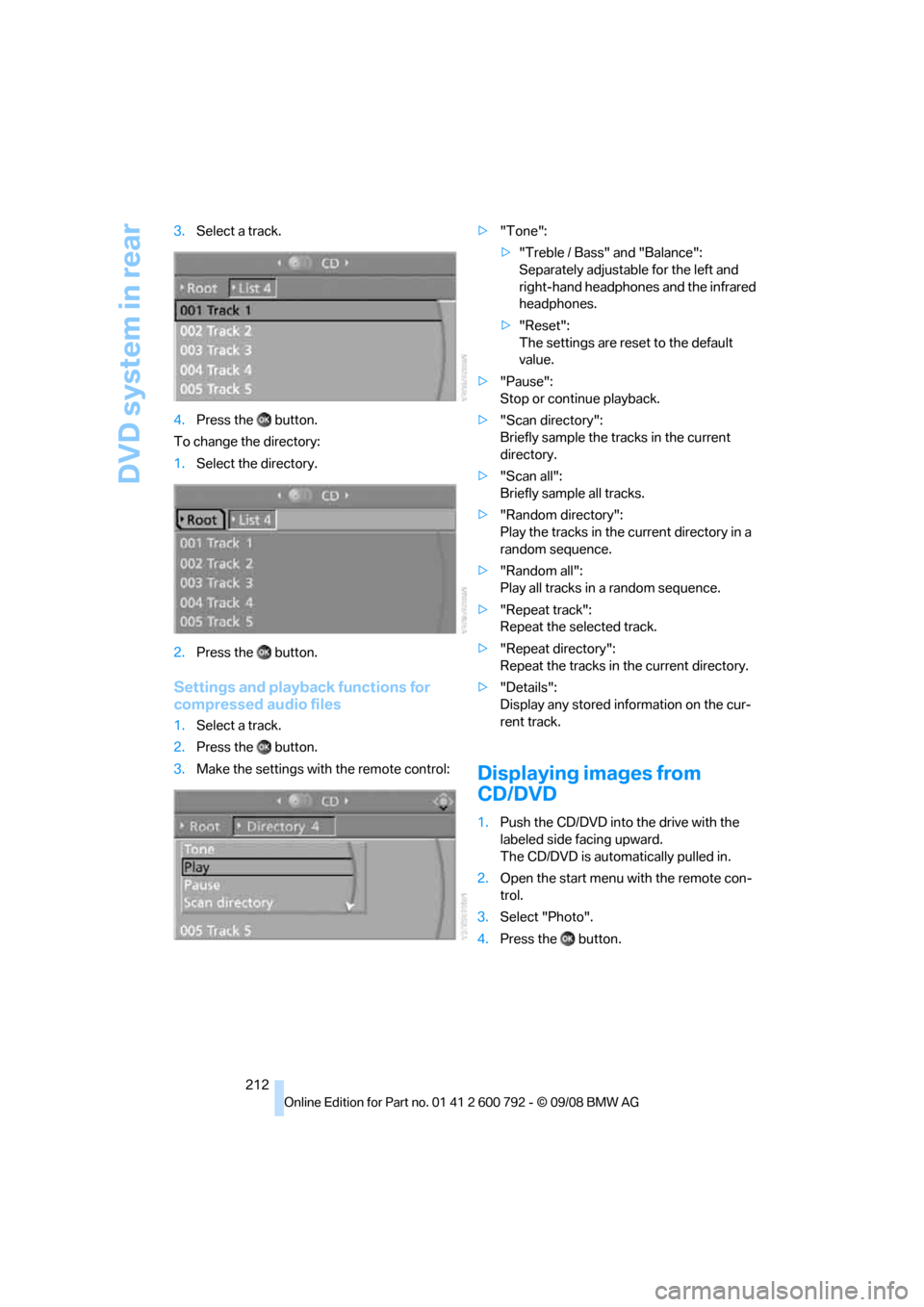
3.
Select a track.
4. Press the button.
To change the directory:
1. Select the directory.
2. Press the button.
Settings and playback functions for
compressed audio files
1.Select a track.
2. Press the button.
3. Make the settings with the remote control: >
"Tone":
>"Treble / Bass" and "Balance":
Separately adjustable for the left and
right-hand headphones and the infrared
headphones.
> "Reset":
The settings are reset to the default
value.
> "Pause":
Stop or continue playback.
> "Scan directory":
Briefly sample the tracks in the current
directory.
> "Scan all":
Briefly sample all tracks.
> "Random directory":
Play the tracks in the current directory in a
random sequence.
> "Random all":
Play all tracks in a random sequence.
> "Repeat track":
Repeat the selected track.
> "Repeat directory":
Repeat the tracks in the current directory.
> "Details":
Display any stored information on the cur-
rent track.
Displaying images from
CD/DVD
1.Push the CD/DVD into the drive with the
labeled side facing upward.
The CD/DVD is auto matically pulled in.
2. Open the start menu with the remote con-
trol.
3. Select "Photo".
4. Press the button.