Drive BMW X6 2013 E71 Owners Manual
[x] Cancel search | Manufacturer: BMW, Model Year: 2013, Model line: X6, Model: BMW X6 2013 E71Pages: 345, PDF Size: 9.45 MB
Page 213 of 345
Connectors for external devices▷Connection via USB audio interface: Apple
iPod/iPhone, USB devices, e.g., MP3 play‐
ers, USB flash drives, or mobile phones
that are supported by the USB audio inter‐
face.▷Connection via snap-in adapter, refer to
page 247, when equipped with the music
interface for smartphones: Apple iPhone or
mobile phones.
Playback is only possible if no audio device
is connected to the analog AUX-IN port.
Due to the large number of different audio de‐
vices available on the market, it cannot be en‐
sured that every audio device/mobile phone is
operable on the vehicle.
Ask your service center about suitable audio
devices/mobile phones.
Audio files
Standard audio files can be played back:
▷MP3.▷WMA.▷WAV (PCM).▷AAC, M4A.▷Playback lists: M3U, WPL, PLS.
File system
Standard file systems for USB devices are
supported. The FAT 32 format is recom‐
mended.
Connecting
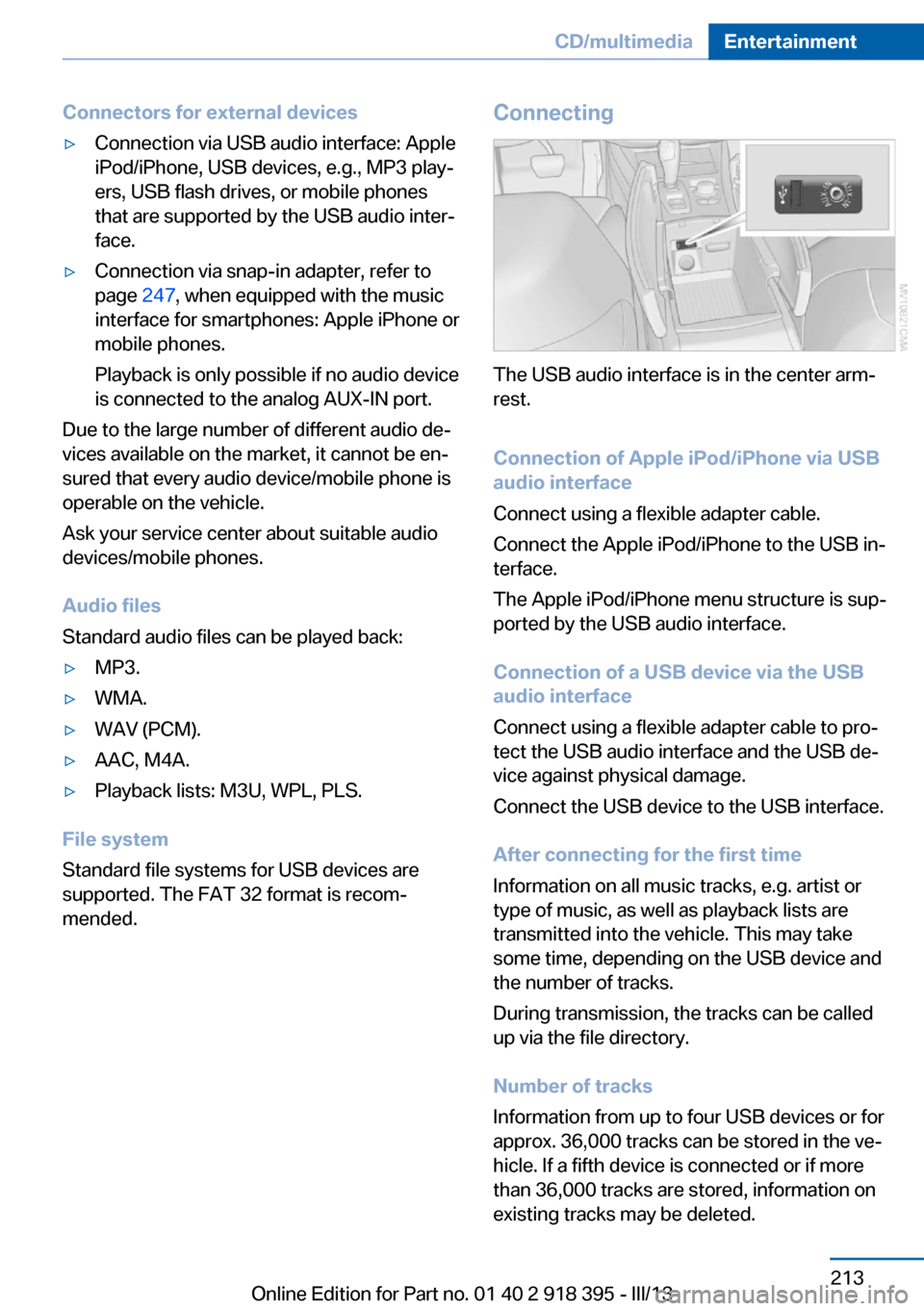
The USB audio interface is in the center arm‐
rest.
Connection of Apple iPod/iPhone via USB
audio interface
Connect using a flexible adapter cable.
Connect the Apple iPod/iPhone to the USB in‐
terface.
The Apple iPod/iPhone menu structure is sup‐
ported by the USB audio interface.
Connection of a USB device via the USB
audio interface
Connect using a flexible adapter cable to pro‐
tect the USB audio interface and the USB de‐
vice against physical damage.
Connect the USB device to the USB interface.
After connecting for the first time
Information on all music tracks, e.g. artist or
type of music, as well as playback lists are
transmitted into the vehicle. This may take
some time, depending on the USB device and
the number of tracks.
During transmission, the tracks can be called
up via the file directory.
Number of tracks
Information from up to four USB devices or for
approx. 36,000 tracks can be stored in the ve‐
hicle. If a fifth device is connected or if more
than 36,000 tracks are stored, information on
existing tracks may be deleted.
Seite 213CD/multimediaEntertainment213
Online Edition for Part no. 01 40 2 918 395 - III/13
Page 215 of 345
Random playbackThe current list of tracks is played back in ran‐dom order.1."CD/Multimedia"2."External devices"3.Open "Options".4."Random"
Fast forward/reverse
Press and hold the button.
Notes Do not expose the audio device to extreme en‐
vironmental conditions, such as very high tem‐
peratures; refer to the audio device operating
instructions.
Depending on the configuration of the audio
files, e.g., bit rates greater than 256 kbit/s, the
files may not play back correctly in each case.
Information on connection
▷The connected audio device is supplied
with a max. power of 500 mA if supported
by the device. Therefore, do not addition‐
ally connect the device to a socket in the
vehicle; otherwise, playback may be com‐
promised.▷Do not use force when plugging the con‐
nector into the USB interface.▷Do not connect devices such as fans or
lamps to the USB audio interface.▷Do not connect USB hard drives.▷Do not use the USB audio interface to re‐
charge external devices.
Bluetooth audio
At a glance
▷Music files on external devices such as au‐
dio devices or mobile phones can be
played back via Bluetooth.Use of a mobile phone as an audio source,
refer to page 238.▷Bluetooth® is a registered trademark of
Bluetooth® SIG, Inc.▷The sound is output on the vehicle loud‐
speakers.▷The volume of the sound output is de‐
pendent on the device. If necessary, adjust
the volume on the device.▷Up to four external devices can be paired
with the vehicle.
Requirements
▷The device is suitable. Information at
www.bmwusa.com/bluetooth.▷The device is ready for operation.▷The ignition is switched on.▷Bluetooth is activated on the vehicle, refer
to page 237, and on the device.▷Bluetooth presettings must be made on
the device, such as for a connection with‐
out confirmation or visibility; refer to the
device operating instructions.▷A number with at least four and a maximum
of 16 digits is defined as the Bluetooth
passkey. It is only required once for pairing.
Pairing and connecting
Pairing a device
To avoid becoming distracted and pos‐
ing an unnecessary hazard both to your own
vehicle's occupants and to other road users,
only pair the device while the vehicle is station‐
ary.◀
1."CD/Multimedia"2."Bluetooth® (audio)"3.If necessary, "Bluetooth® audio".4."Add new phone"Seite 215CD/multimediaEntertainment215
Online Edition for Part no. 01 40 2 918 395 - III/13
Page 216 of 345
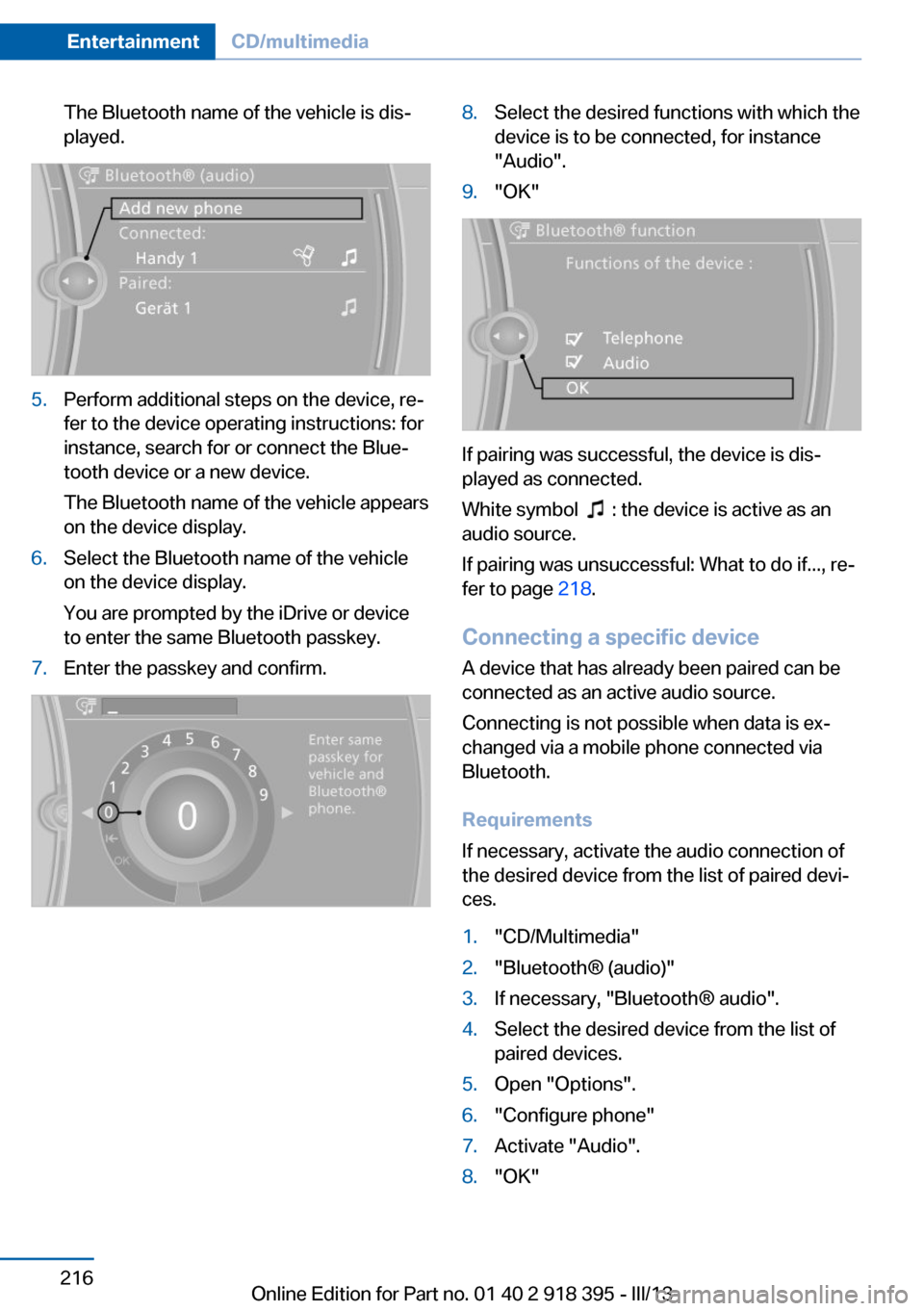
The Bluetooth name of the vehicle is dis‐
played.5.Perform additional steps on the device, re‐
fer to the device operating instructions: for
instance, search for or connect the Blue‐
tooth device or a new device.
The Bluetooth name of the vehicle appears
on the device display.6.Select the Bluetooth name of the vehicle
on the device display.
You are prompted by the iDrive or device
to enter the same Bluetooth passkey.7.Enter the passkey and confirm.8.Select the desired functions with which the
device is to be connected, for instance
"Audio".9."OK"
If pairing was successful, the device is dis‐
played as connected.
White symbol
: the device is active as an
audio source.
If pairing was unsuccessful: What to do if..., re‐
fer to page 218.
Connecting a specific device A device that has already been paired can be
connected as an active audio source.
Connecting is not possible when data is ex‐
changed via a mobile phone connected via
Bluetooth.
Requirements
If necessary, activate the audio connection of
the desired device from the list of paired devi‐
ces.
1."CD/Multimedia"2."Bluetooth® (audio)"3.If necessary, "Bluetooth® audio".4.Select the desired device from the list of
paired devices.5.Open "Options".6."Configure phone"7.Activate "Audio".8."OK"Seite 216EntertainmentCD/multimedia216
Online Edition for Part no. 01 40 2 918 395 - III/13
Page 217 of 345
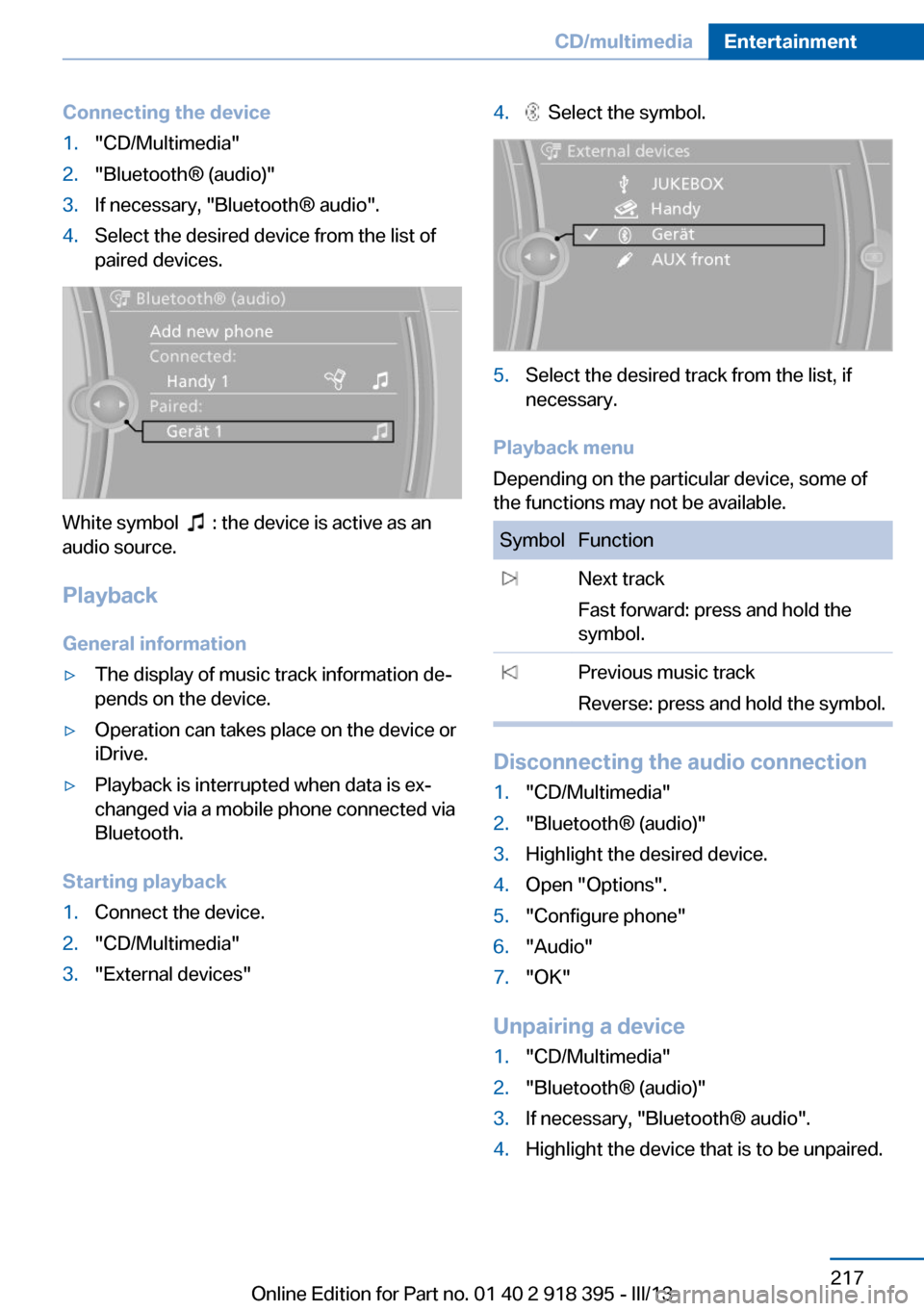
Connecting the device1."CD/Multimedia"2."Bluetooth® (audio)"3.If necessary, "Bluetooth® audio".4.Select the desired device from the list of
paired devices.
White symbol : the device is active as an
audio source.
Playback General information
▷The display of music track information de‐
pends on the device.▷Operation can takes place on the device or
iDrive.▷Playback is interrupted when data is ex‐
changed via a mobile phone connected via
Bluetooth.
Starting playback
1.Connect the device.2."CD/Multimedia"3."External devices"4. Select the symbol.5.Select the desired track from the list, if
necessary.
Playback menu
Depending on the particular device, some of
the functions may not be available.
SymbolFunction Next track
Fast forward: press and hold the
symbol. Previous music track
Reverse: press and hold the symbol.
Disconnecting the audio connection
1."CD/Multimedia"2."Bluetooth® (audio)"3.Highlight the desired device.4.Open "Options".5."Configure phone"6."Audio"7."OK"
Unpairing a device
1."CD/Multimedia"2."Bluetooth® (audio)"3.If necessary, "Bluetooth® audio".4.Highlight the device that is to be unpaired.Seite 217CD/multimediaEntertainment217
Online Edition for Part no. 01 40 2 918 395 - III/13
Page 218 of 345
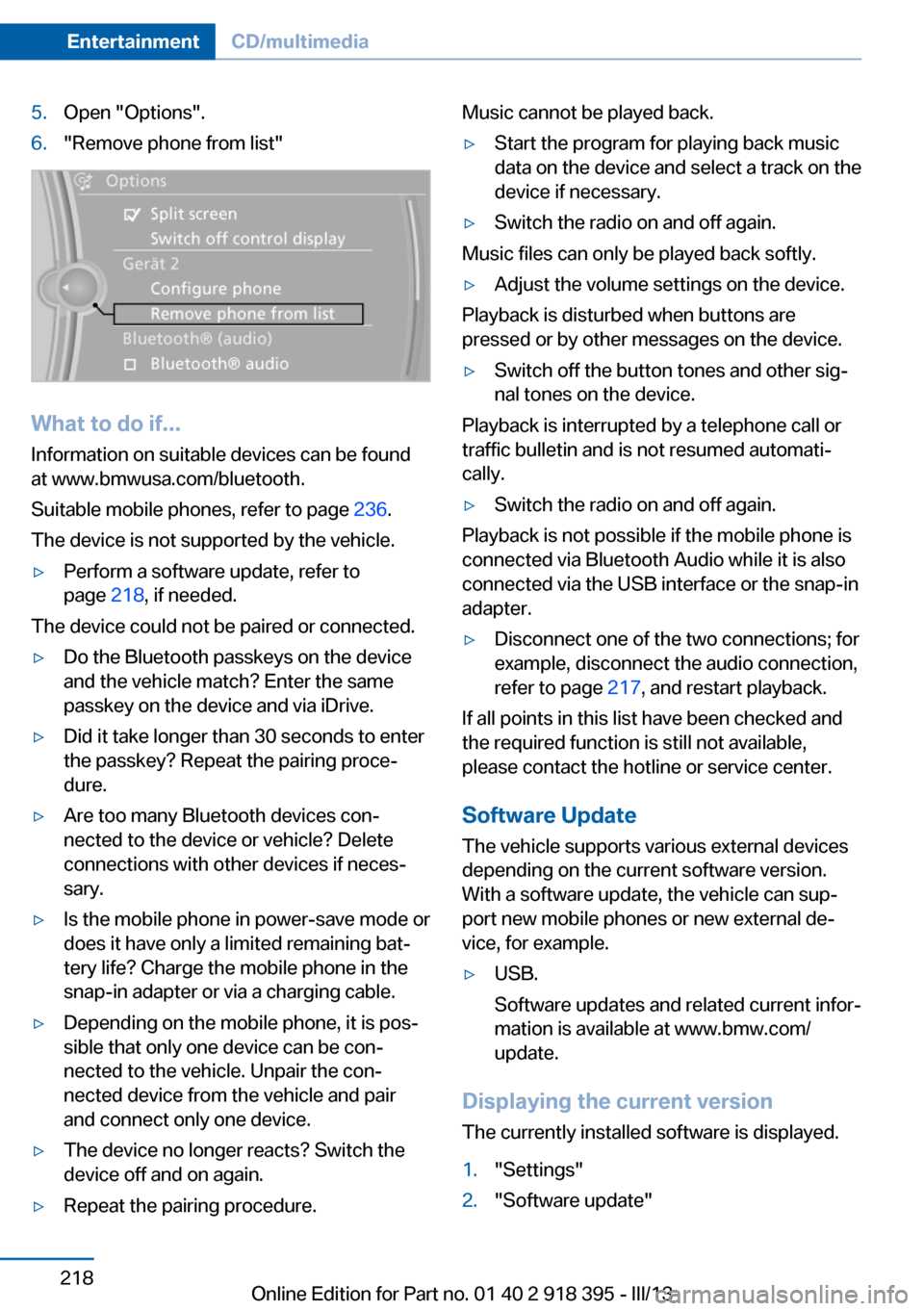
5.Open "Options".6."Remove phone from list"
What to do if...
Information on suitable devices can be found
at www.bmwusa.com/bluetooth.
Suitable mobile phones, refer to page 236.
The device is not supported by the vehicle.
▷Perform a software update, refer to
page 218, if needed.
The device could not be paired or connected.
▷Do the Bluetooth passkeys on the device
and the vehicle match? Enter the same
passkey on the device and via iDrive.▷Did it take longer than 30 seconds to enter
the passkey? Repeat the pairing proce‐
dure.▷Are too many Bluetooth devices con‐
nected to the device or vehicle? Delete
connections with other devices if neces‐
sary.▷Is the mobile phone in power-save mode or
does it have only a limited remaining bat‐
tery life? Charge the mobile phone in the
snap-in adapter or via a charging cable.▷Depending on the mobile phone, it is pos‐
sible that only one device can be con‐
nected to the vehicle. Unpair the con‐
nected device from the vehicle and pair
and connect only one device.▷The device no longer reacts? Switch the
device off and on again.▷Repeat the pairing procedure.Music cannot be played back.▷Start the program for playing back music
data on the device and select a track on the
device if necessary.▷Switch the radio on and off again.
Music files can only be played back softly.
▷Adjust the volume settings on the device.
Playback is disturbed when buttons are
pressed or by other messages on the device.
▷Switch off the button tones and other sig‐
nal tones on the device.
Playback is interrupted by a telephone call or
traffic bulletin and is not resumed automati‐
cally.
▷Switch the radio on and off again.
Playback is not possible if the mobile phone is
connected via Bluetooth Audio while it is also
connected via the USB interface or the snap-in
adapter.
▷Disconnect one of the two connections; for
example, disconnect the audio connection,
refer to page 217, and restart playback.
If all points in this list have been checked and
the required function is still not available,
please contact the hotline or service center.
Software Update
The vehicle supports various external devices
depending on the current software version.
With a software update, the vehicle can sup‐
port new mobile phones or new external de‐
vice, for example.
▷USB.
Software updates and related current infor‐
mation is available at www.bmw.com/
update.
Displaying the current version
The currently installed software is displayed.
1."Settings"2."Software update"Seite 218EntertainmentCD/multimedia218
Online Edition for Part no. 01 40 2 918 395 - III/13
Page 219 of 345
3."Show current version"
Select desired version to display additional in‐
formation.
Updating software via USB The software may only be updated when the
vehicle is stationary.
1.Store the file for the software-update in the
main director of a USB flash drive.2.Insert the USB flash drive into the USB au‐
dio interface in the center armrest. An up‐
date via the USB interface in the glove
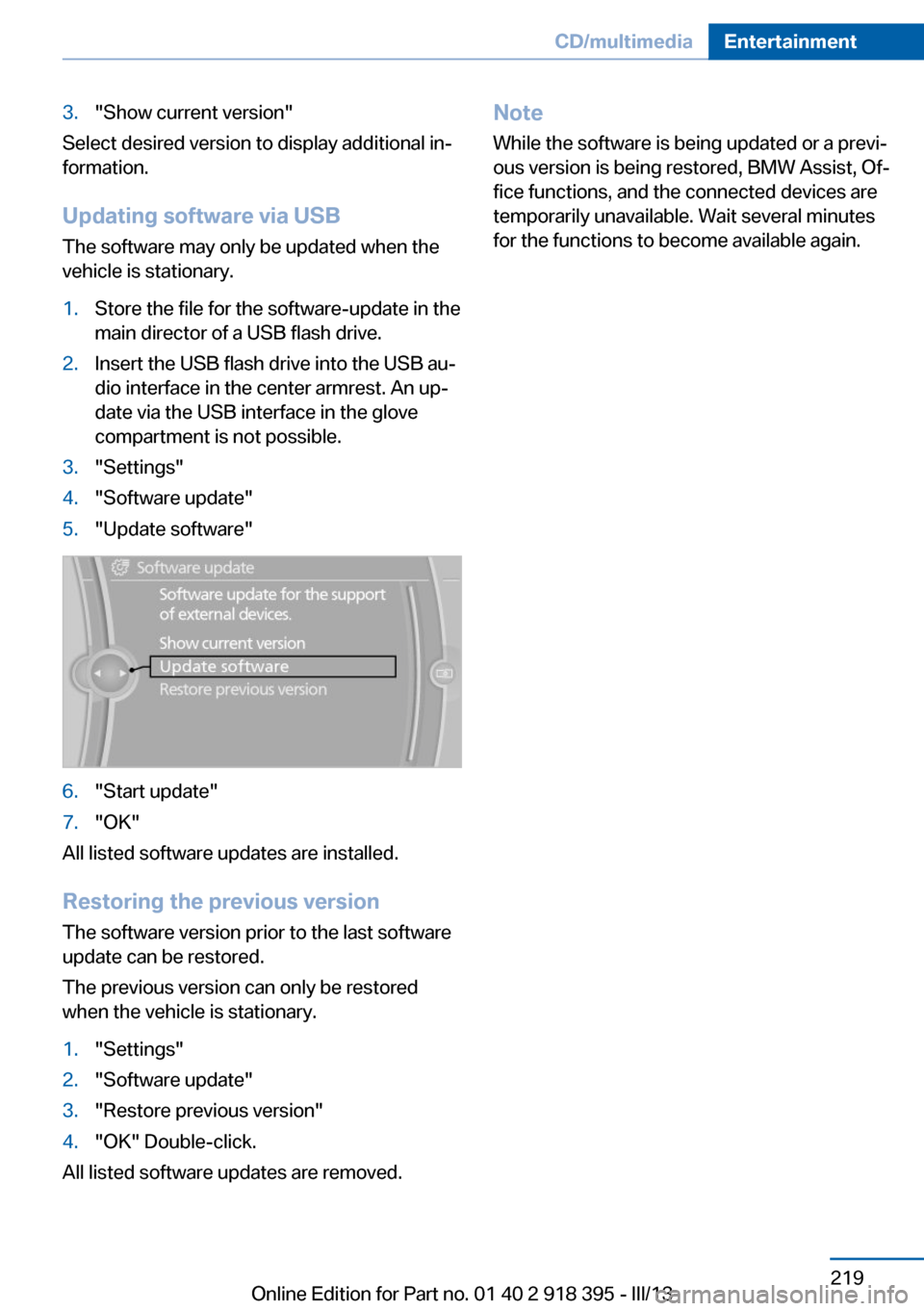
compartment is not possible.3."Settings"4."Software update"5."Update software"6."Start update"7."OK"
All listed software updates are installed.
Restoring the previous version
The software version prior to the last software
update can be restored.
The previous version can only be restored
when the vehicle is stationary.
1."Settings"2."Software update"3."Restore previous version"4."OK" Double-click.
All listed software updates are removed.
Note
While the software is being updated or a previ‐
ous version is being restored, BMW Assist, Of‐
fice functions, and the connected devices are
temporarily unavailable. Wait several minutes
for the functions to become available again.Seite 219CD/multimediaEntertainment219
Online Edition for Part no. 01 40 2 918 395 - III/13
Page 220 of 345
DVD system in rearVehicle equipmentThis chapter describes all series equipment as
well as country-specific and special equipment
offered for this model series.Therefore, it also
describes equipment that may not be found in
your vehicle, for instance due to the selected
special equipment or the country version. This
also applies to safety-related functions and
systems.
General information
With the DVD system in the rear you can play
CDs and DVDs with audio, video and image
data. The DVD system can also play data from
attached external audio and video devices. Au‐
dio output is possible both via headphones
and via the vehicle speakers.
You can control the DVD system using the but‐
tons on the CD-/DVD player or using the re‐
mote control.
Some functions are operated using the remote
control.
Enabling DVD system
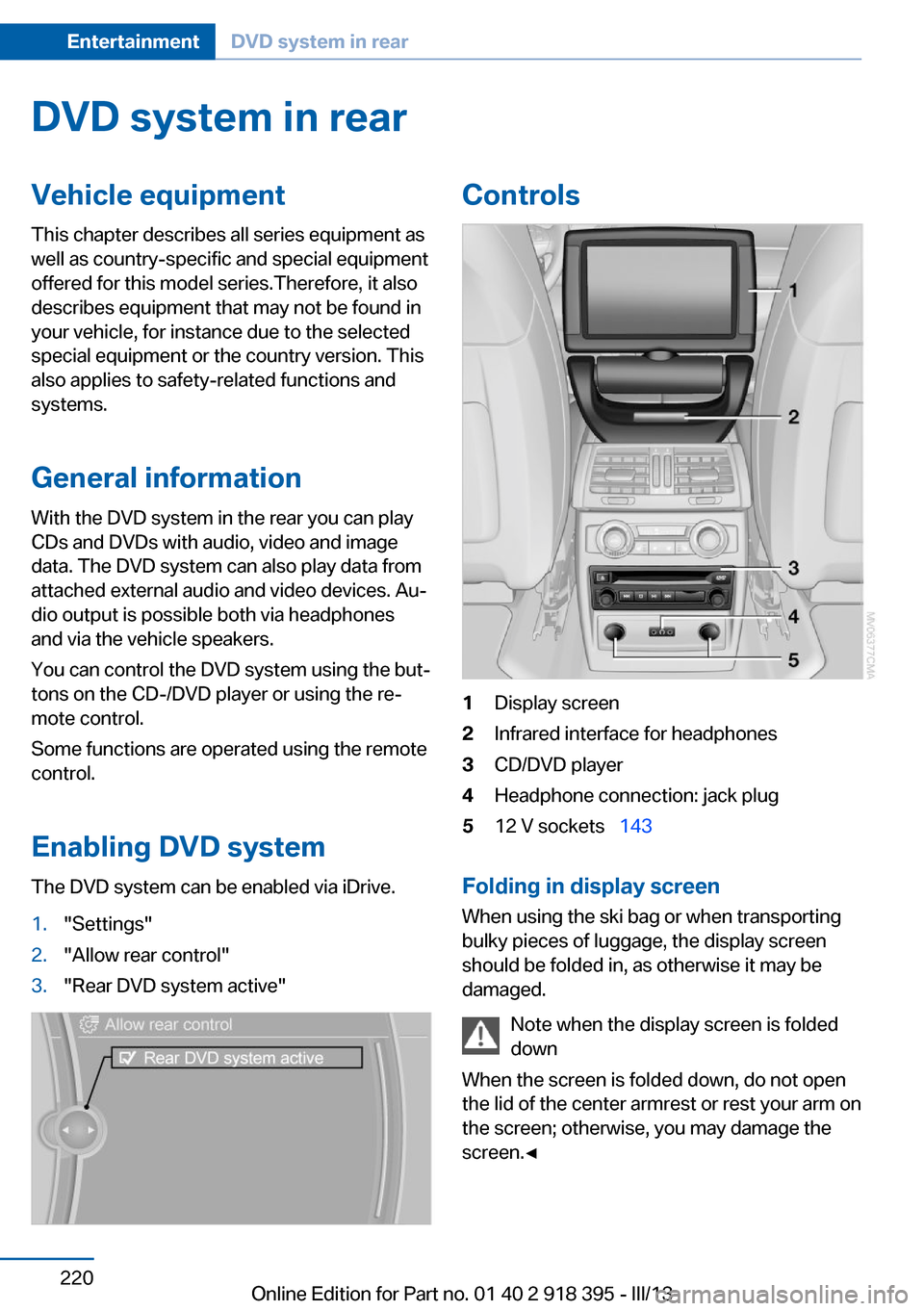
The DVD system can be enabled via iDrive.1."Settings"2."Allow rear control"3."Rear DVD system active"Controls1Display screen2Infrared interface for headphones3CD/DVD player4Headphone connection: jack plug512 V sockets 143
Folding in display screen
When using the ski bag or when transporting
bulky pieces of luggage, the display screen
should be folded in, as otherwise it may be
damaged.
Note when the display screen is folded
down
When the screen is folded down, do not open
the lid of the center armrest or rest your arm on
the screen; otherwise, you may damage the
screen.◀
Seite 220EntertainmentDVD system in rear220
Online Edition for Part no. 01 40 2 918 395 - III/13
Page 223 of 345
Playing videos from CDs/
DVDs
Country codes of DVDs
Your DVD player only plays DVDs with the
coding of your home region, e.g., Europe=2.
The country codes supported by your DVD are
contained in the information on your DVD.
An overview of the coding zones:CodeRegion1USA, Canada2Japan, Europe, Middle East, South Af‐
rica3Southeast Asia4Australia, Central and South America,
New Zealand5Northwest Asia, North Africa6China
DVDs with the code 0 can be played on all de‐
vices.
Starting playback
1.Push the CD/DVD into the drive with the la‐
beled side facing upward. The CD/DVD is
automatically pulled in.▷Playback begins automatically after a
few seconds.▷Otherwise: select "DVD".2.If the DVD control or the DVD-specific
menu is displayed when a DVD is inserted,
use the remote control buttons for menu
navigation to select the desired option.
Or:
Press the button on the CD/DVD
player.
You can control the playback with the buttons
on the CD/DVD player or the DVD control.
Video CDs (VCDs) and Super Video CDs
(SVCDs) can only be played if they do not have
a DVD-specific menu.
Eject CD/DVD
Press the button on the CD/DVD player.
The DVD emerges slightly from the drive.
DVD control With the DVD control, you can select the title
and chapter, open the DVD-specific menu, and
operate functions such as Language, Fast for‐
ward and Reverse or Freeze frame.
A DVD can briefly deactivate functions of the
DVD control, under certain circumstances
while the entire DVD is being played. It is not
possible to operate the DVD control under
these circumstances. In this case, try to make
the selection using the DVD-specific menu.
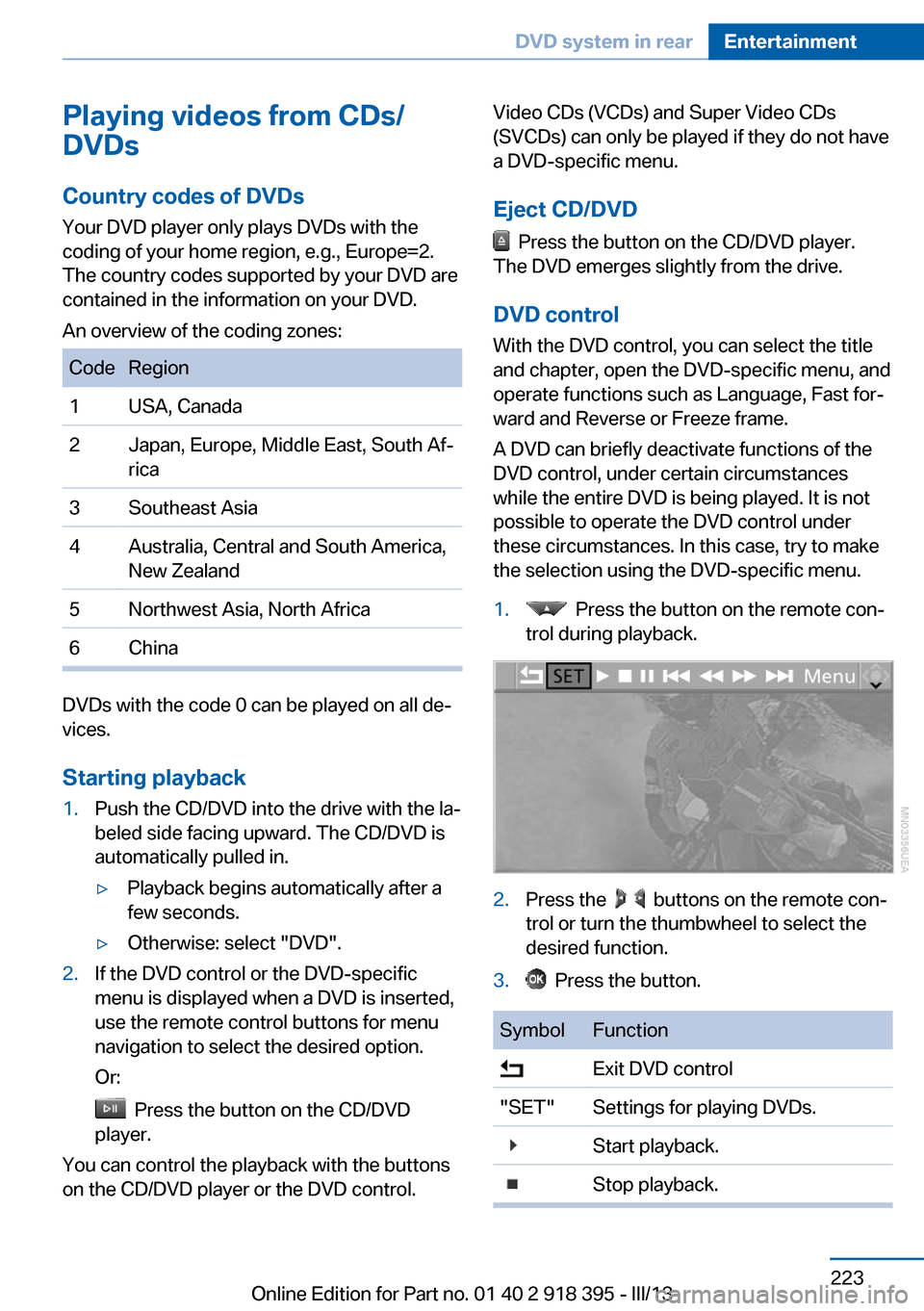
1. Press the button on the remote con‐
trol during playback.2.Press the buttons on the remote con‐
trol or turn the thumbwheel to select the
desired function.3. Press the button.SymbolFunction Exit DVD control"SET"Settings for playing DVDs. Start playback. Stop playback.Seite 223DVD system in rearEntertainment223
Online Edition for Part no. 01 40 2 918 395 - III/13
Page 226 of 345
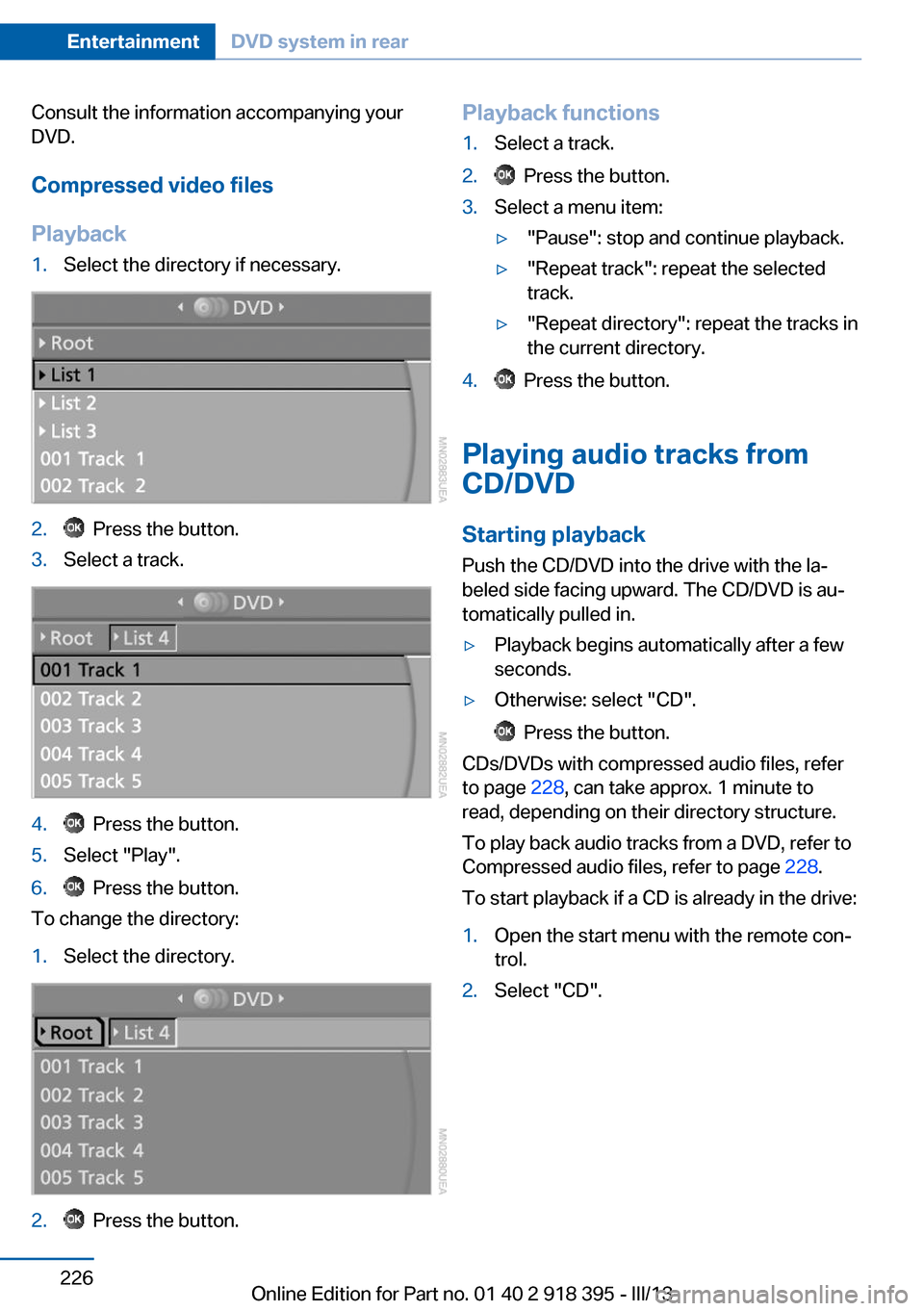
Consult the information accompanying your
DVD.
Compressed video files
Playback1.Select the directory if necessary.2. Press the button.3.Select a track.4. Press the button.5.Select "Play".6. Press the button.
To change the directory:
1.Select the directory.2. Press the button.Playback functions1.Select a track.2. Press the button.3.Select a menu item:▷"Pause": stop and continue playback.▷"Repeat track": repeat the selected
track.▷"Repeat directory": repeat the tracks in
the current directory.4. Press the button.
Playing audio tracks from
CD/DVD
Starting playback Push the CD/DVD into the drive with the la‐
beled side facing upward. The CD/DVD is au‐
tomatically pulled in.
▷Playback begins automatically after a few
seconds.▷Otherwise: select "CD".
Press the button.
CDs/DVDs with compressed audio files, refer
to page 228, can take approx. 1 minute to
read, depending on their directory structure.
To play back audio tracks from a DVD, refer to
Compressed audio files, refer to page 228.
To start playback if a CD is already in the drive:
1.Open the start menu with the remote con‐
trol.2.Select "CD".Seite 226EntertainmentDVD system in rear226
Online Edition for Part no. 01 40 2 918 395 - III/13
Page 228 of 345
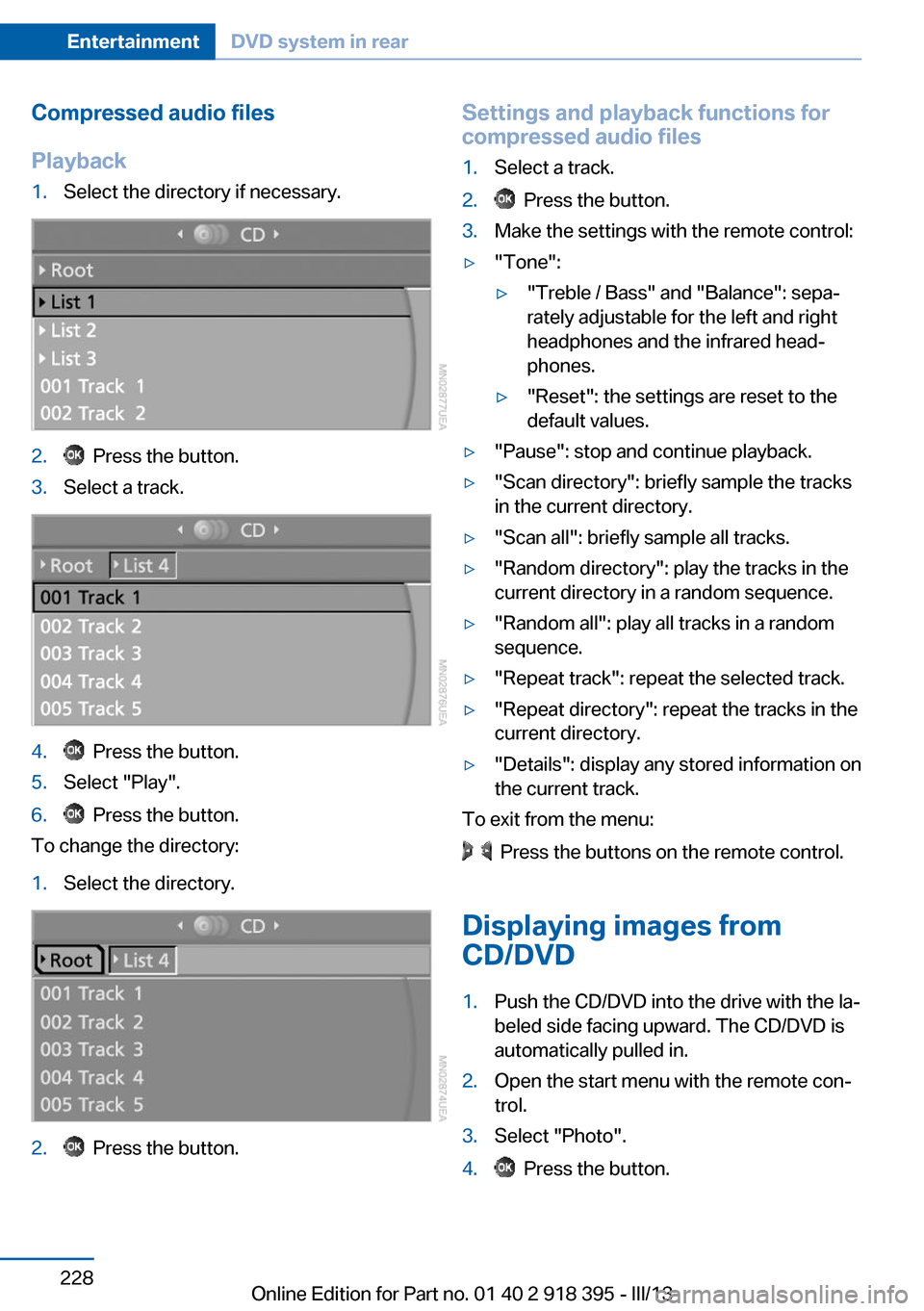
Compressed audio files
Playback1.Select the directory if necessary.2. Press the button.3.Select a track.4. Press the button.5.Select "Play".6. Press the button.
To change the directory:
1.Select the directory.2. Press the button.Settings and playback functions for
compressed audio files1.Select a track.2. Press the button.3.Make the settings with the remote control:▷"Tone":▷"Treble / Bass" and "Balance": sepa‐
rately adjustable for the left and right
headphones and the infrared head‐
phones.▷"Reset": the settings are reset to the
default values.▷"Pause": stop and continue playback.▷"Scan directory": briefly sample the tracks
in the current directory.▷"Scan all": briefly sample all tracks.▷"Random directory": play the tracks in the
current directory in a random sequence.▷"Random all": play all tracks in a random
sequence.▷"Repeat track": repeat the selected track.▷"Repeat directory": repeat the tracks in the
current directory.▷"Details": display any stored information on
the current track.
To exit from the menu:
Press the buttons on the remote control.
Displaying images from
CD/DVD
1.Push the CD/DVD into the drive with the la‐
beled side facing upward. The CD/DVD is
automatically pulled in.2.Open the start menu with the remote con‐
trol.3.Select "Photo".4. Press the button.Seite 228EntertainmentDVD system in rear228
Online Edition for Part no. 01 40 2 918 395 - III/13