Drive BMW X6 2013 E71 Owner's Manual
[x] Cancel search | Manufacturer: BMW, Model Year: 2013, Model line: X6, Model: BMW X6 2013 E71Pages: 345, PDF Size: 9.45 MB
Page 231 of 345
Foreign bodies/liquids in the CD/DVD
slot
Make sure that no foreign objects or liquids get
into the CD/DVD slot; otherwise, the CD/DVD
player will be damaged.◀
Humidity High levels of humidity can lead to condensa‐
tion on the CD/DVD or the laser's scan lens,
and temporarily prevent playback.
Malfunctions involving individual CDs/DVDs
If malfunctions occur only with particular CDs/
DVDs, this can be due to one of the following
causes.
Copied or self-recorded CDs/DVDs▷Possible reasons for malfunctions with
home-recorded CDs/DVDs are inconsis‐
tent data creation or recording processes,
or poor quality or old age of the blank CD/
DVD.▷Only label CDs/DVDs on the upper side
with a pen intended for this purpose.
Damaged CDs/DVDs
▷Avoid fingerprints, dust, scratches and
moisture.▷Store CDs/DVDs in a sleeve.▷Do not subject CDs/DVDs to temperatures
over 122 ℉/50 ℃, high humidity or direct
sunlight.
CDs/DVDs with copy protection
CDs/DVDs are often provided with a copy pro‐
tection feature by the manufacturer. As a re‐
sult, some CDs/DVDs cannot be played, can
only be played to a limited degree, or cause the
system to switch off. In this case, wait a short
while and then switch the system back on
again. Then remove the CD/DVD from the
drive.
CDs/DVDs with compressed audio
files
If the language set for the CD/DVD player does
not match the language of the music track, the
music tracks may be displayed incorrectly.
External device
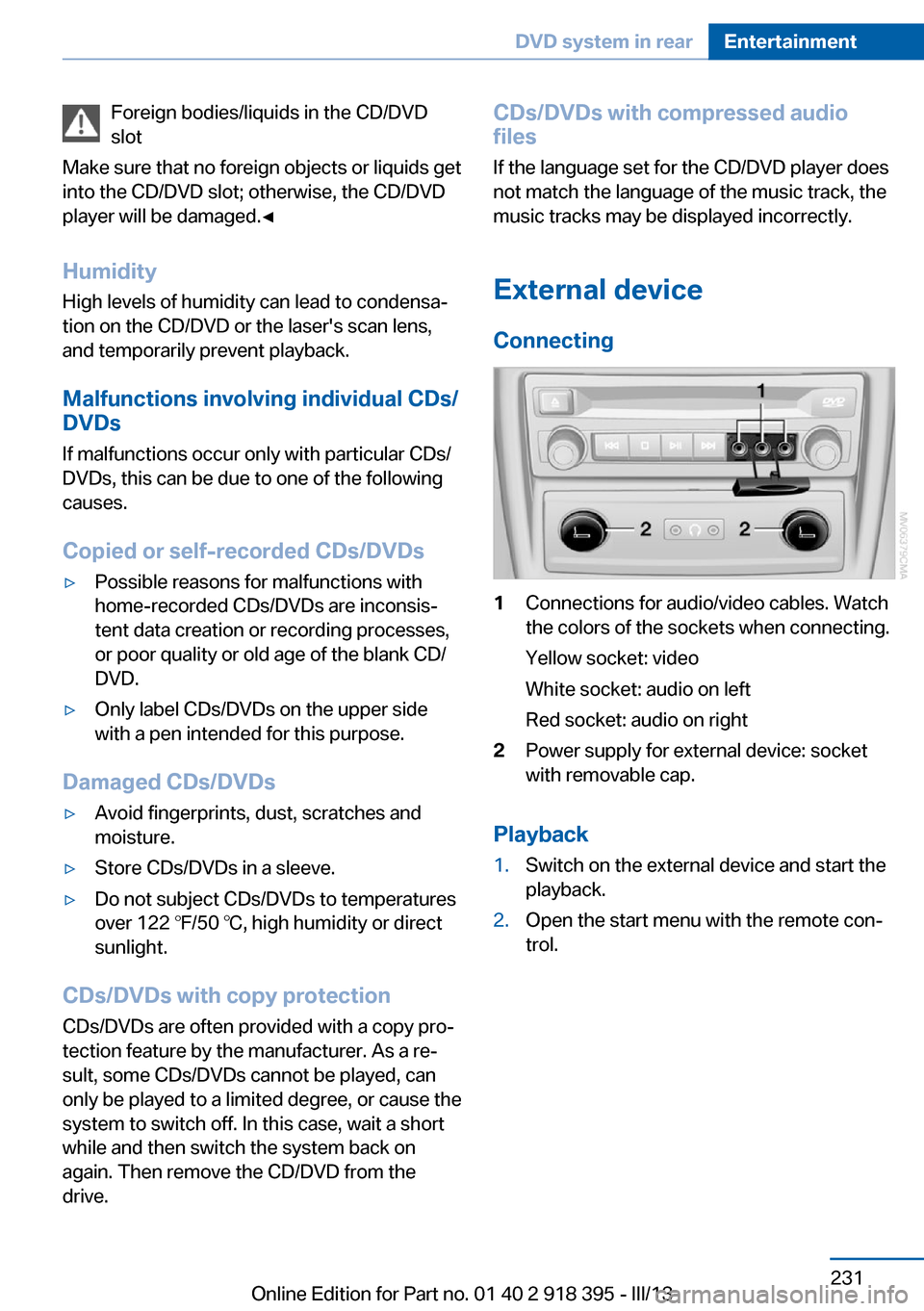
Connecting1Connections for audio/video cables. Watch
the colors of the sockets when connecting.
Yellow socket: video
White socket: audio on left
Red socket: audio on right2Power supply for external device: socket
with removable cap.
Playback
1.Switch on the external device and start the
playback.2.Open the start menu with the remote con‐
trol.Seite 231DVD system in rearEntertainment231
Online Edition for Part no. 01 40 2 918 395 - III/13
Page 236 of 345
TelephoneVehicle equipmentThis chapter describes all series equipment as
well as country-specific and special equipment
offered for this model series.Therefore, it also
describes equipment that may not be found in
your vehicle, for instance due to the selected
special equipment or the country version. This
also applies to safety-related functions and
systems.
At a glance
The concept Mobile phones or other external devices such
as audio players can be connected to the vehi‐
cle via Bluetooth.
Bluetooth® is a registered trademark of Blue‐
tooth® SIG, Inc.
After these devices are paired once, they are
recognized automatically when the ignition is
switched on as soon as they are in the vehicle
and can then be operated via iDrive, the but‐
tons on the steering wheel, and via voice acti‐
vation.
Depending on their functionality, external devi‐
ces can be used via the vehicle as a telephone
or as an audio source. The telephone functions
are described in the following. Operating the
audio functions, refer to page 215.
Up to four external devices can be paired.
Certain functions may need to be enabled by
the mobile phone provider or service provider.
Using the mobile phone while driving
Make entries only when traffic and road
conditions allow. Do not hold the mobile phone
in your hand while you are driving; use the
hands-free system instead. If you do not ob‐
serve this precaution, you can endanger the
vehicle occupants and other road users.◀Snap-in adapter
The snap-in adapter is used to:▷Hold the mobile phone.▷Recharge the battery.▷Connect the mobile phone to an outside
antenna of the vehicle.
This provides for better network reception
and consistent sound quality.
Approved mobile phones
Details on which mobile phones and external
devices with a Bluetooth interface are sup‐
ported by the mobile phone preparation pack‐
age can be obtained at www.bmwusa.com/
bluetooth.
Displaying the vehicle identification
number and software part number
The vehicle identification number and software part number are needed to determine which
mobile phones are supported by the mobile
phone preparation package. The software ver‐
sion of the mobile phone may also be required.
1."Telephone"2.Open "Options".3."Bluetooth® info"4."Display system information"
These approved mobile phones with a certain
software version, support the vehicle functions
described below.
Malfunctions may occur with other mobile
phones or software versions.
Do not operate a mobile phone that is con‐
nected to the vehicle on the mobile phone key‐
pad, as this may lead to a malfunction.
A software update, refer to page 218, can be
performed if necessary.
Seite 236CommunicationTelephone236
Online Edition for Part no. 01 40 2 918 395 - III/13
Page 238 of 345
call is active on the additional telephone, re‐
ceived calls are displayed on the Control Dis‐
play.
Audio source
A mobile phone can be used as an audio
source.
Pairing and connecting a mobile
phone
Pairing the mobile phone
To avoid becoming distracted and pos‐
ing an unnecessary hazard both to your own
vehicle's occupants and to other road users,
only pair the mobile phone while the vehicle is
stationary.◀1."Telephone"2."Bluetooth® (phone)"3."Add new phone"
The Bluetooth name of the vehicle is dis‐
played.4.To perform additional steps on the mobile
phone, refer to the mobile phone operating
instructions: for instance, search for or
connect the Bluetooth device or a new de‐
vice.
The Bluetooth name of the vehicle appears
on the mobile phone display.5.Select the Bluetooth name of the vehicle
on the mobile phone display.6.You are prompted by the iDrive or mobile
phone to enter the same Bluetooth pass‐
key. Enter the passkey and confirm.
or
Compare the control number on the vehi‐
cle display with the control number on the
mobile phone display. Confirm the control
number on the mobile phone and in the ve‐
hicle.
"OK"7.Select the functions for which the mobile
phone is to be used.8."OK"
If the pairing was successful, the mobile phone
appears at the top of the list of mobile phones.
The functions supported by the mobile phone
and audio device are displayed as symbols
when paired.
White symbol: the function is active.
Gray symbol: the function is inactive.
SymbolFunction Telephone. Additional telephone. Audio source.
Four mobile phones can be paired with the ve‐
hicle at once. Three mobile phones can be
connected with the vehicle at once.
If pairing was unsuccessful: What to do if..., re‐
fer to page 239.
Following the initial pairing
▷The mobile phone is detected/connected
in the vehicle within a short period of time
when the engine is running or the ignition
is switched on.▷The phone book entries of the telephone
stored on the SIM card or mobile phone
are transmitted to the vehicle after detec‐
tion, depending on the mobile phone.▷Four mobile phones can be paired.▷Specific settings may be necessary in
some mobile phones, e.g., authorization or
a secure connection; refer to the mobile
phone operating instructions.
Connecting a particular mobile phone
1."Telephone"2."Bluetooth® (phone)"Seite 238CommunicationTelephone238
Online Edition for Part no. 01 40 2 918 395 - III/13
Page 239 of 345
3.Select the mobile phone that is to be con‐
nected.
The functions assigned to the mobile phone
before unpairing are assigned to the mobile
phone when it is reconnected. These functions
are deactivated in a mobile phone that is al‐
ready connected.
Configuring the mobile phone Additional functions can be activated or deacti‐
vated for paired and connected mobile phones.
1."Telephone"2."Bluetooth® (phone)"3.Highlight the mobile phone to be config‐
ured.4.Open "Options".5."Configure phone"6.At least one function must be selected.▷"Telephone"▷"Additional telephone"▷"Audio"7."OK"
If a function has already been assigned to an‐
other connected mobile phone, the function is
deactivated in that mobile phone and the mo‐
bile phone is unpaired when the function is as‐
signed to a new mobile phone.
Swapping the telephone and
additional telephone
The function of the telephone and additional
telephone can be swapped automatically.
1."Telephone"2."Bluetooth® (phone)"3."Swap phone/addit. phone"
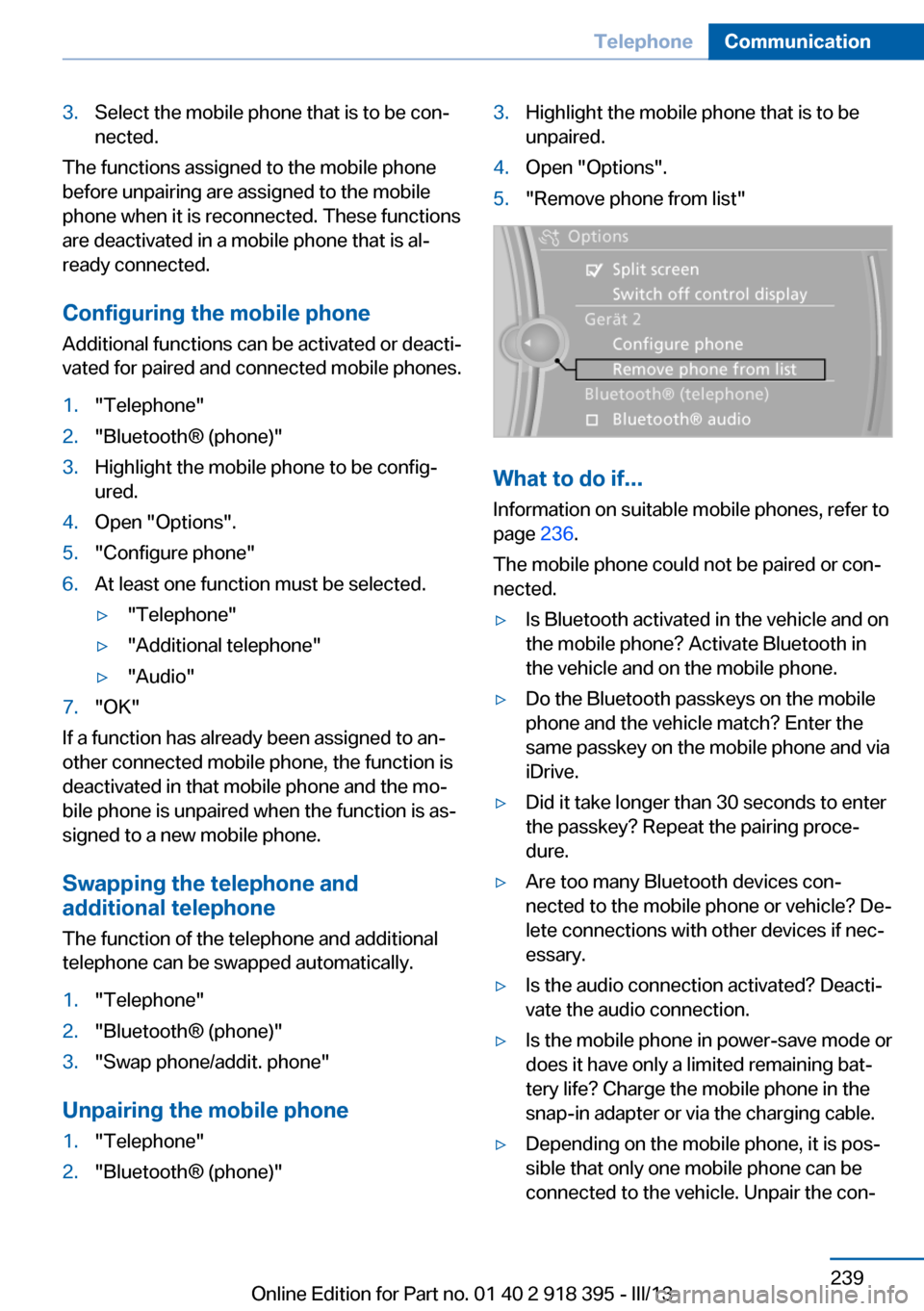
Unpairing the mobile phone
1."Telephone"2."Bluetooth® (phone)"3.Highlight the mobile phone that is to be
unpaired.4.Open "Options".5."Remove phone from list"
What to do if...
Information on suitable mobile phones, refer to
page 236.
The mobile phone could not be paired or con‐
nected.
▷Is Bluetooth activated in the vehicle and on
the mobile phone? Activate Bluetooth in
the vehicle and on the mobile phone.▷Do the Bluetooth passkeys on the mobile
phone and the vehicle match? Enter the
same passkey on the mobile phone and via
iDrive.▷Did it take longer than 30 seconds to enter
the passkey? Repeat the pairing proce‐
dure.▷Are too many Bluetooth devices con‐
nected to the mobile phone or vehicle? De‐
lete connections with other devices if nec‐
essary.▷Is the audio connection activated? Deacti‐
vate the audio connection.▷Is the mobile phone in power-save mode or
does it have only a limited remaining bat‐
tery life? Charge the mobile phone in the
snap-in adapter or via the charging cable.▷Depending on the mobile phone, it is pos‐
sible that only one mobile phone can be
connected to the vehicle. Unpair the con‐Seite 239TelephoneCommunication239
Online Edition for Part no. 01 40 2 918 395 - III/13
Page 242 of 345
If a second call comes in during an ongoing
call, a call waiting signal is sounded.
"Accept"
The call is accepted and the existing call is put
on hold.
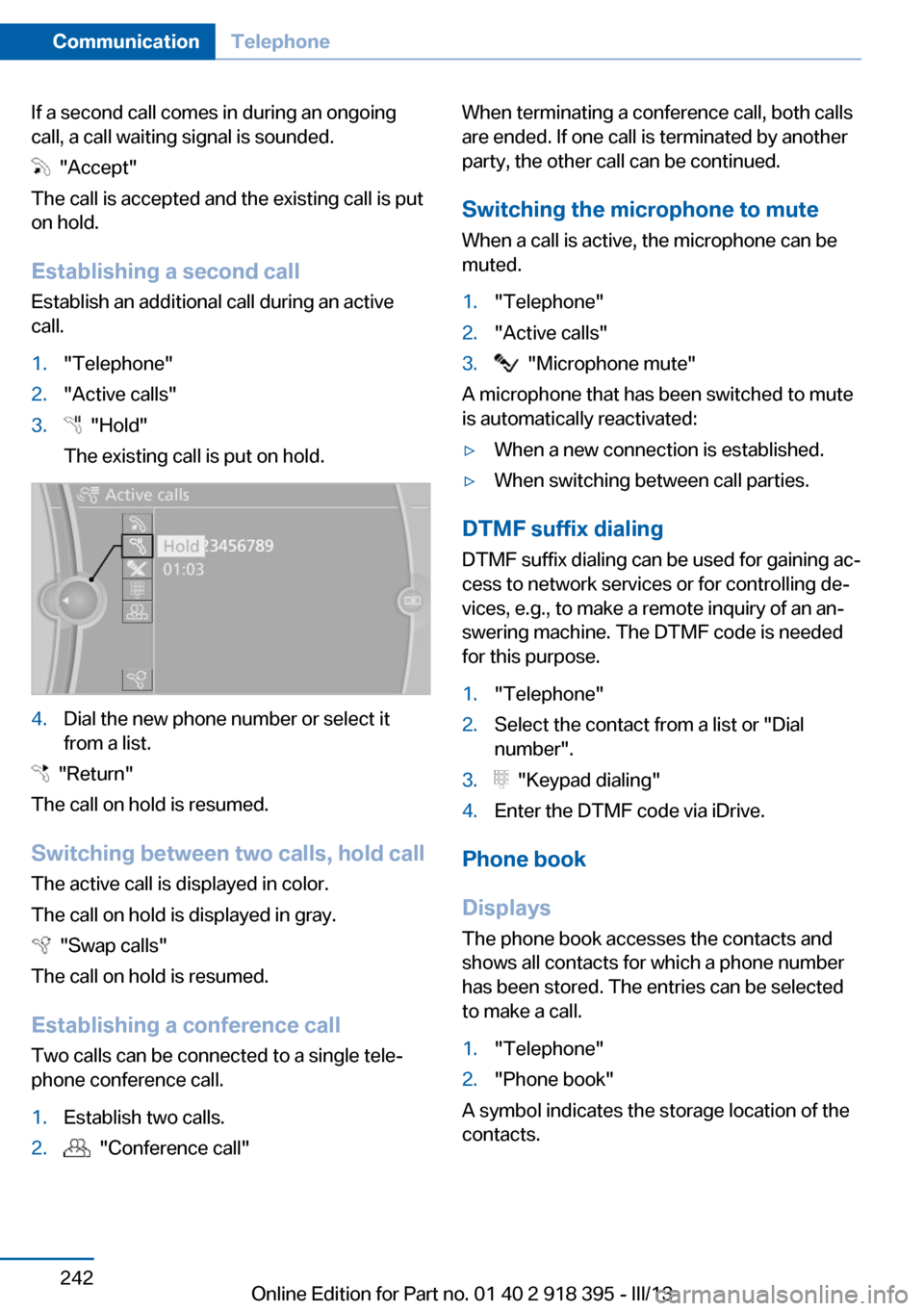
Establishing a second call
Establish an additional call during an active
call.
1."Telephone"2."Active calls"3. "Hold"
The existing call is put on hold.4.Dial the new phone number or select it
from a list.
"Return"
The call on hold is resumed.
Switching between two calls, hold call The active call is displayed in color.
The call on hold is displayed in gray.
"Swap calls"
The call on hold is resumed.
Establishing a conference call Two calls can be connected to a single tele‐
phone conference call.
1.Establish two calls.2. "Conference call"When terminating a conference call, both calls
are ended. If one call is terminated by another
party, the other call can be continued.
Switching the microphone to mute When a call is active, the microphone can be
muted.1."Telephone"2."Active calls"3. "Microphone mute"
A microphone that has been switched to mute
is automatically reactivated:
▷When a new connection is established.▷When switching between call parties.
DTMF suffix dialing
DTMF suffix dialing can be used for gaining ac‐
cess to network services or for controlling de‐
vices, e.g., to make a remote inquiry of an an‐
swering machine. The DTMF code is needed
for this purpose.
1."Telephone"2.Select the contact from a list or "Dial
number".3. "Keypad dialing"4.Enter the DTMF code via iDrive.
Phone book
Displays The phone book accesses the contacts and
shows all contacts for which a phone number
has been stored. The entries can be selected
to make a call.
1."Telephone"2."Phone book"
A symbol indicates the storage location of the
contacts.
Seite 242CommunicationTelephone242
Online Edition for Part no. 01 40 2 918 395 - III/13
Page 243 of 345
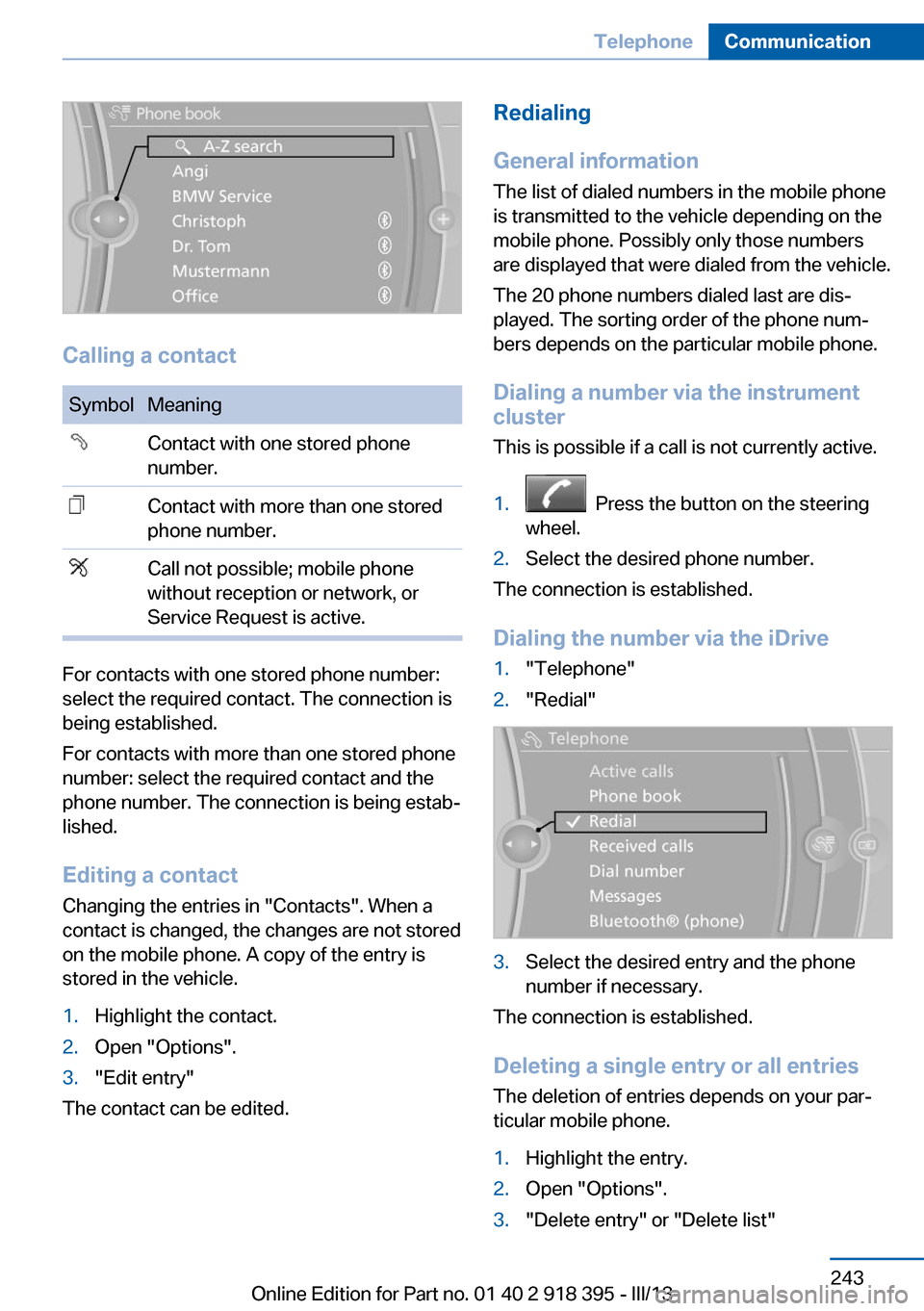
Calling a contact
SymbolMeaningContact with one stored phone
number.Contact with more than one stored
phone number.Call not possible; mobile phone
without reception or network, or
Service Request is active.
For contacts with one stored phone number:
select the required contact. The connection is
being established.
For contacts with more than one stored phone
number: select the required contact and the
phone number. The connection is being estab‐
lished.
Editing a contact Changing the entries in "Contacts". When a
contact is changed, the changes are not stored
on the mobile phone. A copy of the entry is
stored in the vehicle.
1.Highlight the contact.2.Open "Options".3."Edit entry"
The contact can be edited.
Redialing
General information
The list of dialed numbers in the mobile phone
is transmitted to the vehicle depending on the
mobile phone. Possibly only those numbers
are displayed that were dialed from the vehicle.
The 20 phone numbers dialed last are dis‐
played. The sorting order of the phone num‐
bers depends on the particular mobile phone.
Dialing a number via the instrument cluster
This is possible if a call is not currently active.1. Press the button on the steering
wheel.2.Select the desired phone number.
The connection is established.
Dialing the number via the iDrive
1."Telephone"2."Redial"3.Select the desired entry and the phone
number if necessary.
The connection is established.
Deleting a single entry or all entries The deletion of entries depends on your par‐
ticular mobile phone.
1.Highlight the entry.2.Open "Options".3."Delete entry" or "Delete list"Seite 243TelephoneCommunication243
Online Edition for Part no. 01 40 2 918 395 - III/13
Page 261 of 345
ConnectedDriveVehicle equipment
This chapter describes all series equipment as
well as country-specific and special equipment
offered for this model series.Therefore, it also
describes equipment that may not be found in
your vehicle, for instance due to the selected
special equipment or the country version. This
also applies to safety-related functions and
systems.
TeleService
General information
TeleService supports communication with
your service center.▷Data on the vehicle's service requirements
can be sent directly to the service center.
In this way, the service center can plan its
work in advance. This shortens the dura‐
tion of the service appointment.▷In the event of a breakdown, data on the
vehicle's condition can be sent directly to
Roadside Assistance.▷The service varies by country.▷Connection costs may ensue.▷Services may be restricted abroad.
Requirements
▷BMW Assist is activated.
If BMW Assist is not activated, a mobile
phone that has been recommended by
BMW for TeleService and that is config‐
ured for mobile data communication must
be connected with the vehicle.▷Wireless reception is available.▷The ignition is switched on.Using TeleService
TeleService is typically activated in the vehicle.
Even if TeleService is not active, a voice con‐
tact to Roadside Assistance is still possible.
To continue using or to deactivate the serv‐
ices, please contact your service partner or the
BMW customer hotline.
Concierge service
General information The BMW Assist Concierge service offers in‐
formation on events, gas stations, and hotels,
and provides phone numbers and addresses.
Hotels can be booked directly by the BMW As‐
sist Concierge service. The Concierge service
is part of the optional Convenience Plan.
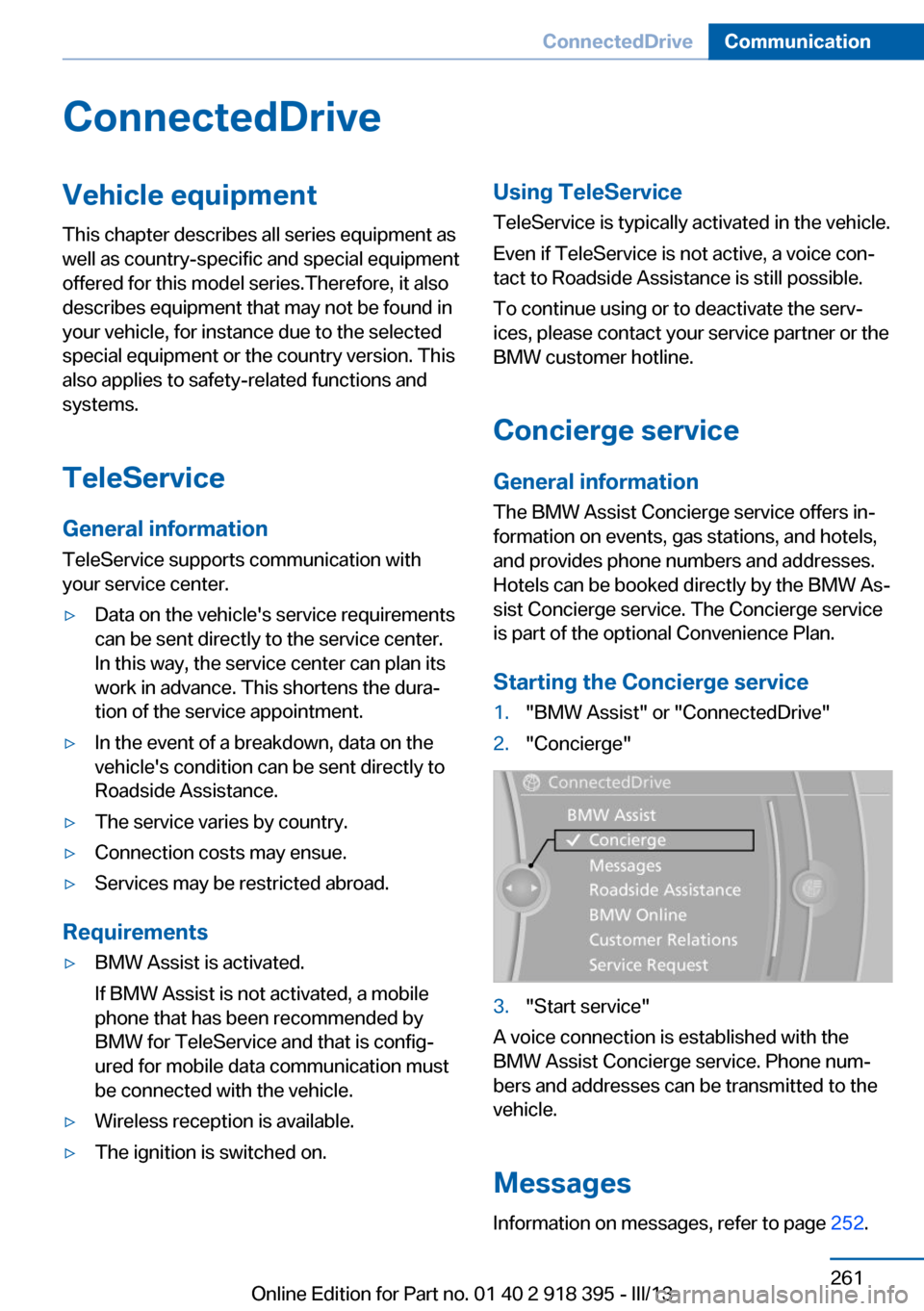
Starting the Concierge service1."BMW Assist" or "ConnectedDrive"2."Concierge"3."Start service"
A voice connection is established with the
BMW Assist Concierge service. Phone num‐
bers and addresses can be transmitted to the
vehicle.
Messages Information on messages, refer to page 252.
Seite 261ConnectedDriveCommunication261
Online Edition for Part no. 01 40 2 918 395 - III/13
Page 262 of 345
Roadside Assistance
At a glance BMW Roadside Assistance can be contacted if
assistance is needed in the event of a break‐ down.
Roadside Assistance can also be contacted via
a Check Control message, refer to page 85.
Starting Roadside Assistance without
TeleService1."BMW Assist" or "ConnectedDrive"2."Roadside Assistance"
The Roadside Assistance number is dis‐
played. If the mobile phone is paired, a
connection is established to Roadside As‐
sistance.
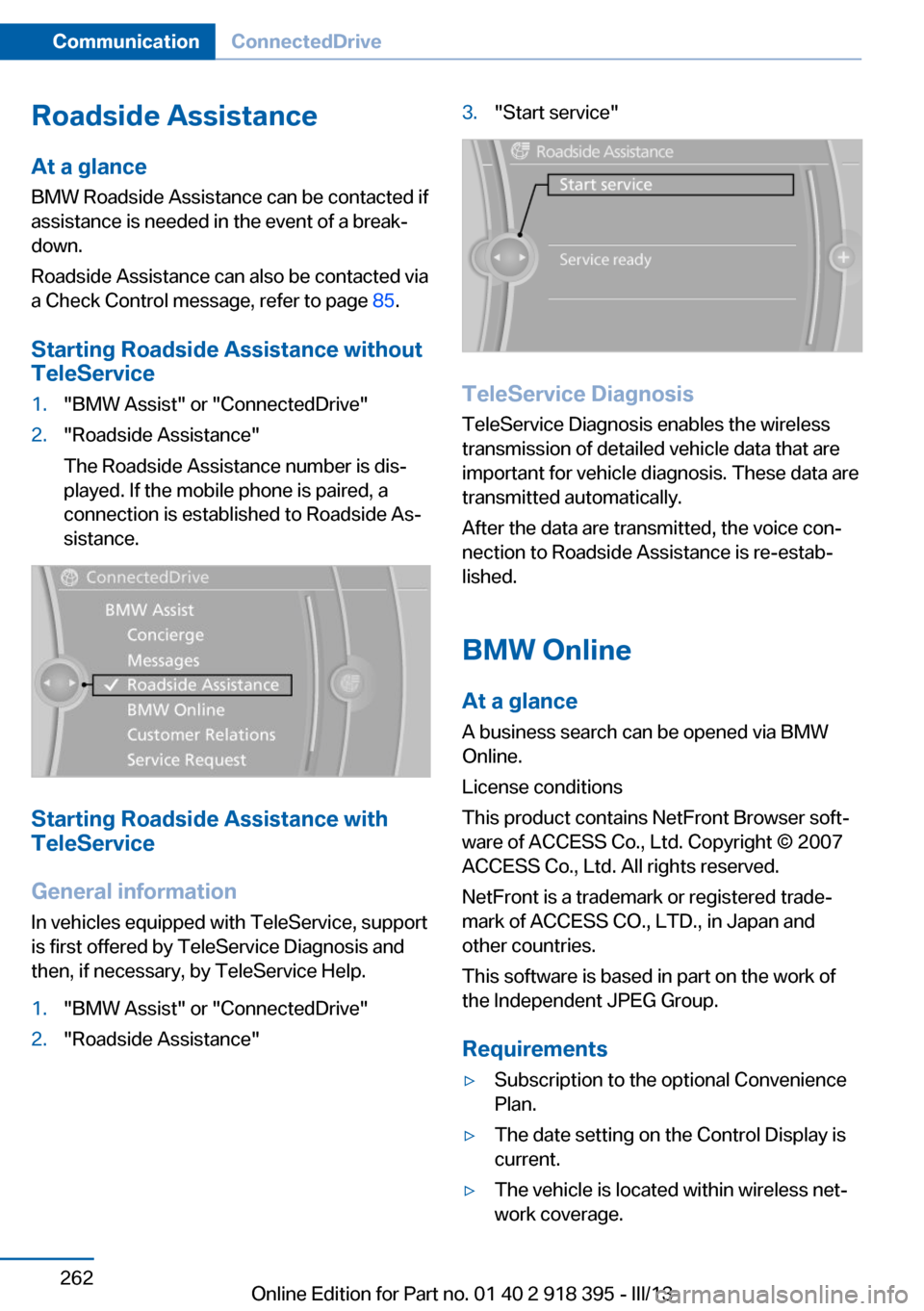
Starting Roadside Assistance with
TeleService
General information
In vehicles equipped with TeleService, support
is first offered by TeleService Diagnosis and
then, if necessary, by TeleService Help.
1."BMW Assist" or "ConnectedDrive"2."Roadside Assistance"3."Start service"
TeleService Diagnosis
TeleService Diagnosis enables the wireless
transmission of detailed vehicle data that are
important for vehicle diagnosis. These data are
transmitted automatically.
After the data are transmitted, the voice con‐
nection to Roadside Assistance is re-estab‐
lished.
BMW Online
At a glance
A business search can be opened via BMW
Online.
License conditions
This product contains NetFront Browser soft‐
ware of ACCESS Co., Ltd. Copyright © 2007
ACCESS Co., Ltd. All rights reserved.
NetFront is a trademark or registered trade‐
mark of ACCESS CO., LTD., in Japan and
other countries.
This software is based in part on the work of
the Independent JPEG Group.
Requirements
▷Subscription to the optional Convenience
Plan.▷The date setting on the Control Display is
current.▷The vehicle is located within wireless net‐
work coverage.Seite 262CommunicationConnectedDrive262
Online Edition for Part no. 01 40 2 918 395 - III/13
Page 263 of 345
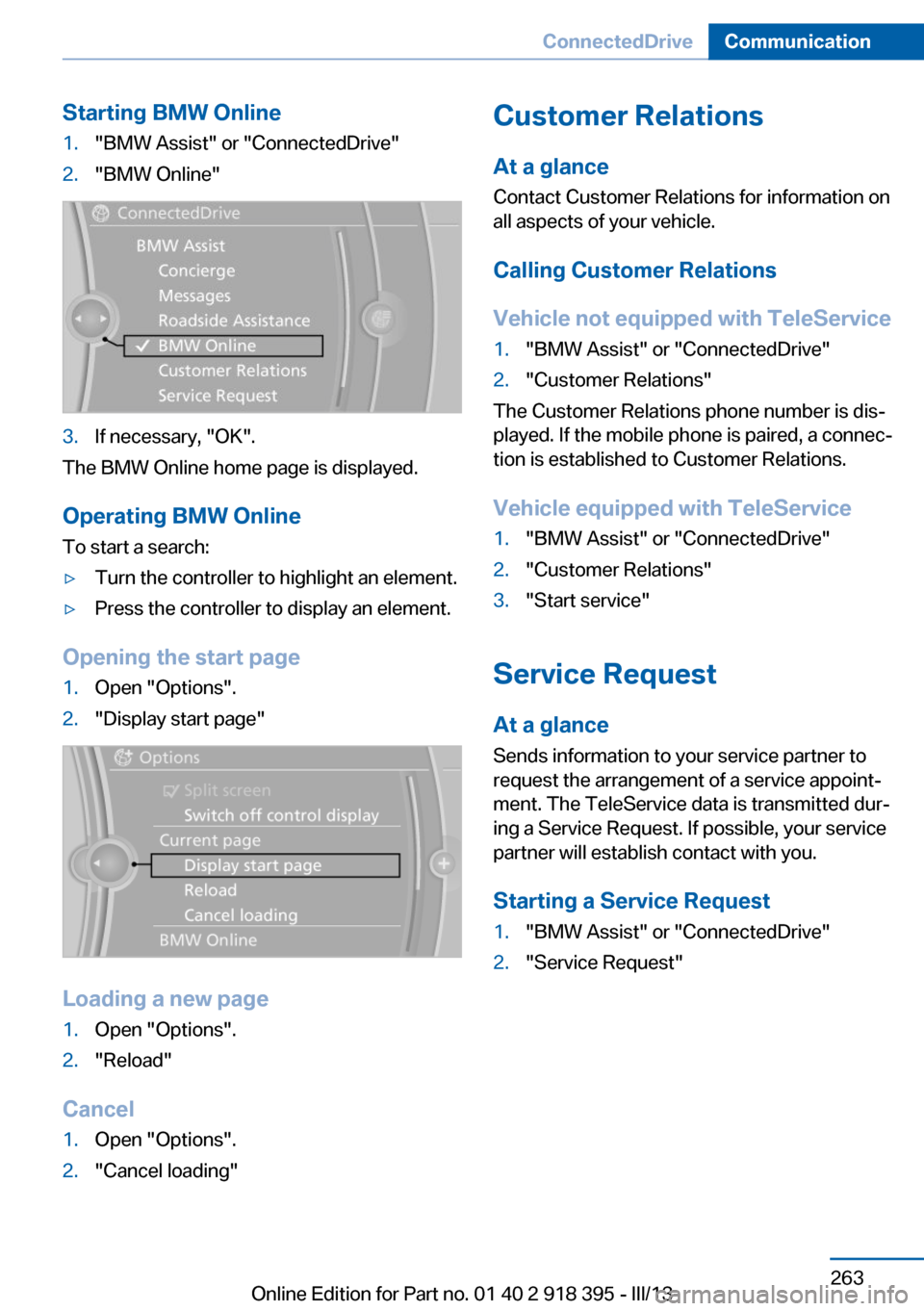
Starting BMW Online1."BMW Assist" or "ConnectedDrive"2."BMW Online"3.If necessary, "OK".
The BMW Online home page is displayed.
Operating BMW Online
To start a search:
▷Turn the controller to highlight an element.▷Press the controller to display an element.
Opening the start page
1.Open "Options".2."Display start page"
Loading a new page
1.Open "Options".2."Reload"
Cancel
1.Open "Options".2."Cancel loading"Customer Relations
At a glance Contact Customer Relations for information on
all aspects of your vehicle.
Calling Customer Relations
Vehicle not equipped with TeleService1."BMW Assist" or "ConnectedDrive"2."Customer Relations"
The Customer Relations phone number is dis‐
played. If the mobile phone is paired, a connec‐
tion is established to Customer Relations.
Vehicle equipped with TeleService
1."BMW Assist" or "ConnectedDrive"2."Customer Relations"3."Start service"
Service Request At a glance
Sends information to your service partner to
request the arrangement of a service appoint‐
ment. The TeleService data is transmitted dur‐
ing a Service Request. If possible, your service
partner will establish contact with you.
Starting a Service Request
1."BMW Assist" or "ConnectedDrive"2."Service Request"Seite 263ConnectedDriveCommunication263
Online Edition for Part no. 01 40 2 918 395 - III/13
Page 264 of 345
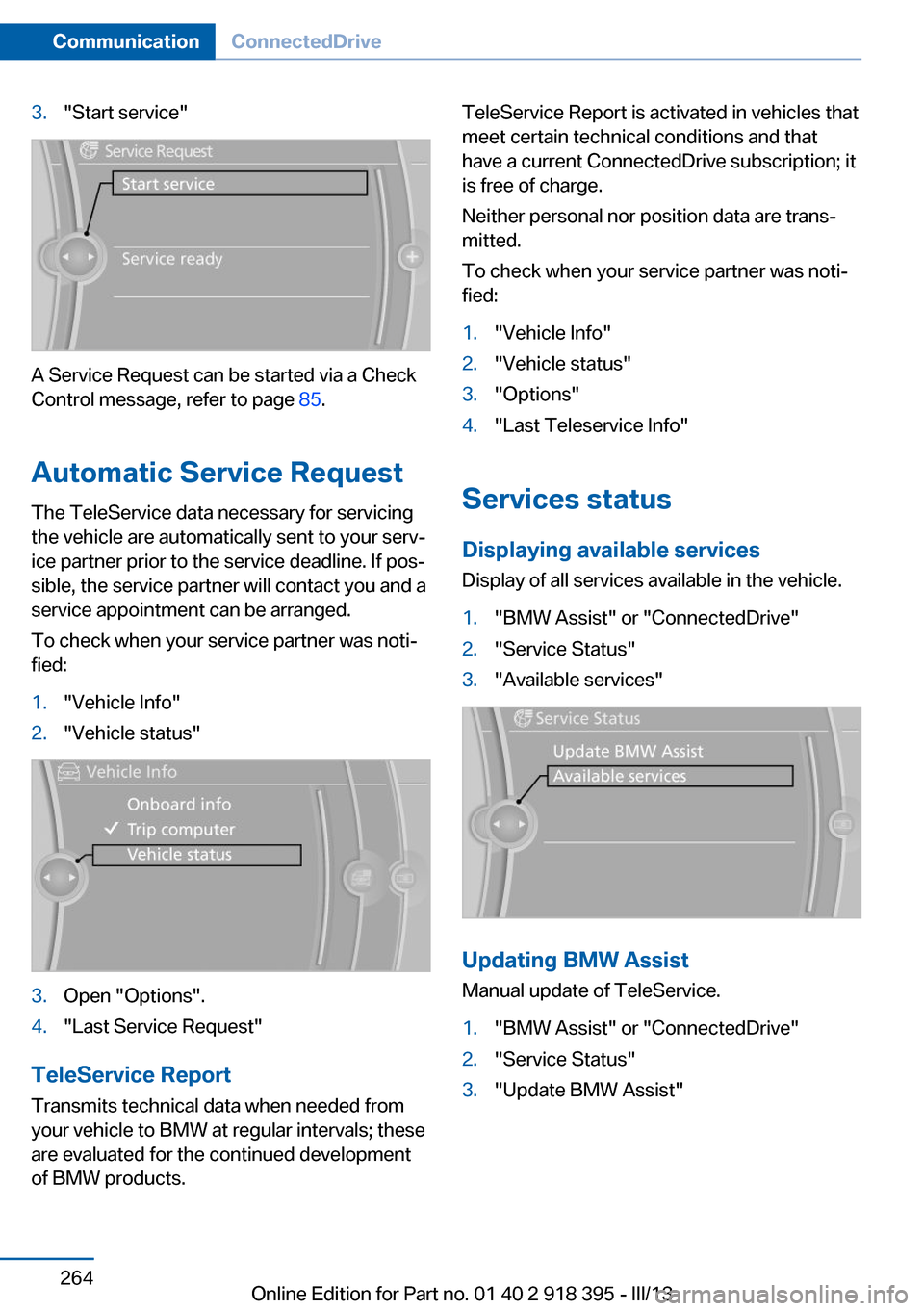
3."Start service"
A Service Request can be started via a Check
Control message, refer to page 85.
Automatic Service Request
The TeleService data necessary for servicing
the vehicle are automatically sent to your serv‐
ice partner prior to the service deadline. If pos‐
sible, the service partner will contact you and a
service appointment can be arranged.
To check when your service partner was noti‐
fied:
1."Vehicle Info"2."Vehicle status"3.Open "Options".4."Last Service Request"
TeleService Report
Transmits technical data when needed from
your vehicle to BMW at regular intervals; these
are evaluated for the continued development
of BMW products.
TeleService Report is activated in vehicles that
meet certain technical conditions and that
have a current ConnectedDrive subscription; it
is free of charge.
Neither personal nor position data are trans‐
mitted.
To check when your service partner was noti‐
fied:1."Vehicle Info"2."Vehicle status"3."Options"4."Last Teleservice Info"
Services status
Displaying available services Display of all services available in the vehicle.
1."BMW Assist" or "ConnectedDrive"2."Service Status"3."Available services"
Updating BMW Assist
Manual update of TeleService.
1."BMW Assist" or "ConnectedDrive"2."Service Status"3."Update BMW Assist"Seite 264CommunicationConnectedDrive264
Online Edition for Part no. 01 40 2 918 395 - III/13