Drive BMW X6 2013 E71 Manual Online
[x] Cancel search | Manufacturer: BMW, Model Year: 2013, Model line: X6, Model: BMW X6 2013 E71Pages: 345, PDF Size: 9.45 MB
Page 176 of 345
Add a destination as a further destination,
refer to page 177.▷"Exit interactive map": return to the map
view.▷"View in northern direction" or "View in driving direction"▷"Display destination": the map section
around the destination is displayed.▷"Display current location": the map section
around your current location is displayed.▷"Find points of interest": the search for
special destinations is started.
Destination entry by voice
General information
▷Instructions for voice activation system, re‐
fer to page 25.▷When making a destination entry by voice,
you can change between voice operation
and iDrive.▷To have the available spoken instructions
read out loud: ›Voice commands‹.
Saying the entries
▷The town/city, street, and house number
can be entered using a single command.▷Spell the entry if the spoken language and
the language of the system differ.▷Say the letters smoothly, and avoid exag‐
gerating the pronunciation and inserting
lengthy pauses between the letters.▷The methods of entry depend on the navi‐
gation data in use and the country and lan‐
guage settings.
Entering the address in a command
1. Press the button on the steering
wheel.2.›Enter address‹3.Wait for a request from the system.4.Say the address in the suggested order.5.Continue making the entry as prompted by
the system.
If necessary, individually name the sepa‐
rate components of the address, e.g., the
town/city.
Entering a town/city separately
The town/city can be said as a complete word.
With the destination entry menu displayed:
1. Press the button on the steering
wheel.2.›City‹ or ›Spell city‹3.Wait for the system to prompt you for the
town/city.4.Say the name of the town/city, or name at
least the first three letters.
Depending on the entry, up to 20 towns/
cities may be suggested.5.Select a location:▷Select a recommended town/
city: ›Yes‹.▷Select a different town/city: ›New
entry‹.▷Select an entry: ›Entry ...‹, for instance,
entry 2.▷Spell an entry: ›Spell city‹.6.Continue making the entry as prompted by
the system.
If there are several towns/cities with the same
name:
Towns/cities of the same name are grouped in
a list and displayed as one location followed by
an ellipsis.
1.Select an entry: ›Yes‹ or ›Entry ...‹, e. g., En‐
try 2.2.Select the desired town/city.Seite 176NavigationDestination entry176
Online Edition for Part no. 01 40 2 918 395 - III/13
Page 180 of 345
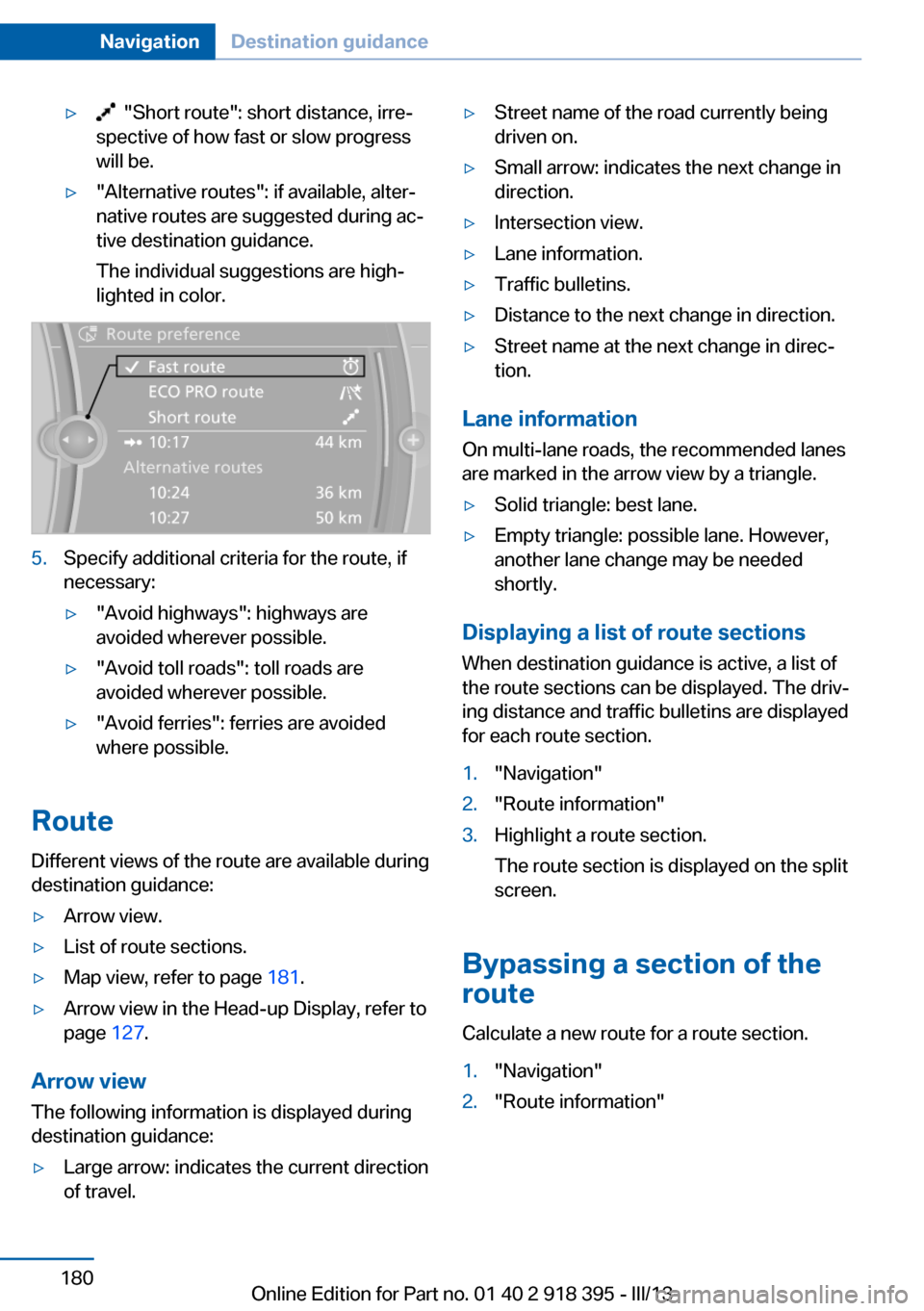
▷ "Short route": short distance, irre‐
spective of how fast or slow progress
will be.▷"Alternative routes": if available, alter‐
native routes are suggested during ac‐
tive destination guidance.
The individual suggestions are high‐
lighted in color.5.Specify additional criteria for the route, if
necessary:▷"Avoid highways": highways are
avoided wherever possible.▷"Avoid toll roads": toll roads are
avoided wherever possible.▷"Avoid ferries": ferries are avoided
where possible.
Route
Different views of the route are available during
destination guidance:
▷Arrow view.▷List of route sections.▷Map view, refer to page 181.▷Arrow view in the Head-up Display, refer to
page 127.
Arrow view
The following information is displayed during
destination guidance:
▷Large arrow: indicates the current direction
of travel.▷Street name of the road currently being
driven on.▷Small arrow: indicates the next change in
direction.▷Intersection view.▷Lane information.▷Traffic bulletins.▷Distance to the next change in direction.▷Street name at the next change in direc‐
tion.
Lane information
On multi-lane roads, the recommended lanes
are marked in the arrow view by a triangle.
▷Solid triangle: best lane.▷Empty triangle: possible lane. However,
another lane change may be needed
shortly.
Displaying a list of route sections
When destination guidance is active, a list of
the route sections can be displayed. The driv‐
ing distance and traffic bulletins are displayed
for each route section.
1."Navigation"2."Route information"3.Highlight a route section.
The route section is displayed on the split
screen.
Bypassing a section of the
route
Calculate a new route for a route section.
1."Navigation"2."Route information"Seite 180NavigationDestination guidance180
Online Edition for Part no. 01 40 2 918 395 - III/13
Page 183 of 345
Automatically scaled map scaleIn the map view facing north, turn the control‐
ler in any direction until the AUTO scale is dis‐
played. The entire route between the current
location and the destination is displayed on the
map.
Settings for the map view
The settings are stored for the remote control
currently in use.1."Navigation"2."Map"3.Open "Options".4."Settings"5.To set the map view:▷"Day/night mode"
Select and create the necessary settings
depending on the light conditions.
"Traffic conditions/gray map" active: the
setting is disregarded.▷"Satellite images"
Depending on availability and resolution,
satellite images are displayed at scales of
approx. 1 mile to 600 miles/2 km to
1,000 km.▷"Perspective view in 3D"
Prominent areas that are contained in the
navigation data are displayed on the map in
3D.▷"Traffic conditions/gray map"
The map is optimized for displaying traffic
bulletins, refer to page 184.
Symbols for the special destinations are no
longer displayed.
Map view for splitscreen
The map view can be selected for the split
screen independently from the main screen.
1.Open "Options".2."Split screen"3.Move the controller to the right repeatedly
until the split screen is selected.4.Select "Split screen content" or the scale.5.Select the map view.▷"Arrow display"▷"Map facing north"▷"Map direction of travel"▷"Map view with perspective"▷"Position"▷"Exit ramp view": selected blind drive‐
ways are displayed three dimension‐
ally.▷"Traffic conditions/gray map"6.To change the scale: select the split
screen and turn the controller.
Traffic bulletins
At a glance
▷Display the traffic bulletins from radio sta‐
tions that broadcast the TI Traffic Informa‐
tion of a traffic information service. Infor‐
mation on traffic obstructions and hazards
is updated continuously.
Certain BMW models equipped with navi‐
gation have the capability to display real-
time traffic information. If your system has
this capability the following additional
terms and conditions apply:
An End-User shall no longer have the right
to use the Traffic Data in the event that the
End-User is in material breach of the terms
and conditions contained herein.
A. Total Traffic Network, a division of Clear
Channel Broadcasting, Inc. (“Total Traffic
Network”) holds the rights to the traffic in‐
cident data and RDS-TMC network
through which it is delivered. You may not
modify, copy, scan or use any other
method to reproduce, duplicate, republish,
transmit or distribute in any way any por‐Seite 183Destination guidanceNavigation183
Online Edition for Part no. 01 40 2 918 395 - III/13
Page 185 of 345
garded in this setting. Symbols and special
destinations are not displayed.1."Navigation"2."Map"3.Open "Options".4."Settings"5."Traffic conditions/gray map"
Symbols in the map view
Depending on the scale of the map and the lo‐
cation of the traffic obstruction along the route,
the symbols for the traffic obstructions are dis‐
played.
Additional information in the map view Depending on the map scale, a traffic obstruc‐
tion's length, direction, and impact are dis‐
played in the map using triangles or gray bars
along the calculated route.
▷Red: traffic congestion▷Orange: stop-and-go traffic▷Yellow: heavy traffic▷Green: clear roads▷Gray: general traffic bulletins such as road
construction
The displayed information depends on the par‐
ticular traffic information service.
Filtering traffic bulletins
You can set which traffic bulletins appear on
the map.
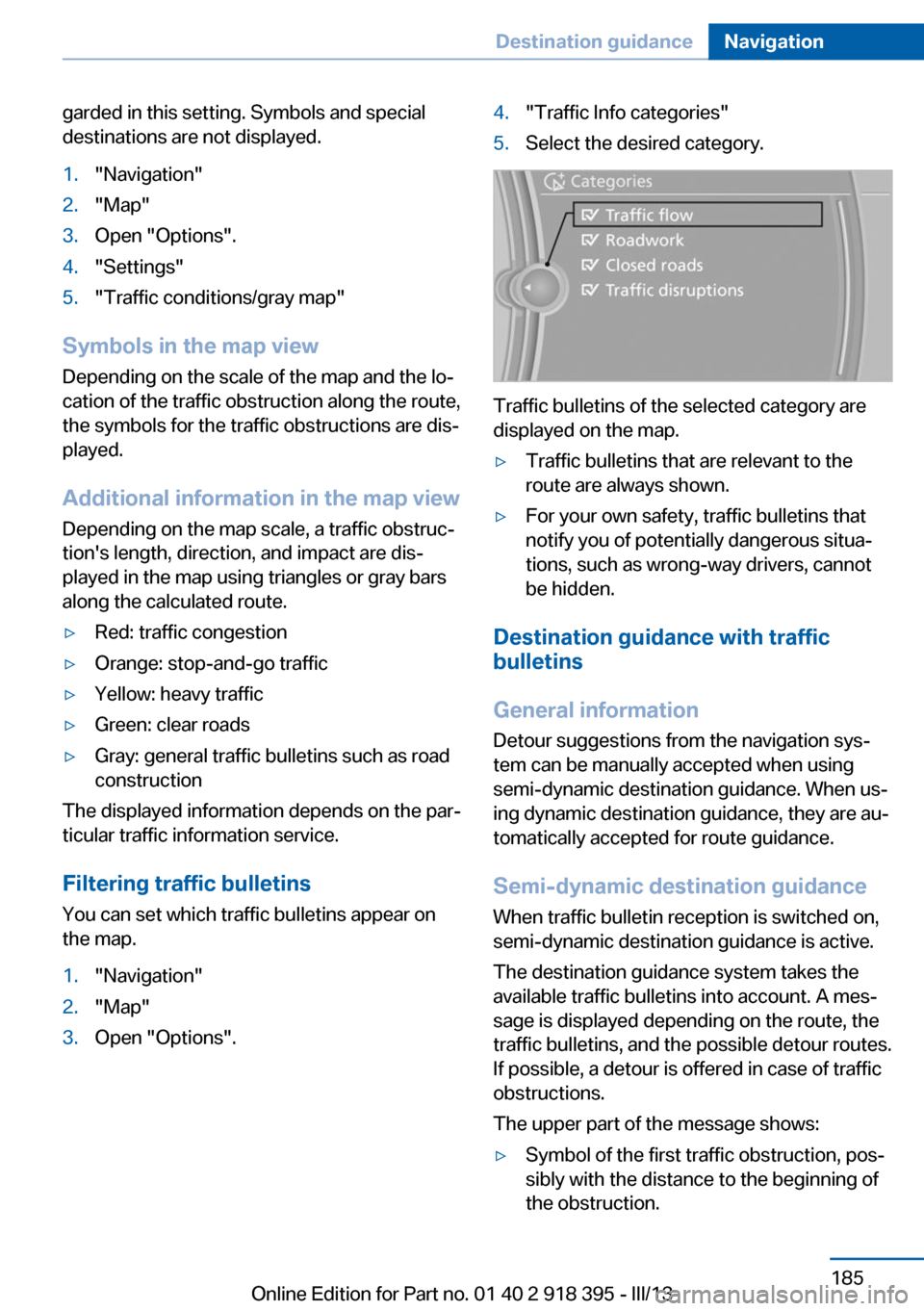
1."Navigation"2."Map"3.Open "Options".4."Traffic Info categories"5.Select the desired category.
Traffic bulletins of the selected category are
displayed on the map.
▷Traffic bulletins that are relevant to the
route are always shown.▷For your own safety, traffic bulletins that
notify you of potentially dangerous situa‐
tions, such as wrong-way drivers, cannot
be hidden.
Destination guidance with traffic
bulletins
General information
Detour suggestions from the navigation sys‐
tem can be manually accepted when using
semi-dynamic destination guidance. When us‐
ing dynamic destination guidance, they are au‐
tomatically accepted for route guidance.
Semi-dynamic destination guidance
When traffic bulletin reception is switched on,
semi-dynamic destination guidance is active.
The destination guidance system takes the
available traffic bulletins into account. A mes‐ sage is displayed depending on the route, the
traffic bulletins, and the possible detour routes.
If possible, a detour is offered in case of traffic
obstructions.
The upper part of the message shows:
▷Symbol of the first traffic obstruction, pos‐
sibly with the distance to the beginning of
the obstruction.Seite 185Destination guidanceNavigation185
Online Edition for Part no. 01 40 2 918 395 - III/13
Page 195 of 345
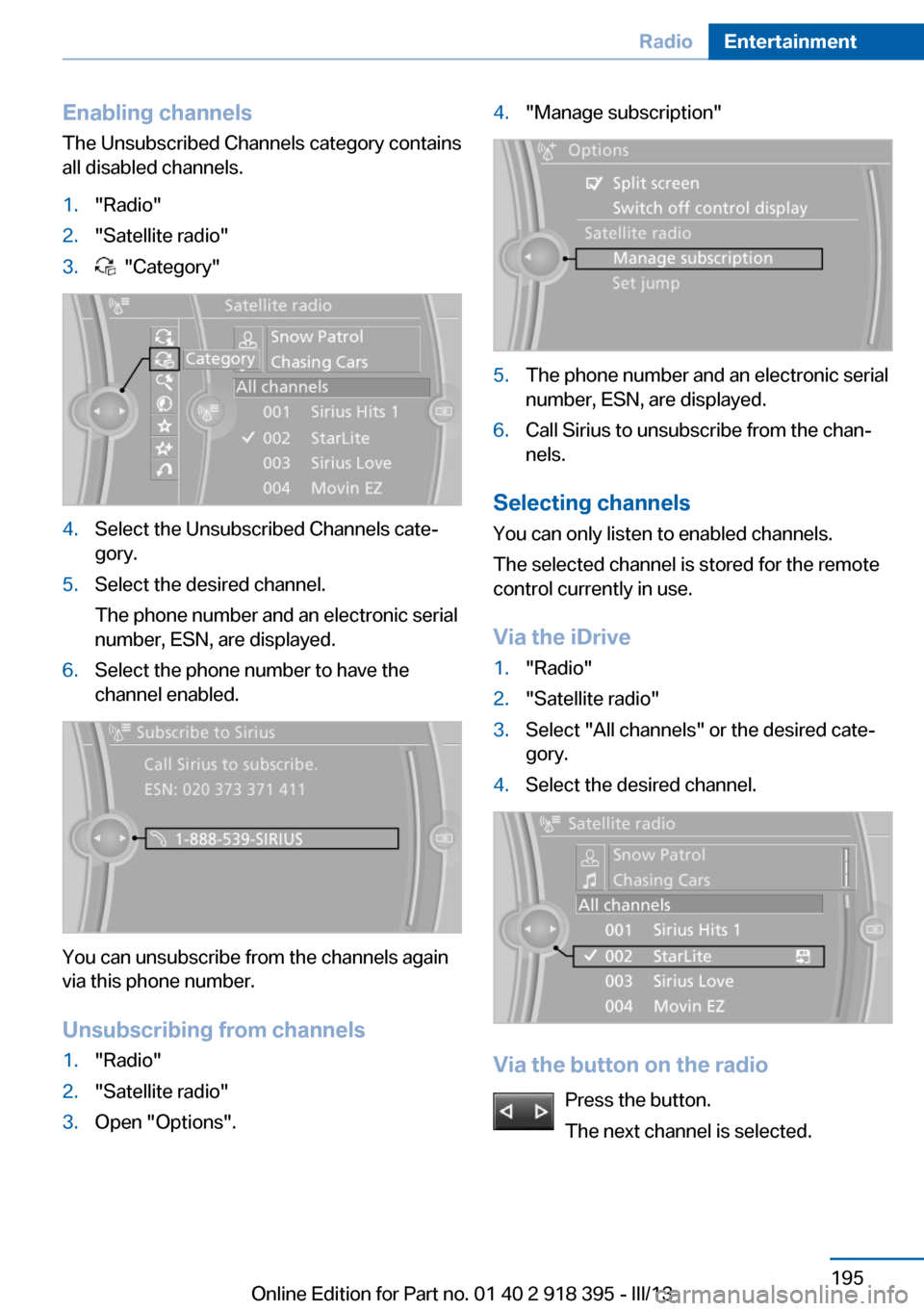
Enabling channels
The Unsubscribed Channels category contains
all disabled channels.1."Radio"2."Satellite radio"3. "Category"4.Select the Unsubscribed Channels cate‐
gory.5.Select the desired channel.
The phone number and an electronic serial
number, ESN, are displayed.6.Select the phone number to have the
channel enabled.
You can unsubscribe from the channels again
via this phone number.
Unsubscribing from channels
1."Radio"2."Satellite radio"3.Open "Options".4."Manage subscription"5.The phone number and an electronic serial
number, ESN, are displayed.6.Call Sirius to unsubscribe from the chan‐
nels.
Selecting channels
You can only listen to enabled channels.
The selected channel is stored for the remote
control currently in use.
Via the iDrive
1."Radio"2."Satellite radio"3.Select "All channels" or the desired cate‐
gory.4.Select the desired channel.
Via the button on the radio
Press the button.
The next channel is selected.
Seite 195RadioEntertainment195
Online Edition for Part no. 01 40 2 918 395 - III/13
Page 200 of 345
CD/multimediaVehicle equipmentThis chapter describes all series equipment as
well as country-specific and special equipment
offered for this model series.Therefore, it also
describes equipment that may not be found in
your vehicle, for instance due to the selected
special equipment or the country version. This
also applies to safety-related functions and
systems.
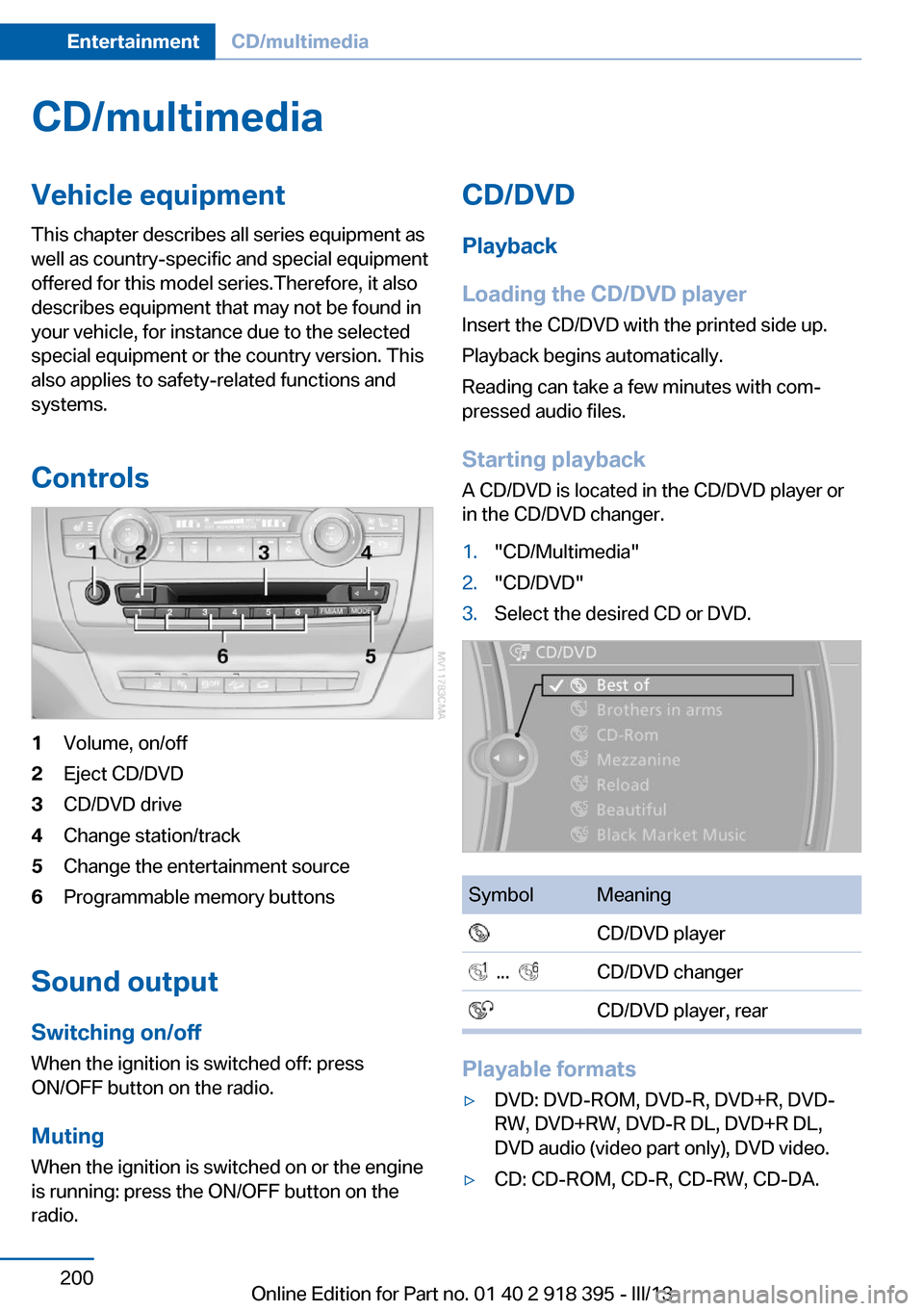
Controls1Volume, on/off2Eject CD/DVD3CD/DVD drive4Change station/track5Change the entertainment source6Programmable memory buttons
Sound outputSwitching on/offWhen the ignition is switched off: press
ON/OFF button on the radio.
Muting
When the ignition is switched on or the engine
is running: press the ON/OFF button on the
radio.
CD/DVD
Playback
Loading the CD/DVD player
Insert the CD/DVD with the printed side up.
Playback begins automatically.
Reading can take a few minutes with com‐
pressed audio files.
Starting playback A CD/DVD is located in the CD/DVD player or
in the CD/DVD changer.1."CD/Multimedia"2."CD/DVD"3.Select the desired CD or DVD.SymbolMeaning CD/DVD player ... CD/DVD changer CD/DVD player, rear
Playable formats
▷DVD: DVD-ROM, DVD-R, DVD+R, DVD-
RW, DVD+RW, DVD-R DL, DVD+R DL,
DVD audio (video part only), DVD video.▷CD: CD-ROM, CD-R, CD-RW, CD-DA.Seite 200EntertainmentCD/multimedia200
Online Edition for Part no. 01 40 2 918 395 - III/13
Page 201 of 345
▷Compressed audio files: MP3, WMA, AAC,
M4A.
Audio playback
Selecting the track using the button Press the button for the appropriate
direction as often as necessary until
the desired track is played back.
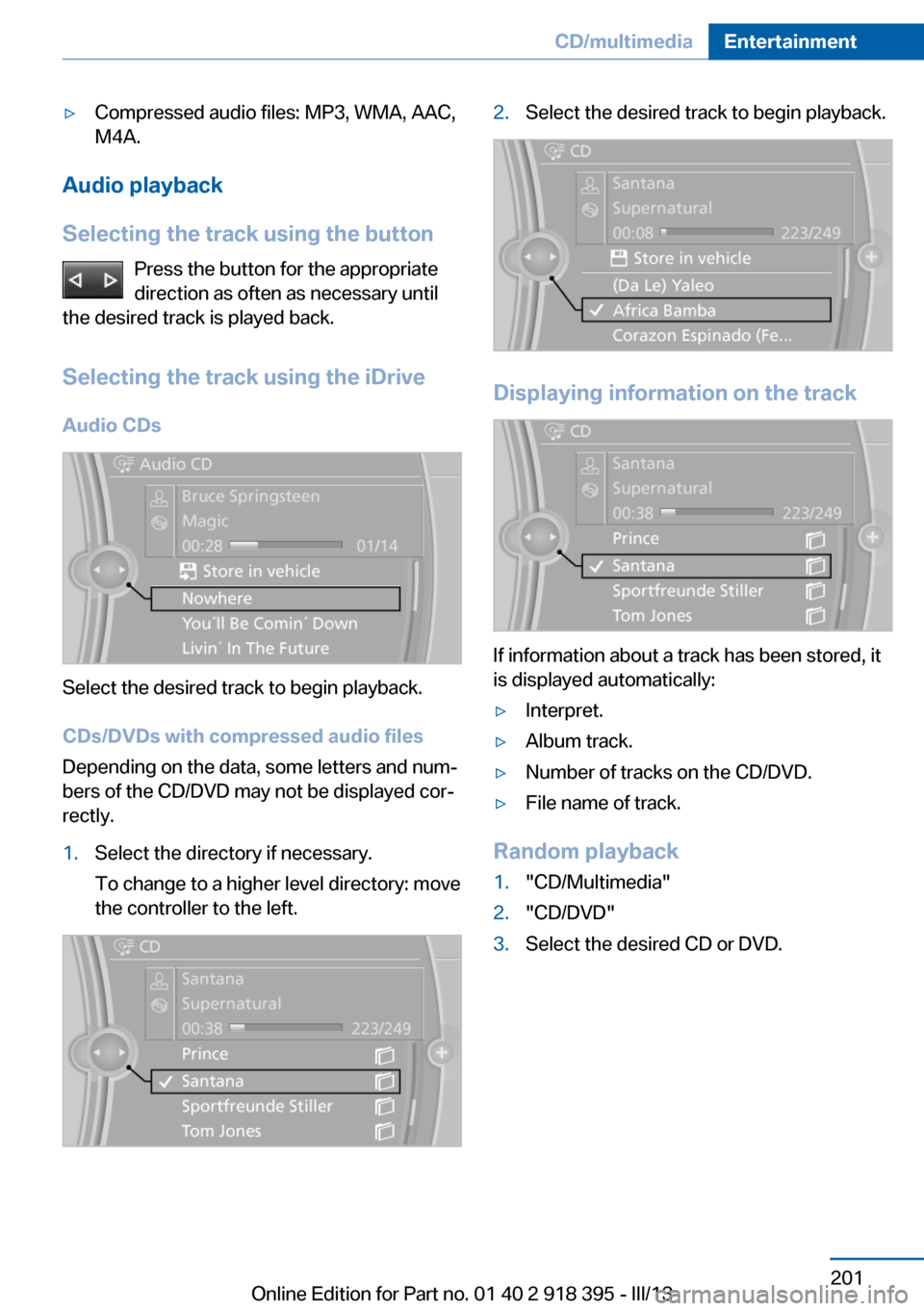
Selecting the track using the iDrive Audio CDs
Select the desired track to begin playback.
CDs/DVDs with compressed audio files
Depending on the data, some letters and num‐
bers of the CD/DVD may not be displayed cor‐
rectly.
1.Select the directory if necessary.
To change to a higher level directory: move
the controller to the left.2.Select the desired track to begin playback.
Displaying information on the track
If information about a track has been stored, it
is displayed automatically:
▷Interpret.▷Album track.▷Number of tracks on the CD/DVD.▷File name of track.
Random playback
1."CD/Multimedia"2."CD/DVD"3.Select the desired CD or DVD.Seite 201CD/multimediaEntertainment201
Online Edition for Part no. 01 40 2 918 395 - III/13
Page 205 of 345
The CD/DVD is drawn in automatically and
placed into the selected compartment.
Sliding in CDs/DVDs
Do not insert the CD/DVD until the LEDs
on the DVD slot are flashing; otherwise, the
CD/DVD or the CD/DVD changer could be
damaged.
Do not continue to push on the CD/DVD; this
may cause it to jam and prevent it from being
able to eject again.◀
Loading all empty CD/DVD
compartments
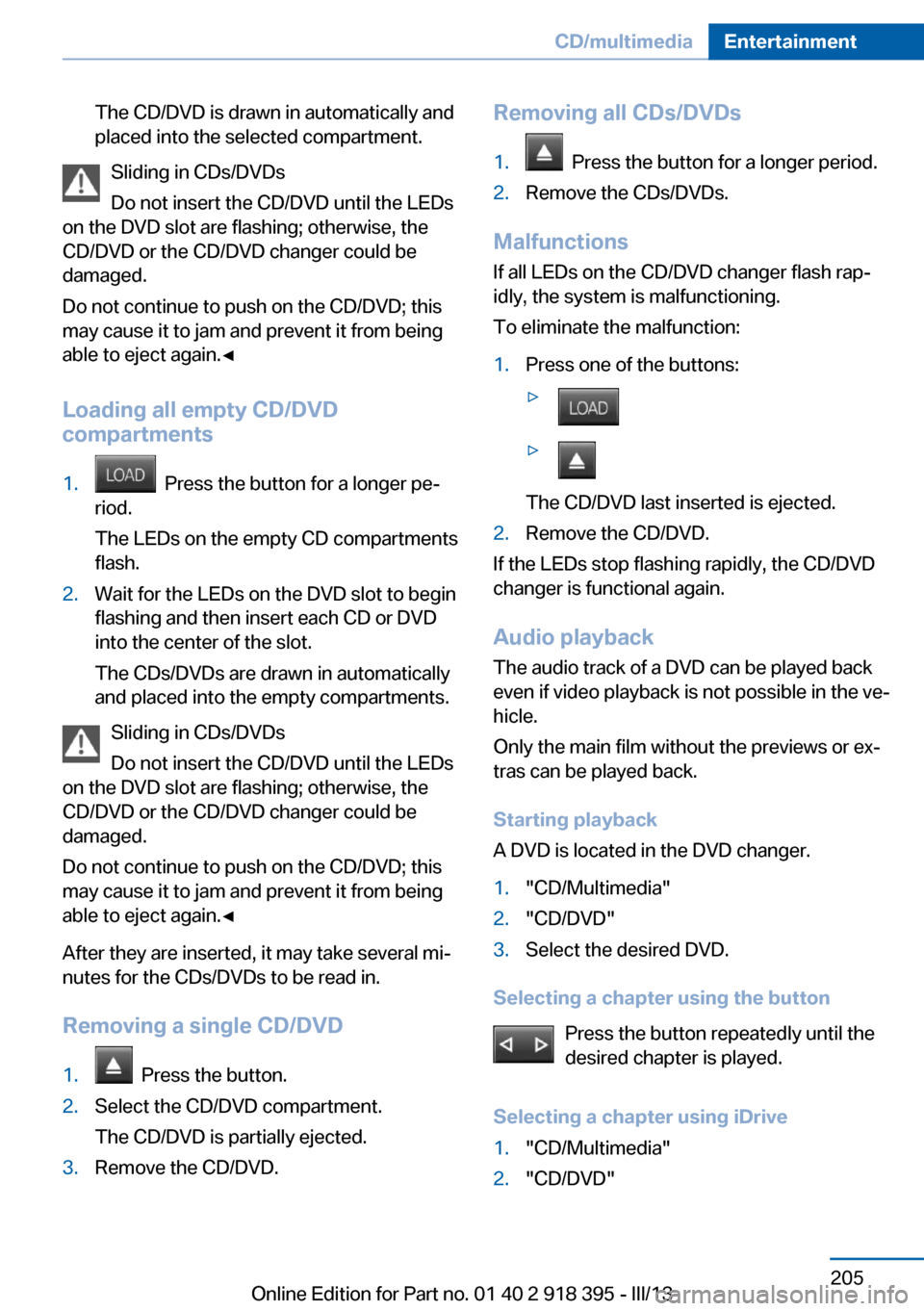
1. Press the button for a longer pe‐
riod.
The LEDs on the empty CD compartments
flash.2.Wait for the LEDs on the DVD slot to begin
flashing and then insert each CD or DVD
into the center of the slot.
The CDs/DVDs are drawn in automatically
and placed into the empty compartments.
Sliding in CDs/DVDs
Do not insert the CD/DVD until the LEDs
on the DVD slot are flashing; otherwise, the
CD/DVD or the CD/DVD changer could be
damaged.
Do not continue to push on the CD/DVD; this
may cause it to jam and prevent it from being
able to eject again.◀
After they are inserted, it may take several mi‐
nutes for the CDs/DVDs to be read in.
Removing a single CD/DVD
1. Press the button.2.Select the CD/DVD compartment.
The CD/DVD is partially ejected.3.Remove the CD/DVD.Removing all CDs/DVDs1. Press the button for a longer period.2.Remove the CDs/DVDs.
Malfunctions If all LEDs on the CD/DVD changer flash rap‐
idly, the system is malfunctioning.
To eliminate the malfunction:
1.Press one of the buttons:▷▷
The CD/DVD last inserted is ejected.
2.Remove the CD/DVD.
If the LEDs stop flashing rapidly, the CD/DVD
changer is functional again.
Audio playback
The audio track of a DVD can be played back
even if video playback is not possible in the ve‐
hicle.
Only the main film without the previews or ex‐
tras can be played back.
Starting playback
A DVD is located in the DVD changer.
1."CD/Multimedia"2."CD/DVD"3.Select the desired DVD.
Selecting a chapter using the button
Press the button repeatedly until the
desired chapter is played.
Selecting a chapter using iDrive
1."CD/Multimedia"2."CD/DVD"Seite 205CD/multimediaEntertainment205
Online Edition for Part no. 01 40 2 918 395 - III/13
Page 208 of 345
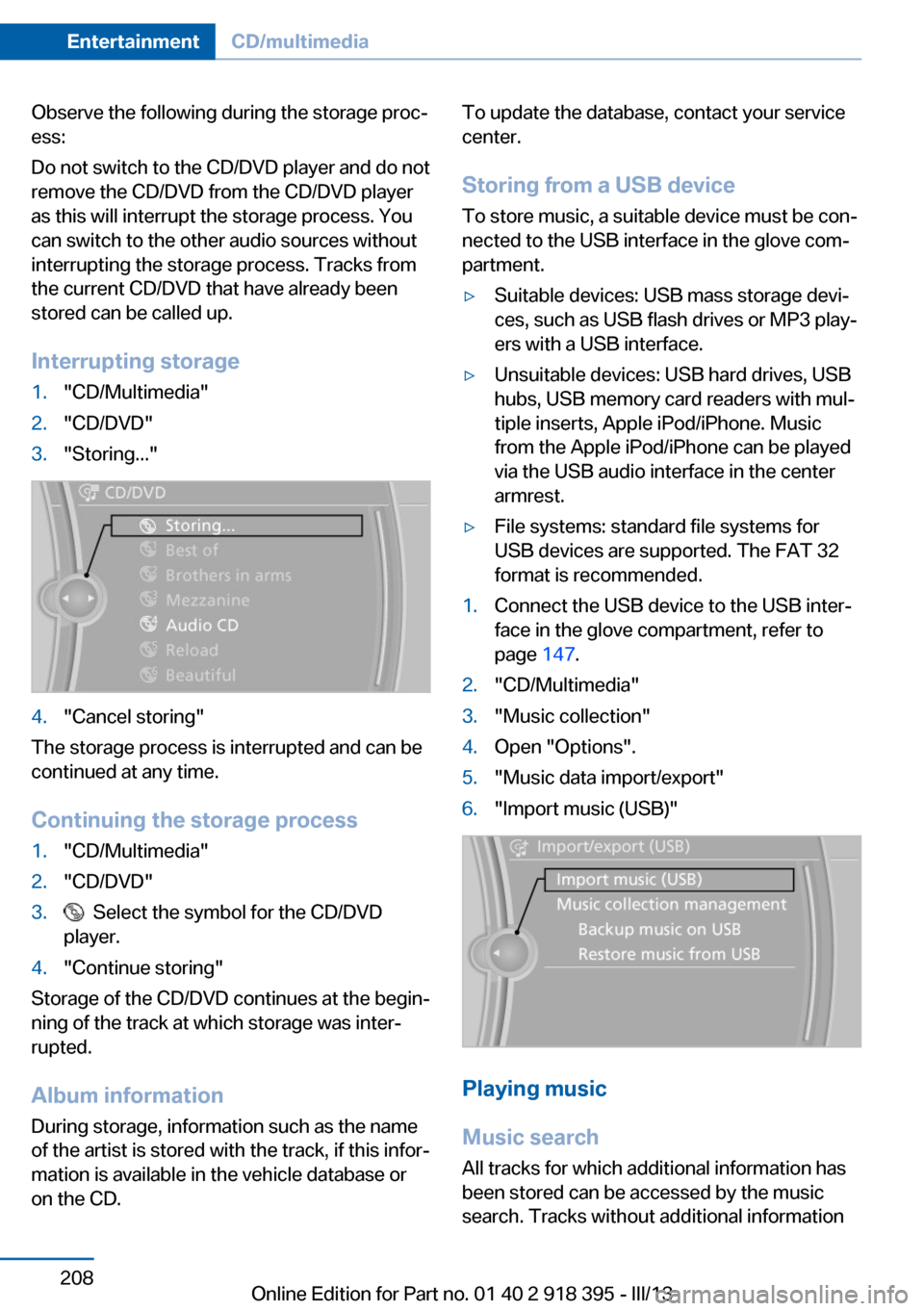
Observe the following during the storage proc‐
ess:
Do not switch to the CD/DVD player and do not
remove the CD/DVD from the CD/DVD player
as this will interrupt the storage process. You
can switch to the other audio sources without
interrupting the storage process. Tracks from
the current CD/DVD that have already been
stored can be called up.
Interrupting storage1."CD/Multimedia"2."CD/DVD"3."Storing..."4."Cancel storing"
The storage process is interrupted and can be
continued at any time.
Continuing the storage process
1."CD/Multimedia"2."CD/DVD"3. Select the symbol for the CD/DVD
player.4."Continue storing"
Storage of the CD/DVD continues at the begin‐
ning of the track at which storage was inter‐
rupted.
Album information
During storage, information such as the name
of the artist is stored with the track, if this infor‐
mation is available in the vehicle database or
on the CD.
To update the database, contact your service
center.
Storing from a USB device
To store music, a suitable device must be con‐
nected to the USB interface in the glove com‐
partment.▷Suitable devices: USB mass storage devi‐
ces, such as USB flash drives or MP3 play‐
ers with a USB interface.▷Unsuitable devices: USB hard drives, USB
hubs, USB memory card readers with mul‐
tiple inserts, Apple iPod/iPhone. Music
from the Apple iPod/iPhone can be played
via the USB audio interface in the center
armrest.▷File systems: standard file systems for
USB devices are supported. The FAT 32
format is recommended.1.Connect the USB device to the USB inter‐
face in the glove compartment, refer to
page 147.2."CD/Multimedia"3."Music collection"4.Open "Options".5."Music data import/export"6."Import music (USB)"
Playing music
Music search
All tracks for which additional information has been stored can be accessed by the music
search. Tracks without additional information
Seite 208EntertainmentCD/multimedia208
Online Edition for Part no. 01 40 2 918 395 - III/13
Page 212 of 345
Deleting the music collection1."CD/Multimedia"2."Music collection"3.Open "Options".4."Delete music collection"
External devices
At a glance
SymbolMeaning AUX-IN port USB audio interface Music interface for smartphones Bluetooth audio
AUX-IN port
At a glance
▷For connecting audio devices, e.g., MP3
player. The sound is output on the vehicle
loudspeakers.▷Recommendation: use medium tone and
volume settings on the audio device. The
tone depends on the quality of the audio
files.
Connecting
The AUX-IN port is in the center armrest.
Connect the headphone connector or line-out
connector of the device to the AUX-IN port.
Playback1.Connect the audio device, switch it on and
select a track on the audio device.2."CD/Multimedia"3.If necessary, "External devices"4. "AUX front"
Sound is output on the vehicle loudspeakers.
Volume
The volume of the sound output is dependent
on the audio device. If this volume differs
markedly from the volume of the other audio
sources, it is advisable to adjust the volumes.
Adjusting the volume
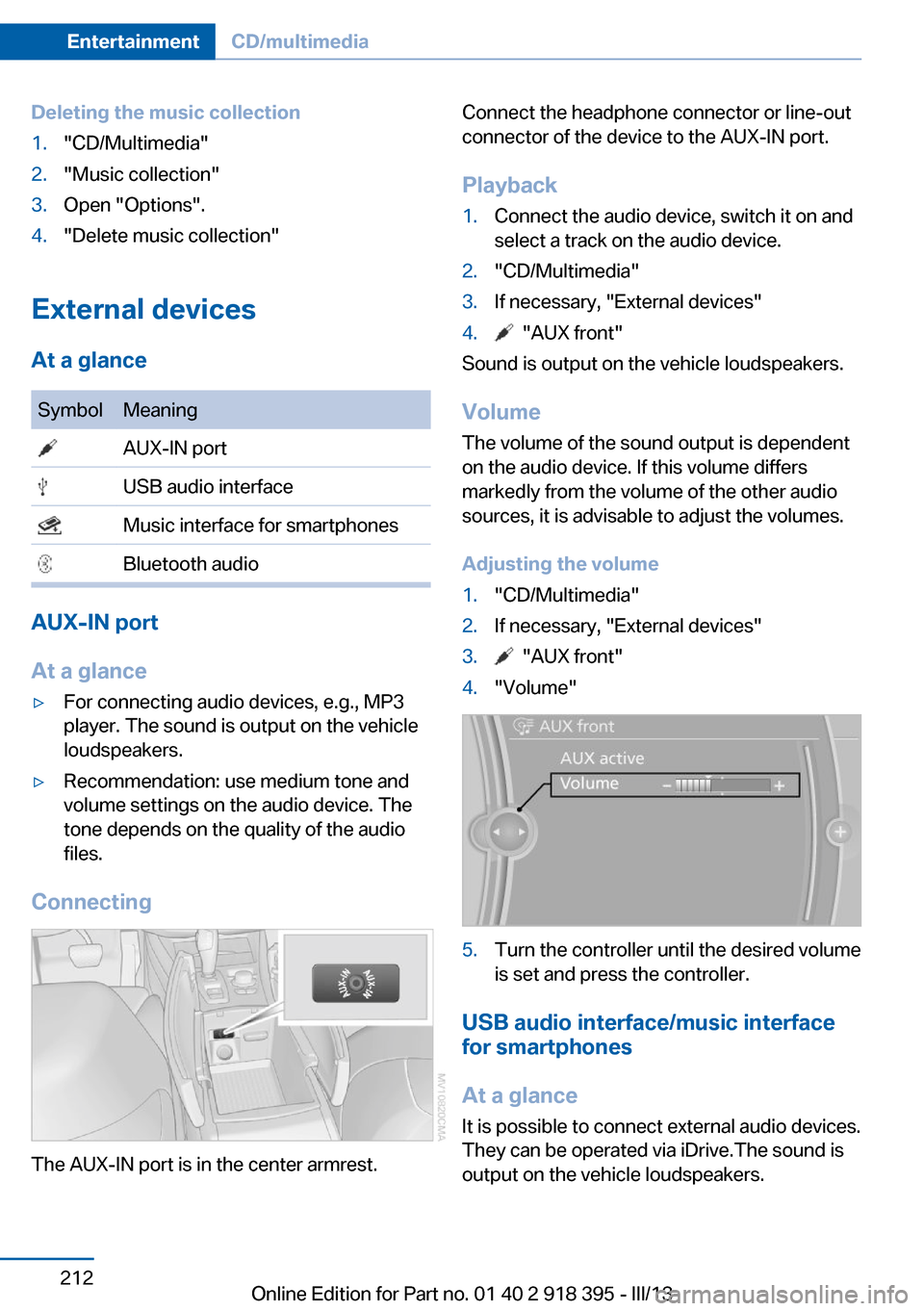
1."CD/Multimedia"2.If necessary, "External devices"3. "AUX front"4."Volume"5.Turn the controller until the desired volume
is set and press the controller.
USB audio interface/music interface
for smartphones
At a glance
It is possible to connect external audio devices.
They can be operated via iDrive.The sound is
output on the vehicle loudspeakers.
Seite 212EntertainmentCD/multimedia212
Online Edition for Part no. 01 40 2 918 395 - III/13