button BMW X6 XDRIVE 35I 2009 E71 Manual Online
[x] Cancel search | Manufacturer: BMW, Model Year: 2009, Model line: X6 XDRIVE 35I, Model: BMW X6 XDRIVE 35I 2009 E71Pages: 317, PDF Size: 9.56 MB
Page 150 of 317
Starting navigation system
148
Starting navigation system
Your navigation system can use satellites to
ascertain the precise position of your vehicle
and guide you reliably to any destination you
enter.
Navigation DVD
The navigation system requires a special navi-
gation DVD. The latest version is available at
your BMW Sports Activity Vehicle Center.
Inserting navigation DVD
Use the lower drive for navigation DVD.
1. Insert the navigation DVD with the labeled
side up.
The navigation DVD is automatically pulled
in.
2. Allow several seconds for the system to
scan the data from the DVD.
Removing navigation DVD
1.Press the button 1.
The DVD emerges slightly from the drive.
2. Remove the DVD.
If the DVD is not ejected fr om the drive, it is pos-
sible that it is blocked. In this case a message is
also shown on the Control Display.
Display in assi stance window
You can display the route or the current position
in the assistance window . This display remains
visible even if you change to another applica-
tion.
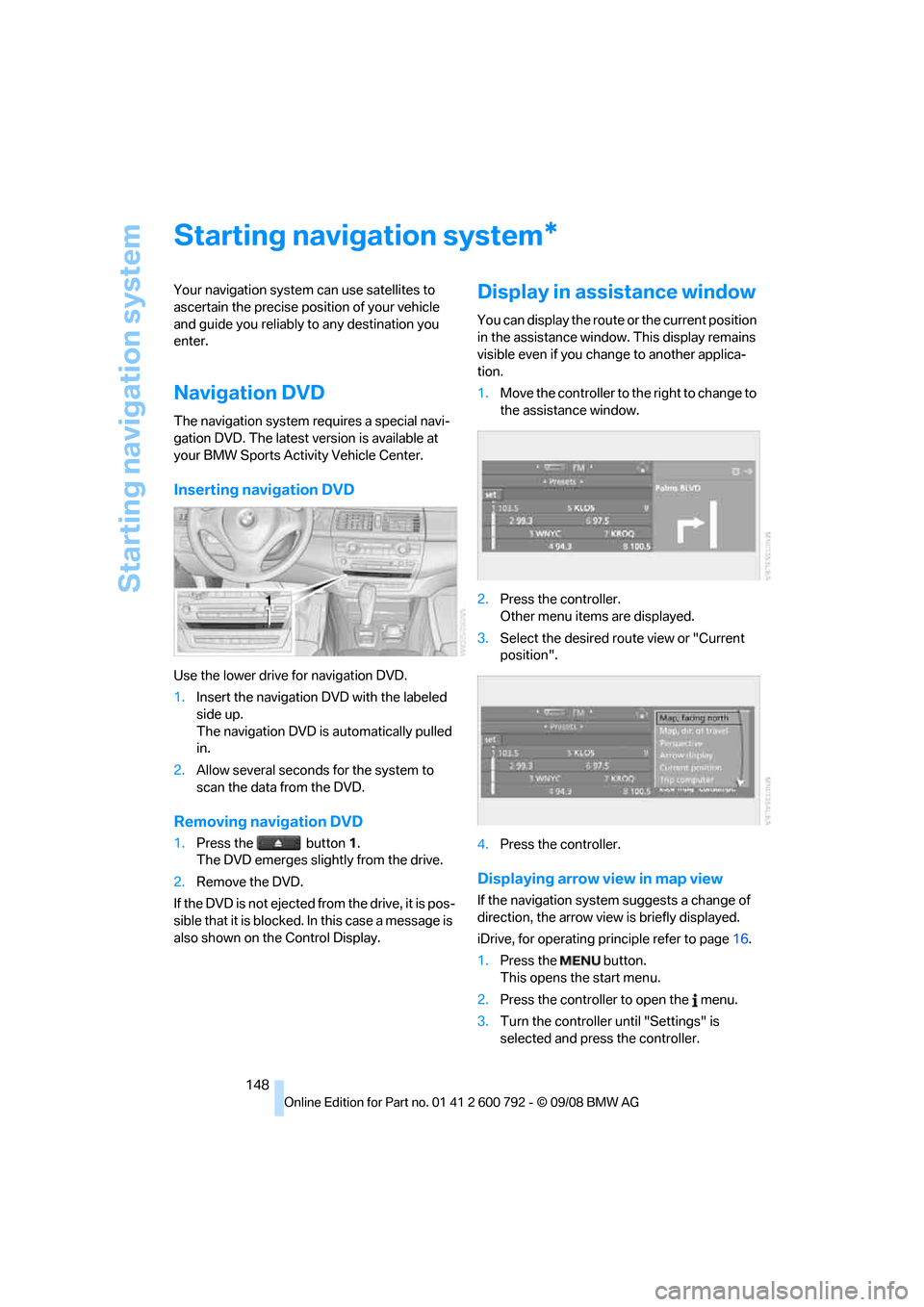
1. Move the controller to th e right to change to
the assistance window.
2. Press the controller.
Other menu items are displayed.
3. Select the desired route view or "Current
position".
4. Press the controller.
Displaying arrow view in map view
If the navigation system suggests a change of
direction, the arrow view is briefly displayed.
iDrive, for operating pr inciple refer to page16.
1. Press the button.
This opens the start menu.
2. Press the controller to open the menu.
3. Turn the controller until "Settings" is
selected and press the controller.
*
Page 152 of 317
Destination entry
150
Destination entry
In entering your destination you can select from
among the following options:
>Entering a destination manually, see below
> Entering destination via voice*, refer to
page 153
> Selecting destination using information,
refer to page 156
> Selecting destination from a list, refer to
Destination list, page 157
> Selecting destination from address book,
refer to page 158
> Selecting home addr ess, refer to page160
After selecting your de stination you can pro-
ceed to start the destin ation guidance, refer to
page 162.
You can also store a navigation destination on
the programmable memo ry buttons, refer to
page 21.
Enter data only with the vehicle station-
ary, and always give priority to the appli-
cable traffic regulations in the event of any con-
tradiction between traffic and road conditions
and the instructions issu ed by the navigation
system. If you do not ob serve this precaution,
you can endanger the vehicle occupants and
other road users.
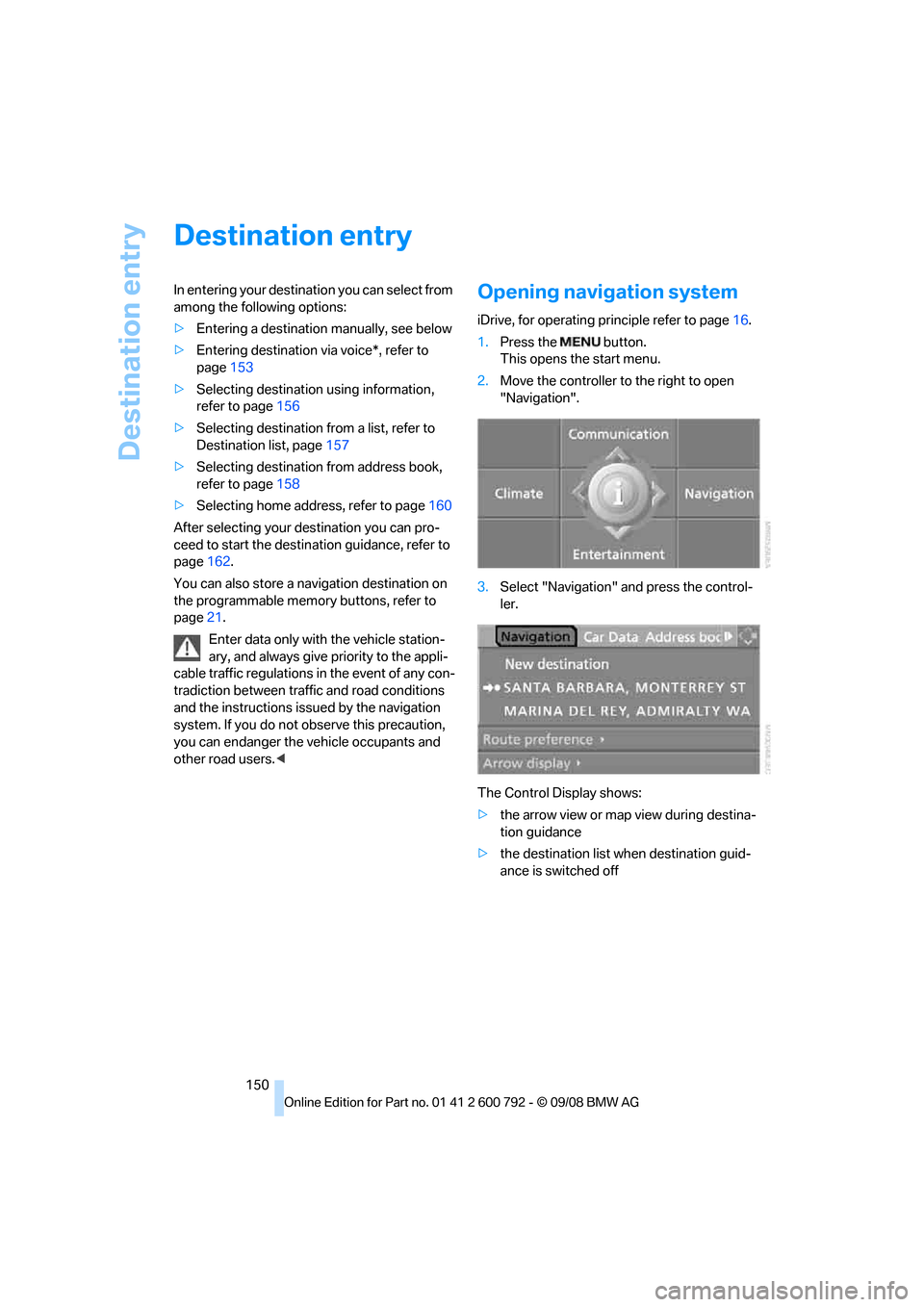
1. Press the button.
This opens the start menu.
2. Move the controller to the right to open
"Navigation".
3. Select "Navigation" and press the control-
ler.
The Control Display shows:
> the arrow view or map view during destina-
tion guidance
> the destination list when destination guid-
ance is switched off
Page 155 of 317
Navigation
Driving tips
153Reference
At a glance
Controls
Communications
Entertainment
Mobility
The related town/city is displayed after the
street name.
If a town/city has already been entered, you can
undo this entry. This may be practical if the
desired street does not exist in the entered des-
tination, because, for example, it belongs to
another part of the town/city.
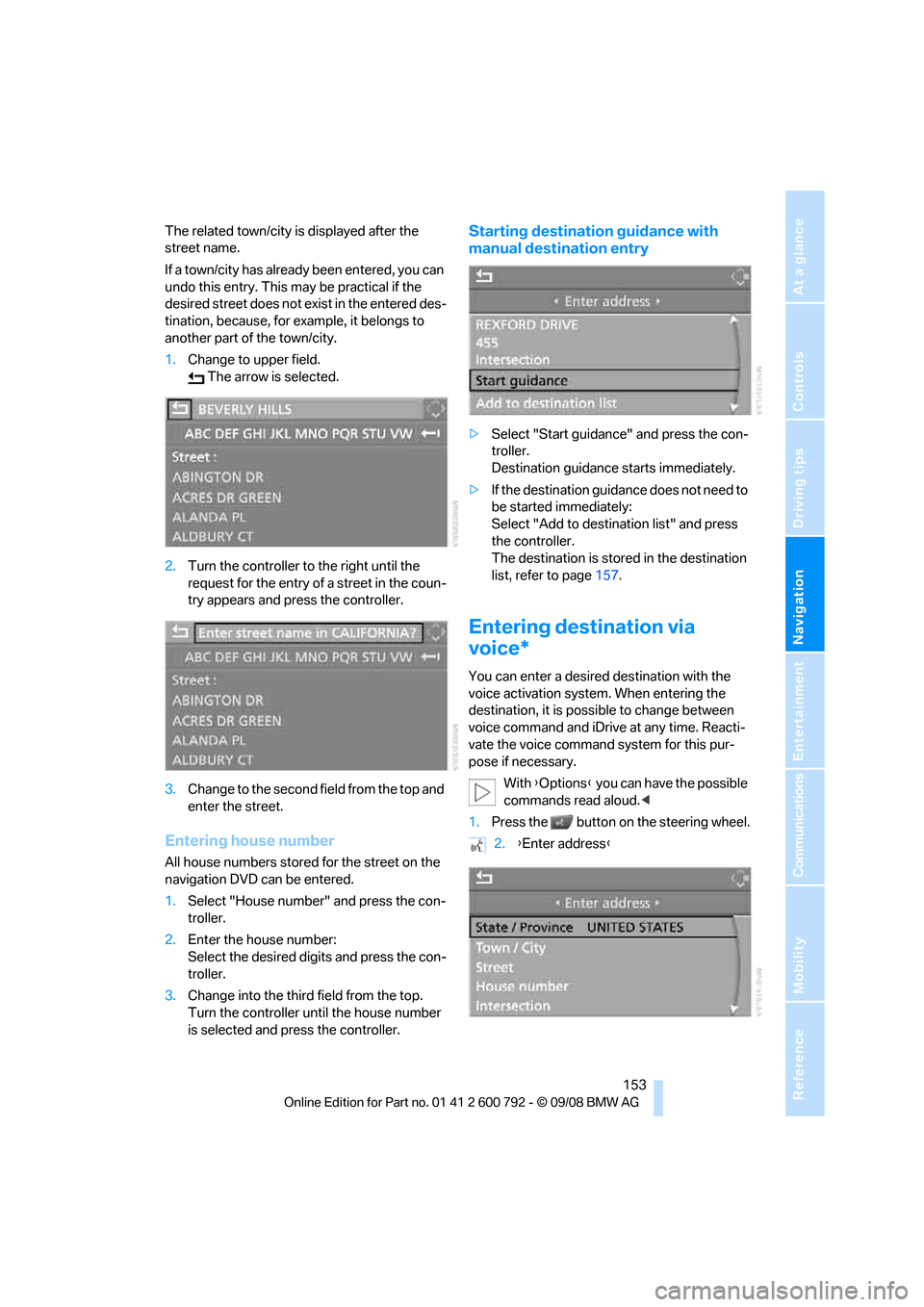
1. Change to upper field.
The arrow is selected.
2. Turn the controller to the right until the
request for the entry of a street in the coun-
try appears and press the controller.
3. Change to the second field from the top and
enter the street.
Entering house number
All house numbers stored for the street on the
navigation DVD can be entered.
1.Select "House number" and press the con-
troller.
2. Enter the house number:
Select the desired digits and press the con-
troller.
3. Change into the third field from the top.
Turn the controller until the house number
is selected and press the controller.
Starting destination guidance with
manual destination entry
>Select "Start guidance" and press the con-
troller.
Destination guidance starts immediately.
> If the destination guidance does not need to
be started immediately:
Select "Add to destination list" and press
the controller.
The destination is stored in the destination
list, refer to page 157.
Entering destination via
voice*
You can enter a desired destination with the
voice activation system . When entering the
destination, it is possible to change between
voice command and iDrive at any time. Reacti-
vate the voice command system for this pur-
pose if necessary.
With {Options } you can have the possible
commands read aloud. <
1. Press the button on the steering wheel.
2.{Enter address }
Page 164 of 317
Destination guidance
162
Destination guidance
Starting destination
guidance
Via iDrive
iDrive, for operating principle refer to page16.
1. Change to upper field if necessary. Turn the
controller until "Navigation" is selected and
press the controller.
2. Select a destination from the destination list
and press the controller or enter a new des-
tination, refer to page 150.
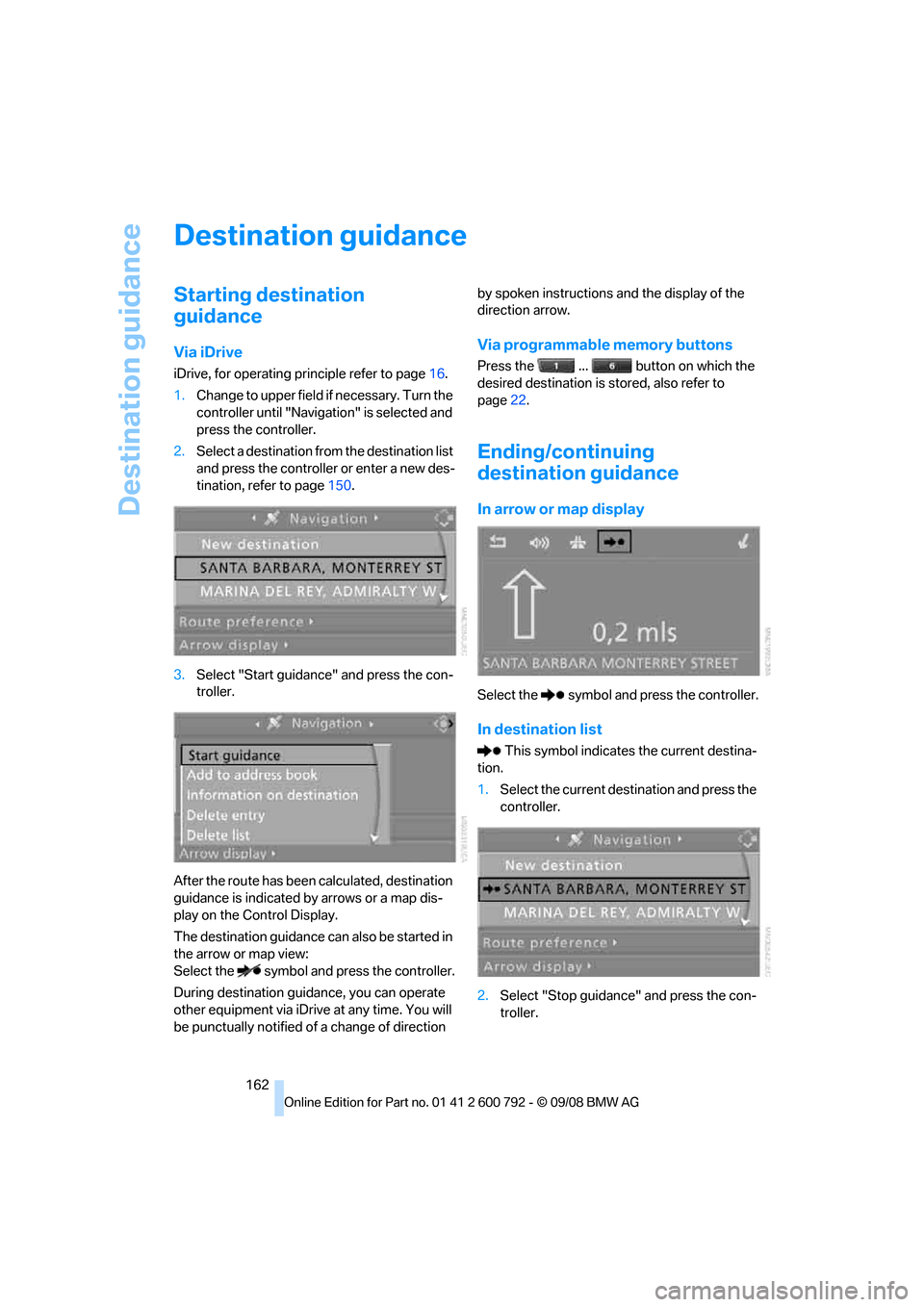
3. Select "Start guidance" and press the con-
troller.
After the route has been calculated, destination
guidance is indicated by arrows or a map dis-
play on the Control Display.
The destination guidance can also be started in
the arrow or map view:
Select the symbol and press the controller.
During destination guid ance, you can operate
other equipment via iDrive at any time. You will
be punctually notified of a change of direction by spoken instructions
and the display of the
direction arrow.
Via programmable memory buttons
Press the ... button on which the
desired destination is stored, also refer to
page 22.
Ending/continuing
destination guidance
In arrow or map display
Select the symbol and press the controller.
In destination list
This symbol indicates the current destina-
tion.
1. Select the current destination and press the
controller.
2. Select "Stop guidance" and press the con-
troller.
Page 167 of 317
Navigation
Driving tips
165Reference
At a glance
Controls
Communications
Entertainment
Mobility
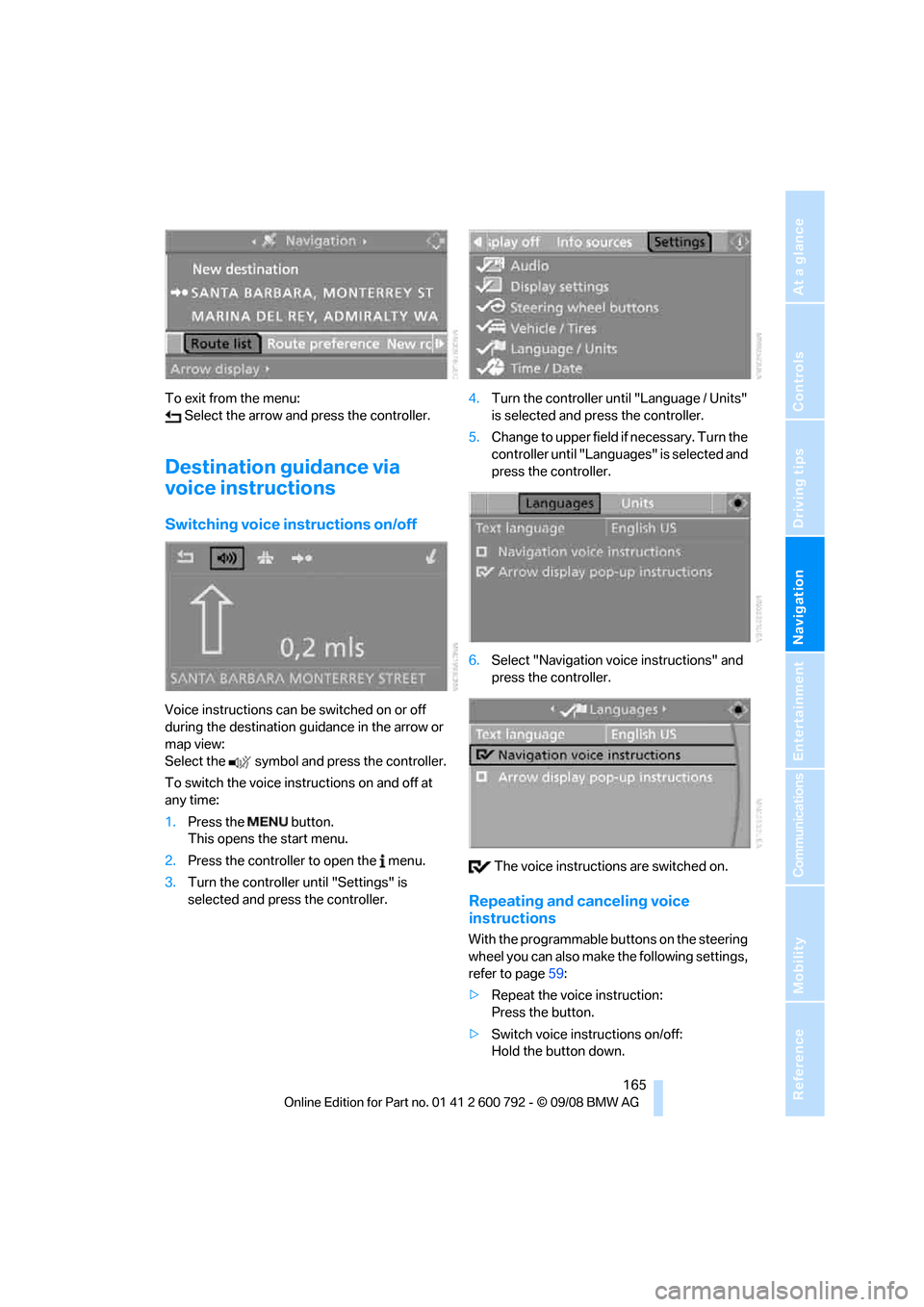
To exit from the menu: Select the arrow and press the controller.
Destination guidance via
voice instructions
Switching voice in structions on/off
Voice instructions can be switched on or off
during the destination guidance in the arrow or
map view:
Select the symbol and press the controller.
To switch the voice instructions on and off at
any time:
1.Press the button.
This opens the start menu.
2. Press the controller to open the menu.
3. Turn the controller until "Settings" is
selected and press the controller. 4.
Turn the controller until "Language / Units"
is selected and pr ess the controller.
5. Change to upper field if necessary. Turn the
controller until "Languages" is selected and
press the controller.
6. Select "Navigation voice instructions" and
press the controller.
The voice instructio ns are switched on.
Repeating and canceling voice
instructions
With the programmable buttons on the steering
wheel you can also make the following settings,
refer to page59:
> Repeat the voice instruction:
Press the button.
> Switch voice instructions on/off:
Hold the button down.
Page 168 of 317
Destination guidance
166
Setting volume of voice instructions
The volume can only be adjusted while a voice
instruction is being output.
1.Repeat the last voice instruction, if neces-
sary.
2. Turn the knob during the voice instruction
to select the desired volume.
This volume is independen t of the volume of the
audio sources.
The setting is stored fo r the remote control cur-
rently in use.
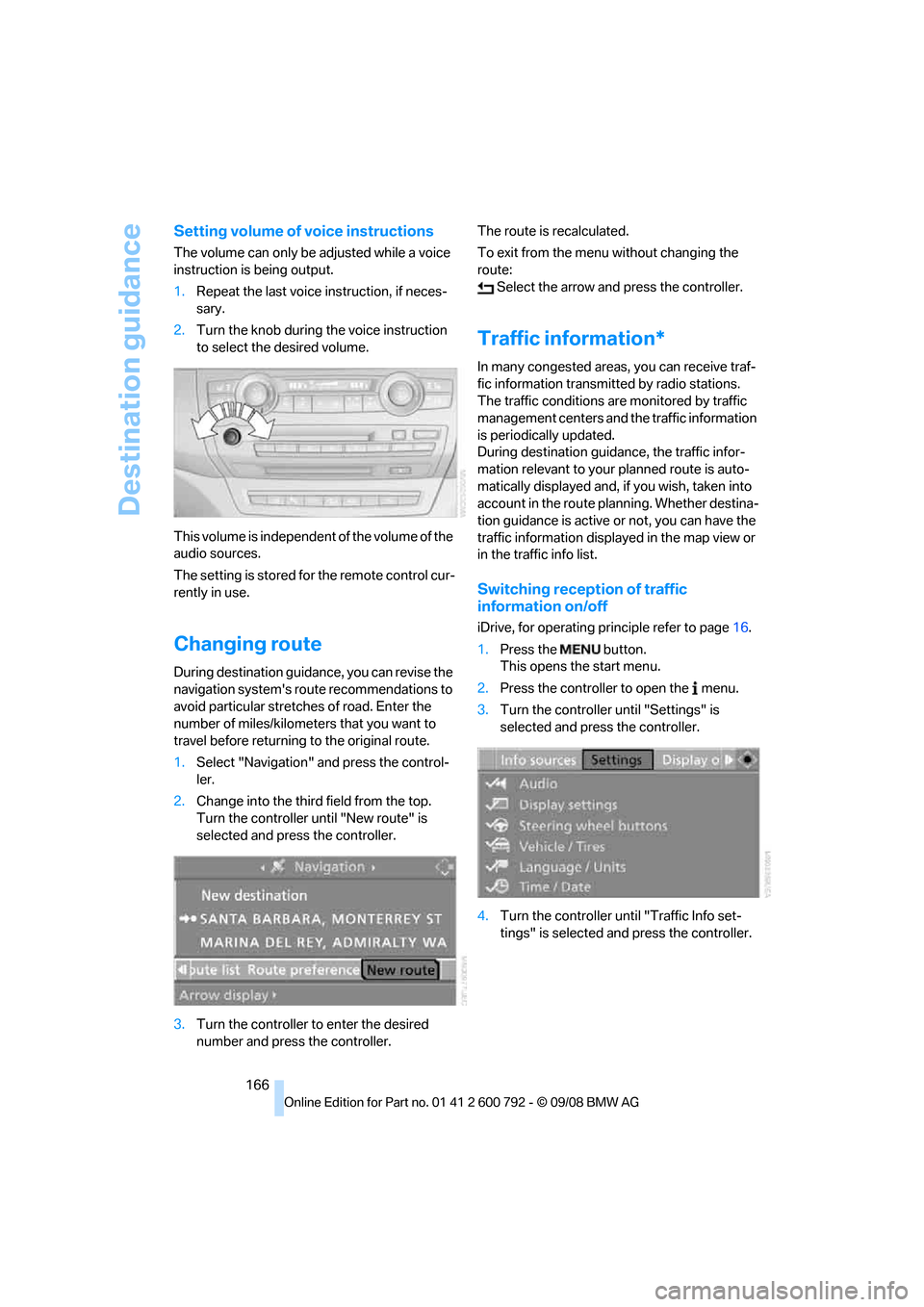
Changing route
During destination guidan ce, you can revise the
navigation system's route recommendations to
avoid particular stretches of road. Enter the
number of miles/kilomete rs that you want to
travel before returning to the original route.
1. Select "Navigation" and press the control-
ler.
2. Change into the third field from the top.
Turn the controller until "New route" is
selected and press the controller.
3. Turn the controller to enter the desired
number and press the controller. The route is recalculated.
To exit from the menu without changing the
route:
Select the arrow and press the controller.
Traffic information*
In many congested areas, you can receive traf-
fic information transmitted by radio stations.
The traffic conditions ar e monitored by traffic
management centers and the traffic information
is periodically updated.
During destination guid ance, the traffic infor-
mation relevant to your planned route is auto-
matically displayed and, if you wish, taken into
account in the route planning. Whether destina-
tion guidance is active or not, you can have the
traffic information displayed in the map view or
in the traffic info list.
Switching reception of traffic
information on/off
iDrive, for operating pr inciple refer to page16.
1. Press the button.
This opens the start menu.
2. Press the controller to open the menu.
3. Turn the controller until "Settings" is
selected and press the controller.
4. Turn the controller until "Traffic Info set-
tings" is selected and press the controller.
Page 176 of 317
On/Off and settings
174
On/Off and settings
The following audio sources have shared con-
trols and setting options:
> Radio
> CD player
> CD changer
*
Controls
The audio sources can be controlled using:
>Buttons in the area of the CD player
> iDrive
> Buttons
on steering wheel, refer to page 11
> Programmable memory buttons, refer to
page 21
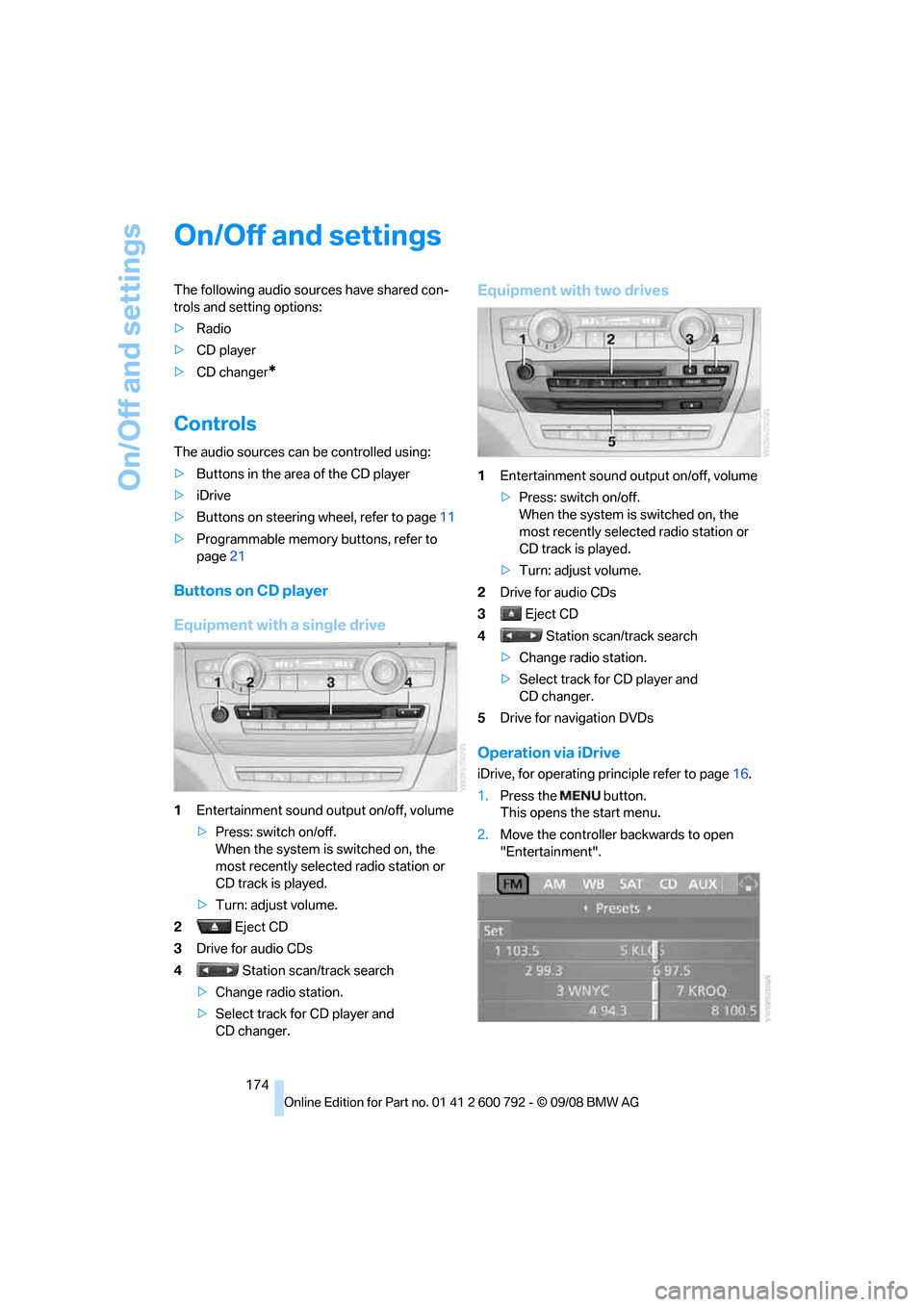
Buttons on CD player
Equipment with a single drive
1Entertainment sound output on/off, volume
>Press: switch on/off.
When the system is switched on, the
most recently select ed radio station or
CD track is played.
> Turn: adjust volume.
2 Eject CD
3 Drive for audio CDs
4 Station scan/track search
> Change radio station.
> Select track for CD player and
CD changer.
Equipment with two drives
1 Entertainment sound output on/off, volume
>Press: switch on/off.
When the system is switched on, the
most recently select ed radio station or
CD track is played.
> Turn: adjust volume.
2 Drive for audio CDs
3 Eject CD
4 Station scan/track search
> Change radio station.
> Select track for CD player and
CD changer.
5 Drive for navigation DVDs
Operation via iDrive
iDrive, for operating pr inciple refer to page16.
1. Press the button.
This opens the start menu.
2. Move the controller backwards to open
"Entertainment".
Page 177 of 317
Navigation
Entertainment
Driving tips
175Reference
At a glance
Controls
Communications
Mobility
You have the following choices:
>"FM" and "AM": radio reception
> "WB": Weather Band station
> "SAT": satellite radio
*
>"CD": CD player or changer*
>"AUX": AUX-In connection, USB audio
interface
*
>"Set": depending on the audio source,
other adjustments can be made, e.g. with
the radio: update st ation with strongest
reception, store station, tone control, sam-
ple stations.
From another menu, you can change
directly to the scr een last displayed,
refer to Comfort opening of menu items,
page 18.<
From radio readiness, the selected audio
source is stored for the remote control currently
in use.
Switching on/off
To switch the Entertainment sound output on
and off:
Press knob 1 on the CD player.
This symbol on the Control Display indi-
cates that sound output is switched off.
For equipment with a single drive, the sound
output is available for approx. 20 minutes with
the ignition switched off.
Switch on the sound output again for this pur-
pose.
Adjusting volume
Turn knob 1 on the CD player until the desired
volume is set.
You can also adjust the volume with buttons on
the steering wheel, refer to page 11.
From radio readiness, the setting is stored for
the remote control currently in use.
Tone control
You can alter various tone settings, e.g. treble
and bass, or the speed-dependent volume
increase.
The tone settings are set for all audio sources at
once.
From radio readiness, the settings are stored
for the remote contro l currently in use.
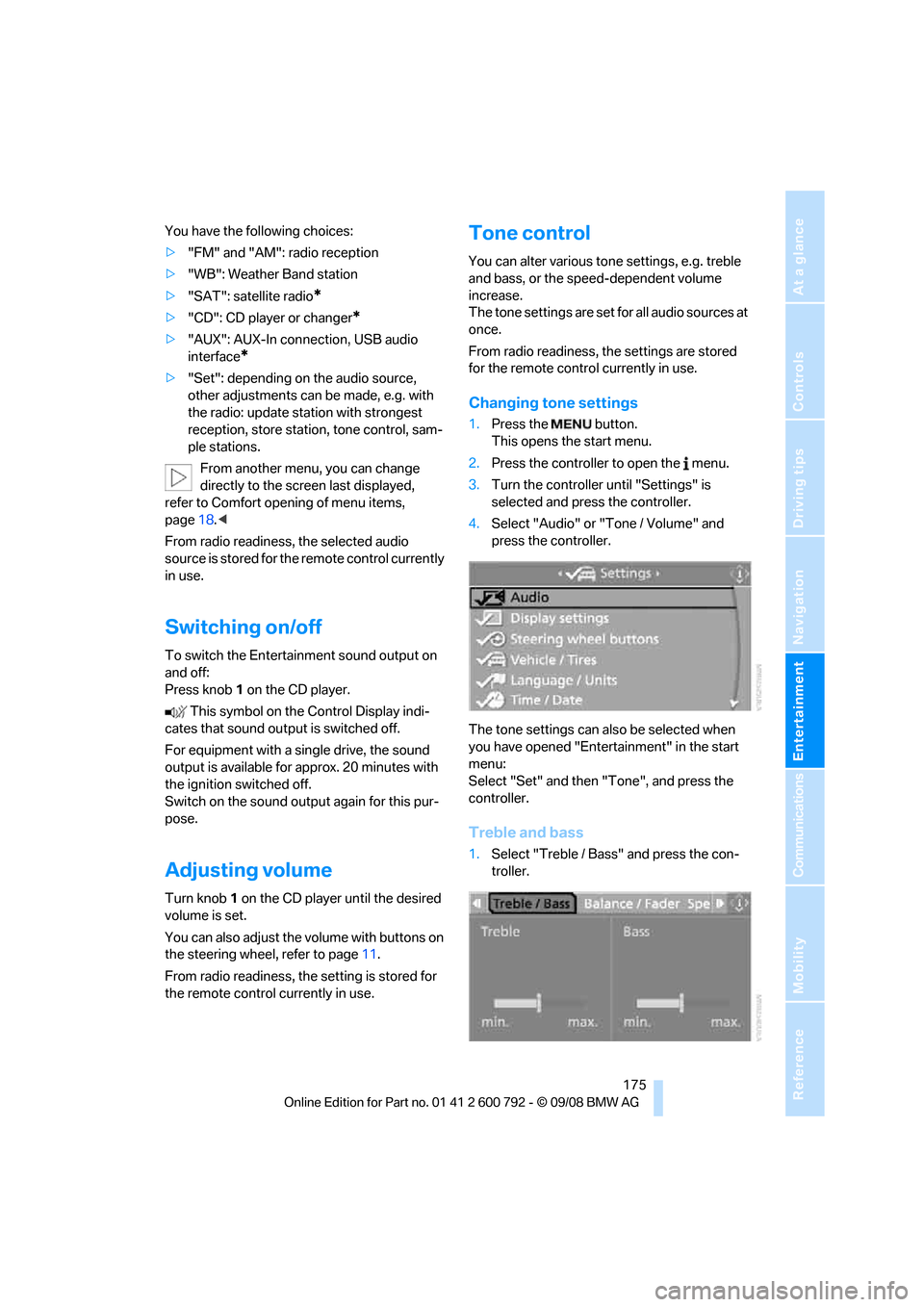
Changing tone settings
1.Press the button.
This opens the start menu.
2. Press the controller to open the menu.
3. Turn the controller until "Settings" is
selected and press the controller.
4. Select "Audio" or "Tone / Volume" and
press the controller.
The tone settings can also be selected when
you have opened "Entertainment" in the start
menu:
Select "Set" and then "Tone", and press the
controller.
Treble and bass
1. Select "Treble / Bass" and press the con-
troller.
Page 180 of 317
Radio
178
Radio
Your radio provides reception of the FM and AM
wavebands.
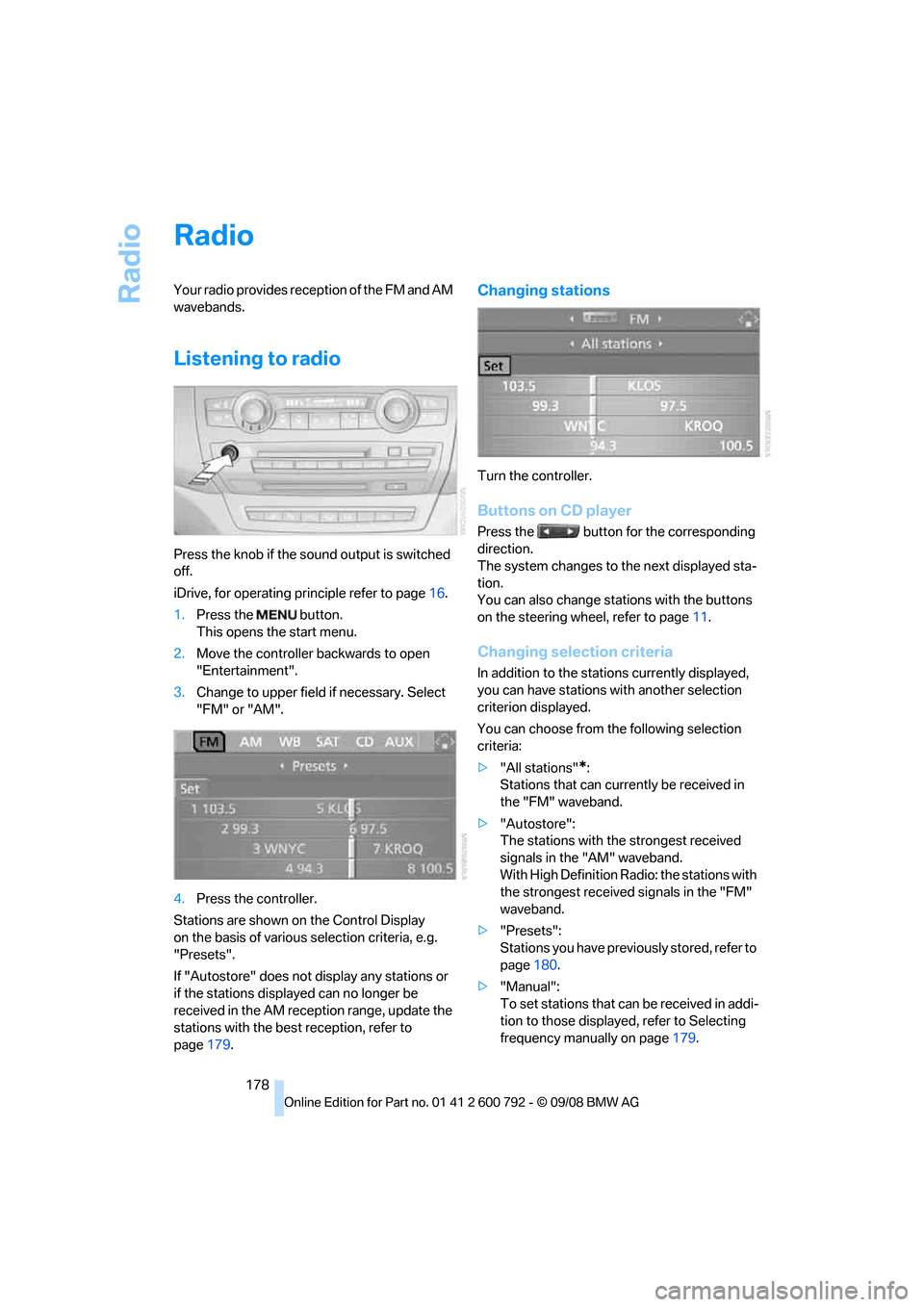
Listening to radio
Press the knob if the sound output is switched
off.
iDrive, for operating principle refer to page16.
1. Press the button.
This opens the start menu.
2. Move the controller backwards to open
"Entertainment".
3. Change to upper field if necessary. Select
"FM" or "AM".
4. Press the controller.
Stations are shown on the Control Display
on the basis of various selection criteria, e.g.
"Presets".
If "Autostore" does not display any stations or
if the stations displayed can no longer be
received in the AM reception range, update the
stations with the best reception, refer to
page 179.
Changing stations
Turn the controller.
Buttons on CD player
Press the button for the corresponding
direction.
The system changes to the next displayed sta-
tion.
You can also change stat ions with the buttons
on the steering wheel, refer to page 11.
Changing selection criteria
In addition to the stations currently displayed,
you can have stations with another selection
criterion displayed.
You can choose from the following selection
criteria:
> "All stations"
*:
Stations that can currently be received in
the "FM" waveband.
> "Autostore":
The stations with the strongest received
signals in the "AM" waveband.
With High Definition Radio: the stations with
the strongest received signals in the "FM"
waveband.
> "Presets":
Stations you have previously stored, refer to
page 180.
> "Manual":
To set stations that ca n be received in addi-
tion to those displayed, refer to Selecting
frequency manually on page 179.
Page 181 of 317
Navigation
Entertainment
Driving tips
179Reference
At a glance
Controls
Communications
Mobility
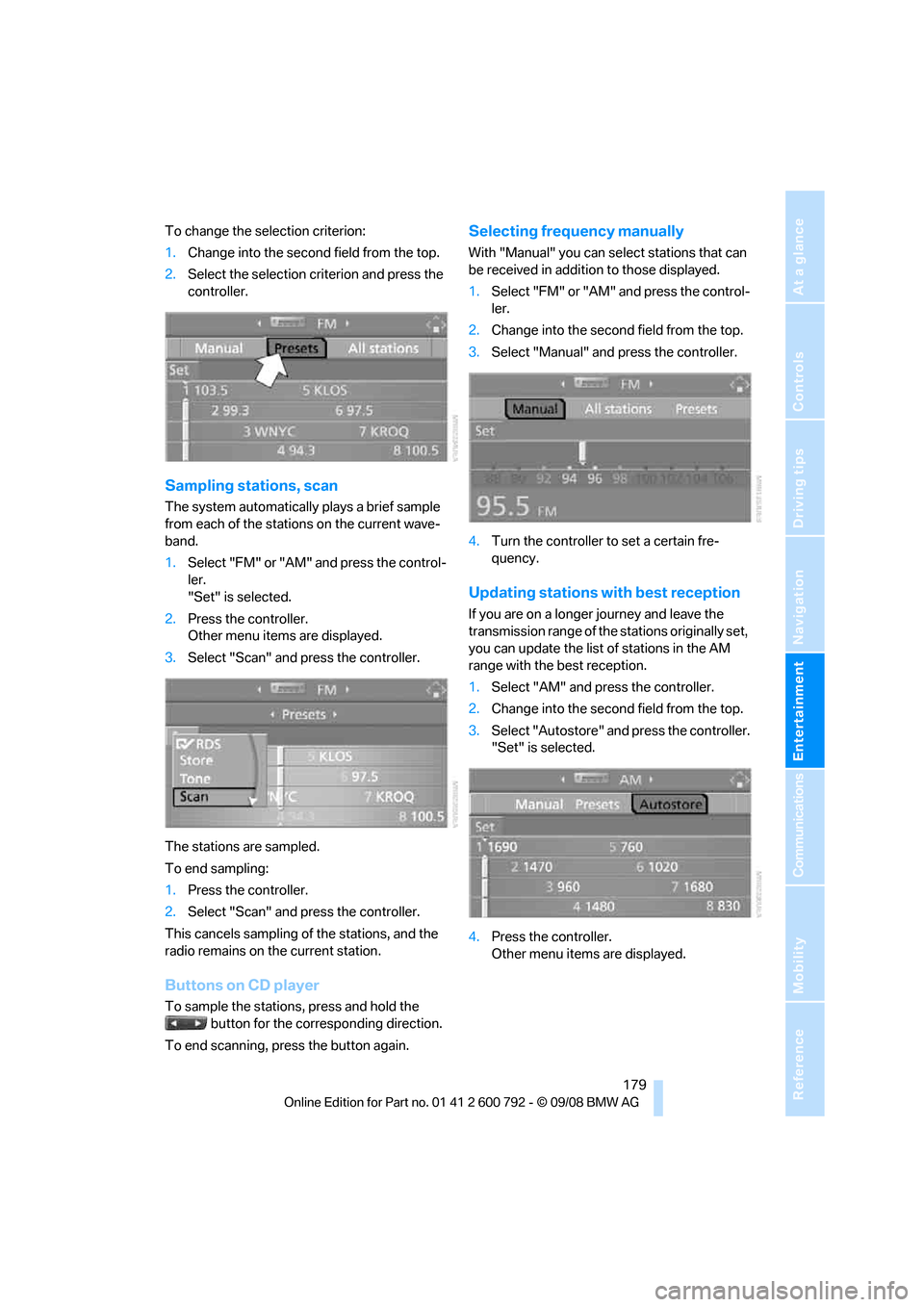
To change the selection criterion:
1.Change into the second field from the top.
2. Select the selection criterion and press the
controller.
Sampling stations, scan
The system automatically plays a brief sample
from each of the stations on the current wave-
band.
1.Select "FM" or "AM" and press the control-
ler.
"Set" is selected.
2. Press the controller.
Other menu items are displayed.
3. Select "Scan" and press the controller.
The stations are sampled.
To end sampling:
1. Press the controller.
2. Select "Scan" and press the controller.
This cancels sampling of the stations, and the
radio remains on the current station.
Buttons on CD player
To sample the stations, press and hold the button for the corresponding direction.
To end scanning, press the button again.
Selecting frequency manually
With "Manual" you can se lect stations that can
be received in additi on to those displayed.
1. Select "FM" or "AM" and press the control-
ler.
2. Change into the second field from the top.
3. Select "Manual" and press the controller.
4. Turn the controller to set a certain fre-
quency.
Updating stations with best reception
If you are on a longer journey and leave the
transmission range of the stations originally set,
you can update the list of stations in the AM
range with the best reception.
1.Select "AM" and pr ess the controller.
2. Change into the second field from the top.
3. Select "Autostore" and press the controller.
"Set" is selected.
4. Press the controller.
Other menu items are displayed.