button BMW X6 XDRIVE 35I 2009 E71 Workshop Manual
[x] Cancel search | Manufacturer: BMW, Model Year: 2009, Model line: X6 XDRIVE 35I, Model: BMW X6 XDRIVE 35I 2009 E71Pages: 317, PDF Size: 9.56 MB
Page 95 of 317
Controls
93Reference
At a glance
Driving tips
Communications
Navigation
Entertainment
Mobility
Rear view camera*
The concept
The rear view camera in the liftgate displays the
area behind your vehicle on the Control Display.
Also check the traffic situation around the
vehicle during parking and maneuvering
with direct vision, as otherwise danger of an
accident could result, for example, from road
users or objects locate d outside the picture
area of the rear view camera. <
Switching on
Automatically
With the engine running, shift into reverse.
If the image of the PDC Park Distance
Control appears on the Control Display,
you can switch the image to the rear view cam-
era, refer to Displays on page 95.<
Manually
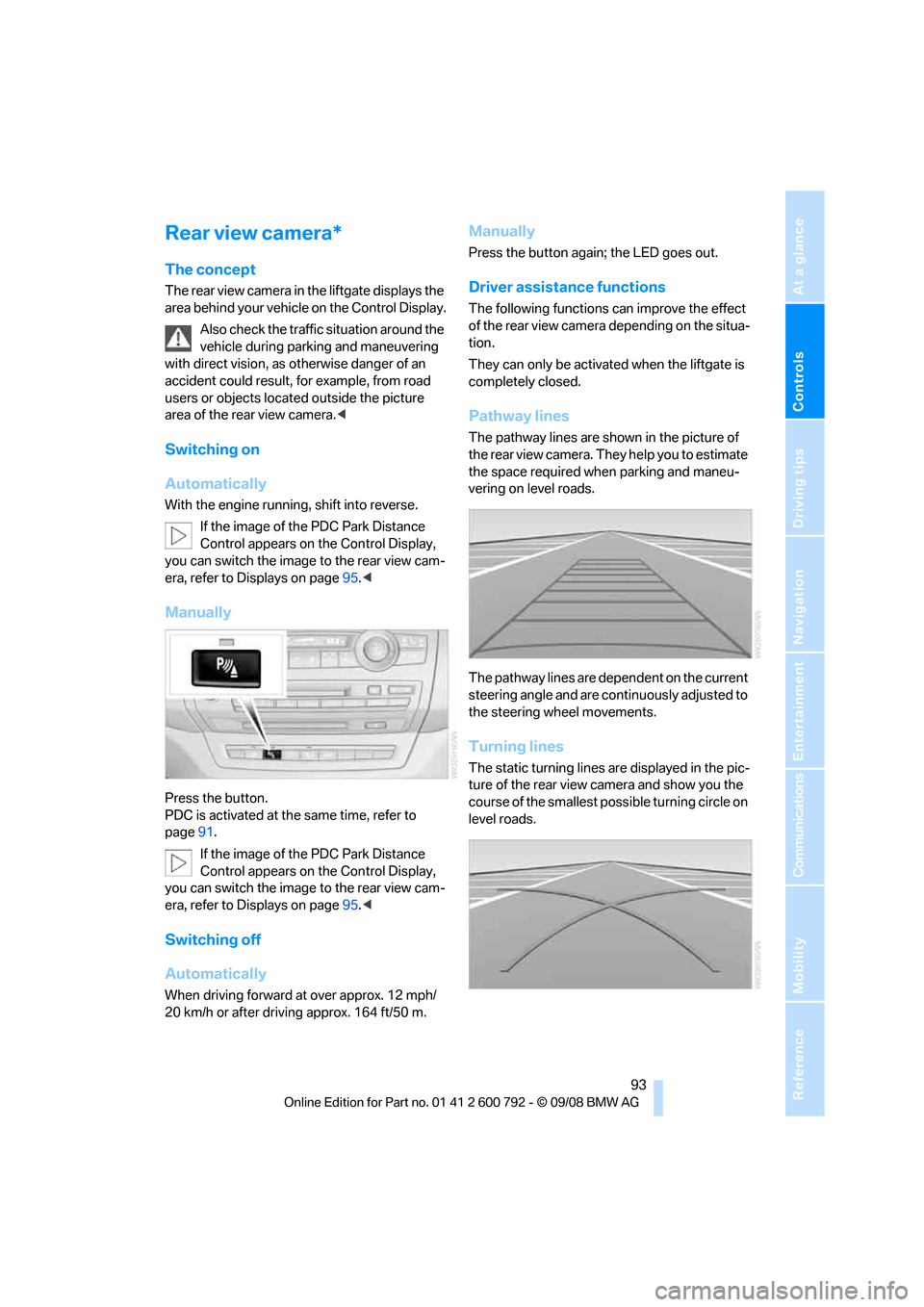
Press the button.
PDC is activated at th e same time, refer to
page 91.
If the image of the PDC Park Distance
Control appears on the Control Display,
you can switch the image to the rear view cam-
era, refer to Displays on page 95.<
Switching off
Automatically
When driving forward at over approx. 12 mph/
20 km/h or after driving approx. 164 ft/50 m.
Manually
Press the button again; the LED goes out.
Driver assistan ce functions
The following functions can improve the effect
of the rear view camera depending on the situa-
tion.
They can only be activated when the liftgate is
completely closed.
Pathway lines
The pathway lines are shown in the picture of
the rear view camera. They help you to estimate
the space required when parking and maneu-
vering on level roads.
The pathway lines are dependent on the current
steering angle and are continuously adjusted to
the steering wheel movements.
Turning lines
The static turning lines are displayed in the pic-
ture of the rear view camera and show you the
course of the smallest possible turning circle on
level roads.
Page 96 of 317
Technology for comfort, convenience and safety
94
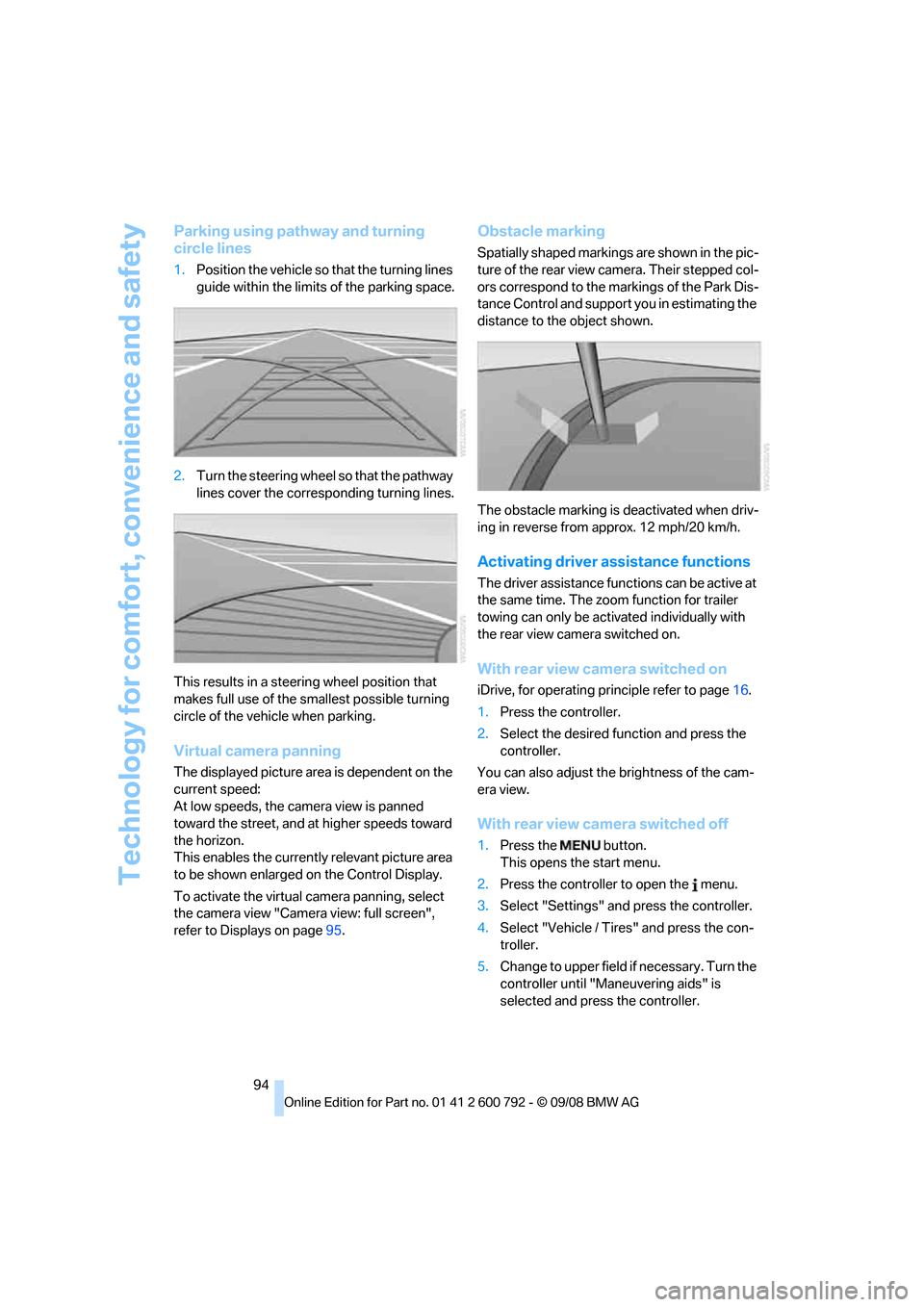
Parking using pathway and turning
circle lines
1.Position the vehicle so that the turning lines
guide within the limits of the parking space.
2. Turn the steering wheel so that the pathway
lines cover the corresp onding turning lines.
This results in a steerin g wheel position that
makes full use of the smallest possible turning
circle of the vehicle when parking.
Virtual camera panning
The displayed picture area is dependent on the
current speed:
At low speeds, the camera view is panned
toward the street, and at higher speeds toward
the horizon.
This enables the currentl y relevant picture area
to be shown enlarged on the Control Display.
To activate the virtual camera panning, select
the camera view "Camera view: full screen",
refer to Displays on page 95.
Obstacle marking
Spatially shaped markings are shown in the pic-
ture of the rear view camera. Their stepped col-
ors correspond to the markings of the Park Dis-
tance Control and support you in estimating the
distance to the object shown.
The obstacle marking is deactivated when driv-
ing in reverse from approx. 12 mph/20 km/h.
Activating driver a ssistance functions
The driver assistance functions can be active at
the same time. The zoom function for trailer
towing can only be acti vated individually with
the rear view camera switched on.
With rear view camera switched on
iDrive, for operating pr inciple refer to page16.
1. Press the controller.
2. Select the desired fu nction and press the
controller.
You can also adjust the brightness of the cam-
era view.
With rear view ca mera switched off
1.Press the button.
This opens the start menu.
2. Press the controller to open the menu.
3. Select "Settings" an d press the controller.
4. Select "Vehicle / Tire s" and press the con-
troller.
5. Change to upper field if necessary. Turn the
controller until "Maneuvering aids" is
selected and press the controller.
Page 98 of 317
Technology for comfort, convenience and safety
96
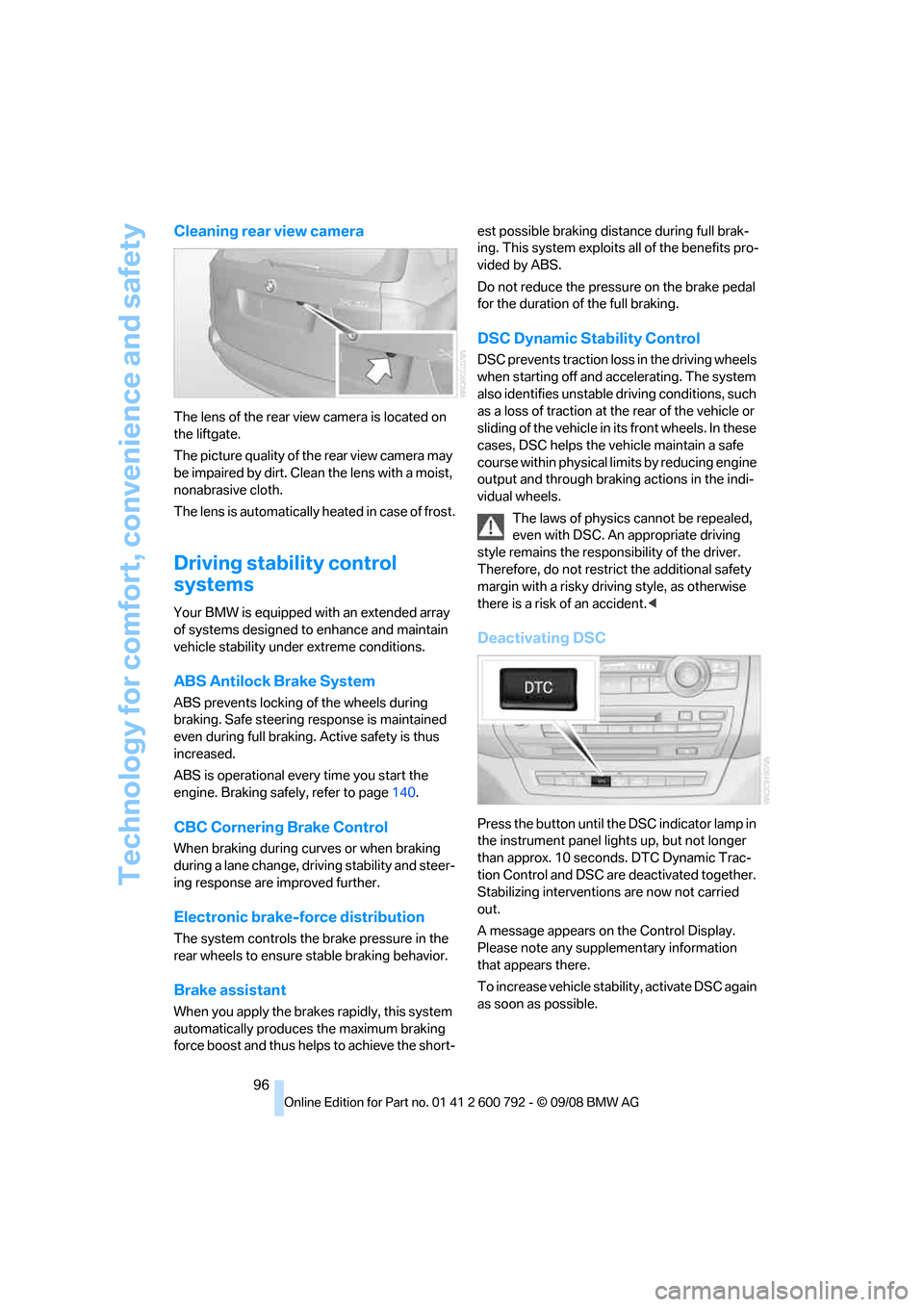
Cleaning rear view camera
The lens of the rear view camera is located on
the liftgate.
The picture quality of the rear view camera may
be impaired by dirt. Clean the lens with a moist,
nonabrasive cloth.
The lens is automatically heated in case of frost.
Driving stability control
systems
Your BMW is equipped wi th an extended array
of systems designed to enhance and maintain
vehicle stability under extreme conditions.
ABS Antilock Brake System
ABS prevents locking of the wheels during
braking. Safe steering response is maintained
even during full braking. Active safety is thus
increased.
ABS is operational every time you start the
engine. Braking safely, refer to page 140.
CBC Cornering Brake Control
When braking during curves or when braking
during a lane change, dr iving stability and steer-
ing response are improved further.
Electronic brake-force distribution
The system controls the brake pressure in the
rear wheels to ensure st able braking behavior.
Brake assistant
When you apply the brakes rapidly, this system
automatically produces the maximum braking
force boost and thus helps to achieve the short- est possible braking distance during full brak-
ing. This system exploits all of the benefits pro-
vided by ABS.
Do not reduce th
e pressure on the brake pedal
for the duration of the full braking.
DSC Dynamic Stability Control
DSC prevents traction lo ss in the driving wheels
when starting off and accelerating. The system
also identifies unstable driving conditions, such
as a loss of traction at the rear of the vehicle or
sliding of the vehicle in its front wheels. In these
cases, DSC helps the vehicle maintain a safe
course within physical lim its by reducing engine
output and through braking actions in the indi-
vidual wheels.
The laws of physics cannot be repealed,
even with DSC. An appropriate driving
style remains the responsibility of the driver.
Therefore, do not restrict the additional safety
margin with a risky driving style, as otherwise
there is a risk of an accident. <
Deactivating DSC
Press the button until the DSC indicator lamp in
the instrument panel lights up, but not longer
than approx. 10 seconds. DTC Dynamic Trac-
tion Control and DSC ar e deactivated together.
Stabilizing intervention s are now not carried
out.
A message appears on the Control Display.
Please note any supplementary information
that appears there.
To increase vehicle stability, activate DSC again
as soon as possible.
Page 99 of 317
Controls
97Reference
At a glance
Driving tips
Communications
Navigation
Entertainment
Mobility
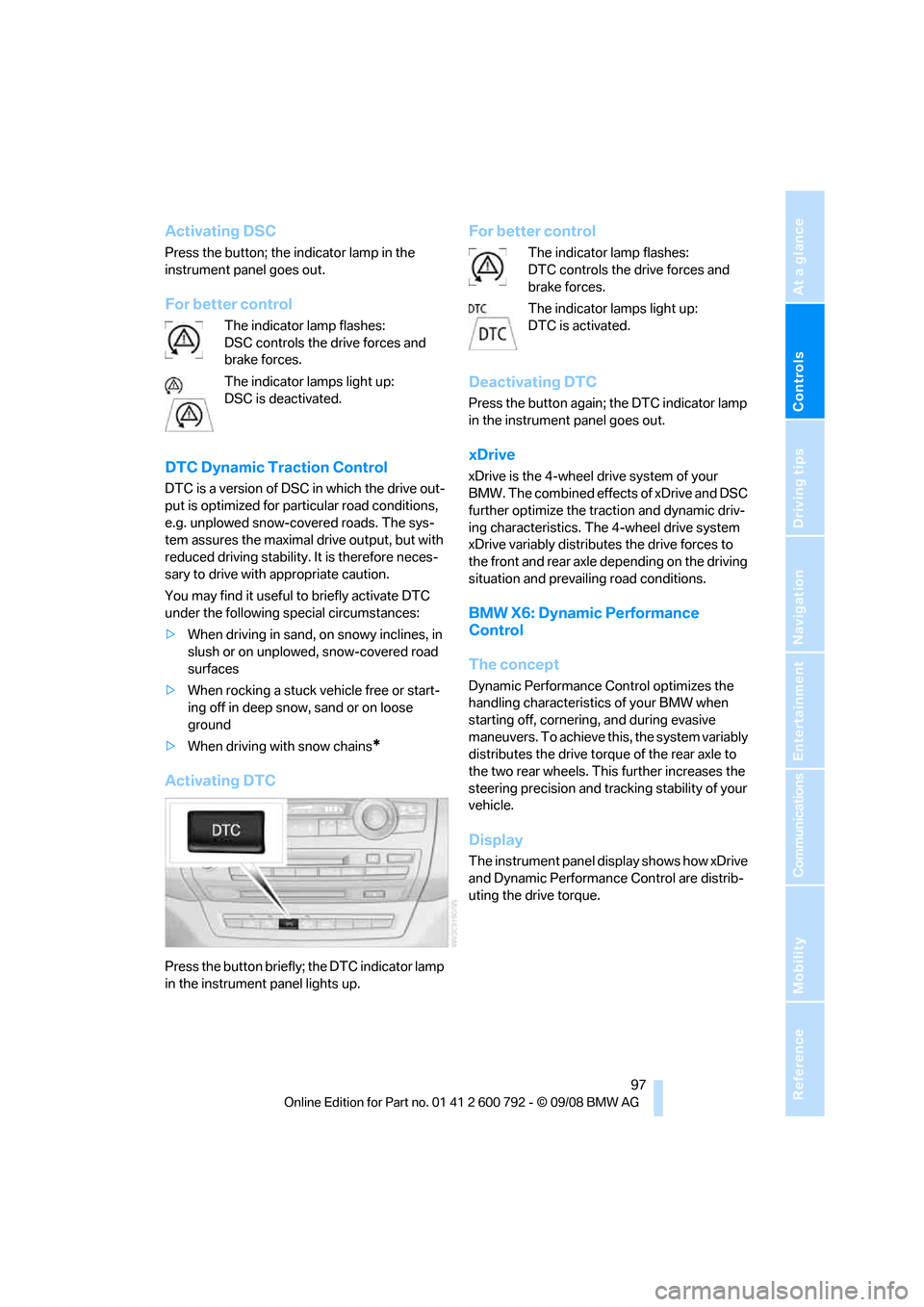
Activating DSC
Press the button; the indicator lamp in the
instrument panel goes out.
For better control
The indicator lamp flashes:
DSC controls the drive forces and
brake forces.
The indicator lamps light up:
DSC is deactivated.
DTC Dynamic Traction Control
DTC is a version of DSC in which the drive out-
put is optimized for particular road conditions,
e.g. unplowed snow-covered roads. The sys-
tem assures the maximal drive output, but with
reduced driving stability. It is therefore neces-
sary to drive with appropriate caution.
You may find it useful to briefly activate DTC
under the following special circumstances:
> When driving in sand, on snowy inclines, in
slush or on unplowed, snow-covered road
surfaces
> When rocking a stuck vehicle free or start-
ing off in deep snow, sand or on loose
ground
> When driving with snow chains
*
Activating DTC
Press the button briefly; the DTC indicator lamp
in the instrument panel lights up.
For better control
The indicator lamp flashes:
DTC controls the drive forces and
brake forces.
The indicator lamps light up:
DTC is activated.
Deactivating DTC
Press the button again; the DTC indicator lamp
in the instrument panel goes out.
xDrive
xDrive is the 4-wheel drive system of your
BMW. The combined effects of xDrive and DSC
further optimize the traction and dynamic driv-
ing characteristics. The 4-wheel drive system
xDrive variably distributes the drive forces to
the front and rear axle depending on the driving
situation and prevailing road conditions.
BMW X6: Dynamic Performance
Control
The concept
Dynamic Performance Control optimizes the
handling characteristic s of your BMW when
starting off, cornering, and during evasive
maneuvers. To achieve this, the system variably
distributes the drive torque of the rear axle to
the two rear wheels. This further increases the
steering precision and tracking stability of your
vehicle.
Display
The instrument panel display shows how xDrive
and Dynamic Performanc e Control are distrib-
uting the drive torque.
Page 100 of 317
Technology for comfort, convenience and safety
98
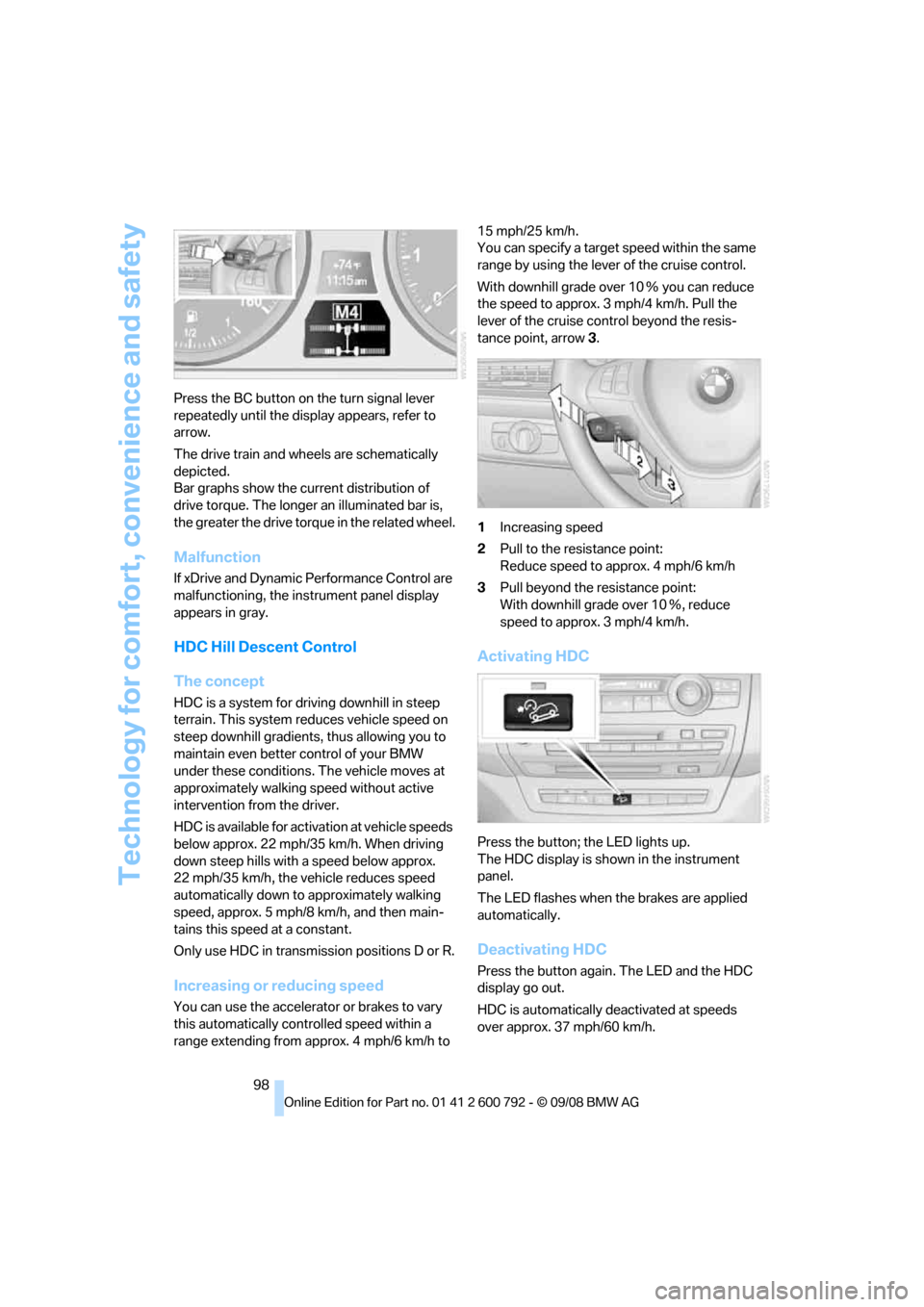
Press the BC button on the turn signal lever
repeatedly until the disp
lay appears, refer to
arrow.
The drive train and wheels are schematically
depicted.
Bar graphs show the cu rrent distribution of
drive torque. The longer an illuminated bar is,
the greater the drive torq ue in the related wheel.
Malfunction
If xDrive and Dynamic Performance Control are
malfunctioning, the instrument panel display
appears in gray.
HDC Hill Descent Control
The concept
HDC is a system for driving downhill in steep
terrain. This system reduces vehicle speed on
steep downhill gradients, thus allowing you to
maintain even better control of your BMW
under these conditions. The vehicle moves at
approximately walking speed without active
intervention from the driver.
HDC is available for activation at vehicle speeds
below approx. 22 mph/35 km/h. When driving
down steep hills with a speed below approx.
22 mph/35 km/h, the vehicle reduces speed
automatically down to approximately walking
speed, approx. 5 mph/8 km/h, and then main-
tains this speed at a constant.
Only use HDC in transmission positions D or R.
Increasing or reducing speed
You can use the accelerator or brakes to vary
this automatically cont rolled speed within a
range extending from approx. 4 mph/6 km/h to 15 mph/25 km/h.
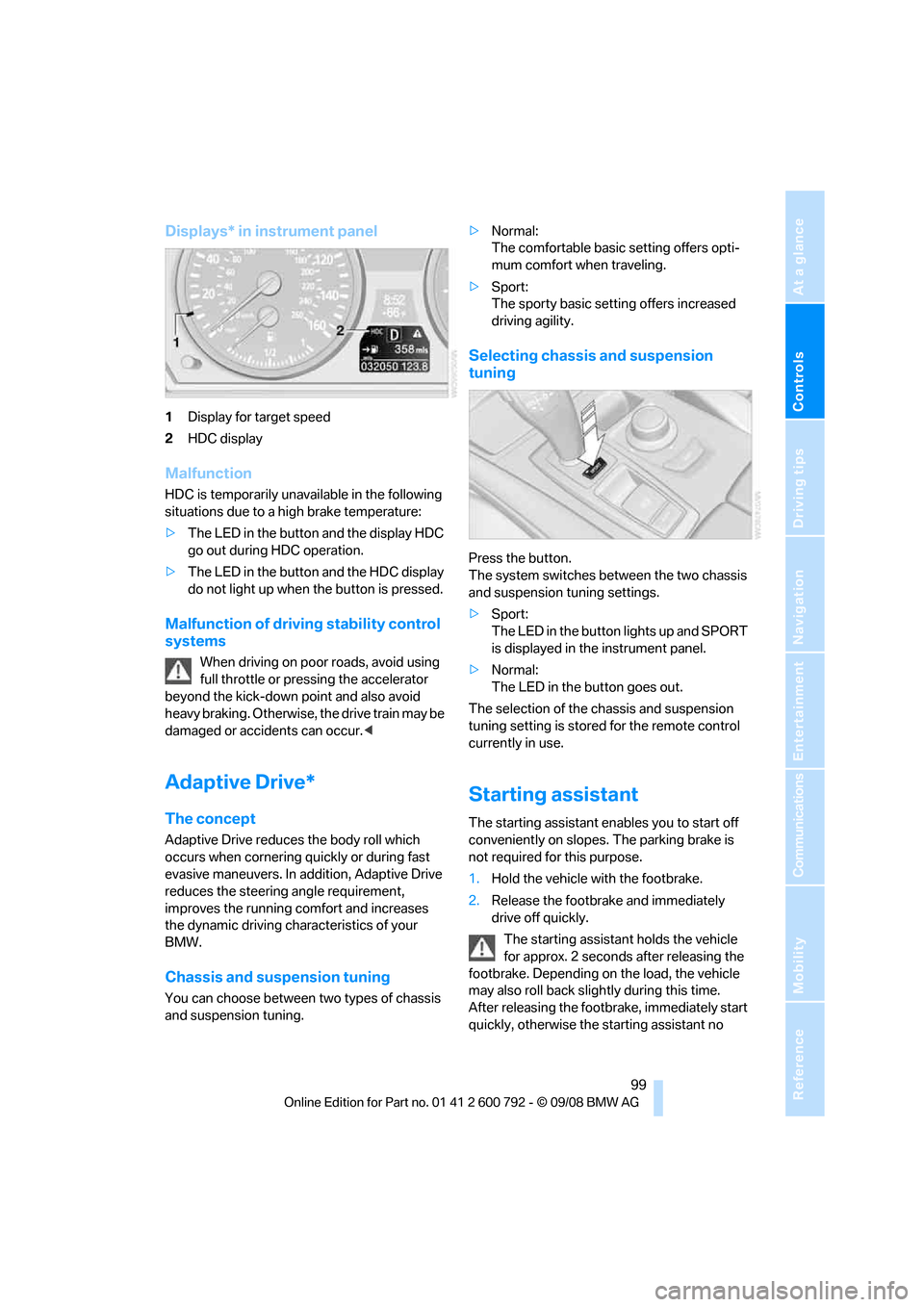
You can specify a target
speed within the same
range by using the lever of the cruise control.
With downhill grade over 10 Ξ you can reduce
the speed to approx. 3mph/4km/h. Pull the
lever of the cruise control beyond the resis-
tance point, arrow 3.
1 Increasing speed
2 Pull to the resistance point:
Reduce speed to approx. 4 mph/6 km/h
3 Pull beyond the re sistance point:
With downhill grade over 10 Ξ, reduce
speed to approx. 3 mph/4 km/h.
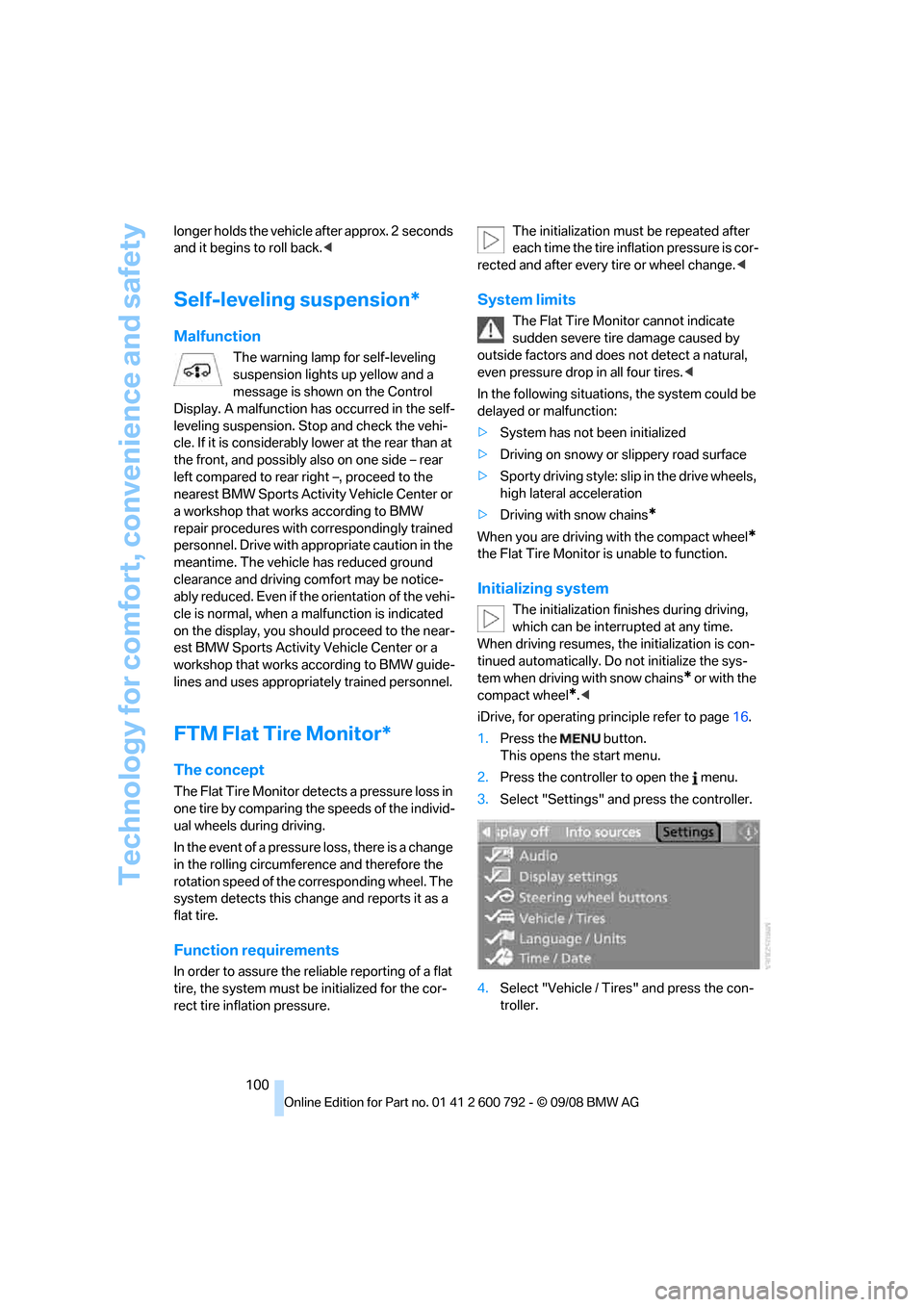
Activating HDC
Press the button; the LED lights up.
The HDC display is shown in the instrument
panel.
The LED flashes when the brakes are applied
automatically.
Deactivating HDC
Press the button again. The LED and the HDC
display go out.
HDC is automatically deactivated at speeds
over approx. 37 mph/60 km/h.
Page 101 of 317
Controls
99Reference
At a glance
Driving tips
Communications
Navigation
Entertainment
Mobility
Displays* in instrument panel
1Display for target speed
2 HDC display
Malfunction
HDC is temporarily unavailable in the following
situations due to a high brake temperature:
>The LED in the button and the display HDC
go out during HDC operation.
> The LED in the button and the HDC display
do not light up when the button is pressed.
Malfunction of driving stability control
systems
When driving on poor roads, avoid using
full throttle or pressing the accelerator
beyond the kick-down point and also avoid
heavy braking. Otherwise, the drive train may be
damaged or accidents can occur. <
Adaptive Drive*
The concept
Adaptive Drive reduces the body roll which
occurs when cornering qu ickly or during fast
evasive maneuvers. In addition, Adaptive Drive
reduces the steering angle requirement,
improves the running comfort and increases
the dynamic driving characteristics of your
BMW.
Chassis and susp ension tuning
You can choose between two types of chassis
and suspension tuning. >
Normal:
The comfortable basic setting offers opti-
mum comfort when traveling.
> Sport:
The sporty basic setting offers increased
driving agility.
Selecting chassis and suspension
tuning
Press the button.
The system switches between the two chassis
and suspension tuning settings.
>Sport:
The LED in the button lights up and SPORT
is displayed in the instrument panel.
> Normal:
The LED in the button goes out.
The selection of the chassis and suspension
tuning setting is stored for the remote control
currently in use.
Starting assistant
The starting assistant en ables you to start off
conveniently on slopes. The parking brake is
not required fo r this purpose.
1. Hold the vehicle with the footbrake.
2. Release the footbrake and immediately
drive off quickly.
The starting assistant holds the vehicle
for approx. 2 seconds after releasing the
footbrake. Depending on the load, the vehicle
may also roll back slight ly during this time.
After releasing the footbrake, immediately start
quickly, otherwise the starting assistant no
Page 102 of 317
Technology for comfort, convenience and safety
100
longer holds the vehicle
after approx. 2 seconds
and it begins to roll back. <
Self-leveling suspension*
Malfunction
The warning lamp for self-leveling
suspension lights up yellow and a
message is shown on the Control
Display. A malfunction has occurred in the self-
leveling suspension. Stop and check the vehi-
cle. If it is considerably lower at the rear than at
the front, and possibly also on one side – rear
left compared to rear right –, proceed to the
nearest BMW Sports Activi ty Vehicle Center or
a workshop that works according to BMW
repair procedures with correspondingly trained
personnel. Drive with a ppropriate caution in the
meantime. The vehicle has reduced ground
clearance and driving co mfort may be notice-
ably reduced. Even if th e orientation of the vehi-
cle is normal, when a malfunction is indicated
on the display, you should proceed to the near-
est BMW Sports Activity Vehicle Center or a
workshop that works according to BMW guide-
lines and uses appropriately trained personnel.
FTM Flat Tire Monitor*
The concept
The Flat Tire Monitor detects a pressure loss in
one tire by comparing the speeds of the individ-
ual wheels during driving.
In the event of a pressure loss, there is a change
in the rolling circumference and therefore the
rotation speed of the corresponding wheel. The
system detects this change and reports it as a
flat tire.
Function requirements
In order to assure the re liable reporting of a flat
tire, the system must be initialized for the cor-
rect tire inflation pressure. The initialization must be repeated after
each time the tire inflation pressure is cor-
rected and after every tire or wheel change. <
System limits
The Flat Tire Monitor cannot indicate
sudden severe tire damage caused by
outside factors and does not detect a natural,
even pressure drop in all four tires. <
In the following situatio ns, the system could be
delayed or malfunction:
> System has not been initialized
> Driving on snowy or slippery road surface
> Sporty driving style: slip in the drive wheels,
high lateral acceleration
> Driving with snow chains
*
When you are driving with the compact wheel*
the Flat Tire Monitor is unable to function.
Initializing system
The initialization finishes during driving,
which can be interrupted at any time.
When driving resumes, th e initialization is con-
tinued automatically. Do not initialize the sys-
tem when driving with snow chains
* or with the
compact wheel
*. <
iDrive, for operating pr inciple refer to page16.
1. Press the button.
This opens the start menu.
2. Press the controller to open the menu.
3. Select "Settings" an d press the controller.
4. Select "Vehicle / Tire s" and press the con-
troller.
Page 104 of 317
Technology for comfort, convenience and safety
102
the tire inflation pressu
re has dropped consid-
erably in one or several tires.
Function requirements
In order to assure the re liable reporting of a flat
tire, the system must have been reset with the
correct tire inflation pressure.
Always use wheels with TPM electronics, oth-
erwise fault-free operation of the system is not
ensured.
Reset the system again after each correc-
tion of the tire inflation pressure and after
every tire or wheel change.<
System limits
TPM cannot announce sudden serious
tire damage caused by external influ-
ences. <
The system does not function properly if it has
n o t b e e n r e s e t , e . g . a f l a t t i r e i s r e p o r t e d d e s p i t e
correct tire inflation pressures.
The system is inactive and cannot display a flat
tire if a wheel has be en mounted without TPM
electronics, e.g. a compact wheel
*, or if TPM is
temporarily interfered wi th by other systems or
devices which use the same radio frequency.
Status display on Control Display
The tire and system stat us is indicated by the
color of the tires.
TPM takes the fact that the tire pressure
changes during driving in to account. A correc-
tion is only required if requested by TPM with
the color.
Green
The tire pressure matche s the learned set state.
"TPM active" is displayed on the Control Dis-
play.
One wheel is yellow
Flat tire or a major drop in inflation pressure in
the indicated tire. A me ssage appears on the
Control Display.
All wheels are yellow
Flat tire or a major drop in inflation pressure in
several tires. A message appears on the Control
Display.
Gray
The system cannot detect a flat tire.
Reasons for this can be:
> TPM is being reset
> Temporary interference due to systems or
devices which use the same radio fre-
quency
> Malfunction
Resetting system
Reset the system again after each correc-
tion of the tire inflation pressure and after
every tire or wheel change.<
Resetting finishes during driving, which can be
interrupted at any time. When driving resumes,
resetting is continued automatically. Do not
reset the system when driving with a compact
wheel
*.
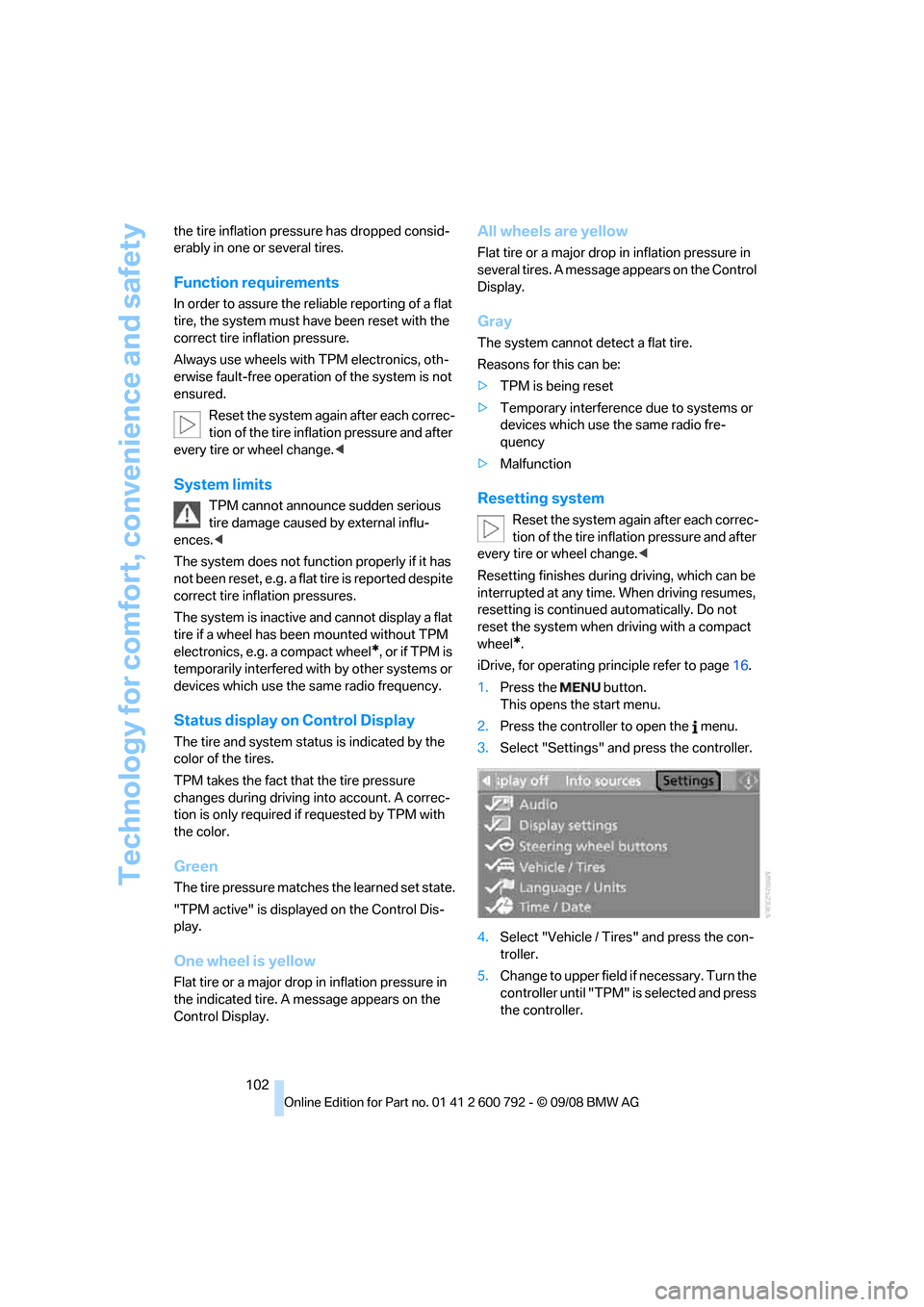
iDrive, for operating pr inciple refer to page16.
1. Press the button.
This opens the start menu.
2. Press the controller to open the menu.
3. Select "Settings" an d press the controller.
4. Select "Vehicle / Tire s" and press the con-
troller.
5. Change to upper field if necessary. Turn the
controller until "TPM" is selected and press
the controller.
Page 109 of 317
Controls
107Reference
At a glance
Driving tips
Communications
Navigation
Entertainment
Mobility
The front and side airbags on the front pas-
senger side are activated.
> The indicator lamp does not light up when
the seat is empty.
However, the front and side airbags on the
front passenger side are not activated.
Operational readiness of airbag system
From radio readiness, refer to page 65, the
warning lamp lights up br iefly, indicating the
operational readiness of the entire airbag sys-
tem and the safety belt tensioners.
Airbag system malfunction
> Warning lamp does not light up from radio
readiness.
> Warning lamp lights up continuously.
Have the airbag system checked immedi-
ately in case of a malfunction, otherwise
there is a danger that the airbag system may not
respond in the expected manner in an accident
despite an impact of corresponding intensity. <
Head-Up Display*
The concept
With the Head-Up Display important informa-
tion is projected into the driver's field of view,
e.g. navigation instructions. This enables you to
take in this information without looking away
from the road.
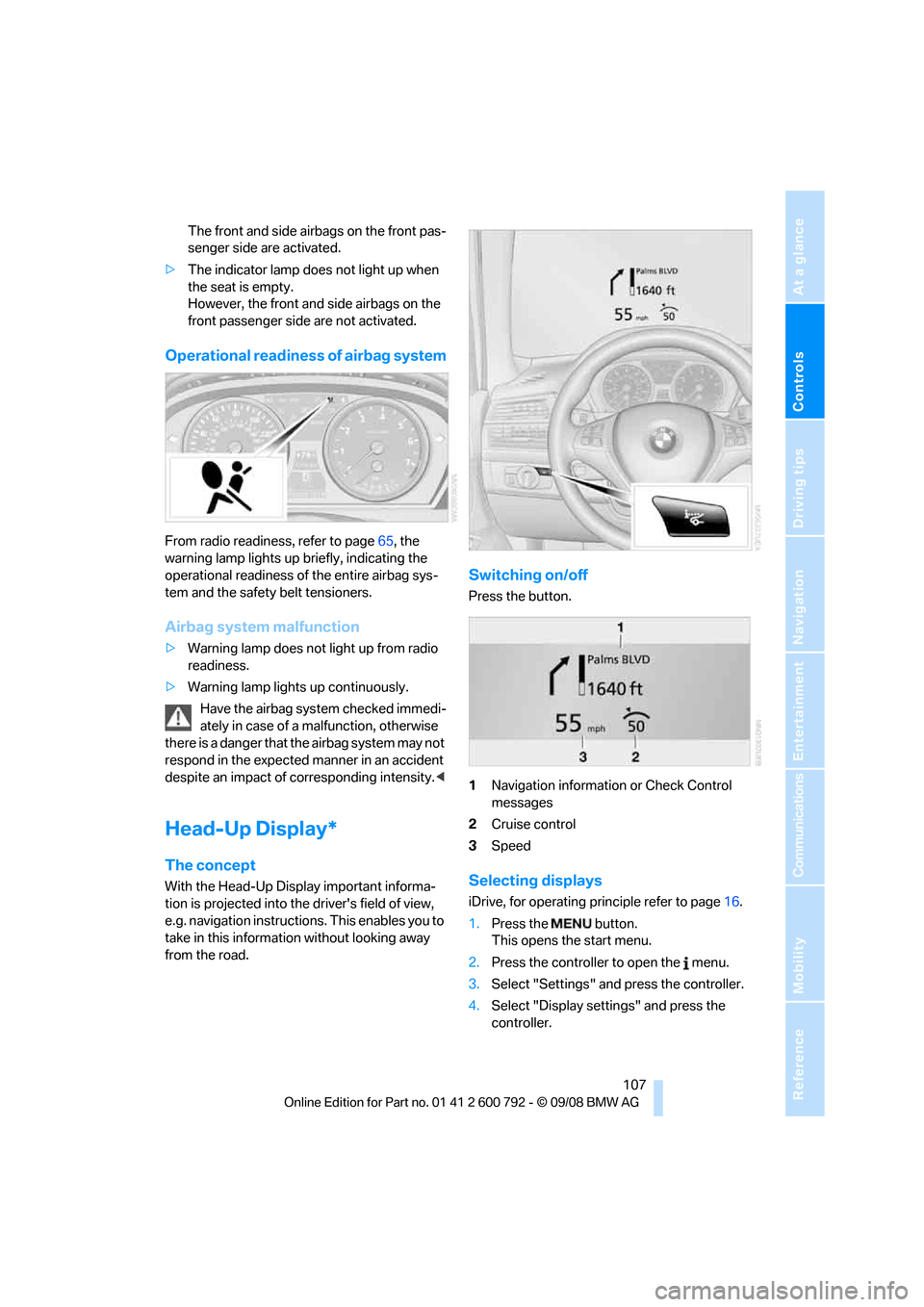
Switching on/off
Press the button.
1 Navigation information or Check Control
messages
2 Cruise control
3 Speed
Selecting displays
iDrive, for operating pr inciple refer to page16.
1. Press the button.
This opens the start menu.
2. Press the controller to open the menu.
3. Select "Settings" and press the controller.
4. Select "Display settings" and press the
controller.
Page 110 of 317
Technology for comfort, convenience and safety
108
5.
Change to upper field if necessary. Turn the
controller until "Head-Up Display" is
selected and press the controller.
6. Change into the second field from the top.
Turn the controller until "Head-Up Display"
is selected and pr ess the controller.
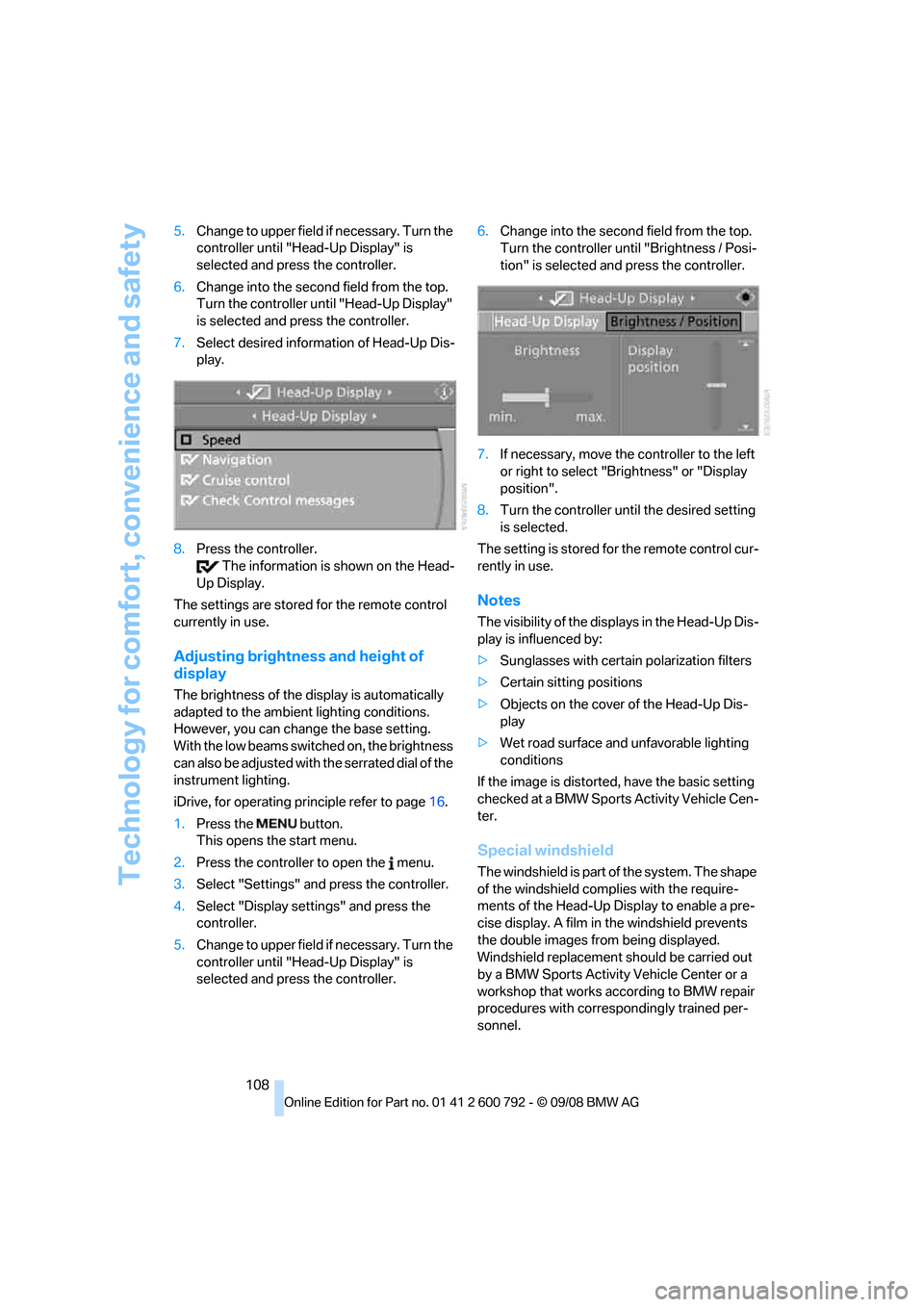
7. Select desired information of Head-Up Dis-
play.
8. Press the controller.
The information is shown on the Head-
Up Display.
The settings are stored for the remote control
currently in use.
Adjusting brightness and height of
display
The brightness of the di splay is automatically
adapted to the ambient lighting conditions.
However, you can change the base setting.
With the low beams switched on, the brightness
can also be adjusted with the serrated dial of the
instrument lighting.
iDrive, for operating pr inciple refer to page16.
1. Press the button.
This opens the start menu.
2. Press the controller to open the menu.
3. Select "Settings" and press the controller.
4. Select "Display settings" and press the
controller.
5. Change to upper field if necessary. Turn the
controller until "Head-Up Display" is
selected and press the controller. 6.
Change into the second field from the top.
Turn the controller until "Brightness / Posi-
tion" is selected and press the controller.
7. If necessary, move the controller to the left
or right to select "Brightness" or "Display
position".
8. Turn the controller until the desired setting
is selected.
The setting is stored fo r the remote control cur-
rently in use.
Notes
The visibility of the disp lays in the Head-Up Dis-
play is influenced by:
> Sunglasses with certain polarization filters
> Certain sitting positions
> Objects on the cover of the Head-Up Dis-
play
> Wet road surface and unfavorable lighting
conditions
If the image is distorted, have the basic setting
checked at a BMW Sports Activity Vehicle Cen-
ter.
Special windshield
The windshield is part of the system. The shape
of the windshield complies with the require-
ments of the Head-Up Display to enable a pre-
cise display. A film in the windshield prevents
the double images fr om being displayed.
Windshield replacement should be carried out
by a BMW Sports Activity Vehicle Center or a
workshop that works according to BMW repair
procedures with correspondingly trained per-
sonnel.