light BMW Z4 2015 E89 Manual Online
[x] Cancel search | Manufacturer: BMW, Model Year: 2015, Model line: Z4, Model: BMW Z4 2015 E89Pages: 289, PDF Size: 7.16 MB
Page 209 of 289
tained in the vehicle. The address can be
checked for this purpose.1.Select the desired contact and highlight
the address.2.Open "Options".3."Check as destination"4.Correct and store the address if necessary.
If the address is corrected and stored, a copy
of it is stored in the vehicle. The address is not
changed on the mobile phone.
New contact
General information
A contact can have up to 8 phone numbers,
2 addresses, 3 e-mail addresses and one Inter‐
net address.
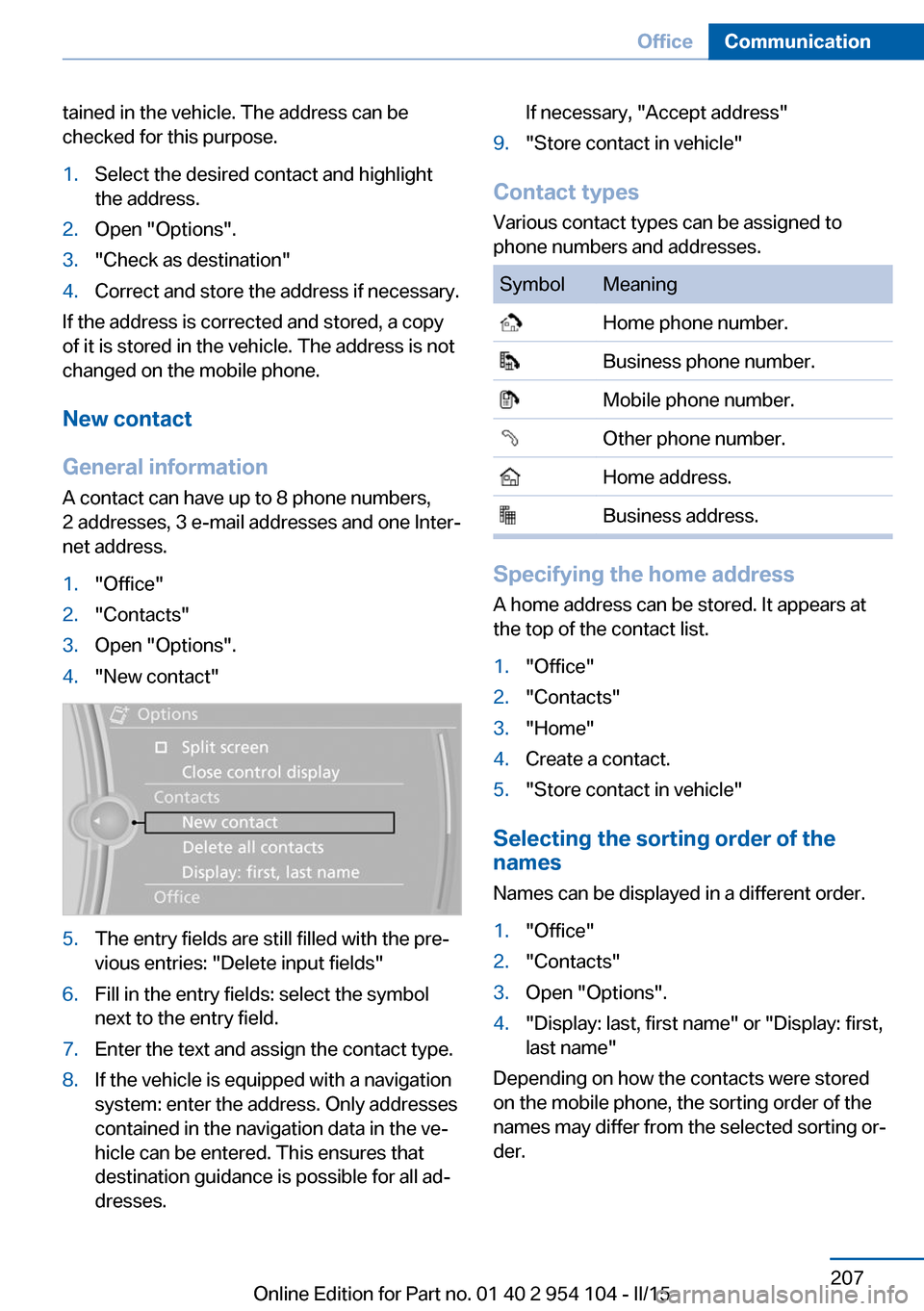
1."Office"2."Contacts"3.Open "Options".4."New contact"5.The entry fields are still filled with the pre‐
vious entries: "Delete input fields"6.Fill in the entry fields: select the symbol
next to the entry field.7.Enter the text and assign the contact type.8.If the vehicle is equipped with a navigation
system: enter the address. Only addresses
contained in the navigation data in the ve‐
hicle can be entered. This ensures that
destination guidance is possible for all ad‐
dresses.If necessary, "Accept address"9."Store contact in vehicle"
Contact types
Various contact types can be assigned to
phone numbers and addresses.
SymbolMeaning Home phone number. Business phone number. Mobile phone number. Other phone number. Home address. Business address.
Specifying the home address
A home address can be stored. It appears at
the top of the contact list.
1."Office"2."Contacts"3."Home"4.Create a contact.5."Store contact in vehicle"
Selecting the sorting order of the
names
Names can be displayed in a different order.
1."Office"2."Contacts"3.Open "Options".4."Display: last, first name" or "Display: first,
last name"
Depending on how the contacts were stored
on the mobile phone, the sorting order of the
names may differ from the selected sorting or‐
der.
Seite 207OfficeCommunication207
Online Edition for Part no. 01 40 2 954 104 - II/15
Page 210 of 289
Show contact picturesPictures stored with the contacts are stored in
the vehicle when the mobile phone is con‐
nected to the vehicle. The number of transmit‐ ted pictures depends on the mobile phone.
The mobile phone must support this function.1."Office"2."Contacts"3.Open "Options".4."Configure Bluetooth®"5."Show images"
Display of all contact pictures is activated or
deactivated.
Deleting contacts
Only contacts that are stored in the vehicle are
deleted. The contacts on the mobile phone
cannot be deleted.
1."Office"2."Contacts"3.Highlight the contact.4.Open "Options".5."Delete contact" or "Delete all contacts"6.If necessary. "Yes"
Messages
General information
Whether or not text messages and e-mails
from the mobile phone are displayed depends
on whether transmission from the mobile
phone to the vehicle is supported. Text mes‐
sages and e-mails may not be supported by
the service provider, or the function may need
to be enabled separately. After the mobile
phone is first paired, transmission may take
several minutes. Messages are only displayed
in full length when the vehicle is stationary.
Messages from the additional telephone are
not transmitted.
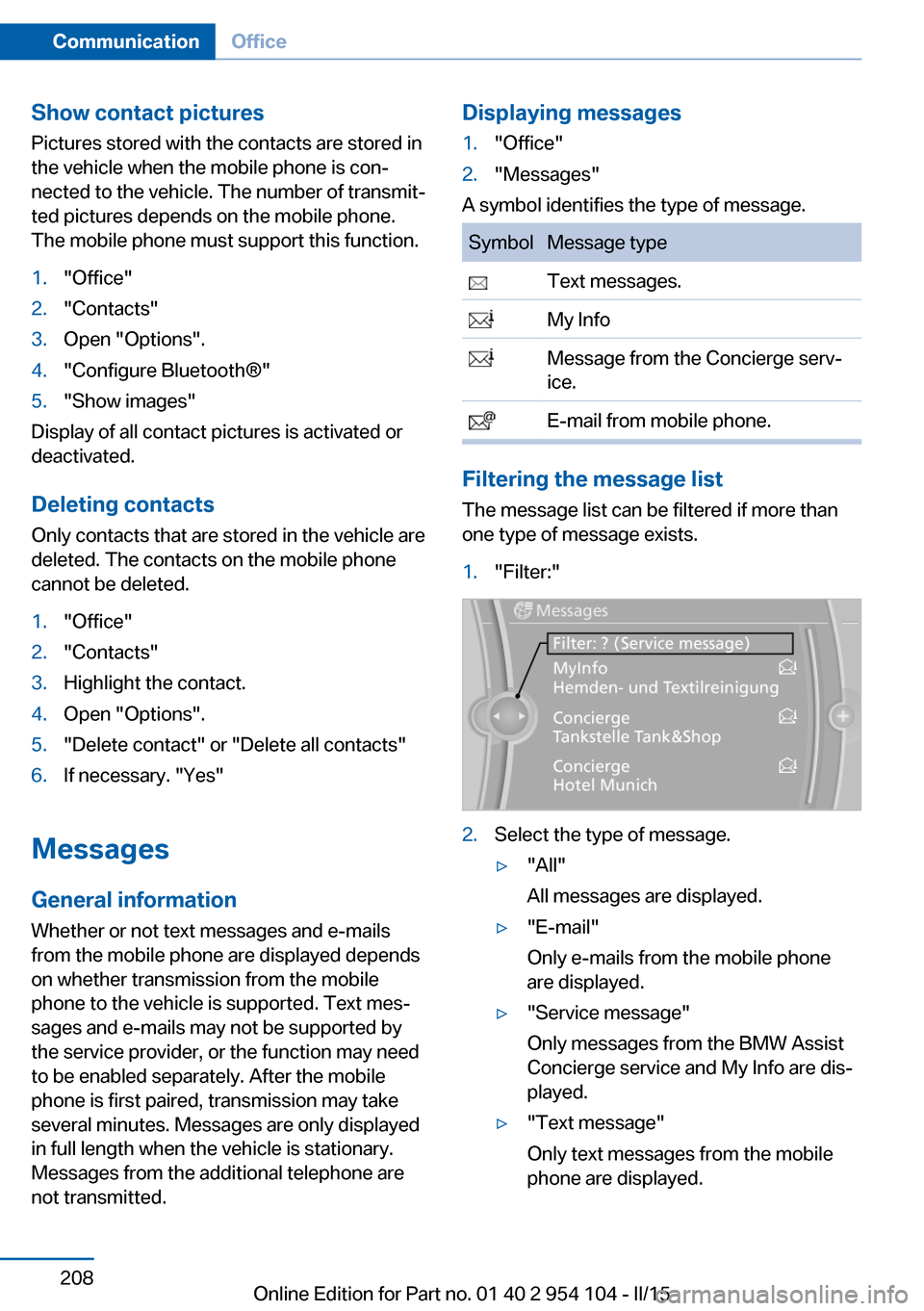
Displaying messages1."Office"2."Messages"
A symbol identifies the type of message.
SymbolMessage type Text messages. My Info Message from the Concierge serv‐
ice. E-mail from mobile phone.
Filtering the message list
The message list can be filtered if more than
one type of message exists.
1."Filter:"2.Select the type of message.▷"All"
All messages are displayed.▷"E-mail"
Only e-mails from the mobile phone
are displayed.▷"Service message"
Only messages from the BMW Assist
Concierge service and My Info are dis‐
played.▷"Text message"
Only text messages from the mobile
phone are displayed.Seite 208CommunicationOffice208
Online Edition for Part no. 01 40 2 954 104 - II/15
Page 211 of 289
Deleting messages
Messages from the Concierge service and
My Info can be deleted.
Delete a message:1."Office"2."Messages"3.Select the desired message.4.Open "Options".5."Delete message"
Delete all messages:
1."Office"2."Messages"3.Open "Options".4."Delete all messages" or "Delete service
messages"
Text messages
Calling the sender of a text message
1.Select the desired message.2. Select the symbol.
Saving the sender in the contacts
1.Highlight the desired message.2.Open "Options".3."Store as new contact" or "Add to existing
contact"
Using contact data
Contact data from appointments, tasks, text
messages, e-mails, and notes can be saved or
selected, refer to page 212.
Reading the text message out loud Read the text message out loud, refer to
page 212.
My Info
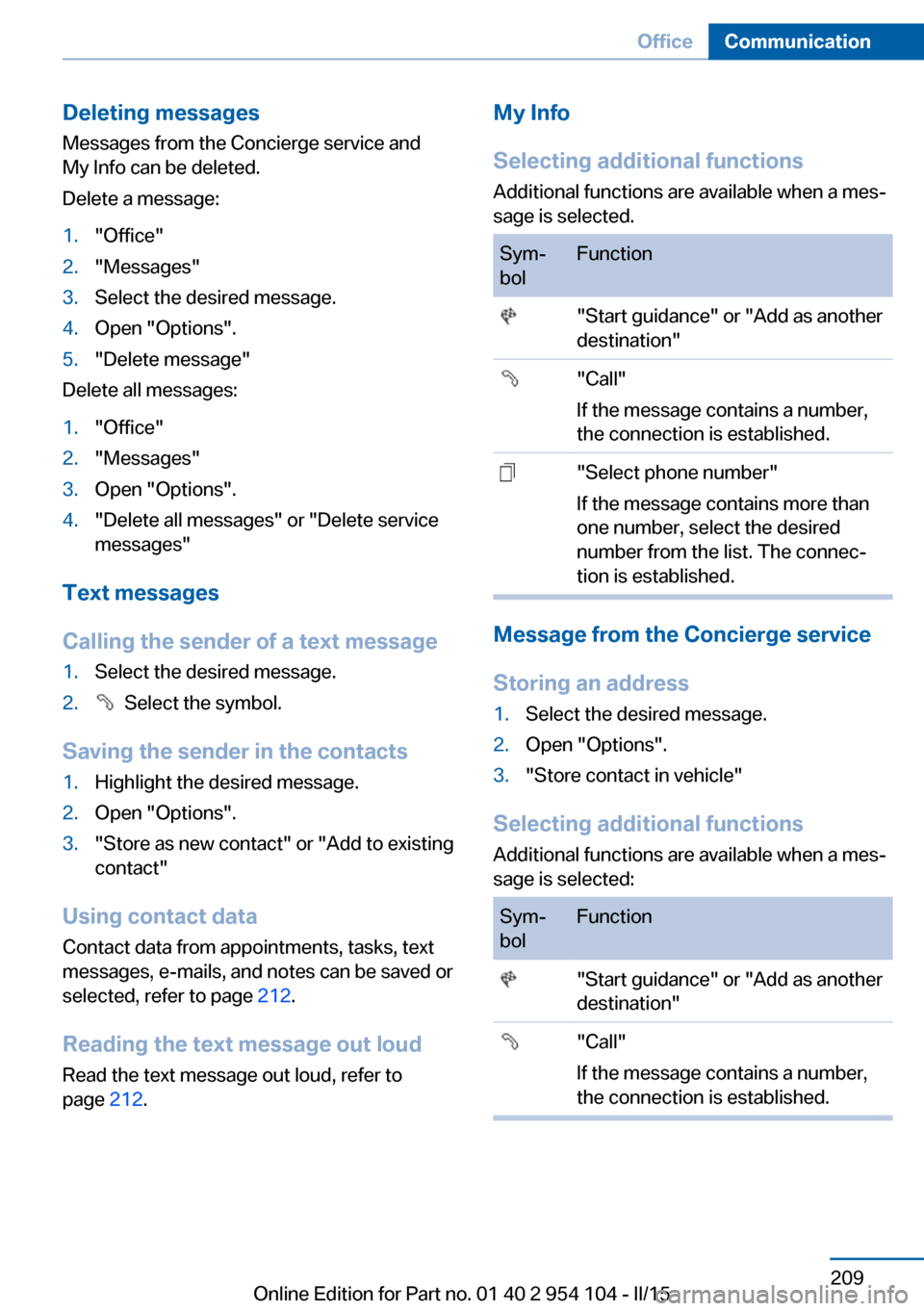
Selecting additional functions Additional functions are available when a mes‐
sage is selected.Sym‐
bolFunction "Start guidance" or "Add as another
destination" "Call"
If the message contains a number,
the connection is established. "Select phone number"
If the message contains more than
one number, select the desired
number from the list. The connec‐
tion is established.
Message from the Concierge service
Storing an address
1.Select the desired message.2.Open "Options".3."Store contact in vehicle"
Selecting additional functions Additional functions are available when a mes‐
sage is selected:
Sym‐
bolFunction "Start guidance" or "Add as another
destination" "Call"
If the message contains a number,
the connection is established.Seite 209OfficeCommunication209
Online Edition for Part no. 01 40 2 954 104 - II/15
Page 214 of 289
Reminders
Displaying reminders
Reminders of pending appointments and tasks
are displayed. After an appointment or after a
task is due, the reminder is no longer dis‐
played.1."Office"2."Reminders"3.Select the desired reminder.
The corresponding appointment or the task
are displayed.
Using contact data
At a glance Contact data from appointments, tasks, text
messages, emails, and notes can be stored or
selected.
Displaying contact or selecting phone number
1. "Use contact data"2.Display the contact or select the phone
number:▷Select the contact to display contact
details.▷Select the phone number to establish a
connection directly.
Storing contact data
1. "Use contact data"2.Highlight the phone number or e-mail ad‐
dress.3.Open "Options".4."Add to existing contact" or "Store as new
contact"Reading out loud
Text messages, e-mails, appointment entries,
tasks, and notes can be read out loud.1.Select the desired message, appointment,
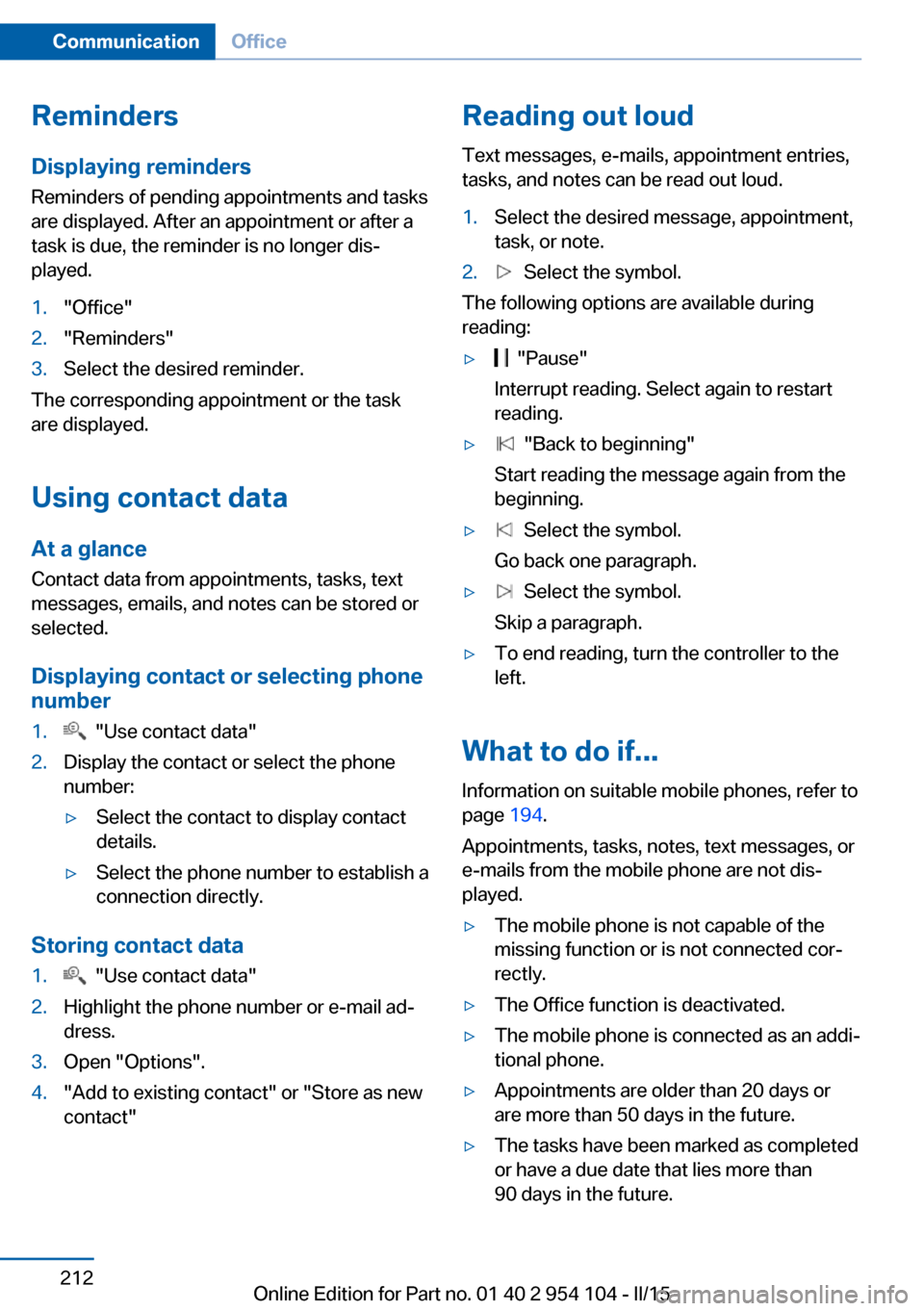
task, or note.2. Select the symbol.
The following options are available during
reading:
▷ "Pause"
Interrupt reading. Select again to restart
reading.▷ "Back to beginning"
Start reading the message again from the
beginning.▷ Select the symbol.
Go back one paragraph.▷ Select the symbol.
Skip a paragraph.▷To end reading, turn the controller to the
left.
What to do if...
Information on suitable mobile phones, refer to
page 194.
Appointments, tasks, notes, text messages, or
e-mails from the mobile phone are not dis‐
played.
▷The mobile phone is not capable of the
missing function or is not connected cor‐
rectly.▷The Office function is deactivated.▷The mobile phone is connected as an addi‐
tional phone.▷Appointments are older than 20 days or
are more than 50 days in the future.▷The tasks have been marked as completed
or have a due date that lies more than
90 days in the future.Seite 212CommunicationOffice212
Online Edition for Part no. 01 40 2 954 104 - II/15
Page 217 of 289
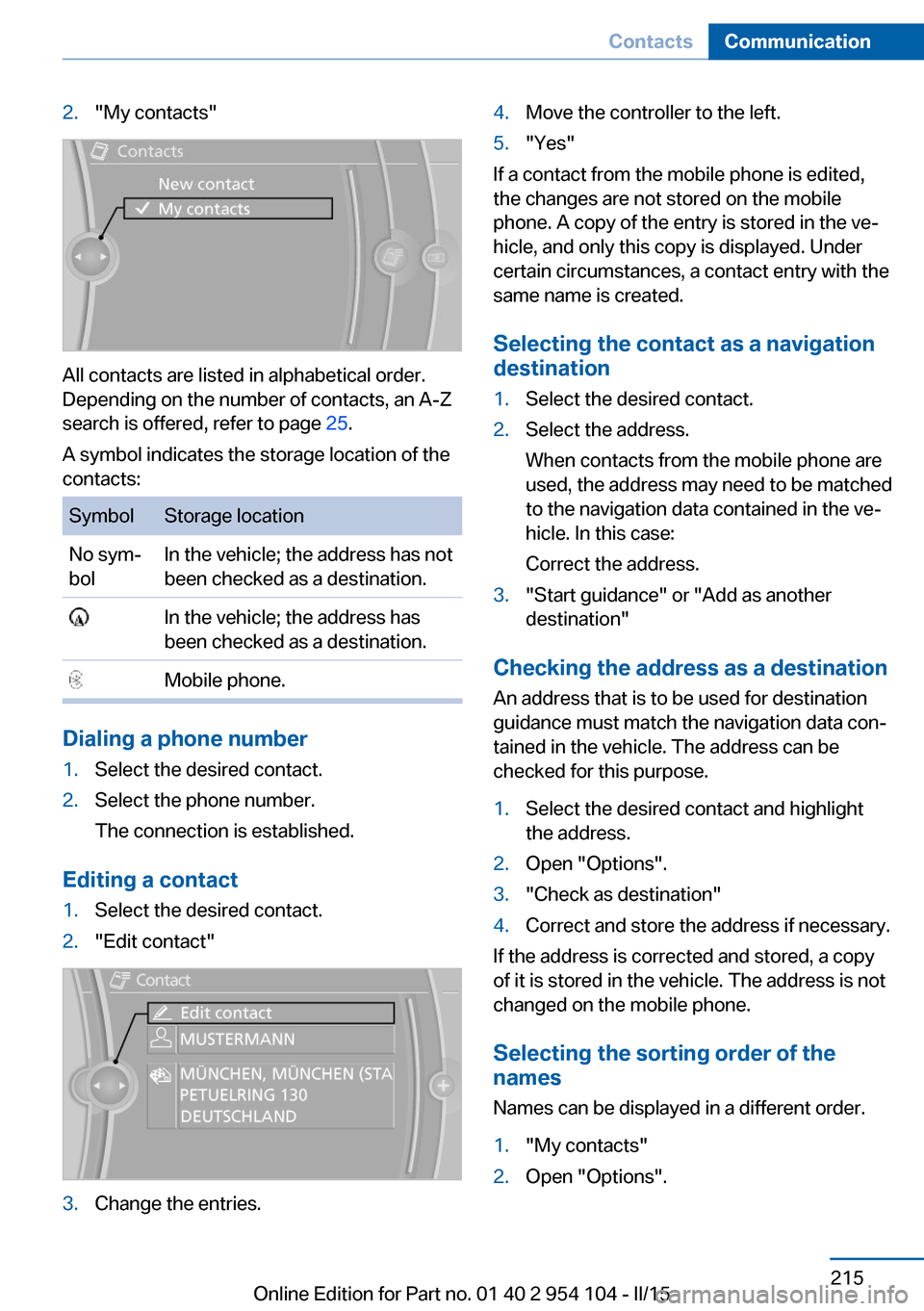
2."My contacts"
All contacts are listed in alphabetical order.
Depending on the number of contacts, an A-Z
search is offered, refer to page 25.
A symbol indicates the storage location of the
contacts:
SymbolStorage locationNo sym‐
bolIn the vehicle; the address has not
been checked as a destination. In the vehicle; the address has
been checked as a destination. Mobile phone.
Dialing a phone number
1.Select the desired contact.2.Select the phone number.
The connection is established.
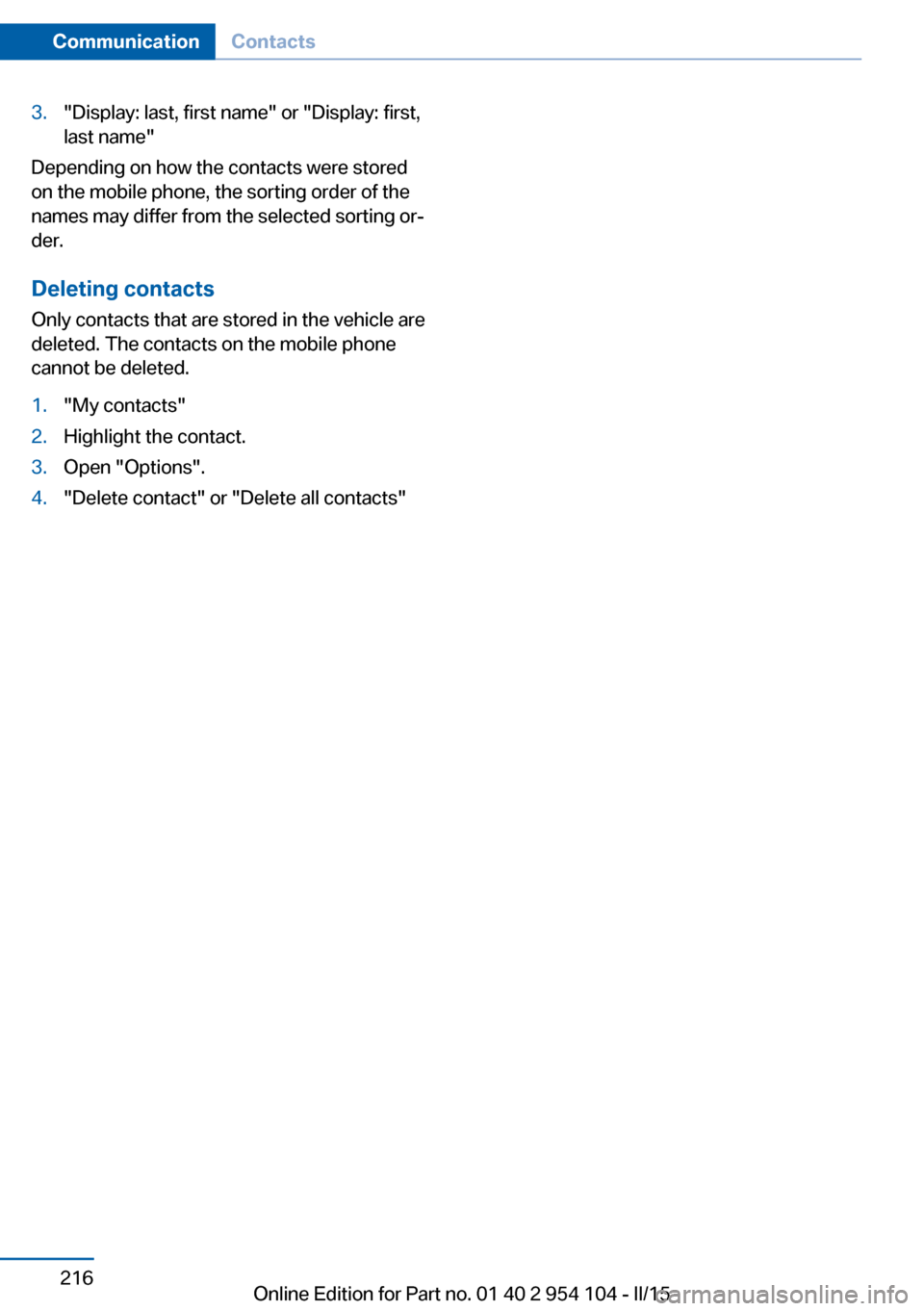
Editing a contact
1.Select the desired contact.2."Edit contact"3.Change the entries.4.Move the controller to the left.5."Yes"
If a contact from the mobile phone is edited,
the changes are not stored on the mobile
phone. A copy of the entry is stored in the ve‐
hicle, and only this copy is displayed. Under
certain circumstances, a contact entry with the
same name is created.
Selecting the contact as a navigation
destination
1.Select the desired contact.2.Select the address.
When contacts from the mobile phone are
used, the address may need to be matched
to the navigation data contained in the ve‐
hicle. In this case:
Correct the address.3."Start guidance" or "Add as another
destination"
Checking the address as a destination
An address that is to be used for destination
guidance must match the navigation data con‐
tained in the vehicle. The address can be
checked for this purpose.
1.Select the desired contact and highlight
the address.2.Open "Options".3."Check as destination"4.Correct and store the address if necessary.
If the address is corrected and stored, a copy
of it is stored in the vehicle. The address is not
changed on the mobile phone.
Selecting the sorting order of the
names
Names can be displayed in a different order.
1."My contacts"2.Open "Options".Seite 215ContactsCommunication215
Online Edition for Part no. 01 40 2 954 104 - II/15
Page 218 of 289
3."Display: last, first name" or "Display: first,
last name"
Depending on how the contacts were stored
on the mobile phone, the sorting order of the
names may differ from the selected sorting or‐
der.
Deleting contacts
Only contacts that are stored in the vehicle are
deleted. The contacts on the mobile phone
cannot be deleted.
1."My contacts"2.Highlight the contact.3.Open "Options".4."Delete contact" or "Delete all contacts"Seite 216CommunicationContacts216
Online Edition for Part no. 01 40 2 954 104 - II/15
Page 221 of 289
Operating BMW Online
To start a search:▷Turn the controller to highlight an element.▷Press the controller to display an element.
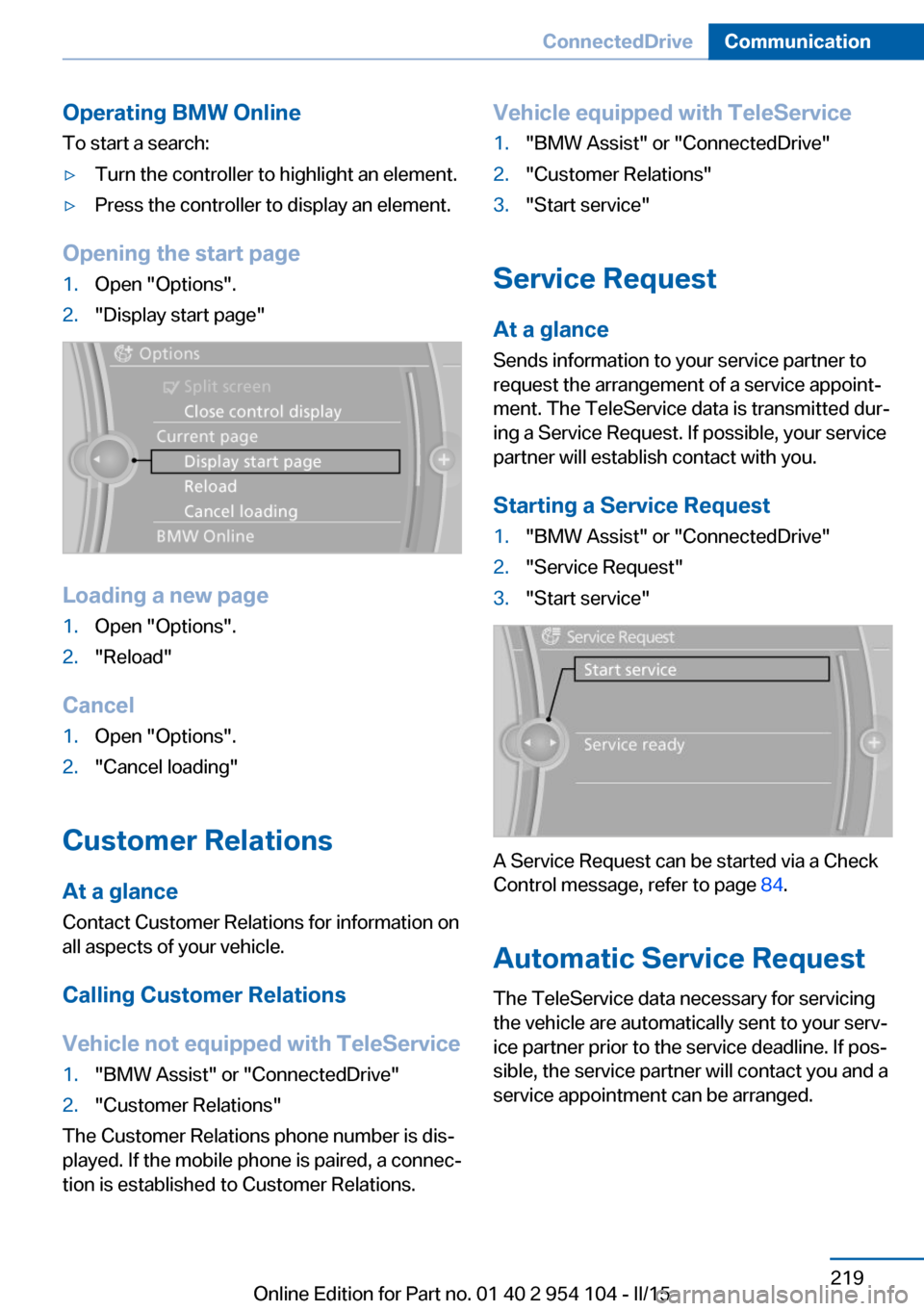
Opening the start page
1.Open "Options".2."Display start page"
Loading a new page
1.Open "Options".2."Reload"
Cancel
1.Open "Options".2."Cancel loading"
Customer Relations
At a glance Contact Customer Relations for information on
all aspects of your vehicle.
Calling Customer Relations
Vehicle not equipped with TeleService
1."BMW Assist" or "ConnectedDrive"2."Customer Relations"
The Customer Relations phone number is dis‐
played. If the mobile phone is paired, a connec‐
tion is established to Customer Relations.
Vehicle equipped with TeleService1."BMW Assist" or "ConnectedDrive"2."Customer Relations"3."Start service"
Service Request
At a glance
Sends information to your service partner to
request the arrangement of a service appoint‐
ment. The TeleService data is transmitted dur‐
ing a Service Request. If possible, your service
partner will establish contact with you.
Starting a Service Request
1."BMW Assist" or "ConnectedDrive"2."Service Request"3."Start service"
A Service Request can be started via a Check
Control message, refer to page 84.
Automatic Service Request
The TeleService data necessary for servicing
the vehicle are automatically sent to your serv‐
ice partner prior to the service deadline. If pos‐
sible, the service partner will contact you and a
service appointment can be arranged.
Seite 219ConnectedDriveCommunication219
Online Edition for Part no. 01 40 2 954 104 - II/15
Page 237 of 289
Recommended tire brands
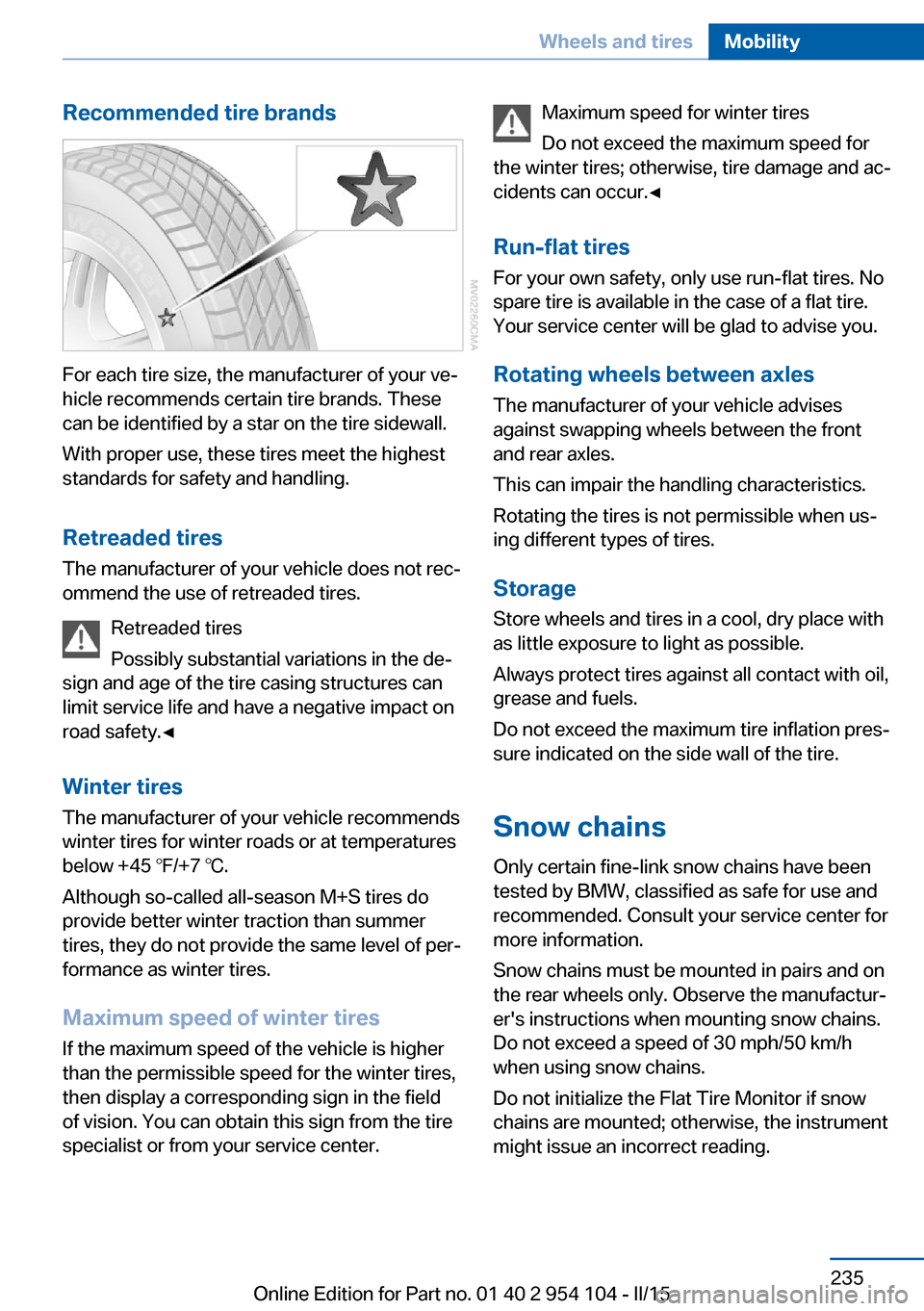
For each tire size, the manufacturer of your ve‐
hicle recommends certain tire brands. These
can be identified by a star on the tire sidewall.
With proper use, these tires meet the highest
standards for safety and handling.
Retreaded tires The manufacturer of your vehicle does not rec‐
ommend the use of retreaded tires.
Retreaded tires
Possibly substantial variations in the de‐
sign and age of the tire casing structures can
limit service life and have a negative impact on
road safety.◀
Winter tires
The manufacturer of your vehicle recommends
winter tires for winter roads or at temperatures
below +45 ℉/+7 ℃.
Although so-called all-season M+S tires do
provide better winter traction than summer tires, they do not provide the same level of per‐
formance as winter tires.
Maximum speed of winter tires
If the maximum speed of the vehicle is higher
than the permissible speed for the winter tires,
then display a corresponding sign in the field
of vision. You can obtain this sign from the tire
specialist or from your service center.
Maximum speed for winter tires
Do not exceed the maximum speed for
the winter tires; otherwise, tire damage and ac‐
cidents can occur.◀
Run-flat tires
For your own safety, only use run-flat tires. No
spare tire is available in the case of a flat tire.
Your service center will be glad to advise you.
Rotating wheels between axlesThe manufacturer of your vehicle advises
against swapping wheels between the front
and rear axles.
This can impair the handling characteristics.
Rotating the tires is not permissible when us‐
ing different types of tires.
Storage Store wheels and tires in a cool, dry place with
as little exposure to light as possible.
Always protect tires against all contact with oil,
grease and fuels.
Do not exceed the maximum tire inflation pres‐
sure indicated on the side wall of the tire.
Snow chains Only certain fine-link snow chains have been
tested by BMW, classified as safe for use and
recommended. Consult your service center for
more information.
Snow chains must be mounted in pairs and on
the rear wheels only. Observe the manufactur‐
er's instructions when mounting snow chains.
Do not exceed a speed of 30 mph/50 km/h
when using snow chains.
Do not initialize the Flat Tire Monitor if snow
chains are mounted; otherwise, the instrument
might issue an incorrect reading.Seite 235Wheels and tiresMobility235
Online Edition for Part no. 01 40 2 954 104 - II/15
Page 243 of 289
or SAE 5W-30, or malfunctions or engine dam‐
age may occur.◀
The engine oil quality is critical for the life of
the engine.
Some oil types are not available in all coun‐
tries.
Approved oil typesSpecificationBMW High Performance SAE 5W-30BMW Longlife-01BMW Longlife-01 FE
Further information on approved oil types can
be obtained from the service center.
Alternative oil types If the approved engine oils are not available, up
to 1 US quart/liter of an oil with the following
specification can be used:
SpecificationAPI SM or a higher quality standard
Oil change
The manufacturer of your vehicle recommends
having the engine oil changed by a service
center.
Coolant
General information Danger of burns from hot engine
Do not open the cooling system while
the engine is hot; otherwise, escaping coolant
may cause burns.◀
Suitable additives
Only use suitable additives; otherwise,
engine damage may occur. The additives are
harmful to your health.◀
Coolant consists of water and additives.
Not all commercially available additives are
suitable for your vehicle. Ask your service cen‐
ter for suitable additives.
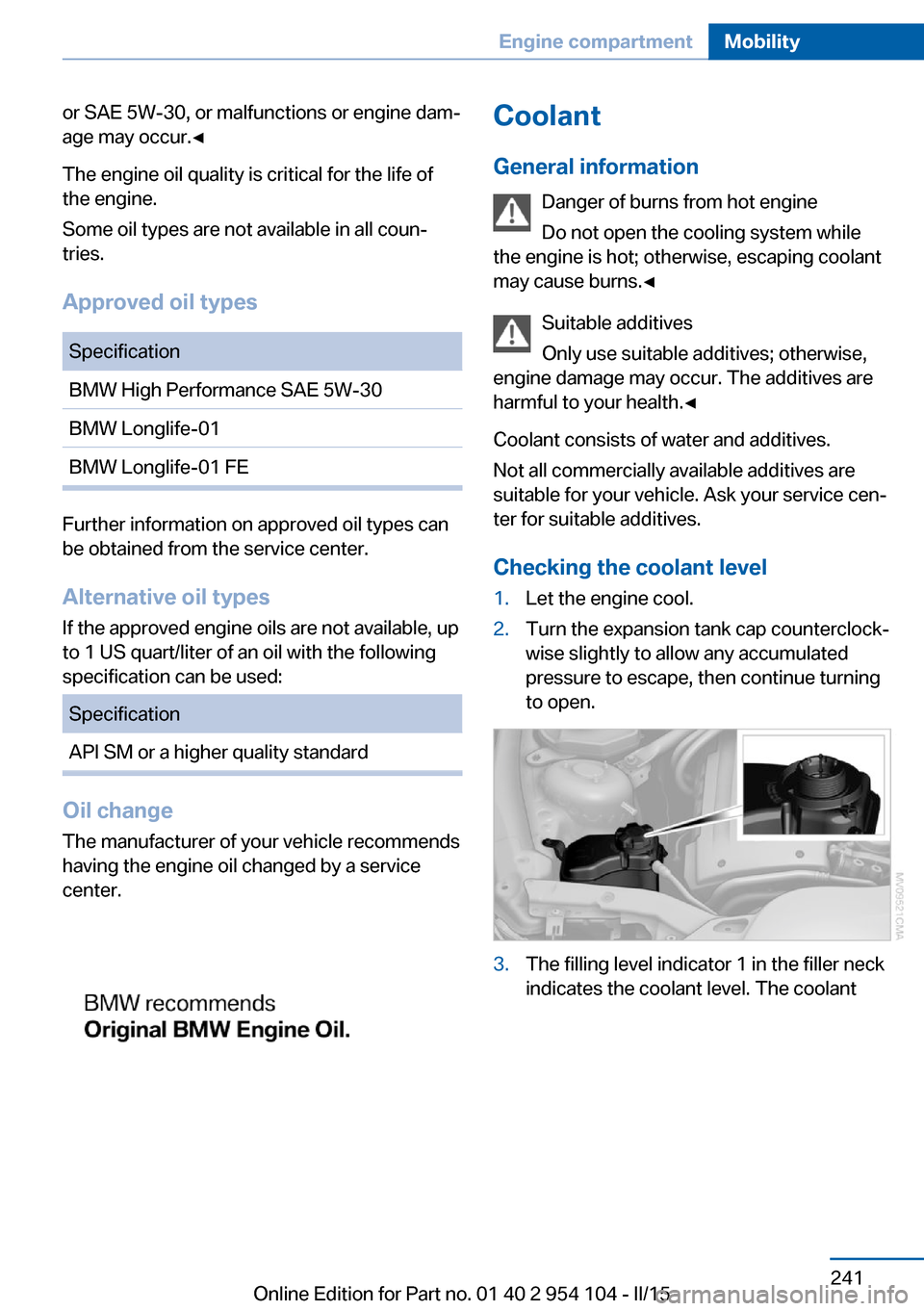
Checking the coolant level1.Let the engine cool.2.Turn the expansion tank cap counterclock‐
wise slightly to allow any accumulated
pressure to escape, then continue turning
to open.3.The filling level indicator 1 in the filler neck
indicates the coolant level. The coolantSeite 241Engine compartmentMobility241
Online Edition for Part no. 01 40 2 954 104 - II/15
Page 246 of 289
vehicle's Service and Warranty Information
Booklet for US models, and in the Warranty
and Service Guide Booklet for Canadian mod‐
els. These entries are proof of regular mainte‐
nance.
Socket for OBD Onboard
Diagnosis
Socket for Onboard Diagnosis
The socket for Onboard Diagnosis may
only be used by the service center, by work‐
shops that operate according to the specifica‐
tions of the vehicle manufacturer with appro‐
priately trained personnel, and by other
authorized persons. Otherwise, its use may
lead to vehicle malfunctions.◀
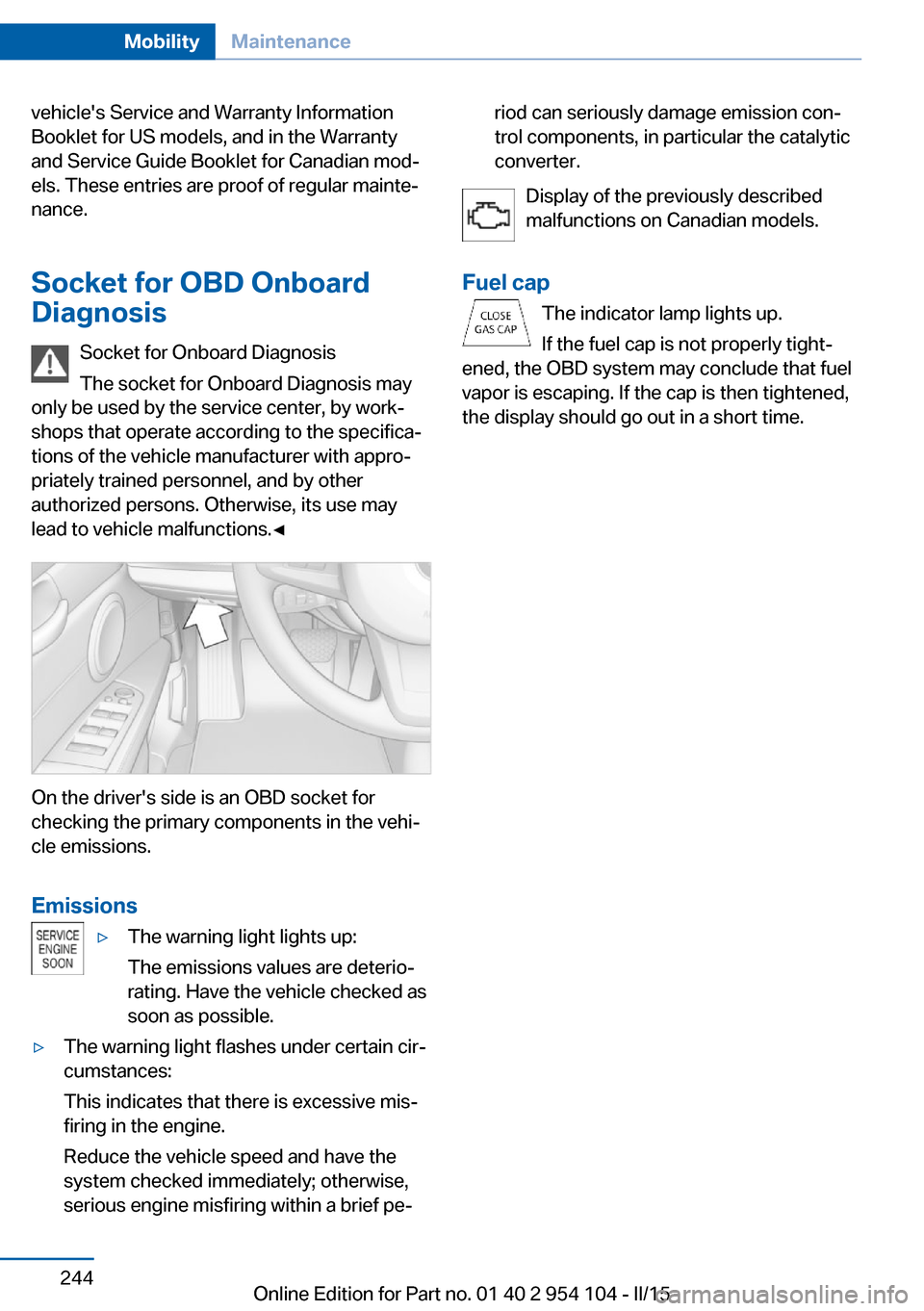
On the driver's side is an OBD socket for
checking the primary components in the vehi‐
cle emissions.
Emissions
▷The warning light lights up:
The emissions values are deterio‐
rating. Have the vehicle checked as
soon as possible.▷The warning light flashes under certain cir‐
cumstances:
This indicates that there is excessive mis‐
firing in the engine.
Reduce the vehicle speed and have the
system checked immediately; otherwise,
serious engine misfiring within a brief pe‐riod can seriously damage emission con‐
trol components, in particular the catalytic
converter.
Display of the previously described
malfunctions on Canadian models.
Fuel cap The indicator lamp lights up.
If the fuel cap is not properly tight‐
ened, the OBD system may conclude that fuel
vapor is escaping. If the cap is then tightened,
the display should go out in a short time.
Seite 244MobilityMaintenance244
Online Edition for Part no. 01 40 2 954 104 - II/15