controls BMW Z4 SDRIVE35I 2009 Manual PDF
[x] Cancel search | Manufacturer: BMW, Model Year: 2009, Model line: Z4 SDRIVE35I, Model: BMW Z4 SDRIVE35I 2009Pages: 248, PDF Size: 7.63 MB
Page 140 of 248
On/off and tone
138
On/off and tone
The following audio and video sources share
the same control elements and adjustments:
>Radio
> CD/DVD player
> CD/DVD changer
*
>Video
> External devices, e.g. MP3 player
Controls
The audio and video sources can be controlled
using the:
>Buttons near th e CD/DVD player
> iDrive
> Buttons on the steeri ng wheel, refer to
page 11
> Programmable memory keys, refer to
page 21
> Voice activation system
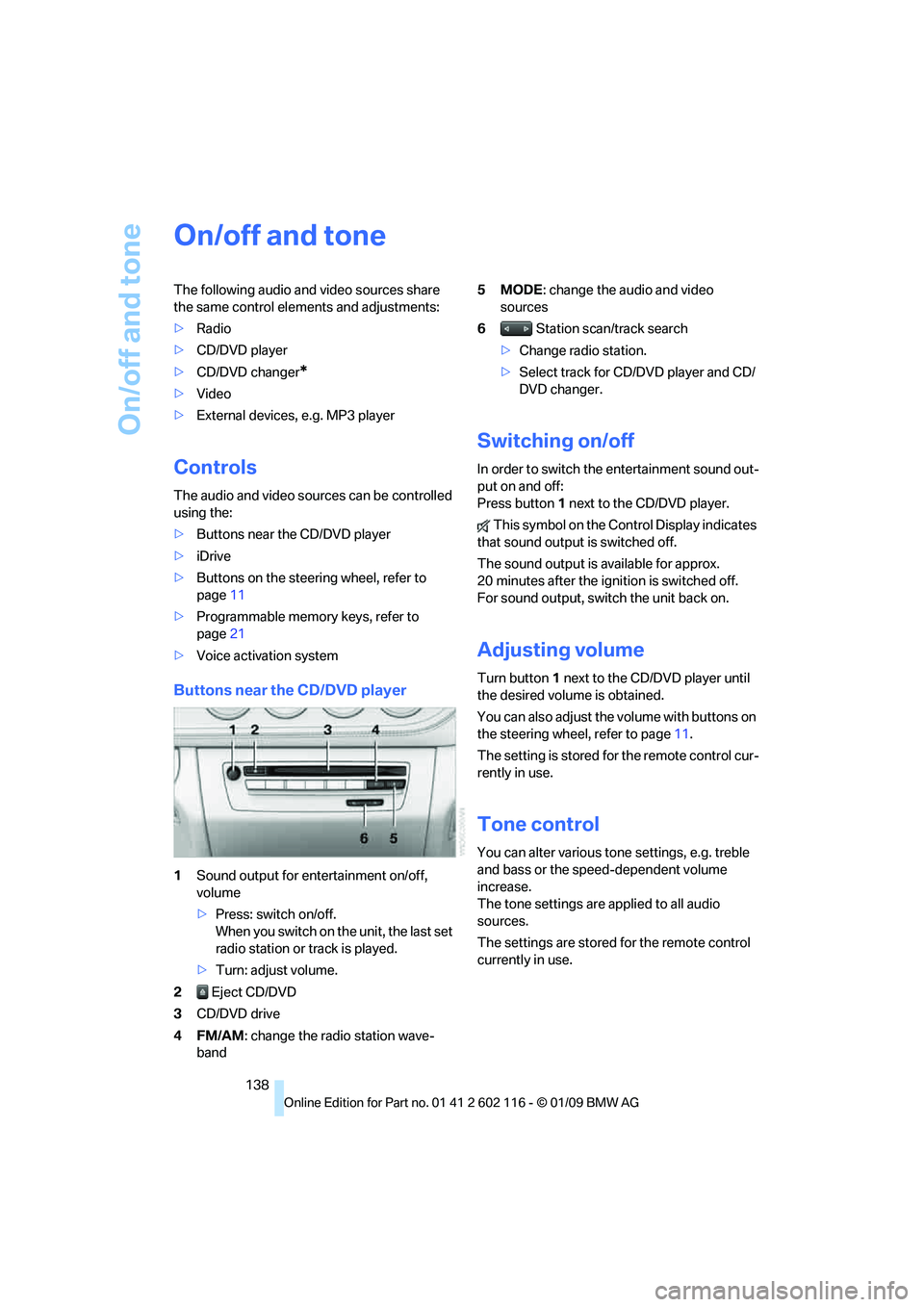
Buttons near the CD/DVD player
1Sound output for entertainment on/off,
volume
>Press: switch on/off.
When you switch on the unit, the last set
radio station or track is played.
> Turn: adjust volume.
2 Eject CD/DVD
3 CD/DVD drive
4FM/AM : change the radio station wave-
band 5MODE
: change the audio and video
sources
6 Station scan/track search
> Change radio station.
> Select track for CD/DVD player and CD/
DVD changer.
Switching on/off
In order to switch the entertainment sound out-
put on and off:
Press button 1 next to the CD/DVD player.
This symbol on the Control Display indicates
that sound output is switched off.
The sound output is available for approx.
20 minutes after the igni tion is switched off.
For sound output, switch the unit back on.
Adjusting volume
Turn button 1 next to the CD/DVD player until
the desired volume is obtained.
You can also adjust the volume with buttons on
the steering wheel, refer to page 11.
The setting is stored fo r the remote control cur-
rently in use.
Tone control
You can alter various tone settings, e.g. treble
and bass or the speed-dependent volume
increase.
The tone settings are applied to all audio
sources.
The settings are stored for the remote control
currently in use.
Page 141 of 248
Navigation
Entertainment
Driving tips
139Reference
At a glance
Controls
Communications
Mobility
Treble, bass, balance, fader
>"Balance": left/right volume distribution
> "Fader": front/rear volume distribution
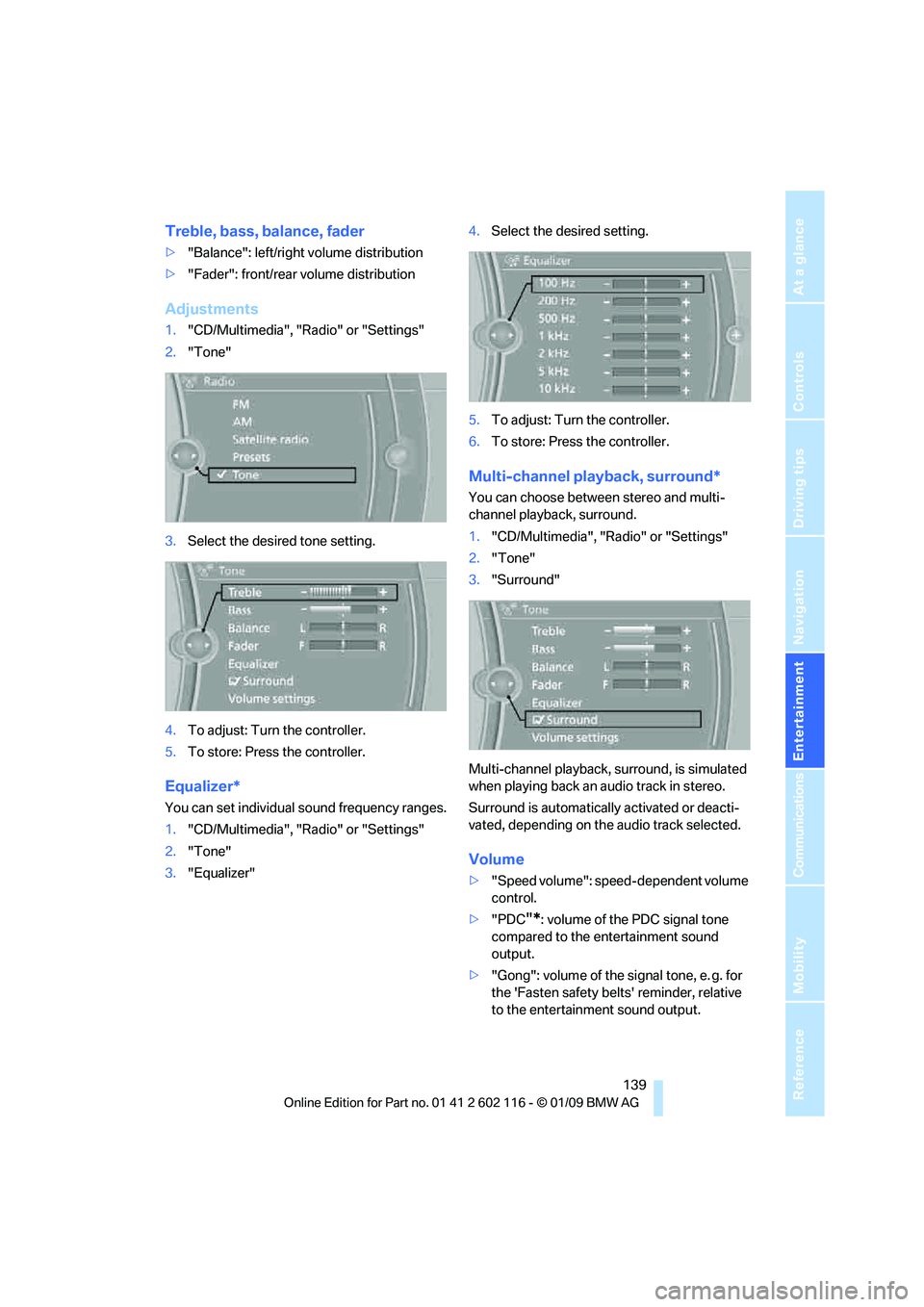
Adjustments
1."CD/Multimedia", "Radio" or "Settings"
2. "Tone"
3. Select the desired tone setting.
4. To adjust: Turn the controller.
5. To store: Press the controller.
Equalizer*
You can set individual sound frequency ranges.
1."CD/Multimedia", "Radio" or "Settings"
2. "Tone"
3. "Equalizer" 4.
Select the desired setting.
5. To adjust: Turn the controller.
6. To store: Press the controller.
Multi-channel playback, surround*
You can choose between stereo and multi-
channel playback, surround.
1."CD/Multimedia", "Radio" or "Settings"
2. "Tone"
3. "Surround"
Multi-channel playback, surround, is simulated
when playing back an audio track in stereo.
Surround is automatically activated or deacti-
vated, depending on the audio track selected.
Volume
> "Speed volume": speed-dependent volume
control.
> "PDC
"*: volume of the PDC signal tone
compared to the entertainment sound
output.
> "Gong": volume of the signal tone, e. g. for
the 'Fasten safety belts' reminder, relative
to the entertainment sound output.
Page 143 of 248
Navigation
Entertainment
Driving tips
141Reference
At a glance
Controls
Communications
Mobility
Radio
Your radio is designed for reception of the fol-
lowing stations:
>FM and AM
> HD radio
*
>Satellite radio*
Selecting a station
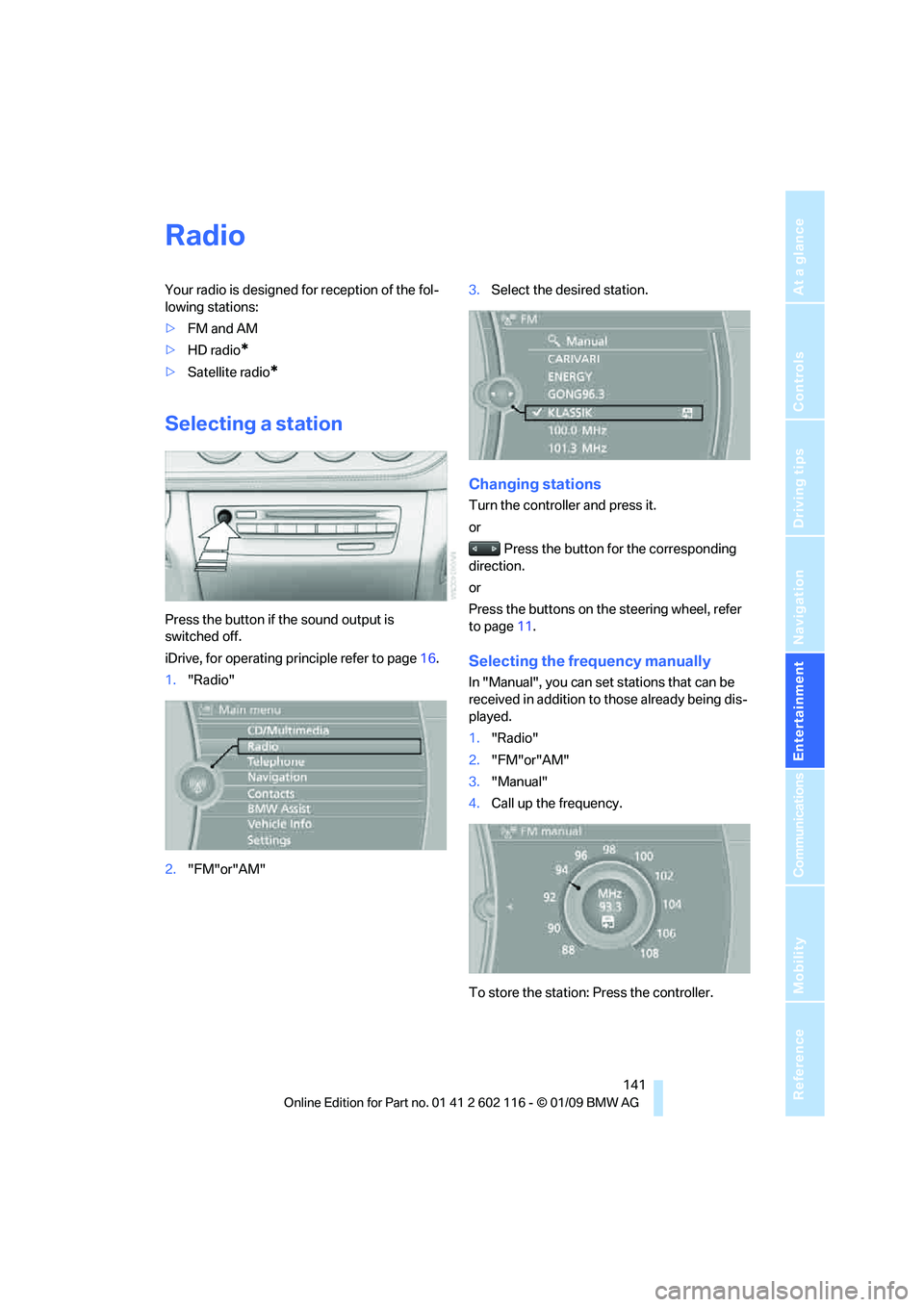
Press the button if the sound output is
switched off.
iDrive, for operating principle refer to page 16.
1. "Radio"
2. "FM"or"AM" 3.
Select the desired station.
Changing stations
Turn the controller and press it.
or
Press the button for the corresponding
direction.
or
Press the buttons on the steering wheel, refer
to page 11.
Selecting the frequency manually
In "Manual", you can set stations that can be
received in addition to those already being dis-
played.
1. "Radio"
2. "FM"or"AM"
3. "Manual"
4. Call up the frequency.
To store the station: Press the controller.
Page 145 of 248
Navigation
Entertainment
Driving tips
143Reference
At a glance
Controls
Communications
Mobility
Displaying additional information
Some stations broadcast additional information
on the current track, such as the name of the
artist.
1.Select the desired station.
2. Open "Options".
3. "Station info"
Selecting a substation
1.Select the desired station.
2. Press the controller.
3. Select the substation.
Presets
It is possible to stor e up to 40 stations.
Calling up a station
1."Radio"
2. "Presets"
3. Call up the desired station.
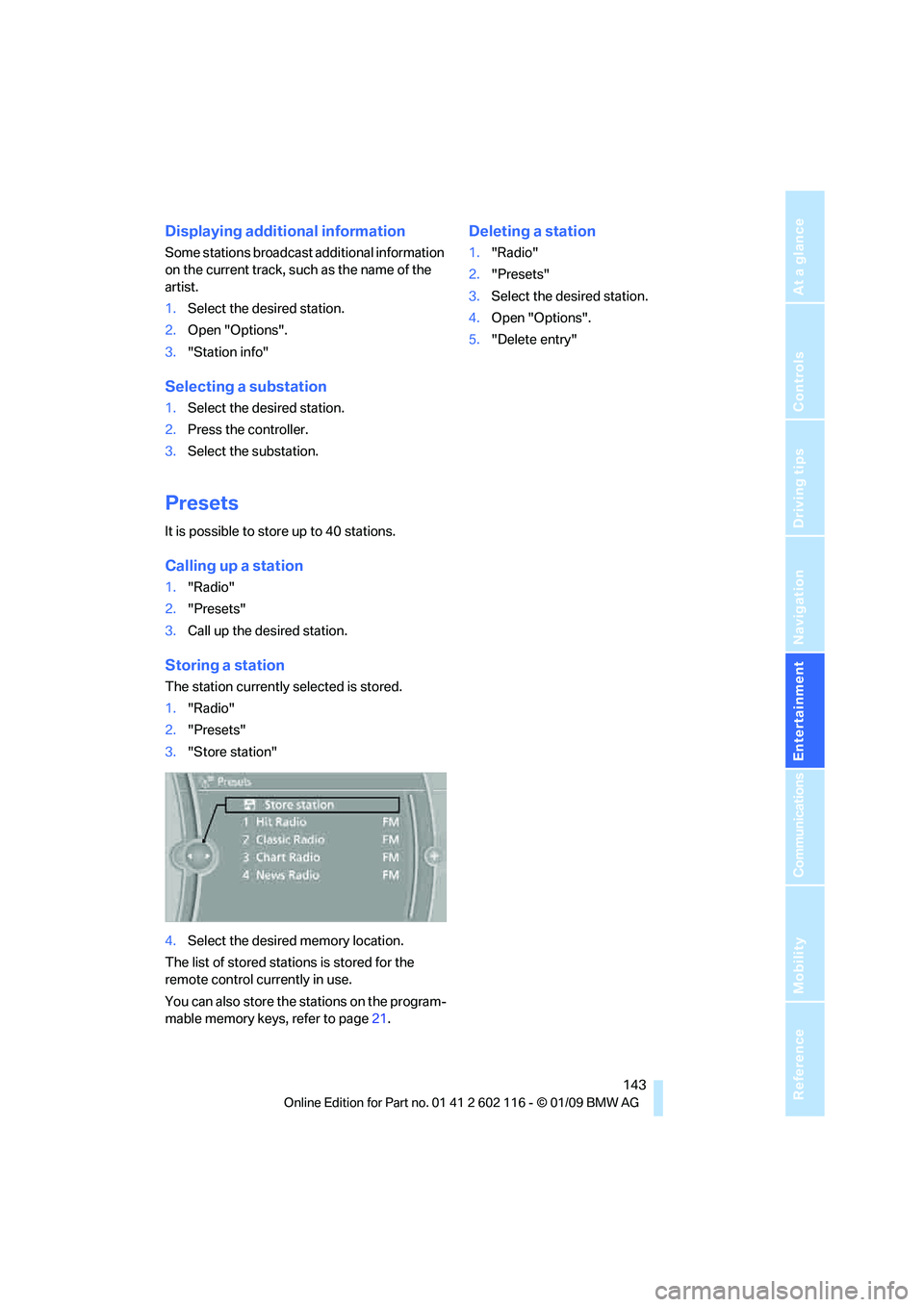
Storing a station
The station currently selected is stored.
1."Radio"
2. "Presets"
3. "Store station"
4. Select the desired memory location.
The list of stored stations is stored for the
remote control currently in use.
You can also store the st ations on the program-
mable memory keys, refer to page 21.
Deleting a station
1."Radio"
2. "Presets"
3. Select the desired station.
4. Open "Options".
5. "Delete entry"
Page 147 of 248
Navigation
Entertainment
Driving tips
145Reference
At a glance
Controls
Communications
Mobility
Selecting a channel
Selecting a channel
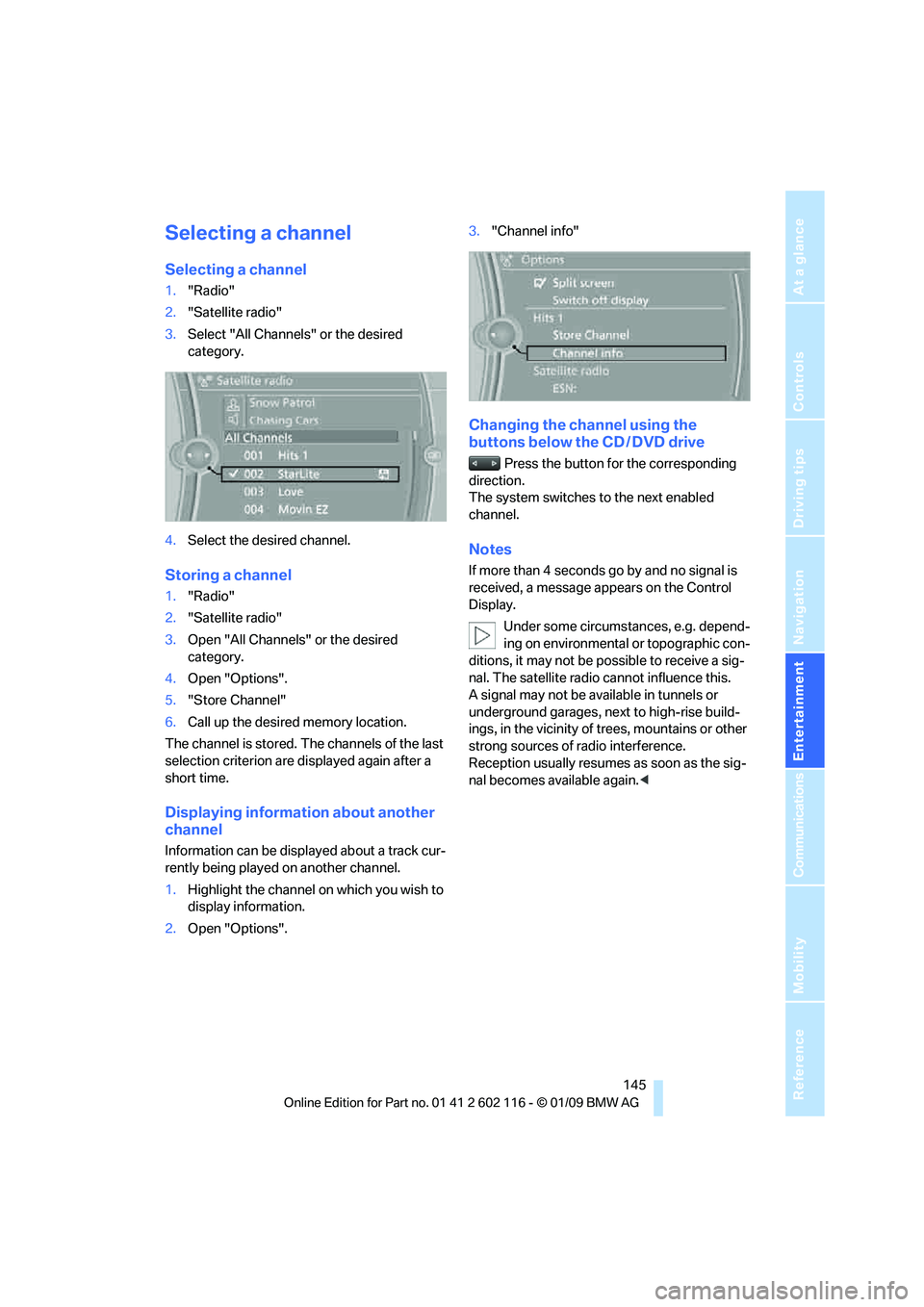
1."Radio"
2. "Satellite radio"
3. Select "All Channels" or the desired
category.
4. Select the desired channel.
Storing a channel
1."Radio"
2. "Satellite radio"
3. Open "All Channels" or the desired
category.
4. Open "Options".
5. "Store Channel"
6. Call up the desired memory location.
The channel is stored. The channels of the last
selection criterion are displayed again after a
short time.
Displaying information about another
channel
Information can be displayed about a track cur-
rently being played on another channel.
1. Highlight the channel on which you wish to
display information.
2. Open "Options". 3.
"Channel info"
Changing the channel using the
buttons below the CD / DVD drive
Press the button for the corresponding
direction.
The system switches to the next enabled
channel.
Notes
If more than 4 seconds go by and no signal is
received, a message appears on the Control
Display.
Under some circumstances, e.g. depend-
ing on environmental or topographic con-
ditions, it may not be possible to receive a sig-
nal. The satellite radio cannot influence this.
A signal may not be av ailable in tunnels or
underground garages, ne xt to high-rise build-
ings, in the vicinity of trees, mountains or other
strong sources of radio interference.
Reception usually resumes as soon as the sig-
nal becomes available again. <
Page 149 of 248
Navigation
Entertainment
Driving tips
147Reference
At a glance
Controls
Communications
Mobility
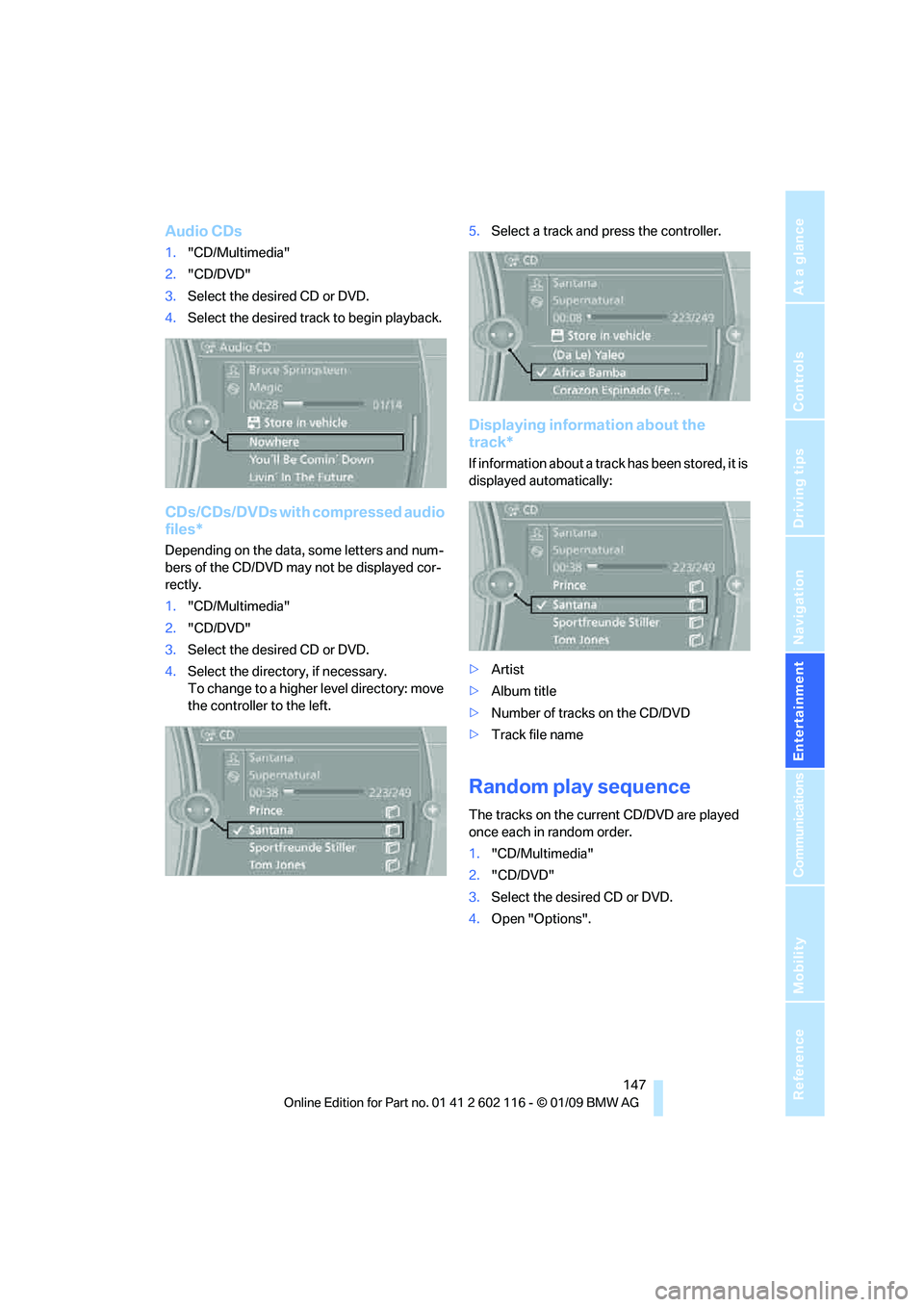
Audio CDs
1."CD/Multimedia"
2. "CD/DVD"
3. Select the desired CD or DVD.
4. Select the desired trac k to begin playback.
CDs/CDs/DVDs with compressed audio
files*
Depending on the data, some letters and num-
bers of the CD/DVD may not be displayed cor-
rectly.
1."CD/Multimedia"
2. "CD/DVD"
3. Select the desired CD or DVD.
4. Select the director y, if necessary.
To change to a higher level directory: move
the controller to the left. 5.
Select a track and press the controller.
Displaying information about the
track*
If information about a track has been stored, it is
displayed automatically:
>Artist
> Album title
> Number of tracks on the CD/DVD
> Track file name
Random play sequence
The tracks on the current CD/DVD are played
once each in random order.
1."CD/Multimedia"
2. "CD/DVD"
3. Select the desired CD or DVD.
4. Open "Options".
Page 151 of 248
Navigation
Entertainment
Driving tips
149Reference
At a glance
Controls
Communications
Mobility
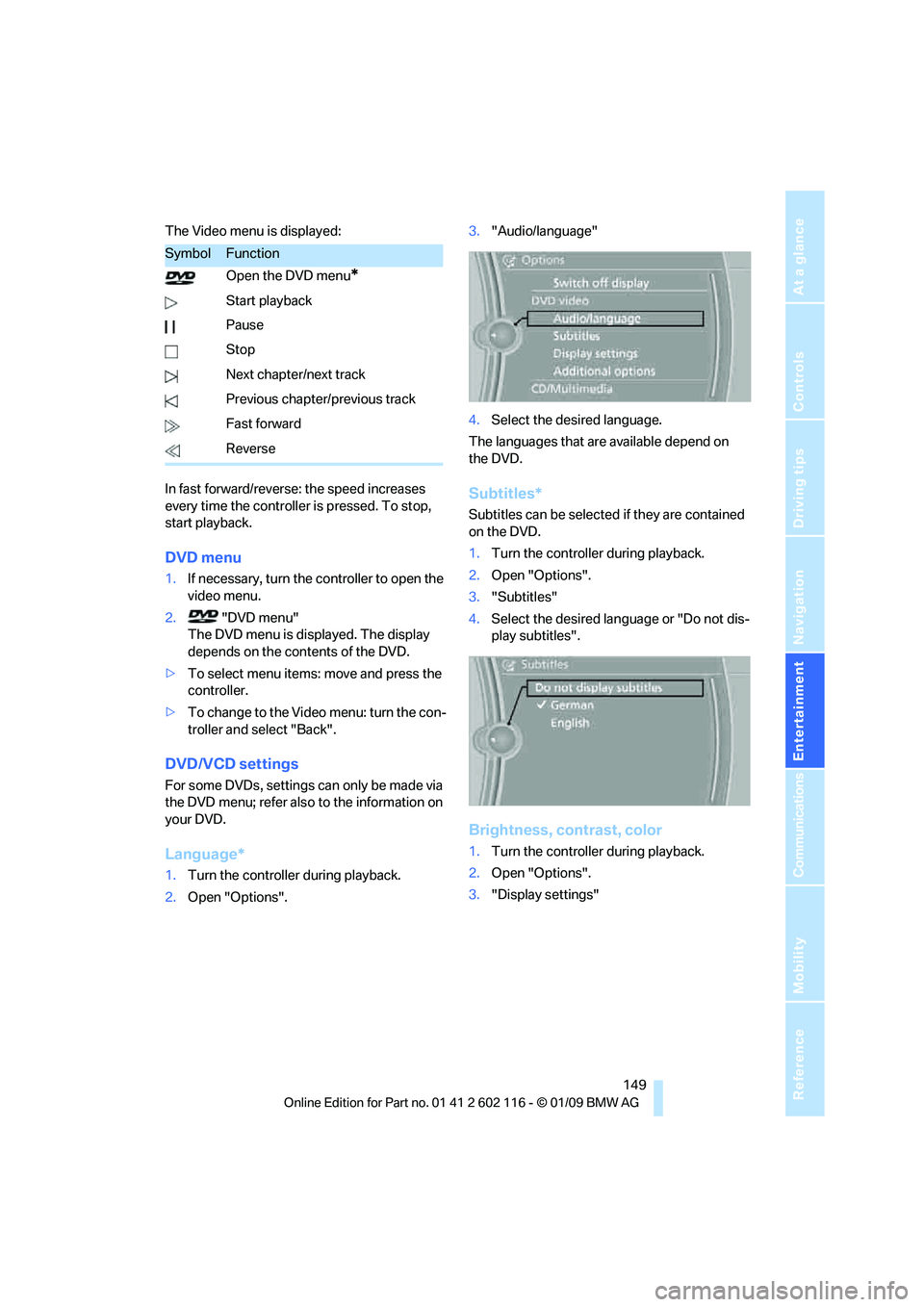
The Video menu is displayed:
In fast forward/reverse: the speed increases
every time the controller is pressed. To stop,
start playback.
DVD menu
1.If necessary, turn the controller to open the
video menu.
2. "DVD menu"
The DVD menu is displayed. The display
depends on the contents of the DVD.
> To select menu items: move and press the
controller.
> To change to the Vide o menu: turn the con-
troller and select "Back".
DVD/VCD settings
For some DVDs, settings can only be made via
the DVD menu; refer also to the information on
your DVD.
Language*
1. Turn the controller during playback.
2. Open "Options". 3.
"Audio/language"
4. Select the desired language.
The languages that are available depend on
the DVD.
Subtitles*
Subtitles can be selected if they are contained
on the DVD.
1. Turn the controller during playback.
2. Open "Options".
3. "Subtitles"
4. Select the desired language or "Do not dis-
play subtitles".
Brightness, contrast, color
1.Turn the controller during playback.
2. Open "Options".
3. "Display settings"
SymbolFunction
Open the DVD menu
*
Start playback
Pause
Stop
Next chapter/next track
Previous chapter/previous track
Fast forward
Reverse
Page 153 of 248
Navigation
Entertainment
Driving tips
151Reference
At a glance
Controls
Communications
Mobility
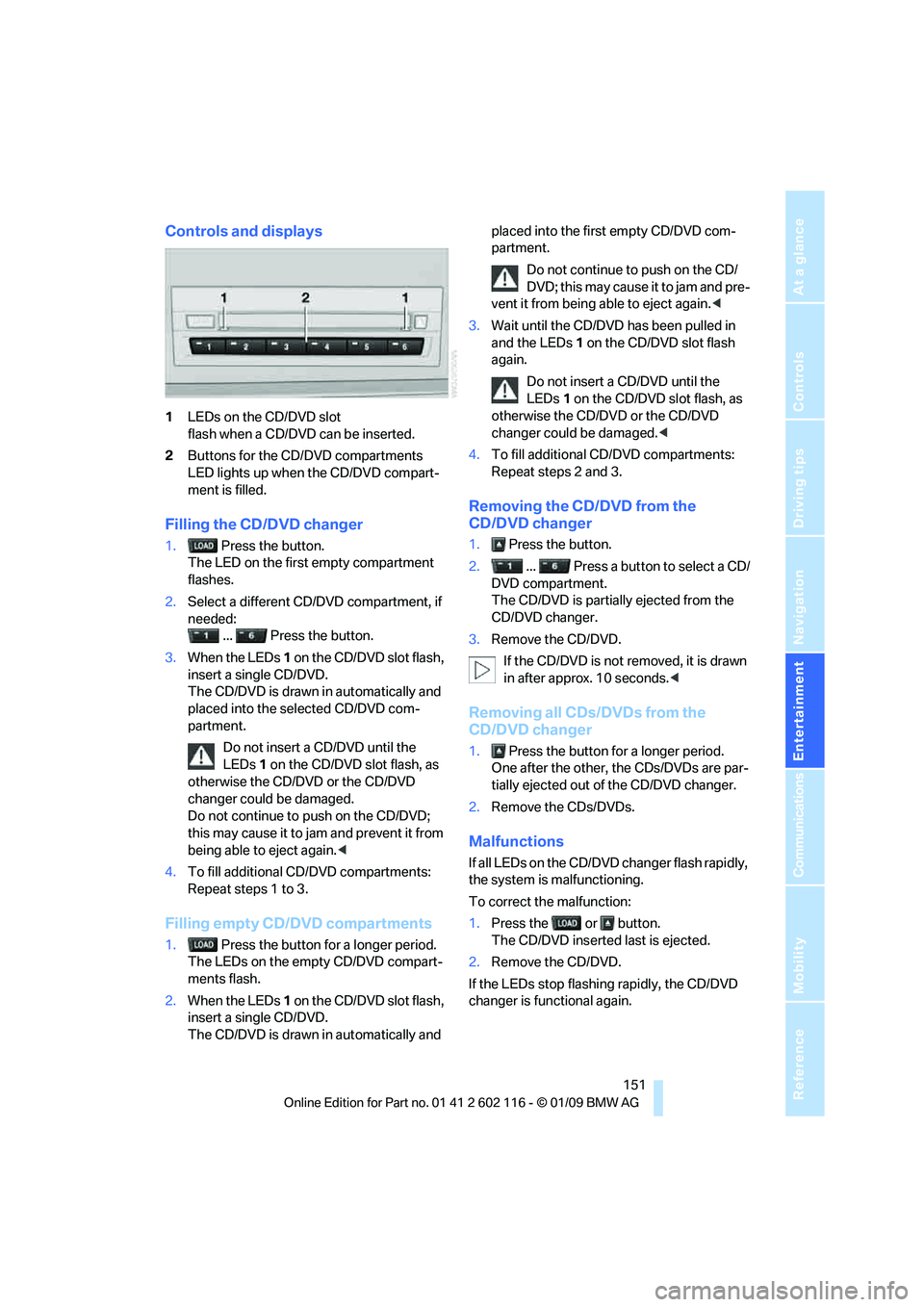
Controls and displays
1LEDs on the CD/DVD slot
flash when a CD/DVD can be inserted.
2 Buttons for the CD/DVD compartments
LED lights up when the CD/DVD compart-
ment is filled.
Filling the CD/DVD changer
1. Press the button.
The LED on the first empty compartment
flashes.
2. Select a different CD/DVD compartment, if
needed:
... Press the button.
3. When the LEDs 1 on the CD/DVD slot flash,
insert a single CD/DVD.
The CD/DVD is drawn in automatically and
placed into the selected CD/DVD com-
partment.
Do not insert a CD/DVD until the
LEDs 1 on the CD/DVD slot flash, as
otherwise the CD/DVD or the CD/DVD
changer could be damaged.
Do not continue to push on the CD/DVD;
this may cause it to jam and prevent it from
being able to eject again. <
4. To fill additional CD/DVD compartments:
Repeat steps 1 to 3.
Filling empty CD/DVD compartments
1. Press the button for a longer period.
The LEDs on the empty CD/DVD compart-
ments flash.
2. When the LEDs 1 on the CD/DVD slot flash,
insert a single CD/DVD.
The CD/DVD is drawn in automatically and placed into the first empty CD/DVD com-
partment.
Do not continue to push on the CD/
DVD; this may cause it to jam and pre-
vent it from being able to eject again. <
3. Wait until the CD/DVD has been pulled in
and the LEDs 1 on the CD/DVD slot flash
again.
Do not insert a CD/DVD until the
LEDs 1 on the CD/DVD slot flash, as
otherwise the CD/DVD or the CD/DVD
changer could be damaged.<
4. To fill additional CD/DVD compartments:
Repeat steps 2 and 3.
Removing the CD/DVD from the
CD/DVD changer
1. Press the button.
2. ... Press a button to select a CD/
DVD compartment.
The CD/DVD is partia lly ejected from the
CD/DVD changer.
3. Remove the CD/DVD.
If the CD/DVD is not removed, it is drawn
in after approx. 10 seconds. <
Removing all CDs/DVDs from the
CD/DVD changer
1. Press the button for a longer period.
One after the other, the CDs/DVDs are par-
tially ejected out of the CD/DVD changer.
2. Remove the CDs/DVDs.
Malfunctions
If all LEDs on the CD/DVD changer flash rapidly,
the system is malfunctioning.
To correct the malfunction:
1.Press the or button.
The CD/DVD inserted last is ejected.
2. Remove the CD/DVD.
If the LEDs stop flashing rapidly, the CD/DVD
changer is functional again.
Page 155 of 248
Navigation
Entertainment
Driving tips
153Reference
At a glance
Controls
Communications
Mobility
Music collection
Storing music
The music tracks from CDs/DVDs and USB
devices can be stored in the music collection in
the vehicle and played from there.
> Audio CD: tracks are converted into a com-
pressed audio format when they are stored.
If available, information on the album, such
as the artist, is stored as well.
> CD/DVD or USB device with compressed
audio files: The entire content of the CD/
DVD or the USB device is stored in the vehi-
cle as an album. After storing, the tracks and
directories can be dele ted individually. Files
are only stored in the WMA, MP3, and AAC
formats.
Tracks with DRM copy protection can be
stored in the vehicle but cannot be
played back.
Regularly back up the music data; other-
wise, it could be lost if there is a fault on
the hard disk. <
Music recognition technology and
related data ar e provided by
Gracenote®. Gracenote® is the industry stan-
dard in music recogn ition technology and
related content delivery. For more information,
please visit www.gracenote.com.
CD and music-related data from Gracenote,
Inc., copyright © 2000-2008 Gracenote.
Gracenote Software, copyright 2000-2008
Gracenote. This product and service may prac-
tice one or more of the following U.S. Patents:
#5,987,525; #6,061,680; #6,154,773,
#6,161,132, #6,230,192, #6,230,207,
#6,240,459, #6,330,593, and other patents
issued or pending. So me services supplied
under license from Open Globe, Inc. for U.S.
Patent: 6.304.523.
Storing from a CD/DVD
CDs/DVDs can only be stored from the CD/DVD
player.
1. Insert a CD/DVD into the CD/DVD player.
2. "CD/Multimedia"
3. "CD/DVD"
4. Select the symbol for the CD/DVD
player.
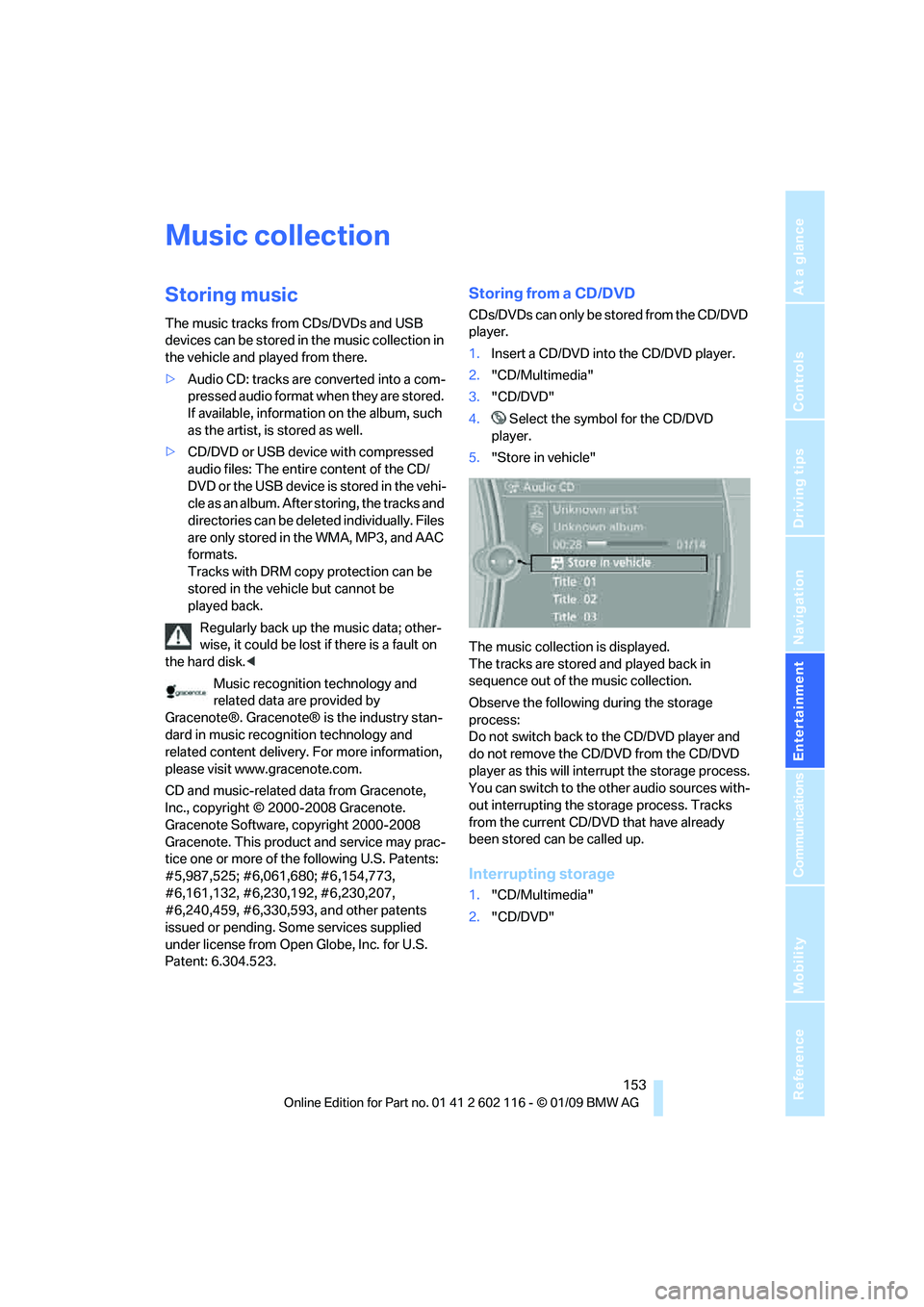
5. "Store in vehicle"
The music collection is displayed.
The tracks are stored and played back in
sequence out of the music collection.
Observe the following during the storage
process:
Do not switch back to the CD/DVD player and
do not remove the CD/DVD from the CD/DVD
player as this will inte rrupt the storage process.
You can switch to the other audio sources with-
out interrupting the storage process. Tracks
from the current CD/DVD that have already
been stored can be called up.
Interrupting storage
1. "CD/Multimedia"
2. "CD/DVD"
Page 157 of 248
Navigation
Entertainment
Driving tips
155Reference
At a glance
Controls
Communications
Mobility
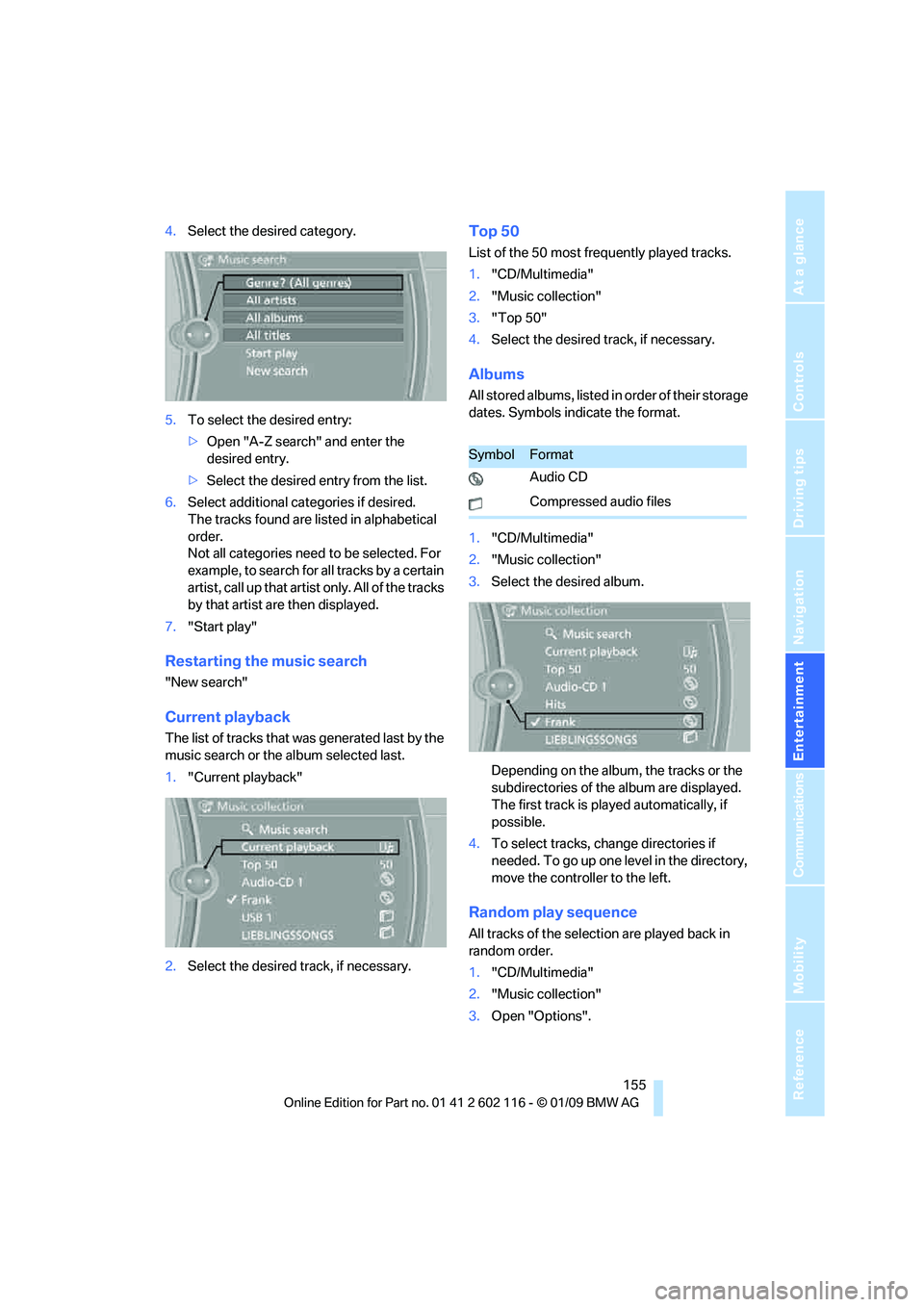
4.Select the desired category.
5. To select the desired entry:
>Open "A-Z search" and enter the
desired entry.
> Select the desired entry from the list.
6. Select additional categories if desired.
The tracks found are listed in alphabetical
order.
Not all categories need to be selected. For
example, to search for all tracks by a certain
artist, call up that artist only. All of the tracks
by that artist are then displayed.
7. "Start play"
Restarting the music search
"New search"
Current playback
The list of tracks that was generated last by the
music search or the album selected last.
1."Current playback"
2. Select the desired track, if necessary.
Top 50
List of the 50 most frequently played tracks.
1."CD/Multimedia"
2. "Music collection"
3. "Top 50"
4. Select the desired track, if necessary.
Albums
All stored albums, listed in order of their storage
dates. Symbols indicate the format.
1."CD/Multimedia"
2. "Music collection"
3. Select the desired album.
Depending on the album, the tracks or the
subdirectories of the album are displayed.
The first track is played automatically, if
possible.
4. To select tracks, change directories if
needed. To go up one level in the directory,
move the controller to the left.
Random play sequence
All tracks of the select ion are played back in
random order.
1. "CD/Multimedia"
2. "Music collection"
3. Open "Options".
SymbolFormat
Audio CD
Compressed audio files