controls BMW Z4 SDRIVE35I 2009 Manual Online
[x] Cancel search | Manufacturer: BMW, Model Year: 2009, Model line: Z4 SDRIVE35I, Model: BMW Z4 SDRIVE35I 2009Pages: 248, PDF Size: 7.63 MB
Page 159 of 248
Navigation
Entertainment
Driving tips
157Reference
At a glance
Controls
Communications
Mobility
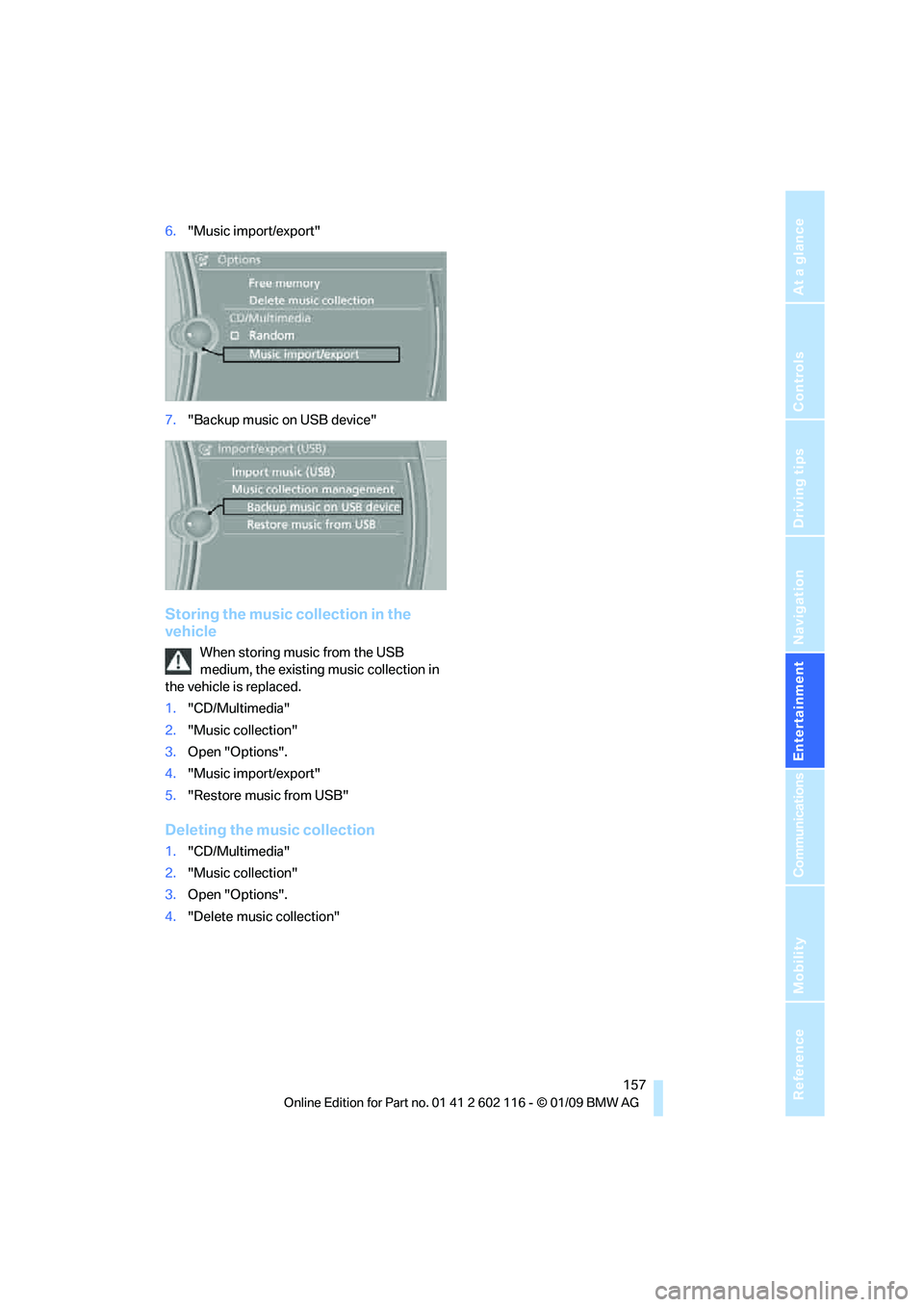
6."Music import/export"
7. "Backup music on USB device"
Storing the music collection in the
vehicle
When storing music from the USB
medium, the existing music collection in
the vehicle is replaced.
1. "CD/Multimedia"
2. "Music collection"
3. Open "Options".
4. "Music import/export"
5. "Restore music from USB"
Deleting the music collection
1."CD/Multimedia"
2. "Music collection"
3. Open "Options".
4. "Delete music collection"
Page 161 of 248
Navigation
Entertainment
Driving tips
159Reference
At a glance
Controls
Communications
Mobility
Audio files
Standard audio formats, e.g. MP3, WMA, WAV
(PCM) and AAC, and playlists in the M3U format
can be played.
Connecting via USB-audio interface
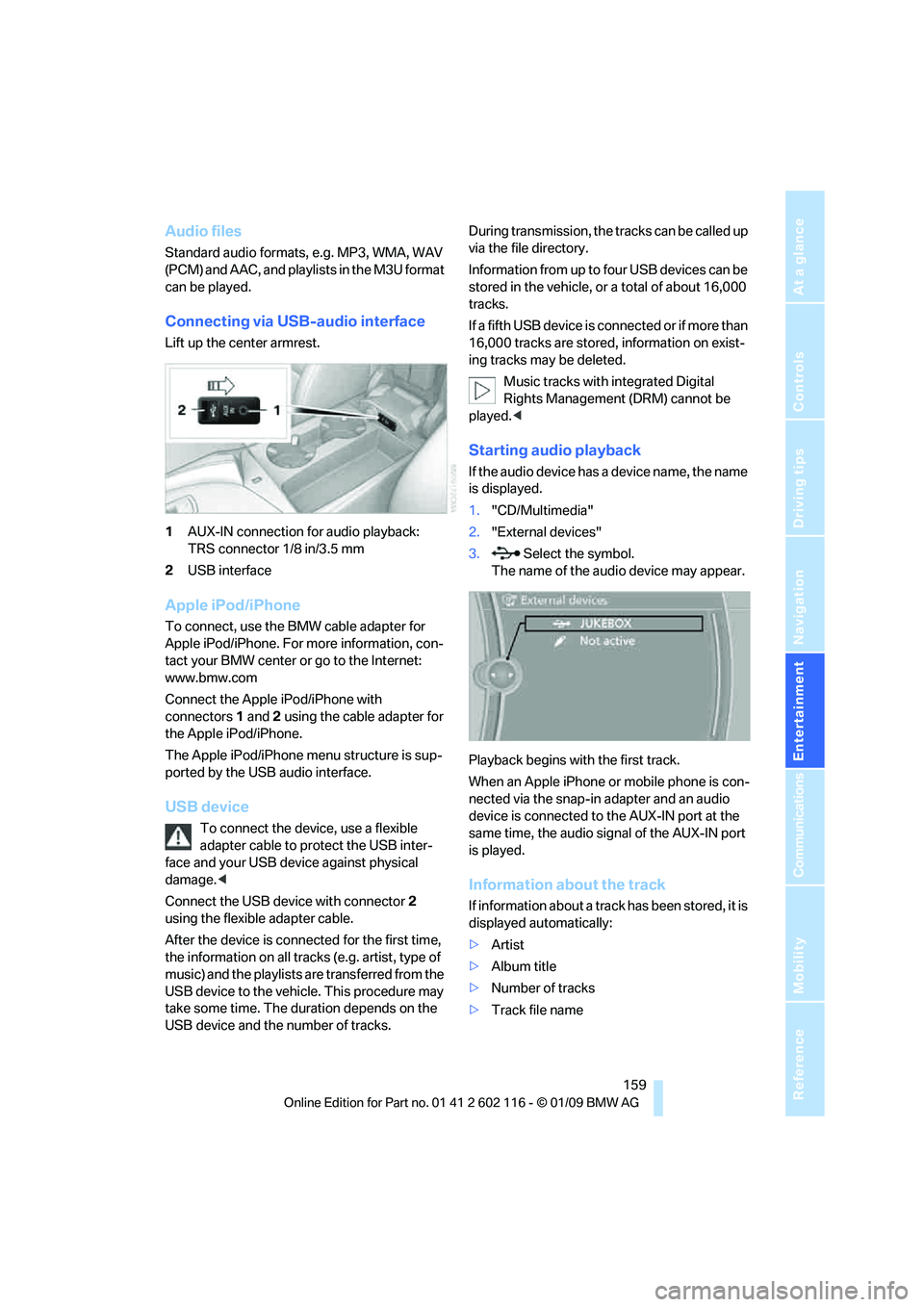
Lift up the center armrest.
1AUX-IN connection for audio playback:
TRS connector 1/8 in/3.5 mm
2 USB interface
Apple iPod/iPhone
To connect, use the BMW cable adapter for
Apple iPod/iPhone. For more information, con-
tact your BMW center or go to the Internet:
www.bmw.com
Connect the Apple iPod/iPhone with
connectors 1 and 2 using the cable adapter for
the Apple iPod/iPhone.
The Apple iPod/iPhone menu structure is sup-
ported by the USB audio interface.
USB device
To connect the device, use a flexible
adapter cable to protect the USB inter-
face and your USB device against physical
damage. <
Connect the USB device with connector 2
using the flexible adapter cable.
After the device is connected for the first time,
the information on all trac ks (e.g. artist, type of
music) and the playlists are transferred from the
USB device to the vehicle. This procedure may
take some time. The du ration depends on the
USB device and the number of tracks. During transmission, the tracks can be called up
via the file directory.
Information from up to four USB devices can be
stored in the vehicle, or a total of about 16,000
tracks.
I f a f i f t h U S B d e v i c e i s c o n n e c t e d o r i f m o r e t h a n
16,000 tracks are stored, information on exist-
ing tracks may be deleted.
Music tracks with integrated Digital
Rights Management (DRM) cannot be
played. <
Starting audio playback
If the audio device has a device name, the name
is displayed.
1."CD/Multimedia"
2. "External devices"
3. Select the symbol.
The name of the audio device may appear.
Playback begins with the first track.
When an Apple iPhone or mobile phone is con-
nected via the snap-in adapter and an audio
device is connected to the AUX-IN port at the
same time, the audio signal of the AUX-IN port
is played.
Information about the track
If information about a track has been stored, it is
displayed automatically:
> Artist
> Album title
> Number of tracks
> Track file name
Page 163 of 248
Navigation
Entertainment
Driving tips
161Reference
At a glance
Controls
Communications
Mobility
Notes on connecting
>The connected audio device is supplied
with max. 500 mA current if this is sup-
ported by the device. Therefore, do not
connect the device to the power socket in
the vehicle.
> Do not forcibly connect the plug to the USB
interface.
> Do not connect devices such as fans or
lamps to the USB-audio interface.
> Do not connect USB hard disks.
> Do not use the USB-audio interface to
charge external devices.
Page 167 of 248
165
Entertainment
Reference
At a glance
Controls
Driving tips
Communications
Navigation
Mobility
> Bluetooth is activated in the vehicle, refer to
page 166, and on the mobile phone.
> Certain presettings ma y be necessary on
some mobile phones: e.g. using the follow-
ing menu items:
> Bluetooth switched on
> Connection must be allowed without
requiring further confirmation
> Reconnection
> Depending on the mobile phone type, the
power-saving mode setting, for example,
may result in a paired mobile phone not
being detected by the vehicle.
> For pairing purposes, define any 4 to 16-
digit number as a Bluetooth passkey,
e.g. 123. A long and complex number offers
the best protection against unauthorized
access. This Bluetooth passkey is no longer
required after pairing has been successful.
> The ignition is switched on.
Pair the mobile phone with the vehicle
only when the car is stationary, to avoid
endangering the car's occupants and other
road users by be ing distracted.<
Switching on the ignition
1.Insert the remote contro l all the way into the
ignition lock.
2. Switch on the ignition without operating the
brake or clutch or pressing the start/stop
button.
Preparation via iDrive
iDrive, for operating principle refer to page 16.
3. "Telephone"
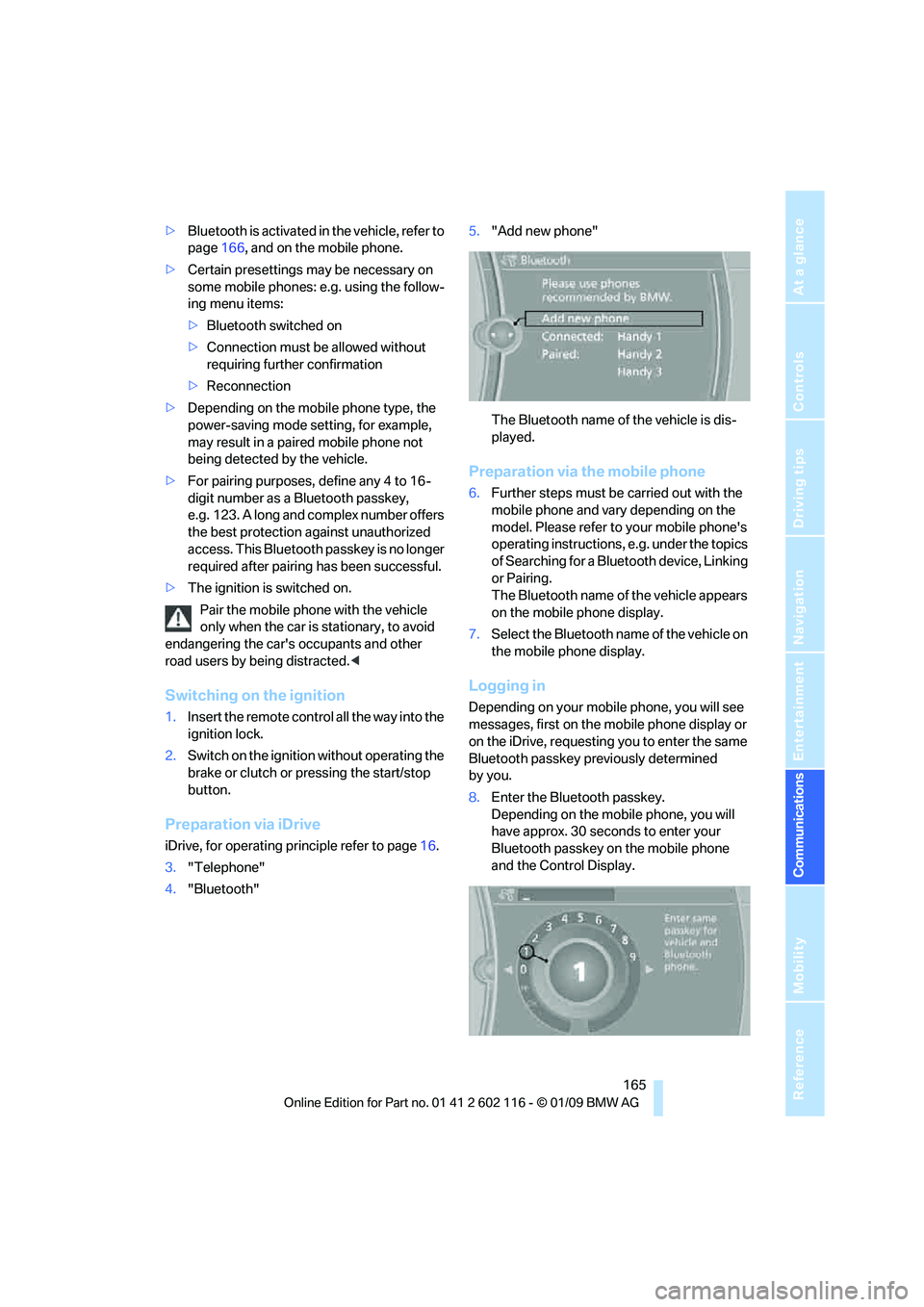
4. "Bluetooth" 5.
"Add new phone"
The Bluetooth name of the vehicle is dis-
played.
Preparation via the mobile phone
6.Further steps must be carried out with the
mobile phone and vary depending on the
model. Please refer to your mobile phone's
operating instructions, e.g. under the topics
of Searching for a Bluetooth device, Linking
or Pairing.
The Bluetooth name of the vehicle appears
on the mobile phone display.
7. Select the Bluetooth na me of the vehicle on
the mobile phone display.
Logging in
Depending on your mob ile phone, you will see
messages, first on the mobile phone display or
on the iDrive, requesting you to enter the same
Bluetooth passkey previously determined
by you.
8. Enter the Bluetooth passkey.
Depending on the mobile phone, you will
have approx. 30 seco nds to enter your
Bluetooth passkey on the mobile phone
and the Control Display.
Page 169 of 248
167
Entertainment
Reference
At a glance
Controls
Driving tips
Communications
Navigation
Mobility
can be used in combin ation with the mobile
phone, e.g. a laptop. <
To temporarily deactiva te the Bluetooth link
between the vehicle and your mobile phone:
1. "Telephone"
2. "Bluetooth"
All paired mobile phones are listed.
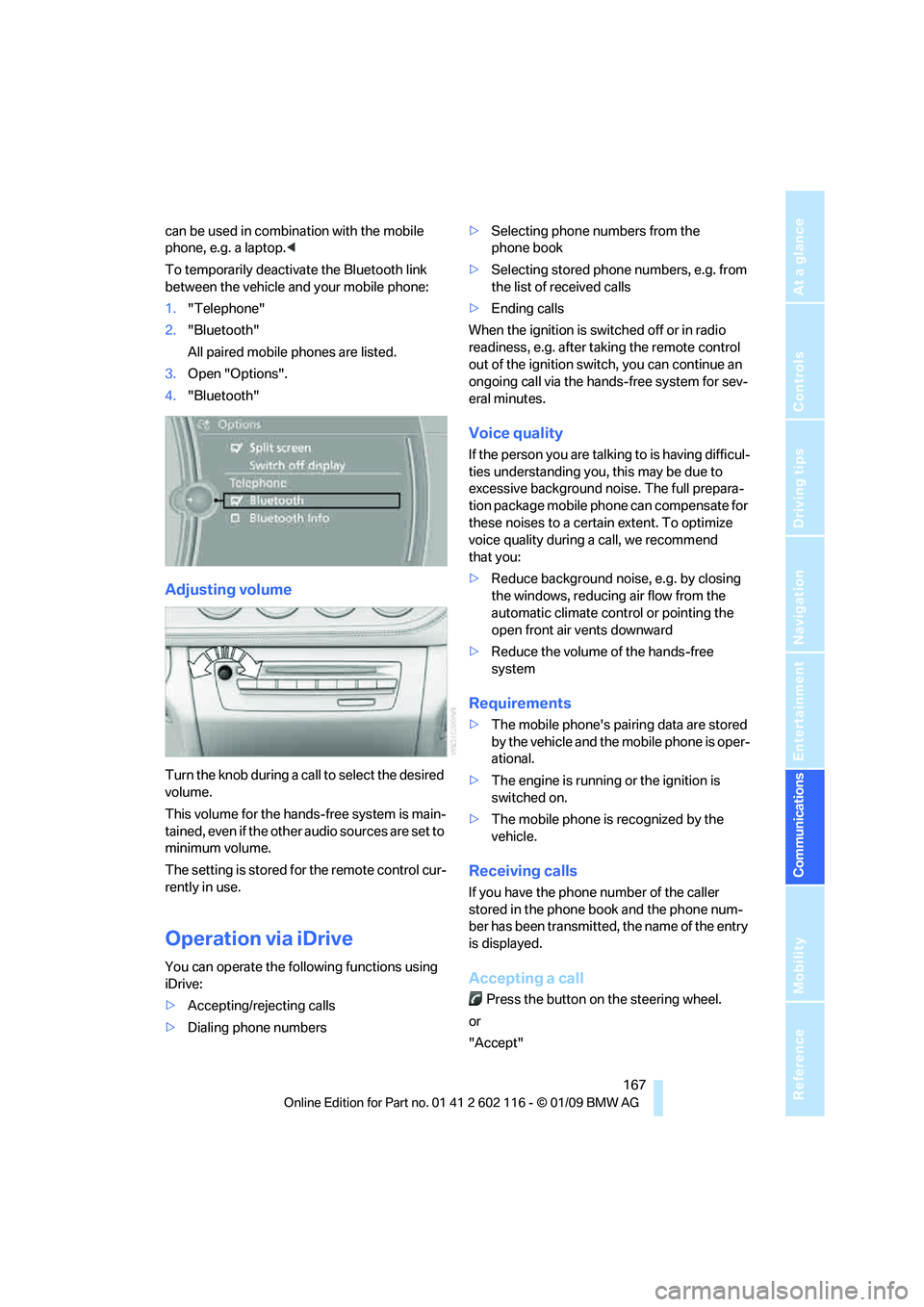
3. Open "Options".
4. "Bluetooth"
Adjusting volume
Turn the knob during a call to select the desired
volume.
This volume for the hands-free system is main-
tained, even if the other audio sources are set to
minimum volume.
The setting is stored for the remote control cur-
rently in use.
Operation via iDrive
You can operate the following functions using
iDrive:
> Accepting/rejecting calls
> Dialing phone numbers >
Selecting phone numbers from the
phone book
> Selecting stored phone numbers, e.g. from
the list of received calls
> Ending calls
When the ignition is switched off or in radio
readiness, e.g. after ta king the remote control
out of the ignition switch, you can continue an
ongoing call via the hands-free system for sev-
eral minutes.
Voice quality
If the person you are talk ing to is having difficul-
ties understanding you, this may be due to
excessive background noise. The full prepara-
tion package mobile phone can compensate for
these noises to a certain extent. To optimize
voice quality during a call, we recommend
that you:
> Reduce background noise, e.g. by closing
the windows, reducing air flow from the
automatic climate cont rol or pointing the
open front air vents downward
> Reduce the volume of the hands-free
system
Requirements
>The mobile phone's pair ing data are stored
by the vehicle and the mobile phone is oper-
ational.
> The engine is running or the ignition is
switched on.
> The mobile phone is recognized by the
vehicle.
Receiving calls
If you have the phone number of the caller
stored in the phone b ook and the phone num-
ber has been transmitted, the name of the entry
is displayed.
Accepting a call
Press the button on the steering wheel.
or
"Accept"
Page 171 of 248
169
Entertainment
Reference
At a glance
Controls
Driving tips
Communications
Navigation
Mobility
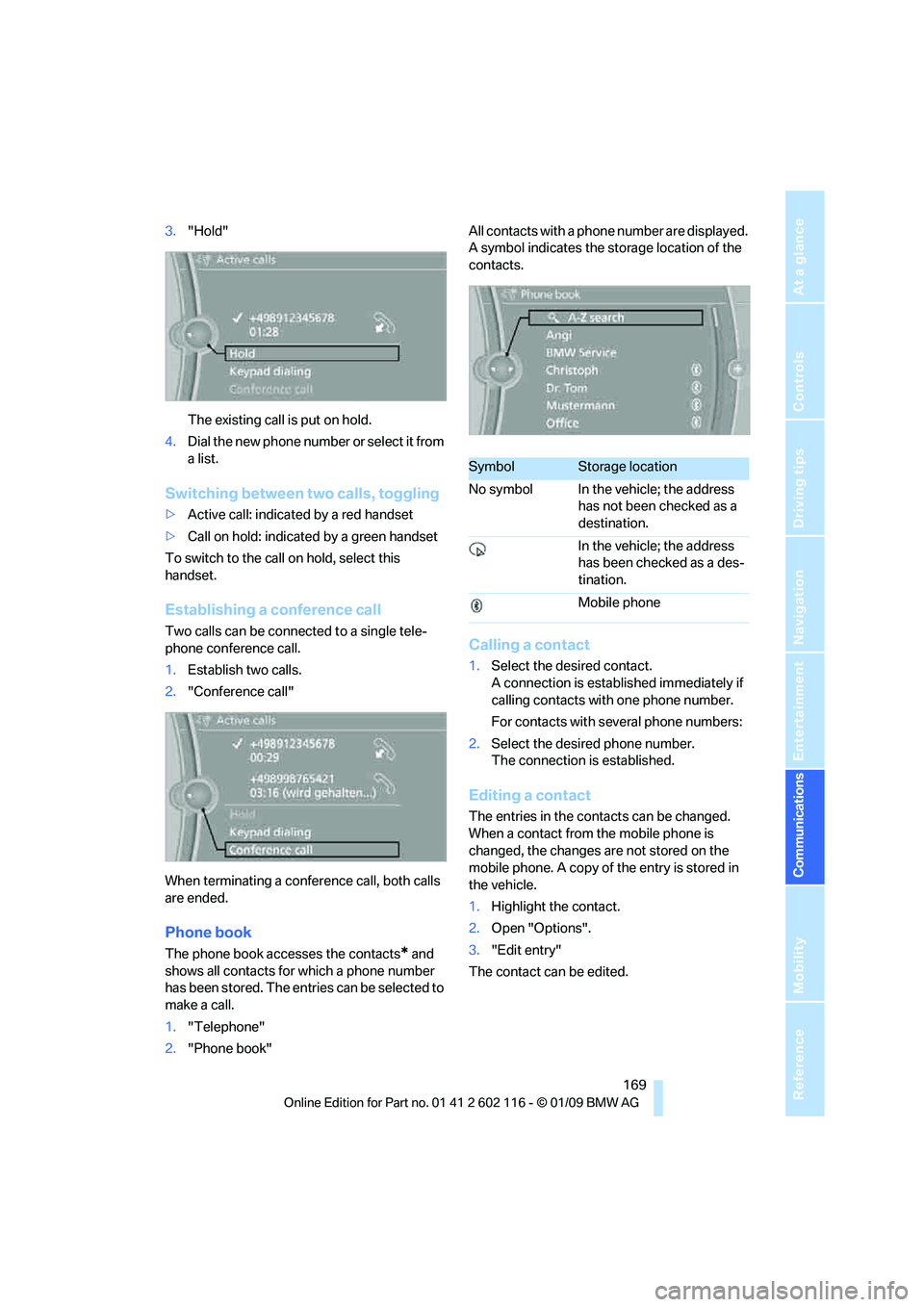
3. "Hold"
The existing call is put on hold.
4. D ial the new phone number or se lect it fro m
a list.
Switching between two calls, toggling
>Active call: indicated by a red handset
> Call on hold: indicate d by a green handset
To switch to the call on hold, select this
handset.
Establishing a conference call
Two calls can be connected to a single tele-
phone conference call.
1. Establish two calls.
2. "Conference call"
When terminating a conference call, both calls
are ended.
Phone book
The phone book accesses the contacts* and
shows all contacts for which a phone number
has been stored. The entries can be selected to
make a call.
1. "Telephone"
2. "Phone book" All contacts with a phone number are displayed.
A symbol indicates the storage location of the
contacts.
Calling a contact
1.
Select the desired contact.
A connection is established immediately if
calling contacts with one phone number.
For contacts with several phone numbers:
2. Select the desired phone number.
The connection is established.
Editing a contact
The entries in the cont acts can be changed.
When a contact from the mobile phone is
changed, the changes are not stored on the
mobile phone. A copy of the entry is stored in
the vehicle.
1. Highlight the contact.
2. Open "Options".
3. "Edit entry"
The contact can be edited.
SymbolStorage location
No symbol In the vehicle; the address has not been checked as a
destination.
In the vehicle; the address
has been checked as a des-
tination.
Mobile phone
Page 173 of 248
171
Entertainment
Reference
At a glance
Controls
Driving tips
Communications
Navigation
Mobility
Displaying messages
1. "Telephone"
2. "Messages"
A symbol identifies the type of message.
3. Select the desired message.
SMS
Calling the sender of an SMS:
1. Select the desired message.
2. Open "Options".
3. "Call sender"
Saving the sender in the contacts:
1. Select the desired message.
2. Open "Options".
3. "Store as new contact"or"Add to existing
contact"
My Info
Replying:
Send a predefined reply.
1. Select the desired message.
2. Open "Options".
3. "Answer"
Starting destination guidance:
1. Select the message that contains the
desired destination.
2. Open "Options".
3. "Start guidance"or"Insert as dest. in the
trip"
Dialing the number in the message:
1. Select the message that contains the
desired number.
2. Open "Options".
3. "Call"
Messages from the concierge service
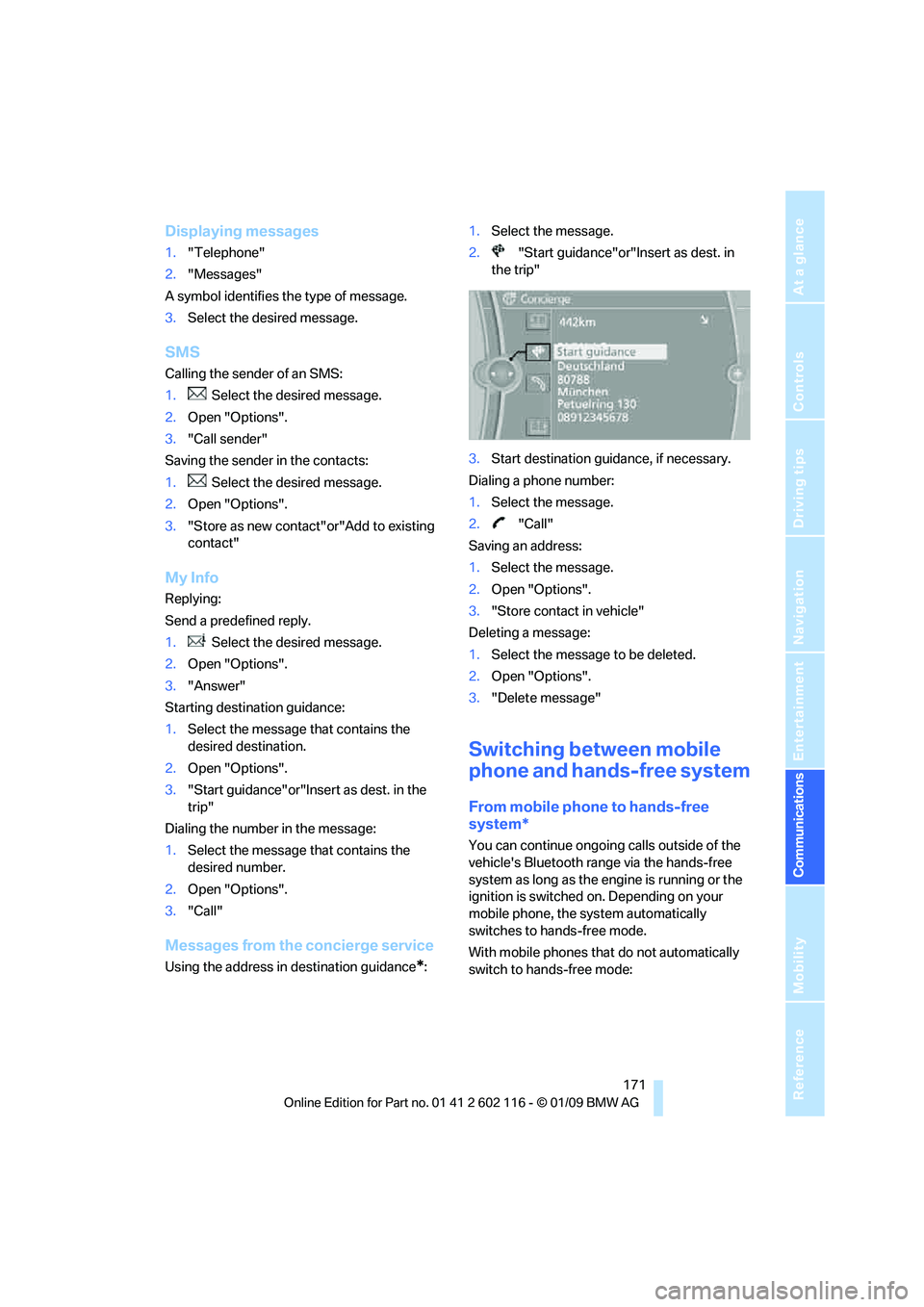
Using the address in destination guidance*:1.
Select the message.
2. "Start guidance"or"Insert as dest. in
the trip"
3. Start destination guidance, if necessary.
Dialing a phone number:
1. Select the message.
2. "Call"
Saving an address:
1. Select the message.
2. Open "Options".
3. "Store contact in vehicle"
Deleting a message:
1. Select the message to be deleted.
2. Open "Options".
3. "Delete message"
Switching between mobile
phone and hands-free system
From mobile phone to hands-free
system*
You can continue ongoing calls outside of the
vehicle's Bluetooth range via the hands-free
system as long as the engine is running or the
ignition is switched on. Depending on your
mobile phone, the sy stem automatically
switches to hands-free mode.
With mobile phones that do not automatically
switch to hands-free mode:
Page 175 of 248
173
Entertainment
Reference
At a glance
Controls
Driving tips
Communications
Navigation
Mobility
Adjusting the volume of the
instructions
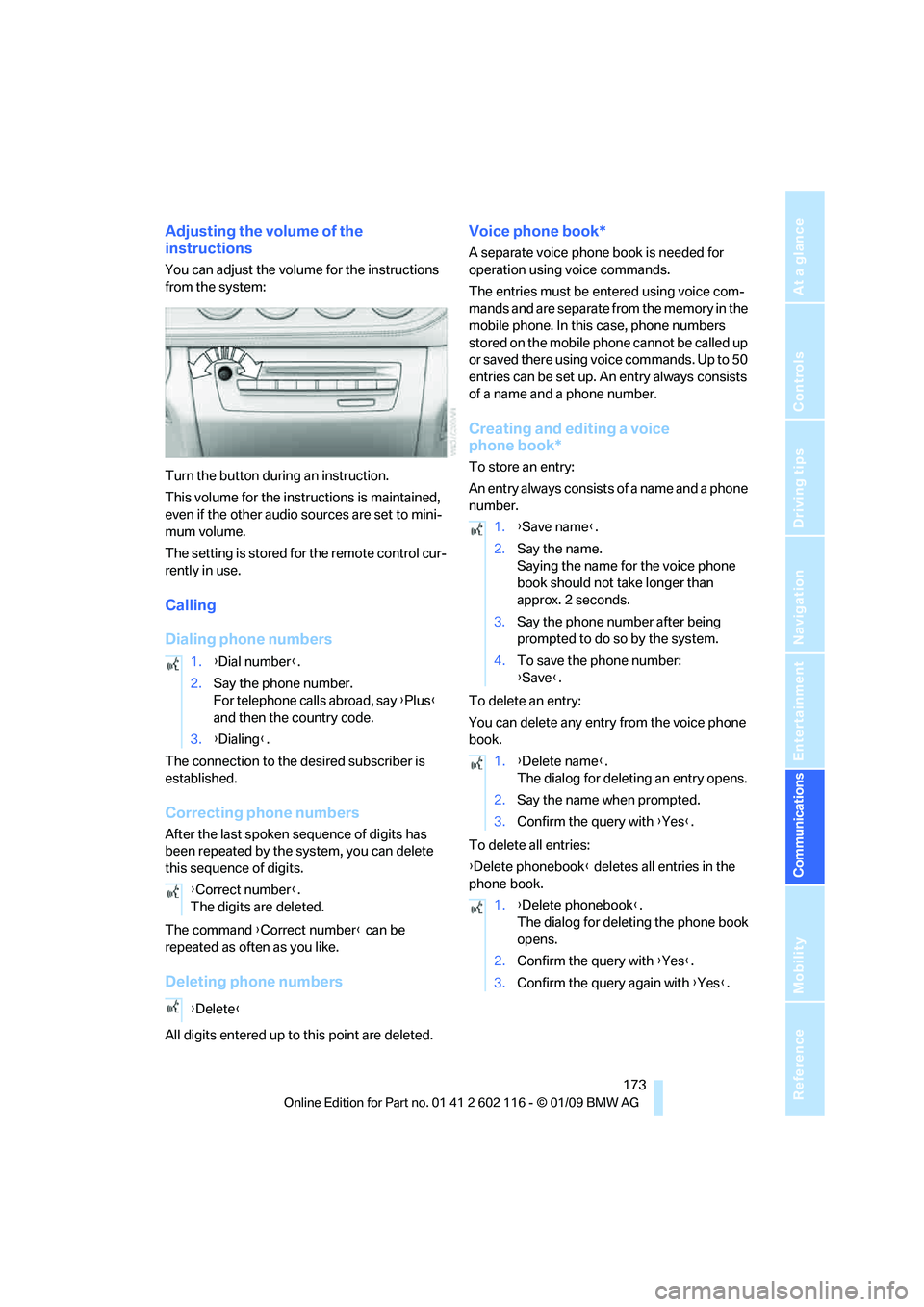
You can adjust the volume for the instructions
from the system:
Turn the button during an instruction.
This volume for the instructions is maintained,
even if the other audio sources are set to mini-
mum volume.
The setting is stored for the remote control cur-
rently in use.
Calling
Dialing phone numbers
The connection to the desired subscriber is
established.
Correcting phone numbers
After the last spoken sequence of digits has
been repeated by the system, you can delete
this sequence of digits.
The command {Correct number } can be
repeated as often as you like.
Deleting phone numbers
All digits entered up to this point are deleted.
Voice phone book*
A separate voice phone book is needed for
operation using voice commands.
The entries must be entered using voice com-
mands and are separate from the memory in the
mobile phone. In this case, phone numbers
stored on the mobile phone cannot be called up
or saved there using voice commands. Up to 50
entries can be set up. An entry always consists
of a name and a phone number.
Creating and editing a voice
phone book*
To store an entry:
An entry always consists of a name and a phone
number.
To delete an entry:
You can delete any entr y from the voice phone
book.
To delete all entries:
{ Delete phonebook } deletes all entries in the
phone book.
1.
{Dial number }.
2. Say the phone number.
For telephone calls abroad, say {Plus }
and then the country code.
3. {Dialing} .
{ Correct number }.
The digits are deleted.
{ Delete }
1.{Save name }.
2. Say the name.
Saying the name for the voice phone
book should not take longer than
approx. 2 seconds.
3. Say the phone number after being
prompted to do so by the system.
4. To save the phone number:
{Save }.
1. {Delete name }.
The dialog for deleting an entry opens.
2. Say the name when prompted.
3. Confirm the query with {Yes }.
1. {Delete phonebook }.
The dialog for deleting the phone book
opens.
2. Confirm the query with {Yes }.
3. Confirm the query again with {Yes }.
Page 177 of 248
175
Entertainment
Reference
At a glance
Controls
Driving tips
Communications
Navigation
Mobility
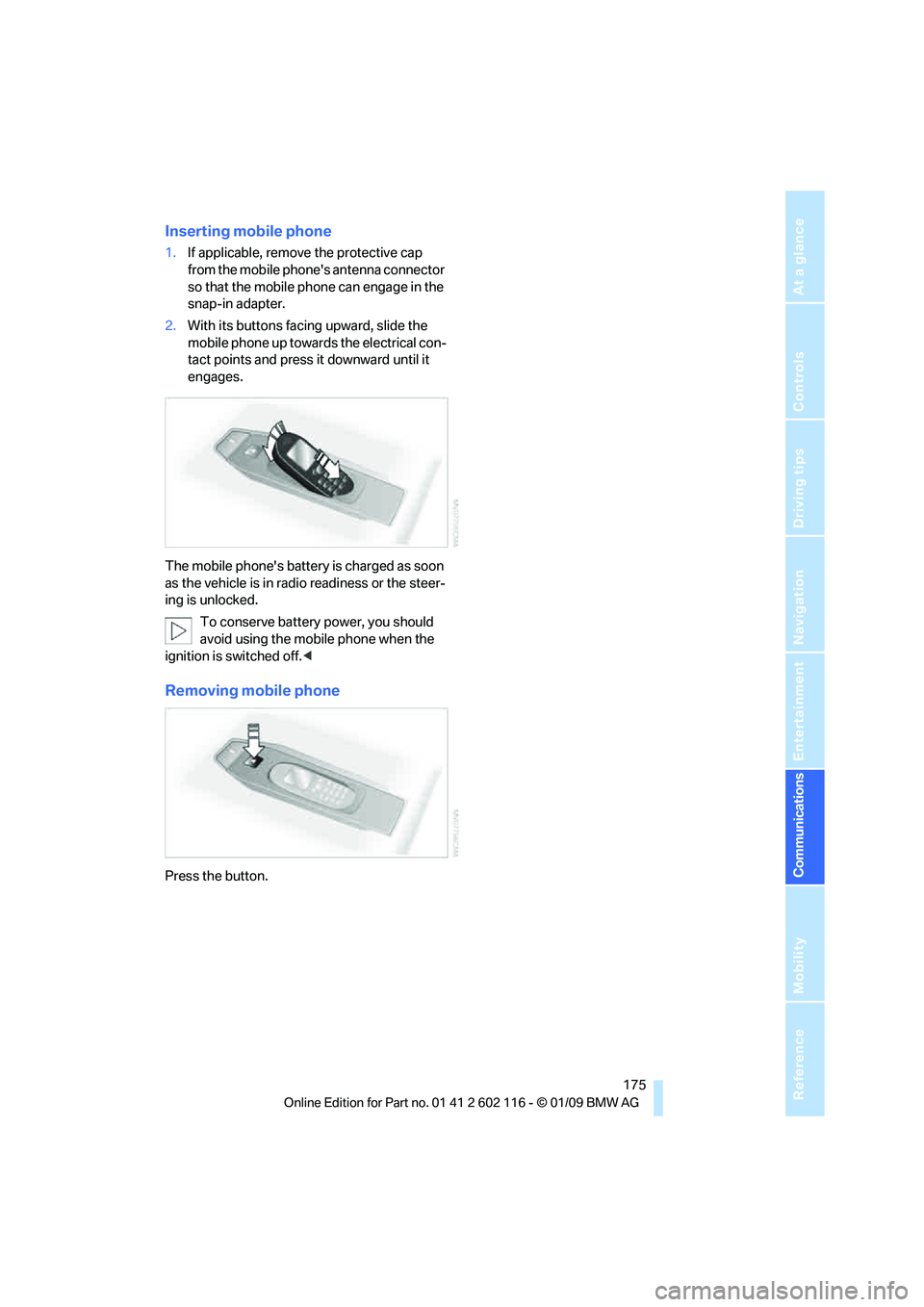
Inserting mobile phone
1. If applicable, remove the protective cap
from the mobile phone's antenna connector
so that the mobile phone can engage in the
snap-in adapter.
2. With its buttons facing upward, slide the
mobile phone up towards the electrical con-
tact points and press it downward until it
engages.
The mobile phone's battery is charged as soon
as the vehicle is in radi o readiness or the steer-
ing is unlocked.
To conserve battery power, you should
avoid using the mobile phone when the
ignition is switched off.<
Removing mobile phone
Press the button.
Page 179 of 248
177
Entertainment
Reference
At a glance
Controls
Driving tips
Communications
Navigation
Mobility
search is offered. A sy mbol indicates the stor-
age location of the contacts:
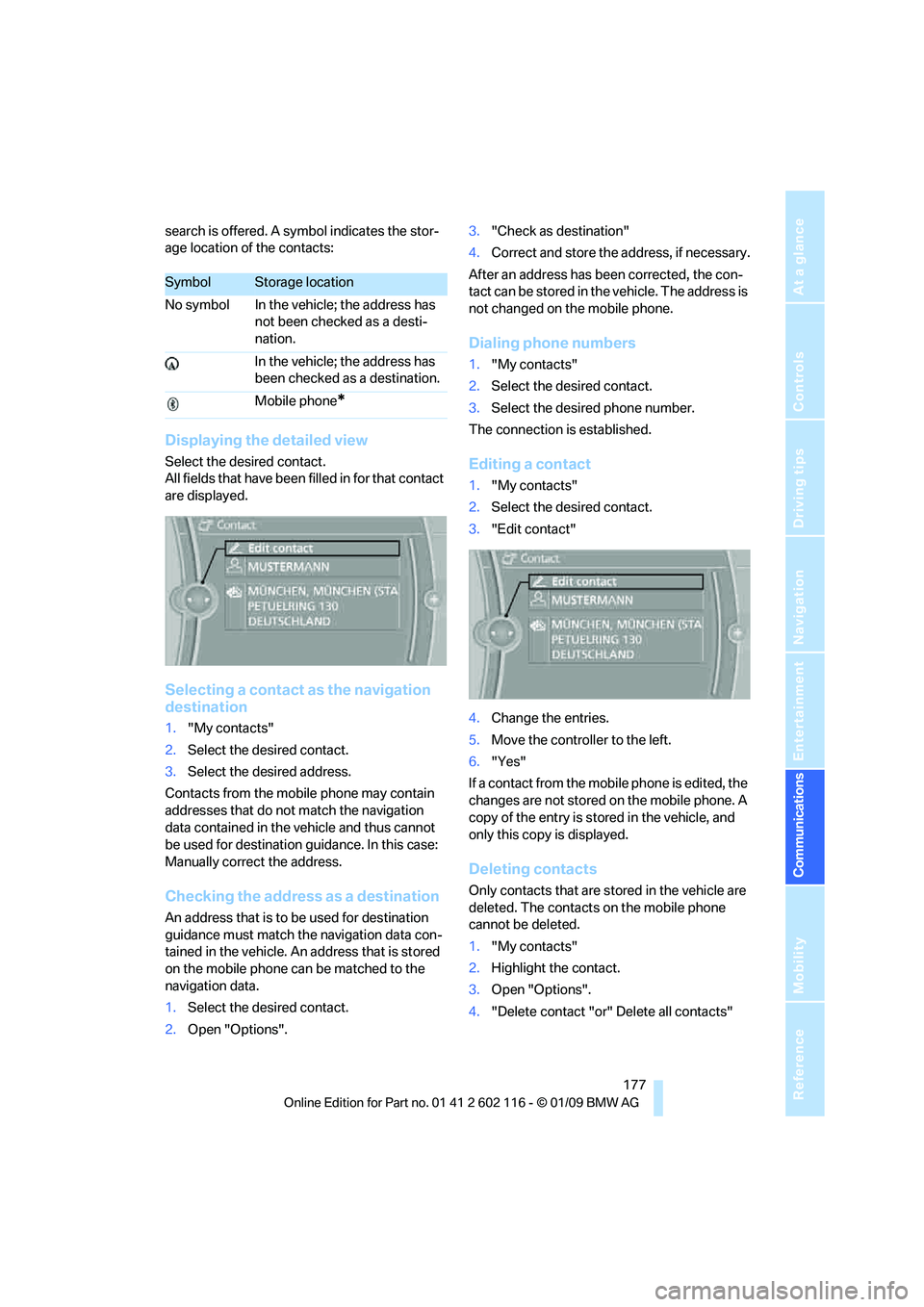
Displaying the detailed view
Select the desired contact.
All fields that have been filled in for that contact
are displayed.
Selecting a contact as the navigation
destination
1. "My contacts"
2. Select the desired contact.
3. Select the desired address.
Contacts from the mobile phone may contain
addresses that do not match the navigation
data contained in the vehicle and thus cannot
be used for destination guidance. In this case:
Manually correct the address.
Checking the address as a destination
An address that is to be used for destination
guidance must match the navigation data con-
tained in the vehicle. An address that is stored
on the mobile phone ca n be matched to the
navigation data.
1. Select the desired contact.
2. Open "Options". 3.
"Check as destination"
4. Correct and store the a ddress, if necessary.
After an address has been corrected, the con-
tact can be stored in the vehicle. The address is
not changed on the mobile phone.
Dialing phone numbers
1. "My contacts"
2. Select the desired contact.
3. Select the desired phone number.
The connection is established.
Editing a contact
1. "My contacts"
2. Select the desired contact.
3. "Edit contact"
4. Change the entries.
5. Move the controlle r to the left.
6. "Yes"
If a contact from the mobile phone is edited, the
changes are not stored on the mobile phone. A
copy of the entry is stor ed in the vehicle, and
only this copy is displayed.
Deleting contacts
Only contacts that are stored in the vehicle are
deleted. The contacts on the mobile phone
cannot be deleted.
1. "My contacts"
2. Highlight the contact.
3. Open "Options".
4. "Delete contact "or" Delete all contacts"
SymbolStorage location
No symbol In the vehicle; the address has not been checked as a desti-
nation.
In the vehicle; the address has
been checked as a destination.
Mobile phone
*