AUX BUICK CASCADA 2017 User Guide
[x] Cancel search | Manufacturer: BUICK, Model Year: 2017, Model line: CASCADA, Model: BUICK CASCADA 2017Pages: 381, PDF Size: 6.58 MB
Page 140 of 381
Buick Cascada Owner Manual (GMNA-Localizing-U.S.-9967834) - 2017 - crc -
7/18/16
Infotainment System 139
.Balance: Touch L or R for more
sound from the left or right
speakers. The middle position
balances the sound between the
left and right speakers.
Finding a Station
Press SRCE on the center stack or
press SRC on the steering wheel
controls to select AM, FM, SiriusXM
(if equipped), Pandora (if equipped),
Stitcher (if equipped), CD, USB,
AUX, and Bluetooth Audio.
Turn the
Zknob to find a radio
station. To select a preset station,
press FAV 1/2/3 to scroll through the
favorite pages and then press a
preset on the center stack or touch
the display icon.
Seeking a Station
Press
s ©or¨\to search for a
station. AM
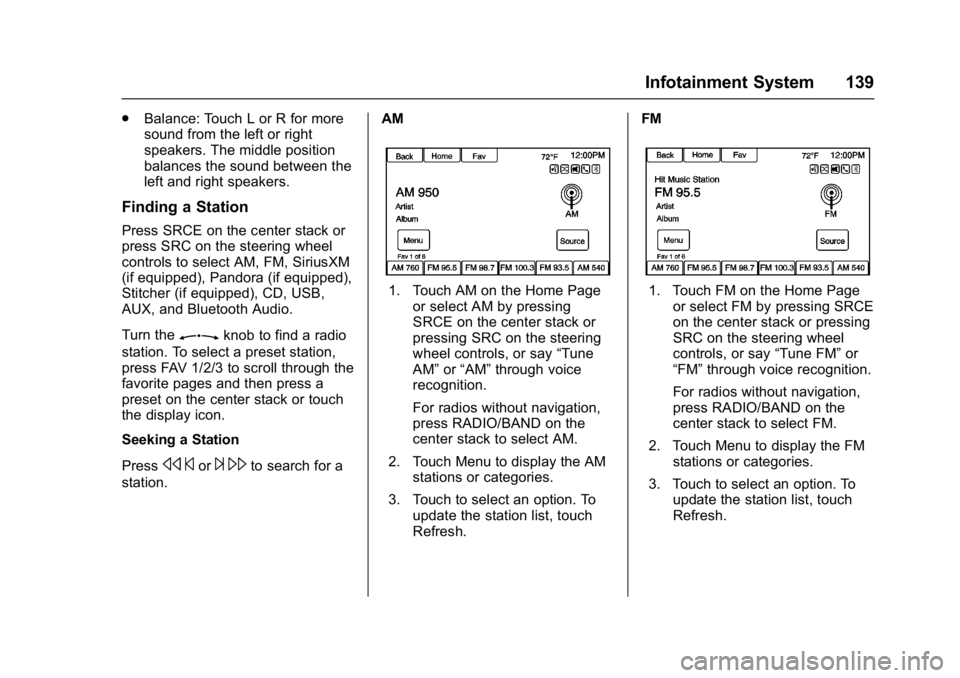
1. Touch AM on the Home Page
or select AM by pressing
SRCE on the center stack or
pressing SRC on the steering
wheel controls, or say “Tune
AM” or“AM” through voice
recognition.
For radios without navigation,
press RADIO/BAND on the
center stack to select AM.
2. Touch Menu to display the AM stations or categories.
3. Touch to select an option. To update the station list, touch
Refresh. FM1. Touch FM on the Home Page
or select FM by pressing SRCE
on the center stack or pressing
SRC on the steering wheel
controls, or say “Tune FM”or
“FM” through voice recognition.
For radios without navigation,
press RADIO/BAND on the
center stack to select FM.
2. Touch Menu to display the FM stations or categories.
3. Touch to select an option. To update the station list, touch
Refresh.
Page 149 of 381
Buick Cascada Owner Manual (GMNA-Localizing-U.S.-9967834) - 2017 - crc -
7/18/16
148 Infotainment System
www.pandora.com. Pandora may
not be available in Canada or
Mexico.
A phone or tablet with Internet
connection and the Pandora
application installed is required.
Personal cell phone data plans are
used. Make sure the latest version
is installed on the device and the
volume is turned up.
To install Pandora:
.On an Android™ phone or
Android Tablet, go to the Android
Play Store, and search for
Pandora. Install to the phone,
not to the SD card.
. On a BlackBerry
®phone, go to
the BlackBerry App World™ and
search for Pandora.
. On an iPhone
®, iPad®, or iPod
touch®, go to the iTunes®Store
and search for Pandora.
Launching Pandora
Connect the iPhone, iPad, or iPod
touch to the USB port, or connect
an Android or BlackBerry through
Bluetooth. See Auxiliary Devices 0
165 orBluetooth 0198. For
first-time use, set up stations before
connecting to the vehicle. The
Pandora icon will be available on
the Home Page and the source
pop-up displays if the latest
application is installed on the
device.
Using an iPhone, iPod touch,
or iPad
1. Plug the device into the USB port. The phone screen must
be unlocked.
2. To launch, do one of the following:
.Launch the application on
the device.
. Touch Pandora on the
Home Page.
. Press
b/gand say
“Pandora” or“Tune
Pandora.”
. Accept any notifications on
the device screen.
To relaunch Pandora, press SRCE
on the center stack or press SRC on
the steering wheel controls. If nothing happens when the
available Pandora icon is touched,
download the latest Pandora
application and retry.
Pandora will always be highlighted
on the Home Page when an iPhone,
iPad, or iPod touch is connected
using the USB port. To use, log into
your account.
If the
“Please See Device” message
is shown, the login screen may
display on the device.
If Pandora is shut down on the
phone or another audio app is used,
Pandora may not start on the next
ignition cycle. If iPod source is
selected, it may show iPod and then
switch to Pandora.
Using an Android Phone
1. Pair the Android phone using Bluetooth.
2. Use one of the following to launch:
.Launch the application on
the device.
. Touch Pandora on the
Home Page.
Page 153 of 381
Buick Cascada Owner Manual (GMNA-Localizing-U.S.-9967834) - 2017 - crc -
7/18/16
152 Infotainment System
Devices that allow multitasking may
require an extra step to quit the
Pandora application. Close Pandora
on the device and launch again.
Unlock the phone and check that
the Home Page shows on the
phone/device.
See the cell phone manufacturer's
user guide.
See www.pandora.com/help for
more information. If the service will
not work, see your dealer for
assistance.
Stitcher Internet Radio
Stitcher SmartRadio®is an Internet
radio service that streams news,
sports, and entertainment shows
through the audio system. Create
personalized, on-demand stations or
use Stitcher's preset stations. To set
up an account, download the
application from the Android Market
or iTunes Store, or go to
www.stitcher.com.
A phone or tablet with Internet
connection is required for this
application. Personal cell phone data plans are used. Make sure the
latest version is installed on the
device and the volume on the
device is turned up.
BlackBerry phones are not
supported for this application.
To install Stitcher:
.
On an Android phone or Tablet
with Internet connection, go to
the Android Play Store, search
for Stitcher, and install to the
phone, not to the SD card.
. On an iPhone, iPad, or iPod
touch, go to the iTunes Store
and search for Stitcher.Launching Stitcher
Connect the iPhone, iPad, or iPod
touch to the USB port, or connect
Android through Bluetooth. See
Auxiliary Devices 0165 orBluetooth
0 198. For first-time use, set up the
stations before connecting to the
vehicle. The Stitcher icon will be
available on the Home Page and
source pop-up displays if the latest
application is installed on the
device. Using the iPhone, iPod touch,
or an iPad
1. Plug the device into the USB port. The phone screen must
be unlocked.
2. Use one of the following to launch :
.Press the application on the
device.
. Touch Stitcher on the
Home Page.
. Press
b/gand say
“Stitcher” or“Tune Stitcher.”
. Accept any notifications on
the device screen.
3. If Stitcher does not begin playing, select a category and
then a station.
After Stitcher has been launched,
press SRCE on the center stack or
press SRC on the steering wheel
controls to access Stitcher features.
If nothing happens when the
available Stitcher icon is touched,
download the latest Stitcher
application and retry.
Page 162 of 381
Buick Cascada Owner Manual (GMNA-Localizing-U.S.-9967834) - 2017 - crc -
7/18/16
Infotainment System 161
the cover art found in the embedded
database and display it on the radio.
User predefined cover art will
always be used first. If no cover art
is found, Gracenote will use generic
genre graphics or images of artists.
More Like This
The Gracenote database contains
attributes for music, such as genre,
era of music, region, artist type,
mood, etc. Use this to create a
playlist of up to 30 songs "more
like" the currently playing song. This
playlist will be stored in the Playlist
Menu when the device is
reconnected. If songs are removed
from the device, the system will skip
over those songs and play the next
available song.
Use the infotainment display or
voice recognition to create a More
Like This Play List. See“Voice
Recognition Commands” inVoice
Recognition 0192.
Gracenote Indexing
While Gracenote is indexing,
infotainment features are available
including selecting music from the menu. Voice recognition music will
not be available until the radio has
completed indexing the device.
Devices with more music may take
longer to index. The device will
index when plugged into the radio
for the first time. When Indexing is
removed from the screen, the radio
is ready to support music search.
On the next connection or ignition
cycle, Indexing will show briefly on
the screen. The radio is searching
for changes to the device and
preparing the music list. If there are
no changes, the voice recognition
music search will be available. The
radio will index and store two
devices with up to 10,000 songs on
each device.
USB MP3 Players and USB Drives
.
The USB MP3 players and USB
devices connected must comply
with the USB Mass Storage
Class specification (USB MSC).
. Hard disk drives are not
supported.
. The radio will not be able to play
back write-protected music. .
File systems supported: FAT32,
NTFS, Linux, and HFS+.
. The following restrictions apply
for the data stored on a USB
MP3 player or USB device:
‐Maximum folder structure
depth: 8 levels.
‐ Maximum number of MP3/
WMA files that can be
displayed: 10,000.
‐ Playlist entries must be in the
form of relative paths.
‐ The system attribute for
folders/files that contain audio
data must not be set.
To play a USB device, do one of the
following:
. Connect the USB and it begins
to play.
. Touch Now Playing on the
Home Page.
. Press SRCE to scroll until the
USB source screen is available.
For vehicles without navigation,
press AUX on the center stack.
Page 164 of 381
Buick Cascada Owner Manual (GMNA-Localizing-U.S.-9967834) - 2017 - crc -
7/18/16
Infotainment System 163
Artists:1. Touch to view the list of artists on the USB.
2. Select an artist name to view a list of all albums by the artist.
3. To select a song, touch Songs List or touch an album and
then select a song from the list.
Albums: 1. Touch to view the albums on the USB.
2. Select the album to view a list of all songs on the album.
3. Select a song from the list to begin playback.
Genres: 1. Touch to view the genres on the USB.
2. Select a genre to view a list of all songs of that genre.
3. Select a song from the list to begin playback.
Songs: 1. Touch to display a list of all songs on the USB. 2. Songs are displayed as they
are stored on the disc. To begin
playback, select a song from
the list.
File System and Naming
The songs, artists, albums, and
genres are taken from the file’s
song information and are only
displayed if present. The radio
displays the file name as the track
name if the song information is not
available.
Playing from an iPod®
This feature supports the following
iPod models:
. iPod classic
®(6th generation)
. iPod nano
®(3G, 4G, 5G, 6G,
and 7G)
. iPod touch
®(1G, 2G, 3G, 4G,
5G, and 6G)
There may be problems with the
operation and function in the
following situations: .
When connecting an iPod on
which a more recent version of
the firmware is installed than is
supported by the infotainment
system.
. When connecting an iPod on
which firmware from other
providers is installed.
To connect an iPod:
1. Connect one end of the standard iPod USB cable to the
iPod's dock connector.
2. Connect the other end to the USB port in the center console.
iPod music information displays on
the radio’s display and begins
playing through the vehicle’s audio
system.
The iPod battery recharges
automatically while the vehicle is on.
The iPod shuts off and stops
charging when the vehicle is
shut off.
If the iPod is an unsupported model,
it can still be listened to in the
vehicle by connecting to the
auxiliary input jack using a standard
3.5 mm (1/8 in) stereo cable.
Page 166 of 381
Buick Cascada Owner Manual (GMNA-Localizing-U.S.-9967834) - 2017 - crc -
7/18/16
Infotainment System 165
2. Select a podcast name tobegin playback.
Composers: 1. Touch to view the composers on the iPod.
2. Select the composer to view a list of songs by that composer.
3. Select a song from the list to begin playback.
Audio Books: 1. Touch to view the audio books on the iPod.
2. Select the audio book from the list to begin playback.
Playing from an iPhone
or iPad®
This feature supports the following
iPhone or iPad models:
.iPhone
®(2G, 3G, 3GS, 4, 4S, 5,
6, and 6 plus)
. iPad
®(1G, 2G)
Follow the same instructions as
stated earlier for using an iPod. To
use voice recognition to play music,
say “Play USB,” “Play Artist,” “Play Album,” “Play Song,”
or“Play
Genre.” SeeVoice
Recognition 0192.
iPhone, iPod touch, and iPad
Troubleshooting
When an iPhone, iPod touch,
or iPad is connected through USB
and Bluetooth, the audio may not be
heard when the iPod source on the
radio is selected. If a phone call is
received while listening to the iPod
source and there is no audio for the
iPod after the source, then go to the
Airplay icon on the device and
select dock connector or disconnect
and reconnect the dock connector
on the device.
Some functionality may differ based
on operating system version on
device.
USB Troubleshooting
If the device is not being recognized
or the music is missing screen
information, restore the radio
defaults: 1. Touch Config.
2. Touch Radio Settings. 3. Touch Software
Versions Menu.
4. Touch Clear and Reset Radio.
5. Touch Yes.
Pair the phone again and the device
will have to index again.
Bluetooth Audio and Voice
Recognition
See Bluetooth Audio 0166 and
Voice Recognition 0192 for
information on using voice
recognition with Bluetooth audio.
Make sure all devices have the
latest software downloaded.
Auxiliary Devices
If equipped, this vehicle has an
auxiliary input jack in the center
console. Possible auxiliary audio
sources include:
. Laptop computer
. MP3 player
. Tape player
Page 167 of 381
Buick Cascada Owner Manual (GMNA-Localizing-U.S.-9967834) - 2017 - crc -
7/18/16
166 Infotainment System
This jack is not an audio output. Do
not plug headphones into the
auxiliary input jack. Set up any
auxiliary device while the vehicle is
in P (Park).
Connect a 3.5 mm (1/8 in) cable
from the auxiliary device to the
auxiliary input jack. When a device
is connected, the system
automatically begins playing audio
from the device over the vehicle
speakers.
If an auxiliary device has already
been connected, but a different
source is currently active, do one of
the following:
.Press SRCE to scroll all of the
available audio source screens,
until the AUX source display is
selected.
For vehicles without navigation,
press AUX on the center stack.
. Say “Play Front AUX” using
voice recognition to play the
auxiliary device. See Voice
Recognition 0192.
. Touch AUX on the Home Page.Bluetooth Audio
If equipped, music may be played
from a paired Bluetooth device. See
“Pairing a Phone/Device” under
Bluetooth 0198.
To play music through a Bluetooth
device: 1. Power on the device, pair, and connect the device.
2. Music can be launched by doing one of the following:
.Touch Bluetooth on the
Home Page.
. Press SRCE until Bluetooth
Audio is selected.
For vehicles without
navigation, press AUX on
the center stack until
Bluetooth Audio is selected.
. Press SRC on the steering
wheel controls until
Bluetooth Audio is selected.
See Steering Wheel
Controls 0132.
. Use voice recognition. See
Voice Recognition 0192. The music can be controlled by
either the infotainment controls or
the controls on the device.
When a phone is connected to the
system through Bluetooth Audio, the
phone notifications and sounds may
not be heard on the phone until
Bluetooth is disconnected.
Notification features may vary based
on the phone. Check the phone
manufacturer
’s information for
notification support.
Bluetooth Audio Menu
Touch Menu while sourced to
Bluetooth Audio and the following
may display:
Shuffle : Press the outer ring of the
Zknob to turn shuffle on or off.
Not all devices support the shuffle
feature.
When selecting Bluetooth audio, the
Bluetooth device internal music
player may not open depending on
the status of the device. All devices
launch and play back audio
differently. Make sure the correct
audio source is playing on the
device for Bluetooth audio playback
Page 187 of 381
Buick Cascada Owner Manual (GMNA-Localizing-U.S.-9967834) - 2017 - crc -
7/18/16
186 Infotainment System
Auto Volume, and XM Categories
Restore. SeeSatellite Radio 0141,
for information about XM
Categories.
The Radio Settings are:
Auto Volume : Select Off, Low,
Medium, or High sensitivity to
automatically adjust the volume to
minimize the effects of unwanted
background noise that can result
from changing road surfaces, driving
speeds, or open windows. This
feature works best at lower volume
settings where background noise is
typically louder than the sound
system volume.
Gracenote Options : Touch to
enable/disable Normalization used
to improve voice recognition and
media groupings. See CD Player
0 157, USB 0160, Auxiliary Devices
0 165, and Bluetooth Audio 0166.
XM Channel Art : Touch to enable/
disable the XM Audio page
background on the XM Channel
display. Max Startup Volume :
Touch to set
the maximum volume level for
startup that will be used even if a
higher volume had been set when
the radio was turned off.
Number of Favorite Pages : Touch
to select the number of favorite
pages to be displayed.
XM Categories : Touch to
customize which available XM
Categories are used and displayed.
Software Version Information :
Touch to display information about
the system and update software if
available.
Phone Settings
See Bluetooth 0198.
Navigation Settings
Touch Config on the Home Page to
enter the setup menu. Turn the
Zknob or touch-tap the scroll
bar until the Navigation Settings
option displays. Select this feature
to make changes to Voice Prompt,
Traffic Settings, Guidance Alert,
Delete Saved Destinations, Bread
Crumbs, and Route Simulation.
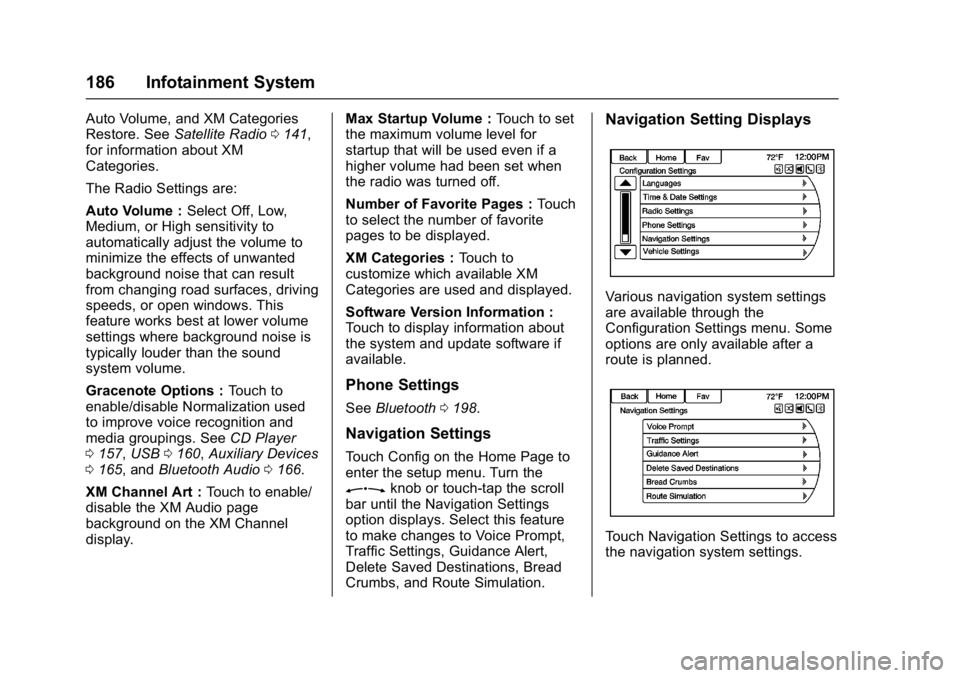
Navigation Setting Displays
Various navigation system settings
are available through the
Configuration Settings menu. Some
options are only available after a
route is planned.
Touch Navigation Settings to access
the navigation system settings.
Page 196 of 381
Buick Cascada Owner Manual (GMNA-Localizing-U.S.-9967834) - 2017 - crc -
7/18/16
Infotainment System 195
Read Text Messages or Read SMS
Messages :Instructs the system to
begin reading text messages from a
paired device.
Not all devices support text
messages. Applicable where
equipped.
My Media Commands
CD, AUX, USB, or Bluetooth
Audio : Instructs the system to
change the source.
Play CD : Instructs the system to
play a CD.
The following commands only apply
to USB, iPod, and iPhone sources.
They are supported after the device
has been indexed.
Play Artist (artist name) : Instructs
the system to play songs by a
specific artist.
Play Album (album title) : Instructs
the system to play a specific album.
Play Song (song title) : Instructs
the system to play a specific song. Play Genre (genre name) :
Instructs the system to play songs
of a particular genre.
Search Artist (artist name) :
Instructs the system to show a list of
all songs by a specific artist.
Search Composer (composer
name) :
Instructs the system to
show a list of all songs by a specific
composer.
Search Album (album name) :
Instructs the system to show a list of
all songs on a specific album.
Search Genre (genre name) :
Instructs the system to show a list of
all songs for a specific genre.
Search Folder (folder name) :
Instructs the system to show a list of
all songs in a specific folder.
Search Playlist (playlist name) :
Instructs the system to show a list of
all songs in a specific playlist.
Search Audio Book (audio book
name) : Instructs the system to
show a list of all tracks in a specific
audio book. Search Podcast (podcast name) :
Instructs the system to show a list of
all tracks in a specific podcast.
More Like This :
Instructs the
system to create a playlist of tracks
similar to the current track playing.
Settings Commands
Verbose (set) on (mode), Verbose
(set) off (mode) : Instructs the
system to turn voice prompts on or
off. When off, this feature turns off
voice prompts.
Language (language) : Instructs
the system to set the language.
List Devices : Instructs the system
to give a list of devices to use.
Other Commands
Goodbye : Instructs the system to
end a phone call or voice
recognition.
Cancel : Instructs the system to
cancel an action.
Go Back, Back, Previous :
Instructs the system to go back to a
prior menu.
Page 372 of 381

Buick Cascada Owner Manual (GMNA-Localizing-U.S.-9967834) - 2017 - crc -
7/18/16
Index 371
Assistance Program,Roadside . . . . . . . . . . . . . . . . . . . . . . 351
Assistance Systems for Parking and Backing . . . . . . . . . . 244
Audio Bluetooth . . . . . . . . . . . . . . . . . . . . . 166
Audio Players
CD . . . . . . . . . . . . . . . . . . . . . . . . . . . 157
MP3 . . . . . . . . . . . . . . . . . . . . . . . . . . 158
Automatic Door Locks . . . . . . . . . . . . . . . . . . . . . 28
Headlamp System . . . . . . . . . . . . 121
Transmission . . . . . . . . . . . . . . . . . 234
Transmission Fluid . . . . . . . . . . . 263
Automatic Transmission Manual Mode . . . . . . . . . . . . . . . . . 235
Shift Lock Control Function
Check . . . . . . . . . . . . . . . . . . . . . . . 272
Auxiliary Devices . . . . . . . . . . . . . . . . . . . . . . . 165
Avoiding Untrusted Media
Devices . . . . . . . . . . . . . . . . . . . . . . . 157
B
BatteryExterior Lighting Battery
Saver . . . . . . . . . . . . . . . . . . . . . . . 125
Load Management . . . . . . . . . . . . 125 Battery (cont'd)
Power Protection . . . . . . . . . . . . . 125
Battery - North America . . . . 271, 315
Blade Replacement, Wiper . . . . . 273
Bluetooth . . . . . . . . . . . . . . . . . . . . . . . 198
Bluetooth Audio . . . . . . . . . . . . . . . . 166
Brake Parking, Electric . . . . . . . . . . . . . . 237
System Warning Light . . . . . . . . 104
Brakes . . . . . . . . . . . . . . . . . . . . . . . . . . 270 Antilock . . . . . . . . . . . . . . . . . . . . . . . 237
Assist . . . . . . . . . . . . . . . . . . . . . . . . . 239
Fluid . . . . . . . . . . . . . . . . . . . . . . . . . . 270
Braking . . . . . . . . . . . . . . . . . . . . . . . . . 219
Break-In, New Vehicle . . . . . . . . . . 227
Bulb Replacement . . . . . . . . . . . . . . 281
Back-up Lamps . . . . . . . . . . . . . . . 279
Fog Lamps . . . . . . . . . . . . . . . . . . . 276
Front Turn Signal Lamps . . . . . 276
Headlamp Aiming . . . . . . . . . . . . . 274
Headlamps . . . . . . . . . . . . . . . . . . . 275
High Intensity Discharge(HID) Lighting . . . . . . . . . . . . . . . 275
License Plate Lamps . . . . . . . . . 280
Side Turn Signal Lamps . . . . . . 278
Sidemarker Lamps . . . . . . . . . . . 277
Buying New Tires . . . . . . . . . . . . . . . 302
C
Calibration . . . . . . . . . . . . . . . . . . . . . . . 95
California Fuel Requirements . . . . . . . . . . . 250
Perchlorate MaterialsRequirements . . . . . . . . . . . . . . . 255
California Proposition
65 Warning . . . . . . . . . .255, 271, 315
Capacities and
Specifications . . . . . . . . . . . . . . . . . 345
Carbon Monoxide Engine Exhaust . . . . . . . . . . . . . . . 233
Trunk . . . . . . . . . . . . . . . . . . . . . . . . . . . 29
Winter Driving . . . . . . . . . . . . . . . . 222
CD Player . . . . . . . . . . . . . . . . . . . . . . 157
Center Console Storage . . . . . . . . . 91
Chains, Tire . . . . . . . . . . . . . . . . . . . . 307
Charging System Light . . . . . . . . . 102
Check Ignition Transmission Lock . . . 273
Malfunction IndicatorEngine Light . . . . . . . . . . . . . . . . 102
Child Restraints
Infants and Young Children . . . . . 71
Lower Anchors and Tethersfor Children . . . . . . . . . . . . . . . . . . . 76
Older Children . . . . . . . . . . . . . . . . . . 69