radio BUICK CASCADA 2017 Owner's Guide
[x] Cancel search | Manufacturer: BUICK, Model Year: 2017, Model line: CASCADA, Model: BUICK CASCADA 2017Pages: 381, PDF Size: 6.58 MB
Page 139 of 381
Buick Cascada Owner Manual (GMNA-Localizing-U.S.-9967834) - 2017 - crc -
7/18/16
138 Infotainment System
Radio
AM-FM Radio
Playing the Radio
O/n:
. Press to turn the radio on or off.
. Turn to increase or decrease the
volume of the active source.
The steering wheel controls can
also be used to adjust the volume.
See Steering Wheel Controls 0132.
Radio Operation
The radio will work when the key is
in ON/RUN or ACC/ACCESSORY.
When the key is turned from ON/
RUN to LOCK/OFF, the radio will
continue to work for 10 minutes or
until the driver door is opened.
The radio can be turned on by
pressing
O/non the center
stack and will stay on for
10 minutes. Opening the driver door
will not turn the radio off when
pressing
O/n. Some radios may stay on longer
and reset the time for 10 minutes if
there are any additional presses of
O/n.
The radio can be turned off at any
time by pressing
O/non the
center stack.
Audio Source
Press SRCE on the center stack or
SRC on the steering wheel controls
to display and scroll through the
available sources AM, FM, SiriusXM
(if equipped), Pandora (if equipped),
Stitcher, CD, USB, AUX, and
Bluetooth Audio.
For radios without navigation, press
RADIO/BAND, CD, or AUX to scroll
through the sources.
Infotainment System Settings
Tone Settings
To access the tone settings, touch
Tone Settings on the Home Page.
Tone settings are specific to each
source.
The tone settings can also be
accessed by pressing TONE on the
center stack.
To adjust the settings:
. Bass: Touch + or −to change
the level.
. Mid (Midrange): Touch + or −to
change the level.
. Treble: Touch + or −to change
the level.
. EQ: Press and turn the
Z
knob to cycle through the preset
EQ options.
. Fade: Touch F or R for more
sound from the front or rear
speakers. The middle position
balances the sound between the
front and rear speakers.
Page 140 of 381
Buick Cascada Owner Manual (GMNA-Localizing-U.S.-9967834) - 2017 - crc -
7/18/16
Infotainment System 139
.Balance: Touch L or R for more
sound from the left or right
speakers. The middle position
balances the sound between the
left and right speakers.
Finding a Station
Press SRCE on the center stack or
press SRC on the steering wheel
controls to select AM, FM, SiriusXM
(if equipped), Pandora (if equipped),
Stitcher (if equipped), CD, USB,
AUX, and Bluetooth Audio.
Turn the
Zknob to find a radio
station. To select a preset station,
press FAV 1/2/3 to scroll through the
favorite pages and then press a
preset on the center stack or touch
the display icon.
Seeking a Station
Press
s ©or¨\to search for a
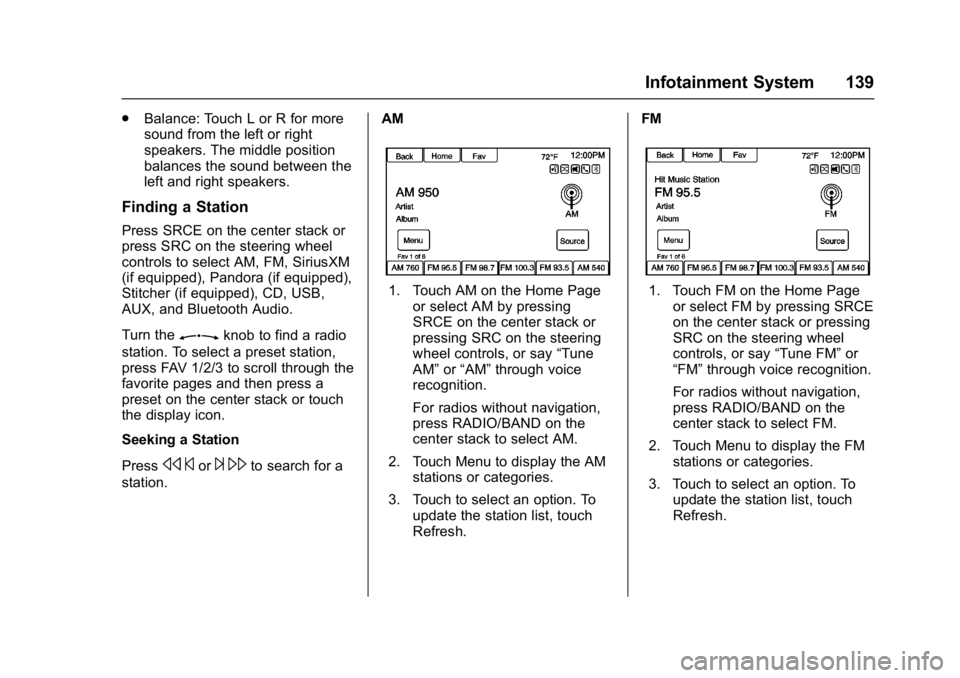
station. AM
1. Touch AM on the Home Page
or select AM by pressing
SRCE on the center stack or
pressing SRC on the steering
wheel controls, or say “Tune
AM” or“AM” through voice
recognition.
For radios without navigation,
press RADIO/BAND on the
center stack to select AM.
2. Touch Menu to display the AM stations or categories.
3. Touch to select an option. To update the station list, touch
Refresh. FM1. Touch FM on the Home Page
or select FM by pressing SRCE
on the center stack or pressing
SRC on the steering wheel
controls, or say “Tune FM”or
“FM” through voice recognition.
For radios without navigation,
press RADIO/BAND on the
center stack to select FM.
2. Touch Menu to display the FM stations or categories.
3. Touch to select an option. To update the station list, touch
Refresh.
Page 141 of 381
Buick Cascada Owner Manual (GMNA-Localizing-U.S.-9967834) - 2017 - crc -
7/18/16
140 Infotainment System
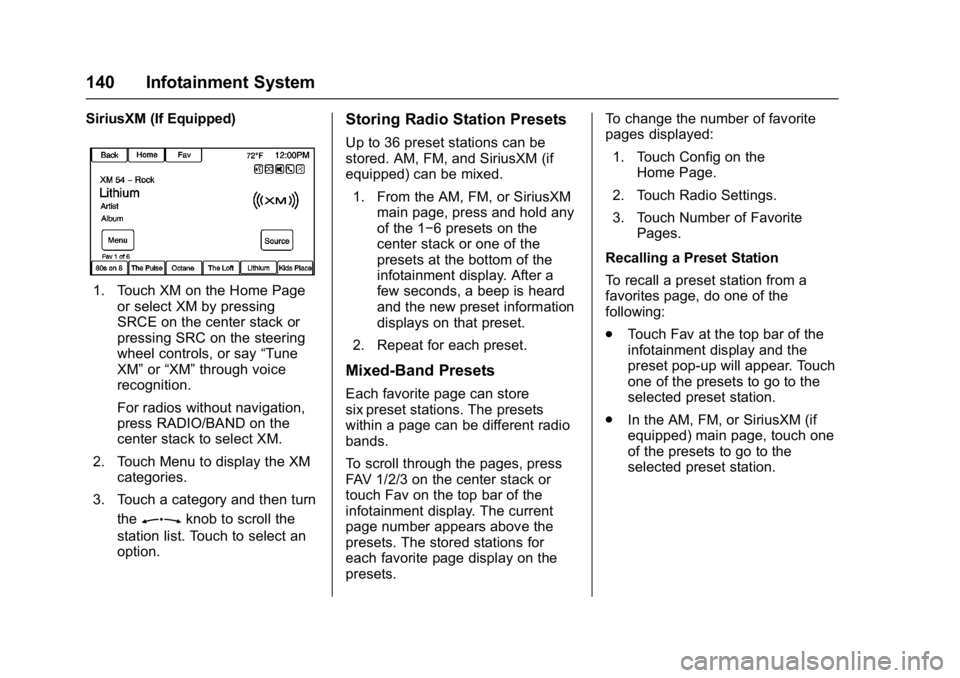
SiriusXM (If Equipped)
1. Touch XM on the Home Pageor select XM by pressing
SRCE on the center stack or
pressing SRC on the steering
wheel controls, or say “Tune
XM” or“XM” through voice
recognition.
For radios without navigation,
press RADIO/BAND on the
center stack to select XM.
2. Touch Menu to display the XM categories.
3. Touch a category and then turn the
Zknob to scroll the
station list. Touch to select an
option.
Storing Radio Station Presets
Up to 36 preset stations can be
stored. AM, FM, and SiriusXM (if
equipped) can be mixed.
1. From the AM, FM, or SiriusXM main page, press and hold any
of the 1−6 presets on the
center stack or one of the
presets at the bottom of the
infotainment display. After a
few seconds, a beep is heard
and the new preset information
displays on that preset.
2. Repeat for each preset.
Mixed-Band Presets
Each favorite page can store
six preset stations. The presets
within a page can be different radio
bands.
To scroll through the pages, press
FAV 1/2/3 on the center stack or
touch Fav on the top bar of the
infotainment display. The current
page number appears above the
presets. The stored stations for
each favorite page display on the
presets. To change the number of favorite
pages displayed:
1. Touch Config on the Home Page.
2. Touch Radio Settings.
3. Touch Number of Favorite Pages.
Recalling a Preset Station
To recall a preset station from a
favorites page, do one of the
following:
. Touch Fav at the top bar of the
infotainment display and the
preset pop-up will appear. Touch
one of the presets to go to the
selected preset station.
. In the AM, FM, or SiriusXM (if
equipped) main page, touch one
of the presets to go to the
selected preset station.
Page 142 of 381

Buick Cascada Owner Manual (GMNA-Localizing-U.S.-9967834) - 2017 - crc -
7/18/16
Infotainment System 141
Radio Data System (RDS)
RDS features are available for use
only on FM stations that broadcast
RDS information. With RDS, the
radio can:
.Seek to stations broadcasting
the selected type of
programming.
. Receive announcements
concerning local and national
emergencies.
. Display messages from radio
stations.
This system relies on receiving
specific information from these
stations and only works when the
information is available. It is
possible that a radio station could
broadcast incorrect information that
causes the radio features to work
improperly. If this happens, contact
the radio station.
When information is broadcast from
the current FM station, the station
name or call letters display on the
audio screen. RDS can provide a program type (PTY) for current
programming and the name of the
program being broadcasted.
Satellite Radio
SiriusXM®Satellite Radio
Vehicles with a valid SiriusXM
satellite radio subscription can
receive SiriusXM programming.
SiriusXM satellite radio has a wide
variety of programming and
commercial-free music, coast to
coast, and in digital-quality sound.
See www.siriusxm.com or call
1-866-601-6296.
When SiriusXM is active, the station
name, number, category name,
song title, and artist display on the
screen. SiriusXM may update the
background picture at any time.
TuneSelect
An alert will be sent when the radio
sees that search criteria on any
SiriusXM channel is met and will
offer the option to tune to that song
or artist. Up to 10 artists and songs
can be saved in the TuneSelect list.
To store an Artist or Song:
1. Touch Menu when the Artist or Song is playing on SiriusXM.
2. Select TuneSelect to access the TuneSelect Menu.
Page 143 of 381

Buick Cascada Owner Manual (GMNA-Localizing-U.S.-9967834) - 2017 - crc -
7/18/16
142 Infotainment System
3. Select Save Alert for ArtistPlaying or Save Alert for Song
Playing.
4. Touch OK to confirm.
To turn TuneSelect on or off: 1. Touch Menu when in SiriusXM.
2. Select TuneSelect.
3. Select Alerts Active to turn the alerts on or off.
To delete TuneSelect Alerts:
1. Touch Menu when in SiriusXM.
2. Touch Manage TuneSelect.
3. Touch Delete Alerts.
4. Select the alert to delete.
5. Touch OK to confirm.
SiriusXM Categories
SiriusXM stations are organized in
categories.
Adding or Removing XM
Categories
To customize which SiriusXM
categories are used and displayed
in the system:1. Press CONFIG on the center stack or touch Config on the
Home Page.
2. Select Radio Settings from the Settings Menu list.
3. Select XM Categories. 4. Select or deselect any category
to be used while in the
SiriusXM mode. A checkmark
will indicate that the category is
selected.
Touch Show All XM Categories to
restore all SiriusXM categories.
SiriusXM Channel Art
SiriusXM provides updated category
background graphics and the radio
will automatically update the screen.
SiriusXM may send updated
category graphics to the vehicle.
When this happens, the background
graphics may appear to be incorrect
but the radio will update once all of
the graphics have been downloaded
from SiriusXM.
To turn SiriusXM channel graphics
on or off:
1. Press
Fon the centerstack to
go to the Home Page or touch
Home on the top bar of the
infotainment display.
2. Select XM on the Home Page.
3. Touch Menu on the XM Now Playing Screen.
Page 144 of 381
Buick Cascada Owner Manual (GMNA-Localizing-U.S.-9967834) - 2017 - crc -
7/18/16
Infotainment System 143
4. Touch the XM Channel Artoption to turn on or off.
NavTraffic®(If Equipped)
The navigation system may have a
SiriusXM NavTraffic receiver. It is a
subscription service provided
through SiriusXM Satellite Radio.
A service fee is required to receive
the SiriusXM NavTraffic service.
Real-time traffic information is
provided to fully integrate the
navigation system to display current
traffic conditions for the chosen
route. See “Traffic Settings” later in
this section.
A message displays to indicate the
SiriusXM NavTraffic subscription is
not activated.
If activated, traffic information
displays:
. Unscheduled traffic incident
data, such as accidents and
disabled vehicles.
. Scheduled traffic incident data,
such as road construction and
road closures. .
Traffic flow information (rate of
speed data). Flow data may not
be available in all markets.
Traffic information is delivered to the
vehicle by SiriusXM radio satellites.
SiriusXM NavTraffic provides
continuously updated traffic
information.
SiriusXM NavTraffic currently
broadcasts the traffic information for
many markets nationally. The
service may be available in more
cities in the future. See
www.xmnavtraffic.com for more
details on local coverage.
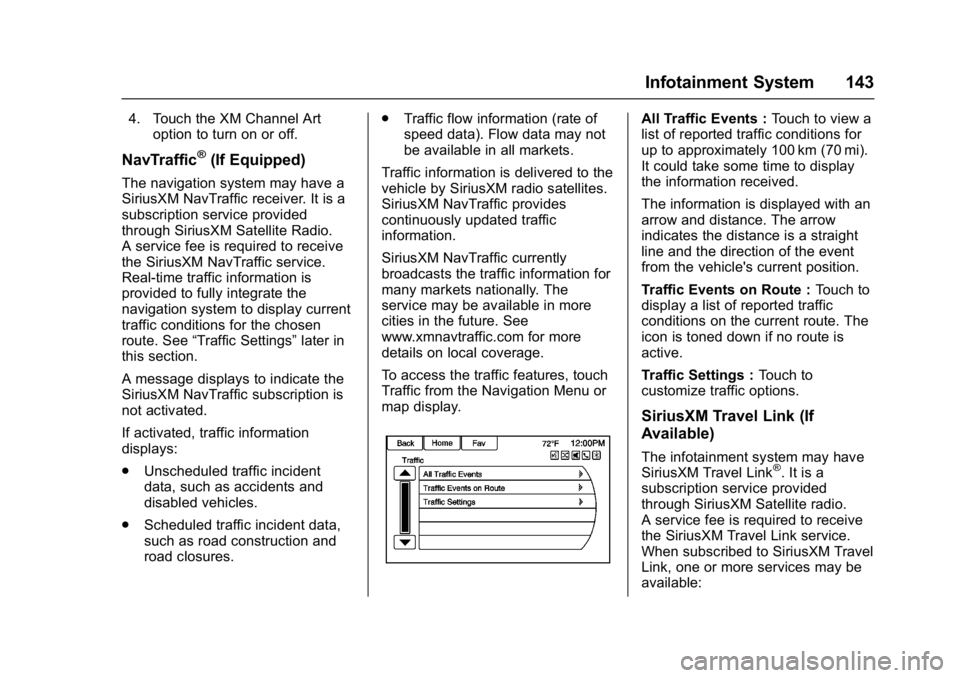
To access the traffic features, touch
Traffic from the Navigation Menu or
map display.
All Traffic Events : Touch to view a
list of reported traffic conditions for
up to approximately 100 km (70 mi).
It could take some time to display
the information received.
The information is displayed with an
arrow and distance. The arrow
indicates the distance is a straight
line and the direction of the event
from the vehicle's current position.
Traffic Events on Route : Touch to
display a list of reported traffic
conditions on the current route. The
icon is toned down if no route is
active.
Traffic Settings : Touch to
customize traffic options.
SiriusXM Travel Link (If
Available)
The infotainment system may have
SiriusXM Travel Link®. It is a
subscription service provided
through SiriusXM Satellite radio.
A service fee is required to receive
the SiriusXM Travel Link service.
When subscribed to SiriusXM Travel
Link, one or more services may be
available:
Page 147 of 381
Buick Cascada Owner Manual (GMNA-Localizing-U.S.-9967834) - 2017 - crc -
7/18/16
146 Infotainment System
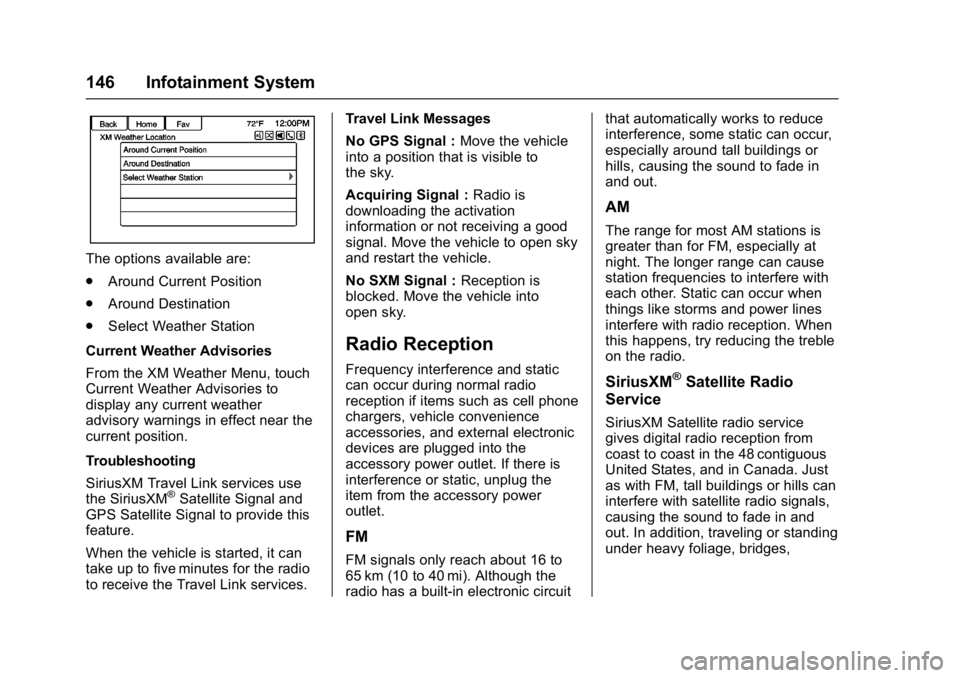
The options available are:
.Around Current Position
. Around Destination
. Select Weather Station
Current Weather Advisories
From the XM Weather Menu, touch
Current Weather Advisories to
display any current weather
advisory warnings in effect near the
current position.
Troubleshooting
SiriusXM Travel Link services use
the SiriusXM
®Satellite Signal and
GPS Satellite Signal to provide this
feature.
When the vehicle is started, it can
take up to five minutes for the radio
to receive the Travel Link services. Travel Link Messages
No GPS Signal :
Move the vehicle
into a position that is visible to
the sky.
Acquiring Signal : Radio is
downloading the activation
information or not receiving a good
signal. Move the vehicle to open sky
and restart the vehicle.
No SXM Signal : Reception is
blocked. Move the vehicle into
open sky.
Radio Reception
Frequency interference and static
can occur during normal radio
reception if items such as cell phone
chargers, vehicle convenience
accessories, and external electronic
devices are plugged into the
accessory power outlet. If there is
interference or static, unplug the
item from the accessory power
outlet.
FM
FM signals only reach about 16 to
65 km (10 to 40 mi). Although the
radio has a built-in electronic circuit that automatically works to reduce
interference, some static can occur,
especially around tall buildings or
hills, causing the sound to fade in
and out.
AM
The range for most AM stations is
greater than for FM, especially at
night. The longer range can cause
station frequencies to interfere with
each other. Static can occur when
things like storms and power lines
interfere with radio reception. When
this happens, try reducing the treble
on the radio.
SiriusXM®Satellite Radio
Service
SiriusXM Satellite radio service
gives digital radio reception from
coast to coast in the 48 contiguous
United States, and in Canada. Just
as with FM, tall buildings or hills can
interfere with satellite radio signals,
causing the sound to fade in and
out. In addition, traveling or standing
under heavy foliage, bridges,
Page 148 of 381
Buick Cascada Owner Manual (GMNA-Localizing-U.S.-9967834) - 2017 - crc -
7/18/16
Infotainment System 147
garages, or tunnels may cause loss
of the SiriusXM signal for a period
of time.
Cellular Phone Usage
Cell phone usage, such as making
or receiving phone calls, charging,
or having the phone on may cause
static interference in the radio.
Unplug the phone or turn it off if this
happens.
Multi-Band Antenna
The multi-band antenna is used for
OnStar, the SiriusXM Satellite Radio
Service System, and GPS (Global
Positioning System), if the vehicle
has these features. Keep the
antenna clear of obstructions for
clear reception.
If the vehicle has a sunroof, and it is
open, reception can also be
affected.
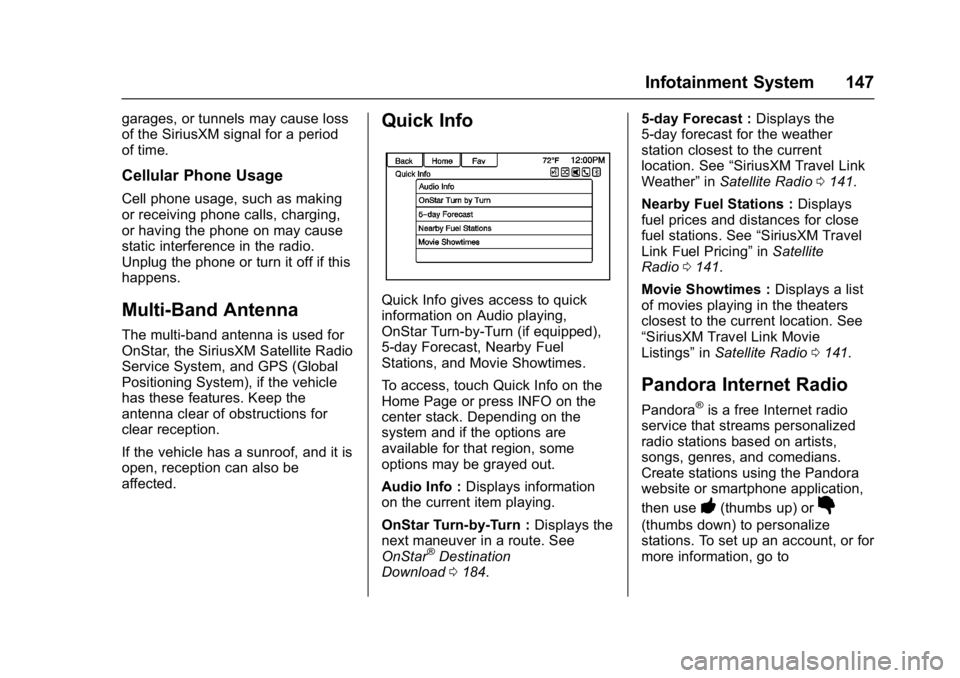
Quick Info
Quick Info gives access to quick
information on Audio playing,
OnStar Turn-by-Turn (if equipped),
5-day Forecast, Nearby Fuel
Stations, and Movie Showtimes.
To access, touch Quick Info on the
Home Page or press INFO on the
center stack. Depending on the
system and if the options are
available for that region, some
options may be grayed out.
Audio Info :Displays information
on the current item playing.
OnStar Turn-by-Turn : Displays the
next maneuver in a route. See
OnStar
®Destination
Download 0184. 5-day Forecast :
Displays the
5-day forecast for the weather
station closest to the current
location. See “SiriusXM Travel Link
Weather” inSatellite Radio 0141.
Nearby Fuel Stations : Displays
fuel prices and distances for close
fuel stations. See “SiriusXM Travel
Link Fuel Pricing” inSatellite
Radio 0141.
Movie Showtimes : Displays a list
of movies playing in the theaters
closest to the current location. See
“SiriusXM Travel Link Movie
Listings” inSatellite Radio 0141.
Pandora Internet Radio
Pandora®is a free Internet radio
service that streams personalized
radio stations based on artists,
songs, genres, and comedians.
Create stations using the Pandora
website or smartphone application,
then use
-(thumbs up) or}
(thumbs down) to personalize
stations. To set up an account, or for
more information, go to
Page 151 of 381
Buick Cascada Owner Manual (GMNA-Localizing-U.S.-9967834) - 2017 - crc -
7/18/16
150 Infotainment System
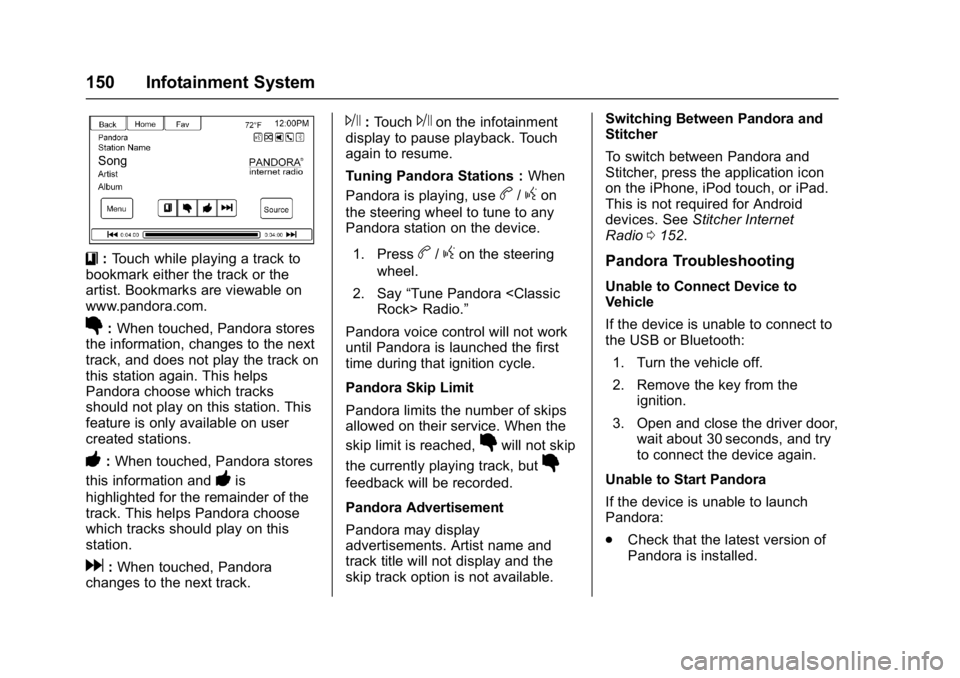
}:Touch while playing a track to
bookmark either the track or the
artist. Bookmarks are viewable on
www.pandora.com.
}: When touched, Pandora stores
the information, changes to the next
track, and does not play the track on
this station again. This helps
Pandora choose which tracks
should not play on this station. This
feature is only available on user
created stations.
-: When touched, Pandora stores
this information and
-is
highlighted for the remainder of the
track. This helps Pandora choose
which tracks should play on this
station.
d: When touched, Pandora
changes to the next track.
J: TouchJon the infotainment
display to pause playback. Touch
again to resume.
Tuning Pandora Stations : When
Pandora is playing, use
b/gon
the steering wheel to tune to any
Pandora station on the device.
1. Press
b/gon the steering
wheel.
2. Say “Tune Pandora
Pandora voice control will not work
until Pandora is launched the first
time during that ignition cycle.
Pandora Skip Limit
Pandora limits the number of skips
allowed on their service. When the
skip limit is reached,
}will not skip
the currently playing track, but
}
feedback will be recorded.
Pandora Advertisement
Pandora may display
advertisements. Artist name and
track title will not display and the
skip track option is not available. Switching Between Pandora and
Stitcher
To switch between Pandora and
Stitcher, press the application icon
on the iPhone, iPod touch, or iPad.
This is not required for Android
devices. See
Stitcher Internet
Radio 0152.
Pandora Troubleshooting
Unable to Connect Device to
Vehicle
If the device is unable to connect to
the USB or Bluetooth:
1. Turn the vehicle off.
2. Remove the key from the ignition.
3. Open and close the driver door, wait about 30 seconds, and try
to connect the device again.
Unable to Start Pandora
If the device is unable to launch
Pandora:
. Check that the latest version of
Pandora is installed.
Page 152 of 381
Buick Cascada Owner Manual (GMNA-Localizing-U.S.-9967834) - 2017 - crc -
7/18/16
Infotainment System 151
.Check that there is an active
account logged into Pandora.
. Have at least one station
created.
. For Android and BlackBerry
devices, check that the device is
paired with the vehicle, and the
Bluetooth icon on the display is
highlighted.
. For iPhone, iPod touch, or iPad
devices, check that the USB
cable is connected to the USB
port and the screen is unlocked.
. Close Pandora on the device
and launch again. Devices that
allow multitasking may require
an extra step to quit the Pandora
application. See the cell phone
manufacturer's user guide.
Thumbs Up or Thumbs Down
Error
If there is an error trying to rate a
track with the
}or-icons, an
error message will display. Touch
OK to retry. Loss of Audio
Loss of Pandora audio can happen
in different ways:
.
Weak or lost data connection.
. Device needs to be charged.
. Application needs to be
relaunched.
. Connection between phone and
radio lost.
. If any iPhone, iPod touch,
or iPad is connected to
Bluetooth and the dock
connector, go to the Airplay icon
on the device and select dock
connector or disconnect and
reconnect the dock connector on
the device.
. The volume is too low. Turn up
the volume on the device.
. The battery saver and task
manager applications on the
phone can cause Pandora to
function incorrectly. Remove
those apps from the phone or
remove Pandora and Bluetooth
from the task lists. If the connection is lost between the
application and device, a message
“Please Unlock the Phone or
Restart the App and Try again”
will
display. Touch OK to retry.
If touching OK does not clear the
issue on the phone, see "Please
Unlock the Phone or Restart the
App and Try again” under "Common
Pandora Messages" following.
Common Pandora Messages
Please See Device : When not
logged in or when authentication
failed, see the device. Touch OK to
continue.
Paused or Audio Paused :
Playback is paused on the radio or
on the device. Touch
Jor play on
the device.
No Stations Found : Logged in but
no stations have been created.
Touch OK to continue.
Please Unlock the Phone or
Restart the App and Try again :
Communication failure between the
radio and the phone application,
or the device is locked.