radio BUICK CASCADA 2017 User Guide
[x] Cancel search | Manufacturer: BUICK, Model Year: 2017, Model line: CASCADA, Model: BUICK CASCADA 2017Pages: 381, PDF Size: 6.58 MB
Page 117 of 381
Buick Cascada Owner Manual (GMNA-Localizing-U.S.-9967834) - 2017 - crc -
7/18/16
116 Instruments and Controls
Sort
This feature allows the icons on the
Home Page to be moved.
Select and follow the screen
prompts.
Restore Home Page Defaults
This feature will restore the Home
Page to the factory settings.
Select and follow the screen
prompts.
Rear Camera Options
Select and the following may
display:
.Symbols
. Guide Lines
Symbols
See Assistance Systems for Parking
or Backing 0244.
Select to enable or disable.
Guide Lines
See Assistance Systems for Parking
or Backing 0244.
Select to enable or disable. Display Off
Select to turn the display off. The
display will return when any radio
buttons are pressed or the screen is
touched (if equipped).
Map Settings
See "Map Settings" in
Configure
Menu 0185.
Vehicle Settings
Select and the following may
display:
.
Climate and Air Quality
. Comfort and Convenience
. Collision Detection Systems
. Lighting
. Power Door Locks
. Remote Lock/Unlock/Start
. Return to Factory Settings?
Climate and Air Quality
Select and the following may
display:
.
Auto Fan Speed
. Remote Start Auto Heat Seat .
Auto Rear Defog
Auto Fan Speed
Choose the blower speed setting.
Select High, Medium, or Low.
Remote Start Auto Heat Seat
When on, this feature will turn the
heated seats on when using remote
start on cold days.
Select to enable or disable.
Auto Rear Defog
When on, this feature turns on the
rear window defogger at vehicle
start when the interior temperature
is cold and fog is likely. The auto
rear defog function can be disabled
by selecting
1. When off, the
feature can be turned on by
selecting
1. See “Rear Window
Defogger” underDual Automatic
Climate Control System 0213.
Select to enable or disable.
Comfort and Convenience
Select and the following may
display:
Page 128 of 381
Buick Cascada Owner Manual (GMNA-Localizing-U.S.-9967834) - 2017 - crc -
7/18/16
Infotainment System 127
Infotainment
System
Introduction
Overview . . . . . . . . . . . . . . . . . . . . . 128
Steering Wheel Controls . . . . . . 132
Using the System . . . . . . . . . . . . 132
Software Updates . . . . . . . . . . . . 137
Radio
AM-FM Radio . . . . . . . . . . . . . . . . 138
Radio Data System (RDS) . . . . 141
Satellite Radio . . . . . . . . . . . . . . . . 141
Radio Reception . . . . . . . . . . . . . . 146
Multi-Band Antenna . . . . . . . . . . 147
Quick Info . . . . . . . . . . . . . . . . . . . . 147
Pandora Internet Radio . . . . . . . 147
Stitcher Internet Radio . . . . . . . . 152
Pictures . . . . . . . . . . . . . . . . . . . . . . 156
Audio Players
Avoiding Untrusted MediaDevices . . . . . . . . . . . . . . . . . . . . . 157
CD Player . . . . . . . . . . . . . . . . . . . . 157
MP3 . . . . . . . . . . . . . . . . . . . . . . . . . . 158
USB . . . . . . . . . . . . . . . . . . . . . . . . . . 160
Auxiliary Devices . . . . . . . . . . . . . 165
Bluetooth Audio . . . . . . . . . . . . . . 166
OnStar System
OnStar System . . . . . . . . . . . . . . . 167
Navigation
Using the Navigation System . . . . . . . . . . . . . . . . . . . . . . 168
Maps . . . . . . . . . . . . . . . . . . . . . . . . . 172
Navigation Symbols . . . . . . . . . . 172
Destination . . . . . . . . . . . . . . . . . . . 174
OnStar
®Destination
Download . . . . . . . . . . . . . . . . . . . 184
Configure Menu . . . . . . . . . . . . . . 185
Global Positioning System (GPS) . . . . . . . . . . . . . . 190
Vehicle Positioning . . . . . . . . . . . 190
Problems with Route Guidance . . . . . . . . . . . . . . . . . . . 191
If the System Needs
Service . . . . . . . . . . . . . . . . . . . . . 192
Map Data Updates . . . . . . . . . . . 192
Database Coverage Explanations . . . . . . . . . . . . . . . . 192
Voice Recognition
Voice Recognition . . . . . . . . . . . . 192
Bluetooth Phone/Devices
Bluetooth . . . . . . . . . . . . . . . . . . . . . 198
Text Messaging . . . . . . . . . . . . . . . 205
Trademarks and License
Agreements
Trademarks and LicenseAgreements . . . . . . . . . . . . . . . . . 208
Page 130 of 381
Buick Cascada Owner Manual (GMNA-Localizing-U.S.-9967834) - 2017 - crc -
7/18/16
Infotainment System 129
Infotainment System Overview
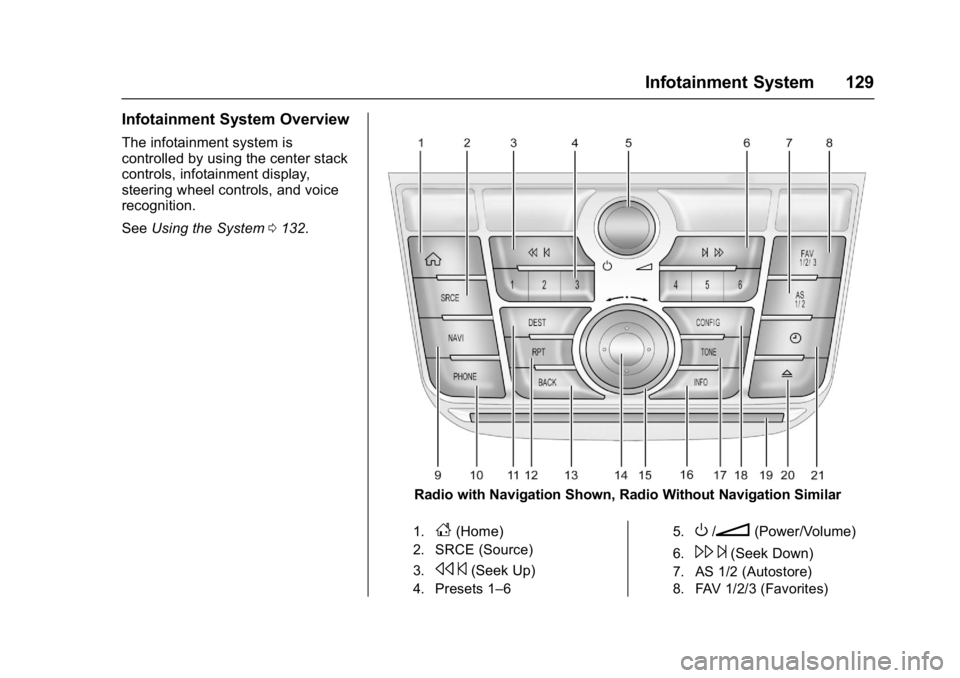
The infotainment system is
controlled by using the center stack
controls, infotainment display,
steering wheel controls, and voice
recognition.
SeeUsing the System 0132.
Radio with Navigation Shown, Radio Without Navigation Similar
1.F(Home)
2. SRCE (Source)
3.
s ©(Seek Up)
4. Presets 1–6 5.
O/n(Power/Volume)
6.\
¨(Seek Down)
7. AS 1/2 (Autostore)
8. FAV 1/2/3 (Favorites)
Page 131 of 381
Buick Cascada Owner Manual (GMNA-Localizing-U.S.-9967834) - 2017 - crc -
7/18/16
130 Infotainment System
9. NAVI (Navigation)
10. PHONE
11. DEST (Destination)
12. RPT (Repeat)
13. BACK
14. Inner Rocker Knob
15.
Z(Tune/Menu)
16. INFO (Information)
17. TONE
18. CONFIG (Configuration)
19. CD Slot
20.
Z(Eject)
21.H(Clock)
Infotainment Center Stack
Controls
The controls on the center stack are
used to start primary functions while
using the infotainment system.
Center stack controls on radios
without navigation replace SRCE
with RADIO/BAND, CD, and AUX.
SeeAM-FM Radio 0138, Satellite
Radio 0141 (if equipped), CD
Player 0165, and Auxiliary
Devices 0165.
F:Press to access the Home
Page on the infotainment display.
See “Home Page” following in this
section.
For radios without navigation touch
Home at the top bar of the
infotainment display to access the
Home Page.
SRCE : Press to change the audio
sources such as AM-FM radio,
SiriusXM (if equipped), CD, USB/
iPod, Pandora (if equipped),
Stitcher, Bluetooth Audio, and AUX.
See AM-FM Radio 0138, Satellite
Radio 0141 (if equipped), Pandora
Internet Radio 0147 (if equipped),
Stitcher Internet Radio 0152, CD
Player 0157, Bluetooth Audio
0 166, or Auxiliary Devices 0165.
s ©:
. AM, FM, or SiriusXM (if
equipped): Press to seek to the
previous strong station. See
AM-FM Radio 0138 orSatellite
Radio 0141 (if equipped). .
CD, USB/iPod, Bluetooth Audio,
or AUX: Press to seek the
beginning of the current or
previous track. See CD Player
0 157, Bluetooth Audio 0166,
or Auxiliary Devices 0165.
. CD, USB/iPod, Bluetooth Audio,
or AUX: Press and hold to
quickly reverse through a track.
Release to return to playing
speed. See CD Player0157,
Bluetooth Audio 0166, or
Auxiliary Devices 0165.
Presets 1–6 : The presets
numbered one through six can be
used to select stored AM-FM
stations and SiriusXM channels.
O/n:
1. Press to turn the system on and off.
2. Turn to adjust the volume.
\ ¨:
. AM, FM, or SiriusXM (if
equipped): Press to seek to the
next strong station. See AM-FM
Radio 0138 orSatellite Radio
0 141 (if equipped).
Page 132 of 381
Buick Cascada Owner Manual (GMNA-Localizing-U.S.-9967834) - 2017 - crc -
7/18/16
Infotainment System 131
.CD, USB/iPod, Bluetooth Audio,
and AUX: Press to seek to the
beginning of the current or next
track. See CD Player 0157,
Bluetooth Audio 0166, or
Auxiliary Devices 0165.
. CD, USB/iPod, Bluetooth Audio,
and AUX: Press and hold to fast
forward through a track. Release
to return to playing speed. See
CD Player 0157, Bluetooth
Audio 0166, or Auxiliary
Devices 0165.
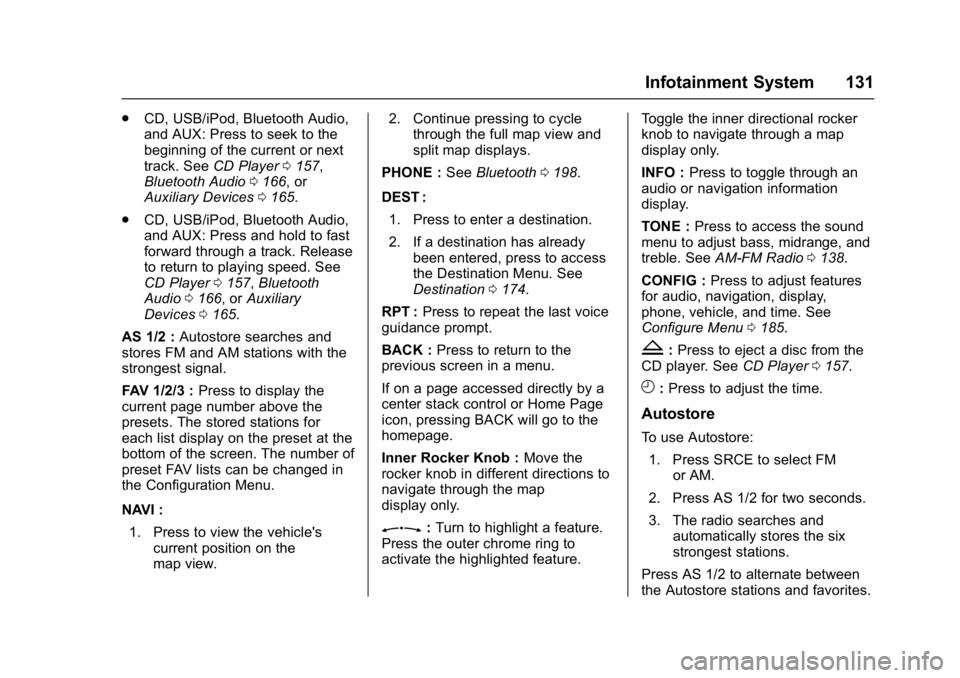
AS 1/2 : Autostore searches and
stores FM and AM stations with the
strongest signal.
FAV 1/2/3 : Press to display the
current page number above the
presets. The stored stations for
each list display on the preset at the
bottom of the screen. The number of
preset FAV lists can be changed in
the Configuration Menu.
NAVI :
1. Press to view the vehicle's current position on the
map view. 2. Continue pressing to cycle
through the full map view and
split map displays.
PHONE : SeeBluetooth 0198.
DEST : 1. Press to enter a destination.
2. If a destination has already been entered, press to access
the Destination Menu. See
Destination 0174.
RPT : Press to repeat the last voice
guidance prompt.
BACK : Press to return to the
previous screen in a menu.
If on a page accessed directly by a
center stack control or Home Page
icon, pressing BACK will go to the
homepage.
Inner Rocker Knob : Move the
rocker knob in different directions to
navigate through the map
display only.
Z: Turn to highlight a feature.
Press the outer chrome ring to
activate the highlighted feature. Toggle the inner directional rocker
knob to navigate through a map
display only.
INFO :
Press to toggle through an
audio or navigation information
display.
TONE : Press to access the sound
menu to adjust bass, midrange, and
treble. See AM-FM Radio 0138.
CONFIG : Press to adjust features
for audio, navigation, display,
phone, vehicle, and time. See
Configure Menu 0185.
Z:Press to eject a disc from the
CD player. See CD Player0157.
H:Press to adjust the time.
Autostore
To use Autostore:
1. Press SRCE to select FM or AM.
2. Press AS 1/2 for two seconds.
3. The radio searches and automatically stores the six
strongest stations.
Press AS 1/2 to alternate between
the Autostore stations and favorites.
Page 133 of 381
Buick Cascada Owner Manual (GMNA-Localizing-U.S.-9967834) - 2017 - crc -
7/18/16
132 Infotainment System
Autostore does not delete
previously stored favorite stations.
Autostore does not function with
SiriusXM radio channels.
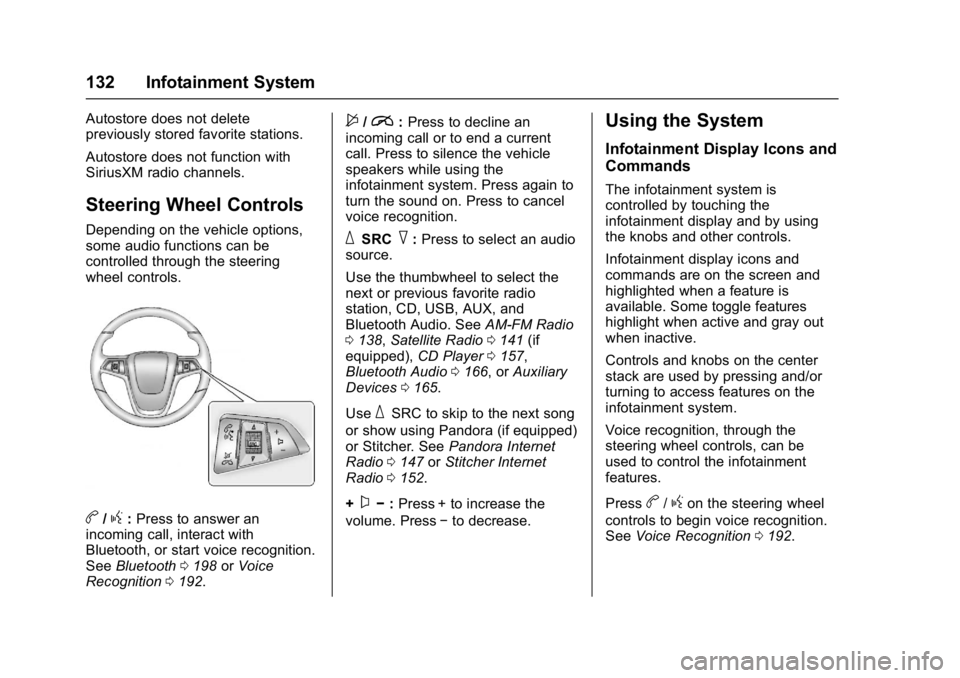
Steering Wheel Controls
Depending on the vehicle options,
some audio functions can be
controlled through the steering
wheel controls.
b/g:Press to answer an
incoming call, interact with
Bluetooth, or start voice recognition.
See Bluetooth 0198 orVoice
Recognition 0192.
$/i:Press to decline an
incoming call or to end a current
call. Press to silence the vehicle
speakers while using the
infotainment system. Press again to
turn the sound on. Press to cancel
voice recognition.
_SRC^: Press to select an audio
source.
Use the thumbwheel to select the
next or previous favorite radio
station, CD, USB, AUX, and
Bluetooth Audio. See AM-FM Radio
0 138, Satellite Radio 0141 (if
equipped), CD Player0157,
Bluetooth Audio 0166, or Auxiliary
Devices 0165.
Use
_SRC to skip to the next song
or show using Pandora (if equipped)
or Stitcher. See Pandora Internet
Radio 0147 orStitcher Internet
Radio 0152.
+
x− :Press + to increase the
volume. Press −to decrease.
Using the System
Infotainment Display Icons and
Commands
The infotainment system is
controlled by touching the
infotainment display and by using
the knobs and other controls.
Infotainment display icons and
commands are on the screen and
highlighted when a feature is
available. Some toggle features
highlight when active and gray out
when inactive.
Controls and knobs on the center
stack are used by pressing and/or
turning to access features on the
infotainment system.
Voice recognition, through the
steering wheel controls, can be
used to control the infotainment
features.
Press
b/gon the steering wheel
controls to begin voice recognition.
See Voice Recognition 0192.
Page 135 of 381
Buick Cascada Owner Manual (GMNA-Localizing-U.S.-9967834) - 2017 - crc -
7/18/16
134 Infotainment System
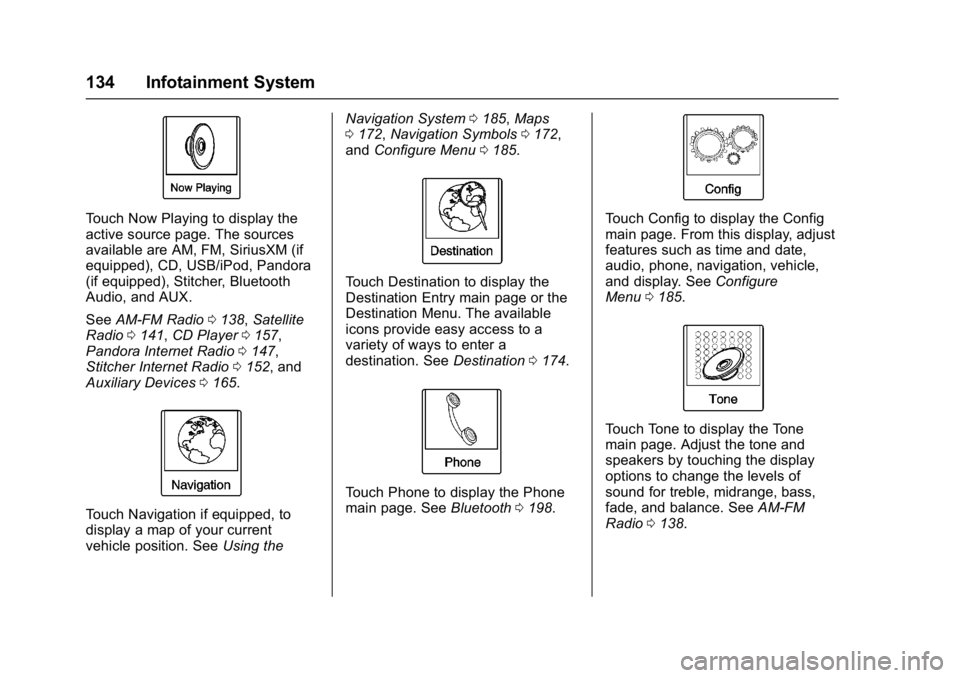
Touch Now Playing to display the
active source page. The sources
available are AM, FM, SiriusXM (if
equipped), CD, USB/iPod, Pandora
(if equipped), Stitcher, Bluetooth
Audio, and AUX.
SeeAM-FM Radio 0138, Satellite
Radio 0141, CD Player 0157,
Pandora Internet Radio 0147,
Stitcher Internet Radio 0152, and
Auxiliary Devices 0165.
Touch Navigation if equipped, to
display a map of your current
vehicle position. See Using theNavigation System
0185, Maps
0 172, Navigation Symbols 0172,
and Configure Menu 0185.
Touch Destination to display the
Destination Entry main page or the
Destination Menu. The available
icons provide easy access to a
variety of ways to enter a
destination. See Destination0174.
Touch Phone to display the Phone
main page. See Bluetooth0198.
Touch Config to display the Config
main page. From this display, adjust
features such as time and date,
audio, phone, navigation, vehicle,
and display. See Configure
Menu 0185.
Touch Tone to display the Tone
main page. Adjust the tone and
speakers by touching the display
options to change the levels of
sound for treble, midrange, bass,
fade, and balance. See AM-FM
Radio 0138.
Page 136 of 381
Buick Cascada Owner Manual (GMNA-Localizing-U.S.-9967834) - 2017 - crc -
7/18/16
Infotainment System 135
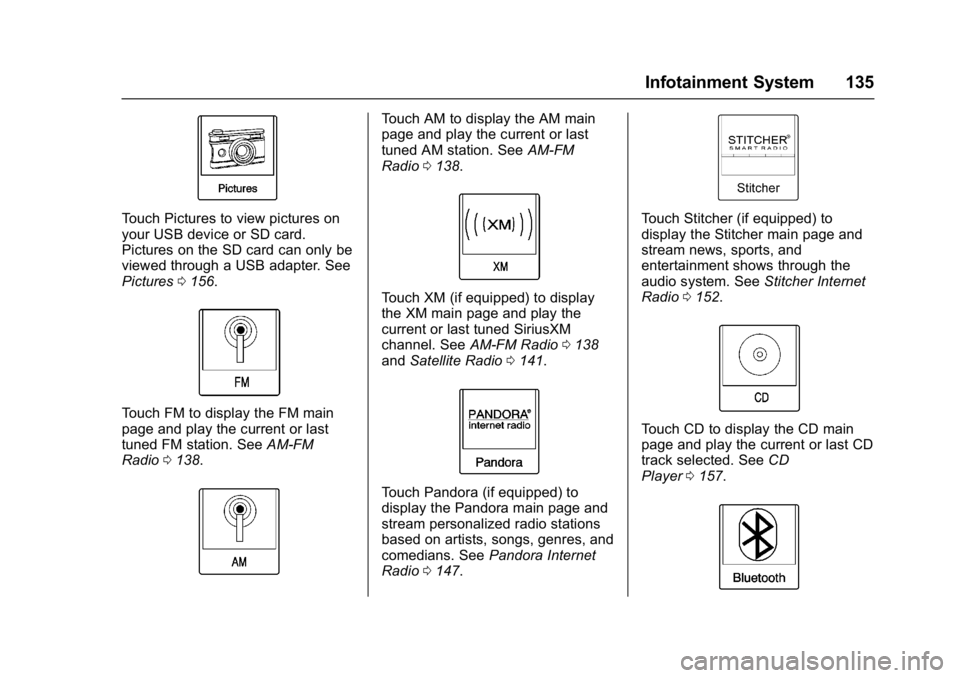
Touch Pictures to view pictures on
your USB device or SD card.
Pictures on the SD card can only be
viewed through a USB adapter. See
Pictures0156.
Touch FM to display the FM main
page and play the current or last
tuned FM station. See AM-FM
Radio 0138.
Touch AM to display the AM main
page and play the current or last
tuned AM station. See AM-FM
Radio 0138.
Touch XM (if equipped) to display
the XM main page and play the
current or last tuned SiriusXM
channel. See AM-FM Radio 0138
and Satellite Radio 0141.
Touch Pandora (if equipped) to
display the Pandora main page and
stream personalized radio stations
based on artists, songs, genres, and
comedians. See Pandora Internet
Radio 0147.
Touch Stitcher (if equipped) to
display the Stitcher main page and
stream news, sports, and
entertainment shows through the
audio system. See Stitcher Internet
Radio 0152.
Touch CD to display the CD main
page and play the current or last CD
track selected. See CD
Player 0157.
Page 137 of 381
Buick Cascada Owner Manual (GMNA-Localizing-U.S.-9967834) - 2017 - crc -
7/18/16
136 Infotainment System
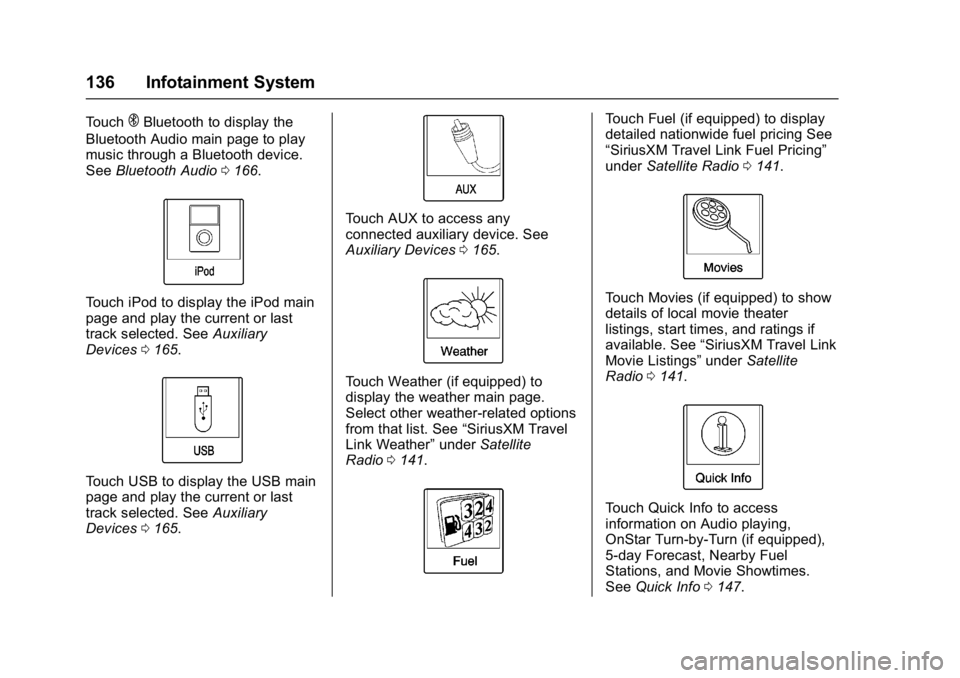
TouchEBluetooth to display the
Bluetooth Audio main page to play
music through a Bluetooth device.
See Bluetooth Audio 0166.
Touch iPod to display the iPod main
page and play the current or last
track selected. See Auxiliary
Devices 0165.
Touch USB to display the USB main
page and play the current or last
track selected. See Auxiliary
Devices 0165.
Touch AUX to access any
connected auxiliary device. See
Auxiliary Devices 0165.
Touch Weather (if equipped) to
display the weather main page.
Select other weather-related options
from that list. See “SiriusXM Travel
Link Weather” underSatellite
Radio 0141.
Touch Fuel (if equipped) to display
detailed nationwide fuel pricing See
“SiriusXM Travel Link Fuel Pricing”
under Satellite Radio 0141.
Touch Movies (if equipped) to show
details of local movie theater
listings, start times, and ratings if
available. See “SiriusXM Travel Link
Movie Listings” underSatellite
Radio 0141.
Touch Quick Info to access
information on Audio playing,
OnStar Turn-by-Turn (if equipped),
5-day Forecast, Nearby Fuel
Stations, and Movie Showtimes.
See Quick Info 0147.
Page 138 of 381

Buick Cascada Owner Manual (GMNA-Localizing-U.S.-9967834) - 2017 - crc -
7/18/16
Infotainment System 137
Touch Messages (if equipped) to
display the Text Message Inbox.
SeeText Messaging 0205.
If equipped, Apps requires a Wi-Fi
Internet connection as part of a
smartphone or other mobile device
data service plan. On most
smartphones, activation is in the
Settings menu under Mobile
Network Sharing, Personal Hotspot,
Mobile Hotspot, Wi-Fi Hotspot,
or similar. After activation of Wi-Fi
on the smartphone, touch Apps on
the radio Home Page. Follow the
prompts to configure the Internet
connection and set up an account.
See www.buick.com/intellilink (U.S.).
Cleaning High Gloss Surfaces
and Vehicle Information and
Radio Displays
For vehicles with high gloss
surfaces or vehicle displays, use a
microfiber cloth to wipe surfaces.
Before wiping the surface with the
microfiber cloth, use a soft bristle
brush to remove dirt that could
scratch the surface. Then use the
microfiber cloth by gently rubbing to
clean. Never use window cleaners
or solvents. Periodically hand wash
the microfiber cloth separately,
using mild soap. Do not use bleach
or fabric softener. Rinse thoroughly
and air dry before next use.
Caution
Do not attach a device with a
suction cup to the display. This
may cause damage and would
not be covered by the vehicle
warranty.
Software Updates
See www.buick.com for software
updates.