ECO BUICK ENCORE GX 2020 Infotainment System Guide
[x] Cancel search | Manufacturer: BUICK, Model Year: 2020, Model line: ENCORE GX, Model: BUICK ENCORE GX 2020Pages: 89, PDF Size: 1.24 MB
Page 2 of 89
Buick Infotainment System (U.S./Canada 2.6) (GMNA-Localizing-U.S./Canada-
13583164) - 2020 - CRC - 2/26/19
ContentsIntroduction . . . . . . . . . . . . . . . . . . . . . 2
Radio . . . . . . . . . . . . . . . . . . . . . . . . . . 12
Audio Players . . . . . . . . . . . . . . . . . 19
OnStar System . . . . . . . . . . . . . . . . 24
Navigation . . . . . . . . . . . . . . . . . . . . . 25
Voice Recognition . . . . . . . . . . . . . 53
Phone . . . . . . . . . . . . . . . . . . . . . . . . . 60
Settings . . . . . . . . . . . . . . . . . . . . . . . 68
Trademarks and LicenseAgreements . . . . . . . . . . . . . . . . . . 75
Index . . . . . . . . . . . . . . . . . . . . 85
Page 3 of 89
Buick Infotainment System (U.S./Canada 2.6) (GMNA-Localizing-U.S./Canada-
13583164) - 2020 - CRC - 3/6/20
2 Introduction
Introduction
Infotainment
The names, logos, emblems,
slogans, vehicle model names, and
vehicle body designs appearing in
this manual including but not limited
to GM, the GM logo, BUICK, the
BUICK Emblem, and the names
ENCORE and ENVISION, are
trademarks and/or service marks of
General Motors LLC, its
subsidiaries, affiliates, or licensors.
For vehicles first sold in Canada,
substitute the name General Motors
of Canada Company for Buick Motor
Division wherever it appears in this
manual.The information in this manual
supplements the owner
’s manual.
This manual describes features that
may or may not be on the vehicle
because of optional equipment that
was not purchased on the vehicle,
model variants, country
specifications, features/applications
that may not be available in your
region, or changes subsequent to
the printing of this manual.
Keep this manual with the owner ’s
manual in the vehicle, so it will be
there if it is needed. If the vehicle is
sold, leave this manual in the
vehicle.
Overview
Introduction
Read the following pages to
become familiar with the
infotainment system features.
{Warning
Taking your eyes off the road for
too long or too often while using
any infotainment feature can
cause a crash. You or others
could be injured or killed. Do not
give extended attention to
infotainment tasks while driving.
Limit your glances at the vehicle
displays and focus your attention
on driving. Use voice commands
whenever possible.
The infotainment system has built-in
features intended to help avoid
distraction by disabling some
features when driving. These
features may gray out when they
are unavailable. Many infotainment
features are also available through
the instrument cluster and steering
wheel controls.
Litho in U.S.A.
Part No. 84396980 C Third Printing©2020 General Motors LLC. All Rights Reserved.
Page 4 of 89
Buick Infotainment System (U.S./Canada 2.6) (GMNA-Localizing-U.S./Canada-
13583164) - 2020 - CRC - 2/26/19
Introduction 3
Before driving:
.Become familiar with the system
operation, center stack controls,
and infotainment display.
. Set up the audio by presetting
favorite stations, setting the
tone, and adjusting the
speakers.
. Set up cell phone and mobile
device numbers in advance so
they can be called easily by
pressing a single control or by
using a single voice command.
See “Distracted Driving” in the
owner ’s manual.
To play the infotainment system with
the ignition off, see “Retained
Accessory Power (RAP)” in the
owner ’s manual.
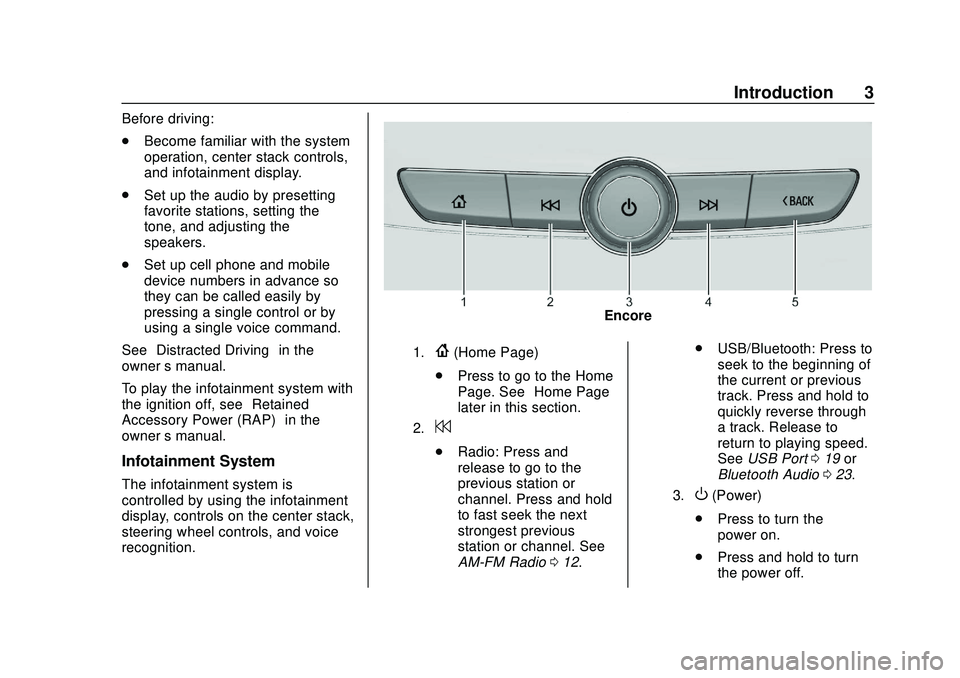
Infotainment System
The infotainment system is
controlled by using the infotainment
display, controls on the center stack,
steering wheel controls, and voice
recognition.
Encore
1.{(Home Page)
. Press to go to the Home
Page. See “Home Page”
later in this section.
2.7
. Radio: Press and
release to go to the
previous station or
channel. Press and hold
to fast seek the next
strongest previous
station or channel. See
AM-FM Radio 012. .
USB/Bluetooth: Press to
seek to the beginning of
the current or previous
track. Press and hold to
quickly reverse through
a track. Release to
return to playing speed.
See USB Port 019 or
Bluetooth Audio 023.
3.O(Power)
. Press to turn the
power on.
. Press and hold to turn
the power off.
Page 8 of 89
Buick Infotainment System (U.S./Canada 2.6) (GMNA-Localizing-U.S./Canada-
13583164) - 2020 - CRC - 2/26/19
Introduction 7
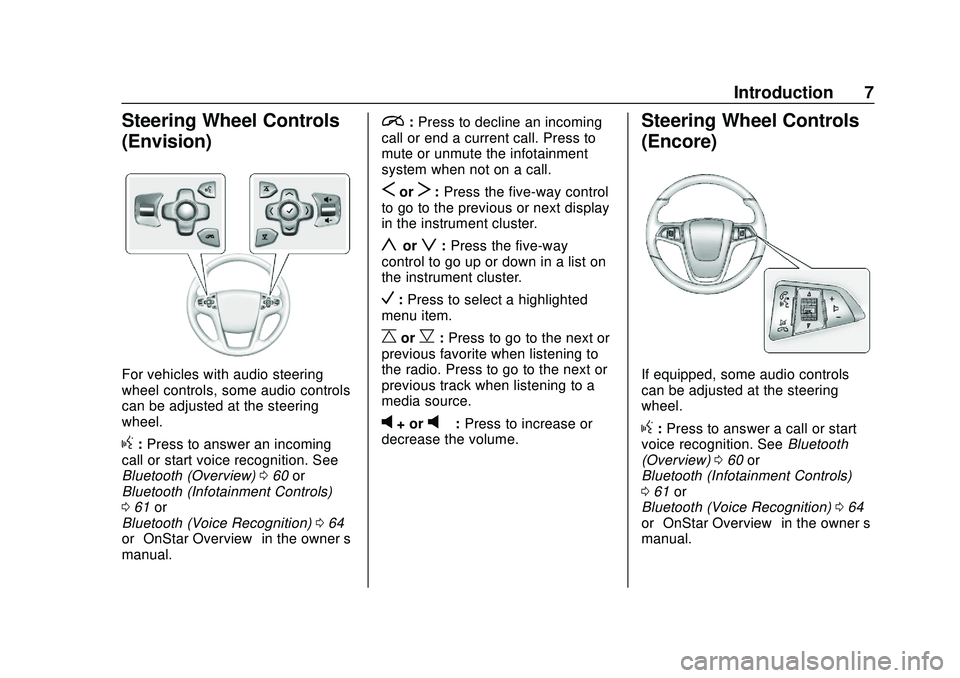
Steering Wheel Controls
(Envision)
For vehicles with audio steering
wheel controls, some audio controls
can be adjusted at the steering
wheel.
g:Press to answer an incoming
call or start voice recognition. See
Bluetooth (Overview) 060 or
Bluetooth (Infotainment Controls)
0 61 or
Bluetooth (Voice Recognition) 064
or “OnStar Overview” in the owner’s
manual.
i: Press to decline an incoming
call or end a current call. Press to
mute or unmute the infotainment
system when not on a call.
SorT: Press the five-way control
to go to the previous or next display
in the instrument cluster.
yorz: Press the five-way
control to go up or down in a list on
the instrument cluster.
V: Press to select a highlighted
menu item.
CorB: Press to go to the next or
previous favorite when listening to
the radio. Press to go to the next or
previous track when listening to a
media source.
v+ orv– :Press to increase or
decrease the volume.
Steering Wheel Controls
(Encore)
If equipped, some audio controls
can be adjusted at the steering
wheel.
g: Press to answer a call or start
voice recognition. See Bluetooth
(Overview) 060 or
Bluetooth (Infotainment Controls)
0 61 or
Bluetooth (Voice Recognition) 064
or “OnStar Overview” in the owner’s
manual.
Page 9 of 89
Buick Infotainment System (U.S./Canada 2.6) (GMNA-Localizing-U.S./Canada-
13583164) - 2020 - CRC - 2/26/19
8 Introduction
c:Press to decline an incoming
call or end a current call. Press to
mute or unmute the infotainment
system.
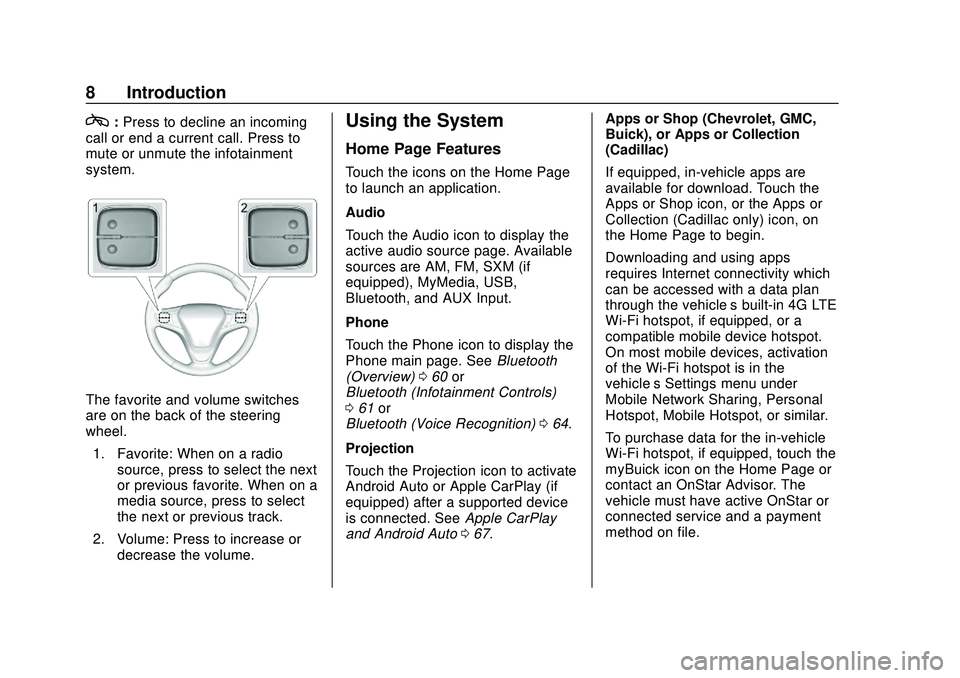
The favorite and volume switches
are on the back of the steering
wheel.
1. Favorite: When on a radio source, press to select the next
or previous favorite. When on a
media source, press to select
the next or previous track.
2. Volume: Press to increase or decrease the volume.
Using the System
Home Page Features
Touch the icons on the Home Page
to launch an application.
Audio
Touch the Audio icon to display the
active audio source page. Available
sources are AM, FM, SXM (if
equipped), MyMedia, USB,
Bluetooth, and AUX Input.
Phone
Touch the Phone icon to display the
Phone main page. See Bluetooth
(Overview) 060 or
Bluetooth (Infotainment Controls)
0 61 or
Bluetooth (Voice Recognition) 064.
Projection
Touch the Projection icon to activate
Android Auto or Apple CarPlay (if
equipped) after a supported device
is connected. See Apple CarPlay
and Android Auto 067. Apps or Shop (Chevrolet, GMC,
Buick), or Apps or Collection
(Cadillac)
If equipped, in-vehicle apps are
available for download. Touch the
Apps or Shop icon, or the Apps or
Collection (Cadillac only) icon, on
the Home Page to begin.
Downloading and using apps
requires Internet connectivity which
can be accessed with a data plan
through the vehicle’
s built-in 4G LTE
Wi-Fi hotspot, if equipped, or a
compatible mobile device hotspot.
On most mobile devices, activation
of the Wi-Fi hotspot is in the
vehicle’s Settings menu under
Mobile Network Sharing, Personal
Hotspot, Mobile Hotspot, or similar.
To purchase data for the in-vehicle
Wi-Fi hotspot, if equipped, touch the
myBuick icon on the Home Page or
contact an OnStar Advisor. The
vehicle must have active OnStar or
connected service and a payment
method on file.
Page 10 of 89
Buick Infotainment System (U.S./Canada 2.6) (GMNA-Localizing-U.S./Canada-
13583164) - 2020 - CRC - 2/26/19
Introduction 9
Availability of apps and connectivity
varies by vehicle, conditions, and
location. Data plan rates apply.
Features are subject to change. For
more information, see
my.buick.com/learn.
Nav/OnStar Nav
Touch the Nav icon to display the
navigation map or OnStar
Turn-by-Turn Navigation. SeeUsing
the Navigation System 025, and
OnStar System 049.
Settings
Touch the Settings icon to display
the Settings menu. See Settings
0 68.
OnStar
If equipped, touch the OnStar icon
to display the OnStar main page
and start OnStar voice recognition.
See “OnStar Overview” in the
owner ’s manual. Climate
Touch the Climate icon to display
the Climate main page. See
“Dual
Automatic Climate Control System”
in the owner ’s manual.
Rear Climate
If equipped, touch the R. Climate
icon to display the Rear Climate
main page. See “Rear Climate
Control System” in the owner’s
manual.
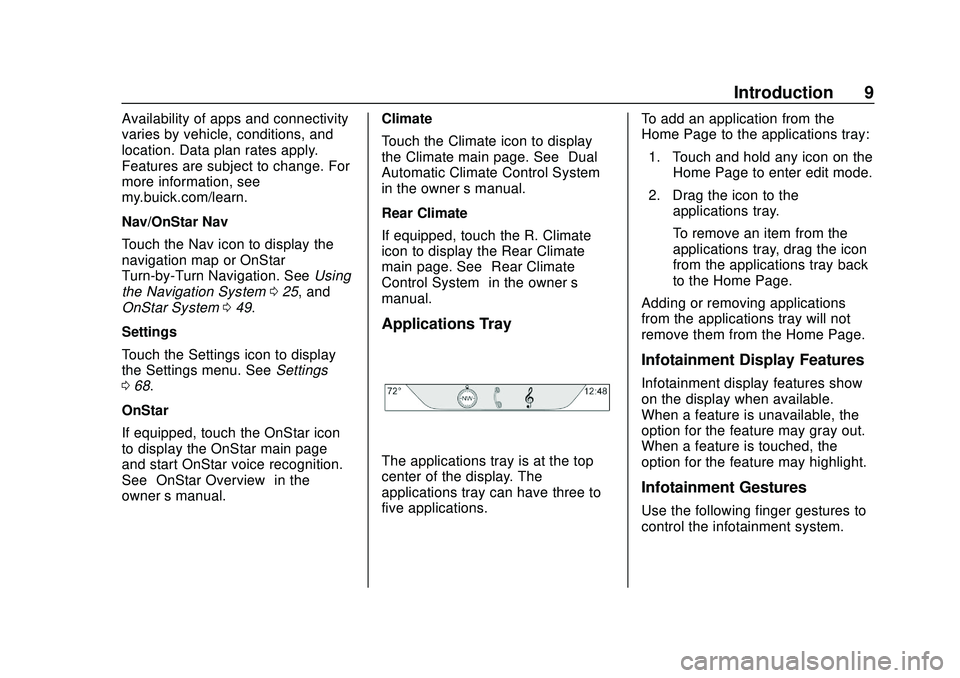
Applications Tray
The applications tray is at the top
center of the display. The
applications tray can have three to
five applications. To add an application from the
Home Page to the applications tray:
1. Touch and hold any icon on the Home Page to enter edit mode.
2. Drag the icon to the applications tray.
To remove an item from the
applications tray, drag the icon
from the applications tray back
to the Home Page.
Adding or removing applications
from the applications tray will not
remove them from the Home Page.
Infotainment Display Features
Infotainment display features show
on the display when available.
When a feature is unavailable, the
option for the feature may gray out.
When a feature is touched, the
option for the feature may highlight.
Infotainment Gestures
Use the following finger gestures to
control the infotainment system.
Page 15 of 89
Buick Infotainment System (U.S./Canada 2.6) (GMNA-Localizing-U.S./Canada-
13583164) - 2020 - CRC - 2/26/19
14 Radio
The keypad will gray out entries that
do not contribute to a valid
frequency and will automatically
place a decimal point within the
frequency number.
A valid station will automatically
tune to the new frequency but not
close the Direct Tune window.
Touch the Back icon on the
infotainment display or touch Exit to
close the Direct Tune window.
The tune arrows on the right side of
the Direct Tune display tunes
through the complete station list one
station step at a time per touch.
A touch and hold advances
10 frequency steps per second.
Touch (X) to delete one number at a
time. Touch and hold (X) to delete
all numbers.
In AM-FM modes, touch the left or
right arrows on the infotainment
display for the radio to go to the
next or previous strong station.
Touch Direct Tune to advance to the
next or previous frequency step inAM or FM mode or directly enter or
tune to the frequency on the
keypad.
HD radio multicast stations cannot
be tuned directly through the Direct
Tune feature. Only the analog or
HD1 station can use that feature.
Use the TUNE icon on the
infotainment display to adjust to the
multicast stations.
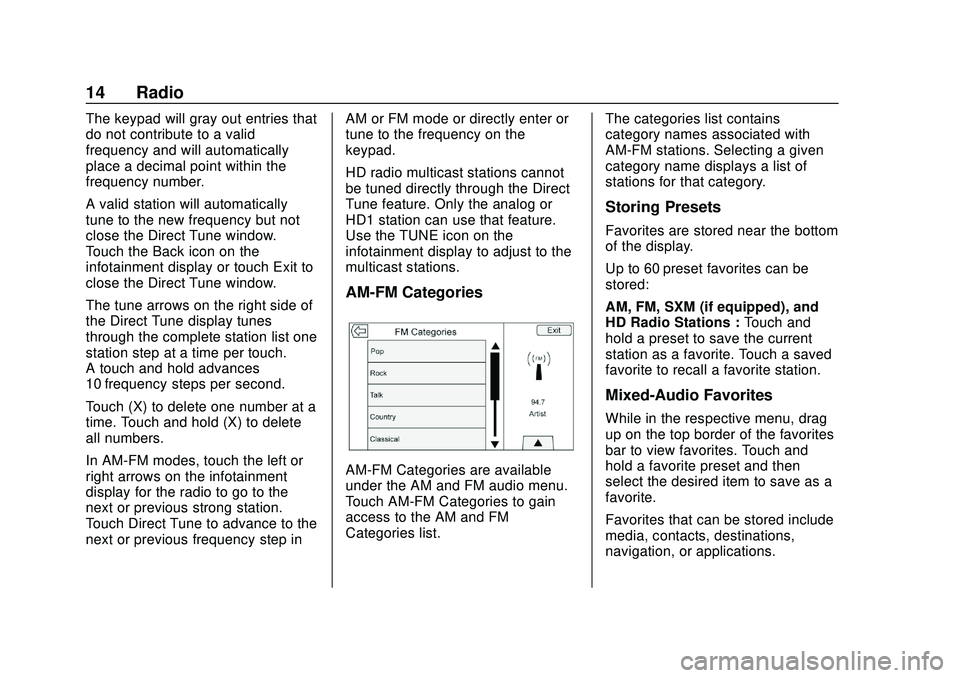
AM-FM Categories
AM-FM Categories are available
under the AM and FM audio menu.
Touch AM-FM Categories to gain
access to the AM and FM
Categories list.
The categories list contains
category names associated with
AM-FM stations. Selecting a given
category name displays a list of
stations for that category.
Storing Presets
Favorites are stored near the bottom
of the display.
Up to 60 preset favorites can be
stored:
AM, FM, SXM (if equipped), and
HD Radio Stations :
Touch and
hold a preset to save the current
station as a favorite. Touch a saved
favorite to recall a favorite station.
Mixed-Audio Favorites
While in the respective menu, drag
up on the top border of the favorites
bar to view favorites. Touch and
hold a favorite preset and then
select the desired item to save as a
favorite.
Favorites that can be stored include
media, contacts, destinations,
navigation, or applications.
Page 16 of 89
Buick Infotainment System (U.S./Canada 2.6) (GMNA-Localizing-U.S./Canada-
13583164) - 2020 - CRC - 2/26/19
Radio 15
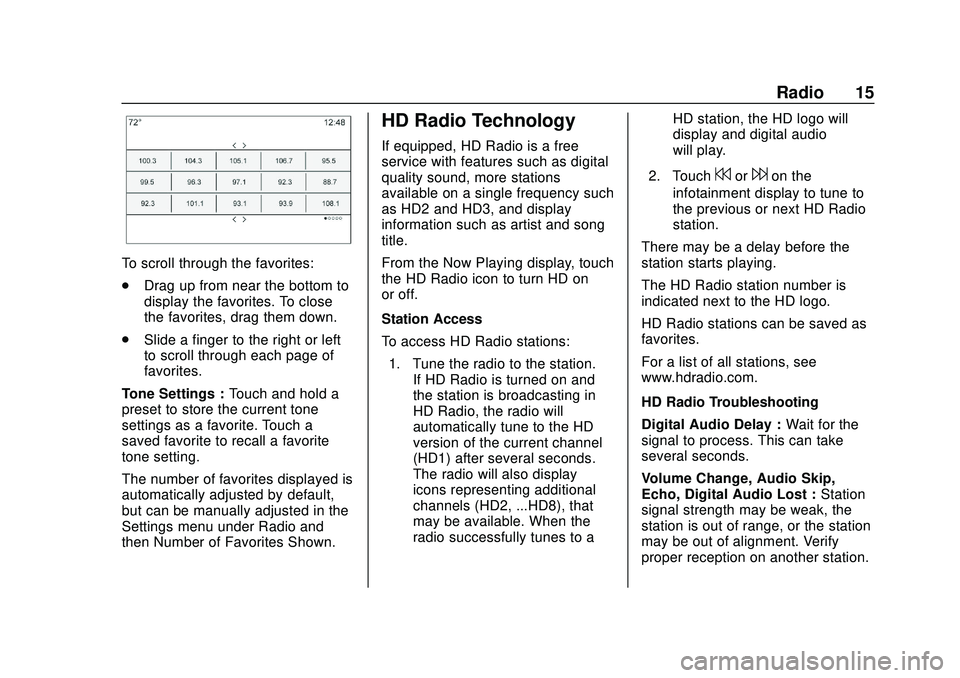
To scroll through the favorites:
.Drag up from near the bottom to
display the favorites. To close
the favorites, drag them down.
. Slide a finger to the right or left
to scroll through each page of
favorites.
Tone Settings : Touch and hold a
preset to store the current tone
settings as a favorite. Touch a
saved favorite to recall a favorite
tone setting.
The number of favorites displayed is
automatically adjusted by default,
but can be manually adjusted in the
Settings menu under Radio and
then Number of Favorites Shown.
HD Radio Technology
If equipped, HD Radio is a free
service with features such as digital
quality sound, more stations
available on a single frequency such
as HD2 and HD3, and display
information such as artist and song
title.
From the Now Playing display, touch
the HD Radio icon to turn HD on
or off.
Station Access
To access HD Radio stations:
1. Tune the radio to the station. If HD Radio is turned on and
the station is broadcasting in
HD Radio, the radio will
automatically tune to the HD
version of the current channel
(HD1) after several seconds.
The radio will also display
icons representing additional
channels (HD2, ...HD8), that
may be available. When the
radio successfully tunes to a HD station, the HD logo will
display and digital audio
will play.
2. Touch
7or6on the
infotainment display to tune to
the previous or next HD Radio
station.
There may be a delay before the
station starts playing.
The HD Radio station number is
indicated next to the HD logo.
HD Radio stations can be saved as
favorites.
For a list of all stations, see
www.hdradio.com.
HD Radio Troubleshooting
Digital Audio Delay : Wait for the
signal to process. This can take
several seconds.
Volume Change, Audio Skip,
Echo, Digital Audio Lost : Station
signal strength may be weak, the
station is out of range, or the station
may be out of alignment. Verify
proper reception on another station.
Page 17 of 89
Buick Infotainment System (U.S./Canada 2.6) (GMNA-Localizing-U.S./Canada-
13583164) - 2020 - CRC - 2/26/19
16 Radio
If the HD Radio signal loses
reception while listening to HD1, the
radio will go back to the analog
version of the radio station.
If the HD Radio signal loses
reception while listening to stations
HD2 to HD8, the radio mutes until
the signal can be recovered or until
the station is changed.
HD Radio reception can be disabled
if driving in a weak signal area.
Touch HD Radio On/Off to toggle
HD Radio reception on and off.
Satellite Radio
SiriusXM Satellite Radio
Service (If Equipped)
Vehicles with a valid SiriusXM
satellite radio subscription can
receive SiriusXM programming.SiriusXM satellite radio has a wide
variety of programming and
commercial-free music, coast to
coast, and in digital-quality sound.
See www.siriusxm.com or call
1-888-601-6296 in the U.S. In
Canada, see www.siriusxm.ca or
call 1-877-438-9677.
When SiriusXM is active, the
channel name, number, category
name, song title, and artist show on
the infotainment display.
SiriusXM Menu
SiriusXM has a menu to adjust
different features.
Touching Menu in the infotainment
display may show the following:
Tone Settings :
Touch + or–to
adjust the tone settings. See AM-FM
Radio 012. TuneSelect :
For SiriusXM only, this
feature allows for an alert to be set
for artists or songs that are played
on any channel. Touch Manage
Tune Select to turn the alerts On
and Off or manage the saved
selection of Artists or Songs. To
unselect an alert, touch the Song or
Artist. To delete an alert, touch –.
Touch the Back icon on the
infotainment display to go back to
the previous menu.
Auto Volume (If Equipped) : This
feature adjusts the volume based on
the vehicle speed. See AM-FM
Radio 012.
Bose AudioPilot Noise
Compensation Technology
(If Equipped) : This feature adjusts
the volume based on the noise in
the vehicle and speed. See AM-FM
Radio 012.
Page 20 of 89
Buick Infotainment System (U.S./Canada 2.6) (GMNA-Localizing-U.S./Canada-
13583164) - 2020 - CRC - 2/26/19
Audio Players 19
Audio Players
Avoiding Untrusted Media
Devices
When using media devices such as
CDs, DVDs, Blu-ray Discs, SD
cards, USB devices, and mobile
devices, consider the source.
Untrusted media devices could
contain files that affect system
operation or performance. Avoid use
if the content or origin cannot be
trusted.
USB Port
These vehicles are equipped with
two USB ports in the center
console. They are for data and
charging.
Playing from a USB
A USB mass storage device can be
connected to the USB port.Gracenote
When plugging in a USB device,
Gracenote service builds voice tags
for music. Voice tags allow artists,
albums with hard to pronounce
names, and nicknames to be used
to play music through voice
recognition.
While indexing, infotainment
features are available.
My Media Library
This allows access to content from
all indexed media sources. Press
MEDIA on the center stack or touch
the Media icon on the infotainment
display to scroll through the options
until MyMedia is selected. Use
gestures or touch the scroll bar to
go through the content.
USB MP3 Player and USB Devices
.
The USB MP3 players and USB
devices connected must comply
with the USB Mass Storage
Class specification (USB MSC).
. Hard disk drives are not
supported. .
The following restrictions apply
for the data stored on a USB
MP3 player or USB device:
‐Applicable audio extensions
are mp3, wma, aac, m4a,
and aif.
‐ WMA and Apple lossless files
are not supported.
‐ Supported file systems are
FAT32 and NTFS.
To play a USB device, do one of the
following:
. Connect the USB.
. Press MEDIA on the center
stack or touch Media on the
infotainment display until the
connected device is shown.
Use the following when playing an
active USB source:r: Touch to play the current media
source.
j: Touch to pause play of the
current media source.