fuel BUICK ENVISION 2016 User Guide
[x] Cancel search | Manufacturer: BUICK, Model Year: 2016, Model line: ENVISION, Model: BUICK ENVISION 2016Pages: 432, PDF Size: 5.68 MB
Page 121 of 432

Buick Envision Owner Manual (GMNA-Localizing-U.S./Canada/Mexico-
8534310) - 2016 - crc - 2/29/16
120 Instruments and Controls
Caution
If the vehicle is driven continually
with this light on, the emission
control system may not work as
well, the fuel economy may be
lower, and the vehicle may not
run smoothly. This could lead to
costly repairs that might not be
covered by the vehicle warranty.
Caution
Modifications to the engine,
transmission, exhaust, intake,
or fuel system, or the use of
replacement tires that do not
meet the original tire
specifications, can cause this light
to come on. This could lead to
costly repairs not covered by the
vehicle warranty. This could also
affect the vehicle’s ability to pass
an Emissions Inspection/
Maintenance test. See
Accessories and
Modifications0310. If the light is flashing :
A
malfunction has been detected that
could damage the emission control
system and increase vehicle
emissions. Diagnosis and service
may be required.
To help prevent damage, reduce
vehicle speed and avoid hard
accelerations and uphill grades.
If towing a trailer, reduce the
amount of cargo being hauled as
soon as possible.
If the light continues to flash, find a
safe place to park. Turn the vehicle
off and wait at least 10 seconds
before restarting the engine. If the
light is still flashing, follow the
previous guidelines and see your
dealer for service as soon as
possible.
If the light is on steady : A
malfunction has been detected.
Diagnosis and service may be
required.
Check the following:
. A loose or missing fuel cap may
cause the light to come on. See
Filling the Tank 0299. A few driving trips with the cap
properly installed may turn the
light off.
. Poor fuel quality can cause
inefficient engine operation and
poor driveability, which may go
away once the engine is warmed
up. If this occurs, change the
fuel brand. It may require at
least one full tank of the proper
fuel to turn the light off. See
Fuel 0298.
If the light remains on, see your
dealer.Emissions Inspection and
Maintenance Programs
If the vehicle requires an Emissions
Inspection/Maintenance test, the
test equipment will likely connect to
the vehicle's Data Link
Connector (DLC).
Page 127 of 432
Buick Envision Owner Manual (GMNA-Localizing-U.S./Canada/Mexico-
8534310) - 2016 - crc - 2/29/16
126 Instruments and Controls
If the light comes on and stays on, it
means that oil is not flowing through
the engine properly. The vehicle
could be low on oil and might have
some other system problem. See
your dealer.
Low Fuel Warning Light
This light is near the fuel gauge and
comes on briefly when the ignition is
turned on as a check to show it is
working.
It also comes on when the fuel tank
is low on fuel. The light turns off
when fuel is added. If it does not,
have the vehicle serviced.
Security Light
The security light should come on
briefly as the engine is started. If it
does not come on, have the vehicle
serviced by your dealer. If the
system is working normally, the
indicator light turns off.
If the light stays on and the engine
does not start, there could be a
problem with the theft-deterrent
system. SeeImmobilizer
Operation 042.
High-Beam On Light
This light comes on when the
high-beam headlamps are in use.
See Headlamp High/Low-Beam
Changer 0157.
IntelliBeam®Light
This light comes on when the
IntelliBeam system, if equipped, is
enabled.
See Exterior Lamp Controls 0155.
Adaptive Forward
Lighting (AFL) Light
Page 130 of 432

Buick Envision Owner Manual (GMNA-Localizing-U.S./Canada/Mexico-
8534310) - 2016 - crc - 2/29/16
Instruments and Controls 129
6. Pressyorzto move
through the list of possible
information displays.
7. Press
Vwhile an item is
highlighted to select or
deselect that item. When an
item is selected, a checkmark
will appear next to it.
DIC Info Pages
The following is the list of all
possible DIC info page displays.
Some may not be available for your
particular vehicle. Some items may
not be turned on by default but can
be turned on through the Settings
app. See “DIC Info Page Options”
earlier in this section.
Current Speed : Displays the
vehicle speed in kilometers per
hour (km/h) or miles per hour (mph).
Trip A and Average Fuel Economy
or Trip B and Average Fuel
Economy : The Trip display shows
the current distance traveled, in
kilometers (km) or miles (mi), since
the trip odometer was last reset. The trip odometer can be reset by
pressing and holding
Vwhile this
display is active.
The Average Fuel Economy display
shows the approximate average
liters per 100 kilometers (L/100 km)
or miles per gallon (mpg). This
number is calculated based on the
number of L/100 km (mpg) recorded
since the last time this menu item
was reset. This number reflects only
the approximate average fuel
economy that the vehicle has right
now, and will change as driving
conditions change. The Average
Fuel Economy can be reset by
pressing and holding
Vwhile this
display is active.
Fuel Range and Instantaneous
Fuel Economy : Displays the
approximate distance the vehicle
can be driven without refueling.
LOW will be displayed when the
vehicle is low on fuel. The fuel
range estimate is based on an
average of the vehicle's fuel
economy over recent driving history
and the amount of fuel remaining in
the fuel tank. Also displays the current fuel
economy in liters per
100 kilometers (L/100 km) or miles
per gallon (mpg). This number
reflects only the approximate fuel
economy that the vehicle has right
now and changes frequently as
driving conditions change.
Average Speed :
Displays the
average speed of the vehicle in
kilometers per hour (km/h) or miles
per hour (mph). This average is
calculated based on the various
vehicle speeds recorded since the
last reset of this value. The average
speed can be reset by pressing and
holdingVwhile this display is
active.
Timer : To start the timer, press
V
while this display is active. The
display will show the amount of time
that has passed since the timer was
last reset. To stop the timer, press
V
briefly while this display is active
and the timer is running. To reset
the timer to zero, press and hold
V
while this display is active.
Page 131 of 432
Buick Envision Owner Manual (GMNA-Localizing-U.S./Canada/Mexico-
8534310) - 2016 - crc - 2/29/16
130 Instruments and Controls
Oil Life :Displays an estimate of
the oil's remaining useful life.
If REMAINING OIL LIFE 99% is
displayed, that means 99% of the
current oil life remains.
When the remaining oil life is low,
the CHANGE ENGINE OIL SOON
message will appear on the display.
See Engine Oil Messages 0139.
The oil should be changed as soon
as possible. See Engine Oil0314.
In addition to the engine oil life
system monitoring the oil life,
additional maintenance is
recommended in the Maintenance
Schedule. See Maintenance
Schedule 0382.
The Oil Life display must be reset
after each oil change. It will not
reset itself. Do not reset the Oil Life
display accidentally at any time
other than when the oil has just
been changed. It cannot be reset
accurately until the next oil change.
To reset the engine oil life system,
press and hold
Vfor several
seconds while the Oil Life display is
active. See Engine Oil Life
System 0316. Coolant Temperature :
Displays
the coolant temperature in degrees
Celsius (°C) or degrees
Fahrenheit (°F).
Tire Pressure : Displays the
approximate pressures of all four
tires. Tire pressure is displayed in
kilopascal (kPa) or pounds per
square inch (psi). If the pressure is
low, the value for that tire is shown
in amber. See Tire Pressure Monitor
System 0347 andTire Pressure
Monitor Operation 0348.
Battery Voltage : Displays the
current battery voltage. The battery
voltage can fluctuate while viewing
this information on the DIC. This is
normal.
Follow Distance Indicator/Gap
Setting : The current follow time to
the vehicle ahead is displayed as a
time value on this page when ACC
is not engaged. When ACC has
been engaged, the Follow Distance
Indicator page switches to the Gap
Setting page. This page shows the
current gap setting along with the
vehicle ahead indicator. Best Average Fuel Economy :
The
right hand side displays the best
average fuel economy (AFE) that is
achieved for a selected distance.
The left hand side displays a
running average of fuel economy for
the most recently traveled selected
distance. The center bar graph
displays the instantaneous fuel
economy. Quickly press the
V
button to display a page for
selecting one of the distance
options. Move the up/down arrow to
choose the selection, and
Vto
change the setting. When viewing
best AFE, a several second press
and hold of
Vwill reset the best
value. The best value will show “- -
-“ until the selected distance has
been traveled. The display provides
feedback on how current driving
behavior in the bar graph affects the
running average in the left display
and how well recent driving
compares to the best that has been
achieved.
Page 132 of 432
Buick Envision Owner Manual (GMNA-Localizing-U.S./Canada/Mexico-
8534310) - 2016 - crc - 2/29/16
Instruments and Controls 131
Speed Signs :Displays sign
information, which comes from a
roadway database in the onboard
navigation.
Driver Information Center
(DIC) (Uplevel)
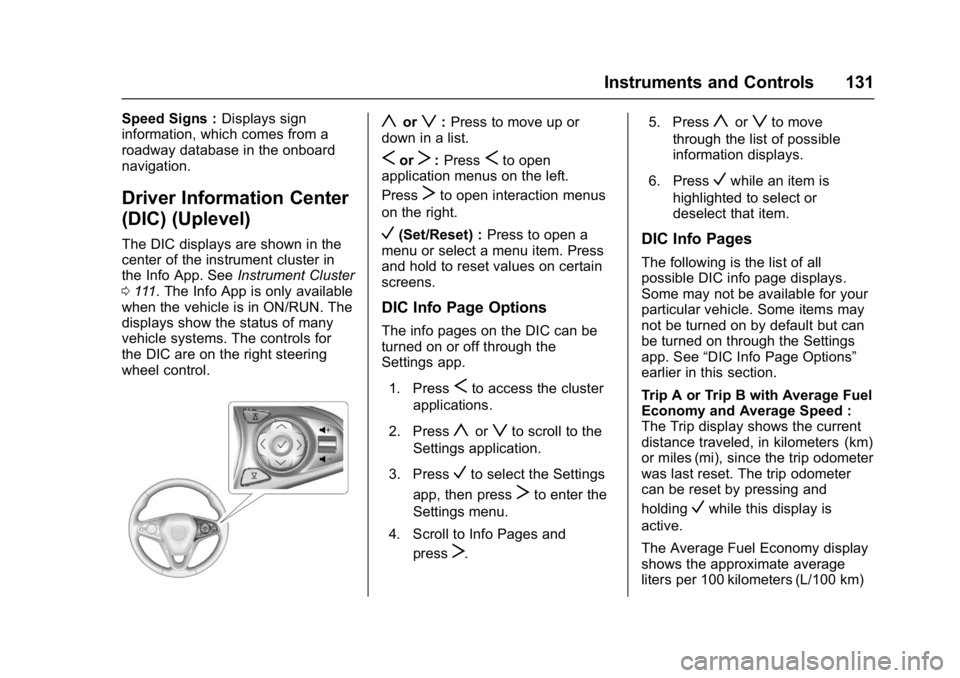
The DIC displays are shown in the
center of the instrument cluster in
the Info App. See Instrument Cluster
0 111. The Info App is only available
when the vehicle is in ON/RUN. The
displays show the status of many
vehicle systems. The controls for
the DIC are on the right steering
wheel control.
yorz: Press to move up or
down in a list.
SorT: PressSto open
application menus on the left.
Press
Tto open interaction menus
on the right.
V(Set/Reset) : Press to open a
menu or select a menu item. Press
and hold to reset values on certain
screens.
DIC Info Page Options
The info pages on the DIC can be
turned on or off through the
Settings app.
1. Press
Sto access the cluster
applications.
2. Press
yorzto scroll to the
Settings application.
3. Press
Vto select the Settings
app, then press
Tto enter the
Settings menu.
4. Scroll to Info Pages and press
T. 5. Press
yorzto move
through the list of possible
information displays.
6. Press
Vwhile an item is
highlighted to select or
deselect that item.
DIC Info Pages
The following is the list of all
possible DIC info page displays.
Some may not be available for your
particular vehicle. Some items may
not be turned on by default but can
be turned on through the Settings
app. See “DIC Info Page Options”
earlier in this section.
Trip A or Trip B with Average Fuel
Economy and Average Speed :
The Trip display shows the current
distance traveled, in kilometers (km)
or miles (mi), since the trip odometer
was last reset. The trip odometer
can be reset by pressing and
holding
Vwhile this display is
active.
The Average Fuel Economy display
shows the approximate average
liters per 100 kilometers (L/100 km)
Page 133 of 432
Buick Envision Owner Manual (GMNA-Localizing-U.S./Canada/Mexico-
8534310) - 2016 - crc - 2/29/16
132 Instruments and Controls
or miles per gallon (mpg). This
number is calculated based on the
number of L/100 km (mpg) recorded
since the last time this menu item
was reset. This number reflects only
the approximate average fuel
economy that the vehicle has right
now, and will change as driving
conditions change. The Average
Fuel Economy can be reset by
pressing and holding
Vwhile this
display is active.
The Average Speed display shows
the average speed of the vehicle in
kilometers per hour (km/h) or miles
per hour (mph). This average is
calculated based on the various
vehicle speeds recorded since the
last reset of this value. The average
speed can be reset by pressing and
holding
Vwhile this display is
active.
Fuel Range and Instantaneous
Fuel Economy : Displays the
approximate distance the vehicle
can be driven without refueling.
LOW will be displayed when the
vehicle is low on fuel. The fuel
range estimate is based on an average of the vehicle's fuel
economy over recent driving history
and the amount of fuel remaining in
the fuel tank.
Displays the current fuel economy in
liters per 100 kilometers (L/100 km)
or miles per gallon (mpg). This
number reflects only the
approximate fuel economy that the
vehicle has right now and changes
frequently as driving conditions
change.
Oil Life :
Displays an estimate of
the oil's remaining useful life.
If REMAINING OIL LIFE 99% is
displayed, that means 99% of the
current oil life remains.
When the remaining oil life is low,
the CHANGE ENGINE OIL SOON
message will appear on the display.
See Engine Oil Messages 0139.
The oil should be changed as soon
as possible. See Engine Oil0314.
In addition to the engine oil life
system monitoring the oil life,
additional maintenance is
recommended in the Maintenance
Schedule. See Maintenance
Schedule 0382. The Oil Life display must be reset
after each oil change. It will not
reset itself. Do not reset the Oil Life
display accidentally at any time
other than when the oil has just
been changed. It cannot be reset
accurately until the next oil change.
To reset the engine oil life system,
press and hold
Vfor several
seconds while the Oil Life display is
active. See Engine Oil Life
System 0316.
Tire Pressure : Displays the
approximate pressures of all four
tires. Tire pressure is displayed in
kilopascal (kPa) or pounds per
square inch (psi). If the pressure is
low, the value for that tire is shown
in amber. See Tire Pressure Monitor
System 0347 andTire Pressure
Monitor Operation 0348.
Fuel Economy : The right hand
side displays the best average fuel
economy (AFE) that is achieved for
a selected distance. The left hand
side displays a running average of
fuel economy for the most recently
traveled selected distance. The
center bar graph displays the
Page 134 of 432
Buick Envision Owner Manual (GMNA-Localizing-U.S./Canada/Mexico-
8534310) - 2016 - crc - 2/29/16
Instruments and Controls 133
instantaneous fuel economy.
Quickly press the
Vbutton to
display a page for selecting one of
the distance options. Move the up/
down arrow to choose the selection,
and
Vto change the setting. When
viewing best AFE, a several second
press and hold of
Vwill reset the
best value. The best value will show
“- - -“ until the selected distance has
been traveled. The display provides
feedback on how current driving
behavior in the bar graph affects the
running average in the left display
and how well recent driving
compares to the best that has been
achieved.
Speed Limit : Displays sign
information, which comes from a
roadway database in the onboard
navigation.
Follow Distance Indicator/Gap
Setting : The current follow time to
the vehicle ahead is displayed as a
time value on this page when ACC
is not engaged. When ACC has
been engaged, the Follow Distance
Indicator page switches to the Gap Setting page. This page shows the
current gap setting along with the
vehicle ahead indicator.
ECO Index :
The bar graph on the
left hand side provides feedback on
the efficiency of current driving
behavior. The graph shows
a percentage value that is based on
current fuel consumption compared
to what is expected from the vehicle
with good and bad driving habits.
Each box represents 10%, with all
boxes filled being 100%. More
economical driving will result in
being in the ECO box.
Instantaneous Fuel Economy is also
shown on the right hand side. This
display cannot be reset.
Blank Page : This page shows no
information.
Head-Up Display (HUD)
{Warning
If the HUD image is too bright or
too high in your field of view, it
may take you more time to see
(Continued)
Warning (Continued)
things you need to see when it is
dark outside. Be sure to keep the
HUD image dim and placed low in
your field of view.
If equipped with HUD, some
information concerning the
operation of the vehicle is projected
onto the windshield. The image is
projected through the HUD lens on
top of the instrument panel. The
information appears as an image
focused out toward the front of the
vehicle.
Caution
If you try to use the HUD image
as a parking aid, you may
misjudge the distance and
damage your vehicle. Do not use
the HUD image as a parking aid.
The HUD information can be
displayed in various languages in
some vehicles. The speedometer
Page 135 of 432
Buick Envision Owner Manual (GMNA-Localizing-U.S./Canada/Mexico-
8534310) - 2016 - crc - 2/29/16
134 Instruments and Controls
reading and other numerical values
can be displayed in either English or
metric units.
The language selection is changed
through the radio and the units of
measurement is changed through
the instrument cluster. SeeVehicle
Personalization 0146 and“Cluster
Menu” underInstrument
Cluster 0111.
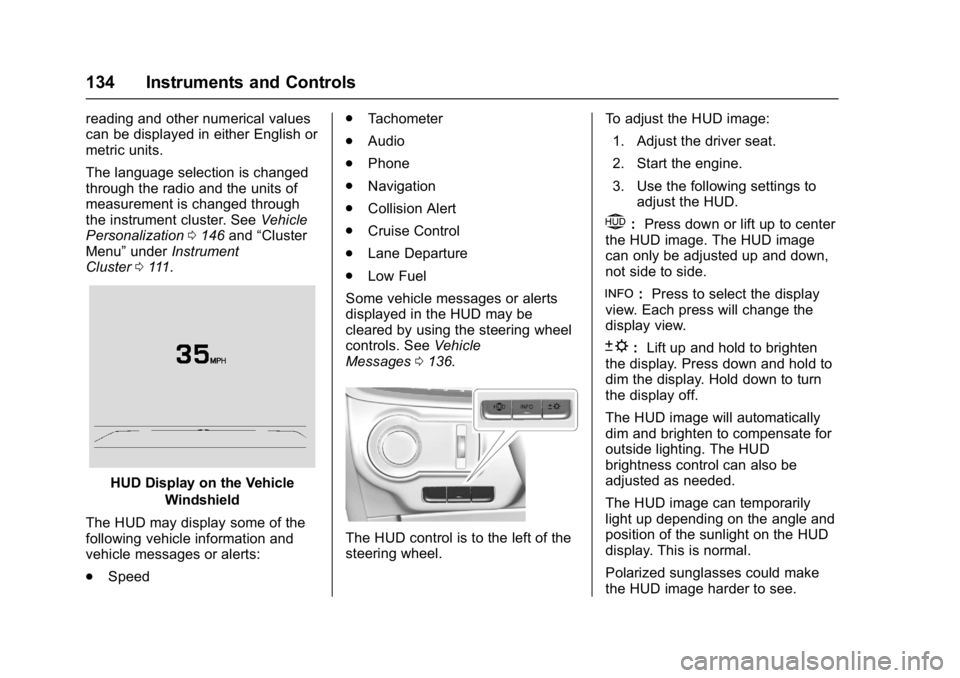
HUD Display on the Vehicle
Windshield
The HUD may display some of the
following vehicle information and
vehicle messages or alerts:
. Speed .
Tachometer
. Audio
. Phone
. Navigation
. Collision Alert
. Cruise Control
. Lane Departure
. Low Fuel
Some vehicle messages or alerts
displayed in the HUD may be
cleared by using the steering wheel
controls. See Vehicle
Messages 0136.
The HUD control is to the left of the
steering wheel. To adjust the HUD image:
1. Adjust the driver seat.
2. Start the engine.
3. Use the following settings to adjust the HUD.
$:Press down or lift up to center
the HUD image. The HUD image
can only be adjusted up and down,
not side to side.
!: Press to select the display
view. Each press will change the
display view.
D: Lift up and hold to brighten
the display. Press down and hold to
dim the display. Hold down to turn
the display off.
The HUD image will automatically
dim and brighten to compensate for
outside lighting. The HUD
brightness control can also be
adjusted as needed.
The HUD image can temporarily
light up depending on the angle and
position of the sunlight on the HUD
display. This is normal.
Polarized sunglasses could make
the HUD image harder to see.
Page 141 of 432
Buick Envision Owner Manual (GMNA-Localizing-U.S./Canada/Mexico-
8534310) - 2016 - crc - 2/29/16
140 Instruments and Controls
ENGINE OIL LOW—ADD OIL
On some vehicles, this message
displays when the engine oil level
may be too low. Check the oil level
before filling to the recommended
level. If the oil is not low and this
message remains on, take the
vehicle to your dealer for service.
See Engine Oil 0314.
OIL PRESSURE LOW —STOP
ENGINE
This message displays if low oil
pressure levels occur. Stop the
vehicle as soon as safely possible
and do not operate it until the cause
of the low oil pressure has been
corrected. Check the oil as soon as
possible and have the vehicle
serviced by your dealer.
Engine Power Messages
ENGINE POWER IS REDUCED
This message displays when the
vehicle's engine power is reduced.
Reduced engine power can affect
the vehicle's ability to accelerate.
If this message is on, but there is no
reduction in performance, proceed to your destination. The
performance may be reduced the
next time the vehicle is driven. The
vehicle may be driven at a reduced
speed while this message is on, but
maximum acceleration and speed
may be reduced. Anytime this
message stays on, or displays
repeatedly, the vehicle should be
taken to your dealer for service as
soon as possible.
Fuel System Messages
FUEL LEVEL LOW
This message displays when the
vehicle is low on fuel. Refuel as
soon as possible.
Key and Lock Messages
NO REMOTE DETECTED
This message displays when the
RKE transmitter battery is weak on
vehicles with Keyless Access. See
“Starting the Vehicle with a Low
Transmitter Battery”
underRemote
Keyless Entry (RKE) System
Operation 026.
NO REMOTE KEY WAS
DETECTED PLACE KEY IN
TRANSMITTER POCKET THEN
START YOUR VEHICLE
This message displays when trying
to start the vehicle if an RKE
transmitter is not detected. The
transmitter battery may be weak.
See “Starting the Vehicle with a Low
Transmitter Battery” underRemote
Keyless Entry (RKE) System
Operation 026.
REPLACE BATTERY IN
REMOTE KEY
This message displays when the
battery in the RKE transmitter needs
to be replaced. See “Battery
Replacement” underRemote
Keyless Entry (RKE) System
Operation 026.
Page 190 of 432
Buick Envision Owner Manual (GMNA-Localizing-U.S./Canada/Mexico-
8534310) - 2016 - crc - 2/29/16
Infotainment System 189
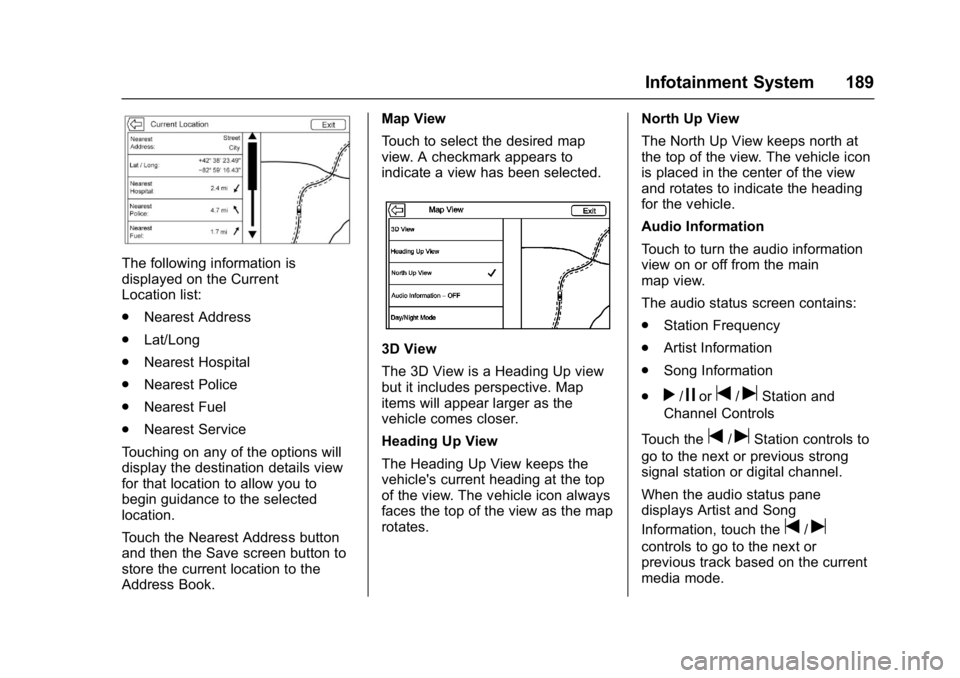
The following information is
displayed on the Current
Location list:
.Nearest Address
. Lat/Long
. Nearest Hospital
. Nearest Police
. Nearest Fuel
. Nearest Service
Touching on any of the options will
display the destination details view
for that location to allow you to
begin guidance to the selected
location.
Touch the Nearest Address button
and then the Save screen button to
store the current location to the
Address Book. Map View
Touch to select the desired map
view. A checkmark appears to
indicate a view has been selected.
3D View
The 3D View is a Heading Up view
but it includes perspective. Map
items will appear larger as the
vehicle comes closer.
Heading Up View
The Heading Up View keeps the
vehicle's current heading at the top
of the view. The vehicle icon always
faces the top of the view as the map
rotates.
North Up View
The North Up View keeps north at
the top of the view. The vehicle icon
is placed in the center of the view
and rotates to indicate the heading
for the vehicle.
Audio Information
Touch to turn the audio information
view on or off from the main
map view.
The audio status screen contains:
.
Station Frequency
. Artist Information
. Song Information
.
r/jort/uStation and
Channel Controls
Touch the
t/uStation controls to
go to the next or previous strong
signal station or digital channel.
When the audio status pane
displays Artist and Song
Information, touch the
t/u
controls to go to the next or
previous track based on the current
media mode.