tire BUICK ENVISION 2016 User Guide
[x] Cancel search | Manufacturer: BUICK, Model Year: 2016, Model line: ENVISION, Model: BUICK ENVISION 2016Pages: 432, PDF Size: 5.68 MB
Page 126 of 432
Buick Envision Owner Manual (GMNA-Localizing-U.S./Canada/Mexico-
8534310) - 2016 - crc - 2/29/16
Instruments and Controls 125
Caution (Continued)
engine and it may not be covered
by the vehicle warranty. See
Engine Overheating0323.
The engine coolant temperature
warning light comes on when the
engine has overheated.
If this happens, pull over and turn
off the engine as soon as possible.
See Engine Overheating 0323.
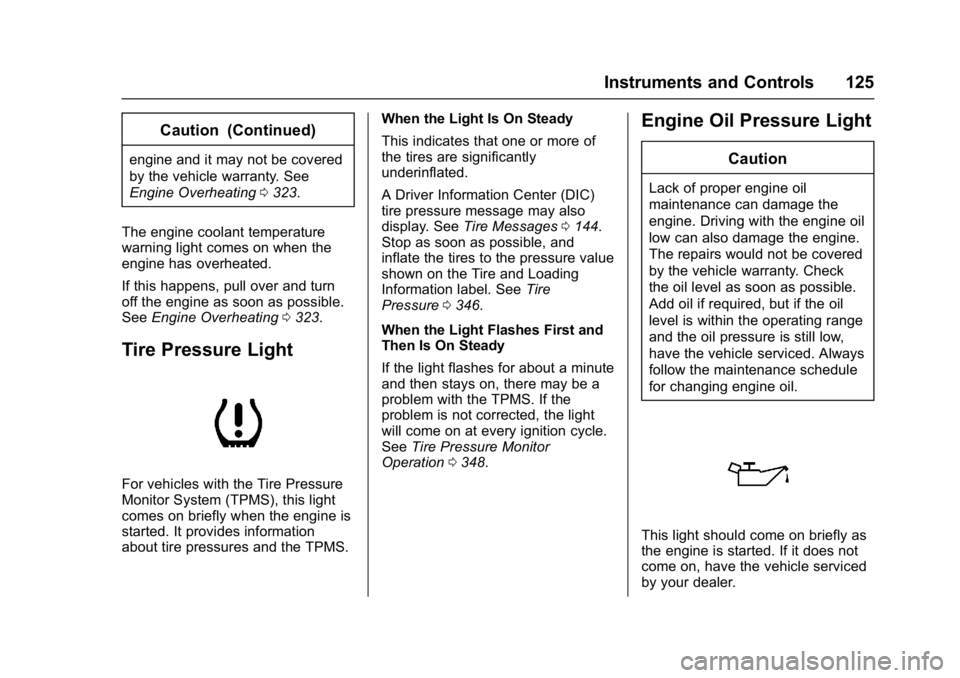
Tire Pressure Light
For vehicles with the Tire Pressure
Monitor System (TPMS), this light
comes on briefly when the engine is
started. It provides information
about tire pressures and the TPMS. When the Light Is On Steady
This indicates that one or more of
the tires are significantly
underinflated.
A Driver Information Center (DIC)
tire pressure message may also
display. See
Tire Messages 0144.
Stop as soon as possible, and
inflate the tires to the pressure value
shown on the Tire and Loading
Information label. See Tire
Pressure 0346.
When the Light Flashes First and
Then Is On Steady
If the light flashes for about a minute
and then stays on, there may be a
problem with the TPMS. If the
problem is not corrected, the light
will come on at every ignition cycle.
See Tire Pressure Monitor
Operation 0348.
Engine Oil Pressure Light
Caution
Lack of proper engine oil
maintenance can damage the
engine. Driving with the engine oil
low can also damage the engine.
The repairs would not be covered
by the vehicle warranty. Check
the oil level as soon as possible.
Add oil if required, but if the oil
level is within the operating range
and the oil pressure is still low,
have the vehicle serviced. Always
follow the maintenance schedule
for changing engine oil.
This light should come on briefly as
the engine is started. If it does not
come on, have the vehicle serviced
by your dealer.
Page 131 of 432
Buick Envision Owner Manual (GMNA-Localizing-U.S./Canada/Mexico-
8534310) - 2016 - crc - 2/29/16
130 Instruments and Controls
Oil Life :Displays an estimate of
the oil's remaining useful life.
If REMAINING OIL LIFE 99% is
displayed, that means 99% of the
current oil life remains.
When the remaining oil life is low,
the CHANGE ENGINE OIL SOON
message will appear on the display.
See Engine Oil Messages 0139.
The oil should be changed as soon
as possible. See Engine Oil0314.
In addition to the engine oil life
system monitoring the oil life,
additional maintenance is
recommended in the Maintenance
Schedule. See Maintenance
Schedule 0382.
The Oil Life display must be reset
after each oil change. It will not
reset itself. Do not reset the Oil Life
display accidentally at any time
other than when the oil has just
been changed. It cannot be reset
accurately until the next oil change.
To reset the engine oil life system,
press and hold
Vfor several
seconds while the Oil Life display is
active. See Engine Oil Life
System 0316. Coolant Temperature :
Displays
the coolant temperature in degrees
Celsius (°C) or degrees
Fahrenheit (°F).
Tire Pressure : Displays the
approximate pressures of all four
tires. Tire pressure is displayed in
kilopascal (kPa) or pounds per
square inch (psi). If the pressure is
low, the value for that tire is shown
in amber. See Tire Pressure Monitor
System 0347 andTire Pressure
Monitor Operation 0348.
Battery Voltage : Displays the
current battery voltage. The battery
voltage can fluctuate while viewing
this information on the DIC. This is
normal.
Follow Distance Indicator/Gap
Setting : The current follow time to
the vehicle ahead is displayed as a
time value on this page when ACC
is not engaged. When ACC has
been engaged, the Follow Distance
Indicator page switches to the Gap
Setting page. This page shows the
current gap setting along with the
vehicle ahead indicator. Best Average Fuel Economy :
The
right hand side displays the best
average fuel economy (AFE) that is
achieved for a selected distance.
The left hand side displays a
running average of fuel economy for
the most recently traveled selected
distance. The center bar graph
displays the instantaneous fuel
economy. Quickly press the
V
button to display a page for
selecting one of the distance
options. Move the up/down arrow to
choose the selection, and
Vto
change the setting. When viewing
best AFE, a several second press
and hold of
Vwill reset the best
value. The best value will show “- -
-“ until the selected distance has
been traveled. The display provides
feedback on how current driving
behavior in the bar graph affects the
running average in the left display
and how well recent driving
compares to the best that has been
achieved.
Page 133 of 432
Buick Envision Owner Manual (GMNA-Localizing-U.S./Canada/Mexico-
8534310) - 2016 - crc - 2/29/16
132 Instruments and Controls
or miles per gallon (mpg). This
number is calculated based on the
number of L/100 km (mpg) recorded
since the last time this menu item
was reset. This number reflects only
the approximate average fuel
economy that the vehicle has right
now, and will change as driving
conditions change. The Average
Fuel Economy can be reset by
pressing and holding
Vwhile this
display is active.
The Average Speed display shows
the average speed of the vehicle in
kilometers per hour (km/h) or miles
per hour (mph). This average is
calculated based on the various
vehicle speeds recorded since the
last reset of this value. The average
speed can be reset by pressing and
holding
Vwhile this display is
active.
Fuel Range and Instantaneous
Fuel Economy : Displays the
approximate distance the vehicle
can be driven without refueling.
LOW will be displayed when the
vehicle is low on fuel. The fuel
range estimate is based on an average of the vehicle's fuel
economy over recent driving history
and the amount of fuel remaining in
the fuel tank.
Displays the current fuel economy in
liters per 100 kilometers (L/100 km)
or miles per gallon (mpg). This
number reflects only the
approximate fuel economy that the
vehicle has right now and changes
frequently as driving conditions
change.
Oil Life :
Displays an estimate of
the oil's remaining useful life.
If REMAINING OIL LIFE 99% is
displayed, that means 99% of the
current oil life remains.
When the remaining oil life is low,
the CHANGE ENGINE OIL SOON
message will appear on the display.
See Engine Oil Messages 0139.
The oil should be changed as soon
as possible. See Engine Oil0314.
In addition to the engine oil life
system monitoring the oil life,
additional maintenance is
recommended in the Maintenance
Schedule. See Maintenance
Schedule 0382. The Oil Life display must be reset
after each oil change. It will not
reset itself. Do not reset the Oil Life
display accidentally at any time
other than when the oil has just
been changed. It cannot be reset
accurately until the next oil change.
To reset the engine oil life system,
press and hold
Vfor several
seconds while the Oil Life display is
active. See Engine Oil Life
System 0316.
Tire Pressure : Displays the
approximate pressures of all four
tires. Tire pressure is displayed in
kilopascal (kPa) or pounds per
square inch (psi). If the pressure is
low, the value for that tire is shown
in amber. See Tire Pressure Monitor
System 0347 andTire Pressure
Monitor Operation 0348.
Fuel Economy : The right hand
side displays the best average fuel
economy (AFE) that is achieved for
a selected distance. The left hand
side displays a running average of
fuel economy for the most recently
traveled selected distance. The
center bar graph displays the
Page 139 of 432

Buick Envision Owner Manual (GMNA-Localizing-U.S./Canada/Mexico-
8534310) - 2016 - crc - 2/29/16
138 Instruments and Controls
entire front and/or rear of the
vehicle. For cleaning
instructions, seeExterior
Care 0371.
. Heavy rain or snow is interfering
with the radar object detection or
camera performance.
. Stability Control or Traction
Control has activated or been
disabled.
. There is no traffic or other
objects to detect.
. There is a fault in the system.
ADAPTIVE CRUISE SET
TO XXX
This message displays when the
Adaptive Cruise Control (ACC)
speed is set. See Adaptive Cruise
Control 0277.
ADAPTIVE CRUISE
TEMPORARILY UNAVAILABLE
This message displays when
attempting to activate Adaptive
Cruise Control (ACC) when it is
temporarily unavailable. The ACC
system does not need service. This can occur under the following
conditions:
.
The radar is not clean. Keep the
radar sensors free of mud, dirt,
snow, ice, and slush. Clean the
entire front and/or rear of the
vehicle. For cleaning
instructions, see Exterior
Care 0371.
. Heavy rain or snow is interfering
with the radar object detection or
camera performance.
CRUISE SET TO XXX
This message displays when the
cruise control speed is set. See
Cruise Control 0275.
NO CRUISE BRAKING GAS
PEDAL APPLIED
This message displays when
Adaptive Cruise Control (ACC) is
active and the driver is pressing the
gas pedal. When this occurs, ACC
will not brake. See Adaptive Cruise
Control 0277.
SERVICE ADAPTIVE CRUISE
CONTROL
This message displays when the
Adaptive Cruise Control (ACC)
needs service. Take the vehicle to
your dealer.
SHIFT TO PARK BEFORE
EXITING
This message may display if
Adaptive Cruise Control (ACC) is
engaged holding the vehicle at a
stop, and the driver attempts to exit
the vehicle. Put the vehicle in
P (Park) before exiting.
Door Ajar Messages
DOOR OPEN
This message displays and a chime
may sound if a door is not fully
closed. Stop and turn off the
vehicle, check the door for
obstructions, and close the door
again. Check to see if the message
still appears on the DIC.
Page 144 of 432

Buick Envision Owner Manual (GMNA-Localizing-U.S./Canada/Mexico-
8534310) - 2016 - crc - 2/29/16
Instruments and Controls 143
Ride Control System
Messages
AWD OFF
This message displays when the
All-Wheel Drive (AWD) System is
temporarily disabled. The system
may disable due to spare tire
installation or a driving condition
that could result in system damage.
The system does not require service
when this message is displayed.
The AWD system will resume
normal operation when driving
conditions permit. SeeAll-Wheel
Drive 0270.
SERVICE AWD
This message displays when there
is a problem with the All-Wheel
Drive (AWD) System. See your
dealer for service.
SERVICE TRACTION
CONTROL
This message displays when there
is a problem with the Traction
Control System (TCS). When this
message is displayed, the system will not limit wheel spin. Adjust your
driving accordingly. See your dealer
for service.
SERVICE STABILITRAK
This message displays if there is a
problem with the StabiliTrak system.
If this message appears, try to reset
the system. Stop; turn off the engine
for at least 15 seconds; then start
the engine again. If this message
still comes on, it means there is a
problem. See your dealer for
service. The vehicle is safe to drive;
however, you do not have the
benefit of StabiliTrak, so reduce
your speed and drive accordingly.
STABILITRAK INITIALIZING
This message may come on if the
StabiliTrak system has not fully
initialized because of road
conditions or the incorrect tire size.
When the StabiliTrak system is fully
initialized, the message will turn off.
See
Traction Control/Electronic
Stability Control 0273. If this
message continues to be displayed for multiple ignition cycles and on
different road surfaces, see your
dealer for service.
Airbag System Messages
SERVICE AIRBAG
This message displays if there is a
problem with the airbag system. See
your dealer for service.
Security Messages
THEFT ATTEMPTED
This message displays if the vehicle
detects a tamper condition.
Steering System
Messages
STEERING ASSIST IS
REDUCED
This message may display if a
problem occurs with the electric
power steering system. If this
message appears, steering effort
may be slightly higher than normal.
The vehicle is still safe to drive. Use
caution while in reduced assist
Page 145 of 432
Buick Envision Owner Manual (GMNA-Localizing-U.S./Canada/Mexico-
8534310) - 2016 - crc - 2/29/16
144 Instruments and Controls
mode. If this message is persistent
or appears repeatedly, take the
vehicle to your dealer for service.
SeeSteering 0250.
If the battery has recently been run
down or replaced, the Adaptive
Forward Lighting (AFL) light or
STEERING ASSIST IS REDUCED
message may remain on. This is
normal and there is no loss of power
steering or AFL performance. If the
light or DIC message continues to
display after normal driving, take the
vehicle to your dealer for service.
See Adaptive Forward Lighting
(AFL) Light 0126.
SERVICE POWER STEERING
This message displays when there
is a problem with electric power
steering. If this message displays
and a reduction in steering
performance or loss of power
steering assistance is noticed, see
your dealer. See Steering0250.
Tire Messages
SERVICE TIRE MONITOR
SYSTEM
This message displays if there is a
problem with the Tire Pressure
Monitor System (TPMS). See Tire
Pressure Monitor Operation 0348.
TIRE LEARNING ACTIVE
This message displays when the
system is learning new tires. See
Tire Pressure Monitor
Operation 0348.
TIRE PRESSURE LOW ADD
AIR TO TIRE
On vehicles with the Tire Pressure
Monitor System (TPMS), this
message displays when the
pressure in one or more of the
vehicle's tires is low.
The low tire pressure warning light
will also come on. See Tire
Pressure Light 0125.
If a tire pressure message displays,
inflate the tires until the tire pressure
is equal to the values shown on the
Tire and Loading Information label. See
Tires 0338, Vehicle Load
Limits 0346, and Tire
Pressure 0346.
More than one tire pressure
message can be received at a time.
The DIC also shows the tire
pressure values. See Driver
Information Center (DIC) (Base
Level) 0128 orDriver Information
Center (DIC) (Uplevel) 0131.
Transmission Messages
APPLY AND HOLD BRAKE
This message displays along with a
temperature graph when the
transmission clutch overheat
temperature is reached.
INCREASE SPEED OR APPLY
BRAKE
This message displays along with a
temperature graph when the
transmission clutch temperature is
close to reaching an overheated
condition.
Page 189 of 432

Buick Envision Owner Manual (GMNA-Localizing-U.S./Canada/Mexico-
8534310) - 2016 - crc - 2/29/16
188 Infotainment System
It is advised to set up preferences
before setting a destination. To set a
destination, seeDestination0196.
Cancel/Resume Route
. While under route guidance, this
screen button displays Cancel
Route. Touch Cancel Route to
end route guidance. No further
prompts will be given. The list
item then changes to
Resume To.
. Touch the Resume To screen
button to resume route guidance
to the last entered destination.
. The last location that the system
has provided guidance to can be
resumed by touching on this
list item.
. If the route includes waypoints,
the entire route can be
suspended using the Cancel
Route list item. When Resume
To is touched, all waypoints are
resumed for guidance. Navigation Voice Preferences
Touch the Navigation Voice
Preferences list item to adjust the
voice preferences.
The following options can be
adjusted:
.
Voice Prompts ON/OFF
. Voice Volume
. Prompts During Phone Calls
ON/OFF
Voice Prompts
Touch the Voice Prompts list item to
toggle voice prompts ON and OFF.
Voice Volume
Adjust the loudness of the audio
feedback by touching the −or +
button. If a maneuver prompt is being played, and the main volume
is adjusted, the prompt volume will
update and be saved.
As the volume of the voice guidance
is being adjusted, a quick status bar
displays, showing the volume
setting.
Prompts During Phone Calls
When enabled, the system plays a
shorter prompt while on a phone
call. This setting can be configured
as to whether a prompt would be
heard during a phone conversation.
When this setting is OFF, only the
short alert tone is played when
approaching the maneuver.
Current Location
Touch the Current Location list item
to display a Current Location list.
Page 193 of 432
Buick Envision Owner Manual (GMNA-Localizing-U.S./Canada/Mexico-
8534310) - 2016 - crc - 2/29/16
192 Infotainment System
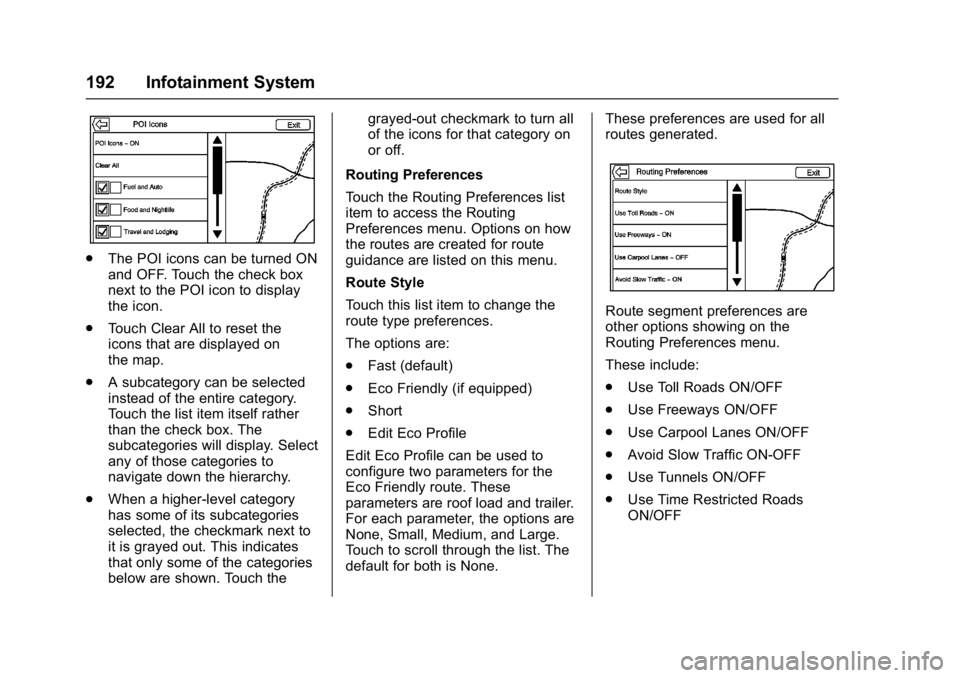
.The POI icons can be turned ON
and OFF. Touch the check box
next to the POI icon to display
the icon.
. Touch Clear All to reset the
icons that are displayed on
the map.
. A subcategory can be selected
instead of the entire category.
Touch the list item itself rather
than the check box. The
subcategories will display. Select
any of those categories to
navigate down the hierarchy.
. When a higher-level category
has some of its subcategories
selected, the checkmark next to
it is grayed out. This indicates
that only some of the categories
below are shown. Touch the grayed-out checkmark to turn all
of the icons for that category on
or off.
Routing Preferences
Touch the Routing Preferences list
item to access the Routing
Preferences menu. Options on how
the routes are created for route
guidance are listed on this menu.
Route Style
Touch this list item to change the
route type preferences.
The options are:
. Fast (default)
. Eco Friendly (if equipped)
. Short
. Edit Eco Profile
Edit Eco Profile can be used to
configure two parameters for the
Eco Friendly route. These
parameters are roof load and trailer.
For each parameter, the options are
None, Small, Medium, and Large.
Touch to scroll through the list. The
default for both is None. These preferences are used for all
routes generated.
Route segment preferences are
other options showing on the
Routing Preferences menu.
These include:
.
Use Toll Roads ON/OFF
. Use Freeways ON/OFF
. Use Carpool Lanes ON/OFF
. Avoid Slow Traffic ON-OFF
. Use Tunnels ON/OFF
. Use Time Restricted Roads
ON/OFF
Page 194 of 432
Buick Envision Owner Manual (GMNA-Localizing-U.S./Canada/Mexico-
8534310) - 2016 - crc - 2/29/16
Infotainment System 193
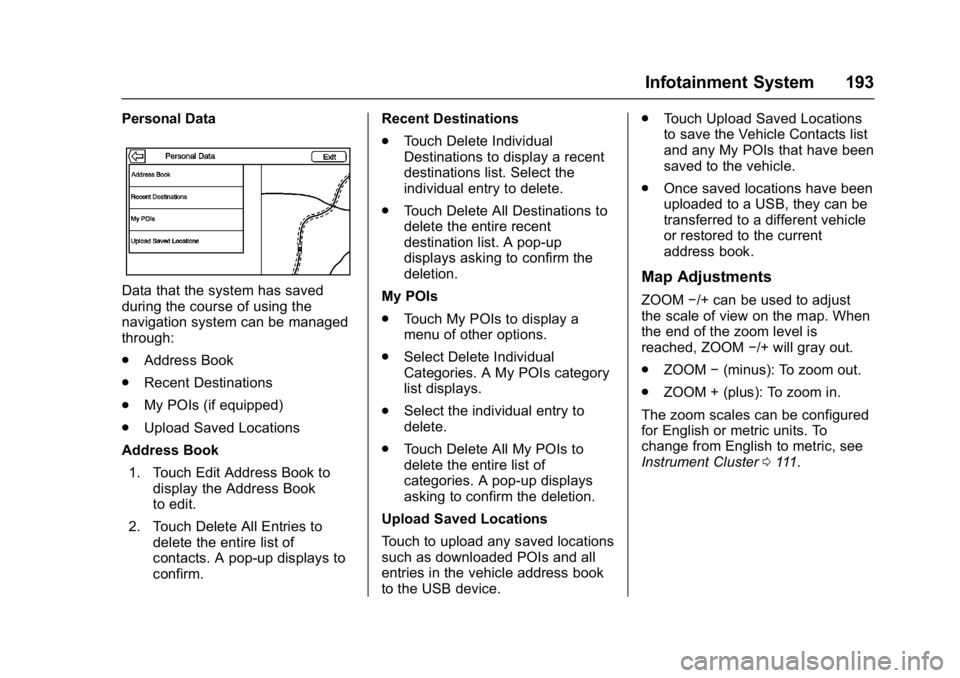
Personal Data
Data that the system has saved
during the course of using the
navigation system can be managed
through:
.Address Book
. Recent Destinations
. My POIs (if equipped)
. Upload Saved Locations
Address Book
1. Touch Edit Address Book to display the Address Book
to edit.
2. Touch Delete All Entries to delete the entire list of
contacts. A pop-up displays to
confirm. Recent Destinations
.
Touch Delete Individual
Destinations to display a recent
destinations list. Select the
individual entry to delete.
. Touch Delete All Destinations to
delete the entire recent
destination list. A pop-up
displays asking to confirm the
deletion.
My POIs
. Touch My POIs to display a
menu of other options.
. Select Delete Individual
Categories. A My POIs category
list displays.
. Select the individual entry to
delete.
. Touch Delete All My POIs to
delete the entire list of
categories. A pop-up displays
asking to confirm the deletion.
Upload Saved Locations
Touch to upload any saved locations
such as downloaded POIs and all
entries in the vehicle address book
to the USB device. .
Touch Upload Saved Locations
to save the Vehicle Contacts list
and any My POIs that have been
saved to the vehicle.
. Once saved locations have been
uploaded to a USB, they can be
transferred to a different vehicle
or restored to the current
address book.Map Adjustments
ZOOM −/+ can be used to adjust
the scale of view on the map. When
the end of the zoom level is
reached, ZOOM −/+ will gray out.
. ZOOM −(minus): To zoom out.
. ZOOM + (plus): To zoom in.
The zoom scales can be configured
for English or metric units. To
change from English to metric, see
Instrument Cluster 0111.
Page 195 of 432
Buick Envision Owner Manual (GMNA-Localizing-U.S./Canada/Mexico-
8534310) - 2016 - crc - 2/29/16
194 Infotainment System
Scroll Features
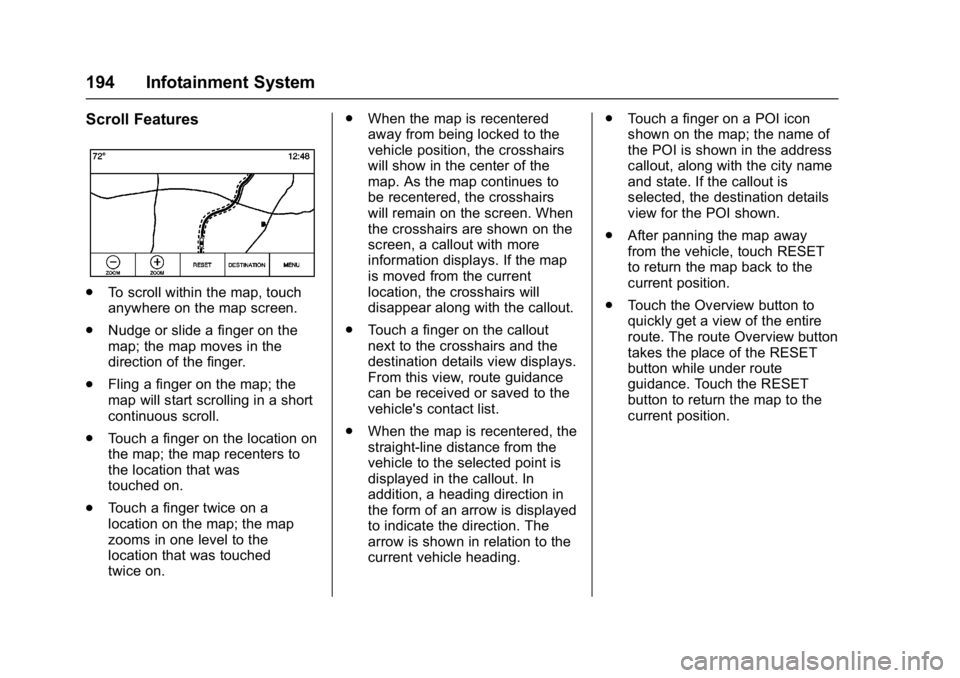
.To scroll within the map, touch
anywhere on the map screen.
. Nudge or slide a finger on the
map; the map moves in the
direction of the finger.
. Fling a finger on the map; the
map will start scrolling in a short
continuous scroll.
. Touch a finger on the location on
the map; the map recenters to
the location that was
touched on.
. Touch a finger twice on a
location on the map; the map
zooms in one level to the
location that was touched
twice on. .
When the map is recentered
away from being locked to the
vehicle position, the crosshairs
will show in the center of the
map. As the map continues to
be recentered, the crosshairs
will remain on the screen. When
the crosshairs are shown on the
screen, a callout with more
information displays. If the map
is moved from the current
location, the crosshairs will
disappear along with the callout.
. Touch a finger on the callout
next to the crosshairs and the
destination details view displays.
From this view, route guidance
can be received or saved to the
vehicle's contact list.
. When the map is recentered, the
straight-line distance from the
vehicle to the selected point is
displayed in the callout. In
addition, a heading direction in
the form of an arrow is displayed
to indicate the direction. The
arrow is shown in relation to the
current vehicle heading. .
Touch a finger on a POI icon
shown on the map; the name of
the POI is shown in the address
callout, along with the city name
and state. If the callout is
selected, the destination details
view for the POI shown.
. After panning the map away
from the vehicle, touch RESET
to return the map back to the
current position.
. Touch the Overview button to
quickly get a view of the entire
route. The route Overview button
takes the place of the RESET
button while under route
guidance. Touch the RESET
button to return the map to the
current position.