tire BUICK ENVISION 2016 Owner's Guide
[x] Cancel search | Manufacturer: BUICK, Model Year: 2016, Model line: ENVISION, Model: BUICK ENVISION 2016Pages: 432, PDF Size: 5.68 MB
Page 198 of 432
Buick Envision Owner Manual (GMNA-Localizing-U.S./Canada/Mexico-
8534310) - 2016 - crc - 2/29/16
Infotainment System 197
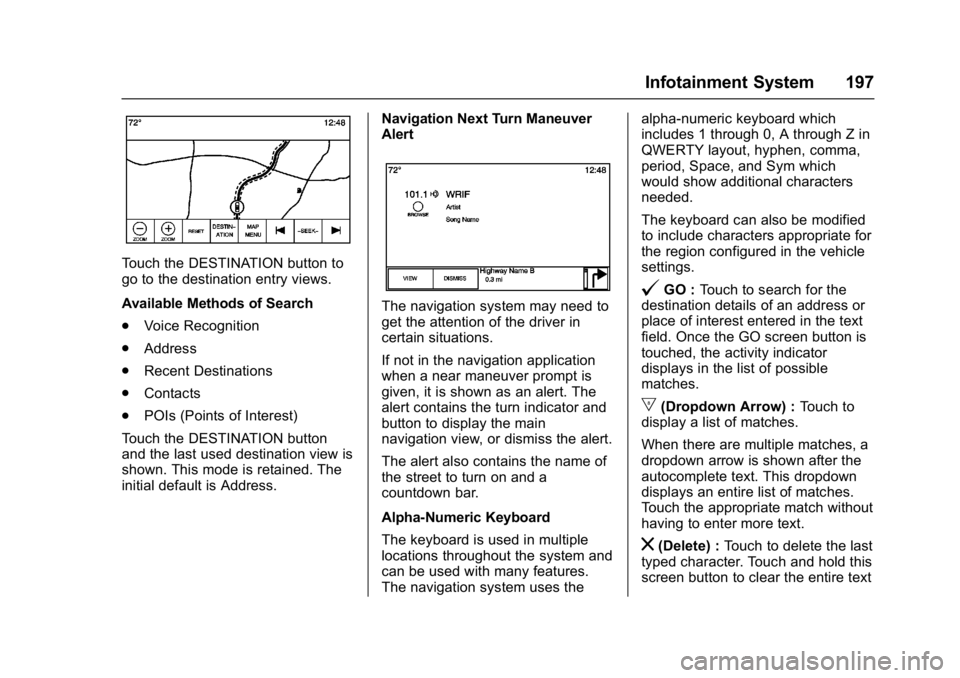
Touch the DESTINATION button to
go to the destination entry views.
Available Methods of Search
.Voice Recognition
. Address
. Recent Destinations
. Contacts
. POIs (Points of Interest)
Touch the DESTINATION button
and the last used destination view is
shown. This mode is retained. The
initial default is Address. Navigation Next Turn Maneuver
Alert
The navigation system may need to
get the attention of the driver in
certain situations.
If not in the navigation application
when a near maneuver prompt is
given, it is shown as an alert. The
alert contains the turn indicator and
button to display the main
navigation view, or dismiss the alert.
The alert also contains the name of
the street to turn on and a
countdown bar.
Alpha-Numeric Keyboard
The keyboard is used in multiple
locations throughout the system and
can be used with many features.
The navigation system uses thealpha-numeric keyboard which
includes 1 through 0, A through Z in
QWERTY layout, hyphen, comma,
period, Space, and Sym which
would show additional characters
needed.
The keyboard can also be modified
to include characters appropriate for
the region configured in the vehicle
settings.
@GO :
Touch to search for the
destination details of an address or
place of interest entered in the text
field. Once the GO screen button is
touched, the activity indicator
displays in the list of possible
matches.
|(Dropdown Arrow) : Touch to
display a list of matches.
When there are multiple matches, a
dropdown arrow is shown after the
autocomplete text. This dropdown
displays an entire list of matches.
Touch the appropriate match without
having to enter more text.
z(Delete) : Touch to delete the last
typed character. Touch and hold this
screen button to clear the entire text
Page 199 of 432
Buick Envision Owner Manual (GMNA-Localizing-U.S./Canada/Mexico-
8534310) - 2016 - crc - 2/29/16
198 Infotainment System
field. If the entire text field has been
deleted, this screen button becomes
an Undo button. Touching Undo will
restore the deleted text.
Exit :Touch to return to the
previous Map view.
Sym : Touch to show the symbol
keyboard.
Space : Touch to enter a space
between characters or the words of
a name.
R(Up Arrow) : Touch to display
the Interaction Selector.
E: If equipped, touch to switch
between Alpha-Numeric Keyboard
and Character Recognition.
Special Characters
As the characters are typed on the
keyboard, a pop-up of the letter
touched displays above the key that
was touched.
Continue to touch and hold, and any
additional special characters
associated with that letter are
displayed around the current letter.
To select one of the special characters, slide a finger left or right
to adjust the highlight of the special
character.
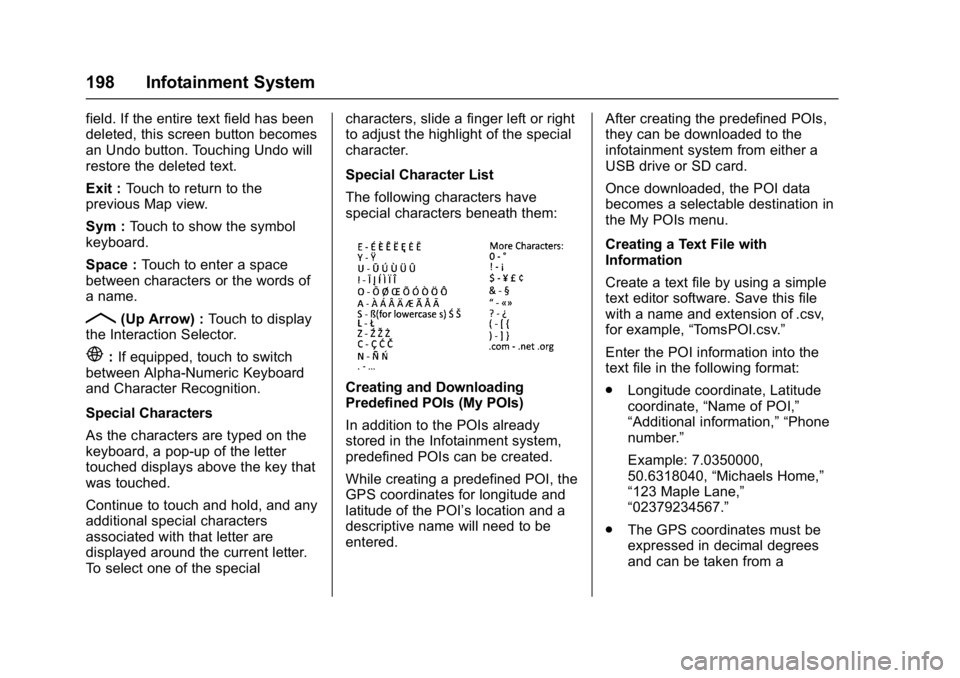
Special Character List
The following characters have
special characters beneath them:
Creating and Downloading
Predefined POIs (My POIs)
In addition to the POIs already
stored in the Infotainment system,
predefined POIs can be created.
While creating a predefined POI, the
GPS coordinates for longitude and
latitude of the POI’s location and a
descriptive name will need to be
entered.
After creating the predefined POIs,
they can be downloaded to the
infotainment system from either a
USB drive or SD card.
Once downloaded, the POI data
becomes a selectable destination in
the My POIs menu.
Creating a Text File with
Information
Create a text file by using a simple
text editor software. Save this file
with a name and extension of .csv,
for example,
“TomsPOI.csv.”
Enter the POI information into the
text file in the following format:
. Longitude coordinate, Latitude
coordinate, “Name of POI,”
“Additional information,” “Phone
number.”
Example: 7.0350000,
50.6318040, “Michaels Home,”
“123 Maple Lane,”
“02379234567.”
. The GPS coordinates must be
expressed in decimal degrees
and can be taken from a
Page 201 of 432

Buick Envision Owner Manual (GMNA-Localizing-U.S./Canada/Mexico-
8534310) - 2016 - crc - 2/29/16
200 Infotainment System
Downloaded POIs can be edited at
a category level. These POIs can
either be deleted as an entire
category or be reassigned as
another category. To edit the
categories:
.Select the Edit button at the
main category view to edit the
POIs. Edit buttons display next
to each category name. There is
no POI browsing in this mode.
Only edit functions are available.
. Once an action such as deleting
or reassigning has been
selected, the changes are saved
immediately.
Changing POI CategoriesPOI categories can be assigned to a
different category by using the same
method as assigning a category for
an Address Book entry. When
editing, the right side of the screen
displays the current category name.
Deleting POI Categories
POI categories can be deleted by
selecting Edit and then Delete.
A pop-up displays to confirm the
deletion.
Saved Destinations
Select a saved destination from the
Contacts or Recent Destinations.
Contacts
Select the Contacts button to view
the vehicle’ s contact list or a
connected Bluetooth device. Touch the Change Contacts List screen
button to switch between the
vehicle’s contact list and the
Bluetooth device’
s contact list. If a
particular contact has a single
address associated with it, that
contact has a Quick Route list item
function button next to it. Contacts
without this Quick Route button
either have multiple addresses or no
address at all. Touch the Quick
Route button to go to the
Destination Details view.
Touch on an address, either from
the Quick Route on the contact list
or a specific address from the
contact detail list, to go to the
destination view showing that
address on the map.
Page 203 of 432
Buick Envision Owner Manual (GMNA-Localizing-U.S./Canada/Mexico-
8534310) - 2016 - crc - 2/29/16
202 Infotainment System
.If a waypoint is added, it is
placed in the location that leads
to the most efficient route.
. There is a maximum number of
waypoints that can be added to
the system. When the maximum
number of waypoints has been
reached, a pop-up displays
indicating that a waypoint must
first be deleted before a new one
can be added. The system will
hold this waypoint into a
Pending Waypoints list and it will
automatically be added to the
route once a position is
available, either by arriving at a
waypoint, or by deleting one.
Estimated Time of Arrival (ETA)
and Distance
. When under route guidance, the
system shows the ETA or travel
time, or the driving distance.
. The ETA and travel time are
calculated using any available
traffic information. .
If in a waypoint trip, the ETA,
travel time, and driving distance
are all shown relative to the final
destination.
. The final ETA is shown taking
into consideration any time zone
crossings that the route has
traveled through.
. Touch the ETA information area
to switch between the estimated
arrival time, total driving time
resulting, and driving distance.
Turn List
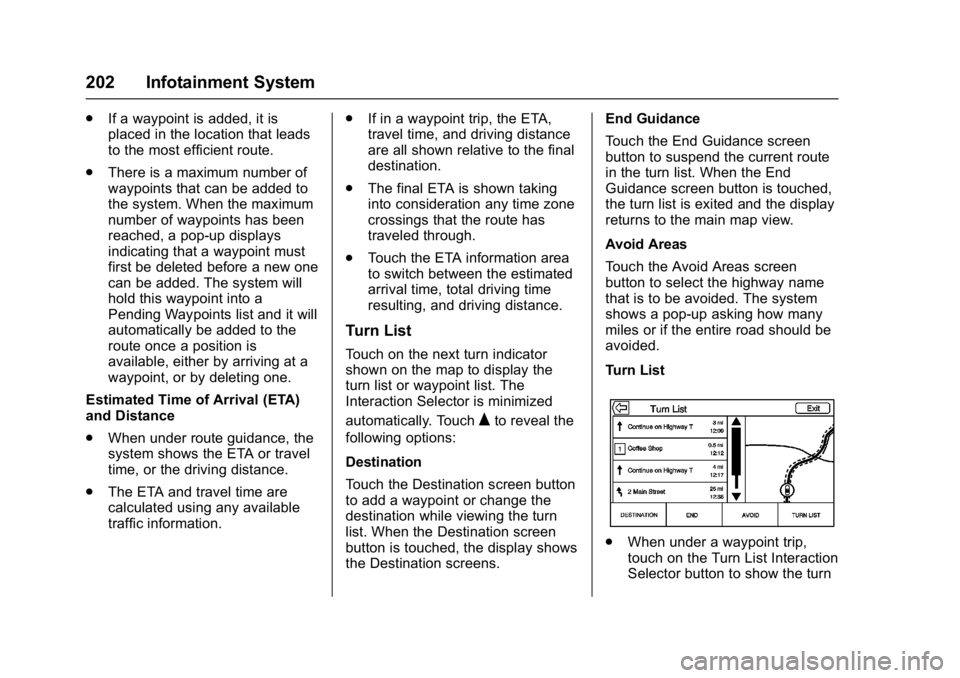
Touch on the next turn indicator
shown on the map to display the
turn list or waypoint list. The
Interaction Selector is minimized
automatically. Touch
Qto reveal the
following options:
Destination
Touch the Destination screen button
to add a waypoint or change the
destination while viewing the turn
list. When the Destination screen
button is touched, the display shows
the Destination screens. End Guidance
Touch the End Guidance screen
button to suspend the current route
in the turn list. When the End
Guidance screen button is touched,
the turn list is exited and the display
returns to the main map view.
Avoid Areas
Touch the Avoid Areas screen
button to select the highway name
that is to be avoided. The system
shows a pop-up asking how many
miles or if the entire road should be
avoided.
Turn List
.
When under a waypoint trip,
touch on the Turn List Interaction
Selector button to show the turn
Page 213 of 432
Buick Envision Owner Manual (GMNA-Localizing-U.S./Canada/Mexico-
8534310) - 2016 - crc - 2/29/16
212 Infotainment System
.The vehicle is entering and/or
exiting a parking lot, garage, or a
lot with a roof.
. The GPS signal is not received.
. A roof carrier is installed on the
vehicle.
. Tire chains have been installed.
. The tires are replaced or worn.
. The tire pressure for the tires is
incorrect.
. This is the first navigation use
after the map data is updated.
. The 12-volt battery is
disconnected for several days.
. The vehicle is driving in heavy
traffic where driving is at low
speeds, and the vehicle is
stopped and started repeatedly.
Problems with Route
Guidance
Inappropriate route guidance can
occur under one or more of the
following conditions:
.The turn was not made on the
road indicated. .
Route guidance might not be
available when using automatic
rerouting for the next right or
left turn.
. The route might not be changed
when using automatic rerouting.
. There is no route guidance when
turning at an intersection.
. Plural names of places might be
announced occasionally.
. It could take a long time to
operate automatic rerouting
during high-speed driving.
. Automatic rerouting might
display a route returning to the
set waypoint if heading for a
destination without passing
through a set waypoint.
. The route prohibits the entry of a
vehicle due to a regulation by
time or season or any other
regulation which may be given.
. Some routes might not be
searched.
. The route to the destination
might not be shown if there are
new roads, if roads have recently changed, or if certain
roads are not listed in the map
data. See
Maps0195.
To recalibrate the vehicle's position
on the map, park with the vehicle
running for two to five minutes, until
the vehicle position updates. Make
sure the vehicle is parked in a
location that is safe and has a clear
view of the sky and away from large
obstructions.
If the System Needs
Service
If the navigation system needs
service and the steps listed here
have been followed but there are
still problems, see Problems with
Route Guidance 0212.
Map Data Updates
The map data in the vehicle is the
most up-to-date information
available when the vehicle was
produced. The map data is updated
periodically, provided that the map
information has changed.
Page 215 of 432
Buick Envision Owner Manual (GMNA-Localizing-U.S./Canada/Mexico-
8534310) - 2016 - crc - 2/29/16
214 Infotainment System
For example, if the prompt
seems to be taking too long to
finish, press
gagain and the
beep should happen
right away.
There are two voice prompt modes
supported:
. Long verbal prompts: The longer
prompts provide more
information regarding the
supported actions.
. Short prompts: The short
prompts provide simple
instructions about what can be
stated.
If a command is not spoken, the
voice recognition system says a
help prompt.
Prompts and Screen Displays
While a voice recognition session is
active, there will be corresponding
buttons on screens displayed.
Manual interaction in the voice
recognition session is permitted.
Interaction during a voice session
may be completed entirely using
voice commands, or some
selections may expedite a session. If a selection is made using a
manual control, the dialog will
progress in the same way as if the
selection was made through a voice
command. Once the system is able
to complete the task, or the session
is terminated, the voice recognition
dialog stops.
An example of this type of manual
intervention is touching an entry of a
displayed number list instead of
speaking the number associated
with the entry desired.
Canceling Voice Recognition
.
Touch the Home screen button.
Touching this button will
terminate a voice recognition
session which was initiated by
touching the button on the radio
touchscreen.
. Touch or say “Cancel”or“Exit”
to terminate the voice
recognition session and display
the screen from which voice
recognition was initiated. .
Press
con the steering wheel
controls to terminate the voice
session and display the screen
from which voice recognition
was initiated.
Most languages do not support
natural language commands in
sentence form. For those
languages, use direct commands
like the examples shown on the
display.
Helpful Hints for Speaking
Commands
Voice recognition can understand
commands that are either naturally
stated in sentence form, or direct
commands that state the application
and the task.
For best results:
. Listen for the prompt and wait
for the beep before saying a
command or reply.
. Say “Help” or look at the screen
display for example commands.
. Voice recognition prompt can be
interrupted while it is playing by
pressing
gagain.
Page 219 of 432

Buick Envision Owner Manual (GMNA-Localizing-U.S./Canada/Mexico-
8534310) - 2016 - crc - 2/29/16
218 Infotainment System
Voice command option changes
through media content limits are:
.Song files including other
individual files of all media types
such as audiobook chapters,
podcast episodes, and videos.
. Album type folders including
types such as albums and
audiobooks.
There are no restrictions if the
number of song files and albums is
less than 4,000. When the number
of song files connected to the
system is between 4,000 and 8,000,
the content cannot be accessed
directly with one command like
“Play
The restriction is that the command
“Play Song” must be spoken first;
the system will then ask for the song
name. The reply command would be
to say the name of the song to play.
Similar limits exist for album
content. If there are more than
4,000 albums, but fewer than 8,000,
the content cannot be accessed
directly with one command like,
“Play
“Play Album” must first be
spoken; the system will then ask for
the album name. The reply would
be to say the name of the album
to play.
Once the number of songs has
exceeded approximately 8,000,
there is no support for accessing the
songs directly through voice
commands. There will still be
access to the media content by
using commands for playlists,
artists, and genres.
The access commands for playlists,
artists, and genres are prohibited
after the number of this type of
media exceeds 4,000.
The system will provide feedback
the first time voice recognition is
initiated if it has become apparent
that any of these limits are reached
during a device initializing process.
Voice Recognition for
Navigation
“Navigation” :Begin a dialog to
enter specific destination
information. “Navigation Commands”
:Begin a
dialog to enter specific destination
information.
“Destination Address” :Begin a
dialog to enter a specific destination
address, which includes the entire
address consisting of the house
number, street name, and city and
state.
“Destination Intersection” :Begin
a dialog to enter a specific
destination intersection.
“Destination Place of Interest” :
Begin a dialog to enter a destination
Place of Interest category or major
brand name (if equipped).
Not all brand names of businesses
are available for voice entry. Most
major chains, such as chains with
more than 20 locations, should be
available to search for by name, but
the name must be precisely spoken.
Nicknames or short names for the
businesses will not likely be found.
Lesser known businesses might
have to be located by category,
such as fast food, hotels, or banks.
Page 220 of 432

Buick Envision Owner Manual (GMNA-Localizing-U.S./Canada/Mexico-
8534310) - 2016 - crc - 2/29/16
Infotainment System 219
“Destination Contact”:Begin a
dialog to enter a specific destination
contact name.
“Cancel Route” :End route
guidance.
Voice Recognition for the
Phone
“Call
call to an entered contact. The
command may include location if
the contact has location numbers
stored.
“Call
“At Work,” “On Mobile,” or“On
Other” :Initiate a call to an entered
contact and location at home, at
work, on mobile device, or on
another phone.
“Call
call to a standard phone number
seven or 10 digits in length, and
also 911, 411, 066, or 611.
“Pair Phone” :Begin the Bluetooth
pairing process. Follow instructions
on the radio display.
“Switch Phone” :Select a different
phone for outgoing calls. “Voice Keypad”
:Begin a dialog to
enter special numbers like
international numbers. The numbers
can be entered in groups of digits
with each group of digits being
repeated back by the system. If the
group of digits is not correct, the
command “Delete”will remove the
last group of digits and allow them
to be re-entered. Once the entire
number has been entered, the
command “Call”will start dialing the
number.
“Voice Mail” :Initiate a call to voice
mail numbers.
Voice Pass-Thru
Voice pass-thru allows access to the
voice recognition commands on the
cell phone, for example, Siri
®or
Voice Command. See the cell
phone manufacturer's user guide to
see if the cell phone supports this
feature. To activate the phone voice
recognition system, press and hold
gon the steering wheel for a few
seconds.
Voice Recognition for OnStar
(If Equipped)
“OnStar” :Begin OnStar Voice
Recognition.
Voice Recognition for Weather
(If Equipped)
“Weather” :Begin a dialog to enter
a weather location.
Page 237 of 432
Buick Envision Owner Manual (GMNA-Localizing-U.S./Canada/Mexico-
8534310) - 2016 - crc - 2/29/16
236 Infotainment System
licenses and approvals required
under, applicable export laws, rules
and regulations. Entire Agreement:
These terms and conditions
constitute the entire agreement
between HERE North America, LLC
(and its licensors, including their
licensors and suppliers) and you
pertaining to the subject matter
hereof, and supersedes in their
entirety any and all written or oral
agreements previously existing
between us with respect to such
subject matter.
Governing Law
The above terms and conditions
shall be governed by the laws of the
State of Illinois, without giving effect
to (i) its conflict of laws provisions,
or (ii) the United Nations Convention
for Contracts for the International
Sale of Goods, which is explicitly
excluded. You agree to submit to
the jurisdiction of the State of Illinois
for any and all disputes, claims, and
actions arising from or in connection
with the Data provided to you
hereunder.Government End Users
If the Data is being acquired by or
on behalf of the United States
government or any other entity
seeking or applying rights similar to
those customarily claimed by the
United States government, this Data
is a
“commercial item” as that term
is defined at 48 C.F.R. (“FAR”)
2.101, is licensed in accordance
with this End User License
Agreement, and each copy of Data
delivered or otherwise furnished
shall be marked and embedded as
appropriate with the following
“Notice of Use,” and be treated in
accordance with such Notice:NOTICE OF USE
CONTRACTOR (MANUFACTURER/
SUPPLIER)
NAME:
HERE North America, LLC
CONTRACTOR (MANUFACTURER/
SUPPLIER)
ADDRESS:
425 West Randolph Street,
Chicago, IL 60606.
This Data is a commercial item as
defined in FAR 2.101 and is subject
to the End User License Agreement
under which this Data was provided.
© 2015 HERE North America, LLC.
All rights reserved.
If the Contracting Officer, federal
government agency, or any federal
official refuses to use the legend
provided herein, the Contracting
Officer, federal government agency,
or any federal official must notify
HERE North America, LLC prior to
seeking additional or alternative
rights in the Data.
Page 252 of 432

Buick Envision Owner Manual (GMNA-Localizing-U.S./Canada/Mexico-
8534310) - 2016 - crc - 2/29/16
Driving and Operating 251
See your dealer if there is a
problem.
Curve Tips
.Take curves at a reasonable
speed.
. Reduce speed before entering a
curve.
. Maintain a reasonable steady
speed through the curve.
. Wait until the vehicle is out of
the curve before accelerating
gently into the straightaway.
Steering in Emergencies
.There are some situations when
steering around a problem may
be more effective than braking.
. Holding both sides of the
steering wheel allows you to turn
180 degrees without removing
a hand.
. The Antilock Brake System
(ABS) allows steering while
braking.
Off-Road Recovery
The vehicle's right wheels can drop
off the edge of a road onto the
shoulder while driving. Follow
these tips:
1. Ease off the accelerator and then, if there is nothing in the
way, steer the vehicle so that it
straddles the edge of the
pavement.
2. Turn the steering wheel about one-eighth of a turn, until the
right front tire contacts the
pavement edge. 3. Turn the steering wheel to go
straight down the roadway.
Loss of Control
Skidding
There are three types of skids that
correspond to the vehicle's three
control systems:
.Braking Skid —wheels are not
rolling.
. Steering or Cornering Skid —
too much speed or steering in a
curve causes tires to slip and
lose cornering force.
. Acceleration Skid —too much
throttle causes the driving
wheels to spin.
Defensive drivers avoid most skids
by taking reasonable care suited to
existing conditions, and by not
overdriving those conditions. But
skids are always possible.
If the vehicle starts to slide, follow
these suggestions:
. Ease your foot off the
accelerator pedal and steer the
way you want the vehicle to go.