cruise control BUICK ENVISION 2016 Owner's Guide
[x] Cancel search | Manufacturer: BUICK, Model Year: 2016, Model line: ENVISION, Model: BUICK ENVISION 2016Pages: 432, PDF Size: 5.68 MB
Page 276 of 432

Buick Envision Owner Manual (GMNA-Localizing-U.S./Canada/Mexico-
8534310) - 2016 - crc - 2/29/16
Driving and Operating 275
To turn TCS and StabiliTrak on
again, press and release the
g
button. The traction off lightiand
StabiliTrak OFF light
gin the
instrument cluster turn off.
Adding accessories can affect the
vehicle performance. See
Accessories and
Modifications 0310.
Cruise Control
With cruise control the vehicle can
maintain a speed of about 40 km/h
(25 mph) or more without keeping
your foot on the accelerator. Cruise
control does not work at speeds
below 40 km/h (25 mph).
{Warning
Cruise control can be dangerous
where you cannot drive safely at
a steady speed. Do not use
cruise control on winding roads or
in heavy traffic.
Cruise control can be dangerous
on slippery roads. On such roads,
fast changes in tire traction can
cause excessive wheel slip, and
you could lose control. Do not use
cruise control on slippery roads.
With the Traction Control
System (TCS), the system may
begin to limit wheel spin while you
are using cruise control. If this
happens, the cruise control will automatically disengage. See
Traction Control/Electronic Stability
Control
0273. If a collision alert
occurs when cruise control is
activated, cruise control is
disengaged. See Forward Collision
Alert (FCA) System 0290. When
road conditions allow you to safely
use it again, cruise control can be
turned back on.
If the brakes are applied, cruise
control disengages.
5: Press to turn cruise control on
or off. A white indicator comes on in
the instrument cluster when cruise
control is turned on.
Page 277 of 432

Buick Envision Owner Manual (GMNA-Localizing-U.S./Canada/Mexico-
8534310) - 2016 - crc - 2/29/16
276 Driving and Operating
RES+ :If there is a set speed in
memory, press briefly to resume to
that speed or press and hold to
accelerate. If cruise control is
already active, use to increase
vehicle speed.
SET− :Press the control down
briefly to set the speed and activate
cruise control. If cruise control is
already active, use to decrease
vehicle speed.
*: Press to disengage cruise
control without erasing the set
speed from memory.
Setting Cruise Control
If the
5button is on when not in
use, SET– or RES+ could get
pressed and go into cruise when not
desired. Keep the
5button off
when cruise is not being used.
1. Press
5to turn the cruise
system on.
2. Get to the desired speed.
3. Press and release SET– . The
desired set speed briefly
appears in the instrument
cluster. 4. Remove your foot from the
accelerator pedal.
The cruise control indicator on the
instrument cluster turns green after
cruise control has been set to the
desired speed. See Instrument
Cluster 0111.
Resuming a Set Speed
If the cruise control is set at a
desired speed and then the brakes
are applied or
*is pressed, the
cruise control is disengaged without
erasing the set speed from memory.
Once the vehicle reaches about
40 km/h (25 mph) or more, press
RES+ up briefly. The vehicle returns
to the previous set speed.
Increasing Speed While Using
Cruise Control
If the cruise control system is
already activated:
. Press and hold RES+ up until
the vehicle accelerates to the
desired speed, then release it. .
To increase vehicle speed in
small increments, press RES+
up briefly. For each press, the
vehicle goes about 1.6 km/h
(1 mph) faster.
Reducing Speed While Using
Cruise Control
If the cruise control system is
already activated:
. Press and hold SET– down until
the desired lower speed is
reached, then release it.
. To decrease the vehicle speed in
small increments, press SET–
down briefly. For each press, the
vehicle goes about 1.6 km/h
(1 mph) slower.
Passing Another Vehicle While
Using Cruise Control
Use the accelerator pedal to
increase the vehicle speed. When
you take your foot off the pedal, the
vehicle will slow down to the
previously set cruise speed. While
pressing the accelerator pedal or
shortly following the release to
Page 278 of 432

Buick Envision Owner Manual (GMNA-Localizing-U.S./Canada/Mexico-
8534310) - 2016 - crc - 2/29/16
Driving and Operating 277
override cruise control, briefly
pressing SET−will result in cruise
set to the current vehicle speed.
Using Cruise Control on Hills
How well the cruise control will work
on hills depends upon the vehicle
speed, load, and the steepness of
the hills. When going up steep hills,
you might have to step on the
accelerator pedal to maintain your
speed. When going downhill, you
might have to brake or shift to a
lower gear to keep your speed
down. If the brake pedal is applied,
cruise control will disengage.
Ending Cruise Control
There are four ways to end cruise
control:
. Step lightly on the brake pedal.
. Press
*.
. Shift the transmission to
N (Neutral).
. To turn off cruise control,
press
5. Erasing Speed Memory
The cruise control set speed is
erased from memory if
5is pressed
or if the ignition is turned off.
Adaptive Cruise Control
If equipped with Adaptive Cruise
Control (ACC), it allows you to
select the cruise control set speed
and following gap. Read this entire
section before using this system.
The following gap is the following
time between your vehicle and a
vehicle detected directly ahead in
your path moving in the same
direction. If no vehicle is detected in
your path, ACC works like regular
cruise control. ACC uses camera
and radar sensors. See Radio
Frequency Statement 0406.
If a vehicle is detected in your path,
ACC can apply acceleration or
limited, moderate braking to
maintain the selected following gap.
To disengage ACC, apply the brake.
If ACC is controlling your vehicle
speed when the Traction Control
System (TCS) or StabiliTrak system
activates, the ACC may automatically disengage. See
Traction Control/Electronic Stability
Control
0273. When road
conditions allow ACC to be safely
used, the ACC can be turned
back on.
ACC will not engage if the TCS or
StabiliTrak system is disabled.
{Warning
ACC has limited braking ability
and may not have time to slow
the vehicle down enough to avoid
a collision with another vehicle
you are following. This can occur
when vehicles suddenly slow or
stop ahead, or enter your lane.
Also see “Alerting the Driver” in
this section. Complete attention is
always required while driving and
you should be ready to take
action and apply the brakes. See
Defensive Driving 0249.
Page 279 of 432
Buick Envision Owner Manual (GMNA-Localizing-U.S./Canada/Mexico-
8534310) - 2016 - crc - 2/29/16
278 Driving and Operating
{Warning
ACC will not detect or brake for
children, pedestrians, animals,
or other objects.
Do not use ACC when:. On winding and hilly roads
or when the sensors are
blocked by snow, ice, or dirt.
The system may not detect
a vehicle ahead. Keep the
entire front of the vehicle
clean.
. Visibility is low, such as in
fog, rain, or snow
conditions. ACC
performance is limited under
these conditions.
. On slippery roads where
fast changes in tire traction
can cause excessive
wheel slip.
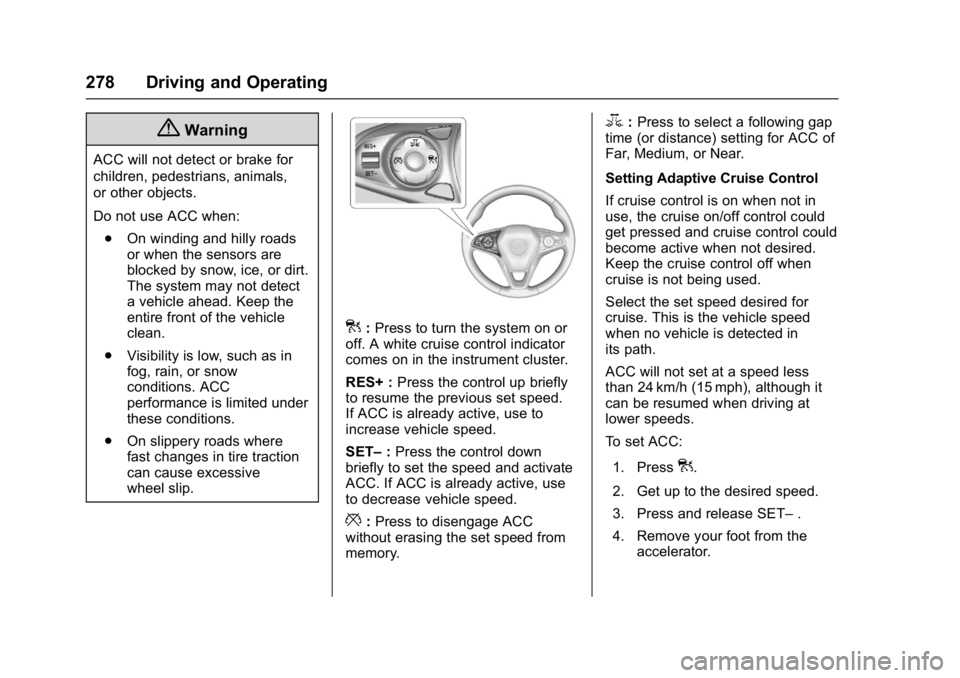
]:Press to turn the system on or
off. A white cruise control indicator
comes on in the instrument cluster.
RES+ : Press the control up briefly
to resume the previous set speed.
If ACC is already active, use to
increase vehicle speed.
SET– :Press the control down
briefly to set the speed and activate
ACC. If ACC is already active, use
to decrease vehicle speed.
*: Press to disengage ACC
without erasing the set speed from
memory.
3: Press to select a following gap
time (or distance) setting for ACC of
Far, Medium, or Near.
Setting Adaptive Cruise Control
If cruise control is on when not in
use, the cruise on/off control could
get pressed and cruise control could
become active when not desired.
Keep the cruise control off when
cruise is not being used.
Select the set speed desired for
cruise. This is the vehicle speed
when no vehicle is detected in
its path.
ACC will not set at a speed less
than 24 km/h (15 mph), although it
can be resumed when driving at
lower speeds.
To set ACC:
1. Press
].
2. Get up to the desired speed.
3. Press and release SET– .
4. Remove your foot from the accelerator.
Page 280 of 432

Buick Envision Owner Manual (GMNA-Localizing-U.S./Canada/Mexico-
8534310) - 2016 - crc - 2/29/16
Driving and Operating 279
After ACC is set, it may immediately
apply the brakes if a vehicle ahead
is detected closer than the selected
following gap.
The ACC indicator displays in the
instrument cluster and Head-Up
display (HUD), if equipped. When
the ACC is active, the indicator
turns green.
Be mindful of speed limits,
surrounding traffic speeds, and
weather conditions when selecting
the set speed.
Resuming a Set Speed
If the ACC is set at a desired speed
and then the brakes are applied, the
ACC is disengaged without erasing
the set speed from memory.
To begin using ACC again, press
RES+ up briefly. The vehicle returns
to the previous set speed.Increasing Speed While ACC is at
a Set Speed
If ACC is already activated, do one
of the following:
.
Use the accelerator to get to the
higher speed. Press SET– down.
Release the control and the
accelerator pedal. The vehicle
will now cruise at the higher
speed.
When the accelerator pedal is
pressed, ACC will not brake
because it is overridden.
A warning message will appear
on the Driver Information Center
(DIC) and HUD, if equipped. See
Cruise Control Messages 0137.
. Press and hold RES+ up until
the desired set speed appears
on the display, then release it.
. To increase vehicle speed in
small increments, press RES+
up briefly. For each press, the
vehicle goes 1 km/h (1 mph)
faster. When it is determined that there is
no vehicle ahead inside the selected
following gap, then the vehicle
speed will increase to the set speed.
Reducing Speed While ACC is at a
Set Speed
If ACC is already activated, do one
of the following:
.
Use the brake to get to the
desired lower speed. Press
SET– down and release the
accelerator pedal. The vehicle
will now cruise at the lower
speed.
. Press and hold SET– down until
the desired lower speed is
reached, then release it.
. To decrease the vehicle speed in
smaller increments, press SET−
down briefly. For each press, the
vehicle goes about 1 km/h
(1 mph) slower.
Selecting the Follow Distance
When a slower moving vehicle is
detected ahead within the selected
following gap, ACC will adjust the
Page 282 of 432
Buick Envision Owner Manual (GMNA-Localizing-U.S./Canada/Mexico-
8534310) - 2016 - crc - 2/29/16
Driving and Operating 281
speed increases or decreases to
follow the vehicle in front of you, but
will not exceed the set speed. It may
apply limited braking, if necessary.
When braking is active, the brake
lamps will come on. The automatic
braking may feel or sound different
than if the brakes were applied
manually. This is normal.
Stationary or Very Slow-Moving
Objects
{Warning
Adaptive Cruise Control (ACC)
may not detect and react to
stopped or slow-moving vehicles
ahead of you. For example, the
system may not brake for a
vehicle it has never detected
moving. This can occur in
stop-and-go traffic or when a
vehicle suddenly appears due to
a vehicle ahead changing lanes.
Your vehicle may not stop and
could cause a crash. Use caution
when using ACC. Your complete
attention is always required while(Continued)
Warning (Continued)
driving and you should be ready
to take action and apply the
brakes.
ACC Automatically Disengages
ACC may automatically disengage
and the driver will need to manually
apply the brakes to slow the
vehicle when:
. The sensors are blocked.
. The Traction Control System
(TCS) or electronic stability
control system has activated or
been disabled.
. No traffic or other objects are
being detected.
. There is a fault in the system.
A message will appear on the DIC
indicating that ACC is disengaging.
The ACC active indicator will not be
displayed when ACC is no longer
active. Notification to Resume ACC
ACC will maintain a follow gap
behind a detected vehicle and slow
your vehicle to a stop behind that
vehicle.
If the stopped vehicle ahead has
driven away and ACC has not
resumed, the vehicle ahead
indicator will flash as a reminder to
check traffic before proceeding. In
addition, three beeps will sound.
See
“Go Notifier” in“Collision/
Detection Systems” underVehicle
Personalization 0146.
When the vehicle ahead drives
away, press RES+ or the
accelerator pedal to resume ACC.
If stopped for more than
two minutes or if the driver door is
opened and the driver safety belt is
unbuckled, the ACC automatically
applies the Electric Parking Brake
(EPB) to hold the vehicle. The EPB
status light will turn on. See Electric
Parking Brake 0271. To release the
EPB, press the accelerator pedal.
Page 283 of 432
Buick Envision Owner Manual (GMNA-Localizing-U.S./Canada/Mexico-
8534310) - 2016 - crc - 2/29/16
282 Driving and Operating
A DIC warning message may
display indicating to shift to P (Park)
before exiting the vehicle. See
Cruise Control Messages0137.
{Warning
If ACC has stopped the vehicle,
and if ACC is disengaged, turned
off, or canceled, the vehicle will
no longer be held at a stop. The
vehicle can move. When ACC is
holding the vehicle at a stop,
always be prepared to manually
apply the brakes.
{Warning
Leaving the vehicle without
placing it in P (Park) can be
dangerous. Do not leave the
vehicle while it is being held at a
stop by ACC. Always place the
vehicle in P (Park) and turn off
the ignition before leaving the
vehicle. ACC Override
If using the accelerator pedal while
ACC is active, a warning message
in the DIC and in the HUD,
if equipped, will indicate that
automatic braking will not occur.
See
Cruise Control Messages
0 137. ACC will resume operation
when the accelerator pedal is not
being pressed.
{Warning
The ACC will not automatically
apply the brakes if your foot is
resting on the accelerator pedal.
You could crash into a vehicle
ahead of you.
Curves in the Road
{Warning
On curves, ACC may not detect a
vehicle ahead in your lane. You
could be startled if the vehicle
accelerates up to the set speed, (Continued)
Warning (Continued)
especially when following a
vehicle exiting or entering exit
ramps. You could lose control of
the vehicle or crash. Do not use
ACC while driving on an entrance
or exit ramp. Always be ready to
use the brakes if necessary.
{Warning
On curves, ACC may respond to
a vehicle in another lane, or may
not have time to react to a vehicle
in your lane. You could crash into
a vehicle ahead of you, or lose
control of your vehicle. Give extra
attention in curves and be ready
to use the brakes if necessary.
Select an appropriate speed while
driving in curves.
ACC may operate differently in a
sharp curve. It may reduce the
vehicle speed if the curve is too
sharp.
Page 285 of 432
![BUICK ENVISION 2016 Owners Guide Buick Envision Owner Manual (GMNA-Localizing-U.S./Canada/Mexico-
8534310) - 2016 - crc - 2/29/16
284 Driving and Operating
Erasing Speed Memory
The cruise control set speed is
erased from memory if
]i](/img/43/35301/w960_35301-284.png "BUICK ENVISION 2016 Owners Guide Buick Envision Owner Manual (GMNA-Localizing-U.S./Canada/Mexico-
8534310) - 2016 - crc - 2/29/16
284 Driving and Operating
Erasing Speed Memory
The cruise control set speed is
erased from memory if
]i")
Buick Envision Owner Manual (GMNA-Localizing-U.S./Canada/Mexico-
8534310) - 2016 - crc - 2/29/16
284 Driving and Operating
Erasing Speed Memory
The cruise control set speed is
erased from memory if
]is
pressed or if the ignition is
turned off.
Cleaning the Sensing System
The camera sensor on the
windshield ahead of the rearview
mirror and the radar sensors on the
front of the vehicle can become
blocked by snow, ice, dirt, or mud.
These areas need to be cleaned for
ACC to operate properly.
For cleaning instructions, see
“Washing the Vehicle” under
Exterior Care 0371.
System operation may also be
limited under snow, heavy rain,
or road spray conditions.
Driver Assistance
Systems
This vehicle may have features that
work together to help avoid crashes
or reduce crash damage while
driving, backing, and parking. Read
this entire section before using
these systems.
{Warning
Do not rely on the Driver
Assistance Systems. These
systems do not replace the need
for paying attention and driving
safely. You may not hear or feel
alerts or warnings provided by
these systems. Failure to use
proper care when driving may
result in injury, death, or vehicle
damage. See Defensive
Driving 0249.
(Continued)
Warning (Continued)
Under many conditions, these
systems will not:
. Detect children,
pedestrians, bicyclists,
or animals.
. Detect vehicles or objects
outside the area monitored
by the system.
. Work at all driving speeds.
. Warn you or provide you
with enough time to avoid a
crash.
. Work under poor visibility or
bad weather conditions.
. Work if the detection sensor
is not cleaned or is covered
by ice, snow, mud, or dirt.
Complete attention is always
required while driving, and you
should be ready to take action
and apply the brakes and/or steer
the vehicle to avoid crashes.
Page 291 of 432

Buick Envision Owner Manual (GMNA-Localizing-U.S./Canada/Mexico-
8534310) - 2016 - crc - 2/29/16
290 Driving and Operating
Forward Collision Alert
(FCA) System
If equipped, the FCA system may
help to avoid or reduce the harm
caused by front-end crashes. When
approaching a vehicle ahead too
quickly, FCA provides a red flashing
alert on the windshield and rapidly
beeps or pulses the driver seat.
FCA also lights an amber visual
alert if following another vehicle
much too closely.
FCA detects vehicles within a
distance of approximately 60 m
(197 ft) and operates at speeds
above 40 km/h (25 mph). If the
vehicle has Adaptive Cruise Control
(ACC), it can detect vehicles to
distances of approximately 110 m
(360 ft) and operates at all speeds.
SeeAdaptive Cruise Control 0277.
{Warning
FCA is a warning system and
does not apply the brakes. When
approaching a slower-moving or
(Continued)
Warning (Continued)
stopped vehicle ahead too rapidly,
or when following a vehicle too
closely, FCA may not provide a
warning with enough time to help
avoid a crash. It also may not
provide any warning at all. FCA
does not warn of pedestrians,
animals, signs, guardrails,
bridges, construction barrels,
or other objects. Be ready to take
action and apply the brakes. See
Defensive Driving0249.
FCA can be disabled with the FCA
steering wheel control, or if your
vehicle is equipped with Adaptive
Cruise Control (ACC), through
vehicle personalization. See the
“Auto Collision Preparation” portion
of “Collision/Detection Systems”
under Vehicle
Personalization 0146.
Detecting the Vehicle Ahead
FCA warnings will not occur unless
the FCA system detects a vehicle
ahead. When a vehicle is detected,
the vehicle ahead indicator will
display green. Vehicles may not be
detected on curves, highway exit
ramps, or hills, due to poor visibility;
or if a vehicle ahead is partially
blocked by pedestrians or other
objects. FCA will not detect another
vehicle ahead until it is completely
in the driving lane.
{Warning
FCA does not provide a warning
to help avoid a crash, unless it
detects a vehicle. FCA may not
detect a vehicle ahead if the FCA
sensor is blocked by dirt, snow,
(Continued)
Page 292 of 432

Buick Envision Owner Manual (GMNA-Localizing-U.S./Canada/Mexico-
8534310) - 2016 - crc - 2/29/16
Driving and Operating 291
Warning (Continued)
or ice, or if the windshield is
damaged. It may also not detect a
vehicle on winding or hilly roads,
or in conditions that can limit
visibility such as fog, rain,
or snow, or if the headlamps or
windshield are not cleaned or in
proper condition. Keep the
windshield, headlamps, and FCA
sensors clean and in good repair.
Collision Alert
With Head-Up Display
Without Head-Up Display
When your vehicle approaches
another detected vehicle too rapidly,
the red FCA display will flash on the
windshield. Also, eight rapid
high-pitched beeps will sound from
the front, or both sides of the Safety
Alert Seat will pulse five times.
When this Collision Alert occurs, the
brake system may prepare for driver
braking to occur more rapidly which
can cause a brief, mild deceleration.
Continue to apply the brake pedal
as needed. Cruise control may be
disengaged when the Collision Alert
occurs. Tailgating Alert
The vehicle ahead indicator will
display amber when you are
following a detected vehicle ahead
much too closely.
Selecting the Alert Timing
The Collision Alert control is on the
steering wheel. Press
3or[to
set the FCA timing to Far, Medium,
or Near, or on some vehicles, Off.
The first button press shows the
current setting on the Driver
Information Center (DIC). Additional
button presses will change this
setting. The chosen setting will
remain until it is changed and will
affect the timing of both the Collision
Alert and the Tailgating Alert
features. The timing of both alerts
will vary based on vehicle speed.
The faster the vehicle speed, the
farther away the alert will occur.