instrument cluster BUICK ENVISION 2016 Owner's Guide
[x] Cancel search | Manufacturer: BUICK, Model Year: 2016, Model line: ENVISION, Model: BUICK ENVISION 2016Pages: 432, PDF Size: 5.68 MB
Page 160 of 432

Buick Envision Owner Manual (GMNA-Localizing-U.S./Canada/Mexico-
8534310) - 2016 - crc - 2/29/16
Lighting 159
Hazard Warning Flashers
|:Press this button to make the
front and rear turn signal lamps
flash on and off. Press again to turn
the flashers off.
The hazard warning flashers turn on
automatically if the airbags deploy.
Turn and Lane-Change
Signals
Move the lever all the way up or
down to signal a turn.
An arrow on the instrument cluster
flashes in the direction of the turn or
lane change.
Raise or lower the lever until the
arrow starts to flash to signal a lane
change. Hold it there until the lane
change is completed. If the lever is
briefly pressed and released, the
turn signal flashes three times. The turn and lane-change signal
can be turned off manually by
moving the lever back to its original
position.
If after signaling a turn or lane
change, the arrow flashes rapidly or
does not come on, a signal bulb
may be burned out.
Replace any burned out bulbs. If a
bulb is not burned out, check the
fuse. See
Fuses and Circuit
Breakers 0333.
Page 161 of 432

Buick Envision Owner Manual (GMNA-Localizing-U.S./Canada/Mexico-
8534310) - 2016 - crc - 2/29/16
160 Lighting
Fog Lamps
The ignition and the parking lamps
or headlamps must be on for the
front fog lamps to work.
#:If equipped, press to turn on or
off. An indicator light on the
instrument cluster comes on when
the fog lamps are on.
Some localities have laws that
require the headlamps to be on
along with the fog lamps.
Interior Lighting
Instrument Panel
Illumination Control
The brightness of the instrument
panel lighting and steering wheel
controls can be adjusted.
D: Move and hold the thumbwheel
up or down to brighten or dim the
lights.
Courtesy Lamps
The courtesy lamps come on when
any door is opened and the dome
lamp is in the
1position.
Dome Lamps
The dome lamp is in the overhead
console.
To change the dome lamp settings,
press:
*: Turns the lamp off, even when
a door is open.
1: The lamp comes on when a
door is opened.
+: Turns the lamp on.
Page 165 of 432
Buick Envision Owner Manual (GMNA-Localizing-U.S./Canada/Mexico-
8534310) - 2016 - crc - 2/29/16
164 Infotainment System
Introduction
Overview
Introduction
Read the following pages to
become familiar with the
infotainment system features.
{Warning
Taking your eyes off the road for
too long or too often while using
any infotainment feature can
cause a crash. You or others
could be injured or killed. Do not
give extended attention to
infotainment tasks while driving.
Limit your glances at the vehicle
displays and focus your attention
on driving. Use voice commands
whenever possible.The infotainment system has built-in
features intended to help avoid
distraction by disabling some
functions when driving. These
functions may gray out when they
are unavailable. Many infotainment
features are also available through
the instrument cluster and steering
wheel controls.
Before driving:
.
Become familiar with the
operation, faceplate buttons, and
screen buttons.
. Set up the audio by presetting
favorite stations, setting the
tone, and adjusting the
speakers. .
Set up phone numbers in
advance so they can be called
easily by pressing a single
button or by using a single voice
command if equipped with
Bluetooth phone capability.
See Defensive Driving 0249.
To play the infotainment system with
the ignition off, see Retained
Accessory Power (RAP) 0264.
Page 194 of 432
Buick Envision Owner Manual (GMNA-Localizing-U.S./Canada/Mexico-
8534310) - 2016 - crc - 2/29/16
Infotainment System 193
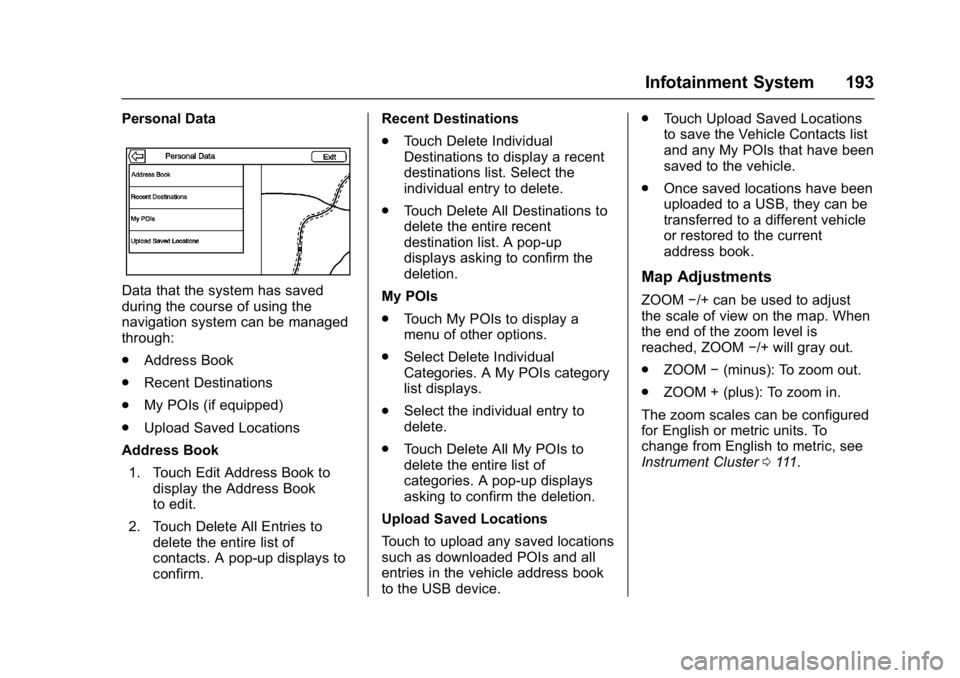
Personal Data
Data that the system has saved
during the course of using the
navigation system can be managed
through:
.Address Book
. Recent Destinations
. My POIs (if equipped)
. Upload Saved Locations
Address Book
1. Touch Edit Address Book to display the Address Book
to edit.
2. Touch Delete All Entries to delete the entire list of
contacts. A pop-up displays to
confirm. Recent Destinations
.
Touch Delete Individual
Destinations to display a recent
destinations list. Select the
individual entry to delete.
. Touch Delete All Destinations to
delete the entire recent
destination list. A pop-up
displays asking to confirm the
deletion.
My POIs
. Touch My POIs to display a
menu of other options.
. Select Delete Individual
Categories. A My POIs category
list displays.
. Select the individual entry to
delete.
. Touch Delete All My POIs to
delete the entire list of
categories. A pop-up displays
asking to confirm the deletion.
Upload Saved Locations
Touch to upload any saved locations
such as downloaded POIs and all
entries in the vehicle address book
to the USB device. .
Touch Upload Saved Locations
to save the Vehicle Contacts list
and any My POIs that have been
saved to the vehicle.
. Once saved locations have been
uploaded to a USB, they can be
transferred to a different vehicle
or restored to the current
address book.Map Adjustments
ZOOM −/+ can be used to adjust
the scale of view on the map. When
the end of the zoom level is
reached, ZOOM −/+ will gray out.
. ZOOM −(minus): To zoom out.
. ZOOM + (plus): To zoom in.
The zoom scales can be configured
for English or metric units. To
change from English to metric, see
Instrument Cluster 0111.
Page 217 of 432
Buick Envision Owner Manual (GMNA-Localizing-U.S./Canada/Mexico-
8534310) - 2016 - crc - 2/29/16
216 Infotainment System
manual controls, pressqBACK on
the faceplate, or touch the Back
screen button to try again.”
If manual selection takes more than
15 seconds, the session terminates
and prompts that it has timed out.
The screen returns to the screen
where voice recognition was
initiated.
The Back Command
Say “Back” or press
qBACK on the
faceplate, or touch the Back screen
button to go to the previous screen.
If in voice recognition, and “Back”is
stated all the way through to the
initial screen, then “Back”is stated
one more time, the voice recognition
session will cancel.
Help
Say “Help” on any voice recognition
screen and the help prompt for the
screen is played. Additionally, a
pop-up displays a text version of the
help prompt. Depending on how
voice recognition was initiated, the
Help pop-up will either display on
the instrument cluster or the infotainment touchscreen. Press the
Dismiss button to make the pop-up
go away.
Pressing
gwhile the help prompt is
playing will terminate the prompt
and a beep will be heard. Doing this
will stop the help prompt so that a
voice command can be used.
Voice Recognition for the
Radio
All audio screens have a voice
recognition button (
g) to launch
audio voice recognition. If the voice
button is touched in a radio screen,
the voice commands for radio and
media features are available.
“Switch to AM” :Switch bands to
AM and tune to the last AM radio
station.
“Switch to FM” :Switch bands to
FM and tune to the last FM radio
station.
“Switch to XM” :Switch bands to
XM and tune to the last XM channel. “Tune to
:
Tune to the radio station whose
frequency is identified in the
command (like “nine fifty”).
“Tune to
Tune to the radio station whose
frequency is identified in the
command (like “one oh one
point one”).
“Tune to XM
station whose channel number is
identified in the command.
“Tune to XM
station whose channel name is
identified in the command.
Voice Recognition for Audio
My Media
If browsing My Media when the
voice button is selected, the voice
recognition commands for My Media
features are available.
“Play Artist” :Begin a dialog to
enter a specific artist name.
Page 228 of 432
Buick Envision Owner Manual (GMNA-Localizing-U.S./Canada/Mexico-
8534310) - 2016 - crc - 2/29/16
Infotainment System 227
Settings
The Settings Menu allows
adjustment of different vehicle and
radio features. The menu may
contain the following:
Time and Date
Touch«orªto increase or
decrease hours, minutes, and AM or
PM. Touch 12Hr or 24Hr for 12 or
24 hour clock. Touch
«orªto
increase or decrease month, day,
or year. See Clock0107.
Language (Language)
This will set the display language in
the radio, instrument cluster, and
voice recognition. Touch Language
and select the appropriate
language. Press
qBACK on the
faceplate or touch the Back screen
button to go back to the
previous menu.
Valet Mode (If Equipped)
This will lock the infotainment
system and steering wheel controls.
It may also limit top speed, power,
and access to vehicle storage
locations (if equipped).
To enable valet mode:
1. Enter a four-digit code on the keypad.
2. Touch Enter to go to the confirmation screen.
3. Re-enter the four-digit code.
Touch LOCK or UNLOCK to lock or
unlock the system. Press
qBACK
on the faceplate or touch the Back
screen button to go back to the
previous menu.
Radio
Touch to display the Radio Menu
and the following may display:
. Manage Favorites: Touch to
highlight a favorite to edit. Touch
Rename to rename the favorite
or Delete to delete it. Touch and hold the station to drag it to a
new location. Touch Done to go
back to the previous menu.
. Number of Favorites Shown:
Touch to set the number of
favorites to display. Select Auto,
5, 10, 15, 20, 25, 30, 35, 40, 45,
50, 55, or 60. Auto will adjust the
number of favorite locations that
can be seen. Press
qBACK on
the faceplate or touch the Back
screen button to go back to the
previous menu.
. Auto Cue Volume: If equipped,
this feature adjusts the volume
based on the vehicle speed. See
AM-FM Radio 0170.
. Maximum Startup Volume: This
feature sets the maximum
startup volume. If the vehicle is
started and the volume is
greater than this level, the
volume is adjusted to this level.
To set the maximum startup
volume, touch + or −to increase
or decrease. Press
qBACK on
the faceplate or touch the Back
screen button to go back to the
previous menu.
Page 230 of 432
Buick Envision Owner Manual (GMNA-Localizing-U.S./Canada/Mexico-
8534310) - 2016 - crc - 2/29/16
Infotainment System 229
.Turn Off Display: Touch to turn
the display off. Touch anywhere
on the display area or press any
faceplate button again to turn
the display on.
Rear Camera
Touch to display the Rear Camera
menu. See Driver Assistance
Systems 0284.
Return to Factory Settings
Touching Continue restores all
factory settings.
Select Return to Factory Settings
and the following list may display:
.
Restore Vehicle Settings:
Restores factory vehicle
personalization settings. Touch
Restore Vehicle Settings. Touch
Cancel or Continue. If Continue
is touched, a confirmation
pop-up will appear indicating the
vehicle settings have been
restored.
. Clear All Private Data: Clears all
private information. Touch Clear
All Private Data. Touch Cancel
or Continue. If Continue is touched, a confirmation pop-up
will appear indicating all private
data has been cleared from the
system.
. Restore Radio Settings:
Restores factory radio settings.
Touch Restore Radio Settings.
Touch Cancel or Continue.
If continue is touched, a
confirmation pop-up will appear
indicating the radio settings have
been restored.
PressqBACK on the faceplate or
touch the Back screen button to go
back to the main settings menu.
English and Metric Unit
Conversion
To change the display units between
English and metric units, see
Instrument Cluster 0111.
Trademarks and
License Agreements
FCC Information
See Radio Frequency
Statement 0406.
"Made for iPod," and "Made for
iPhone," mean that an electronic
accessory has been designed to
connect specifically to iPod or
iPhone, respectively, and has been
certified by the developer to meet
Apple performance standards.
Apple is not responsible for the
operation of this device or its
compliance with safety and
regulatory standards. Please note
that the use of this accessory with
iPod or iPhone may affect wireless
performance. iPhone
®, iPod®, iPod
classic®, iPod nano®, iPod shuffle®,
Page 275 of 432

Buick Envision Owner Manual (GMNA-Localizing-U.S./Canada/Mexico-
8534310) - 2016 - crc - 2/29/16
274 Driving and Operating
The indicator light for both systems
is in the instrument cluster. This
light will:
.Flash when TCS is limiting
wheel spin.
. Flash when StabiliTrak is
activated.
. Turn on and stay on when either
system is not working.
If either system fails to turn on or to
activate,
dcomes on and stays on
to indicate that the system is
inactive and is not assisting the
driver in maintaining control.
A message also displays in the
Driver Information Center (DIC).
See Ride Control System Messages
0 143. The vehicle is safe to drive,
but driving should be adjusted
accordingly. If
dcomes on and stays on:
1. Stop the vehicle.
2. Turn the engine off and wait 15 seconds.
3. Start the engine.
Drive the vehicle. If
dcomes on
and stays on, the vehicle may need
more time to diagnose the problem.
If the condition persists, see your
dealer.
Turning the Systems Off
and On
The button for TCS and StabiliTrak
is on the center console.
Caution
Do not repeatedly brake or
accelerate heavily when TCS is
off. The vehicle driveline could be
damaged.
To turn off only TCS, press and
release the
gbutton. The traction
off light
iilluminates in the
instrument cluster.
To turn TCS on again, press and
release the
gbutton. The traction
off light
iin the instrument cluster
will turn off.
If TCS is limiting wheel spin when
the
gbutton is pressed, the system
will not turn off until the wheels stop
spinning.
To turn off both TCS and StabiliTrak,
press and hold the
gbutton until
the traction off light
iand
StabiliTrak OFF light
gilluminate
and stay on in the instrument
cluster.
Page 276 of 432

Buick Envision Owner Manual (GMNA-Localizing-U.S./Canada/Mexico-
8534310) - 2016 - crc - 2/29/16
Driving and Operating 275
To turn TCS and StabiliTrak on
again, press and release the
g
button. The traction off lightiand
StabiliTrak OFF light
gin the
instrument cluster turn off.
Adding accessories can affect the
vehicle performance. See
Accessories and
Modifications 0310.
Cruise Control
With cruise control the vehicle can
maintain a speed of about 40 km/h
(25 mph) or more without keeping
your foot on the accelerator. Cruise
control does not work at speeds
below 40 km/h (25 mph).
{Warning
Cruise control can be dangerous
where you cannot drive safely at
a steady speed. Do not use
cruise control on winding roads or
in heavy traffic.
Cruise control can be dangerous
on slippery roads. On such roads,
fast changes in tire traction can
cause excessive wheel slip, and
you could lose control. Do not use
cruise control on slippery roads.
With the Traction Control
System (TCS), the system may
begin to limit wheel spin while you
are using cruise control. If this
happens, the cruise control will automatically disengage. See
Traction Control/Electronic Stability
Control
0273. If a collision alert
occurs when cruise control is
activated, cruise control is
disengaged. See Forward Collision
Alert (FCA) System 0290. When
road conditions allow you to safely
use it again, cruise control can be
turned back on.
If the brakes are applied, cruise
control disengages.
5: Press to turn cruise control on
or off. A white indicator comes on in
the instrument cluster when cruise
control is turned on.
Page 277 of 432

Buick Envision Owner Manual (GMNA-Localizing-U.S./Canada/Mexico-
8534310) - 2016 - crc - 2/29/16
276 Driving and Operating
RES+ :If there is a set speed in
memory, press briefly to resume to
that speed or press and hold to
accelerate. If cruise control is
already active, use to increase
vehicle speed.
SET− :Press the control down
briefly to set the speed and activate
cruise control. If cruise control is
already active, use to decrease
vehicle speed.
*: Press to disengage cruise
control without erasing the set
speed from memory.
Setting Cruise Control
If the
5button is on when not in
use, SET– or RES+ could get
pressed and go into cruise when not
desired. Keep the
5button off
when cruise is not being used.
1. Press
5to turn the cruise
system on.
2. Get to the desired speed.
3. Press and release SET– . The
desired set speed briefly
appears in the instrument
cluster. 4. Remove your foot from the
accelerator pedal.
The cruise control indicator on the
instrument cluster turns green after
cruise control has been set to the
desired speed. See Instrument
Cluster 0111.
Resuming a Set Speed
If the cruise control is set at a
desired speed and then the brakes
are applied or
*is pressed, the
cruise control is disengaged without
erasing the set speed from memory.
Once the vehicle reaches about
40 km/h (25 mph) or more, press
RES+ up briefly. The vehicle returns
to the previous set speed.
Increasing Speed While Using
Cruise Control
If the cruise control system is
already activated:
. Press and hold RES+ up until
the vehicle accelerates to the
desired speed, then release it. .
To increase vehicle speed in
small increments, press RES+
up briefly. For each press, the
vehicle goes about 1.6 km/h
(1 mph) faster.
Reducing Speed While Using
Cruise Control
If the cruise control system is
already activated:
. Press and hold SET– down until
the desired lower speed is
reached, then release it.
. To decrease the vehicle speed in
small increments, press SET–
down briefly. For each press, the
vehicle goes about 1.6 km/h
(1 mph) slower.
Passing Another Vehicle While
Using Cruise Control
Use the accelerator pedal to
increase the vehicle speed. When
you take your foot off the pedal, the
vehicle will slow down to the
previously set cruise speed. While
pressing the accelerator pedal or
shortly following the release to