light BUICK ENVISION 2016 Repair Manual
[x] Cancel search | Manufacturer: BUICK, Model Year: 2016, Model line: ENVISION, Model: BUICK ENVISION 2016Pages: 432, PDF Size: 5.68 MB
Page 158 of 432
Buick Envision Owner Manual (GMNA-Localizing-U.S./Canada/Mexico-
8534310) - 2016 - crc - 2/29/16
Lighting 157
.The vehicle's windshield is dirty,
cracked, or obstructed by
something that blocks the view
of the light sensor.
. The vehicle is loaded such that
the front end points upward,
causing the light sensor to aim
high and not detect headlamps
and taillamps.
. Driving on winding or hilly roads.
The automatic high-beam
headlamps may need to be disabled
if any of the above conditions exist.
Exterior Lamps Off
Reminder
A warning chime sounds if the driver
door is opened while the ignition is
off and the exterior lamps are on.
Headlamp High/
Low-Beam Changer
3
: Push the turn signal lever away
from you and release, to turn the
high beams on. To return to low
beams, push the lever again or pull
it toward you and release.
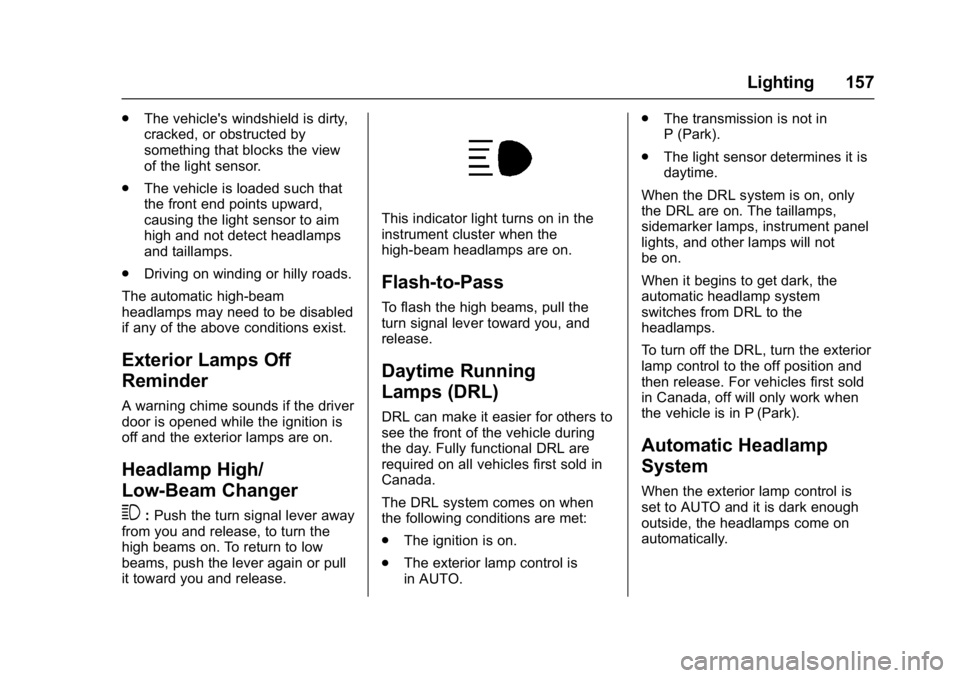
This indicator light turns on in the
instrument cluster when the
high-beam headlamps are on.
Flash-to-Pass
To flash the high beams, pull the
turn signal lever toward you, and
release.
Daytime Running
Lamps (DRL)
DRL can make it easier for others to
see the front of the vehicle during
the day. Fully functional DRL are
required on all vehicles first sold in
Canada.
The DRL system comes on when
the following conditions are met:
. The ignition is on.
. The exterior lamp control is
in AUTO. .
The transmission is not in
P (Park).
. The light sensor determines it is
daytime.
When the DRL system is on, only
the DRL are on. The taillamps,
sidemarker lamps, instrument panel
lights, and other lamps will not
be on.
When it begins to get dark, the
automatic headlamp system
switches from DRL to the
headlamps.
To turn off the DRL, turn the exterior
lamp control to the off position and
then release. For vehicles first sold
in Canada, off will only work when
the vehicle is in P (Park).
Automatic Headlamp
System
When the exterior lamp control is
set to AUTO and it is dark enough
outside, the headlamps come on
automatically.
Page 159 of 432

Buick Envision Owner Manual (GMNA-Localizing-U.S./Canada/Mexico-
8534310) - 2016 - crc - 2/29/16
158 Lighting
There is a light sensor on top of the
instrument panel. Do not cover the
sensor; otherwise the headlamps
will come on when they are not
needed.
The system may also turn on the
headlamps when driving through a
parking garage or tunnel.
When it is bright enough outside,
the headlamps will turn off or may
change to Daytime Running
Lamps (DRL).
The automatic headlamp system
turns off when the exterior lamp
control is turned to
Oor the ignition
is off.
Lights On with Wipers
If the windshield wipers are
activated in daylight with the engine
on, and the exterior lamp control is
in AUTO, the headlamps, parking
lamps, and other exterior lamps
come on. The transition time for the
lamps coming on varies based on
wiper speed. When the wipers are
not operating, these lamps turn off.
Move the exterior lamp control to
O
or;to disable this feature.
Adaptive Forward
Lighting (AFL)
If equipped with the AFL System,
the headlamps pivot horizontally to
provide greater road illumination
while turning.
To enable AFL, set the exterior lamp
control to the AUTO position.
Moving the control out of AUTO will
deactivate the system. AFL will
operate when the vehicle speed is
greater than 3 km/h (2 mph). AFL
will not operate when the
transmission is in R (Reverse). AFL
is not immediately operable after starting the vehicle; driving a short
distance is required to calibrate the
AFL. See
Exterior Lamp
Controls 0155.
Headlamp Leveling
Control
Automatic Headlamp Leveling
If equipped, the level of the
headlamps is adjusted automatically
based on the vehicle load.
Headlamp aiming is important to
safe driving. If the headlamps
require aiming or the automatic
headlamp leveling system is
malfunctioning, see your dealer for
service.
Page 160 of 432

Buick Envision Owner Manual (GMNA-Localizing-U.S./Canada/Mexico-
8534310) - 2016 - crc - 2/29/16
Lighting 159
Hazard Warning Flashers
|:Press this button to make the
front and rear turn signal lamps
flash on and off. Press again to turn
the flashers off.
The hazard warning flashers turn on
automatically if the airbags deploy.
Turn and Lane-Change
Signals
Move the lever all the way up or
down to signal a turn.
An arrow on the instrument cluster
flashes in the direction of the turn or
lane change.
Raise or lower the lever until the
arrow starts to flash to signal a lane
change. Hold it there until the lane
change is completed. If the lever is
briefly pressed and released, the
turn signal flashes three times. The turn and lane-change signal
can be turned off manually by
moving the lever back to its original
position.
If after signaling a turn or lane
change, the arrow flashes rapidly or
does not come on, a signal bulb
may be burned out.
Replace any burned out bulbs. If a
bulb is not burned out, check the
fuse. See
Fuses and Circuit
Breakers 0333.
Page 161 of 432

Buick Envision Owner Manual (GMNA-Localizing-U.S./Canada/Mexico-
8534310) - 2016 - crc - 2/29/16
160 Lighting
Fog Lamps
The ignition and the parking lamps
or headlamps must be on for the
front fog lamps to work.
#:If equipped, press to turn on or
off. An indicator light on the
instrument cluster comes on when
the fog lamps are on.
Some localities have laws that
require the headlamps to be on
along with the fog lamps.
Interior Lighting
Instrument Panel
Illumination Control
The brightness of the instrument
panel lighting and steering wheel
controls can be adjusted.
D: Move and hold the thumbwheel
up or down to brighten or dim the
lights.
Courtesy Lamps
The courtesy lamps come on when
any door is opened and the dome
lamp is in the
1position.
Dome Lamps
The dome lamp is in the overhead
console.
To change the dome lamp settings,
press:
*: Turns the lamp off, even when
a door is open.
1: The lamp comes on when a
door is opened.
+: Turns the lamp on.
Page 162 of 432

Buick Envision Owner Manual (GMNA-Localizing-U.S./Canada/Mexico-
8534310) - 2016 - crc - 2/29/16
Lighting 161
Reading Lamps
There are reading lamps on the
overhead console and over the rear
passenger doors. These lamps
come on when any door is opened.
Front Reading Lamps
The reading lamps in the overhead
console are operated by touch.
Touch the lamp for dim light, touch
again for bright light, and touch
again to turn the light off.
Rear Reading Lamps
Press the lamp lens to turn the rear
passenger reading lamps on or off.
Lighting Features
Entry Lighting
Some exterior lamps and most of
the interior lights turn on briefly at
night, or in areas of limited lighting
when
Kis pressed on the Remote
Keyless Entry (RKE) transmitter.
See Remote Keyless Entry (RKE)
System Operation 026. When the
driver door is opened, all control
lights, Driver Information Center
(DIC) lights, and door pocket lights
turn on. After about 30 seconds the
exterior lamps turn off, then the
remaining interior lights dim to off.
Entry lighting can be disabled
manually by changing the ignition
out of the OFF position, or by
pressing
Qon the RKE transmitter.
This feature can be changed. See
“Vehicle Locator Lights” under
Vehicle Personalization 0146.
Page 163 of 432

Buick Envision Owner Manual (GMNA-Localizing-U.S./Canada/Mexico-
8534310) - 2016 - crc - 2/29/16
162 Lighting
Exit Lighting
Some exterior lamps and interior
lights come on at night, or in areas
with limited lighting, when the driver
door is opened after the ignition is
turned off. The dome lamp comes
on after the ignition is changed to
the OFF position. The exterior
lamps and dome lamp remain on for
a set amount of time, then
automatically turn off.
The exterior lamps turn off
immediately by turning the exterior
lamp control off.
This feature can be changed. See
Vehicle Personalization0146.
Battery Power Protection
The battery saver feature is
designed to protect the vehicle's
battery.
If some interior lamps are left on
and the ignition is turned off, the
battery rundown protection system
automatically turns the lamp off after
some time.
Exterior Lighting Battery
Saver
The exterior lamps turn off about
10 minutes after the ignition is
turned off, if the parking lamps or
headlamps have been manually left
on. This protects against draining
the battery. To restart the 10-minute
timer, turn the exterior lamp control
to the
Oposition and then back to
the
;or2position.
To keep the lamps on for more than
10 minutes, the ignition must be in
the ACC/ACCESSORY or ON/RUN/
START position.
Page 168 of 432
Buick Envision Owner Manual (GMNA-Localizing-U.S./Canada/Mexico-
8534310) - 2016 - crc - 2/29/16
Infotainment System 167
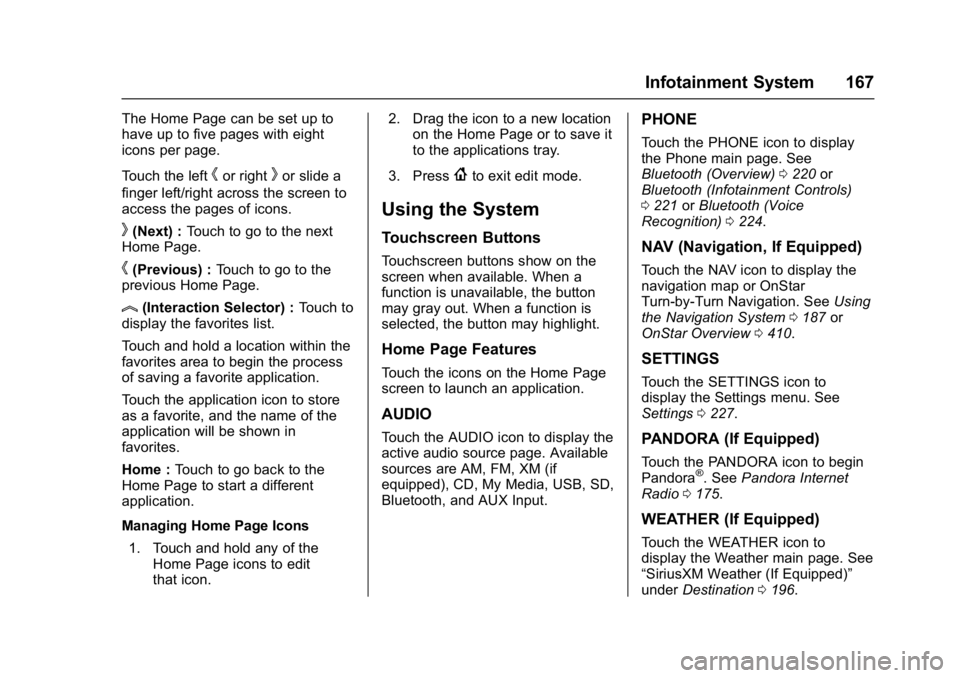
The Home Page can be set up to
have up to five pages with eight
icons per page.
Touch the left
hor rightkor slide a
finger left/right across the screen to
access the pages of icons.
k(Next) : Touch to go to the next
Home Page.
h(Previous) : Touch to go to the
previous Home Page.
l(Interaction Selector) : Touch to
display the favorites list.
Touch and hold a location within the
favorites area to begin the process
of saving a favorite application.
Touch the application icon to store
as a favorite, and the name of the
application will be shown in
favorites.
Home : Touch to go back to the
Home Page to start a different
application.
Managing Home Page Icons
1. Touch and hold any of the Home Page icons to edit
that icon. 2. Drag the icon to a new location
on the Home Page or to save it
to the applications tray.
3. Press
{to exit edit mode.
Using the System
Touchscreen Buttons
Touchscreen buttons show on the
screen when available. When a
function is unavailable, the button
may gray out. When a function is
selected, the button may highlight.
Home Page Features
Touch the icons on the Home Page
screen to launch an application.
AUDIO
Touch the AUDIO icon to display the
active audio source page. Available
sources are AM, FM, XM (if
equipped), CD, My Media, USB, SD,
Bluetooth, and AUX Input.
PHONE
Touch the PHONE icon to display
the Phone main page. See
Bluetooth (Overview) 0220 or
Bluetooth (Infotainment Controls)
0 221 orBluetooth (Voice
Recognition) 0224.
NAV (Navigation, If Equipped)
Touch the NAV icon to display the
navigation map or OnStar
Turn-by-Turn Navigation. See Using
the Navigation System 0187 or
OnStar Overview 0410.
SETTINGS
Touch the SETTINGS icon to
display the Settings menu. See
Settings 0227.
PANDORA (If Equipped)
Touch the PANDORA icon to begin
Pandora®. See Pandora Internet
Radio 0175.
WEATHER (If Equipped)
Touch the WEATHER icon to
display the Weather main page. See
“SiriusXM Weather (If Equipped)”
under Destination 0196.
Page 178 of 432
Buick Envision Owner Manual (GMNA-Localizing-U.S./Canada/Mexico-
8534310) - 2016 - crc - 2/29/16
Infotainment System 177
Pandora Features
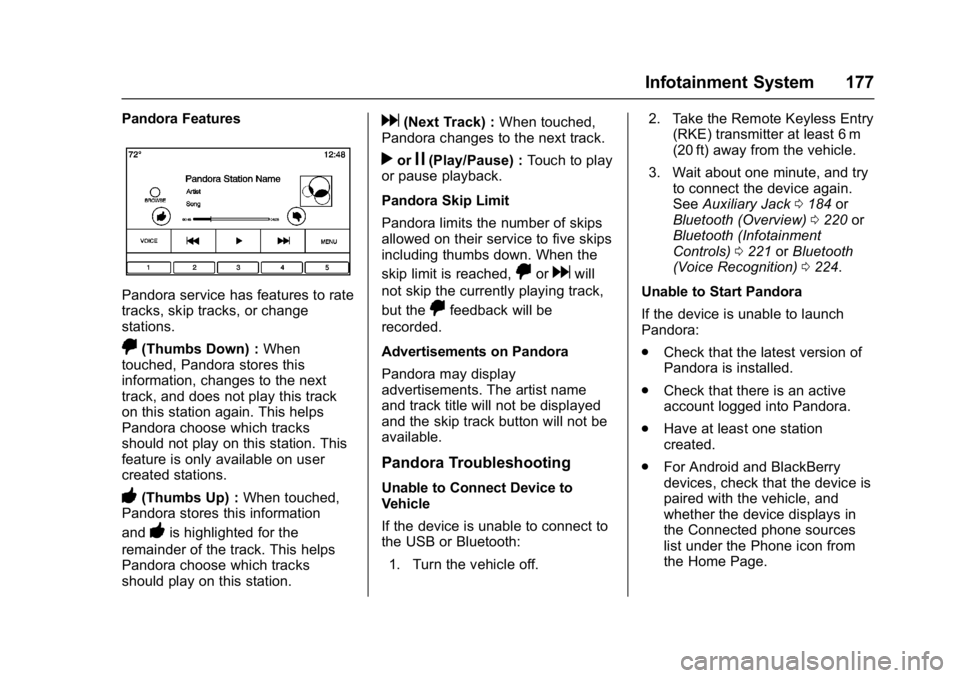
Pandora service has features to rate
tracks, skip tracks, or change
stations.
,(Thumbs Down) :When
touched, Pandora stores this
information, changes to the next
track, and does not play this track
on this station again. This helps
Pandora choose which tracks
should not play on this station. This
feature is only available on user
created stations.
-(Thumbs Up) : When touched,
Pandora stores this information
and
-is highlighted for the
remainder of the track. This helps
Pandora choose which tracks
should play on this station.
d(Next Track) : When touched,
Pandora changes to the next track.
rorj(Play/Pause) : Touch to play
or pause playback.
Pandora Skip Limit
Pandora limits the number of skips
allowed on their service to five skips
including thumbs down. When the
skip limit is reached,
,ordwill
not skip the currently playing track,
but the
,feedback will be
recorded.
Advertisements on Pandora
Pandora may display
advertisements. The artist name
and track title will not be displayed
and the skip track button will not be
available.
Pandora Troubleshooting
Unable to Connect Device to
Vehicle
If the device is unable to connect to
the USB or Bluetooth:
1. Turn the vehicle off. 2. Take the Remote Keyless Entry
(RKE) transmitter at least 6 m
(20 ft) away from the vehicle.
3. Wait about one minute, and try to connect the device again.
See Auxiliary Jack 0184 or
Bluetooth (Overview) 0220 or
Bluetooth (Infotainment
Controls) 0221 orBluetooth
(Voice Recognition) 0224.
Unable to Start Pandora
If the device is unable to launch
Pandora:
. Check that the latest version of
Pandora is installed.
. Check that there is an active
account logged into Pandora.
. Have at least one station
created.
. For Android and BlackBerry
devices, check that the device is
paired with the vehicle, and
whether the device displays in
the Connected phone sources
list under the Phone icon from
the Home Page.
Page 191 of 432
Buick Envision Owner Manual (GMNA-Localizing-U.S./Canada/Mexico-
8534310) - 2016 - crc - 2/29/16
190 Infotainment System
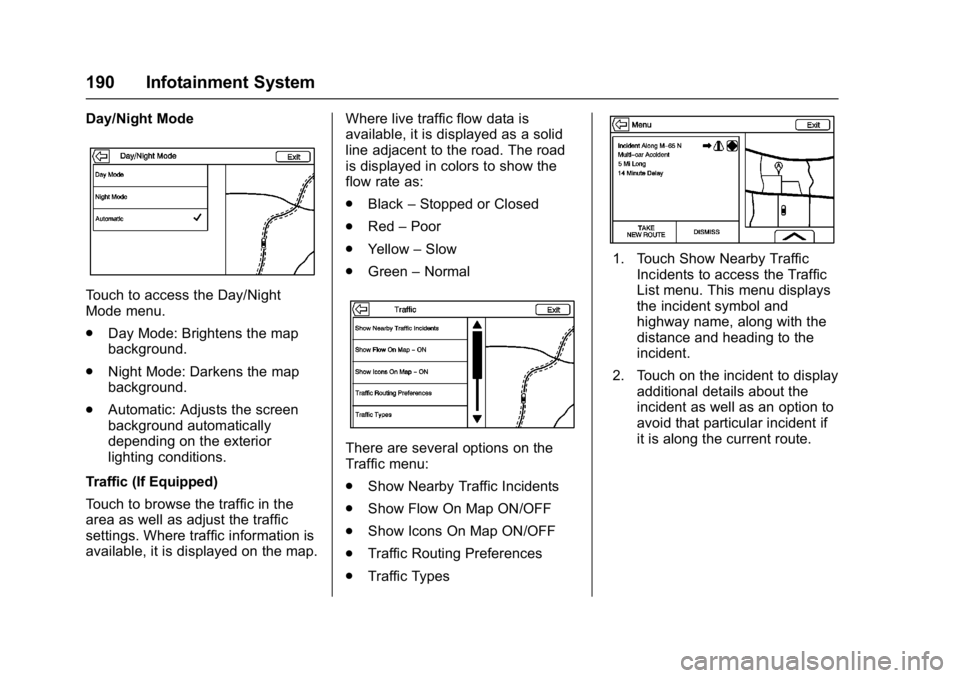
Day/Night Mode
Touch to access the Day/Night
Mode menu.
.Day Mode: Brightens the map
background.
. Night Mode: Darkens the map
background.
. Automatic: Adjusts the screen
background automatically
depending on the exterior
lighting conditions.
Traffic (If Equipped)
Touch to browse the traffic in the
area as well as adjust the traffic
settings. Where traffic information is
available, it is displayed on the map. Where live traffic flow data is
available, it is displayed as a solid
line adjacent to the road. The road
is displayed in colors to show the
flow rate as:
.
Black –Stopped or Closed
. Red –Poor
. Yellow –Slow
. Green –Normal
There are several options on the
Traffic menu:
.
Show Nearby Traffic Incidents
. Show Flow On Map ON/OFF
. Show Icons On Map ON/OFF
. Traffic Routing Preferences
. Traffic Types
1. Touch Show Nearby Traffic
Incidents to access the Traffic
List menu. This menu displays
the incident symbol and
highway name, along with the
distance and heading to the
incident.
2. Touch on the incident to display additional details about the
incident as well as an option to
avoid that particular incident if
it is along the current route.
Page 199 of 432
Buick Envision Owner Manual (GMNA-Localizing-U.S./Canada/Mexico-
8534310) - 2016 - crc - 2/29/16
198 Infotainment System
field. If the entire text field has been
deleted, this screen button becomes
an Undo button. Touching Undo will
restore the deleted text.
Exit :Touch to return to the
previous Map view.
Sym : Touch to show the symbol
keyboard.
Space : Touch to enter a space
between characters or the words of
a name.
R(Up Arrow) : Touch to display
the Interaction Selector.
E: If equipped, touch to switch
between Alpha-Numeric Keyboard
and Character Recognition.
Special Characters
As the characters are typed on the
keyboard, a pop-up of the letter
touched displays above the key that
was touched.
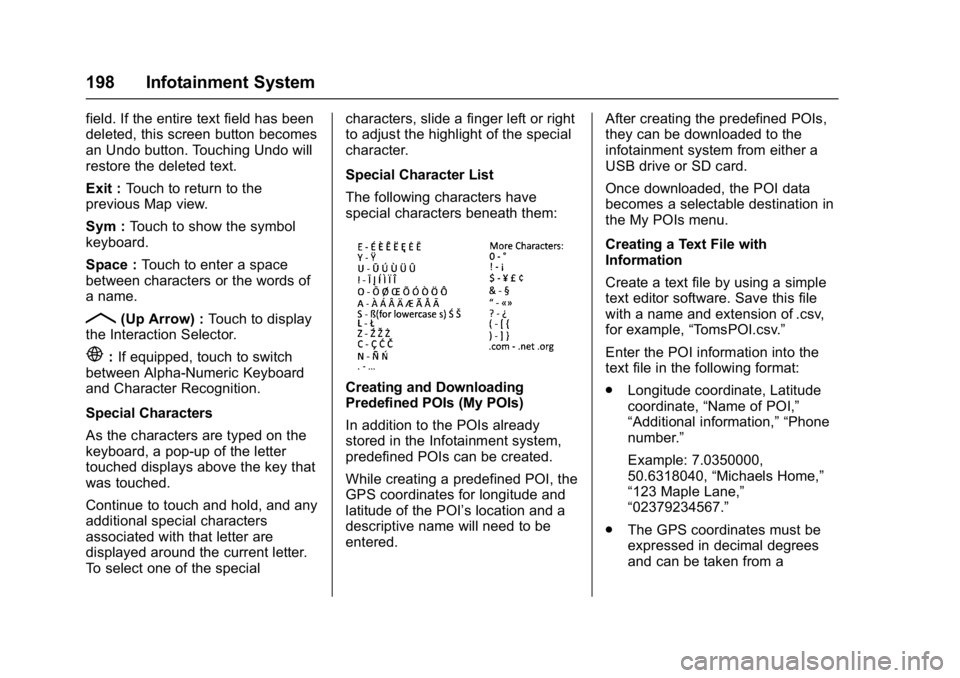
Continue to touch and hold, and any
additional special characters
associated with that letter are
displayed around the current letter.
To select one of the special characters, slide a finger left or right
to adjust the highlight of the special
character.
Special Character List
The following characters have
special characters beneath them:
Creating and Downloading
Predefined POIs (My POIs)
In addition to the POIs already
stored in the Infotainment system,
predefined POIs can be created.
While creating a predefined POI, the
GPS coordinates for longitude and
latitude of the POI’s location and a
descriptive name will need to be
entered.
After creating the predefined POIs,
they can be downloaded to the
infotainment system from either a
USB drive or SD card.
Once downloaded, the POI data
becomes a selectable destination in
the My POIs menu.
Creating a Text File with
Information
Create a text file by using a simple
text editor software. Save this file
with a name and extension of .csv,
for example,
“TomsPOI.csv.”
Enter the POI information into the
text file in the following format:
. Longitude coordinate, Latitude
coordinate, “Name of POI,”
“Additional information,” “Phone
number.”
Example: 7.0350000,
50.6318040, “Michaels Home,”
“123 Maple Lane,”
“02379234567.”
. The GPS coordinates must be
expressed in decimal degrees
and can be taken from a