CD player BUICK LACROSSE 2005 User Guide
[x] Cancel search | Manufacturer: BUICK, Model Year: 2005, Model line: LACROSSE, Model: BUICK LACROSSE 2005Pages: 410, PDF Size: 2.59 MB
Page 217 of 410
If playing a CD-R the sound quality may be reduced
due to CD-R quality, the method of recording, the quality
of the music that has been recorded, and the way the
CD-R has been handled. There may be an increase
in skipping, difficulty in nding tracks, and/or difficulty in
loading and ejecting. If these problems occur try a
known good CD.
Do not add paper labels to CDs, they could get caught
in the CD player.
If an error appears on the display, see “CD Messages”
later in this section.
1
s(Reverse):Press this button to reverse within
the current track.
2
\(Fast Forward):Press this button to fast forward
within the current track.
3
N(Repeat):With repeat, one track, the entire
folder, or playlist can be repeated.
Press and release this pushbutton until REPEAT
TRACK, REPEAT FOLDER, or REPEAT P-LIST
appears on the display. The current track, folder or
playlist will continue to repeat. Press and release this
pushbutton until REPEAT OFF appears on the display to
turn off repeated play.4 RDM (Random):Press this pushbutton to hear tracks
in random, rather than sequential order. You can
random the entire folder, playlist, or CD.
Press and release this pushbutton until RANDOM
FOLDER, RANDOM P-LIST, or RANDOM DISC appears
on the display. Once all of the tracks in the current
folder or playlist have been played the system will move
on to the next folder or playlist and play all of the
tracks in random order.
When in random, pressing and releasing either SEEK
arrow will take you to the next or previous random track.
Press and release this pushbutton until RANDOM
OFF appears on the display, to turn off random play.
5
!(Previous Folder):Press this pushbutton to go
to the rst track in the previous folder. Pressing this
button while in folder random mode will take you to the
previous folder and random the tracks in that folder.
6
#(Next Folder):Press this pushbutton to go to the
rst track in the next folder. Pressing this button while
in folder random mode will take you to the next
folder and random the tracks in that folder.
3-103
Page 219 of 410
CD Messages
CHECK CD:If this message appears on the display
and/or the CD comes out, it could be for one of the
following reasons:
It is very hot. When the temperature returns to
normal, the CD should play.
You are driving on a very rough road. When the
road becomes smoother, the CD should play.
The CD is dirty, scratched, wet, or upside down.
The air is very humid. If so, wait about an hour and
try again.
The format of the CD may not be compatible. See
“MP3 Format” earlier in this section.
There may have been a problem while burning
the CD.
The label may be caught in the CD player.
If the CD is not playing correctly, for any other reason,
try a known good CD.
If any error occurs repeatedly or if an error cannot be
corrected, contact your GM dealer. If the radio displays
an error message, write it down and provide it to
your GM dealer when reporting the problem.
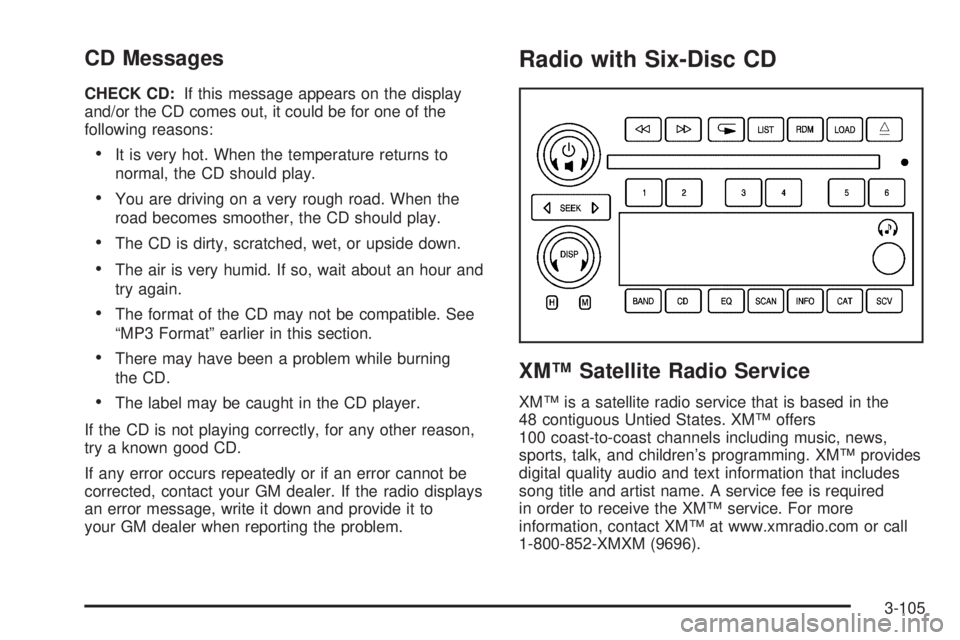
Radio with Six-Disc CD
XM™ Satellite Radio Service
XM™ is a satellite radio service that is based in the
48 contiguous Untied States. XM™ offers
100 coast-to-coast channels including music, news,
sports, talk, and children’s programming. XM™ provides
digital quality audio and text information that includes
song title and artist name. A service fee is required
in order to receive the XM™ service. For more
information, contact XM™ at www.xmradio.com or call
1-800-852-XMXM (9696).
3-105
Page 226 of 410
Playing a CD
If the ignition or radio is turned off, with a CD in the
player, it will stay in the player. When the ignition
or radio is turned on, the CD will start playing where it
stopped, if it was the last selected audio source.
When a CD is inserted, the CD symbol will appear on
the CD. As each new track starts to play, the track
number will appear on the display.
The CD player can play the smaller 3 inch (8 cm) single
CDs with an adapter ring. Full-size CDs and the
smaller CDs are loaded in the same manner.
If playing a CD-R the sound quality may be reduced
due to CD-R quality, the method of recording, the quality
of the music that has been recorded, and the way the
CD-R has been handled. There may be an increase
in skipping, difficulty in nding tracks, and/or difficulty in
loading and ejecting. If these problems occur try a
known good CD.
Do not add paper labels to CDs, they could get caught
in the CD player.
If an error appears on the display, see “CD Messages”
later in this section.LOAD:Press this button to load CDs into the CD
player. This CD player will hold up to six CDs.
To insert one CD, do the following:
1. Turn the ignition on.
2. Press and release the LOAD button.
3. Wait for the indicator light, located to the right of the
slot, to turn green.
4. Load a CD. Insert the CD partway into the slot,
label side up. The player will pull the CD in.
To insert multiple CDs, do the following:
1. Turn the ignition on.
2. Press and hold the LOAD button for two seconds.
You will hear a beep and the indicator light, located
to the right of the slot, will begin to ash and
MULTI LOAD # will appear on the display.
3-112
Page 227 of 410
3. Once the light stops ashing and turns green,
INSERT CD # will appear on the display, load
a CD. Insert the CD partway into the slot, label side
up. The player will pull the CD in.
Once the CD is loaded, the indicator light will begin
ashing again. Once the light stops ashing and
turns green, you can load another CD. The
CD player takes up to six CDs. Do not try to load
more than six.
To load more than one CD but less than six, complete
Steps 1 through 3. When nished loading CDs,
press the LOAD button to cancel the loading function.
The radio will begin to play the last CD loaded.
If more than one CD has been loaded, a number for
each CD will appear on the display.
Playing a Specic Loaded CD
For every CD loaded, a number will appear on the
display. To play a specic CD, press the numbered
pushbutton that corresponds to the CD. A small bar will
appear under the CD number that is playing and the
track number will appear on the display.
If an error appears on the display, see “CD Messages”
later in this section.
Z(Eject):Press this button to eject CD(s).
To eject the CD that is currently playing, press and
release this button.To eject multiple CDs, do the following:
1. Press and hold the CD eject button for two seconds.
You will hear a beep and the indicator light, located
to the right of the slot, will begin to ash and
EJECT ALL will appear on the display.
2. Once the light stops ashing, REMOVE CD # will
appear on the display. The CD will eject and can
be removed.
Once the CD is removed, the indicator light will
begin ashing again and another CD will eject.
To stop ejecting the CDs, press the LOAD or the
eject button.
If the CD is not removed, after 25 seconds, the CD will
be automatically pulled back into the player. If CD is
pushed back into the player, before the 25 second time
period is complete, the player will sense an error
and will try to eject the CD several times before
stopping.
Do not repeatedly press the CD eject button to eject a
CD after you have tried to push it in manually. The
player’s 25-second eject timer will reset at each press of
eject, causing the player to not eject the CD until the
25-second time period has elapsed.s(Reverse):Press this button to reverse within the
current track.
3-113
Page 228 of 410
\(Fast Forward):Press this button to fast forward
within the current track.
N(Repeat):With repeat, one track or an entire CD
can be repeated.
To use repeat, do the following:
To repeat the track you are listening to, press
and release the repeat button. RPT # will appear
on the display. Press this button again to turn off
repeat play.
To repeat the CD you are listening to, press and hold
the repeat button for two seconds. REPEAT CD # will
appear on the display. Press this button again to turn
off repeat play.
RDM (Random):With random, you can listen to the
tracks in random, rather than sequential, order, on
one CD or on all of the CDs. To use random, do one of
the following:
To play the tracks on the CD you are listening to in
random order, press and release the random
button. RANDOM ONE will appear on the display.
Press this button again to turn off random play.
To play the tracks on all of the CDs that are loaded
in random order, press and hold this button for
more than two seconds. You will hear a beep and
RANDOM ALL will appear on the display. Press this
button again to turn off random play.
oSEEKp:Press the left arrow to go to the start of
the current track, if more than ten seconds have
played. Press the right arrow to go to the next track. If
either arrow is held or pressed more than once, the
player will continue moving backward or forward through
the CD.
To scan one CD, press and hold either SEEK arrow for
more than two seconds until TRACK SCAN appears
on the display and you hear a beep. The radio will go to
the next track, play for 10 seconds, then go on to the
next track. Press either SEEK arrow again, to stop
scanning.
To scan all loaded CDs, press and hold either SEEK
arrow for more than four seconds until ALL CD
SCAN appears on the display and you hear a beep.
Use this feature to listen to 10 seconds of the rst track
of each loaded CD. Press either SEEK arrow again,
to stop scanning.
DISP (Display):Press this knob to see how long the
current track has been playing. The elapsed time of the
track will appear on the display. To change the
default on the display, track or elapsed time, press this
knob until you see the display you want, then hold
the knob for two seconds. The radio will produce
one beep and the selected display will now be the
default.
3-114
Page 229 of 410
BAND:Press this button to listen to the radio when a
CD is playing. The inactive CD(s) will remain safely
inside the radio for future listening.
CD:Press this button to play a CD when listening to
the radio. The CD symbol will appear on the display
when a CD is loaded.
EQ (Equalization):Press EQ to select an equalization
setting while playing a CD. The equalization will be
set whenever a CD is played. See “EQ” listed previously
for more information. If you select an EQ setting for
your CD, it will be activated each time you play a CD.
Using List Mode
The six-disc CD changer has a feature called song list.
This feature is capable of saving 20 track selections.
To save tracks into the song list feature, perform
the following steps:
1. Turn the CD player on and load it with at least
one CD. See “LOAD” listed previously in this
section for more information.
2. Check to see that the CD changer is not in song list
mode. LIST should not appear on the display. If
LIST is present, press the LIST button to turn it off.3. Select the desired CD by pressing the numbered
pushbutton and then use the SEEK right arrow to
locate the track to be saved. The track will begin
to play.
4. Press and hold the LIST button to save the track
into memory. When LIST is pressed, one beep will
be heard immediately. After two seconds of
continuously pressing the LIST button, TRACK
ADD will appear on the display and two beeps will
sound to conrm the track has been saved.
5. Repeat Steps 3 and 4 for saving other selections.
S-LIST FULL will appear on the display if you try to save
more than 20 selections.
To play the song list, press the LIST button. One beep
will be heard and S-LIST will appear on the display.
The recorded tracks will begin to play in the order they
were saved.
Seek through the song list by using the SEEK arrows.
Seeking past the last saved track will return to the
rst saved track.
3-115
Page 230 of 410
To delete tracks from the song list, perform the
following steps:
1. Turn the CD player on.
2. Press the LIST button to turn song list on. LIST will
appear on the display.
3. Press either SEEK arrow to select the desired track
to be deleted.
4. Press and hold the LIST button for two seconds.
When LIST is pressed, one beep will be heard
immediately. After two seconds of continuously
pressing the LIST button, TRACK DELETE
will appear on the display and two beeps will be
heard to conrm that the track has been deleted.
After a track has been deleted, the remaining tracks are
moved up the list. When another track is added to
the song list, the track will be added to the end of
the list.To delete the entire song list, perform the
following steps:
1. Turn the CD player on.
2. Press the LIST button to turn song list on. LIST will
appear on the display.
3. Press and hold the LIST button for more than
four seconds. One beep will be heard, followed by
two beeps after two seconds, and a nal beep
will be heard after four seconds. LIST EMPTY will
appear on the display indicating the song list
has been deleted.
If a CD is ejected, and the song list contains saved
tracks from that CD, those tracks are automatically
deleted from the song list. Any tracks saved to the song
list again are added to the bottom of the list.
To end song list mode, press the LIST button.
One beep will be heard and LIST will be removed from
the display.
3-116
Page 231 of 410
CD Messages
CHECK CD:If this message appears on the display
and/or the CD comes out, it could be for one of the
following reasons:
It is very hot. When the temperature returns to
normal, the CD should play.
You are driving on a very rough road. When the
road becomes smoother, the CD should play.
The CD is dirty, scratched, wet, or upside down.
The air is very humid. If so, wait about an hour and
try again.
There may have been a problem while burning
the CD.
The label may be caught in the CD player.
If the CD is not playing correctly, for any other reason,
try a known good CD.
If any error occurs repeatedly or if an error cannot be
corrected, contact your GM dealer. If the radio displays
an error message, write it down and provide it to
your GM dealer when reporting the problem.
Theft-Deterrent Feature
THEFTLOCK®is designed to discourage theft of your
vehicle’s radio. The feature works automatically by
learning a portion of the Vehicle Identication Number
(VIN). If the radio is moved to a different vehicle, it
will not operate and LOC or LOCKED will appear on
the display.
With THEFTLOCK
®activated, the radio will not operate
if stolen.
3-117
Page 233 of 410
1 – 6 (Preset Stations):Press this button to go to the
next station that is programmed on the radio preset
pushbuttons.
>(OnStar/Mute):Press and release this button to
silence the audio system. Press it again, or any
other radio button, to turn on the sound.
If your vehicle has OnStar
®, press and hold this button
for two seconds to interact with the OnStar®system.
See the OnStar®manual provided with your vehicle for
more information.
wxx(Volume):Press the up or the down arrow to
increase or to decrease the volume.
Radio Reception
AM
The range for most AM stations is greater than for FM,
especially at night. The longer range, however, can
cause stations to interfere with each other. AM can pick
up noise from things like storms and power lines. Try
reducing the treble to reduce this noise.
FM
FM stereo will give you the best sound, but FM signals
will reach only about 10 to 40 miles (16 to 65 km).
Tall buildings or hills can interfere with FM signals,
causing the sound to come and go.
Care of Your CDs
Handle CDs carefully. Store them in their original cases
or other protective cases and away from direct
sunlight and dust. If the surface of a CD is soiled,
dampen a clean, soft cloth in a mild, neutral detergent
solution and clean it, wiping from the center to the edge.
Be sure never to touch the side without writing when
handling CDs. Pick up CDs by grasping the outer edges
or the edge of the hole and the outer edge.
Care of Your CD Player
The use of CD lens cleaners for CD players is not
advised, due to the risk of contaminating the lens of the
CD optics with lubricants internal to the CD mechanism.
3-119
Page 397 of 410
A
Accessory Power Outlets.................................3-20
Adding Equipment to Your Airbag-Equipped
Vehicle.......................................................1-64
Additives, Fuel................................................. 5-6
Add-On Electrical Equipment............................5-87
Air Cleaner/Filter, Engine.................................5-19
Air Conditioning......................................3-21, 3-24
Airbag
Passenger Status Indicator...........................3-34
Readiness Light..........................................3-33
Airbag Sensing and Diagnostic Module (SDM)...... 7-9
Airbag System................................................1-51
Adding Equipment to Your Airbag-Equipped
Vehicle...................................................1-64
How Does an Airbag Restrain?......................1-57
Passenger Sensing System...........................1-60
Servicing Your Airbag-Equipped Vehicle..........1-64
What Makes an Airbag Inate?......................1-57
What Will You See After an Airbag Inates?....1-58
When Should an Airbag Inate?....................1-56
Where Are the Airbags?...............................1-53
Antenna, Backglass.......................................3-120
Anti-Lock Brake System (ABS)........................... 4-6
Anti-Lock Brake, System Warning Light..............3-37Appearance Care............................................5-78
Aluminum or Chrome-Plated Wheels..............5-83
Care of Safety Belts....................................5-81
Chemical Paint Spotting...............................5-84
Cleaning Exterior Lamps/Lenses....................5-81
Fabric/Carpet..............................................5-78
Finish Care.................................................5-82
Finish Damage............................................5-84
Glass Surfaces............................................5-80
Instrument Panel.........................................5-80
Interior Plastic Components...........................5-80
Leather......................................................5-80
Sheet Metal Damage...................................5-84
Tires..........................................................5-83
Underbody Maintenance...............................5-84
Vehicle Care/Appearance Materials................5-85
Vinyl..........................................................5-80
Washing Your Vehicle...................................5-81
Weatherstrips..............................................5-81
Windshield and Wiper Blades........................5-82
Audio System(s).............................................3-79
Audio Steering Wheel Controls....................3-118
Backglass Antenna.....................................3-120
Care of Your CD Player..............................3-119
Care of Your CDs......................................3-119
Chime Level Adjustment.............................3-120
1