change time BUICK LACROSSE 2005 User Guide
[x] Cancel search | Manufacturer: BUICK, Model Year: 2005, Model line: LACROSSE, Model: BUICK LACROSSE 2005Pages: 410, PDF Size: 2.59 MB
Page 165 of 410
If there is a problem with the battery charging system, a
DIC message will display. SeeDIC Warnings and
Messages on page 3-53for more information.
Your vehicle’s charging system regulates voltage based
on the state of the battery. The battery voltage may
uctuate when viewing this information on the DIC. This
is normal.
Oil Life
Press the gages button until OIL LIFE displays. This
mode shows an estimate of the oil’s remaining useful
life. If you see OIL LIFE 99% on the display, that means
99% of the current oil life remains. The engine oil life
system will alert you to change your oil on a schedule
consistent with your driving conditions.
When the remaining oil life is low, the CHANGE OIL
SOON message will appear on the display. You should
change your oil as soon as possible. SeeEngine Oil
on page 5-15. In addition to the engine oil life system
monitoring the oil life, additional maintenance is
recommended in the Maintenance Schedule in this
manual. SeeScheduled Maintenance on page 6-4for
more information.
Remember, you must reset the OIL LIFE yourself after
each oil change. It will not reset itself. Also, be
careful not to reset the OIL LIFE accidentally at any
time other than when the oil has just been changed. It
cannot be reset accurately until the next oil change.To reset the engine oil life system, press and hold the
set/reset button while OIL LIFE is displayed. The display
will show 100% when the system is reset. SeeEngine
Oil Life System on page 5-18for more information.
Option Menu Items (Uplevel Only)
4
(Option):Press this button to scroll through the
following menu items:
Units
Press the option button until UNITS displays. This mode
allows you to select between English or Metric units
of measurement. Once in this mode, press the set/reset
button to select between ENGLISH or METRIC units.
Language
Press the option button until the language screen
displays. This mode allows you to select the language
in which the DIC messages will appear. Once in
this mode, press the set/reset button to select among
the following choices:
English
Francais (French)
Espanol (Spanish)
3-51
Page 183 of 410
STABILITY CONTROL ACTIVE
If your vehicle has StabiliTrak®, this message will
display when StabiliTrak®is actively assisting you with
directional control of the vehicle. Slippery road
conditions may exist when this message is displayed,
so adjust your driving accordingly. SeeStabiliTrak
®
System on page 4-9.
This message will display only while the ignition is in
RUN. This message stays on until road conditions
change and StabiliTrak
®is not active.
This message cannot be acknowledged and cleared
from the screen.
STABILITY CONTROL OFF
If your vehicle has StabiliTrak®, this message will
display any time the system turns off. When this
message has been displayed, StabiliTrak
®is no longer
available to assist you with directional control of the
vehicle. Adjust your driving accordingly. SeeStabiliTrak
®
System on page 4-9.
This message will display only while the ignition is
in RUN.
Any of the following conditions may cause the
StabiliTrak
®system to turn off:
The battery is low.
There is a StabiliTrak®system failure. See your
GM dealer for service.
STARTING DISABLED
This message will display if the starting of the engine is
disabled due to the electronic throttle control system
or vehicle theft-deterrent system. Have your vehicle
serviced by your GM dealer immediately.
This message will only appear while the ignition
is in RUN, and will not disappear until the problem
is resolved.
This message cannot be acknowledged.
TRACTION CONTROL ACTIVE
If your vehicle has the traction control system, this
message will display when the system is on. Slippery
road conditions may exist if this message is displayed,
so adjust your driving accordingly. SeeTraction
Control System (TCS) on page 4-8for more information.
This message only displays while the ignition is in
RUN and will not disappear until driving conditions
change and the traction control is no longer active.
This message cannot be acknowledged or cleared from
the screen.
3-69
Page 186 of 410
3. Press the set/reset button to begin.
4. The DIC will then display an instruction screen.
Press the option button to display the features
that are available to program.
Press the set/reset button to change the setting of
each feature.
Customization Menu Items
The following are customization features that allow you
to program settings to the vehicle:
FACTORY DEFAULTS
This feature allows you to set all of the customization
and personalization features back to their factory
default settings.
Press the option button until FACTORY DEFAULTS
appears on the DIC display. Press the set/reset button
to scroll through the following choices:
NO (default):The customization and personalization
features will not be set to their factory default settings.
YES:The customization and personalization features
will be set to their factory default settings.
Select one of the available choices and press the option
button while it is displayed on the DIC to select it and
move on to the next feature.
ALL KEYS WILL BE RESET
This screen will only display if YES was selected on the
FACTORY DEFAULTS screen.
Press the set/reset button to scroll through the
following choices:
CANCEL (default):The features will not be set to their
factory default settings and the DIC will return to the
PERSONAL PROGRAM menu.
OK:The features will be set to their factory default
settings, the DIC will exit the personal program menu,
and PERSONAL OPTIONS SAVED will display.
EXT LIGHT DELAY
This feature allows you to set the amount of time the
exterior lamps remain on after the key is removed from
the ignition or the vehicle is unlocked using the
remote keyless entry transmitter.
Press the option button until EXT LIGHT DELAY
appears on the DIC display. Press the set/reset button
to scroll through the following choices:
OFF:The exterior lamps will not turn on.
15 seconds:The exterior lamps will stay on for
15 seconds.
30 seconds (default):The exterior lamps will stay on
for 30 seconds.
3-72
Page 190 of 410
REPLACE KEY
This screen displays only if YES was selected for the
PERSONALIZE KEY feature, keys 1 and 2 have already
been personalized, and the current key being used is
not key 1 or 2. This feature allows you to program a key
to be recognized as key 1 or 2 in the event that the
previously programmed key needs to be replaced.
1:The key will be programmed to be recognized
as key 1.
2:The key will be programmed to be recognized
as key 2.
CANCEL (default):The key will not be programmed.
RADIO STATIONS PERSONALIZED
This screen displays only if YES was selected for the
PERSONALIZE KEY feature. This feature allows you to
set the radio station presets to be recognized for the
key, 1 or 2, that is being used. You may notice a change
to the radio after this message displays. Once this
message displays, set the radio station presets. If the
presets are not set at this time, the presets will not
be recognized for key 1 or 2, however, the vehicle radio
station presets will be maintained.
AUTO DOOR LOCK
This feature allows automatic door locking to be turned
OFF or ON.
Press the option button until AUTO DOOR LOCK
appears on the DIC display. Press the set/reset button
to scroll through the following choices:
OFF:All automatic door locking is disabled. The doors
will always need to be locked manually before driving,
to increase occupant safety.
ON (default):The vehicle’s doors automatically lock
when the doors are closed and the vehicle is shifted into
DRIVE (D).
Select one of the available choices and press the option
button while it is displayed on the DIC to select it and
move on to the next feature.
3-76
Page 194 of 410
DISP (Display):Press this button to switch the display
between the radio station frequency, band, and time
of day. When the ignition is turned off, press this knob to
display the time.
To change the default on the display, press the DISP
button until you see the display you want, then hold
this button for two seconds. The radio will produce
one beep and the selected display will now be
the default.
Finding a Station
BAND:Press this button to switch between FM1, FM2,
and AM. The display will show the selection.
e(Tune):Turn this knob to select radio stations.
oSEEKp:Press and release the right or the left
arrow to go to the next or to the previous station
and stay there.
To scan stations, press and hold either arrow for more
than two seconds. SCN will appear on the display
and the radio will produce one beep. The radio will go
to a station, play for a few seconds, then go on to
the next station. Press either arrow again or one of the
pushbuttons to stop scanning presets.To scan preset stations, press and hold either arrow for
more than four seconds. PSC will appear on the
display and the radio will produce two beeps. The radio
will go to a preset station, play for a few seconds,
then go on to the next preset station. Press either
arrow again or one of the pushbuttons to stop
scanning presets.
The radio will only seek and scan stations with a strong
signal that are in the selected band.
Setting Preset Stations
Up to 18 stations (six FM1, six FM2, and six AM), can
be programmed on the six numbered pushbuttons,
by performing the following steps:
1. Turn the radio on.
2. Press BAND to select FM1, FM2, or AM.
3. Tune in the desired station.
4. Press and hold one of the six numbered
pushbuttons until you hear a beep. Whenever that
numbered pushbutton is pressed, the station
that was set will return.
5. Repeat the steps for each pushbutton.
3-80
Page 197 of 410
DISP (Display):Press this button to see how long the
current track has been playing. The elapsed time of
the track will appear on the display. To change
the default on the display, track, elapsed time, or time of
day, press this button until you see the display you
want, then hold the button for two seconds. The radio
will produce one beep and the selected display will now
be the default.
BAND:Press this button to listen to the radio when a
CD is playing. The inactive CD will remain safely
inside the radio for future listening.
CD:Press this button to play a CD when listening to
the radio. The CD symbol will appear on the display
when a CD is loaded.
Z(Eject):Press this button to eject a CD. Eject may
be activated with either the ignition or radio off. CDs
may be loaded with the ignition and radio off if this
button is pressed rst.
CD Messages
CHECK CD:If this message appears on the display
and/or the CD comes out, it could be for one of the
following reasons:
It is very hot. When the temperature returns to
normal, the CD should play.
You are driving on a very rough road. When the
road becomes smoother, the CD should play.
The CD is dirty, scratched, wet, or upside down.
The air is very humid. If so, wait about an hour and
try again.
There may have been a problem while burning
the CD.
The label may be caught in the CD player.
If the CD is not playing correctly, for any other reason,
try a known good CD.
If any error occurs repeatedly or if an error cannot be
corrected, contact your GM dealer. If the radio displays
an error message, write it down and provide it to
your GM dealer when reporting the problem.
3-83
Page 198 of 410
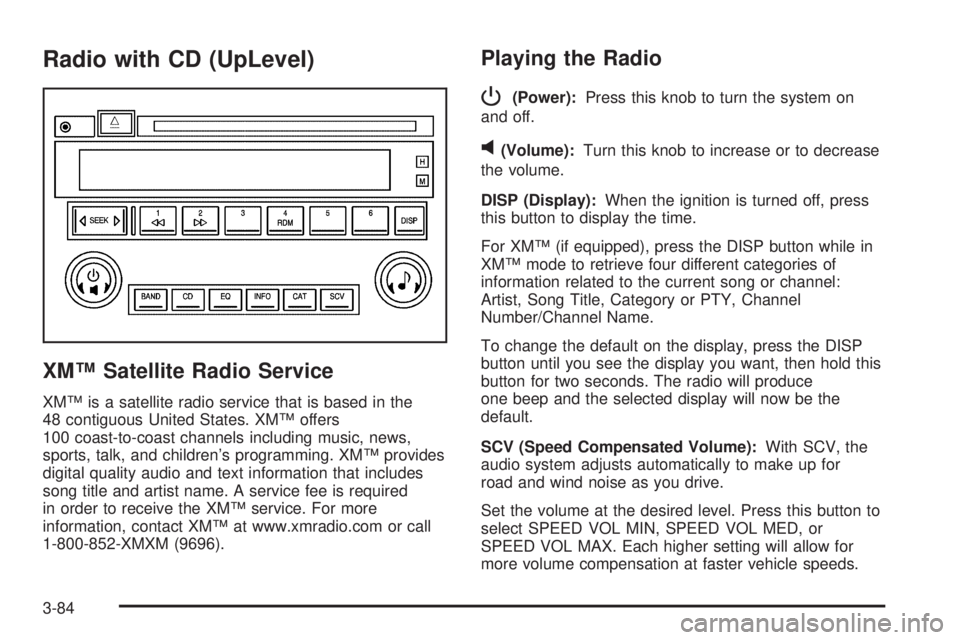
Radio with CD (UpLevel)
XM™ Satellite Radio Service
XM™ is a satellite radio service that is based in the
48 contiguous United States. XM™ offers
100 coast-to-coast channels including music, news,
sports, talk, and children’s programming. XM™ provides
digital quality audio and text information that includes
song title and artist name. A service fee is required
in order to receive the XM™ service. For more
information, contact XM™ at www.xmradio.com or call
1-800-852-XMXM (9696).
Playing the Radio
P
(Power):Press this knob to turn the system on
and off.
v(Volume):Turn this knob to increase or to decrease
the volume.
DISP (Display):When the ignition is turned off, press
this button to display the time.
For XM™ (if equipped), press the DISP button while in
XM™ mode to retrieve four different categories of
information related to the current song or channel:
Artist, Song Title, Category or PTY, Channel
Number/Channel Name.
To change the default on the display, press the DISP
button until you see the display you want, then hold this
button for two seconds. The radio will produce
one beep and the selected display will now be the
default.
SCV (Speed Compensated Volume):With SCV, the
audio system adjusts automatically to make up for
road and wind noise as you drive.
Set the volume at the desired level. Press this button to
select SPEED VOL MIN, SPEED VOL MED, or
SPEED VOL MAX. Each higher setting will allow for
more volume compensation at faster vehicle speeds.
3-84
Page 205 of 410
DISP (Display):Press this button to see how long the
current track has been playing. The elapsed time of
the track will appear on the display. To change
the default on the display, track or elapsed time,
press this button until you see the display you want,
then hold the button for two seconds. The radio
will produce one beep and the selected display will
now be the default.
BAND:Press this button to listen to the radio when a
CD is playing. The inactive CD will remain safely
inside the radio for future listening.
CD:Press this button to play a CD when listening to
the radio. The CD symbol will appear on the display
when a CD is loaded.
EQ (Equalization):Press EQ to select an equalization
setting while playing a CD. The equalization will be
set whenever a CD is played. See “EQ” listed previously
for more information. If you select an EQ setting for
your CD, it will be activated each time you play a CD.
Z(Eject):Press this button to eject a CD. Eject may
be activated with either the ignition or radio off. CDs
may be loaded with the ignition and radio off if this
button is pressed rst.
CD Messages
CHECK CD:If this message appears on the display
and/or the CD comes out, it could be for one of the
following reasons:
It is very hot. When the temperature returns to
normal, the CD should play.
You are driving on a very rough road. When the
road becomes smoother, the CD should play.
The CD is dirty, scratched, wet, or upside down.
The air is very humid. If so, wait about an hour and
try again.
There may have been a problem while burning
the CD.
The label may be caught in the CD player.
If the CD is not playing correctly, for any other reason,
try a known good CD.
If any error occurs repeatedly or if an error cannot be
corrected, contact your GM dealer. If the radio displays
an error message, write it down and provide it to
your GM dealer when reporting the problem.
3-91
Page 206 of 410
Radio with CD (MP3)
XM™ Satellite Radio Service
XM™ is a satellite radio service that is based in the
48 contiguous United States. XM™ offers
100 coast-to-coast channels including music, news,
sports, talk, and children’s programming. XM™ provides
digital quality audio and text information that includes
song title and artist name. A service fee is required
in order to receive the XM™ service. For more
information, contact XM™ at www.xmradio.com or call
1-800-852-XMXM (9696).
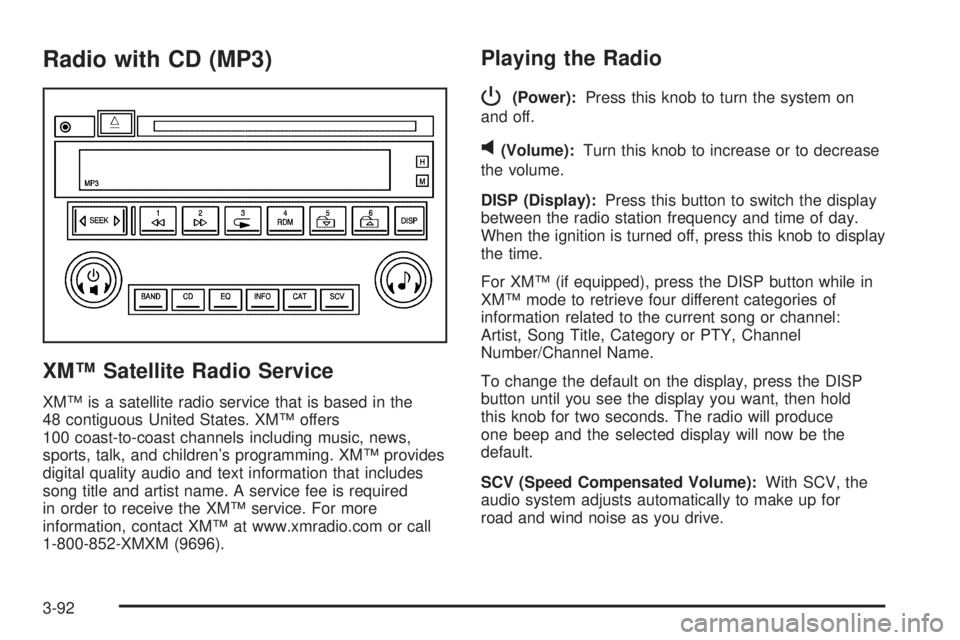
Playing the Radio
P
(Power):Press this knob to turn the system on
and off.
v(Volume):Turn this knob to increase or to decrease
the volume.
DISP (Display):Press this button to switch the display
between the radio station frequency and time of day.
When the ignition is turned off, press this knob to display
the time.
For XM™ (if equipped), press the DISP button while in
XM™ mode to retrieve four different categories of
information related to the current song or channel:
Artist, Song Title, Category or PTY, Channel
Number/Channel Name.
To change the default on the display, press the DISP
button until you see the display you want, then hold
this knob for two seconds. The radio will produce
one beep and the selected display will now be the
default.
SCV (Speed Compensated Volume):With SCV, the
audio system adjusts automatically to make up for
road and wind noise as you drive.
3-92
Page 214 of 410
oSEEKp:Press the left arrow to go to the start of
the current or the previous track. Press the right
arrow to go to the start of the next track.
To scan tracks, press and hold either arrow for more
than two seconds. SCAN will appear on the display.
The CD will search the previous or next tracks at
two seconds per track. Press either arrow to stop
scanning.
DISP (Display):Press this button to see how long the
current track has been playing. The elapsed time of
the track will appear on the display. To change
the default on the display, track or elapsed time, press
this button until you see the display you want, then
hold the button for two seconds. The radio will produce
one beep and the selected display will now be the
default.
BAND:Press this button to listen to the radio when a
CD is playing. The inactive CD will remain safely
inside the radio for future listening.
CD:Press this button to play a CD when listening to
the radio. The CD symbol will appear on the display
when a CD is loaded.EQ (Equalization):Press EQ to select an equalization
setting while playing a CD. The equalization will be
set whenever a CD is played. See “EQ” listed previously
for more information. If you select an EQ setting for
your CD, it will be activated each time you play a CD.
Z(Eject):Press this button to eject a CD. Eject may
be activated with either the ignition or radio off. CDs
may be loaded with the ignition and radio off if this
button is pressed rst.
Using an MP3 CD
MP3 Format
This MP3 player will accept MP3 les that were recorded
on an up to 700 MB CD-R CD. The les can be
recorded with the following xed bit rates: 32 kpbs,
40 kpbs, 56 kpbs, 64 kpbs, 80 kpbs, 96 kpbs,
112 kpbs, 128 kpbs, 160 kpbs, 192 kpbs, 224 kpbs,
256 kpbs, and 320 kpbs or a variable bit rate. Song title,
artist name, and album will be available when recorded
using ID3 tags versions 1 and 2.
3-100