radio BUICK LACROSSE 2012 Owner's Guide
[x] Cancel search | Manufacturer: BUICK, Model Year: 2012, Model line: LACROSSE, Model: BUICK LACROSSE 2012Pages: 512, PDF Size: 6.21 MB
Page 191 of 512
Black plate (11,1)Buick LaCrosse Owner Manual - 2012
Infotainment System 7-11
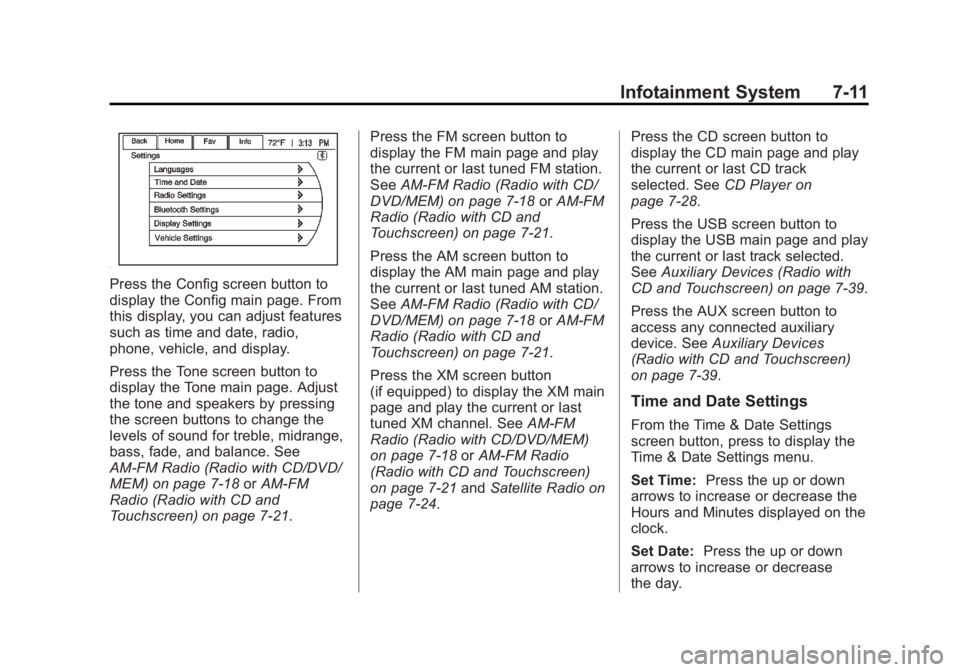
Press the Config screen button to
display the Config main page. From
this display, you can adjust features
such as time and date, radio,
phone, vehicle, and display.
Press the Tone screen button to
display the Tone main page. Adjust
the tone and speakers by pressing
the screen buttons to change the
levels of sound for treble, midrange,
bass, fade, and balance. See
AM-FM Radio (Radio with CD/DVD/
MEM) on page 7‑18orAM-FM
Radio (Radio with CD and
Touchscreen) on page 7‑21. Press the FM screen button to
display the FM main page and play
the current or last tuned FM station.
See
AM-FM Radio (Radio with CD/
DVD/MEM) on page 7‑18 orAM-FM
Radio (Radio with CD and
Touchscreen) on page 7‑21.
Press the AM screen button to
display the AM main page and play
the current or last tuned AM station.
See AM-FM Radio (Radio with CD/
DVD/MEM) on page 7‑18 orAM-FM
Radio (Radio with CD and
Touchscreen) on page 7‑21.
Press the XM screen button
(if equipped) to display the XM main
page and play the current or last
tuned XM channel. See AM-FM
Radio (Radio with CD/DVD/MEM)
on page 7‑18 orAM-FM Radio
(Radio with CD and Touchscreen)
on page 7‑21 andSatellite Radio on
page 7‑24. Press the CD screen button to
display the CD main page and play
the current or last CD track
selected. See
CD Player on
page 7‑28.
Press the USB screen button to
display the USB main page and play
the current or last track selected.
See Auxiliary Devices (Radio with
CD and Touchscreen) on page 7‑39.
Press the AUX screen button to
access any connected auxiliary
device. See Auxiliary Devices
(Radio with CD and Touchscreen)
on page 7‑39.
Time and Date Settings
From the Time & Date Settings
screen button, press to display the
Time & Date Settings menu.
Set Time: Press the up or down
arrows to increase or decrease the
Hours and Minutes displayed on the
clock.
Set Date: Press the up or down
arrows to increase or decrease
the day.
Page 192 of 512
Black plate (12,1)Buick LaCrosse Owner Manual - 2012
7-12 Infotainment System
Set Time Format:Press the
12 Hours screen button for standard
time; press the 24 Hours screen
button for military time.
Set Date Format: Depending on
the region, the following date
formats may be available: MM/DD/
YYYY, DD.MM.YYYY, or YYYY/
MM/DD.
Display Digital Clock: Press
Display to turn the display of the
clock on the screen On or Off.
Radio Settings
Press the Config button on the
Home Page or the CONFIG button
on the faceplate to enter the menu
options. Turn the MENU knob or
touch-tap the scroll bar to scroll
through the available options. Press
the MENU knob or press Radio
Settings to display the radio settings
menu. Press this feature to make
changes for radio information
displayed, preset pages, Auto
Volume Control, and XM Categories Restore. See
Satellite Radio on
page 7‑24 (if equipped), for more
information about XM Categories.
The Radio Settings are:
Speed Dependent Volume: Select
OFF, Low, Medium, or High
sensitivity to automatically adjust
the volume to minimize the effects
of unwanted background noise that
can result from changing road
surfaces, driving speeds, or open
windows. This feature works best at
lower volume settings where
background noise is typically louder
than the sound system volume.
Startup Volume: Press to set the
maximum volume level for startup
that will be used even if a higher
volume had been set when the radio
was turned off.
Radio Favorites: Press to select
the number of FAV pages to be
used in the system. Add/Remove XM Categories:
Press to customize which available
XM Categories are used and
displayed in the system.
See
AM-FM Radio (Radio with CD/
DVD/MEM) on page 7‑18 orAM-FM
Radio (Radio with CD and
Touchscreen) on page 7‑21 for
more information.
Phone Settings
See Bluetooth (Overview) on
page 7‑57 orBluetooth
(Infotainment Controls) on
page 7‑59 orBluetooth (Voice
Recognition) on page 7‑63 or
Bluetooth (UHP Mexico Only) on
page 7‑69 in the“Phone” section for
more information on phone settings.
Vehicle Settings
See Vehicle Personalization on
page 5‑43 for more information.
Page 195 of 512
Black plate (15,1)Buick LaCrosse Owner Manual - 2012
Infotainment System 7-15
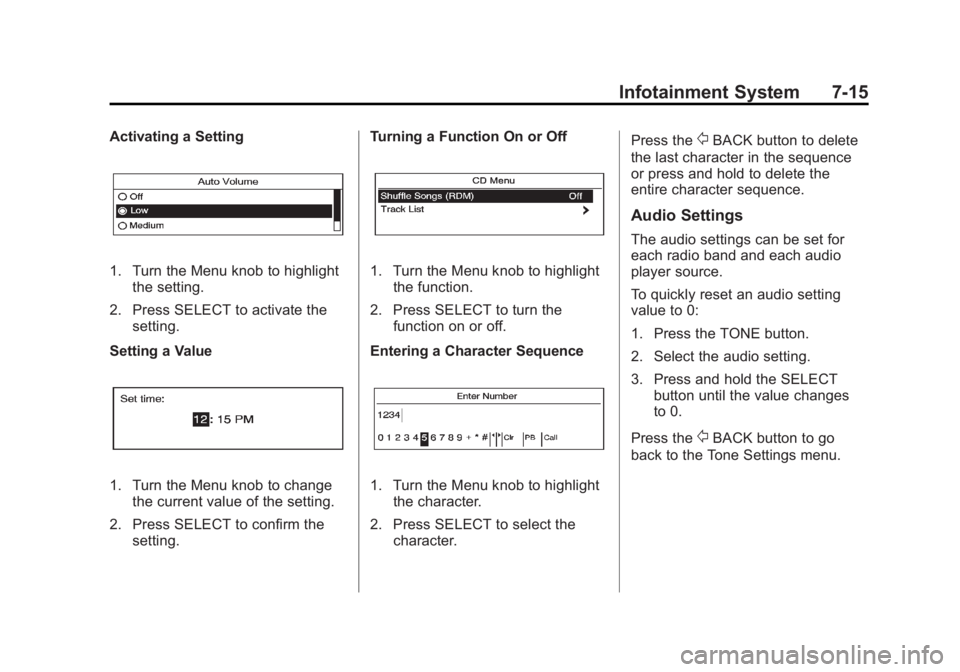
Activating a Setting
1. Turn the Menu knob to highlightthe setting.
2. Press SELECT to activate the setting.
Setting a Value
1. Turn the Menu knob to change the current value of the setting.
2. Press SELECT to confirm the setting. Turning a Function On or Off
1. Turn the Menu knob to highlight
the function.
2. Press SELECT to turn the function on or off.
Entering a Character Sequence
1. Turn the Menu knob to highlight the character.
2. Press SELECT to select the character. Press the
/BACK button to delete
the last character in the sequence
or press and hold to delete the
entire character sequence.
Audio Settings
The audio settings can be set for
each radio band and each audio
player source.
To quickly reset an audio setting
value to 0:
1. Press the TONE button.
2. Select the audio setting.
3. Press and hold the SELECT button until the value changes
to 0.
Press the
/BACK button to go
back to the Tone Settings menu.
Page 197 of 512
Black plate (17,1)Buick LaCrosse Owner Manual - 2012
Infotainment System 7-17
DSP (Digital Signal Processing)
Settings
For vehicles with DSP, it is used to
provide a choice of different
listening experiences.
The DSP settings for the radio with
CD are:
.normal‐Select this setting to
adjust the audio for stereo
mode. This provides the best
sound quality for the driver seat
first, with the front passenger
second.
.hk surround ‐Select to enable
hk surround. This produces a
true 6.1 matrix surround from
any two channel digital source.
This feature is not available in
AM/FM radio mode. The DSP settings for the radio with
CD/DVD and MEM are:
.2.0 normal
‐Select this setting to
adjust the audio for stereo
mode. This provides the best
sound quality for the driver seat
first, with the front passenger
second.
.hk surround ‐Select to enable
hk surround. This produces a
true 6.1 matrix surround from
any two channel digital source.
This feature is not available in
AM/FM radio mode.
To adjust the DSP settings:
1. Press the TONE button.
2. Select DSP.
3. Select the setting.
Press the
/BACK button to go
back to the Tone Settings menu.
System Settings
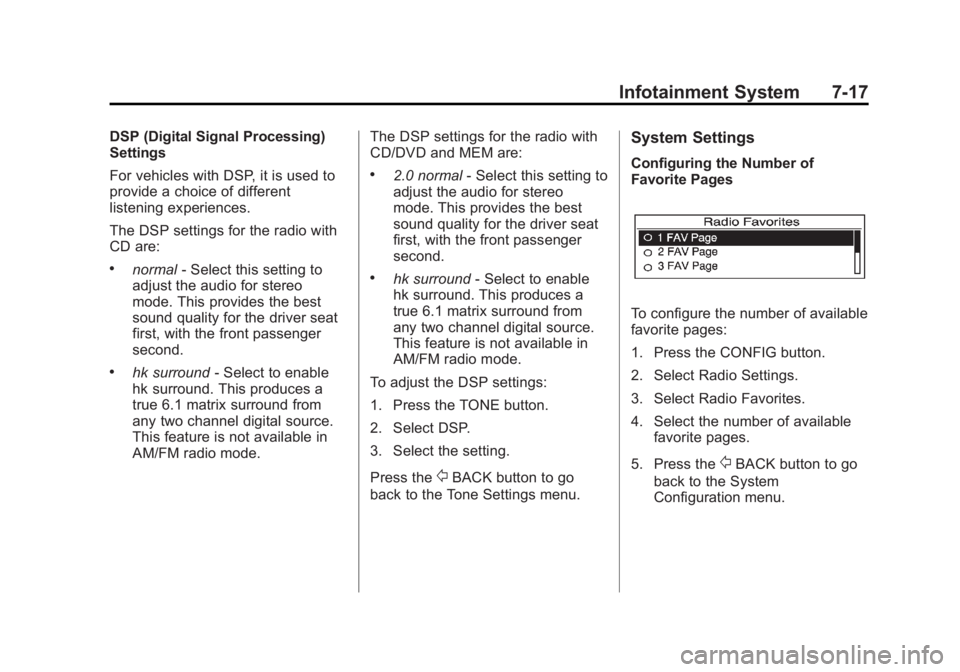
Configuring the Number of
Favorite Pages
To configure the number of available
favorite pages:
1. Press the CONFIG button.
2. Select Radio Settings.
3. Select Radio Favorites.
4. Select the number of available favorite pages.
5. Press the
/BACK button to go
back to the System
Configuration menu.
Page 198 of 512
Black plate (18,1)Buick LaCrosse Owner Manual - 2012
7-18 Infotainment System
Auto Volume
The auto volume feature
automatically adjusts the radio
volume to compensate for road and
wind noise as the vehicle speeds up
or slows down, so that the volume
level is consistent.
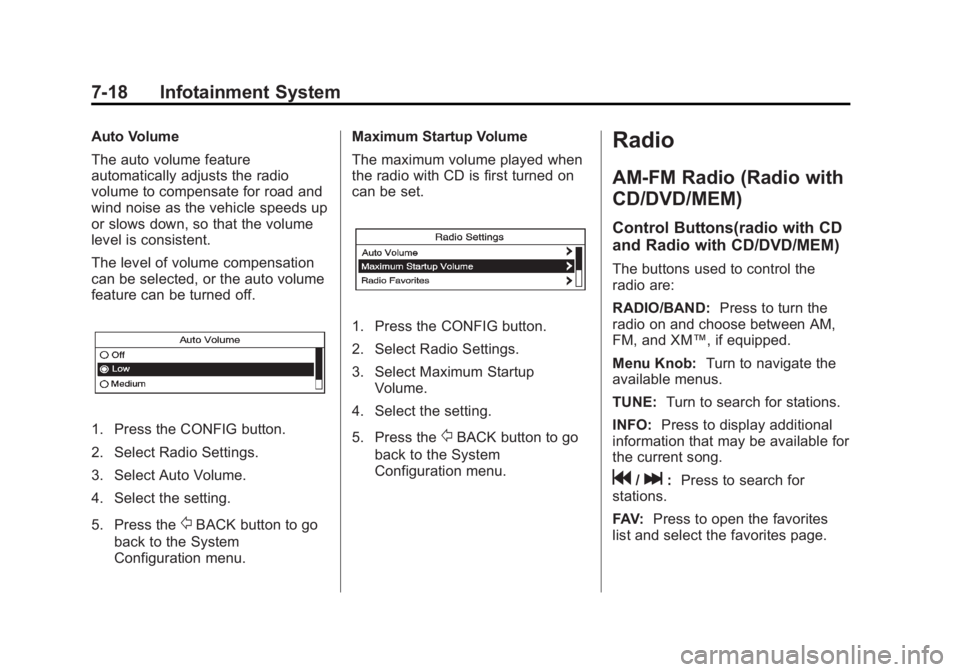
The level of volume compensation
can be selected, or the auto volume
feature can be turned off.
1. Press the CONFIG button.
2. Select Radio Settings.
3. Select Auto Volume.
4. Select the setting.
5. Press the
/BACK button to go
back to the System
Configuration menu. Maximum Startup Volume
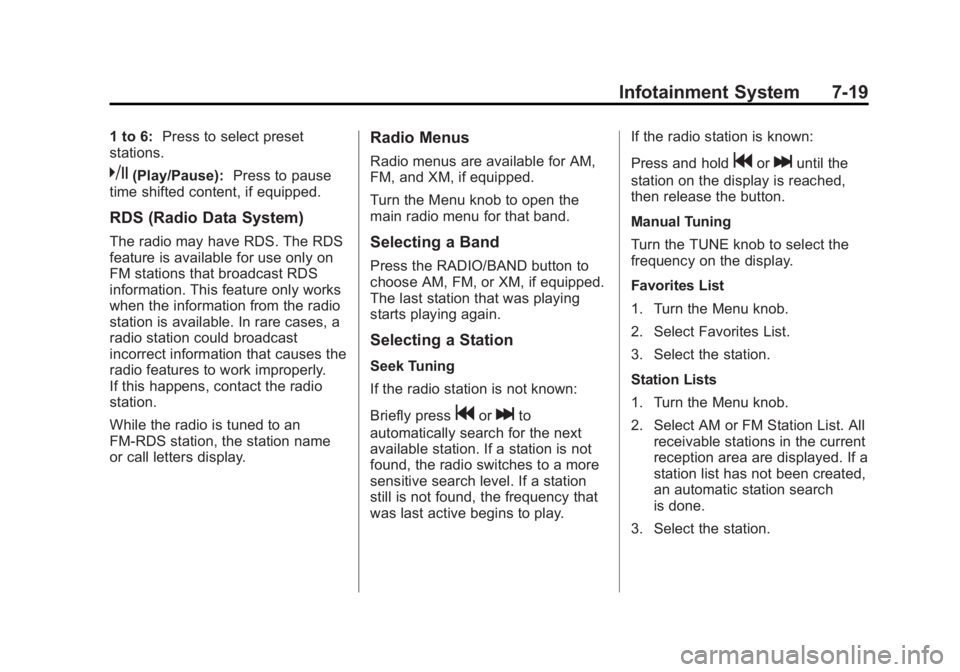
The maximum volume played when
the radio with CD is first turned on
can be set.
1. Press the CONFIG button.
2. Select Radio Settings.
3. Select Maximum Startup
Volume.
4. Select the setting.
5. Press the
/BACK button to go
back to the System
Configuration menu.
Radio
AM-FM Radio (Radio with
CD/DVD/MEM)
Control Buttons(radio with CD
and Radio with CD/DVD/MEM)
The buttons used to control the
radio are:
RADIO/BAND: Press to turn the
radio on and choose between AM,
FM, and XM™, if equipped.
Menu Knob: Turn to navigate the
available menus.
TUNE: Turn to search for stations.
INFO: Press to display additional
information that may be available for
the current song.
g/l: Press to search for
stations.
FAV: Press to open the favorites
list and select the favorites page.
Page 199 of 512
Black plate (19,1)Buick LaCrosse Owner Manual - 2012
Infotainment System 7-19
1 to 6:Press to select preset
stations.
k(Play/Pause): Press to pause
time shifted content, if equipped.
RDS (Radio Data System)
The radio may have RDS. The RDS
feature is available for use only on
FM stations that broadcast RDS
information. This feature only works
when the information from the radio
station is available. In rare cases, a
radio station could broadcast
incorrect information that causes the
radio features to work improperly.
If this happens, contact the radio
station.
While the radio is tuned to an
FM-RDS station, the station name
or call letters display.
Radio Menus
Radio menus are available for AM,
FM, and XM, if equipped.
Turn the Menu knob to open the
main radio menu for that band.
Selecting a Band
Press the RADIO/BAND button to
choose AM, FM, or XM, if equipped.
The last station that was playing
starts playing again.
Selecting a Station
Seek Tuning
If the radio station is not known:
Briefly press
gorlto
automatically search for the next
available station. If a station is not
found, the radio switches to a more
sensitive search level. If a station
still is not found, the frequency that
was last active begins to play. If the radio station is known:
Press and hold
gorluntil the
station on the display is reached,
then release the button.
Manual Tuning
Turn the TUNE knob to select the
frequency on the display.
Favorites List
1. Turn the Menu knob.
2. Select Favorites List.
3. Select the station.
Station Lists
1. Turn the Menu knob.
2. Select AM or FM Station List. All receivable stations in the current
reception area are displayed. If a
station list has not been created,
an automatic station search
is done.
3. Select the station.
Page 200 of 512
Black plate (20,1)Buick LaCrosse Owner Manual - 2012
7-20 Infotainment System
Category Lists
Most stations that broadcast an
RDS program type code specify the
type of programming transmitted.
Some stations change the program
type code depending on the
content. The system stores the RDS
stations sorted by program type in
the FM category list.
To search for a programming type
determined by station:
1. Turn the Menu knob.
2. Select FM category list. A list ofall programming types available
displays.
3. Select the programming type. A list of stations that transmit
programming of the selected
type displays.
4. Select the station. The category lists are updated
when the station lists are
updated. Updating Station & Category Lists
If stations stored in the station list
can no longer be received:
1. Turn the Menu knob.
2. Select Update AM or FM Station
List, if the stations stored in the
station list are no longer
received. A station search will be
completed and the first station in
the updated list will play.
To cancel the station search, press
SELECT.
Storing a Station as a Favorite
Stations from all bands can be
stored in any order in the favorite
pages.
Up to six stations can be stored in
each favorite page and the number
of available favorite pages can
be set. Storing Stations
To store the station to a position in
the list, press the corresponding
button 1 to 6 until a beep is heard.
Retrieving Stations
Press the FAV button to open a
favorite page or to switch to another
favorite page. Briefly press one of
the 1 to 6 buttons to retrieve the
station.
Time Shifting (Radio with CD/
DVD and MEM)
The radio with MEM time shift
feature can rewind 20 minutes of
FM/AM content. While listening to
the radio, the content from the
current station is always being
buffered.
Press
kto pause the radio. The
radio displays the time shift status
bar. The status bar shows the
amount of content stored in the
buffer and the current pause point.
Page 201 of 512
Black plate (21,1)Buick LaCrosse Owner Manual - 2012
Infotainment System 7-21
To resume playback from the
current pause point, press
kagain.
The radio is no longer live, but
played from the time shift buffer.
A status bar displays below the
station number.
Press and hold
lorgto fast
forward or rewind through the time
shift buffer. Hold
luntil the end of
the recorded buffer resumes live
playback.
Press and release
lorgto jump
forward or back 30 seconds in the
time shift buffer.
When the radio station is changed,
the buffer is cleared and
automatically restarted for the
current station. Content from a
previously tuned station is no longer
available.
The time shift feature is not
available while recording or with
other sources of playback. Pausing AM/FM with the Vehicle
Turned Off
If AM/FM is paused when the
vehicle is turned off, the radio
continues to buffer the current radio
station for up to 20 minutes. If the
vehicle is turned back on within
20 minutes, the radio resumes
playback from the paused point.
AM-FM Radio (Radio with
CD and Touchscreen)
Playing the Radio
For vehicles equipped with the
MyLink or IntelliLink infotainment
system, see the separate MyLink/
IntelliLink Features and Functions
Guide for more information.
Audio Source
VOL/
O(Volume/Power):
1. Press to turn the radio on or off.
2. Turn to increase or decrease the volume of the active source
(i.e., current audio source, active
navigation voice guidance,
or traffic prompts).
The steering wheel controls can
also be used to adjust the volume.
See “Steering Wheel Controls” in
the vehicle owner manual for more
information.
To access the radio main page,
press the SOURCE button on the
faceplate, the Now Playing screen
button, or one of the audio screen
buttons on the Home Page.
While on the audio main page,
press the Source button repeatedly
to display and cycle through the
available sources (AM, FM, and XM
(if equipped), CD, USB/iPod,
and AUX).
Page 202 of 512
Black plate (22,1)Buick LaCrosse Owner Manual - 2012
7-22 Infotainment System
Infotainment System Menus
Tone Settings
To access the tone settings, press
the Home Page Tone button or the
TONE button on the faceplate.
Use the tone settings to adjust the
following features:
.Setting the tone
.Adjusting the speakers
Setting the Tone
To adjust the tone:
.Treble: Touch Treble and then
press + or −to change the level.
.Middle (Midrange): Touch Middle
and then press + or −to change
the level.
.Bass: Touch Bass and then
press + or −to change the level. Adjusting the Speakers
To adjust the speaker balance:
.Press the left arrow on the
bottom for more sound from the
left speakers or the right arrow
on the bottom for more sound
from the right speakers. The
middle position balances the
sound between the left and right
speakers.
To adjust the speaker fade:
.Press the upper arrow for more
sound from the front speakers
and the lower arrow for more
sound from the rear speakers.
The middle position balances
the sound between the front and
rear speakers.
EQ Settings
The EQ settings are selected
through the tone menu. Press the
left or right arrows to cycle through
the EQ options. The available
choices are Pop, Rock, Jazz,
Classical, and Talk.
Finding a Station
To select the band, see “Audio
Source” earlier in this section.
Turn the Menu knob to find a radio
station. To select a preset station,
touch the FAV button and choose a
preset button.
Seeking a Station
Press
gorlto search for a
station.
AM
1. Press the AM screen button on the Home Page or select AM
from the source pop-up to
display the AM main page.
2. From the AM screen, press the Menu screen button to display
the AM stations.
3. Press to select the desired option. To update the station list,
touch Refresh.
Page 203 of 512
Black plate (23,1)Buick LaCrosse Owner Manual - 2012
Infotainment System 7-23
FM
1. Press the FM screen button onthe Home Page or select FM
from the source pop-up to
display the FM main page.
2. From the FM screen, press the Menu screen button to display
the FM stations.
3. Press to select the desired option. To update the station list,
touch Refresh.
XM (If Equipped)
1. Press the XM screen button on the Home Page or select XM
from the source pop-up to
display the XM main page.
2. From the XM screen, press the Menu screen button to display
the XM categories.
3. Touch a desired category and then turn the TUNE/MENU knob
to scroll the station list. Changing the Sources
To change audio sources from any
of the audio main pages (AM, FM,
XM, CD, USB/iPod, or AUX), press
the SOURCE button on the
faceplate or the Source screen
button to display a pop-up of
available audio sources. Touch-tap
or press the SOURCE button on the
faceplate repeatedly to change the
desired source.
Storing Radio Station Presets
There are a few ways to store
presets.
Up to 36 preset stations can be
stored. AM, FM, and XM,
if equipped, can be mixed.
1. From the AM, FM, or XM main
page, press and hold one of the
preset screen buttons located at
the bottom of the screen. After a
few seconds, a beep will be
heard and the new preset
information will display on that
screen button. 2. Touch and hold a preset button
to store the currently active
station. After a few seconds, a
beep will be heard and the new
preset information will display on
a small pop-up display at the
bottom of the screen.
3. Repeat the steps for each preset.
To change the number of preset
pages, see “Mixed-Band Presets”
following for more information.
Recalling a Preset Station
To recall a preset station from a FAV
page, do the following:
.Press the FAV button on the
faceplate to display the FAV
pop-up. Select the desired
preset from the pop-up.
.Press the FAV screen button at
the top bar to display the preset
pop-up that appears at the
bottom of the page. Press one of
the preset screen buttons to go
to the selected preset station.