voice BUICK LACROSSE 2019 Owner's Manual
[x] Cancel search | Manufacturer: BUICK, Model Year: 2019, Model line: LACROSSE, Model: BUICK LACROSSE 2019Pages: 374, PDF Size: 5.65 MB
Page 19 of 374
Buick LaCrosse Owner Manual (GMNA-Localizing-U.S./Canada-12032549) -
2019 - crc - 8/20/18
18 In Brief
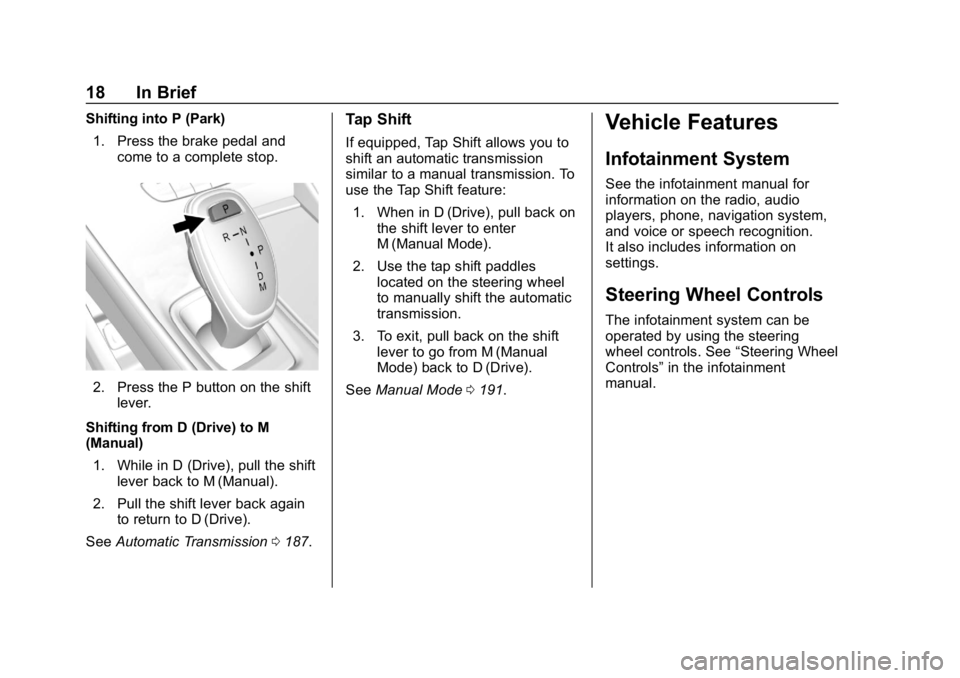
Shifting into P (Park)1. Press the brake pedal and come to a complete stop.
2. Press the P button on the shiftlever.
Shifting from D (Drive) to M
(Manual) 1. While in D (Drive), pull the shift lever back to M (Manual).
2. Pull the shift lever back again to return to D (Drive).
See Automatic Transmission 0187.
Tap Shift
If equipped, Tap Shift allows you to
shift an automatic transmission
similar to a manual transmission. To
use the Tap Shift feature:
1. When in D (Drive), pull back on the shift lever to enter
M (Manual Mode).
2. Use the tap shift paddles located on the steering wheel
to manually shift the automatic
transmission.
3. To exit, pull back on the shift lever to go from M (Manual
Mode) back to D (Drive).
See Manual Mode 0191.
Vehicle Features
Infotainment System
See the infotainment manual for
information on the radio, audio
players, phone, navigation system,
and voice or speech recognition.
It also includes information on
settings.
Steering Wheel Controls
The infotainment system can be
operated by using the steering
wheel controls. See “Steering Wheel
Controls” in the infotainment
manual.
Page 116 of 374
Buick LaCrosse Owner Manual (GMNA-Localizing-U.S./Canada-12032549) -
2019 - crc - 8/20/18
Instruments and Controls 115
Cluster Menu
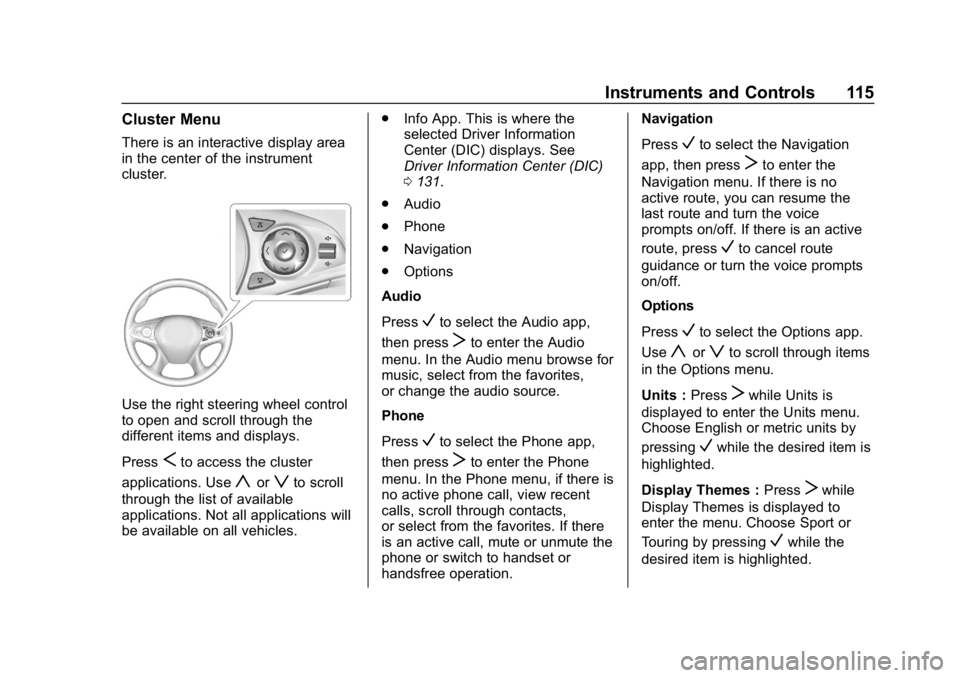
There is an interactive display area
in the center of the instrument
cluster.
Use the right steering wheel control
to open and scroll through the
different items and displays.
Press
Sto access the cluster
applications. Use
yorzto scroll
through the list of available
applications. Not all applications will
be available on all vehicles. .
Info App. This is where the
selected Driver Information
Center (DIC) displays. See
Driver Information Center (DIC)
0131.
. Audio
. Phone
. Navigation
. Options
Audio
Press
Vto select the Audio app,
then press
Tto enter the Audio
menu. In the Audio menu browse for
music, select from the favorites,
or change the audio source.
Phone
Press
Vto select the Phone app,
then press
Tto enter the Phone
menu. In the Phone menu, if there is
no active phone call, view recent
calls, scroll through contacts,
or select from the favorites. If there
is an active call, mute or unmute the
phone or switch to handset or
handsfree operation. Navigation
Press
Vto select the Navigation
app, then press
Tto enter the
Navigation menu. If there is no
active route, you can resume the
last route and turn the voice
prompts on/off. If there is an active
route, press
Vto cancel route
guidance or turn the voice prompts
on/off.
Options
Press
Vto select the Options app.
Use
yorzto scroll through items
in the Options menu.
Units : Press
Twhile Units is
displayed to enter the Units menu.
Choose English or metric units by
pressing
Vwhile the desired item is
highlighted.
Display Themes : Press
Twhile
Display Themes is displayed to
enter the menu. Choose Sport or
Touring by pressing
Vwhile the
desired item is highlighted.
Page 140 of 374
Buick LaCrosse Owner Manual (GMNA-Localizing-U.S./Canada-12032549) -
2019 - crc - 8/20/18
Instruments and Controls 139
Personalization Menus
The following list of features may be
available:
.Time and Date
. Rear Seat Reminder
. Language
. Valet Mode
. Teen Driver
. Radio
. Vehicle
. Bluetooth
. Apple CarPlay
. Android Auto
. Voice
. Display
. Rear Camera
. Return to Factory Settings
. Software Information
. Wi-Fi
Each menu is detailed in the
following information.
Time and Date
Manually set the time and date. See
Clock 0108.
Rear Seat Reminder
This allows for a chime and a
message when the rear door has
been opened before or during
operation of the vehicle.
Select Off or On.
Language
Select Language, then select from
the available language(s).
Valet Mode
To turn Valet Mode on and off, see
“Valet Mode” under“Setting Radio
Preferences” in the infotainment
manual.
Teen Driver
See “Teen Driver” under“Settings”
in the infotainment manual.
Radio
To manage the radio features, see
“Radio Setup” under“Setting Radio
Preferences” in the infotainment
manual.
Vehicle
Select and the following may be
displayed:
. Climate and Air Quality
. Collision/Detection Systems
. Comfort and Convenience
. Lighting
. Power Door Locks
. Remote Lock, Unlock, Start
Climate and Air Quality
Select and the following may be
displayed:
. Auto Fan Speed
. Air Quality Sensor
. Auto Defog
. Auto Rear Defog
. Ionizer
Page 144 of 374
Buick LaCrosse Owner Manual (GMNA-Localizing-U.S./Canada-12032549) -
2019 - crc - 8/20/18
Instruments and Controls 143
Passive Door Unlock
This allows the selection of what
doors will unlock when using the
button on the driver door to unlock
the vehicle.
Select All Doors or Driver Door.
Passive Door Lock
This allows passive locking to be
turned on or off and selects
feedback. SeeRemote Keyless
Entry (RKE) System Operation 029.
Select Off, On with Horn
Chirp, or On.
Remote Left in Vehicle Alert
This feature sounds an alert when
the RKE transmitter is left in the
vehicle. This menu also enables
Remote No Longer in Vehicle Alert.
Select Off or On.
Bluetooth
Select and the following may be
displayed:
. Pair New Device
. Device Management .
Ringtones
. Voice Mail Numbers
. Text Message Alerts
Pair New Device
Select to pair a new device. See
“Pairing” in“Infotainment Controls”
under “Bluetooth” in the infotainment
manual.
Device Management
Select to connect to a different
phone source, disconnect a phone,
or delete a phone.
Ringtones
Touch to change the ring tone for
the specific phone. The phone does
not need to be connected to change
the ring tone.
Voice Mail Numbers
This feature displays the voice mail
number for all connected phones.
To change the voice mail number,
select EDIT. Type a new number,
then select SAVE. Text Message Alerts
This allows the feature to be turned
on or off.
Select Off or On.
Apple CarPlay
Select and the following may
display:
.
Apple CarPlay
. Manage Apple CarPlay Devices
Apple CarPlay
This feature allows Apple devices to
be connected to the infotainment
system through a USB port. See
“Apple CarPlay and Android Auto”
under “Phone” in the infotainment
manual.
Select Off or On.
Manage Apple CarPlay Devices
Select to manage Apple devices.
Apple CarPlay must be on for this
feature to be accessed. See “Apple
CarPlay and Android Auto” under
“Phone” in the infotainment manual.
Page 145 of 374
Buick LaCrosse Owner Manual (GMNA-Localizing-U.S./Canada-12032549) -
2019 - crc - 8/20/18
144 Instruments and Controls
Android Auto
Select and the following may
display:
.Android Auto
. Manage Android Auto Devices
Android Auto
This feature allows Android devices
to be connected to the infotainment
system through a USB port. See
“Apple CarPlay and Android Auto”
under “Phone” in the infotainment
manual.
Select Off or On.
Manage Android Auto Devices
Select to manage Android devices.
Android Auto must be on for this
feature to be accessed. See “Apple
CarPlay and Android Auto” under
“Phone” in the infotainment manual.
Voice
Select and the following may be
displayed:
.
Confidence Threshold
. Prompt Length .
Audio Feedback Speed
. Display “What Can I Say?” Tips
Confidence Threshold
This feature allows the adjustment
of the sensitivity of the speech
recognition system.
Select Confirm More or
Confirm Less.
Prompt Length
This feature adjusts the voice
prompt length.
Select Short or Long.
Audio Feedback Speed
This feature adjusts the audio
feedback speed.
Select Slow, Medium, or Fast.
Display “What Can I Say?” Tips
This feature gives tips on what to
say when using voice recognition.
Select Off or On.
Display
Select and the following may be
displayed: .
Theme
. Calibrate Touchscreen
. Turn Display Off
Theme
Select to change the color, font, and
art of the display.
Select Contemporary, Mainstreet,
Edge, or Velocity.
Calibrate Touchscreen
Select to calibrate the touchscreen,
then follow the prompts.
Turn Display Off
Select to turn the display off. Touch
anywhere on the infotainment
display or press any infotainment
controls on the center stack to turn
the display on.
Rear Camera
Select and the following may be
displayed:
. Guidance Lines
. Rear Park Assist Symbols
Page 157 of 374
Buick LaCrosse Owner Manual (GMNA-Localizing-U.S./Canada-12032549) -
2019 - crc - 8/20/18
156 Infotainment System
Infotainment
System
Introduction
Infotainment . . . . . . . . . . . . . . . . . . 156
Introduction
Infotainment
See the infotainment manual for
information on the radio, audio
players, phone, navigation system,
and voice or speech recognition.
It also includes information on
settings.
Active Noise Cancellation (ANC)
If equipped, ANC reduces engine
noise in the vehicle’s interior. ANC
requires the factory-installed audio
system, radio, speakers, amplifier (if
equipped), induction system, and
exhaust system to work properly.
Deactivation is required by your
dealer if related aftermarket
equipment is installed.
Page 350 of 374
Buick LaCrosse Owner Manual (GMNA-Localizing-U.S./Canada-12032549) -
2019 - crc - 8/20/18
OnStar 349
OnStar
OnStar Overview
OnStar Overview . . . . . . . . . . . . . 349
OnStar Services
Emergency . . . . . . . . . . . . . . . . . . . 350
Security . . . . . . . . . . . . . . . . . . . . . . 351
OnStar Additional Information
OnStar AdditionalInformation . . . . . . . . . . . . . . . . . . 351
OnStar Overview
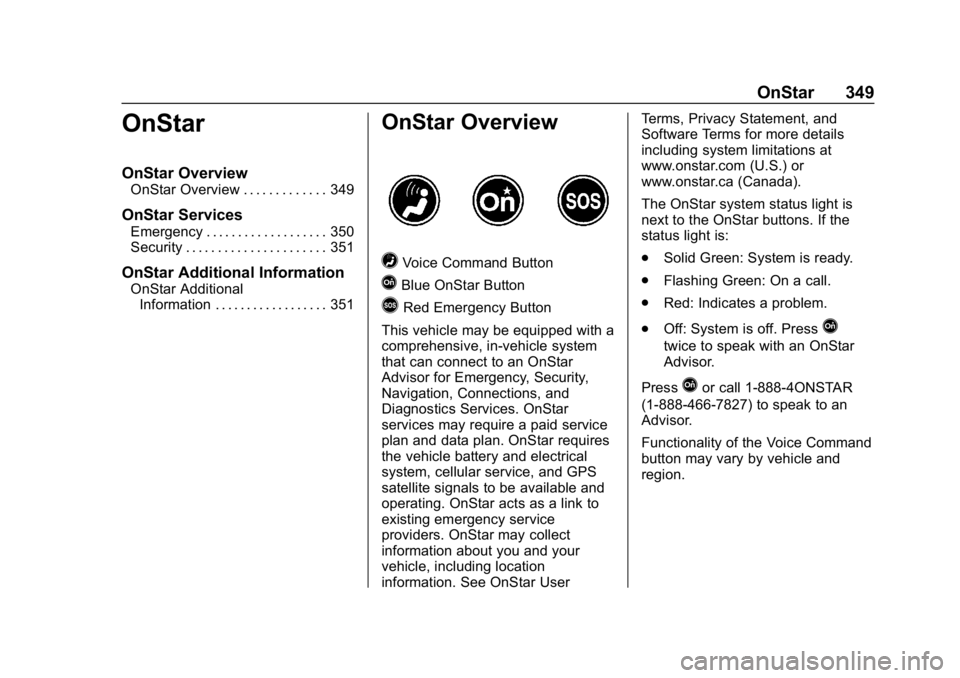
=Voice Command Button
QBlue OnStar Button
>Red Emergency Button
This vehicle may be equipped with a
comprehensive, in-vehicle system
that can connect to an OnStar
Advisor for Emergency, Security,
Navigation, Connections, and
Diagnostics Services. OnStar
services may require a paid service
plan and data plan. OnStar requires
the vehicle battery and electrical
system, cellular service, and GPS
satellite signals to be available and
operating. OnStar acts as a link to
existing emergency service
providers. OnStar may collect
information about you and your
vehicle, including location
information. See OnStar User Terms, Privacy Statement, and
Software Terms for more details
including system limitations at
www.onstar.com (U.S.) or
www.onstar.ca (Canada).
The OnStar system status light is
next to the OnStar buttons. If the
status light is:
.
Solid Green: System is ready.
. Flashing Green: On a call.
. Red: Indicates a problem.
. Off: System is off. Press
Q
twice to speak with an OnStar
Advisor.
Press
Qor call 1-888-4ONSTAR
(1-888-466-7827) to speak to an
Advisor.
Functionality of the Voice Command
button may vary by vehicle and
region.
Page 351 of 374
Buick LaCrosse Owner Manual (GMNA-Localizing-U.S./Canada-12032549) -
2019 - crc - 8/20/18
350 OnStar
Press=to:
. Open the OnStar app on the
infotainment display. See the
infotainment manual for
information on how to use the
OnStar app.
Or
. Make a call, end a call,
or answer an incoming call.
. Give OnStar Hands-Free Calling
voice commands.
. Give OnStar Turn-by-Turn
Navigation voice commands.
. Obtain and customize the Wi-Fi
hotspot name or SSID and
password, if equipped.
Press
Qto connect to an
Advisor to:
. Verify account information or
update contact information.
. Get driving directions.
. Receive a Diagnostic check of
the vehicle's key operating
systems.
. Receive Roadside Assistance. .
Manage Wi-Fi Settings,
if equipped.
Press
>to get a priority connection
to an OnStar Advisor available
24/7 to:
. Get help for an emergency.
. Be a Good Samaritan or
respond to an AMBER Alert.
. Get assistance in severe
weather or other crisis situations
and find evacuation routes.
OnStar Services
Emergency
Emergency Services require an
active safety and security plan. With
Automatic Crash Response, built-in
sensors can automatically alert a
specially trained OnStar Advisor
who is immediately connected in to
the vehicle to help.
Press
>for a priority connection to
an OnStar Advisor who can contact
emergency service providers, direct
them to your exact location, and
relay important information.
With OnStar Crisis Assist, specially
trained Advisors are available
24 hours a day, 7 days a week, to
provide a central point of contact,
assistance, and information during a
crisis.
With Roadside Assistance, Advisors
can locate a nearby service provider
to help with a flat tire, a battery
jump, or an empty gas tank.
Page 358 of 374
Buick LaCrosse Owner Manual (GMNA-Localizing-U.S./Canada-12032549) -
2019 - crc - 8/20/18
Connected Services 357
Connected
Services
Connected Services
Navigation . . . . . . . . . . . . . . . . . . . . 357
Connections . . . . . . . . . . . . . . . . . . 358
Diagnostics . . . . . . . . . . . . . . . . . . . 360
Connected Services
Navigation
Navigation requires a specific
OnStar or connected service plan.
Press
Qto receive Turn-by-Turn
directions or have them sent to the
vehicle’s navigation screen,
if equipped.
Turn-by-Turn Navigation
1. PressQto connect to an
Advisor.
2. Request directions to be downloaded to the vehicle.
3. Follow the voice-guided commands.
Using Voice Commands
During a Planned Route
Functionality of the Voice Command
button, if equipped, may vary by
vehicle and region. For some
vehicles, press
=to open the OnStar app on the infotainment
display. For other vehicles press
=
as follows.
Cancel Route
1. Press
=. System responds:
“OnStar ready,” then a tone.
2. Say “Cancel route.” System
responds: “Do you want to
cancel directions?”
3. Say “Yes.”System responds:
“OK, request completed, thank
you, goodbye.”
Route Preview
1. Press
=. System responds:
“OnStar ready,” then a tone.
2. Say “Route preview.” System
responds with the next three
maneuvers.
Repeat
1. Press
=. System responds:
“OnStar ready,” then a tone.
Page 360 of 374
Buick LaCrosse Owner Manual (GMNA-Localizing-U.S./Canada-12032549) -
2019 - crc - 8/20/18
Connected Services 359
vehicles, the SSID and
password can be changed in
the Wi-Fi Hotspot menu.
After initial set-up, your vehicle’s
Wi-Fi hotspot will connect
automatically to your mobile
devices. Manage data usage by
turning Wi-Fi on or off on your
mobile device, by using the myBuick
mobile app, or by contacting an
OnStar Advisor. On some vehicles,
Wi-Fi can also be managed from the
Wi-Fi Hotspot menu.
MyBuick Mobile App (If Available)
Download the myBuick mobile app
to compatible Apple and Android
smartphones. Buick users can
access the following services from a
smartphone:
. Remotely start/stop the vehicle,
if factory-equipped.
. Lock/unlock doors, if equipped
with automatic locks.
. Activate the horn and lamps. .
Check the vehicle’s fuel level, oil
life, or tire pressure,
if factory-equipped with the Tire
Pressure Monitor System.
. Send destinations to the vehicle.
. Locate the vehicle on a map
(U.S. market only).
. Turn the vehicle's Wi-Fi hotspot
on/off, manage settings, and
monitor data consumption,
if equipped.
. Locate a dealer and schedule
service.
. Request roadside assistance.
. Set a parking reminder with pin
drop, take a photo, make a note,
and set a timer.
. Connect with Buick on social
media.
Features are subject to change. For
myBuick mobile app information and
compatibility, see my.buick.com.
An active OnStar or connected
service plan may be required.
A compatible device,
factory-installed remote start, and power locks are required. Data rates
apply. See www.onstar.com for
details and system limitations.
Remote Services
Contact an OnStar Advisor to
unlock the doors or sound the horn
and flash the lamps.
Marketplace
OnStar Advisors can provide offers
from restaurants and retailers on
your route, help locate hotels,
or book a room. These services
vary by market.
OnStar Hands-Free Calling
Make and receive calls with the
built-in wireless calling service,
which requires available minutes.
Functionality of the Voice Command
button may vary by vehicle and
region. For some vehicles, press
=
to open the OnStar app on the
infotainment display, then select
Hands-Free calling. For other
vehicles press
=as follows.