ESP BUICK LUCERNE 2011 User Guide
[x] Cancel search | Manufacturer: BUICK, Model Year: 2011, Model line: LUCERNE, Model: BUICK LUCERNE 2011Pages: 450, PDF Size: 3.63 MB
Page 143 of 450
Black plate (39,1)Buick Lucerne Owner Manual - 2011
The SBZA displays may remain on if a trailer is
attached to the vehicle, or a bicycle or object is
extending out to either side of the vehicle.
When SBZA is disabled for any reason other than the
driver turning it off, the driver will not be able to turn
SBZA back on using the DIC. The SIDE BLIND ZONE
ALERT ON option will not be selectable if the conditions
for normal system operation are not met. Until normal
operating conditions for SBZA are met, you should not
rely upon SBZA while driving.
SBZA Error Messages
The following messages may appear in the DIC:
SIDE BLIND ZONE ALERT SYSTEM OFF:This
message indicates that the driver has turned the
system off.
SIDE BLIND ZONE SYS. UNAVAILABLE: This
message indicates that the SBZA system is disabled
because the sensor is blocked and cannot detect
vehicles in the blind zone. The sensor may be
blocked by mud, dirt, snow, ice, slush, or even heavy
rainstorms. This message may also activate during
heavy rain or due to road spray. The vehicle does not
need service. For cleaning, see Washing Your Vehicle
on page 6‑102. SERVICE SIDE BLIND ZONE ALERT SYSTEM:
If this
message appears, both SBZA displays will remain on
indicating there is a problem with the SBZA system.
If these displays remain on after continued driving, the
system needs service. Take the vehicle to your dealer.
FCC Information
See Radio Frequency Statementon page 8‑18for information regarding Part 15 of the Federal
Communications Commission (FCC) rules and
Industry Canada Standards RSS-210/220/310.
Frequency of operation: 24.05GHz –24.25GHz
Field Strength: Not greater than 2.5V/m peak
(0.25V/m average) at a distance of 3 m.
The manufacturer is not responsible for any radio or
TV interference caused by unauthorized modifications
to this equipment. Such modifications could void the
user's authority to operate the equipment.
3-39
Page 215 of 450
Black plate (59,1)Buick Lucerne Owner Manual - 2011
Entering the Feature Settings Menu
1. Turn the ignition on and place the vehicle inP (Park).
To avoid excessive drain on the battery, it is
recommended that the headlamps are turned off.
2. Press the customization button to enter the feature settings menu.
If the menu is not available, FEATURE SETTINGS
AVAILABLE IN PARK will display. Before entering
the menu, make sure the vehicle is in P (Park).
Feature Settings Menu Items
The following are customization features that allow you
to program settings to the vehicle:
DISPLAY IN ENGLISH
This feature will only display if a language other than
English has been set. This feature allows you to change
the language in which the DIC messages appear to
English.
Press the customization button until the PRESS
VTO
DISPLAY IN ENGLISH screen appears on the DIC
display. Press the set/reset button once to display all
DIC messages in English.
DISPLAY LANGUAGE
This feature allows you to select the language in which
the DIC messages will appear.
Press the customization button until the DISPLAY
LANGUAGE screen appears on the DIC display. Press
the set/reset button once to access the settings for this
feature. Then press the customization button to scroll
through the following settings:
ENGLISH (default): All messages will appear in
English.
FRANCAIS: All messages will appear in French.
ESPANOL: All messages will appear in Spanish.
NO CHANGE: No change will be made to this feature.
The current setting will remain.
To select a setting, press the set/reset button while the
desired setting is displayed on the DIC.
AUTO DOOR LOCK
This feature allows you to select when the vehicle's
doors will automatically lock. See Programmable
Automatic Door Locks
on page 3‑10for more
information.
4-59
Page 243 of 450
Black plate (87,1)Buick Lucerne Owner Manual - 2011
Voice Recognition
The Bluetooth system uses voice recognition to
interpret voice commands to dial phone numbers and
name tags.
For additional information say“Help”while you are in a
voice recognition menu.
Noise: Keep interior noise levels to a minimum. The
system may not recognize voice commands if there is
too much background noise.
When to Speak: A short tone sounds after the system
responds indicating when it is waiting for a voice
command. Wait until the tone and then speak.
How to Speak: Speak clearly in a calm and natural
voice.
Audio System
When using the in‐vehicle Bluetooth system, sound
comes through the vehicle's front audio system
speakers and overrides the audio system. Use the
audio system volume knob, during a call, to change the
volume level. The adjusted volume level remains in
memory for later calls. To prevent missed calls, a
minimum volume level is used if the volume is turned
down too low.
Bluetooth Controls
Use the buttons located on the steering wheel to
operate the in‐vehicle Bluetooth system. See Audio
Steering Wheel Controls
on page 4‑94for more
information.
b g(Push To Talk): Press to answer incoming calls,
to confirm system information, and to start speech
recognition.
c x(Phone On Hook): Press to end a call, reject a
call, or to cancel an operation.
Pairing
A Bluetooth cell phone must be paired to the Bluetooth
system and then connected to the vehicle before it can
be used. See your cell phone manufacturers user guide
for Bluetooth functions before pairing the cell phone. If a
Bluetooth phone is not connected, calls will be made
using OnStar
®Hands‐Free Calling, if available. Refer to
the OnStar owner's guide for more information.
4-87
Page 244 of 450
Black plate (88,1)Buick Lucerne Owner Manual - 2011
Pairing Information
.Up to five cell phones can be paired to the
Bluetooth system.
.The pairing process is disabled when the vehicle is
moving.
.Pairing only needs to be completed once, unless
the pairing information on the cell phone changes
or the cell phone is deleted from the system.
.Only one paired cell phone can be connected to
the Bluetooth system at a time.
.If multiple paired cell phones are within range
of the system, the system connects to the first
available paired cell phone in the order that they
were first paired to the system. To link to a different
paired phone, see“Linking to a Different Phone”
later in this section.
Pairing a Phone
1. Press and holdb gfor two seconds.
2. Say “Bluetooth.”
3. Say “Pair.”The system responds with instructions
and a four‐digit PIN number. The PIN number is
used in Step 5. 4. Start the pairing process on the cell phone that you
want to pair. For help with this process, see your
cell phone manufacturers user guide.
5. Locate the device named “Your Vehicle”in the list
on the cell phone. Follow the instructions on the
cell phone to enter the PIN number that was
provided in Step 3. After the PIN number is
successfully entered, the system prompts you to
provide a name for the paired cell phone. This
name will be used to indicate which phones are
paired and connected to the vehicle, see “Listing
All Paired and Connected Phones” later in this
section for more information.
6. Repeat Steps 1 through 5 to pair additional phones.
Listing All Paired and Connected Phones
The system can list all cell phones paired to it. If a
paired cell phone is also connected to the vehicle,
the system responds with “is connected”after that
phone name.
1. Press and hold
b gfor two seconds.
2. Say “Bluetooth.”
3. Say “List.”
4-88
Page 245 of 450
Black plate (89,1)Buick Lucerne Owner Manual - 2011
Deleting a Paired Phone
If the phone name you want to delete is unknown, see
“Listing All Paired and Connected Phones.”1. Press and hold
b gfor two seconds.
2. Say “Bluetooth.”
3. Say “Delete.” The system asks for which phone to
delete.
4. Say the name of the phone you want to delete.
Connecting to a Different Phone
To connect to a different cell phone, the Bluetooth
system looks for the next available cell phone in the
order in which all the available cell phones were paired.
Depending on which cell phone you want to connect to,
you may have to use this command several times.
1. Press and hold
b gfor two seconds.
2. Say “Bluetooth.”
3. Say “Change phone.”
.If another cell phone is found, the response will
be“
.If another cell phone is not found, the original
phone remains connected.
Storing and Deleting Phone Numbers
The system can store up to 30 phone numbers as name
tags in the Hands Free Directory that is shared between
the Bluetooth and OnStar systems.
The following commands are used delete and store
phone numbers.
Store: This command will store a phone number, or a
group of numbers as a name tag.
Digit Store: This command allows a phone number to
be stored as a name tag by entering the digits one at
a time.
Delete: This command is used to delete individual
name tags.
Delete All Name Tags: This command deletes all
stored name tags in the Hands Free Calling Directory
and the OnStarTurn by Turn Destinations Directory.
Using the “Store”Command
1. Press and holdbgfor two seconds.
2. Say “Store.”
3. Say the phone number or group of numbers you want to store all at once with no pauses, then
follow the directions given by the system to save a
name tag for this number.
4-89
Page 249 of 450
Black plate (93,1)Buick Lucerne Owner Manual - 2011
To Transfer Audio to the Bluetooth System
From a Cell Phone
During a call with the audio on the cell phone,
press
bg. The audio transfers to the vehicle. If the
audio does not transfer to the vehicle, use the audio
transfer feature on the cell phone. See your cell phone
manufacturers user guide for more information.
Voice Pass-Thru
Voice pass‐thru allows access to the voice recognition
commands on the cell phone. See your cell phone
manufacturers user guide to see if the cell phone
supports this feature.
To access contacts stored in the cell phone:
1. Press and hold
b gfor two seconds.
2. Say “Bluetooth.” The system responds “Bluetooth
ready,” followed by a tone.
3. Say “Voice.” The system responds “OK, accessing
.The cell phone's normal prompt messages will
go through its cycle according to the phone's
operating instructions.
Dual Tone Multi-Frequency (DTMF)
Tones
The Bluetooth system can send numbers and the
numbers stored as name tags during a call. You can
use this feature when calling a menu driven phone
system. Account numbers can also be stored for use.
Sending a Number or Name Tag During
a Call
1. Pressb g. The system responds “Ready,”
followed by a tone.
2. Say “Dial.”
3. Say the number or name tag to send.
Clearing the System
Unless information is deleted out of the in‐vehicle
Bluetooth system, it will be retained indefinitely. This
includes all saved name tags in the phone book and
phone pairing information. For information on how to
delete this information, see the previous sections on
Deleting a Paired Phone and Deleting Name Tags.
4-93
Page 250 of 450
Black plate (94,1)Buick Lucerne Owner Manual - 2011
Other Information
The Bluetooth®word mark and logos are owned by the
Bluetooth®SIG, Inc. and any use of such marks by
General Motors is under license. Other trademarks and
trade names are those of their respective owners.
See Radio Frequency Statement
on page 8‑18for FCC
information.
Theft-Deterrent Feature
TheftLock®is designed to discourage theft of the
vehicle's radio by learning a portion of the Vehicle
Identification Number (VIN). The radio does not operate
if it is stolen or moved to a different vehicle.
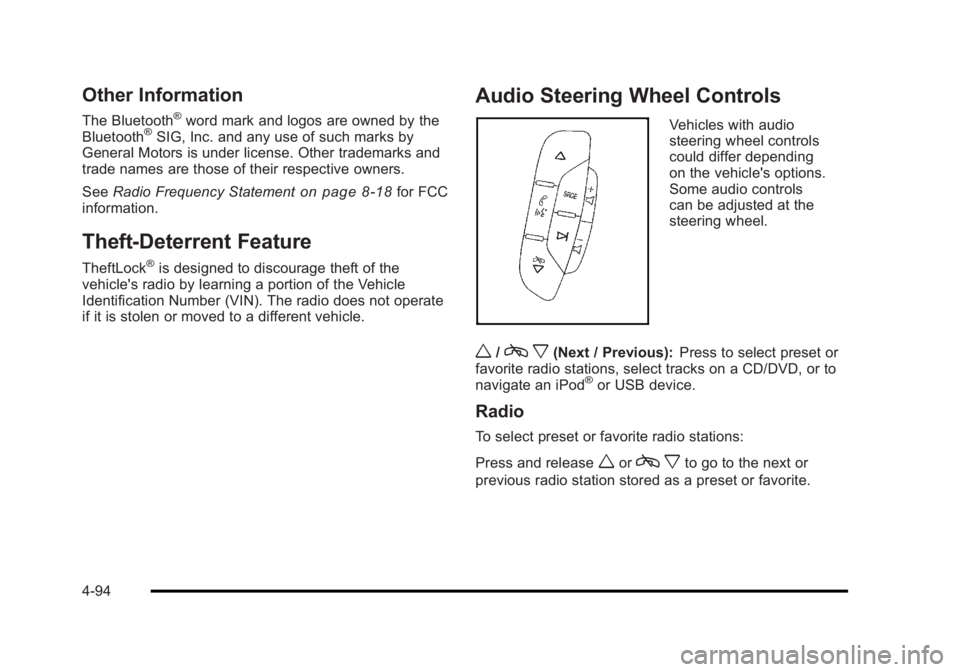
Audio Steering Wheel Controls
Vehicles with audio
steering wheel controls
could differ depending
on the vehicle's options.
Some audio controls
can be adjusted at the
steering wheel.
w/c x(Next / Previous): Press to select preset or
favorite radio stations, select tracks on a CD/DVD, or to
navigate an iPod
®or USB device.
Radio
To select preset or favorite radio stations:
Press and release
worc xto go to the next or
previous radio station stored as a preset or favorite.
4-94
Page 253 of 450
Black plate (97,1)Buick Lucerne Owner Manual - 2011
Radio Reception
Frequency interference and static can occur during
normal radio reception if items such as cell phone
chargers, vehicle convenience accessories, and
external electronic devices are plugged into the
accessory power outlet. If there is interference or static,
unplug the item from the accessory power outlet.
AM
The range for most AM stations is greater than for FM,
especially at night. The longer range can cause station
frequencies to interfere with each other. For better radio
reception, most AM radio stations boost the power
levels during the day, and then reduce these levels
during the night. Static can also occur when things like
storms and power lines interfere with radio reception.
When this happens, try reducing the treble on the radio.
FM Stereo
FM signals only reach about 10 to 40 miles
(16 to 65 km). Although the radio has a built-in
electronic circuit that automatically works to reduce
interference, some static can occur, especially around
tall buildings or hills, causing the sound to fade in
and out.
XM™Satellite Radio Service
XM Satellite Radio Service gives digital radio reception
from coast-to-coast in the 48 contiguous United States,
and in Canada. Just as with FM, tall buildings or hills
can interfere with satellite radio signals, causing the
sound to fade in and out. In addition, traveling or
standing under heavy foliage, bridges, garages,
or tunnels may cause loss of the XM signal for a period
of time.
Cellular Phone Usage
Cellular phone usage may cause interference with
the vehicle's radio. This interference may occur
when making or receiving phone calls, charging the
phone's battery, or simply having the phone on. This
interference causes an increased level of static while
listening to the radio. If static is received while listening
to the radio, unplug the cellular phone and turn it off.
Backglass Antenna
The AM-FM antenna is integrated with the rear window
defogger, located in the rear window. Make sure that
the inside surface of the rear window is not scratched
and that the lines on the glass are not damaged. If the
inside surface is damaged, it could interfere with radio
reception. For proper radio reception, the antenna
connector needs to be properly attached to the post
on the glass.
4-97
Page 257 of 450
Black plate (3,1)Buick Lucerne Owner Manual - 2011
For persons under 21, it is against the law in every
U.S. state to drink alcohol. There are good medical,
psychological, and developmental reasons for
these laws.
The obvious way to eliminate the leading highway
safety problem is for people never to drink alcohol and
then drive.
Medical research shows that alcohol in a person's
system can make crash injuries worse, especially
injuries to the brain, spinal cord, or heart. This means
that when anyone who has been drinking—driver or
passenger —is in a crash, that person's chance of
being killed or permanently disabled is higher than if the
person had not been drinking.
Control of a Vehicle
The following three systems help to control the vehicle
while driving —brakes, steering, and accelerator. At
times, as when driving on snow or ice, it is easy to ask
more of those control systems than the tires and road
can provide. Meaning, you can lose control of the
vehicle. See Traction Control System (TCS)
on
page 5‑6.
Adding non‐dealer accessories can affect vehicle
performance. See Accessories and Modifications
on
page 6‑3.
Braking
See Brake System Warning Light on page 4‑32.
Braking action involves perception time and reaction
time. Deciding to push the brake pedal is perception
time. Actually doing it is reaction time.
Average reaction time is about three‐fourths of a
second. But that is only an average. It might be less
with one driver and as long as two or three seconds or
more with another. Age, physical condition, alertness,
coordination, and eyesight all play a part. So do alcohol,
drugs, and frustration. But even in three‐fourths of a
second, a vehicle moving at 100 km/h (60 mph) travels
20 m (66 feet). That could be a lot of distance in an
emergency, so keeping enough space between the
vehicle and others is important.
And, of course, actual stopping distances vary greatly
with the surface of the road, whether it is pavement or
gravel; the condition of the road, whether it is wet, dry,
or icy; tire tread; the condition of the brakes; the weight
of the vehicle; and the amount of brake force applied.
5-3
Page 260 of 450
Black plate (6,1)Buick Lucerne Owner Manual - 2011
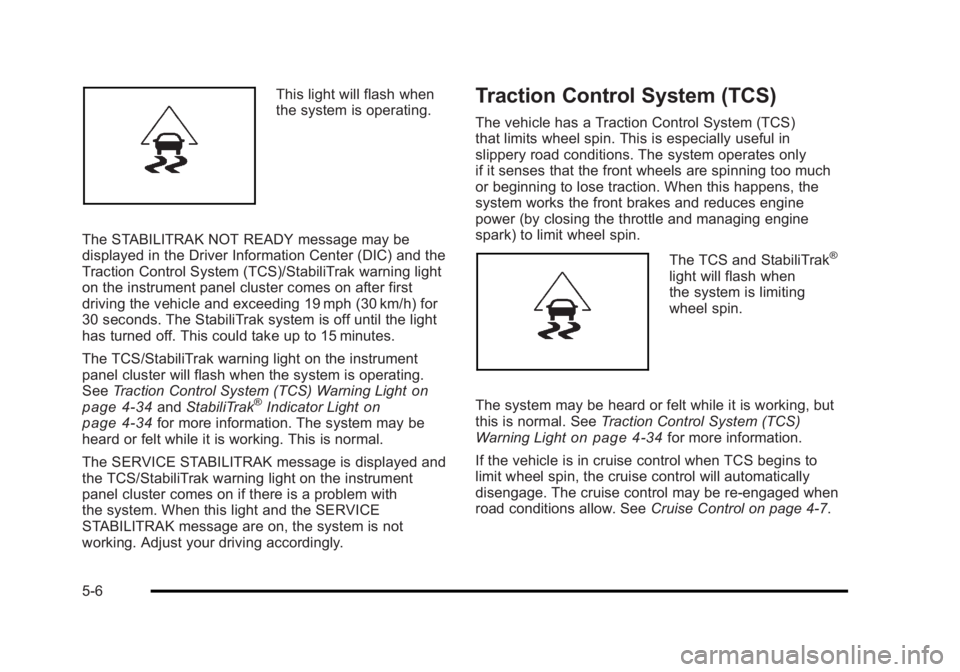
This light will flash when
the system is operating.
The STABILITRAK NOT READY message may be
displayed in the Driver Information Center (DIC) and the
Traction Control System (TCS)/StabiliTrak warning light
on the instrument panel cluster comes on after first
driving the vehicle and exceeding 19 mph (30 km/h) for
30 seconds. The StabiliTrak system is off until the light
has turned off. This could take up to 15 minutes.
The TCS/StabiliTrak warning light on the instrument
panel cluster will flash when the system is operating.
See Traction Control System (TCS) Warning Light
on
page 4‑34and StabiliTrak®Indicator Lighton
page 4‑34for more information. The system may be
heard or felt while it is working. This is normal.
The SERVICE STABILITRAK message is displayed and
the TCS/StabiliTrak warning light on the instrument
panel cluster comes on if there is a problem with
the system. When this light and the SERVICE
STABILITRAK message are on, the system is not
working. Adjust your driving accordingly.
Traction Control System (TCS)
The vehicle has a Traction Control System (TCS)
that limits wheel spin. This is especially useful in
slippery road conditions. The system operates only
if it senses that the front wheels are spinning too much
or beginning to lose traction. When this happens, the
system works the front brakes and reduces engine
power (by closing the throttle and managing engine
spark) to limit wheel spin.
The TCS and StabiliTrak®
light will flash when
the system is limiting
wheel spin.
The system may be heard or felt while it is working, but
this is normal. See Traction Control System (TCS)
Warning Light
on page 4‑34for more information.
If the vehicle is in cruise control when TCS begins to
limit wheel spin, the cruise control will automatically
disengage. The cruise control may be re-engaged when
road conditions allow. See Cruise Control on page 4‑7.
5-6