ECO mode BUICK RAINIER 2006 Owner's Guide
[x] Cancel search | Manufacturer: BUICK, Model Year: 2006, Model line: RAINIER, Model: BUICK RAINIER 2006Pages: 470, PDF Size: 2.72 MB
Page 232 of 470
©SEEK¨:Press the left arrow to go to the start of
the current track, if more than ten seconds have played.
Press the right arrow to go to the next track. If either
arrow is pressed more than once, the player will
continue moving backward or forward through the CD.
©SCAN¨:To scan one CD, press and hold
either SCAN arrow for more than two seconds until
TRACK SCAN appears on the display and you hear
a beep. The radio will go to the next track, play for
10 seconds, then go on to the next track. Press either
SCAN arrow again, to stop scanning.
To scan all loaded CDs, press and hold either SCAN
arrow for more than four seconds until ALL CD
SCAN appears on the display and you hear a beep.
Use this feature to listen to 10 seconds of the rst track
of each loaded CD. Press either SCAN arrow again,
to stop scanning.
INFO (Information):Press this knob to see how long
the current track has been playing. To change the
default on the display, track or elapsed time, press the
knob until you see the display you want, then press
and hold the knob until you hear a beep. The selected
display will now be the default.
BAND:Press this button to listen to the radio when a
CD is playing. The inactive CD(s) will remain safely
inside the radio for future listening.
Using Song List Mode
The six-disc CD changer has a feature called song list.
This feature is capable of saving 20 track selections.
To save tracks into the song list feature, perform
the following steps:
1. Turn the CD player on and load it with at least
one CD. See “LOAD CD” listed previously in this
section for more information.
2. Check to see that the CD changer is not in song list
mode. S-LIST should not appear on the display.
If S-LIST is present, press the SONG LIST button
to turn it off.
3. Select the desired CD by pressing the numbered
pushbutton and then use the SEEK or TYPE right
arrow to locate the track to be saved. The track
will begin to play.
4. Press and hold the SONG LIST button to save
the track into memory. When SONG LIST is
pressed, one beep will be heard immediately.
After two seconds of continuously pressing the
SONG LIST button, two beeps will sound to
conrm the track has been saved.
5. Repeat Steps 3 and 4 for saving other selections.
S-LIST FULL will appear on the display if you try to
save more than 20 selections.
3-110
Page 233 of 470
To play the song list, press the SONG LIST button.
One beep will be heard and S-LIST will appear on
the display. The recorded tracks will begin to play in
the order they were saved.
Seek through the song list by using the SEEK or TYPE
arrows. Seeking past the last saved track will return
to the rst saved track.
To delete tracks from the song list, perform the
following steps:
1. Turn the CD player on.
2. Press the SONG LIST button to turn song list on.
S-LIST will appear on the display.
3. Press either SEEK or TYPE arrow to select the
desired track to be deleted.
4. Press and hold the SONG LIST button for
two seconds. When SONG LIST is pressed,
one beep will be heard immediately. After
two seconds of continuously pressing the
SONG LIST button, two beeps will be heard to
conrm that the track has been deleted.
After a track has been deleted, the remaining tracks
are moved up the list. When another track is added
to the song list, the track will be added to the end
of the list.To delete the entire song list, perform the
following steps:
1. Turn the CD player on.
2. Press the SONG LIST button to turn song list on.
S-LIST will appear on the display.
3. Press and hold the SONG LIST button for more
than four seconds. One beep will be heard,
followed by two beeps after two seconds, and a
nal beep will be heard after four seconds. S-LIST
EMPTY will appear on the display indicating the
song list has been deleted.
If a CD is ejected, and the song list contains saved
tracks from that CD, those tracks are automatically
deleted from the song list. Any tracks saved to the
song list again are added to the bottom of the list.
To end song list mode, press the SONG LIST button.
One beep will be heard and S-LIST will be removed
from the display.
3-111
Page 242 of 470
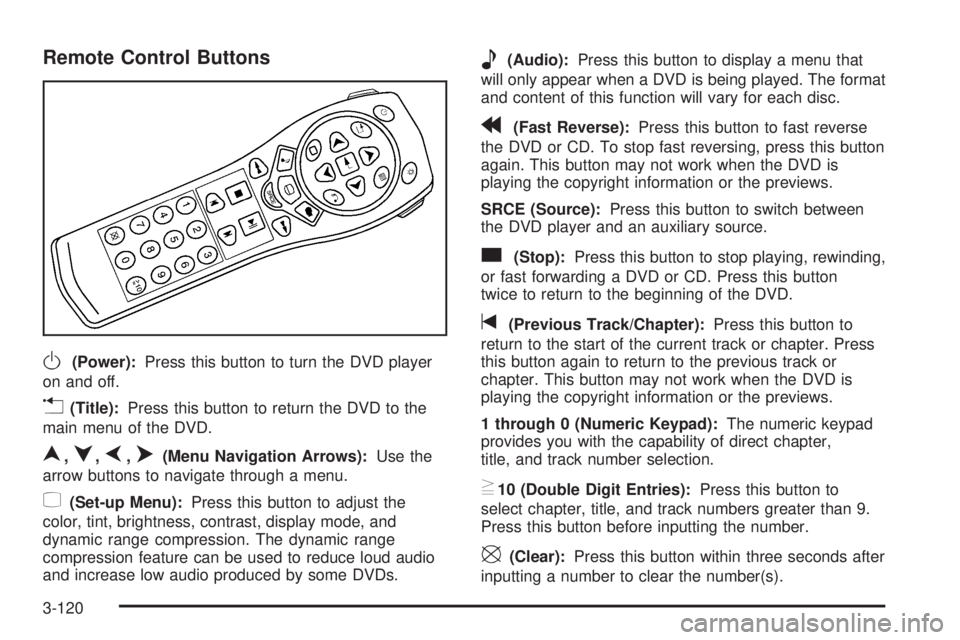
Remote Control Buttons
O(Power):Press this button to turn the DVD player
on and off.
v(Title):Press this button to return the DVD to the
main menu of the DVD.
n,q,p,o(Menu Navigation Arrows):Use the
arrow buttons to navigate through a menu.
z(Set-up Menu):Press this button to adjust the
color, tint, brightness, contrast, display mode, and
dynamic range compression. The dynamic range
compression feature can be used to reduce loud audio
and increase low audio produced by some DVDs.
e(Audio):Press this button to display a menu that
will only appear when a DVD is being played. The format
and content of this function will vary for each disc.
r(Fast Reverse):Press this button to fast reverse
the DVD or CD. To stop fast reversing, press this button
again. This button may not work when the DVD is
playing the copyright information or the previews.
SRCE (Source):Press this button to switch between
the DVD player and an auxiliary source.
c(Stop):Press this button to stop playing, rewinding,
or fast forwarding a DVD or CD. Press this button
twice to return to the beginning of the DVD.
t(Previous Track/Chapter):Press this button to
return to the start of the current track or chapter. Press
this button again to return to the previous track or
chapter. This button may not work when the DVD is
playing the copyright information or the previews.
1 through 0 (Numeric Keypad):The numeric keypad
provides you with the capability of direct chapter,
title, and track number selection.
}10 (Double Digit Entries):Press this button to
select chapter, title, and track numbers greater than 9.
Press this button before inputting the number.
\(Clear):Press this button within three seconds after
inputting a number to clear the number(s).
3-120
Page 243 of 470
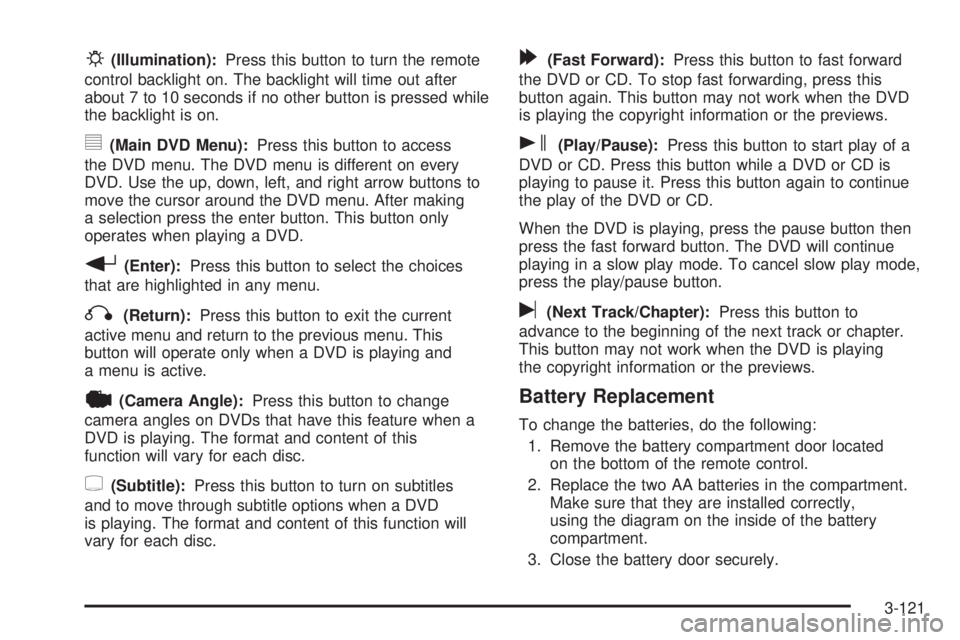
P(Illumination):Press this button to turn the remote
control backlight on. The backlight will time out after
about 7 to 10 seconds if no other button is pressed while
the backlight is on.
y(Main DVD Menu):Press this button to access
the DVD menu. The DVD menu is different on every
DVD. Use the up, down, left, and right arrow buttons to
move the cursor around the DVD menu. After making
a selection press the enter button. This button only
operates when playing a DVD.
r(Enter):Press this button to select the choices
that are highlighted in any menu.
q(Return):Press this button to exit the current
active menu and return to the previous menu. This
button will operate only when a DVD is playing and
a menu is active.
|(Camera Angle):Press this button to change
camera angles on DVDs that have this feature when a
DVD is playing. The format and content of this
function will vary for each disc.
{(Subtitle):Press this button to turn on subtitles
and to move through subtitle options when a DVD
is playing. The format and content of this function will
vary for each disc.
[(Fast Forward):Press this button to fast forward
the DVD or CD. To stop fast forwarding, press this
button again. This button may not work when the DVD
is playing the copyright information or the previews.
s(Play/Pause):Press this button to start play of a
DVD or CD. Press this button while a DVD or CD is
playing to pause it. Press this button again to continue
the play of the DVD or CD.
When the DVD is playing, press the pause button then
press the fast forward button. The DVD will continue
playing in a slow play mode. To cancel slow play mode,
press the play/pause button.
u(Next Track/Chapter):Press this button to
advance to the beginning of the next track or chapter.
This button may not work when the DVD is playing
the copyright information or the previews.
Battery Replacement
To change the batteries, do the following:
1. Remove the battery compartment door located
on the bottom of the remote control.
2. Replace the two AA batteries in the compartment.
Make sure that they are installed correctly,
using the diagram on the inside of the battery
compartment.
3. Close the battery door securely.
3-121
Page 244 of 470
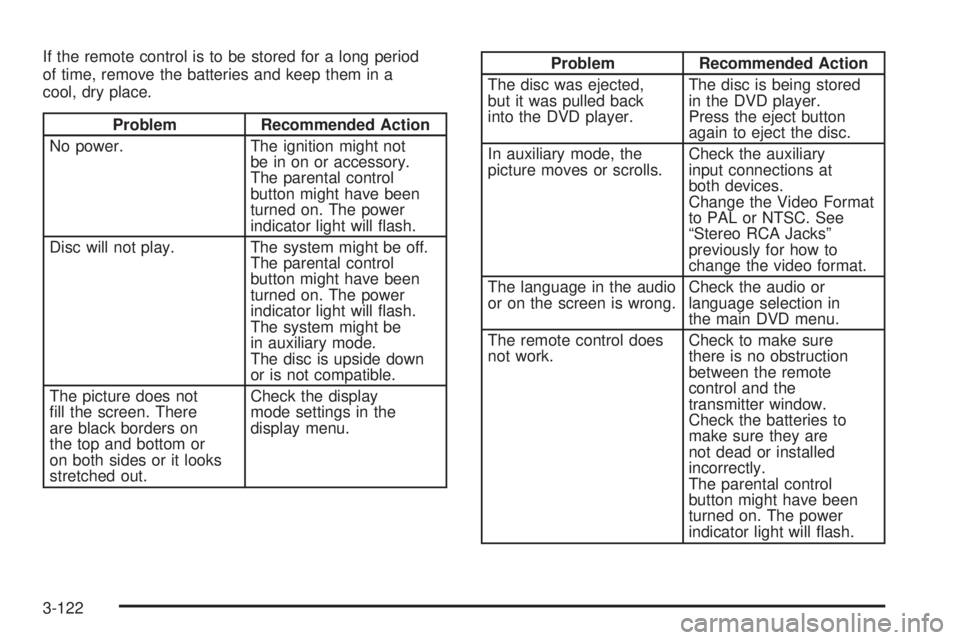
If the remote control is to be stored for a long period
of time, remove the batteries and keep them in a
cool, dry place.
Problem Recommended Action
No power. The ignition might not
be in on or accessory.
The parental control
button might have been
turned on. The power
indicator light will ash.
Disc will not play. The system might be off.
The parental control
button might have been
turned on. The power
indicator light will ash.
The system might be
in auxiliary mode.
The disc is upside down
or is not compatible.
The picture does not
ll the screen. There
are black borders on
the top and bottom or
on both sides or it looks
stretched out.Check the display
mode settings in the
display menu.
Problem Recommended Action
The disc was ejected,
but it was pulled back
into the DVD player.The disc is being stored
in the DVD player.
Press the eject button
again to eject the disc.
In auxiliary mode, the
picture moves or scrolls.Check the auxiliary
input connections at
both devices.
Change the Video Format
to PAL or NTSC. See
“Stereo RCA Jacks”
previously for how to
change the video format.
The language in the audio
or on the screen is wrong.Check the audio or
language selection in
the main DVD menu.
The remote control does
not work.Check to make sure
there is no obstruction
between the remote
control and the
transmitter window.
Check the batteries to
make sure they are
not dead or installed
incorrectly.
The parental control
button might have been
turned on. The power
indicator light will ash.
3-122
Page 245 of 470
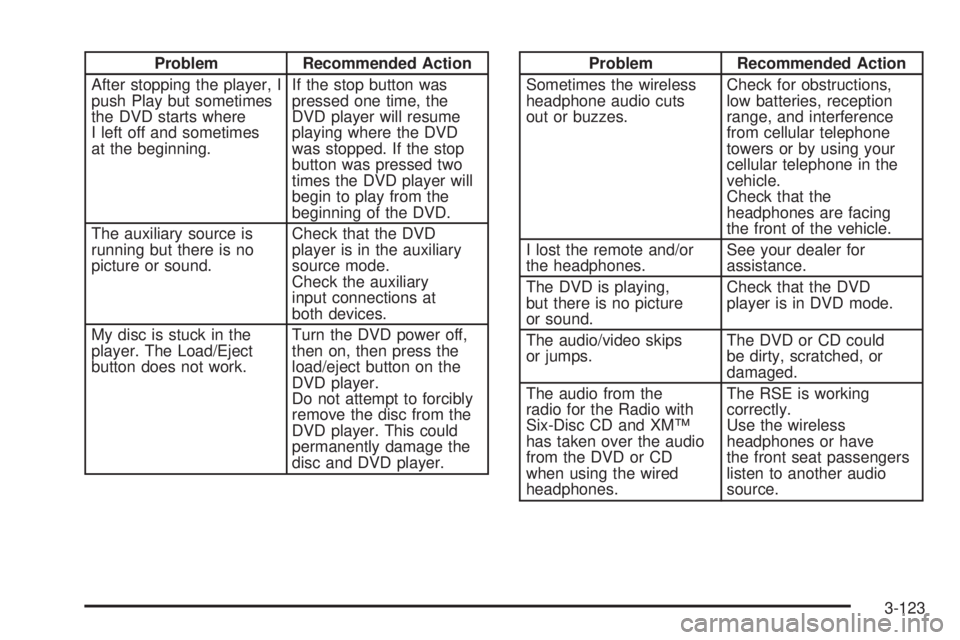
Problem Recommended Action
After stopping the player, I
push Play but sometimes
the DVD starts where
I left off and sometimes
at the beginning.If the stop button was
pressed one time, the
DVD player will resume
playing where the DVD
was stopped. If the stop
button was pressed two
times the DVD player will
begin to play from the
beginning of the DVD.
The auxiliary source is
running but there is no
picture or sound.Check that the DVD
player is in the auxiliary
source mode.
Check the auxiliary
input connections at
both devices.
My disc is stuck in the
player. The Load/Eject
button does not work.Turn the DVD power off,
then on, then press the
load/eject button on the
DVD player.
Do not attempt to forcibly
remove the disc from the
DVD player. This could
permanently damage the
disc and DVD player.Problem Recommended Action
Sometimes the wireless
headphone audio cuts
out or buzzes.Check for obstructions,
low batteries, reception
range, and interference
from cellular telephone
towers or by using your
cellular telephone in the
vehicle.
Check that the
headphones are facing
the front of the vehicle.
I lost the remote and/or
the headphones.See your dealer for
assistance.
The DVD is playing,
but there is no picture
or sound.Check that the DVD
player is in DVD mode.
The audio/video skips
or jumps.The DVD or CD could
be dirty, scratched, or
damaged.
The audio from the
radio for the Radio with
Six-Disc CD and XM™
has taken over the audio
from the DVD or CD
when using the wired
headphones.The RSE is working
correctly.
Use the wireless
headphones or have
the front seat passengers
listen to another audio
source.
3-123
Page 262 of 470
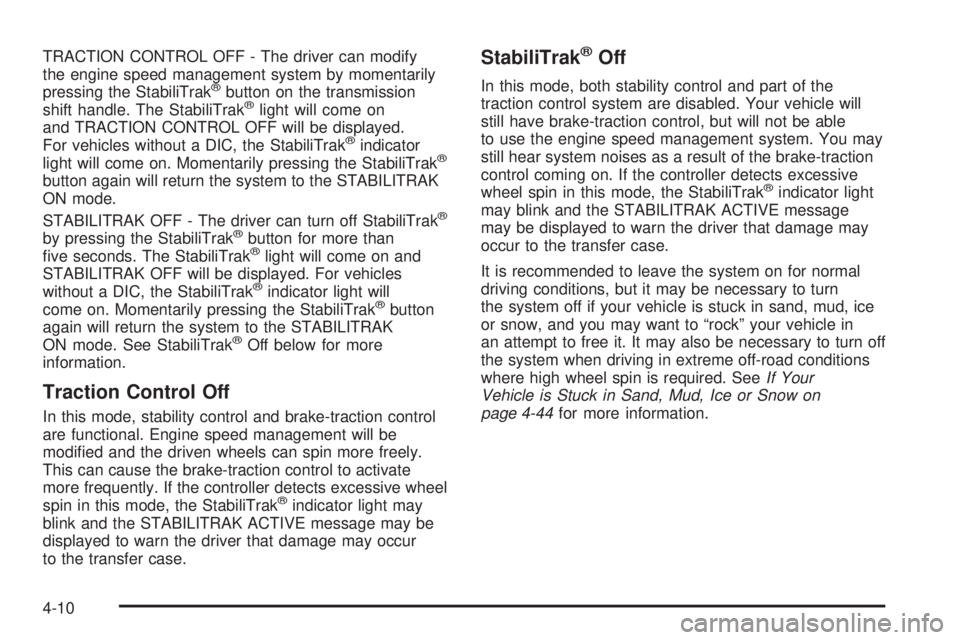
TRACTION CONTROL OFF - The driver can modify
the engine speed management system by momentarily
pressing the StabiliTrak
®button on the transmission
shift handle. The StabiliTrak®light will come on
and TRACTION CONTROL OFF will be displayed.
For vehicles without a DIC, the StabiliTrak
®indicator
light will come on. Momentarily pressing the StabiliTrak®
button again will return the system to the STABILITRAK
ON mode.
STABILITRAK OFF - The driver can turn off StabiliTrak
®
by pressing the StabiliTrak®button for more than
ve seconds. The StabiliTrak®light will come on and
STABILITRAK OFF will be displayed. For vehicles
without a DIC, the StabiliTrak
®indicator light will
come on. Momentarily pressing the StabiliTrak®button
again will return the system to the STABILITRAK
ON mode. See StabiliTrak
®Off below for more
information.
Traction Control Off
In this mode, stability control and brake-traction control
are functional. Engine speed management will be
modied and the driven wheels can spin more freely.
This can cause the brake-traction control to activate
more frequently. If the controller detects excessive wheel
spin in this mode, the StabiliTrak
®indicator light may
blink and the STABILITRAK ACTIVE message may be
displayed to warn the driver that damage may occur
to the transfer case.
StabiliTrak®Off
In this mode, both stability control and part of the
traction control system are disabled. Your vehicle will
still have brake-traction control, but will not be able
to use the engine speed management system. You may
still hear system noises as a result of the brake-traction
control coming on. If the controller detects excessive
wheel spin in this mode, the StabiliTrak
®indicator light
may blink and the STABILITRAK ACTIVE message
may be displayed to warn the driver that damage may
occur to the transfer case.
It is recommended to leave the system on for normal
driving conditions, but it may be necessary to turn
the system off if your vehicle is stuck in sand, mud, ice
or snow, and you may want to “rock” your vehicle in
an attempt to free it. It may also be necessary to turn off
the system when driving in extreme off-road conditions
where high wheel spin is required. SeeIf Your
Vehicle is Stuck in Sand, Mud, Ice or Snow on
page 4-44for more information.
4-10
Page 303 of 470
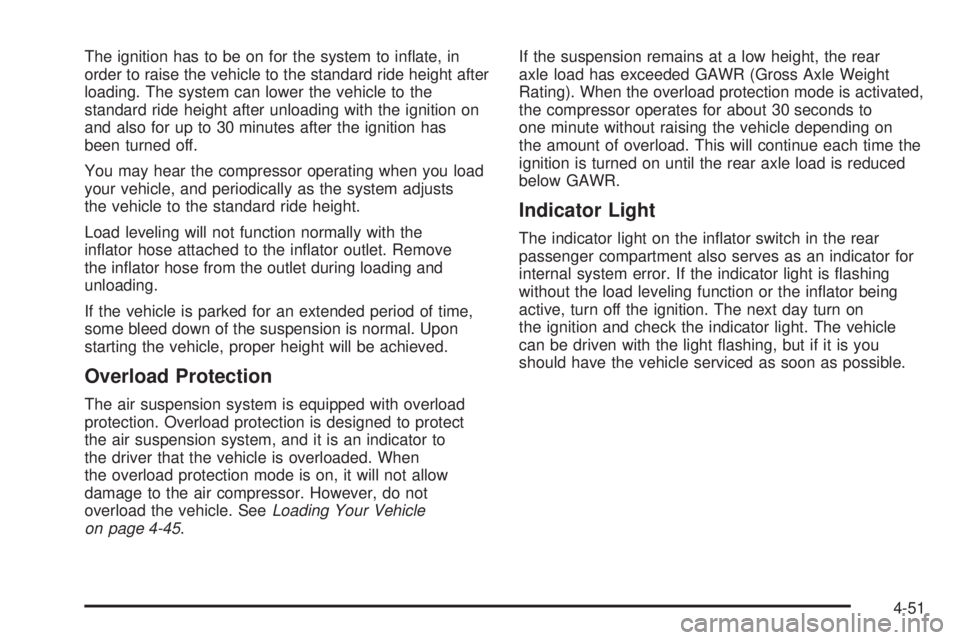
The ignition has to be on for the system to inate, in
order to raise the vehicle to the standard ride height after
loading. The system can lower the vehicle to the
standard ride height after unloading with the ignition on
and also for up to 30 minutes after the ignition has
been turned off.
You may hear the compressor operating when you load
your vehicle, and periodically as the system adjusts
the vehicle to the standard ride height.
Load leveling will not function normally with the
inator hose attached to the inator outlet. Remove
the inator hose from the outlet during loading and
unloading.
If the vehicle is parked for an extended period of time,
some bleed down of the suspension is normal. Upon
starting the vehicle, proper height will be achieved.
Overload Protection
The air suspension system is equipped with overload
protection. Overload protection is designed to protect
the air suspension system, and it is an indicator to
the driver that the vehicle is overloaded. When
the overload protection mode is on, it will not allow
damage to the air compressor. However, do not
overload the vehicle. SeeLoading Your Vehicle
on page 4-45.If the suspension remains at a low height, the rear
axle load has exceeded GAWR (Gross Axle Weight
Rating). When the overload protection mode is activated,
the compressor operates for about 30 seconds to
one minute without raising the vehicle depending on
the amount of overload. This will continue each time the
ignition is turned on until the rear axle load is reduced
below GAWR.
Indicator Light
The indicator light on the inator switch in the rear
passenger compartment also serves as an indicator for
internal system error. If the indicator light is ashing
without the load leveling function or the inator being
active, turn off the ignition. The next day turn on
the ignition and check the indicator light. The vehicle
can be driven with the light ashing, but if it is you
should have the vehicle serviced as soon as possible.
4-51
Page 373 of 470
Load Index:An assigned number ranging from 1 to 279
that corresponds to the load carrying capacity of a tire.
Maximum Ination Pressure:The maximum air
pressure to which a cold tire may be inated. The
maximum air pressure is molded onto the sidewall.
Maximum Load Rating:The load rating for a tire at
the maximum permissible ination pressure for that tire.
Maximum Loaded Vehicle Weight:The sum of
curb weight; accessory weight; vehicle capacity weight;
and production options weight.
Normal Occupant Weight:The number of occupants a
vehicle is designed to seat multiplied by 150 lbs (68 kg).
SeeLoading Your Vehicle on page 4-45.
Occupant Distribution:Designated seating positions.
Outward Facing Sidewall:The side of an
asymmetrical tire that has a particular side that faces
outward when mounted on a vehicle. The side of the
tire that contains a whitewall, bears white lettering,
or bears manufacturer, brand, and/or model name
molding that is higher or deeper than the same
moldings on the other sidewall of the tire.
Passenger (P-Metric) Tire:A tire used on passenger
cars and some light duty trucks and multipurpose
vehicles.Recommended Ination Pressure:Vehicle
manufacturer’s recommended tire ination pressure and
shown on the tire placard. SeeInation - Tire Pressure
on page 5-58andLoading Your Vehicle on page 4-45.
Radial Ply Tire:A pneumatic tire in which the ply cords
that extend to the beads are laid at 90 degrees to the
centerline of the tread.
Rim:A metal support for a tire and upon which the tire
beads are seated.
Sidewall:The portion of a tire between the tread and
the bead.
Speed Rating:An alphanumeric code assigned to
a tire indicating the maximum speed at which a tire
can operate.
Traction:The friction between the tire and the road
surface. The amount of grip provided.
Tread:The portion of a tire that comes into contact
with the road.
Treadwear Indicators:Narrow bands, sometimes
called wear bars, that show across the tread of a
tire when only 1/16 inch (1.6 mm) of tread remains.
SeeWhen It Is Time for New Tires on page 5-61.
5-57
Page 449 of 470
Additional Program Information
Courtesy Transportation is available during the
Bumper-to-Bumper warranty coverage period, but
it is not part of the New Vehicle Limited Warranty.
A separate booklet entitledWarranty and Owner
Assistance Informationfurnished with each new vehicle
provides detailed warranty coverage information.
Courtesy Transportation is available only at participating
dealers and all program options, such as shuttle
service, may not be available at every dealer. Please
contact your dealer for specic information about
availability. All Courtesy Transportation arrangements
will be administered by appropriate dealer personnel.
Canadian Vehicles:For warranty repairs during
the Complete Vehicle Coverage period of the General
Motors of Canada New Vehicle Limited Warranty,
alternative transportation may be available under the
Courtesy Transportation Program. Please consult
your dealer for details.
General Motors reserves the right to unilaterally modify,
change or discontinue Courtesy Transportation at
any time and to resolve all questions of claim eligibility
pursuant to the terms and conditions described
herein at its sole discretion.
Vehicle Data Collection and Event
Data Recorders
Your vehicle, like other modern motor vehicles, has a
number of sophisticated computer systems that monitor
and control several aspects of the vehicle’s performance.
Your vehicle uses on-board vehicle computers to monitor
emission control components to optimize fuel economy,
to monitor conditions for airbag deployment and, if so
equipped, to provide anti-lock braking and to help the
driver control the vehicle in difficult driving situations.
Some information may be stored during regular
operations to facilitate repair of detected malfunctions;
other information is stored only in a crash event by
computer systems, such as those commonly called
event data recorders (EDR).
In a crash event, computer systems, such as the Airbag
Sensing and Diagnostic Module (SDM) in your vehicle
may record information about the condition of the vehicle
and how it was operated, such as data related to engine
speed, brake application, throttle position, vehicle speed,
safety belt usage, airbag readiness, airbag performance,
and the severity of a collision. If your vehicle is equipped
with StabiliTrak
®, steering performance, including yaw
rate, steering wheel angle, and lateral acceleration, is
also recorded. This information has been used to improve
vehicle crash performance and may be used to improve
crash performance of future vehicles and driving safety.
7-9