audio BUICK REGAL 2013 User Guide
[x] Cancel search | Manufacturer: BUICK, Model Year: 2013, Model line: REGAL, Model: BUICK REGAL 2013Pages: 412, PDF Size: 6.06 MB
Page 153 of 412
Black plate (1,1)Buick Regal Owner Manual - 2013 - crc - 11/5/12
Infotainment System 7-1
Infotainment
System
Introduction
Infotainment . . . . . . . . . . . . . . . . . . . 7-1
Theft-Deterrent Feature . . . . . . . 7-2
Overview . . . . . . . . . . . . . . . . . . . . . . 7-2
Radio
AM-FM Radio . . . . . . . . . . . . . . . . . 7-9
Satellite Radio . . . . . . . . . . . . . . . 7-11
Radio Reception . . . . . . . . . . . . . 7-13
Backglass Antenna . . . . . . . . . . 7-14
Satellite Radio Antenna . . . . . . 7-15
Audio Players
CD Player . . . . . . . . . . . . . . . . . . . 7-15
MP3 . . . . . . . . . . . . . . . . . . . . . . . . . 7-16
Auxiliary Devices . . . . . . . . . . . . 7-18
Phone
Bluetooth (Overview) . . . . . . . . 7-22
Bluetooth (InfotainmentControls) . . . . . . . . . . . . . . . . . . . 7-24
Bluetooth (Voice Recognition) . . . . . . . . . . . . . . . 7-27
Trademarks and License
Agreements
Trademarks and LicenseAgreements . . . . . . . . . . . . . . . . 7-34
Introduction
Infotainment
Read the following pages to
become familiar with the audio
system's features.
{WARNING
Taking your eyes off the road for
extended periods could cause a
crash resulting in injury or death
to you or others. Do not give
extended attention to infotainment
tasks while driving.
This system provides access to
many audio and non-audio listings.
Page 154 of 412
Black plate (2,1)Buick Regal Owner Manual - 2013 - crc - 11/5/12
7-2 Infotainment System
To minimize taking your eyes off the
road while driving, do the following
while the vehicle is parked:
.Become familiar with the
operation and controls of the
audio system.
.Set up the tone, speaker
adjustments, and preset radio
stations.
For more information, see Defensive
Driving on page 9‑3.
Notice: Contact your dealer
before adding any equipment.
Adding audio or communication
equipment could interfere with
the operation of the engine, radio,
or other systems, and could
damage them. Follow federal
rules covering mobile radio and
telephone equipment. The vehicle has Retained
Accessory Power (RAP). With RAP,
the audio system can be played
even after the ignition is turned off.
See
Retained Accessory Power
(RAP) on page 9‑23.
The vehicle may have a base radio
that is included in this manual. See
the separate infotainment manual
for information on the connective
radio and the navigation system,
audio players, phone, and voice
recognition. There is also
information on settings and
downloadable applications (if
equipped).
Theft-Deterrent Feature
The theft-deterrent feature works by
learning a portion of the Vehicle
Identification Number (VIN) to the
infotainment system. The
infotainment system does not
operate if it is stolen or moved to a
different vehicle.
Overview
Keeping your eyes on the road and
your mind on the drive is important
for safe driving. The infotainment
system has built-in features
intended to help with this by
disabling some features when
driving. A grayed-out function is not
available when the vehicle is
moving.
All functions are available when the
vehicle is parked. Do the following
before driving:
.Become familiar with the
infotainment system operation,
buttons on the faceplate, and
touch-sensitive screen buttons.
.Set up the audio by presetting
favorite stations, setting the
tone, and adjusting the
speakers.
Page 155 of 412
Black plate (3,1)Buick Regal Owner Manual - 2013 - crc - 11/5/12
Infotainment System 7-3
.Set up phone numbers in
advance so they can be called
easily by pressing a single
button or a single voice
command for vehicles equipped
with phone capability.
{WARNING
Taking your eyes off the road too
long or too often while using the
navigation system could cause a
crash and you or others could be
injured or killed. Focus your
attention on driving and limit
glances at the moving map on the
navigation screen. Use voice
guidance whenever possible.
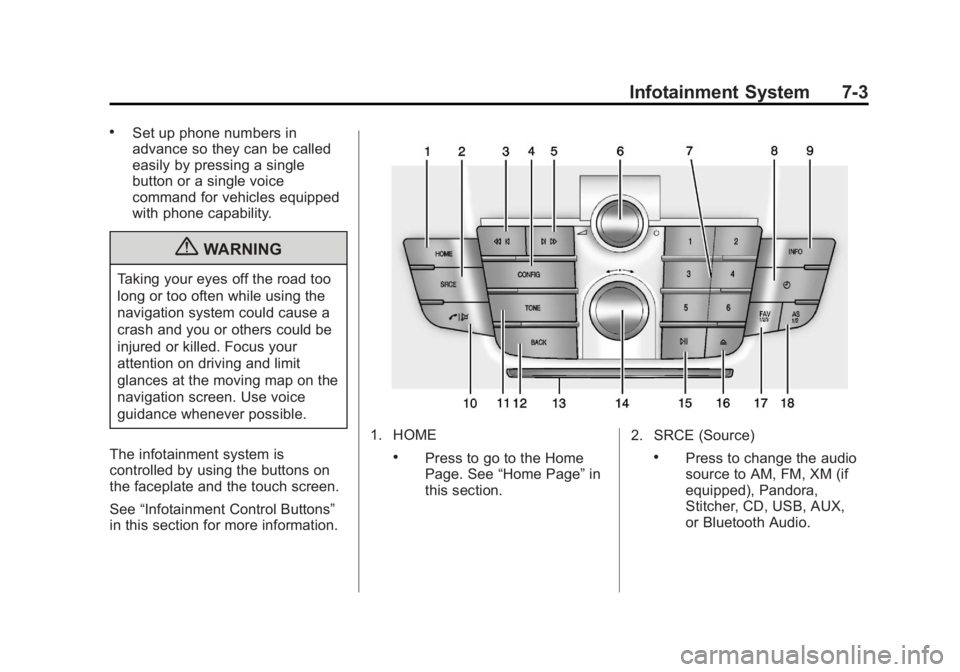
The infotainment system is
controlled by using the buttons on
the faceplate and the touch screen.
See “Infotainment Control Buttons”
in this section for more information.
1. HOME
.Press to go to the Home
Page. See “Home Page” in
this section. 2. SRCE (Source).Press to change the audio
source to AM, FM, XM (if
equipped), Pandora,
Stitcher, CD, USB, AUX,
or Bluetooth Audio.
Page 156 of 412
Black plate (4,1)Buick Regal Owner Manual - 2013 - crc - 11/5/12
7-4 Infotainment System
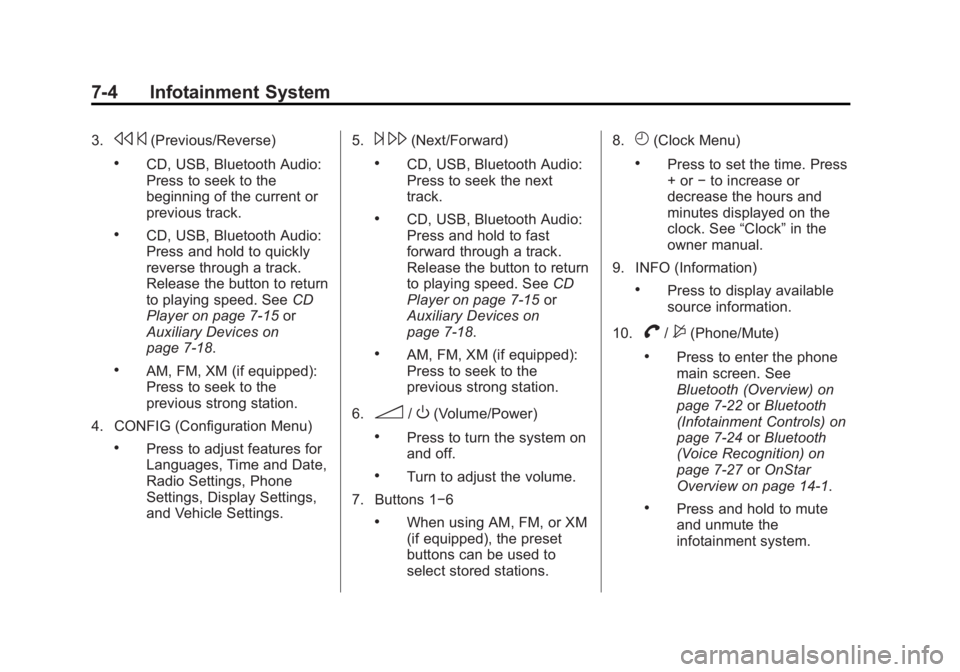
3.s©(Previous/Reverse)
.CD, USB, Bluetooth Audio:
Press to seek to the
beginning of the current or
previous track.
.CD, USB, Bluetooth Audio:
Press and hold to quickly
reverse through a track.
Release the button to return
to playing speed. See CD
Player on page 7‑15 or
Auxiliary Devices on
page 7‑18.
.AM, FM, XM (if equipped):
Press to seek to the
previous strong station.
4. CONFIG (Configuration Menu)
.Press to adjust features for
Languages, Time and Date,
Radio Settings, Phone
Settings, Display Settings,
and Vehicle Settings. 5.
¨
\(Next/Forward)
.CD, USB, Bluetooth Audio:
Press to seek the next
track.
.CD, USB, Bluetooth Audio:
Press and hold to fast
forward through a track.
Release the button to return
to playing speed. See CD
Player on page 7‑15 or
Auxiliary Devices on
page 7‑18.
.AM, FM, XM (if equipped):
Press to seek to the
previous strong station.
6.
3/O(Volume/Power)
.Press to turn the system on
and off.
.Turn to adjust the volume.
7. Buttons 1−6
.When using AM, FM, or XM
(if equipped), the preset
buttons can be used to
select stored stations. 8.
H(Clock Menu)
.Press to set the time. Press
+ or
−to increase or
decrease the hours and
minutes displayed on the
clock. See “Clock”in the
owner manual.
9. INFO (Information)
.Press to display available
source information.
10.
V/$(Phone/Mute)
.Press to enter the phone
main screen. See
Bluetooth (Overview) on
page 7‑22 orBluetooth
(Infotainment Controls) on
page 7‑24 orBluetooth
(Voice Recognition) on
page 7‑27 orOnStar
Overview on page 14‑1.
.Press and hold to mute
and unmute the
infotainment system.
Page 158 of 412
Black plate (6,1)Buick Regal Owner Manual - 2013 - crc - 11/5/12
7-6 Infotainment System
Autostore does not function with XM
radio stations, if equipped.
Infotainment Control Buttons
The buttons on the faceplate are
used to start primary functions while
using the infotainment system.
Touch Screen Buttons
Touch screen buttons are on the
screen and highlighted when a
feature is available. Some toggle
screen buttons highlight when active
and gray out when inactive.
Home Page
The infotainment system displays a
home page that makes it easy to
access.
Back:If on page 2 of the Home
Page, press Back to return to page
1 of the Home Page. If on page 1,
Back serves no function.
Home: While navigating through
other menus, press to go back to
the Home Page to start a different
feature. Fav:
Press to display a page of
stored (favorite) AM, FM, or XM (if
equipped) stations. Keep pressing
Fav to scroll through the favorite
pages.
Info: Press to toggle through an
audio information screen.
The Home Page Menu lists the
options Customize Home Page and
Restore Home Page Defaults.
Out of all available Home Page
icons, up to eight icons can be
selected and sorted for the first
Home Page screen.Home Page Features
Various functions are disabled when
the vehicle is moving.
Press the Now Playing screen
button to display the active source
page. The sources available are
AM, FM, XM (if equipped), CD,
USB/iPod, and AUX. See
AM-FM Radio on page 7‑9,
Satellite Radio on page 7‑11, CD
Player on page 7‑15, and Auxiliary
Devices on page 7‑18.
Press the Phone screen button to
display the Phone main page. See
Bluetooth (Overview) on page 7‑22
or Bluetooth (Infotainment Controls)
on page 7‑24 orBluetooth (Voice
Recognition) on page 7‑27.
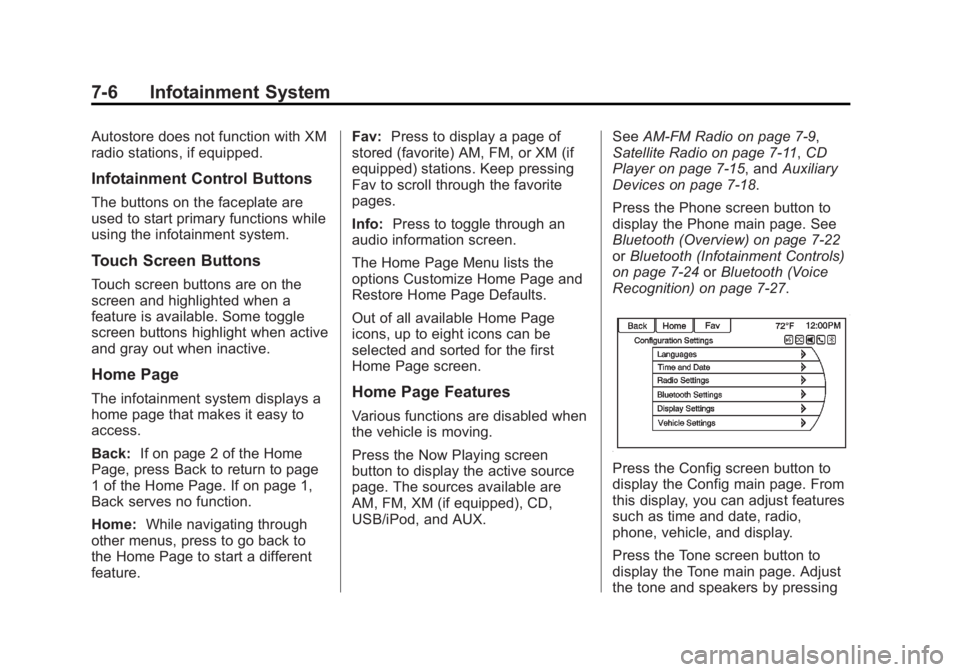
Press the Config screen button to
display the Config main page. From
this display, you can adjust features
such as time and date, radio,
phone, vehicle, and display.
Press the Tone screen button to
display the Tone main page. Adjust
the tone and speakers by pressing
Page 164 of 412
Black plate (12,1)Buick Regal Owner Manual - 2013 - crc - 11/5/12
7-12 Infotainment System
Control Buttons
The buttons used to control the
SiriusXM radio are:
SRCE:Press to choose between
AM, FM, XM, if equipped, and CD.
Multifunction Knob: Turn to
search for channels and press to
navigate the available menus.
INFO: Press to display additional
information that may be available
about the current song.
s ©or¨\:Press to go to the
previous or next channel.
FAV 1/2/3: Press to open the
favorites list and select favorite
pages.
Buttons 1 to 6: Press to select
preset stations.
Adding or Removing Categories
1. From the Home Page press the Config screen button or the
CONFIG button on the faceplate.
2. Select Radio Settings from the Config Menu list. 3. Select Add/Remove XM
Categories.
4. From the Add/Remove XM Categories screen, select or
deselect any category to be
used in SiriusXM mode.
A checkmark will indicate that
the category is selected.
Turning SiriusXM Album Art On
or Off
1. From the Home Page press the Config screen button or the
CONFIG button on the faceplate.
2. Select Radio Settings from the Config Menu list.
3. Select XM Album Art to turn on or off.
SiriusXM Messages
XL (Explicit Language
Channels): These channels, or any
others, can be blocked by request,
by calling 1-800-929-2100 in the
U.S. and 1-877-438-9677 in
Canada. XM Updating:
The encryption code
in the receiver is being updated. No
action is required. This process
should take no longer than
30 seconds.
Loading XM: The audio system is
acquiring and processing audio and
text data. No action is needed. This
message should disappear shortly.
Channel Off Air: This channel is
not currently in service. Tune in to
another channel.
Channel Unauth: This channel is
blocked or cannot be received with
your SiriusXM subscription package.
Channel Unavailable: This
previously assigned channel is no
longer assigned. Tune to another
station.
No Artist Info: The system is
working properly. No artist
information is available at this time
on this channel.
Page 167 of 412
Black plate (15,1)Buick Regal Owner Manual - 2013 - crc - 11/5/12
Infotainment System 7-15
Satellite Radio Antenna
For vehicles with SiriusXM satellite
radio service, the antenna is on the
roof of the vehicle. Keep the
antenna clear of obstructions for
clear radio reception.
Audio Players
CD Player
The CD player can play audio CDs
and MP3 CDs.
The CD player will not play
8 cm (3 in) CDs.
Care of CDs
Sound quality can be reduced due
to disc quality, recording method,
quality of the music recorded, and
disc handling. Handle discs carefully
and store them in their original
cases or other protective cases
away from direct sunlight and dust.
If the bottom surface of a disc is
damaged, the disc may not play
properly or at all. Do not touch the
bottom surface of a disc while
handling it; this could damage the
surface. Pick up discs by grasping
the outer edges or the edge of the
hole and the outer edge.
If the bottom surface of a disc is
dirty, take a soft lint-free cloth,
or dampen a clean soft cloth in amild neutral detergent solution
mixed with water, and clean it. Wipe
the disc from the center to the
outer edge.
Care of the CD Player
Do not add a label to a disc; it could
get caught in the CD player. If a
label is needed, write on the top of
the recorded disc with a
marking pen.
Do not use disc lens cleaners
because they could contaminate the
lens of the disc optics and damage
the CD player.
Notice:
If a label is added to a
CD, more than one CD is inserted
into the slot at a time, or an
attempt is made to play scratched
or damaged CDs, the CD player
could be damaged. While using
the CD player, use only CDs in
good condition without any label,
load one CD at a time, and keep
the CD player and the loading slot
free of foreign materials, liquids,
and debris.
Page 168 of 412
Black plate (16,1)Buick Regal Owner Manual - 2013 - crc - 11/5/12
7-16 Infotainment System
Control Buttons
The buttons used to control the CD
player are:
SRCE (Source):Press to use the
CD player.
s ©or¨\:Press to select
tracks or to fast rewind or forward
within a track.
INFO: Press to display additional
information about the current track
that may be available.
Multifunction Knob: Turn to select
tracks. Press to enter the CD menu
and select items.
Z(Eject): Press to eject the disc.
Playing an Audio CD
1. Press the CD screen button on
the Home Page or select CD
from the source pop-up to
display the CD main page.
2. From the CD screen, press the Menu screen button to display
the menu options. 3. Press to select the desired
option.
On the CD main page a track
number displays at the beginning of
each track. Song, Artist, and Album
information displays when available.
Use the following controls to play
the disc:
w/j(Play/Pause): Use to start,
pause, or resume play.
s ©(Seek/Previous):
.Press to seek to the beginning of
the current or previous track.
If the track has been playing for
less than five seconds, it seeks
to the previous track. If longer
than five seconds, the current
track starts from the beginning.
.Press and hold to fast reverse
through a track. Release the
button to return to playing
speed. Elapsed time displays.
\¨(Seek/Next):
.Press to seek to the next track.
.Press and hold to fast forward
through a track. Release the
button to return to playing
speed. Elapsed time displays.
Multifunction Knob: Turn to the
right or left to select the next or
previous track. Press this knob to
select the menu. If a track is
selected from the list, the system
plays the track and returns to the
CD screen.
MP3
Playing an MP3 CD
To play an MP3 CD, follow the same
instructions as “Playing an
Audio CD.”
The following guidelines must be
met when creating an MP3 disc,
otherwise the CD might not play:
.Sampling rate: 16 kHz,
22.05 kHz, 24 kHz, 32 kHz,
44.1 kHz, and 48 kHz.
Page 169 of 412
Black plate (17,1)Buick Regal Owner Manual - 2013 - crc - 11/5/12
Infotainment System 7-17
.Bit rates supported: 8, 16, 24,
32, 40, 48, 56, 64, 80, 96, 112,
128, 144, 160, 192, 224, 256,
and 320 kbps.
.Maximum number of folders:
eight folders with 255 files per
folder.
.Maximum of 1,000 files on
a disc.
.Recorded on a CD-R or CD-RW
with a maximum capacity of
700 MB.
.The Artist/Album/Song Titles/
Genre information requires a CD
to be fully scanned before the
music navigator works with
these menus.
MP3 Music Menu
Press the Menu screen button while
that source is active to access
the menu. Press any of the following buttons
on the MP3 Menu:
Shuffle Songs:
Press to play the
tracks randomly. Press again to stop
shuffle.
Playlists: Press to view the
playlists stored on the disc. Select a
playlist to view the list of all songs in
that playlist. There might be a delay
before the list displays. Select a
song from the list to begin playback.
Artists: Press to view the list of
artists stored on the disc. Select an
artist name to view a list of all songs
by the artist. There might be a delay
before the list displays. Select a
song from the list to begin playback.
Albums: Press to view the albums
on the disc. Select the album to
view a list of all songs on the album.
There might be a delay before the
list displays. Select a song from the
list to begin playback.
Song Titles: Press to display a list
of all songs on the disc. Songs are
displayed as stored on the disc. There might be a delay before the
list displays. To begin playback,
select a song from the list.
Genres:
Press to view the genres.
Select a genre to view a list of all
songs of that genre. Select a song
from the list to begin playback.
Folders: Press to open a folder list
to access the files within the folder
structure.
Root Directory
The root directory is treated as a
folder. All files contained directly
under the root directory are
accessed prior to any root directory
folders.
Empty Folders
If a root directory or folder is empty
or contains only folders, the player
advances to the next folder in the
file structure that contains a
compressed audio file. The empty
folder(s) are not displayed or
numbered.
Page 170 of 412
Black plate (18,1)Buick Regal Owner Manual - 2013 - crc - 11/5/12
7-18 Infotainment System
No Folder
When the CD only contains
compressed audio files without any
folders or playlists, all files are
under the root folder.
File System and Naming
The song titles, artists, albums, and
genres are taken from the file's ID3
tag and are only displayed if present
in the tag. If a song title is not
present in the ID3 tag, the radio
displays the file name as the
track name.
Preprogrammed Playlists
The radio recognizes
preprogrammed playlists; however,
there is no editing capability. These
playlists are treated as special
folders containing compressed
audio song files.Auxiliary Devices
This vehicle has an auxiliary input
jack in the center console. Possible
auxiliary audio sources include:
.Laptop computer
.MP3 player
This jack is not an audio output. Do
not plug headphones into the
auxiliary input jack. Drivers are
encouraged to set up any auxiliary
device while the vehicle is in
P (Park).
Connect a 3.5 mm (1/8 in) cable
from the auxiliary device to the
auxiliary input jack. When a device
is connected, the system
automatically begins playing audio
from the device over the vehicle
speakers.
If an auxiliary device has already
been connected, but a different
source is currently active, press the
Now Playing screen button on the
Home Page, then press Source repeatedly to cycle through all of the
available audio source screens, until
the AUX source screen is selected.
Portable devices are controlled by
using the menu system described in
Overview on page 7‑2.Using the 3.5 mm (1/8 in)
Auxiliary Input Jack
Connect a 3.5 mm (1/8 in) cable to
the 3.5 mm (1/8 in) auxiliary input
jack to use a portable audio player.
Playback of an audio device that is
connected to the 3.5 mm (1/8 in)
auxiliary input jack can only be
controlled using the controls on the
device.
Adjusting the Volume
Turn the
3/Oknob to adjust the
volume of the infotainment system
after the volume level has been set
on the portable audio device.