audio BUICK REGAL 2013 Owner's Guide
[x] Cancel search | Manufacturer: BUICK, Model Year: 2013, Model line: REGAL, Model: BUICK REGAL 2013Pages: 412, PDF Size: 6.06 MB
Page 171 of 412
Black plate (19,1)Buick Regal Owner Manual - 2013 - crc - 11/5/12
Infotainment System 7-19
USB Port
For vehicles with a USB port, the
following devices may be connected
and controlled by the infotainment
system:
.iPods
.PlaysForSure Devices (PFDs)
.USB Drives
.Zunes®
Not all iPods, PFDs, USB Drives,
and Zunes are compatible with the
infotainment system.
Playing from a USB
A USB mass storage device or
Microsoft Transfer Protocol (MTP)
device can be connected to the
USB port.
The USB port is in the center
console.
The USB icon displays when the
USB device is connected.USB MP3 Player and USB Drives
.The USB MP3 players and USB
drives connected must comply
with the USB Mass Storage
Class specification (USB MSC).
.Only USB MP3 players and USB
drives with a sector size or
512 bytes and a cluster size
smaller or equal to 32 kbytes in
the FAT32 file system are
supported.
.Hard disk drives are not
supported.
.The following restrictions apply
for the data stored on a USB
MP3 player or USB device:
‐
Maximum folder structure
depth: 11 levels.
‐ Maximum number of MP3/
WMA files that can be
displayed: 1,000
.WMA with Digital Rights
Management (DRM) from online
music shops cannot be played.
WMA files can only be played back safely if they were created
with Windows Media Player
version 8 or later.
‐
Applicable playlist extensions
are: .m3u, .pls.
‐ Playlist entries must be in the
form of relative paths.
‐ The system attribute for
folders/files that contain audio
data must not be set.
To play a USB device, do one of the
following:
.Connect the USB and it begins
to play.
.Press the Now Playing screen
button on the Home Page, then
press the SRCE button on the
faceplate repeatedly to cycle
through all of the available audio
source screens, until the USB
source screen is selected.
Page 173 of 412
Black plate (21,1)Buick Regal Owner Manual - 2013 - crc - 11/5/12
Infotainment System 7-21
Playing from an iPod®
This feature supports the following
iPod models:
.iPod nano®(1st, 2nd, 3rd, and
4th generation)
.iPod®with video (5.0 and 5.5
generation). Video is not shown;
only audio is supported.
.iPod classic®(6th generation)
.iPod touch®(1st and 2nd
generation)
There may be problems with
operation and function in the
following situations:
.When connecting an iPod on
which a more recent version of
the firmware is installed than is
supported by the infotainment
system.
.When connecting an iPod on
which firmware from other
providers is installed. To connect and control an iPod,
connect one end of the standard
iPod USB cable to the iPod's dock
connector. Connect the other end to
the USB port in the center console.
iPod music information displays on
the radio’s display and begins
playing through the vehicle’s audio
system.
The iPod battery recharges
automatically while the vehicle is on.
When the vehicle is off while an
iPod is connected using the iPod
USB cable, the iPod battery stops
charging and the iPod automatically
turns off.
If the iPod is an unsupported model,
it can still be listened to in the
vehicle by connecting to the
auxiliary input jack using a standard
3.5 mm (1/8 in) stereo cable.
iPod Menu
Shuffle Songs:
Press to play the
tracks randomly. Press again to stop
shuffle. Press any of the following buttons
on the iPod Menu:
Playlists:
1. Press to view the playlists stored
on the iPod.
2. Select a playlist name to view a list of all songs in the playlist.
3. Select the desired song from the list to begin playback.
Artists:
1. Press to view the artists stored on the iPod.
2. Select an artist name to view a list of all songs by the artist.
3. Select the desired song from the list to begin playback.
Albums:
1. Press to view the albums stored on the iPod.
2. Select an album name to view a list of all songs on the album or
select All Songs to view all
songs by the artist.
Page 174 of 412
Black plate (22,1)Buick Regal Owner Manual - 2013 - crc - 11/5/12
7-22 Infotainment System
3. Select the desired song from thelist to begin playback.
Song Titles:
1. Press to view a list of all songs stored on the iPod.
2. Select the desired song from the list to begin playback.
Genres:
1. Press to view the genres stored on the iPod.
2. Select a genre name to view a list of artists of that genre.
3. Select an artist to view albums or All Songs to view all songs of
that genre.
4. Select album to view songs.
5. Select the desired song from the list to begin playback.
Podcasts:
1. Press to view the podcasts stored on the iPod.
2. Select a podcast name to play the desired podcast. Composers:
1. Press to view the composers
stored on the iPod.
2. Select a composer name to view a list of all songs by that
composer.
3. Select the desired song from the list to begin playback.
Audio Books:
1. Press to view the audio books stored on the iPod.
2. Select an audio book name to view a list of all audio books.
3. Select the desired audio book from the list to begin playback.
Playing from an iPhone®
This feature supports the following
iPhone model:
.iPhone (3G –3GS)
To use the iPhone, follow the same
instructions as stated earlier for
using an iPod.
Phone
Bluetooth (Overview)
For vehicles equipped with
Bluetooth capability, the system can
interact with many cell phones,
allowing:
.Placement and receipt of calls in
a hands-free mode.
.Sharing of the cell phone’s
address book or contact list with
the vehicle.
To minimize driver distraction,
before driving, and with the vehicle
parked:
.Become familiar with the
features of the cell phone.
Organize the phone book and
contact lists clearly and delete
duplicate or rarely used entries.
If possible, program speed dial
or other shortcuts.
.Review the controls and
operation of the infotainment
system.
Page 175 of 412
Black plate (23,1)Buick Regal Owner Manual - 2013 - crc - 11/5/12
Infotainment System 7-23
.Pair cell phone(s) to the vehicle.
The system may not work with
all cell phones. See“Pairing”in
this section for more information.
.If the cell phone has voice
dialing capability, learn to use
that feature to access the
address book or contact list. See
“Voice Pass-Thru” in this section
for more information.
.See “Storing and Deleting Phone
Numbers” in this section for
more information.
{WARNING
When using a cell phone, it can
be distracting to look too long or
too often at the screen of the
phone or the infotainment
(navigation) system. Taking your
eyes off the road too long or too
often could cause a crash
resulting in injury or death. Focus
your attention on driving. Vehicles with a Bluetooth system
can use a Bluetooth-capable cell
phone with a Hands-Free Profile to
make and receive phone calls. The
infotainment system and voice
recognition are used to control the
system. The system can be used
while in ON/RUN or ACC/
ACCESSORY. The range of the
Bluetooth system can be up to 9.1 m
(30 ft). Not all phones support all
functions and not all phones work
with the Bluetooth system. See
www.gm.com/bluetooth for more
information about compatible
phones.Bluetooth Controls
Use the buttons located on the
infotainment system and the
steering wheel to operate the
Bluetooth system.
Steering Wheel Controls
b/g(Push To Talk):
Press to
answer incoming calls, confirm
system information, and start voice
recognition.
$/i(End Call/Mute): Press to
end a call, reject a call, or cancel an
operation.
Infotainment System Controls
If equipped, the infotainment system
allows certain controls to be
selected on the infotainment display.
For information about how to
navigate the menu system using the
infotainment controls, see Overview
on page 7‑2.
V/$(Phone/Mute): Press to
enter the Phone main menu. Press
to mute audio.
Voice Recognition
The voice recognition system uses
commands to control the system
and dial phone numbers.
Noise: The system may not
recognize voice commands if there
is too much background noise.
When to Speak: A tone sounds to
indicate that the system is ready for
a voice command. Wait for the tone
and then speak.
Page 176 of 412
Black plate (24,1)Buick Regal Owner Manual - 2013 - crc - 11/5/12
7-24 Infotainment System
How to Speak:Speak clearly in a
calm and natural voice.
Audio System
When using the Bluetooth system,
sound comes through the vehicle's
front audio system speakers and
overrides the audio system. Use the
3/Oknob during a call to
change the volume level. The
adjusted volume level remains in
memory for later calls. The system
maintains a minimum volume level.
Other Information
The Bluetooth®word mark and
logos are owned by the Bluetooth®
SIG, Inc. and any use of such marks
by General Motors is under license.
Other trademarks and trade names
are those of their respective owners.
See Radio Frequency Statement on
page 13‑20 for information
regarding Part 15 of the Federal
Communications Commission (FCC)
rules and Industry Canada
Standards RSS-GEN/210/220/310.
Bluetooth (Infotainment
Controls)
For information about how to
navigate the menu system using the
infotainment controls, see Overview
on page 7‑2.
Pairing
A Bluetooth-enabled cell phone
must be paired to the Bluetooth
system and then connected to the
vehicle before it can be used. See
your cell phone manufacturer's user
guide for Bluetooth functions before
pairing the cell phone. If a Bluetooth
phone is not connected, calls will be
made using OnStar Hands-Free
Calling, if available. See Overview
on page 7‑2.
Pairing Information
.A Bluetooth phone with MP3
capability cannot be paired to
the vehicle as a phone and an
MP3 player at the same time.
.Up to five cell phones can be
paired to the Bluetooth system.
.The pairing process is disabled
when the vehicle is moving.
.Pairing only needs to be
completed once, unless the
pairing information on the cell
phone changes or the cell phone
is deleted from the system.
.Only one paired cell phone can
be connected to the Bluetooth
system at a time.
.If multiple paired cell phones are
within range of the system, the
system connects to the first
available paired cell phone in the
order that they were first paired
to the system. To link to a
different paired phone, see
“Linking to a Different Phone”
later in this section.
Pairing a Phone
1. Press the CONFIG button.
2. Select Phone Settings or Bluetooth Settings.
3. Select Bluetooth.
Page 183 of 412
Black plate (31,1)Buick Regal Owner Manual - 2013 - crc - 11/5/12
Infotainment System 7-31
Digit Dial:This command allows a
phone number to be dialed by
entering the digits one at a time.
Re-dial: This command is used to
dial the last number used on the cell
phone.
Using the “Dial”or“Call”
Command
1. Press
b/g. The system
responds “Ready,”followed by
a tone.
2. Say “Dial”or“Call.”
3. Say the entire number without pausing or say the name tag.
Once connected, the person called
will be heard through the audio
speakers.
Calling 911 Emergency
1. Press
b/g. The system
responds “Ready,”followed by
a tone.
2. Say “Dial”or“Call.” 3. Say
“911”without pausing. Say
“Dial” or“Call.”
Once connected, the person called
will be heard through the audio
speakers.
Using the “Digit Dial” Command
The digit dial command allows a
phone number to be dialed by
entering the digits one at a time.
After each digit is entered, the
system repeats back the digit it
heard followed by a tone.
If an unwanted number is
recognized by the system, say
“Clear” at any time to clear the last
number.
To hear all of the numbers
recognized by the system, say
“Verify” at any time.
1. Pressb/g. The system
responds “Ready,”followed by
a tone.
2. Say “Digit Dial.” 3. Say each digit, one at a time,
that you want to dial. After each
digit is entered, the system
repeats back the digit it heard
followed by a tone. After the last
digit has been entered,
say “Dial.”
Once connected, the person called
will be heard through the audio
speakers.
Using the “Re-dial”Command
1. Press
b/g. The system
responds “Ready,”followed by
a tone.
2. After the tone, say “Re-dial.”The
system dials the last number
called from the connected cell
phone.
Once connected, the person called
will be heard through the audio
speakers.
Receiving a Call
When an incoming call is received,
the audio system mutes and a ring
tone is heard in the vehicle.
Page 184 of 412
Black plate (32,1)Buick Regal Owner Manual - 2013 - crc - 11/5/12
7-32 Infotainment System
.Pressb/gto answer the call.
.Press$/ito ignore a call.
Call Waiting
Call waiting must be supported on
the cell phone and enabled by the
wireless service carrier.
.Pressb/gto answer an
incoming call when another call
is active. The original call is
placed on hold.
.Pressb/gagain to return to
the original call.
.To ignore the incoming call, no
action is required.
.Press$/ito disconnect the
current call and switch to the call
on hold.
Three-Way Calling
Three-way calling must be
supported on the cell phone and
enabled by the wireless service
carrier. 1. While on a call, press
b/g.
2. Say “Three-way call.”
3. Use the dial or call command to dial the number of the third party
to be called.
4. Once the call is connected, press
b/gto link all callers
together.
Ending a Call
Press$/ito end a call.
Muting a Call
During a call, all sounds from inside
the vehicle can be muted so that the
person on the other end of the call
cannot hear them.
To mute a call, press
b/g, and
then say “Mute Call.”
To cancel mute, press
b/g, and
then say “Un-mute Call.”
Transferring a Call
Audio can be transferred between
the Bluetooth system and the cell
phone.
The cell phone must be paired and
connected with the Bluetooth
system before a call can be
transferred. The connection process
can take up to two minutes after the
ignition is turned to ON/RUN.
To Transfer Audio from the
Bluetooth System to a Cell Phone
During a call with the audio in the
vehicle:
1. Press
b/g.
2. Say “Transfer Call.”
To Transfer Audio to the Bluetooth
System from a Cell Phone
During a call with the audio on the
cell phone, press
b/g. The audio
transfers to the vehicle. If the audio
does not transfer to the vehicle, use
the audio transfer feature on the cell
Page 215 of 412
Black plate (19,1)Buick Regal Owner Manual - 2013 - crc - 11/5/12
Driving and Operating 9-19
The instruments and audio systems
will operate as they do in ON/RUN,
but the vehicle will not be able to be
driven. The engine will not start in
Service Only Mode. Push the button
again to turn the vehicle off.
Starting the Engine
Place the transmission in the
proper gear.
Automatic Transmission
Move the shift lever to P (Park) or
N (Neutral). The engine will not start
in any other position. To restart the
vehicle when it is already moving,
use N (Neutral) only.
Notice:Do not try to shift to
P (Park) if the vehicle is moving.
If you do, you could damage the
transmission. Shift to P (Park)
only when the vehicle is stopped.
Notice: If you add electrical parts
or accessories, you could change
the way the engine operates. Any
resulting damage would not be covered by the vehicle warranty.
See
Add-On Electrical Equipment
on page 9‑51.
Manual Transmission
The shift lever should be in
N (Neutral) and the parking brake
engaged. Hold the clutch pedal
down to the floor and start the
engine. The vehicle will not start if
the clutch pedal is not all the
way down.
Starting Procedure (Key Access)
1. With your foot off the accelerator pedal, turn the ignition key to
START. When the engine starts,
let go of the ignition.
The idle speed will go down as
your engine gets warm. Do not
race the engine immediately
after starting it. Operate the
engine and transmission gently
to allow the oil to warm up and
lubricate all moving parts.
The vehicle has a
Computer-Controlled Cranking
System. This feature assists in starting the engine and protects
components. If the ignition key is
turned to the START position,
and then released when the
engine begins cranking, the
engine will continue cranking for
a few seconds or until the
vehicle starts. If the engine does
not start and the key is held in
START for many seconds,
cranking will be stopped after
15 seconds to prevent cranking
motor damage. To prevent gear
damage, this system also
prevents cranking if the engine
is already running. Engine
cranking can be stopped by
turning the ignition switch to
ACC/ACCESSORY or
LOCK/OFF.
Notice: Cranking the engine for
long periods of time, by returning
the key to the START position
immediately after cranking has
ended, can overheat and damage
the cranking motor, and drain the
Page 219 of 412
Black plate (23,1)Buick Regal Owner Manual - 2013 - crc - 11/5/12
Driving and Operating 9-23
the plug-end of the cord will prevent
engine coolant heater operation at
temperatures above−18°C (0°F).
To Use the Engine Coolant
Heater
1. Turn off the engine.
2. Open the hood and unwrap the
electrical cord.
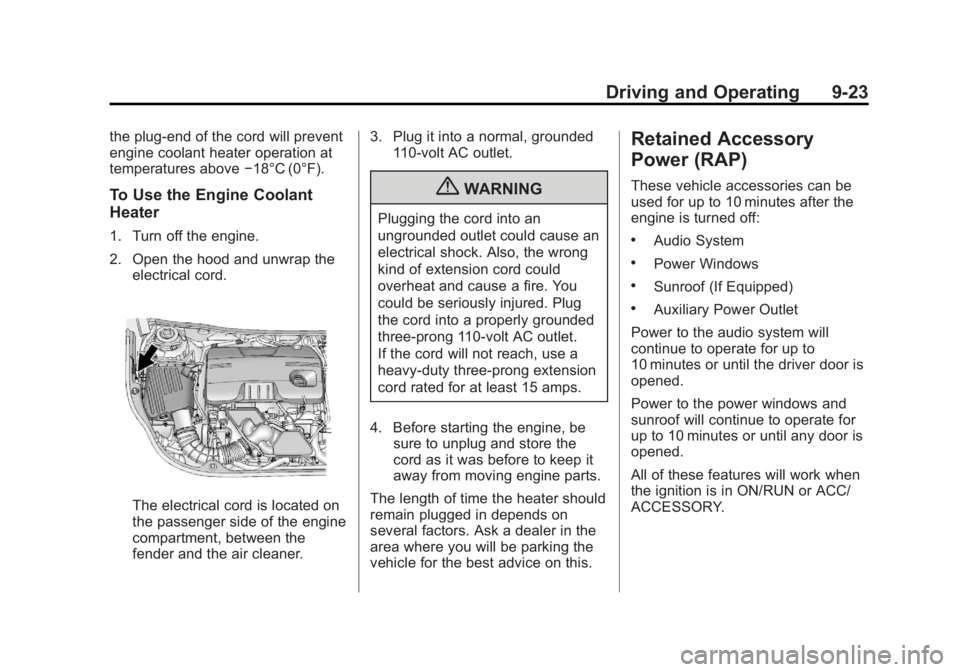
The electrical cord is located on
the passenger side of the engine
compartment, between the
fender and the air cleaner. 3. Plug it into a normal, grounded
110-volt AC outlet.
{WARNING
Plugging the cord into an
ungrounded outlet could cause an
electrical shock. Also, the wrong
kind of extension cord could
overheat and cause a fire. You
could be seriously injured. Plug
the cord into a properly grounded
three-prong 110-volt AC outlet.
If the cord will not reach, use a
heavy-duty three-prong extension
cord rated for at least 15 amps.
4. Before starting the engine, be sure to unplug and store the
cord as it was before to keep it
away from moving engine parts.
The length of time the heater should
remain plugged in depends on
several factors. Ask a dealer in the
area where you will be parking the
vehicle for the best advice on this.
Retained Accessory
Power (RAP)
These vehicle accessories can be
used for up to 10 minutes after the
engine is turned off:
.Audio System
.Power Windows
.Sunroof (If Equipped)
.Auxiliary Power Outlet
Power to the audio system will
continue to operate for up to
10 minutes or until the driver door is
opened.
Power to the power windows and
sunroof will continue to operate for
up to 10 minutes or until any door is
opened.
All of these features will work when
the ignition is in ON/RUN or ACC/
ACCESSORY.
Page 401 of 412
Black plate (1,1)Buick Regal Owner Manual - 2013 - crc - 11/5/12
INDEX i-1
A
Accessories andModifications . . . . . . . . . . . . . . . . . 10-3
Accessory Power . . . . . . . . . . . . . . 9-23
Add-On Electrical Equipment . . . . . . . . . . . . . . . . . . . 9-51
Additional Information
OnStar
®. . . . . . . . . . . . . . . . . . . . . . 14-5
Adjustments Lumbar, Front Seats . . . . . . . . . . . 3-4
Air Cleaner/Filter, Engine . . . . . 10-14
Air Filter, Passenger
Compartment . . . . . . . . . . . . . . . . . 8-6
Air Intake . . . . . . . . . . . . . . . . . . . . . . . 8-6
Air Vents . . . . . . . . . . . . . . . . . . . . . . . 8-6
Airbag System Check . . . . . . . . . . . . . . . . . . . . . . . . 3-28
How Does an AirbagRestrain? . . . . . . . . . . . . . . . . . . . 3-21
Passenger Sensing
System . . . . . . . . . . . . . . . . . . . . . . 3-23
What Makes an Airbag Inflate? . . . . . . . . . . . . . . . . . . . . . . 3-21 Airbag System (cont'd)
What Will You See after an
Airbag Inflates? . . . . . . . . . . . . . 3-21
When Should an Airbag
Inflate? . . . . . . . . . . . . . . . . . . . . . . 3-20
Where Are the Airbags? . . . . . . 3-19
Airbags Adding Equipment to theVehicle . . . . . . . . . . . . . . . . . . . . . . 3-27
Passenger Status Indicator . . . 5-14
Readiness Light . . . . . . . . . . . . . . 5-14
Servicing Airbag-Equipped Vehicles . . . . . . . . . . . . . . . . . . . . . 3-27
System Check . . . . . . . . . . . . . . . . 3-17
Alarm Vehicle Security . . . . . . . . . . . . . . 2-13
AM-FM Radio . . . . . . . . . . . . . . . . . . . 7-9
Antenna Satellite Radio . . . . . . . . . . . . . . . . 7-15
Antilock Brake System (ABS) . . . . . . . . . . . . . . . . 9-31
Warning Light . . . . . . . . . . . . . . . . . 5-19
Appearance Care
Exterior . . . . . . . . . . . . . . . . . . . . . 10-92
Interior . . . . . . . . . . . . . . . . . . . . . . 10-95 Assistance Program,
Roadside . . . . . . . . . . . . . . 13-7, 13-11
Audio Players . . . . . . . . . . . . . . . . . 7-15 CD . . . . . . . . . . . . . . . . . . . . . . . . . . . 7-15
MP3 . . . . . . . . . . . . . . . . . . . . . . . . . . 7-16
Audio System Backglass Antenna . . . . . . . . . . . 7-14
Radio Reception . . . . . . . . . . . . . . 7-13
Theft-Deterrent Feature . . . . . . . . 7-2
Automatic Headlamp System . . . . . . . . . . . . . 6-2
Transmission . . . . . . . . . . . . . . . . . 9-27
Transmission Fluid . . . . . . . . . 10-13
Automatic Transmission Manual Mode . . . . . . . . . . . . . . . . . 9-29
Shift Lock ControlFunction Check . . . . . . . . . . . 10-27
Auxiliary Devices . . . . . . . . . . . . . . . . . . . . . . . 7-18