light CADILLAC CT6 2016 Workshop Manual
[x] Cancel search | Manufacturer: CADILLAC, Model Year: 2016, Model line: CT6, Model: CADILLAC CT6 2016Pages: 397, PDF Size: 7.09 MB
Page 140 of 397

Cadillac CT6 Owner Manual (GMNA-Localizing-U.S./Canada-9235592) -
2016 - crc - 11/6/15
Instruments and Controls 139
Auto Stop Mode (Uplevel
Cluster)
This light comes on when the
engine is in an Auto Stop.
See Starting the Engine 0 204 .
Security Light
On some vehicles the immobilizer
light should come on briefly as the
engine is started. If it does not come
on, have the vehicle serviced by
your dealer. If the system is working
normally, the indicator light turns off. For vehicles with the reconfigurable
cluster, this light may not come on
when the engine is started.
If the light stays on and the engine
does not start, there could be a
problem with the theft-deterrent
system. See Immobilizer
Operation 0 46 .
High-Beam On Light
This light comes on when the
high-beam headlamps are in use.
See Headlamp High/Low-Beam
Changer 0 172 . IntelliBeam ®
Light
This light comes on when the
IntelliBeam system, if equipped, is
enabled.
See Exterior Lamp Controls 0 170 .
Lamps On Reminder
This light comes on when the
exterior lamps are in use. See
Exterior Lamp Controls 0 170 .
Page 141 of 397
Cadillac CT6 Owner Manual (GMNA-Localizing-U.S./Canada-9235592) -
2016 - crc - 11/6/15
140 Instruments and Controls
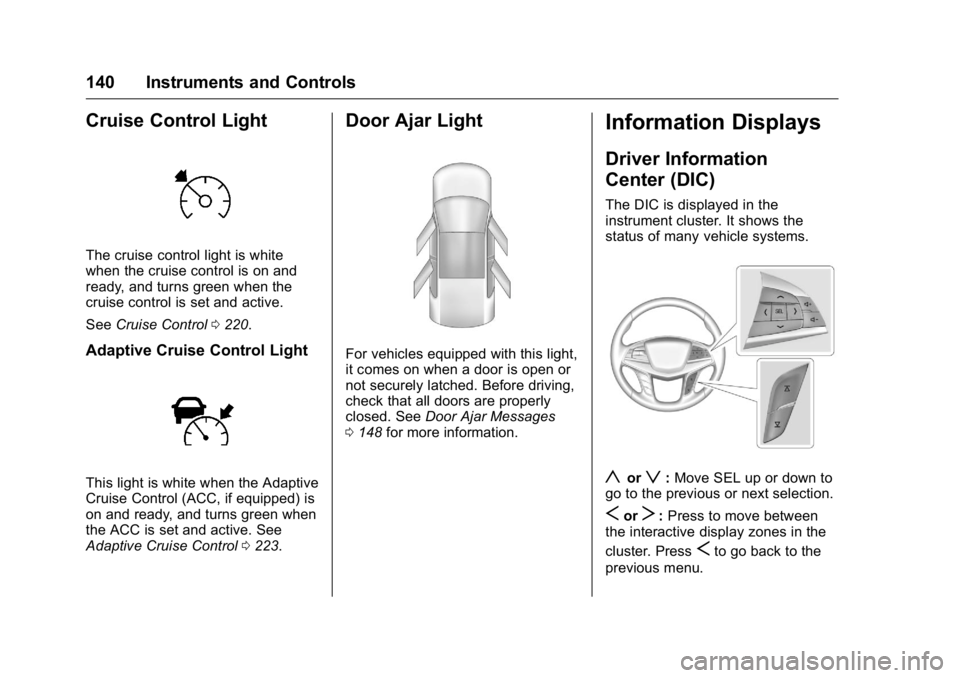
Cruise Control Light The cruise control light is white
when the cruise control is on and
ready, and turns green when the
cruise control is set and active.
See Cruise Control 0 220 .
Adaptive Cruise Control Light
This light is white when the Adaptive
Cruise Control (ACC, if equipped) is
on and ready, and turns green when
the ACC is set and active. See
Adaptive Cruise Control 0 223 .Door Ajar Light
For vehicles equipped with this light,
it comes on when a door is open or
not securely latched. Before driving,
check that all doors are properly
closed. See Door Ajar Messages
0 148 for more information. Information Displays Driver Information
Center (DIC) The DIC is displayed in the
instrument cluster. It shows the
status of many vehicle systems.
y or
z : Move SEL up or down to
go to the previous or next selection.
S or
T : Press to move between
the interactive display zones in the
cluster. Press
S to go back to the
previous menu.
Page 142 of 397

Cadillac CT6 Owner Manual (GMNA-Localizing-U.S./Canada-9235592) -
2016 - crc - 11/6/15
Instruments and Controls 141SEL : Press to open a menu or
select a menu item. Press and hold
to reset values on certain screens.
DIC Information Display
Options The info displays on the DIC can be
turned on or off through the
Settings menu.
1. Press SEL while viewing the
Settings page in one of the
interactive display zones on the
cluster.
2. Scroll to Info Pages and
press SEL.
3. Press
y or
z to move
through the list of possible info
displays.
4. Press SEL while an item is
highlighted to select or
deselect that item. When an
item is selected, a checkmark
will appear next to it. DIC Information Displays The following is the list of all
possible DIC information displays.
Some of the information displays
may not be available for your
particular vehicle.
Speed (Base Cluster) : Shows the
vehicle speed in either kilometers
per hour (km/h) or miles per
hour (mph).
Trip 1 or Trip 2 (Base
Cluster) / Trip 1 or Trip 2 and
Average Fuel Economy (Uplevel
Cluster) : The Trip display shows
the current distance traveled, in
either kilometers (km) or miles (mi),
since the trip odometer was last
reset. The trip odometer can be
reset by pressing and holding SEL
while this display is active.
The Average Fuel Economy display
shows the approximate average
liters per 100 kilometers (L/100 km)
or miles per gallon (mpg). This
number is calculated based on the
number of L/100 km (mpg) recorded
since the last time this menu item
was reset. This number reflects only
the approximate average fuel economy that the vehicle has right
now, and will change as driving
conditions change. The Average
Fuel Economy can be reset along
with the trip odometer by pressing
and holding SEL while this display
is active.
Fuel Range : Shows the
approximate distance the vehicle
can be driven without refueling.
LOW will be displayed when the
vehicle is low on fuel. The fuel
range estimate is based on an
average of the vehicle's fuel
economy over recent driving history
and the amount of fuel remaining in
the fuel tank.
Average Fuel Economy (Base
Cluster) : Shows the approximate
average liters per 100 kilometers (L/
100 km) or miles per gallon (mpg).
This number is calculated based on
the number of L/100 km (mpg)
recorded since the last time this
menu item was reset. This number
reflects only the approximate
average fuel economy that the
vehicle has right now, and will
change as driving conditions
change. The Average Fuel
Page 145 of 397

Cadillac CT6 Owner Manual (GMNA-Localizing-U.S./Canada-9235592) -
2016 - crc - 11/6/15
144 Instruments and Controls
HUD Display on the Vehicle
Windshield
The HUD may display some of the
following vehicle information and
vehicle messages or alerts:
.
Speed
.
Tachometer
.
Audio
.
Phone
.
Navigation
.
Collision Alert
.
Cruise Control
.
Lane Keep Assist
.
Low Fuel Some vehicle messages or alerts
displayed in the HUD may be
cleared by using the steering wheel
controls. See Vehicle
Messages 0 146 .
The HUD control is to the left of the
steering wheel.
To adjust the HUD image:
1. Adjust the driver seat.
2. Start the engine.
3. Use the following settings to
adjust the HUD. $ : Press down or lift up to center
the HUD image. The HUD image
can only be adjusted up and down,
not side to side.
! : Press to select the display
view. Each press will change the
display view.
D : Lift up and hold to brighten
the display. Press down and hold to
dim the display. Hold down to turn
the display off.
The HUD image will automatically
dim and brighten to compensate for
outside lighting. The HUD
brightness control can also be
adjusted as needed.
The HUD image can temporarily
light up depending on the angle and
position of the sunlight on the HUD
display. This is normal.
Polarized sunglasses could make
the HUD image harder to see.
HUD Views
There are four views in the HUD.
Some vehicle information and
vehicle messages or alerts may be
displayed in any view.
Page 152 of 397

Cadillac CT6 Owner Manual (GMNA-Localizing-U.S./Canada-9235592) -
2016 - crc - 11/6/15
Instruments and Controls 151REPLACE BATTERY IN
REMOTE KEY This message displays when the
battery in the RKE transmitter needs
to be replaced.
Lamp Messages AUTOMATIC LIGHT CONTROL
ON/OFF This message is displayed when the
automatic light control has been
turned on or off. See Automatic
Headlamp System 0 172 .
XX TURN INDICATOR FAILURE When one of the turn signals is out,
this message displays to show
which bulb needs to be replaced.
See Bulb Replacement 0 288 and
Replacement Bulbs 0 289 .
TURN SIGNAL ON
This message is displayed if the
turn signal has been left on. Turn off
the turn signal. Object Detection System
Messages 24 GHz RADARS OFF This message displays when driving
in certain areas where there may be
radar interference. Adaptive Cruise
Control (ACC), Forward Collision
Alert (FCA), and the Front
Automatic Braking (FAB) System
may not work or may not work as
well. The vehicle does not need
service.
AUTOMATIC COLLISION
PREP OFF This message displays when the
Front Automatic Braking (FAB)
System has been turned off. See
Front Automatic Braking (FAB)
System 0 240 .
AUTOMATIC COLLISION PREP
REDUCED
If the vehicle has Adaptive Cruise
Control (ACC), this message
displays when the Front Automatic
Braking (FAB) System has been set
to the Alert setting. This setting disables FAB functions but if the
vehicle has Adaptive Cruise Control
(ACC), some last-second automatic
braking capability is still provided,
though less likely to occur. See
Front Automatic Braking (FAB)
System 0 240 .
AUTOMATIC COLLISION PREP
UNAVAILABLE This message displays when the
Front Automatic Braking (FAB)
System has been unavailable for
some time. The FAB System does
not need service. This message can
display under the following
conditions:
.
The front of the vehicle or
windshield is not clean. Keep
these areas clean and free of
mud, dirt, snow, ice, and slush.
For cleaning instructions, see
Exterior Care 0 333 .
.
Heavy rain or snow is interfering
with the object detection
performance.
Page 157 of 397

Cadillac CT6 Owner Manual (GMNA-Localizing-U.S./Canada-9235592) -
2016 - crc - 11/6/15
156 Instruments and Controls
Starting the Vehicle
Messages PRESS BRAKE TO START This message is displayed when
attempting to start the vehicle
without first pressing the brake
pedal.
SERVICE KEYLESS START
SYSTEM This message is displayed if there is
a problem with the pushbutton start
system. Take the vehicle to your
dealer for service.
Tire Messages SERVICE TIRE MONITOR
SYSTEM This message displays if there is a
problem with the Tire Pressure
Monitor System (TPMS). See Tire
Pressure Monitor Operation 0 309 . TIRE LEARNING ACTIVE This message displays when the
system is learning new tires. See
Tire Pressure Monitor
Operation 0 309 .
TIRE PRESSURE LOW ADD
AIR TO TIRE This message displays when the
pressure in one or more of the tires
is low.
This message also displays LEFT
FRONT, RIGHT FRONT, LEFT
REAR, or RIGHT REAR to indicate
the location of the low tire.
The low tire pressure warning light
will also come on. See Tire
Pressure Light 0 137 .
If a tire pressure message appears
on the DIC, stop as soon as
possible. Inflate the tires by adding
air until the tire pressure is equal to
the values shown on the Tire and
Loading Information label. See Tires
0 299 , Vehicle Load Limits 0 198 ,
and Tire Pressure 0 306 . More than one tire pressure
message can appear at a time. The
DIC also shows the tire pressure
values. See Driver Information
Center (DIC) 0 140 .
Transmission Messages SERVICE TRANSMISSION This message displays if there is a
problem with the transmission. See
your dealer.
SHIFT DENIED This message displays when using
Manual Mode and attempting to shift
to a gear not appropriate for the
vehicle speed and engine
revolutions per minute (rpm). See
Manual Mode 0 212 .
SHIFT TO PARK
This message displays when the
transmission needs to be shifted to
P (Park). This may appear when
turning the ignition off if the vehicle
is not in P (Park).
Page 160 of 397

Cadillac CT6 Owner Manual (GMNA-Localizing-U.S./Canada-9235592) -
2016 - crc - 11/6/15
Instruments and Controls 159Compensation Technology ” under
“ Infotainment System Settings ” in
the infotainment manual.
Select Off or On.
Maximum Start Up Volume
This feature sets the maximum
startup volume. If the vehicle is
started and the volume is greater
than this level, the volume is
adjusted to this level.
To set the maximum startup volume,
touch + or − to increase or
decrease.
Vehicle Select and the following may
display:
.
Climate and Air Quality
.
Collision/Detection Systems
.
Comfort and Convenience
.
Lighting
.
Power Door Locks
.
Remote Lock, Unlock, Start Climate and Air Quality
Select and the following may
display:
.
Auto Fan Speed
.
Air Quality Sensor
.
Auto Heated Seats
.
Auto Defog
.
Auto Rear Defog
.
Ionizer
Auto Fan Speed
This feature will set the auto fan
speed.
Select Low, Medium, or High.
Air Quality Sensor
This allows for selection of air
quality sensor operation at high or
low sensitivity.
Select Off, Low Sensitivity, or High
Sensitivity. Auto Heated Seats
When enabled, this feature will
automatically activate heated seats
at the level required by the interior
temperature. See Heated and
Ventilated Front Seats 0 64 .
Select Off or On.
Auto Defog
When set to On, the front defog will
automatically react to temperature
and humidity conditions that may
cause fogging.
Select Off or On.
Auto Rear Defog
If equipped, this allows the Auto
Rear Defog to be turned on or off.
This feature will automatically turn
on the rear window defogger when it
is cold outside.
Select Off or On.
Page 162 of 397

Cadillac CT6 Owner Manual (GMNA-Localizing-U.S./Canada-9235592) -
2016 - crc - 11/6/15
Instruments and Controls 161Comfort and Convenience Select and the following may
display:
.
Auto Memory Recall
.
Easy Exit Options
.
Chime Volume
.
Reverse Tilt Mirror
.
Auto Mirror Folding
.
Rainsense Wipers
Auto Memory Recall
This feature automatically recalls
the current driver ’ s previously stored
1 or 2 button positions when
entering the vehicle. See Memory
Seats 0 63 .
Select Off or On.
Easy Exit Options
This feature automatically recalls
the current driver ’ s previously stored
exit button position when exiting the
vehicle. See Memory Seats 0 63 .
Select Off or On. Chime Volume
This allows the selection of the
chime volume level.
Touch + or − to adjust the volume.
Reverse Tilt Mirror
When on, both the driver and
passenger outside mirrors will tilt
downward when the vehicle is
shifted to R (Reverse) to improve
visibility of the ground near the rear
wheels. They will return to their
previous driving position when the
vehicle is shifted out of R (Reverse)
or the engine is turned off.
Select Off, On - Driver and
Passenger, On - Driver, or On -
Passenger.
Auto Mirror Folding
When on, the outside rearview
mirrors will automatically fold or
unfold when the Remote Keyless
Entry (RKE) transmitter
Q or
Kbutton is pressed and held.
Select Off or On. Rainsense Wipers
This allows the Rainsense Wipers
feature to be disabled or enabled.
See “ Rainsense ™ ” in Windshield
Wiper/Washer 0 111 .
Select Off or On.
Lighting Select and the following may
display:
.
Vehicle Locator Lights
.
Exit Lighting
Vehicle Locator Lights
This feature will flash the exterior
lamps and allows some of the
exterior lamps and most of the
interior lamps to turn on briefly at
night when
K on the Remote
Keyless Entry (RKE) transmitter is
pressed to locate the vehicle.
Select Off or On.
Exit Lighting
This allows the selection of how
long the exterior lamps stay on
when leaving the vehicle when it is
dark outside.
Page 163 of 397
Cadillac CT6 Owner Manual (GMNA-Localizing-U.S./Canada-9235592) -
2016 - crc - 11/6/15
162 Instruments and Controls Select Off, 30 Seconds, 60
Seconds, or 120 Seconds.
Power Door Locks Select and the following may
display:
.
Unlocked Door Anti-Lockout
.
Auto Door Unlock
.
Delayed Door Lock
Unlocked Door Anti-Lockout
When on, this feature will keep the
driver door from locking when the
door is open. If Off is selected, the
Delayed Door Lock menu will be
available.
Select Off, On.
Auto Door Unlock
This allows selection of which of the
doors will automatically unlock when
the vehicle is shifted into P (Park).
Select Off, All Doors, or Driver Door. Delayed Door Lock
When on, this feature will delay the
locking of the doors. To override the
delay, press the power door lock
switch on the door.
Select Off or On.
Remote Lock, Unlock, Start Select and the following may
display:
.
Remote Unlock Light Feedback
.
Remote Lock Feedback
.
Remote Door Unlock
.
Remote Start Auto Cool Seats
.
Remote Start Auto Heat Seats
.
Remote Window Operation
.
Passive Door Unlock
.
Passive Door Lock
.
Remote Left in Vehicle Alert
Remote Unlock Light Feedback
When on, the exterior lamps will
flash when unlocking the vehicle
with the RKE transmitter.
Select Off or Flash Lights. Remote Lock Feedback
This allows selection of what type of
feedback is given when locking the
vehicle with the RKE transmitter.
Select Off, Lights and Horn, Lights
Only, or Horn Only.
Remote Door Unlock
This allows selection of which doors
will unlock when pressing
K on the
RKE transmitter.
Select All Doors or Driver Door.
Remote Start Auto Cool Seats
If equipped and turned on, this
feature will turn the ventilated seats
on when using remote start on
warm days.
Select Off, On-Driver and
Passenger, or On-Driver.
Remote Start Auto Heat Seats
If equipped and turned on, this
feature will turn the heated seats on
when using remote start on
cold days.
Select Off, On-Driver and
Passenger, or On-Driver.
Page 168 of 397
Cadillac CT6 Owner Manual (GMNA-Localizing-U.S./Canada-9235592) -
2016 - crc - 11/6/15
Instruments and Controls 167Make sure the hand-held transmitter
has a new battery for quick and
accurate transmission of the
radio-frequency signal.
Programming the Universal
Remote System For questions or help programming
the Universal Remote system, call
1-800-355-3515 or see
www.homelink.com.
Programming involves
time-sensitive actions, and may time
out causing the procedure to be
repeated.
To program up to three devices:
1. Hold the end of the hand-held
transmitter about 3 to 8 cm (1
to 3 in) away from the
Universal Remote system
buttons with the indicator light
in view. The hand-held
transmitter was supplied by the
manufacturer of the garage
door opener receiver.
2. At the same time, press and
hold both the hand-held
transmitter button and one of
the three Universal Remote system buttons to be used to
operate the garage door. Do
not release either button until
the indicator light changes from
a slow to a rapid flash. Then
release both buttons.
Some garage door openers
may require substitution of
Step 2 with the procedure
under “ Radio Signals for
Canada and Some Gate
Operators ” later in this section.
3. Press and hold the newly
programmed Universal Remote
system button for five seconds
while watching the indicator
light and garage door
activation.
.
If the indicator light stays on
continuously or the garage
door moves when the
button is pressed, then
programming is complete.
There is no need to
complete Steps 4 – 6.
.
If the indicator light does
not come on or the garage
door does not move, a
second button press may be required. For a second
time, press and hold the
newly programmed button
for five seconds. If the light
stays on or the garage door
moves, programming is
complete.
.
If the indicator light blinks
rapidly for two seconds,
then changes to a solid light
and the garage door does
not move, continue with
programming Steps 4 – 6.
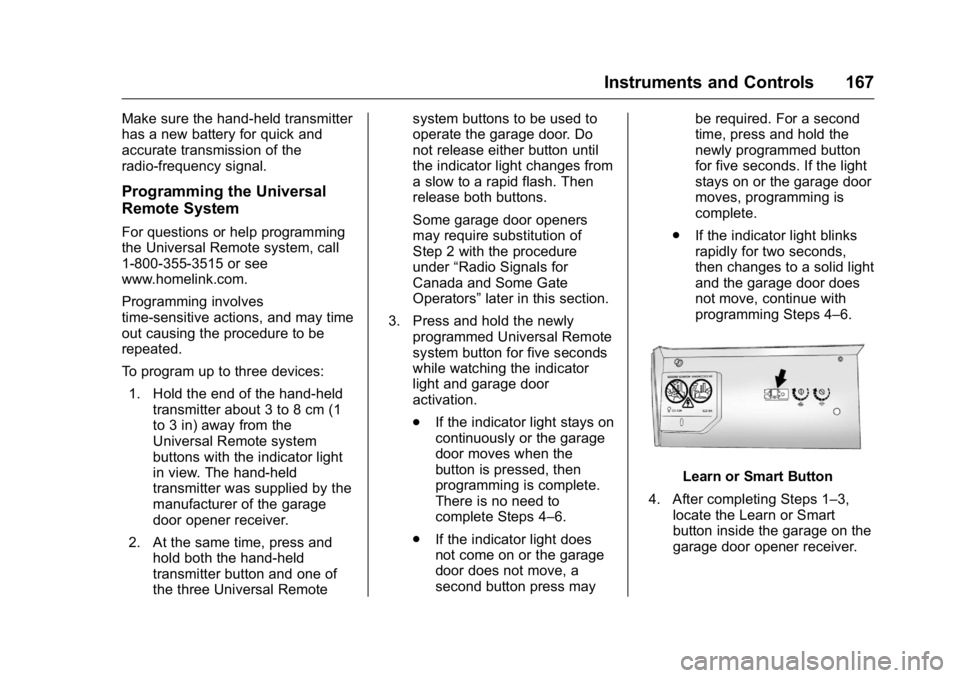
Learn or Smart Button
4. After completing Steps 1 – 3,
locate the Learn or Smart
button inside the garage on the
garage door opener receiver.