phone CADILLAC CT6 2017 1.G User Guide
[x] Cancel search | Manufacturer: CADILLAC, Model Year: 2017, Model line: CT6, Model: CADILLAC CT6 2017 1.GPages: 337, PDF Size: 3.89 MB
Page 140 of 337

Cadillac CT6 Owner Manual (GMNA-Localizing-MidEast-10293390) - 2017 -
CRC - 6/21/16
INSTRUMENTS AND CONTROLS 139
The language selection is changed
through the radio and the units of
measurement is changed through the
instrument cluster. SeeVehicle
Personalization 0152 and ”Cluster
Options Menu ”or “Cluster Menu ”
under Instrument Cluster (Base Level)
0 115 orInstrument Cluster
(Uplevel) 0118.
HUD Display on the Vehicle
Windshield
The HUD may display some of the
following vehicle information and
vehicle messages or alerts:
. Speed
. Tachometer .
Audio
. Phone
. Navigation
. Collision Alert
. Cruise Control
. Lane Keep Assist
. Low Fuel
Some vehicle messages or alerts
displayed in the HUD may be cleared
by using the steering wheel controls.
See Vehicle Messages 0141.
The HUD control is to the left of the
steering wheel. To adjust the HUD image:
1. Adjust the driver seat.
2. Start the engine.
3. Use the following settings to adjust the HUD.
$:Press down or lift up to center
the HUD image. The HUD image can
only be adjusted up and down, not
side to side.
!: Press to select the display
view. Each press will change the
display view.
D: Lift up and hold to brighten the
display. Press down and hold to dim
the display. Hold down to turn the
display off.
The HUD image will automatically
dim and brighten to compensate for
outside lighting. The HUD brightness
control can also be adjusted as
needed.
The HUD image can temporarily light
up depending on the angle and
position of the sunlight on the HUD
display. This is normal.
Polarized sunglasses could make the
HUD image harder to see.
Page 141 of 337

Cadillac CT6 Owner Manual (GMNA-Localizing-MidEast-10293390) - 2017 -
CRC - 6/21/16
140 INSTRUMENTS AND CONTROLS
Head-Up Display (HUD) Rotation
Option
This feature allows for adjusting the
angle of the HUD image.
Press SEL on the steering wheel
controls while Head-up Display
Rotation is highlighted to enter Adjust
Mode. Press
yorzto adjust the
angle of the HUD display. Press
Sor
Tto highlight OK, then press SEL to
save the setting. CANCEL can also be
selected to cancel the setting. The
vehicle must be in P (Park). See
Instrument Cluster (Base Level) 0115
or Instrument Cluster (Uplevel) 0118.
HUD Views
There are four views in the HUD.
Some vehicle information and vehicle
messages or alerts may be displayed
in any view.
Metric
Speed View : This display gives the
speedometer reading (in English or
metric units), speed limit, Adaptive
Cruise Control speed, Lane Departure
Warning, and Vehicle Ahead indicator.
Some information only appears on
vehicles that have these features, and
when they are active.
Metric
Audio/Phone View : This displays the
speed view along with audio/phone
information. The current radio station,
media type, and incoming calls will be
displayed. All HUD views may briefly display
audio information when the driver
uses the steering wheel controls to
adjust the audio settings appearing in
the instrument cluster.
Incoming phone calls appearing in the
instrument cluster may also display in
any HUD view.
Metric
Navigation View : This display
includes the information in the speed
view along with Turn-by-Turn
Navigation information in some
vehicles. The compass heading is
displayed when navigation routing is
not active.
Navigation Turn-by-Turn Alerts
shown in the instrument cluster may
also be displayed in any HUD view.
Page 153 of 337
Cadillac CT6 Owner Manual (GMNA-Localizing-MidEast-10293390) - 2017 -
CRC - 6/21/16
152 INSTRUMENTS AND CONTROLS
Vehicle Personalization
Use the audio system controls to
access the personalization menus for
customizing vehicle features.
The following are all possible
personalization features. Depending
on the vehicle, some may not be
available.
Infotainment System Audio System
Controls
To access the personalization menu:1. Touch SETTINGS on the Home Page of the infotainment system
display.
2. Touch the desired feature to display a list of available options.
3. Touch to select the desired feature setting.
4. Touch
0Back to exit or move
backward in a menu.
Personalization Menus
The following list of menu items may
be available:
. Time and Date .
Language (Language)
. Valet Mode
. Radio
. Vehicle
. Bluetooth
. Apple CarPlay
. Android Auto
. Voice
. TouchPad
. Display
. Rear Camera
. Return to Factory Settings
. Software Information
Each menu is detailed in the following
information.
Time and Date
Manually set the time and date. See
Clock 0111.
Language (Language)
Select Language, then select from the
available language(s). The selected language will display on
the system, and voice recognition will
reflect the selected language.
Valet Mode
(If Equipped)
This will lock the infotainment system
and steering wheel controls. It may
also limit access to vehicle storage
locations (if equipped).
To enable valet mode:
1. Enter a four-digit code on the keypad.
2. Select Enter to go to the confirmation screen.
3. Re-enter the four-digit code.
Touch LOCK or UNLOCK to lock or
unlock the system. Touch Back to go
back to the previous menu.
The four-digit code can be texted to a
paired phone if forgotten by pressing
the option button on the Valet Mode
lock screen.
Radio
Select and the following may display:
. Manage Favorites
. Number of Favorites Shown
Page 158 of 337

Cadillac CT6 Owner Manual (GMNA-Localizing-MidEast-10293390) - 2017 -
CRC - 6/21/16
INSTRUMENTS AND CONTROLS 157
Remote Window Operation
This allows the window to be opened
when pressing
Kon the RKE
transmitter. See Remote Keyless Entry
(RKE) System Operation 029.
Select Off or On.
Passive Door Unlock
This allows the selection of what
doors will unlock when using the
button on the driver door handle to
unlock the vehicle.
Select All Doors or Driver Door.
Passive Door Lock
This allows passive locking to be
turned on or off and selects feedback.
See Remote Keyless Entry (RKE) System
Operation 029.
Select Off, On with Horn Chirp, or On.
Remote Left in Vehicle Alert
This feature sounds an alert when the
RKE transmitter is left in the vehicle.
Select Off or On.
Bluetooth
Select and the following may display:
. Pair New Device
. Device Management
. Ringtones
. Voice Mail Numbers
. Text Message Alerts
Pair New Device
Select to pair a new device. See
“Pairing” in“Infotainment Controls ”
under “Bluetooth ”in the infotainment
manual.
Device Management
Select to connect to a different phone
source, disconnect a phone, or delete
a phone.
Ringtones
Touch to change the ring tone for the
specific phone. The phone does not
need to be connected to change the
ring tone. Voice Mail Numbers
This feature displays the voice mail
number for all connected phones. To
change the voice mail number, touch
+. Type a new number, then
touch SAVE.
Text Message Alerts
This feature allows text messages to
be received. See
“Text Messaging”
under “Phone ”in the infotainment
manual.
Select Off or On.
Apple CarPlay™
Select and the following may display:
. Apple CarPlay
. Manage Apple CarPlay Devices
Apple CarPlay
This feature allows Apple devices to
be connected to the infotainment
system through a USB port.
Select Off or On.
Page 171 of 337

Cadillac CT6 Owner Manual (GMNA-Localizing-MidEast-10293390) - 2017 -
CRC - 6/21/16
170 INFOTAINMENT SYSTEM
Infotainment System
Introduction
Infotainment . . . . . . . . . . . . . . . . . . . . . 170
Introduction
Infotainment
See the infotainment manual for
information on the radio, audio
players, rear seat infotainment, phone,
navigation system, and voice or
speech recognition. It also includes
information on settings.
Page 186 of 337
Cadillac CT6 Owner Manual (GMNA-Localizing-MidEast-10293390) - 2017 -
CRC - 6/21/16
DRIVING AND OPERATING 185
Driving Information
Distracted Driving
Distraction comes in many forms and
can take your focus from the task of
driving. Exercise good judgment and
do not let other activities divert your
attention away from the road. Many
local governments have enacted laws
regarding driver distraction. Become
familiar with the local laws in
your area.
To avoid distracted driving, keep your
eyes on the road, keep your hands on
the steering wheel, and focus your
attention on driving.
.Do not use a phone in demanding
driving situations. Use a
hands-free method to place or
receive necessary phone calls.
. Watch the road. Do not read, take
notes, or look up information on
phones or other electronic devices.
. Designate a front seat passenger
to handle potential distractions. .
Become familiar with vehicle
features before driving, such as
programming favorite radio
stations and adjusting climate
control and seat settings. Program
all trip information into any
navigation device prior to driving.
. Wait until the vehicle is parked to
retrieve items that have fallen to
the floor.
. Stop or park the vehicle to tend to
children.
. Keep pets in an appropriate carrier
or restraint.
. Avoid stressful conversations
while driving, whether with a
passenger or on a cell phone.
{Warning
Taking your eyes off the road too
long or too often could cause a
crash resulting in injury or death.
Focus your attention on driving. See the infotainment manual for
information on that system or the
navigation system, if equipped,
including pairing and using a cell
phone.
Defensive Driving
Defensive driving means
“always
expect the unexpected.” The first step
in driving defensively is to wear the
safety belt. See Safety Belts067.
. Assume that other road users
(pedestrians, bicyclists, and other
drivers) are going to be careless
and make mistakes. Anticipate
what they might do and be ready.
. Allow enough following distance
between you and the driver in
front of you.
. Focus on the task of driving.
Control of a Vehicle
Braking, steering, and accelerating are
important factors in helping to control
a vehicle while driving.
Page 242 of 337
Cadillac CT6 Owner Manual (GMNA-Localizing-MidEast-10293390) - 2017 -
CRC - 6/21/16
DRIVING AND OPERATING 241
Warning (Continued)
.Do not leave the fuel pump
unattended.
. Do not use a cell phone while
refueling.
. Do not reenter the vehicle
while pumping fuel.
. Keep children away from the
fuel pump and never let
children pump fuel.
. Fuel can spray out if the
refueling nozzle is inserted
too quickly. This spray can
happen if the tank is nearly
full, and is more likely in hot
weather. Insert the refueling
nozzle slowly and wait for any
hiss noise to stop prior to
beginning to flow fuel.
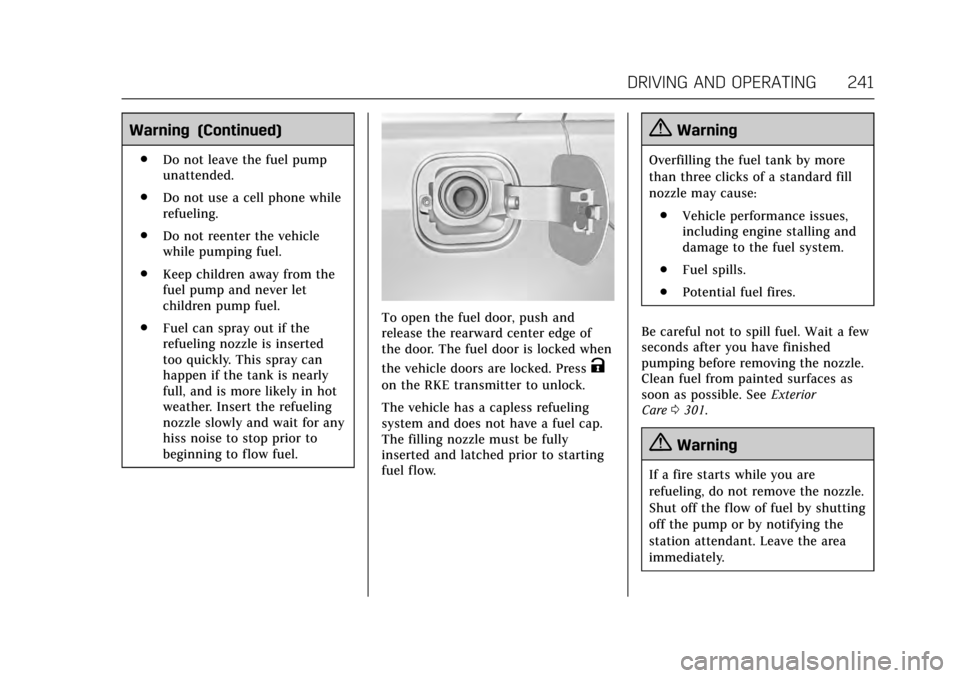
To open the fuel door, push and
release the rearward center edge of
the door. The fuel door is locked when
the vehicle doors are locked. Press
K
on the RKE transmitter to unlock.
The vehicle has a capless refueling
system and does not have a fuel cap.
The filling nozzle must be fully
inserted and latched prior to starting
fuel flow.
{Warning
Overfilling the fuel tank by more
than three clicks of a standard fill
nozzle may cause:
. Vehicle performance issues,
including engine stalling and
damage to the fuel system.
. Fuel spills.
. Potential fuel fires.
Be careful not to spill fuel. Wait a few
seconds after you have finished
pumping before removing the nozzle.
Clean fuel from painted surfaces as
soon as possible. See Exterior
Care 0301.
{Warning
If a fire starts while you are
refueling, do not remove the nozzle.
Shut off the flow of fuel by shutting
off the pump or by notifying the
station attendant. Leave the area
immediately.
Page 243 of 337
Cadillac CT6 Owner Manual (GMNA-Localizing-MidEast-10293390) - 2017 -
CRC - 6/21/16
242 DRIVING AND OPERATING
When replacing the fuel cap, turn it
clockwise until it clicks. Make sure the
cap is fully installed.
Filling the Tank with a Portable
Gas Can
If the vehicle runs out of fuel and
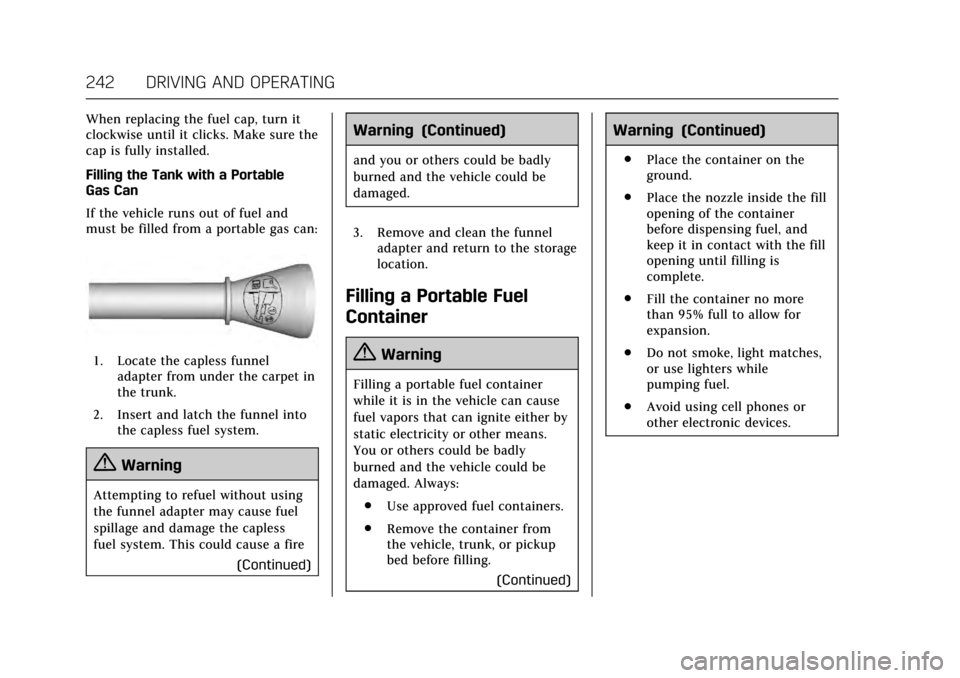
must be filled from a portable gas can:
1. Locate the capless funneladapter from under the carpet in
the trunk.
2. Insert and latch the funnel into the capless fuel system.
{Warning
Attempting to refuel without using
the funnel adapter may cause fuel
spillage and damage the capless
fuel system. This could cause a fire
(Continued)
Warning (Continued)
and you or others could be badly
burned and the vehicle could be
damaged.
3. Remove and clean the funnel adapter and return to the storage
location.
Filling a Portable Fuel
Container
{Warning
Filling a portable fuel container
while it is in the vehicle can cause
fuel vapors that can ignite either by
static electricity or other means.
You or others could be badly
burned and the vehicle could be
damaged. Always:
. Use approved fuel containers.
. Remove the container from
the vehicle, trunk, or pickup
bed before filling.
(Continued)
Warning (Continued)
.Place the container on the
ground.
. Place the nozzle inside the fill
opening of the container
before dispensing fuel, and
keep it in contact with the fill
opening until filling is
complete.
. Fill the container no more
than 95% full to allow for
expansion.
. Do not smoke, light matches,
or use lighters while
pumping fuel.
. Avoid using cell phones or
other electronic devices.